
How to filter on a Managed Metadata column via REST in SharePoint 2013
Pardon the pun, but I just had a ‘clever workaround’ moment with SharePoint’s oData/REST implementation when it comes to filtering list items based on taxonomy (managed metadata) columns. Now I do not consider myself a developer, so this article is probably a little verbose for some readers, but should be helpful to power users or IT pros.
Here is an example term set called FilterDemo. You can see two levels of hierarchy.
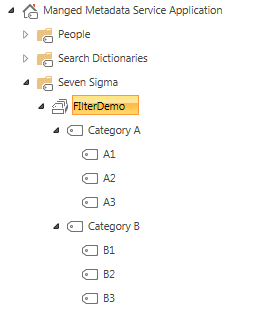
Take the scenario of a custom list (called TestFilter) with a managed metadata column (called FilterDemo) that links to the above term set. Let’s also assume there are 3 entries in it as follows:
| Title | FilterDemo |
| A | A1 |
| B | B3 |
| C | Category A |
Using the wonders of the REST API, I am able to get access to all items in the list via the following URL:
http://site/_api/web/lists/getbytitle(‘TestFIlter’)/Items
If you execute that, and IE is has “feed reading view” turned off, you will get back lots of scary looking XML. If you collapse it though, you will see three entry tags in it. One for each item in the TestFilter list.
Using more wonders of REST (and oData), I can change the URL to filter my results so that I only get matching items back. For example: here I am filtering on Items where the Title field has “A” in it.
http://site/_api/web/lists/getbytitle(‘Testfilter’)/Items/?$filter=Title eq ‘A’
Now we get back just the one entry matching that criteria…
Okay, so there is nothing earth shattering about what I just did above and its well documented in various places. But look what happens when I try and filter items in the list based on the FilterDemo column which is Managed metadata based…
http://site/_api/web/lists/getbytitle(‘Testfilter’)/Items?$filter=FilterDemo eq ‘A1’
Boom! Browser returns an error. If I do the same thing using Fiddler to look at the trace, it reports a HTTP/1.1 400 Bad Request error.
So I start digging and come across articles from Phil Harding and Serge Luca informing me that Taxonomy columns are unsupported via REST. I got my hopes up when I came across an Andrew Connell article on filtering lookup fields, since behind the scenes the taxonomy field is actually a lookup field, but in the comments section, it seemed to confirm that this wasn’t doable. All seemed lost…
But in reading MSDN’s REST articles, I had a vague recollection that CAML could be done via REST queries. I knew that using CAML, it was indeed possible to filter taxonomy columns. I proved it using CAML Designer 2013, connecting to the TestFilter list and filtering it successfully using the following XML…
<Where>
   <Eq>
      <FieldRef Name='FilterDemo' />
      <Value Type='TaxonomyFieldType'>A1</Value>
   </Eq>
</Where>
So, armed with this knowledge, I came across an MSDN forum thread where a tantalising clue was offered. Christophe Humbert asked whether CAML queries could be done via the REST API and Erik C. Jordan provided this nugget of wisdom:
I was able to get the following to work:
POST https://<site>/_api/web/Lists/GetByTitle(‘[list name]’)/GetItems(query=@v1)?@v1={“ViewXml”:”<View><Query>[other CAML query elements]</Query></View>”}
Editors node: I will be a little verbose at this point in case you are not a developer or overly familiar with REST.
This approach looked exactly what I needed and I thought this was worth a shot, but since the remedy is a HTTP POST rather than a GET, I couldn’t do it with Internet Explorer, so I loaded up fiddler, and used the Composer function. I crafted the following POST with an empty CAML query as a test…
http://site/_api/Web/lists/getByTitle(‘TestFilter’)/GetItems(query=@v1)?@v1={“ViewXml”:”<View><Query></Query></View>”}
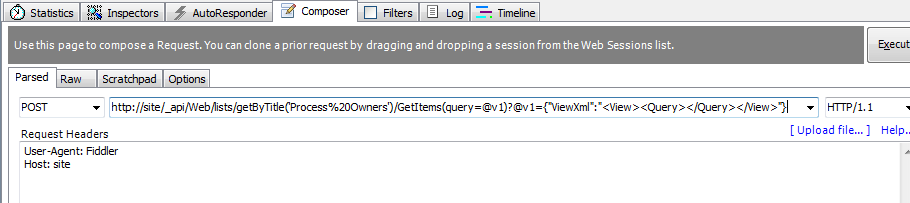
And this is the response I got…
HTTP/1.1 411 Length Required
A quick bit of googling, and I realise that some HTTP queries require the use of a ‘Content-Length‘ field in the HTTP header. The standard states that: “Any Content-Length greater than or equal to zero is a valid value”, so I tried this figure as shown below:
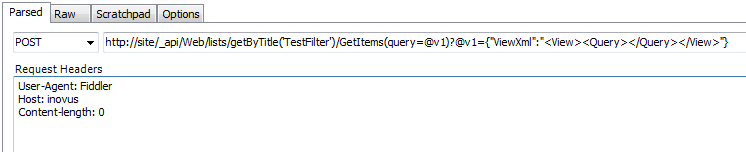
And this time I get the response:
HTTP/1.1 403 FORBIDDEN (The security validation for this page is invalid and might be corrupted. Please use your web browser’s Back button to try your operation again).
Another quick bit of googling I discover that I am missing another required HTTP header in my POST request. This is called the X-RequestDigest and it holds something called the form digest. The form digest improves SharePoint security because it is specific to a specific user, site and limited to a certain time frame. You need to request a form digest and then pass it back to SharePoint for subsequent calls. To get hold of the form digest, you have to make another REST call which generates one. This is done by making a POST request with an empty body to http://site/_api/contextinfo and extracting the value of the “d:FormDigestValue” node in the information returned. In fiddler it looks like the following…
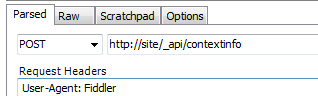
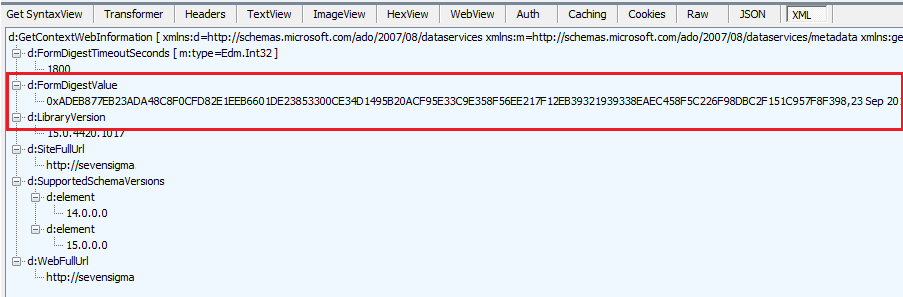
If you look at the returned content from calling the _api/contextinfo method above, I have highlighted FormDigestValue. In Fiddler, copy this value into the Request headers section of the composer and retry the CAML request:
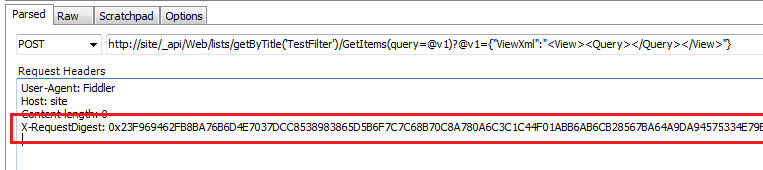
Now if you execute the request, we get data!
HTTP/1.1 200 OK
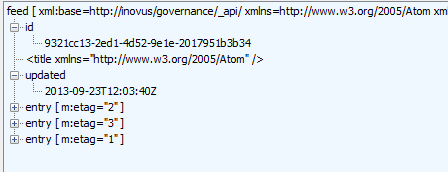
If you look a the raw results in fiddler, you will see a whole bunch of scary XML. If you examine the results using the XML parser built into Fiddler as shown in the image below, you will see very similar output to my original REST request that I started this article with – 3 entries in this list. It worked!
So now let’s add our CAML query into the XML and see if we can make it work. Recall that I successfully tested this query via the following CAML…
<Where> <Eq> <FieldRef Name=’FilterDemo’ /> <Value Type=’TaxonomyFieldType’>A1</Value> </Eq> </Where>
So I construct the following URL and paste into the Fiddler constructor:
http://site/_api/Web/lists/getByTitle(‘TestFilter’)/GetItems(query=@v1)?@v1={“ViewXml”:”<View><Query><Where> <Eq> <FieldRef Name=’FilterDemo’ /> <Value Type=’TaxonomyFieldType’>A1</Value> </Eq> </Where> </Query></View>”}
With great excitement, I clicked “Execute” and received….
HTTP/1.1 400 Bad Request
Ah crap! Unfortunately I could not find a single example of this form of REST query to SharePoint, but I got a hint to the problem from Fiddler itself. It wasn’t happy with my request at all, showing the request as red.
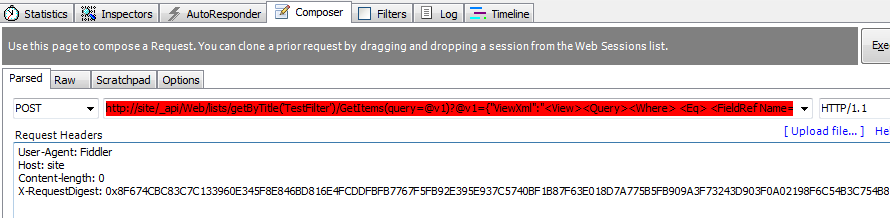
Clearly I was doing something wrong, and being a non-developer I figured I wasn’t encoding things properly. So after some trial and error, I worked out that spaces were the issue. So where I was able to remove them I did, and those that I couldn’t, I encoded like so:
http://site/_api/Web/lists/getByTitle(‘TestFilter’)/GetItems(query=@v1)?@v1={“ViewXml”:”<View><Query><Where><Eq><FieldRef%20Name=’FilterDemo’/><Value%20Type=’TaxonomyFieldType’>A1</Value></Eq></Where></Query></View>”}
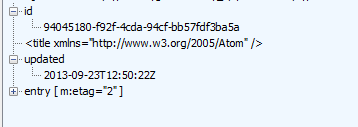
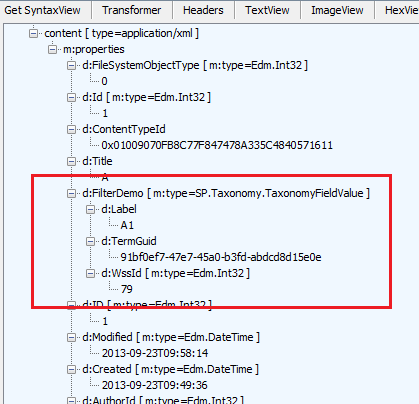
At this point fiddler stopped showing me an angry red colour and I clicked the Execute button. Wohoo! It works! Below you can see a single matching entry, just like my example when I filtered on Title column using the $filter parameter.
Expanding the XML indeed confirms it has matched term A1. 
Conclusion
While I was happy that I found a way to use REST to filter a list based on a Taxonomy column, I’m sure this method offers some interesting opportunities in various other scenarios.
In my company Seven Sigma, we have a worn-out post-it note that has the words “Alpha SharePoint Developer” written on it. This gets stuck to the office of whoever does the coolest coding trick and I’m happy to report that this little effort netted me the Alpha developer prize for the first time ever, principally because I then used this approach with SharePoint Designer 2013 workflows and it worked really well. In fact it worked so well that I have decided that using this with the new capabilities of SPD workflows warrants a blog series of its own.
Until then, I hope that this approach works for you and happy REST’ing!
Thanks for reading
Paul Culmsee





