
Getting pics to SharePoint from PowerApps is getting easier…
Hi all
A long time ago now I detailed a method of getting photos to SharePoint via a custom connector. For a long time, this was the best way to handle the all-too-common need of uploading media to SharePoint. It was also my most popular Youtube video by far…
Various alternative methods have appeared since I did that video, and one big disadvantage of the old method was licensing implications as custom connectors became a P1 license thing. John Liu worked out an epic hack and for a while I started using the Azure Blob storage connector because it was not premium and did not hit a P1 constraint.
But now, thanks to a new feature in PowerApps, we have an even easier way. We can now use the JSON() function to encode media in Base64 and get Flow to process it.
For example…
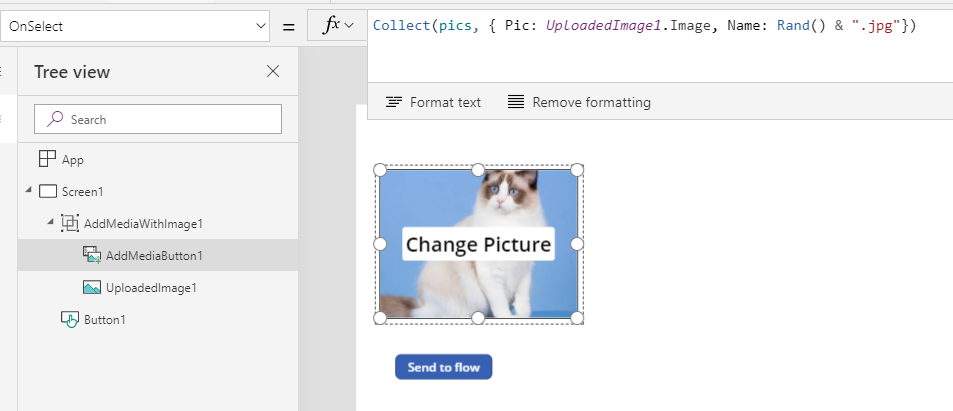
1. Add the “Add picture control” to a screen and set the AddMediaButton component to add the photo and a random filename to a collection.
eg
Collect(pics, { Pic: UploadedImage1.Image, Name: Rand() & “.jpg”})
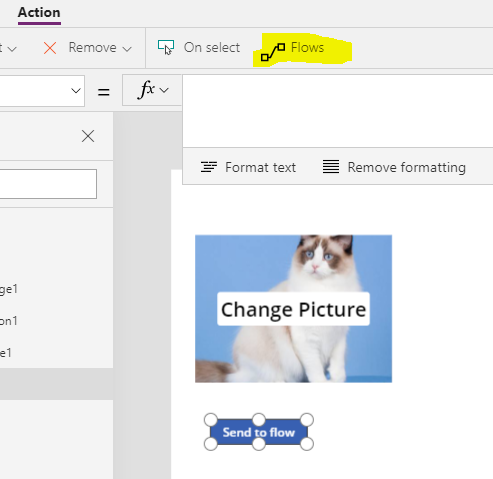
2. Add a button to the screen and create a flow from it using the Action menu.
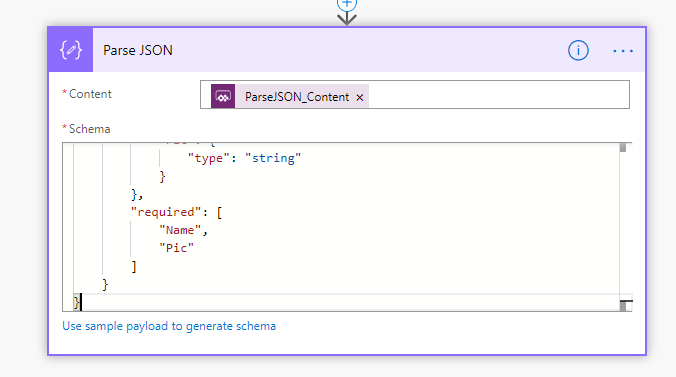
3. In the freshly minted flow, add a Parse JSON action, and in the content textbox, choose Ask in PowerApps from the data panel and add the following schema…
{
    "type": "array",
    "items": {
        "type": "object",
        "properties": {
            "Name": {
                "type": "string"
            },
            "Pic": {
                "type": "string"
            }
        },
        "required": [
            "Name",
            "Pic"
        ]
    }
}
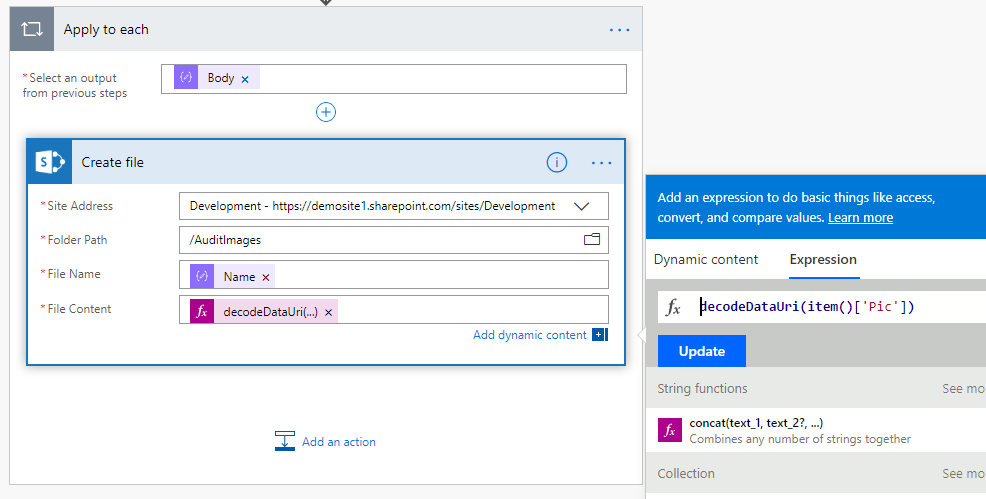
4. Add a Create File action from SharePoint or OneDrive. In this case I will use SharePoint. From the data panel, set the File Name to Name from the Parse JSON action output. Since this is an array of files, Flow will wrap this action inside an Apply to Each action.
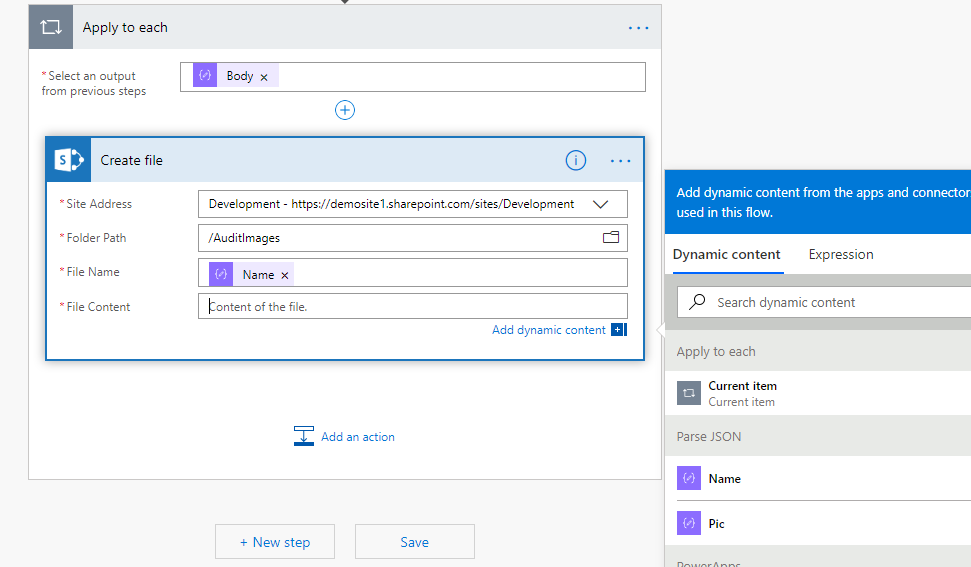
5. For the file content action, add an expression as follows:
decodeDataUri(item()[‘Pic’])
This expression is basically saying “for the selected array of photos, grab the Pic content and turn it back into binary
6. Save the flow and go back to your PowerApp. Choose the button again and link to your newly created Flow via the action menu.
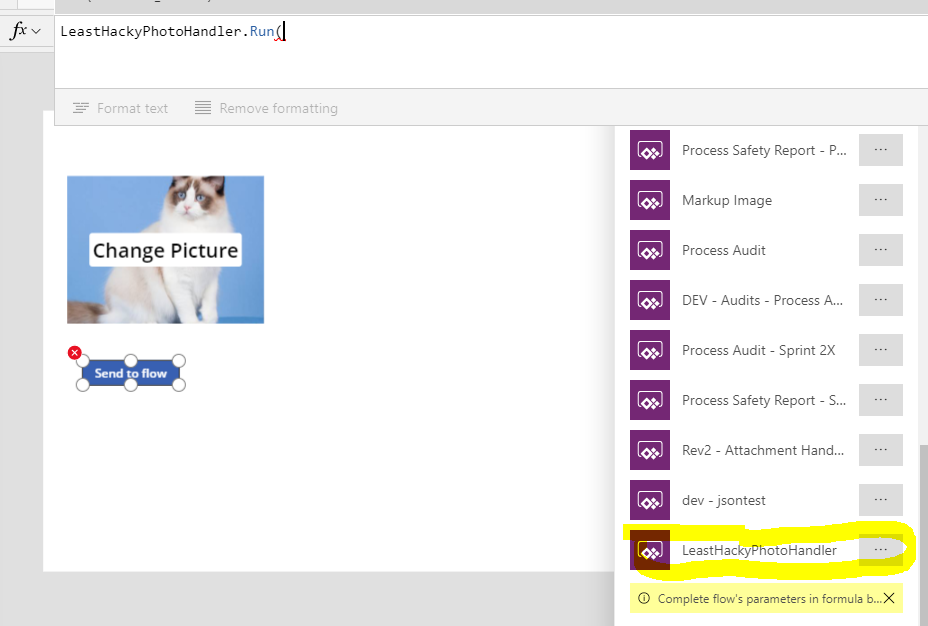
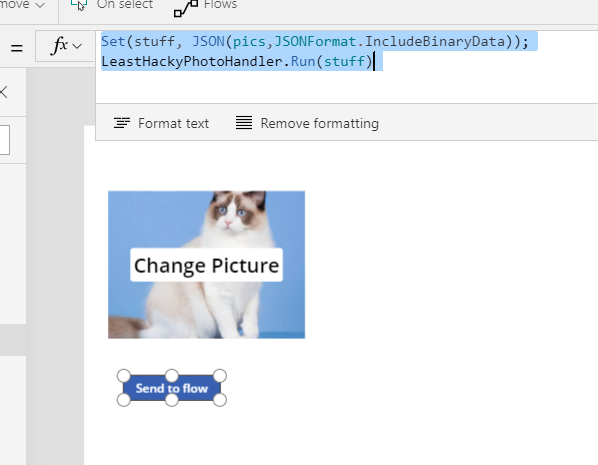
7. Complete the expression on the button as follows…
Set(stuff, JSON(pics,JSONFormat.IncludeBinaryData));
LeastHackyPhotoHandler.Run(stuff)
This is the bit that is converting your photo collection to a form that can be easily sent to Flow…
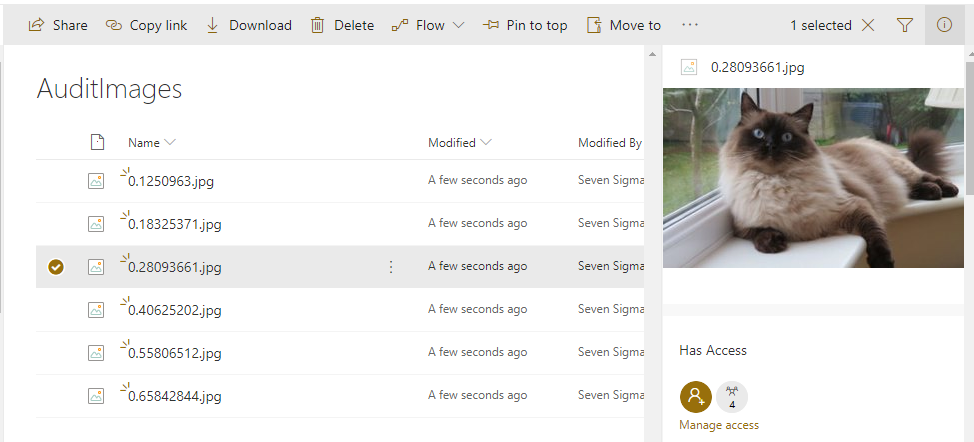
Finally, take some pics and click your button… if all goes to plan, you will see your photos in SharePoint or OneDrive…
Conclusion
I know that this sort of integration has been a long-time coming and is very welcome. Until such time as SharePoint provides native support for sending files, this method is pretty clean and simple…
Let me know how you go
Paul Culmsee





