Back to Cleverworkarounds mainpage
 

What does project management mean to me – a Project Manager’s sermon

The "message"

What does project management mean to me?

Well if you want me to give you the ‘glass half empty’ perspective, it’s easy. What project management means to me is a confused discipline where practitioners routinely do really dumb shit in its name.

Sermon over – go forth and spread the word…

Okay so that was fairly blunt, so I had better elaborate and perhaps take a more positively framed ‘glass half full’ approach to this sermon. To do that, I need to tell you about the legacy that Cleo magazine has left on society.

When I was younger, I used to skim through magazines like Cosmopolitan and Cleo while waiting in line at the checkout. Now you might think that I must really be in touch with my feminine side in admitting this, but no: the reality is that raw testosterone was the motivator. You see, Cleo would have headline articles like “10 great sex tips (in 50 words or less)” Or “The 10 things he doesn’t want in bed.” Titles like that dangled the possibility in front of me of finally understanding women, with the added bonus of developing Olympic class skills in the bedroom. Of course, each and every time the actual article never lived up to the catchy title. I rarely learnt anything new and in fact the “10 things” were usually pretty banal, self-evident and left me none the wiser.

So as our collective attention spans diminish via constant exposure to “5 steps to success with [insert buzzword here]” articles (articles designed more for search engine placement than actually informing an audience), the curse of Cleo-like catchy titles telling you stuff of little value is now so commonplace that it is hard to suss out the stuff that really makes a difference in outcomes.

So where does one go to find out the answers in project management? Should aspiring Project Managers master the dark arts of their craft by learning everything there is to learn from one or more of the bibles that contain the word “BoK” in them? On the surface it would seem so, given all of the past collective wisdom that is claimed to be codified therein – as well as shiny certification proving that one has passed the multi-choice exam on its contents.

But wait…which BoK is best? After all, we have multiple to choose from, with each making their own claims to the truth. Some BoKs even reject the key tenets of other BoKs, arguing that theirs offers a better answer. Of course, this leads to an endless stream of debate by their respective proponents as to which is really best and who is really the wisest. Not to mention that over time, new and updated BoKs emerge like phoenixes from the ashes of older BoKs. (Sometimes they are so cool that they don’t even claim to be a BoK at all).

It’s little wonder that Project Management is a confused discipline. No matter where you turn, someone is bound to tell you that you are doing it wrong.

While I am on the subject of doing it wrong, let’s poke a stick in one of the well-known project management hornets-nests: the “Waterfall vs. Scrum” argument. We all know that any self-respecting Scrum guy will not miss an opportunity to tell you about the evils of Waterfall – and for the most part they are right too, as Waterfall has a dubious history of which most people are not aware.

But that is not the reason I chose this particular topic, even though it is much loved by PMs who spend endless hours filling up the forums of various LinkedIn groups with discussion. I chose it simply because it’s fun to mess with Scrum guys – particularly the zealots. So if you have a “scrumdamentalist” in your midst, try this question on them:

Would Waterfall work if one could create an environment where all parties—as soon as they become aware of something that might affect a project materially—communicate it to all other parties involved in the project in a full, sincere and open way?

I have posed this question to many Scrum people. Most will think about it for some time, before answering a grudging “possibly” or “I don’t see why not.” Try it yourself… it’s fun pulling the rug out from under their firmly held convictions.

The best answer I have ever got to this question was from Chris Chapman – an Agile coach from Toronto. He gave me what I think is the perfect answer when he astutely observed that in the environment I described, Waterfall would actually not exist in the first place!

Therein lies the heart of my sermon. I contend that the endless debates over the efficacy of methods, tools and even BoKs are answering the wrong question! Don’t worry though, Project Management is not the first, nor the last discipline to lean their ladder against the wrong wall in this regard. To explain, let me introduce you to the work (and genius) of J Richard Hackman.

From the late sixties, Hackman spent his career researching and teaching about team performance, leadership effectiveness, and the design of self-managing teams and organizations. He died in 2013 and one of his last papers he published was called “From causes to conditions in group research.” In this swansong paper, Hackman explained how he spent years examining the factors that made teams work really well. He studied hundreds of teams (not just project teams mind you, but sporting teams, orchestras and flight crews), with the aim to distil the causes of success. Each time Hackman thought he had the causes figured out he would create a model, plug his model into a stats program, and work with real teams to see if the application of his model led to better performance.

On the surface, this approach seems like a logical thing to do. After all, if we can work out the magic levers that cause team success, then organisations would surely work better because they can start to pull those same levers. This is precisely the value proposition offered by the aforementioned BoKs as well.

When Hackman applied the models he lovingly researched and developed, he found they did not make a significant difference in outcomes. Being an academic, he did what most academics do: he spent years trying to refine his models and then re-tested them against real life teamwork situations. But this didn’t work either; his models got no closer to predicting or influencing outcomes in a reliable fashion. Reality it seemed, never fitted the models he developed.

At this point, Hackman began to question whether he was looking at the problem through the right lens. He wondered if trying to determine the causes of team efficacy by looking at successful teams retrospectively and then codifying these into causal models was the best approach. So he changed his focus and asked himself a very different question – a question that every project management practitioner (and project team member) should be asking themselves:

What are the enabling conditions that need to exist that give rise to great outcomes?

Now if, at this point, you think that this is the same question as “What are the causes of successful projects” you would be mistaken. Think about the BoKs and consider this: if you have ever argued with someone about whether a tool, methodology or some process is great or completely sucks, eventually someone will say something like “Well it can work for the right organisation.”

The implicit point here is that depending on the conditions, something that works for one organisation may completely suck for another (thereby invalidating the notion of a “best” practice). The genius of Hackman is that he challenges us to stop arguing about whether one methodology or model is better than the other and focus on what the enabling conditions are instead. Think about it – if project managers and developers did this, we would be able to avoid low value arguments like earned value management versus burndown charts.

In the case of Hackman, he re-examined all of his work on teams and boiled it down to six essential conditions, arguing that irrespective of what else you did or what methodology you used, having these conditions tended to lead to better results. Hackman did not rank any one condition over any other, instead arguing that all were needed for teams to have a greater chance of being high performing. The conditions are:

  1. A real team: Interdependence among members, clear boundaries distinguishing members from non-members and moderate stability of membership over time
  2. A compelling purpose: A purpose that is clear, challenging, and consequential. It energizes team members and fully engages their talents
  3. Right people: People who had task expertise, self-organised and skill in working collaboratively with others
  4. Clear norms of conduct: Team understands clearly what behaviours are, and are not, acceptable
  5. A supportive organisational context: The team has the resources it needs and the reward system provides recognition and positive consequences for excellent team performance
  6. Appropriate coaching: The right sort of coaching for the team was provided at the right time

There is more to that list than what I am covering here, and it is important to note that I’m not saying that Hackman’s conditions are *the* conditions. But I would contend that they are a pretty good start. Look at Hackman’s conditions for teams above and think about your projects and how you manage them. Did you have these conditions in place when you started? If you had them, would it have led to better outcomes?

I believe that it is a huge mistake to attribute success or failure of projects to methods, processes and models used to manage them rather than the conditions in which those processes operate. As long as this attribution error persists, people will continue to get suckered into B-grade verbal-slugfests about whether method X is better than method Y.

What exacerbates this “causes over conditions” problem is that enabling conditions rarely get codified in procedures, governance models, bodies of knowledge or certifications. As a result, the very factors that leads to success (the conditions) are entirely absent from the models that we use. My contention is that most organisations, when delivering projects, do not have the right enabling conditions in place to begin with. If your organisation has a blame culture, then chances are that any process, no matter how noble its design or intent, has the potential to become a blame apportionment mechanism or a responsibility avoidance mechanism.

So Hackman, despite looking at a different discipline of teamwork and leadership, gives us an important clue about what ails project management and how to we might improve it. Focus on enabling conditions rather than attributing causes!

Let’s get back to Chris Chapman’s answer to my Waterfall question. His assertion that Waterfall would not exist in the conditions I described holds a less obvious lesson. That is, the way project management tools or methods are used will affect conditions as well. So if you have ever said to yourself “I can’t believe that I am being forced to follow this wrong-headed process” chances are you have been on the receiving end of negative conditions created by application of a process. (So in this sense the agile dudes have it right.)

So what does project management mean to me? In short, focusing on creating the enabling conditions for great performance, and then getting out of the way!


Thanks for reading

Paul  Culmsee


Epilogue:

In this sermon I cannot hope to cover all of the things I would like to cover but never fear, Kailash Awati and I already piled some of our thoughts into 420 pages of goodness known as the book “The Heretics Guide to Best Practices” – so if you like what you read here, you will really like what is in there.

Acknowledgements:

As usual I have to thank Kailash for reviewing this post and making it suck much less than it did 🙂

Further reading:

  1. My series on rethinking SharePoint maturity: Don’t let the title put you off – the material here further explores the conditions for great project performance: http://www.cleverworkarounds.com/2013/08/19/rethinking-sharepoint-maturity-part-1-conditions-over-causes/
  2. Jon Whitty’s brilliant work on memeplexes and reconceptualising project management: http://espace.library.uq.edu.au/eserv/UQ:8801/sjw_ijpm_05.pdf
  3. Pretty much anything on Kailash Awati’s blog, but in particular his sermon in this flashblog: http://eight2late.wordpress.com/2013/09/25/what-project-management-means-to-me-a-metalogue/
  4. Stephen Duffield’s work on project knowledge management and risk: http://www.invictaprojects.com.au/pmlessonslearnedblog/?p=850

p.s: This post is published as part of a first ever project management related global blogging initiative to publish a post on a common theme at exactly the same time. Over seventy bloggers from Australia, Canada, Colombia, Denmark, France, Italy, Mexico, Poland, Portugal, Singapore, South Africa, Spain, UK and the USA have committed to make a blogging contribution and the fruit of their labor is now (literally NOW) available all over the web. The complete list of all participating blogs is found here so please go and check them out!


How to filter on a Managed Metadata column via REST in SharePoint 2013

Pardon the pun, but I just had a ‘clever workaround’ moment with SharePoint’s oData/REST implementation when it comes to filtering list items based on taxonomy (managed metadata) columns. Now I do not consider myself a developer, so this article is probably a little verbose for some readers, but should be helpful to power users or IT pros.

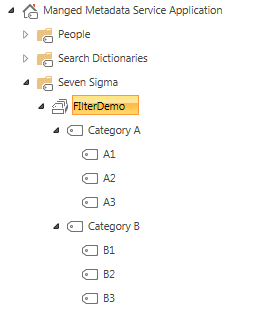
Here is an example term set called FilterDemo. You can see two levels of hierarchy.

image

Take the scenario of a custom list (called TestFilter) with a managed metadata column (called FilterDemo) that links to the above term set. Let’s also assume there are 3 entries in it as follows:

Title FilterDemo
A A1
B B3
C Category A

Using the wonders of the REST API, I am able to get access to all items in the list via the following URL:

http://site/_api/web/lists/getbytitle(‘TestFIlter’)/Items

If you execute that, and IE is has “feed reading view” turned off, you will get back lots of scary looking XML. If you collapse it though, you will see three entry tags in it. One for each item in the TestFilter list.

 <?xml version=”1.0″ encoding=”utf-8″ ?>
<feed xml:base=http://site/_api/ xmlns=”http://www.w3.org/2005/Atom xmlns:d=”http://schemas.microsoft.com/ado/2007/08/dataservices xmlns:m=”http://schemas.microsoft.com/ado/2007/08/dataservices/metadata xmlns:georss=”http://www.georss.org/georss xmlns:gml=”http://www.opengis.net/gml>
  <id>a0dd3649-27b9-4d8d-90f8-243e9622b158</id>
  <title />
  <updated>2013-09-23T01:44:35Z</updated>
+ <entry m:etag=”“2”>
+ <entry m:etag=”“3”>
+ <entry m:etag=”“1”“>
</feed>

Using more wonders of REST (and oData), I can change the URL to filter my results so that I only get matching items back. For example: here I am filtering on Items where the Title field has “A” in it.

http://site/_api/web/lists/getbytitle(‘Testfilter’)/Items/?$filter=Title eq ‘A’

Now we get back just the one entry matching that criteria…

 <?xml version=”1.0″ encoding=”utf-8″ ?>
<feed xml:base=http://site/_api/ xmlns=”http://www.w3.org/2005/Atom xmlns:d=”http://schemas.microsoft.com/ado/2007/08/dataservices xmlns:m=”http://schemas.microsoft.com/ado/2007/08/dataservices/metadata xmlns:georss=”http://www.georss.org/georss xmlns:gml=”http://www.opengis.net/gml>
  <id>9dad763d-743f-4ffb-b26b-e53c0f6e1f7e</id>
  <title />
  <updated>2013-09-23T02:19:02Z</updated>
+ <entry m:etag=”“2”>

</feed>

Okay, so there is nothing earth shattering about what I just did above and its well documented in various places. But look what happens when I try and filter items in the list based on the FilterDemo column which is Managed metadata based…

http://site/_api/web/lists/getbytitle(‘Testfilter’)/Items?$filter=FilterDemo eq ‘A1’

Boom! Browser returns an error. If I do the same thing using Fiddler to look at the trace, it reports a HTTP/1.1 400 Bad Request error.

So I start digging and come across articles from Phil Harding and Serge Luca informing me that Taxonomy columns are unsupported via REST. I got my hopes up when I came across an Andrew Connell article on filtering lookup fields, since behind the scenes the taxonomy field is actually a lookup field, but in the comments section, it seemed to confirm that this wasn’t doable. All seemed lost…

But in reading MSDN’s REST articles, I had a vague recollection that CAML could be done via REST queries. I knew that using CAML, it was indeed possible to filter taxonomy columns. I proved it using CAML Designer 2013, connecting to the TestFilter list and filtering it successfully using the following XML…

<Where>
   <Eq>
      <FieldRef Name='FilterDemo' />
      <Value Type='TaxonomyFieldType'>A1</Value>
   </Eq>
</Where>

So, armed with this knowledge, I came across an MSDN forum thread where a tantalising clue was offered. Christophe Humbert asked whether CAML queries could be done via the REST API and Erik C. Jordan provided this nugget of wisdom:

I was able to get the following to work:

POST https://<site>/_api/web/Lists/GetByTitle(‘[list name]’)/GetItems(query=@v1)?@v1={“ViewXml”:”<View><Query>[other CAML query elements]</Query></View>”}

Editors node: I will be a little verbose at this point in case you are not a developer or overly familiar with REST.

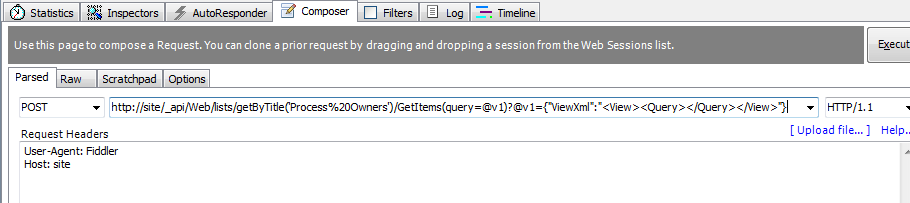
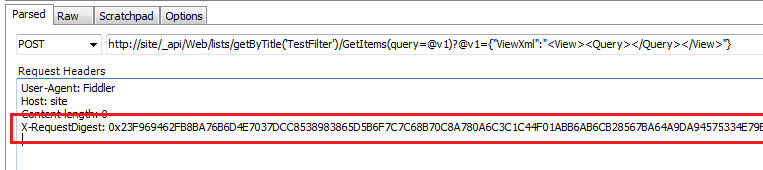
This approach looked exactly what I needed and I thought this was worth a shot, but since the remedy is a HTTP POST rather than a GET, I couldn’t do it with Internet Explorer, so I loaded up fiddler, and used the Composer function. I crafted the following POST with an empty CAML query as a test…

http://site/_api/Web/lists/getByTitle(‘TestFilter’)/GetItems(query=@v1)?@v1={“ViewXml”:”<View><Query></Query></View>”}


image

And this is the response I got…

HTTP/1.1 411 Length Required

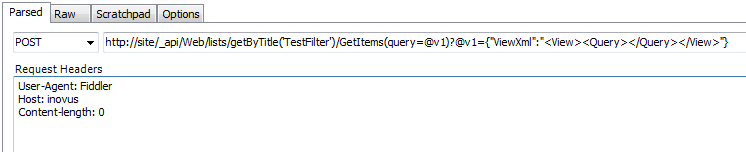
A quick bit of googling, and I realise that some HTTP queries require the use of a ‘Content-Length‘ field in the HTTP header. The standard states that: “Any Content-Length greater than or equal to zero is a valid value”, so I tried this figure as shown below:

image

And this time I get the response:

HTTP/1.1 403 FORBIDDEN (The security validation for this page is invalid and might be corrupted. Please use your web browser’s Back button to try your operation again).

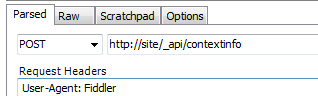
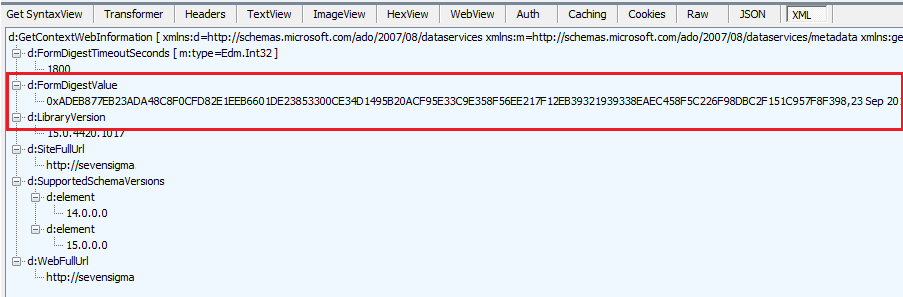
Another quick bit of googling I discover that I am missing another required HTTP header in my POST request. This is called the X-RequestDigest and it holds something called the form digest. The form digest improves SharePoint security because it is specific to a specific user, site and limited to a certain time frame. You need to request a form digest and then pass it back to SharePoint for subsequent calls. To get hold of the form digest, you have to make another REST call which generates one. This is done by making a POST request with an empty body to http://site/_api/contextinfo and extracting the value of the “d:FormDigestValue” node in the information returned. In fiddler it looks like the following…

image

image

If you look at the returned content from calling the _api/contextinfo method above, I have highlighted FormDigestValue. In Fiddler, copy this value into the Request headers section of the composer and retry the CAML request:

image

Now if you execute the request, we get data!

HTTP/1.1 200 OK

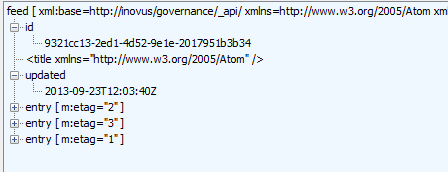
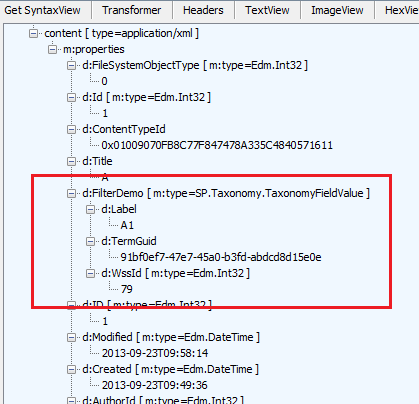
If you look a the raw results in fiddler, you will see a whole bunch of scary XML. If you examine the results using the XML parser built into Fiddler as shown in the image below, you will see very similar output to my original REST request that I started this article with – 3 entries in this list. It worked!

image

So now let’s add our CAML query into the XML and see if we can make it work. Recall that I successfully tested this query via the following CAML…

<Where> <Eq> <FieldRef Name=’FilterDemo’ /> <Value Type=’TaxonomyFieldType’>A1</Value> </Eq> </Where>

So I construct the following URL and paste into the Fiddler constructor:

http://site/_api/Web/lists/getByTitle(‘TestFilter’)/GetItems(query=@v1)?@v1={“ViewXml”:”<View><Query><Where> <Eq> <FieldRef Name=’FilterDemo’ /> <Value Type=’TaxonomyFieldType’>A1</Value> </Eq> </Where> </Query></View>”}


With great excitement, I clicked “Execute” and received….

HTTP/1.1 400 Bad Request

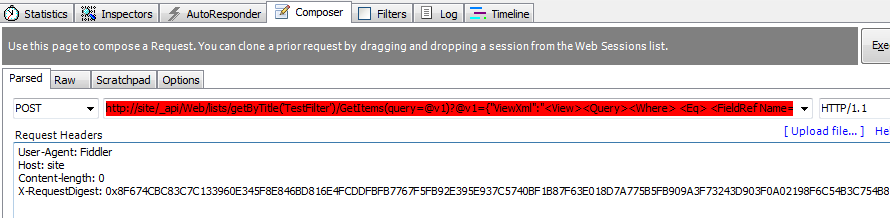
Ah crap! Unfortunately I could not find a single example of this form of REST query to SharePoint, but I got a hint to the problem from Fiddler itself. It wasn’t happy with my request at all, showing the request as red.

image

Clearly I was doing something wrong, and being a non-developer I figured I wasn’t encoding things properly. So after some trial and error, I worked out that spaces were the issue. So where I was able to remove them I did, and those that I couldn’t, I encoded like so:

http://site/_api/Web/lists/getByTitle(‘TestFilter’)/GetItems(query=@v1)?@v1={“ViewXml”:”<View><Query><Where><Eq><FieldRef%20Name=’FilterDemo’/><Value%20Type=’TaxonomyFieldType’>A1</Value></Eq></Where></Query></View>”}

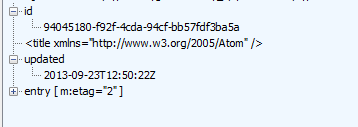
At this point fiddler stopped showing me an angry red colour and I clicked the Execute button. Wohoo! It works! Below you can see a single matching entry, just like my example when I filtered on Title column using the $filter parameter.

image

Expanding the XML indeed confirms it has matched term A1. Smile

image

Conclusion

While I was happy that I found a way to use REST to filter a list based on a Taxonomy column, I’m sure this method offers some interesting opportunities in various other scenarios.

In my company Seven Sigma, we have a worn-out post-it note that has the words “Alpha SharePoint Developer” written on it. This gets stuck to the office of whoever does the coolest coding trick and I’m happy to report that this little effort netted me the Alpha developer prize for the first time ever, principally because I then used this approach with SharePoint Designer 2013 workflows and it worked really well. In fact it worked so well that I have decided that using this with the new capabilities of SPD workflows warrants a blog series of its own.

Until then, I hope that this approach works for you and happy REST’ing!


Thanks for reading

Paul Culmsee

www.hereticsguidebooks.com

www.sevensigma.com.au


The worlds biggest Project Management rant is happening on September 25 (#PMFlashblog)

Tags: Strategy @ 10:03 am

Just a quick FYI..

A while back, Shim Marom (an Australian Project Management blogger) invited me to participate in an idea he had. He wanted to get a bunch of PM bloggers to write a sermon on the same topic and release the posts at the same time. So far, more than 70 bloggers have jumped on board, so there will be a lot of reading to do on that day! The topic of the sermon is “What does project management mean to me” and will be promoted via the #PMFlashblog hashtag. With a topic like that, how could I resist?

Given I am one of 70 people (and one of the dumber ones), I thought I’d better do a good rant sermon so I have spent a bit of time (and beer) reflecting on what project management means to me. My Heretics Guide partner in crime Kailash Awati is also participating, as is some of our favourite bloggers and authors in this area.

It should be great!

Paul Culmsee

www.hereticsguidebooks.com


Troubleshooting PerformancePoint Dashboard Designer Data Connectivity to SharePoint Lists

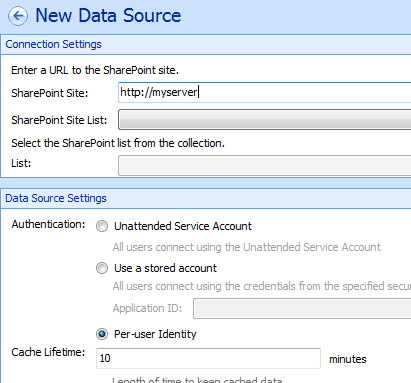
image

Here is a quick note with regards to PowerPivot Dashboard Designer connecting to SharePoint lists utilising Per-user identity on the single server.  The screenshot above shows what I mean. I have told Dashboard designer to use a SharePoint list as a data source on a site called “http://myserver and chosen the “Per-user identity” to connect with the credentials of the currently logged in user, rather than a shared user or something configured in the secure store (which is essentially another shared user scenario). Per-user identity makes a lot of sense most of the time for SharePoint lists, because SharePoint already controls the permissions to this data. If you have granted users access to the site in question already, the other options are overkill – especially in a single server scenario where Kerberos doesn’t have to be dealt with.

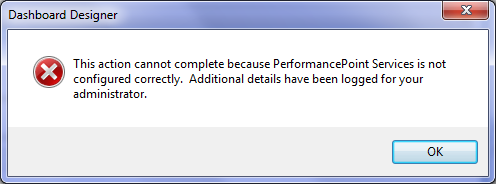
But when you try this for the first time, a common complaint is to see an error message like the one below.

image

This error is likely caused by the Claims to Windows Token Service (C2WTS) not being started. In case you are not aware of how things work behind the scenes, once a user is authenticated to SharePoint, claims authentication is used for inter/intra farm authentication between SharePoint services. Even when classic authentication is used when a user hits a SharePoint site, SharePoint converts it to a claims identity when it talks to service applications. This is all done for you behind the scenes and is all fine and dandy when SharePoint is talking to other SharePoint components, but if the service application needs to talk to an external data source that does not support claims authentication – say a SQL Database – then the Claims to Windows Token Service is used to convert the claims back to a standard Windows token.

Now based on what I just said, you might expect that PerformancePoint should use claims authentication when connecting to a SharePoint list as a data source – after all, we are not leaving the confines of SharePoint and I just told you that claims authentication is used for inter/infra farm authentication between SharePoint services, but this is not the case. When PerformancePoint connects to a SharePoint list (and that connection is set to Per-user identity as above), it converts the users claim back to a Windows Token first.

Now the error above is quite common and well documented. The giveaway is when you see an event log ID 1137 and in the details of the log, the message: Monitoring Service was unable to retrieve a Windows identity for “MyDomain\User”.  Verify that the web application authentication provider in SharePoint Central Administration is the default windows Negotiate or Kerberos provider. This is a pretty strong indicator that the C2WTS has not been configured or is not started.

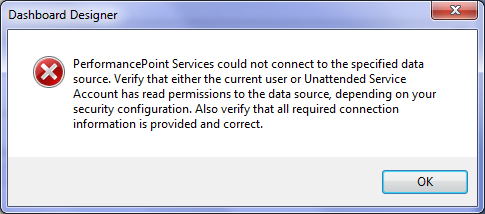
A lesser known issue is one I came across the other day. In this case, Claims to Windows Token Service was provisioned and started, and a local administrator on the box. In dashboard designer, here was the message:

image

In this error, you will see an eventlog ID 1101 and in the details of the log, something like this:

PerformancePoint Services could not connect to the specified data source. Verify that either the current user or Unattended Service Account has read permissions to the data source, depending on your security configuration. Also verify that all required connection information is provided and correct.

System.Net.WebException: The remote name could not be resolved: ‘myserver’
at System.Net.HttpWebRequest.GetRequestStream(TransportContext& context)
at System.Net.HttpWebRequest.GetRequestStream()
at System.Web.Services.Protocols.SoapHttpClientProtocol.Invoke(String methodName, Object[] parameters)
at Microsoft.PerformancePoint.Scorecards.DataSourceProviders.ListService.GetListCollection()
at Microsoft.PerformancePoint.Scorecards.DataSourceProviders.SpListDataSourceProvider.GetCubeNameInfos()

PerformancePoint Services error code 201.

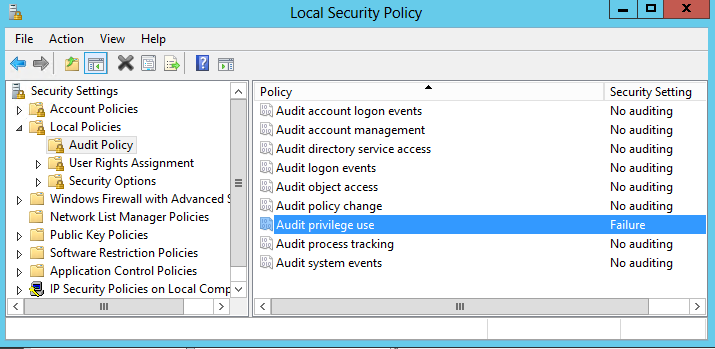
This issue has a misleading message. It suggests that the server “myserver” name could not be resolved, which might have you thinking this was a name resolution issue which is not the true root cause. This one is primarily due to a misconfiguration – most likely through Active Directory Group policy messing with server settings. A better hint to the true cause of this issue can be found in the security event log (assuming you have set the server audit policy to audit failures of “privilege use” which is not enabled by default).

image

The event ID to look for is 4673, and the Task Category is called “Sensitive Privilege Use”. A failure will be logged for the user account running the claims to windows service:

Level:         Information
Keywords:      Audit Failure
User:          N/A
Computer:      myserver.mydomain.com
Description:
A privileged service was called.

Subject:
Security ID:        mydomain\sp_c2wts
Account Name:        sp_c2wts
Account Domain:        mydomain

Service Request Information:
Privileges:        SeTcbPrivilege

The key bit to the log above is the “Service Request Information” section. “SeTcbPrivilege” means “To Act as Part of the Operating System”

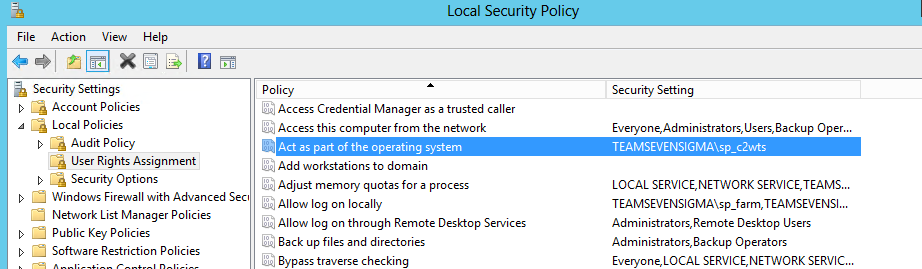
Now the root cause of this issue is clear. The claims to windows token service is missing the “Act as part of the operating system” right which is one of its key requirements. You can find this setting by opening local security policy, choosing Local Policies->User Rights  Assignment. Add the claims to windows token service user account into this right. If you cannot do so, then it is governed by an Active Directory policy and you will have to go and talk to your Active Directory admin to get it done.

image

Hope this helps someone

Paul Culmsee


p.s Below this is the full eventlog details. I’ve only put it here for search engines so feel free to stop here Smile


Log Name:      Application
Source:        Microsoft-SharePoint Products-PerformancePoint Service
Date:          3/09/2013 10:37:12 PM
Event ID:      1101
Task Category: PerformancePoint Services
Level:         Error
Keywords:
User:          domain\sp_service
Computer:      SPAPP.mydomain.com
Description:
PerformancePoint Services could not connect to the specified data source. Verify that either the current user or Unattended Service Account has read permissions to the data source, depending on your security configuration. Also verify that all required connection information is provided and correct.

System.Net.WebException: The remote name could not be resolved: ‘sharepointaite’
at System.Net.HttpWebRequest.GetRequestStream(TransportContext& context)
at System.Net.HttpWebRequest.GetRequestStream()
at System.Web.Services.Protocols.SoapHttpClientProtocol.Invoke(String methodName, Object[] parameters)
at Microsoft.PerformancePoint.Scorecards.DataSourceProviders.ListService.GetListCollection()
at Microsoft.PerformancePoint.Scorecards.DataSourceProviders.SpListDataSourceProvider.GetCubeNameInfos()

PerformancePoint Services error code 201.


Log Name:      Application
Source:        Microsoft-SharePoint Products-PerformancePoint Service
Date:          3/09/2013 10:18:39 PM
Event ID:      1137
Task Category: PerformancePoint Services
Level:         Error
Keywords:
User:          domain\sp_service
Computer:      SPAPP.mydomain.com
Description:
The following data source cannot be used because PerformancePoint Services is not configured correctly.

Data source location: http://sharepoijntsite/Shared Documents/8_.000
Data source name: New Data Source

Monitoring Service was unable to retrieve a Windows identity for “domain\user”.  Verify that the web application authentication provider in SharePoint Central Administration is the default windows Negotiate or Kerberos provider.  If the user does not have a valid active directory account the data source will need to be configured to use the unattended service account for the user to access this data.

Exception details:
System.InvalidOperationException: Could not retrieve a valid Windows identity. —> System.ServiceModel.EndpointNotFoundException: The message could not be dispatched because the service at the endpoint address ‘net.pipe://localhost/s4u/022694f3-9fbd-422b-b4b2-312e25dae2a2’ is unavailable for the protocol of the address.

Server stack trace:
at System.ServiceModel.Channels.ConnectionUpgradeHelper.DecodeFramingFault(ClientFramingDecoder decoder, IConnection connection, Uri via, String contentType, TimeoutHelper& timeoutHelper)
at System.ServiceModel.Channels.ClientFramingDuplexSessionChannel.SendPreamble(IConnection connection, ArraySegment`1 preamble, TimeoutHelper& timeoutHelper)
at System.ServiceModel.Channels.ClientFramingDuplexSessionChannel.DuplexConnectionPoolHelper.AcceptPooledConnection(IConnection connection, TimeoutHelper& timeoutHelper)
at System.ServiceModel.Channels.ConnectionPoolHelper.EstablishConnection(TimeSpan timeout)
at System.ServiceModel.Channels.ClientFramingDuplexSessionChannel.OnOpen(TimeSpan timeout)
at System.ServiceModel.Channels.CommunicationObject.Open(TimeSpan timeout)
at System.ServiceModel.Channels.ServiceChannel.OnOpen(TimeSpan timeout)
at System.ServiceModel.Channels.CommunicationObject.Open(TimeSpan timeout)
at System.ServiceModel.Channels.ServiceChannel.CallOnceManager.CallOnce(TimeSpan timeout, CallOnceManager cascade)
at System.ServiceModel.Channels.ServiceChannel.EnsureOpened(TimeSpan timeout)
at System.ServiceModel.Channels.ServiceChannel.Call(String action, Boolean oneway, ProxyOperationRuntime operation, Object[] ins, Object[] outs, TimeSpan timeout)
at System.ServiceModel.Channels.ServiceChannelProxy.InvokeService(IMethodCallMessage methodCall, ProxyOperationRuntime operation)
at System.ServiceModel.Channels.ServiceChannelProxy.Invoke(IMessage message)

Exception rethrown at [0]:
at System.Runtime.Remoting.Proxies.RealProxy.HandleReturnMessage(IMessage reqMsg, IMessage retMsg)
at System.Runtime.Remoting.Proxies.RealProxy.PrivateInvoke(MessageData& msgData, Int32 type)
at Microsoft.IdentityModel.WindowsTokenService.S4UClient.IS4UService_dup.UpnLogon(String upn, Int32 pid)
at Microsoft.IdentityModel.WindowsTokenService.S4UClient.CallService(Func`2 contractOperation)
at Microsoft.SharePoint.SPSecurityContext.GetWindowsIdentity()
— End of inner exception stack trace —
at Microsoft.SharePoint.SPSecurityContext.GetWindowsIdentity()
at Microsoft.PerformancePoint.Scorecards.ServerCommon.ConnectionContextHelper.SetContext(ConnectionContext connectionContext, ICredentialProvider credentials)

Log Name:      Security
Source:        Microsoft-Windows-Security-Auditing
Date:          4/09/2013 8:53:04 AM
Event ID:      4673
Task Category: Sensitive Privilege Use
Level:         Information
Keywords:      Audit Failure
User:          N/A
Computer:      SPAPP.mydomain.com
Description:
A privileged service was called.

Subject:
Security ID:        domain\sp_c2wts
Account Name:        sp_c2wts
Account Domain:        DOMAIN
Logon ID:        0xFCE1

Service:
Server:    NT Local Security Authority / Authentication Service
Service Name:    LsaRegisterLogonProcess()

Process:
Process ID:    0x224
Process Name:    C:\Windows\System32\lsass.exe

Service Request Information:
Privileges:        SeTcbPrivilege


Rethinking SharePoint Maturity Part 5: From Conditions to Actionable Lessons Learnt

Hi all

Welcome to part five of my quest to improve people’s awareness and understanding of what SharePoint maturity is really all about. For those new to this series of articles, we have traversed a bit of territory to get here, and during the journey there has been not a single SharePoint site column, content type or site collection in sight. In fact, I have not touched any of the topics that many would traditionally view as a sign of SharePoint maturity. Instead, I have been taking readers on a fun-filled journey examining three nerdy, yet highly interesting areas of research in team development, collaboration and organisational learning. Along the way we defaced the Mona Lisa, looked at SharePoint through holes in slices of Swiss Cheese and channelled the number of the beast.

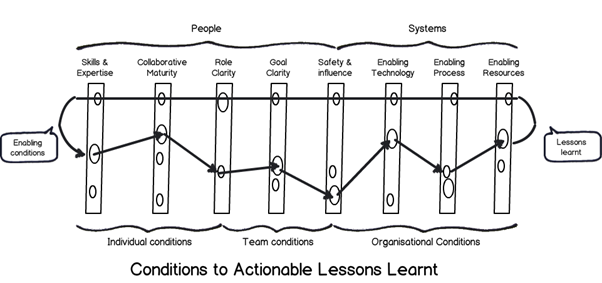
After all that, we ended part 4, by arriving at this odd looking diagram below…

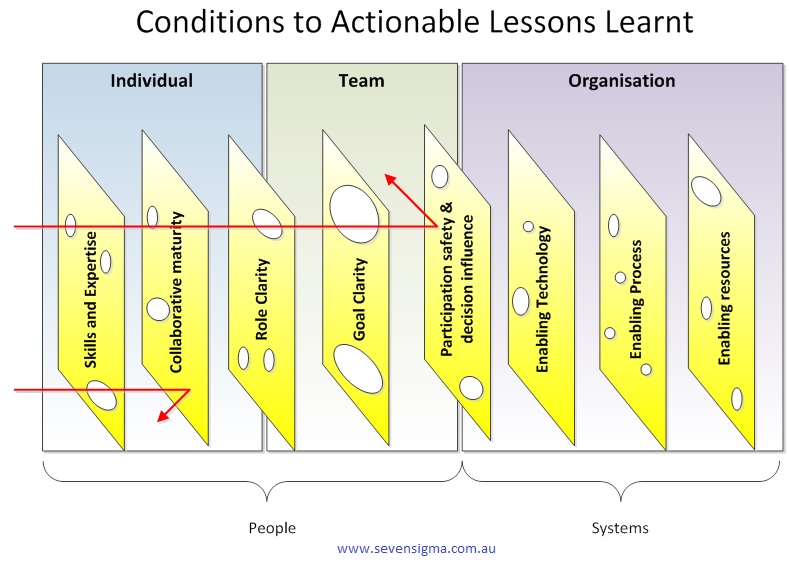
What you are looking at is something called the CALL model, which stands for “Conditions to Actionable Lessons Learnt”. I originally developed the model with Dialogue Mapping and knowledge management in mind – essentially to help my clients do a better job of integrating double loop learning into their projects. However, it soon became apparent that it was valuable in various SharePoint contexts too.

Single vs. double loop learning

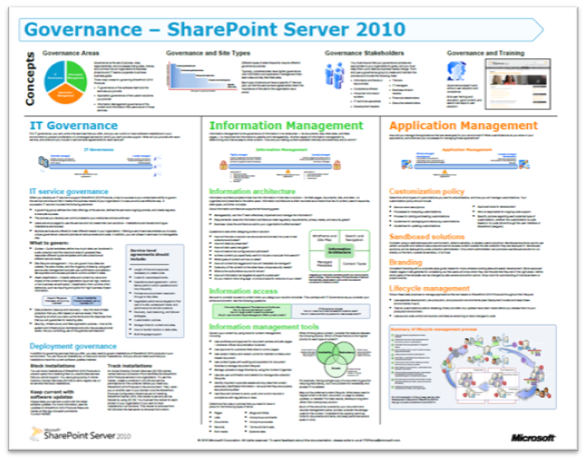
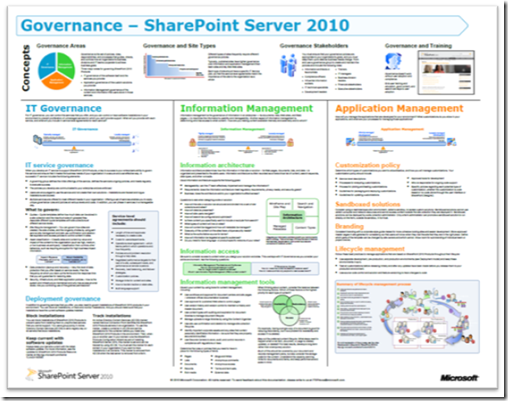
In the previous paragraph I made a reference to “double loop learning” without explaining what it was, so let’s quickly make amends because it is interesting stuff. The idea of single and double loop learning has been around for close to 40 years – it was in 1974 when Chris Argyris came up with the idea. To explain, let’s bring back our trusty SharePoint 2010 governance poster that I trash-talked in the first and fourth articles…

If you have not seen this poster before, it represents what Microsoft believe to be the focus areas for SharePoint 2010 governance. Many people – consultants in particular – will take the information in this poster for granted and create SharePoint governance plans that try to cover off the various areas it suggests to be covered. Everyone will feel good because they have ticked all the boxes of this authoritative fountain of SharePoint wisdom.

Then, if SharePoint then fails to live up to expectations, many will look at the poster and wonder which areas they did not adequately cover. They will study the poster, search Google or Wikipedia for better definitions of the terms listed and then make another reattempt, trying to do an even better job of implementing the wisdom contained therein.

This my friends, is a shining example of single loop learning. Single loop learning, as described in this article “seems to be present when goals, values, frameworks and, to a significant extent, strategies are taken for granted. The emphasis is on techniques and making techniques more efficient.” In single loop learning, the fundamental premise of a course of action remains unchanged. All of the energy of learning is directed to making sure “we get it right this time.” In short, in a single loop learning scenario, repeated attempts are made at solving the same issue, but no-one questions the underlying premise of the strategy.

Now in case you haven’t noticed, I spent the first three posts of this series “questioning the underlying premise” of the above SharePoint governance poster. So in effect I’ve been introducing you to the notion of double loop learning already. Double-loop learning involves taking a deeper look at what is going on. In double-loop learning, having attempted to achieve a goal on different occasions, the goal itself may be modified, re-framed or rejected in the light of the experience gained in trying to achieve it. Think about it – double loop learning actually happened in organisations people would never say things like “well that’s always how we have done it here.”

I see a lot of single loop learning in SharePoint land, and I want to help people break out of their existing framing of the issue – compassionately, of course Smile

Enter the CALL Model

So getting back to my CALL model, I propose it as a multi-purpose tool that can be used for various SharePoint related stuff. It is based on the Swiss cheese risk management model; a metaphor which suggests most strategies have gaps that create risk. These gaps are analogous to holes in slices of Swiss cheese. In terms of the SharePoint governance poster, think of each of the areas it suggests to be covered as slices of cheese. This key to this model is that it assumes that no single defence layer is sufficient to mitigate risk. It also implies that if risk mitigation strategies are set up with all the holes lined up, there is a systematic flaw, since it would allow a problem to progress all the way through to adversely affect the organisation. Accordingly, the Swiss cheese model encourages a more balanced view of how risk is managed.

You can think of the CALL model as a SharePoint optimised Swiss cheese model. CALL extends the Swiss cheese model by incorporating cutting edge research in enabling team performance (Hackman), collaboration (Wilder) and knowledge management (Duffield). It outlines 8 actionable areas (Swiss cheese slices) that operate at the individual, team and organisation levels. These focus areas can be thought of as enabling conditions that mitigate risk, as well as focus areas for identification and application of lessons learnt. In other words, my contention is that for SharePoint maturity, you should strive to create these 8 conditions and then consider them when evaluating project performance.

image

The image above is another drawing of the model minus the pretty colours I used earlier. In this version, I am showing the path of a SharePoint project flows through these 8 areas. Note how the arrow from left to right deviates because we are seeking to use them to mitigate risk via defence in depth. But when it comes to applying learnings from a project (arrow now moves from right to left to close the loop), the flow is designed to be smooth and unencumbered to ensure that the opportunity for double loop learning takes place.

Here is a description of each of the 8 focus areas:

Skills and expertise

This focus area is concerned with ensuring individuals are selected with the right skills and task expertise to perform their role in delivery and operation of services. In SharePoint this is critical because of the technical depth and breadth of the product. Want to deploy SharePoint 2013 request routing in dedicated mode? Go see Spence so he can tell you not to. Want to learn how the new WOPI protocol works with Office Web Apps? Sign a cheque for Wictor to help you.

Skills is closely associated with high IQ. In other words, specialist skills require smart, dedicated people. Therefore this also incorporates ensuring staff have appropriate qualifications and certifications, that education, training and ongoing development practices are properly targeted, and that individuals are willing to learn new skills and be proactive in keeping themselves up-skilled. (In other words, all of the hallmarks of those brilliantly talented people who completed the now defunct Microsoft Certified Masters program).

Collaborative Maturity

Ever heard of the term “dumb smart guy”? Usually it is someone who is intellectually smart, but has all the emotional maturity (EQ) of a potato. Collaborative maturity is all about ensuring that individuals have skills in working collaboratively with others. It signifies a willingness to listen, empathy, mutual respect, understanding and trust. Collaboratively mature people have a tolerance for ambiguity and have the ability to engage in genuine dialogue to reach compromise. Collaboratively mature people also see collaboration in their self-interest and foster develop deep ties with colleagues in order to work interdependently.

Being in the IT industry, I’m not sure if this person actually exists, but hey – this description gives us all something to aspire to!

Role clarity

Role clarity is concerned that the role of each team member is understood by everyone within the team and it is clear how much authority is vested within each role. This in turn provides task clarity, fosters interdependency among a team and reduces process loss. (Process loss is difficulty in knowing who is doing what and how it is done). Where roles are clear and understood, team members are appropriately appointed to tasks according to their capacity (see “skills and expertise” above) and character (see “collaborative maturity” above).

Goal clarity

Goal clarity relates to purpose, direction and goal alignment between members of a team is essential for good team performance. A compelling purpose energizes team members, orients them toward their collective objective, fully engages their talents and motivates them to resolve conflicts. A compelling purpose should be underpinned by concrete, attainable goals and objectives, both short and long term. Knowing where you are heading focuses the team’s energy in directive meaningful activity. This also helps build team efficacy, which is the belief within teams of their ability to solve problems and deliver great solutions. On the other hand, lack of goal clarify is one of the classic symptoms of wicked problems.

Participation safety and decision influence

Ever been on a project that’s taking on water, but nobody seems to be willing to listen? Ever had any critically important topics not discussed because they are simply taboo and unmentionable? It is not fun – and little breakthrough thinking or innovation can exist without participation safety and decision influence. When a team has a high level of participation safety, members feel safe to share ideas, raise unpopular views or opinions, or speak their truth to one another. This reduces groupthink and social loafing, encourages breakthrough and can lead a collaborative team and a collaborative organisational culture. There are countless case studies of major disasters (such as the Deepwater Horizon Oil Spill), where a culture of “only tell me the good news” prevented critical information from being raised that could have averted the issue. In fact ‘communication’ (or lack of it) is probably the most commonly cited project failure factor.

Having said all that, while participation safety is critical, the ideas that team members put forward need to influence the direction and outcome of the team. A manager who says “my door is always open”, but then ignores feedback creates dissonance among team members because what is espoused is not practiced. The simple facts of the matter is that a key element for peak performance is to provide an environment safe enough for team members to speak their truths, to be rewarded for doing so and for truth telling to actually influence direction.

Enabling Technology

Technology underpins all aspects of organisational systems and projects and provides the means to generate leaps in performance and capabilities of users, as more broadly, team and organisational productivity. Technology at its best facilitates the delivery of timely, relevant information for decision making, co-ordination and collaboration. Thus it is critical that technology does not get in the way of delivering value. How often have you worked on a project when you have been forced to use technologies that stifle productivity, create frustration and reduce collaboration between team members? How often has that technology been SharePoint?

Enabling Process

How often have you said to yourself “I can’t believe I have to follow this braindead process.” Process is the glue that provides the rules of behaviour in delivering on goals and like technology, underpins all aspects of organisational systems and projects and is a key part of performance and productivity. It is critical that process, like technology, is always driven by purpose and that it does not get in the way of delivering value. Inappropriate process can make a huge difference in how team members interact with stakeholders and each-other.

Enabling Resources

Enabling resources is concerned with the financial, material and human input necessary to develop and sustain delivery of services. Put simply, even the best teams with the most compelling direction can falter if they are under-resourced. It is critical that sufficient funds, staff, materials and time are provided to get the job done.

Applications for the CALL model

The CALL model can be used in many ways, given its heritage of Hackman, Wilder and Duffield. Examples include:

  • A model for performing SharePoint governance health check/assessment
  • A model for assessing the makeup of a SharePoint team
  • A model for assessing the complexity of a proposed SharePoint solution
  • A model for assessing departmental readiness for SharePoint
  • A model for developing SharePoint Business Continuity planning

It is worthwhile noting that Hackman developed a team performance instrument called a Team Diagnostic Survey based around his 6 enabling conditions. Since the CALL model is so closely aligned to Hackman, it should also be able to be used in a similar fashion. The same goes for the Wilder research on collaboration, that developed an instrument called the Collaboration Factors Inventory.

So given the source material, the CALL model also has applicability in the areas of:

  • An set of enabling conditions to establish to develop high performing teams
  • An set of enabling conditions to successful collaborative delivery of projects
  • A focus area for the identification of risks (and opportunities) on organisational initiatives
  • A framework for the systematic capture of project lessons learnt
  • A framework for assessing change and other organisational initiatives
  • A governance maturity model
  • A knowledge management and organisational learning maturity model

Conclusion

The CALL model reflects a synthesis of three highly rigorous research efforts. All three seemed to gel really well when they were put into the melting pot and I was pleased with the result. In the next post, I will show you how I have used the CALL model when developing a SharePoint Business Continuity Strategy for a client. I’ll also talk about how I have used it in lessons learnt workshops.

Thanks for reading


Paul Culmsee

www.hereticsguidebooks.com

HGBP_Cover-236x300


Rethinking SharePoint Maturity Part 4: The number of the beast…

Hi all

This is part four of a series I am writing on my ideas about how the SharePoint community can revitalise how SharePoint maturity is understood and communicated. If this is your first time reading this series, then I urge you to go back and read the first three posts in the series because I covered a bit of ground to get to here. For those of you who will not do that, here is a super quick recap.

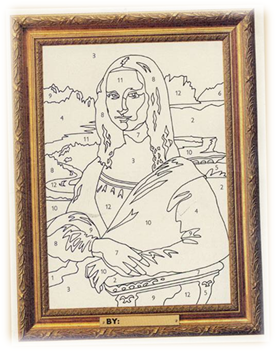
As part of doing some book research, I came across three distinct bodies of work that I think can help Microsoft and their customers better understand, foster and cultivate SharePoint maturity. To set the scene, I started this series by taking a few cheap potshots at the SharePoint 2010 governance poster that many people use as a guide to ensure they are doing SharePoint “right”. I highlighted some of the less obvious risks with it, by comparing it to a paint by numbers representation of the Mona Lisa. While people seem to understand implicitly that colouring in a Mona Lisa template will not make it a Mona Lisa (far from it), there same cannot be said for our SharePoint paint by numbers poster. The result is a skewed version how SharePoint ‘maturity’ is perceived, because this poster ignores some critical factors.

image_thumb2image_thumb5

To shine a spotlight on areas not covered by the above poster, I introduced you to the work of JR Hackman, who’s pioneering work in the area of leadership and team development contains important lessons for SharePoint teams. Hackman urges people to stop trying to look life through simplistic cause and effect lens of “If you do Z, you will get Y” and instead focus on the conditions that enable or disable success. Hackman, in his examination of leadership and the performance of teams, listed six conditions that he felt led to better results if they were in place (none of which make much of an appearance on the above poster):

  1. A real team: Interdependence among members, clear boundaries distinguishing members from non-members and moderate stability of membership over time
  2. A compelling purpose: A purpose that is clear, challenging, and consequential. It energizes team members  and fully engages their talents
  3. Right people: People who had task expertise, self organised and skill in working collaboratively with others
  4. Clear norms of conduct: Team understands clearly what behaviours are, and are not, acceptable
  5. A supportive organisational context: The team has the resources it needs and the reward system provides recognition and positive consequences for excellent team performance
  6. Appropriate coaching: The right sort of coaching for the team was provided at the right time

I sometimes challenge agile development evangelists by saying “If Scrum was ‘the answer’ then there would be no need for Scrum coaches.” When you speak to good agile coaches, what they strive to do is create the sort of enabling conditions conducive to getting the best out of Agile – exactly what Hackman is urging us to do. Hackman’s insight is super important because It is incredibly common for people to say things like “now this will work for the right organisation…” or “this will work provided the right culture is there to support it,” but they do not elaborate further on what “right” actually is. Hackman challenges us to actually focus on the enabling conditions that underpinning a process, not the other way around.

To see if Hackman’s 6 conditions were applicable outside of his interest area of team development, I then examined the work done by the Wilder Research Group. This group published a book “Collaboration: What Makes It Work” which distilled the wisdom from 281 research studies on successful collaboration. Importantly for me, they looked at very different research than Hackman did, yet also broke it down to six quite similar focus areas:

  1. Membership characteristics: Skills, attributes and opinions of individuals as a collaborative group, as well as culture and capacity of orgs that form collaborative groups
  2. Purpose: The reasons for the collaborative effort, the result or vision being sought
  3. Process and structure: Management, decision making and operational systems of a collaborative context
  4. Communication: The channels used by partners to exchange information, keep each-other informed and convey opinions to influence
  5. Environment: Geo-location and social context where a collaborative group exists. While they can influence, they cannot control
  6. Resources: The financial and human input necessary to develop and sustain a collaborative group

Finally, I examined the work of Stephen Duffield, who took the Swiss Cheese model for risk management (which is popular in safety circles) and adapted it for organisational learning for projects. This is brilliant because the Swiss cheese model assumes that any one mitigation strategy has holes in it (hence the Swiss cheese metaphor). If you consider the SharePoint governance poster above as listing particular slices of cheese, then if you still have not met with the success you were hoping for, some important slices of cheese must be missing. So what are they?

To develop his project learning model (called SYLLK), Duffield distilled the wisdom over 500 papers on the topics of project lessons learned, knowledge management and risk management. Like above two research efforts, he also distilled it down to six key areas. Duffield’s slices of cheese were:

  1. Learning: Whether individuals on the team were skilled, had the right skills for their role and whether they were kept up-skilled
  2. Culture: What participants do, what role they fulfil, how an atmosphere of trust is developed in which people are encouraged, even rewarded for truth telling– but in which they are also clear about where the line must be drawn between acceptable and unacceptable behaviour”
  3. Social: How people relate to each-other, their interdependence and how they operate as a team
  4. Technology: Ensuring that technology and data supports outcomes and does not get in the way
  5. Process: Ensuring the appropriate protocols drive people’s behaviour and inform what they do (gate, checklists, etc.)
  6. Infrastructure: Environment (in terms of structure and facilities) that enable project outcomes

Why does all this stuff matter?

Now I am hoping this is not the case, but I would not be surprised that some readers have gotten to this point and are thinking “What the hell does all this have to do with SharePoint maturity?” (particularly if you have not read the 3 articles that preceded this one). So let’s address this one now…

Since 2009 I have taught a SharePoint Governance and Information Architecture class to BAs, PMs, CIOs, consultants, as well as developers and IT Pros. I’ve taught the class around the world and in every class I start by asking students to articulate what they feel is the hardest thing about SharePoint delivery. Take a look at the answers for yourself…

A Brisbane 2012 class said:

  • Explaining what SharePoint is
  • User uptake (“People do not like new things”)
  • Managing proliferation of SharePoint sites
  • Too much IT ownership (“Sick of IT people telling me that SP is the solution”)
  • Users don’t know what they want
  • Difficulties around SP ownership because of a lack of accountability

Not too many technical answers here it seems – in fact I am seeing connections to Hackman, Wilder and Duffield already. Looking at the seven points, they indicate we are missing some key enabling conditions like a compelling purpose, role clarity as well as the collaborative skills and attributes needed in the SharePoint team to address them (“User uptake” and “Difficulties around SP ownership because of a lack of accountability”). Perhaps we are also missing product skills (“proliferation of SharePoint sites”) and have an issue with process and structure, given the complaint of “too much IT ownership”.

Not convinced? For what it’s worth, Melbourne 2010 answered with:

  • Every project is “new” (“Traditional ASP.NET web site development is ‘same old same old’)
  • The solution is never the same as the initial design and the end client may not realise this. The implication is gaps between expectation and delivery
  • Stakeholders don’t know what they want (“First time around what they sign off on is not what they want “)
  • Projects launched as “IT projects” with no clear deliverable and no success indicators
  • Lack of visibility as to what other organisations are doing
  • Determining limits and boundaries (“Doing anything ‘practically’ in SharePoint is hard”).
  • Managing expectations around SharePoint.
    • Clients with no experience think it can do everything
    • Difficulties getting information from and translating into design, so it can be implemented
  • Legacy of bad implementations makes it hard to win the business owner
  • Lack of governance
    • Viral spread of unmanaged sites
    • No proper requirements of “why”
    • No-one managing it

… and if you want to move further afield, Singapore 2012 said:

  • Trying to deal with the sheer number of features
  • “A totally different kind of concept”
    • A little knowledge can be dangerous
    • If you start with the wrong footing, you end up messing it up
  • Trying to deal with “I need SharePoint”
  • SharePoint for an external web site was difficult to use. Unfriendly structure for a public facing website
  • Trying to get users to use it (Steep learning curve for users)
  • The need for “deep discussion” to ensure SharePoint is put in for the right reasons. Without this, the result is messy, disorganised portals
  • The gap between the business and IT results in a sub optimal deployment
  • Demonstrating value to the business (SharePoint installed, but its potential is not being realized)
  • Stakeholders not appreciating the implication of product versus platform
  • You are working across the entire business (The disconnect between management/coalface)
  • “Everything hurts with SharePoint”
  • Facilitating the discussion at the business level is hard when your background is IT

Once again, if you start to distil the underlying themes behind the above answers, you can start to see how Hackman’s conditions are not met and how we are missing some of Duffield’s slices of cheese. So at this point if you are not convinced of the relevance of Hackman, Wilder and Duffield’s research by now, then I can confidently tell you two things…

  • 1) I am not the SharePoint consultant that you need!
  • 2) I am eventually going to become the SharePoint consultant you need! (You will see the light eventually Smile)

The number of the beast…

Hopefully by now I have given you an appreciation of Hackman, Wilder and Duffield’s work and its relevance to SharePoint maturity. All of them have made highly rigorous research efforts, each asking different questions and utilising different research. Those of you who are more superstitiously minded might feel that I am meddling with the forces of darkness here, given that each of the three distilled 6 themes – 666 Surprised smile

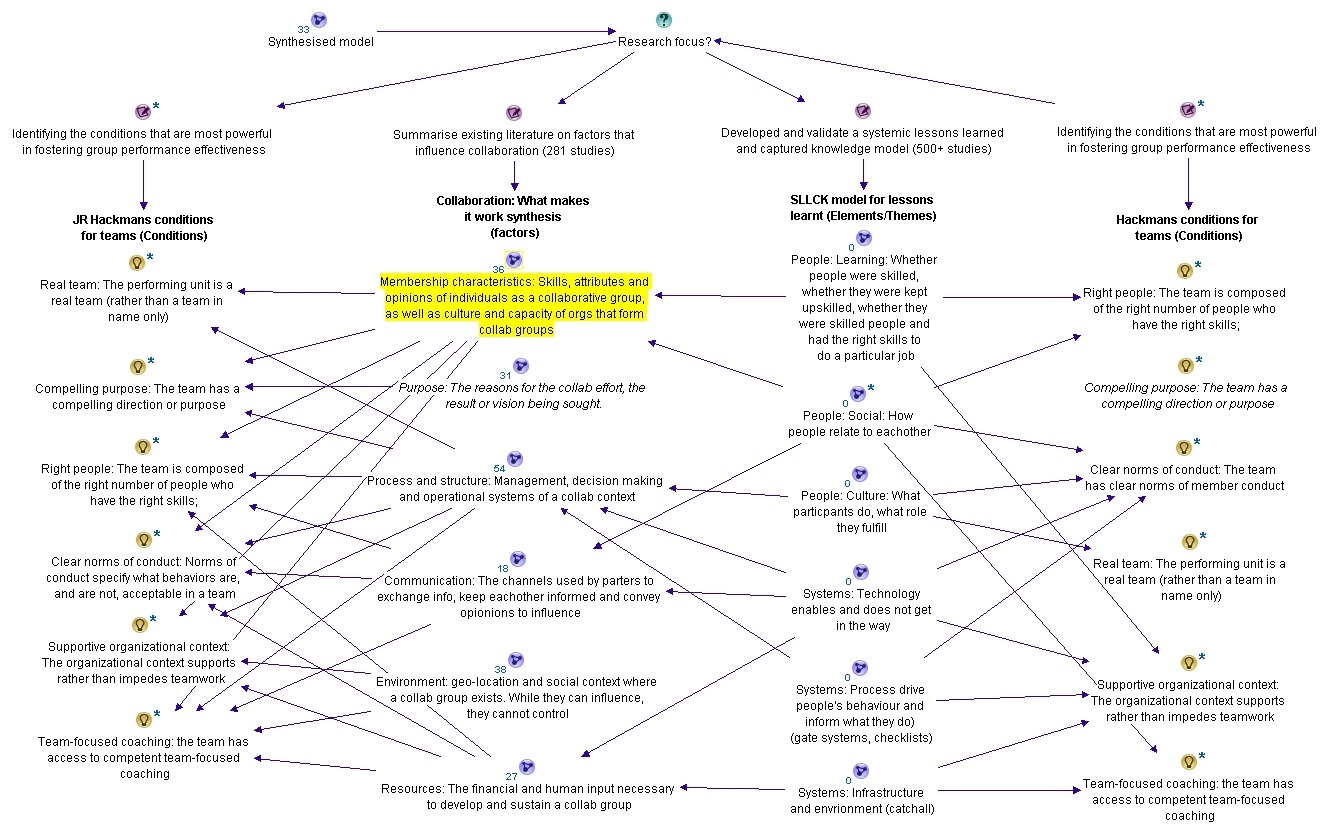
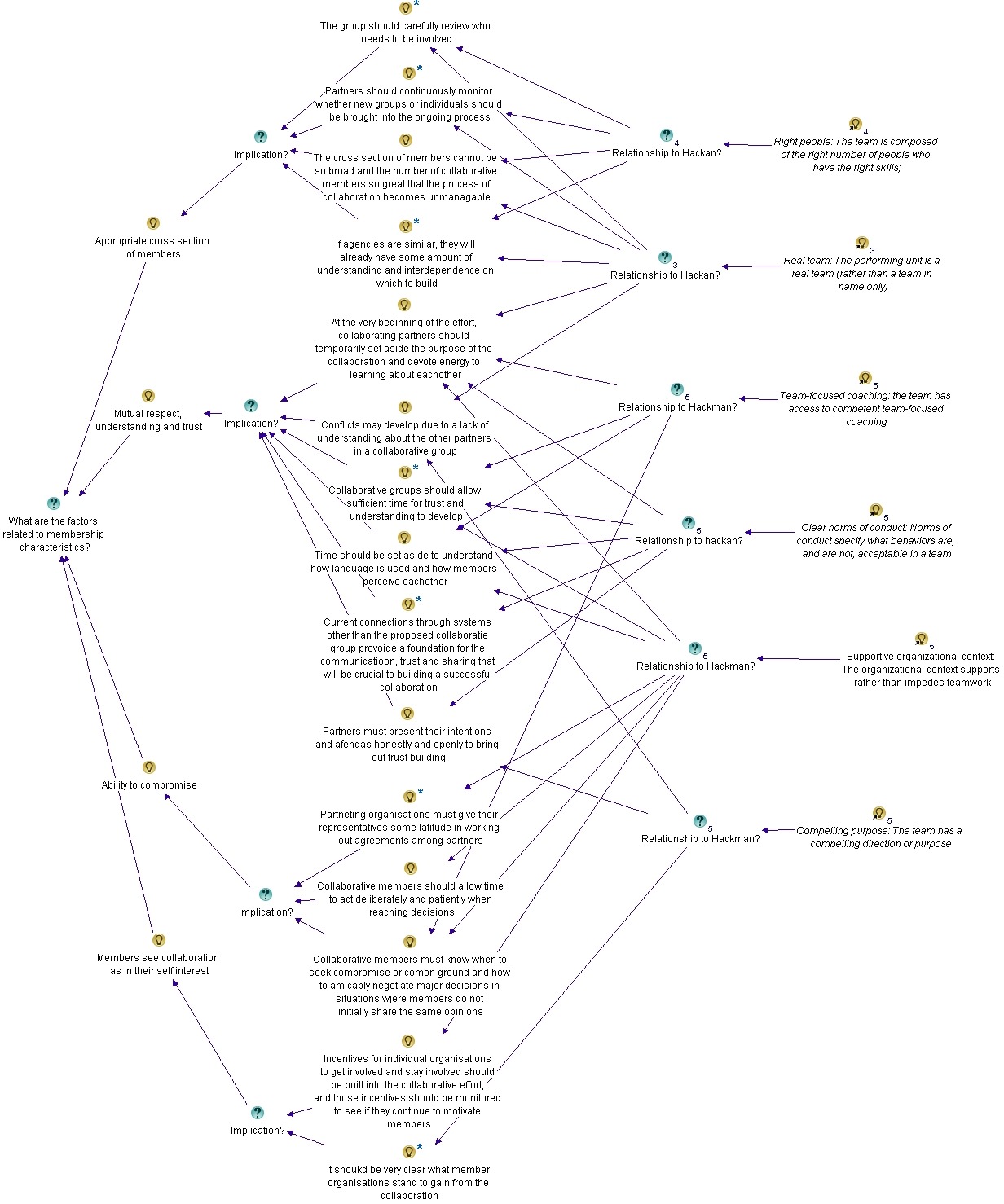
While there is no fire and brimstone nearby as I write this text, my next job was to indeed meddle with dark forces in the sense that I had to perform my own analysis of their work to draw out the commonalities and gaps. I figured that this would go a long way to laying the groundwork for gaps I see in SharePoint maturity. I won’t bore you with too much of the detail on this effort, except to say that I used Dialogue Mapping techniques to perform the synthesis. Below are a couple of screenshots illustrating the maps I built which give you a feel for what was done (click to enlarge)…


In a nutshell, I mapped out each authors six constructs and then mapped their behind the scenes detail. As expected, while some terminology differed somewhat , by in large there was a lot of commonality. I linked all the commonalities together in my maps and slowly, a new picture began to emerge…

Meddling with forces…

When you think about it, my synthesis of this research is not all that different from what SharePoint people do all the time when developing an information architecture to store organisational data in a meaningful and intuitive way. Just like when you have to determine an appropriate navigation structure for your SharePoint sites, with this work I had to first think about the basis for how I wanted to structure things.

First up, I found Duffield’s use of Swiss cheese model for risk inspiring and absolutely applicable for SharePoint maturity. The metaphor of holes in each slice of SharePoint governance “cheese” is vivid and confronting. The commonality in the answers I got to the above “What is the hardest thing about SharePoint?” question speaks to the fact that there are universally common missing slices of SharePoint governance cheese. I also felt strongly that there was huge potential for a clearer relationship between Hackman’s enabling conditions and Duffield’s lessons learnt. My logic was pretty basic here: Surely organisational lessons learnt (if actually learnt), should be enabling conditions next time around? It seemed to me that Hackman “conditions” and Duffield “lessons” are looking at the same thing, just from different points in time. So my intention was to develop my own Swiss cheese model using constructs (navigation labels if you will) that could be lessons learned focus areas as well as enabling conditions. That way one could truly gauge if lessons really had been learnt, because by definition they would be the enabling conditions to strive for next time around.

The other thing I was looking to do was to make things more actionable. Saying things like “have the right people”, “the right membership characteristics” or “the right culture” are not easily actionable because what exactly is “right” anyway? To that end, I think all of the authors suffered from creating constructs that were fine for their purposes, but were a bit wishy-washy when trying to be more directive and action-focused.

One particular anomaly I noticed when comparing the research was the lack of “purpose” as a construct in Duffield’s work. Hackman and Wilder both list “purpose” as one of their six factors, but Duffield’s SYLLK model makes no mention of purpose at all. I felt this needed to be addressed because lack of purpose is one of the classic symptoms of a wicked problem – a topic I have been writing about for years now. So for me, clarity of purpose is a very big slice of Swiss cheese!

I also felt that Hackman was a bit weak on some of the process/system areas. Duffield lists “process”, “technology” and “infrastructure” as key focus areas for lessons learnt on projects and the closest Hackman comes to that is “Supportive organizational context”. This is understandable when you remember that Hackman was talking only about teamwork in general. Nevertheless for our SharePoint context, I thought that Duffield was closer to the mark. Wilder turned out to be a bit in between – as they list “Process and structure” and “Resources” as two of their six areas.

There were other various things that influenced my synthesis as well, but none of them matter for this discussion. I guess you want to see the results no?

The CALL model

The result of this work is a model I have called the CALL model (Conditions to Actionable Lessons Learnt). Since this post is getting long, I will defer a detailed description of the model for the next article. But to whet your appetite, below is an image that shows what I ended up with. It adopts Duffield’s SYLLK model as its base, but highlights 8 enabling conditions (or learning areas), split across individual, team and organisation lines. Additionally, distinction is also made between the soft (people) factors and the harder (system) factors. The arrows are there to help convey the “defence in depth” idea of the Swiss cheese model.

If you go back to the start of this article and examine Hackman, Wilder and Duffield’s work, you will see all of them represented here, except I used more action focused labels. My contention is that these eight areas are what you should be considering when judging your organisation’s SharePoint maturity. The importance of considering these as enabling conditions, to be put in place right at the start cannot be underestimated. Going back to Hackman, here is what he said about the importance of enabling conditions for team performance (emphasis mine):

Let me go out on a limb and make rough estimates of the size of these effects. I propose that 60 per cent of the difference in how well a group eventually does is determined by the quality of the condition-setting prework the leader does. Thirty per cent is determined by how the initial launch of the group goes. And only 10 per cent is determined by what the leader does after the group is already underway with its work. This view stands in stark contrast to popular images of group leadership—the conductor waving a baton throughout a musical performance or an athletic coach shouting instructions from the sidelines during a game

I note that Hackman’s view doesn’t just stand in stark contrast to “popular images of group leadership” – it also stands in stark contrast to Microsoft’s SharePoint governance poster too!

Conclusion

Now I am sure that some of you are still trying to decipher the model above, or feel the urge to tell me that something is missing or that the labels for each of my slices of SharePoint maturity cheese don’t do it for you. In the next post I will spend more time going over the model and what each slice really means. Given the heritage of the source material that inspired it, I feel that it can be used in various SharePoint and non-SharePoint scenarios. So I will also spend some time talking about that.

Finally, I don’t know if any of you have noticed, but I didn’t actually develop this model just for SharePoint! In fact I have already used this model in various non-SharePoint ways too. We will also take a look at this…

thanks for reading


Paul Culmsee

www.hereticsguidebooks.com

HGBP_Cover-236x300


Rethinking SharePoint Maturity Part 3: Who moved my cheese?

Hi all

Welcome to part 3 in this series about rethinking what SharePoint “maturity” looks like. In the first post, I introduced the work of JR Hackman and his notion of trying to create enabling conditions, rather than attribute cause and effect. Hackman, in his examination of leadership and the performance of teams, listed six conditions that he felt led to better results if they were in place. Those conditions were:

  1. A real team: Interdependence among members, clear boundaries distinguishing members from non-members and moderate stability of membership over time
  2. A compelling purpose: A purpose that is clear, challenging, and consequential. It energizes team members  and fully engages their talents
  3. Right people: People who had task expertise, self organised and skill in working collaboratively with others
  4. Clear norms of conduct: Team understands clearly what behaviours are, and are not, acceptable
  5. A supportive organisational context: The team has the resources it needs and the reward system provides recognition and positive consequences for excellent team performance
  6. Appropriate coaching: The right sort of coaching for the team was provided at the right time

I then got interested in how applicable these conditions were to SharePoint projects. The first question I asked myself was “I wonder if Hackman’s conditions apply to collaboration itself, as opposed to teams.” To find out, I utilised some really interesting work done by the Wilder Research Group, that produced a book called “Collaboration: What Makes It Work.” This book distilled the wisdom from 281 research studies on collaborative case studies and their success or failure. They distilled things down to six focus areas (they ended up with the same number as Hackman). Their six were:

  1. Membership characteristics: (Skills, attributes and opinions of individuals as a collaborative group, as well as culture and capacity of orgs that form collaborative groups)
  2. Purpose: (The reasons for the collaborative effort, the result or vision being sought)
  3. Process and structure: (Management, decision making and operational systems of a collaborative context)
  4. Communication: (The channels used by partners to exchange information, keep each-other informed and convey opinions to influence)
  5. Environment: (Geo-location and social context where a collaborative group exists. While they can influence, they cannot control)
  6. Resources: (The financial and human input necessary to develop and sustain a collaborative group)

If you want the fuller detail of Hackman and Wilder, check the first and second posts respectively. But it should be clear from even a cursory look at the above lists, that there is a lot of overlap and common themes between these two research efforts and we can learn from them in our SharePoint work. I strongly believe that this sort of material constitutes a critical gap in a lot of the material out there on what it takes to have a successful SharePoint deployment and offers some excellent ideas in further developing ideas around SharePoint maturity. I started to develop a fairly comprehensive Dialogue Map of both of these research efforts so I could synthesise them to create my own set of “conditions” in the way Hackman describes. While I was doing this, I met a fellow via LinkedIn who opened my mind to further possibilities. Everybody, meet Stephen Duffield

Duffield’s SYLLK model for lessons learnt

I met Steve because we both shared a common interest in organisational knowledge management. In, fact Steve is working on his PhD in this area, focussing on addressing the pitiful record of organisations utilising lesson learnt practices on projects and then embedding them into organisational  culture and practices. If you have ever filled out a lessons learnt form, knowing full-well that it will disappear into a filing cabinet never to be seen again, Steve shares your frustration. For his PhD, he is tackling two research questions:

  1. What are the significant factors that negatively influence the capture, dissemination and application of lessons learned from completed projects within project-based organisations?
  2. Can a systemic knowledge model positively influence the capture, dissemination and application of project management lessons learned between project teams within the organisation?

Now if you think it was impressive that Wilder researched 281 studies on collaboration, Steve topped them by miles. His PhD literature review covered over 500+ papers on the topics of project lessons learned, knowledge management, risk management and the like. 500! Man, that’s crazy – all I can say to that is I am sure as hell glad he did it and I didn’t have to!

So what was the result of Duffield’s work? In a nutshell, he has developed a model called “Systemic Lessons Learned Knowledge” (SYLLK), which was influenced by the Swiss Cheese model for risk management, originally proposed by Dante Orlandella and James T. Reason.

Why SYLLK is important for SharePoint

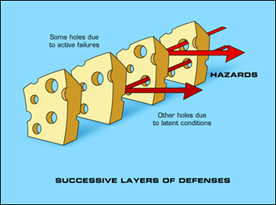
imageBefore I explain Duffield’s SYLLK model, it is important I briefly explain the Swiss Cheese model for risk management that inspired him. The Swiss Cheese Model (see the image to the left) for risk management is commonly used in aviation and healthcare safety. It is based on the notion that systems have potential for failure in many areas and these are analogous to a stack of slices of Swiss cheese, where the holes in each slice are opportunities for a process to fail. Each of the slices are “defensive layers” and while an error may allow a problem to pass through a hole in one layer, in the next layer the holes are in different places, allowing the problem to be caught before its impact becomes severe.

The key to the Swiss Cheese Model is that it assumes that no single defence layer is sufficient to mitigate risk. It also implies that if risk mitigation strategies exist, yet all of the holes are lined up, this is an inherently flawed system. Why? because it would allow a problem to progress through all controls and adversely affect the organisation. Therefore, its use encourages a more balanced view of how risks are identified and managed.

So think about that for a second… SharePoint projects to this day remain difficult to get right. If you are on your third attempt at SharePoint, then by definition you’ve had previous failed SharePoint projects. The inference when applying the Swiss cheese model is that your delivery approach is inherently flawed and you have not sufficiently learnt from it. In other words, you were – and maybe still are – missing some important slices of cheese from your arsenal. From a SharePoint maturity perspective, we need to know what those missing slices are if we wish to raise the bar.

So the challenge I have for you is this: If you have had a failed or semi-failed SharePoint project or two under your belt, did you or others on your team ever say to yourself “We’ll get it right this time” and then find that the results never met expectations? If you did, then Duffield’s (and my) contention is you might have failed to truly understand the factors that caused the failure.

Back to Duffield…

This is where Duffield’s work gets super interesting. He realised that the original Swiss cheese “slices” that resolved around safety were inappropriate for a typical organisation managing their projects. Like the Wilder work on collaboration, Steve reviewed tons of literature and synthesised from it, what he thinks are the key slices of cheese that are required to enable not only mitigation of project risks, but also focus people on the critical areas that need to be examined to capture the full gamut of lessons learnt on projects.

So how many slices of cheese do you think Steve came up with? If you read the previous two posts then you can already guess at the answer. Six!

There really seems to be something special about the number 6! We have Hackman coming up with 6 conditions for high performing teams, Wilder’s 6 factors that make a difference in successful collaboration and Duffield’s 6 areas that are critical to organisational learning from projects! For the record, here are Duffield’s six areas (the first three are labelled as people factors and the second three are system factors):

  1. Learning: Whether individuals on the team are skilled, have the right skills for their role and whether they are kept up-skilled
  2. Culture: What participants do, what role they fulfil, how an atmosphere of trust is developed in which people are encouraged, even rewarded for truth telling– but in which they are also clear about where the line must be drawn between acceptable and unacceptable behaviour”
  3. Social: How people relate to each-other, their interdependence and how they operate as a team
  4. Technology: Ensuring that technology and data supports outcomes and does not get in the way
  5. Process: Ensuring the appropriate protocols drive people’s behaviour and inform what they do (gate, checklists, etc.)
  6. Infrastructure: Environment (in terms of structure and facilities) that enable project outcomes

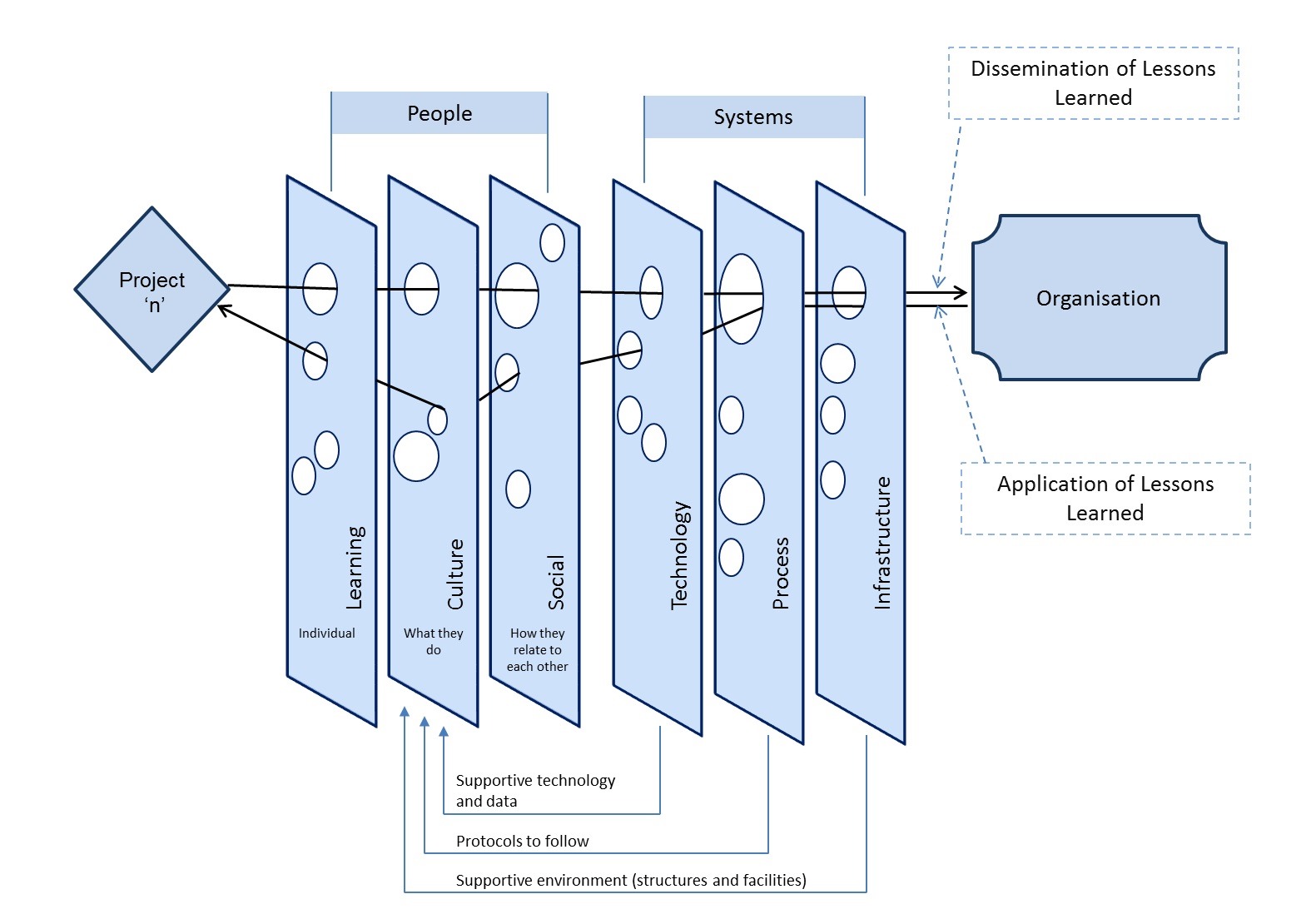
Duffield has a diagram that illustrates the SYLLK model, showing how his six identified organisational elements of learning, culture, social, technology, process and infrastructure align as Swiss cheese slices. I have pasted it (with permission), below (click to enlarge).

Duffield states that the SYLLK model represents “the various organisational systems that collectively form the overall behaviour of the organisation. The various modes of social and cultural learning, along with the organisational processes, infrastructure and technology that support them.” Notice in the above diagram how the holes in each slice are not lined up when the project arrow moves right to left. This makes sense because the whole point of the model is the idea of “defence in depth.” But then the holes are aligned when moving from left to right. This is because each slice of cheese need to be aligned to enable the feedback loop – the effective dissemination and application of the identified lessons.

Conclusion

The notion of the Swiss cheese model for mitigating risk makes a heck of a lot of sense for SharePoint projects, given that

  • a) there is a myriad of technical and non technical factors that have to be aligned for sustained SharePoint success, and
  • b) SharePoint success remains persistently illusive for many organisations.

What Duffield has done with the SYLLK model is to take the Swiss Cheese model out of the cloistered confines of safety management and into organisational learning through projects. This is huge in my opinion, and creates a platform for lots of innovative approaches around the capture and use of organisational learning, all the while framing it around the key project management task of identifying and mitigating risk. From a SharePoint maturity perspective, it gives us a very powerful approach to see various aspects of SharePoint project delivery in a whole new light, giving focus to aspects that are often not given due consideration.

Like the Wilder model, I love the fact that Duffield has done such a systematic and rigorous review of literature and I also love the fact that his area of research is quite distinct from Hackman (conditions that enable team efficacy) and the Wilder team (factors influencing successful collaboration). When you think about it, each of the three research efforts focuses on distinct areas of the life-cycle of a project. Hackman looks at the enabling conditions required before you commence a project and what needs to be maintained. Wilder appears to focus more on what is happening during a project, by examining what successful collaboration looks like. Duffield then looks at the result of a project in terms of the lessons learnt and how this can shape future projects (which brings us back to Hackman’s enabling conditions).

While all that is interesting and valuable, the honest truth is that I liked the fact that all three of these efforts all ended up with six “things”. It seemed preordained for me to “munge” them together to see what they collectively tell us about SharePoint maturity.

… and that’s precisely what I did. In the next post we will examine the results.


Thanks for reading


Paul Culmsee

www.hereticsguidebooks.com


Rethinking SharePoint Maturity Part 2: What Makes Collaboration Work

Hi all

Welcome to part 2 about my research efforts that has led me to thinking a little differently in how we understand and measure SharePoint and organisational “maturity”. In the first post, I gave a glimpse into the work of JR Hackman, who had presented some really interesting ideas about what leads to outstanding team performance. In case you have not read the first post (damn you!), Hackman presented the notion that trying in vain to come up with the causes of team efficacy was a rather dumb idea and instead, looking at the conditions that enable great teams was a much more productive approach.

This notion of conditions over causes is really important to understand, because we all routinely get suckered into conversations about whether one process, approach or model is objectively “better” than another. This sort of discussion frustrates me and I usually find it all rather pointless because it all but ignores the underlying conditions that enabled or disabled things. As a result, we misattribute success or failure of SharePoint to how we used methods, processes and models, rather than focus on what really matters – the conditions under which those methods, processes and models operated.

Now Hackman was not looking at SharePoint projects when he came to this realisation. He was looking at leadership and the performance of teams in general. He synthesised his years of research work down to six conditions that he felt led to better results if they were in place. Those conditions are:

  1. A real team: Interdependence among members, clear boundaries distinguishing members from non-members and moderate stability of membership over time
  2. A compelling purpose: A purpose that is clear, challenging, and consequential. It energizes team members  and fully engages their talents
  3. Right people: People who had task expertise, self organised and skill in working collaboratively with others
  4. Clear norms of conduct: Team understands clearly what behaviours are, and are not, acceptable
  5. A supportive organisational context: The team has the resources it needs and the reward system provides recognition and positive consequences for excellent team performance
  6. Appropriate coaching: The right sort of coaching for the team was provided at the right time

So I very much bought into Hackman’s conditions over causes argument, but wasn’t sure whether his six conditions were directly applicable to SharePoint projects. To find out, I got lucky, coming across some really great work on the subject of collaboration by the Wilder Research Group.

Collaboration: What Makes it Work

Earlier this year, I  bought a crapload of books on the topic of collaboration. One of them had the rather long title of “Collaboration: What Makes It Work, 2nd Edition: A Review Of Research Literature On Factors Influencing Successful Collaboration” written by Paul W. Mattessich, Marta Murray-Close, Barbara R. Morrisey and published by the Wilder Research Group.

This book is quite short – just over 100 pages, but it packs a heavy punch nevertheless. The core question asked in this book was “What makes the difference between your collaboration’s failure or success?” and it sought to answer the question by providing an in-depth review of lots (and lots and lots) of academic research on collaboration. In all, the authors examined more than 281 research studies on collaborative initiatives (and their success or failure) and synthesised them. I love these sort of meta-analysis studies, because I am lazy and its terrific when someone else has done the rigorous hard work!

Why Wilder matters for SharePoint

The intent of the report is to help readers expand their thinking about ways to help projects succeed, gain background information before beginning a collaboration, compare their situation with others, determine collaboration strategy including necessary ingredients, uncover and resolve trouble spots. It also provides a tool called the “The Collaboration Factors Inventory which allows you to self-assess how your collaboration is doing against the success factors they came up with. Examples are also provided of how organizations have used the inventory as well as a case study illustrating how one collaboration assessed itself and how it  used the results to take action to improve its success.

Thus, it should be fairly obvious why this particular work should be of interest to SharePoint practitioners. After all, improving collaboration in organisations and teams is one of the core value propositions that underpins SharePoint and has done so for years now. Under the guise of “governance”, we do lots of work and produce processes (and usually lots of documentation) in the hope that we have put in the necessary plumbing for collaboration to take root and blossom. So when someone has taken the time to distil the learnings from 281 research efforts into collaborative success, there is bound to be valuable takeaways to be had for us SharePoint peeps – especially if our organisations have bought heavily into “social” features of the product.

Now while that all sounds good, there is another less obvious, but cooler reason to be interested in this book – especially given my examination of Hackman in part 1. The Wilder team found a total of 20 factors that were identified as “ingredients” for successful collaboration and guess how many categories they distilled them down to?

Six! – precisely the same number of conditions that Hackman distilled for great team performance. So, wouldn’t it be interesting to see how much overlap there is between what Hackman says are the six conditions for great teams versus Wilder’s six “differences” between collaboration failure and success?

I thought so too…

Back to the Wilder team…

So what are the factors that make a difference in successful collaboration identified by Wilder? Below are their twenty ingredients, divided into the aforementioned six categories…

  • 1. Membership characteristics: (Skills, attributes and opinions of individuals as a collaborative group, as well as culture and capacity of orgs that form collaborative groups)
    • – Mutual respect, understanding and trust: Members of the collaborative group share an understanding and respect for each other and their respective organizations: how they operate, their cultural norms and values, limitations, and expectations.
    • – Appropriate cross section of members: To the extent that they are needed, the collaborative group includes representatives from each segment of the community who will be affected by its activities.
    • – Members see collaboration as in their self interest: Collaborating partners believe that they will benefit from their involvement in the collaboration and that the advantages of membership will offset costs such as loss of autonomy and turf.
    • – Ability to compromise: Collaborating partners are able to compromise, since the many decisions within a collaborative effort cannot possibly fit the preferences of every member perfectly.
  • 2. Purpose: (The reasons for the collaborative effort, the result or vision being sought)
    • – Concrete, attainable goals and objectives: Goals and objectives of the collaborative group are clear to all partners, and can realistically be attained.
    • – Shared vision: Collaborating partners have the same vision, with clearly agreed-upon mission, objectives, and strategy. The shared vision may exist at the outset of collaboration, or the partners may develop a vision as they work together.
    • – Unique purpose: The mission and goals or approach of the collaborative group differ, at least in part, from the mission and goals or approach of the member organizations.
  • 3. Process and structure: (Management, decision making and operational systems of a collaborative context)
    • – Members that share a stake in both process and outcome: Members of a collaborative group feel “ownership” of both the way the group works and the results or product of its work.
    • – Multiple layers of participation: Every level (upper management, middle management, operations) within each partner organisation has at least some representation and ongoing involvement in the collaborative initiative
    • – Flexibility: The collaborative group remains open to varied ways of organising itself and accomplishing its work
    • – Development of clear roles and policy guidelines: The collaborating partners clearly understand their roles, rights, and responsibilities, and they understand how to carry out those responsibilities.
    • – Adaptability: The collaborative group has the ability to sustain itself in the midst of major changes, even if it needs to change some major goals, members, etc., in order to deal with changing conditions.
    • – Appropriate pace of development: The structure, resources, and activities of the collaborative group change over time to meet the needs of the group without overwhelming its capacity, at each point throughout the initiative.
  • 4. Communication: (The channels used by partners to exchange information, keep each-other informed and convey opinions to influence)
    • – Open and frequent communication: Collaborative group members interact often, update one another, discuss issues openly, and convey all necessary information to one another and to people outside the group.
    • – Established informal relationships and communication links: In addition to formal channels of communication, members establish personal connections — producing a better, more informed, and cohesive group working on a common project.
  • 5. Environment: (Geo-location and social context where a collaborative group exists. While they can influence, they cannot control)
    • – History of collaboration or cooperation in the community: A history of collaboration or cooperation exists in the community and offers the potential collaborative partners an understanding of the roles and expectations required in collaboration and enables them to trust the process
    • – Collaborative group seen as a legitimate leader in the community: The collaborative group (and by implication, the agencies in the group) is perceived within the community as reliable and competent—at least related to the goals and activities it intends to accomplish.
    • – Favourable political and social climate: Political leaders, opinion-makers, persons who control resources, and the general public support (or at least do not oppose) the mission of the collaborative group
  • 6. Resources: (The financial and human input necessary to develop and sustain a collaborative group)
    • – Sufficient funds, staff, materials and time: The collaborative group has an adequate, consistent financial base, along with the staff and materials needed to support its operations. It allows sufficient time to achieve its goals and includes time to nurture the collaboration.
    • – Skilled leadership: The individual who provides leadership for the collaborative group has organizing and interpersonal skills, and carries out the role with fairness. Because of these characteristics (and others), the leader is granted respect or “legitimacy” by the collaborative partners.

Now that you have seen Wilders six factors that influence successful collaboration, think about where you focus on your SharePoint projects in the name or guide of “governance”. How many of these factors did you consider when you started on your quest to use SharePoint for improved collaboration? Which of these really scream out at you as something worth pursuing? Go back in time and with hindsight, imagine if you had considered these and acted on it… Would it had led to better outcomes?

Conclusion

I have previously stated that collaboration is a classic SharePoint platitude, and chasing goals like “improved collaboration” are a sure fire way to create elaborate SharePoint solutions that miss the mark. Thus, this work by Wilder is a crucial resource in helping organisations determine what collaboration means to them. Furthermore, anyone interested in assessing SharePoint “readiness” (whatever your interpretation of readiness), would be well served to think about how they can incorporate the Wilder work into their readiness or maturity models. After all, how many other meta analyses of 281 studies on the topic have been done, eh?

Consider also that the Wilder team asked themselves a different question than Hackman. While Hackman framed his question around “What are the enabling conditions?” the Wilder team asked “What makes the difference?” This more broader question posed by the Wilder team explains a lot about their results. Some of their collaboration success factors can be seen as potential enabling conditions as Hackman described, whereas others are a more retrospective look on what successful collaboration looks like during and after collaboration has taken place. Consider also Hackman and the Wilder team used very different areas of research to come up with their answers. Wilder examined 281 case studies on successful collaboration, whereas Hackman used decades of research in teamwork and leadership. While research on collaboration might seem related to teamwork and leadership, in the world of academic research, you are talking about completely different bodies of knowledge.

Nevertheless, if you compare Hackman’s six conditions to Wilder’s six collaboration factors, there are more overlaps than there are differences. This I find exciting because it tells me that these independent research efforts are coalescing around the same themes. But I am going to defer a detailed examination of them both in context till a future post, because as I started to synthesise Hackman and Wilder together, I came across a third area of research that also led to some important insights – perhaps the most important ones of all… the work of PhD candidate Stephen Duffield in the area of risk and organisational learning on projects.

That my friends, is the topic of the next post…


Thanks for reading

Paul Culmsee

www.hereticsguidebooks.com


Rethinking SharePoint Maturity Part 1: Conditions Over Causes

Hi all

I have been hitting the books lately, doing various bits of research, all related to plans for a new book.  While most of that research would not be of too much interest to readers, some of it turned out to be quite profound and has significant implications for anybody interested in SharePoint governance/maturity/readiness, as well as risk management, organisational learning, knowledge management and team development. So if you are spending your days delving deep into the bowels of the SharePoint 2013 apps model, oAuth and Azure Service Busses, then maybe this article is not for you. However if you manage or are responsible for people or projects that delve deep into the bowels of the SharePoint in areas like the apps model, oAuth and Azure Service Busses, then I strongly suggest you read on. Continue reading “Rethinking SharePoint Maturity Part 1: Conditions Over Causes”


A tribute to the humble “leave form” – Part 7

[Note: It appears that SharePoint magazine has bitten the dust and with it went my old series on the “tribute to the humble leave form”. I am still getting requests to a) finish it and b) republish it. So I am reposting it to here on cleverworkarounds. If you have not seen this before, bear in mind it was first published in 2008.]Hi all

Welcome to edition 7 of this seemingly never-ending tribute to the humble annual leave (vacation) form. This is getting to be like the “Friday the 13th” series of movies – they never stop!

First up, I want to categorically state that, as a heterosexual Australian male, I have a few stereotypical personality traits . I enjoy beer, kung-fu movies, Burger Rings, Vegemite and Tim-Tams, love the cricket (especially playing India) and most importantly of all, I do not read instructions. Period. I think that ignoring the RTFM rule is a characteristic of all of humanity but Australians in particular seem to celebrate this trait as something endearing.

Therefore, it pains me greatly to have to inform you that this seventh edition of the series is one of those posts where you have to put on the brakes and explain some really boring conceptual stuff to proceed with the rest of the series. Yeah, I know – theory is boring and sucky and you just wanna get into the nuts and bolts of it all. But, as Homer demonstrates below, sometimes we have to defy our genetic programming and actually read the instructions. The alternative is a SharePoint solution equivalent to that of Homers BBQ.

image

This post will deal with some of the mechanics of form submission and form publishing.

What has gone before…

The first few posts in this series are starting to get hazy – it seems so long ago now. To sum it all up in a nutshell, we introduced the leave form as a means to introduce a lot of key SharePoint features in an easy to understand and relevant way. We set several requirements that we had to achieve.

  • Automatic identification of requestor
  • Reduce data entry
  • Validation of dates, specifically the automatic calculation of days absent (excluding weekends)
  • Mr Burns is not the only approver, we will need the workflow to route the leave approval to the right supervisor
  • We have a central leave calendar to update

At the end of part 6 we were working on validation of dates. We added some validation rules to ensure that you could not return to work before you started your leave of absence. But at the end of that post, I showed how a published form did not obey our data validation rule, where the form was set to prohibit incorrect dates, yet I was able to click save and put the form straight into the document library. What the…?Why did this occur?

Saving vs Submitting – form confusion

Like everything else designed by nerdy engineers, InfoPath and Forms Services can be used in a few different ways. This offers flexibility of course, but has the disadvantage that if the flexibility is not well understood (i.e not reading the instructions :-) ), it is easy to cause user confusion. Homer is a classic case of a person who, when faced with two choices, will always pick the wrong one.

You have to remember that InfoPath started out as a program installed onto your PC, along with other MSOffice applications. Thus, historically, an InfoPath form is just another type of document. In its simplest (and default) scenario, the form is very much like any other MSOffice document in that you create/open the form, edit it and then save it.

But hang on a second! Most of the time, the data collected in the form is part of a larger business process. Also most of the time, business process needs to do “stuff” with the information that the user has entered. In other words, the data usually doesn’t stay in the forms that users fill out.

So the InfoPath designers, wanting to please everybody, designed InfoPath in such a way that saving a form and submitting a form are two different things. Homer Simpson doesn’t care about this nor should he. He just wants to fill out the form so he can go back to dreaming about the land of chocolate.

image

Here is the key thing you need to know, though. Saving a form is, in effect, performed on the presumption that the form is still a work in progress. Saving the form should be thought about in the same way you would save a word document after performing some edits. Because the form is still a work in progress, data validation should not take place.

But at some point the form stops being a ‘document’ and becomes…well… a form! It is complete and no more edits should be made. This is when you actually submit the form!

Submitting a form triggers the data validation rules that were set up in part 6.

Big deal…When does this get hard, Paul?

Okay, so you may not think that there is really that much of a drama with the whole “save vs submit” thing. But when InfoPath is integrated with SharePoint via Forms Services, it can get complicated. You see, InfoPath allows you to create forms that submit their data to one or more locations. For example, the Springfield Nuclear Power Plant leave form could be set up so that when Homer submits his application, the data is sent to a database, and a copy of each completed form is also sent in an e-mail message to Waylon Smithers and Monty Burns.

For reference, here are the places that InfoPath can submit to;

  • A Microsoft Access or Microsoft SQL Server database
  • A Web service
  • A server running Microsoft Windows SharePoint Services
  • In an e-mail message
  • An application on a Web server
  • A custom application that hosts InfoPath

Now, given that this series of articles is about SharePoint, which option of the above list do you think we are interested in? You guessed it! The third option in the above list is SharePoint.

But here is the root cause of the confusion, when you publish an InfoPath form to SharePoint, all forms that you fill in end up being created in a document library. Back in part 4 of this series, we first published the form and as part of that process, created a form library called “Leave Forms”. Consider the screenshot below. We are about to create a new form in this library.

image

Below is a screenshot of the new form to fill out. Note the toolbar at the top with a “Save” and “Save As” options. If you then click ‘Save” on the form, it will prompt you to save into the above document library.

image  image

Therefore, if you use the “Save” option, the “In-progress” copies of the form are stored in the document library and no data validation has taken place. You really have not submitted the form at all.

Does the end user realise this? Some might – but come on! This is Homer J Simpson we are talking about here!

So clearly we need to submit this form because in part 6 we added validation rules that need to be checked. But, what the…? – How the hell do I submit?

Setting up form submission

Real programmer disclaimer: Yes I know there are other ways of doing all of this, but remember – this series of posts is for beginners.

Okay, for now the theory bit is over, and now we get to play with InfoPath again. We are going to add the form submission capability to our existing form so that we can actually submit the form. The thing is, I am also going to *remove* the “Save” and “Save As” options from that toolbar, so that the only action you can make is to submit.

Why would I do this? Several reasons.

  • It is a simple form and really, you either fill it in and submit or you don’t. There really isn’t that much of an imperative to save this form, prior to submitting it.
  • When you submit a form, and you are submitting to a SharePoint library, the submitted form is saved. Therefore, I don’t need a “work in progress” copy.
  • The Homer factor. If you supply a “Submit” and a “Save” button, you know full well that Homer will go and click the “Save” button, when he should be clicking “Submit”. As soon as the save dialog pops up, he won’t know what to do. At this point he will lose interest and fall asleep.

Hiding save buttons

So, start InfoPath, open up the leave form in design mode, and choose “Form options” from the “Tools” menu.

image

From the list of options, choose “Open and Save” and uncheck the “Save and Save As” checkbox as shown below.

image

Click “OK” and republish this form to SharePoint using the steps described in part 4. Note the before and after screenshots below :-)

image image

Spot the difference? The “Save” and “Save As” buttons are missing, and with that I can confidently say that I have now made this form Homer proof because he can’t inadvertently click “Save” and think he has submitted the form. Of course, it is so Homer proof that he now has no way to submit the form, so now we have to enable the “Submit” button.

Enabling the submit button

Once again, open the leave form in design mode, and choose “Submit Options” from the “Tools” menu. InfoPath will dutifully display a fairly nondescript dialog box that, at first glance, seems rather simple. There is a checkbox that you need to tick to “enable form submission”. Sweet! How easy is that?

image image

Upon checking that box, you now have to choose where you are going to send form data to. The default option is “Email”, but we want to send it to a SharePoint document library, as shown below. Choose SharePoint and then click OK.

image

Uh oh! Did I say this was going to be easy? Okay I lied :-) .

image

So, what is this message telling us? “You must select a data connection for submitting to a SharePoint document library”. Hmmm…I hope that something about that message sounds vaguely familiar to you. That is because this is not the first time we have dealt with data connections.

Data Connections revisited

image_thumb[2]

Way back in part 5, you earned your CCLFD certification by creating a data source that automatically identified Homer by talking to SharePoint web services. If you missed that post, then I suggest reading it, as it is a great example of utilising data connections to *receive* data into InfoPath.

In part 5, we set up a data connection to a webservice by following a wizard. To remind you of how it was done, I have copied the screenshots to this post.

image_thumb[23]image_thumb[25]

image_thumb[26]

Now, take a look at the second screenshot from the above three. It is asking you to create a connection to receive or submit data and at that time we were receiving data. Guess which one we are doing this time? :-)

So, back to our “Submit Options” dialog box. We were not able to click “OK”, because we have not created a data connection to submit the data. Let’s now start this process by clicking the “Add” button. Given that you have already told SharePoint that you want to submit to a document library, InfoPath now wants to know the name of that document library and the name of the file that will be created by the submit.

image image

Now, given that the entire staff of the nuclear power plant will be filling out this form, we don’t want to simply call the submitted form “Form” as suggested by default. If we did that, we would end up with a document library containing a single file called “FORM” due to the fact that all previous “FORM” files would have been overwritten and replaced by the current “FORM”.

Luckily the InfoPath team anticipated this and the filename can be dynamically generated using functions. (We looked at functions early in part 5).

First up though, I will specify the document library to submit completed forms to. It will be in the same document library that we was created when we first published the leave form in part 4,the imaginatively titled “Leave Forms”. Below is the library as it is inside the radiactivenet site. Note the URL is exactly what I entered into the “Document Library” field.

image

image

A unique filename

The final step for submission is to create an auto-generated filename that is unique. Although the principle is dead simple, this bit is actually tricky when you do it for the first time.

The file naming convention to be used will be as follows:

“Leave Form – ” + [EmployeeName field] + ” – “, [LeaveType field] + ” – ” + [todays date]

Here are some examples of this convention in action with various staff.

image

  • “Leave Form – Homer Simpson – Sick – 2007-09-18″
  • “Leave Form – Lenny Leonard – Annual – 2008-11-22″
  • “Leave Form – Carl Carlson – Bereavement – 2008-12-25″

So, how do we achieve this? Let’s get back to the screen where we are prompted to add a file name for a submitted form.

image

Click the “Fx” button to the right of the “File name” textbox and you will be presented with the (far too small to be user friendly) “Insert Formula” dialog box. We are going to create a formula that constructs the desired file name.

image

The first thing to note is that we will be using a combination of fixed text, the data entered on the form and built in InfoPath functions. To join all these together in the manner we want is referred to as concatenation. Why do people call it concatenation? I have no idea but it’s obvious that an engineer thought up that name! :-) .

We start by inserting the concatenation function called “concat”. Click “Insert Function” and in the leftmost window choose the “Text” category. The function called “concat” should be the first one listed. Select it and click “OK’ and you will see that a partially completed formula has been created.

image image

The first part of our file name is the text “Leave Form – “. So single click the first occurrence of the “double click to insert field” hyperlink and it will be highlighted. From here, simply type in the string “Leave Form – ” (including the double quotes).

image image

The next part of the file name is the name of the employee. We already have this, because in part 5 we set up a data connection to automagically grab first name and surname and store it in the textbox called “EmployeeName”.

Single click the next occurrence of the “double click to insert field” hyperlink and it will be highlighted. From here, click “Insert Field or Group” and choose “EmployeeName” from the list of fields.

image  image

image

Okay, so we have the “Leave Form – Homer Simpson” part done. Next we want a hyphen ” – ” and then the LeaveType field. By now you should be getting familiar editing the formula in the dialog box. Rather than bore you with even more screenshots, I’ll talk through the next 2 steps.

  • Single click the next “double click to insert field” link.
  • Type in (note the leading and trailing space) ” – “
  • Type in a comma (minus quotes) “,”
  • Click “Insert Field or Group” button
  • Choose the “LeaveType” field and click OK.

If all has gone to the script, then you will see this in for formula box.

image

Note that you can use the mouse to place the cursor anywhere in the Formula textbox and modify what is there.

Finally, we need another hyphen and to insert another function. This time the function is called “time” and it returns the current date in a short locale based format.

  • Referring to the above screenshot, place your cursor between the last letter of the underlined LeaveType (which is “e” ) and the closing bracket.
  • Type in (including the quotes and note the leading and trailing space) ” – “
  • Type in a comma (minus quotes) “,”
  • Click “Insert Function” button
  • Choose “Date and Time” from the Categories List in the “Insert Function” dialog box
  • Choose “today” from the list of functions and click “OK”

We are done! The final formula looks like this. Click “OK” and you now should be back at the data connection wizard (the second screenshot below).

image

image

Click “NEXT” on the wizard, and we are prompted to give this data connection a name. Since this data connection has been created to submit leave forms to a document library called “Leave Forms”, I figured that a good name would be “Submit to Leave Form Library”. Click “Finish” and you are done!

image

To recap on what we have completed in this section, each time a form is submitted, its filename will be automatically specified and the end-user does not have to worry about it.

All rightie, then! Let’s republish this form to SharePoint and take a look at the effect.

Testing it out

Assuming everything worked, the effect of what we have done is immediately noticeable. We now have a “Submit” button on the form where the “Save” and “Save As” used to be. Sweet!

image

So let’s test the data validation rules that we created in part 6. If you recall, this form should not be submitted if the return date is before the start date. For that to really happen you would have to be Dr Who and use the Tardis to arrive before your departure…

image

Below is the form with deliberately incorrect data (click to enlarge).

image

If I now click the newly visible “Submit” button, what happens? Ecccccxcelent! It refuses to submit the form.

image

I don’t know about you, but this is one of those error messages that some people simply will not read. Homer will no doubt call technical support but the point is, crap data has not gotten past the form in the first place.

Now, when we correct the fault and resubmit the form, it accepts!

image

Click “Close” and we now see the newly submitted form in the document library, saved with our file naming convention! Woohoo!

image

Conclusion (Are we done yet?)

We now have achieved the goal of ensuring that our form is validated before being submitted. From a skills point of view, you now have created data connections to both send and receive data and you have integrated your form with web services, as well as some nice data validation logic.

Waylon Smithers is still pleased with progress thus far, and Homer hasn’t managed to completely derail things just yet.

But unfortunately for all of us, there is still much work to do. The next post will spend some time pimping up this whole validation and submission process, illustrating a pitfall or two along the way.

Thanks for reading

[Note: I never finished this series for various reasons. I hope that these 7 posts helps you nonetheless]

Paul Culmsee


« Previous PageNext Page »

Today is: Saturday 7 March 2026 -