Back to Cleverworkarounds mainpage
 

A tribute to the humble “leave form” – Part 2

[Note: It appears that SharePoint magazine has bitten the dust and with it went my old series on the “tribute to the humble leave form”. I am still getting requests to a) finish it and b) republish it. So I am reposting it to here on cleverworkarounds. If you have not seen this before, bear in mind it was first published in 2008.]

Hi again and welcome to the next exciting instalment in the series that pays tribute to the consultant “get out of jail free” card that is the organisational “leave form”. My experience of SharePoint implementations may be somewhat skewed by regional and/or cultural bias of course, but many SharePoint installations tend to follow a script of something like

  • IT Manager attends an “information session” from a Microsoft Gold Partner, has one two many chardonnays and is convinced that SharePoint is the *answer*, but isn’t sure of the question just yet…
  • IT Manager calls aforementioned Microsoft Gold Partner and I am sent out to dazzle them with my wit, charm and technical brilliance
  • IT Manager agrees with me that SharePoint has to be sold to (and owned by) “the business”, so chooses the first candidate business process that pops into his head
  • All hail the mighty “leave form

Me sarcastic? never! :-)

image

Note: I was recently certified as a Microsoft Certified Trainer for SharePoint, and I am using this series as practice for my training material! Thus this entire series of articles is pitched at a very high (end user) level. Readers with some exposure to SharePoint may find this article from the series is particularly easy-going, but rest assured, by the time I am done, I will be delving into web services, code and all sorts of goodies. Writing that stuff for the non developer will be a challenge – so stay with me, I will slowly ramp up the concepts as we go on.

So to recap the introductory article, we have documented the leave application and approval process for the Springfield nuclear power plant, and they have kindly supplied us with their existing leave form that their employees print out and fill in by hand. So our very first job is to see how InfoPath handles importing this MSWord based form to InfoPath.

InfoPath 101

Even though InfoPath is part of MSOffice, many people do not know about it, let alone used it. If you have never seen InfoPath before now, then I suggest you do some reading about it and maybe even download the evaluation.  My one sentence explanation is that it allows you to create electronic forms for data entry or data collection. Among its features is that it can import Word or Excel documents to speed up the form creation process. So let’s do that first up.

Upon starting up InfoPath 2007 we are presented with a “Getting Started” wizard. Our job is to design a new form, so the option to choose is to Design a Form Template as marked in the screen-grab below.

The next screen is to choose various options in relation to designing a form. We are starting from a completely blank form (which is the default option anyway), but this form is going to web browser based, so that people filling it in do not need InfoPath installed on their PC’s. SharePoint enterprise edition provides support for browser based forms via the “Forms Services” feature. InfoPath 2007 has built-in support for forms services, but the form must be marked as “browser compatible”.

This is not a default setting, so be sure to check the “Enable browser-compatible features only” box before clicking the OK button.
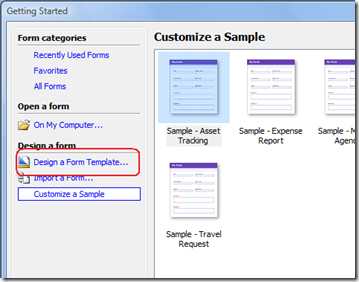
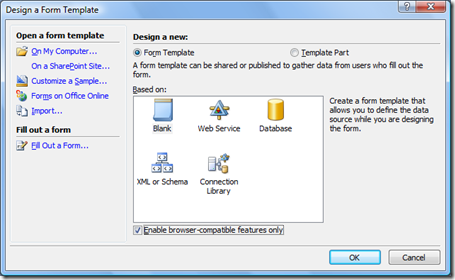
image image

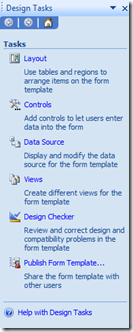
Now we are at the main form designer screen within InfoPath. Being part of the MSOffice suite, it has a set of toolbars that looks very much like the other applications in the MSOffice suite. To the right of the InfoPath screen is the “design tasks” tool pane. I’ve shown it below.
image

You will come to know the “design tasks” pane very well soon enough. From here we can perform all sorts of actions to construct a new electronic form such as create textboxes, buttons, drop down lists and the like. Not only that, but we can instruct InfoPath to connect to “data sources” to populate the values in say, a drop down list box. Imagine for example that all of your clients are listed in your CRM system. InfoPath has the capability to access those client details and display them on the form. Think of the data entry duplication that this will save,  not to mention the  maintenance of data accuracy, eh?

But hey, we are here to impress the clients with our technical wizardry and to show how InfoPath allows non-developers to create sophisticated electronic forms. So what we will do first-up is import the existing MSWord based leave document and see what we get out of the box.

Importing the old form

So, you should be at the main InfoPath screen to perform this action. From the “File” menu, choose “Import Form”. On the next screen, choose “InfoPath importer for Word documents” and click “next”
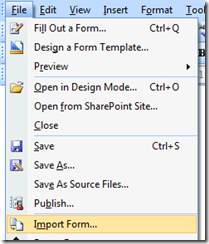
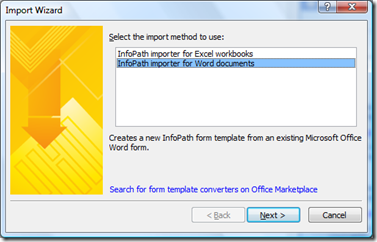
image   image

You will be prompted to browse to a file to import. In this example, I have chosen the “springfieldleaveform.doc”. The “options” button allows you to control the specifics of the import process. In this example, I will simply import the form with all of the default import settings.
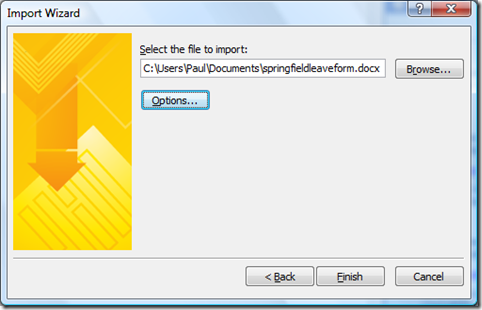
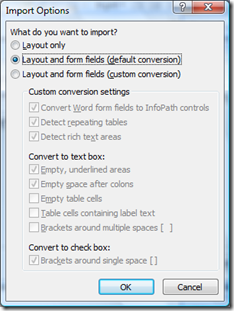
image   image

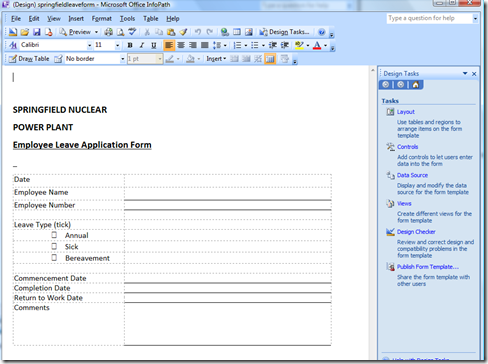
Click “Finish” and InfoPath will do its thing – viola! We have the beginnings of a leave form!
image

Graphics?

Ah, but wait, what happened to the graphics? The original MSWord form had two pictures in the header of the document – a 3-eyed fish and a picture of the towers. It turns out it seems, that graphics in the header or footer of an MSWord document do not get imported into InfoPath. Bummer – I really liked that 3-eyed fish!

But fear not, importing graphics is as easy as a cut and paste. If I open my original word version of the form, I can double click near the top of the document, and the header/footer will now be available to edit as shown below.
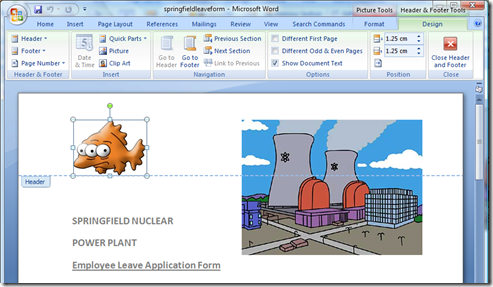
image   image

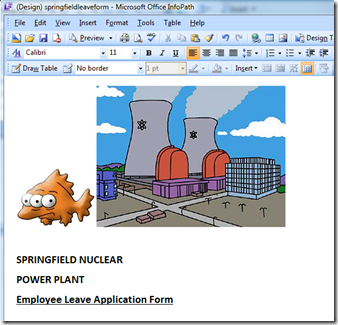
Now you can click to highlight both images and they will paste into InfoPath. Not exactly earth shattering, is it?
image

It’s still not right…

Okay, so it wasn’t a perfect import. In fact I’d give it about a 6 out of 10. But the point is we have our images and our text inside InfoPath. Also to be fair, MSWord files were not designed for the web either, so it is unsurprising that it wasn’t flawless.

So, now we can use the native features of Infopath to tidy up this form. First, we will tidy up the arrangement of the two images, and then we will add some graphical elements like textboxes and option buttons to allow the form to be electronically filled in. We will create a table on the form that looks like this

image

In the right-hand “design task” bar, we select “Layout” and then choose to create a “custom table”. Choose a 2*2 table and you should see the table as shown in the third image below (look above the fish graphic).
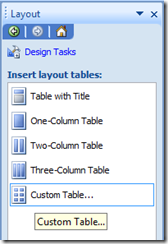
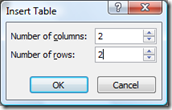
image  image image

The next step is to format the table correctly. Highlight the two rightmost cells, right click on them and choose “merge cells”. The result should be a table looking like the rightmost image below.
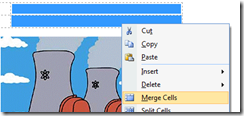

image   image
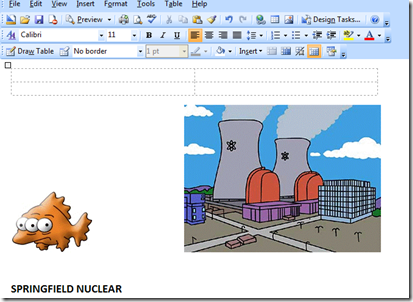
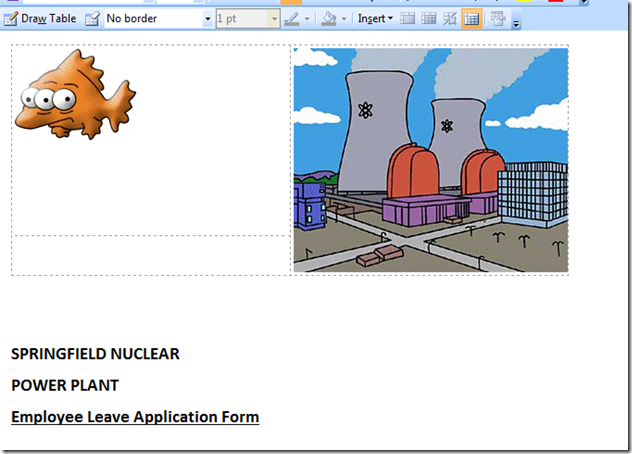
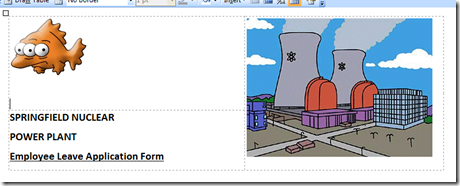
Now drag and drop the three-eye fish to the leftmost cell and the plant picture to the rightmost cell of the top row of the table. Your result should look something like this.
image

Now highlight the remaining title text, and then cut and paste it into the empty bottom left cell . Aha! We are starting to look better! A bit of resizing of the table cells width and it is looking more like the original.
image

Are we impressed yet?

Okay, sorry that is very much a rhetorical question, I know. I haven’t exactly written the most technically complex article ever.

But at least we have gotten the InfoPath version of the form to look much more like the MSWord version. If I had been running that as a client demonstration, it all in all would be around 2-3 minutes work. Is the client blown away in amazement and opening the chequebook yet?

Not exactly, but we haven’t gotten to the good stuff yet. In part 3, we will add some textboxes and other graphical elements (called “controls”) to the form, and then we will do some smart things to reduce manual data entry, as well as ensure that the data that we have collected is accurate.

Bye for now

Paul Culmsee

www.cleverworkarounds.com


A tribute to the humble “leave form” – Part 1

[Note: It appears that SharePoint magazine has bitten the dust and with it went my old series on the “tribute to the humble leave form”. I am still getting requests to a) finish it and b) republish it. So I am reposting it to here on cleverworkarounds. If you have not seen this before, bear in mind it was first published in 2008.]

Hi all. It’s a pleasure to be involved in the launch and first edition of SharePoint Magazine. My name is Paul Culmsee and I’ll be your host for this series of articles. If you have not read my stuff before, then I’ll say that I am an opinionated, underpaid and overworked SharePoint consultant based in Perth, Western Australia. clip_image001

I had previously decided to write an educational series of articles to pay tribute to the humble, good old leave (vacation) form and I think it is perfect fodder for SharePoint Magazine’s wide variety of audience.

Where would SharePoint consultants worth their grain of salt be without the leave form, eh? When all else is lost, there it is to save your ass from the wrath of the CIO who is wondering where his two hundred grand of license fees, hardware and programming went.

image

Why the leave form?

From a demo perspective the leave form is pure gold. You can knock out an InfoPath form in minutes, publish it to a SharePoint site using Forms Services and top it off with an easy-to-understand SharePoint Designer workflow that creates some tasks for the boss to approve the request and to notify payroll of the approval. All within the space of a 1 hour demo session. Genius! No wonder Microsoft sell all of those licenses!

For a client who is still coming to grips with the possibilities what forms and workflow offer, the leave form is an excellent starting point. It is a simple process and almost universally understood. There really aren’t that many owners/stakeholders involved in the process, and thus even the most extreme anal-retentive “process nazi” can’t really make it too onerous. So turning this process into a “non-programmer” workflow is not that hard.

Being a simple process, you can use SharePoint Designer workflows. Now some developers reading this will probably start protesting, and believe me I know where you are coming from. But let’s face it – you guys are damn expensive!

Thus, SharePoint Designer based workflows are a great *prototyping* tool. Non programmers can develop them, and making modifications and changes do not require a lot of time or cost. For an organisation unused to workflows and the inevitable “process debates” that arise as a result, delving straight into Visual Studio and expensive developers I do not recommend. Workflows tend to evolve fairly quickly at first as people learn more about them. Additionally, whatever you *think* you want in the first phase has a very high likelihood of being ripped out or seriously modified once it starts to get real-world use.

So in using the leave form, we are using a process that is well suited to a SharePoint Designer based workflow. Once the process is mature and you have enough SharePoint experience to appreciate the governance costs, then you can rewrite it as a “proper” Visual Studio based workflow template.

Why not the leave form?

The leave form unfortunately is not representative of the sort of process where automation or improvement justifies a SharePoint investment. If your company is suffering a cash-flow bleed because you can’t get your leave forms done, then I can say with some confidence that you are *seriously* screwed and SharePoint isn’t going to solve your issues.

The point is, the leave form is not going to have too much real business relevance in terms of tangible return on investment. In fact the leave form is *too easy*. As a demo, it can mislead an organisation into thinking that the answer to life, the universe and everything is contained within the everyday world of mere mortals armed with nothing more than InfoPath and SharePoint Designer.

The real life of organisational process and workflow is completely different. Most workflows tend to be more complex because they involve more teams and team members. Because they involve more teams, they have a tendency to be unoptimised, undocumented, inconsistently followed and over-complex, due in part to to past screwups, lack of co-operation and organisational mistrust and politics. This is a reflection of much bigger issues than SharePoint of course, but to entertain the notion that SharePoint is going to miraculously change cultural issues is about as ludicrous as suggesting that Guns N’ Roses will actually ever release their “Chinese Democracy” album anytime soon.

image

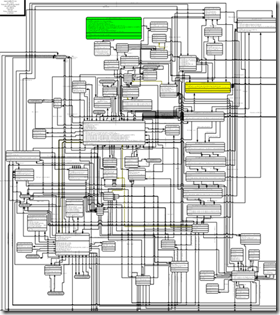
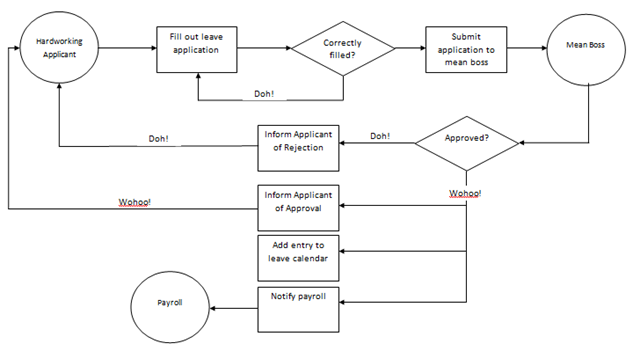
Believe it or not, the image above is a real workflow. Check out this story behind it here – it’s funny in a very scary kind of way. Whilst this may be an extreme example, it should hopefully make it clear that despite best intentions, your first few attempts at trying to improve something like this via SharePoint aren’t likely to go all that well if your process is crappy to begin with clip_image004

Why use the leave form an example then?

That’s easy! I actually want to finish this series of articles in a reasonable time!

Additionally, it still suffices to demonstrate fairly convincingly how it doesn’t take very long at all before we need to delve deeper into the potential no-mans-land of custom development. So the outcome of this series of articles is two-fold.

  1. Readers will get a good understanding of the tools and SharePoint features that combine to produce an automated version of the leave form process
  2. (But more importantly) They get a glimpse behind the virtual green door of InfoPath and SharePoint’s dirty little secrets.

Is it humanly possible to write a series articles for normal people *and* technical geeks? We shall soon find out!

A recent real-world engagement clip_image004[1]

The leave process that I have outlined here is going to have a little more depth to it than the sort that would be demonstrated in a pre-sales demo, but it is still not industrial strength. I’ve put enough in there to assist the reader to really understand just what it takes to implement a semi-real world case.

I hope that readers have watched the Simpsons!

Conveniently for all of us, my company Seven Sigma’s office in Springfield recently completed a SharePoint engagement for the local Nuclear Power Plant. After some initial requirements gathering, we ascertained that like most companies, the leave process for the plant was problematic. It was an MSWord file that employees have to open, print out, fill in and then hand to their boss. The boss (some old-dude named Burns) was an old-fashioned, unpredictable kind of guy and he tended to forget the names of particular employees. Thus sometimes applications went unprocessed, misfiled or inconsistently handled.

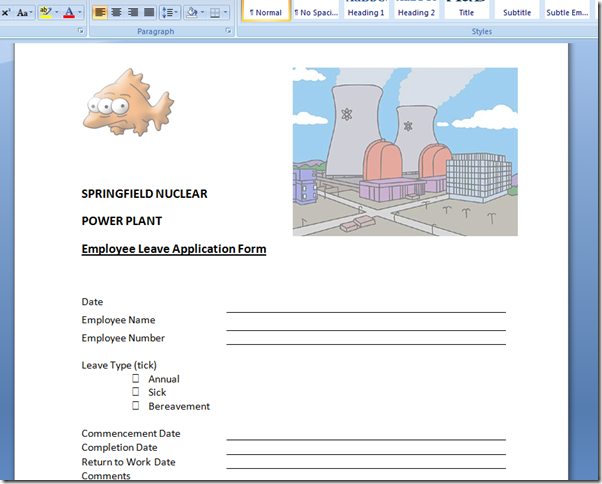
Below is the leave form in its original MSWord format.

image

After gathering requirements and running some workshops, we were able to determine what the client wanted with their automated leave form workflow…

The Requirements

Roles
Requestor Approver Payroll
image image image

The leave workflow steps to be implemented are as follows.

image

  1. Hardworking and dedicated employee (Requestor) completes an online form to apply for hard earned leave. The form automatically identifies the requestor (a good thing because spelling your own name can be hard). Additionally, the type of leave (sick, annual, bereavement, etc), start date, end date and the return to work date are all entered into the form. Importantly, the number of days absent from work are automatically calculated to exclude weekends.
  2. The evil overlord boss (Approver), receives a task notification to approve an application for leave. The approver reviews the leave details and approves or rejects the leave application. If the leave is approved, proceed to the next step, otherwise the leave is rejected and proceed to step 8
  3. Evil overload boss curses industrial relations laws allowing employee leave in the first place, but belatedly marks the leave request as approved.
  4. Requestor is emailed a confirmation that his application has been approved
  5. The leave is added to the corporate leave calendar
  6. Blatant brown nosing suck-ups (Payroll) are notified by email of the approved leave and adjusts leave remaining in the HR system
  7. End of workflow
  8. The evil overlord boss (Approver) has had a call from the Nuclear safety watchdog and all safety inspectors need to be on-hand to hide the evidence. Thus the approver rejects the leave application
  9. Requestor is emailed a confirmation that his application has been rejected with the reason why
  10. End of workflow

From the above process, a number of key requirements are apparent and some more were determined.

  • Automatic identification of requestor
  • Reduce data entry
  • Validation of dates, specifically the automatic calculation of days absent (excluding weekends)
  • Mr Burns is not the only approver, we will need the workflow to route the leave approval to the right supervisor
  • We have a central leave calendar to update

Additionally, Mr Burns likes to keep an eye on things and has a large series of monitors in his office that he uses to watch what is going on around the plant. Thus, he requires a dashboard that shows him a birds-eye view of the leave process from end-to-end.

Next steps..

The first step is to convert the existing manual leave form into its InfoPath equivalent. So in the next exciting article, we will get to see just how easy (or not) InfoPath really is!

Thanks for reading

Paul Culmsee

www.cleverworkarounds.com


Today is: Saturday 7 March 2026 -