Back to Cleverworkarounds mainpage
 

Three ways to convert HTML to PDF using Microsoft Flow

The ability to generate PDF’s as part of a business process is a common one – mainly driven by compliance. A common way to do this is to create a HTML file and then convert that to PDF.

<TLDR>Go to the conclusion for a summary of the approaches</TLDR>

In Microsoft Flow, there has been options for doing this for a while now. For a start, there are two 3rd party flow actions available that are part of a broad suite of tools for managing and manipulating documents. They are Muhimbi PDF and Plumsail Documents.

image

Both offerings are simple to set up and use. They also allow some configuration and tuning. At the time I wrote this article, both allow you to specify page size and orientation, and Muhimbi has a couple of extras like letting you make password protected PDF’s. As they are both commercial tools, these will come at a cost which depends on how many PDF’s you produce. But in saying that, the cost is not particularly excessive.

Below I show you both actions in use. Each one is followed by an action to save the PDF into my OneDrive – easy peasy…

image

But I am cheap Paul!

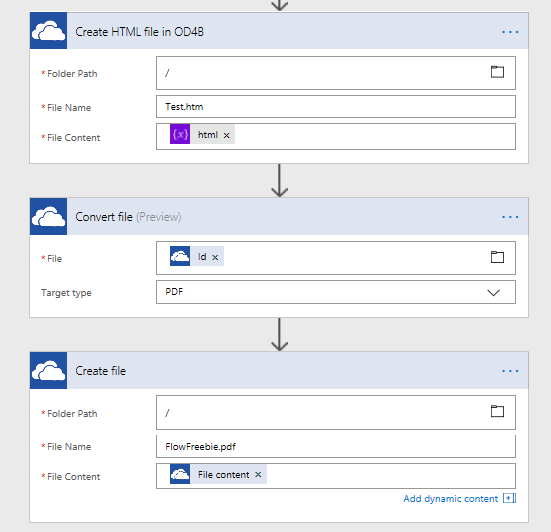
For those of you who do not have a budget, or are simply cheap-assed, there is also the OneDrive Convert File action. This one works by saving a HTML file to OneDrive (or OneDrive for Business). You then pass that file into the Convert File action and save the resulting PDF. So instead of two steps like the ones above, you have three.

image

Head over to John Liu’s page for a great example of this technique…

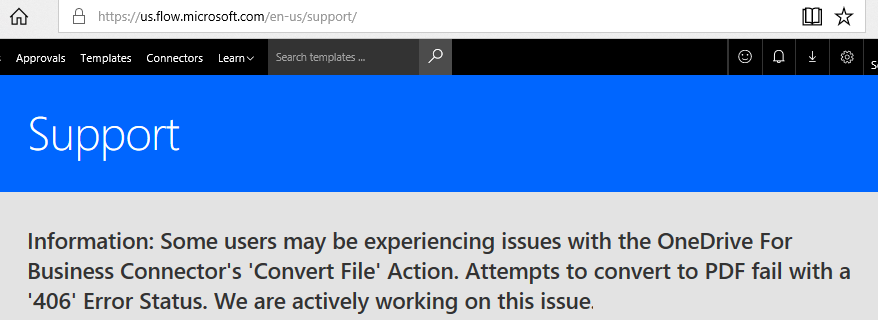
Now there is only one teeny problem with this. Not so long ago Microsoft broke it and as I type these lines, it remains broken but with a commitment to get it fixed…

image

Now by the time you read this it may well be fixed, but you need to be aware of another limitation with this approach. Unlike Plumsail and Muhimbi, this converter does not honour css page breaks. Therefore your PDF can end up looking pretty ugly as content wraps over pages in ugly ways…

Is there another option? Why bother?

So you might be thinking, okay so just use one of the commercial offerings while Microsoft sorts out a fix? After all, even if it costs you a few backs, you can always go back to the cheap version later.

I indeed attempted this but I had an issue with my Flow that precluded it. I had no problem signing up for both Muhimbi and Plumsail, but when I added the actions to my flow, I was met with this type of error. My flow simply did not like using 3rd party connections it seemed.

Unable to process template language expressions in action ‘Convert_HTML_to_PDF’ inputs at line ‘1’ and column ‘2336’: ‘The template language expression ‘json(decodeBase64(triggerOutputs().headers[‘X-MS-APIM-Tokens’]))[‘$connections’][‘shared_muhimbi’][‘connectionId’]’ cannot be evaluated because property ‘shared_muhimbi’ doesn’t exist, available properties are ‘shared_sharepointonline, shared_onedriveforbusiness’. Please see https://aka.ms/logicexpressions for usage details.’.

Now this error is the subject of an open case with Microsoft so I will update this post when I get an answer. <update> It turns out that for flows with a PowerApps trigger, you need to disconnect and reconnect it to PowerApps to start working</update>. But in the meantime I had a deadline and had to demo PDF creation to a client. So I decided to make an Azure function and call it from flow – after all it sounded like a perfect scenario for that technology right?

Now I won’t cover the Azure function stuff in depth here, except to say I tried a heap of HTML to PDF approaches and not a single one worked properly. Eventually I worked out that Azure functions restrict the use of GDI+ libraries. Quoting from the linked article…

For the sake of radical attack surface area reduction, the sandbox prevents almost all of the Win32k.sys APIs from being called, which practically means that most of User32/GDI32 system calls are blocked. For most applications this is not an issue since most Azure Web Apps do not require access to Windows UI functionality (they are web applications after all).

However one common pattern that is affected is PDF file generation

Eventually though I was able to ascertain that if you provision your azure functions using an app service plan instead of a consumption plan, it will work. The reason for this is the latter runs on dedicated virtual machines.

Of course now you are up for hosting costs for your app plan. Unless you already have an Azure function app provisioned for other purposes, this is no longer free.

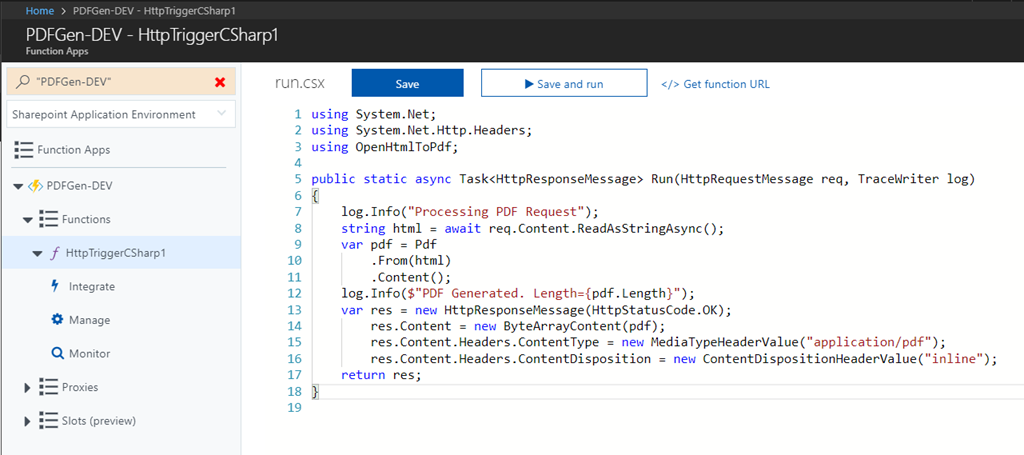
Once I got past the Azure function issues with GDI support, I was easily able to find and use a pre-existing HTML to PDF function found here. This uses a tool called wkhtmltopdf which is a pretty powerful PDF generation library. I simply added the necessary files and configuration and was able to test it successfully in minutes.

image

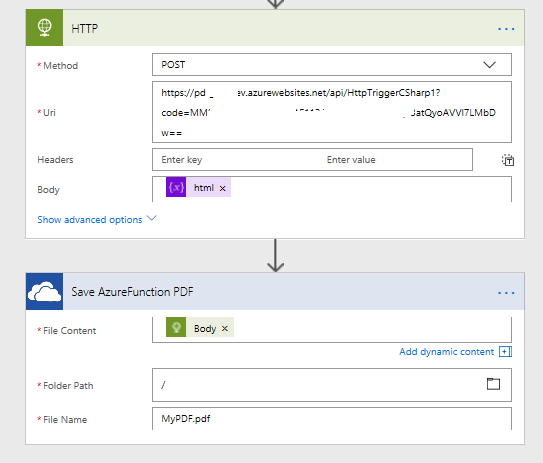
Finally all I needed to do to call this function was to create a HTTP action in Flow like so…

image

Yay! I had my PDF’s!! Even better, this approach does not have the page break issues that the built-in one does!

Conclusion (and comparison)

So here is a little table that summarises the approaches…


Method Cost Page Breaks Features Complexity
OneDrive Convert File Action Free No Basic Low
Plumsail HTML to PDF action Not Free Yes Medium Low
Muhimbi HTML to PDF action Not Free Yes Medium+ Low
Azure function Not Free1 Yes Advanced Medium2


1 You will have to pay for the azure function app subscription, but many orgs will have one already so might be very low.

2 I marked this as medium if you are doing basic stuff, but if you want to do stuff like set page size and orientation, you are having to edit code directly so could be classified as High.


Now for my real use-case, I would likely use one of the commercial offerings, but if the organisation was going to do a lot of PDF generation, then the Azure function approach could be quite cost effective. Additionally, expanding the code to deal with additional options might also be justified.

I think the key point is that I was able to quickly work around this issue and deliver good outcomes for my client. So they are not adversely impacted while I wait for the various issues to be resolved.

Thanks for reading

Paul Culmsee

www.hereticsguidebooks.com


How to make a PowerApps activity feed via SharePoint search–Part 3

Background

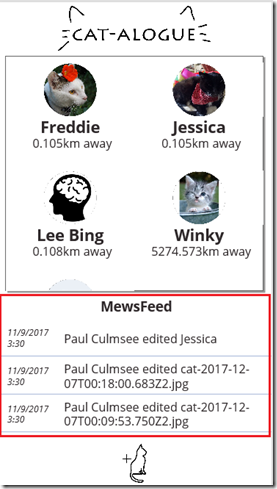
Hi and welcome to the third article that describes how to make a PowerApps-based activity feed based on SharePoint search results. If Google’s search algorithm has landed you here for the first time, then I suggest going back to parts 1 and 2 for background and context. What we are building can be seen in the picture below highlighted red..

image_thumb48

Now there are 5 parts to this solution and in this third post, we are in the home stretch because we have done the first three steps and we are halfway through part 4.

  1. Setting up SharePoint search
  2. Querying the search index via a PnP PowerShell script
  3. Creating the Azure function
  4. Creating the custom connector
  5. Testing in PowerApps

I covered parts 1 and 2 in the first post where we created a Result Source in SharePoint and and tested a PowerShell script that uses it to bring back the latest 20 search results. In the second post, we created and tested an azure function, and just deployed our custom connector as shown below:

image

Before we rush off to PowerApps to bask in our awesomeness, let’s test our custom connector first. Click the pencil button to edit your freshly minted connector. Using the breadcrumb, navigate to the Test menu.

image

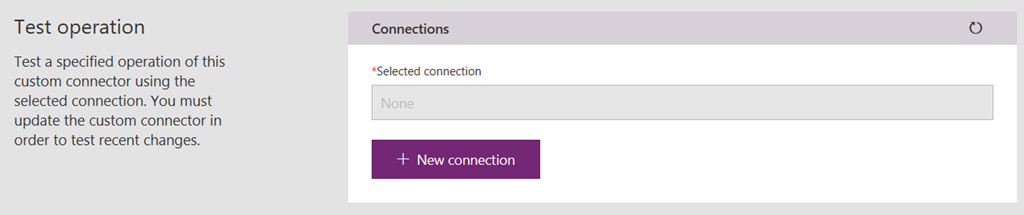
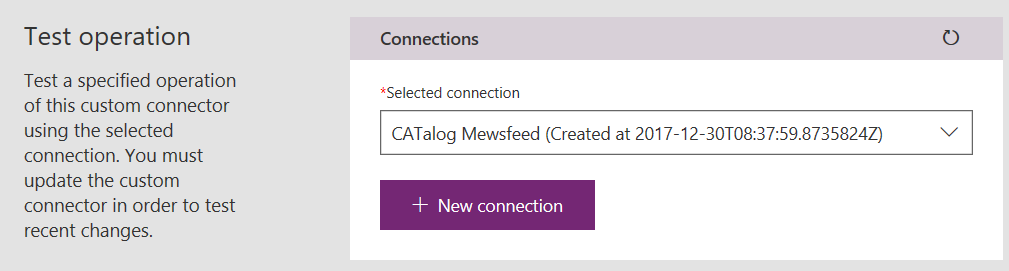
You will be presented with a Test operation screen and (very likely) a prompt to create a connection. While newbies might find it weird to ask for a connection just after we just made one, it is worth paying close attention to the terminology used. We actually created a custom connector, not a connection. The PowerApps team describe it like this:

Data is stored in a data source, and you bring that data into your app by creating a connection. The connection uses a specific connector to talk to the data source

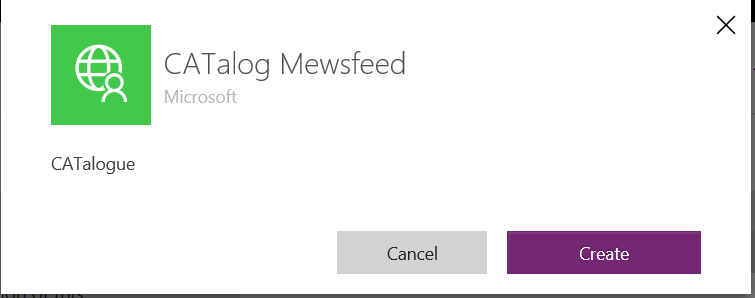
Therefore, it stands to reason that to test a connector, one has to create a connection. So let’s do that right now by clicking the + New connection button. On the resulting confirmation dialog box, click Create.

image  image

Now you will be redirected to the connections screen. This is somewhat counter-intuitive given at first, since we actually wont do anything with the connection from this screen, but if it makes you feel good, feel free to look for a new connection with the same name as your connector as shown below. This means all went to plan…

image

Using the left side navigation, head back to the custom connections screen. Edit your connector once again, and navigate back to the Test screen. This time the Test Operation screen will show your new connection listed…

image

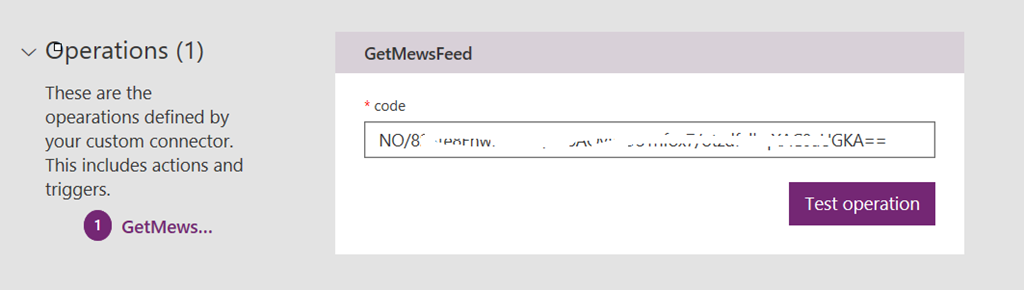
Scroll down and you will see an Operations section. The code query string parameter that we worked with in part 2 is listed.

image

Note: It should be greyed out and not editable. If it is editable, you have likely forgotten to change the visibility parameter when we created the custom connector in part 2.

image

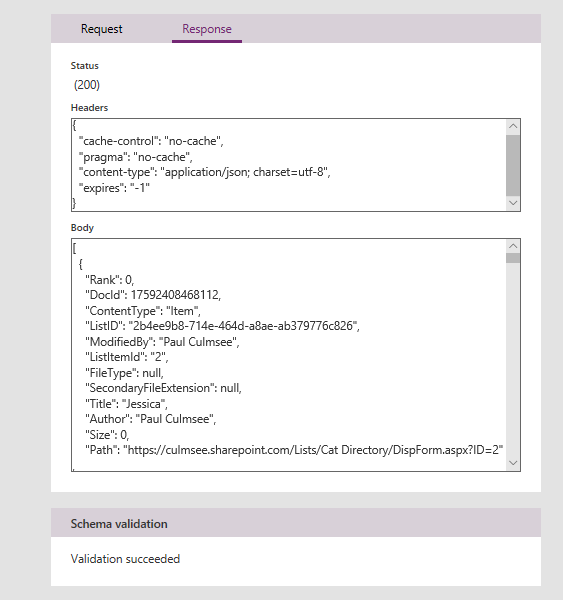
Click the Test operation button to give it a whirl. After a few seconds, you should see a successful response. Looking in the body of the response, you can see the Json search results produced by your Azure function. Yay!!

image

Part 5 – Testing in PowerApps

Now that we have created a connection and used it to test our custom connector, it is time to move to PowerApps. To keep things simple, lets build an app from scratch to show this working. In PowerApps studio, create a blank phone app and then follow the steps:

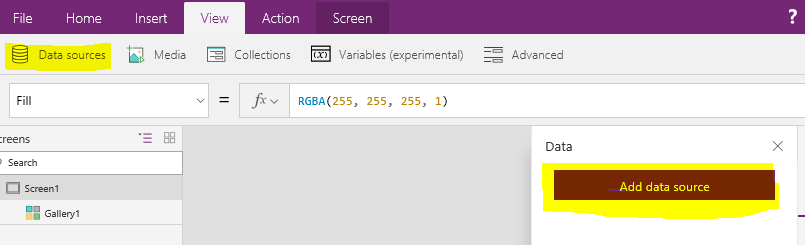
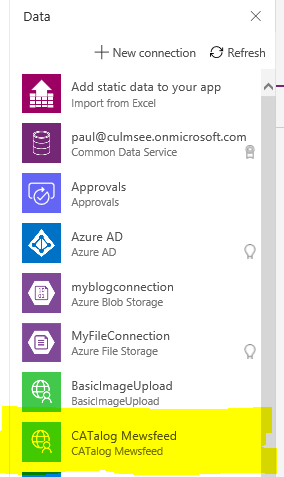
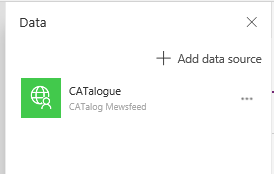
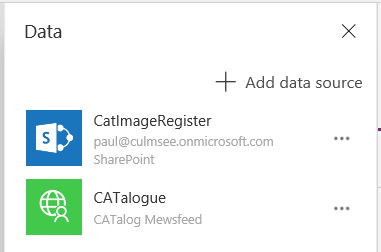
1. From the View menu, choose Data sources and click the Add data source from the Data panel. From the list of connections, find the connection we created moments ago to test the connector. Click it and it will be added to the app.

image

image   image

Note the name of your connector matches the Postman collection we created in part 2 of this series. Make a note of this because we will need it momentarily…

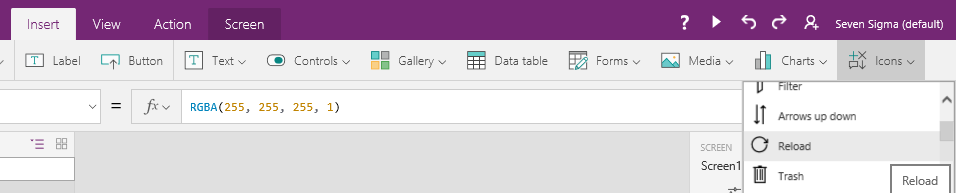
2. From the Insert menu, choose Icons and choose the Reload icon.

image

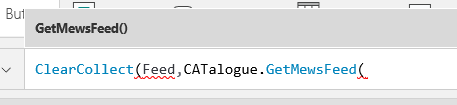
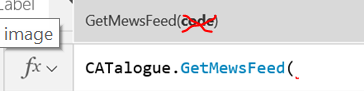
Select the refresh icon you just created and choose the OnSelect property. Type in “ClearCollect(Feed,” and then enter the name of the data source you just added (mine is called “CATalogue”). The intellisense in PowerApps will also present the name of your function that you specified back in part 2 when creating the postman collection. In my example it was called “GetMewsFeed”.

image  image

image

Note: If you are presented to provide a code as a parameter to your data connection as shown below, you missed an important step in the custom connector setup. Recall in part 2 I mentioned that the code parameter in the custom connector had to be changed from none to internal. For now, you can add the same code that was generated as part of the Azure function URL, otherwise update the custom connector.

image

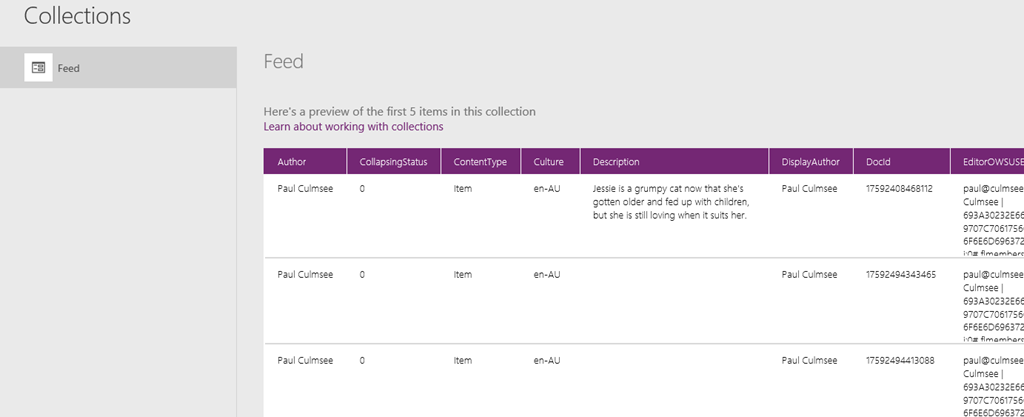
3. Click the new icon to trigger a data refresh and then navigate to Collections from the File menu. You should see a collection called Feed with some of the data returned. If you see a table of data then congratulations! You have successfully queried SharePoint search and returned the data to PowerApps via an Azure function.

image

The columns that are of interest to us for the purposes of this post are:

  • Title
  • ListID
  • ModifiedBy
  • LastModifiedTime
  • OriginalPath

So now that we have gotten some data, let’s now show how we can display it in the form of a data feed.

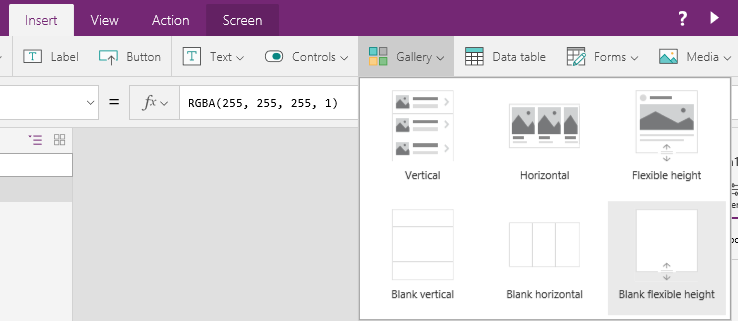
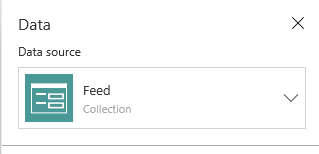
4. From the Insert menu, choose Gallery and pick a Blank flexible height gallery. In the data panel, choose the Feed collection from the Data source dropdown.

image image

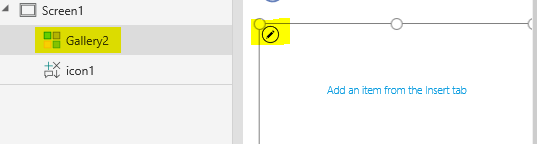
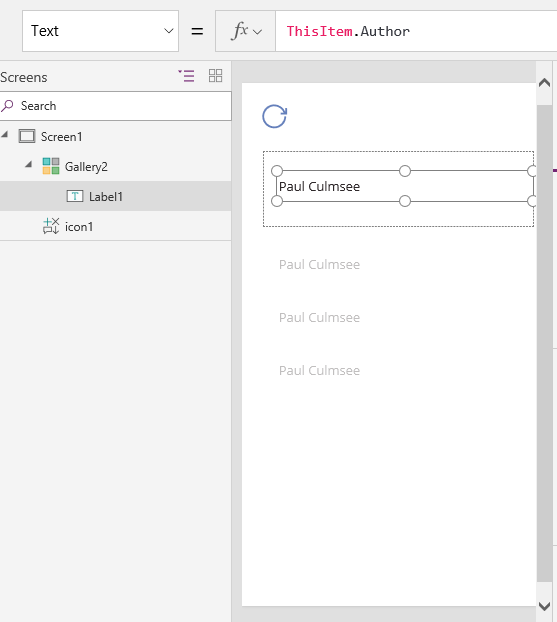
5. Ensure your Gallery is still selected via the left side navigation. Click the pencil icon inside the gallery and then from the Insert menu, choose Label. This label will bind to a column in your data source and you should see something like the second screen below, where data is repeated down the page. If the label control is still selected, the Text property will be set to something like ThisItem.Author.

image

image

Modify the Text property of the label to “Updated by ” & ThisItem.ModifiedBy & ” on ” & ThisItem.LastModifiedTime. The result is a line that shows who modified the item in the feed and when they modified it. While you are here, rename this label control and call it something more meaningful. In PowerApps I use Hungarian notation as it makes it easier to understand complex formulas later. Thus I called this one lbWhoWhen. Finally, resize the gallery to fit the screen and drop the font size of the label so everything fits on one line…

image

image

image

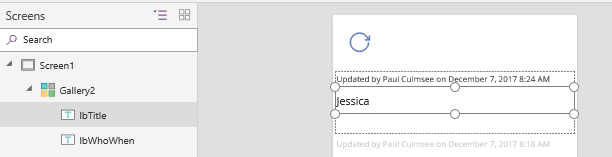
6. Add another label to the gallery (remember to use the pencil icon to ensure the new label control is added to the gallery and not the screen). Place it below the label you created in step 5 and set it’s text property to ThisItem.Title. Adjust the font size and position it appropriately. Rename this label to something meaningful (I used lbTitle ).

image

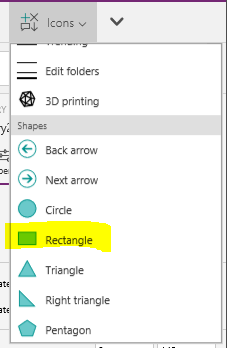
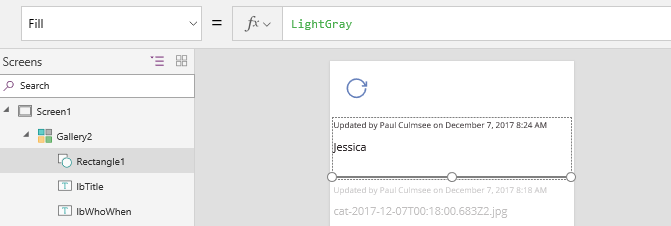
7. Add an icon to the screen and choose Rectangle from the Shapes section. Resize it so that it looks like a horizontal line (Set the Height property to 1) and change its colour to grey either via the toolbar or via setting the Fill property to “LightGray”. Also rename it to something like Separator.

image   image

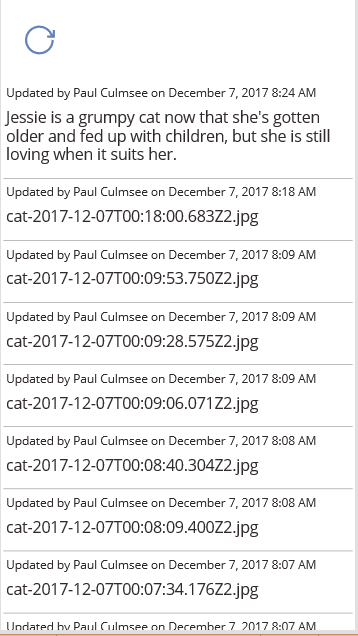
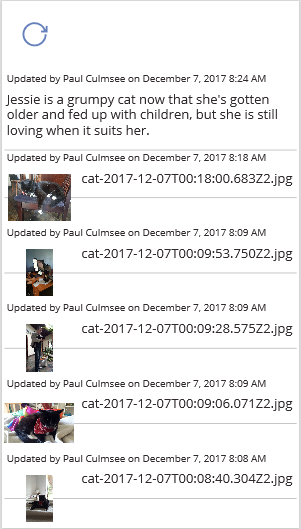
Preview the app and the feed should start to take shape…

image

Hopefully you can see by now that we are more or less done, as we are now moving into aesthetics in terms of how our feed is to look. So I will round out this post by showing you a couple of tricks that I think make this feed more interesting…

6a. Pimping your feed (easy)

If you look closely at the sample data I used to build this feed, it includes images as well as list item content. In fact, to remind you of where we started, I mentioned that my daughter wrote an app called CAT-alogue which used three SharePoint lists/libs: There was a list called Cat Directory, a list called CatImageRegister and a library called CatImages.

So let’s make the following enhancements:

  1. If the search results contain a Description field, use that instead of the Title field (the Cat Directory list utilises the built-in SharePoint site column called Description, which happens to be a managed property in SharePoint search)
  2. If the search result is the image library, display the image rather than the file name.

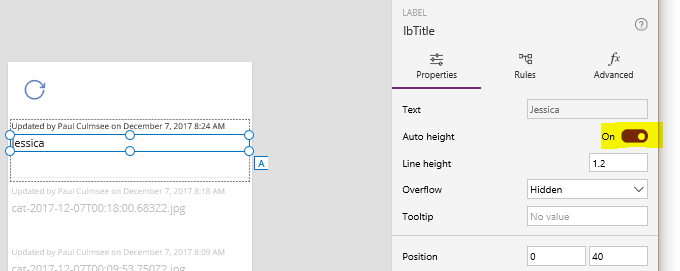
Handling description requires a couple of changes to our Title label. First, we need to set Auto height to On because the description field is multi-line. This is easiest done by toggling it to On via the right-side properties panel when selecting the label as shown below:

image

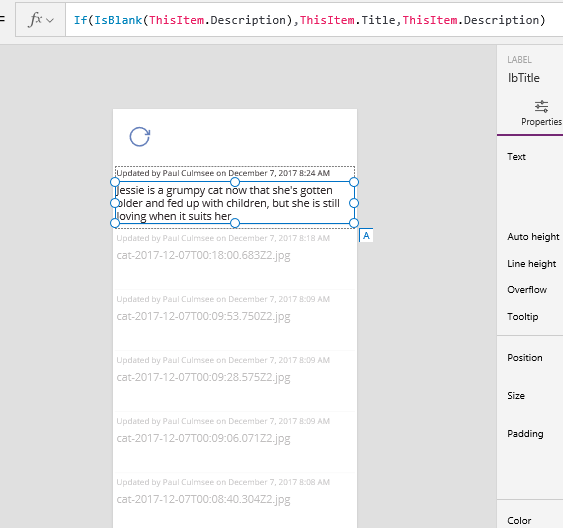
Next, change the Text property in the label to If(IsBlank(ThisItem.Description),ThisItem.Title,ThisItem.Description). This tells PowerApps to display the Title field if no description has been crawled. The effect should be immediate…

image

But this is a flexible height gallery, so let’s take advantage of this. We will now set the position of our separator rectangle to be based on the height of the Title/Description label. Remember this label is now set to auto-height… To do this you will need to take note of the name of your Title/Description label. Mine is called lbTitle.

Set the Y property of your rectangle to: lbTitle.Y + lbTitle.Height + 20. Previewing this change should result in a change to your screen for the better…

image

6b. Pimping your feed (less easy)

Right! So what we can do about displaying images in the feed? Turns out this is one of those examples that might seem easy, but is actually quite tricky and also not particularly bandwidth efficient either. It also has a lot to do with how you set up your data in SharePoint, so some refresher is needed before we start.

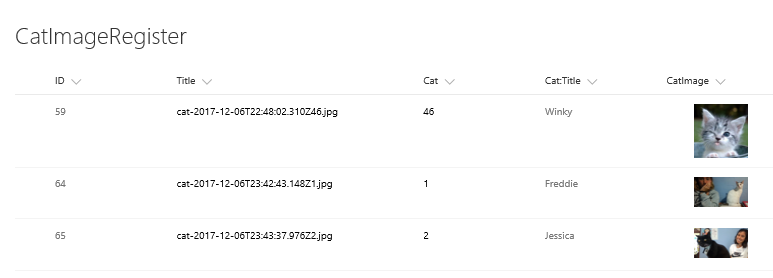
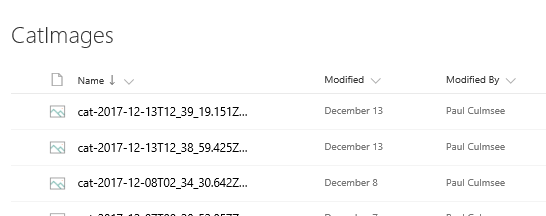
First up, Ashlee’s CAT-alogue app is structured with 3 lists. There is a list called Cat Directory, a list called CatImageRegister and a library called CatImages. The second list is the one that matters here, as each time a photo is taken, the metadata is stored in this list rather than the CatImages library. It then links to the actual photo in CatImages as shown below. Note that the title field for CatImageRegister is the name given to the photo in CatImages.

image   image

Why set it up this way you ask? Well for a start, PowerApps cannot connect to libraries yet, and these days, PowerApps is smart enough to be able to retrieve images from a list like this. So let’s take advantage of this…

Also some more useful nuggets of context: another thing we can take advantage of is the built-in SharePoint search property called ListID. Way back in Part 2 when we did the PowerShell script, I included a line that specified some search managed properties to be returned that are not by default. The line was:

$returnproperties = @(“ContentType”,”ListID”,”ModifiedBy”, “ListItemId”)

Specifically, the property of ListID is what matters here. This property returns the unique ID of each list. Can you see where I am going with this yet?

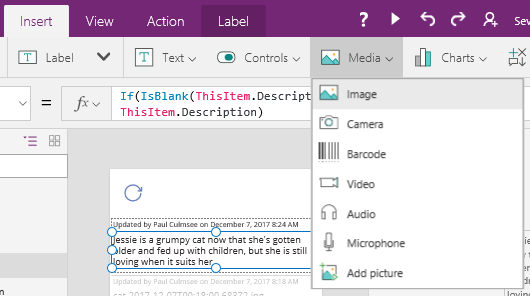
From the Insert menu, choose Media from the toolbar and insert an Image control into the gallery. Rename it to CatPhoto and resize it and place it under the first label.

image  image

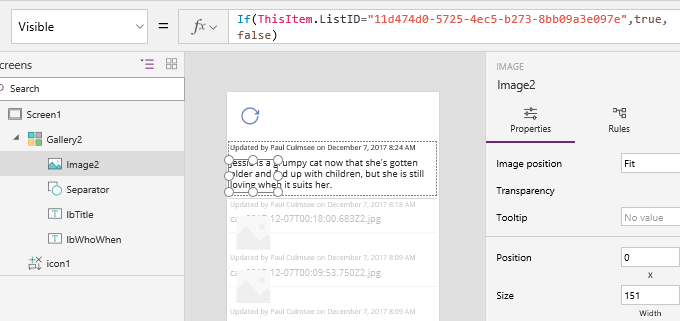
Set the Visible property to only display if the list ID of the feed item is the CatImageRegister list. It will be something like: If(ThisItem.ListID=”11d474d0-5725-4ec5-b273-8bb09a3e097e”,true,false). Of course the ID you need to specify depends on our setup. This should now hide the image control when the ListID does not match my CatImageRegister list.

image

Next, let’s get the image control to display the photo itself. To do this, we will connect to SharePoint using the native PowerApps connector. From the View menu, choose Data Sources and add a SharePoint data source. Choose the SharePoint list that holds a link to your photos (in my case, CatImageRegister).  

image

Now set the Image property of the Image control to something like this: LookUp(CatImageRegister,Title=ThisItem.Title).CatImage. Although things look ugly, you should see the photos…

image

So what we did here was utilise the PowerApps Lookup function which returns first record in a data source that satisfies a formula. In my case I wanted to bring back the record where the Title field in CatImageRegister matched the Title field for each row in the feed gallery. From here, I specified that I specifically wanted the CatImage property and voila!

Next, we make the feed look less sucky by making the position of the Title/Description label more dynamic. If an image is displayed, we will reposition the Title/Description label to the right of the image. To do this, set the X property of the Title/Description label to: If(CatPhoto.Visible,CatPhoto.X + CatPhoto.Width + 10,0). This tells PowerApps to shift the label to the right of the image control when it is visible and sets the X position to 0 when its not.

image

Now let’s set the Y position. In this case, if the image control is visible, let’s vertically align the label to the middle of the image control. But if the image control is hidden, let’s set the label to positioned relative to the top label. To do this, set the Y property of the Title/Description label to: If(CatPhoto.Visible,(CatPhoto.Y + CatPhoto.Height) / 2,lbWhoWhen.Y + lbWhoWhen.Height + 10).

Nice… the feed is looking a lot tidier…

image

Now let’s fix the separator rectangle we created earlier. Here, if the image control is visible, the Y position of the separator should be offset from it, however if the image control is hidden, then it should be based on the Title/Description label. To do this, set the Y property of the separator to: If(CatPhoto.Visible,CatPhoto.Y + CatPhoto.Height + 20, lbTitle.Y + lbTitle.Height + 20).

Preview the app and you should have yourself a nice feed!

image

Conclusion

At this point, I think we have covered enough to give you a really good feel for how PowerApps an play nicely with SharePoint search and Azure functions. While I fully accept this is an advanced scenario for the typical citizen developer, it is still a very low-code scenario and working knowledge of Azure functions and PowerApps/Flow custom connectors is very handy indeed.

I think it also shows that these platforms are highly flexible. This activity-feed scenario was one of those tricky scenarios that in the past, might have been added to the “too-hard” basket or resulted in custom development work.

Finally, I have recorded a series of videos to accompany these posts. I split the videos up into easy to consume chunks. The first one can be found below:


Thanks for reading


Paul Culmsee


PowerApps, Flow and Managed Metadata fields–part 4

Hi and welcome to the final post in this series of articles that examined how we can work around an unsupported function in PowerApps and Flow. Along the journey we have learnt about app principals, the SharePoint REST API and written some crazy JSON.

In this final post, we will tie up a few loose ends. Currently the flow hard-codes the term ID from managed metadata when in fact, we want it to be sent from PowerApps. I will also also give you some insight into handling more complex situations, like multiple managed metadata fields as opposed to a single one.

But first, the (giant) weak spot…

As I write this I if any of you, as you read the first 3 posts, realised the weakness to this method. A strong hint was given in the last post. Recall that the JSON to update a managed metadata field required a term GUID…

{
   "__metadata": { "type": "SP.Data.Coffee_x0020_Shop_x0020_RatingsListItem" },
   "Bean":
   { "__metadata": {"type":"SP.Taxonomy.TaxonomyFieldValue"},
     "TermGuid":"0937fbc2-0dfe-439e-a24f-ba6d13897abd",
     "WssId":"-1"
   }
}

Now right now in PowerApps, there is no managed metadata control. This means you cannot browse a term store like you can in SharePoint. Among other things, one likely reason for this is that there is no REST API support for managed metadata. This has been a constant source of frustration for many as you can see in the 761 votes (as I type this) in uservoice.

What’s the implication of this limitation? For a start, there is no way we can build a REST call that will return us all of the terms in a term set. We have to either hard-code the term GUID’s in our application (ugh) or find another way to get the list of terms (ugh again). One thing that should be noted is that sometimes, hard coding terms and GUID’s isn’t as bad as it sounds. For example, you might have a term set for your corporate offices in certain countries. Since those terms are unlikely to change quickly, one can embed their GUID’s into PowerApps without too much concern.

For the first part of this article, we will use this approach and hard-code our term set of coffee beans into our Powerapp. Then we will modify our flow to expect this parameter from PowerApps.

Back to PowerApps…

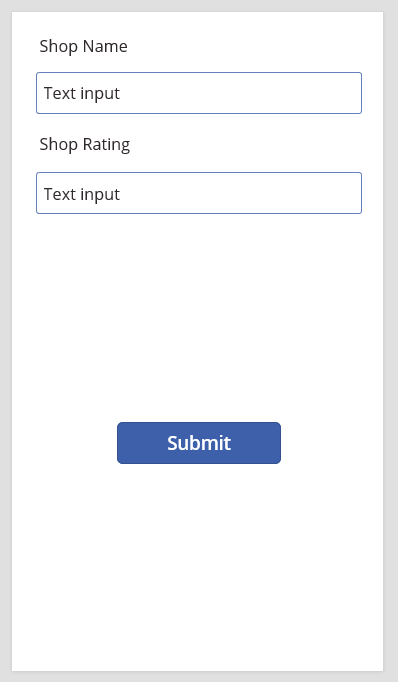
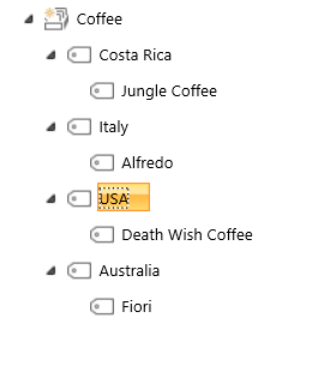
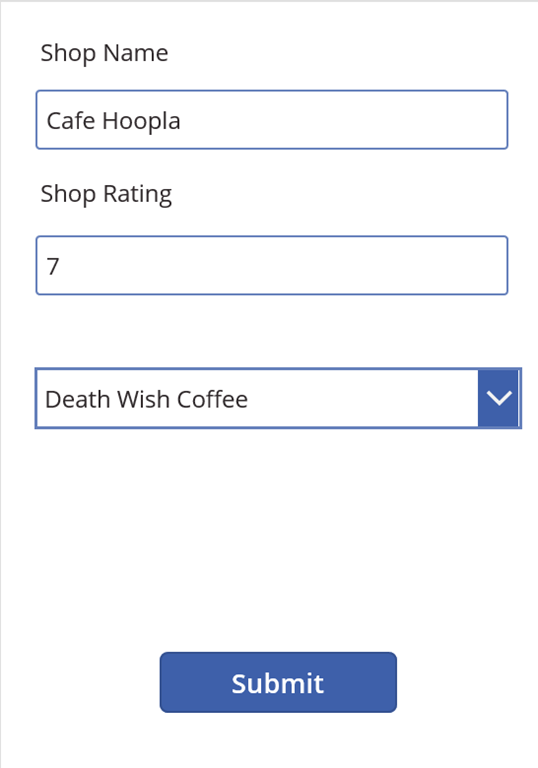
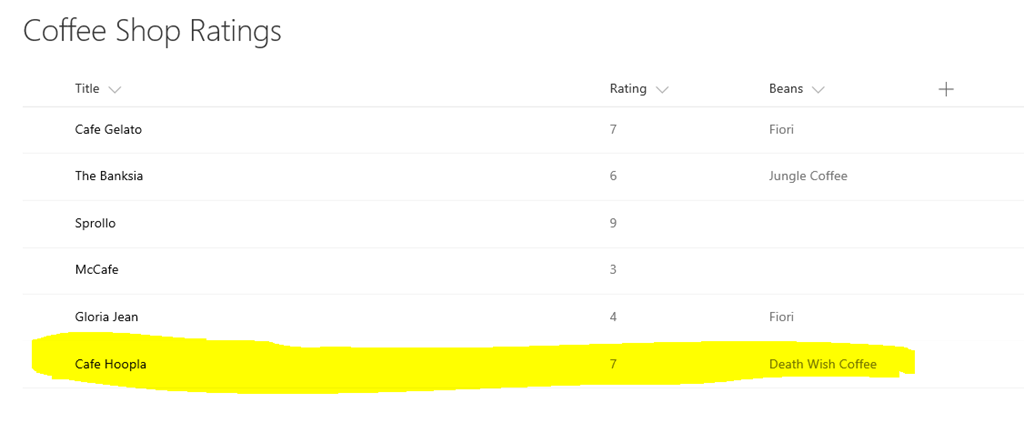
If you go back to the PowerApp we built way back in part 1 and also the term set of coffee beans, they looked like this:

image  image

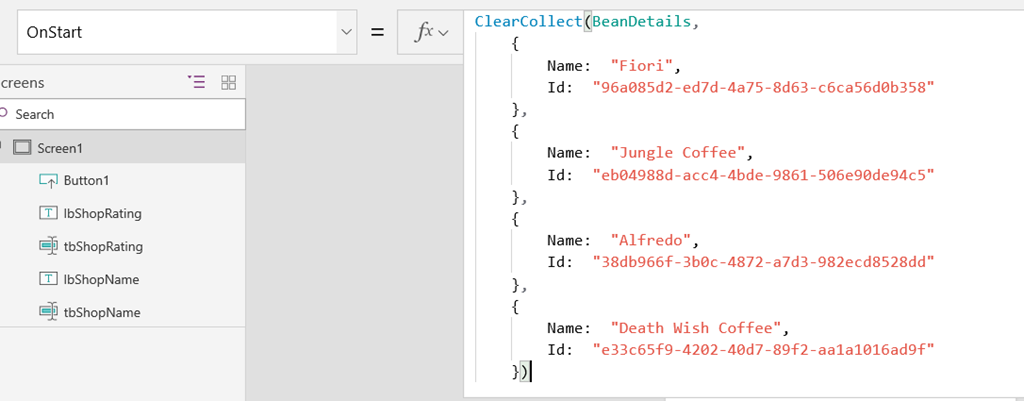
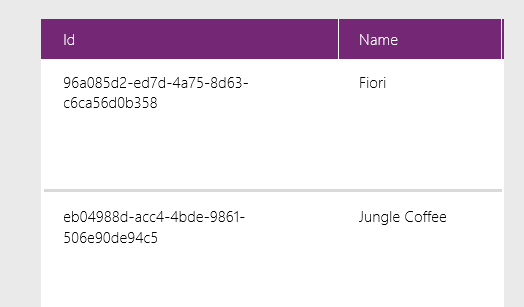
To hardcode our terms into PowerApps, I am going to use the ClearCollect function to create a collection called BeanDetails. I have grabbed the term label and GUID from managed metadata and constructed this function:

ClearCollect(BeanDetails,
{
   Name:  "Fiori",
   Id:  "96a085d2-ed7d-4a75-8d63-c6ca56d0b358"
},
{
   Name:  "Jungle Coffee",
   Id:  "eb04988d-acc4-4bde-9861-506e90de94c5"
},
{
   Name:  "Alfredo",
   Id:  "38db966f-3b0c-4872-a7d3-982ecd8528dd"
},
{
   Name:  "Death Wish Coffee",
   Id:  "e33c65f9-4202-40d7-89f2-aa1a1016ad9f"
})

Next, I use the OnStart property of the screen and paste the ClearCollect function as shown below.

image

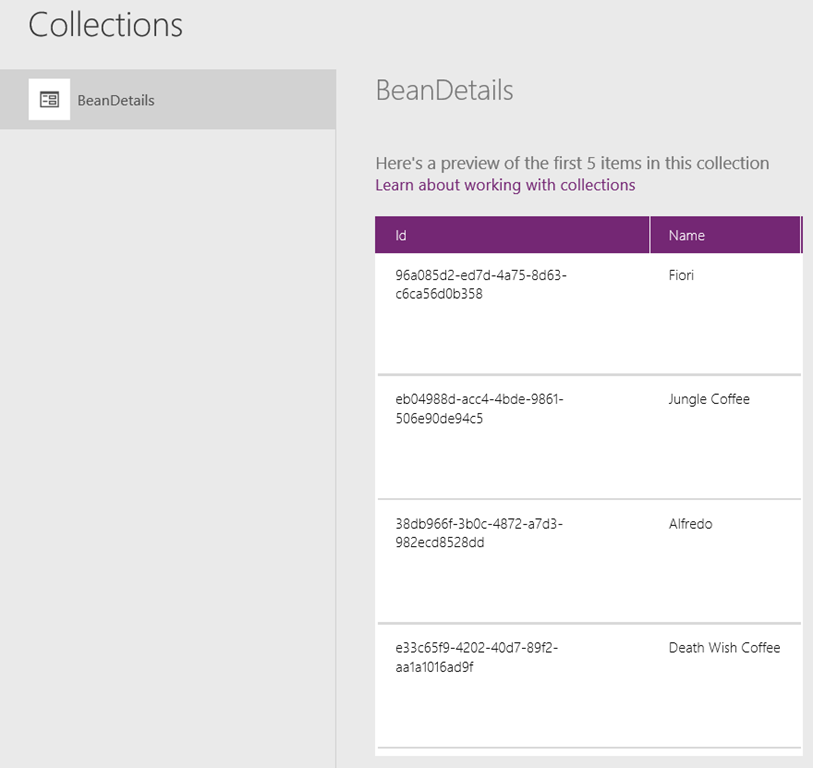
Now you will need to save, close and reopen the app for this to take effect. Alternatively add a temporary button and use the above code on the OnSelect property. Either way, you should be able to see your terms and GUID’s when going to Collections from the File menu…

image

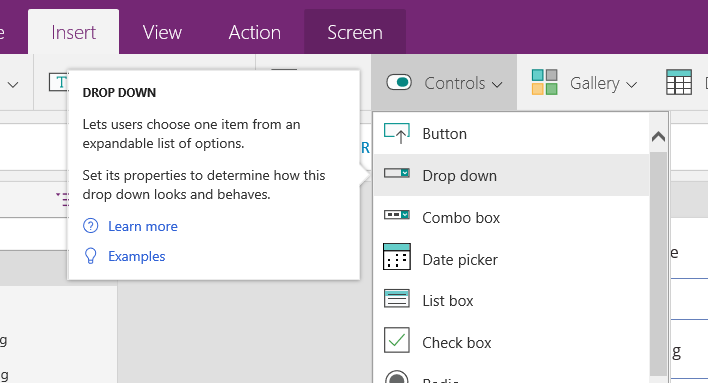
Now that we have our term set stored in PowerApps, let’s add a dropdown list to the screen that lists our coffee beans. Choose Insert > Drop Down and set its Items property to BeanDetails.

image

image

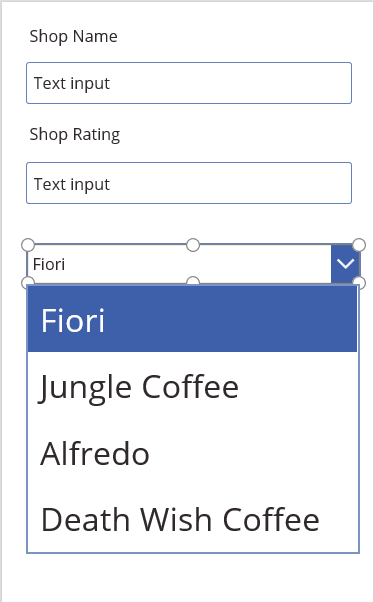
Now you should be able to see the choice of beans in the dropdown as shown below:

image

Next, we have to go back to Flow and modify it to accept a term GUID as a parameter (if you recall in part 3 the term is currently hard-coded).

Tweaking Flow…

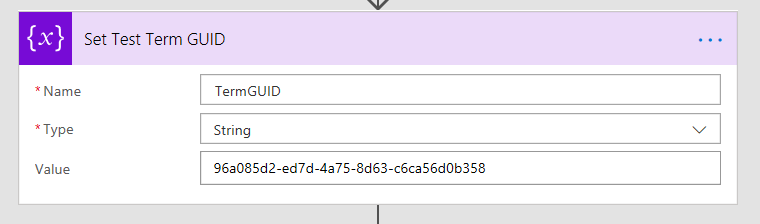
If you have followed our Flow adventure so far, you should have a flow action called Set Test Term GUID that looks something like this:

image

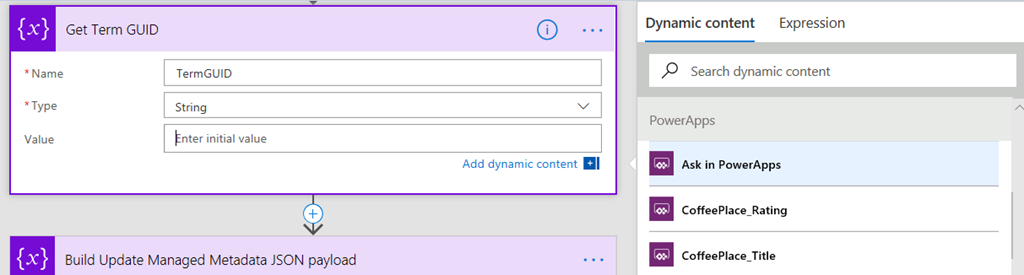
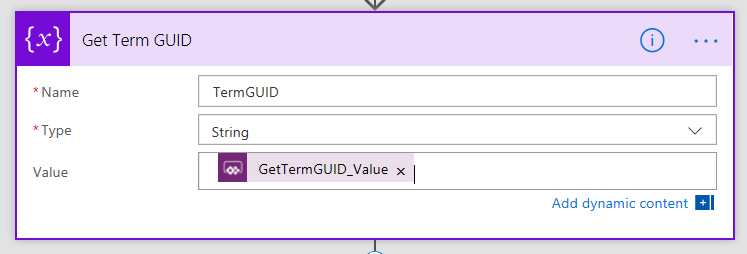
First, rename this flow step to Get Term GUID and then delete the GUID that we previously had in the Value field. From the Dynamic Content pane, choose Ask in PowerApps.

image

image

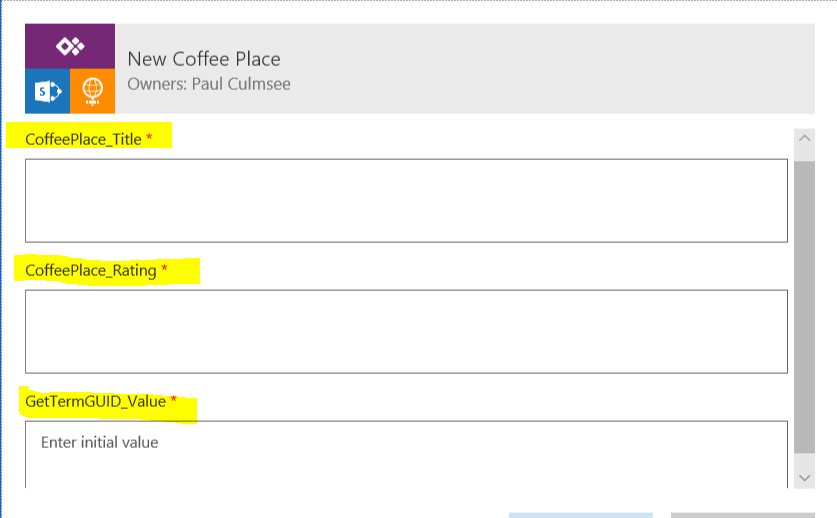
Update your flow and before returning to PowerApps, click the Run Now button. Ensure you are now prompted for three parameters, rather than the original two.

image

image

Back to PowerApps…

Now in PowerApps, we have to delete and flow and re-add it so it finds the new parameter we just added.

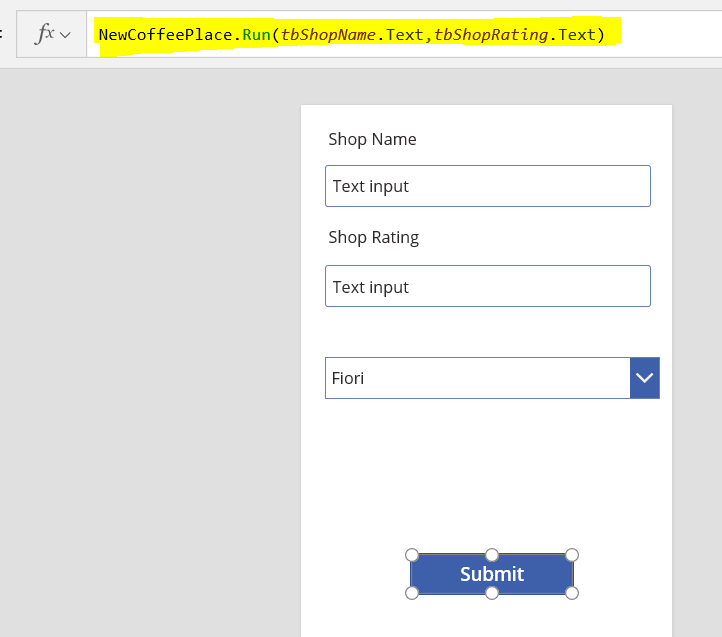
Select the Submit button and review the OnSelect property. It should show the function below…

image

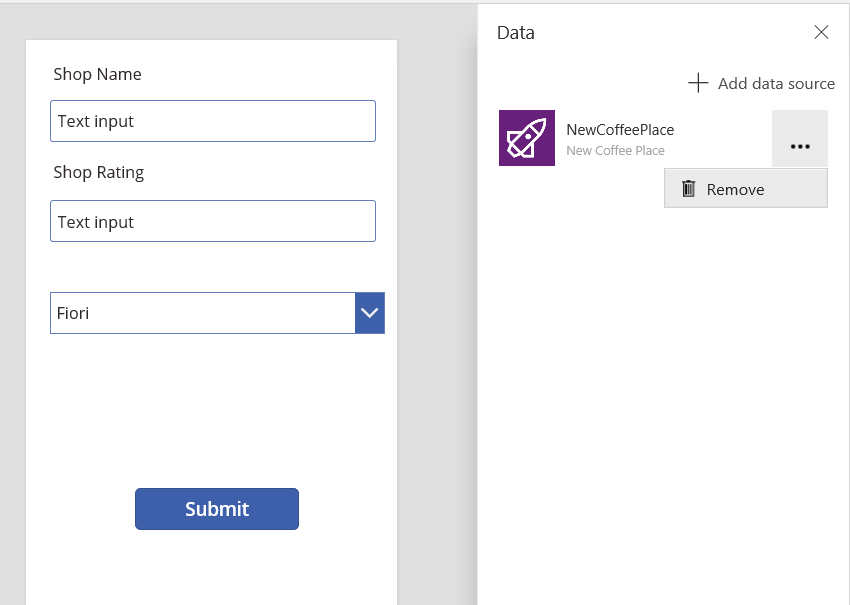
Now go to View > Data Sources and remove the NewCoffeePlace data source. You should see an error appear on the Submit button. It will say “Invocation of unknown or unsupported function”. Makes sense right? After all, we just took away its connection to flow.

image   image

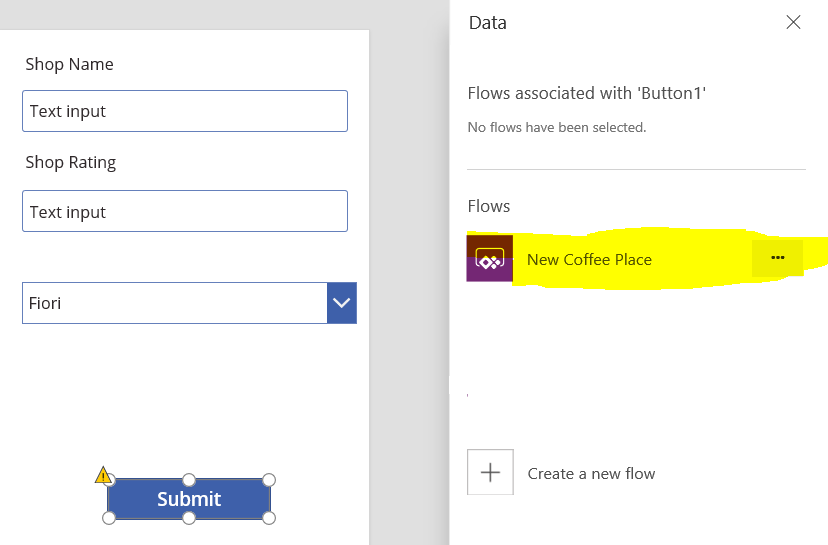
Once again make sure your Submit button is selected, and select Action > Flows. Choose the flow called New Coffee Place. In a few moments, it will ask you to complete the parameters in the formula bar. If you did this correctly, you should see a prompt for a third parameter – the term GUID.  

image  image

image

The third parameter will be the GUID that matches the term in the dropdown list. The formula for this is:

image

Now to explain Dropdown1.Selected.Id, remember that we set the Items property of the dropdown to BeanDetails collection, which has two columns, ID and Name. Essentially, by specifying Dropdown1.Selected.Id, whichever bean name is the currently selected one in the dropdown, the GUID will be sent to Flow…

image

Test this by putting the Powerapp into preview and adding a new café. If all things go to plan, you will see your new entry along with the managed metadata term. Yay!!

image  image

Hard-coding sucks – surely there a better way?

At this point you might still be hating the fact we had to hard-code the term ID’s into our app. I can sympathise, as it irritates me too. So is there a way to dynamically load the term set into PowerApps? Turns out there is, provided you use an Azure function along with PnP PowerShell.

I won’t cover this in detail here, unless there is sufficient demand, but I will explain the high level overview.

  1. Set up an Azure function using PowerShell
  2. Load PnP PowerShell modules
  3. Write a PowerShell script to connect to your tenant and pull the terms from the term set.
  4. Convert the terms to JSON output
  5. Create a custom connector for PowerApps to consume it.
  6. Add the custom connector to your app, and pull down the latest term set on startup.

Now I wrote another blog post where I went through another example of using Azure functions with PowerApps, and that covers a lot of detail on steps 1, 2, 5 and 6.

In relation to step 3 and 4, here is some PowerShell code sample to do this that you can use as a starting point. Be warned though… you will need to have some understanding of PnP PowerShell to make sense of it!


Import-Module "D:\home\site\wwwroot\modules\2.19.1710.1\SharePointPnPPowerShellOnline.psd1" -Global
$requestBody = Get-Content $req -Raw | ConvertFrom-Json
$name = $requestBody.name
$username = "paul@culmsee.onmicrosoft.com"
$password = $env:PW;
$siteUrl = "https://culmsee.sharepoint.com"
$secpasswd = ConvertTo-SecureString $password -AsPlainText -Force
$creds = New-Object System.Management.Automation.PSCredential ($username, $secpasswd)
Connect-PnPOnline -url $siteUrl -Credentials $creds
$tg = Get-PnPTermGroup -Identity 2830778b-dbfa-4441-bb45-0cbb97b582e7
$ts = Get-PnPTermSet -TermGroup $tg -Identity "Coffee"
$tl = Get-PnPTerm -TermSet $ts -TermGroup $tg -Includes Terms
foreach ($term in $tl) {
   $terms+=$term.terms
}
$output = $terms | Select Name, Id | ConvertTo-Json
Out-File -Encoding Ascii -FilePath $res -inputObject $output

Like I said, if you are interested in knowing more about this, let me know and if there is sufficient demand, I will make a dedicated blog post about it…

Handling multiple managed metadata columns…

I will end this series by showing you how to handle updating multiple managed metadata columns. This is an advanced topic, but is a good test for developing JSON manipulation skills in Flow. Like the previous section I will cover it in a high level only and leave it to you to figure it out for your environment…

So far we have updated a single column, but my real-world project that led to this series actually had 3 columns that were managed metadata. What made this interesting and tricky was that these columns were entirely optional. The complexity is easy to illustrate by looking at what a JSON payload looks like when updating multiple columns. In the example below, I am updating 3 columns called ProjectType, ProjectPhase and ProjectElement respectively…

{
   "__metadata": {
     "type": "SP.Data.ProjectListItem"
     },
   "ProjectType": {
     "__metadata": {
     "type": "SP.Taxonomy.TaxonomyFieldValue"
     },
     "TermGuid": "d4e4494f-34a4-4278-b0ee-7eba372a3f80",
     "WssId": "-1"
   },
   "ProjectPhase": {
     "__metadata": {
     "type": "SP.Taxonomy.TaxonomyFieldValue"
     },
     "TermGuid": "78d647c7-8b92-4ee0-a29d-22346b1af560",
     "WssId": "-1"
   },
   "ProjectElement": {
     "__metadata": {
     "type": "SP.Taxonomy.TaxonomyFieldValue"
   },
     "TermGuid": "6f9f653f-09ec-4771-9063-676d16734b37",
     "WssId": "-1"
   }
}

Contrast the above example with the one below where only one is updated…

{
   "__metadata": {
     "type": "SP.Data.ProjectListItem"
   },
   "ProjectElement": {
     "__metadata": {
     "type": "SP.Taxonomy.TaxonomyFieldValue"
     },
     "TermGuid": "6f9f653f-09ec-4771-9063-676d16734b37",
     "WssId": "-1"
   }
}

So the trick is to build a flexible enough flow that could generate the JSON needed to update 1, 2 or 3 columns. Without knowing whether the column would have a supplied value, meant we have to find a way to handle any combination. The pattern I ended up using was to build the JSON for each of the columns individually before joining them together. Here’s how…

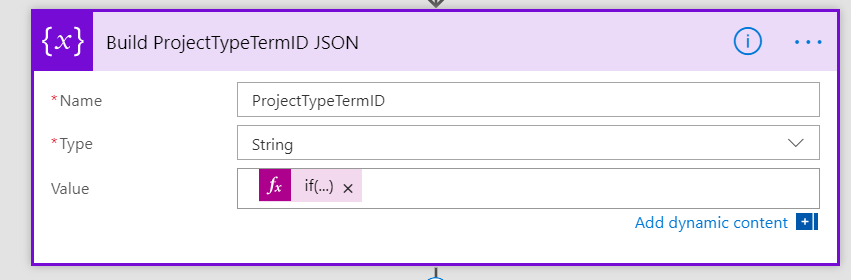
First, I used an Initialize Variable flow action to create the base JSON for each column. The key was to make this conditional, so if the column value was empty, I added an empty string. E.g.

image

The expression used for the value of this variable was this crazy looking Workflow Definition Language Expression:

if(not(empty(triggerBody()['GetProjectTypeTermID_Value'])), concat('"ProjectType":{"__metadata":{"type":"SP.Taxonomy.TaxonomyFieldValue"},"TermGuid":"',triggerBody()['GetProjectTypeTermID_Value'],'","WssId":"-1"}'),'')

Basically this grabs the term ID for a column (in the above example the columns is called ProjectType). I test if the column value is supplied – which is what the “if(not(empty” bit does. I then then construct the necessary JSON to update that managed metadata column. (Note if you need a refresher on the JSON in this function, review part 3)

I repeat this action for the other columns, and then perform the following steps in Flow to construct the complete JSON…

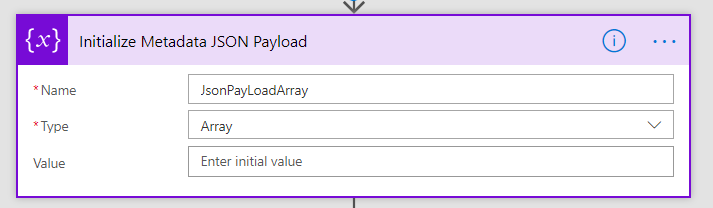
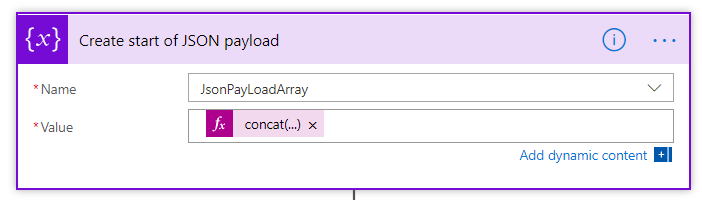
First I initialize an array variable that I call JsonPayloadArray.

image

Next I add the outer JSON for a managed metadata update to the array using the Variables – Append to array variable workflow task…

image

image

Here I am using the concat() function because I need to use the ListItemEntity variable. Note, if you have forgotten about ListItemEntryFullName property,  re-read part 3.

concat('{ "__metadata": { "type": "',variables('ListItemEntity'),'" }')

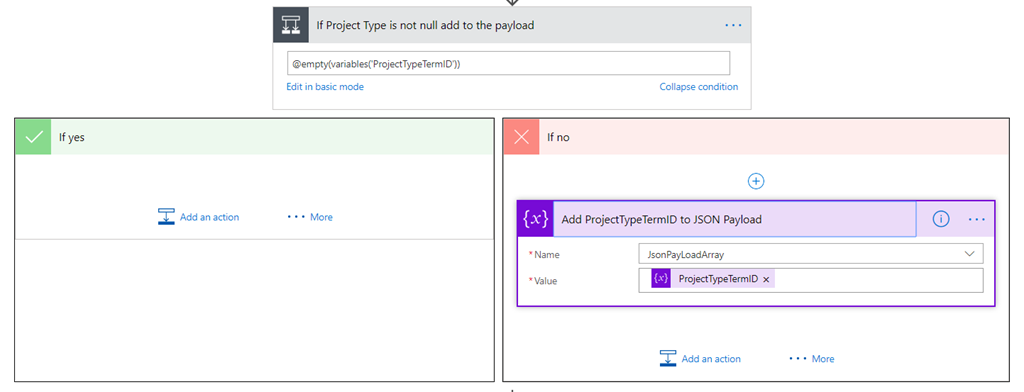
Next, I add the JSON for each column to the array, provided it is not null. I do this by adding a condition for each column.

The first image below shows the three conditions and the second image shows an expanded view of one of them. You can see in the example below, if a ProjectType was supplied, I add the variable initialized in the above steps to the JsonPayloadArray variable….

image

image

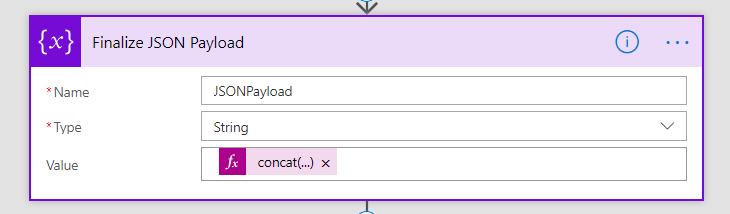
Finally, I use the Join() function to take this array and turn it back into a single string, delimited by commas. This elegantly handles the situation in JSON where the last name/value pair does not have a comma separator.  I do this by initializing a new variable called JsonPayload as a string as follows…

image

concat(join(variables('JsonPayLoadArray'),','),' } ')

Conclusion

This is one of those series that I know only a few people will get some use out of. Hopefully this whole issue of managed metadata will be gone by year-end and these approaches are not necessary. In any event the techniques outlined in these four posts apply to various other scenarios, so learning about JSON manipulation using Flow, or talking to SharePoint via REST/App principals might come in handy for you in other situations.

As for me, this is probably the geekiest series I have written in a long time! I think I better get back to management consulting now!!


Thanks for reading

Paul Culmsee

www.hereticsguidebooks.com


How’s the weather? Using a public API with PowerApps (part 2)

Introduction

Hi again

This is the second half to a post that will use the OpenWeatherMap API in PowerApps. The business scenario is around performing inspections. In the first post I gave the example of a park ranger or plant operator, both conducting inspections where weather conditions can impact the level of danger or the result of the inspection. In such a scenario it makes sense to capture weather conditions when a photo is taken.

PowerApps has the ability to capture location information such as latitude and longitude, and public weather API’s generally allow you to get weather conditions for a given location. So the purpose of these posts is to show you how you can not only capture this data in PowerApps, but then send it to SharePoint in the form of metadata via Flow.

In Part 1, we got the painful stuff out of the way – that is, getting PowerApps to talk to the OpenWeather web service via a custom connector. Hopefully if you got through that part, you now have a much better understanding of the purpose of the OpenAPI specification and can see how it could be used to get PowerApps to consume many other web services. Now we are going to actually build an app that takes photos and captures weather data.

App prerequisites…

Now to get through this post, we are going to do this is to leverage a proof of concept app I built in a separate post. This app was also an inspection scenario, allowing a user to take a bunch of photos, which were then sent to SharePoint via Flow, with correctly named files. If you have not read that post, I suggest you do so now, because I am assuming you have that particular app set up and ready to go.

Go on… its cool, I will wait for you… Smile

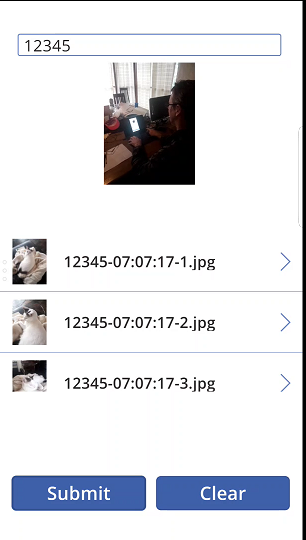
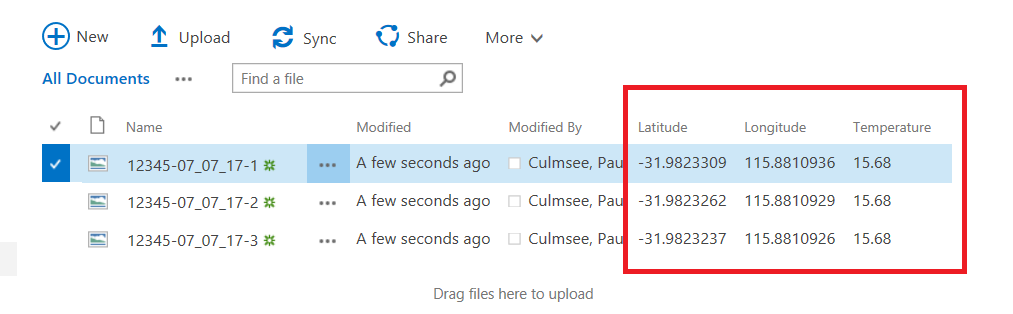
Seriously now, don’t come back until you can do what I show below. On the left is PowerApps, taking a couple of photos, and on the right is the photos now in a SharePoint document library.

image  image

Now if you have performed the tasks in the aforementioned article, not only do you have a PowerApp that can take photos, you’ll have a connection to Flow and ready to go (yeah the pun was intended).

First up, lets recap two key parts of the original app.

1. Photo and file name…

When the camera was clicked, a photo was taken and a file name was generated for it. The code is below:

Collect(PictureList,{

        Photo: Camera1.Photo,

        ID: Concatenate(AuditNumber.Text,”-“,Text(Today(),”[$-en-US]dd:mm:yy”),”-“,Text(CountRows(PictureList)+1),”.jpg”)

} )

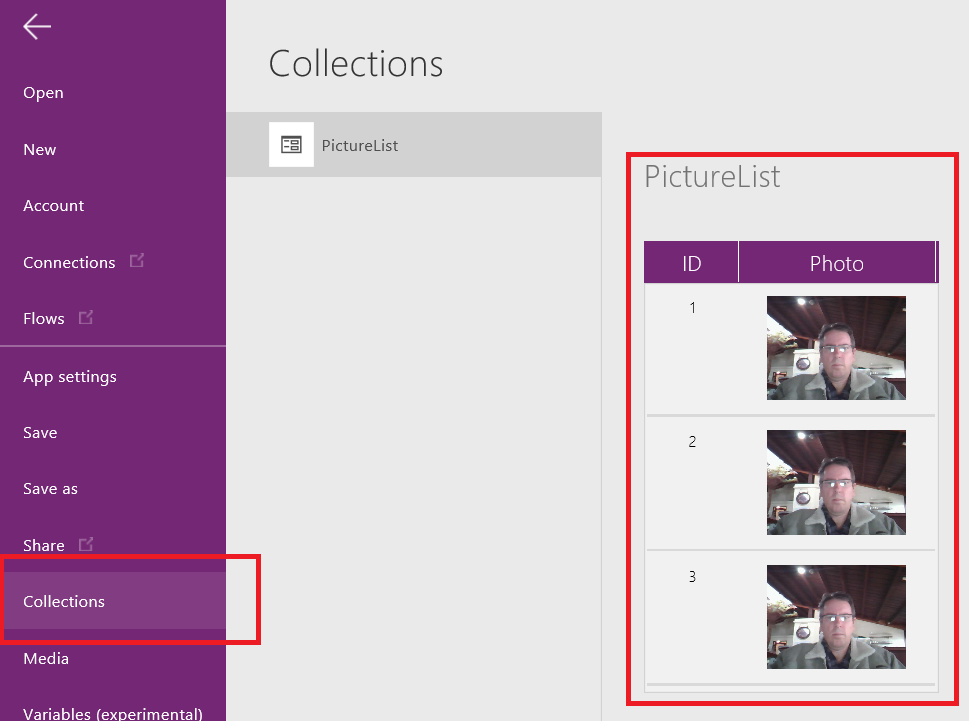
This code created an in-memory table (a collection named PictiureList) that, when a few photos are taken, looks like this:

image

2. Saving to Flow

The other part of the original app was saving the contents of the above collection to Flow. The Submit button has the following code…

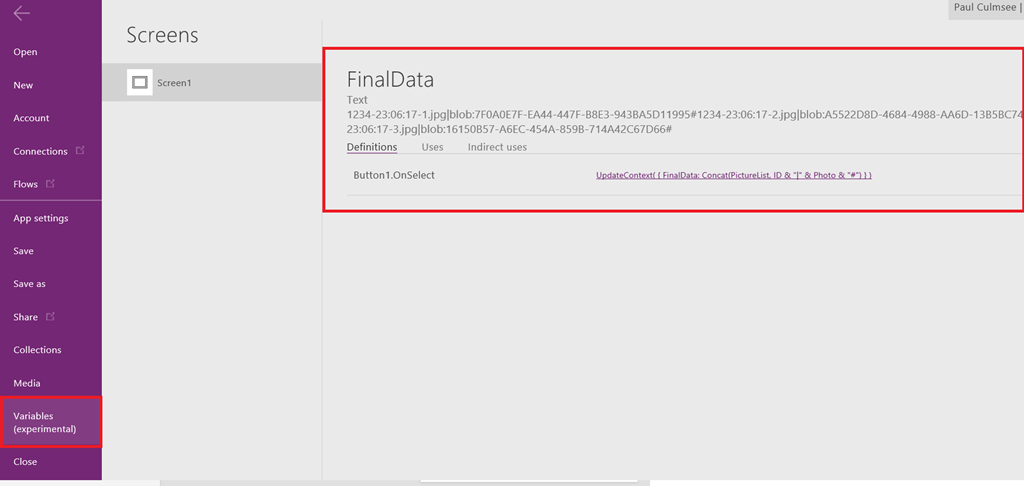
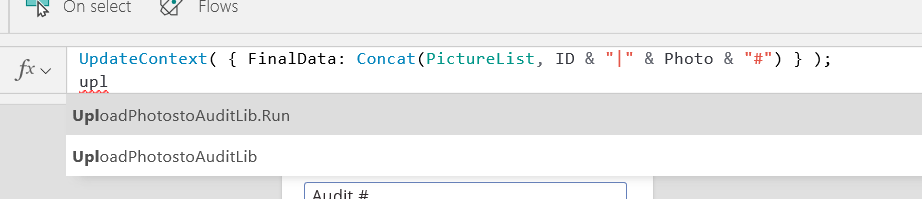
UpdateContext( { FinalData : Concat(PictureList, ID & “|” & Photo & “#”) } );
UploadPhotostoAuditLib.Run(FinalData)

The first line takes the PictureList collection above and munges it into a giant string called FinalData. Each row is delimited by a hash “#” and each column delimited by a pipe “|”. The second line then calls the Flow and passes this data to it.

Both of these functions are about to change…

Getting the weather…

The first task is to get the weather. In part 1 we already created the custom connector to the service. Now it is time to use it in our app by adding it as a data source. From the View menu, choose Data Sources. You should see your existing data source that connects to Flow.

image  image

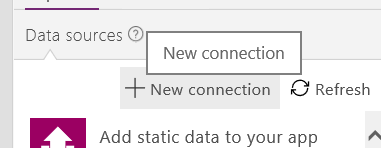
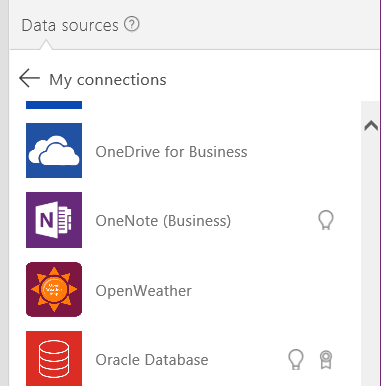
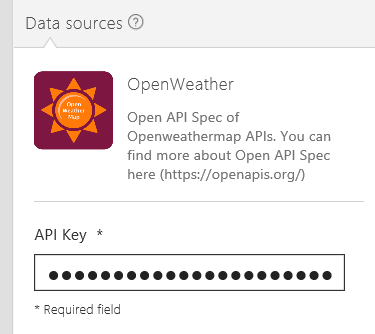
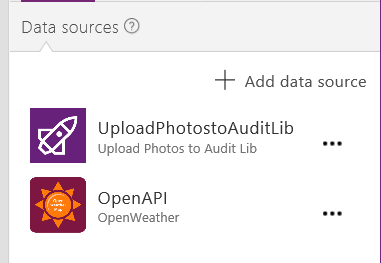
Click Add data source and then New connection. If you got everything right in part 1, you should see a data source called OpenWeather. Click on it, and you will be asked to enter an API key. You should have this key from part 1 (and you should understand exactly why you were asked for it at this point), so go ahead, add it here and click the Create button. If all things to go plan, you will now see OpenWeather added as a data source.

image  image  image  image

Now we are connected to the API, let’s test it by modifying the code that takes a photo. Instead of just capturing the photo and generating a file name, let’s also grab the latitude, longitude from PowerApps, call the API and collect the current temperature.

First here is the code and then I will break it down…

image

UpdateContext( { Weather: OpenAPI.GetWeather(Location.Latitude,Location.Longitude,”metric”) } );
Collect(PictureList,
{

     Photo: Camera1.Photo,

     ID: Concatenate(AuditNumber.Text,”-“,Text(Today(),”[$-en-US]dd:mm:yy”),”-“,Text(CountRows(PictureList)+1),”.jpg”),

     Latitude:Location.Latitude,

     Longitude:Location.Longitude,

     Temp:Weather.main.temp } )


The first line is where the weather API is called: OpenAPI.GetWeather(Location.Latitude,Location.Longitude,”metric”) . The parameters Location.Latitude and Location.Longitude come straight from PowerApps. I want my temperature in Celsius so I pass in the string “metric” as the 3rd parameter.

My API call is then wrapped into an UpdateContext() function, which enables us to save the result of the API call into a variable I have called Weather.

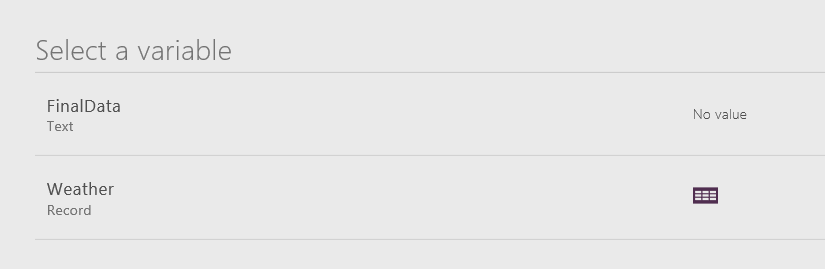
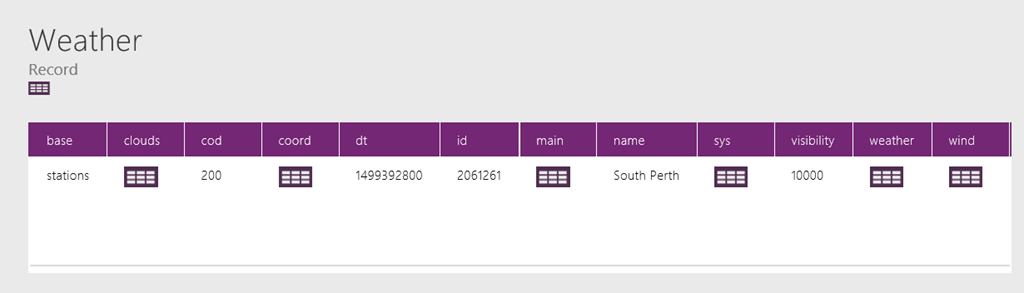
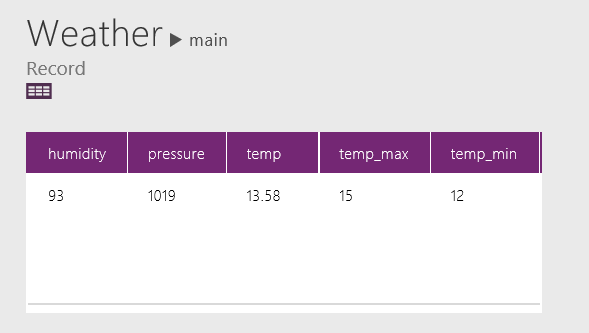
Now if you test the app by taking photos, you will notice a couple of things. First up, under variables, you will now see Weather listed. Drill down into it and you will see that a complex data structure is returned by the API. In the example below I drilled down to Weather->Main to find a table that includes temperature.

image

image  image

The second line of code (actually I broke it across multiple lines for readability) is the Collect function which, as its title suggests, creates collections. A collection is essentially an in-memory data table and the first parameter of Collect() is simply the name of the collection. In our example it is called PictureList.  The second second parameter is a record to insert into the collection. A record is a comma delimited set of fields and values inside curly braces. eg: { Title: “Hi”, Description: “Greetings” }. In our example, we are building a table consisting of:

  • Photo
  • File name for Photo
  • Latitude
  • Longitude
  • Temperature

The last parameter is the most interesting, because we are getting the temperature from the Weather variable. As this variable is a complex data type, we have to be quite specific about the value we want. I.e. Weather.main.temp.

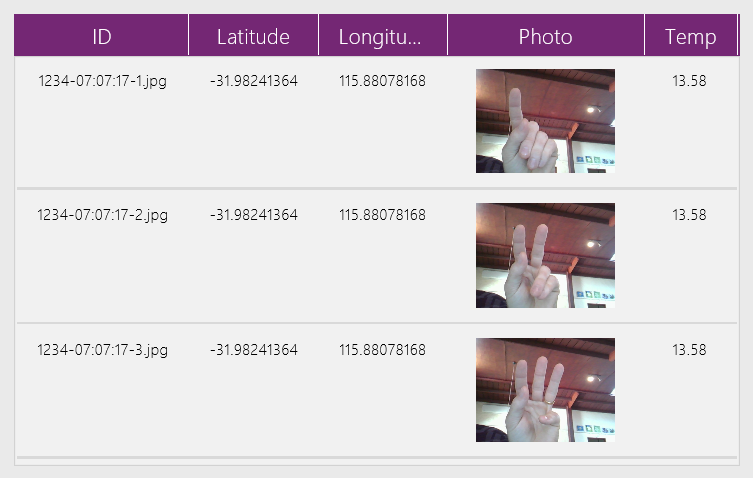
Here is what the PictureList collection looks like now. If you have understood the above code, you should be able to extend it to grab other interesting weather details like wind speed and direction.

image

Getting ready for Flow…

Okay, so now let’s look at the code behind the Submit button. The change made here is to now include the additional columns from PictureList into my variable called FinalData. If this it not clear then I suggest you read this post or even Mikael Svenson’s work where I got the idea…

image

UpdateContext( { FinalData : Concat(PictureList, ID & “|” & Photo & “|” & Latitude & “|” & Longitude & “|” & Temp & “#”) } );
UploadPhotosToAuditLib.Run(FinalData)

So in case it is not clear, the first line munges each row and column from PictureList into a giant string called FinalData. Each row is delimited by a hash “#” and each column delimited by a pipe “|”. The second line then calls the Flow and passes it FinalData.

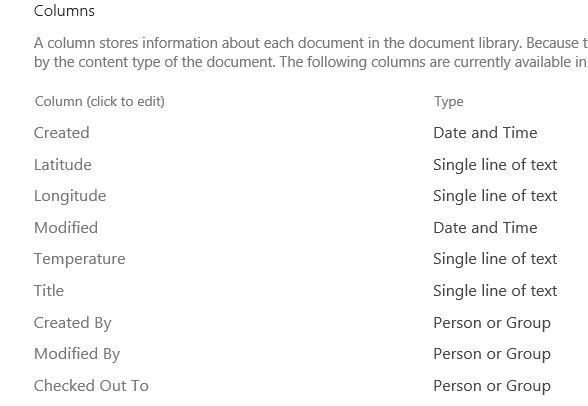
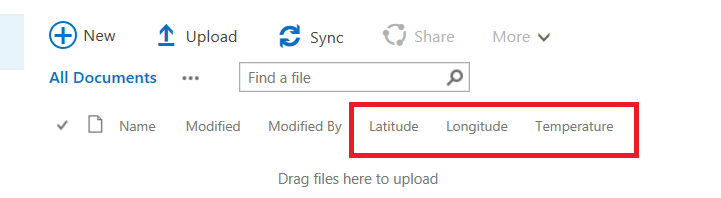
At this point, save your changes to PowerApps and publish as you are done here. Let’s now make some changes to the SharePoint document library where the photos are currently being uploaded to. We will add columns for Temperature, Latitude and Longitude and I am going to assume you know enough of SharePoint to do this and will paste a screenshot of the end in mind…

image  image

Right! Now it is time to turn our attention to Flow. The intent here is to not only upload the photos to the document library, but update metadata with the location and temperature data. Sounds easy enough right? Well remember how I said that we got rid of most of the painful stuff in part 1?

I lied…

Going with the Flow…

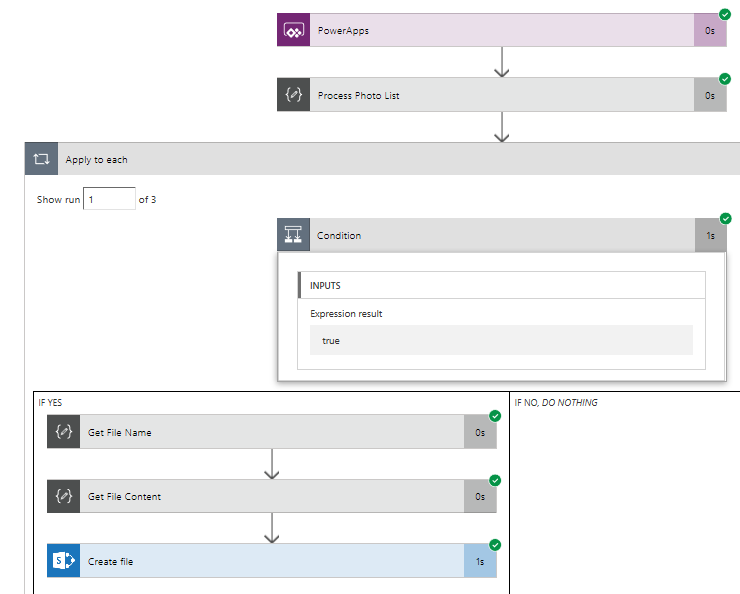
Now with Flow, it is easy to die from screenshot hell, so I am going to use some brevity in this section. If you played along with my pre-requisite post, you already had a flow that more or less looks like this:

  1. A PowerApps Trigger
  2. A Compose action that splits the photo via hash: @split(triggerbody()[‘ProcessPhotos_Inputs’],”#”)
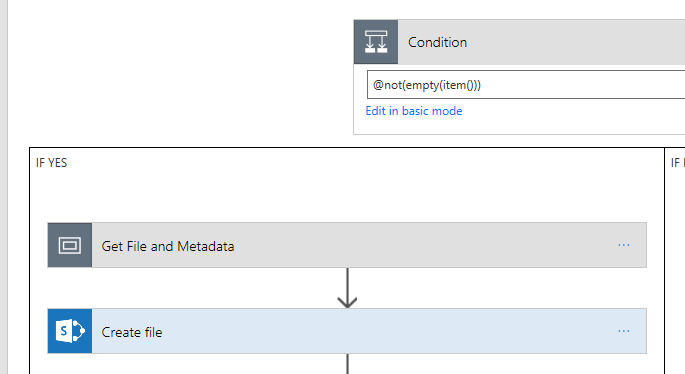
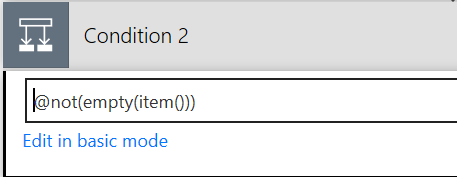
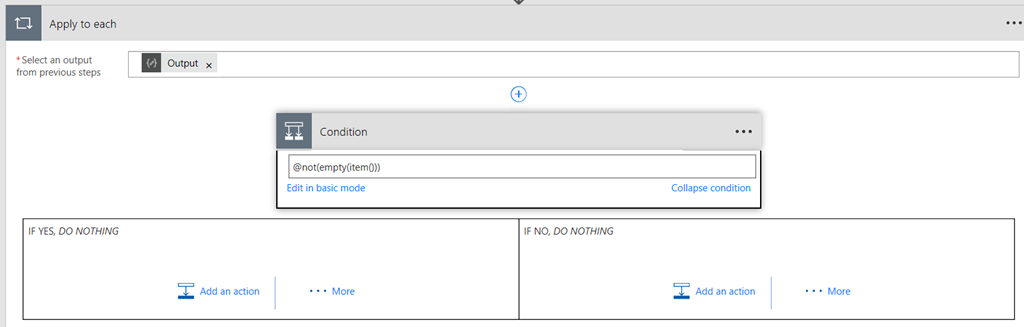
  3. An Apply to each statement with a condition inside @not(empty(item()))
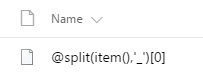
  4. A Compose action that grabs the file name: @split(item(),’|’)[0]
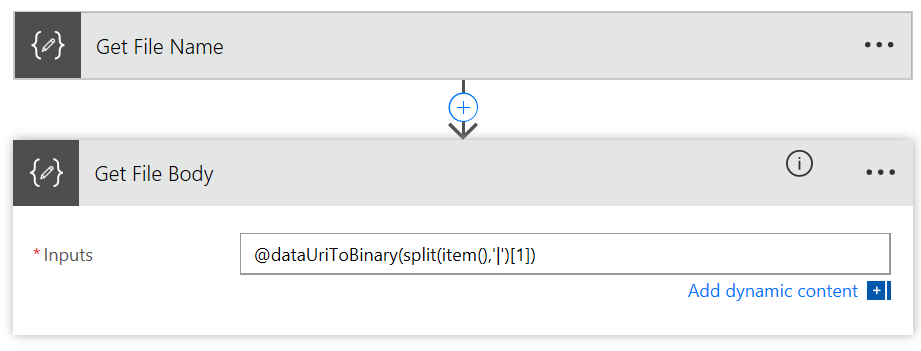
  5. A Compose action that grabs the file contents and converts it to binary: @dataUriToBinary(@split(item(),’|’)[1])
  6. A SharePoint Create File action that uploads the file to a document library

The image below illustrates the basic layout.

image

Our task is to now modify this workflow to:

  1. Handle the additional data sent from PowerApps (temperature, latitude and longitude)
  2. Update SharePoint metadata columns on the uploaded photos with this new data.

As I write these lines, Flow has very poor support for doing this. It has been acknowledged on UserVoice and I know the team are working on improvements. So the method I am going to use here is essentially a hack and I actually feel a bit dirty even suggesting it. But I do so for a couple of reasons. Firstly, it helps you understand some of the deeper capabilities of Flow and secondly, I hope this real-world scenario is reviewed by the Flow team to help them understand the implications of their design decisions and priorities.

So what is the issue? Basically the flow actions in SharePoint have some severe limitations, namely:

  • The Create File action provides no way to update library metadata when uploading a file
  • The Create Item action provides access to metadata but only works on lists
  • The Update Item action works on document libraries, but requires the item ID of the document to do so. Since Create File does not provide it, we have no reference to the newly created file
  • The Get Items function allows you to search a list/library for content, but cannot match on File Name (actually it can! I have documented a much better method here!)

So my temporary “clever” method is to:

  1. Use Create File action to upload a file
  2. Use the Get Items action to bring me back the metadata for the most recently created file in the library
  3. Grab the ID from step 2
  4. Use the Update Item action to set the metadata on the recently uploaded image.

Ugh! This method is crude and I fear what happens if a lot of flows or file activity was happening in this library and I really hope that soon the next section is soon redundant…

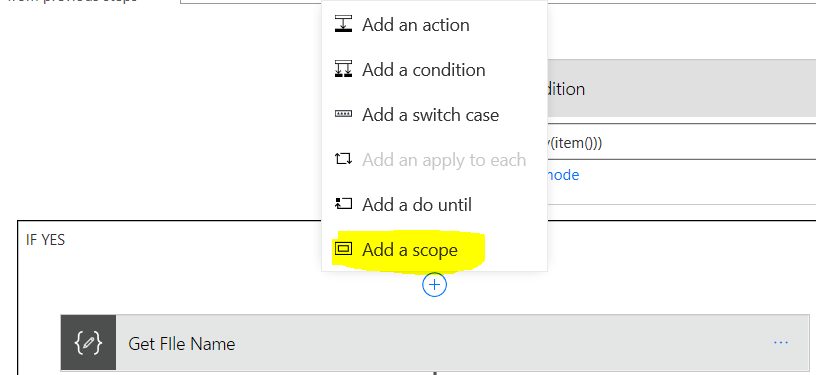
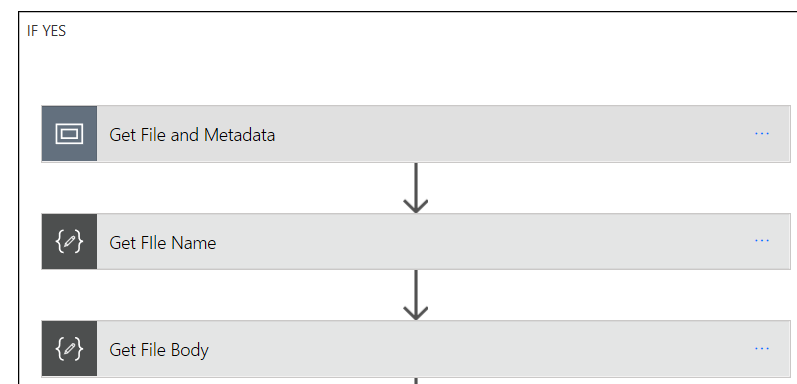
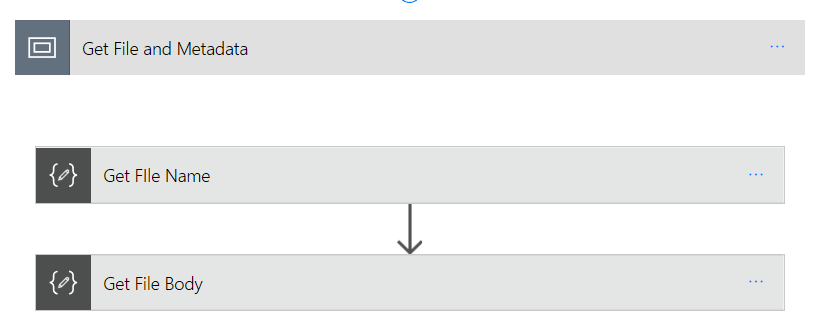
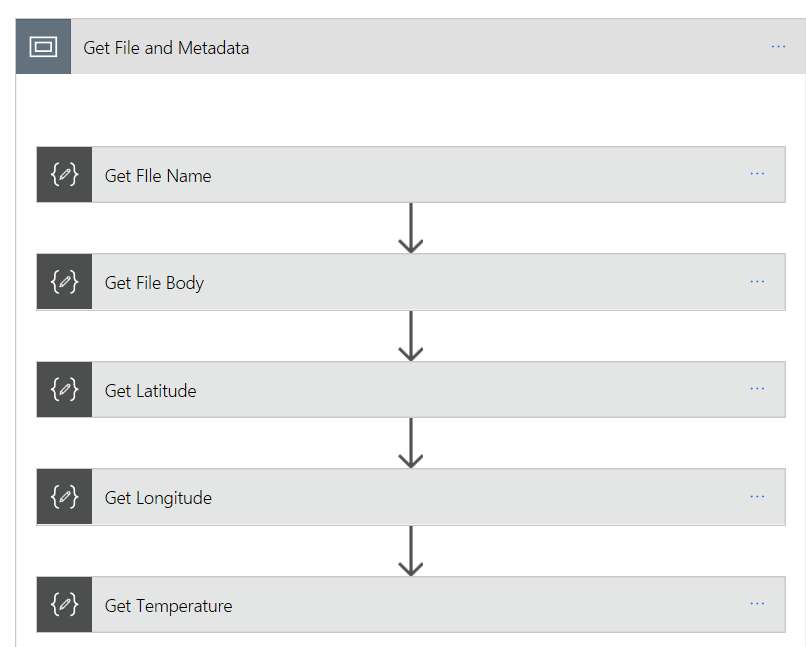
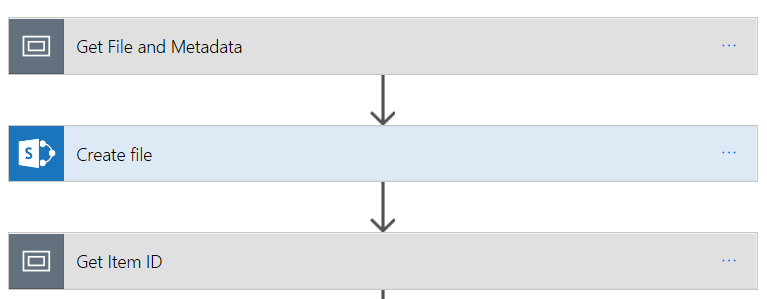
Okay so let’s get started. First up let’s make use of some new Flow functionality and use Scopes to make this easier. Expand the condition block and find the Compose action that extracts the file name. If you dutifully followed my pre-req article it will be called “Get File Name”. Above this, add a Scope and rename it to “Get File and Metadata”. Drag the “Get File Name” and “Get File Body” actions to it as shown below.

image  image  image

Now let’s sort out the location and temperature data. Under “Get File Body”, add a new Compose action and rename it to “Get Latitude”. In the compose function add the following:

Under “Get Latitude”, add a new Compose action and rename it to “Get Longitude”. In the compose function add the following:

Under “Get Longitude”, add a new Compose action and rename it to “Get Temperature”. In the compose function add the following:

  • @split(item(),’|’)[4]

This will result in the following:

image  image

Now click on the Get File and Metadata scope and collapse it to hide the detail of metadata extraction (now you know what a scope is for Smile)

image

So now we have our metadata, we need to apply it to SharePoint. Under the “Create File” action, add a new scope and call it “Get Item ID”. This scope is where the crazy starts…

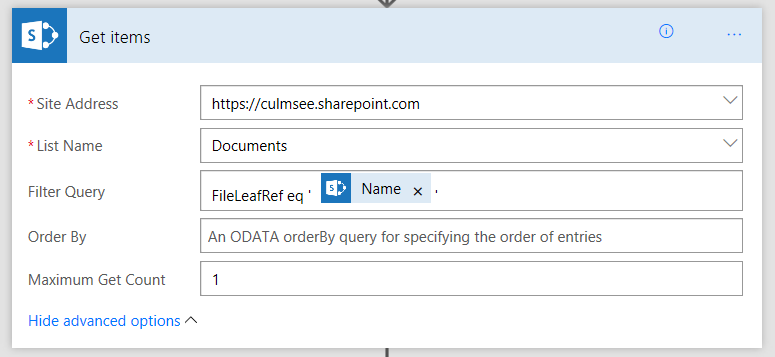
Inside the scope, add a SharePoint – Get Items action. Enter the URL of your site collection and in the name (not URL) of your document library. In the Order By field, type in Created desc and set the Maximum Get Count to 1. Basically this action is calling a SharePoint list web service and “Created desc” says “order the results by Created Date in descending order (newest first).

Actually what you do is set Filter Query to FileLeaf eq ‘[FileName]’ as described in this later post!

Now note the plural in the action: “Get Items”. That means that by design, it assumes more than 1 result will be returned. The implication is that the data will comes back as an array. in JSON land this looks like the following:

[ { “Name”: “Value” }, { “Name”: “Value2” }, { “Name”: “Value3” } ]

and so on…

Also note that there is no option in this action to choose which fields we want to bring back, so this action will bring back a big, ugly JSON array back from SharePoint containing lots of information.

Both of these caveats mean we now have to do some data manipulation. For a start, we have to get rid of the array as many Flow actions cannot handle them as data input. Also, we are only interested in the item ID for the newly uploaded photo. All of the other stuff is just noise. So we will add 3 more flow actions that:

  1. clear out all data apart from the ID
  2. turn it from an array back to a regular JSON element
  3. extract the ID from the JSON.

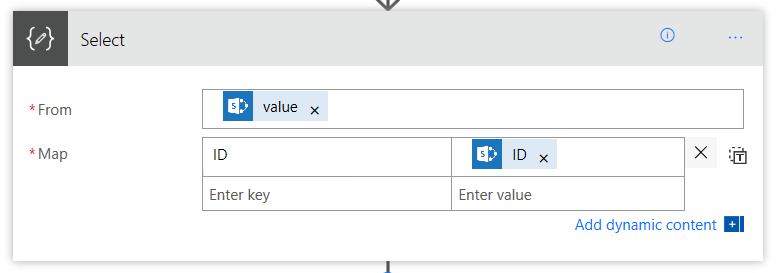
For step 1, under the “Get items” action just added, add a new Data Operations – Select action. We are going to use this to select just the ID field and delete the rest. In the From textbox, choose the Value variable returned by the Get Items action. In the Map field, enter a key called “ID” and set the value to be the ID variable from the “Get Items” action.

image

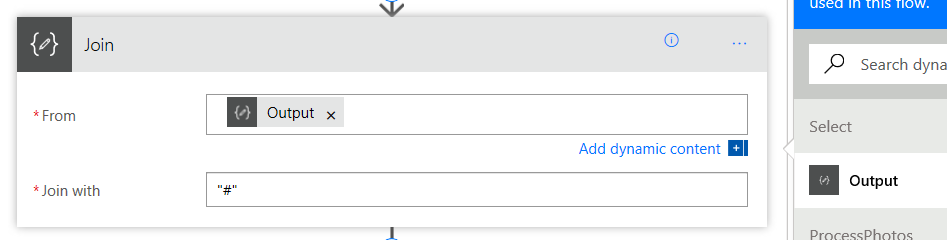
For step 2, under the “Select” action, add a Data Operations – Join action. This action allows you to munge an array into a string using a delimiter – much like what we did in PowerApps to send data to Flow. Set the From text box to be the output of the Select action. The “Join with” delimiter can actually be anything, as the array will always have 1 item. Why? In the Get Items action above, we set the Maximum Get Count to 1. We will always get back a single item array.

image

The net effect of this step will be the removal of the array. I.e., from:

[ { “ID”: 48 } ]

to

{ “ID”:48 }

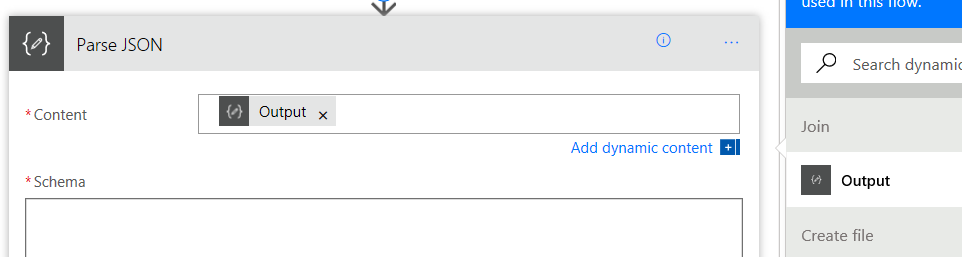
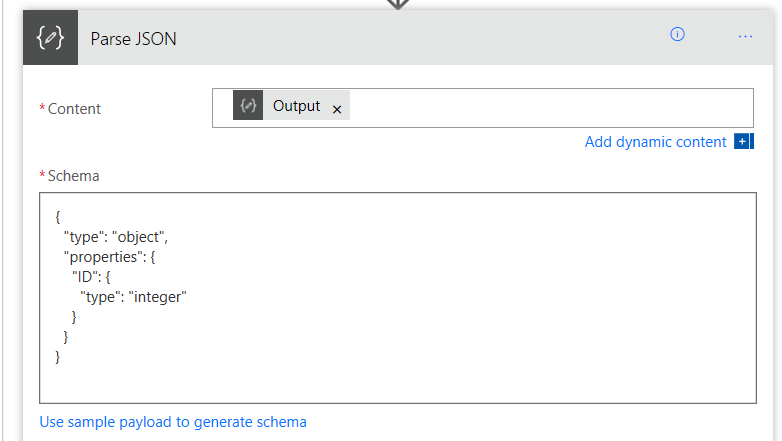
For step 3, under the “Join” action, add a Data Operations – Parse JSON action. This action will process the JSON file and each element found will be available to subsequent actions. The easiest way to understand this action is to just do it and see the effect. First, set the Content textbox to the output from the Join action.

image

Now we need to tell this action which elements that we are interested in. We already know that we only have 1 variable called ID because of the Select action we set up earlier that has stripped everything else out. So to tell this action we are expecting an ID, click the “use sample payload…” link and paste some sample JSON in our expected format…

{

    “ID”:48

}

If all goes to plan, a Schema has been generated based on that sample data that will now allow us to grab the actual ID value.

image  image

Okay, so we are done with the Get Item ID scope, so collapse it as follows…

image

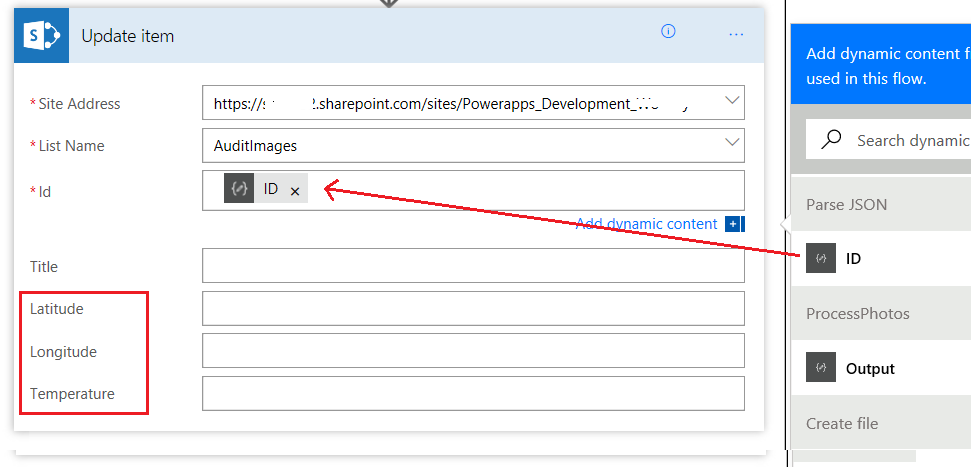
Finally, under the “Get Item ID” scope, add a SharePoint – Update Item action. Add the URL of your site collection and then specify the document library where the photos were uploaded to. If this has worked, the additional metadata columns should now be visible as shown in the red box below. Now set the specific item we want to update by setting the ID parameter to the ID variable from the Parse JSON step.

image

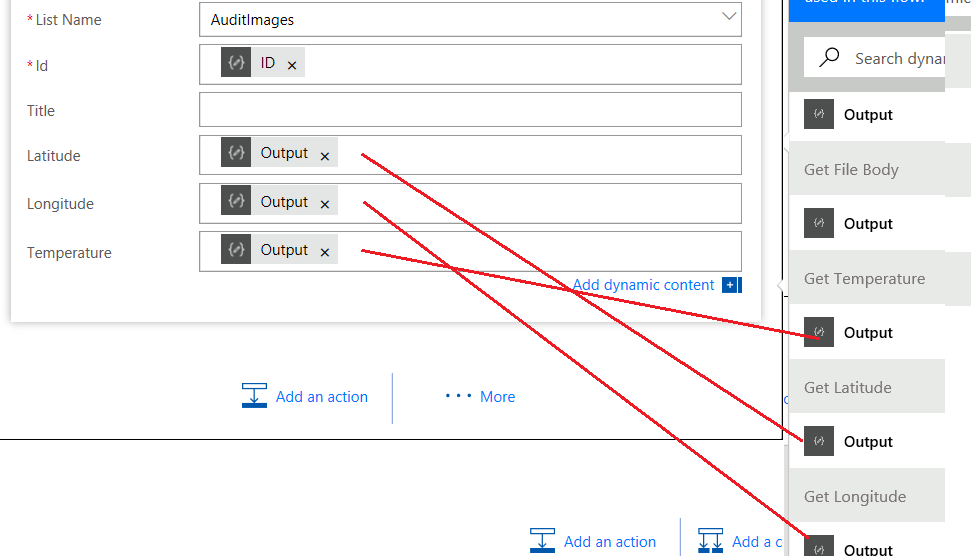
Now assign the metadata to the library columns. Set Latitude to the output variable from the Get Latitude step, Longitude to the output variable from the Get Longitude step and Temperature to the output variable from the Get Temperature step as shown below.

image

Now save your flow and cross all fingers and toes…

Testing and conclusion!

Return to PowerApps (in the browser or on your mobile device – not the PowerApps studio app). Enter an audit number and take some photos… Wohoo! Here they are in the library along with metadata. Looks like I need to put on a jacket when I step outside Smile

image   image

So taking a step back, we have managed to achieve quite a lot here.

  1. We have wired up a public web service to PowerApps
  2. We have used PowerApps built-in location data to load weather data each time a photo has been taken
  3. We have used Flow to push this data into SharePoint and included the location and weather data as parameters.

Now on reflection there are a couple of massive issues that really prevent this from living up to its Citizen Developer potential.

  1. I had to use a 3rd party service to generate my OpenAPI file and it was not 100%. Why can’t Microsoft provide this service?
  2. Flow’s poor support for common SharePoint scenarios meant I had to use (non) clever workarounds to achieve my objectives.

Both of these issue were resolvable, which is a good thing, but I think the solutions take this out of the realm of most citizen developers. I had to learn too much JSON, too much Swagger/OpenAPI and delve deep into Flow.

In saying all that, I think Flow is the most immature piece of the puzzle at this stage. The lack of decent SharePoint support is definitely one where if I were a program manager, I would have pushed up the release schedule to address. It currently feels like the developer of the SharePoint actions has never used SharePoint on a day to day basis, and dutifully implemented the web services without lived experience of the typical usage scenarios.

For other citizen developers, I’d certainly be interested in how you went with your own version and variations of this example, so please let me know how you go.

And for Microsoft PowerApps/Flow product team members who (I hope) are reading this, I think you are building something great here. I hope this material is useful to you as well.


Thanks for reading


Paul Culmsee

www.hereticsguidebooks.com


A Filename Generation Example for PowerApps with Flow

Hiya

A client recently asked to make a PowerApps proof of concept audit app for safety inspections. The gist was that a user would enter an audit number into the App, take a bunch of photos and make some notes. The photos needed to be named using the convention: <Audit Number>-<Date>-<Sequence Number>. Eg

  • 114A3-13:04:17-3.jpg is Audit number 114A3, photo taken on 13th of April and it was the 3rd photo taken.
  • 114A6-14:04:17-7.jpg is Audit number 114A3, photo taken on 14th of April and it was the 7th photo taken.

As I type these lines, it is still not possible to save pictures directly into SharePoint from PowerApps, so we are going to build on the method that Mikael Svenson documented. But first let’s look at this file name requirement above. While it seems straightforward enough, if you are new to PowerApps this might take a while to figure out. So let’s quickly build a proof of concept app and show how this all can be achieved.

In this post I will build the app and then we will use Microsoft Flow to post the images to a SharePoint document library. I’ll spend a bit of time on the flow side of things because there are a few quirks to be aware of.

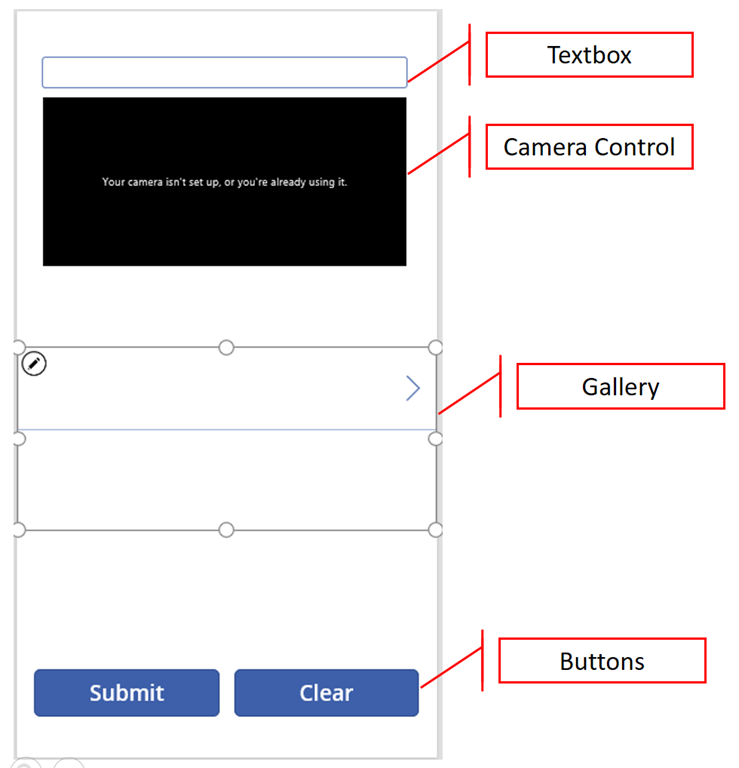
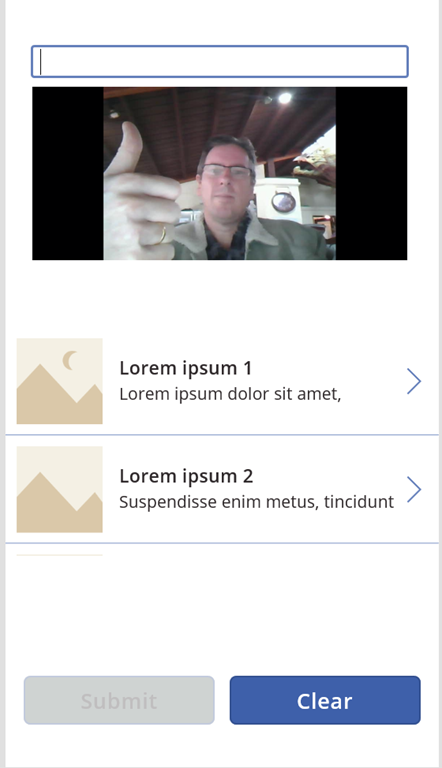
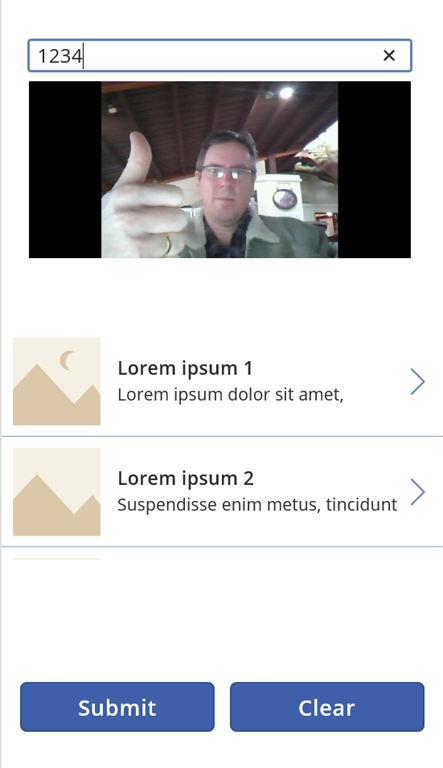
First up create a blank app and then add a text box, camera, gallery and two buttons to the form… Rename the text box control to “Auditnumber” and arrange them similar to what I have done below…

image

First up, let’s disable the submit button until an audit number is entered… Without an audit number we cannot generate a filename. To do this, set the Disabled property of the button labelled “Submit” to AuditNumber.Text=””. This means that while the audit number text box is blank, this formula will return “true” and disable the button.

image

image  image

Now let’s set things up so that when a photo is taken, we save the photo into a Collection. A collection is essentially an in-memory data table and I find that once you get your head around collections, then it opens up various approaches to creating effective apps.

On the camera control (assuming it is named Camera1), set the OnSelect property to “Collect(PictureList,{ Photo: Camera1.Photo, ID: CountRows(PictureList)+1 } )

image

Now if you are a non developer, you might think that is a bit ugly, so let’s break it down.

  • The collect function creates/populates a collection – and the first parameter is simply the name of the collection. You could call this anything you like, but I chose to call mine PictureList.
  • The second parameter is a record to insert into the collection. This consists of a comma delimited set of fields and values inside curly braces. eg: { Photo: Camera1.Photo, ID: CountRows(PictureList)+1 }

Now that whole curly brace thing is a bit ugly so let’s break it down further. First up here is an image straight from Microsoft’s own documentation. You can see a record is a row of fields – pretty standard stuff if you are familiar with databases or SharePoint list items.

In PowerApps formulas, a record can be specified using curly braces. So { Album: “Thriller”, Price: 7.99 } is a record with 2 fields, Album and Price.

Now take a look at the record I used: { Photo: Camera1.Photo, ID: CountRows(PictureList)+1 } . This shows two fields, Photo and ID. The values for the Photo field is Camera1.Photo, which holds the latest photo taken by the camera. The ID field is a unique identifier for the photo. I generated this by calling the CountRows function, passing it the PhotoList collection and then adding 1 to the result.

So here’s what happens when this app starts:

  • The PhotoList collection is empty
  • A user clicks the camera control. A photo is taken and stored in the Camera1.Photo property.
  • I then count the number of records in the PhotoList collection. As it is currently empty, it returns 0. We add 1 to it
  • The photo and an ID value of 1 is added to the PhotoList collection
  • A user clicks on the camera control again. A photo is taken and stored in the Camera1.Photo property.
  • I then count the number of records in the PhotoList collection. As it is currently has 1 record from steps 1-4, it returns 1. We add 1 to it
  • The photo and an ID value of 2 is added to the PhotoList collection

… and so on. So let’s test this now…

Press play to test your app and take a couple of photos. It may not look like anything is happening, but don’t worry. Just exit and go to the File Menu and choose “Collections”. If everything has gone to plan, you will now see a collection called PictureList with the Photo and ID columns. Yay!

image

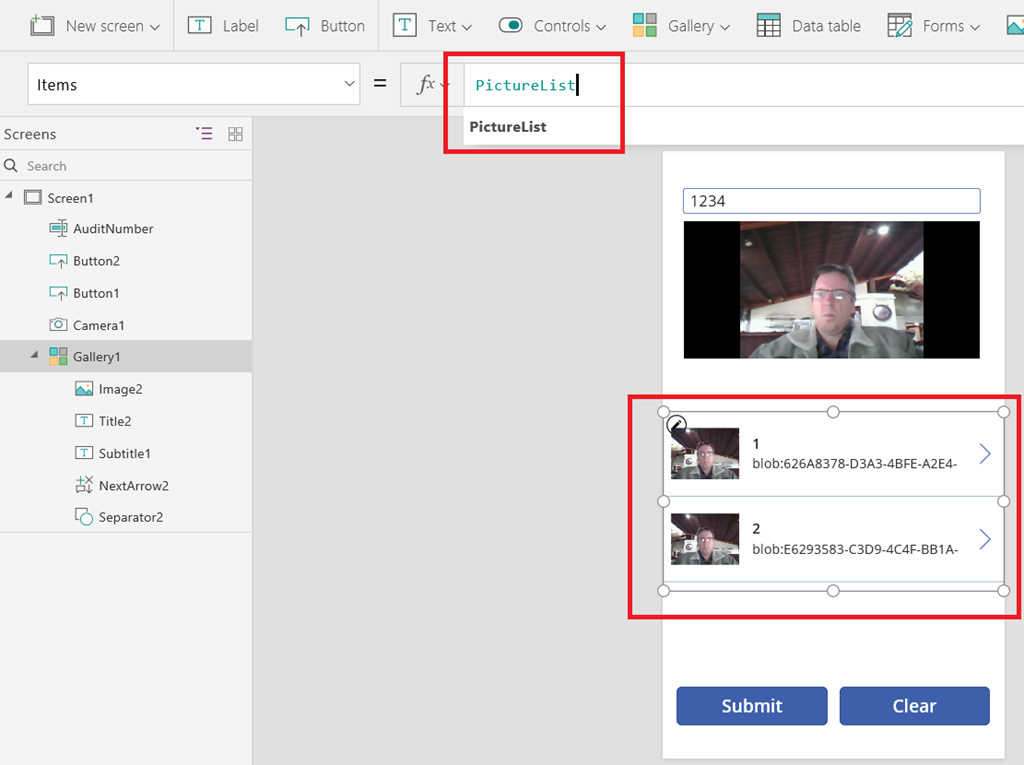
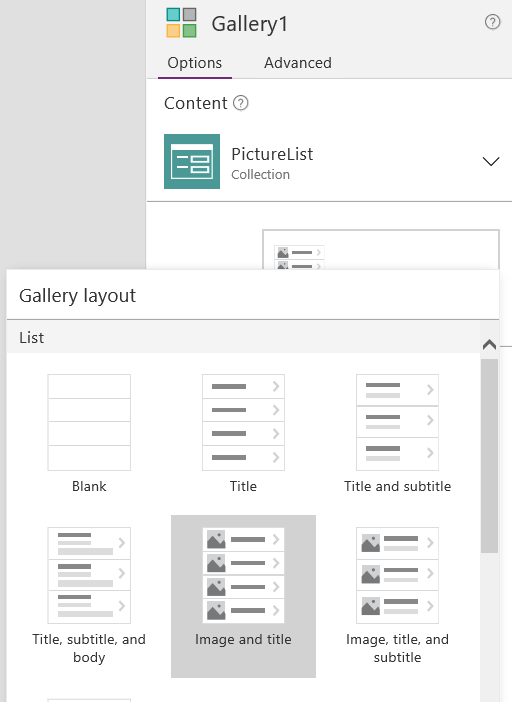
So next let’s bind this collection to the Gallery so we can see photos taken. This part is easy. On the Gallery you added to the page, set the Items property to PictureList (or whatever you named your collection). Depending on the type of gallery you added, you should see data from the PictureList collection. In my case, I changed the gallery layout to “Image and Title”. The ID field was bound to the title field and now you can see each photo and its corresponding ID.

image  image  image

Now let’s provide the ability to clear the photo gallery. On the button labelled “Clear”, set the OnSelect property to “Clear(PictureList)”. The clear command does exactly what it suggests: clears out all items from a collection. Now that we have the gallery bound, try it out. You can take photos and then clear them to your hearts content.

Now the point of this exercise is to generate a nice filename. One way is by modifying the record definition we were using: eg

From this:

  • Collect(PictureList,{ Photo: Camera1.Photo, ID: CountRows(PictureList)+1 })

To this crazy-ass looking formula:

  • Collect(PictureList,{ Photo: Camera1.Photo, ID: Concatenate(AuditNumber.Text,”-“,Text(Today(),”[$-en-US]dd:mm:yy”),”-“,Text(CountRows(PictureList)+1),”.jpg”) } )

To explain it, first check out the result in the gallery. Note my unique identifier has been replaced with the file-name I needed to generate.

image

So this formula basically uses the Concatenate function to build the filename in the format we need. Concatenate takes a list of strings as parameters and munges them together. In this case, it takes:

  • The audit number from the textbox – Auditnumber.Text
  • A hyphen – “-“
  • Todays date in dd:mm:yy format and converts it to text – Text(Today(),”[$-en-US]dd:mm:yy”))
  • Another hyphen – “-“
  • The row count for PictureList collection, adds 1 to it and converts the result to text – Text(CountRows(PictureList)+1)
  • The file type – “.jpg”

The net result is our unique filename for each photo.

Now we have one final step. We are going to send the entire collection of photos and their respective file names to flow to put into a SharePoint Library. The method we will use will take the PictureList collection, and save it as one giant string. We will send the string to Flow, and have Flow then pull out each photo/filename pair. Mikael describes this in detail in his post, so I will just show the code here, which we will add to the onSelect property of the submit button.

UpdateContext( { FinalData: Concat(PictureList, ID & “|” & Photo & “#”) } )

image

So what is this formula doing? Well working from inside to out, the first thing is the use of the Concat function. This function does something very useful. It works across all the records of a PowerApps collection and returns a single string. So Concat(PictureList, ID & “|” & Photo & “#”) takes the file name we generated (ID), joins it to a pipe symbol “|” and joins that to the photo, and then adding a hash “#”. The UpdateContext function enables us to save the result of the Concat into a variable called FinalData.

If we test the app by taking some photos and clicking the submit button, we can see what the FinalData variable looks like by the Variable menu as shown below. Our table is now one giant text string that looks like:

“filename 1 | encoded image data 1 # filename 2 | encoded image data 2 # filename x | encoded image data x “

image

Now a quick caveat, avoid using PowerApps desktop client to do this. You should use PowerApps web creator due to an image encoding bug.

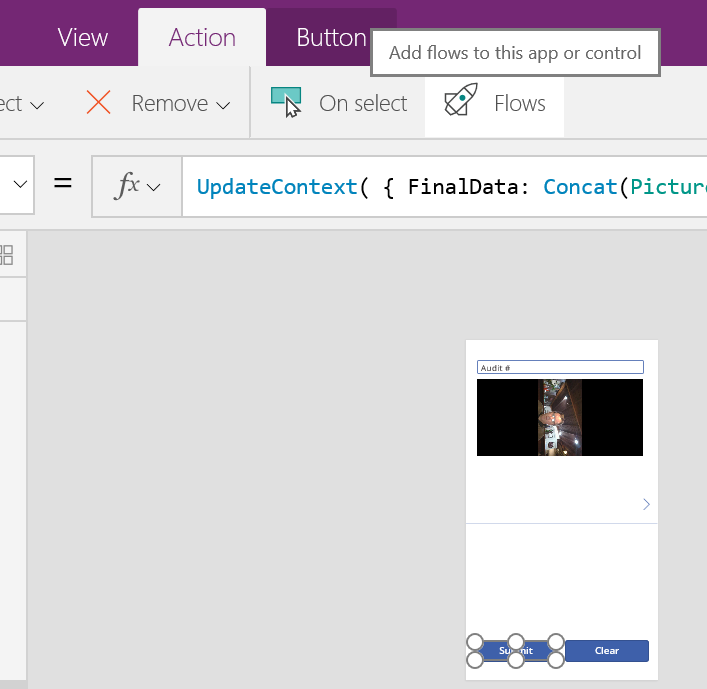
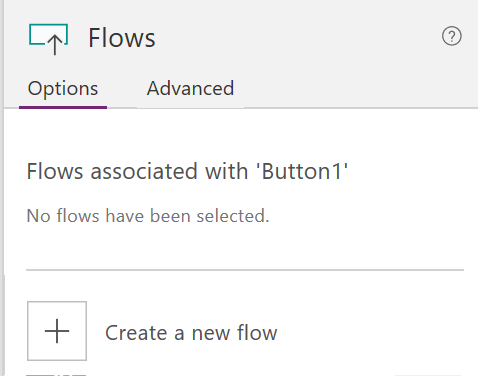
Anyway, let’s now move to Flow to finish this off. To do this, click on the Submit button on your app and choose Flows from the Action menu and on the resulting side panel choose to Create a new flow.

image  image

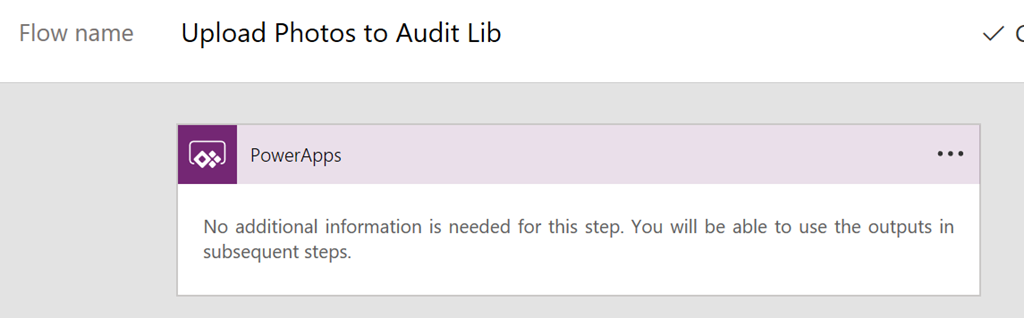
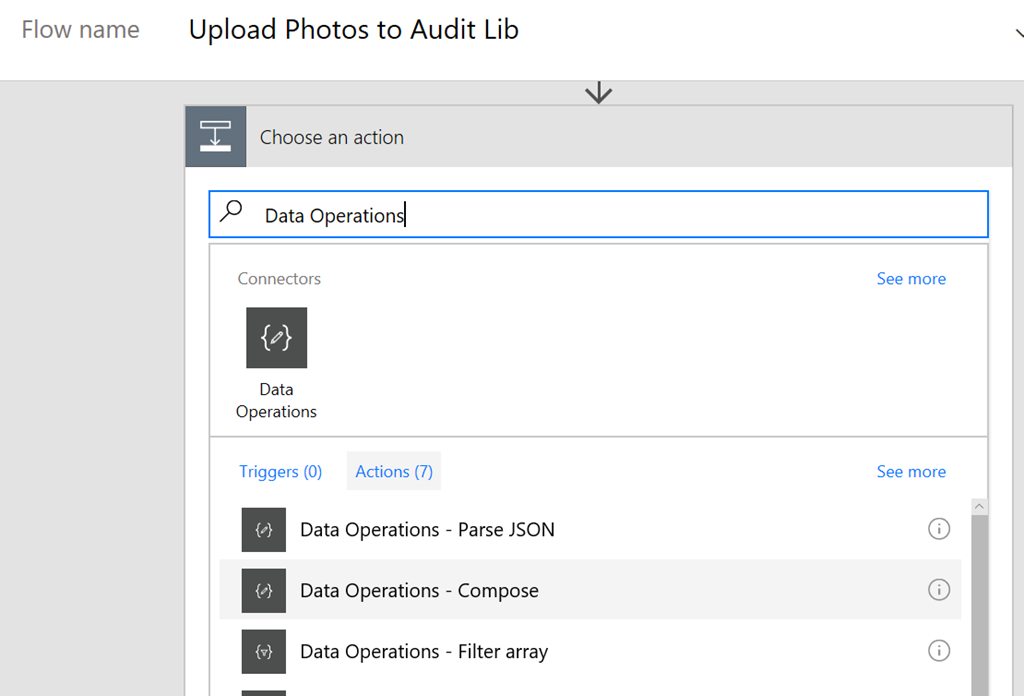
A new browser tab will open and sign you into Microsoft flow, and be nice enough to create a new flow that is designed to be triggered from PowerApps. Rename the flow to something more meaningful like “Upload Photos to Audit Lib” and then click the New Step button, and add a new Action. In the search bar, type in “Data Operations” and in the list of actions, choose the “Compose” action…

image  image

Okay so at this point I should a) explain what the hell we are going to do and b) credit Mikael Svenson for first coming up with this method. In relation to the first point, PowerApps is going to send flow a giant string of photos and filenames (remember the FinalData variable – that’s what flow will receive). If you recall with the FinalData, each photo/filename pair is delimited by a hash “#” and the file name is delimited by a pipe “|”. So we need to take what PowerApps sends, and turn it back into rows. Then for each row, we grab the file name, and the file content and upload it to our friendly neighbourhood SharePoint library.

Sounds easy right?

Our first step is to use the compose action we just added to split the data from PowerApps back into photos. This particular workflow action does something really neat. It executes workflow definition language formulas. What are these? Well workflow definition language is actually a part of another Microsoft product called Azure Logic Apps. Flow leverages Azure Logic Apps, which means this language is available to us. Sounds complex? Well yeah, it does at first but when you think about it this is not new. For example, MS Teams, Groups and Planner use SharePoint behind the scenes.

Anyway, the point is that there are several workflow definition language functions we can use, namely:

  • Split() –  Takes a string, and splits it up into smaller strings based on a delimiter
  • Item() – This is used to to return an element of an array. Eg if we use the split command above, item() will refer to each smaller string
  • dataUriToBinary() – This takes an image encoded and turns it back into binary form.

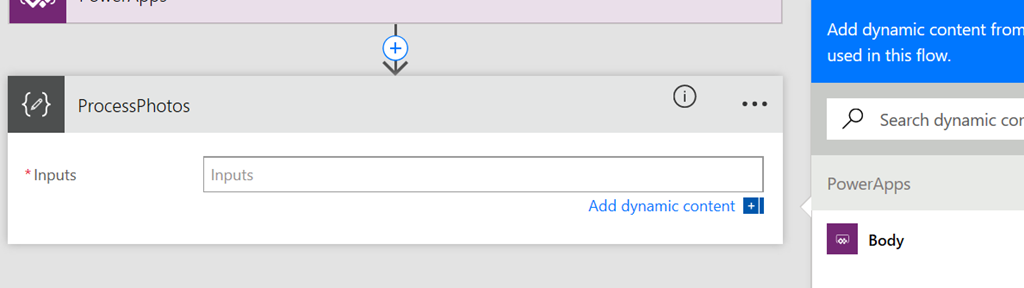
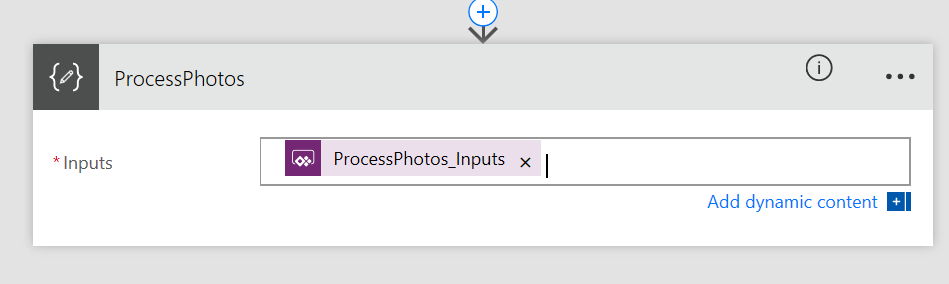
Okay enough talk! Let’s fill in this compose action. First up (and this is important), rename the action to something more meaningful, such as “ProcessPhotos”. After renaming, click on the text box for the Compose action and a side panel will open, showing a PowerApps label and a box matching the PowerApps logo called Body. Click the Body button and the compose textbox should have a value called ProcessPhotos_Inputs as shown in the 3 images below…

image

image

image

So what have we just done? Essentially we told the Compose method to ask PowerApps to supply data into a variable called ProcessPhotos_Inputs. In fact, let’s test this before going any further by saving the flow.

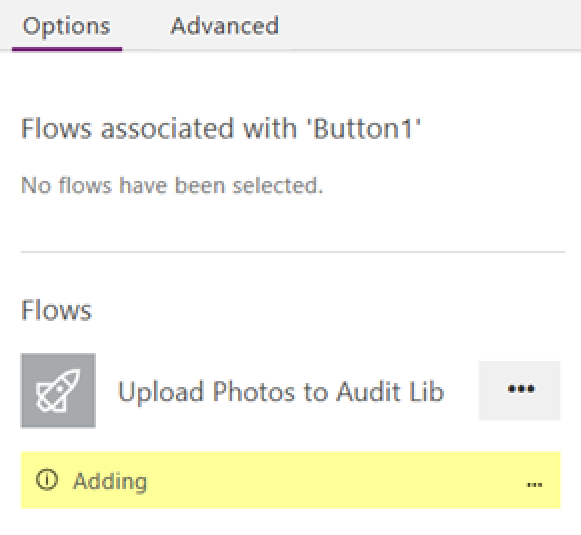
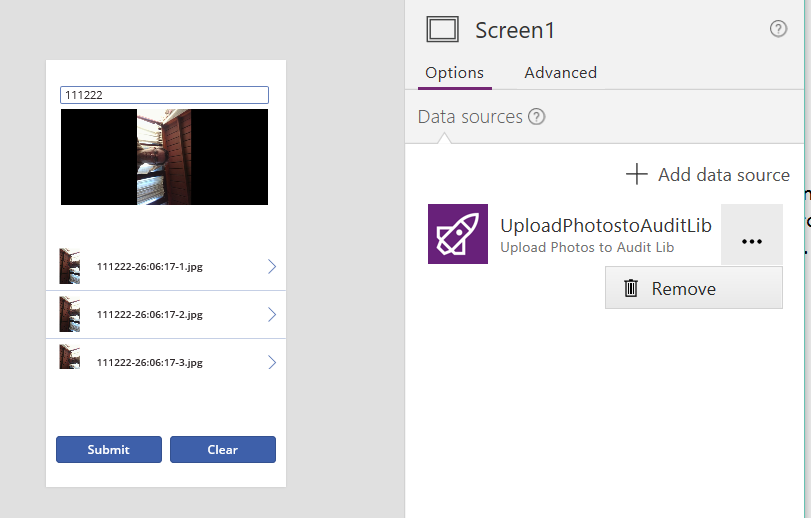
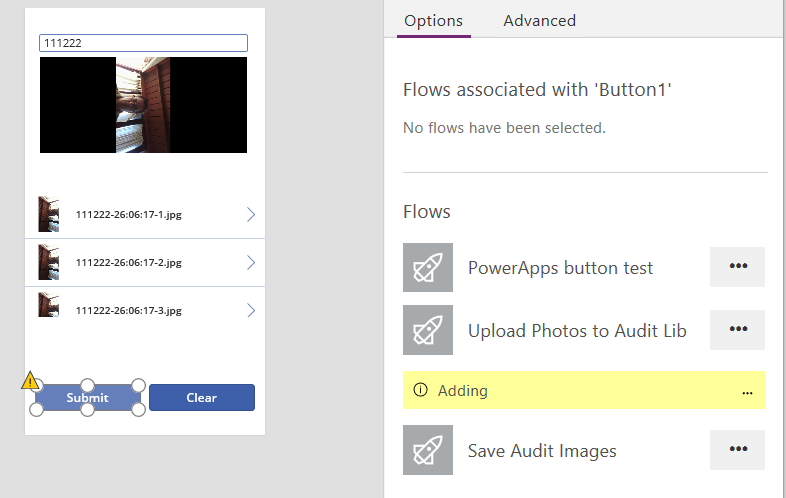
Switch back to PowerApps, click the Submit button and select the onSelect method we used earlier. You should still see the function where we created the FinalData variable. Copy the existing function to the clipboard, as you’re about to lose everything you typed in. Now click the Flow once and it should say that it’s adding to PowerApps.

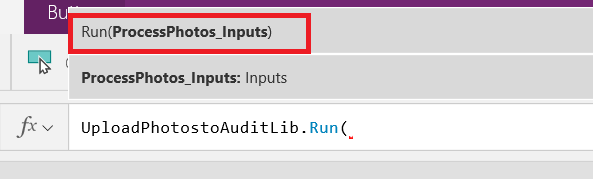
At this point, the function you so painstakingly put together has been replaced by a reference to the Flow. Delete what’s been added and paste the original function back. Add a semicolon to the end of the function (which tells PowerShell that another command is coming) and then press SHIFT+ENTER to insert a newline. Now type in the name of your Flow and it should be found via auto-complete. Click the matching flow with .Run on the end. Add a left bracket to the end of the flow and it will ask for an input parameter. If you have done it right, that parameter will be called ProcessPhotos_Inputs. Note that it matches the parameter from above image. The parameter we are passing is the FinalData variable we constructed earlier.

image   image

image

Okay so basically we have wired up PowerApps to flow and confirmed that Flow is asking PowerApps for the correct parameter. So let’s now get back to Flow and finish the first action. If you closed the Flow tab in your browser, you can start a new flow editing session from within PowerApps. Just click the ellipsis next to your flow and click Edit.

image

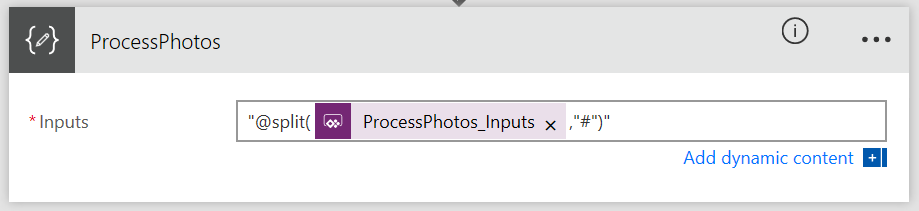
Right! So after that interlude, lets use the first function of interest – split(). In the text box for your compose function, modify it to look like the string below. Be sure to put the whole thing in quotes because Flow is going to try and be smart and in doing so, make things really counter intuitive and hard to use. Don’t be surprised if your ProcessPhotos_Inputs box disappears. Just add it back in again via the “dynamic content” button.

image

In fact, save and close the flow at this point and then edit it again. You will now see what the real function looks like. Note how the ProcessPhotos_Input has magically changed to {@triggerbody()[‘ProcessPhotos_Inputs’]}.

image

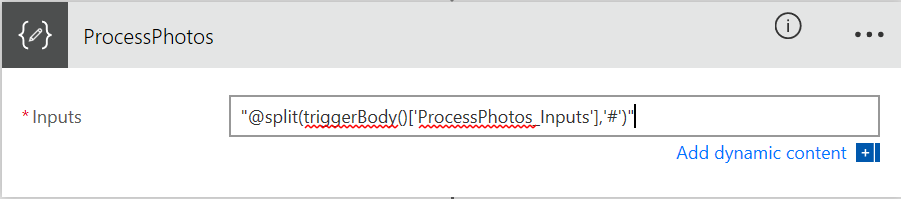
Unfortunately this sort of magic will not actually work… there are a few too many curly braces and excessive use of “@” symbols. So replace the function with the following (include quotes):

  • “@split(triggerBody()[‘ProcessPhotos_Inputs’], ‘#’)”

Like I said… flow is trying to be smart, only its not Smile. If you have done things right the action looks like the screen below. Double check this because if you do not have the quotes right, it will get messy. In fact if you save the flow and re-open it the quotes will disappear. This is actually a good sign…

image

After saving the flow, closing an re-opening… look Ma, no quotes!

image

Now for the record, according to the documentation,  the triggerbody() function is a reference function you use to “reference outputs from other actions in the logic app or values passed in when the logic app was created. For example, you can reference the data from one step to use it in another”. This makes sense – as ProcessPhotos_Inputs is being passed from the PowerApps trigger step to this compose function we are building.

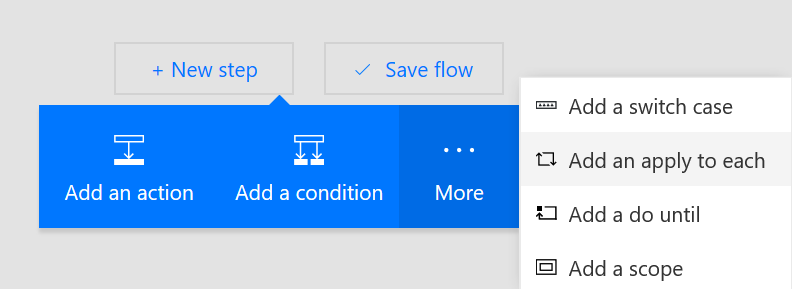
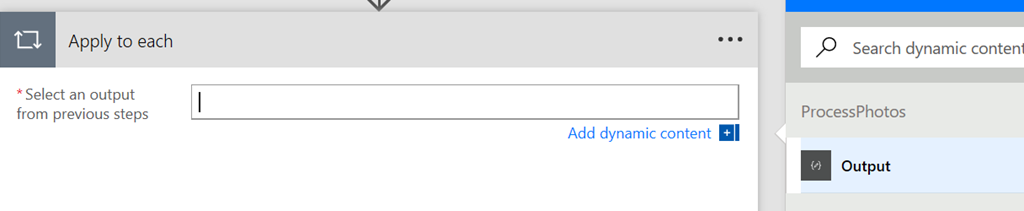
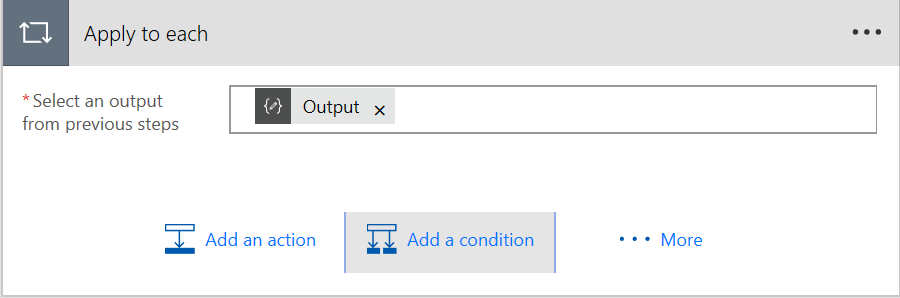
In any event, let’s add the next workflow step. The output of the ProcessPhotos step should be an array of photos, so now we need to process each photo and upload it to SharePoint. To do this, click on “New step”, and from the more button, choose “Add an apply to each” action. In the “Select an output from previous steps” action, click “Add dynamic content” and choose the output from the ProcessPhotos step as shown in the sequence of images below.

image   image

image

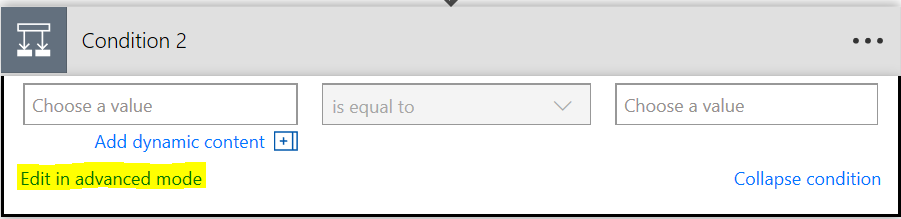
Next click “Add a condition” and choose the option “Edit in advanced mode”. Replace any existing function with :

  • @not(empty(item()))

image

image

The item() function is specifically designed for a “repeating action” such as our “apply to each” event. It returns the item that is in the array for this iteration of the action. We are then using the empty() function to check if this item has any data in it and then via the not() function so we can only take action of the item has data. In case you are wondering why I need to test this, the data that comes from PowerApps has an extra blank row and this effectively filters it out.

The resulting screen should look like this:

image

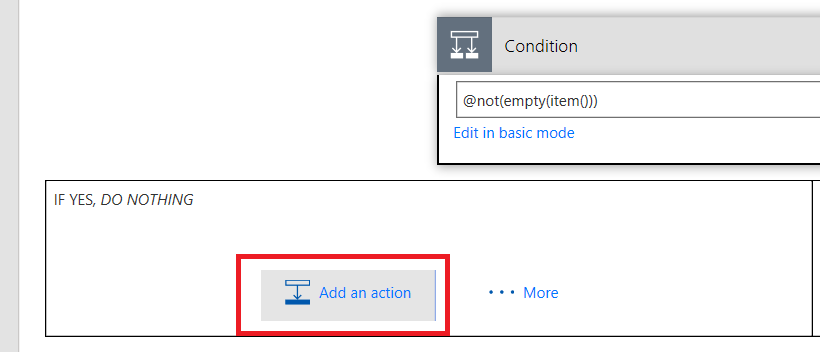
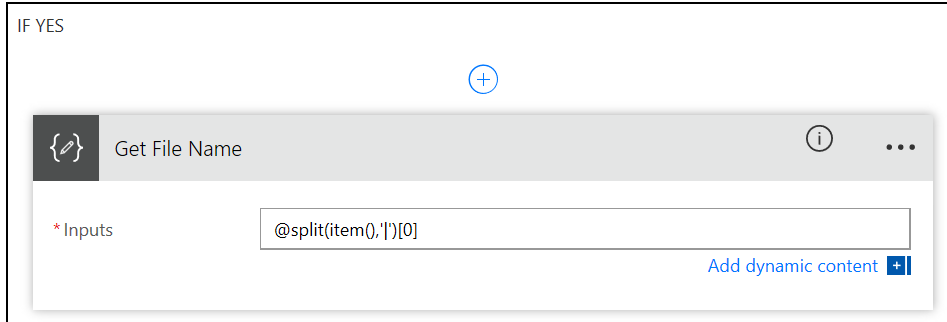
At this point we should have a file name and file body pair, delimited by a pipe symbol. So let’s add an action to get the file name first. On the “If Yes” condition, click “Add an action” and choose another Compose Action. Rename the action to “Get File Name” and enter the function:

  • “@split(item(),’|’)[0]”

image  image

The square brackets are designed to return a value from an array with a specific index. Since our split() function will return an array of two values, [0] tells Flow to grab the first value.

Now let’s add an action to get the file body. Click “Add an action” and choose another Compose Action. Rename the action to “Get File Body” and enter the function:

  • “@dataUriToBinary(split(item(),’|’)[1])”

image

Looking at the above function, the split() side of things should be easy to understand. We are now grabbing the second item in the array. Since that item is the image in an encoded format, we are then passing it to the dataUriToBinary() to turn it back into an image again. Neat eh?

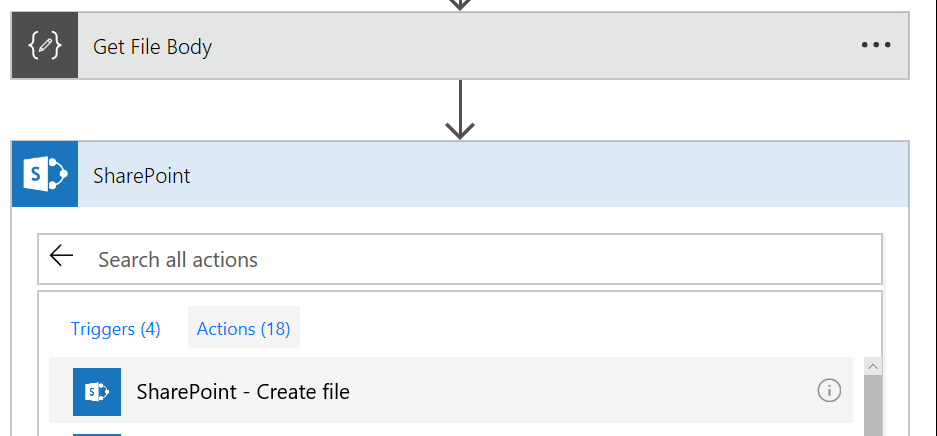
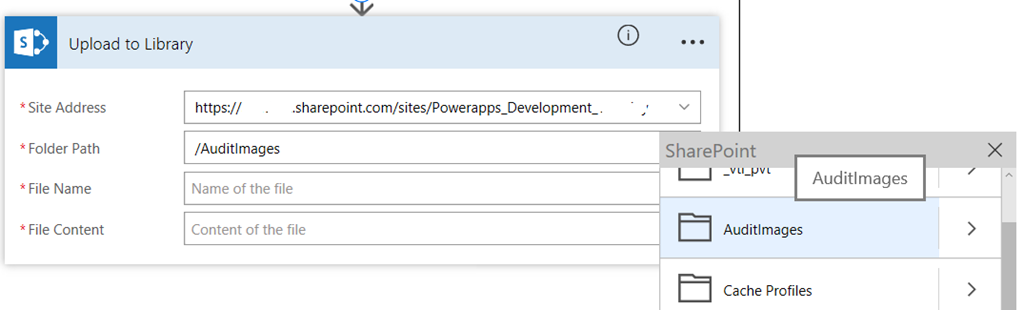
Now that we have our file name and file body, let’s add the final action. This time, we will choose the “Create File” action from the SharePoint connector. Rename the action to “Upload to Library” and enter the URL of the destination SharePoint site. If you have permission to that site, you can then specify which library to upload the photo to by browsing the Folder Path.

image  image

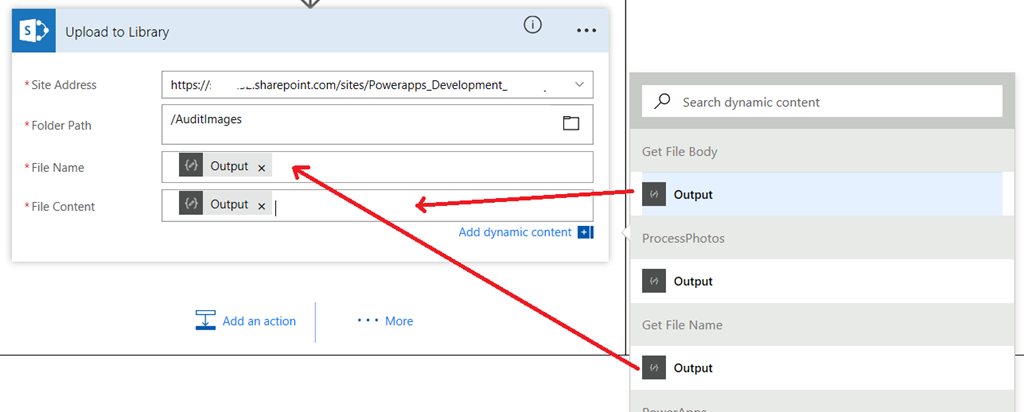
Now comes the final steps. For the File Name, click the “Add dynamic content” button and add the Output from the Get File Name step (now you know why we renamed it earlier). Do the same for the File Content textbox by choosing the output from the Get File Body step.

image

Right! We are ready to test. Sorry about screenshot hell in the Flow section, but I am writing this on the assumption you are new to it, so I hope the extra detail helped. To test, use PowerApps on your phone or via the web browser, as the PowerApps desktop tool has a bug at the time of writing that will prevent the photos being sent to Flow in the right format.

Now it is time to test.

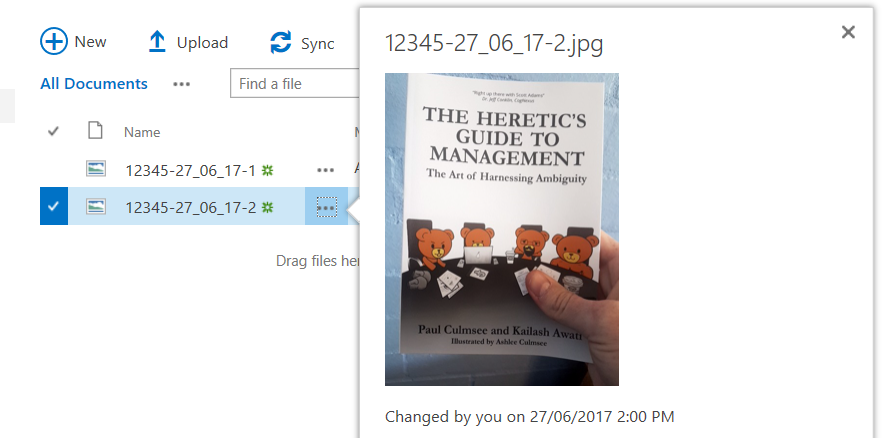
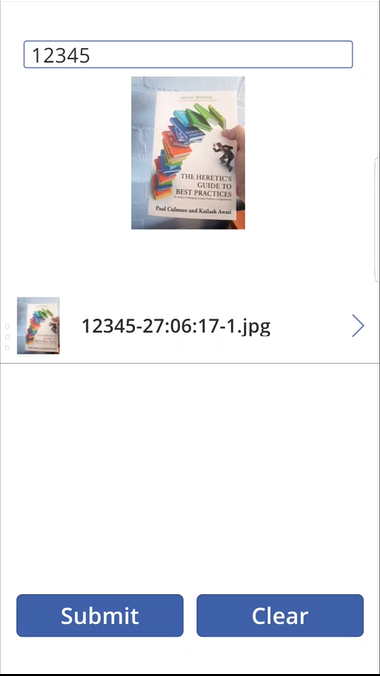
So check your document library and see if the photos are there! In the example below I took a photo of my two books for blatant advertising purposes Smile . The 3rd image is the document library showing the submitted photos!

image   image

image

Finally, here are some tips for troubleshooting along the way…

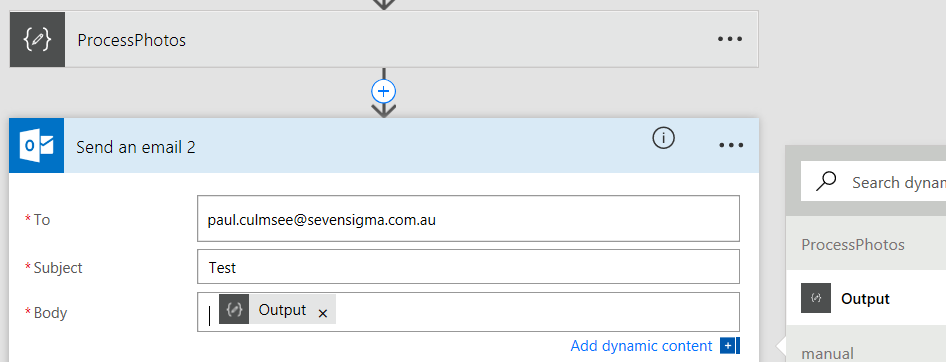
First up if you are having trouble with your flows, one lame but effective way to debug is to add a “Send an email” action from the Ofifce365 Outlook Connector to your flow. This is particularly handy for encoded images as they can be large and often in the flow management tools, you will see a “value too big to display” error. This method is crude, and there are probably better approaches, but it is effective. In the image below you can see how I have added to action below my ProcessPhotos action prior to splitting it into an array.

image   image

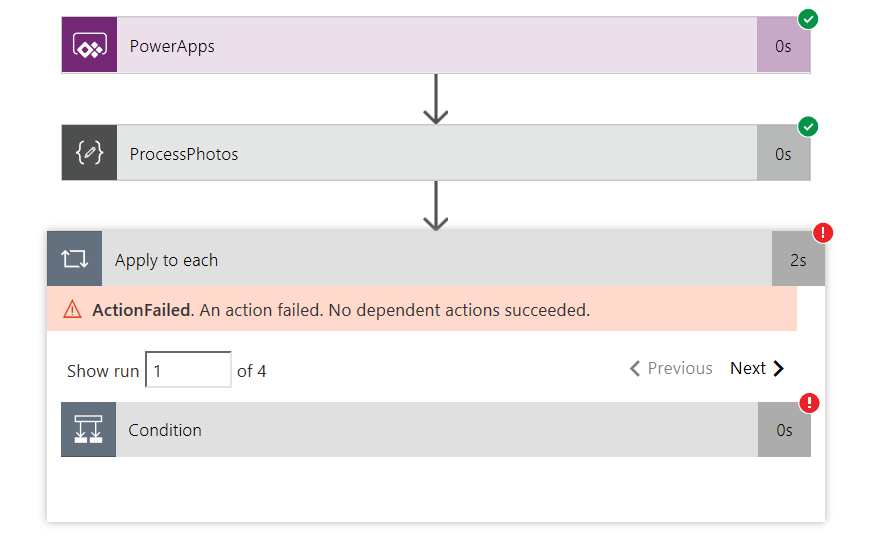
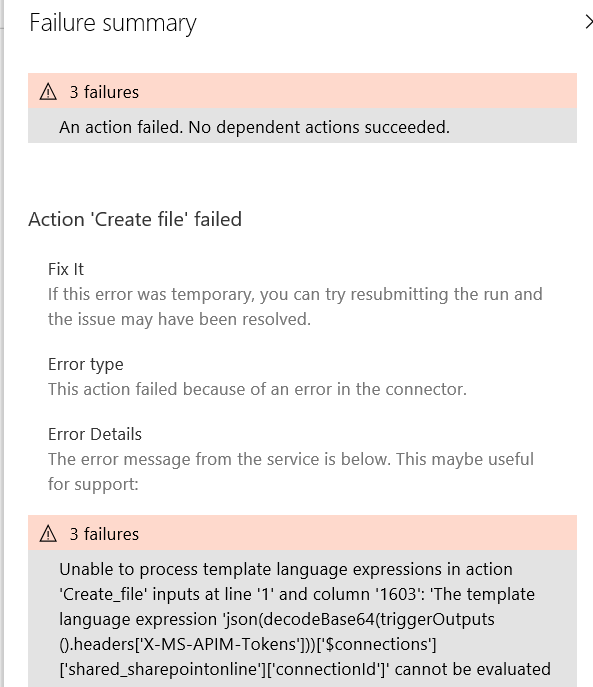
Another thing that has happened to me (especially when I rename flow actions) is a disconnect between the trigger connection between Flow and PowerApps. Consider this error…

image  image

If your flow fails and you see an error like

“Unable to process template language expressions in action [one of your actions] inputs at line ‘1’ and column ‘1603’: ‘The template language expression ‘json(decodeBase64(triggerOutputs().headers[‘X-MS-APIM-Tokens’]))[‘$connections’][‘shared_office365’][‘connectionId’]’ cannot be evaluated because property ‘shared_office365′ doesn’t exist, available properties are ”. Please see https://aka.ms/logicexpressions for usage details.’

.. the connection between PowerApps and Flow has gotten screwed up.

To resolve this, disconnect your flow from PowerApps and reconnect it. Your flow will be shown as a data source which can easily be removed as shown below.

image

Once removed I suggest you go back to your submit button and copy your function to the clipboard. This is because adding the flow back will wipe the contents of the button. With your button selected, click the Flows button from the Action menu and then click on the Flow to re-associate it to PowerApps. The third image shows the onSelect property being cleared and replaced with the flow instantiation. This is where you can re-paste your original code (4th image)…

image

image

image

image

Finally, another issue you may come across is where no pictures come through, and instead you are left with an oddly named file, which (if you look closely) looks like one of your compose actions in Flow. You can see an example of this in the image below.

The root cause of this is similar to what I described earlier in the article where I reminded you to put all of your compose actions in quotes. I don’t have a definitive explanation for why this makes a difference and to be honest, I don’t care. The fix is easy: just make sure all of your compose actions are within quotes, and you should be cooking with gas.

Phew! Another supposedly quick blog post that got big because I decided to explain things for the newbie. Hopefully this was of use to you and I look forward to your feedback.

Paul Culmsee

www.hereticsguidebooks.com


A Clever-workaround for Saving Photos to SharePoint from PowerApps

At the time of writing, a common request for PowerApps is to be able to able to upload photos to SharePoint. It makes perfect sense, especially now that its really easy to make a PowerApp that is bound to a SharePoint list. Sadly, although Microsoft have long acknowledged the need in the PowerUsers forum, a solution has not been forthcoming.

<update>I now use a Flow-based method for photos that I documented in this video. I only use this method in complex scenarios</update>

I have looked at the various workarounds, such as using the OneDrive connector or a custom web API, but these for me were fiddly. Thanks to ideas from John Liu, I’ve come up with a method that is more flexible and less fiddly to implement, provided you are okay with a bit of PowerShell, and (hopefully) with PnP PowerShell. One advantage to the method is that it handles an entire gallery of photos in a single transaction, rather than just a single photo at a time.

Now in the old days I would have meticulously planned out a multi-part series of posts related to a topic like this, because I have to pull together quite a lot of conceptual threads into a single solution. But since the pace of change in the world of Office365 is so rapid, my solution may be out of date by the time I publish it. So instead I offer a single summary post of my solution and leave the rest to you to figure out.  Sorry followers, its just too hard to do epic multi-part articles these days – times have changed.

What you need

  1. An understanding of JSON and basic idea of web services
  2. An azure subscription
  3. Access to Azure functions
  4. The PnP Powershell cmdlets
  5. A Swagger file (don’t worry if this makes no sense now)
  6. To be signed up to PowerApps

 How we are going to solve this…

In a nutshell, we will create an Azure function, using PowerShell to receive photos from PowerApps and uploads them to a SharePoint library. Here is my conceptual diagram that I spent hours and hours drawing…

Snapshot

To do this we will need to do a few things.

  1. Customise PowerApps to store photo data in the way we need
  2. Create and configure our Azure function
  3. Write and test the PowerShell code to upload to SharePoint
  4. Create a Swagger file so that PowerApps can talk to our Azure function
  5. Create a custom PowerApps connection/datasource use the Azure function
  6. Test successfully and bask in the glory of your awesomeness

Step 1: Customise PowerApps to store photo data in the way we need

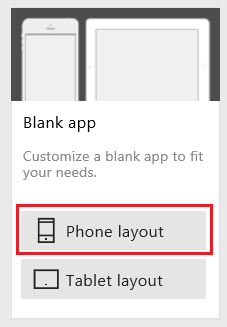
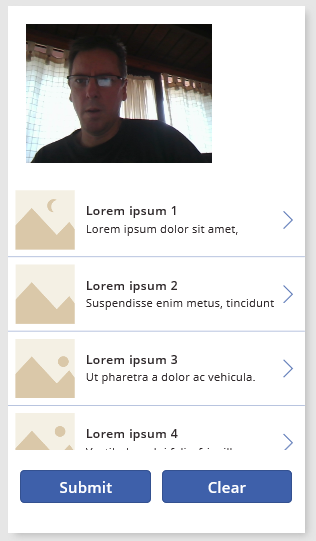
Let’s set up a basic proof of concept PowerApp. We will add a camera control to take photos, a picture gallery to view the photos and a button to submit the photos to SharePoint. I’ll use the PowerApps desktop client rather than the web page for this task and create a blank app using the Phone Layout.
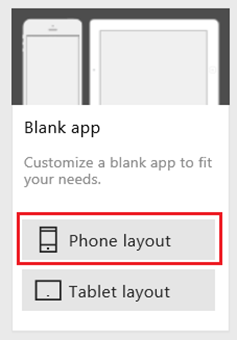
image

From the Insert menu, add a Camera control from the Media dropdown to add it to the screen. Leave it up near the top…
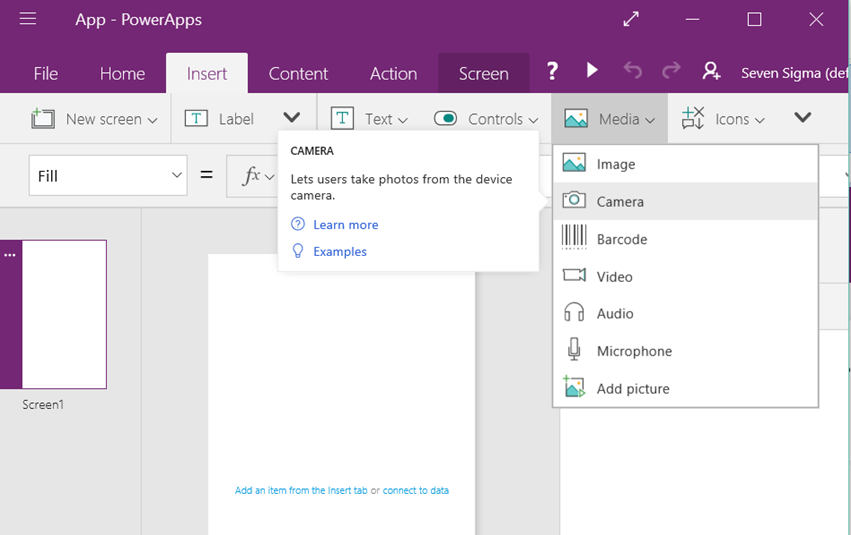
image

From the Insert Menu, add a Gallery control. For my demo I will use the vertical gallery. Move it down below the camera control so it looks like the second image below.
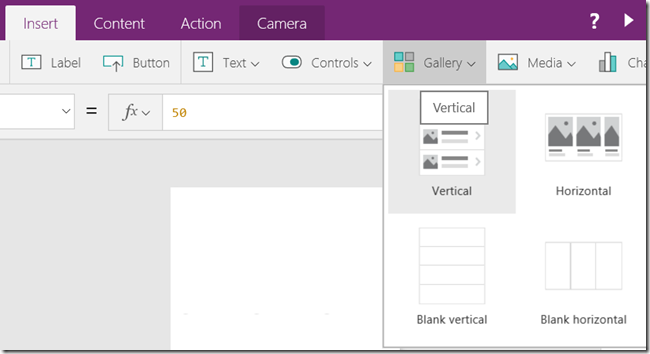
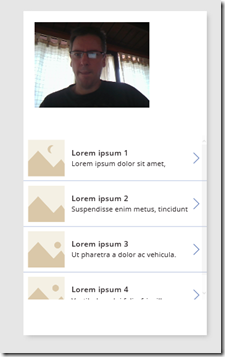
image  image

From the Insert Menu, add two buttons below the gallery. Set the text property on one to “Submit” and the other to “Clear”. I realise the resulting layout will not win any design awards but just go with it. Use the picture below to guide you.
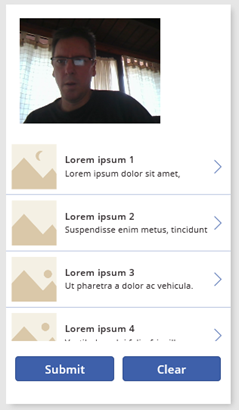
image    image

Now let’s wire up some magic. Firstly, we will set it up so clicking on the camera control will take a photo, and save it to PowerApps storage. To do this we will use the Collect function. Assuming your Camera control is called “Camera1”, select it , and set the OnSelect property to:

Collect(PictureList,Camera1.Photo)

image

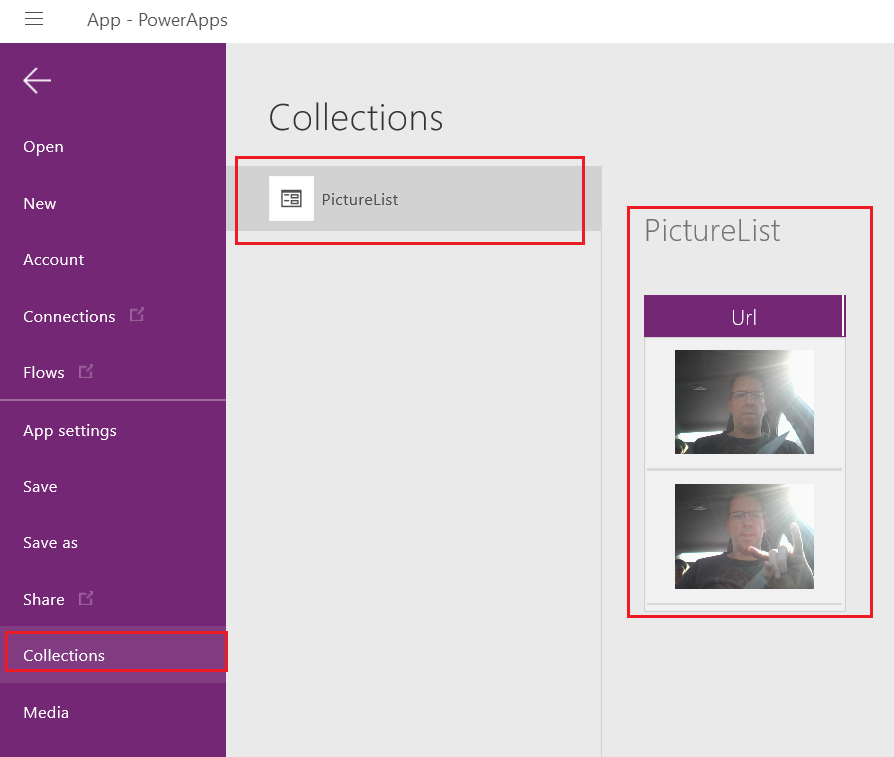
Now when a photo is taken, it is added to an in-memory PowerApps data-source called PictureList. To see this in action, preview the PowerApp and click the camera control a couple of times. Exit the preview and choose “Collections” from the left hand menu. You will now see the PictureList collection with the photos you just took, stored in a field called Url. The reason it is called URL and not “Photo” will become clear later).
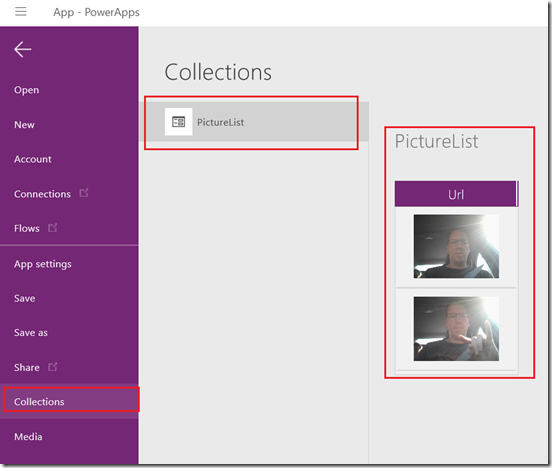
image

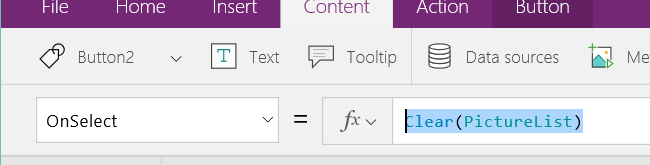
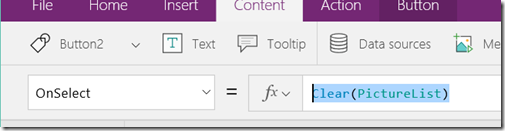
Now let’s wire up the clear button to clear out this collection. Choose the button labelled “Clear” and set its OnSelect property to:

Clear(PictureList)
image

If you preview the app and click this button, you will see that the collection is now empty of pictures.

The next step is to wire up the Gallery to the PictureList collection so that you can see the photos being taken. To do this, select the gallery control and set the Items property to PictureList as shown below. Preview this and you should be able to take a set of photos, see them added to the gallery and be able to clear the gallery via the button.


image

image

Now we get to a task that will not necessarily make sense until later. We need to massage the PictureList collection to get it into the right format to send to SharePoint. For example, each photo needs a filename, and in a real-world scenario, we would likely further customise the gallery to capture additional information about each photo. For this post I will not do this, but I want to show you how you can manipulate data structures in PowerApps. To do this, we are going to now wire up some logic to the “Submit” button. First I will give you the code before I explain it.

Clear(SubmitData);
ForAll(PictureList,Collect(SubmitData, { filename: "a file.jpg", filebody: Url }))

image

In PowerApps, it is common to add multiple statements to controls, separated by a semicolon. Thus, the first line above initialises a new Collection I have called “SubmitData”. If this collection already had data in it, the Clear function will wipe it out. The second line uses two functions, ForAll and the previously introduced Collect. ForAll([collection],[formula]) will iterate through [collection] and perform tasks specified in [formula]. In our case we are adding records to the SubmitData collection. Each record consists of two fields and is in JSON format – hence the curly braces. The first field is called filename and the second is called filebody. In my example the filename is a fixed string, but filebody grabs the Url field from the current item in PictureList.

To see the effect, run the app, click submit and then re-examine the collections. Now you will see two collections listed – the original one that captures the photos from the camera (PictureList), and the one called SubmitData that now has a field for filename and a field called filebody with the photo. I realise that setting a static filename called “a file.jpg” is not particularly useful to anybody, and I will address this a little later, the point is we now have the data in the format we need.
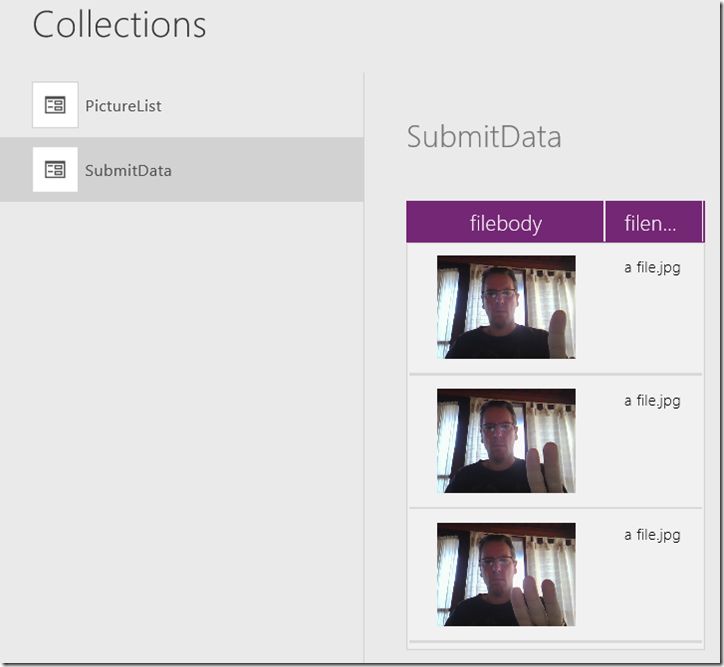
image

By the way, behind the scenes, PowerApps stores the photo in the Data URI scheme. This is essentially a Base64 encoded version of the image with a descriptor at the start that is included in HTML. When you think about it, this makes sense in some situations because it reduces the number of HTTP round trips between browser and server. For example here is a small image encoded and embedded direct in HTML using the technique.

<img src="data:image/png;base64,iVBORw0KGgoAAA
ANSUhEUgAAAAUAAAAFCAYAAACNbyblAAAAHElEQVQI12P4
//8/w38GIAXDIBKE0DHxgljNBAAO9TXL0Y4OHwAAAABJRU
5ErkJggg==" alt="Red dot" />

The implication of this format is when PowerApps talks to our Azure function, it will send this sort of JSON…

[ {  "filename": "boo.jpg",
"filebody": "data:image/jpeg;base64,/9j/4AAQSkZJR [ snip heaps of Base64 ] T//Z" },
{  "filename": "boo3.jpg",
"filebody": "data:image/jpeg;base64,/9j/TwBAQMEBA [ snip heaps of Base64 ] m22I" } ]

In the next section we will set up an Azure Function and write the code to handle the above format, so save the app in its current state and give it a nice name. We are done with PowerApps for now…

2. Create and Configure Azure Function

Next we are going to create an Azure function. This is the bit that is likely new knowledge for many readers. You can read all about them on their Azure page, but my quick explanation is that they allow you to take a script or small piece of code and turn it into a fully fledged webservice. As you will soon see, this is very useful indeed (as well as very cost effective).

Now like many IT Pros, I am a PowerShell hacker and I have been using the PowerShell PnP libraries for all sorts of administrative purposes for quite some time. In fact if you are administering an Office365 tenant and you are not using PnP, then I can honestly say you are missing out on some amazing time-saving toolsvand you owe it to yourself to skill-up in this area. Of course, I realise that many readers will not be familiar with PowerShell, let alone PnP, and I expect some readers have not done much coding at all. Luckily the code we are going to use is just a few lines and I think I can sufficiently explain it.

But we are getting ahead of ourselves, let’s create the Azure function and then revisit PowerShell. Assuming you have an Azure subscription, visit functions.azure.com and log in. If not, sign up for the free account and then create a function app to host the function. I called mine MyFunctionsDemo but yours will have to be something different. This will take minute or two to complete and you will be redirected to the Azure functions portal.
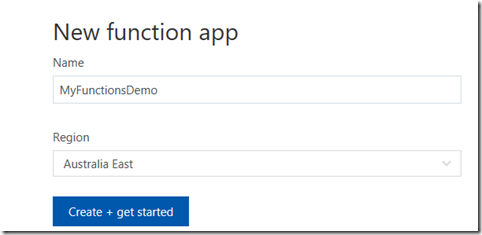
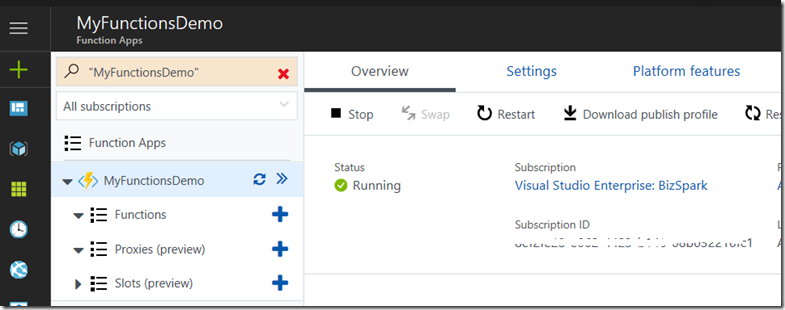
image   image

Once the web application to host your functions is created, Click the + next to the Functions button to create a new function. PowerShell is still in preview, so you have to click the option to create a custom function. On the next screen, in the Language dropdown, choose PowerShell.
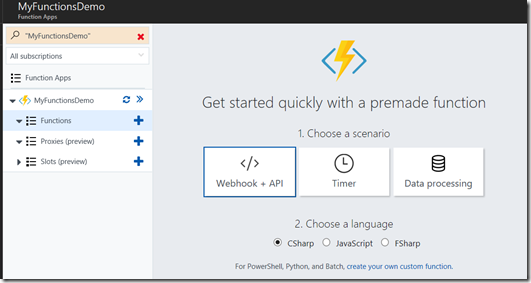
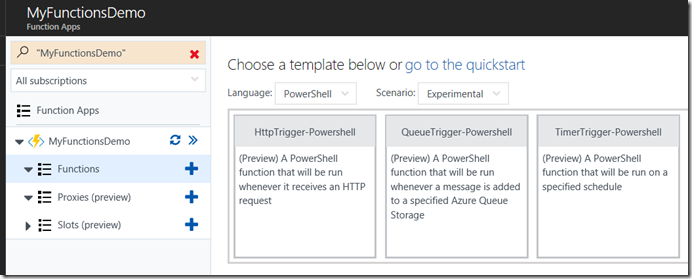
image  image

Our function is going to be triggered from PowerApps when a user clicks the submit button. PowerApps will make a HTTP request so this is a HttpTrigger scenario. Click the HttpTrigger-PowerShell template, give it a name (I called mine PhotoSendSP) and click the Create button. If all goes to plan you will be presented with a screen with some basic PowerShell code… essentially a “Hello World” web service.
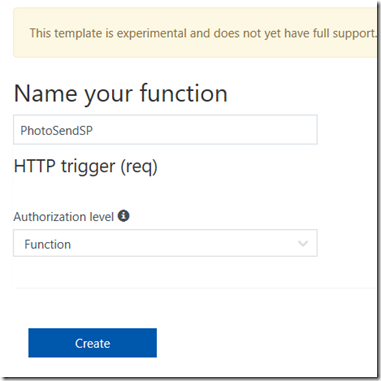
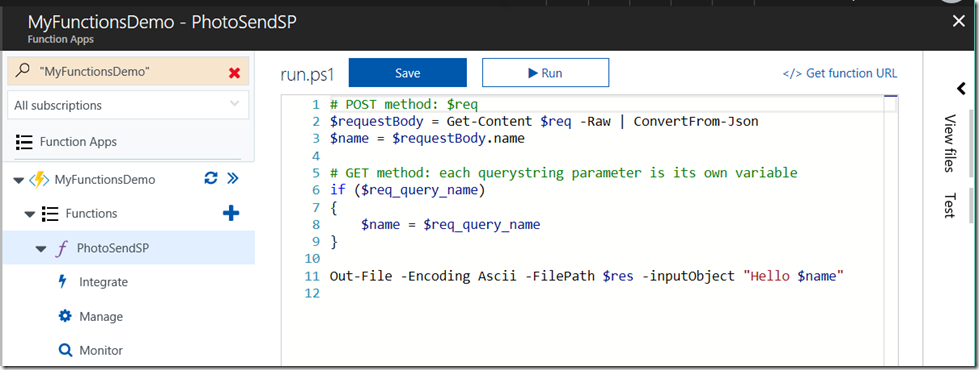
image   image

Let’s test this newly minted Azure function before we customise it. If you look to the right of the screen above, you will see a “Test” vertical label. Click it and you will be presented with a screen that allows you to craft some data to send to your shiny new function. You can see that the test is going to be a HTTP POST by default. As you can see below, there is a basic JSON entry with a single name/value pair “name”: “Azure”. Change the Azure string to something else and then click the Run button. The result will be displayed below the JSON as shown below.
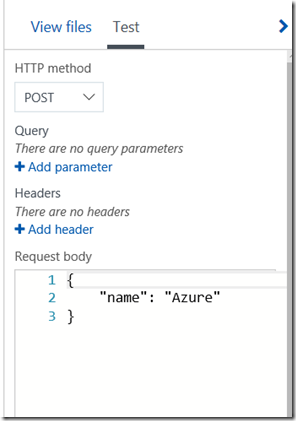
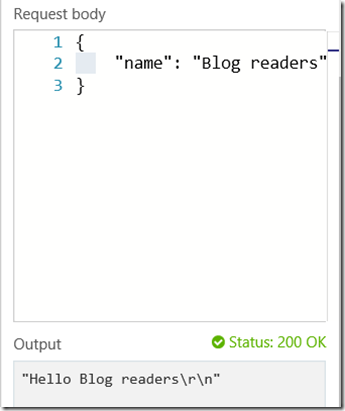
image   image

Now let’s take a quick look at the PowerShell code provided to you by default. Only lines 2, 3 and 11 matter for our purposes. What lines 2 and 3 show is that all of the details that are posted to this webservice are stored in a variable called $req. Line 2 converts this to JSON format and stores that in a variable called $requestbody. Line 3 then asks $requestbody for the value of “name”, which is you look in the screenshots above are what you set in the test. Line 11 then outputs this line to a variable called $res, which is the response back to the caller of this webservice. In this case you can see it returns “Hello “ with $name appended to it.
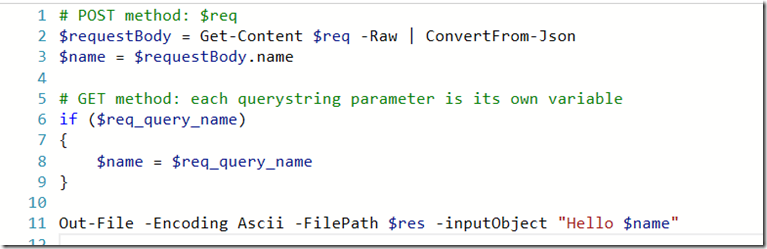
image
Now that we have seen the PowerShell code, let’s now update it with code to receive data from PowerApps and send it to SharePoint.

3. Write and test the PowerShell code that uploads to SharePoint

If you recall with PowerApps, the data we are sending to SharePoint is one or more photos. The data will look like this…

[ {  "filename": "boo.jpg",
"filebody": "data:image/jpeg;base64,/9j/4AAQSkZJR [ snip heaps of Base64 ] T//Z" },
{  "filename": "boo3.jpg",
"filebody": "data:image/jpeg;base64,/9j/TwBDAQMEBAUEBQ  m22I" } ]

In addition, for the purposes of keeping things simple, I am going to hard code various things like the document library to save the files to and not worry about exception handling. Below is my sample code with annotations at the end…

1.  Import-Module "D:\home\site\wwwroot\modules\SharePointPnPPowerShellOnline\2.15.1705.0\SharePointPnPPowerShellOnline.psd1" -Global
2.  $requestBody = Get-Content $req -Raw | ConvertFrom-Json
3.  $username = "paul@tenant.onmicrosoft.com"
4.  $password = $env:PW;
5.  $siteUrl = "https://tenant.sharepoint.com"
6.  $secpasswd = ConvertTo-SecureString $password -AsPlainText -Force
7.  $creds = New-Object System.Management.Automation.PSCredential ($username, $secpasswd)
8.  Connect-PnPOnline -url $siteUrl -Credentials $creds
9.  $ctx = get-pnpcontext
10. $doclib = $ctx.Web.Lists.GetByTitle("Documents")
11. ForEach ($item in $requestbody)
12. {
13.    $filename = $item.filename
14.    $rawfiledata = $item.filebody
15.    $rawfiledata = $rawfiledata -replace 'data:image/jpeg;base64,', ''
16.    $bytes = [System.Convert]::FromBase64String($rawfiledata)
17.    # uses comma notation related to .net reflection http://piers7.blogspot.com.au/2010/03/3-powershell-array-gotchas.html
18.    $memoryStream = New-Object System.IO.MemoryStream (,$bytes)
19.    $FileCreationInfo = New-Object Microsoft.SharePoint.Client.FileCreationInformation
20.    $FileCreationInfo.Overwrite = $true
21.    $FileCreationInfo.ContentStream = $memoryStream
22.    $FileCreationInfo.URL = $filename
23.    $Upload = $doclib.RootFolder.Files.Add($FileCreationInfo)
24.    $ctx.Load($Upload)
25.    $ctx.ExecuteQuery()
26. }


  • Line 1 loads the PnP PowerShell module. Without this, commands like Connect-PnPOnline and Get-PnPContext will not work. I’ll show how this is done after explaining the rest of the code.
  • Lines 3-7 are all about connecting to my SharePoint online tenant. Line 4 contains a variable called $env:PW. The idea here is to avoid passwords being stored in the code in clear text. The password is instead is pulled from an environment variable that I will show later.
  • Lines 7-9 connect to a site collection and then connect to the default document library within it.
  • Line 10 looks at the data sent from PowerApps and loops around to process for each image/filename pair.
  • Lines 13-18 grabs the file name and file data. It converts the file data into a memorystream, which is a way to represent a file in memory.
  • Line 19-25 then uploads the in-memory image to the document library in SharePoint, based on the filename provided. (Note: any PnP gurus wondering why I did not use Add-PnPFile, it was because this cmdlet did not properly handle the memorystream and the images were not proper binary and always broken.)

So now that we have seen the code, lets sort out some final configuration to make this all work. A lot of the next section I learnt from John Liu and watching the excellent Office Patterns and Practices Special Interest Group webinar he recently did with my all-time SharePoint hero, Vesa Juvonen.

Installing PnP PowerShell Components

First up, none of this will work without the PnP PowerShell module deployed to the Azure Function App. The easiest way to do this is to install the PnP PowerShell cmdlets locally and then copy the entire installation up to the Azure function environment. John Liu explains this in the aforementioned webinar but in summary, the easiest way to do this is to use the Kudu tool that comes bolted onto Azure functions. You can find it by clicking the Azure function name (“MyFunctionDemo” in my case) and choosing the “Platform Features” menu. From here you will find Kudu hiding under the Development Tools section. When the Kudu tab loads, click the Debug console menu and create a CMD or PowerShell console (it doesn’t matter which)
image  image  image

We are going to use this console to copy up the PnP PowerShell components. You can ignore the debug console and focus on the top half of the screen. This is showing you the top level folder structure for the Azure function application. Click on site and then wwwroot folders. This is the folder where all of your functions are stored (you will see a folder matching the name of the module we made in step 2). What we will do is install the PnP modules at this level, so it can be used for other functions that you are sure to develop Smile.

image  image

So click the + icon to create a folder here and call it Modules. From here, drag and drop the PnP PowerShell install location to this folder. In my case C:\Program Files\WindowsPowerShell\Modules\SharePointPnPPowerShellOnline\2.15.1705.0. I copied the SharePointPnPPowerShellOnline\2.15.1705.0 folder and all of its content here as I want to be able to maintain multiple versions of PnP as I develop functions over time.
image  image

Now that you have done this, the first line of the PowerShell script will make sense. Make sure you update the version number in the Import-Mobile command to the version of PnP you uploaded.

Import-Module "D:\home\site\wwwroot\modules\SharePointPnPPowerShellOnline\2.15.1705.0\SharePointPnPPowerShellOnline.psd1"

Handling passwords

The next thing we have to do is address the issue of passwords. This is where the $env:PW comes in on line 4 of my code. You see, when you set up Azure functions application, you can create your own settings that can drive the behaviour of your functions. In this case, we have made an environment variable called PW which we will store the password to access this site collection. This hides clear text passwords from code, but unfortunately it is a security by obscurity scenario, since anyone with access to the Azure function can review the environment variable and retrieve it. If I get time, I will revisit this via App Only Authentication and see how I go. I suspect though that this problem will get “properly” solved when Azure functions support using the Azure Key Vault.

In any event, you will find this under the Applications Settings link in the Platform Features tab. Scroll down until you find the “App Settings” section and add your password in as shown in the second image below.
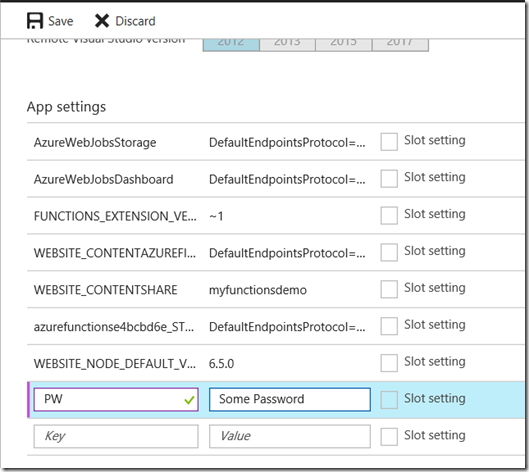
image  image

Testing it out…

Right! At this point, we have all the plumbing done. Let’s test to see how it goes. First we need to create a JSON file in the required format that I explained earlier (the array of filename and filebody pairs). I crafted these by hand in notepad as they are pretty simple. To remind you the format was:

[ {  "filename": "boo.jpg",
"filebody": "data:image/jpeg;base64,/9j/4AAQSkZJR [ snip heaps of Base64 ] T//Z" },
{  "filename": "boo3.jpg",
"filebody": "data:image/jpeg;base64,/9j/TwBDAQMEB [ snip heaps of Base64 ] m22I" } ]

To generate the filebody elements, I used the covers of my two books (they are awesome – buy them!) and called them HG2BP and HG2M respectively. To create the base 64 encoded images in the Data URI scheme, I went to https://www.base64-image.de and generated the encoded versions. If you are lazy and want to use a pre-prepared file, just download the one I used for testing.


h2bph2m image

To test it, all we need to do is click the right hand Test link and paste the JSON into it. Click the Run button and hope for the best! As you can see in my example below, the web service returned a 200 status which means hunky dory, and the logs showed the script executing successfully.
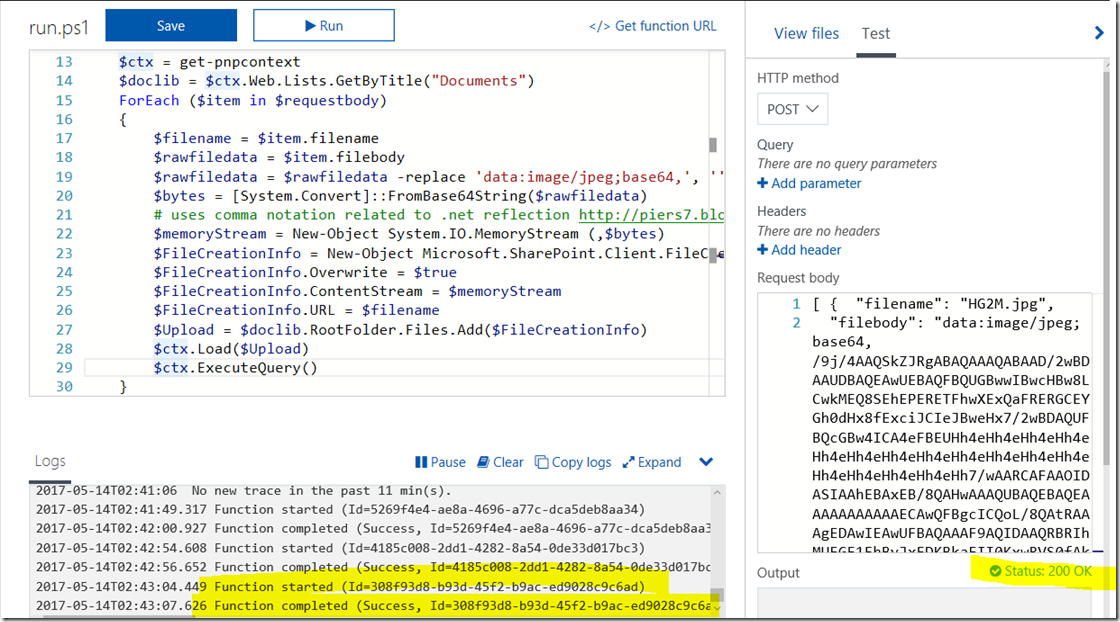
image

Checking my document library and they are there… wohoo!!
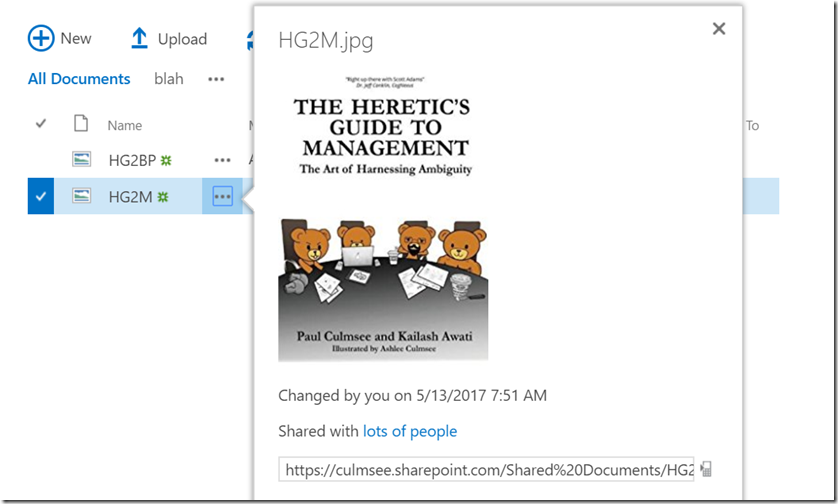
image

So basically we have a lot of the bits in place. We have proven that our Azure function can take a JSON file with encoded images, process that file and then save it to a SharePoint document library. You might be thinking that all we need to do now is to wire up PowerApps to this function? Yeah, so did I too, but little did I realise the pain I was about to endure…

4. Create a Swagger file so that PowerApps can talk to our Azure function

Now we come to the most painful part of this whole saga. We need to describe our Azure function using a standard called Swagger (or OpenAPI). This provides important metadata so that PowerApps can make it easy for users to consume. This will make sense soon enough, but first we have to create it, which is a royal pain in the ass. I found the online documentation for swagger to be lacking and it took me a while to understand enough of the format to get it working.

So first up to make things simpler, let’s reduce some of the complexity. Our Azure function is a simple HTTP post. We have not defined any other type of requests, so lets make this formal as it will generate a much less ugly Swagger definition. Expand your function and choose the “Integrate” option. On the next screen, under Triggers, you will find a drop down with a label “Allowed HTTP methods”. Change the default value to “Selected methods” and then untick all HTTP methods except for POST. Click Save.
image  image  image

Now click back to your function app, and choose “API Definition” from the top menu. This will take you to the screen where you create/define your Swagger file.

image

On the initial screen, set your API definition source to function if asked, and you should see a screen that looks somewhat like this…
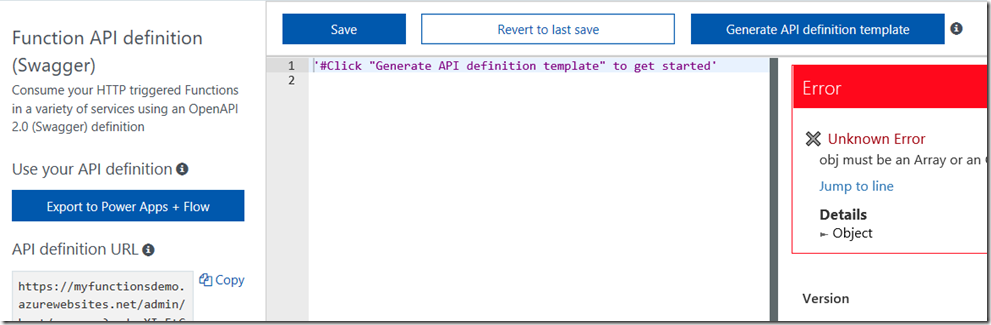
image

Click the Generate API definition template button as suggested by the comment in the code box in the middle. This will generate a swagger file and on the right side of the screen, the file has will be used to generate a summary of your API. You can see the Url of your azure app, some information about an API key (which we will deal with later) and below that, the PhotoSendSP function exposed as a webservice (/api/PhotoSendSP).
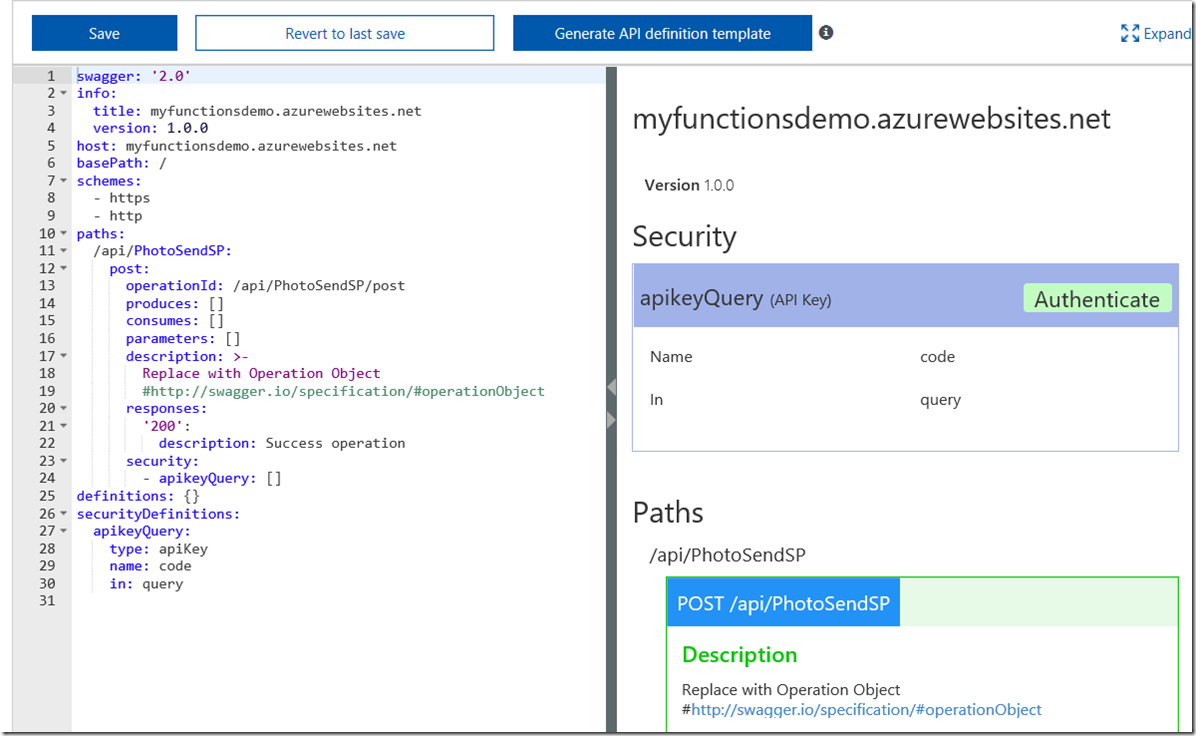
image

Now at this point you are probably thinking “okay so its unfamiliar, but this is pretty easy”, and you would be right. Where things got nightmarish for me was working out how to understand and customise the swagger file as the template is currently incomplete. All it has done is defined our function (note the paths section in the above screenshot  – can you see all those empty square brackets? that’s what you need to now fill in).

For the sake of brevity, I am not going to describe the ins and outs of this format (and I don’t fully know it yet anyway!). What I can tell you is that getting this right is a painful and time-consuming combination of trial and error, reading the swagger spec and testing in PowerApps. Let’s hope my hints here save you some frustration.

The first step is we need to create a definition for the format of data that our Azure function accepts as input. If you look closely above, you will see a section called definitions. Paste the following into the section so it looks like the screenshot below. Note: If you see any symbol apart from a benign warning message next to the “Photos:” line, then you do not have it right!.

definitions:
   Photos:
      type: object
      required:
         - filename
         - filebody
      properties:
         filename:
            type: string
            example: image.jpg
         filebody:
            type: string
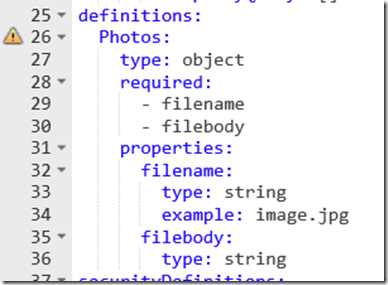
image

So what we have defined here is an object called Photos which consists of two required properties, filename and filebody. Both are assumed to be string format, and filename also has an example to illustrate what is expected. Depending on how this swagger file is consumed by another application that supports swagger, one can imagine that example showing up on online help or intellisense when our function is being called.

Now lets make use of this definition.  Paste this into the parameters and description sections. Note the “schema:” section. Here we have told the swagger file that our function is expecting an array of objects based on the Photos definition that we created earlier.

parameters:
  - name: photocollection
    in: body
    description: “The encoded files”
    required: true
    schema:
       type: array
       items:
          $ref: '#/definitions/Photos'
description: "A collection of photos and filenames"
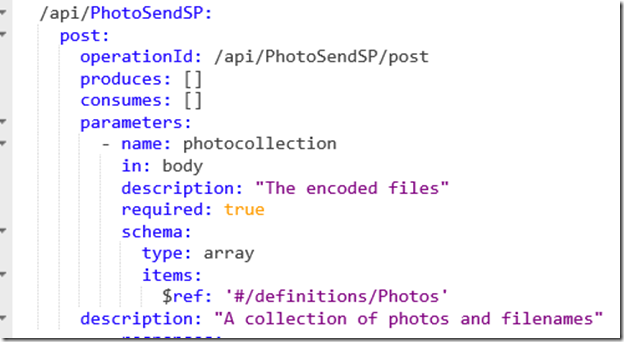
image

Finally, let’s finish off by defining that our Azure function consumes and produces its data in JSON format. Although our sample code is not producing anything back to PowerApps, you can imagine situations where we might do something like send back a JSON array of all of the SharePoint URL’s of each photo.

produces:
- application/json
consumes:
- application/json
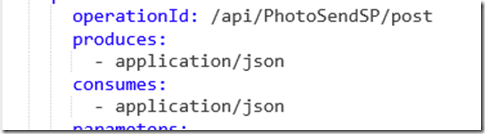
image

Okay, so we are all set. Now to be clear, there is a lot more to Swagger, especially if you wanted to call our function from flow, but for now this is enough. Click the Save button, and then click the button “Export to PowerApps + Flow”. You will be presented with a new panel that explains the process we are about to do. Feel free to read it, but the key step is to download the swagger file we just created.
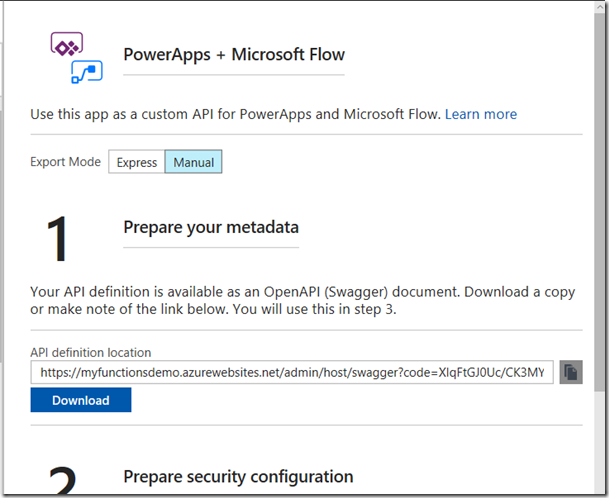
image

Okay, so if you have made it this far, you have a swagger JSON file and you are in the home stretch. Let’s now head back to PowerApps!

5. Create a custom PowerApps connection/datasource to use the Azure function

Back in PowerApps, we need to make a new custom connection to our Azure function. Click the Connections menu item and you will be redirected to web,powerapps.com. Click “Manage Custom Connections” and then click “Create a custom connector”. This will take you to a wizard.


image   image

image

The first step is to upload the swagger file you created in step 4 and before you do anything else, rename your connector to something short and sweet, as this will make it easier when displayed in the PowerApps list of connections.
image

Scroll to the bottom the of page and click the “Continue” button. Now you are presented with some security options about your connector. For context, the default settings for the PowerShell azure function template we chose in step 2 was to use an API key, so you can leave all of the defaults here, although I like to add the more meaningful “API Key” (this will make sense soon). Click Continue

image

PowerApps has now processed the swagger file and found the PhotoSendSP POST action we defined. It has also pulled some of the data from the swagger file to prepopulate some fields. Note this screen has some UI problems – you need to hover your cursor over the forms in the middle of the screen to see the scrollbar, so there is more to edit than what you initially see…
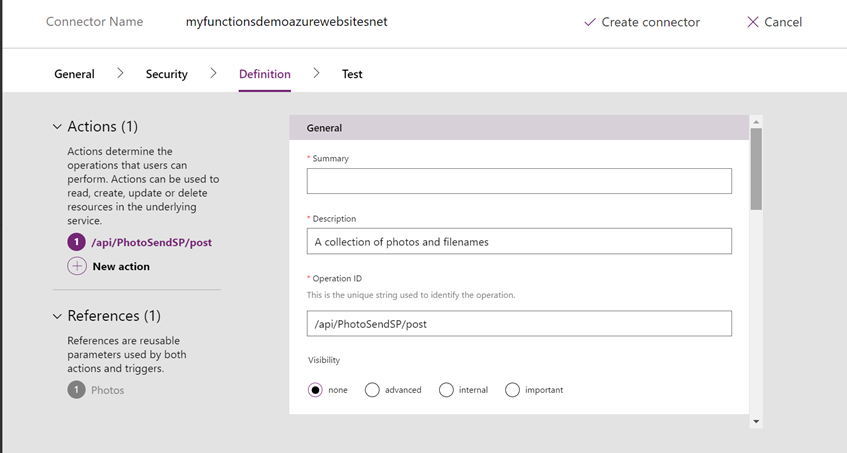
image

For now, do not enter anything into the summary field and scroll down to look at some of the other settings. The Visibility setting does not really matter for PowerApps, but remember that other online services can call our function. This visibility stuff relates more to Microsoft Flow, so you can ignore it for now. Scroll further down and you will see how our swagger schema has been processed by PowerApps. You can explore this but I suggest leaving it well alone. Below I have used all my MSPaint skills to make a montage to show how this relates to your Swagger file…
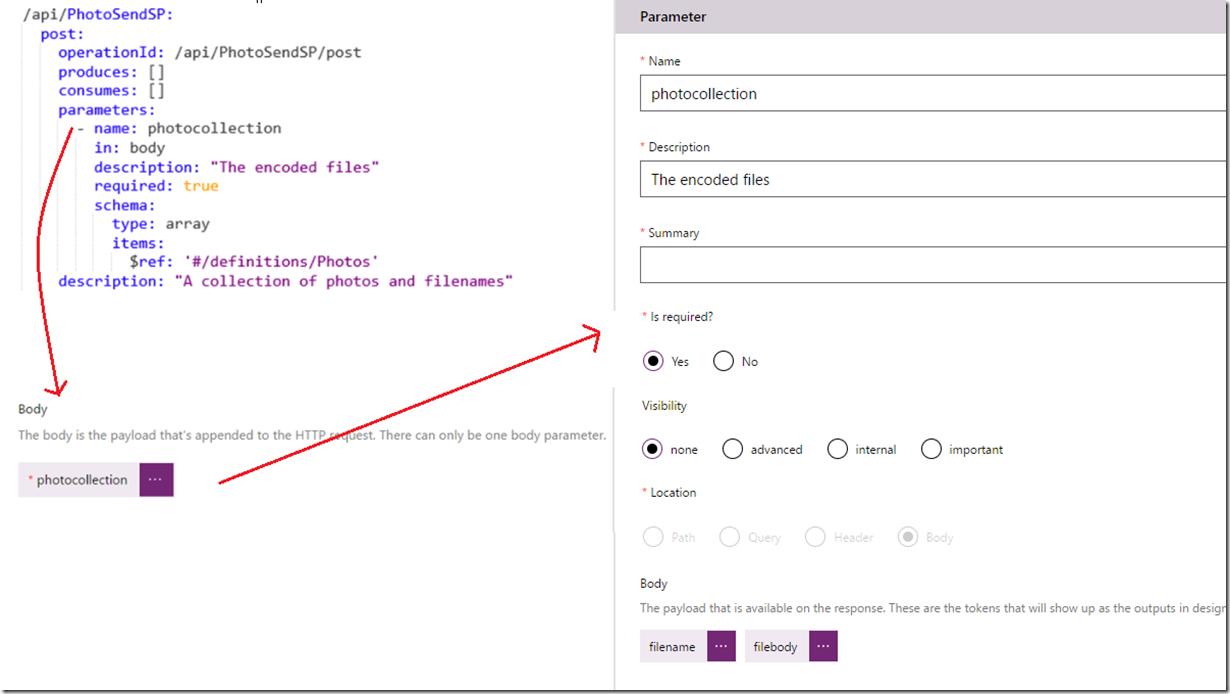
image

Finally, click Create Connector to wire it up. If all has gone to plan, you will see something resembling the following in the list of custom connectors in PowerApps. If you get this far, congratulations! You are almost there!

image

6. Test successfully and bask in the glory of your awesomeness

Now that you have a custom connection, let’s try it out. Open your PowerApp that you created in step 1. From the Content menu, click Data sources, click Add Datasource and then click New Connection. Scroll through the list of connections until you find the one you created in step 5. Click on it and you will be prompted for an API key (now you see why I added that friendly label during step 5).

image  image  image

Where to find this key? Well, it turns out that it was automagically generated for you when you first created your function! Go back to Azure functions portal and find your function. From the function sub menus, click Manage and you will be presented with a “Functions Keys” section with a default key listed. Copy this to the clipboard, and paste it back into the PowerApps API Key text box and click the Create button. Your datasource that connects to your Azure function is now configured in PowerApps!! (yay!).
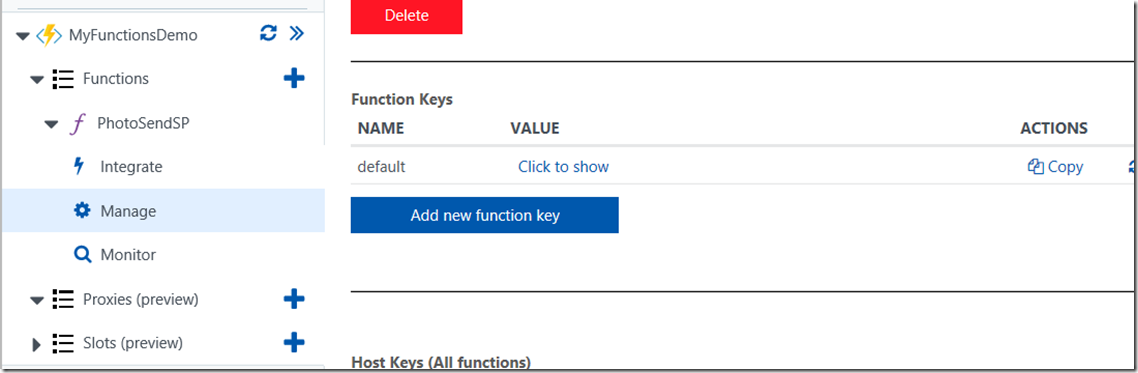
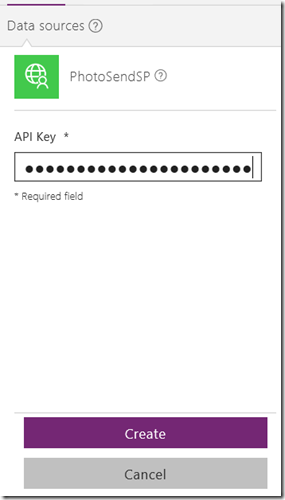
image

image  image

Now way back in step 1 (gosh it seems like such a long time ago), we created a button labelled Submit, with the following formula.

Clear(SubmitData);
ForAll(PictureList,Collect(SubmitData, { filename: "a file.jpg", filebody: Url }))

The problem we are going to have is that all files submitted to the webservice will be called “a file.jpg” as I hardcoded the filename parameter for simplicity. Now if I fully developed this app, I would add a textbox to the gallery so that each photo has to be named prior to being able to submit to SharePoint. I am not going to do that here as this post is already too long, so instead I will use a trick I saw here to create a random two letter filename. I know it is not truly unique, but for our demo will suffice.

Here is the formula in all its ugliness.

Concatenate(Text( Now(), DateTimeFormat.LongDate ),Mid("0123456789ABCDEFGHIJKLMNOPQRTSTIUVWXYZ", 1 + RoundDown(Rand() * 36, 0), 1),Mid("0123456789ABCDEFGHIJKLMNOPQRTSTIUVWXYZ", 1 + RoundDown(Rand() * 36, 0), 1),".jpg"), filebody: Url } ) )

Yeah I know… let me break it down for you…

  • Text( Now(), DateTimeFormat.LongDate ) produces a string containing todays date
  • Mid(“0123456789ABCDEFGHIJKLMNOPQRTSTIUVWXYZ”, 1 + RoundDown(Rand() * 36, 0), 1) – selects a random letter/number from the string
  • Concatenate takes the above date, random letters and adds “.jpg” to it.

PowerApps does allow for line breaks in code, so it looks less ugly…

image

Let’s quickly test this before the final step of sending it off to SharePoint. Preview the app, take some photos and then examine the collections. As you can see, the SubmitData collection now has unique filenames assigned (By the way, yes I took these in a car and no, I was not driving at the time! 🙂
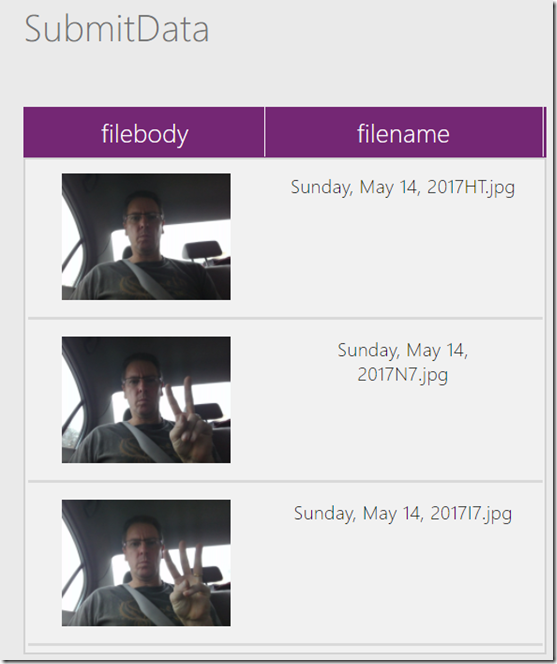
image

We are now ready for the final step. We need to call the Azure function! Smile

Go back to your submit button and add the following code to the end of the existing code, taking into account the name you gave to your connection/datasource. You should find that PowerApps uses intellisense to help you add the line because it has a lot of metadata from the swagger file.

'myfunctionsdemo.azurewebsites.net'.apiPhotoSendSPpost(SubmitData)
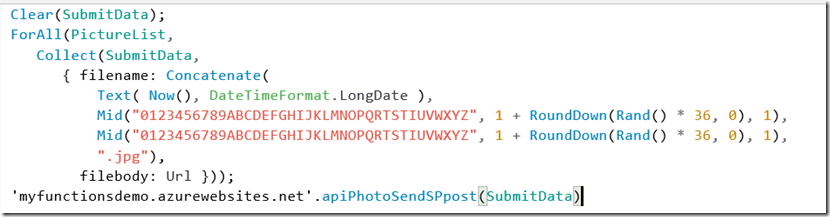
image

Important! Before we go any further, I strongly suggest you use the PowerApps web based authoring environment and not the desktop application. I have seen a problem where the desktop application does not encode images using the Data URI format, whereas the web based tool (and PowerApps clients on android and IOS) work fine.

So log into PowerApps on the web, open your app, preview it and cross your fingers! (If you want to be clever, go back to your function in Azure and keep and eye on the logs Smile

image

As the above screen shows, things are looking good. Let’s check the SharePoint document library that the script uploads to… YEAH BABY!! We have our photos!!!
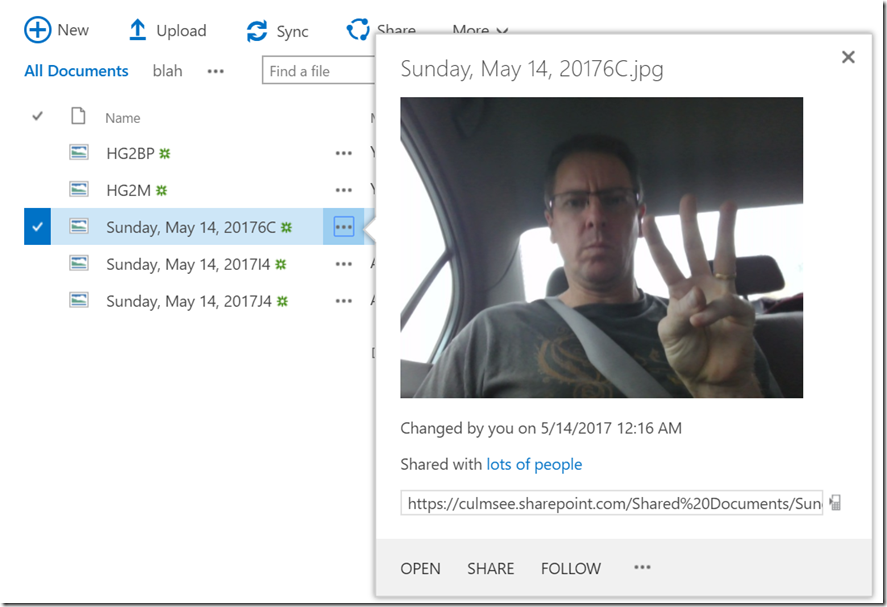
image

Conclusion

Now you finally get to bask in your awesomeness. If you survived all this plumbing and have gotten this working then congratulations! you are well on your way to becoming a PowerApps, PowerShell, PnP (and flow) guru. This means you can now enhance your apps in all sorts of ways. For the non-developers who got this far, you can truly call yourself a citizen developer and design all sorts of innovative solutions via these techniques.

Even though a lot of this stuff is fiddly (especially that god-awful swagger crap), once you have gone through it a couple of times, and understand the intent of the components we have used, this is actually quite an easy solution to put together. I also found the Azure function side of things in particular, really easy to debug and see what was going on.

In terms of where we could take this, there are several avenues that I can immediately think of, but the possibilities are endless.

  • We could update the PowerShell code so it takes the destination document library as a parameter. We would need to update a new Swagger definition and then update our datasource in PowerApps, but that is not too hard a task once you have the basics working.
  • Using the same method, we could design a much more sophisticated form and capture lots of useful metadata with the pictures, and get them into SharePoint as metadata on the picture.
  • We could add in a lot more error handling into the script and return much better detail to PowerApps, such as detailed failure information.
  • Similarly, we could return detailed information to PowerApps to make the app richer. For example, we could generate unique filenames in our PowerShell function rather than PowerApps and return those names (and the URL to the image) in the reply to the HTTP Post, which would enable PowerApps to display images inline.
  • We could also take advantage of recent PowerApps enhancements and use local caching. I.e, when an internet connection is available, call the API, but if not, save to local storage and call the API once a connection is available.
  • We could not only upload images, but update lists and any other combination of SharePoint functions supported by PnP.

I hope that this post has helped you to better understand how these components hang together and I look forward to your feedback and how you have adopted/adapted and enhanced the ideas presented here.


Thanks for reading


Paul Culmsee

www.hereticsguidebooks.com
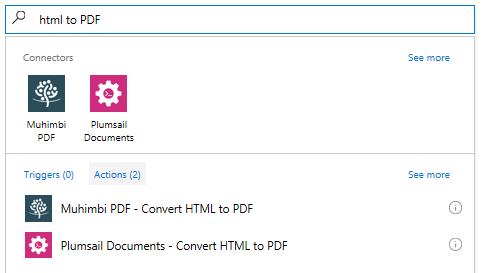


So what is this newfangled apps model anyway and why do I care? (part 3)

Hiya

This is the third post in some articles aimed helping strategic or business focused users understand the SharePoint 2013 and Office365 “apps model”, and what it means for the future of SharePoint. In part 1 of this series, I outlined the opportunities and challenges that Microsoft are currently trying to addressing. They were:

  • Changing perceptions to cloud technologies and increased adoption; which enables…
  • The big scary bogeyman known as Google with a viable alternative to SharePoint, Office and Exchange in the form of Google Apps; as well as…
  • An increasing number of smaller cloud-based “point solution” players who chip away at SharePoint features with cheaper and easier to use offerings; while suffering from…
  • A serious case of Apple envy and in particularly the rise of the app and the app marketplace; while dealing with…
  • Customers unable to handle the ever increasing complexity of SharePoint, leading to delaying upgrades for years

These reasons prompted Microsoft’s to take a strongly cloud driven strategy and have really been transforming their business to deliver it. They really have transitioned from a software provider to an application hosting provider and in terms of SharePoint, the “apps” model is now the future of customisation.

Now “apps” is a multifaceted topic and the word has been overused unfortunately. So in part two we started to unpack the apps model by channelling the kids TV show playshcool to show the idea of SharePoint customisations being hosted on separate servers, but presenting a seamless experience for users.

If you never read part 1 and 2, I seriously suggest you do. To whet your appetite, here are some pretty diagrams to highlight what you missed out on!

image image  image

The main point I made was the notion that custom SharePoint components ran on separate, non SharePoint servers and were embedded into SharePoint via Iframes. These remote apps then communicate securely with SharePoint (eg read or write data from lists) via web services.

I concluded part 2 by showing the benefits of the apps model from Microsoft’s perspective. Among other things, this model of developing custom SharePoint solutions can be supported on Office365 and on-premises. For on-premises customers, SharePoint servers remain pristine and free of the muck and clutter of 3rd party code, making service packs and cumulative updates much less complex and costly. It also enables Microsoft to offer an app store, where 3rd party vendors can maintain cloud based services that can be embedded and consumed by on-premises and online SharePoint installs. If you go back to the 5 key strategic threats I started this post with, it addresses each one nicely.

So Microsoft’s intent is good, and there is nothing wrong with good intentions… or is there?

image

Digging deeper

So where does one start with unpacking the apps model? Let’s make this a little less of a dry read by channelling Big Bang Theory to find out. First up, Penny wants to know where app data stored is stored, given that the app runs on a different server to SharePoint as shown below. (If you think about it, from apps perspective – SharePoint is the remote server).

image

Sheldon’s answer? (Of course Sheldon invented the apps model right)…

image

Er… come again? Let’s see if Leonard can give a clearer explanation…

image

Leonard’s explanation is a little better. Ultimately the app developer has the choice over where app data is stored. For example, let’s say someone writes a survey app for SharePoint and it renders on the home page via an iframe. When users fill in this poll, the results could be stored on the server that hosts the app and not SharePoint at all (which in SharePoint terms is referred to as the remote web). Alternatively, the app could store the survey results in a list on a SharePoint site which the app is being invoked from (this is called the host web). Yet another alternative is something called the App Web, which I  will return to in a moment.

First lets look at the pros and cons of the first two options.

Option A: Store App Data in SharePoint Lists

If the app developer chooses this approach, the app reads/writes to SharePoint lists in the site where the app is deployed (henceforth called the host web). In this approach, when a site administrator chooses to add an app to the site, the app has to specify the level of access is required for the site, and it asks the site admin to authorise this access. In the image below, you can see that this Kodak app is requesting the ability to edit or delete items in document libraries and lists on this site, as well as access user profile information. If the site administrator clicks “Trust it”, the app now has the access it needs.

image

The pro to this approach is that all app data resides in regular old SharePoint, where it is searchable and can take advantage of all of the goodies that lists and libraries give you like versioning, information management policies and workflow. Additionally, multiple apps can access these lists, so this allows for the development of componentised solutions that work with a single authoritative data source.

The potential cons (or implications to be aware of) to the approach are:

  • SharePoint lists and libraries are not always an appropriate data stores for some types of data. Most people are well aware now that a SharePoint list is most definitely not a relational database and it has performance issues when misused (among other things). SharePoint also has in-built thresholds that kick in when lists get big (list queries that generate a result set of 5000 or more items will fail by default). Microsoft state in their SharePoint 2013 and SharePoint Online solution packs documentation “If your business needs require you to work with large data sets and query result sets, this approach won’t work”.
  • If the app has been deployed to many sites and site collections (and uses lists on each), then things can get painful if a new version of the app requires a new or modified set of columns on the list in the host web.
  • if you delete the app from the host web, the list data remains on the site as the lists will likely not be deleted. Sometimes this is a good thing as the data might be important or used in other ways, but if the app developer is storing configuration data here, would leave orphaned data in the site.

Also think about what happens when you have an on-premises SharePoint server but the app is hosted by a 3rd party outside your firewall. How is the remote app even able to get to your SharePoint box in the first place? To enable this to happen, you are likely going to need to talk to your network/security people because you are going to need some funky firewall/reverse proxy infrastructure to allow that to happen. Additionally, some organisations might be uncomfortable that an app from a 3rd party on the interweb can have the ability to read and write data inside an internal SharePoint server anyway.

So what alternatives are there here?

Option B: Store data in the remote app

The other option for the app developer is to store the app data on the same server the app is running from (called the remote web). In this approach, no data is stored in SharePoint at all. The pros for this option is that it alleviates two of the issues from option A above in that developers can use any data storage system they want (eg SQL Server, a GIS system or a graph database) and you do not have any of those pesky firewall issues with the app connecting back to your SharePoint server. The app renders in its iframe and does its thing.

Unfortunately this also has some cons.

  • There are potential data sovereignty issues. Where is the remote app hosted? Are you sure you trust the 3rd party app provider with your data? Consider that a 3rd party might host an app for many organisations. Do they have adequate precautions for keeping your data isolated and secure (ie Is your stuff stored in a separate database to everyone else?) Are they adequately backing up that data consistent with your internal standards? If you uninstall the app, is the data also uninstalled at the app provider end?
  • This data is very likely not searchable or easily usable by SharePoint for other purposes as it is not necessarily directly accessible by SharePoint.
  • Chances are that the app will have to talk to SharePoint in some way, so you really don’t get out of dealing with your network/security people to make it all work if the remote web is outside your firewall.
  • Also consider data integrity. if say, you needed to restore SharePoint because of a data loss or data corruption issue, what does this mean for the data stored on the remote app? will things get out of sync?

These (and other questions) bring us to the next option that is a bit of a mind-bending middle ground.

Option C: Store data in the App Web

Now here is where things start to mess with your head quite a bit. Most people can understand the idea behind option A and B, but what the heck is this thing known as an app web? The short answer, it is a special SharePoint sub-site that is used for certain apps. It usually gets created when a site administrator adds an app to a site and importantly, removed when a site administrator removes the app. If you consider the diagrams below we can see our mythical SharePoint 2013 homepage with 3 apps on it, all running on separate servers as explained in part 2. If we assume each of these apps have deployed an app web on our SharePoint site, there are now three SharePoint sub-sites created underneath it as shown below. These are the app webs.

image

Now app webs are no ordinary subsites in the way you might know them now. For a start, if you tried to access them from your SharePoint host web, you would not be able to at all. Through some trickery, SharePoint puts these sites on a completely different URL than the site where the apps were installed. For example, if you had a site called http://myintranet/sites/web1 and you added a survey app, a subsite exists but it would absolutely not be http://myintranet/sites/web1/survey or anything like that. It would instead look something like:

http://app-afb952fd75de4a.apps.mycompany/sites/web1/surveyapp/

Now being a business audience reading this, trust me that there are good reasons for this apparent weirdness related to security which I will speak to in the next post.

But if this makes sense so far, then in some ways, one can argue that an app web is a weird cross between option A and B in that it is a subsite on your SharePoint farm, yet SharePoint treats it as if it is a remote data store. This means the app web is a special isolated storage area for app developers to put stuff like data, configuration, CSS, JavaScript and whatever other functionality their app needs to do its thing.

This approach has some advantages:

  • The app web is technically a SharePoint site, so app developers can create whatever structure they need (think lists, libraries and columns) to store their stuff like images, css, JavaScript and other goodies. This allows for much more flexible data structures that can easily be accommodated that writing to the odd list in a host web (Option A above)
  • The app web lives is on your SharePoint server, so it means some app components (and data) can be stored here instead of on a remote web on a server far away from you. When you back up your configuration database, the app web is backed up like everything else. (Less data integrity risk than option B).
  • The app web facilitates clean install/uninstall of an app, since the app web is removed if an app is removed. In other words, no more orphaned data lying around

But if you think all of those points through, you might see several important implications:

  • If the app developer decided to store critical app data in the app web, when the app is uninstalled that data is lost (or put better, developers have to write special uninstall code to copy the data somewhere else which means yet more code)
  • Just like option A, SharePoint lists and libraries are not always an appropriate data stores for some types of data. (remember the list item threshold I mentioned in option A? They also apply here too)
  • Apps cannot share app webs between them. In other words, apps cannot reach in and access data from other app webs. Therefore you can’t easily use the information stored in app webs with other apps and applications. In fact if you want to do this you pretty much have to choose option A. Store the shared data apps need in the host web and have both apps access that data
  • You may end up with many many app webs. If you take my example above there are 3 app webs to handle 3 apps. What if this was a project site template and your organisation has hundreds of projects. That means you have thousands of app webs, all with potentially interesting data that trapped in mini information silos.
  • SharePoint search cannot index the app webs
  • A critical but often overlooked one is that developers can’t update the library/list metadata schema in an app web (think columns, content types, libraries, etc) without updating and redeploying the app. As you will see in a future post, this gets real ugly real fast!
  • SharePoint App Webs are created with special templates which block SharePoint Designer (that’s probably a good thing given the purpose of an app web)

Conclusion

So if you are a non-developer reading this post, consider that none of the above options are on their own, likely to give you a solution. For each option, there seems to be just as many advantages as flaws. The reality is that many apps will use at least two, or even all three options. Things like images, css and javascript might be loaded from the app web, some critical reusable SharePoint content from the host web and the remote web for some heavy duty data manipulation.

If you think that through, that means as SharePoint administrators and governance teams, you will likely end up dealing with all of the cons of each of the options. Imagine asking a developer to conceptually draw an app that uses each of the options and consider how many “moving parts” there are to it all. Then when you add the fact that most organisations still have a legacy of full trust solutions to deal with, you can start to see how complex this will be to manage.

Now this really is just the tip of the iceberg. In the next post I am going to talk a little about how all this stuff is wired up from an authentication and security standpoint. I am also going to focus on the application lifecycle management implications of this model. If you think about the picture I have painted here with all of the potential moving parts, how to you think an upgrade to an app would fare?

thanks for reading

Paul Culmsee


So what is this newfangled apps model anyway and why do I care? (part 2)

Hiya

This is the second post in some articles aimed at demystifying the SharePoint “apps” model for the strategic or business focused user. In case you are not aware, Microsoft have gotten a serious case of “app fever” in recent times, introducing the terminology not only into SharePoint, but Office as well. While there are very good reasons for this happening, Microsoft used the “app” terminology in multiple ways, therefore making their message rather confusing. As a result, Microsoft have not communicated their intent particularly well and customers often fail to understand why they make the changes that they do.

Things are definitely getting better, but I nevertheless see a lot of confusion around the topic. So in part 1 of this series, I explained the reasons Microsoft have adopted the strategy that they have done. To recap, they are trying to respond to five major disruptive forces that challenge their market position:

  • Changing perceptions to cloud technologies and increased adoption; which enables…
  • The big scary bogeyman known as Google with a viable alternative to SharePoint, Office and Exchange in the form of Google Apps; as well as…
  • An increasing number of smaller cloud-based “point solution” players who chip away at SharePoint features with cheaper and easier to use offerings; while suffering from…
  • A serious case of Apple envy and in particularly the rise of the app and the app marketplace; while dealing with…
  • Customers unable to handle the ever increasing complexity of SharePoint, leading to delaying upgrades for years

Microsoft’s answer to this has to go all-in with cloud, as this is the only way to beat the cloud providers at their own game, while reducing the complexity burden on their customers.  This of course is in the form of Office365, OneDrive and an ever increasing set of cloud oriented tools like Delve and Project Online.

But in SharePoint land, this has turned traditional development upside down. More than a decade of customisation “best practices” are no longer best – in fact they are no longer usable in many circumstances. The main reason is that the most common method of customisation normally applied to SharePoint (full-trust server side code) is not permitted in the cloud. Microsoft couldn’t risk untrusted, 3rd party custom code on their servers. What happens if one clients dodgy code affects everybody else sharing the service? This would threaten performance, uptime and Microsoft’s ability to upgrade their service over time.

So things had to change. Microsoft’s small army of product architects commandeered a whiteboard and started architecting innovative solutions to deal with these challenges and the apps model is the result. So let’s examine some core bits to the apps model by channelling a much loved children’s TV show.

There is a bear in there…

Now at this point I have to warn the developers or tech people writing this post. I am going to give a simplified version of the apps model intended for a decision making audience. I will omit many details I don’t deem necessary to make my key points. You have been warned…

image

Any parent of small children in most countries might be familiar with Playschool – a show for toddlers that has been around for eons. It is well known for its theme song starting with the line “There is a bear in there…and a chair as well”. When trying to come up with a suitable way to explain the SharePoint apps model, using Playschool as a metaphor turned out to work brilliantly. You see in each episode of Playschool, there was a segment where viewers were taken through the “magic window” to faraway lands. In the show, the presenter would pick one of the three windows and we would zoom into it, resulting in a transition to another segment. In our case, we have to pick the square window for two reasons. Firstly, a good many apps are in effect windows to somewhere else. Secondly, and much more importantly, it perfectly matches the new Microsoft corporate logo. Perfect metaphor or what eh? 🙂

Like the Playschool magic window, browsers have a similar capability to enable you to visit strange and magical lands… Not only is there a bear in there and a chair as well, but there are plenty of other things like YouTube videos and Yammer discussions. I have drawn this conceptually shown below. Note the black window in the SharePoint team site on the left, that can be filled with YouTube or Yammer.

image

You have no doubt visited web sites that have embedded content like YouTube videos or SlideShare slides in them (This blog site has lots of embedded ads that make me no money!). Essentially, it is possible for browsers to include content from different sites together into a single “page” experience. Users see it all as one page, even through content can come from all over the place. This is really useful, because it means you can leverage the capability of other sites to enhance the functionality of your own sites..

This my friends, is one of the core tenets of the current SharePoint 2013 apps model. Instead of running on the SharePoint server, many apps now run separately from SharePoint, embedded in SharePoint pages so that they look like they are part of SharePoint. In the example mock-up below, we have a SharePoint team site. In it, we have a remote web site that displays some pretty dashboard data. By loading that emote content into our magical square window, it now appears a part of SharePoint.

image       image

Going back to Microsoft’s core pain points, this helps things a lot. For a start, it means no custom code has to be installed onto the SharePoint server. Instead, SharePoint simply embeds the external content on the page. In the leftmost image above, you can see the SharePoint server (labelled as “Your server”), rendering a page with a placeholder in it. It then retrieves content from a remote server (labelled “my server”) and displays it in the placeholder to render the complete page (the rightmost image above).

So what feat of Microsoft innovation and general awesomeness enabled this to happen?

Everybody meet “Mr IFrame”.

Inline Frames (IFrames) are windows cut into your webpage that allow your visitor to view content on another site without reloading the entire page. The concept was first implemented in Microsoft Internet Explorer way back in 1997. Yep – you heard right… 1997. So IFrames are not a new concept at all – in fact its positively ancient when you count time in internet years. For this reason, when developers find this out, their reaction is usually something like this…

image

But there is more than meets the eye…

Now if the apps model was just IFrames alone, then you you might wonder what the big deal is with apps. In fact IFrames have been used this way in SharePoint for years via the Page Viewer Web Part. For years, companies with SharePoint deployments have embedded stuff like Twitter, YouTube or Facebook widgets via iFrames.

So of course, there is more to it…

Let’s revisit the “your server” and “my server” diagram used above and consider the question.. What if these remote applications displayed inside an iFrame can interact with SharePoint? In other words, What if the remote application running on my remote server is able to connect to your SharePoint server and read/write data? In the diagram below I have illustrated the idea. The top half of the diagram represents a SharePoint server that could be on-premises or an Office365 tenant. On the left is a Products list, that is somewhere inside this SharePoint server. At the bottom is my application running on my server that creates a pretty dashboard. What if my remote application queried the SharePoint products list to create the dashboard? Now we have an application, that while not running inside SharePoint, can nevertheless utilise live data from SharePoint to create a seamless experience for users.

image

If we now add 3 iframes to a page, the implications should start to become more clear. We can build hybrid solutions leveraging the best of what SharePoint can do, whilst leveraging the best of what other platforms can do. To the user, these are still SharePoint sites, but the reality is that we are now viewing a page that has been delivered by various different platforms. Each can interact with SharePoint data in different ways to deliver a seamless experience. Because these remote apps are not SharePoint at all, developers can write any application they want to, using the platform and tools of their choice. But to the user it is still a SharePoint page… neat huh? I’m sure the Microsoft product team thought that this was a brilliant conceptual masterpiece when they dreamt it up.

image

A beautiful model…

I don’t know if you have ever watched developers come up with API’s, but it tends to be a lot of excitement around a whiteboard as they revel in the glory of their elegant solution designs. So let’s quickly re-examne the benefits of this remotely hosted app approach from Microsoft’s perspective and see how we are going so far…

image

First and foremost, we now have SharePoint customisation approach that they can be fully support in Office365. Microsoft don’t have to put code on their online servers, yet can support extensibility. Now they are much more evenly matched with Google, while at the same time, reduce their tech support costs of SharePoint because they have isolated 3rd party code out of SharePoint. If any problems are encountered with a remote app, SharePoint will keep humming along and Microsoft can now legitimately tell the clients “no really it is not SharePoint causing your issue – go see your friendly neighbourhood app developer”.

More importantly since apps can also can be used in on-premises SharePoint deployments too, meaning both Microsoft and their customers now have pristine SharePoint servers free of the muck and clutter of 3rd party code. Therefore service packs and cumulative updates should no longer strike fear into admins. Microsoft also now nails google’s ass because Google has no real concept of on-premises at all in the way Microsoft does. Thus when hybrid scenarios come up in conversation, Microsoft has a much stronger story to tell.

But there is a more important implication than all of that. Microsoft can now do the app store thing. Vendors can maintain cloud based services that can be embedded and consumed by on-premises and online SharePoint installs. This means 3rd parties can tap into the customer ecosystem with a captive marketplace and customers can browse the store to examine what options are out there to extend SharePoint functionality. In theory, this should enable hundreds of vendors to do some slight modifications to their existing web based applications and incorporate them into the SharePoint ecosystem.

image

But reality is not what’s on the whiteboard…

At this point, I hope I have painted a pretty good picture of the advantages offered by this new paradigm and you can probably appreciate the Microsoft nerds completely falling in love with this conceptual model of future SharePoint customsiations. The Microsoft strategy dudes probably loved it too because it elegantly dealt with all of the challenges they were seeing. Unfortunately though, with most conceptual models, reality is a very different beast from the convenient fiction of models.

So in the next post, we are going to dig a little deeper. For example, how can a remote app even have permissions to talk to SharePoint in the first place? Do you really want code running in some untrusted 3rd party server to be fiddling with data in your SharePoint lists and libraries? How does that even work anyway in an on-premises scenario when a cloud hosted app has to access data behind your firewall?

Fear not though – the Microsoft guys thought of this (and more) when they were drawing their apps model concept on the big whiteboard. So in the next post, we are going to look at what it takes to bring this conceptual masterpiece into reality.


Thanks for reading

Paul Culmsee


So what is this newfangled apps model anyway and why do I care? (part 1)

Hiya

I’ve been meaning to write about the topic of the apps model of SharePoint 2013 for a while now, because it is a topic I am both fascinated and slightly repulsed by. While lots of really excellent material is out there on the apps model (not to mention a few good rants by the usual suspects as well), it is understandably written by developers tasked with making sense of it all, so they can put the model into practice delivering solutions for their clients or organisations.

I spent considerable time reading and researching the various articles and videos on this topic produced by Microsoft and the broader SharePoint community and made a large IBIS map of it. As I slowly got my head around it all, subtle, but significant implications begin to emerge for me. The more I got to know this topic, the more I realised that the opportunities and risks of the apps model holds many important insights and lessons for how organisations should be strategically thinking about SharePoint. In other words, it is not so much about the apps model itself, but what the apps model represents for organisations who have invested into the SharePoint platform.

So these posts are squarely aimed at the business camp. Therefore I am going to skip all sorts of things that I don’t deem necessary to make my points. Developers in particular may find it frustrating that I gloss over certain things, give not quite technically correct explanations and focus on seemingly trivial matters. But like I said, you are not my audience anyway.

So let’s see if we can work out what motivated Microsoft head in this direction and make such a significant change. As always, context is everything…

As it once was…

I want you to picture Microsoft in 2011. SharePoint 2010 has come out to positive reviews and well and truly cemented itself in the market. It adorns the right place in multiple Gartner magic quadrants, demand for talent is outstripping supply and many organsiations are busy embarking on costly projects to migrate from their legacy SharePoint 2007 and 2003 deployments, on the basis that this version has fixed all the problems and that they will definitely get it right this time around. As a result, SharePoint is selling like hotcakes and is about to crack the 2 billion dollar revenue barrier for Microsoft. Consultants are also doing well in this time since someone has to help organsiations get all of that upgrade work done. Life is good… allegedly.

But even before the release of SharePoint 2010, winds of change were starting to blow. In fact, way back in 2008, at my first ever talk at a SharePoint conference, I showed the Microsoft pie chart of buzzwords and asked the crowd what other buzzwords were missing. The answer that I anticipated and received was of course “cloud”, which was good because I had created a new version of the pie and invited Microsoft to license it from me. Unfortunately no-one called.

image

Winds of change…

While my cloud picture was aimed at a few cheap laughs at the time, it holds an important lesson. Early in the release cycle of SharePoint 2007, cloud was already beginning to influence people’s thinking. Quickly, services traditionally hosted within organisations began to appear online, requiring a swipe of the credit card each month from the opex budget which made CFO’s happy. A good example is Dropbox which was founded in 2008. By 2010, won over the hearts and minds of many people who were using FTP. Point solutions such as Salesforce appeared, which further demonstrated how the the competitive landscape was starting to heat up. These smaller, more nimble organsiations were competing successfully on the basis of simplicity and focus on doing one thing well, while taking implementation complexity away.

Now while these developments were on Microsoft’s radar, there was really only one company that seriously scared them. That was Google via their Google Docs product. Here was a company just as big and powerful as Microsoft, playing in Microsoft’s patch using Microsoft’s own approach of chasing the enterprise by bundling products and services together. This emerged as a credible alternative to not only SharePoint, but to Office and Exchange as well.

Some of you might be thinking that Apple was just a big a threat to Microsoft as Google. But Microsoft viewed Apple through the eyes of envy, as opposed to a straight out threat. Apple created new markets that Microsoft wanted a piece of, but Apple’s threat to their core enterprise offerings remained limited. Nevertheless, Microsoft’s strong case of crimson green Apple envy did have a strategic element. Firstly, someone at Microsoft decided to read the disruptive innovation book and decided that disruptive was obviously cool. Secondly, they saw the power of the app store and how quickly it enabled an developer ecosystem and community to emerge, which created barriers for the competition wanting to enter the market later.

Meanwhile, deeper in the bowels of Microsoft, two parallel problems were emerging. Firstly, it was taking an eternity to work through an increasingly large backlog of tech support calls for SharePoint. Clients would call, complaining of slow performance, broken deployments after updates, unhandled exceptions and so on. More often than not though, these issues had were not caused by the base SharePoint platform, but via a combination of SharePoint and custom code that leaked memory, chewed CPU or just plain broke. Troubleshooting and isolating the root cause very difficult which led to the second problem. Some of Microsoft’s biggest enterprise customers were postponing or not bothering with upgrades to SharePoint 2010. They deemed it too complex, costly and not worth the trouble. For others, they were simply too scared to mess with what they had.

A perfect storm of threats

image  image

So to sum up the situation, Microsoft were (and still are) dealing with five major forces:

  • Changing perceptions to cloud technologies (and the opex pricing that comes with it)
  • The big scary bogeyman known as Google with a viable alternative to SharePoint, Office and Exchange
  • An increasing number of smaller point solution players who chip away at SharePoint features with cheaper and easier to use offerings
  • A serious case of Apple envy and in particularly the rise of the app and the app marketplace
  • Customers unable to contend with the ever increasing complexity of SharePoint and putting off upgrades

So what would you do if you were Microsoft? What would your strategy be to thrive in this paradigm?

Now Microsoft is a big organisation, which affords it the luxury of engaging expensive management consultants, change managers and corporate coaches. Despite the fact that it doesn’t take an MBA to realise that just a couple of these factors alone combine as a threat to the future of SharePoint, lots of strategic workshops were no doubt had with associated whiteboard diagrams, postit notes, dodgy team building games and more than one SWOT analyses to confirm the strategic threats they faced were a clear and present danger. The conclusion drawn? Microsoft had to put cloud at the centrepiece of their strategy. After all, how else can you bring the fight to the annoying cloud upstarts, stave off the serious Google threat, all the while reducing the complexity burden on their customers?

A new weapon and new challenges…

In 2011, Microsoft debuted Office365 as the first salvo in their quest to mitigate threats and take on their competitors at their own game. It combined Exchange, Lync and SharePoint 2010 – packaging them up in a per-user per month approach. The value proposition for some of Microsoft’s customers was pretty compelling because up-front capital costs reduced significantly, they now could get the benefits of better scalability, bigger limits on things like mailboxes, while procurement and deployment was pretty easy compared to doing it in-house. Given the heritage of SharePoint, Exchange and Lync, Microsoft was suddenly competitive enough to put Google firmly on the back foot. My own business dumped gmail and took up Office365 at this time, and have used it since.

Of course, there were many problems that had to be solved. Microsoft was now switching from a software provider to a service provider which necessitated new thinking, processes, skills and infrastructure internally. But outside of Microsoft there were bigger implications. The change from software provider to service provider did not go down well with many Microsoft partners who performed that role prior. It also freaked out a lot of sysadmins who suddenly realised their job of maintaining servers was changing. (Many are still in denial to this day). But more importantly there was a big implication for development and customisation of SharePoint. This all happened mid-way through the life-cycle of SharePoint 2010 and that version was not fully architected for cloud. First and foremost, Microsoft were not about to transfer the problem of dodgy 3rd party customisations onto their servers. Recall that they were getting heaps of support calls that were not core SharePoint issues, but caused by custom code written by 3rd parties. Imagine that in a cloud scenario when multiple clients share the same servers. This means that that one clients dodgy code could have a detrimental effect on everybody else, affecting SLA’s while not solving the core problem Microsoft were having of wearing the cost and blame via tech support calls for problems not of their doing.

So with Office365, Microsoft had little choice but to disallow the dominant approach to SharePoint customisation that had been used for a long time. Developers could no longer use the methods they had come to know and love if a client wanted to use Office 365. This meant that the consultancies who employed them would have to change their approach too, and customers would have to adjust their expectations as well. Office365 was now a much more restricted environment than the freedom of on-premises.

Is it little wonder then, that one of Microsoft’s big focus areas for SharePoint 2013 was to come up with a way to readdress the balance. They needed a customisation model that allowed a consistent approach, whether you chose to keep SharePoint on-premises, or move off to the cloudy world of Office 365. As you will see in the next post, that is not a simple challenge,. The magnitude of change required was going to be significant and some pain was going to have to happen all around.

Coming next…

So with that background set, I will spend time in the next post explaining the apps model in non technical terms, explaining how it helps to address all of the above issues. This is actually quite a challenge, but with the right dodgy metaphors, its definitely possible. 🙂 Then we will take a more critical viewpoint of the apps model, and finally, see what this whole saga tells us about how we should be thinking about SharePoint in the future…

thanks for reading

Paul Culmsee


The cloud isn’t the problem–Part 6: The pros and cons of patriotism

Hi all and welcome to my 6th post on the weird and wonderful world of cloud computing. The recurring theme in this series has been to point out that the technological aspects of cloud computing have never really been the key issue. Instead, I feel It is everything else around the technology, ranging from immature process, through to the effects of the industry shakeout and consolidation, through to the adaptive change required for certain IT roles. To that end, in the last post, we had fun at the expense of server huggers and the typical defence mechanisms they use to scare the rest of the organization into fitting into their happy-place world of in-house managed infrastructure. In that post I made a note on how you can tell an IT FUD defence because risk averse IT will almost always try use their killer argument up-front to bury the discussion. For many server huggers or risk averse IT, the killer defence is US Patriot Act Issue.

Now just in case you have never been hit with the “…ah but what about the Patriot Act?” line and have no idea what the Patriot Act is all about, let me give you a nice metaphor. It is basically a legislative version of the “Men in Black” movies. Why Men in Black? Because in those movies, Will Smith and Tommy Lee Jones had the ability to erase the memories of anyone who witnessed any extra-terrestrial activity with that silvery little pen-like device. With the Patriot Act, US law enforcement now has a similar instrument. Best of all, theirs doesn’t need batteries – it is all done on paper.

image

In short, the Patriot Act provides a means for U.S. law enforcement agencies, to seek a court order allowing access to the personal records of anyone without their knowledge, provided that it is in relation to an anti-terrorism investigation. This act applies to pretty much any organisation who has any kind of presence in the USA and the rationale behind introducing it was to make it much easier for agencies to conduct terrorism investigations and better co-ordinate their efforts. After all, in the reflection and lessons learnt from the 911 tragedy, the need for for better inter-agency co-ordination was a recurring theme.

The implication of this act is for cloud computing should be fairly clear. Imagine our friendly MIB’s Will Smith (Agent J) and Tommy Lee Jones (Agent K) bursting into Google’s headquarters, all guns blazing, forcing them to hand over their customers data. Then when Google staff start asking too many questions, they zap them with the memory eraser gizmo. (Cue Tommy Lee jones stating “You never saw us and you never handed over any data to us.” )

Scary huh? It’s the sort of scenario that warms the heart of the most paranoid server hugger, because surely no-one in their right mind could mount a credible counter-argument to that sort of risk to the confidentiality and integrity of an organisations sensitive data.

But at the end of the day, cloud computing is here to stay and will no doubt grow. Therefore we need to unpack this issue and see what lies behind the rhetoric on both sides of the debate. Thus, I decided to look into the Patriot act a bit further to understand it better. Of course, it should be clear here that I am not a lawyer, and this is just my own opinions from my research and synthesis of various articles, discussion papers and interviews. My personal conclusion is that all the hoo-hah about the Patriot Act is overblown. Yet in stating this, I have to also state that we are more or less screwed anyway (and always were). As you will see later in this post, there are great counter arguments that pretty much dismantle any anti-cloud arguments that are FUD based, but be warned – in using these arguments, you will demonstrate just how much bigger this thing is beyond cloud computing and get a sense of the broader scale of the risk.

So what is the weapon?

The first thing we have to do is understand some specifics about the Patriot Act’s memory erasing device. Within the vast scope of the act, the two areas for greatest concern in relation to data is the National Security Letter and the Section 215 order. Both provide authorities access to certain types of data and I need to briefly explain them:

A National Security Letter (NSL) is a type of subpoena that permits certain law enforcement agencies to compel organisations or individuals to provide certain types of information like financial and credit records, telephone and ISP records (Internet searches, activity logs, etc). Now NSL’s existed prior to the Patriot Act, but the act loosened some of the controls that previously existed. Prior to the act, the information being sought had to be directly related a foreign power or the agent of a foreign power – thereby protecting US citizens. Now, all agencies have to do is assert that the data being sought is relevant in some way to any international terrorism or foreign espionage investigations.

Want to see what a NSL looks like? Check this redacted one from wikipedia.

A Section 215 Order is similar to an NSL in that it is an instrument that law enforcement agencies can use to obtain data. It is also similar to NSL’s in that it existed prior to the Patriot Act – except back then it was called a FISA Order – named after the Foreign Intelligence Surveillance Act that enacted it. The type of data available under a Section 215 Order is more expansive than what you can eke out of an NSL, but a Section 215 Order does require a judge to let you get hold of it (i.e. there is some judicial oversight). In this case, the FBI obtains a 215 order from the Foreign Intelligence Surveillance Court which reviews the application. What the Patriot Act did different to the FISA Order was to broaden the definition of what information could be sought. Under the Patriot Act, a Section 215 Order can relate to “any tangible things (including books, records, papers, documents, and other items).” If these are believed to be relevant to an authorised investigation they are fair game. The act also eased the requirements for obtaining such an order. Previously, the FBI had to present “specific articulable facts” that provided evidence that the subject of an investigation was a “foreign power or the agent of a foreign power.” From my reading, now there is no requirement for evidence and the reviewing judge therefore has little discretion. If the application meets the requirements of Section 215, they will likely issue the order.

So now that we understand the two weapons that are being wielded, let’s walk through the key concerns being raised.

Concern 1: Impacted cloud providers can’t guarantee that sensitive client data won’t be turned over to the US government

CleverWorkArounds short answer:

Yes this is dead-set true and it has happened already.

CleverWorkArounds long answer:

This concern stems from the “loosening” of previous controls on both NSL’s and Section 215 Orders. NSL’s for example, require no probable cause or judicial oversight at all, meaning that the FBI can issue these at their own volition. Now it is important to note that they could do this before the Patriot Act came into being too, but back then the parameters for usage was much stricter. Section 215 Orders on the other hand, do have judicial oversight, but that oversight has also been watered down. Additionally the breadth of information that can be collected is now greater. Add to that the fact that both NSL’s and Section 215 Orders almost always include a compulsory non-disclosure or “gag” order, preventing notification to the data owner that this has even happened.

This concern is not only valid but it has happened and continues to happen. Microsoft has already stated that it cannot guarantee customers would be informed of Patriot Act requests and furthermore, they have also disclosed that they have complied with Patriot Act requests. Amazon and Google are in the same boat. Google also have also disclosed that they have handed data stored in European datacenters back to U.S. law enforcement.

Now some of you – particularly if you live or work in Europe – might be wondering how this could happen, given the European Union’s strict privacy laws. Why is it that these companies have complied with the US authorities regardless of those laws?

That’s where the gag orders come in – which brings us onto the second concern.

Concern 2: The reach of the act goes beyond US borders and bypasses foreign legislation on data protection for affected providers

CleverWorkArounds short answer:

Yes this is dead-set true and it has happened already.

CleverWorkArounds long answer:

The example of Google – a US company – handing over data in its EU datacentres to US authorities, highlights that the Patriot Act is more pervasive than one might think. In terms of who the act applies to, a terrific article put out by Alex C. Lakatos put it really well when he said.

Furthermore, an entity that is subject to US jurisdiction and is served with a valid subpoena must produce any documents within its “possession, custody, or control.” That means that an entity that is subject to US jurisdiction must produce not only materials located within the United States, but any data or materials it maintains in its branches or offices anywhere in the world. The entity even may be required to produce data stored at a non-US subsidiary.

Think about that last point – “non-US subsidiary”.  This gives you a hint to how pervasive this is. So in terms of jurisdiction and whether an organisation can be compelled to hand over data and be subject to a gag order, the list is expansive. Consider these three categories:

  • – US based company? Absolutely: That alone takes out Apple, Amazon, Dell, EMC (and RSA), Facebook, Google, HP, IBM, Symantec, LinkedIn, Salesforce.com, McAfee, Adobe, Dropbox and Rackspace
  • – Subsiduary company of a US company (incorporated anywhere else in the world)? It seems so.
  • – Non US company that has any form of US presence? It also seems so. Now we are talking about Samsung, Sony, Nokia, RIM and countless others.

The crux of this argument about bypassing is the gag order provisions. If the US company, subsidiary or regional office of a non US company receives the order, they may be forbidden from disclosing anything about it to the rest of the organisation.

Concern 3: Potential for abuse of Patriot Act powers by authorities

CleverWorkArounds short answer:

Yes this is true and it has happened already.

CleverWorkArounds long answer:

Since the Patriot Act came into place, there was a significant marked increase in the FBI’s use of National Security Letters. According to this New York Times article, there were 143,000 requests  between 2003 to 2005. Furthermore, according to a report from the Justice Department’s Inspector General in March 2007, as reported by CNN, the FBI was guilty of “serious misuse” of the power to secretly obtain private information under the Patriot Act. I quote:

The audit found the letters were issued without proper authority, cited incorrect statutes or obtained information they weren’t supposed to. As many as 22% of national security letters were not recorded, the audit said. “We concluded that many of the problems we identified constituted serious misuse of the FBI’s national security letter authorities,” Inspector General Glenn A. Fine said in the report.

The Liberty and Security Coalition went into further detail on this. In a 2009 article, they list some of the specific examples of FBI abuses:

  • – FBI issued NSLs when it had not opened the investigation that is a predicate for issuing an NSL;
  • – FBI used “exigent letters” not authorized by law to quickly obtain information without ever issuing the NSL that it promised to issue to cover the request;
  • – FBI used NSLs to obtain personal information about people two or three steps removed from the subject of the investigation;
  • – FBI has used a single NSL to obtain records about thousands of individuals; and
  • – FBI retains almost indefinitely the information it obtains with an NSL, even after it determines that the subject of the NSL is not suspected of any crime and is not of any continuing intelligence interest, and it makes the information widely available to thousands of people in law enforcement and intelligence agencies.

Concern 4: Impacted cloud providers cannot guarantee continuity of service during investigations

CleverWorkArounds short answer:

Yes this is dead-set true and it has happened already.

CleverWorkArounds long answer:

An oft-overlooked side effect of all of this is that other organisations can be adversely affected. One aspect of cloud computing scalability that we talked about in part 1 is that of multitenancy. Now consider a raid on a datacenter. If cloud services are shared between many tenants, innocent tenants who had nothing whatsoever to do with the investigation can potentially be taken offline. Furthermore, the hosting provider may be gagged from explaining to these affected parties what is going on. Ouch!

An example of this happening was reported in the New York TImes in mid 2011 and concerned Curbed Network, a New York blog publisher. Curbed, along with some other companies, had their service disrupted after an F.B.I. raid on their cloud providers datacenter. They were taken down for 24 hours because the F.B.I.’s raid on the hosting provider seized three enclosures which, unfortunately enough, included the gear they ran on.

Ouch! Is there any coming back?

As I write this post, I wonder how many readers are surprised and dismayed by my four risk areas. The little security guy in me says If you are then that’s good! It means I have made you more aware than you were previously which is a good thing. I also wonder if some readers by now are thinking to themselves that their paranoid server huggers are right?

To decide this, let’s now examine some of the the counter-arguments of the Patriot Act issue.

Rebuttal 1: This is nothing new – Patriot Act is just amendments to pre-existing laws

One common rebuttal is that the Patriot Act legislation did not fundamentally alter the right of the government to access data. This line of argument was presented in August 2011 by Microsoft legal counsel Jeff Bullwinkel in Microsoft Australia’s GovTech blog. After all, it was reasoned, the areas frequently cited for concern (NSL’s and Section 215/FISA orders) were already there to begin with. Quoting from the article:

In fact, U.S. courts have long held that a company with a presence in the United States is obligated to respond to a valid demand by the U.S. government for information – regardless of the physical location of the information – so long as the company retains custody or control over the data. The seminal court decision in this area is United States v. Bank of Nova Scotia, 740 F.2d 817 (11th Cir. 1984) (requiring a U.S. branch of a Canadian bank to produce documents held in the Cayman Islands for use in U.S. criminal proceedings)

So while the Patriot Act might have made it easier in some cases for the U.S. government to gain access to certain end-user data, the right was always there. Again quoting from Bullwinkel:

The Patriot Act, for example, enabled the U.S. government to use a single search warrant obtained from a federal judge to order disclosure of data held by communications providers in multiple states within the U.S., instead of having to seek separate search warrants (from separate judges) for providers that are located in different states. This streamlined the process for U.S. government searches in certain cases, but it did not change the underlying right of the government to access the data under applicable laws and prior court decisions.

Rebuttal 2: Section 215’s are not often used and there are significant limitations on the data you can get using an NSL.

Interestingly, it appears that the more powerful section 215 orders have not been used that often in practice. The best article to read to understand the detail is one by Alex Lakatos. According to him, less than 100 applications for section 215 orders were made in 2010. He says:

In 2010, the US government made only 96 applications to the Foreign Intelligence Surveillance Courts for FISA Orders granting access to business records. There are several reasons why the FBI may be reluctant to use FISA Orders: public outcry; internal FBI politics necessary to obtain approval to seek FISA Orders; and, the availability of other, less controversial mechanisms, with greater due process protections, to seek data that the FBI wants to access. As a result, this Patriot Act tool poses little risk for cloud users.

So while section 215 orders seem less used, NSL’s seem to be used a dime a dozen – which I suppose is understandable since you don’t have to deal with a pesky judge and all that annoying due process. But the downside of NSL’s from a law enforcement point of view is that the the sort of data accessible via the NSL is somewhat limited. Again quoting from Lakatos (with emphasis mine):

While the use of NSLs is not uncommon, the types of data that US authorities can gather from cloud service providers via an NSL is limited. In particular, the FBI cannot properly insist via a NSL that Internet service providers share the content of communications or other underlying data. Rather [.] the statutory provisions authorizing NSLs allow the FBI to obtain “envelope” information from Internet service providers. Indeed, the information that is specifically listed in the relevant statute is limited to a customer’s name, address, and length of service.

The key point is that the FBI has no right to content via an NSL. This fact may not stop the FBI from having a try at getting that data anyway, but it seems that savvy service providers are starting to wise up to exactly what information an NSL applies to. This final quote from the Lakato article summarises the point nicely and at the same time, offers cloud providers a strategy to mitigate the risk to their customers.

The FBI often seeks more, such as who sent and received emails and what websites customers visited. But, more recently, many service providers receiving NSLs have limited the information they give to customers’ names, addresses, length of service and phone billing records. “Beginning in late 2009, certain electronic communications service providers no longer honored” more expansive requests, FBI officials wrote in August 2011, in response to questions from the Senate Judiciary Committee. Although cloud users should expect their service providers that have a US presence to comply with US law, users also can reasonably ask that their cloud service providers limit what they share in response to an NSL to the minimum required by law. If cloud service providers do so, then their customers’ data should typically face only minimal exposure due to NSLs.

Rebuttal 3: Too much focus on cloud data – there are other significant areas of concern

This one for me is a perverse slam-dunk counter argument that puts the FUD defence of a server hugger back in its box. The reason it is perverse is that it opens up the debate that for some server huggers, may mean that they are already exposed to the risks they are raising. You see, the thing to always bear in mind is that the Patriot Act applies to data, not just the cloud. This means that data, in any shape or form is susceptible in some circumstances if a service provider exercises some degree of control over it. When you consider all the applicable companies that I listed earlier in the discussion like IBM, Accenture, McAfee, EMC, RIM and Apple, you then start to think about the other services where this notion of “control” might come into play.

What about if you have outsourced your IT services and management to IBM, HP or Accenture? Are they running your datacentres? Are your executives using Blackberry services? Are you using an outsourced email spam and virus scanning filter supplied by a security firm like McAfee? Using federated instant messaging? Performing B2B transactions with a US based company?

When you start to think about all of the other potential touch-points where control over data is exercised by a service provider, things start to look quite disturbing. We previously established that pretty much any organisation with a US interest (whether US owned or not), falls under Patriot Act jurisdiction and may be gagged from disclosing anything. So sure. . .cloud applications are a potential risk, but it may well be that any one of these companies providing services regarded as “non cloud” might receive an NSL or section 215 order with a gag provision, ordering them to hand over some data in their control. In the case of an outsourced IT provider, how can you be sure that the data is not straight out of your very own datacenter?

Rebuttal 4: Most other countries have similar laws

It also turns out that many other jurisdictions have similar types of laws. Canada, the UK, most countries in the EU, Japan and Australia are some good examples. If you want to dig into this, examine Clive Gringa’s article on the UK’s Regulation of Investigatory Powers Act 2000 (RIPA) and an article published by the global law firm Linklaters (a SharePoint site incidentally), on the legislation of several EU countries.

In the UK, RIPA governs the prevention and detection of acts of terrorism, serious crime and “other national security interests”. It is available to security services, police forces and authorities who investigate and detect these offenses. The act regulates interception of the content of communications as well as envelope information (who, where and when). France has a bunch of acts which I won’t bore you too much with, but after 911, they instituted act 2001-1062 of 15 November 2001 which strengthens the powers of French law enforcement agencies. Now agencies can order anyone to provide them with data relevant to an inquiry and furthermore, the data may relate to a person other than the one being subject to the disclosure order.

The Linklaters article covers Spain and Belgium too and the laws are similar in intent and power. They specifically cite a case study in Belgium where the shoe was very much on the other foot. US company Yahoo was fined for not co-operating with Belgian authorities.

The court considered that Yahoo! was an electronic communication services provider (ESP) within the meaning of the Belgian Code of Criminal Procedure and that the obligation to cooperate with the public prosecutor applied to all ESPs which operate or are found to operate on Belgian territory, regardless of whether or not they are actually established in Belgium

I could go on citing countries and legal cases but I think the point is clear enough. Smile

Rebuttal 5: Many countries co-operate with US law enforcement under treaties

So if the previous rebuttal argument that other countries have similar regimes in place is not convincing enough, consider this one. Lets assume that data is hosted by a major cloud services provider with absolutely zero presence in, or contacts with, the United States. There is still a possibility that this information may still be accessible to the U.S. government if needed in connection with a criminal case. The means by which this can happen is via international treaties relation to legal assistance. These are called Mutual Assistance Legal Treaties (MLAT).

As an example, US and Australia have had a longstanding bilateral arrangement. This provides for law enforcement cooperation between the two countries and under this arrangement, either government can potentially gain access to data located within the territory of the other. To give you an idea of what such a treaty might look like consider the scope of the Australia-US one. The scope of assistance is wide and I have emphasised the more relevant ones:

  • (a) taking the testimony or statements of persons;
  • (b) providing documents, records, and other articles of evidence;
  • (c) serving documents;
  • (d) locating or identifying persons;
  • (e) transferring persons in custody for testimony or other purposes;
  • (f) executing requests for searches and seizures and for restitution;
  • (g) immobilizing instrumentalities and proceeds of crime;
  • (h) assisting in proceedings related to forfeiture or confiscation; and
  • (i) any other form of assistance not prohibited by the laws of the Requested State.

For what its worth, if you are interested in the boundaries and limitations of the treaty, it states that the “Central Authority of the Requested State may deny assistance if”:

  • (a) the request relates to a political offense;
  • (b) the request relates to an offense under military law which would not be an offense under ordinary criminal law; or
  • (c) the execution of the request would prejudice the security or essential interests of the Requested State.

Interesting huh? Even if you host in a completely independent country, better check the treaties they have in place with other countries.

Rebuttal 6: Other countries are adjusting their laws to reduce the impact

The final rebuttal to the whole Patriot Act argument that I will cover is that things are moving fast and countries are moving to mitigate the issue regardless of the points and counterpoints that I have presented here. Once again I will refer to an article from Alex Lakatos, who provides a good example. Lakatos writes that the EU may re-write their laws to ensure that it would be illegal for the US to invoke the Patriot Act in certain circumstances.

It is anticipated, however, that at the World Economic Forum in January 2012, the European Commission will announce legislation to repeal the existing EU data protection directive and replace it with more a robust framework. The new legislation might, among other things, replace EU/US Safe Harbor regulations with a new approach that would make it illegal for the US government to invoke the Patriot Act on a cloud-based or data processing company in efforts to acquire data held in the European Union. The Member States’ data protection agency with authority over the company’s European headquarters would have to agree to the data transfer.

Now Lakatos cautions that this change may take a while before it actually turns into law, but nevertheless is something that should be monitored by cloud providers and cloud consumers alike.

Conclusion

So what do you think? Are you enlightened and empowered or confused and jaded? Smile

I think that the Patriot Act issue is obviously a complex one that is not well served by arguments based on fear, uncertainty and doubt. The risks are real and there are precedents that demonstrate those risks. Scarily, it doesn’t make much digging to realise that those risks are more widespread than one might initially consider. Thus, if you are going to play the Patriot Act card for FUD reasons, or if you are making a genuine effort to mitigate the risks, you need to look at all of the touch points where service provider might exercise a degree of control. They may not be where you think they are.

In saying all of this, I think this examination highlights some strategy that can be employed by cloud providers and cloud consumers alike. Firstly, If I were a cloud provider, I would state my policy about how much data will be given when confronted by an NSL (since that has clear limitations). Many providers may already do this, so to turn it around to the customer, it is incumbent on cloud consumers to confirm with the providers as to where they stand. I don’t know if there is that much value in asking a cloud provider if they are exempt from the reach of the Patriot Act. Maybe its better to assume they are affected and instead, ask them how they intend to mitigate their customers downlevel risks.

Another obvious strategy for organisations is to encrypt data before it is stored on cloud infrastructure. While that is likely not going to be an option in a software as a service model like Office 365, it is certainly an option in the infrastructure and platform as a service models like Amazon and Azure. That would reduce the impact of a Section 215 Order being executed as the cloud provider is unlikely going to have the ability to decrypt the data.

Finally (and to sound like a broken record), a little information management governance would not go astray here. Organisations need to understand what data is appropriate for what range of cloud services. This is security 101 folks and if you are prudent in this area, cloud shouldn’t necessarily be big and scary.

Thanks for reading

Paul Culmsee

www.hereticsguidebooks.com
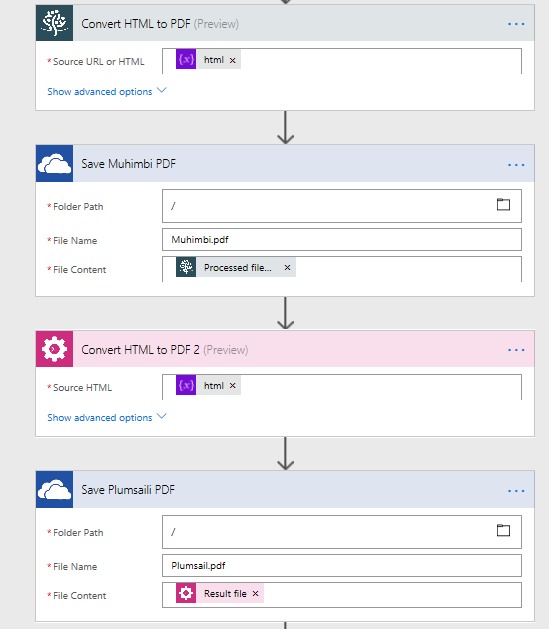
www.sevensigma.com.au

p.s Now do not for a second think this article is exhaustive as this stuff moves fast. So always do your research and do not rely on an article on some guys blog that may be out of date before you know it.


Next Page »

Today is: Wednesday 3 June 2026 -