Hi and welcome to part 6 of my series of articles aimed at demystifying various aspects to SharePoint 2013 workflows. We have been using a mythical example of a document approval workflow from our mythical multinational called Megacorp Inc. We have been trying to create a workflow attempting to implement the process below…
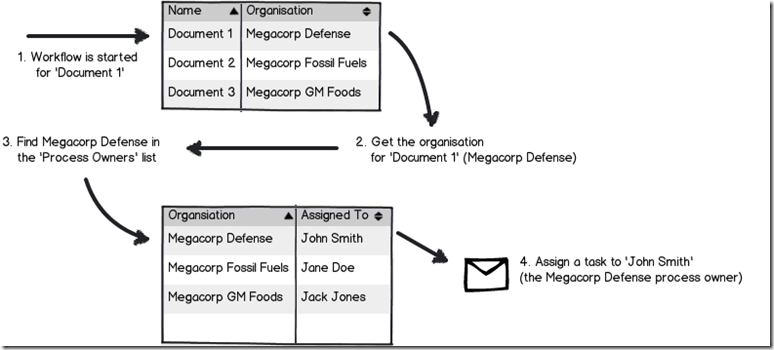
Seems straightforward enough, but in part 3, we foiled by the use of check in/check out on document libraries and a completely useless error message didn’t help matters. We eventually worked around that issue, but in part 4, we got stuck on a bigger snag because of our chosen information architecture. The Organisation column we created is a managed metadata column. It turns out that you cannot use a Managed Metadata column as a filter for a list (steps 2 and 3 above). In the last article, we took a detour into the world of dictionary variables and a very powerful new workflow action called “Call HTTP Web Service”. We learnt that in situations where a built-in workflow action does not cut it for you, but you might be able to use Call HTTP Web Service to do what you need. This sets the scene for our next exciting instalment. Perhaps we can get around this managed metadata issue with one of SharePoint’s many web services? If so, which one do I need to use and why?
In this post and the next few, I am going to show you two ways that we can get around the problem of not being able to filter via Managed metadata using the Call HTTP Web Service capability. The first method is a little easier to build than the second method, but it has a flaw that hopefully will become self evident as we proceed. Having said this, I feel it is really important to cover both approaches, because each showcases different features and capabilities of SharePoint Designer 2013 workflows. Therefore, this article and the next two will show the easier but flawed way, and articles 9, 10, 11 and 12 will show what I think is the better way to go.
The workflow looping method…
The gist of the approach we are going to take is to:
- Get the unique ID of the Organisation for the selected document in the Documents library
- Using the SharePoint lists REST web service, we will load the the Assigned to and Organisation columns from the Process Owners list and store it into a Dictionary variable
- Using workflow looping capability, we will step through each item in the dictionary, and find the first entry where the unique ID of the Organisation from step 1 matches the Organisation in process owners
- For the marching entry, Assign a task to the person mentioned in the Assigned to column.
Now to pull this off, we are going to bring together all of the topics that I have covered in this series. I am also going to be a little less verbose with screenshots, because by now some aspects of workflow creation using SharePoint designer should be getting more familiar. Speaking of more familiar, let’s take a closer look at the lists web service again. In my second REST interlude in part 4, I demonstrated how you could specify the columns that you want to bring back from a web service call, rather than all columns. In the example below, I am showing how you can bring back just the Organisation and Assigned to columns from the Process Owners list (AssignedToId a REST specific thing that represents the Assigned To column. More about that in part 8).
http://megacorp/iso9001/_vti_bin/client.svc/web/lists/getbytitle(‘Process%20Owners’)/Items?$select=AssignedToId,Organisation
Here is the XML for a single process owner entry… Note that we never get to see the name of the Organisation in the XML for the Organisation column (for that matter, we don’t see the name person in the Assigned column either – an issue I will deal with later). Instead, we have the GUID for the Organisation in the <d:TermGuid> section.
  - <content type="application/xml">
    - <m:properties>
      - <d:Organisation m:type="SP.Taxonomy.TaxonomyFieldValue">
          <d:Label>14</d:Label>
          <d:TermGuid>e2f8e2e0-9521-4c7c-95a2-f195ccad160f</d:TermGuid>
          <d:WssId m:type="Edm.Int32">14</d:WssId>
        </d:Organisation>
        <d:AssignedToId m:type="Edm.Int32">7</d:AssignedToId>
      </m:properties>
    </content>
Now also in part 4, I explained the Organsiation_0 hidden column and showed that it stores both the organisation name, as well as the GUID of that organisation. So if Organisation has been set to Megacorp Burgers for a document, the value of Organsiation_0 for that document would be:
Megacorp Burgers|e2f8e2e0-9521-4c7c-95a2-f195ccad160f
The common element between the XML from the Process Qwners list, and the value of Organsiation_0 from the Documents library is the Term GUID. Therefore if we can extract the GUID part of Organsiation_0, we can use it to search the Process Owners list and find which entry where the GUID specified in the <d:TermGuid> matches. So first up, let’s clean things up, then use some workflow actions to get hold of the GUID from the Organsiation_0 column.
Getting the GUID…
Step 1:
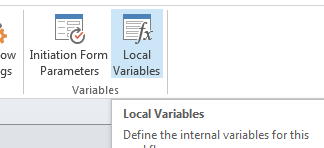
Turning our attention back to the Process Owners Approval workflow, let’s delete our existing workflow actions, workflow variables and start afresh. Click on any existing workflow actions and choose Delete Action from the dropdown menu as shown below. To delete variables, click the local variables ribbon icon and remove any listed…
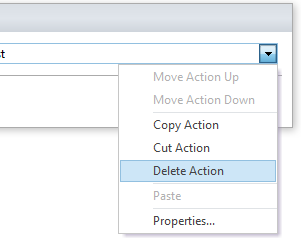
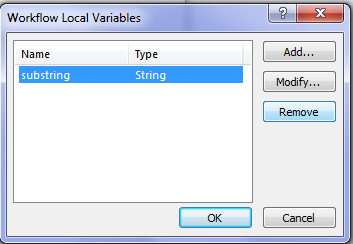
Now you should be looking at a clean workflow.
Step 2:
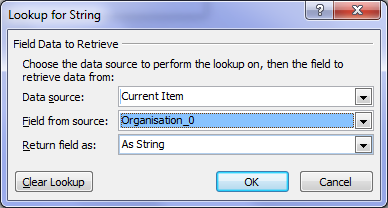
Add the workflow action Find substring in string. To complete the configuration of this action, click the substring hyperlink and add a pipe symbol “|”. Click the string hyperlink, the fx button and from Current Item, choose Organisation_0 as shown below…
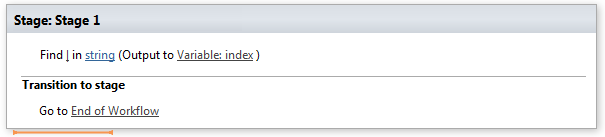
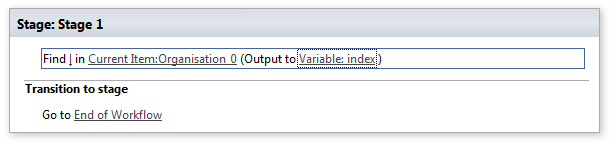
The result of this workflow action, will be the position in the string of the pipe symbol will be stored in a variable called index. For example, if you count the number of characters until you get to the pipe symbol in the string, “Megacorp Burgers|e2f8e2e0-9521-4c7c-95a2-f195ccad160f”, the answer is 17.
Our next step is to grab all of the characters in the string after the pipe symbol because that is the GUID we need. The way we will do this, we will use another workflow action called Extract substring from index of string. This action takes a string and an index position, and returns all characters to the right of the index. Thus, with the string “Megacorp Burgers|e2f8e2e0-9521-4c7c-95a2-f195ccad160f”, if we start at position 17 we will end up with “|e2f8e2e0-9521-4c7c-95a2-f195ccad160f”. This is not quite right because we do not want the pipe symbol, so we will use another workflow action called Do Calculation to add 1 to the index variable first.
Step 3:
Add the Do Calculation action, click the value hyperlink and click the fx button. Change the data source to Workflow Variables and Parameters and choose the variable called index. Click the value hyperlink and type in the number 1.
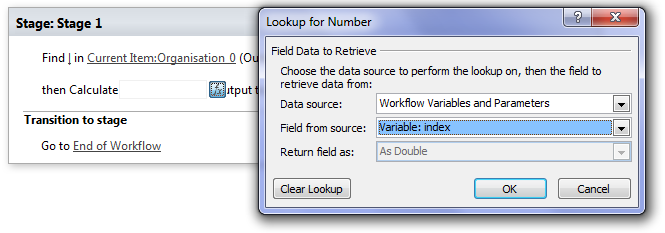
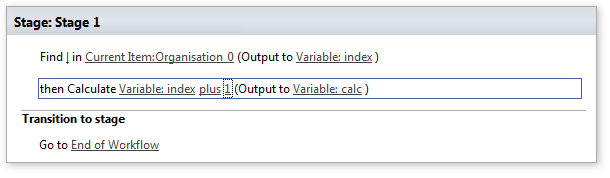
The net result of this is we have a variable called calc that storing the position after the pipe symbol in Organsiation_0.
Step 4:
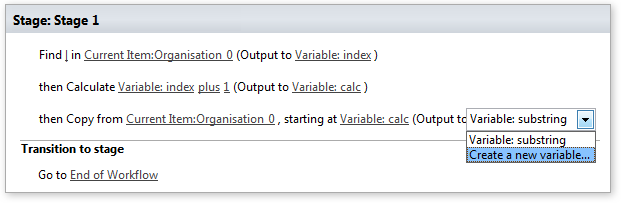
Add the Extract substring from index of string workflow action. Click the string hyperlink, the fx button and from Current Item, choose Organisation_0. Click the “0” hyperlink next to “starting from” and click the fx button. Change the data source to Workflow Variables and Parameters and choose the variable called calc. Finally, click on Variable: substring and choose to Create a new variable… and call it TermGUID as shown below…
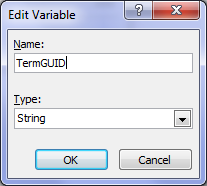
At this point, it might be handy to use the log the value of TermGUID to the workflow history to make sure that things are working as we expect. We can delete this step later…
Step 5:
Add a log to workflow history action and log the value of TermGUID. The final workflow should look like this…
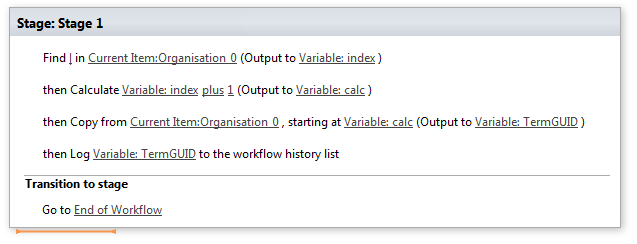
Step 6:
Publish this workflow, confirm there are no errors and then run it against a document in the documents library. Wohoo! we now have the GUID!

Using stages…
Now that we have the GUID, it makes sense that we can make this sequence of actions a workflow stage. Then we can add a new stage for the rest of the workflow and add some error checking logic.
Step 1:
Click the stage header and rename the stage to Obtain Term GUID.
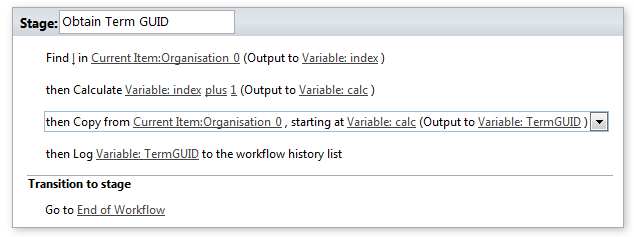
Step 2:
Click outside the stage and from the ribbon, click the Stage icon. A new stage will be added to the workflow. Call this stage Get Process Owners.
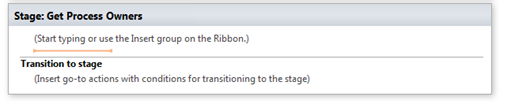
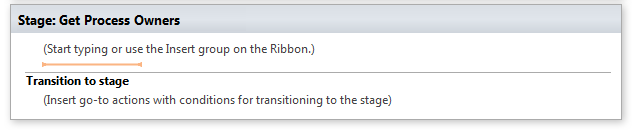
Now let’s create the logic that connects up the stages. We will set it that we will only move to the Get Process Owners stage if the TermGUID variable has a value. After all, if there is not a valid GUID, there is no point continuing the workflow.
Step 3:
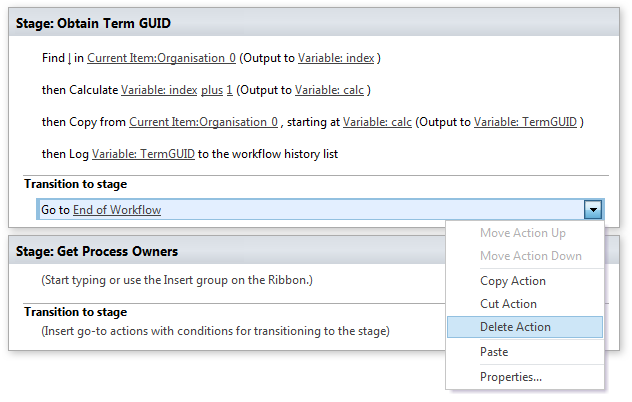
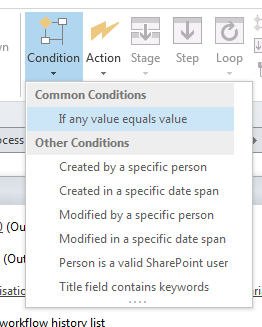
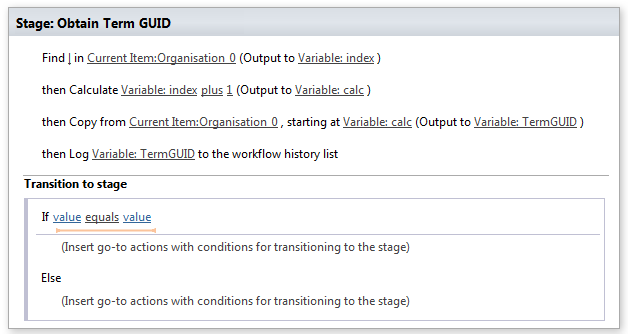
In the Obtain Term GUID stage, select the Go to End of Workflow action and delete it. In the ribbon, click the Condition button and choose If any value equals value from the drop down menu. Confirm that the condition section has been added to the Transition to stage section of the workflow stage…
Step 4:
Click the value hyperlink, click the fx button and choose Workflow Variables and Parameters from the Data source dropdown. Find the TermGUID variable in the Field from source dropdown. Click the equals hyperlink and from the dropdown, choose “is not empty”.
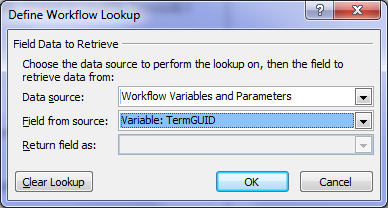
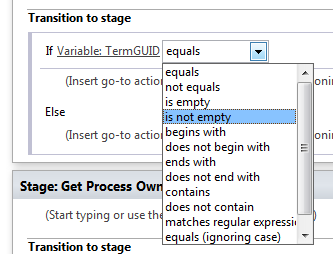
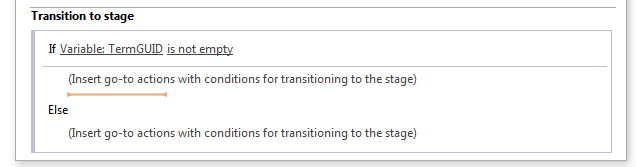
Step 5:
Click on the top “Insert go-to actions with conditions” section, and add a Go to a Stage action. From the stage dropdown, choose “Get Process Owners”
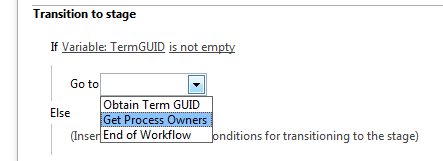
Step 6:
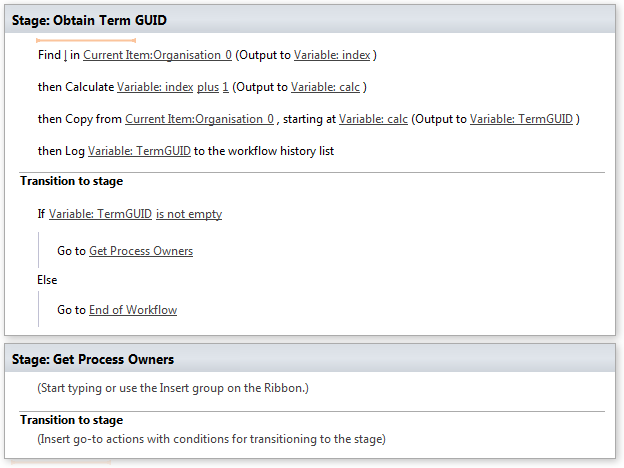
Click on the bottom “Insert go-to actions with conditions” section, and add a Go to a Stage action. From the stage dropdown, choose “End of Workflow”. The complete workflow should look like the image below:
A HTTP interlude…
Our next task is to get all of the process owners into a dictionary variable. Before we do this, I am going to give you a little lesson on how the HTTP protocol works, because we are literally going to be hand crafting our own request. Therefore it is handy to understand the basics.
When your browser makes a request to a website or web service, it does not just say “Gimme this URL”. Often the server will change its behaviour based on the nature of the request. For example, if the requestor is a mobile device, the server will send back different HTML compared to a PC browser. So how can the server tell if a request is made from a mobile device versus a PC? The answer is, that when the browser makes a request, it sends additional information in the form of request headers. Request headers are used for all sorts of things, and we are going to need to make use of them. Why? Remember in part 4, that I mentioned the JSON data format and that we need to tell SharePoint that any data it sends us has to be JSON format. Here is another of my dodgy diagrams explaining this by example…
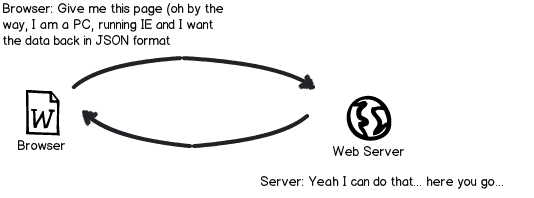
Technically, we have to send the string “Accept: application/json;odata=verbose” in the request header to make this happen. So let’s see how we can put this request together via SharePoint Designer. Just to remind you the URL of the web service to get all of the process owners is:
http://megacorp/iso9001/_vti_bin/client.svc/web/lists/getbytitle(‘Process%20Owners’)/Items?$select=AssignedToId,Organisation
Crafting the request…
The first thing we need to do is to create the request header that tells SharePoint to return the data in JSON format. This is done via creating a dictionary variable.
Step 1:
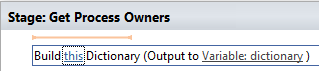
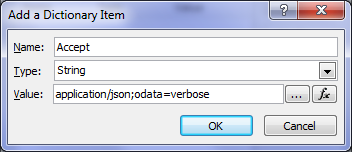
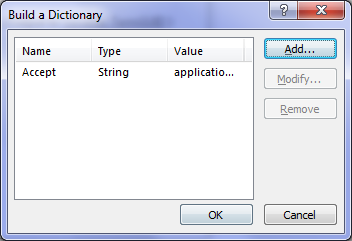
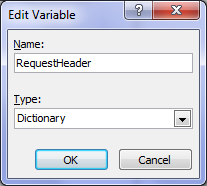
In the Get Process Owners workflow stage, add a Build Dictionary action. Click the this hyperlink to display the Build Dictionary window. Click the Add button and type “Accept” into the Name textbox and application/jason;odata=verbose into the value textbox. Click OK twice, then click the Variable: dictionary hyperlink and create a new variable called RequestHeader.


Step 2:
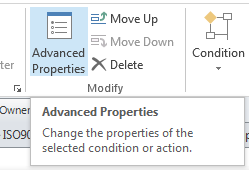
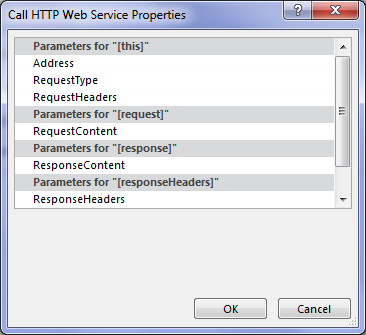
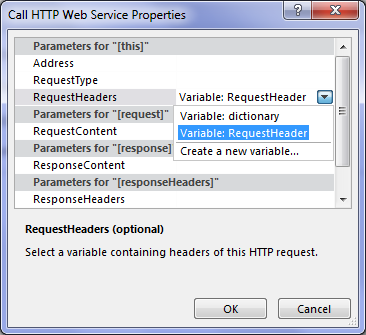
Add a Call HTTP Web Service action and then click to select it as shown below. If you look at the parameters you can set, there is no mention of request header. To set it, click the Advanced Properties icon in the ribbon. In the Call HTTP Web Service Properties dialog box, click the RequestHeaders parameter and in the drop down list to the right of it, choose the RequestHeader variable created in step 1. Click OK. Now the request for JSON format has been set.

Step 3:
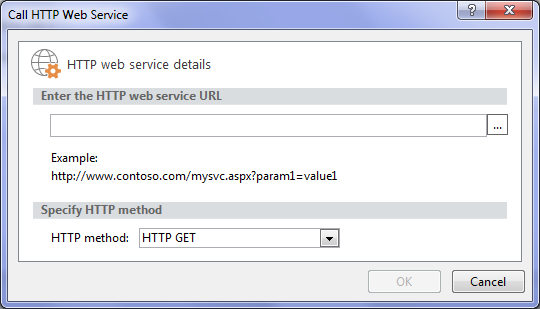
Click on the “this” hyperlink to the left of “HTTP web service”. This will bring up the HTTP Web Service Details screen. At this point we could paste in the URL above, but we are going to this a little smarter than that. Click the ellipsis next to the textbox to bring up the String Builder dialog box.
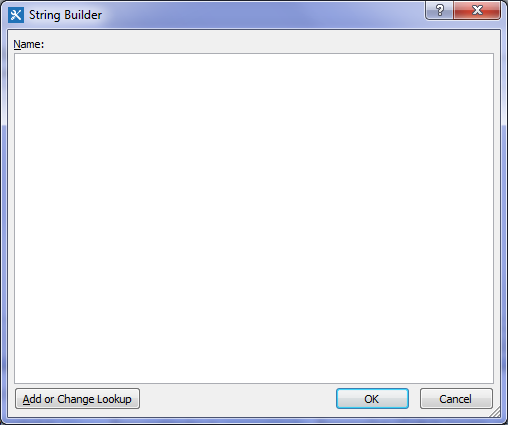
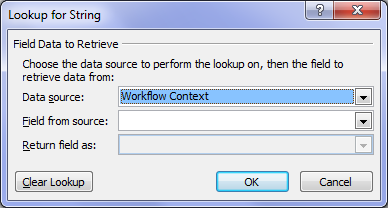
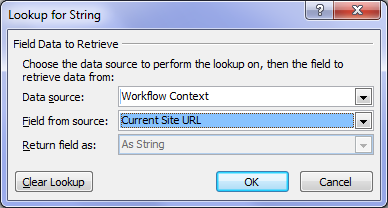
Click the Add or Change Lookup button and in the Data source dropdown, choose Workflow context. This data source comes built in with any workflow you create and as you will see, contains some very handy information that we can use in our workflows. From the Field from source dropdown, choose Current Site URL and click OK. What this will do is take whatever site the workflow is run from and bring it back as a string – in this case http://megacorp/iso9001/. The reason this is a good thing is when you want to use this workflow on another site, such as from development to production. If you use the Current Site URL workflow context, we are not hard-coding the current site name into the workflow.
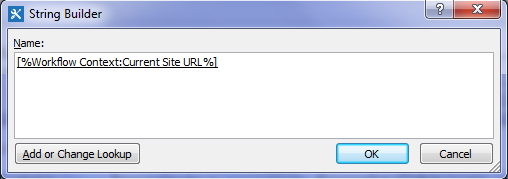
Anyhow, now that we have the site name, let’s complete the rest of the URL. In the string builder dialog, add “_vti_bin/client.svc/web/lists/getbytitle(‘Process Owners’)/Items?$select=AssignedToId,Organisation” and click OK
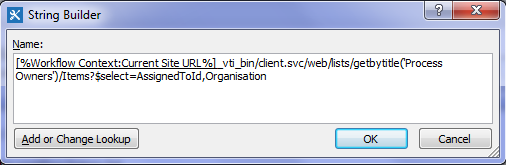
Our call HTTP Web service now looks like this:

Now we are expecting a JSON data feed as a response to this request, so we need to create another dictionary variable to handle it.
Step 4:
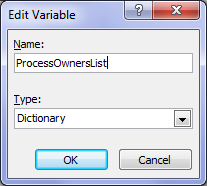
Click the response hyperlink and choose to Create a new variable and call it ProcessOwnersList.


Right! At this point, we have built the Call HTTP Web Service and we should test things to make sure it is working. If you look closely at the Call HTTP Web Service action, one of the variables that get created is called responseCode, which is the way the HTTP protocol reports whether the request worked or not. If the response code is 200 (OK), then the query worked. So let’s log the response code to the workflow history and run a test.
Step 5:
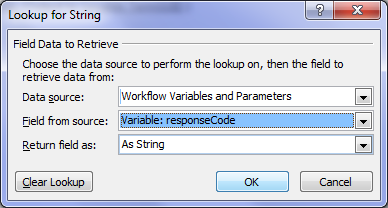
Add a Log to History List action. Click the message hyperlink and click the fx button. In the Lookup for String dialog box, choose Workflow Variables and Parameters from the Data source dropdown and choose responseCode from the Field from source dropdown and click ok.
Step 6:
In the Transition to stage section, add a Go to a Stage action and set the stage as End of Workflow. Click OK and review the workflow. It should look like the screen below.
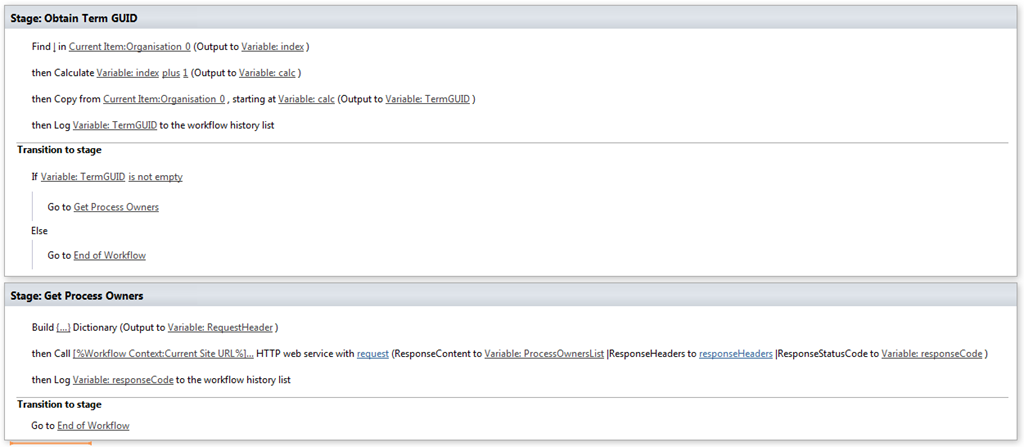
Testing our progress and next steps…
Publish the workflow, run it and check the results in workflow history. Wohoo! Our HTTP call worked! Note the OK in the workflow history!

At this point I will stop with this post, as it is getting rather long and we still have a bit to do. Although we know that the HTTP call worked, we have not looked at the data that came back. In the next post, we will use some more workflow actions to loop through the data returned to find the matching process owner.
Until then, thanks for reading…
Paul Culmsee