Hi everyone. This is my last post for 2010, and I am going out on a troubleshooting note. See you all next year with lots of new content and cool stuff!
I had some interesting experiences recently with SharePoint 2010, specifically the Content Organiser feature and leveraging it with incoming email. I thought they might be worth sharing, but first I need to set some context via the use-case where this started.
Where would we be without the photocopier?

Most organisations large or small, have one of those multifunction photocopier/scanner/fax/coffee maker gizmos (okay so maybe not the coffee maker). You know the types – they are large, noisy and the paper feeders frequently jam, where the tech guy who comes to fix it has to be on site so often that he’s considered a staff member. They usually have a document feeder, can scan to PDF and email it straight through to you. If you have a really fancy-schmancy one, it might even OCR the content for you so the resultant PDF is not an image but text based.
While all that is good, the real benefit of these devices is more subtle. Employees like to congregate nearby for a little bit of office gossip, and to quietly bitch to each-other about how much their boss or co-workers annoy them. The conversations around the photocopier are usually some of the most insightful and valuable conversations you might have at times.
So I believe that anything we can do to encourage photocopier conversations is a good thing. For some organisations, this is about as close as it gets to cross departmental collaboration!  . If we also leverage the fact that these devices offer this “scan to PDF and email” function at the press of a button, then SharePoint has a nice story to tell here – especially with SharePoint 2010 and the Content Organiser feature.
The premise: Content Organiser coolness
I will spend a few moments to introduce the Content Organiser feature for readers who have not seen much of SharePoint 2010. If you know all about this feature, skip to the next section.
For those of you who may not be aware, SharePoint 2010 has an interesting new feature called the Content Organiser. The Content Organizer feature is quite a powerful document routing solution that makes it easier to store documents consistently, according to administrator defined rules that can copy or move a document from one place in SharePoint to another place. I will get to the rules in a minute, but the content organiser feature is important for several reasons;
- It makes the saving of documents easier because users do not necessarily have to worry about knowing the destination when uploading new content.
- It is a highly flexible method for routing documents between sites and site collections around the SharePoint farm.
- It underpins a solid compliance and records management file plan capability.
So before anything else can be done, we need to turn it on. The Content Organiser feature has to be activated on each site for the functionality to be enabled. In other words, it is a site scoped feature. Below is an illustration of the feature to activate.

Once the Content Organiser feature is activated, SharePoint 2010 makes several changes to the site configuration.
- It creates a new document library called the Drop-off Library.
- It creates a new custom list called Content Organizer Rules.
- It adds two new Site Administration links in the Site Settings page to manage the Content Organiser for the site.
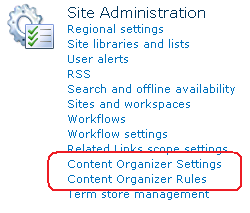
The description for the feature says “Create metadata based rules…” and it these Content Organiser rules that allow you to automatically route documents from the newly created Drop-off Library to some other location. It is important to know that the Drop-off Library is fixed – it is the first point of call for files that need to be moved or copied somewhere. Consider the drop-off library like a bellboy of a hotel. You give him your luggage and he will ensure it gets to its correct location (and unlike a bellboy you don’t need to tip).
So if the drop-off library is the starting point, where can documents be routed to? The location can be;
- A document library and/or a folder within a document library on the site.
- The Drop-off library of another site, which allows inter and intra site collection routing.
The Content Organiser rules are managed from Site Administration which is accessed via Site Settings. New rules are added in the same manner as adding new items to any SharePoint list. In the following example, we will create a rule where a content types of invoice will be routed to a document library called Finance.
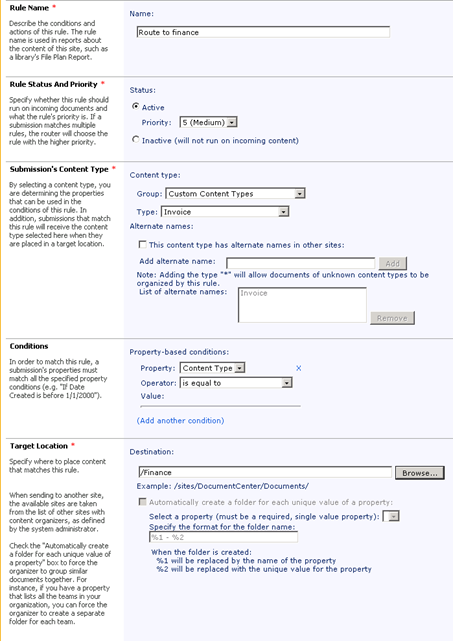
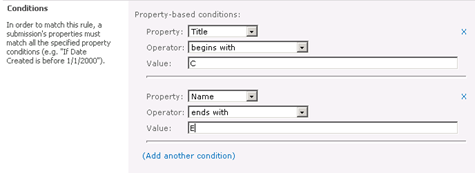
The conditions section of the rule allows for multiple conditions to be defined to determine matching content and then, where that content should be routed to. The properties available are any columns assigned to the content type being routed. In the example below, we have added two conditions that have to be satisfied before the rule will fire.
Let’s take a closer look at this beast known as the Drop-off library. This is a special document library is added to the site upon feature activation, imaginatively called the Drop Off Library. As stated earlier, this library is really a temporary staging area for items that do not have all required metadata to satisfy any routing rules.
The sequence of events for the Content Organiser is;
- Documents with the correct content type, metadata, and matching rules are automatically routed to the final library and folder.
- Documents that lack the amount of metadata required to match a rule or that are missing required metadata are retained in the "Drop-Off Library" so that the user can enter metadata to satisfy a rule.
- After a user has edited a staging document with the appropriate metadata required to match a rule, the document is automatically routed to the target library and folder.
As an example, if we assume that a Content Organiser role will route any document with “Finance” in its name to document library called Finance, the behaviour will be as follows:
- If the file uploaded has the word “finance” in its name, SharePoint indicates that the document has been successfully routed
- If the file uploaded does not have the word “finance” in its name, SharePoint will indicate to the user that the content organiser has placed it into the Drop-off library.
Now, before you rush off and start to mess with the content organiser, I’d better tell you about a couple of caveats
- The Content Organizer will only work on content types that are, or derive from, the Document content type. So it does not work for automatically organizing large lists.
- When uploading documents via Windows explorer view, Content Organiser rules are ignored and the document will not be redirected to the Drop-off library. (through the browser if a document is uploaded to a destination library, SharePoint will move it to the Drop-off library for classification)
- There is a limit of six conditions per rule. After six conditions are added, the "Add new condition" link disappears.
- If you wish to route the document to another site, the Content Organizer feature has to be installed on that site for the Drop-off library to be created as that is the destination. Additionally, you need to add the configuration information in Central Administration by adding the destination to the list of send to connections for the web application (that is beyond the scope of this article, but easy enough to do).
- Ruven Gotz tells me there are also some potential risks around the fact that you can route files to any destination even if you do not have permission and potentially overwrite content. As Scott says, the content organizer will move content to the new location whether or not the contributing user has access to the destination location.
Content Organiser and email integration
So if we go back to where we started with our fancy photocopier. SharePoint has offered email integration on document libraries since the 2007 version. In effect, we give each document library or list an email address, set up a few parameters and any attachment will be in effect, uploaded to a document library.
On a semi-related note, my company actually developed a version of the content organiser for SharePoint 2007 that allowed the routing of documents based on business rules. Contact us if you want to now more.
Given the routing capabilities of the content organiser in SharePoint 2010, one would think that by email-enabling the Drop-off library that is created when you activate the content organiser feature, that we can have all scanned correspondence end up in the Drop-off library, ready for classification by an administrator and routed in accordance to specified routing rules.
Sounds logical enough – so logical in fact that I gave it a try.
Problem 1: Race condition?
Email enabling a document library is pretty easy, provided you have set up incoming email in SharePoint Central Administration first. In this case, I set up the incoming email on the Drop-off Library with the settings below: Note that I specified not to overwrite attachments with the same name.
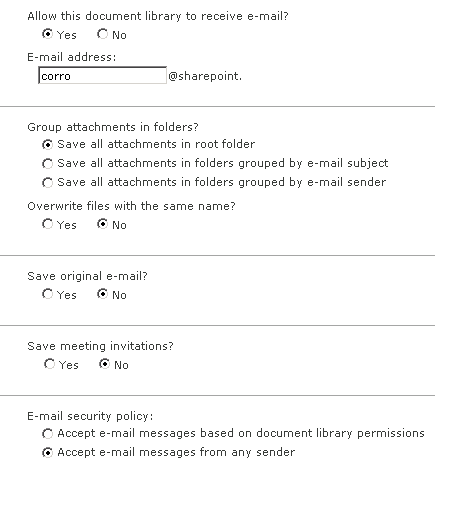
I then programmed the photocopier to use this email address as a profile. That way, a user would scan incoming correspondence, then choose this profile as the destination. The photocopier would scan to PDF and then email those PDF’s to the Drop-off library. The problem was – not all of the scans arrived.
We noticed that individual scans (ie one document at a time), would work fine, but for some reason, bulk scans would not. Typically, if a user scanned say, 10 items, only 6 of them would make it to the document library. A trawl through the diagnostic logs was therefore required. Luckily, SharePoint 2010 has been built upon PowerShell, and there is a PowerShell command to get at the diagnostic logs. I have become a huge fan of PowerShell just from this one command, as it has eliminated the need for me to install additional tools to view logs on SP2010 boxes. Taking a punt, I assumed if there was to be an error message, it would have the word “E-mail” in it. So I issued the following PowerShell command:
Get-SPLogEvent | Where-Object ( $_.message -like "*E-Mail*" ) | Out-GridView
This will return any logs in a graphical format (the gridview) as shown below. Immediately I saw warning messages, telling that an error occurred while attempting to create an attachment for an item sent via email.
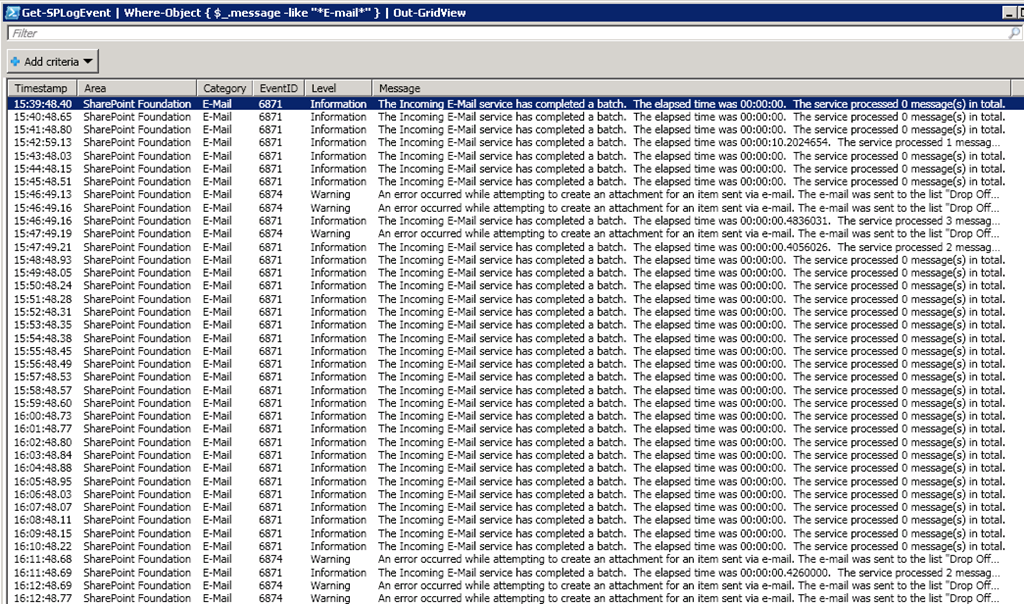
This was clearly related to my issue, so I adjusted the PowerShell script to be a little more specific so I can see the full message
Get-SPLogEvent | Where-Object { $_.message -like "*create an att*" } | Select-Object -Property message | Out-GridView
The email was sent to the list “Drop Off Library”, and the error was: the file DropOffLibrary/<filename> has been modified by SHAREPOINT\SYSTEM on <date>
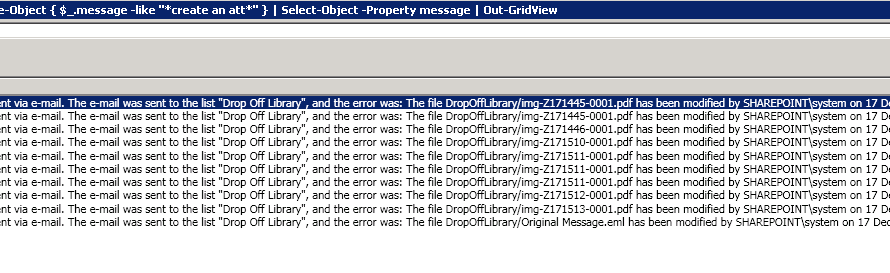
Problem 2: A poorly named feature?
This time, I saw that it claims that the attachment was modified by SHAREPOINT/system. Hmm – that sort of error message is very similar to race conditions seen with SharePoint Designer workflows. Thus, my first thought was that email enabling the Drop-off library was possibly unsupported. I figured that the Drop-off library likely used event-receivers, workflow or scheduled tasks to do the document routing that might get in the way with processing incoming email attachments.
My suspicion was further given weight when I recalled that there was another feature to do with content organiser that I could activate: Email Integration with Content Organiser. According to the description, it enable a site’s content organizer to accept and organize email messages. Cool – this seemed logical enough, so I activated it.

Upon activating this feature, a small change is made to the Content Organiser Settings page, found under Site Settings. An e-mail address was assigned, and a link was provided to configure the organizers incoming email settings as shown below:

This is where things started to get interesting. As expected, I was taken to the incoming email settings screen, but instead of it being the drop-off library, it was a hidden list called Submitted E-mail Records. At the time, this suggested that my initial conclusion that incoming email on the drop-off library was unsupported was correct. After all, why else would incoming email be redirected to another list instead of the drop-off library? I couldn’t think of any other logical explanation.
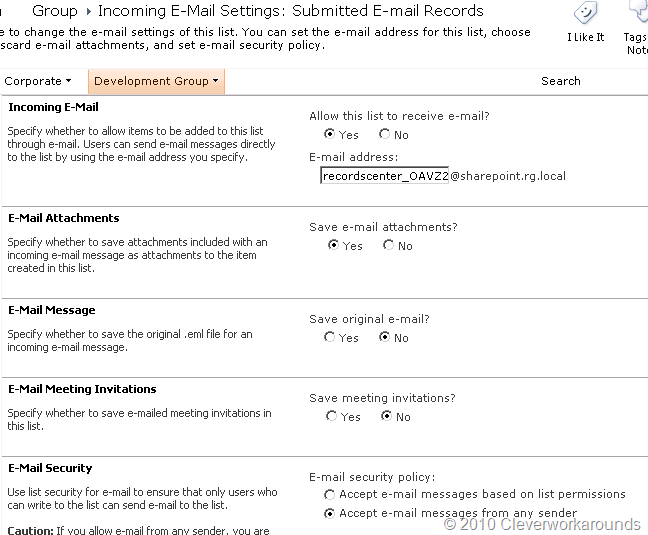
At the time, I searched the web to see if anybody else had mentioned the Submitted E-mail Records hidden list and problems with incoming emails. I was then surprised to learn that this hidden list was there in SharePoint 2007, but I’d never seen it before because Records Management in 2007 is crappy and I never used it much.
Anyway, try as I might, I could never get items emailed to the Submitted E-mail Records list, to ever route to the Drop-off library. The photocopier would happily mail items to Submitted E-mail Records list, but they would stay there and never get processed. Grrr!
After turning up some debug logs to verbose, specifically:
- Document management Server: Content organiser
- SharePoint foundation: E-Mail
We saw the following error message: “Cannot resolve mailbox (null) to a valid user”. Additionally, my colleague Peter Chow used reflector to examine the underlying code behind this feature. From what we could tell, a method, GetOfficialFilePropsFromBody, in the class: Microsoft.Office.RecordsManagement.RecordsRepository.EmailRecordsHandler, was attempting to extract a mailbox value and getting a null. Unfortunately for us, the code eventually lead to obfuscated classes so we were not able to dig any deeper.
At this point, with nothing on the net to guide us and twitter going quiet, I logged a support call with Microsoft. Pretty quickly, our issue was reproduced and escalated to the local team and then to the US. A few weeks later, we got the following answer:
The E-mail Integration with Content Organizer feature is a there for legacy Exchange 2007 deployments that can journal mail to SharePoint. Such functionality is not available in Exchange 2010 and we do not (and never have) supported directly e-mailing a content organizer as the steps below show. It just won’t work – that mail submitted to that list needs to be in a special format that Exchange 2007 can create (or some other system who has implemented that documented protocol). The users should consider leaving the mail in Exchange and using Exchange’s record management and compliance functionality or buying a third party add-in if they need to get mail into a SharePoint content library. http://technet.microsoft.com/en-us/sharepoint/ff598594.aspx has a list of partners.
Workaround : For this scenario we found a workaround to enable incoming email on the “Drop Off library” and which in turn routed the emails/attachments to the destination library as per the rule. The envelope data or other metadata will NOT be carried along with the item to its final location with this workaround. So the customer should expect to lose sender, sent, received, et cetera
If the customer wants to check on how to get this working using Exchange 2007: http://msexchangeteam.com/archive/2006/11/21/431608.aspx
So the format is generated by the backend transport layer via a policy on a Managed Folder. So even in 2007, you can’t email a content organizer. But you can set up a journaling rule on a managed folder in Exchange to journal every item dropped into that folder to SharePoint.
We should not encourage users to email Content organizer since we have that has a legacy feature to support Exchange 2007. If the users wants email to be sent to SharePoint then use Email enabled Doc Lib.
So there you have it. Do not activate the Email Integration with Content Organiser feature!. It is a legacy designed specifically for Exchange 2007, yet the description for the feature in SharePoint makes no mention of this! If this was explicitly mentioned in the description of this feature, two weeks worth of needless troubleshooting and a long support call would have been avoided. Even my local (and excellent) Microsoft escalation team were not aware of this. Oh well, you live and learn.
Back to square one. (shut-up and apply the latest cumulative update)
So now that we confirmed that the Email Integration with Content Organiser feature was a giant red herring and never going to fly, we returned focus to why some attachments were not being correctly processed by the Drop-off Library. As it happened, the August cumulative update for SharePoint 2010 had a fix in it. This technet thread describes the issue in more detail. http://social.technet.microsoft.com/Forums/en-US/sharepoint2010setup/thread/896cbe2a-94c6-4a0f-9e4f-ea6b0fe3cc45/. There appeared to be a bug where even if you set the email-enable feature option called “Overwrite files with the same name”, to no, it was ignored and an exception was logged when attachments with the same file-name arrived. Turns out the photocopier file names were not 100% unique! It used a timestamp as part of the filename that was unique down to the minute, not the second.
So after a journey that included a needless support call, we applied the CU and what do you know, problem solved!
To conclude this rather long and rambling post, I feel kind of bad that I got so side tracked on the Email Integration with Content Organiser feature. That’s part of troubleshooting life I guess. The only consolation I can really take from it, is that it also fooled Microsoft engineers too. I guess this issue is yet one more of the many caveats that we all have to learn about the hard way.
Thanks for reading
Paul Culmsee