Back to Cleverworkarounds mainpage
 

PowerApps, Flow and Managed Metadata fields–part 3

Hi all

Welcome to part 3 of my posts that are intended to teach people more about the intricacies of Flow, SharePoint Web Services and oAuth. The cover story for this journey was the issue that presently, managed metadata fields are not supported natively in PowerApps nor Flow.

As a result, we are taking an approach where we update managed metadata values by talking to the SharePoint REST web service.

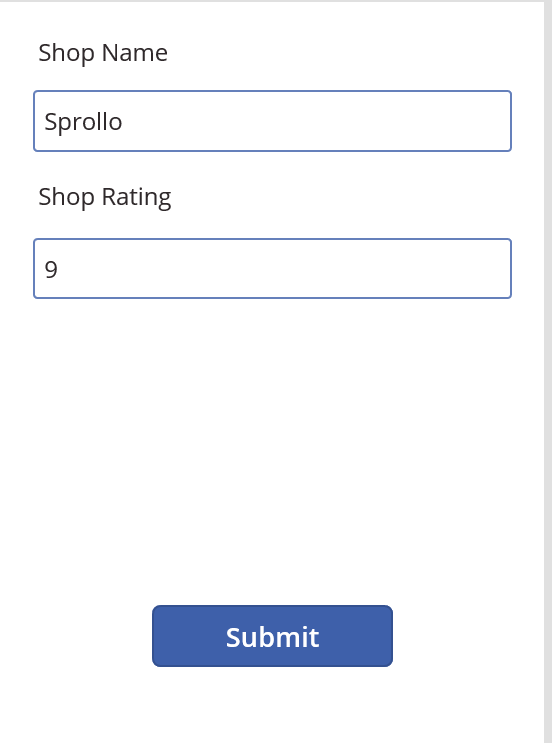
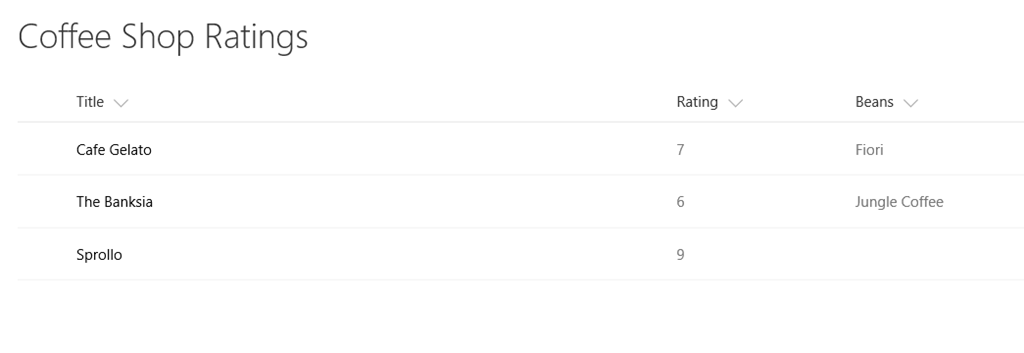
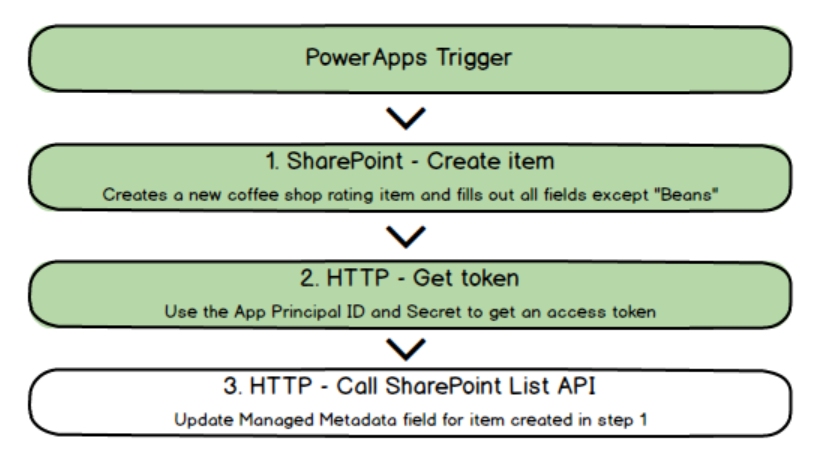
To recapitulate our journey, we have managed to achieve the following thus far. We have a basic powerapp, and a flow that now has an access token that will allow us to update the managed metadata column via API. If you are new to this series, then I strongly suggest going back and reading parts 1 and 2, before continuing here…
image

A SharePoint Web Service Interlude…

Those of you who got past part 2, and think the hard stuff is over, think again. You are about to take a dive into the weird world of talking to SharePoint via API, so go get yourself a coffee and I will do my best to provide an accessible explanation to what is going on.

To start with, let’s do a couple of general queries to SharePoint via API and get a feel for things. To do this, use the Chrome browser and sign into your SharePoint site collection. Once signed in, try the following URL. Note, if you are using a different list name to the one I have been using in this series, adjust accordingly:

https://<site collection url>/_api/web/lists/GetByTitle('Coffee Shop Ratings')

If this worked, you will be rewarded with a ton of data related to the Coffee Shop Ratings list. It won’t be overly meaningful in the Chrome output, but rest assured this is a good thing…

image

Now let’s make things a little less scary by being more specific about the information we want to retrieve…

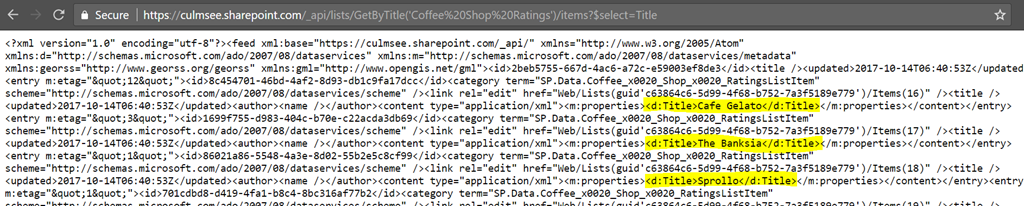
https://<site collection url>/_api/web/lists/GetByTitle('Coffee Shop Ratings')/items?$select=Title

This API call is basically saying “get all items from this specified list, and only show me the Title column for each item” (that is what the $select=Title bit is doing). While the formatting in Chrome sucks, you can nevertheless see the output being returned in XML format. Note the title columns below showing the café names.
image

Now let’s get specific and select a particular item from the list by its ID. I can achieve this in the following way…

https://<site collection url>/_api/web/lists/GetByTitle('Coffee Shop Ratings')/items(16)?$Select=Title

This call is still only asking for the Title column from the list ($Select=Title), but now it only wants the item 16 in the list. I happen to know in my list this is Café Gelato and the output confirms this…

image

Finally for now, let’s bring back the 3 columns we are using, including the one that’s been causing us all the trouble… I do this by specifying multiple columns in the $select bit at the end of the URL.

https://<site collection url>/_api/web/lists/GetByTitle('Coffee Shop Ratings')/items(16)?$Select=Title,Rating,Beans

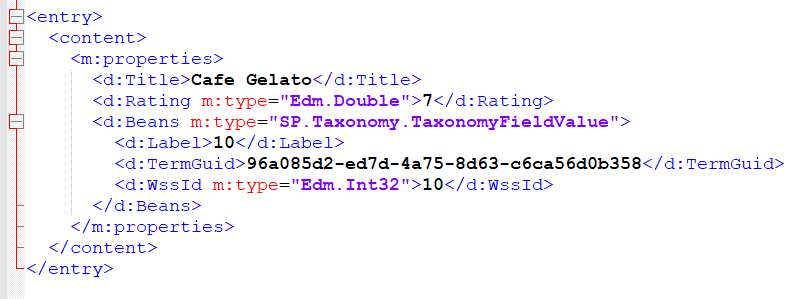
This time I will format the XML output a bit nicer for you and strip out some uninteresting stuff. In the <m:properties> section, you can see the information returned about our 3 columns…
image

A cursory glance shows the Title and Ratings columns are pretty simple. The ratings column differs from title in being numeric (m:type=”Edm.Double”) but still is a single line and fairly easy to understand. But take a look at the Beans column. It is a lot more complex than the others in that instead of being a single value, this column actually consists of three properties, Label, TermGuid and WssId.

At this point I should say that the SharePoint List API has a lot more to it than the simple examples above. If you are interested in learning more then start here. The key thing I want you to take away from this section is this: We are going to use Flow to perform queries just like we have done. We will query the lists web service to get some data and more importantly, we will also use calls to the web service to update the managed metadata column.

So let’s have a look at how we can do that…

Updating a List Item via REST API

Note: when I wrote this I was not aware you could reduce the amount of JSON manipulation you have to do via the odata=nometadata directive that Marc wrote about. I strongly suggest you use that article to sense-check what I write about here.

First up we need to understand the general pattern to updating a list item using the API. We need to issue a POST call to the list web service and in the body of our post, send our instructions about what to update. The URL is unchanged from what we have been working with…

http://<site collection url>/_api/web/lists/GetByTitle('Coffee Shop Ratings')/items(item id)

In terms of the format of the update instruction, the example below shows updating the Title field. While some bits of it might not make sense right now, we can see that the Title column is being updated to the value “TestUpdated”…

{ '__metadata': { 'type': 'SP.Data.TestListItem' },
  'Title': 'TestUpdated'
}

So what is the SP.Data.TestListItem? A hint comes from Microsoft’s own documentation that states: “The ListItemEntityTypeFullName property is especially important if you want to create and update list items. This value must be passed as the type property in the metadata that you pass in the body of the HTTP request whenever you create and update list items”

We will return to this mysterious ListItemEntityTypeFullName when we start building the flow, but for now lets park it and look at what needs to be sent in the HTTP Headers when posting to the API..

Authorization: "Bearer " + accessToken
IF-MATCH: etag or "*"
X-HTTP-Method:"MERGE"
accept: "application/json;odata=verbose"
content-type: "application/json;odata=verbose"

Wow – that’s quite a bit to do, and we have not even gotten to the Managed Metadata column yet! So let’s take a look at that now since we have already dug ourselves a bit of a theory-hole. Soon enough we will put all of this stuff into practice…

Updating a Managed Metadata Column

Now that we have seen the anatomy of a POST to update a list item, let’s now look at example of updating a managed metadata column. In a nutshell, the body of the POST looks like this: Note that in this example I have specified the ListItemEntityTypeFullName property for my Coffee Shop Ratings list. Don’t worry, I will show you how to find this out in the next section.

{
   "__metadata": { "type": "SP.Data.Coffee_x0020_Shop_x0020_RatingsListItem" },
   "Bean":
     { "__metadata": {"type":"SP.Taxonomy.TaxonomyFieldValue"},
     "TermGuid":"0937fbc2-0dfe-439e-a24f-ba6d13897abd",
    "WssId":"-1"
   }
}

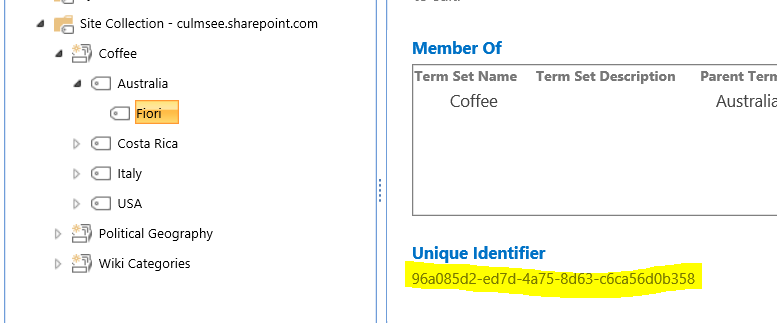
Unlike the title column above,  here we need to set two parameters – a TermGuid and a WssID. The former is the GUID of a term in managed metadata and can easily be found when looking at a term: for example:
image

The WssID parameter you can ignore. We need to specify it, but we will always be putting “-1” in the value. If you really want to know what it does, check this post. Also for those who have read other articles on this topic and are wondering why I left out the Label parameter… the answer is that with my testing, it was not necessary, so I omitted it.

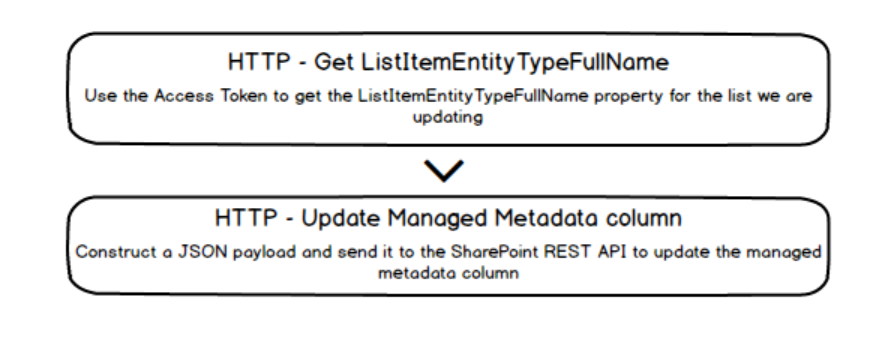
So let’s summarise our journey so far… we need to do the following:
image

So let’s get back to the land of Flow and finish this!

Finishing off Flow…

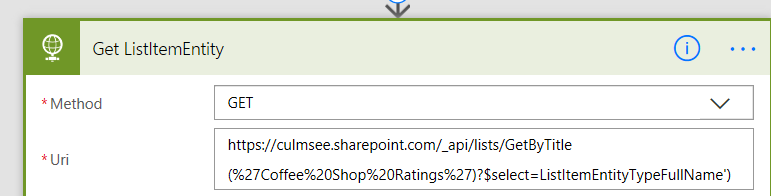
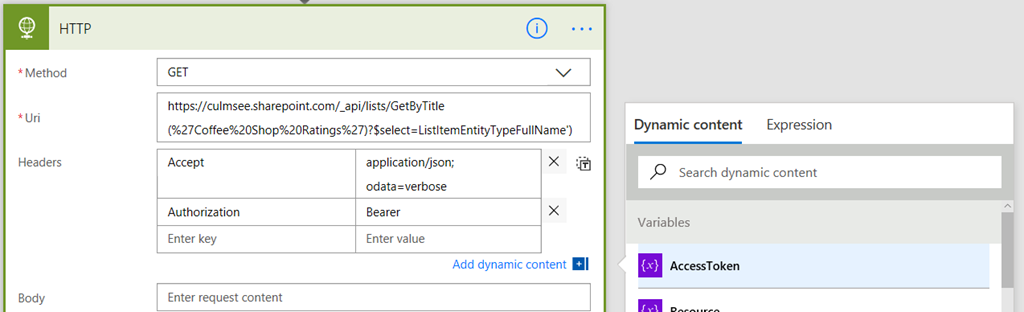
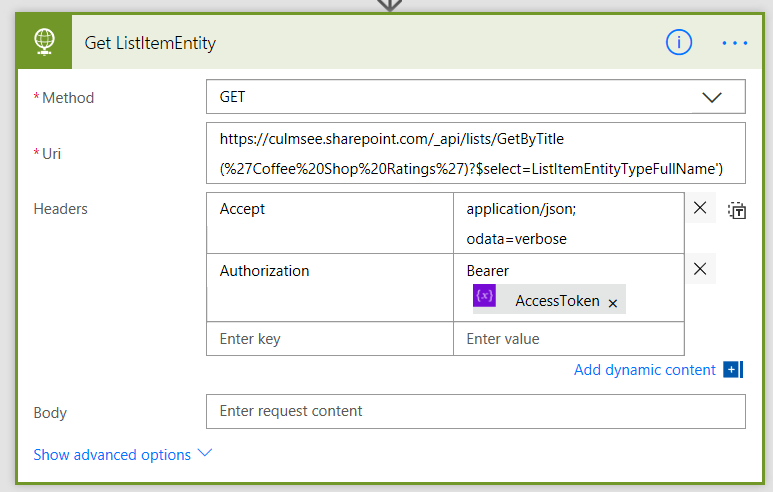
1. Picking up from where we last left off, add a HTTP action. Rename it to “Get ListItemEntity”, set it to a GET, and set the URL to:

https://<your site collection>/_api/lists/GetByTitle(%27Coffee%20Shop%20Ratings%27)?$select=ListItemEntityTypeFullName')

in my example the site collection is:

https://culmsee.sharepoint.com/_api/lists/GetByTitle(%27Coffee%20Shop%20Ratings%27)?$select=ListItemEntityTypeFullName')

Check the URL carefully. You can see that I am using the $select to only bring back the property we are interested in… ListItemEntityTypeFullName. Also note that I have encoded the spaces in the list, I.e. ‘Coffee Shop Ratings’ has now become ‘Coffee%20Shop%20Ratings’.
image

2. In the headers section of the request, add:

  • a key called Accept, with a value of application/json; odata=verbose
  • a key called Authorization, with a value of “Bearer “ and then the AccessToken variable from the Dynamic Content panel…
image

image

Now before we get to the final bit, we have another minor theory interlude. The output of the web service you just created follows a particular structure. An example output is below and I have highlighted the bit we need.
{"d": 
   {"__metadata":
     { "id": <url>,
     "uri": <url>,
     "etag":"id",
     "type":"SP.List"
   },
   "ListItemEntityTypeFullName":"SP.Data.Coffee_x0020_Shop_x0020_RatingsListItem"
   }
}

This means we will need to parse this output and just grab the ListItemEntityTypeFull name parameter. The expression in Flow to do this will be:

actionBody(<Name of the workflow action you just created>)['d']['ListItemEntityTypeFullName']

So using my tenant, the expression is:

actionBody('Get_ListItemEntity')['d']['ListItemEntityTypeFullName']

Note: if you want to know more about these expressions, this is the place to go…

So with that bit of context, lets continue…

3. Add an Initialize Variable action and rename it to “Set ListitemEntity”. Name the variable ListitemEntity and make it a string. In the value, use the expression builder and use the expression I outlined above:

image

The final task…

Now we get to the final and most mind-bending piece of the puzzle. It is time to build the JSON payload that we will POST to SharePoint to update the managed metadata column. Let’s begin this bit with the end-in-mind and work back.

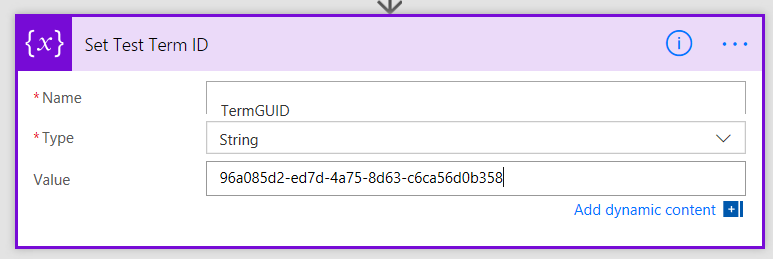
First up, we need to make a variable to store the Term ID that we will write to managed metadata. This eventually come from PowerApps, but right now we need to test so we will hard code a term.

1. Add an Initialise Variable action and name it “Set Test Term ID”. Call the variable TermGuid and make it a string. Set the value to any term in your managed metadata term set that the Beans column is using. In my case, the GUID 96a085d2-ed7d-4a75-8d63-c6ca56d0b358 refers to the term “Fiori”.
image

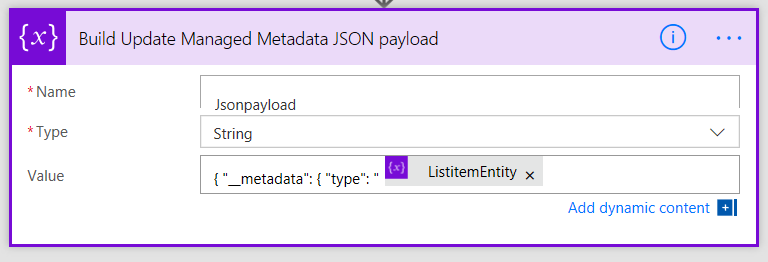
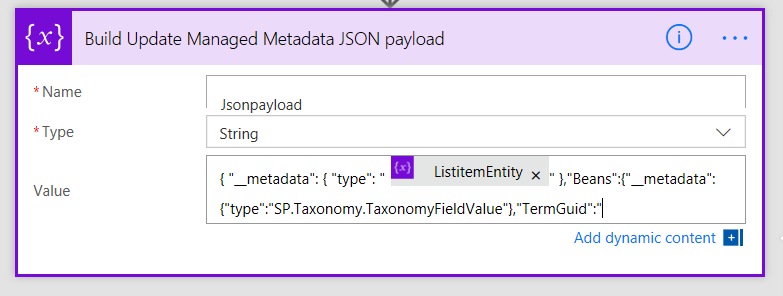
2. Add an Initialise Variable action and name it “Build Update Managed Metadata JSON payload”. Call the variable JsonPayload and make it a string. In the value field, type in

{ "__metadata": { "type": "'

…and then add the variable ListItemEntity from the Dynamic Content tab.

image

image

3. Next append the following text to the value…

" },"Beans":{"__metadata":{"type":"SP.Taxonomy.TaxonomyFieldValue"},"TermGuid":"
image

4. From the Dynamic Content tab, insert the TermGUID variable that you created in step 1
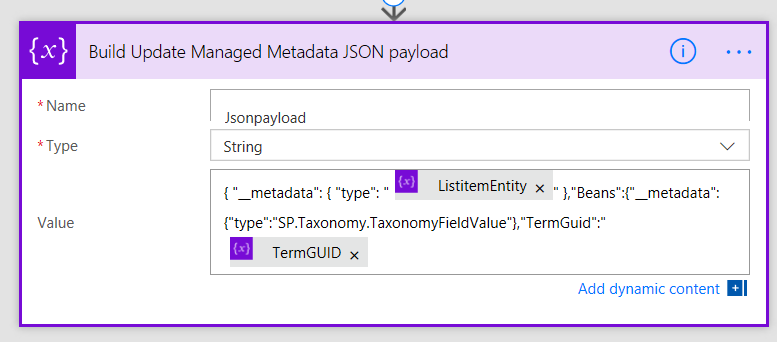
image

5. Next append the following text to the value…

", "WssId":"-1"}}
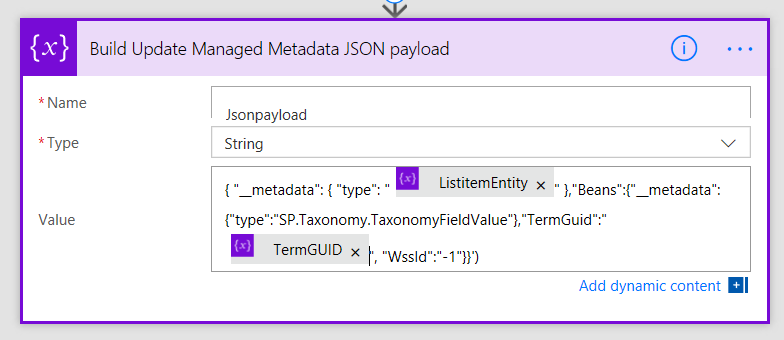
image

This completes the JSON payload that will update the managed metadata column. To recap, it has built the following string which is entirely consistent with the theory at the start of this article.

{ "__metadata": { "type": "SP.Data.Coffee_x0020_Shop_x0020_RatingsListItem" },
   "Beans":
     {"__metadata":{"type":"SP.Taxonomy.TaxonomyFieldValue"},
     "TermGuid":"96a085d2-ed7d-4a75-8d63-c6ca56d0b358",
     "WssId":"-1"
   }
}

Now bear in mind this payload is a string and not in JSON format yet. We will take care of that in the final HTTP call.

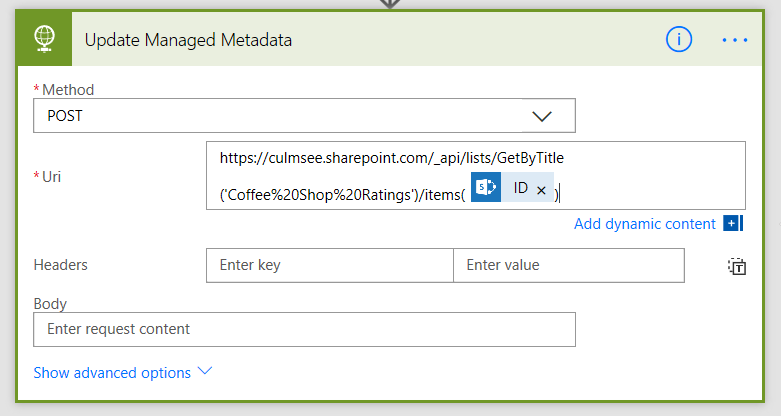
6. Add a HTTP action, name it “Update Managed Metadata” and set the method to POST. In the URL field, enter the following:

https://culmsee.sharepoint.com/_api/lists/GetByTitle('Coffee%20Shop%20Ratings')/items(
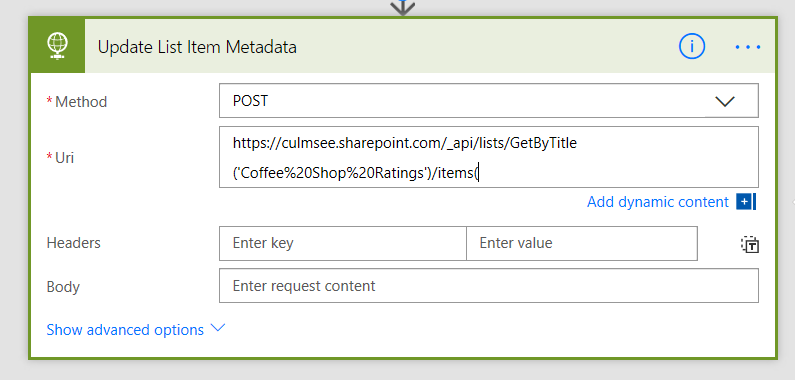
image

7. From the Dynamic content menu, find the CoffeePlace content, find and insert the ID field and then add a close bracket to the end…
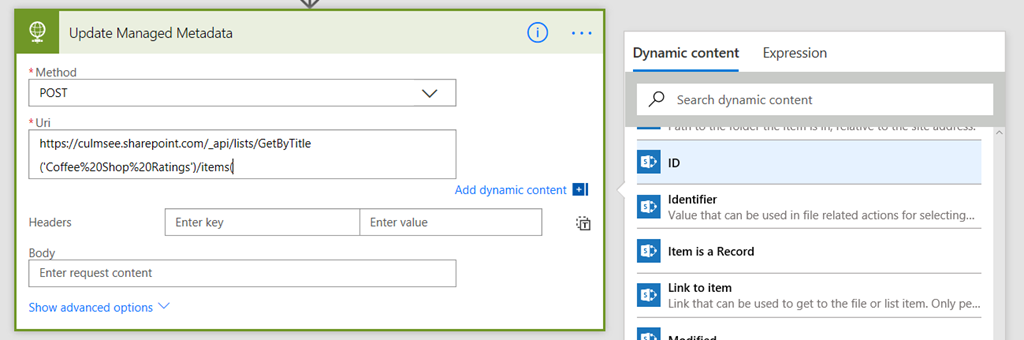
image

image

In case you are wondering, we already know the ID of the newly created coffee shop entry because of the SharePoint – Create Item action that we created way back in part 1. Fortunately for us, that action returns the ID of the newly created item, making it easy for us to specify it in our API call. Neat eh?

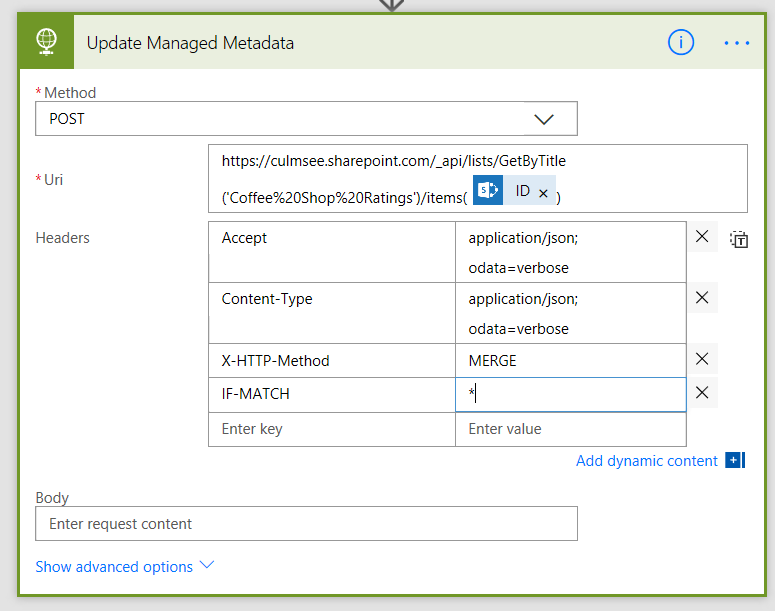
8. In the headers section, add an entry for each of the headers I described earlier in this article, namely:

  • IF-MATCH: etag or “*”
  • X-HTTP-Method:”MERGE”
  • accept: “application/json;odata=verbose”
  • content-type: “application/json;odata=verbose”
image

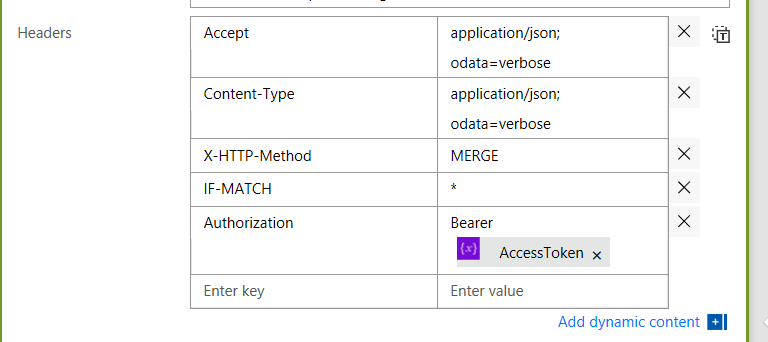
9. Now let’s add the access token that took up the bulk of part 2. In the headers, add a key called Authorize and in the value, type in:

“Bearer “ (showing quotes to illustrate a space on the end)

Then insert the variable AccessToken from the dynamic content pane…
image

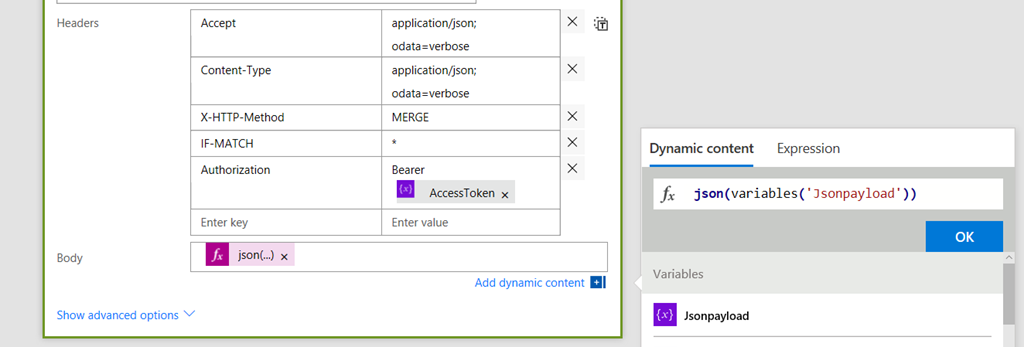
10. Finally, let’s convert our payload to JSON and send it off. In the Body field, use the expression builder and enter the following:

json(variables('Jsonpayload'))
image

Are you ready???

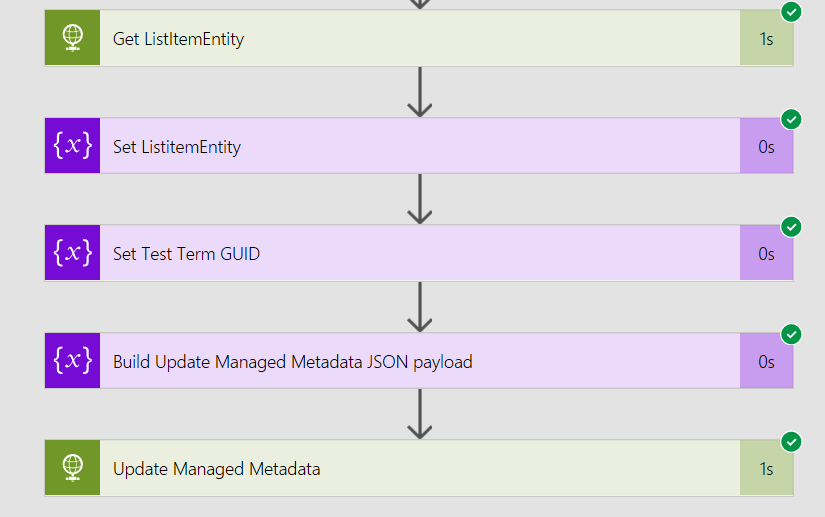
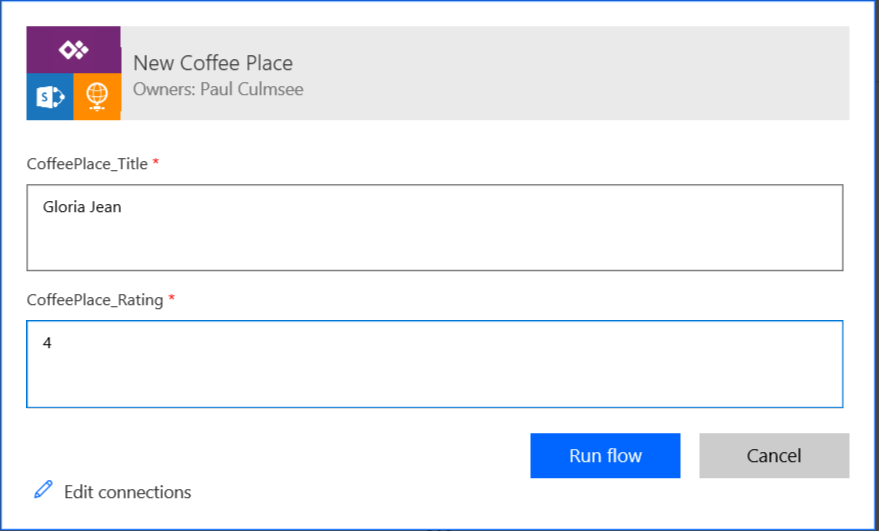
Okay, so we have wired everything up. Save the workflow and either submit a new entry via PowerApps or use the Run Now function in Flow. If all things go to plan, you should see a bunch of green. In the screenshot below, I ran from Flow and added a title and rating (no metadata of course because we are not asking PowerApps for it.
image

After running the workflow I see green goodness Smile

image

Now let’s check SharePoint for the evidence… Yeah baby!!!
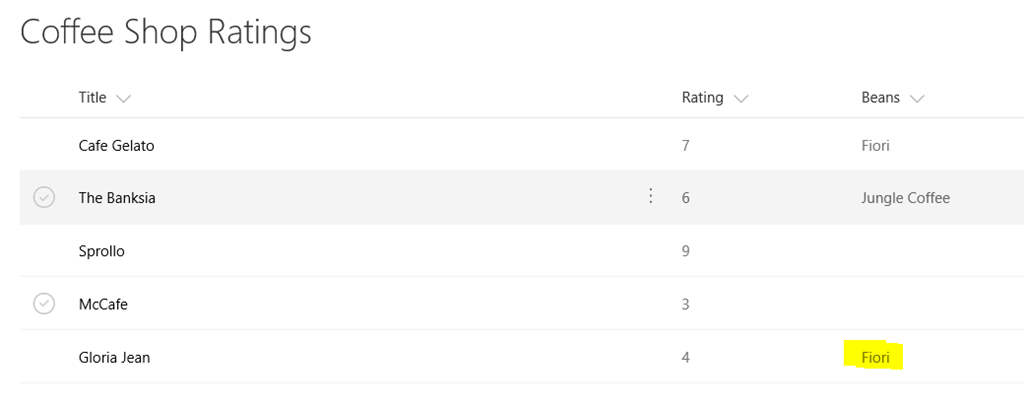
image

Conclusion

Okay so that was quite an effort. If you have stuck with me through this, well done! Messing with JSON payloads and web services is bloody fiddly, but I have to say that understanding app principals and the SharePoint API is very useful knowledge.

You will be pleased to know that at this point the worst is over. In the next post we will return to PowerApps and set it up to send the term set item to flow, so it is not hard-coded like it is now. We will also discuss some weaknesses and limitations with this approach and look at ways we can make this whole thing a bit more resilient.

Until then, thanks for reading…

Paul Culmsee


PowerApps, Flow and Managed Metadata fields–part 2

Hi and welcome to part 2 of my series on showcasing the utility of Flow. Specifically, we are updating managed metadata fields – which is something that neither PowerApps or Flow can do natively as I type this. Having said that, if you are reading this in 2018 and beyond, it is likely this post is out of date the the gap has been addressed. Nevertheless, there are lots of good nuggets of info in this series that actually go beyond this particular use-case and will arm you with the knowledge to use Flow in all sorts of interesting ways.

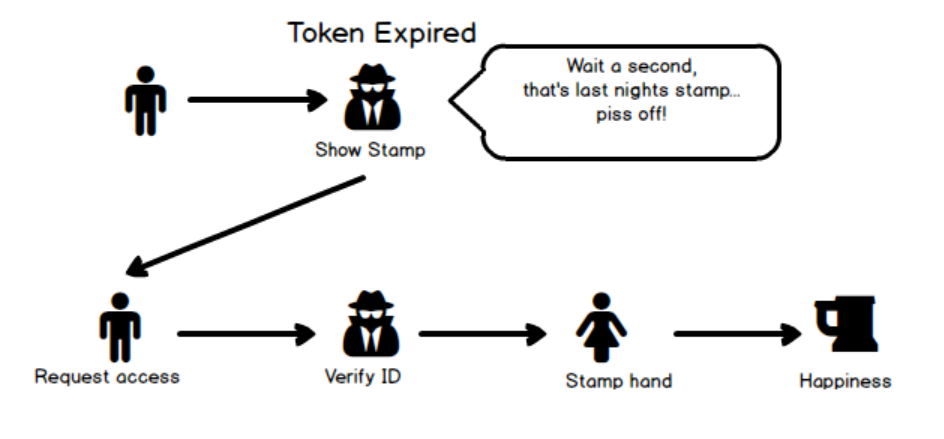
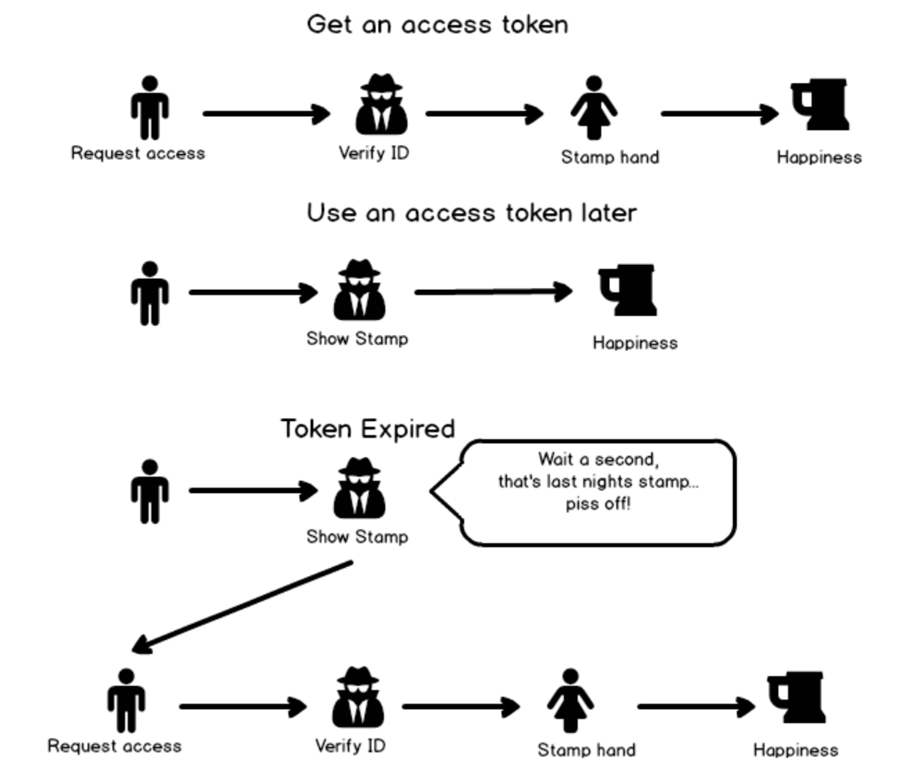
At the end of our last exciting instalment, we had created an app principal, a flow and a powerapp. In this post we are going to focus on the first of the three – the app principal. Recall my analogy from part 1 where I described how the type of oAuth we are using is roughly analogous to getting into a nightclub. Basically our flow is like someone waiting in line to get into the club. Once they get past the bouncer at the door and pay the entrance fee, they are stamped so that they can enter and exit the club as they please, without having to wait in line and pay the entrance fee all over again. The stamp is temporary though, so if the patron returns the next night they will have to show their ID all over again and pay up.

The following diagram illustrates the idea…

image

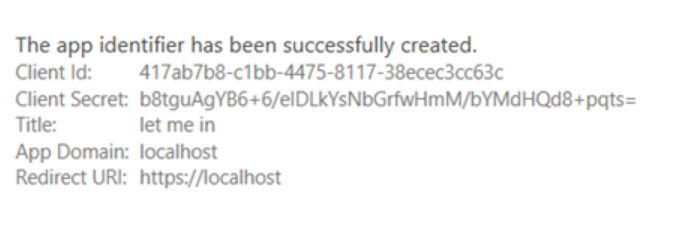
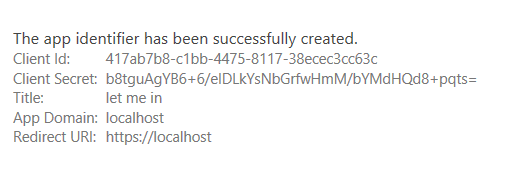
In the last post, we registered an application principal. It looked like this:

image

This is what our virtual doorman is going to use to verify who we are. Our “dooman” is actually a Microsoft API sitting in Azure named https://accounts.accesscontrol.windows.net and not only will we need the Client ID and Client Secret from the app principal, but he also wants to know which Office365 tenant that we belong to. For that, we need the Office365 tenant ID, so let’s go get it.

Getting the Tenant ID (and other bits)…

As Microsoft states, “Your Office 365 tenant ID is a globally unique identifier (GUID) that is different than your tenant name or domain. On rare occasion, you might need this identifier, such as when configuring Windows group policy for OneDrive for Business”.

Guess what – this is one of those rare occasions.

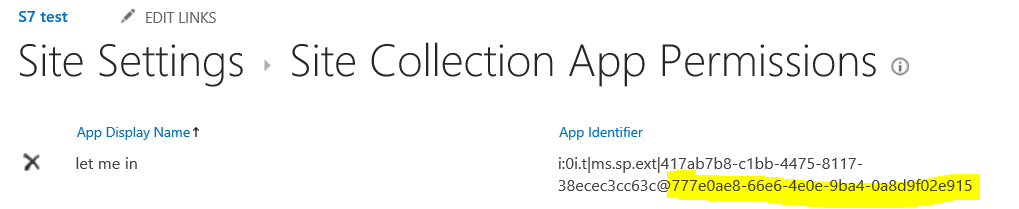
To find the ID, either use one of the methods specified in this article, or go back to your site collection and append /_layouts/15/appprincipals.aspx. This URL will display your registered apps and also display your tenant ID (highlighted yellow below).

image

Now that we have a Client ID, Client Secret and Tenant ID, we can look at what a request to the doorman known as https://accounts.accesscontrol.windows.net actually looks like…

First up we need to add the tenant ID to the URL. E.g. https://accounts.accesscontrol.windows.net/[Tenant ID]/tokens/OAuth/2 where [TenantID] is replaced with your actual tenant ID we just discussed.

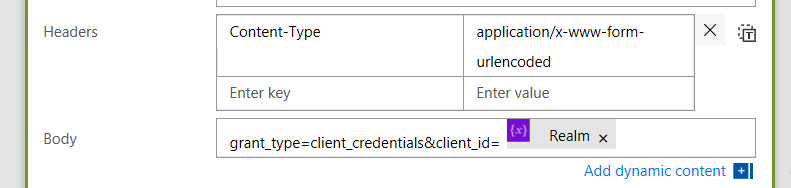
The second requirement is to send a payload of data to that URL via a HTTP POST. In the header of the post, we set a parameter called Content-Type to a value of application/x-www-form-urlencoded. This tells the web service to expect the rest of the data we send to be in a single string where name/value pairs are separated by the ampersand (&), and names are separated from values by the equals symbol (=). Trust me this will make sense in a moment…

Inside the payload, our doorman is expecting the following parameters:

  • grant_type – this is where we specify the type of oAuth request we are making. As discussed in part 1, we are using the Client Credentials approach, so the value will be: “client_credentials”.
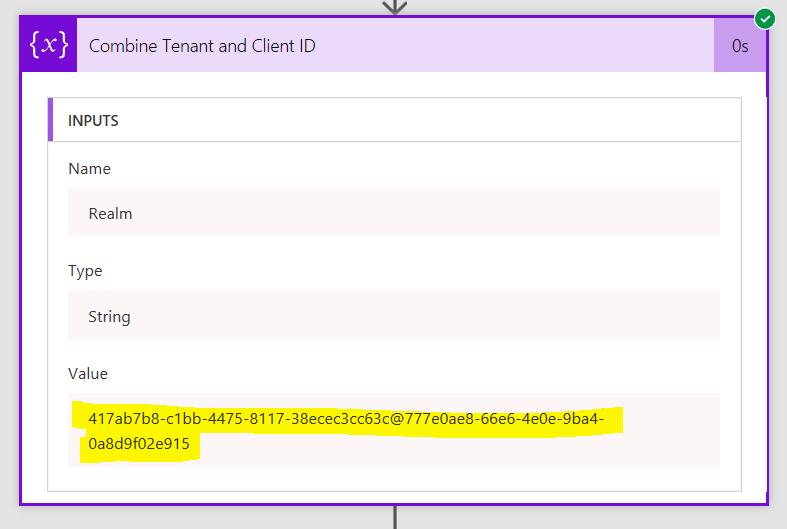
  • client_id – this is actually a combination of the client id and tenant id. eg: “417ab7b8-c1bb-4475-8117-38ecec3cc63c@777e0ae8-66e6-4e0e-9ba4-0a8d9f02e915”
  • client_secret – exactly as specified in the app principal
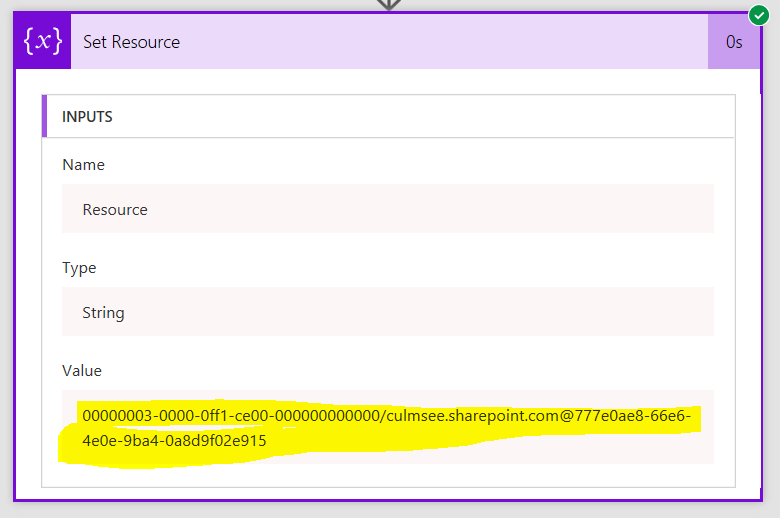
  • resource – this specifies the actual data the access token is intended for. It is a combination of “00000003-0000-0ff1-ce00-000000000000” which is the ID for SharePoint within Office365, then it has the domain name of your tenant, followed by the tenant ID. Eg: “00000003-0000-0ff1-ce00-000000000000/culmsee.sharepoint.com@777e0ae8-66e6-4e0e-9ba4-0a8d9f02e915”

If we supply these parameters correctly, the service will return a data structure that contains various parameters. The only one we need is called access_token, which is highlighted below.

{

   "token_type":"Bearer",

   "expires_in":"3599",

   "not_before":"1507958657",

   "expires_on":"1507962557",

   "resource": “…”,

       "access_token":"…"

}

Our first few flow steps will create variables to store the parameters we need, and then we will try to get past our virtual doorman with a correctly formed HTTP request.

Back to Flow…

Let’s reopen the flow we created in part 1. It should have a trigger and one action – the create item action used to write the new coffee stop to SharePoint.

image

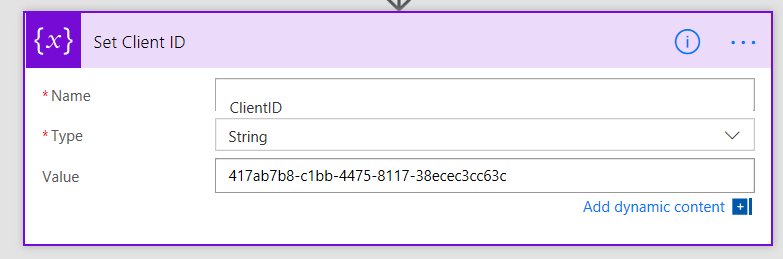
1. Add a new action and choose Variables – Initialize Variable. Call the Variable ClientID, make it a string and set its value to the client ID from the application principal. Also rename it to Set Client ID.

image

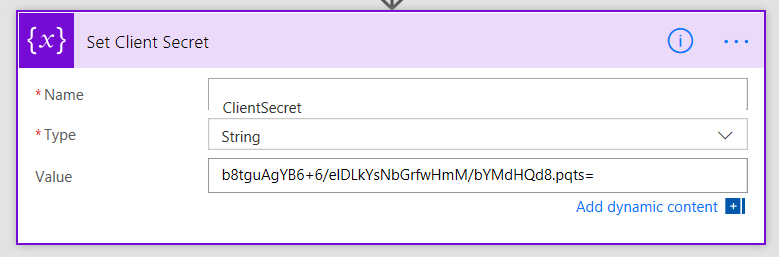
2. Add a second initialize variable action. Call this variable ClientSecret, make it a string and set its value to the Client Secret from the application principal. Rename it to Set Client Secret

image

Note: If the client secret has symbols in it like a +, you will see the following error:

Error validating credentials. AADSTS50012: Invalid client secret is provided. error_codes”:[70002,50012]

This error occurs because we need to encode the key to account for these characters. Use an expression and call the function encodeUriComponent. E.g.

encodeUriComponent(‘xxxxxxxxxxxxxxxxxxxxxxxxxxxxxx+xxxxxxxxxxxxx’)

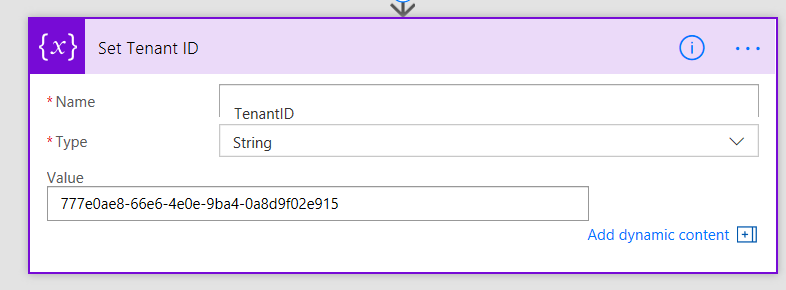
3. Add a third initialize variable action. Call this variable TenantID, make it a string and set its value to the tenant ID you obtained in the last section. Rename it to Set Tenant ID

image
As described above, we need to take the client ID and tenant ID and join them together to get our access token. So we will make a new variable that is a combination of the existing ones…

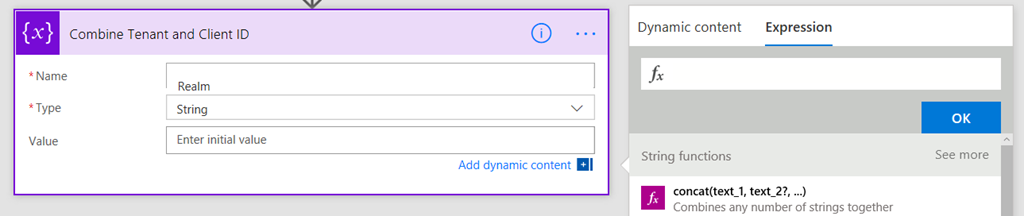
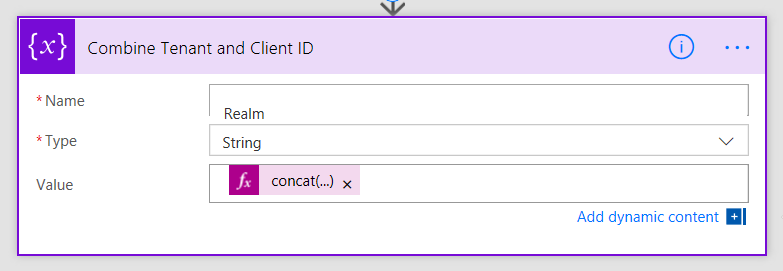
4. Add a fourth initialize variable. Rename it to Combine Tenant and Client ID. Call this variable Realm and make it a string. This time though, instead of typing in a value, click the expression tab to the right.

image

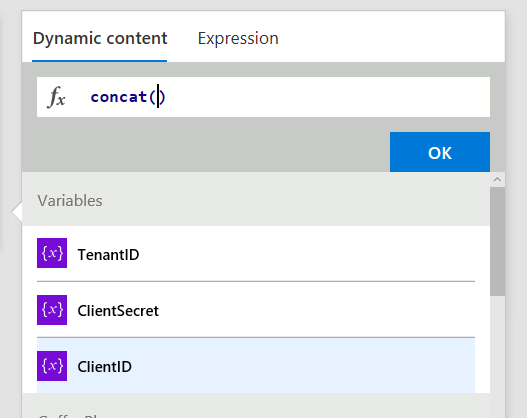
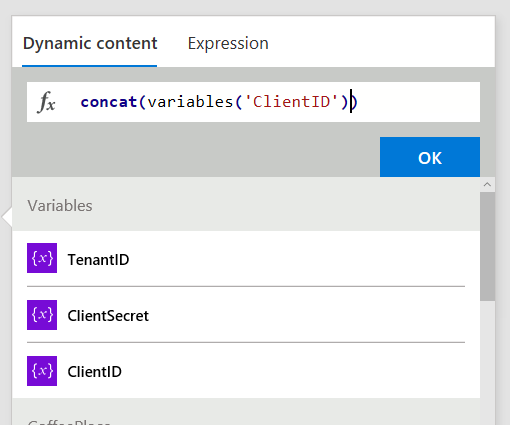
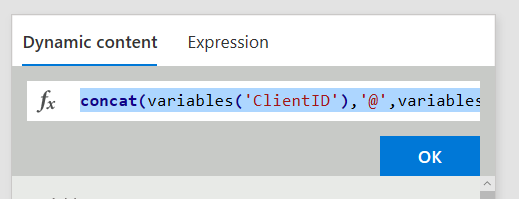
Now follow this section carefully as the UI is not obvious here. First type in concat() and place your cursor inside the two brackets. Then click on the “Dynamic content” tab and click the ClientID variable you created in a step 1. If you did it right, the concat function will now have a reference to that variable as shown in the 3rd image below.

image

image  image

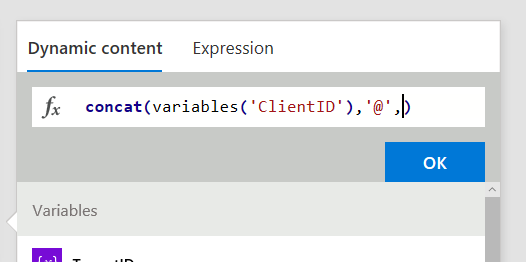
Now type in ,‘@’, exactly as shown below (include the single quote)…

image

Finally, click on the Dynamic content tab and click the TenantID variable you created in a step 3. If you did it right, the concat function will now have a reference to that variable as shown below.

image

For reference, the expression should look like this:

  • concat(variables(‘ClientID’),’@’,variables(‘TenantID’))

Click ok and the value in the step will look like the image below:

image

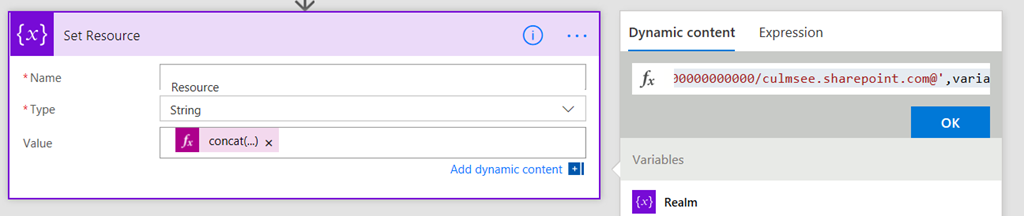
5. Add a fifth initialize variable. Rename it to Set Resource. Call this variable Resource and make it a string. using a similar approach to step 4, add the expression as follows:

  • concat(‘00000003-0000-0ff1-ce00-000000000000/<tenant name>.sharepoint.com@’,variables(‘TenantID’))

Make sure you replace <tenant name> with the name of your tenant. I.e. mine is culmsee.sharepoint.com, resulting in:

  • concat(‘00000003-0000-0ff1-ce00-000000000000/culmsee.sharepoint.com@’,variables(‘TenantID’))

image

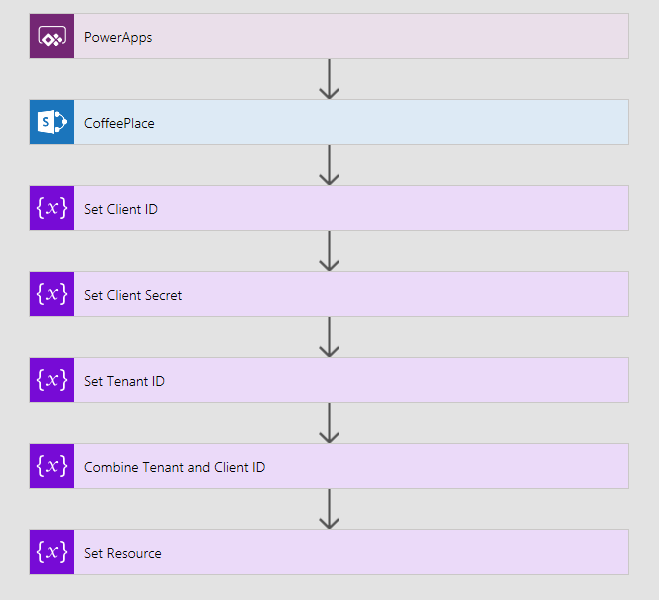
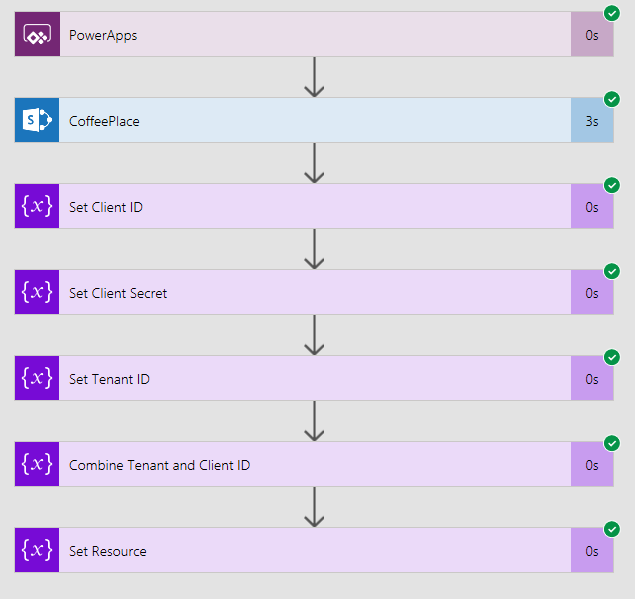
At this point your workflow should look like this:

image

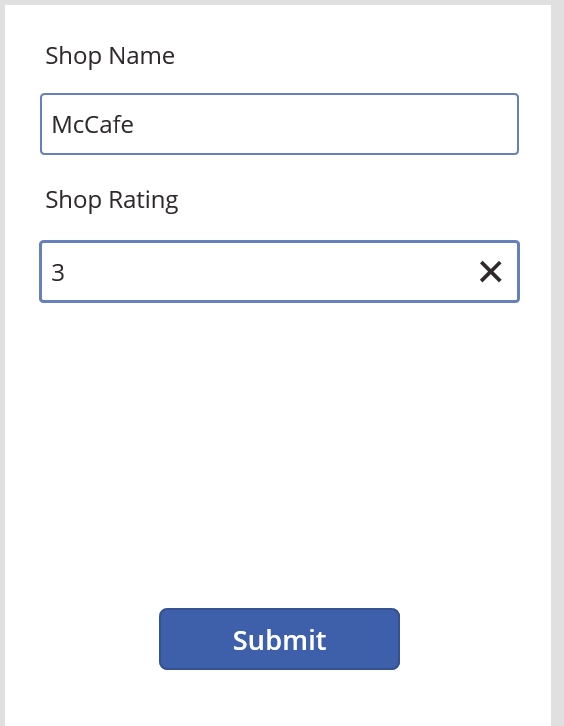
Let’s do a quick test and see if things are working as we expect. Go back to PowerApps and add a new café… eg:

image

In flow, check the history to confirm things ran successfully… lots of green ticks will be there if you got things right…

image

In particular, make sure the last two actions worked. Click on them and check the output to ensure your concat expressions worked as expected.

image   image

Getting the token…

Now it’s time to craft the HTTP action that will get our access token. As a reminder, the URL is actually: https://accounts.accesscontrol.windows.net/[Tenant ID]/tokens/OAuth/2. Our POST to this URL will supply grant_type, client_id, client_secret and resource. Let’s get this done!

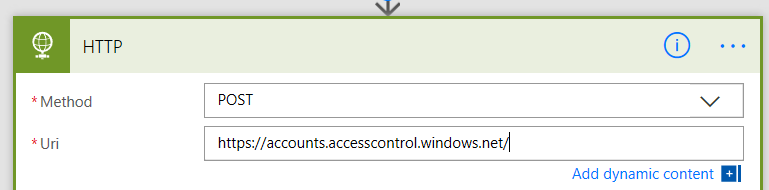
1. Add a HTTP action and set the Method to POST. In the URL field, type https://accounts.accesscontrol.windows.net/

image

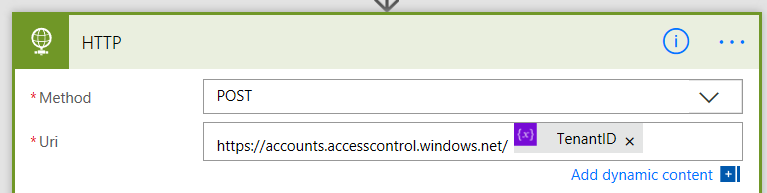
2. Click Add dynamic content and add the TenantID variable

image

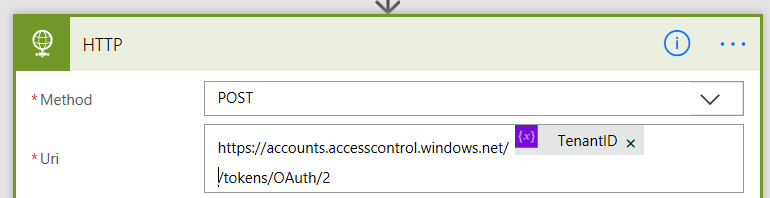
3. Finish the URL by typing in /tokens/OAuth/2. You now have the URL ready to go.

image

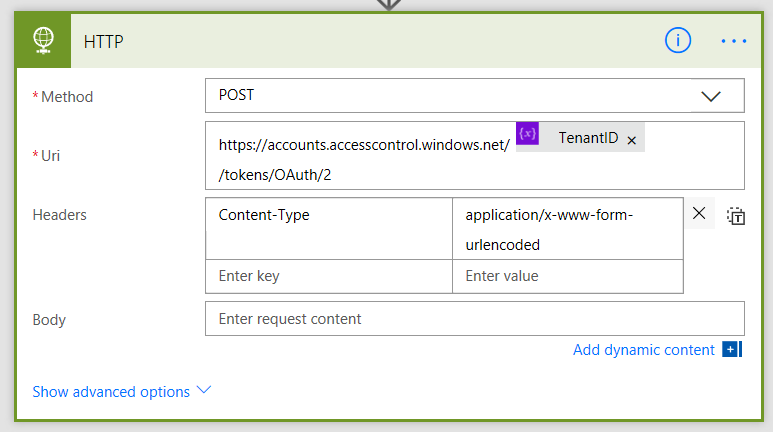
4. In the header section, add a key called Content-Type with a value of application/x-www-form-urlencoded

image

5. In the body section, add the text grant_type=client_credentials&client_id=. From the dynamic content menu, add the Realm variable.

image

6. Add the text &client_secret=. From the dynamic content menu, add the ClientSecret variable.

image

7. Add the text &resource=. From the dynamic content menu, add the Resource variable.

image

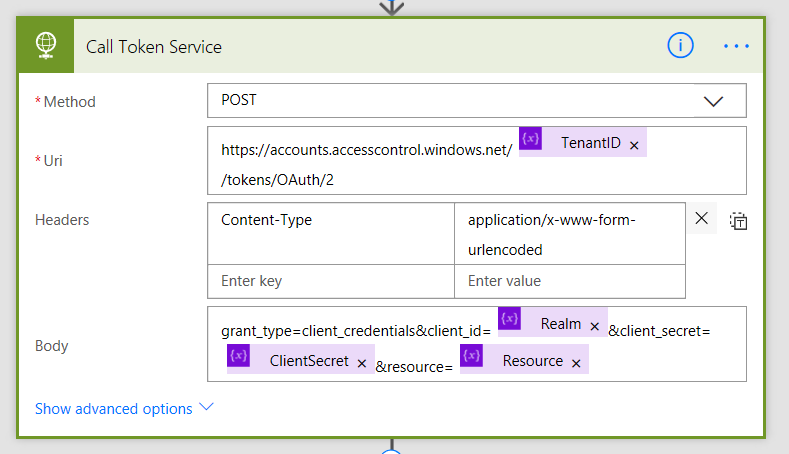
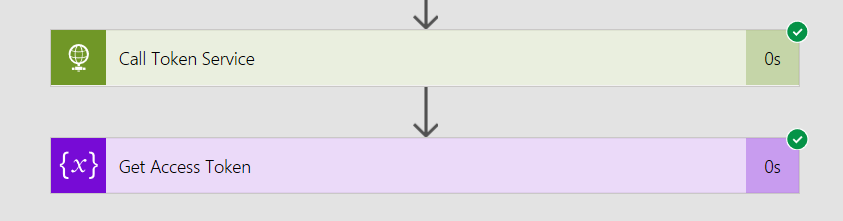
8. Finally, rename the action to Call Token Service. Your action should look like the following:

image

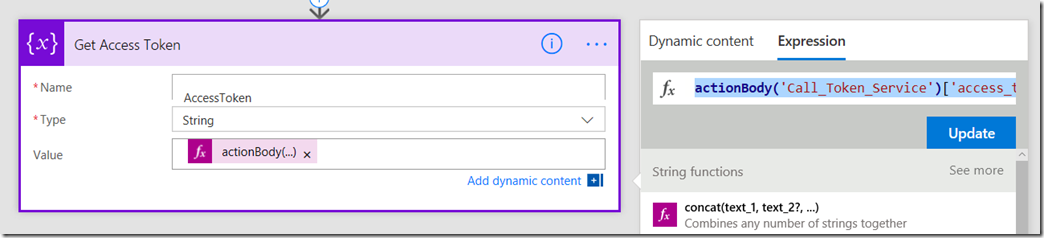
9. Add a new initialize variable action. Call this variable AccessToken and make it a string. Rename the action to “Get Access Token”. Click the expression tab to the right and enter the following expression…

actionBody(<Name of your HTTP Action>’)[‘access_token’] – eg: actionBody(‘Call_Token_Service’)[‘access_token’]

This basically says to flow “Take the body text that came back from the HTTP step and pull out just the parameter called “access_token”

image

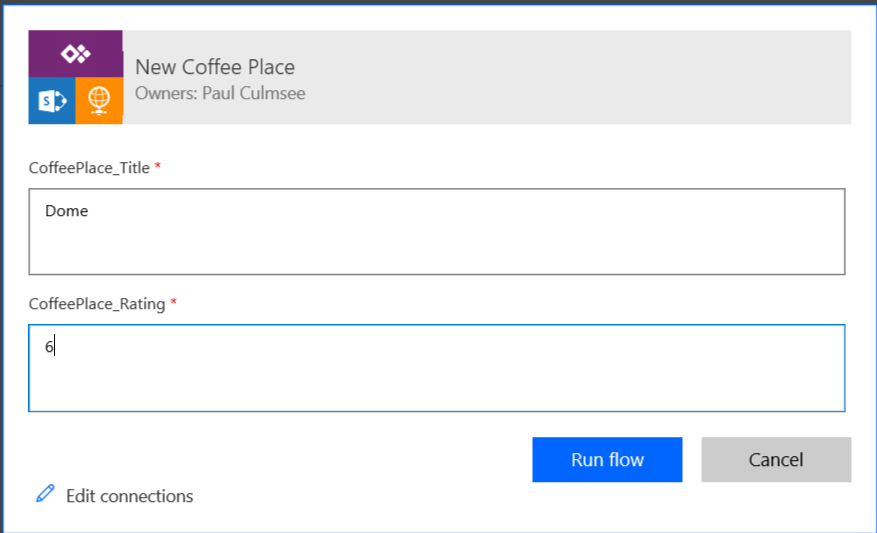
10. Finally, save the flow and submit another coffee place review, either via PowerApps, or by clicking the Run Now button in flow. Flow will ask for the same parameters that it expects from PowerApps.

image

In the debug of the flow, check the HTTP task and ensure it has a green tick.

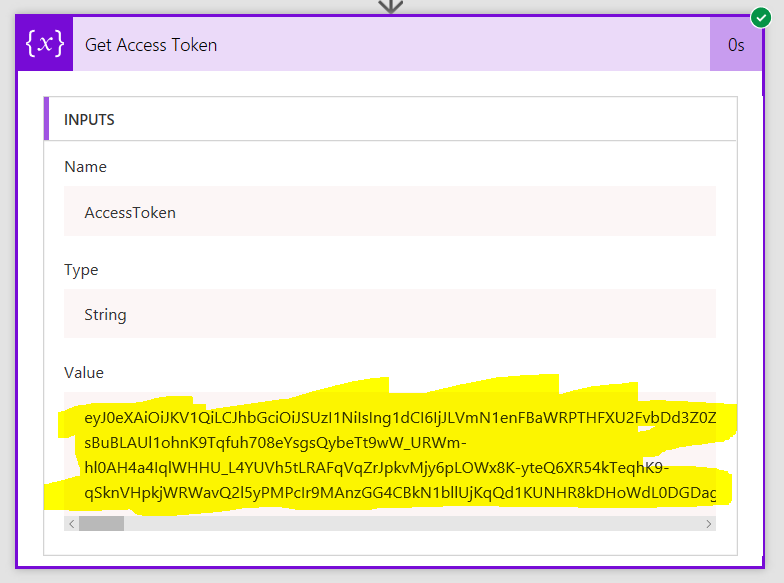
Note: Setting all this up us tricky, so take your time, check everything and above all, DO NOT PROGRESS UNTIL YOU HAVE A GREEN TICK! If you do, examine the output of the Get Access Token. If everything has worked, you should see a string that looks like the second image below…

image

image

Conclusion:

If you have made it this far, congratulations! You have just done something quite tricky and usually the realm of developers. In terms of the breakdown of work we need to do, we have now progressed quite far…

In the next post, we are going to use the access token to call the SharePoint API that allows us to update Managed metadata.

In the meantime, thanks for reading and I hope these articles are starting to make this whole process a little less mysterious…

Paul Culmsee


PowerApps, Flow and Managed Metadata fields–part 1

Hi budding PowerApps and Flow users…

One (current) issue affecting both PowerApps and Flow is that neither support Managed Metadata Columns properly. I have a method to get around this issue, but it will take more than one post to explain. Lately I have refrained from writing epic multi-part posts because things change quickly. In fact this issue will likely go away by the end of 2017. <update> Native support for Managed metadata is now available. Be careful when you use this content</update>.

Due to this pace of change, this is very likely the last multi-part blog series I will do. So consider this a last hurrah from a bygone era of Cleverworkarounds Smile

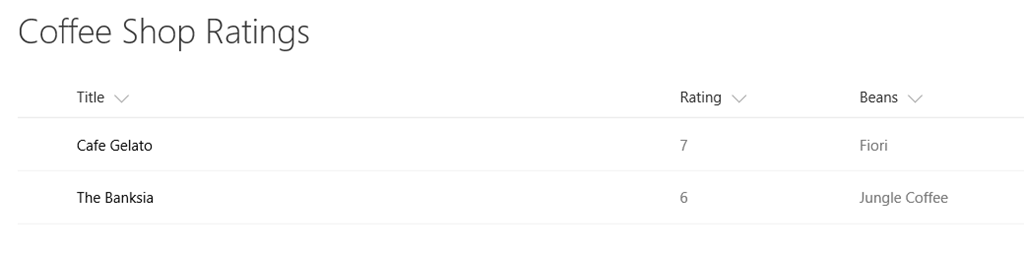
Now let’s get to work. To illustrate the managed metadata issue we currently have to contend with, consider the list below that tracks the most business critical task ever – where the best coffee is near the office…

image

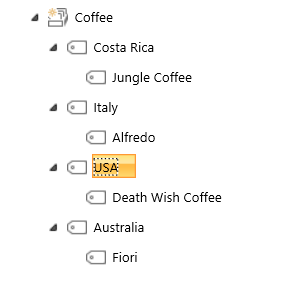
The beans column is actually a managed metadata column, linked to the following term set which has a list of locations and coffee beans from that location. As you can see above, each café sells a certain type of coffee bean…

image

Now that we all understand the vital importance of the data contained in this list, it is obvious that we need an app for it so that our workforce can have locations of the best coffee at their fingertips. So let’s quickly examine the degree to which PowerApps is able to handle this list. I created a blank app and connected it to the above list. I then tested with a gallery, data table, display form and edit form. Here are the results below…

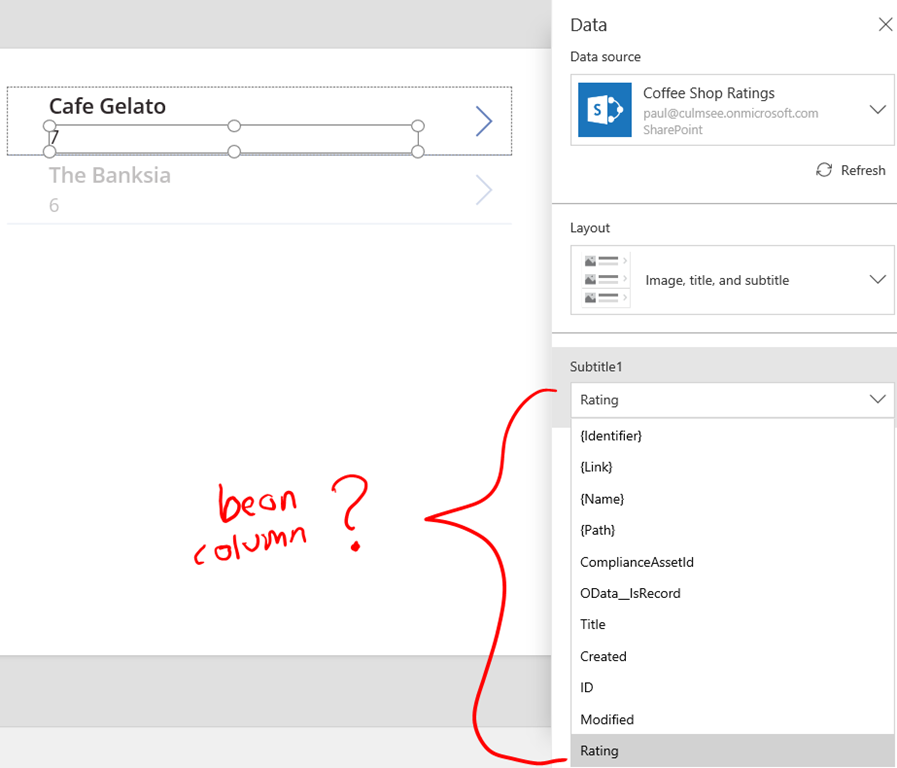
Gallery: Fail

As you can see in the image below, the gallery is bound to the Coffee Shop Ratings list, but in the dropdown highlighted below, the managed metadata “Beans” column is not listed.

image

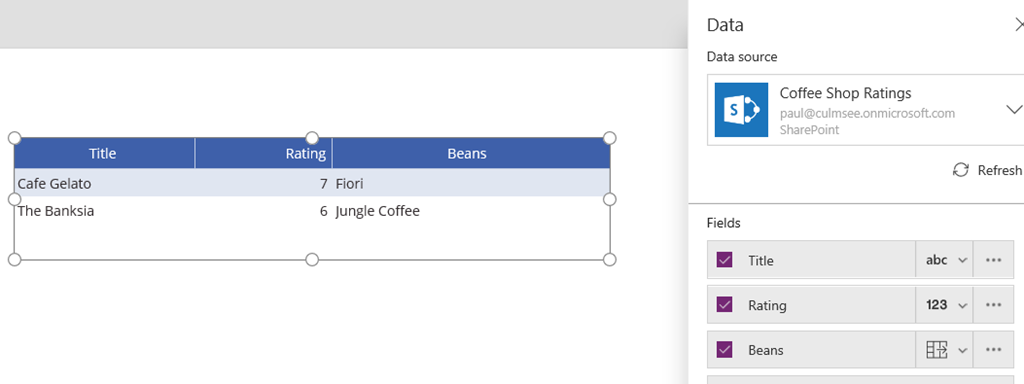
Data table: Pass

The data table does work. You can see below that the Beans column is visible….

image

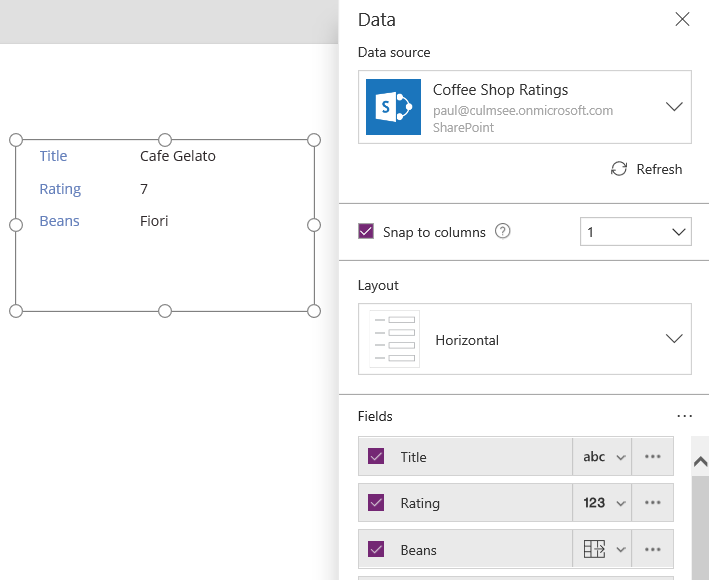
Display Form: Pass

Like the data table, a display form also will display the managed metadata value…

image

Edit Form: Fail

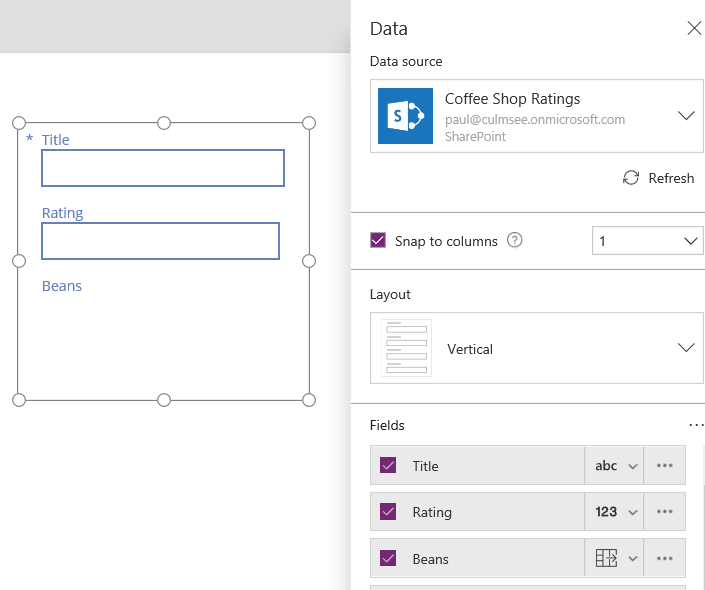
As you can see below, the edit form sees the Beans column, but will not render it as editable in PowerApps… bummer. Not a great solution if you want your users to add new coffee places to the list via the app.

image

Flow to the rescue?

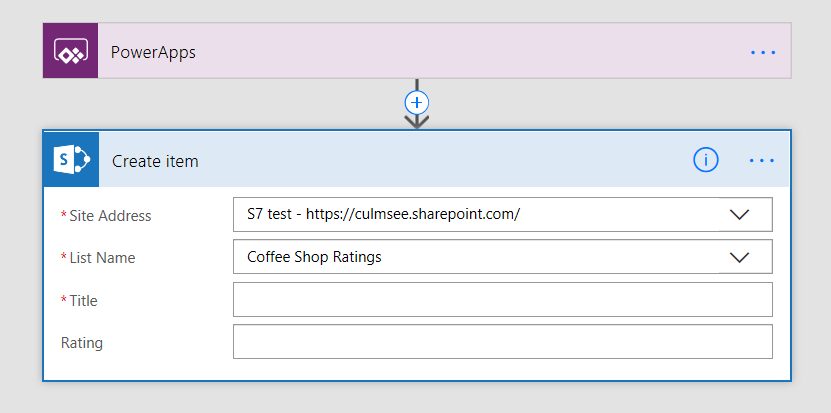
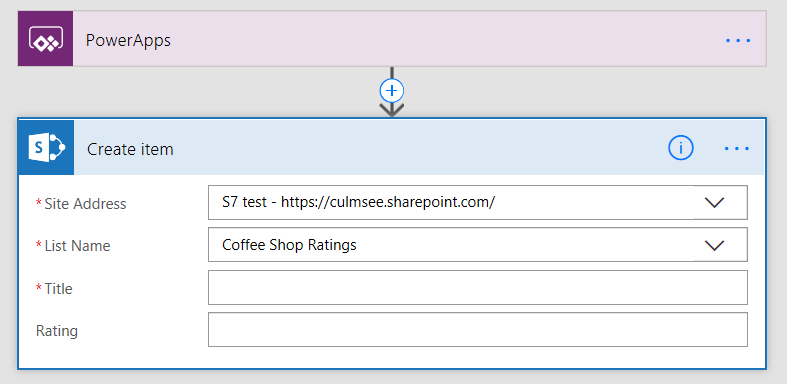
If you have read some of my recent posts, I have found Flow to be very useful to work around various obstacles. For example, I use flow to handle photo uploads from PowerApps to SharePoint. So how does Flow fare with Managed Metadata? Unfortunately this is also a bust at present. The built-in “SharePoint – Create Item” action will not show the managed metadata columns. Notice the Beans column is missing from the image below…

image

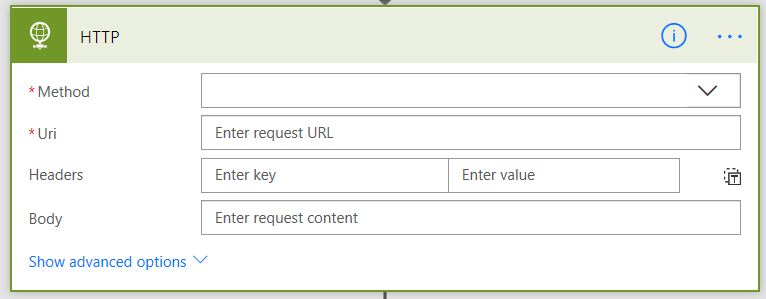
Now all is not lost. Just because the built-in Flow actions do not work, does not mean we cannot achieve our goal. One can also talk to SharePoint via it’s API’s. Flow makes this possible because one of its built-in actions called the HTTP action. This is a super powerful action because you can use it to pretty much make any form of web request you want.

image

So let’s do an experiment and find out how easy it is to support managed metadata via Flow, by talking to SharePoint via API.

But there is one issue we have to contend with first. The SharePoint actions in flow take care of authentication for us, whereas the HTTP action is generic by definition. So how are we going to make an authenticated connection to SharePoint using the HTTP action?

The answer is we are going to use oAuth to request an access token. For the non-developers reading this who’s eyes start to glaze over when terms like oAuth start getting bandied about, let me use an analogy…

An oAuth primer using beer…

Let’s say that you are going to a nightclub or a bar, and you have to prove that a) you are over the legal age and b) you are wearing suitable attire for the venue. You present your drivers license or other form of ID. The doorman checks your ID, decides if you are good looking enough and permits you to enter. You then walk into the club, pay your entrance fee, and an ink stamp is used to mark your arm. This tells staff that are are legally allowed to be in the club and can enjoy a frothy beer or two. Think of that stamp as your access token. If you walk out of the club for a break, you can skip the line to get back in, because you have already been stamped. You just show them your hand…

So the basic pattern is to get an access token is:

image

Once you have access, no one has to check your ID, instead they just make sure the stamp on your arm is the same as the one they issued you earlier. Eg:

image

Now access tokens don’t last forever. If you turn up the next day, try and skip the line and present your stamp, the doorman will turn you away because today they used the blue stamp and last night they used the green stamp. So you will have no choice but to go to the other line, get your ID checked, and pay up before getting a new blue stamp issued…

image

So let’s now turn our attention to SharePoint and how this works in real life. What I just described above is roughly equivalent to something in oAuth called the Client credentials grant. In short, before we do anything related to managed metadata, we need to get into the club. So we will need to get some identification so we can get our hand stamped. So who issues the ID in the first place?

Enter the app principal

In our analogy above, there was an implicit trust going on. You showed your identification to the doorman, and they trusted that the ID you flashed before him was genuine. In the context of SharePoint, we need to have SharePoint itself issue your ID for it to be deemed trustworthy. After all, even bouncers have problems with fake IDs.

So our flow is going to need to use an app principal (a genuine ID) before it can be issued a “stamp” (or access token). Fortunately for us, the plumbing to do this in SharePoint has been in place since the oft-derided app/app-in model was brought in. I am not going to get too caught up in the details here, because all-round guru Wictor has detailed the process in a few posts. In particular, have a read of this one, and in particular the “Create the App Principal” page…

Here are the basic steps to create an app principal to use in flow:

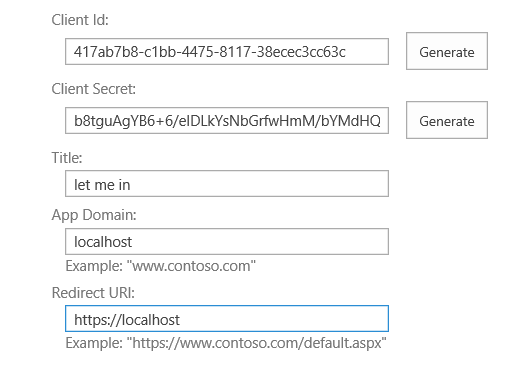
1. Navigate to your site collection and append /_layouts/15/AppRegNew.aspx

2. Generate an App ID, App secret and enter some other identifying info

image  image

3. Copy the client id and secret to clipboard.

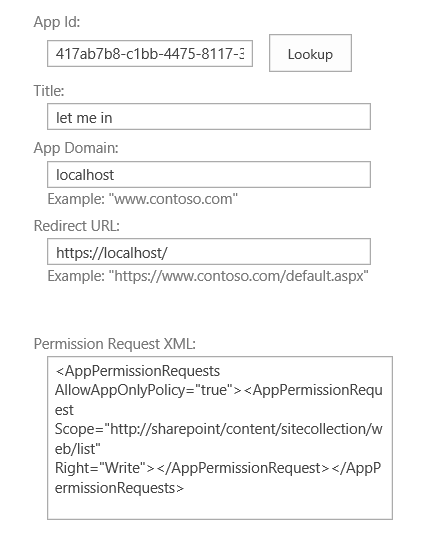
4. Append /_layouts/15/AppInv.aspx to your site collection and grant the permissions needed by this app principal.

image

In our example, we are updating a managed metadata field in a single list, so this app principal is going to be given the ability to write to SharePoint lists. The XML is below, and the schema for other scenarios is here:

<AppPermissionRequests AllowAppOnlyPolicy=”true”>

    <AppPermissionRequest Scope=”http://sharepoint/content/sitecollection/web/list” Right=”Write”>

    </AppPermissionRequest>

</AppPermissionRequests>

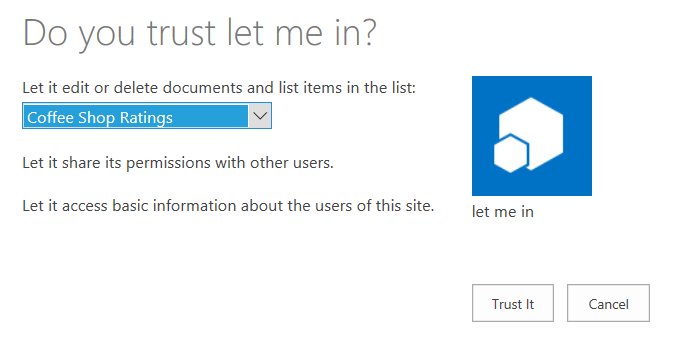
6. Choose the list that the app principal will be working with. In my case it is the coffee shop rating list with the managed metadata column.

image

Although I said I would not get into too much detail, here are some handy notes around this process:

  • The permission XML is very fussy. It will not tolerate spaces between elements
  • This app principal is registered/stored in azure active directory. You need privileged access in Azure AD to do this (site collection admin is not enough)
  • You can also do all of this in PowerShell
  • The app principal is valid for 1 year. So just like your drivers license expires periodically, the same happens here. If you want something longer, do this in PowerShell. (in our case native support for Managed Metadata in PowerApps/Flow is a few months off, so a year is fine
  • The oAuth method we are using doesn’t actually use the App Domain nor the request URL. But other methods do, hence why we have to enter something anyway
  • Microsoft are now steering people to the Graph API, which is a unified API that allows access to all of Office365 services. This will become the approach to take, but Wictor Wilen told me on Twitter that currently you cannot scope an access token down to a particular site collection.

Back to Flow…

Now that we have an app principal with permission to our site collection, it is time to start work on our Flow.

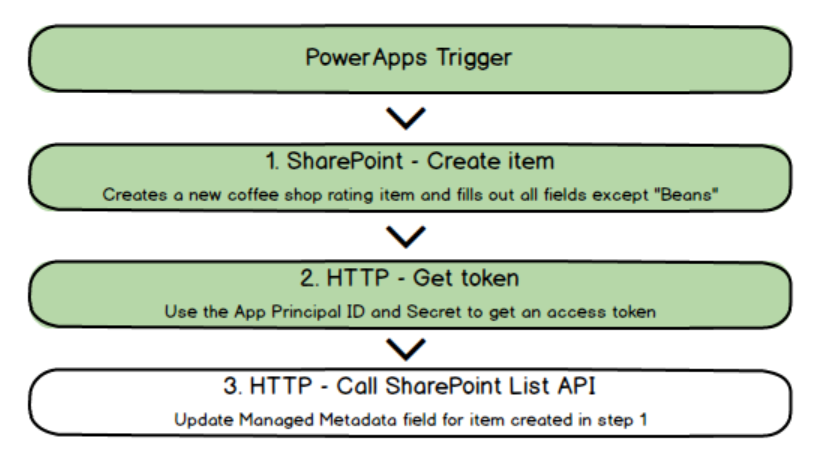
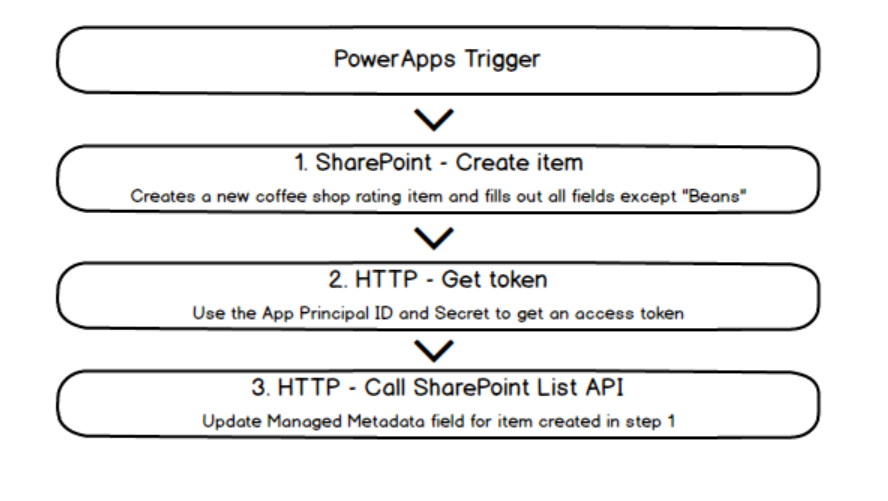
The basic operation for the flow is follows… First, the flow will be triggered by PowerApps, which will send Coffee shop name, rating and Bean. We will create a new entry in the list using the standard SharePoint flow action, before using the HTTP action to get an access token, and then update the newly created item with the coffee bean used by the shop.

image

Now the actual flow is going to look different to what I have outlined above. There are multiple actions involved for each of the steps, and some architectural and security considerations too. So we will adjust our flow as we go…

So let’s end this post by dealing with the trigger and step 1 above, as they are easiest. Part 2 will deal with the access token and part 3 will deal with the updating of the managed metadata column.

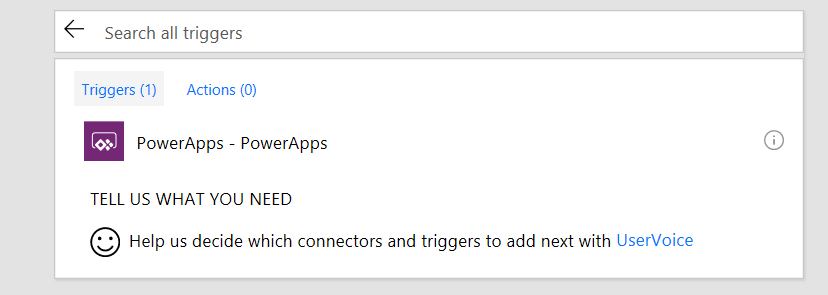
1. Create a new flow and choose the PowerApps trigger…

image

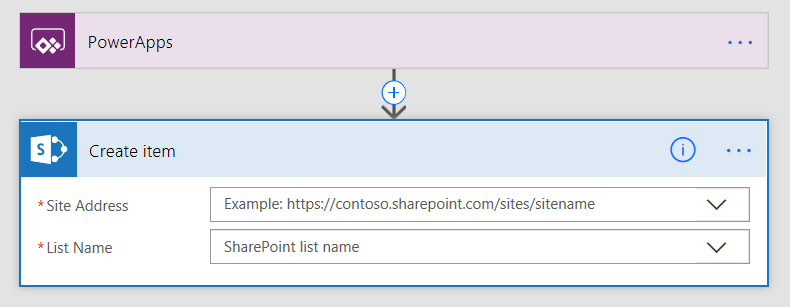
2. Add a SharePoint – Create Item action.

image

3. Specify the site collection where your list is stored and then the Coffee ratings list. Flow will read the list and display the fields it has found (excusing Beans)

image

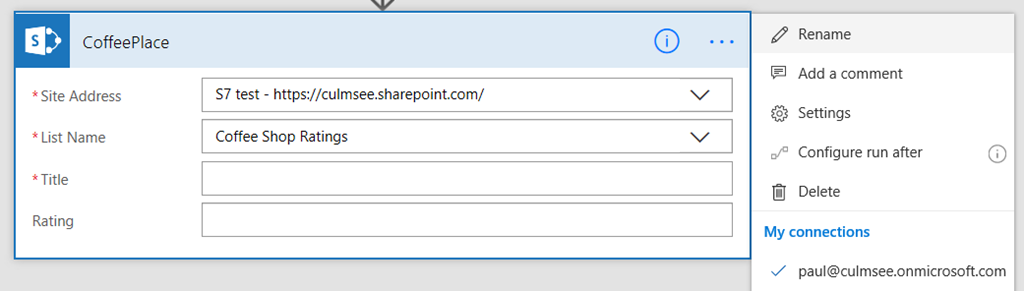
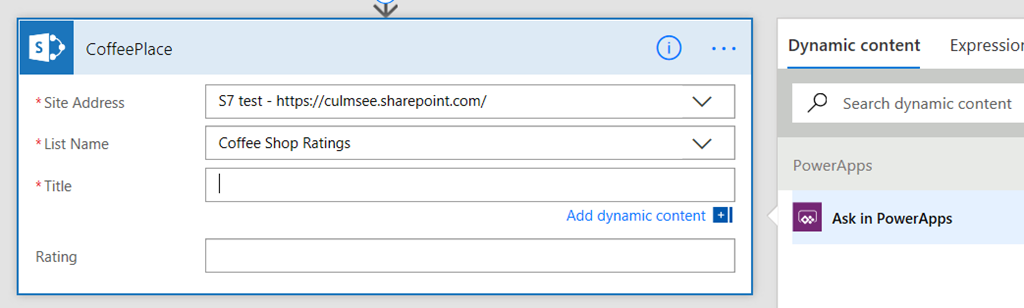
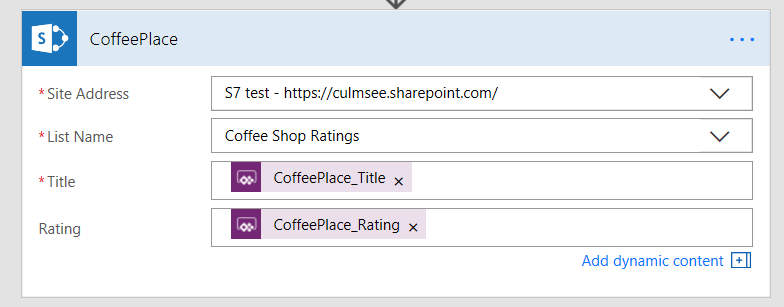
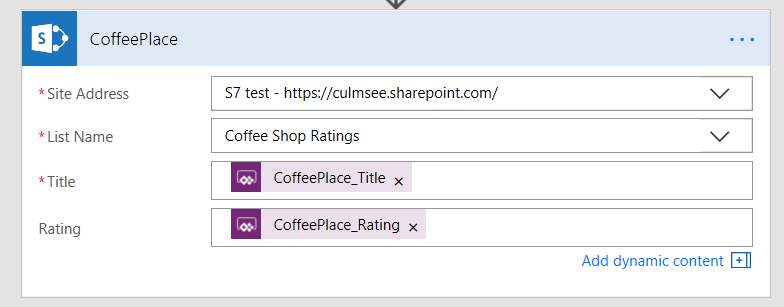
4. Rename the flow to CoffeePlace and for the Title and Rating columns, set it to ask PowerApps for the data

image

image

image

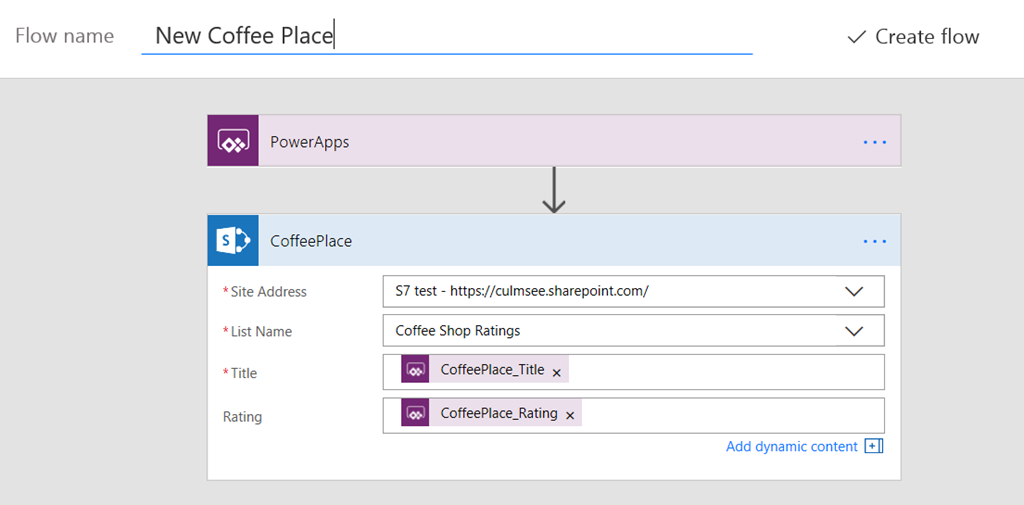
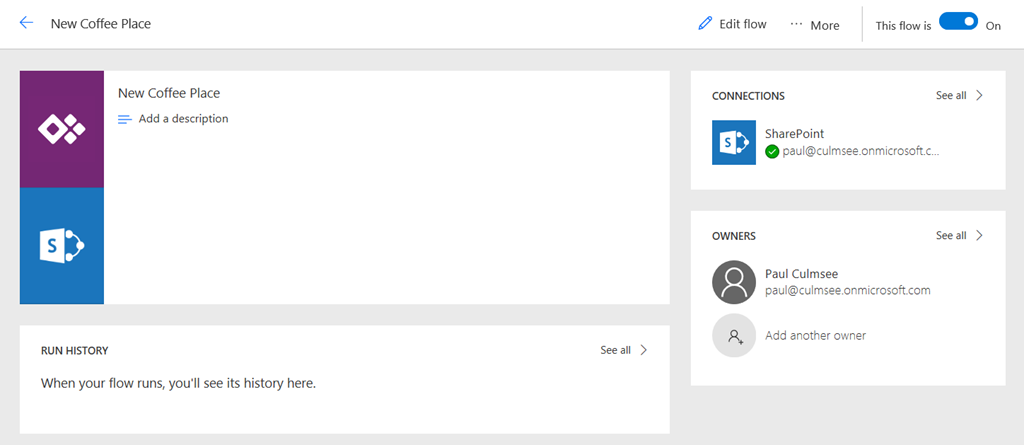
5. Save the flow and give it an appropriate name…

image

image

Build a PowerApp…

Now let’s go to PowerApps and build a basic app to add a new coffee place.

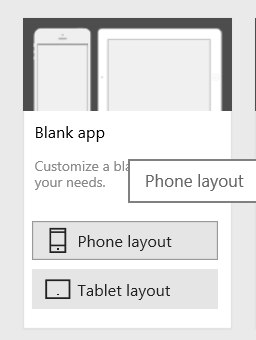
1. In PowerApps create a new blank app using the phone layout

image
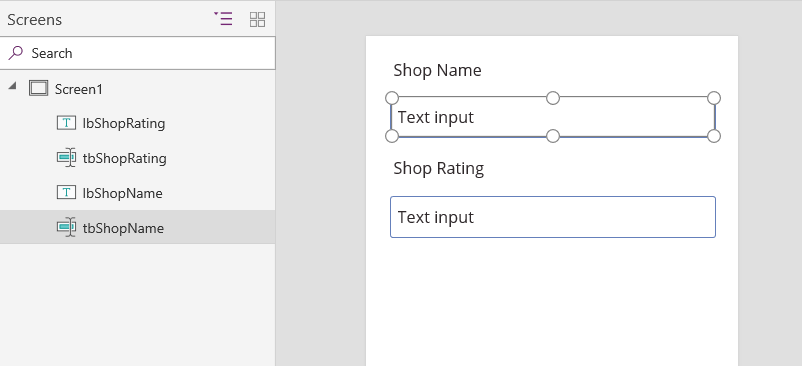
2. Insert 2 text boxes and 2 labels as shown below… note that I have named my controls to be more meaningful. I suggest you do the same…

image

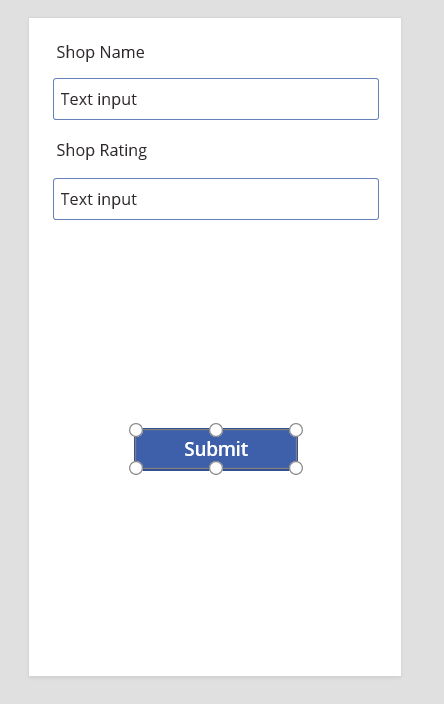
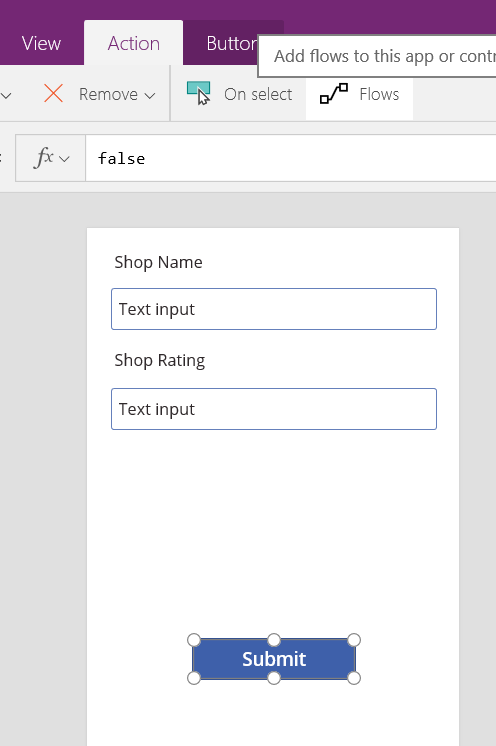
3. Add a button to the bottom the app and label it “Submit”

image
4. Select the button, and from the actions menu, choose “Flows”

image

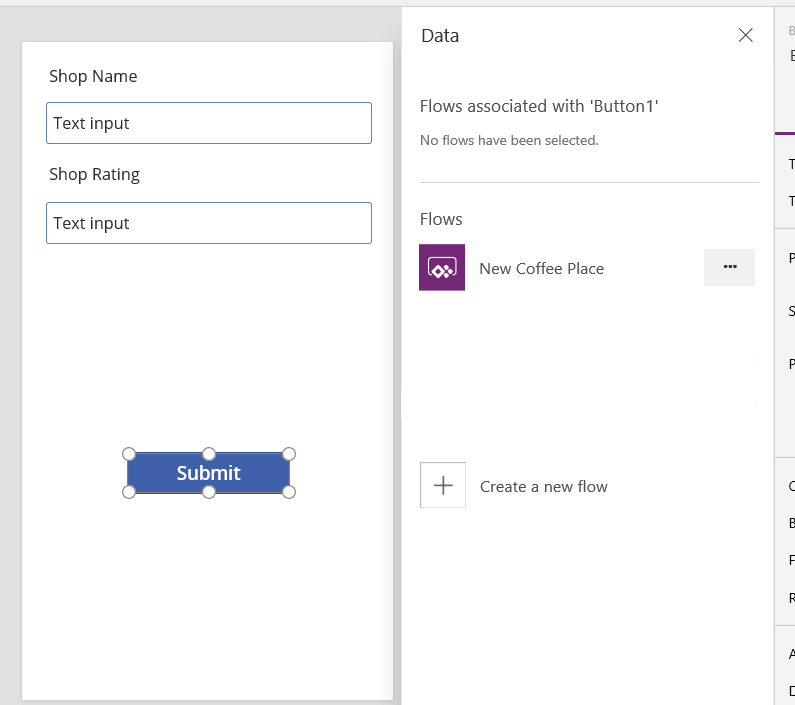
5. A panel will open to the right of your app screen, and you should see the flow we made earlier. Basically PowerApps will show any flows that you have access to, that use a PowerApps trigger

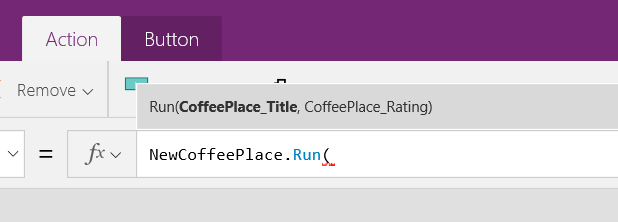
image

6. Choose your Flow, and PowerApps will add a submit action to the button that calls the flow. Any “Ask in PowerApps” parameters will be displayed in the function as shown below. Now hopefully you can see why I made you rename your Create Item action when building the flow! The image on the right is the flow action where we told it to ask PowerApps. Note the names in both images…

image  image

7. Fill in the parameters by choosing the text boxes we added in step 2. Now you will see why I recommend naming them…

image

8. Save your flow and then preview it… Enter a shop name, rating and click the button. Check your SharePoint list and you should see the new entry…

image  image

Conclusion…

Awesome! If you have gotten this far, we have all of our raw ingredients set up. We have an app principal, a PowerApp and a flow. In the next post, we will focus on getting our access token, so we can update the managed metadata field.

Thanks for reading…

Paul Culmsee


Today is: Wednesday 3 June 2026 -