Back to Cleverworkarounds mainpage
 

Rush Blog: Managed metadata support for PowerApps and Flow just dropped!

Okay so I have never, ever done a rush blog post before, but a feature just dropped that I’ve been waiting ages for and I think it will make a lot of people happy. Currently I am working on a project that uses extensive Managed Metadata, PowerApps and Flow. I have used various hacky ways to make this work. For the most part, these methods are now redundant as native managed metadata support was just deployed to First release tenants.

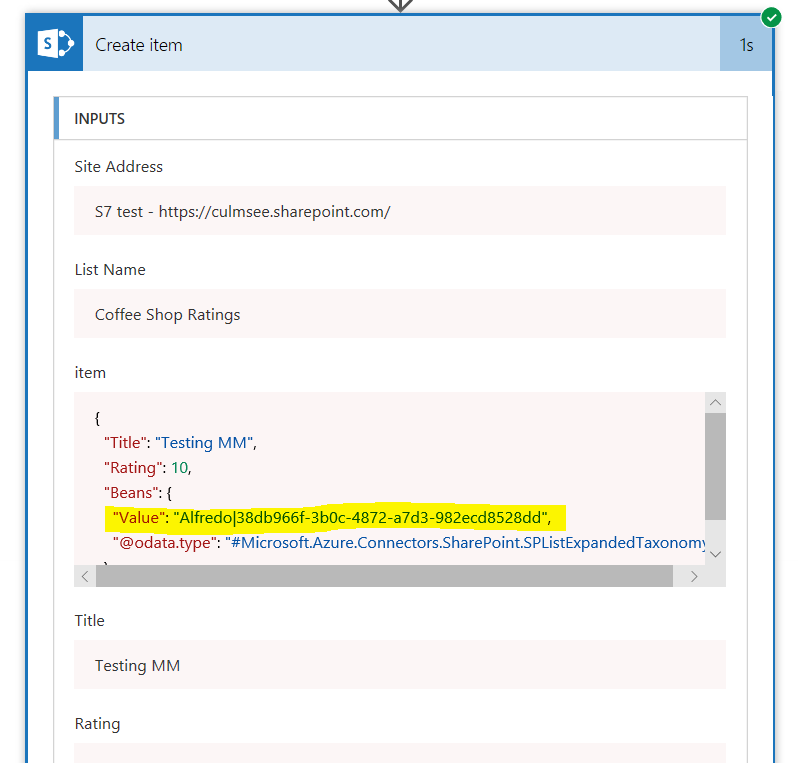
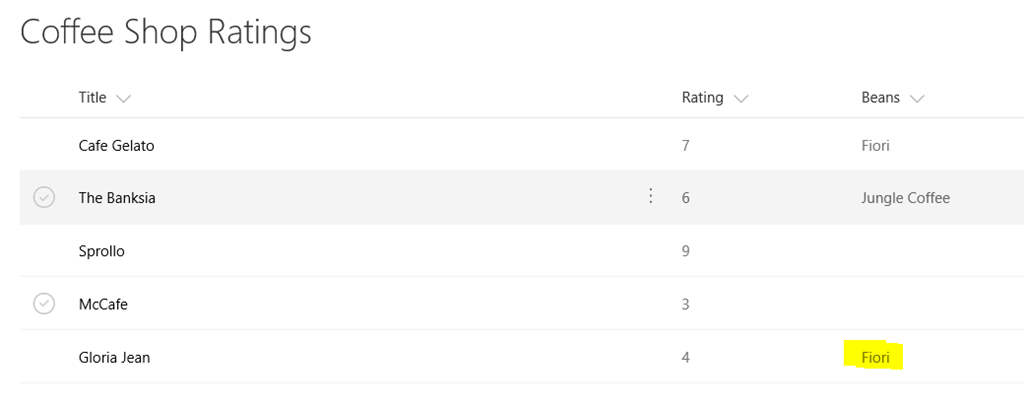
You can read the announcement here. In my quick testing I confirmed it to be working and will suit my particular needs. One thing to note is if you want to use Flow variables to set managed metadata values, you will need to set the variable in a “Term Name|Term GUID format” for it to work – otherwise you will get a “The data returned from the tagging UI was not formatted correctly” error.

You can see the correct format highlighted below…

image

So on the downside, now the series of four blogposts I wrote in mid October on how to workaround this prior limitation are redundant. At that time I did say that “Due to this pace of change, this is very likely the last multi-part blog series I will do” – so it took two months for Microsoft to pull it off.

So now let’s go write some content on how to leverage this functionality in interesting ways eh?


Paul


PowerApps, Flow and Managed Metadata fields–part 3

Hi all

Welcome to part 3 of my posts that are intended to teach people more about the intricacies of Flow, SharePoint Web Services and oAuth. The cover story for this journey was the issue that presently, managed metadata fields are not supported natively in PowerApps nor Flow.

As a result, we are taking an approach where we update managed metadata values by talking to the SharePoint REST web service.

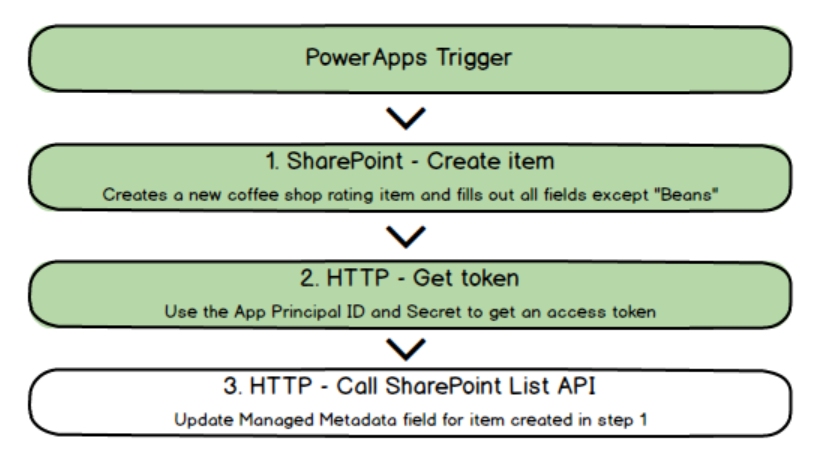
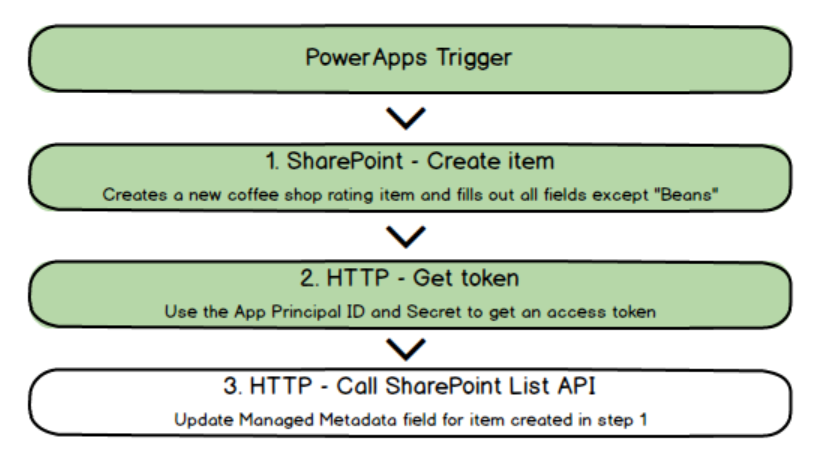
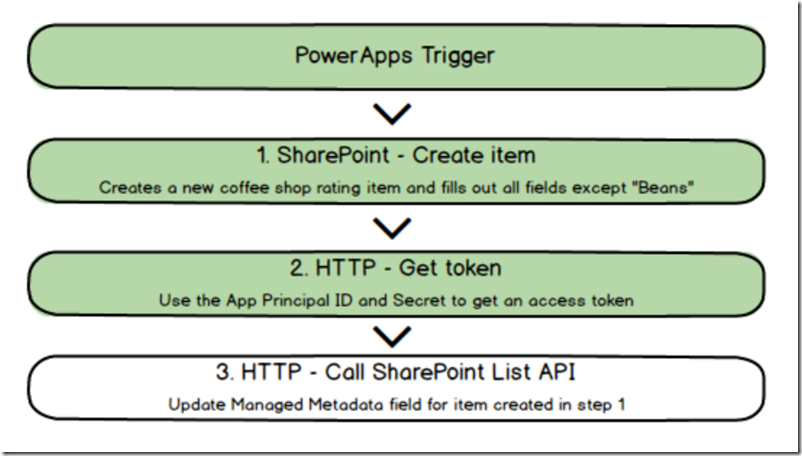
To recapitulate our journey, we have managed to achieve the following thus far. We have a basic powerapp, and a flow that now has an access token that will allow us to update the managed metadata column via API. If you are new to this series, then I strongly suggest going back and reading parts 1 and 2, before continuing here…
image

A SharePoint Web Service Interlude…

Those of you who got past part 2, and think the hard stuff is over, think again. You are about to take a dive into the weird world of talking to SharePoint via API, so go get yourself a coffee and I will do my best to provide an accessible explanation to what is going on.

To start with, let’s do a couple of general queries to SharePoint via API and get a feel for things. To do this, use the Chrome browser and sign into your SharePoint site collection. Once signed in, try the following URL. Note, if you are using a different list name to the one I have been using in this series, adjust accordingly:

https://<site collection url>/_api/web/lists/GetByTitle('Coffee Shop Ratings')

If this worked, you will be rewarded with a ton of data related to the Coffee Shop Ratings list. It won’t be overly meaningful in the Chrome output, but rest assured this is a good thing…

image

Now let’s make things a little less scary by being more specific about the information we want to retrieve…

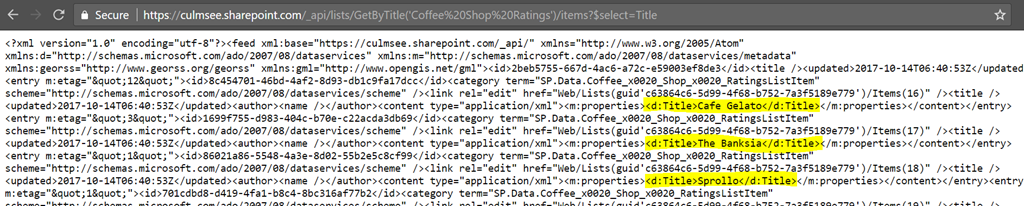
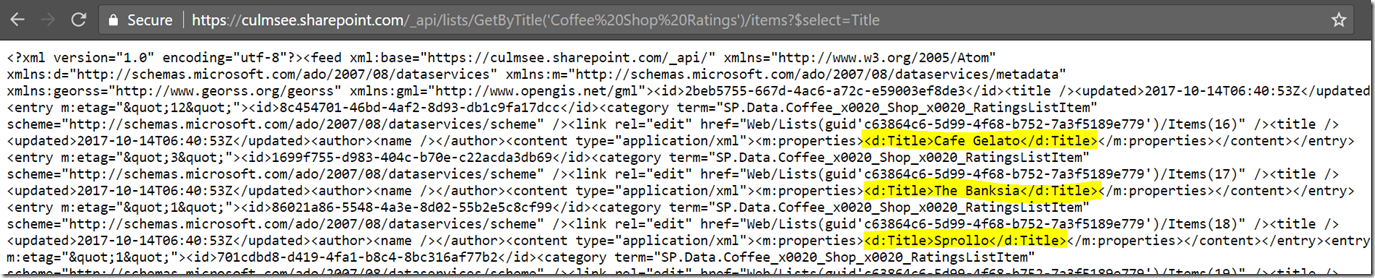
https://<site collection url>/_api/web/lists/GetByTitle('Coffee Shop Ratings')/items?$select=Title

This API call is basically saying “get all items from this specified list, and only show me the Title column for each item” (that is what the $select=Title bit is doing). While the formatting in Chrome sucks, you can nevertheless see the output being returned in XML format. Note the title columns below showing the café names.
image

Now let’s get specific and select a particular item from the list by its ID. I can achieve this in the following way…

https://<site collection url>/_api/web/lists/GetByTitle('Coffee Shop Ratings')/items(16)?$Select=Title

This call is still only asking for the Title column from the list ($Select=Title), but now it only wants the item 16 in the list. I happen to know in my list this is Café Gelato and the output confirms this…

image

Finally for now, let’s bring back the 3 columns we are using, including the one that’s been causing us all the trouble… I do this by specifying multiple columns in the $select bit at the end of the URL.

https://<site collection url>/_api/web/lists/GetByTitle('Coffee Shop Ratings')/items(16)?$Select=Title,Rating,Beans

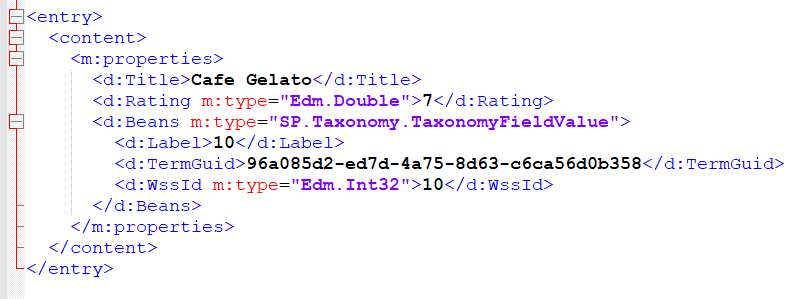
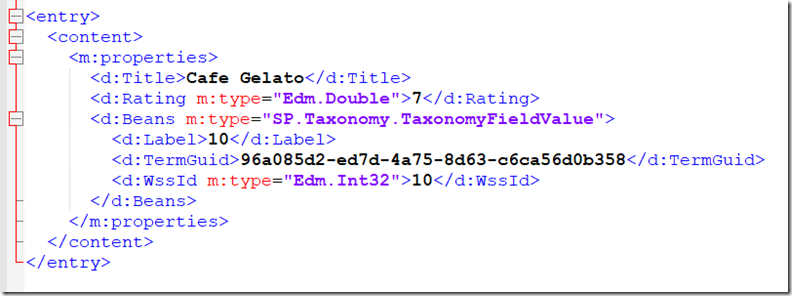
This time I will format the XML output a bit nicer for you and strip out some uninteresting stuff. In the <m:properties> section, you can see the information returned about our 3 columns…
image

A cursory glance shows the Title and Ratings columns are pretty simple. The ratings column differs from title in being numeric (m:type=”Edm.Double”) but still is a single line and fairly easy to understand. But take a look at the Beans column. It is a lot more complex than the others in that instead of being a single value, this column actually consists of three properties, Label, TermGuid and WssId.

At this point I should say that the SharePoint List API has a lot more to it than the simple examples above. If you are interested in learning more then start here. The key thing I want you to take away from this section is this: We are going to use Flow to perform queries just like we have done. We will query the lists web service to get some data and more importantly, we will also use calls to the web service to update the managed metadata column.

So let’s have a look at how we can do that…

Updating a List Item via REST API

Note: when I wrote this I was not aware you could reduce the amount of JSON manipulation you have to do via the odata=nometadata directive that Marc wrote about. I strongly suggest you use that article to sense-check what I write about here.

First up we need to understand the general pattern to updating a list item using the API. We need to issue a POST call to the list web service and in the body of our post, send our instructions about what to update. The URL is unchanged from what we have been working with…

http://<site collection url>/_api/web/lists/GetByTitle('Coffee Shop Ratings')/items(item id)

In terms of the format of the update instruction, the example below shows updating the Title field. While some bits of it might not make sense right now, we can see that the Title column is being updated to the value “TestUpdated”…

{ '__metadata': { 'type': 'SP.Data.TestListItem' },
  'Title': 'TestUpdated'
}

So what is the SP.Data.TestListItem? A hint comes from Microsoft’s own documentation that states: “The ListItemEntityTypeFullName property is especially important if you want to create and update list items. This value must be passed as the type property in the metadata that you pass in the body of the HTTP request whenever you create and update list items”

We will return to this mysterious ListItemEntityTypeFullName when we start building the flow, but for now lets park it and look at what needs to be sent in the HTTP Headers when posting to the API..

Authorization: "Bearer " + accessToken
IF-MATCH: etag or "*"
X-HTTP-Method:"MERGE"
accept: "application/json;odata=verbose"
content-type: "application/json;odata=verbose"

Wow – that’s quite a bit to do, and we have not even gotten to the Managed Metadata column yet! So let’s take a look at that now since we have already dug ourselves a bit of a theory-hole. Soon enough we will put all of this stuff into practice…

Updating a Managed Metadata Column

Now that we have seen the anatomy of a POST to update a list item, let’s now look at example of updating a managed metadata column. In a nutshell, the body of the POST looks like this: Note that in this example I have specified the ListItemEntityTypeFullName property for my Coffee Shop Ratings list. Don’t worry, I will show you how to find this out in the next section.

{
   "__metadata": { "type": "SP.Data.Coffee_x0020_Shop_x0020_RatingsListItem" },
   "Bean":
     { "__metadata": {"type":"SP.Taxonomy.TaxonomyFieldValue"},
     "TermGuid":"0937fbc2-0dfe-439e-a24f-ba6d13897abd",
    "WssId":"-1"
   }
}

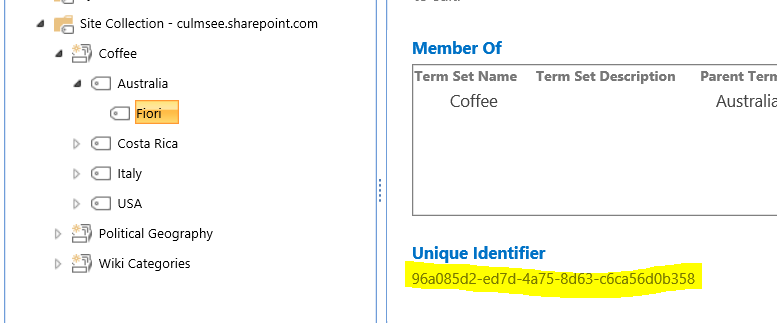
Unlike the title column above,  here we need to set two parameters – a TermGuid and a WssID. The former is the GUID of a term in managed metadata and can easily be found when looking at a term: for example:
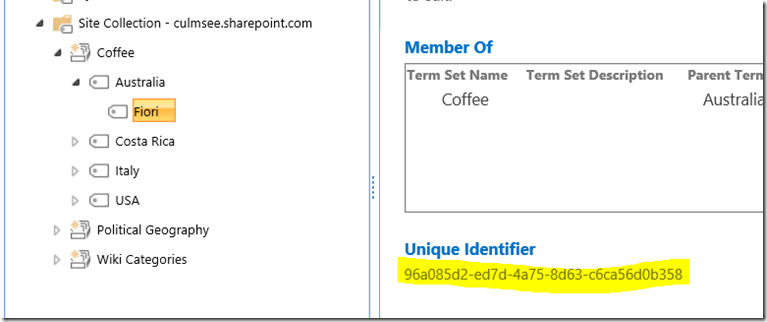
image

The WssID parameter you can ignore. We need to specify it, but we will always be putting “-1” in the value. If you really want to know what it does, check this post. Also for those who have read other articles on this topic and are wondering why I left out the Label parameter… the answer is that with my testing, it was not necessary, so I omitted it.

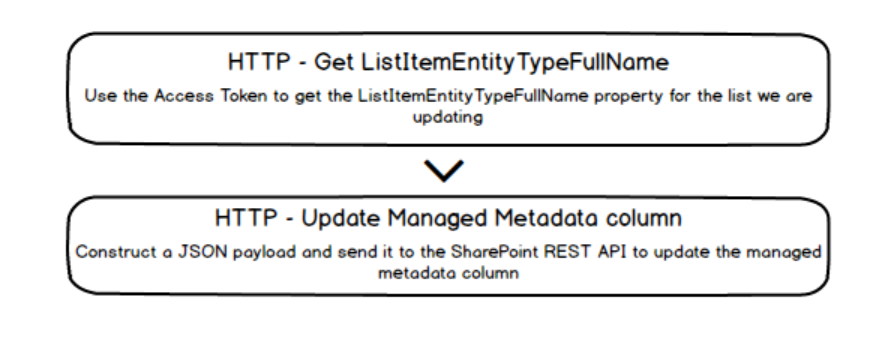
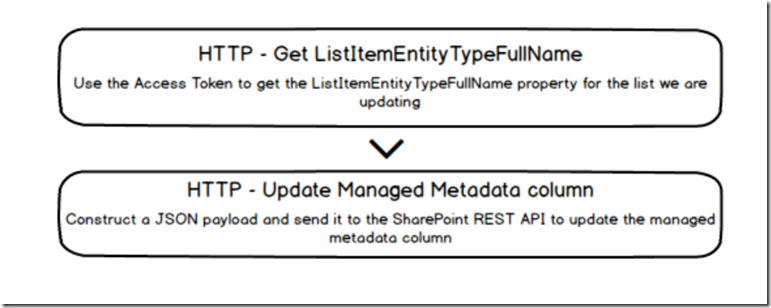
So let’s summarise our journey so far… we need to do the following:
image

So let’s get back to the land of Flow and finish this!

Finishing off Flow…

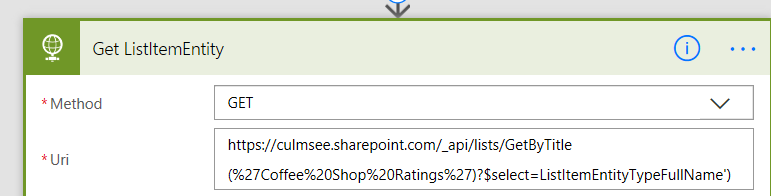
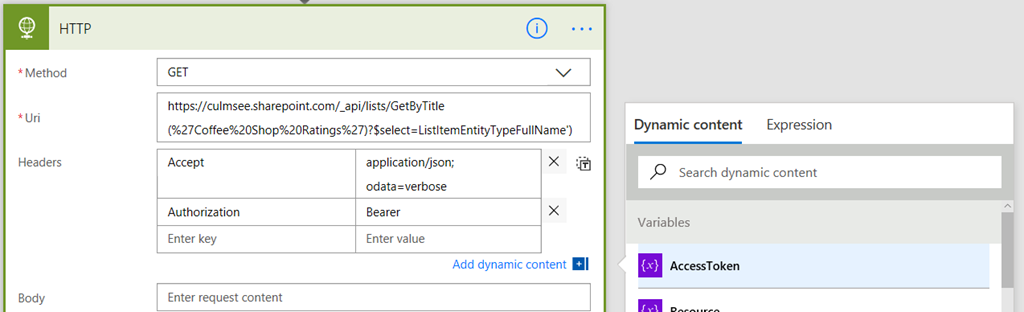
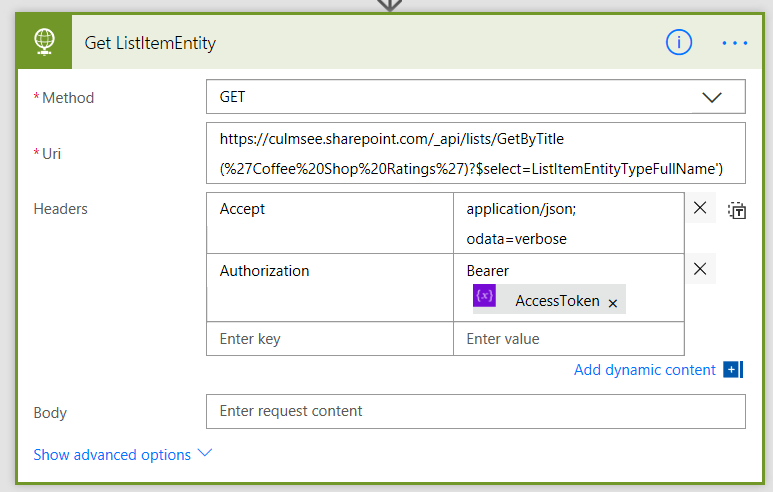
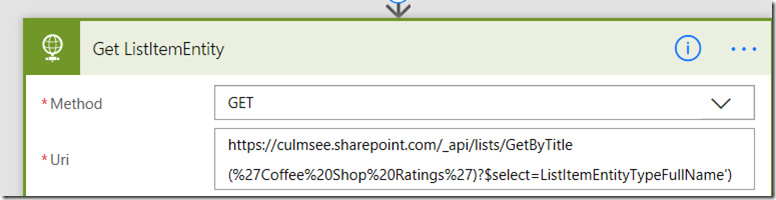
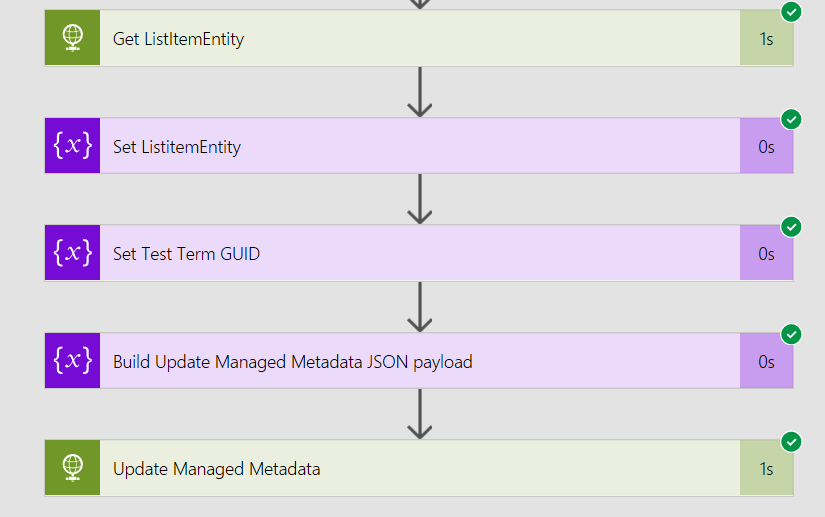
1. Picking up from where we last left off, add a HTTP action. Rename it to “Get ListItemEntity”, set it to a GET, and set the URL to:

https://<your site collection>/_api/lists/GetByTitle(%27Coffee%20Shop%20Ratings%27)?$select=ListItemEntityTypeFullName')

in my example the site collection is:

https://culmsee.sharepoint.com/_api/lists/GetByTitle(%27Coffee%20Shop%20Ratings%27)?$select=ListItemEntityTypeFullName')

Check the URL carefully. You can see that I am using the $select to only bring back the property we are interested in… ListItemEntityTypeFullName. Also note that I have encoded the spaces in the list, I.e. ‘Coffee Shop Ratings’ has now become ‘Coffee%20Shop%20Ratings’.
image

2. In the headers section of the request, add:

  • a key called Accept, with a value of application/json; odata=verbose
  • a key called Authorization, with a value of “Bearer “ and then the AccessToken variable from the Dynamic Content panel…
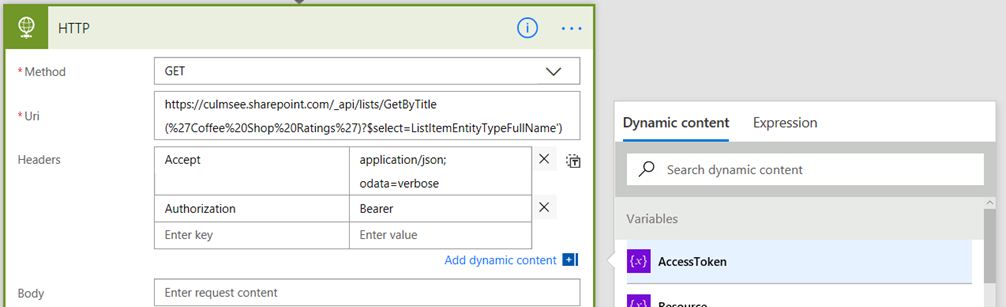
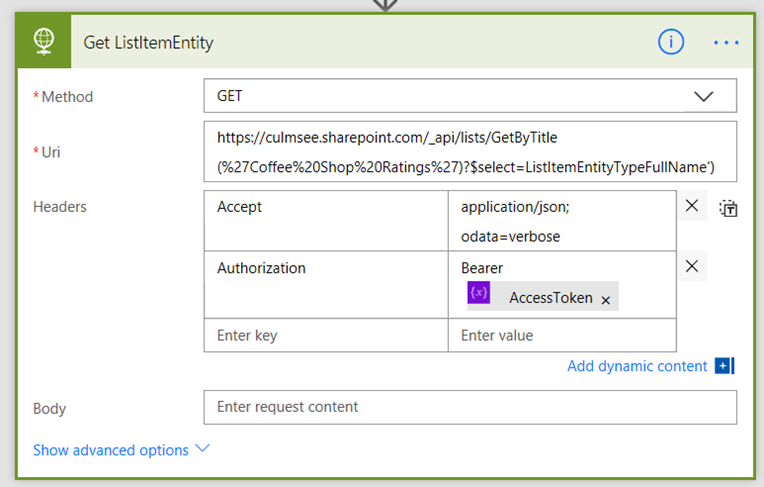
image

image

Now before we get to the final bit, we have another minor theory interlude. The output of the web service you just created follows a particular structure. An example output is below and I have highlighted the bit we need.
{"d": 
   {"__metadata":
     { "id": <url>,
     "uri": <url>,
     "etag":"id",
     "type":"SP.List"
   },
   "ListItemEntityTypeFullName":"SP.Data.Coffee_x0020_Shop_x0020_RatingsListItem"
   }
}

This means we will need to parse this output and just grab the ListItemEntityTypeFull name parameter. The expression in Flow to do this will be:

actionBody(<Name of the workflow action you just created>)['d']['ListItemEntityTypeFullName']

So using my tenant, the expression is:

actionBody('Get_ListItemEntity')['d']['ListItemEntityTypeFullName']

Note: if you want to know more about these expressions, this is the place to go…

So with that bit of context, lets continue…

3. Add an Initialize Variable action and rename it to “Set ListitemEntity”. Name the variable ListitemEntity and make it a string. In the value, use the expression builder and use the expression I outlined above:

image

The final task…

Now we get to the final and most mind-bending piece of the puzzle. It is time to build the JSON payload that we will POST to SharePoint to update the managed metadata column. Let’s begin this bit with the end-in-mind and work back.

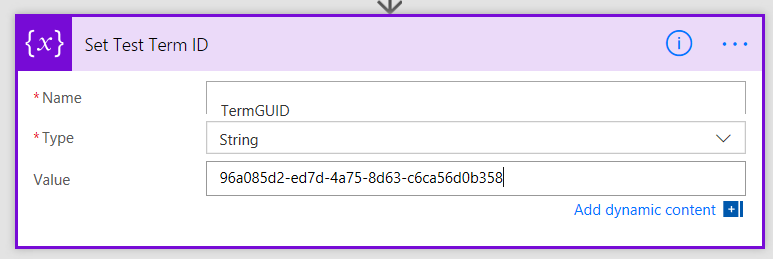
First up, we need to make a variable to store the Term ID that we will write to managed metadata. This eventually come from PowerApps, but right now we need to test so we will hard code a term.

1. Add an Initialise Variable action and name it “Set Test Term ID”. Call the variable TermGuid and make it a string. Set the value to any term in your managed metadata term set that the Beans column is using. In my case, the GUID 96a085d2-ed7d-4a75-8d63-c6ca56d0b358 refers to the term “Fiori”.
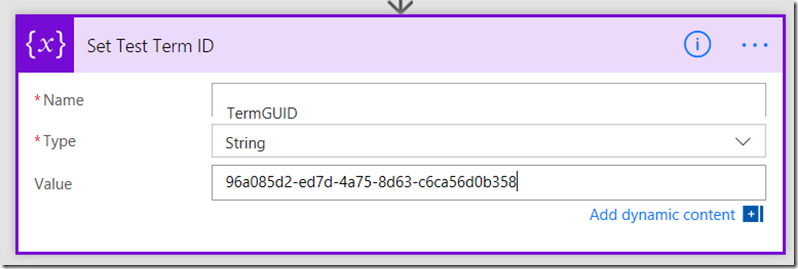
image

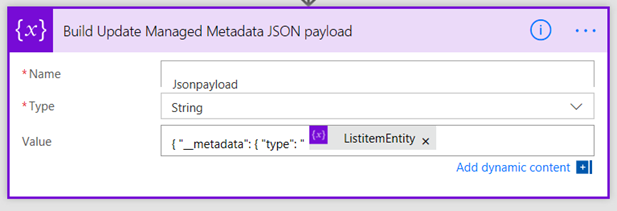
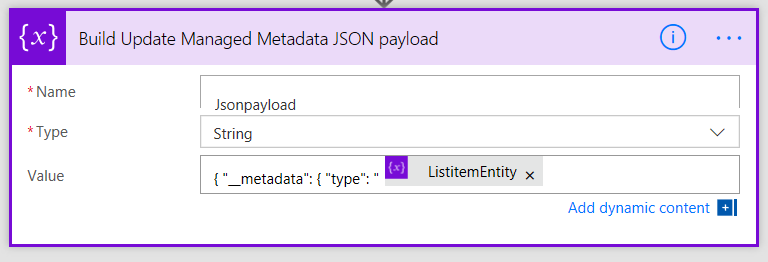
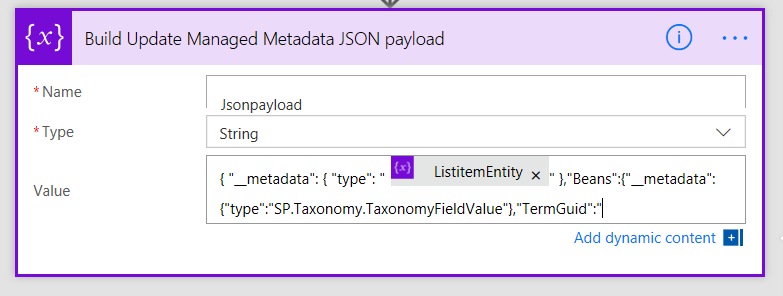
2. Add an Initialise Variable action and name it “Build Update Managed Metadata JSON payload”. Call the variable JsonPayload and make it a string. In the value field, type in

{ "__metadata": { "type": "'

…and then add the variable ListItemEntity from the Dynamic Content tab.

image

image

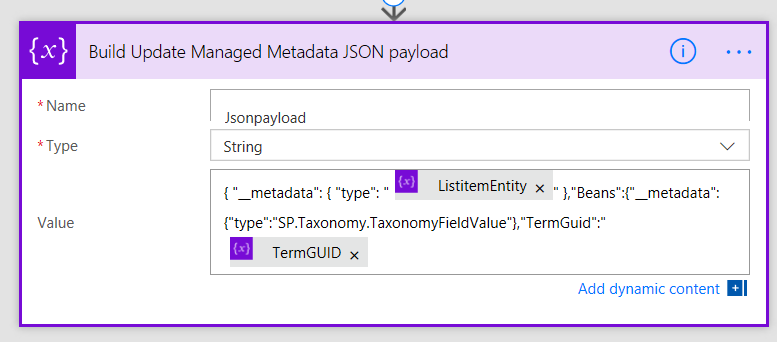
3. Next append the following text to the value…

" },"Beans":{"__metadata":{"type":"SP.Taxonomy.TaxonomyFieldValue"},"TermGuid":"
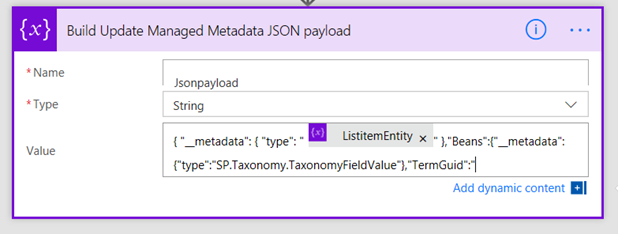
image

4. From the Dynamic Content tab, insert the TermGUID variable that you created in step 1
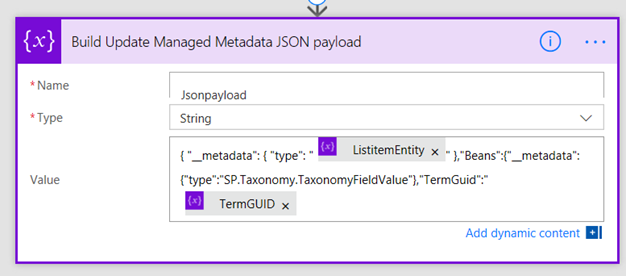
image

5. Next append the following text to the value…

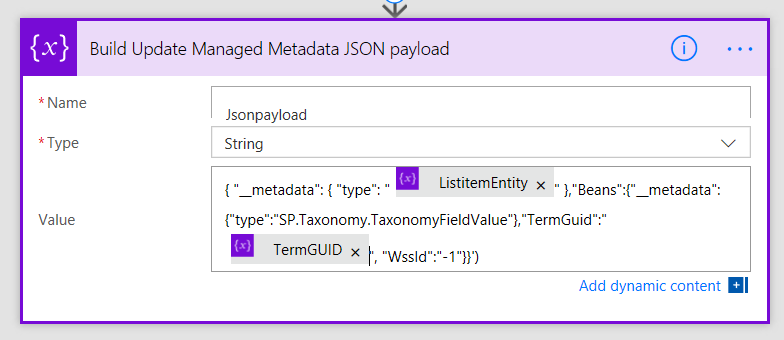
", "WssId":"-1"}}
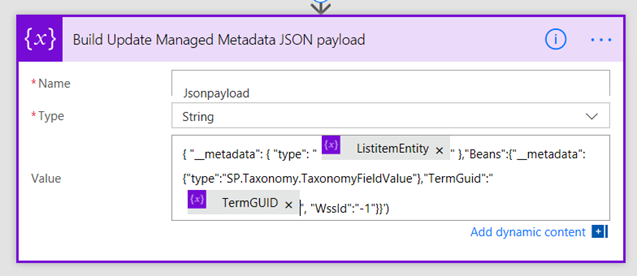
image

This completes the JSON payload that will update the managed metadata column. To recap, it has built the following string which is entirely consistent with the theory at the start of this article.

{ "__metadata": { "type": "SP.Data.Coffee_x0020_Shop_x0020_RatingsListItem" },
   "Beans":
     {"__metadata":{"type":"SP.Taxonomy.TaxonomyFieldValue"},
     "TermGuid":"96a085d2-ed7d-4a75-8d63-c6ca56d0b358",
     "WssId":"-1"
   }
}

Now bear in mind this payload is a string and not in JSON format yet. We will take care of that in the final HTTP call.

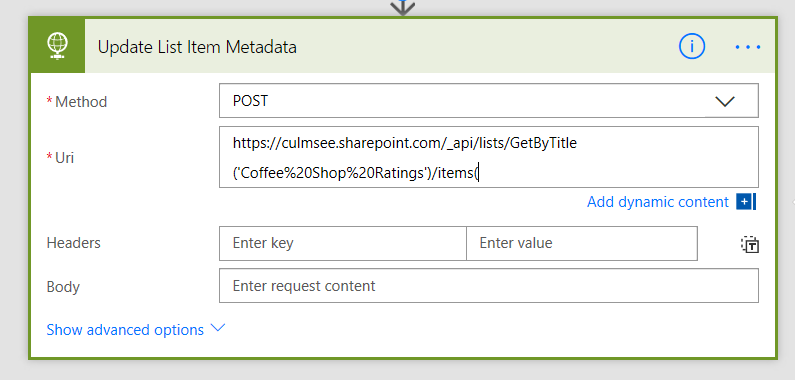
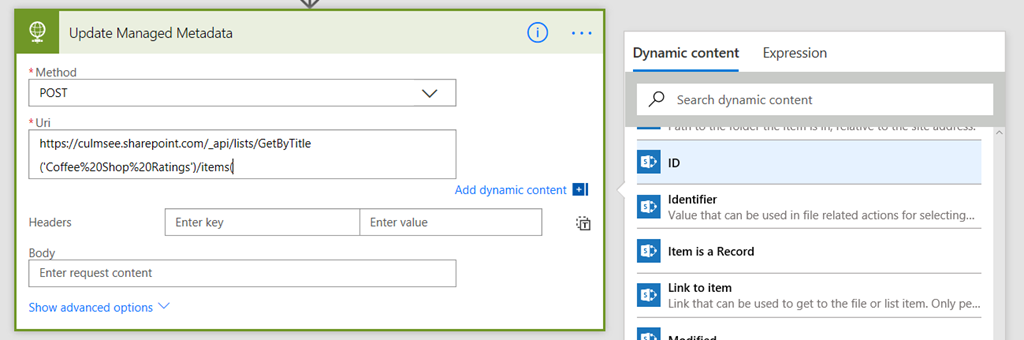
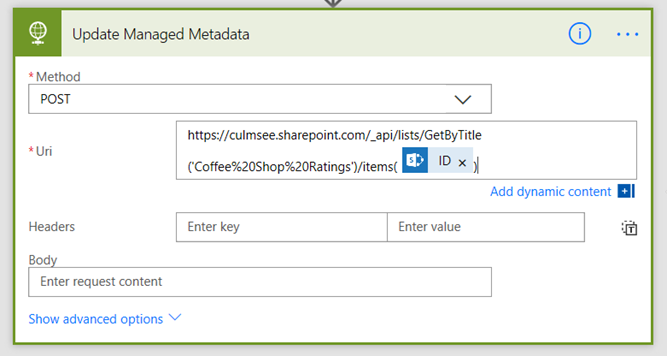
6. Add a HTTP action, name it “Update Managed Metadata” and set the method to POST. In the URL field, enter the following:

https://culmsee.sharepoint.com/_api/lists/GetByTitle('Coffee%20Shop%20Ratings')/items(
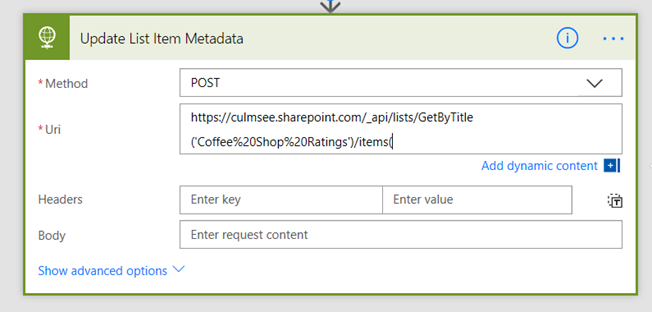
image

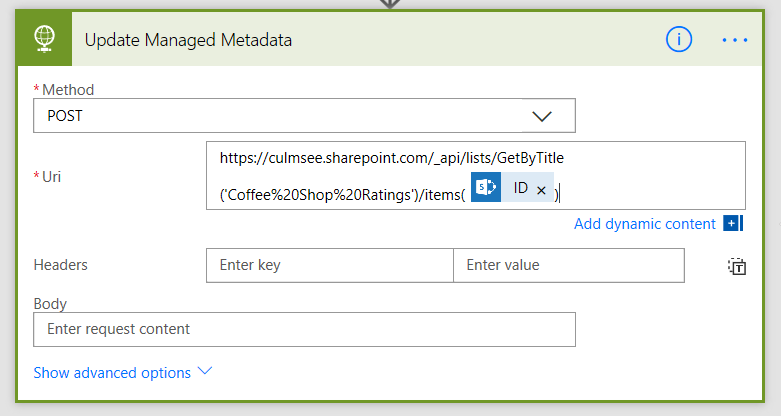
7. From the Dynamic content menu, find the CoffeePlace content, find and insert the ID field and then add a close bracket to the end…
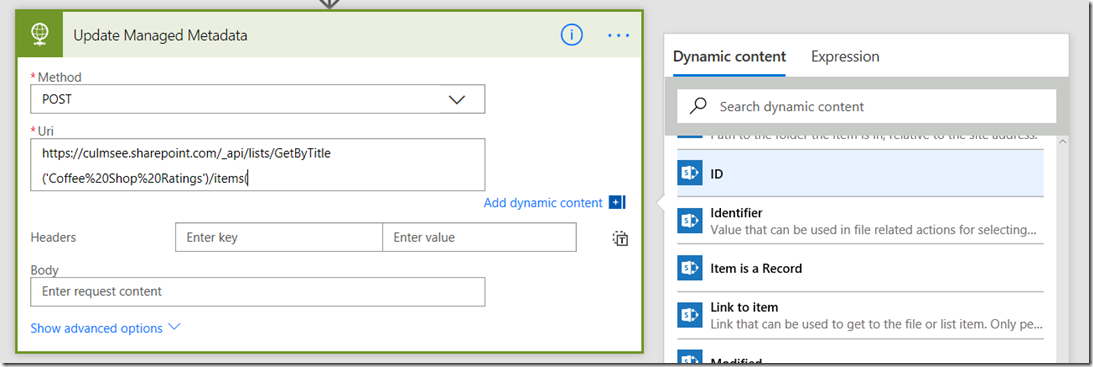
image

image

In case you are wondering, we already know the ID of the newly created coffee shop entry because of the SharePoint – Create Item action that we created way back in part 1. Fortunately for us, that action returns the ID of the newly created item, making it easy for us to specify it in our API call. Neat eh?

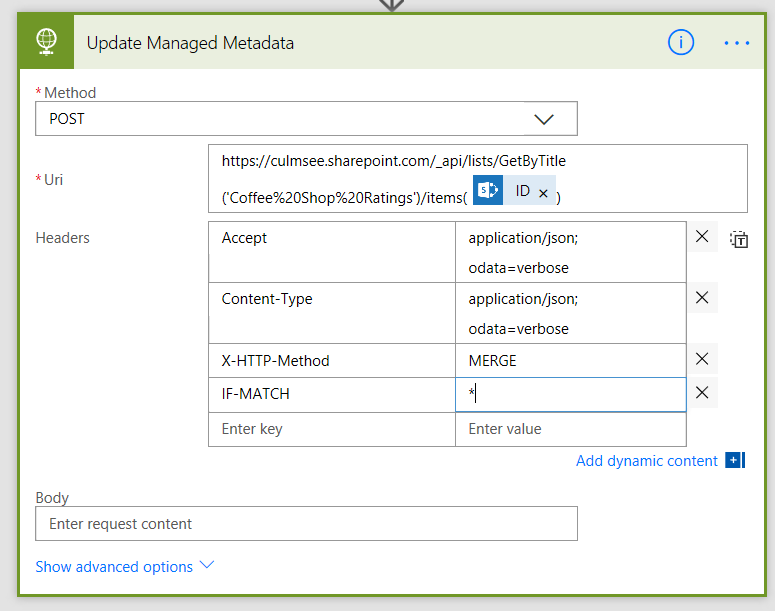
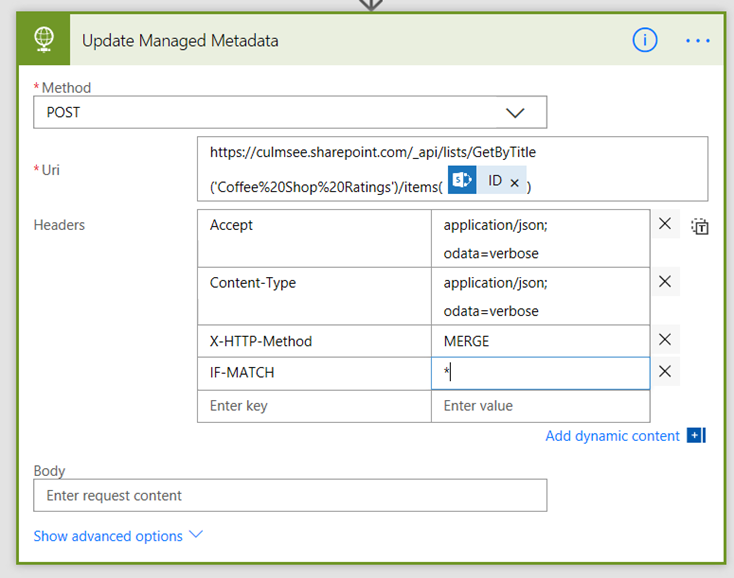
8. In the headers section, add an entry for each of the headers I described earlier in this article, namely:

  • IF-MATCH: etag or “*”
  • X-HTTP-Method:”MERGE”
  • accept: “application/json;odata=verbose”
  • content-type: “application/json;odata=verbose”
image

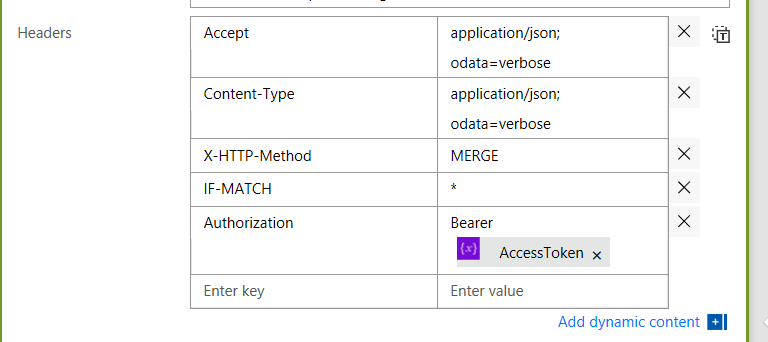
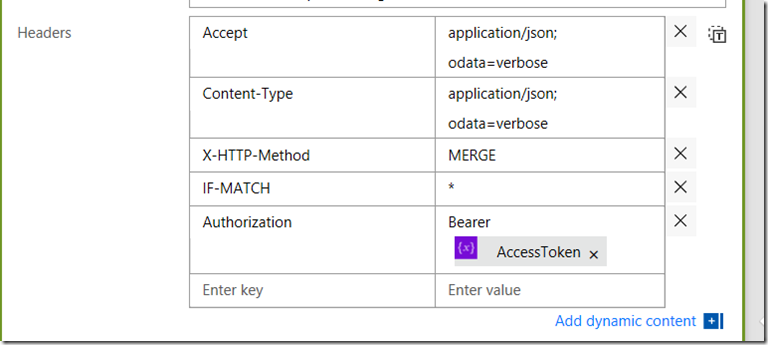
9. Now let’s add the access token that took up the bulk of part 2. In the headers, add a key called Authorize and in the value, type in:

“Bearer “ (showing quotes to illustrate a space on the end)

Then insert the variable AccessToken from the dynamic content pane…
image

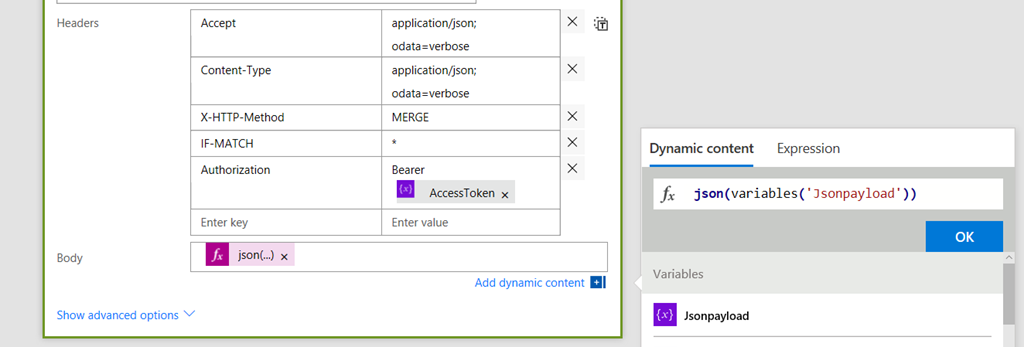
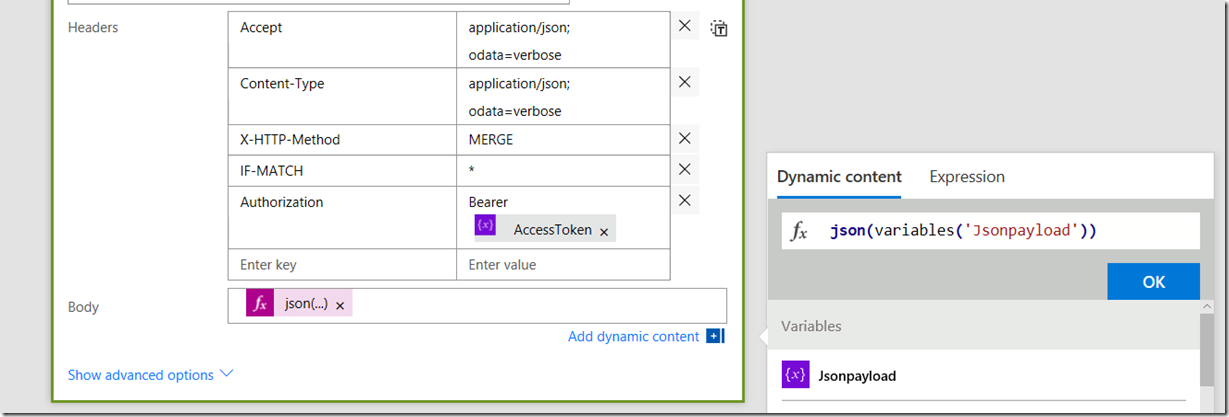
10. Finally, let’s convert our payload to JSON and send it off. In the Body field, use the expression builder and enter the following:

json(variables('Jsonpayload'))
image

Are you ready???

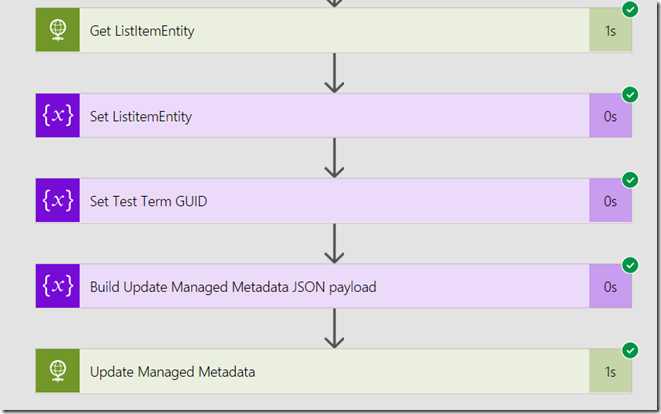
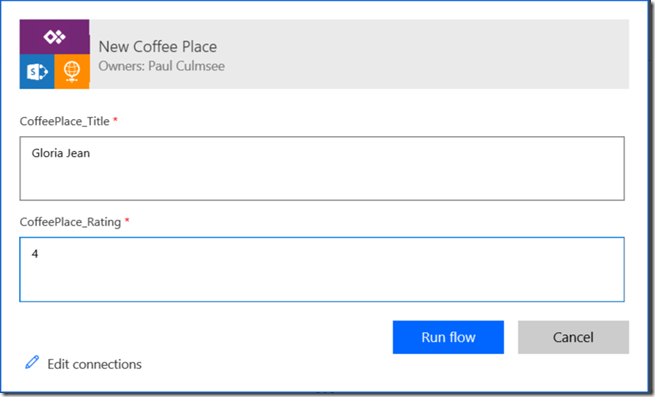
Okay, so we have wired everything up. Save the workflow and either submit a new entry via PowerApps or use the Run Now function in Flow. If all things go to plan, you should see a bunch of green. In the screenshot below, I ran from Flow and added a title and rating (no metadata of course because we are not asking PowerApps for it.
image

After running the workflow I see green goodness Smile

image

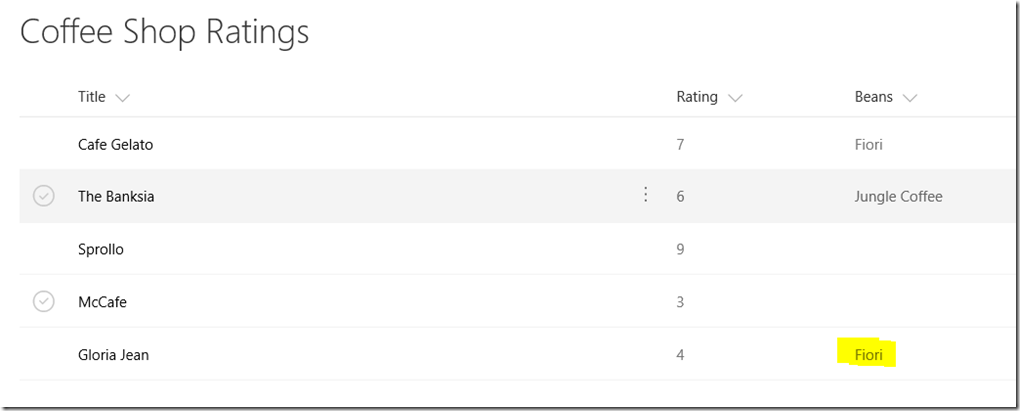
Now let’s check SharePoint for the evidence… Yeah baby!!!
image

Conclusion

Okay so that was quite an effort. If you have stuck with me through this, well done! Messing with JSON payloads and web services is bloody fiddly, but I have to say that understanding app principals and the SharePoint API is very useful knowledge.

You will be pleased to know that at this point the worst is over. In the next post we will return to PowerApps and set it up to send the term set item to flow, so it is not hard-coded like it is now. We will also discuss some weaknesses and limitations with this approach and look at ways we can make this whole thing a bit more resilient.

Until then, thanks for reading…

Paul Culmsee


PowerApps, Flow and Managed Metadata fields–part 2

Hi and welcome to part 2 of my series on showcasing the utility of Flow. Specifically, we are updating managed metadata fields – which is something that neither PowerApps or Flow can do natively as I type this. Having said that, if you are reading this in 2018 and beyond, it is likely this post is out of date the the gap has been addressed. Nevertheless, there are lots of good nuggets of info in this series that actually go beyond this particular use-case and will arm you with the knowledge to use Flow in all sorts of interesting ways.

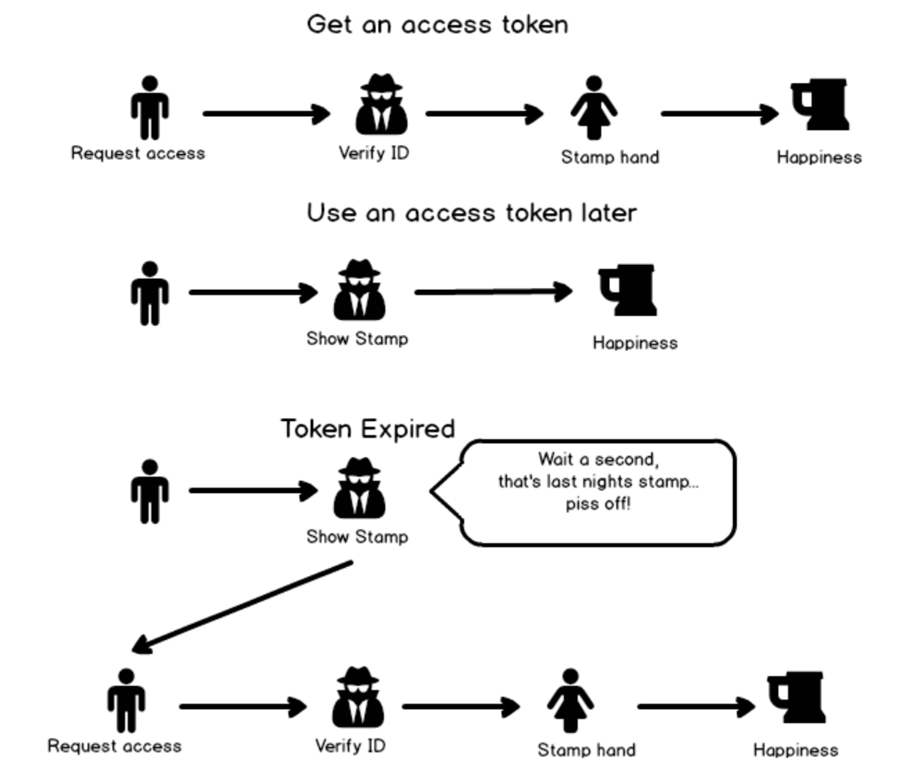
At the end of our last exciting instalment, we had created an app principal, a flow and a powerapp. In this post we are going to focus on the first of the three – the app principal. Recall my analogy from part 1 where I described how the type of oAuth we are using is roughly analogous to getting into a nightclub. Basically our flow is like someone waiting in line to get into the club. Once they get past the bouncer at the door and pay the entrance fee, they are stamped so that they can enter and exit the club as they please, without having to wait in line and pay the entrance fee all over again. The stamp is temporary though, so if the patron returns the next night they will have to show their ID all over again and pay up.

The following diagram illustrates the idea…

image

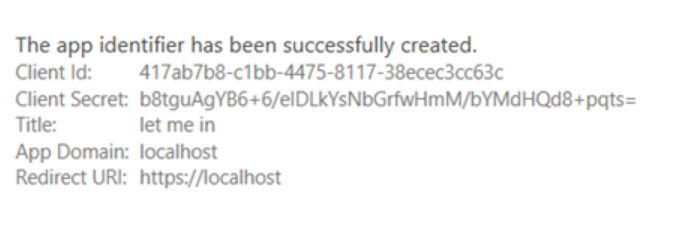
In the last post, we registered an application principal. It looked like this:

image

This is what our virtual doorman is going to use to verify who we are. Our “dooman” is actually a Microsoft API sitting in Azure named https://accounts.accesscontrol.windows.net and not only will we need the Client ID and Client Secret from the app principal, but he also wants to know which Office365 tenant that we belong to. For that, we need the Office365 tenant ID, so let’s go get it.

Getting the Tenant ID (and other bits)…

As Microsoft states, “Your Office 365 tenant ID is a globally unique identifier (GUID) that is different than your tenant name or domain. On rare occasion, you might need this identifier, such as when configuring Windows group policy for OneDrive for Business”.

Guess what – this is one of those rare occasions.

To find the ID, either use one of the methods specified in this article, or go back to your site collection and append /_layouts/15/appprincipals.aspx. This URL will display your registered apps and also display your tenant ID (highlighted yellow below).

image

Now that we have a Client ID, Client Secret and Tenant ID, we can look at what a request to the doorman known as https://accounts.accesscontrol.windows.net actually looks like…

First up we need to add the tenant ID to the URL. E.g. https://accounts.accesscontrol.windows.net/[Tenant ID]/tokens/OAuth/2 where [TenantID] is replaced with your actual tenant ID we just discussed.

The second requirement is to send a payload of data to that URL via a HTTP POST. In the header of the post, we set a parameter called Content-Type to a value of application/x-www-form-urlencoded. This tells the web service to expect the rest of the data we send to be in a single string where name/value pairs are separated by the ampersand (&), and names are separated from values by the equals symbol (=). Trust me this will make sense in a moment…

Inside the payload, our doorman is expecting the following parameters:

  • grant_type – this is where we specify the type of oAuth request we are making. As discussed in part 1, we are using the Client Credentials approach, so the value will be: “client_credentials”.
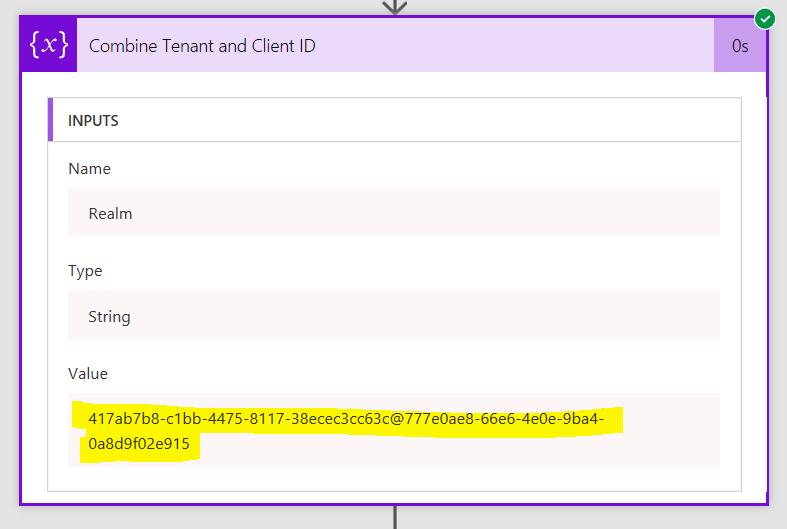
  • client_id – this is actually a combination of the client id and tenant id. eg: “417ab7b8-c1bb-4475-8117-38ecec3cc63c@777e0ae8-66e6-4e0e-9ba4-0a8d9f02e915”
  • client_secret – exactly as specified in the app principal
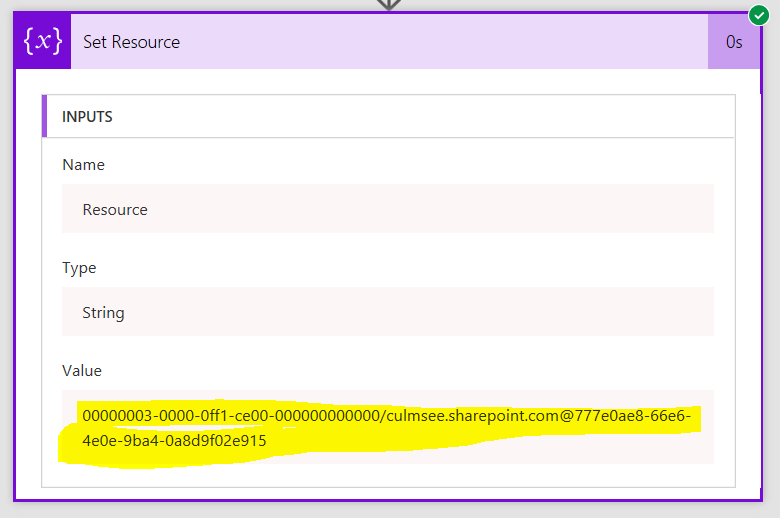
  • resource – this specifies the actual data the access token is intended for. It is a combination of “00000003-0000-0ff1-ce00-000000000000” which is the ID for SharePoint within Office365, then it has the domain name of your tenant, followed by the tenant ID. Eg: “00000003-0000-0ff1-ce00-000000000000/culmsee.sharepoint.com@777e0ae8-66e6-4e0e-9ba4-0a8d9f02e915”

If we supply these parameters correctly, the service will return a data structure that contains various parameters. The only one we need is called access_token, which is highlighted below.

{

   "token_type":"Bearer",

   "expires_in":"3599",

   "not_before":"1507958657",

   "expires_on":"1507962557",

   "resource": “…”,

       "access_token":"…"

}

Our first few flow steps will create variables to store the parameters we need, and then we will try to get past our virtual doorman with a correctly formed HTTP request.

Back to Flow…

Let’s reopen the flow we created in part 1. It should have a trigger and one action – the create item action used to write the new coffee stop to SharePoint.

image

1. Add a new action and choose Variables – Initialize Variable. Call the Variable ClientID, make it a string and set its value to the client ID from the application principal. Also rename it to Set Client ID.

image

2. Add a second initialize variable action. Call this variable ClientSecret, make it a string and set its value to the Client Secret from the application principal. Rename it to Set Client Secret

image

Note: If the client secret has symbols in it like a +, you will see the following error:

Error validating credentials. AADSTS50012: Invalid client secret is provided. error_codes”:[70002,50012]

This error occurs because we need to encode the key to account for these characters. Use an expression and call the function encodeUriComponent. E.g.

encodeUriComponent(‘xxxxxxxxxxxxxxxxxxxxxxxxxxxxxx+xxxxxxxxxxxxx’)

3. Add a third initialize variable action. Call this variable TenantID, make it a string and set its value to the tenant ID you obtained in the last section. Rename it to Set Tenant ID

image
As described above, we need to take the client ID and tenant ID and join them together to get our access token. So we will make a new variable that is a combination of the existing ones…

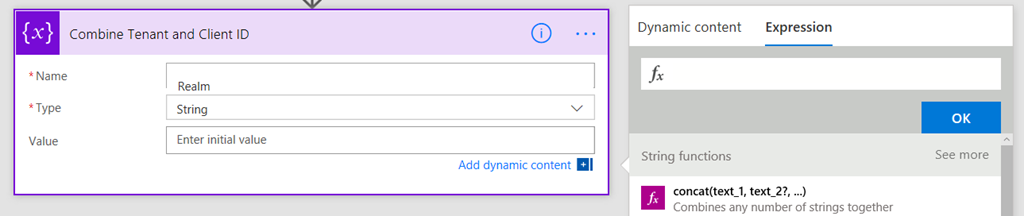
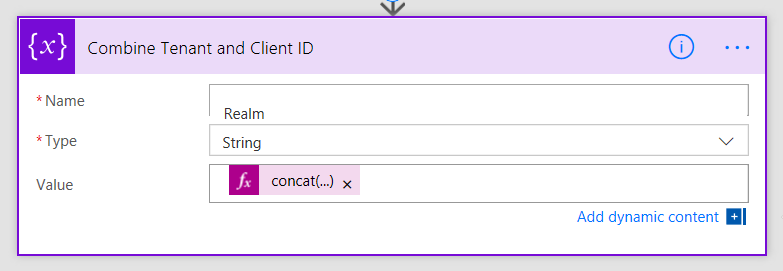
4. Add a fourth initialize variable. Rename it to Combine Tenant and Client ID. Call this variable Realm and make it a string. This time though, instead of typing in a value, click the expression tab to the right.

image

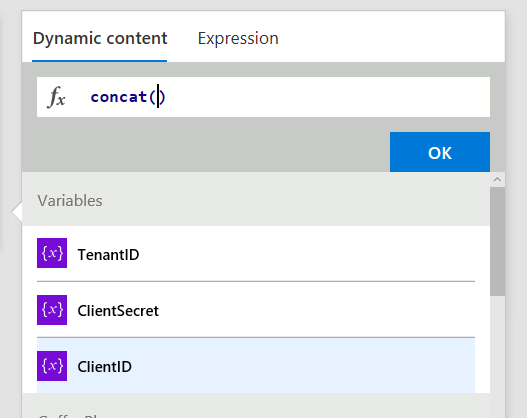
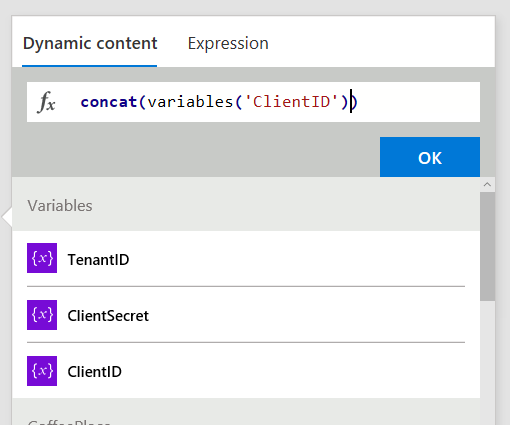
Now follow this section carefully as the UI is not obvious here. First type in concat() and place your cursor inside the two brackets. Then click on the “Dynamic content” tab and click the ClientID variable you created in a step 1. If you did it right, the concat function will now have a reference to that variable as shown in the 3rd image below.

image

image  image

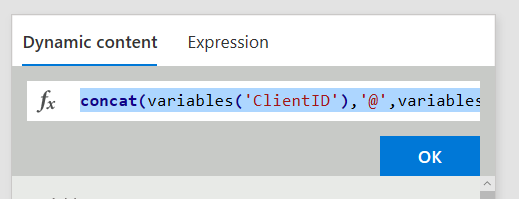
Now type in ,‘@’, exactly as shown below (include the single quote)…

image

Finally, click on the Dynamic content tab and click the TenantID variable you created in a step 3. If you did it right, the concat function will now have a reference to that variable as shown below.

image

For reference, the expression should look like this:

  • concat(variables(‘ClientID’),’@’,variables(‘TenantID’))

Click ok and the value in the step will look like the image below:

image

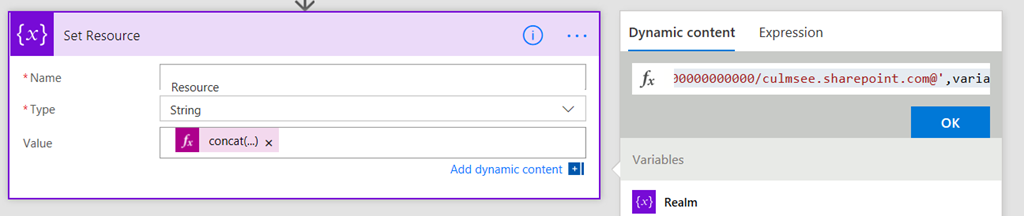
5. Add a fifth initialize variable. Rename it to Set Resource. Call this variable Resource and make it a string. using a similar approach to step 4, add the expression as follows:

  • concat(‘00000003-0000-0ff1-ce00-000000000000/<tenant name>.sharepoint.com@’,variables(‘TenantID’))

Make sure you replace <tenant name> with the name of your tenant. I.e. mine is culmsee.sharepoint.com, resulting in:

  • concat(‘00000003-0000-0ff1-ce00-000000000000/culmsee.sharepoint.com@’,variables(‘TenantID’))

image

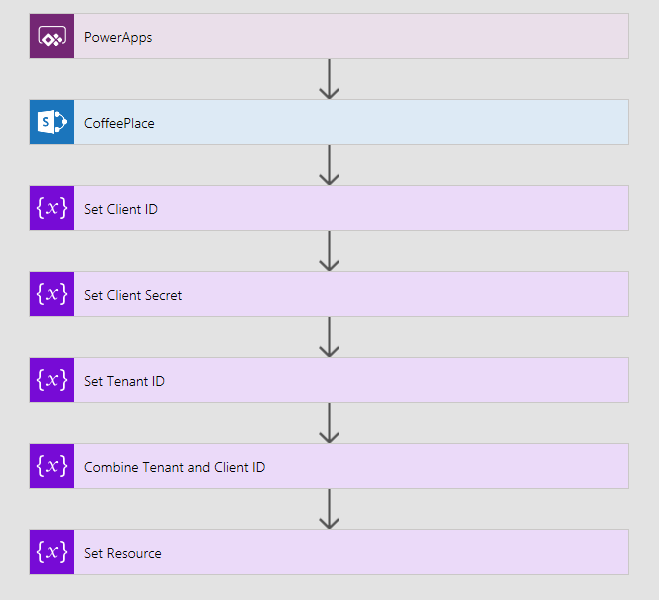
At this point your workflow should look like this:

image

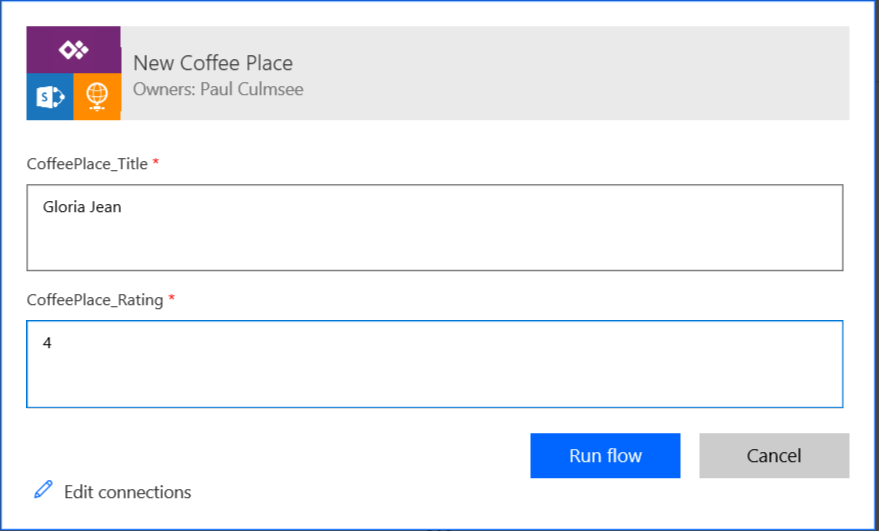
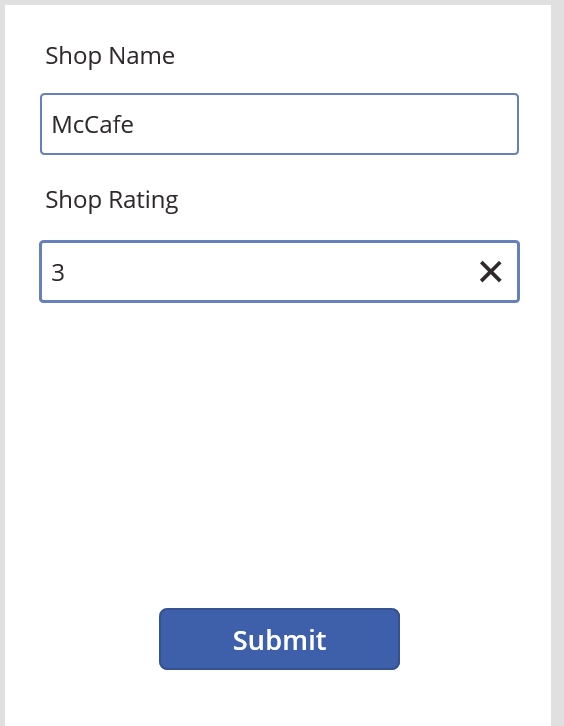
Let’s do a quick test and see if things are working as we expect. Go back to PowerApps and add a new café… eg:

image

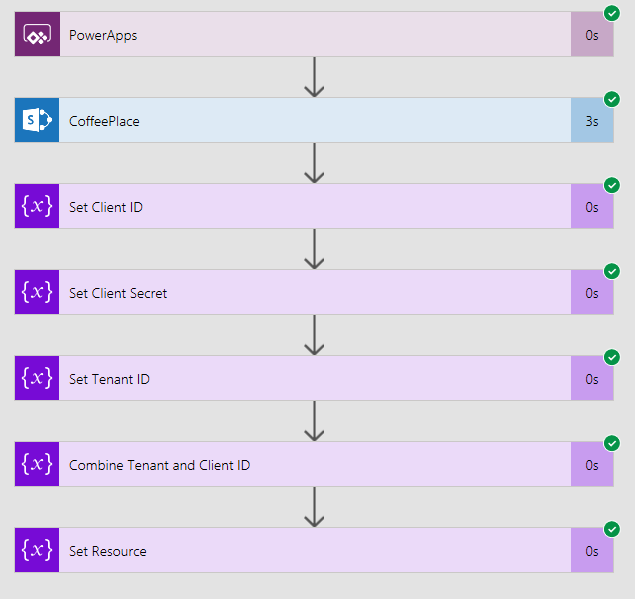
In flow, check the history to confirm things ran successfully… lots of green ticks will be there if you got things right…

image

In particular, make sure the last two actions worked. Click on them and check the output to ensure your concat expressions worked as expected.

image   image

Getting the token…

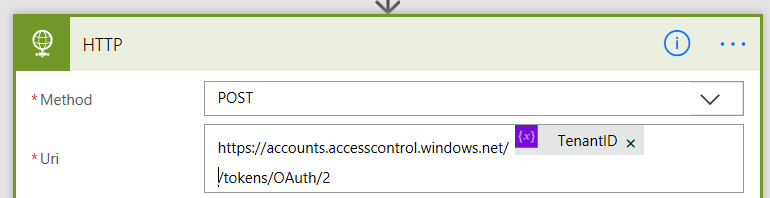
Now it’s time to craft the HTTP action that will get our access token. As a reminder, the URL is actually: https://accounts.accesscontrol.windows.net/[Tenant ID]/tokens/OAuth/2. Our POST to this URL will supply grant_type, client_id, client_secret and resource. Let’s get this done!

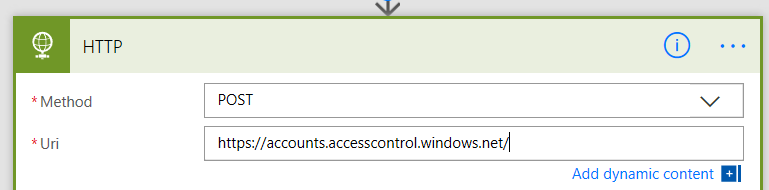
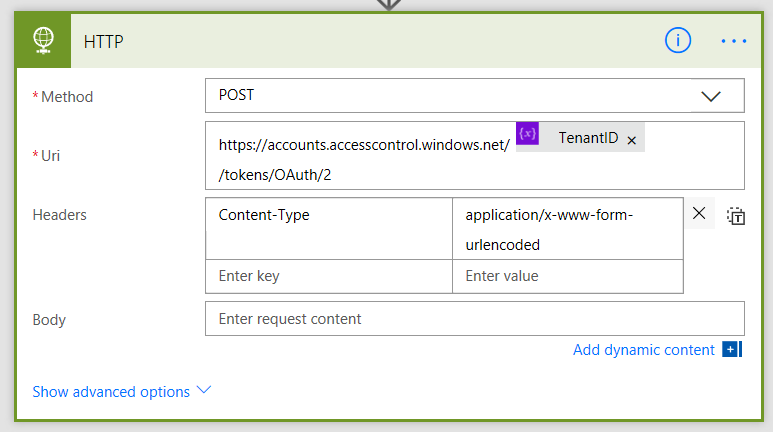
1. Add a HTTP action and set the Method to POST. In the URL field, type https://accounts.accesscontrol.windows.net/

image

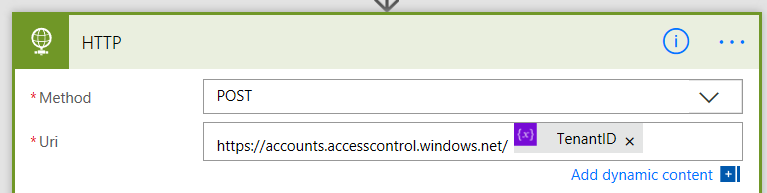
2. Click Add dynamic content and add the TenantID variable

image

3. Finish the URL by typing in /tokens/OAuth/2. You now have the URL ready to go.

image

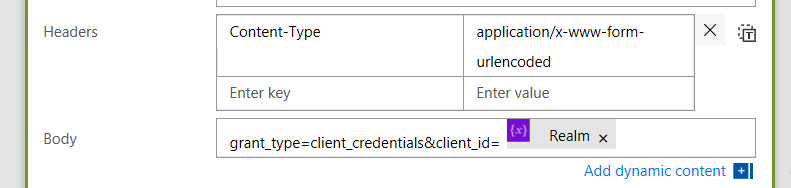
4. In the header section, add a key called Content-Type with a value of application/x-www-form-urlencoded

image

5. In the body section, add the text grant_type=client_credentials&client_id=. From the dynamic content menu, add the Realm variable.

image

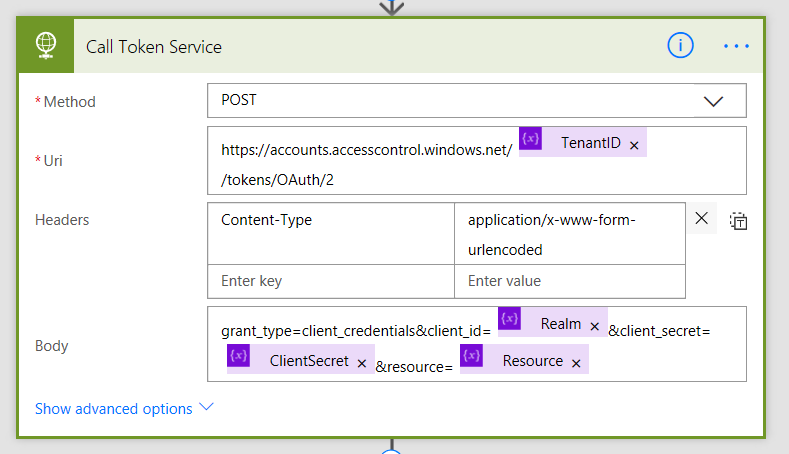
6. Add the text &client_secret=. From the dynamic content menu, add the ClientSecret variable.

image

7. Add the text &resource=. From the dynamic content menu, add the Resource variable.

image

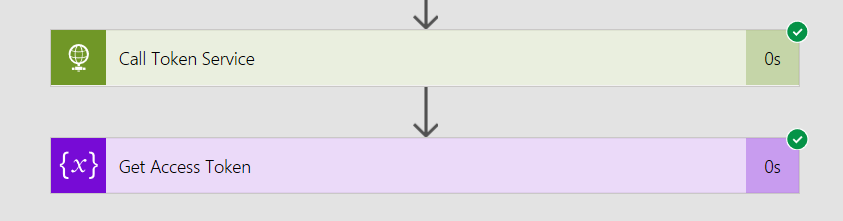
8. Finally, rename the action to Call Token Service. Your action should look like the following:

image

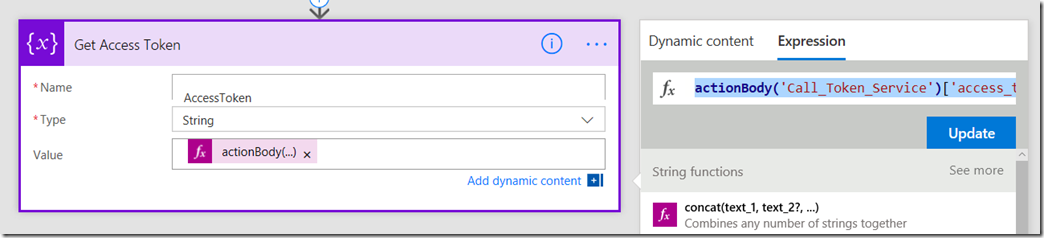
9. Add a new initialize variable action. Call this variable AccessToken and make it a string. Rename the action to “Get Access Token”. Click the expression tab to the right and enter the following expression…

actionBody(<Name of your HTTP Action>’)[‘access_token’] – eg: actionBody(‘Call_Token_Service’)[‘access_token’]

This basically says to flow “Take the body text that came back from the HTTP step and pull out just the parameter called “access_token”

image

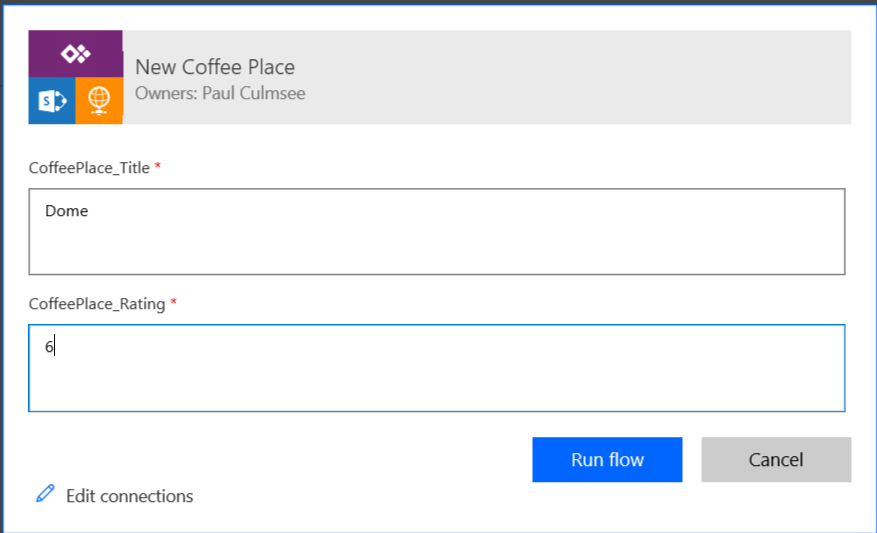
10. Finally, save the flow and submit another coffee place review, either via PowerApps, or by clicking the Run Now button in flow. Flow will ask for the same parameters that it expects from PowerApps.

image

In the debug of the flow, check the HTTP task and ensure it has a green tick.

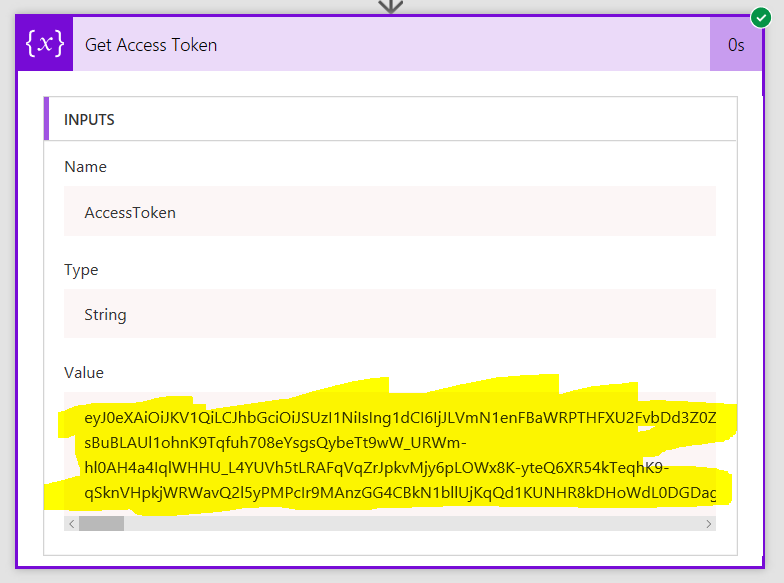
Note: Setting all this up us tricky, so take your time, check everything and above all, DO NOT PROGRESS UNTIL YOU HAVE A GREEN TICK! If you do, examine the output of the Get Access Token. If everything has worked, you should see a string that looks like the second image below…

image

image

Conclusion:

If you have made it this far, congratulations! You have just done something quite tricky and usually the realm of developers. In terms of the breakdown of work we need to do, we have now progressed quite far…

In the next post, we are going to use the access token to call the SharePoint API that allows us to update Managed metadata.

In the meantime, thanks for reading and I hope these articles are starting to make this whole process a little less mysterious…

Paul Culmsee


Trials or tribulation? Inside SharePoint 2013 workflows–Part 8

Hi and welcome to part 8 of my series of articles around SharePoint 2013 workflows. Hopefully as you progress through this series, as well as getting a heap of new conceptual baggage, you are getting a better sense of that SharePoint 2013 workflows are capable of and whether they have enough to be a seriously considered solution and whether they can empower citizen developers.

If you have been following proceedings thus far, we just successfully connected to the Process Owners list via REST web services and we manipulated dictionary variables to get to the data returned by the web service. We just started using the looping functionality of SharePoint 2013 workflow and successfully created a loop to iterate through the process owners list.

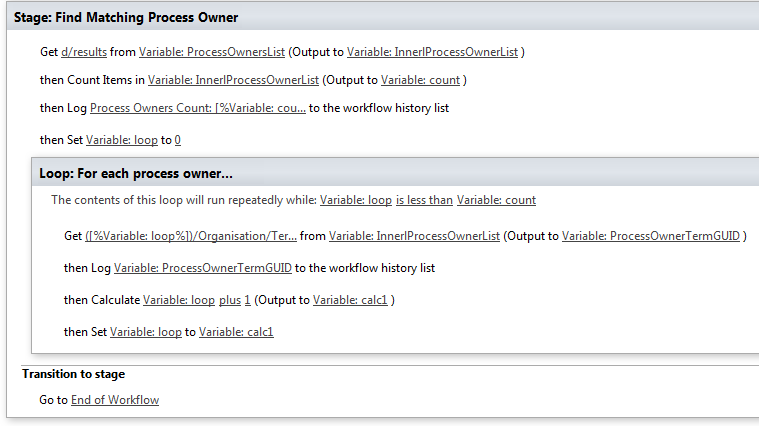
Now it’s time to finish the job. Here is the stage that we successfully tested at the end of the last post…

image

Adding conditional logic…

Our next task is to add some conditional logic into the workflow where if a match is found between term GUID’s, stop looping through the rest of the process owners. This will make the workflow more efficient because if the process owners list was big and the matching term GUID was one of the first few entries, we can save a lot of unnecessary loops.

Step 1:

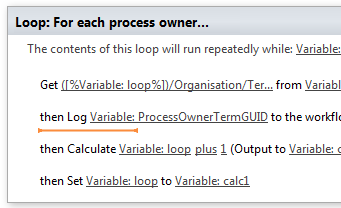
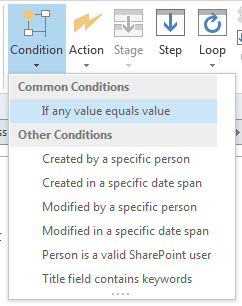
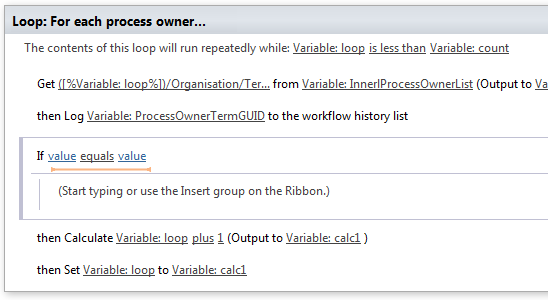
Click in between the second and third workflow actions in the loop. From the ribbon, click the Condition icon and from the list of conditions, choose If any value equals value.

image  image  image

Now back in part 6, in the “Getting the GUID…” section, we added a series of steps to extract the Term GUID from the current item. The variable was called TermGUID. Now we are going to compare the TermGUID with each of the GUID’s returned by each iteration of the loop.

Step 2:

Click on the leftmost value hyperlink of the If statement and click the fx button. In the Define Workflow lookup dialog, choose Workflow Variables and Parameters as the Data source and choose the TermGUID variable in the Field from Source dropdown. Click OK

Step 3:

Click on the rightmost value hyperlink of the If statement and click the fx button. In the Define Workflow lookup dialog, choose Workflow Variables and Parameters as the Data source and choose the ProcessOwnerTermGUID variable in the Field from Source dropdown. Click OK

image

Now we have configured the test for when the Organsiation matches between a document and the process owner list. The next step is to get the value of the Assigned To column, since that has the username of the process owner for a given organisation. But If you review the web service call that was made to to the Process Owners list (http://megacorp/iso9001/_vti_bin/client.svc/web/lists/getbytitle(‘Process%20Owners’)/Items?$select=AssignedToId,Organisation), you might notice that I used the column name AssignedToId rather than the actual column name reported in SharePoint called Assigned To. So what gives?

Turns out that one of the current limitations of using the oData/REST approach is that columns that store People/Group data do not return the persons name. Instead, they return a numeric ID via a different column name. For example: the Created By and Modified By columns are represented in rest by AuthorId and EditorId respectively.

The implication? We will need to call yet another web service, passing it the value of AssignedToId to get the actual username so we can assign them a task.

“Oh come on,” I hear you say, “this is messy enough already and we still have to mess with web services?”

I feel your pain, but at least now you have more of an  idea of what it takes to be a citizen developer when it comes to SharePoint Designer 2013 workflows! Let’s get on with it…

Finding the user…

Our first step is to grab the value of AssignedToId from the InnerProceessOwnerList dictionary variable. This is similar to what we did to create the ProcessOwnerTermGUID variable in part 7 – we use a Get Item from a Dictionary action.

Step 1:

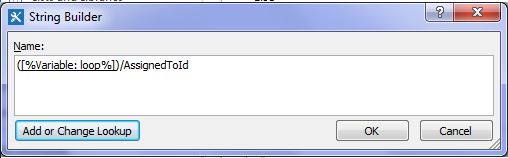
Add a Get an Item from a Dictionary action, click the item by name or path hyperlink and click the ellipses to bring up the string builder screen. Type in a left bracket “(“ and then click the Add or Change lookup button. In the Lookup for String dialog, choose Workflow Variables and Parameters as the data source and find the variable called loop  and click OK. Finally, type in the following string “)/AssignedToId” and click OK.

image

Step 2:

Back at the workflow action, click on the dictionary hyperlink and choose the InnerProcessOwnerList variable from the list.

Step 3:

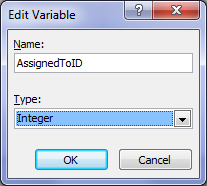
Click the item hyperlink and choose to create a new variable to bring up the edit variable screen. Name the variable AssignedToID and set its type to Integer.

image  image

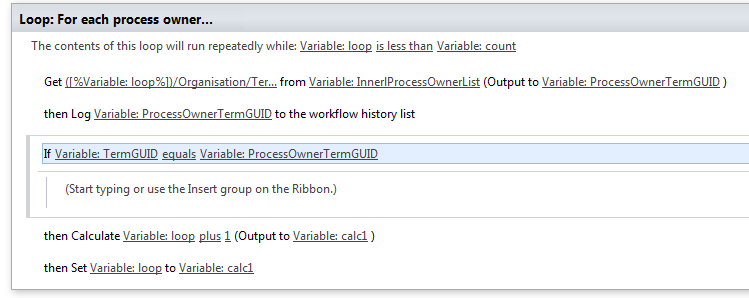
Now that we have our user (well an integer representing the user in the form of the variable AssignedToID), there is not much point in looping around for more process owners, so lets add a workflow step to make the loop end straight away.

Step 4:

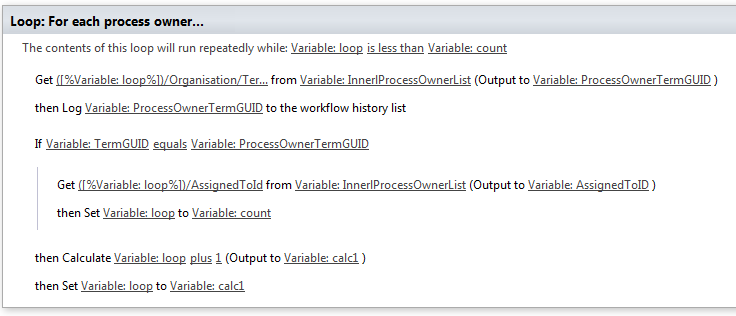
Add a Set Workflow Variable action and click on the workflow variable hyperlink. From the list of variables, choose loop. Now click the value hyperlink and click the fx button to bring up the Lookup for Integer dialog. In the Data source dropdown, choose Workflow Variables and Parameters and in the Field from source dropdown, choose the variable count.

To understand what step 4 does, let’s look at the entire loop. Note that the loop will run repeatedly while the value of the loop variable is less than the value of the count variable. Step 4 now means that this is not the case and the loop will end.

image

Next we have to grab the user that AssignedToId variable refers to via calling another web service as I previously mentioned. This is a little tricky, so it is best we do it in a new workflow stage. Thus, we will tidy up a few loose ends with this stage.

Step 5:

Add a new workflow stage and name it “Obtain UserID”.

Step 6:

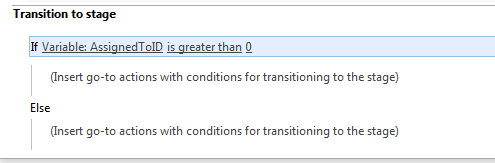
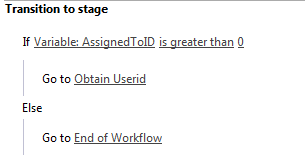
In the Transition to stage section of the Find Matching Process Owner stage, delete the Go to End of Workflow action and replace it with an If any Value equals Value condition. In the first value hyperlink, set it to the variable AssignedToID. Click the equals hyperlink and change it to is greater than. Finally, click the last value hyperlink and set it to zero “0”. The logic behind this workflow action is that the default value for integer variables are 0. If a process owner has been found for a document, the value of AssignedToID will be greater than zero. Therefore the workflow can use this fact when it decides whether to proceed to the new stage created in step 5.

image

Step 7:

Add a Go to a stage action underneath the If condition and set it to go to the Obtain Userid stage created in step 5.

Step 8:

Add a Go to a stage action underneath the Else condition and set it to End of Workflow.

image

A new web service…

Right, let’s now turn our attention to the Obtain Userid stage created in step 5 above. By now you should be a REST/JSON guru after being able to successfully connect to and parse the data from the Process Owners list in part 6 and part 7. By comparison, the web service method we are about to call is quite simple. It is called GetUserByID and the URL looks like this:

http://megacorp/iso9001/_api/Web/GetUserById().

The one thing we have to do is pass it an integer that refers to the user – value of the AssignedToID variable.

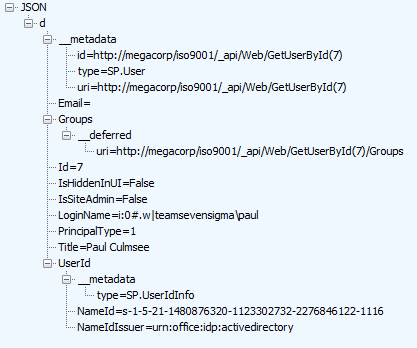
To demonstrate how this works, I will pick an ID at random and we can have a look at the data returned by this web service call. Using the Fiddler composer function to return the data in JSON format, we get the following output.

http://megacorp/iso9001/_api/Web/GetUserById(7)

image

A quick scan of the data above and it appears that the data we are interested in is LoginName. Based on what we learnt from accessing JSON data to get hold of the term GUID of the Organisation column, we will have to use the Get an Item from a Dictionary action, to get at the LoginName entry. The item reference should be d/LoginName, so let’s test it.

Step 1:

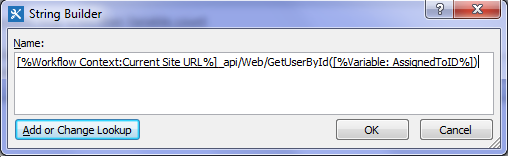
Add a Call HTTP Web Service action and click the this hyperlink. Click the ellipses button to display the string builder dialog. Use the Add or Change Lookup button and the text editor to build the following string:

  • 1) [Workflow context: Current Site URL]
  • 2) “_api/Web/GetUserById(“
  • 3) [%Workflow Variables and Parameters: AssignedToID%]
  • 4) “)”

image

Step 2:

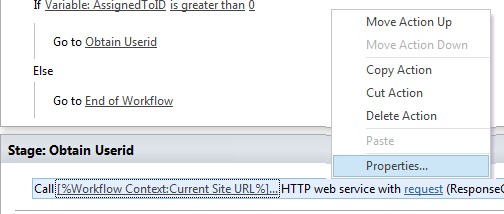
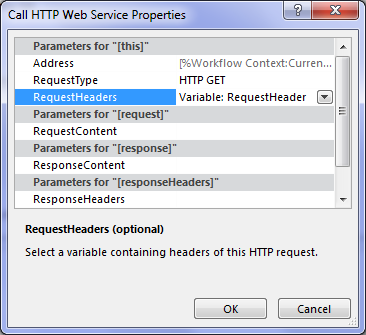
Right click on the Call HTTP Web Service action created in step 1 and choose properties. In the Call HTTP Web Service Properties dialog, set the RequestHeaders dropdown to the RequestHeader dictionary variable. (If you stretch your mind back to part 6, we created the RequestHeader variable to ensure our data comes back in JSON format. We can re-use that here to do the same thing).

image   image

Step 3:

On the Call HTTP Web Service action,  click the response hyperlink and create a new variable and call it UserDetail. Click the ResponseStatusCode hyperlink and choose the existing variable called responseCode. (It first made an appearance in part 6 and we can re-use it here).

image

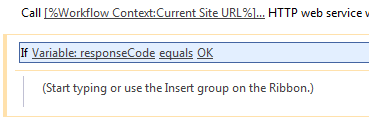
Step 4:

Add an If any value equals value condition and configure it to test of the variable responseCode equals OK

image

Step 5:

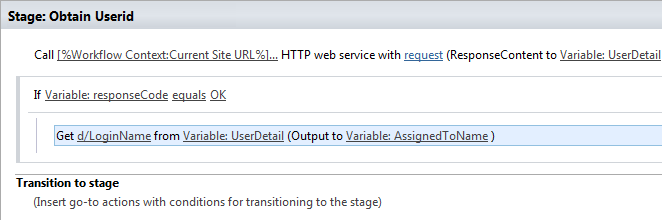
Add a Get an Item from a Dictionary action, click the item by name or path hyperlink and type in “d/LoginName”. Click the dictionary hyperlink and choose the UserDetail variable created in step 3. Click the item hyperlink and create a new string variable called AssignedToName.

image

At this point it makes sense to log the value of AsssignedToName to workflow history to make sure the have set everything up correctly.

Step 6:

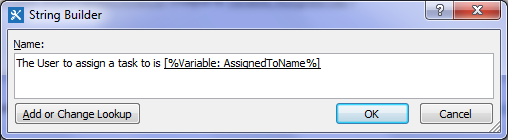
Add a Log to history action and set the message to: “The User to assign a task to is: [%Variable: AssignedToName%]”

image

Step 7:

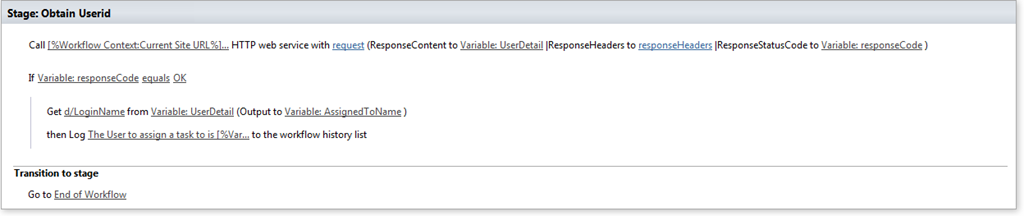
Add a Go to a stage action and set it to end the workflow. The complete configuration for the stage should look like the image below.

image

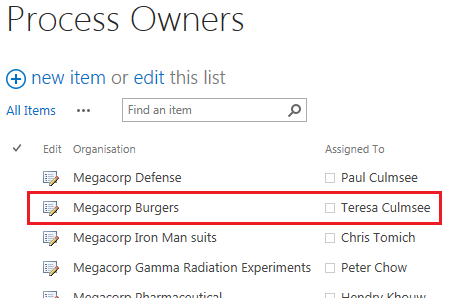
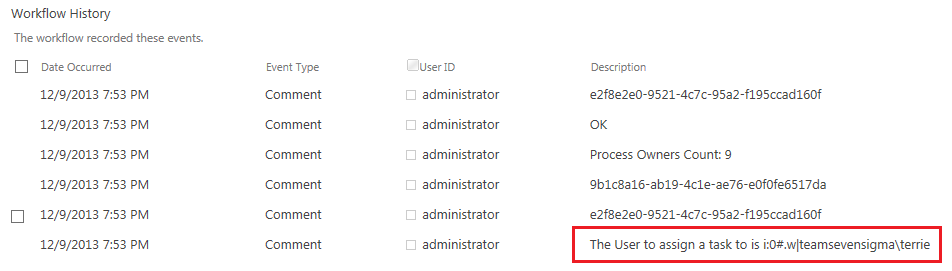
Now it’s time to test the workflow. In my case, I went back to the documents library and triggered the workflow on the document called Burger Additives Standard which is assigned to the organisation of Megacorp Burgers. Here is the result…

image  image

Wohoo! we have our user! If we check the process owners list for Megacorp Burgers on the left image above and compare it to the workflow history next to it, we can indeed confirm that the lookup reported is right. (In my test environment, the userid for Teresa Culmsee is teamsevensigma\terrie).

Assigning a task…

Now I think I speak for all of us when I say HOLY CRAP WE ARE ALMOST THERE!!!. I mean, it has taken 8 posts, but we have one more workflow action to add. Drumroll….the action that we started this series with way back in part 2.

Step 1:

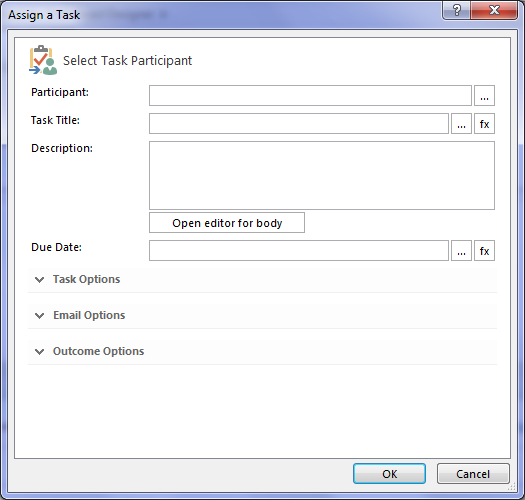
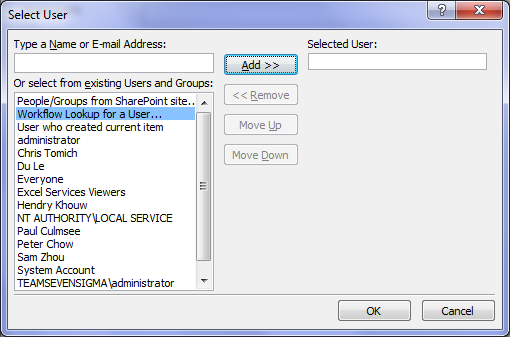
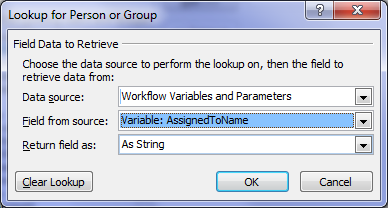
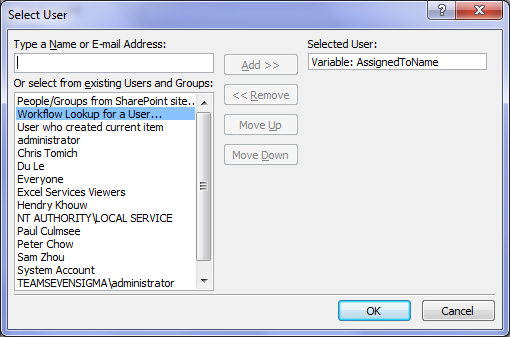
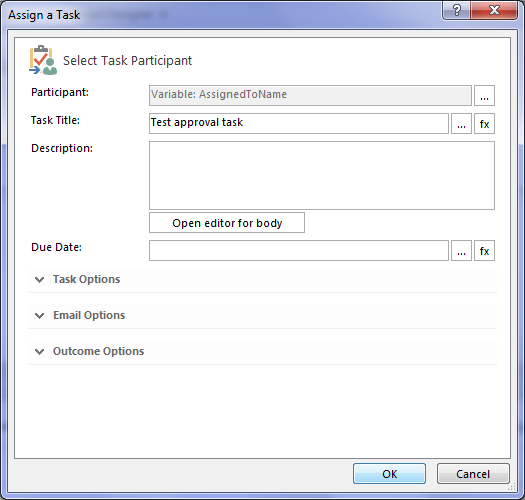
Add an Assign a task action and click on the this user hyperlink. In the Select Task Participant Dialog, click the ellipses next to the Participant textbox. This will bring up the Select User dialog. In the select from existing users or groups list, select Workflow Lookup for a User and click Add. In the Lookup for Person or Group dialog, choose Workflow Variables and Parameters from the Data source dropdown and choose the AssignedToName variable and click OK.

image  image

image  image

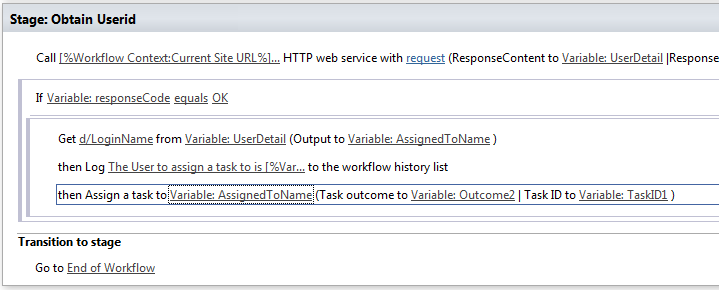
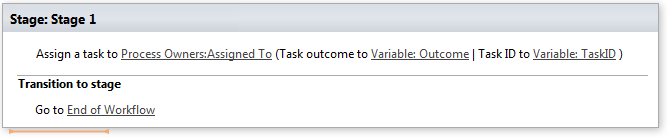
Now you will be back at the Select Task Participant Dialog. Enter a task title of “Test approval task” and click ok. (For now we are not going to wire up the rest of the task, this is enough to prove that it works. So click Ok to go back to the workflow designer and review the action.)

image    image

Looks good, so let’s now publish the workflow and let’s test it by taking it from the top.

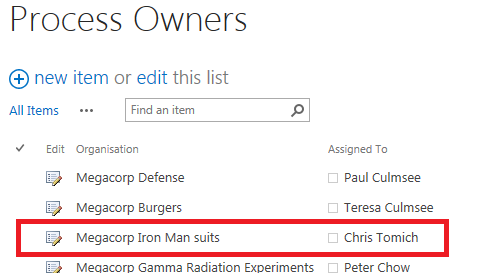
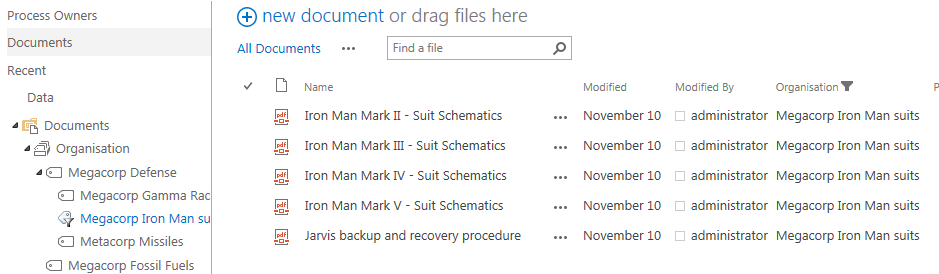
Now as a side note, when writing this post, my colleague Chris Tomich insisted that he had to be process owner for Megacorp’s Iron Man Suits division, and you will see that below. Checking the documents library and using metadata navigation, we see all the documents that are owned by the Iron Man Suits subsidiary of Megacorp. It stands to reason that we would have suit schematics and the backup and recovery process for Javris eh?

image  image

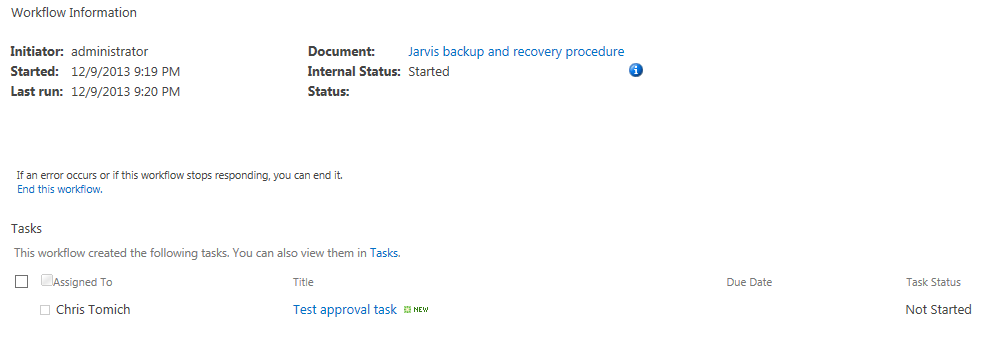
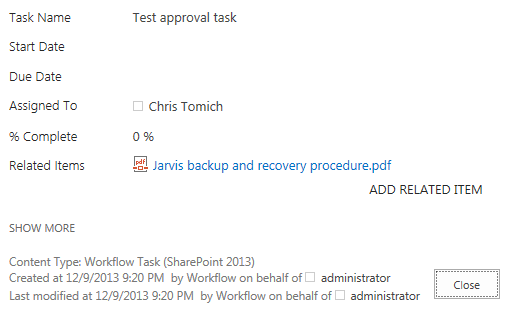
Choosing the Jarvis backup and recovery procedure document, we run our workflow. Checking the status of the workflow, what do we see? Yeah baby! Chris has been assigned a task!

image  image

Conclusion…

So at this point, I can’t help but wonder how many readers are actually happy that it took 8 posts to finally assign a task to a user. But nevertheless, the journey has been a good example of the sort of issues that you encounter when using SharePoint 2013 workflows.

Now in part 7, I  alluded to the fact that this method had a flaw. Our Megacorp example has been a simple one with just a few entries in the process owners list. But what if there were say, 5000 process owners and the one we want is number 4864? The current workflow would have to iterate through the first 4863 entries before it gets to this one. This isn’t overly efficient to do and might introduce some performance penalty (which plays into the hands of developers who don’t like the idea of scary citizen developers meddling with forces they don’t understand). So it begs the question whether we can come up with an alternate way to do this?

In part 9 and onward from there, we will answer that question.

Thanks for reading

Paul Culmsee
HGBP_Cover-236x300.jpg

www.hereticsguidebooks.com


Trials or tribulation? Inside SharePoint 2013 workflows–Part 4

Hi and welcome to part 4 of my series of articles that take a peek under the hood of SharePoint 2013 workflows from . In part 1, I introduced you to Megacorp Inc and their need for a controlled documents approval workflow. In part 2, we created a basic SharePoint 2013 workflow and in part 3, we made our first attempt to publish the workflow. Unfortunately, we encountered an error and had to work our way around some particularly unhelpful error messages. Now we are at part 4, and we will have another go at publishing our workflow from part 2.

Now like the last post, I’ll tell you up front that our second attempt to run this workflow is not going to work. Remember that my intent here is to show you a “warts and all” view of this functionality – both the great bits and the not so great bits. I hope that this gives you development and troubleshooting ideas in your own workflow adventures.

If you have been following along so far, you should have a simple workflow like the one below. It is attempting to assign a task to a nominated process owner for controlled documents. We just fixed a configuration issue in part 3 that prevented the workflow from working. We did this by disabling the default behaviour of the workflow where it updates the workflow status with the current stage name.

image

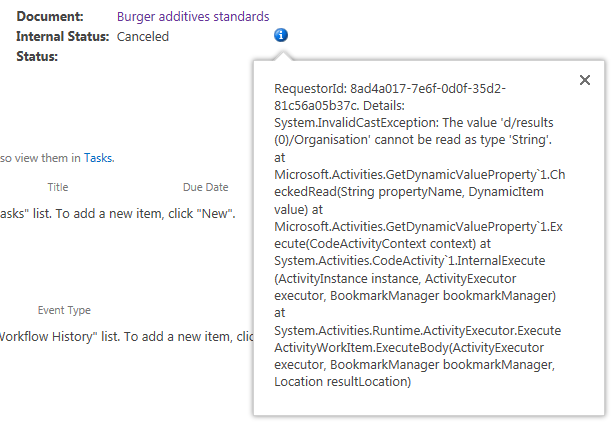
So let’s run the workflow on the same document as part 3 – the Burger Additives Standards for Megacorp GM Foods. Do we have liftoff yet? Nope – the workflow was cancelled as shown below, with another cryptic message.

RequestorId: 8ad4a017-7e6f-0d0f-35d2-81c56a05b37c. Details: System.InvalidCastException: The value ‘d/results(0)/Organisation’ cannot be read as type ‘String’. at Microsoft.Activities.GetDynamicValueProperty`1.CheckedRead(String propertyName, DynamicItem value) at Microsoft.Activities.GetDynamicValueProperty`1.Execute(CodeActivityContext context) at System.Activities.CodeActivity`1.InternalExecute(ActivityInstance instance, ActivityExecutor executor, BookmarkManager bookmarkManager) at System.Activities.Runtime.ActivityExecutor.ExecuteActivityWorkItem.ExecuteBody(ActivityExecutor executor, BookmarkManager bookmarkManager, Location resultLocation)

image

So what do we make of this message and in particular, “The value ‘d/results(0)/Organisation’ cannot be read as type ‘String’”?. Firstly, you might be wondering what this  “d/Results(0)/Organisation” stuff is  all about. Secondly, even if you do know what that is about, why the hell can’t it be read as type string?

A REST and JSON interlude

For the non developers (and self-described citizen developers) reading this series, I am going to attempt to explain what’s going on here because it is important foundational knowledge. If you are a developer who understands REST/OData and JSON,  feel free to skip this bit because you probably won’t like how I explain it.

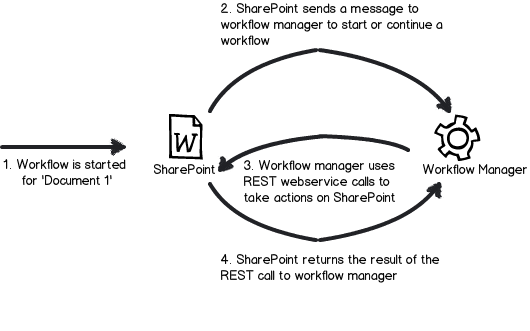
First up, remember my dodgy diagram in part 3 that explained how Workflow Manager talks to SharePoint? I made the point that workflow manager uses REST web services to do all of its interactions with SharePoint content. REST is actually a really cool technology, and if you are serious about learning to use SharePoint Designer 2013 workflows you should learn more it.

Snapshot

Let’s put aside our workflow for a second, and instead access a REST webservice ourselves, just like workflow manager does behind the scenes. To do this is easy. Open up internet explorer and turn “feed reading view” off. Then try this URL, adjusting it to your site name:

http://megacorp/iso9001/_vti_bin/client.svc/web/lists/getbytitle(‘Documents’)/Items

If you have done it right, you will get a heap of ugly XML data back in your browser. If this worked then congratulations – you are now a REST guru. You have successfully asked SharePoint to send you information about all documents in the Documents library, including the data stored in the columns. Each <entry> tag in the XML represents a document – and you can collapse these entries as shown below..

<?xml version="1.0" encoding="utf-8" ?> 
- <feed xml:base="http://megacorp/iso9001/_api/" xmlns="http://www.w3.org/2005/Atom" xmlns:d="http://schemas.microsoft.com/ado/2007/08/dataservices" xmlns:m="http://schemas.microsoft.com/ado/2007/08/dataservices/metadata" xmlns:georss="http://www.georss.org/georss" xmlns:gml="http://www.opengis.net/gml">
  <id>76c69d23-d5f3-4cee-a954-9910ad81bd16</id> 
  <title /> 
  <updated>2013-11-27T23:49:25Z</updated> 
+ <entry m:etag=""6"">
+ <entry m:etag=""7"">
+ <entry m:etag=""8"">

If you expand one of those entries, you will see the full detail of that document. Scroll down into the detail and look for the <Content Type> entry in the XML as shown below. This is the same data that your workflow is working with.

- <content type="application/xml">
-   <m:properties>
      <d:FileSystemObjectType m:type="Edm.Int32">0</d:FileSystemObjectType> 
      <d:Id m:type="Edm.Int32">10</d:Id> 
      <d:ContentTypeId>0x010100683F42634030C946A9F8165B365FD886</d:ContentTypeId> 
      <d:Title m:null="true" /> 
      <d:OData__dlc_DocId>DPRYTK5567JW-5-10</d:OData__dlc_DocId> 
-     <d:OData__dlc_DocIdUrl m:type="SP.FieldUrlValue">
        <d:Description>DPRYTK5567JW-5-10</d:Description> 
        <d:Url>http://megacorp/iso9001/_layouts/15/DocIdRedir.aspx?ID=DPRYTK5567JW-5-10</d:Url> 
      </d:OData__dlc_DocIdUrl>
      <d:URL m:null="true" /> 
      <d:DocumentSetDescription m:null="true" /> 
-     <d:Organisation m:type="SP.Taxonomy.TaxonomyFieldValue">
         <d:Label>9</d:Label> 
         <d:TermGuid>f2109460-a473-493f-9d08-fb01ecbf793b</d:TermGuid> 
         <d:WssId m:type="Edm.Int32">9</d:WssId> 
      </d:Organisation>
      <d:Modified m:type="Edm.DateTime">2013-11-10T00:21:45Z</d:Modified> 
      <d:Process_x0020_Owner_x0020_Approval m:null="true" /> 
      <d:ID m:type="Edm.Int32">10</d:ID> 
      <d:Created m:type="Edm.DateTime">2013-11-08T14:33:12Z</d:Created> 
      <d:AuthorId m:type="Edm.Int32">1</d:AuthorId> 
      <d:EditorId m:type="Edm.Int32">1</d:EditorId> 
      <d:OData__CopySource m:null="true" /> 
      <d:CheckoutUserId m:null="true" /> 
      <d:OData__UIVersionString>2.0</d:OData__UIVersionString> 
      <d:GUID m:type="Edm.Guid">c75a0728-7a5f-4236-8d45-7b72fa41781e</d:GUID> 
    </m:properties>
  </content>

Now when you add a workflow action, and Workflow Manager then talks to SharePoint to perform the action, it is doing a very similar thing to the URL we just accessed. The only difference is that when workflow manger does it, it asks for the data to be returned in a different format than XML called JSON – a more lightweight but less human readable data format. Below is a tiny snippet of that the JSON version of the above data looks like – ugh! no wonder XML is the default return format eh?

{“d”:{“results”:[{“__metadata”:{“id”:”71deada5-6100-48a5-b2e3-42b97b9052a2″,”uri”:”http://megacorp/iso9001/_api/Web/Lists(guid’a64bb9ec-8b00-407c-a7d9-7e8e6ef3e647′)/Items(1)”,”etag”:”\”6\””,”type”:”SP.Data.DocumentsItem”},”FirstUniqueAncestorSecurableObject”:{“__deferred”:{“uri”:”http://megacorp/iso9001/_api/Web/Lists(guid’a64bb9ec-8b00-407c-a7d9-7e8e6ef3e647′)/Items(1)/FirstUniqueAncestorSecurableObject”}},”RoleAssignments”

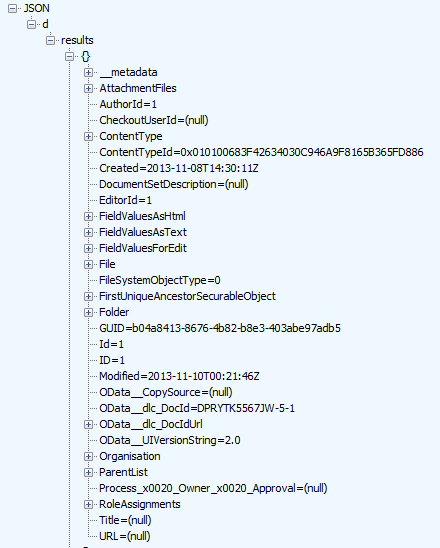
Fortunately, there are plenty of tools out there that parse JSON data and Fiddler is one of them. We will be using Fiddler later in this series, so I will save a detailed introduction to the tool for later. But below is a screenshot of the above JSON data displayed in Fiddler. Now that’s a bit more palatable!

image

Now that we can read the JSON data in a meaningful way, let’s go back to the error message in the workflow. It stated that “The value ‘d/results(0)/Organisation’ cannot be read as type ‘String’”. Now look in the JSON screenshot above. If you look at the hierarchy and look at the message, we can see now what the message meant. It has a problem with the Organisation entry. Follow the path below the JSON label at the top… We have d –> Results –> {} –> Organisation. This essentially matches the ‘d/results(0)/Organisation’ in the message.

So takeaway number 1 – workflow uses JSON format when it makes REST calls to SharePoint, so learn to recognise a JSON reference when you see it. As a future workflow developer – and later in this series – you will have to learn how to parse JSON data in more fine detail.

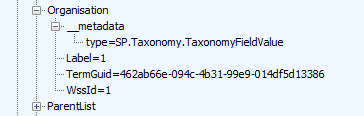
Now let’s take a closer look at Organsiation entry in the JSON data above. What you might notice is that some of the other data entries have data values specified, such as EditorID = 1, AuthorID =  1 and Modified = 2013-11-10. But not so with Organisation. Rather than have a data value, it has sub entries. Expanding the Organisation section and you can see that we have more data elements within it. Note that we do not see the organisation name at all. We have numbers and a GUID – so what gives?

image

So what was the error again? ‘Organisation’ could not be read as type ‘String’. Kind of makes sense now doesn’t it? The managed metadata column called Organisation doesn’t store the organisation name, but a pointer to the organisation name, as it is specified in the managed metadata term store. The workflow assumes that the data returned from the REST call is going to be string, and cannot handle the format of the data above.

Troubleshooting Attempt #1 – Use Organisation_0

So at this point, you might be thinking “What the hell?” how can I get the name of the Organsiation if it not actually in the data returned by the REST web service call?

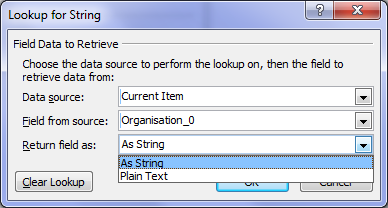
Well, if you were paying attention back in part 2, I noted the existence of another column called Organisation_0. This column was listed as one of the columns available from the current item (“Current item” being the document that the workflow was triggered from). It is now time to understand what this column does. To do so, let’s use another workflow action. This time, we will use the Log to History List action. When you add this action, click the fx button and choose Current Item from the Data source dropdown. Then choose Organisation_0 from the Field from source dropdown as shown below.

image  image

Now if you rerun your workflow and then check the workflow status, you will see what has been logged to the workflow history. Note the description column. Aha! We see our organisation name buried in there.

image

Now if you look closely, you will notice that we also have the GUID of the managed metadata term. The term and its GUID are separated by a pipe character. Even better, it is in string format (note Return field as dropdown above).

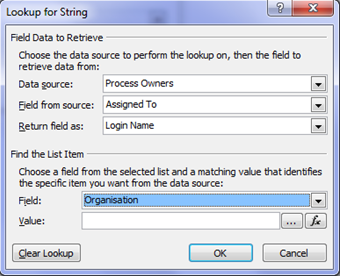
It turns out that when you create a managed metadata column, behind the scenes two columns get created. The second column is a hidden column that is a multi-line of text format. This is the the one with an _0 appended to the end. In other words, the Organisation column only stores the pointers (lookup values) to the term, but this hidden column actually stores the names and Id’s of each term the user has added. So let’s use this column instead because it’s a string format. To do this, return to the task assignment action in our workflow. We still need to get the Assigned To field from the Process Owners list, so we leave that alone. But below that, in the Find the List Item section, we need to make a change.

Unfortunately (and perhaps ominously), the Organisation_0 field seems to only be selectable for the Current Item, because clicking the Field dropdown (which displays all columns for process owners), only lists the Organisation column. Why is this? Well, it appears that hidden columns are displayed on Current item, but not displayed when you specify a different list. Thus, we are forced to leave Organisation from Process Owners as is. So click the fx button next to the Value textbox and choose Current Item from the Data source dropdown and Organisation_0 from the Return field as dropdown as shown below.

image  image

Now republish the workflow and let’s give it a go. Checking the workflow status screen and we find the workflow is started. Are we onto a winner here?

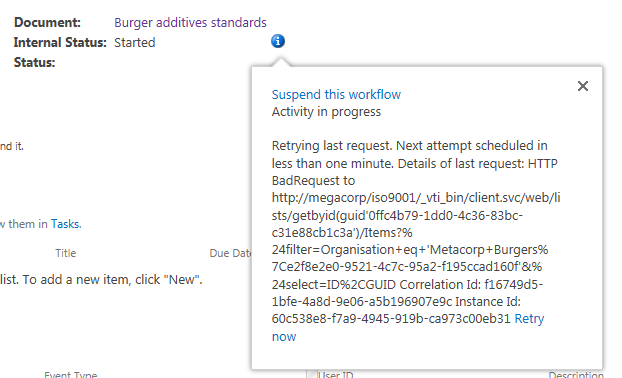
Gong! there still another of those exciting error messages. This time we have a complaint of a HTTP BadRequest. Given my explanation of how managed Metadata columns work behind the scenes, can you guess what the issue is?

Retrying last request. Next attempt scheduled in less than one minute. Details of last request: HTTP BadRequest to http://megacorp/iso9001/_vti_bin/client.svc/web/lists/getbyid(guid’0ffc4b79-1dd0-4c36-83bc-c31e88cb1c3a’)/Items?%24filter=Organisation+eq+’Metacorp+Burgers%7Ce2f8e2e0-9521-4c7c-95a2-f195ccad160f’&%24select=ID%2CGUID Correlation Id: f16749d5-1bfe-4a8d-9e06-a5b196907e9c Instance Id: 60c538e8-f7a9-4945-919b-ca973c00eb31

image

Now this error message might look evil, but it is actually the most useful one so far as it shows us the REST call made by the workflow manager as part of the task assignment action. If I remove the encoded spaces to make things more readable, the workflow attempted this call.

http://megacorp/iso9001/_vti_bin/client.svc/web/lists/getbyid(guid’0ffc4b79-1dd0-4c36-83bc-c31e88cb1c3a’)/Items?”filter=Organisation+eq+’Metacorp+Burgers|e2f8e2e0-9521-4c7c-95a2-f195ccad160f’&”select=ID,GUID

This webservice essentially says to SharePoint “Using the Process Owners list (which is GUID 0ffc4b79-1dd0-4c36-83bc-c31e88cb1c3a), please bring me back the ID and GUID of any list entries where the Organisation column is equal to the value “Metacorp+Burgers|e2f8e2e0-9521-4c7c-95a2-f195ccad160f”.

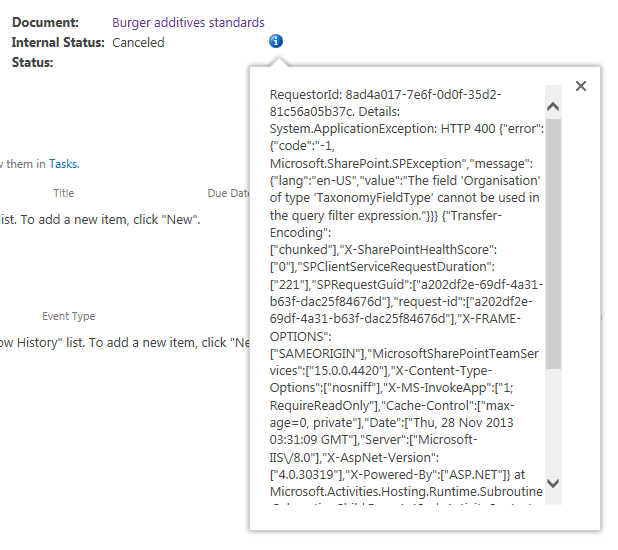
Now even if it cannot find a matching item, this should return a HTTP 200 with 0 items matched. But the error that has been returned (400) suggests that there is a problem with the above request itself. Hmmm – eventually the workflow will give up and cancel the workflow. It then logs a more verbose message…

RequestorId: 8ad4a017-7e6f-0d0f-35d2-81c56a05b37c. Details: System.ApplicationException: HTTP 400 {“error”:{“code”:”-1, Microsoft.SharePoint.SPException”,”message”:{“lang”:”en-US”,”value”:”The field ‘Organisation’ of type ‘TaxonomyFieldType’ cannot be used in the query filter expression.”}}} {“Transfer-Encoding”:[“chunked”],”X-SharePointHealthScore”:[“0″],”SPClientServiceRequestDuration”:[“221″],”SPRequestGuid”:[“a202df2e-69df-4a31-b63f-dac25f84676d”],”request-id”:[“a202df2e-69df-4a31-b63f-dac25f84676d”],”X-FRAME-OPTIONS”:[“SAMEORIGIN”],”MicrosoftSharePointTeamServices”:[“15.0.0.4420″],”X-Content-Type-Options”:[“nosniff”],”X-MS-InvokeApp”:[“1; RequireReadOnly”],”Cache-Control”:[“max-age=0, private”],”Date”:[“Thu, 28 Nov 2013 03:31:09 GMT”],”Server”:[“Microsoft-IIS\/8.0″],”X-AspNet-Version”:[“4.0.30319″],”X-Powered-By”:[“ASP.NET”]} at Microsoft.Activities.Hosting.Runtime.Subroutine.SubroutineChild.Execute(CodeActivityContext context) at System.Activities.CodeActivity.InternalExecute(ActivityInstance instance, ActivityExecutor executor, BookmarkManager bookmarkManager) at System.Activities.Runtime.ActivityExecutor.ExecuteActivityWorkItem.ExecuteBody(ActivityExecutor executor, BookmarkManager bookmarkManager, Location resultLocation)

image

Despite the ugliness of the above message, this time we get the root cause logged. Note the section that states:  “The field ‘Organisation’ of type ‘TaxonomyFieldType’ cannot be used in the query filter expression”. So what does this mean?

Another REST interlude…

If you re-examine the REST web service call that was logged by the workflow, you will see some stuff we have not covered so far. The first half of the URL was pretty much what I showed you in the first REST interlude. We are getting all of the items from a SharePoint list, except this time we are using the GUID of the list rather than its name as shown below.

http://megacorp/iso9001/_vti_bin/client.svc/web/lists/getbyid(guid’0ffc4b79-1dd0-4c36-83bc-c31e88cb1c3a’)/Items

But what is this extra stuff tacked on the rest of the URL – $filter and $select as seen below?

$filter=Organisation+eq+’Metacorp+Burgers|e2f8e2e0-9521-4c7c-95a2-f195ccad160f’&$select=ID,GUID

The answer is that Microsoft’s use of REST (called oData) allows you to do SQL like queries to filter the data that comes back. This is really handy indeed and to help you understand it, here is an example: The URL below says “Give me all documents with an a title of ‘Burger Additives Standards’”

http://megacorp/iso9001/_vti_bin/client.svc/web/lists/getbyid(guid’0ffc4b79-1dd0-4c36-83bc-c31e88cb1c3a’)/Items?$filter=Title eq ‘Burger Additives Standards’

This example says “Give me just the Titles of all documents created after November 1 2013”

http://megacorp/iso9001/_vti_bin/client.svc/web/lists/getbyid(guid’0ffc4b79-1dd0-4c36-83bc-c31e88cb1c3a’)/Items?$filter=Created gt datetime’2013-11-01T00:00:00’&$select=Title

Now that you have seen those examples, take another look at what the workflow was trying to do without any luck…

http://megacorp/iso9001/_vti_bin/client.svc/web/lists/getbyid(guid’0ffc4b79-1dd0-4c36-83bc-c31e88cb1c3a’)/Items?”filter=Organisation+eq+’Metacorp+Burgers|e2f8e2e0-9521-4c7c-95a2-f195ccad160f’&”select=ID,GUID

Why did the REST call made by the workflow return a HTTP 400 error given my two working examples that look very similar? The answer is that the $filter option does not work with Managed Metadata columns. As I described in this article previously, managed metadata columns are not compatible with the $filter operator – hence the error message “The field ‘Organisation’ of type ‘TaxonomyFieldType’ cannot be used in the query filter expression.”

Damn!

Conclusion…

So it seems that for every step forward, we have taken a step back again. Fear not though, as the next post will start to show a way forward. But be warned – we are about to get deeper into the bowels of REST/oData, so make sure that you fully understand this article before moving on. To that end, if anything is unclear, please let me know and I will adjust these articles accordingly.

Thanks for reading

Paul Culmsee
HGBP_Cover-236x300.jpg

www.hereticsguidebooks.com


Trials or tribulation? Inside SharePoint 2013 workflows–Part 1

Hi all

Workflows are big business in SharePoint land, despite the capability of SharePoint Designer Workflows being a fairly weak link in the overall SharePoint value proposition. If this wasn’t the case, then products like Nintex or K2 would not be so popular and workflow vendors wouldn’t have the biggest booths at the average SharePoint conference.

One of the serious strategic advantages of going with the SharePoint stack is the amazing 3rd party ecosystem that flourishes around the base product. No other platform in the space has the level of 3rd party support that SharePoint enjoys. But while its nice to be able to have great options for serious SharePoint workflow development, with each successive version of SharePoint that comes out, there is always that hope that one can use the base functionality without having to jump straight away to the 3rd party tools.  After all, it is quite common for organisations, having just gone to the time and expense of adopting SharePoint, to be dismayed that they have to part with yet more cash for 3rd party tools to address large functional gaps that were not apparent in the contrived product demos.

Another important trend being hidden by cloud hubris is the rise of the citizen developer. The CIO’s fountain of knowledge known as Gartner, stated that by 2014 25% of new business applications will be delivered by Citizen Developers.  They defined citizen developers as “a user operating outside of the scope of enterprise IT and its governance who creates new business applications for consumption by others either from scratch or by composition.” Elaborating, Gartner stated that

“Future citizen-developed applications will leverage IT investments below the surface, allowing IT to focus on deeper architectural concerns, while end users focus on wiring together services into business processes and workflows. Furthermore, citizen development introduces the opportunity for end users to address projects that IT has never had time to get to — a vast expanse of departmental and situational projects that have lain beneath the surface.”

So with SharePoint 2013, Microsoft has indeed changed things up a notch in the workflow world. Is it enough to enable and empower citizen developers?

That is what this series aims to find out… First up, lets take a quick look at the forces we are going to be meddling with…

What’s new with SharePoint 2013 and workflow…

Workflow in SharePoint 2013 is significantly different from SharePoint 2010. It fact, it is essentially a completely separate product called Workflow Manager. Technically, Workflow Manager is not part of SharePoint at all – there is no “workflow” service application or “service on a server” to be found. Instead, it is a separate process that works by communicating with SharePoint over the HTTP protocol in various ways.

This means that we have the option of deploying Workflow Manager onto its own server, or set of servers (although for you smaller sites, it happily installs onto your SharePoint servers and coexists with the rest of SharePoint too). This loosely coupled model has scalability benefits as workflow load can now be separated from the rest of SharePoint. It also means badly behaved workflows are less likely to affect SharePoint sites because they run in a separate process or separate servers. 3rd party applications (think about solutions built using the SharePoint 2013 apps model here) can also interact and communicate with workflow manager separately to SharePoint. It also helps Microsoft to realise their strategy of “encouraging” everyone to their vision of a cloud-based happy place.

Now new does not always equate to good – and Microsoft have a bit of a dubious history with V1 products and technology. So in this series, I’d like to show you an example of what the SharePoint 2013 new workflow regime can do. The example that I am going to use for this set of articles is useful for this purpose for several reasons:

  • 1. It is a common use-case that many organisations would find familiar – particularly those with compliance regimes
  • 2. It demonstrates a fairly typical SharePoint consulting “oh crap” moment, where you realise your masterpiece of a solution is completely undone by an untested assumption or a SharePoint caveat that you forgot about.
  • 3. It demonstrates a path to redemption that is an excellent utilisation of the new capabilities of SharePoint 2013 and Workflow Manager
  • 4. It gives you a great sense as to whether workflows are a real developer, information worker or citizen developer tool. In other words, after reading this, you should have a good idea what you are getting yourself into!

I have a lot to cover, so this series will be multi-part. This first post will outline the scenario that we are dealing with.

The scenario: Document Control at Megacorp

Many organisations operate in industries where they are required to manage documentation in a systematic way. Documents that are subject to any sort of quality or compliance regime are often referred to as “Controlled Documents”. Typically, a controlled document will have an assigned responsible party who is accountable for the management (i.e. approving the issuing of updates) of that document.

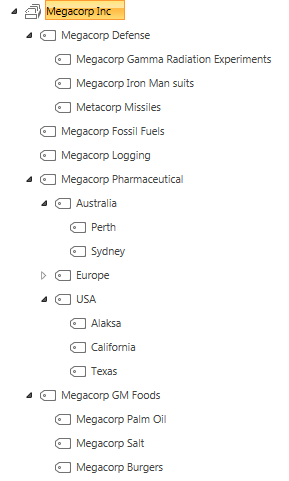
To illustrate, consider the document control requirements of Megacorp Inc – a mythical multinational conglomerate with a vide variety of businesses in many different industries and locations. Megacorp is your typical diversified multinational, making everything from Iron Man suits to hamburgers. A managed metadata term set illustrating the Megacorp conglomerate structure can be seen below. If you look closely, Megacorp Inc, actually consists of several companies and each is structured differently. For example: Megacorp Pharmaceutical divides itself based on country and state jurisdiction, whereas Megacorp GM foods divides itself up on the particular food it is generically modifying.

image

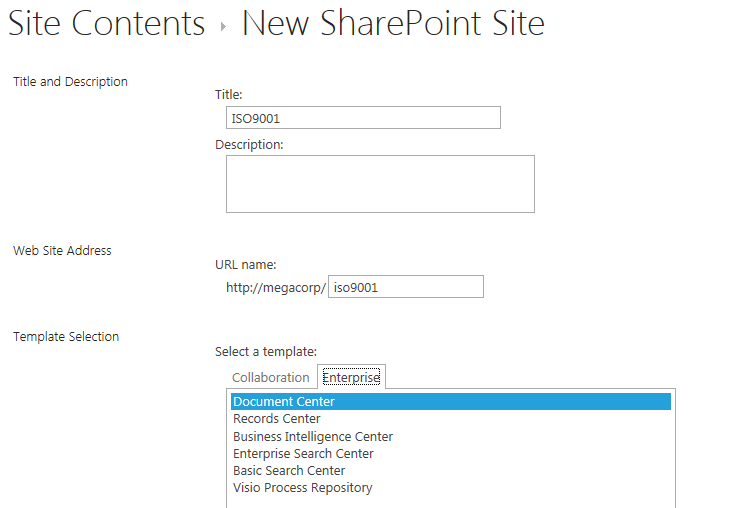
So let’s say that Megacorp is maintaining ISO9001 certification for assurance purposes and therefore has to control their documents as I have stated above. Let’s create a SharePoint site called ISO9001 to handle this requirement. We perform the following steps:

  1. Build a term set (called Megacorp Inc)that stores all of the Megacorp businesses (you can see that in the image above)
  2. Create a site based on the built-in Document Center template
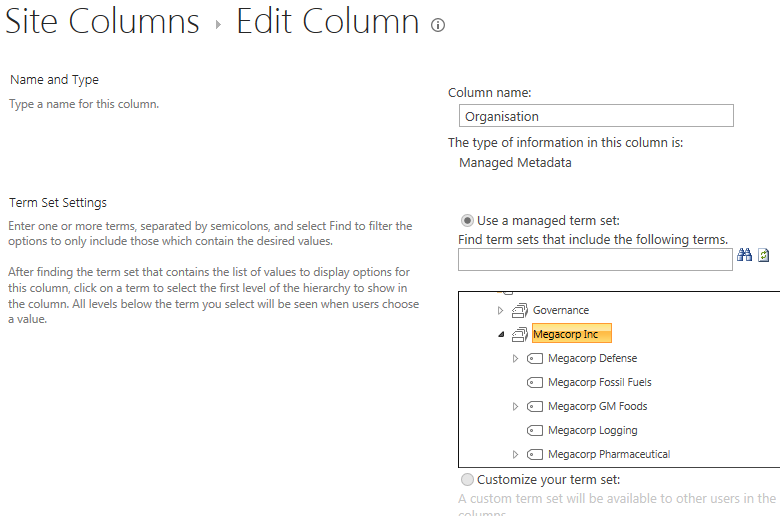
  3. Create a managed metadata site column called Organisation and associate it to the Megacorp term set
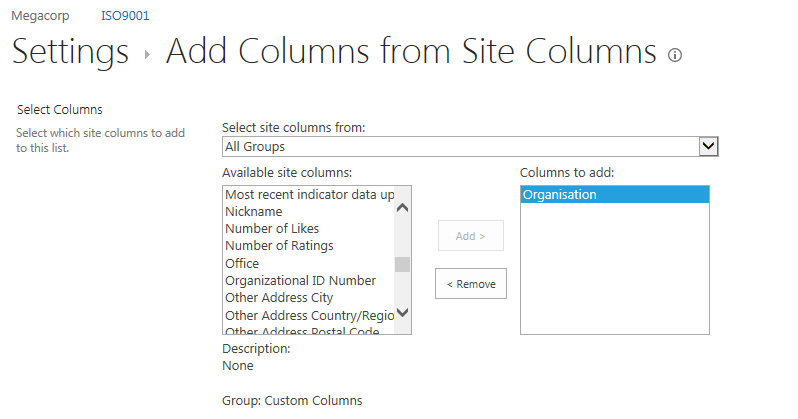
  4. Add the organisation column to the document library (called Documents) in the Document Center site
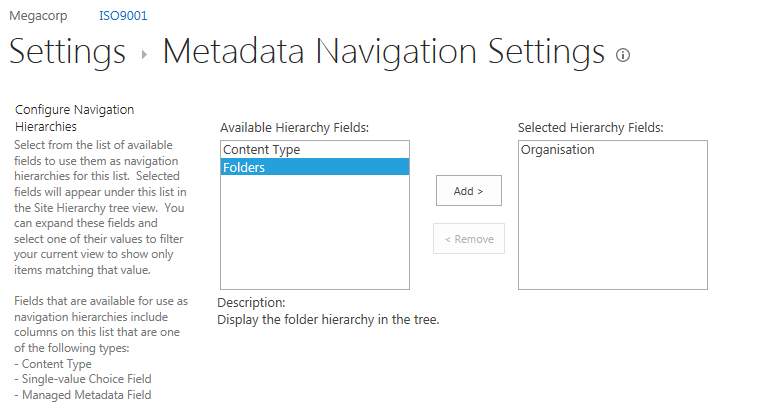
  5. Enable Metadata Navigation on the Documents library and add the Organisation column as a hierarchy field

For those of you who are new to SharePoint, below are screenshots from those steps to help you with the above steps… I am not going through this stuff in detail, so hopefully this suffices…

image  image

imageimage

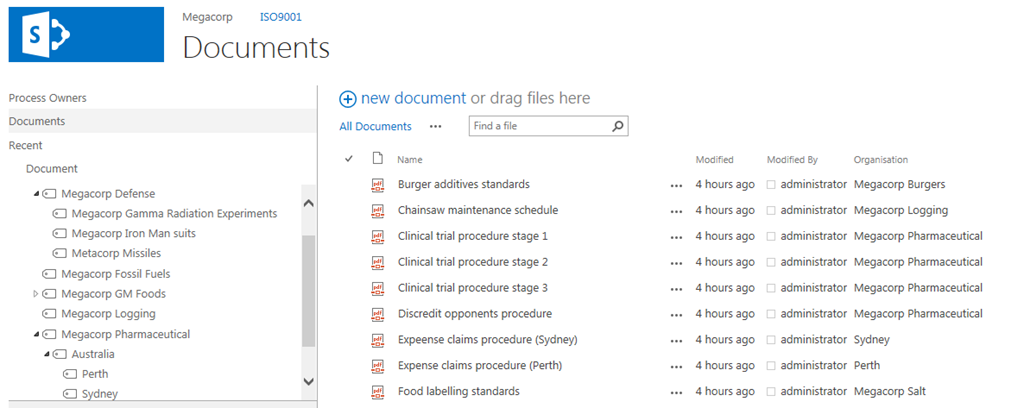
Now that the above plumbing is done, a few documents have been added to the Documents library and tagged to their organisation. With Metadata Navigation enabled, we now have the easy means to browse and filter documents to the specific organisation who owns them as shown below…

image

So let’s now think through a workflow scenario. Each organisation that makes up Megacorp has a process owner and when a document is ready for publishing, the process owner needs to approve it. Now we could do this by adding a “Person or Group” column to the document library and call it “process owner.” But Megacorp has some additional considerations that need to be pondered…

  • 1. They have thousands of documents in the library
  • 2. The process owner is a role, not an individual person. For audit purposes, Megacorp wants to have a record of when a person was in a particular process owner role.

The reason this complicates things is twofold. If we use a person’s user account in Active directory for tagging the process owner, we can easily track when a process owner changes because it will show up in the version history of the documents. But the downside is that we would have to update each document individually when that process owner changes to someone else. Not to mention that we may not want this change to be a version change in the document itself.

Now I know what your thinking – “Just use an Active Directory Group instead of an account”. Yes, it is a good and logical suggestion, since a SharePoint or Active Directory group allows us to easily manage changes in personnel between roles by changing group members. But the downside is that we have no easy way to see the history of who was in the process owner role at a given time because SharePoint would see and store the group, not the members of that group.

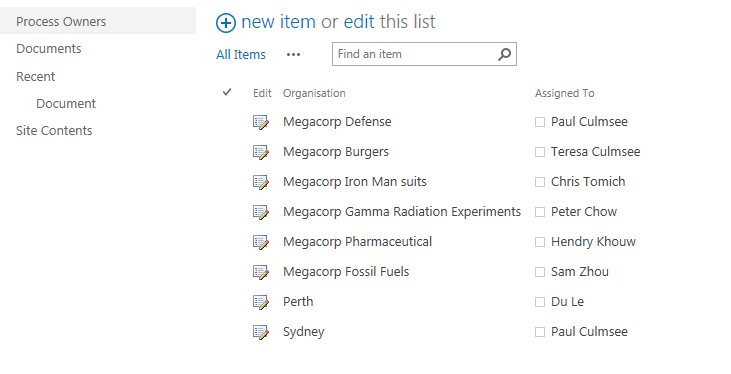
So let’s try an alternative approach. We will make a custom list called “Process Owners” and add two columns to it. We will add the Organisation site column that we created and used earlier, and we will add the “Assigned To” column that is built-into SharePoint and used in task lists. This will give us a list of process owners for a given Megacorp company or division. Even better – if we turn on version history on the Process Owners list, we now have a record of who was in the process owner role at any given time because it will show up in the changes in the “Assigned to” field over time.

The image below illustrates the Process Owners list.

image

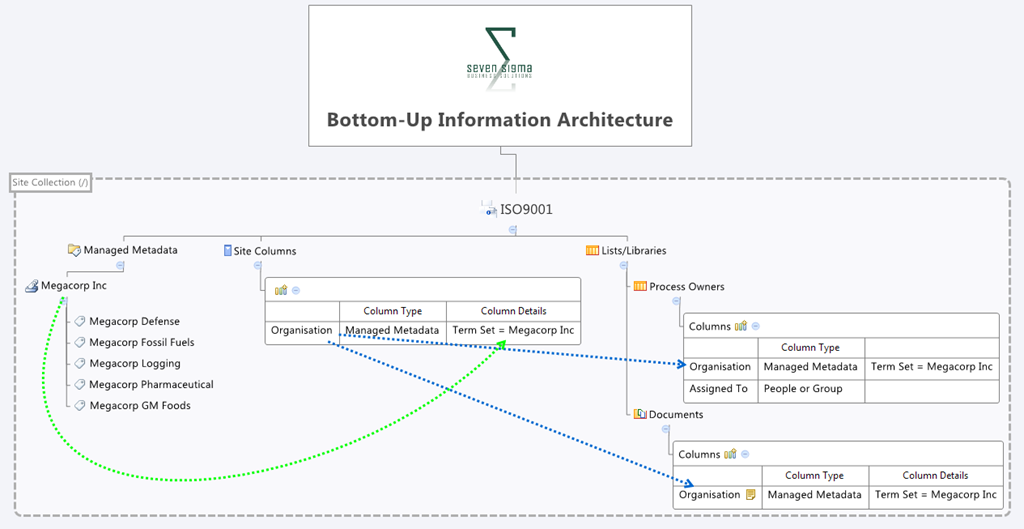
So to summarise, we have a document library where all documents are tagged to the organisation that they belong to. We have a list of the process owners for each organisation. To better visualise this, I have drawn an xmind map to show you the Information Architecture of the Megacorp document control site

image

Now we turn our attention to the document approval workflow. It should be able to:

  • Look at a document and determine the Organisation that a document belongs to
  • Look in the process owners list for that organisation and then determine the process owner for the organisation by grabbing the information in the “Assigned To” field
  • Create an Approval task for the Process owner to approve the release of a controlled document.

Now this all sounds straightforward enough in theory but as we will see as this series progresses, when it comes to SharePoint, theory and reality are two very different things. So in part 2, we will build out the workflow..

Thanks for reading

Paul Culmsee
h2bp2013_thumb.jpg

www.heretisguidebooks.com


Managed Metadata fun: Troubleshooting the Taxonomy Update Scheduler…

Hi all

I have opted to post this nugget of info in two formats, to account for different audiences

For those who have a twitter-sized attention span…

In SharePoint 2010, if you migrate site collections between SharePoint farms, and you find that the Taxonomy Update Scheduler timer job is not working (i.e. your managed metadata columns are not being refreshed) try deactivating and reactivating the hidden feature called TaxonomyFieldAdded to make the timer job work again.

…and for the rest of us…

Anyone who has done any significant work with managed metadata in SharePoint 2010, is probably familiar with the TaxonomyHiddenList that is created in each site collection. This hidden list exists to improve the performance of the managed metadata service application, specifically when displaying lists and libraries containing managed metadata columns. SharePoint mega-guru Wictor Wilén wrote up the definite guide to how it all works a couple of years back so I won’t rehash it here, except to say that the TaxonomyHiddenList functions in a similar way to a cache, and like all caches, every so often they need a refresh of the data being cached. In this case, a timer job exists called Taxonomy Update Scheduler, which pushes down any term store changes to TaxonomyHiddenList on an hourly basis.

One of Seven Sigma’s clients makes extensive use of managed metadata for both navigation and search and has separate development, test and production farms. Given there are three separate farms, this necessitates not only migrating site collections between the farms periodically, but migrating managed metadata term sets as well. We ended up utilising the built-in content deployment functionality for the site collections, because we have found this method to work well in scenarios where 3rd party tools are not available, where you do not have access to the underlying SQL Server and where custom development has been done with a bit of forethought.

But one of the implications of migrating site collections with managed metadata dependencies between farms is dealing with managed metadata term sets. Given each farm has its own managed metadata service application instance, each will have its own unique term store containing term sets. If one were to export and import terms from one farm to another, the GUID’s of the term sets and each term would not match between farms, and you would experience the sort of symptoms described in this post. Fortunately, the Export-SPMetadataWebServicePartitionData and Import-SPMetadataWebServicePartitionData PowerShell cmdlets save the day as they allow you to back up and restore the term store from farm to farm (I have included a very verbose sample process of how its done at the end of this post).

When the Taxonomy Update Scheduler  doesn’t update…

We recently had an issue where changes to the managed metadata term sets were not being refreshed in the TaxonomyHiddenList . Admins would rename terms using the Term Store Management Tool in site settings no problem. They knew the updates wouldn’t be immediately reflected in the site because it relies on the aforementioned timer job that runs hourly. Nevertheless, they still expected that the changes would take effect eventually, but it didn’t happen at all. This was particularly annoying in this case because a managed metadata term set was being used in a list which defined the headings and sub headings in the mega menu navigation system we’d developed. As a result, they would end up with navigation headings with the wrong phrase that just wouldn’t reflect the term store changes no matter how long they waited.

When this was first reported we thought, “ah they just haven’t waited long enough and the timer job hasn’t run” so Dan (one of our consultants who I mentioned in the last post), went and found the appropriate Taxonomy Update Scheduler timer job and ran it manually. He checked the results and found that the terms still had not updated, even though the timer job had completed successfully. He checked out the SharePoint ULS logs at the time the timer job was being run and all appeared fine, no errors or warnings to indicate that it wasn’t working. He then turned up the debug logging to verbose and ran the timer job again. Still no warnings or errors, but it definitely hadn’t affected the TaxonomyHiddenList which still contained the old taxonomy values.

I had previously seen many reports of permission related issues with the TaxonomyHiddenList so that was checked and found to be fine. Additionally there were known issues with the timer job that was fixed in cumulative updates but they did not apply here. So while we worked out what was going wrong, we had the pressing issue of sorting out the hidden list for our client so their navigation system could function correctly. Dan found some code samples showing how to force an update and put together the following script so that whenever an update was needed we could run this script and force the update. Here is the sample script code:

$siteUrl = Read-Host "Enter the SharePoint site URL (eg: http://portal.mycompany.com.au/sites/site)"
$site = Get-SPSite $siteUrl
[Microsoft.SharePoint.Taxonomy.TaxonomySession]::SyncHiddenList($site)
$site.dispose()

Now be warned with this script – it can hammer your search. This is because this script isn’t the same as what the the timer job does. When you run the timer job, it runs rather quickly and if you are monitoring the system resources you wouldn’t really observe any noticeable spikes. But this script (depending on the size of your taxonomy store) runs for a number of minutes at about 15-20% CPU constantly. Dan checked this performance behaviour out using reflector and found that the method SyncHiddenList in the Microsoft.SharePoint.Taxonomy assembly goes through the entire TaxonomyHiddenList, then searches the term store for the matching term’s GUID identifier, then it updates TaxonomyHiddenList with the actual value of that term in the term store. Without going into too much detail, there is quite a bit of enumerating and searching through lists and term stores for terms and it is obviously not very efficient. The timer job on the other hand – judging from the names of the methods it invokes (the ULS shows the timer job making a WCF service call on the MetadataWebService called GetChanges)  – instead looks directly for items which have changed and then updates only those items. This is of course, far more efficient than going through everything in the Term Store/TaxonomyHiddenList. So you have been warned – perhaps avoid running a script like this during business hours because it may make things slower.

So having said all of that, after a bit of searching for what might be the problem since the logs weren’t hinting at the cause of the failure, Dan found this Technet forum post http://social.technet.microsoft.com/Forums/sharepoint/en-US/51174c11-68b0-4e39-9491-6676d3dbf008/taxonomy-update-scheduler-not-updating and noticed that one respondent (Ed) had used the STSADM command to deactivate and then activate the TaxonomyFieldAdded feature because he’d found something got corrupted when copying a live content DB from his DEV system. As I said earlier, we’d used the built-in content migration tools to do a similar thing. Could this have corrupted things just like Ed had witnessed? It couldn’t hurt to try out his fix and see, so Dan ran the following commands:

stsadm -o deactivatefeature -name TaxonomyFieldAdded -url [SITE_URL]

stsadm -o activatefeature -name TaxonomyFieldAdded -url [SITE_URL]

where [SITE_URL] was replaced with the URL to our SharePoint site. He then used the Term Store Management Tool to rename one of the terms and the ran the Taxonomy Update Scheduler timer job. Sure enough, he saw that the term in the hidden list had changed to what was in the term store. So Ed’s fix worked for us – and it does appear that some corruption of the link between the Term Store and the TaxonomyHiddenList had occurred in similar circumstances of migrating site collections. It just seemed strange that forcing an update with Dan’s workaround script worked, but again that just highlights the differences between the Taxonomy Update Scheduler timer job and the SyncHiddenList method we called in the script.

Footnote: A slightly verbose term migration process

Earlier in this post I said I should show an example of how to migrate a term store between service applications using PowerShell. While the PowerShell commands are quite easy, it can be tricky to get working at first because a couple of pre-requisites have to be met:

  1. This method can only be used by an account with local administration access to the entire farm (hopefully you have a SharePoint admin type account that has local admin access to all servers)
  2. Despite this process being run via PowerShell on an application server on a farm, most of the activity is performed on the destination farm SQL Server via stored procedures. Accordingly, the account you are using for SharePoint service applications on the destination farm temporarily needs bulk import rights on SQL Server which it does not have by default.
    • This can be achieved by temporarily granting the account elevated access. (For example: granting the service application account sysadmin role in SQL)

Exporting the term store

On one of the web/application servers of the source SharePoint farm, we first export the term store to a backup file via PowerShell:

  • 1) Determine where the export file will be saved to. Note: This must be a UNC path (eg \\server\share on the SQL Server for the destination farm. Ensure that all SharePoint farm and service application accounts have write access to this share and the folder. (Note: If this share is temporarily created and deleted after use, granting full control to the share may be deemed appropriate)
  • 2) Using the SharePoint 2010 Management Shell on the source server, determine the ID of the managed metadata service application (note in the example below, the matching service application is marked in bold). The GUID listed in the ID column is the important bit
PS C:\> Get-SPServiceApplication

DisplayName TypeName Id
----------- -------- --
State Service App... State Service 833e41ed-9574-4f6b-978b-787a087735e1
Managed Metadata ... Managed Metadata ... 479cd8d7-af32-4f85-adb1-9cdd858ed3e6
Web Analytics Ser... Web Analytics Ser... 4b54f5d4-2148-4cbf-ad24-b1e49b0eb7e5
  • 3) Create a PowerShell object bound to the managed metadata service application ID.
PS C:\Users\SP_Admin> $mms = Get-SPServiceApplication -Identity 479cd8d7-af32-4f85-adb1-9cdd858ed3e6
  • 4) Confirm that the correct service application is selected by examining the properties of the object. Confirm the service type is “Managed Metadata Service”
PS C:\> $mms.TypeName
Managed Metadata Service
  • 5) Using PowerShell, determine the ID of the managed metadata service application proxy (note the matching service application is marked in bold). The GUID listed in the ID column is the important bit
PS C:\> Get-SPServiceApplicationProxy

DisplayName TypeName Id
----------- -------- --
State Service App... State Service Proxy 24f87eba-85af-4938-98f4-3002ff0da95b
Managed Metadata ... Managed Metadata ... 373ad4c0-cdd2-4db8-9dd8-a0c5c8d1df41
Secure Store Serv... Secure Store Serv... 7ac50f4f-addc-466e-a695-9a37890058f5
  • 6) Create an object bound to the managed metadata service application proxy.
PS C:\> $mmp = Get-SPServiceApplicationProxy -Identity 373ad4c0-cdd2-4db8-9dd8-a0c5c8d1df41
  • 7) Confirm that the correct service application proxy is selected by examining the properties of the object. Confirm the service type is “Managed Metadata Service Connection”
PS C:\> $mmp.TypeName
Managed Metadata Service Connection
  • 8) Export the current Managed metadata term store to the UNC path specified in step 1, utilising the service application object and service application proxy object created in steps 3 and 6.
PS C:\> Export-SPMetadataWebServicePartitionData -Identity $mms.id -ServiceProxy $mmp -Path "\\server\share\termstore.bak"

Importing the term store

The following steps import the term store to a backup file: These steps are performed on an application server on the destination farm:

  • 1) Determine where the export file will restored from. Note: This will be the UNC path (eg \\server\share used for the export process documented in step 8 of the export process.
  • 2) Using SharePoint 2010 Management Shell on the destination server, determine the ID of the managed metadata service application (note the matching service application is marked in bold). The GUID listed in the ID column is the important bit
PS C:\> Get-SPServiceApplication

DisplayName TypeName Id
----------- -------- --
State Service App... State Service 833e41ed-9574-4f6b-978b-787a087735e1
Managed Metadata ... Managed Metadata ... 479cd8d7-af32-4f85-adb1-9cdd858ed3e6
Search Service Ap... Search Service Ap... a3434173-fc5d-464d-a05c-aeda41d4959f
  • 3) Create an object bound to the managed metadata service application.
PS C:\> $mms = Get-SPServiceApplication -Identity 479cd8d7-af32-4f85-adb1-9cdd858ed3e6
  • 4) Confirm that the correct service application is selected…
PS C:\> $mms.DisplayName
Managed Metadata Service Application

PS C:\> $mms.TypeName
Managed Metadata Service
  • 5) Using PowerShell, determine the ID of the managed metadata service application (note the matching service application is marked in bold). The GUID listed in the ID column is the important bit
PS C:\> Get-SPServiceApplicationProxy

DisplayName TypeName Id
---------- -------- --
State Service App... State Service Proxy 24f87eba-85af-4938-98f4-3002ff0da95b
Managed Metadata ... Managed Metadata ... 373ad4c0-cdd2-4db8-9dd8-a0c5c8d1df41
WSS_UsageApplication Usage and Health ... c8de2c82-8ae5-41ab-bf58-9724c48776d5
  • 6) Create an object bound to the managed metadata service application proxy and confirm that the correct service application proxy is selected…
PS C:\> $mmp = Get-SPServiceApplicationProxy -Identity 373ad4c0-cdd2-4db8-9dd8-a0c5c8d1df41
PS C:\> $mmp.DisplayName
Managed Metadata Service Application
PS C:\> $mmp.TypeName
Managed Metadata Service Connection
  • 7) Import the Managed metadata configuration to the destination farm store. Perform this command on the destination farm, specifying the UNC path specified in step 1, utilising the service application object and service application proxy object.
Import-SPMetadataWebServicePartitionData -Identity $mms.id -ServiceProxy $mmp -Path "\\server\share\termstore.bak" –OverwriteExisting
  • 8) Undo the sysadmin permissions on the SharePoint Service Application Account on the SharePoint DB server as the permissions are no longer required.


Thanks for reading (and once again thanks Dan Wale for nailing this issue)


Paul Culmsee
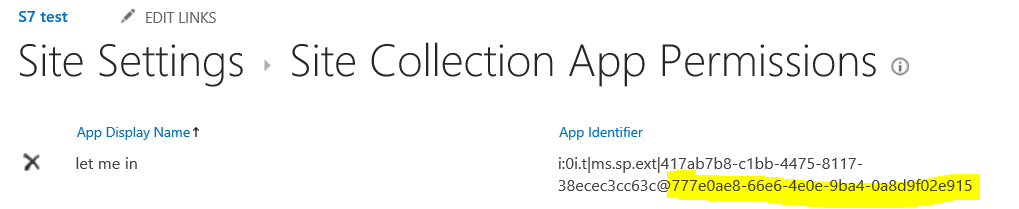
www.sevensigma.com.au

h2bp2013


An opportunity to learn about aligning SharePoint to business goals in Vancouver

Hi all

Just a quick note to mention that I’m off travelling again, this time swapping 39 degree Celsius summer weather of Perth for somewhere between –6 to 5 degrees of Canada. I’ll be spending a week in Canada running two classes – one public and one private. The first class is a public SharePoint Governance and Information Architecture class running in Vancouver. MVP Michal Pisarek of SharePointAnalystHQ fame will be there and it should be a terrific two days of learning how to think a little differently to govern SharePoint strategy and deployment. You will learn a bunch of new skills, techniques and perspectives. Best of all, the skills learnt are applicable for many other types of complex projects.

The class flyer is here: http://www.sevensigma.com.au/wp-content/uploads/downloads/2011/02/SPIA.pdf

The registration site is here: http://spiavancouver.eventbrite.com/

In terms of course coverage and content it is worth noting the research performed by the Eventful group (who run the Share conferences). According to them, the hot topic areas for SharePoint are governance, user adoption, change management, information architecture and user empowerment. These sort of topics are the sort where plenty of people tell you what the issues are, but are typically lighter on what to do about them. This class covers why this is, as well as dealing with all of these areas and presents detailed strategies, tools and methods to address them. Furthermore, aside from the 500+ page manual of meaty governance goodness, as a take home, we supply a CD for attendees with a sample performance framework, governance plan, SharePoint ROI calculator and sample mind maps of Information Architecture.

At last count there were 5 places left for the Vancouver class, so if you have been pondering if it is a worthwhile class, check out some of the feedback from the class web site. Also, if you know anybody who might be interested in attending, please pass the course flyer and registration site details to them. We always end up with people who tell us “Ah – if only I knew about the class!!”

Thanks for reading

Paul Culmsee
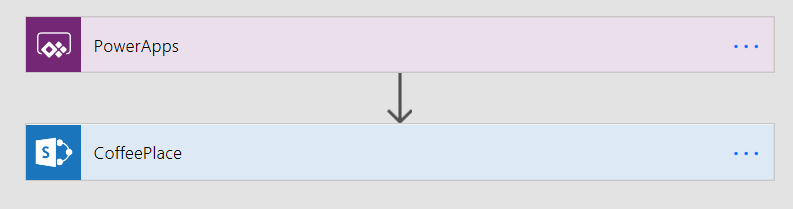
www.sevensigma.com.au

www.hereticsguidebooks.com


Seattle is go! SharePoint Governance and Information Architecture class

For one night only USA…

Ah, Erica Toelle – what a legend! Thanks to Erica and Fpweb, I’m thrilled to confirm that the Seattle SharePoint Governance and Information Architecture class is all systems go. Save the date as its very likely indeed to be the only SPIA class in the USA in 2011.  If it wasn’t enough that Erica will be joining me, but Ruven Gotz will be there too.

Thursday and Friday, May 05-06, 2011. (http://spiaseattle.eventbrite.com/)

The location is the Silvercloud Inn, 14632 SE Eastgate Way Bellevue, WA 98004

Map picture

In this multimedia extravaganza of a blog post, lets take a closer look at this class and what you can expect. Below is a snippet of a talk I did in New Zealand called “SharePoint Governance  Home Truths”. This clip shows a little diagnostic test that I do on my audience, to see whether they have experienced the visible signs of wicked problems. If you want to know why you should go to SPGov+IA, then take my 2 minute test yourself.

Do you need SPGov+IA? Take the two minute test to find out…

If the two minute test has taken your fancy, then you might want to see what is in store on the course itself. Below is the first half-hour of module 1 (in the form of a conference session), as well as the accompanying slide deck.

image 

View more presentations from paulculmsee

Course Information:

imageDownload Course Outline (PDF)

Download Class Flyer (PDF)

Most people understand that deploying SharePoint is much more than getting it installed.  Despite this, current SharePoint governance documentation abounds in service delivery aspects. However, just because your system is rock-solid, stable, well-documented and governed through good process, there is absolutely no guarantee of success.  Similarly, if Information Architecture for SharePoint was as easy as putting together lists, libraries and metadata the right way, then why doesn’t Microsoft publish the obvious best practices?

In fact, the secret to a successful SharePoint project is an area that the governance documentation barely touches.

This Master Class pinpoints the critical success factors for SharePoint Governance and Information Architecture and rectifies this blind spot.  Paul Culmsee’s style takes an ironic and subversive view on how SharePoint Governance really works within organizations while presenting a model and the tools necessary to get it right.

Drawing on inspiration from many diverse sources, disciplines and case studies, Paul Culmsee has distilled the "what" and "how" of governance down to a simple and accessible, yet rigorous and comprehensive set of tools and methods that organizations, large and small, can utilize to achieve the level of commitment required to see SharePoint become a successful part of your enterprise.
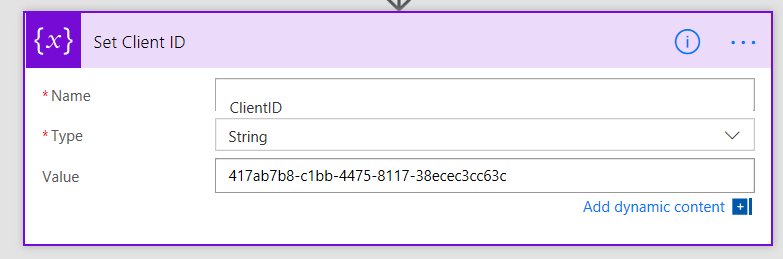
Some workshop sessions are hands on, we provide all of the tools and samples needed but please bring your own laptop.

Course Structure:

The course is split into 7 modules, run across two days.

Module 1: SharePoint Governance f-Laws 1-17:

Module 1 is all about setting context in the form of clearing some misconceptions about the often muddy topic of SharePoint governance. This module sheds some light onto these less visible SharePoint governance factors in the form of Governance f-Laws, which will also help to provide the context for the rest of this course

  • Why users don’t know what they want
  • The danger of platitudes
  • Why IT doesn’t get it
  • The adaptive challenge – how to govern SharePoint for the hidden organisation
  • The true forces of organisational chaos
  • Wicked problems and how to spot them
  • The myth of best practices and how to determine when a “practice” is really best

Module 2: The Shared Understanding Toolkit – part 1:

Module 2 pinpoints the SharePoint governance blind spot and introduces the Seven Sigma Shared Understanding Toolkit to counter it. The toolkit is a suite of tools, patterns and practices that can be used to improve SharePoint outcomes. This module builds upon the f-laws of module 1 and specifically examines the “what” and “why” questions of SharePoint Governance. Areas covered include how to identify particular types of problems, how to align the diverse goals of stakeholders, leverage problem structuring methods and constructing a solid business case.

Module 3: The Shared Understanding Toolkit – part 2:

Module 3 continues the Seven Sigma Shared Understanding Toolkit, and focuses on the foundation of “what” and “why” by examining the “who” and “how”. Areas covered include aligning stakeholder expectations, priorities and focus areas and building this alignment into a governance structure and written governance plan that actually make sense and that people will read. We round off by examining user engagement/stakeholder communication and training strategy.

Module 4: Information Architecture trends, lessons learned and key SharePoint challenges

Module 4 examines the hidden costs of poor information management practices, as well as some of the trends that are impacting on Information Architecture and the strategic direction of Microsoft as it develops the SharePoint road map. We will also examine the results from what other organisations have attempted and their lessons learned. We then distil those lessons learned into some the fundamental tenants of modern information architecture and finish off by examining the key SharePoint challenges from a technical, strategic and organisational viewpoint.

Module 5: Information organisation and facets of collaboration

Module 5 dives deeper into the core Information Architecture topics of information structure and organisation. We explore the various facets of enterprise collaboration and identify common Information Architecture mistakes and the strategies to avoid making them.

Module 6: Information Seeking, Search and metadata

Module 6 examines the factors that affect how users seek information and how they manifest in terms of patterns of use. Building upon the facets of collaboration of module 5, we examine several strategies to improving SharePoint search and navigation. We then turn our attention to taxonomy and metadata, and what SharePoint 2010 has to offer in terms of managed metadata

Module 7: Shared understanding and visual representation – documenting your Information Architecture

Module 7 returns to the theme of governance in the sense of communicating your information architecture through visual or written form. To achieve shared understanding among participants, we need to document our designs in various forms for various audiences.

Putting it all together: From vision to execution

Attendees will be taking home a manual ~480 pages, containing the Seven Sigma Shared Understanding Toolkit CD with a sample performance framework, governance plan, SharePoint ROI calculator (Spreadsheet), sample mind maps of Information Architecture. These tools are the result of years of continual development and refinement "out in the field" by Paul Culmsee and have only been recently released to the public through this Master Class.
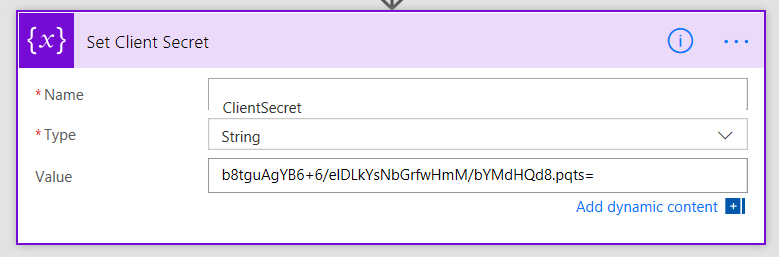
More Information:

Refund Policy:

No refunds will be issued for attendee cancellations once payment is recieved.  Class cancellation by the organizer will result in a refund less transaction fees.

image

http://spiaseattle.eventbrite.com/


The facets of collaboration part 5: It’s all Gen-Y’s fault – or is it?


Hi all

imageWelcome to another exploration of the collaborative world through a lens called the facets of collaboration. If you are joining us for the first time, I am writing a series of posts that looks at how our perception of collaboration influences our penchant for certain collaborative tools and approaches. SharePoint, given that it is touted as a collaboration platform, inevitably results in consultants never being able to give a straight answer. This is because SharePoint is so feature-rich (and as a result caveat-rich), that there are always fifty different ways a situation can be approached. Add the fact that many clients do not necessarily know what they want and learn about their problem by examining potential solutions, we have all the hallmarks of a wicked problem in the making.

These wicked problems, underpinning SharePoint, often results in Robot Barbie situations (cue the image to the left), which is the metaphor that I started this series with. Robot Barbie represents everything wrong about SharePoint deployments, as it is symptomatic of throwing features at a platitude, pretending to be solving a real problem and then wondering why the result doesn’t gel at all. It is a pattern of behaviour that is similar to an observation made by the very wise (and profane) Ted Dziuba who once spoke these words of wisdom.

If there’s one thing all engineers love to do, it’s create APIs. It’s so awesome because you can draw on a white board and feel like you put in a good day’s work, despite having solved no real, actual problems. Web 2.0 engineers, in addition to their intrinsic love of APIs, have a real hard-on for anything having to do with a social network. For example, developing a Facebook application lets them call their shitty little PHP program an "application" running on a "platform," like a real, live computer programmer does. Make-believe time is so much fun, even for adults.

Apart from making me giggle, Dziuba may have a point. Elsewhere on this blog I have spent time explaining that there are different types of problems that require different approaches to solving them (wicked vs. tame). My conjecture is that collaboration itself is exactly the same in this regard. People who espouse a particular type of tool or approach as the utopian solution to collaboration are taking a one size fits all approach to a multifaceted area and even worse, treating that area as a platitude. Anyone who calls themselves an Information Architect and doesn’t at least give cursory examination to the dimensions or facets of collaboration is likely to be doing their stakeholders a disservice.

All of us have certain biases, and I am no exception. For a start, I am generation X – the so-called cynical generation. Apparently we whinge and whine about everything and then blame it all on generation-Y. Thus, if cynicism is the gen-X stereotype, then I will happily accept being the poster child. I mean seriously, all of you vanity obsessed, self interested generation y’ers, if you spend a little less time preening and more time thinking, we might get some wisdom out of you (see – I am such a cynical gen-X right now).

So let’s recap the facets of collaboration. The model I came up with identifies four major facets for collaborative work: Task, Trait, Social and Transactional.

  • Task: Because the outcome drives the members’ attention and participation
  • Trait: Because the interest drives the members’ attention and participation
  • Transactional: Because the process drives the members’ attention and participation
  • Social: Because the shared insight drives the members’ attention and participation

image

In the last post, I used the model to examine the notion of Business Process Management versus Human Process Management and looked at some of the claims and counter claims made by proponents of each. This time let’s up the ante and talk about something curlier. We will examine the notion that social networking in the enterprise is the answer to improving collaboration within the enterprise. On first thought, it makes perfect sense, given the incredible success of Facebook, LinkedIn and Twitter. Nevertheless, there is ongoing debate about the use and value of social tools in the enterprise driven by their rise outside of organisational contexts. One particularly strongly worded quote is from Aaron Fulkerson, co-founder and CEO of MindTouch who doesn’t mince his words:

This class of software forces business users to adopt the myopic social visions imagined by the developers, which are nearly identical to their corresponding consumer web implementations. In short, social software is not solving business problems. In fact, these applications only serve to treat symptoms of the problems businesses face. They exacerbate the real problems within businesses by creating distractions and, worse, proliferate more disconnected data and application silos.

Ouch! Even within the SharePoint community there is significant variation of opinions as to the value of social. While I better protect the innocent and not name names, I have spoken with several well known SharePointers who think social is a giant waste of time, versus those who see real value in it. Irrespective of your opinion, you cannot ignore the fact that social is a significant game changer with effects still being felt. While web 2.0 has dropped off the Gartner hype cycle, its effect on particular sectors has been far reaching. Now it seems that all sectors have a 2.0 on the end of their name. For example:

  • Enterprise 2.0
  • Education 2.0
  • Legal 2.0
  • Government 2.0

Clearly, if things were just a flash in the pan, why are governments around the world trying to revitalise their public sector by utilising these tools?

Look at Microsoft as another example. They have, I think smartly, recognised industry trends and reacted to them via the introduction of a number of new SharePoint features, such as tagging/folksonomy via managed metadata, ratings columns, enhanced wiki capabilities and a significant investment in the capabilities of my-sites. Their clients now have the option to leverage these features should they choose to do so.

So just as there are naysayers, there are the pundits. Many people cite the reasoning that these features are necessary to attract and retain the next generation of workers, who have grown up with these tools in their personal lives. Whether this claim is valid is debatable, but I have to say, I really like the Enterprise 2.0 slide deck below by Scott Gavin for a number of reasons. I think it encapsulates the 2.0 vision, underpinned by social/cloud technologies very nicely. I sometimes ask people to discuss this slide deck in my IA classes and discussion is equally polarising as social networking in the enterprise itself. Some people think it represents the vision for the future, and others think it is hopelessly idealistic and doesn’t reflect cold, hard reality. Take a look for yourself below…

And the survey says…

Using the facets quadrants, we can start to see patterns for success of these tools for the enterprise and whether Aaron Fulkerson’s argument has merit or whether Scott Gavin is on the right track. An interesting use of the facet diagram is to plot where various tools and technologies are located. in my classes, I ask people to plot where Facebook belongs on facets diagram. Guess where it is usually drawn? 

image

While some people will draw Facebook at various levels on the vertical axis, everyone pretty much describes Facebook (and LinkedIn)  as trait based, while being highly dominant on the social quadrant. As discussed in the last article, if I ask people to plot a crowdsourced tool like Wikipedia, the dominant characteristic is always trait/social. In other words, people maintain and update Wikipedia articles because of their interest in the topic area, not because it helps them get something done.

image_thumb29

Clearly, big social networking technologies are successful in the "trait based social” quadrant. In other words, we tend to use Facebook more for common interest collaboration than to solve a task based collaborative issue (such as deliver a project). Another interesting thing about a lot of social networking technologies is that for many, our work-based collaborative life tends to be more task based, compared to our non-work which is more trait based. In other words, for a lot of us, our work life revolves around working with a group of people for a common outcome and if it was not for that common outcome, we wouldn’t necessarily have much in common (I risk falling victim to my own generalisation here – so I will come back to this later in the section titled “Why User Buy-In Is Hard”).

When you look at where Facebook sits in the quadrant, it begs the question of how well this type of tool (or the building blocks it is based on) would work in an organisation that is project (task) based and highly transactional. To that end, consider a project management information system, such as the basic one that Dux espouses in his book or the more complex one that Microsoft sell to organisations. Where do you think it belongs on the quadrant?

When I ask people to plot their project management information system, I typically get this response:

image

I speculate that the further away two tools lie on the spectrum, the more likely we are to have a robot-barbie solution if you blindly mix features that work well in each individual quadrant. The wiki argument I made in part 3 seems to support this contention. If you recall, in part 3 of this series, I mentioned that I ask every attendee of my classes if they had ever seen a successful project management wiki.  Irrespective of the location of the class, the answer was pretty much “no”. I noted that where I had seen successful wikis tended to be where the users of the wiki were linked by strong traits.

Looking Deeper

While that is interesting, I think the facets diagram tells you more than it intends. Obviously, it is clear that these project management systems such as MS Project Server are oriented toward task/transactional (“getting things done”) aspect of project delivery (ie, time, cost, scope, budget and the like). While some people might point to this and say “there you go – I told you all that social crap was a waste of time – bloody gen-Y and their social networking hubris”, I feel this is naive. If task based transactional tools are sufficient, then why do so many projects fail?

I have stated many times on this blog that shared commitment to a course of action requires shared understanding of the problem at hand. The act of aligning a team to project goals and developing this shared understanding is the realm of the task/social quadrant (the top left), where insights and outcomes come together. When I ask people to name tools that live in this space, few can name anything. Obviously, most project management systems are devoid here. Worst still, we subsequently delude ourselves to thinking that shared understanding can come from a few platitudinal paragraphs labelled as a “problem statement”.

Social networking pundits implicitly recognise this issue (and frequently butt heads against command and control type project managers as a result). But i feel they make the mistake in applying a one size fits all approach to collaboration and apply trait based tools as a panacea when they are not wholly appropriate. The social tools seem to fit exceptionally well into the top right quadrant, but not in the top left.

In fact the only tools that spring to mind that belong in the top left category are the sensemaking tools that my company practice, such as Dialogue Mapping.

Where’s the proof, Paul?

So I guess I am arguing that using social tools because they are the “choice of the new generation” ignores a few home truths about the nature of these tools versus the nature of organisational life. Just because Microsoft provide the tools for you, tells you that they are hedging their bets rather than having any more insight than you or me. So to test all of this, let’s use the facets model in a different way to back up some of my observations and suggestions in this post. Guess what happens when I ask people to plot SharePoint itself on the facets map?

When I asked SharePoint practitioners to do this, they initially drew SharePoint 2007 as a circle over the entire model. Once they did so, they would very often adjust the drawing to emphasise transactional over social collaboration as shown below.

Sharepoint 2007 

When practitioners were asked to draw SharePoint 2010, they usually indicated a higher representation in in the two social quadrants, but favoured the trait based social over task based social as shown below.

image

What was interesting about this experiment is that very few people drew SharePoint over the entire facets of collaboration. Social collaboration with SharePoint it seems, only stretches so far. This leads me onto more conjecture, and now we get to the bit in the post where we name a giant SharePoint elephant in the room.

Structured tools for social collaboration?

Many collaborative tools purport themselves as operating in the social space. SharePoint 2010 clearly does so, principally due to the Managed Metadata service, pimped MySites with tagging/rating capabilities. But SharePoint’s core heritage is database/metadata driven, document based collaboration. If we go back to our definition of social collaboration as dynamic, unstructured, with sharing of perspectives and insight through pattern sensing, then social collaboration is clearly not a predefined interaction.

Yet, database driven tools like SharePoint, and its building blocks like site columns and content types require considerable up-front planning to install and govern. Many, many inputs need to be well defined and furthermore, unless you have learnt through living the pain of things like content type definitions in declarative CAML, SharePoint buildings blocks are difficult to maintain/change over time. SharePoint suffers from a problem of reduced resiliency over time in that the more you customise it to suit your ends, the less flexible it gets. In the case of social collaboration the problem is worse because we are trying design for outputs where the inputs are not controlled. Trying to turn something that is inherently organic and emergent to something that has an X and Y on it may be misfocused and destined to fail in many circumstances. The realm of well-defined inputs is the realm of transactional collaboration, where workflow and business process management thrive and change is much more controlled before SharePoint ever gets a look in.

SharePoint excels at transactional scenarios as this is its heritage – after all, the majority of its feature set is oriented to transactional collaboration. The fact that people are prepared to draw SharePoint as dominating across across the transactional half of the facets diagram illustrates this.

But this raises interesting, if not slightly heretical question. If we need to use information architects to get a collaborative tool deployed for social collaboration (to get those inputs defined), then are we pushing the solution into the transactional side of the fence? Recall that in part 3 of this series, I looked at document collaboration and noted that when asked to draw team based document collaboration, people typically drew it operating in the social half of the matrix (pasted below for reference). I also noted in part 3 that for team based collaboration, rules and process are much less rigid or formalised with regards to document use and structure. I then referred to a recent NothingbutSharePoint article where a large organisation’s attempts to introduce the usage of content types largely failed. Like the seeming lack of success of wiki’s for task based collaboration, maybe content types simply are not the ideal construct as you move up the Y axis from transactional to social?

Now do not assume that I am anti metadata/content types here as this is not the case at all. Content types rock when it comes to search and surfacing of related information across a site collection (and beyond if you use search web parts). What I am calling out is the fact that if the SharePoint constructs that we have at our disposal were the panacea for social collaboration, where are the best practices that tell us how to leverage them for success? Perhaps the nature of the collaboration taking place plays a part in the lack of take-up reported in the aforementioned article? Those who advocate highly structured metadata as the only true solution may in fact be pushing a transactional paradigm onto a collaborative model that is ill-suited to it?

The knowledge worker paradox – one of the reasons why user buy-in is hard

Finally for now I’d like to cover one more aspect to this issue. Last year, one of my students looked at the facets and said “Now I know why my users aren’t seeing the value that I see in SharePoint”. When I asked him why, he explained:

“Many of my users are transactional and governed by process – that’s their KPI. Here I am as a knowledge worker, seeing all of these great collaborative features, but I am not judged by a process or transaction. I don’t live in that world. I forget that someone whose performance is judged by process consistency is not going to get all excited by a wiki or tagging or a blog.”

I call this the knowledge worker paradox and it is reminiscent of what I said in part 4 where we looked at BPM vs. HPM. Each role on an organisation is multifaceted. For many roles, there is varying degrees of transactional work taking place. Accordingly some people are very much process driven just as much as they are social driven. Gross generalisations that make statements that “80% of people are knowledge workers or perform knowledge work” do not help matters. In fact they serve to feed the one size fits all mentality that has proven to be detrimental to projects when people fail to recognise that some projects have wicked aspects.

SharePoint people are almost always knowledge workers. Thus if you, as a knowledge worker who is rarely governed by transactional process, think that you have the vision to prescribe a SharePoint driven meta-utopia to meet transactional needs without having lived that world, then if your results are not what you hoped for then to me its hardly surprising.  My student in this case realised that he had been approaching his user base the wrong way. Like Jane in part 1, he did not take into account the dominant facets of collaboration for the roles that he was trying to sell SharePoint into.

When you think about it, the whole argument around records management versus collaborative document management is in effect, an argument between a transactional oriented approach, versus a social oriented one. It is the same pattern as BPM vs. HPM. In records management, the paradigm is that management of the record is more important than the content of the record. Furthermore, that record shouldn’t change. Yet with team based document collaboration, without content there is no document as such and furthermore, the document will change frequently and require less strict controls to grease the gears of collaboration.

Both records oriented people and social pundits commonly make the same mistake of my student, where they force their dominant paradigm on everyone else.

Conclusion

Food for thought, eh?

This is probably my last facets of collaboration post for a while. It is one of these series of articles that I feel has value, but I know it won’t be read by too many 🙂 Nevertheless, I do hope that anyone who has gotten this far through has gotten some value from this examination and sees value in the model to help users make more informed Information Architecture decisions for SharePoint and beyond. I certainly use it now in most engagements and hope that it can be improved upon as a tool, or somehow incorporated into some of the SharePoint standards or maturity model stuff that is out there.

Remember the most important thing of all though. Despite all I have said, it is still definitely all generation y’s fault!

Thanks for reading


Paul Culmsee
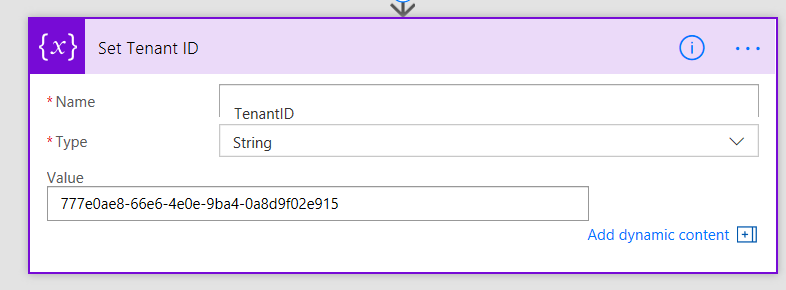
www.sevensigma.com.au


Next Page »
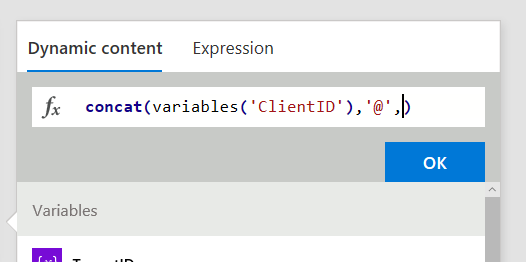
Today is: Sunday 24 May 2026 -