Hiya
[Note: I have written another article that illustrates a process for migrating the entire term store between farms.]
My colleague Chris Tomich, recently saved the day with a nice PowerShell script that makes the management and migration of managed metadata between farms easier. If you are an elite developer type, you can scroll down to the end of this post. if you are a normal human, read on for background and context.
The Issue
Recently, I had a client who was decommissioning an old active directory domain and starting afresh. Unfortunately for me, there was a SharePoint 2010 farm on the old domain and they had made considerable effort in leveraging managed metadata.
Under normal circumstances, migrating SharePoint in this scenario is usually done via a content database migration into a newly set up farm. This is because the built in SharePoint 2010 backup/restore, although better than 2007, presumes that the underlying domain that you are restoring to is the same (bad things happen if it is not). Additionally, the complex interdependencies between service applications (especially the user profile service) means that restoring one service application like Managed metadata is fiddly and difficult.
I was constrained severely by time, so I decided to try a quick and dirty approach to see what would happen. I created a new, clean farm and provisioned a managed metadata service application. The client in question had half a dozen term sets in the old SP2010 farm and around 20 managed metadata columns in the site collection that leveraged them. I migrated the content database from the old farm to the new farm via the database attach method and that worked fine.
I then used the SolidQ export tool from codeplex to export those term sets from the managed metadata service of the source farm. Since the new SP2010 farm had a freshly provisioned managed metadata service application, re-importing those terms and term sets into this farm was a trivial process and went without a hitch.
I knew that managed metadata stores each term as a unique identifier (GUID I presume because programmers love GUID’s). Since I was migrating a content database to a different farm there were two implications.
- The terms stored in lists and libraries in that database would reference the GUID’s of the original managed metadata service
- The site columns themselves, would reference the GUID of the term sets of the source managed metadata service
But the GUIDs on the managed metadata service on the new farm will not match the originals. I did not import the terms with their GUID’s intact. Instead I simply imported terms which created new GUID’s. Now everything was orphaned. Managed metadata columns would not know which term store they are assigned to. For example: just because a term set called, say “Clients” exists in the source farm, when a term set is created in the destination farm with the same name, the managed metadata columns will not automatically “re-link” to the clients term set.
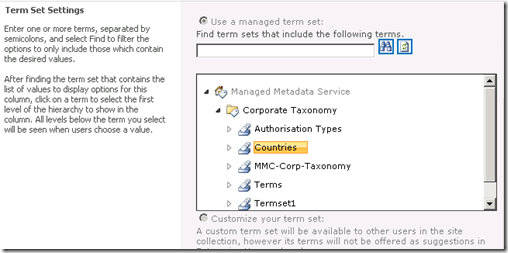
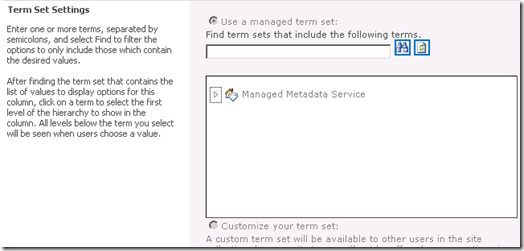
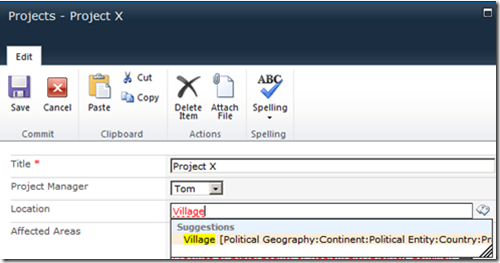
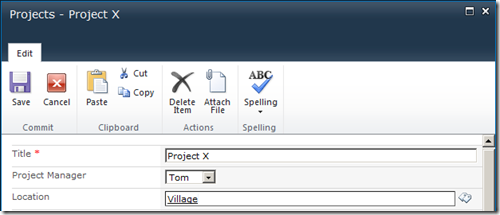
So what does a managed metadata column orphaned from a term set look like? Fortunately, SharePoint handles this gracefully. The leftmost image below shows a managed metadata column happily linked to its term set. The rightmost image shows what it looks like when that term set is deleted while the column remains. As you can see we now have no reference to a term set. However, it is easy to re-point the column to another term set.
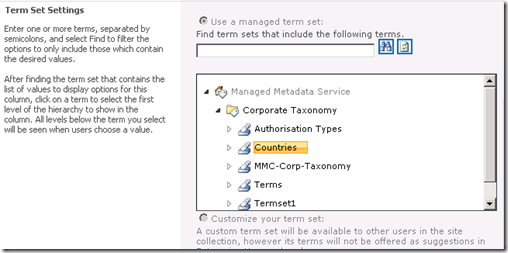
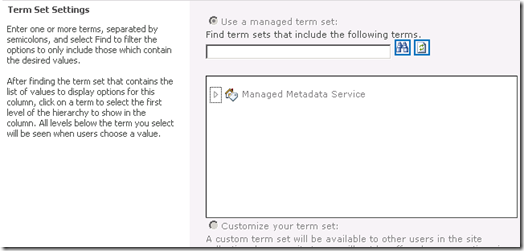
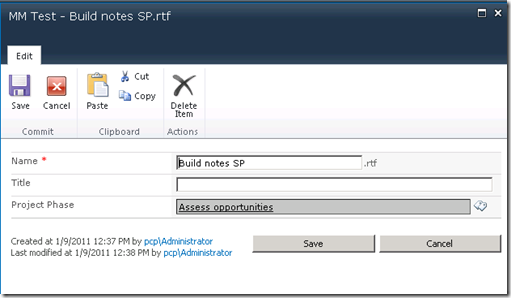
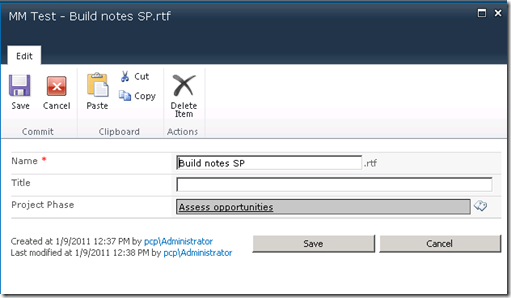
When you examine list or library items that have managed metadata entered for them prior to the term set being deleted, SharePoint prevents the managed metadata control from being used (the Project Phase column below is greyed out). Importantly, the original data is not lost since SharePoint actually stores the term along with the rest of the item metadata, but the term cannot be updated of course as there is no term set to refer to.
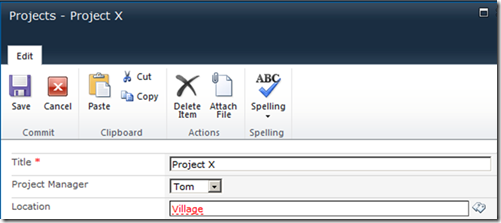
Once you reconnect a managed metadata column to a term set, the existing term will still be orphaned. The process of reconnecting does not do any sort of processing of terms to reconnect them. I show this below. In the example below, notice how this time, the managed metadata control is enabled again (as it has a valid term set), but the terms within it are marked red, signalling that they are invalid terms that do not exist in this term set. Notice though the second screen. By clicking on the orphaned term, managed metadata finds it in the associated term set and offers the right suggestion. With a single click, the term is re-linked back to the term store and the updated GUID is stored for the item. Too easy.
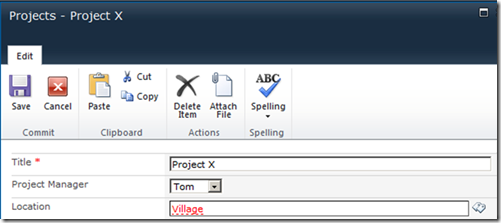
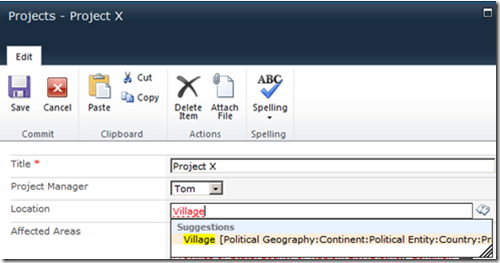
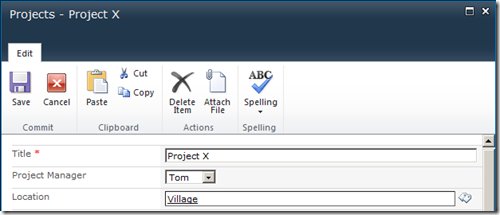
As the sequence of events above show, it is fairly easy to re-link a term to the term set by clicking on it and letting managed metadata find that term in the term set. However, it is not something you would want to do for 10000 items in a list! In addition, the relative ease of relinking a term like the Location column above is elegant only because it is a single term that does not show the hierarchy. This is not the only configuration available for managed metadata though.
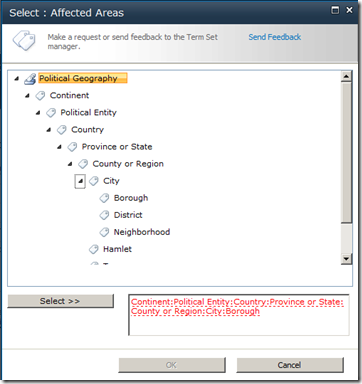
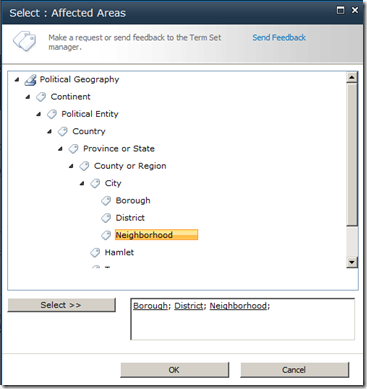
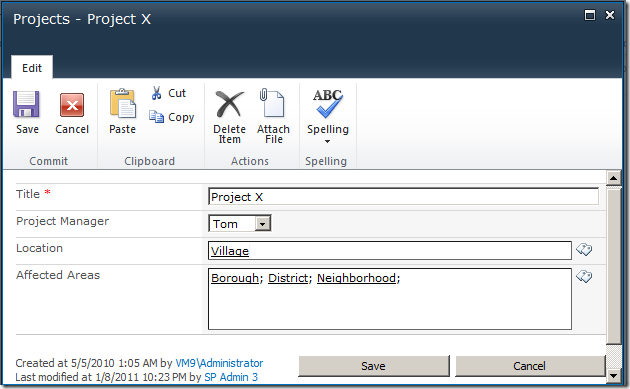
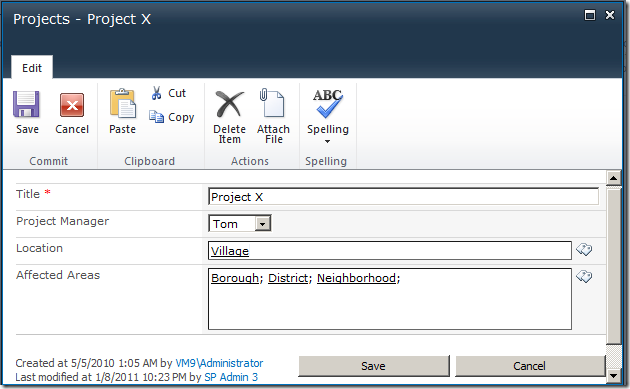
If you have set up your column to use multiple managed metadata entries, as well as allow multiple entries, you will have something like the screen below. In this example, we have three terms selected. “Borough”, “District” and “Neighbourhood”. All three of these terms are at the bottom of a deep hierarchy of terms. (eg Continent > Political Entity > Country > province or State > County or Region > City). As a result, things look ugly.

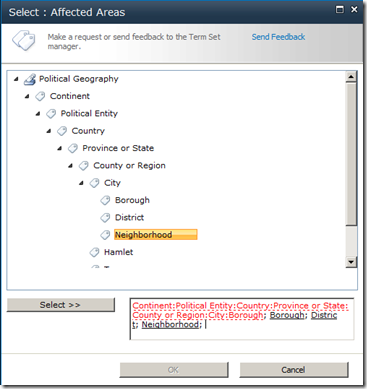
Unfortunately in this use-case, our single click method will not work. Firstly, we have to click each and every term that has been added to this column one at a time. Secondly and more importantly, even if we do click it, the term will not be found in in the new term set. The only way to deal with this is to manually remove the term and re-enter or use the rather clumsy term picker as the sequence below shows.
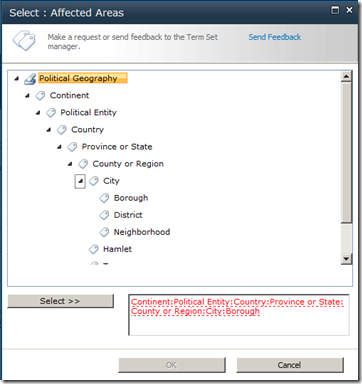
Note how as each term is selected, it is marked in black. We have to manually delete the orphaned terms in red.
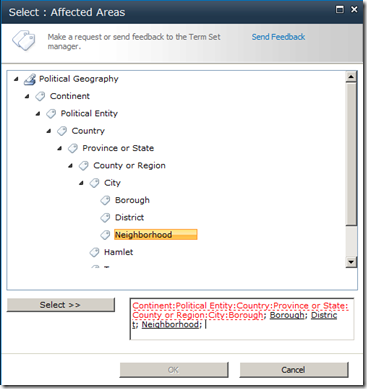
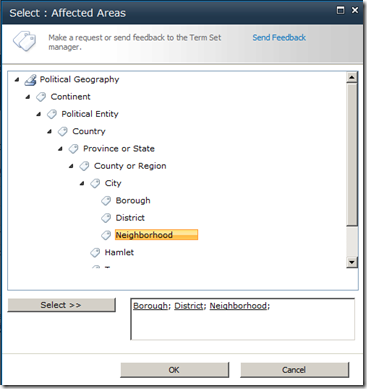
Finally, after far too many mouse clicks, we are back in business.
A better approach?
I showed this behaviour to my Seven Sigma colleague, Chris Tomich. Chris took a look at this issue and within a few hours trotted out a terrific PowerShell script to programmatically reconnect terms to a new term set. You can grab the source code for this script from Chris’s blog. The one thing Chris did tell me was that he wasn’t able to re-link a site or list column to its replacement term set. That bit you have to do yourself. This is because only the GUID of a term set is used against a column, which means without access to the original server, you do not know which term set to reattach.
Fortunately, there are not that many term sets to deal with, and the real pain is reattaching orphaned terms anyway.
Chris also added a ‘test’ mode to the script, so that it will flag if a field is currently connected to an invalid term set. This is very handy because you can run the script against a site collection and it will help you narrow down which columns are managed metadata and which need to be updated.
From the SharePoint 2010 Management Shell, the script syntax is: (assuming you call your script ReloadTermSets.ps1) –
.\ReloadTermSets.ps1 -web “http://localhost” -test -recurse
web – This is the web address to use. test – This uses a ‘test’ mode that will output lines detailing found fields and the values found for them in the term store and won’t save the items. recurse – This flag will cause the script to recurse through all child sites.
Of course, the usual disclaimers apply. Use the script/advice at your own risk. By using/viewing/distributing it you accept responsibility for any loss/corruption of data that may be incurred by said actions.
I hope that people find this useful. I sure did
Thanks for reading
Paul Culmsee
www.sevensigma.com.au