Back to Cleverworkarounds mainpage
 

Managed Metadata fun: Troubleshooting the Taxonomy Update Scheduler…

Hi all

I have opted to post this nugget of info in two formats, to account for different audiences

For those who have a twitter-sized attention span…

In SharePoint 2010, if you migrate site collections between SharePoint farms, and you find that the Taxonomy Update Scheduler timer job is not working (i.e. your managed metadata columns are not being refreshed) try deactivating and reactivating the hidden feature called TaxonomyFieldAdded to make the timer job work again.

…and for the rest of us…

Anyone who has done any significant work with managed metadata in SharePoint 2010, is probably familiar with the TaxonomyHiddenList that is created in each site collection. This hidden list exists to improve the performance of the managed metadata service application, specifically when displaying lists and libraries containing managed metadata columns. SharePoint mega-guru Wictor Wilén wrote up the definite guide to how it all works a couple of years back so I won’t rehash it here, except to say that the TaxonomyHiddenList functions in a similar way to a cache, and like all caches, every so often they need a refresh of the data being cached. In this case, a timer job exists called Taxonomy Update Scheduler, which pushes down any term store changes to TaxonomyHiddenList on an hourly basis.

One of Seven Sigma’s clients makes extensive use of managed metadata for both navigation and search and has separate development, test and production farms. Given there are three separate farms, this necessitates not only migrating site collections between the farms periodically, but migrating managed metadata term sets as well. We ended up utilising the built-in content deployment functionality for the site collections, because we have found this method to work well in scenarios where 3rd party tools are not available, where you do not have access to the underlying SQL Server and where custom development has been done with a bit of forethought.

But one of the implications of migrating site collections with managed metadata dependencies between farms is dealing with managed metadata term sets. Given each farm has its own managed metadata service application instance, each will have its own unique term store containing term sets. If one were to export and import terms from one farm to another, the GUID’s of the term sets and each term would not match between farms, and you would experience the sort of symptoms described in this post. Fortunately, the Export-SPMetadataWebServicePartitionData and Import-SPMetadataWebServicePartitionData PowerShell cmdlets save the day as they allow you to back up and restore the term store from farm to farm (I have included a very verbose sample process of how its done at the end of this post).

When the Taxonomy Update Scheduler  doesn’t update…

We recently had an issue where changes to the managed metadata term sets were not being refreshed in the TaxonomyHiddenList . Admins would rename terms using the Term Store Management Tool in site settings no problem. They knew the updates wouldn’t be immediately reflected in the site because it relies on the aforementioned timer job that runs hourly. Nevertheless, they still expected that the changes would take effect eventually, but it didn’t happen at all. This was particularly annoying in this case because a managed metadata term set was being used in a list which defined the headings and sub headings in the mega menu navigation system we’d developed. As a result, they would end up with navigation headings with the wrong phrase that just wouldn’t reflect the term store changes no matter how long they waited.

When this was first reported we thought, “ah they just haven’t waited long enough and the timer job hasn’t run” so Dan (one of our consultants who I mentioned in the last post), went and found the appropriate Taxonomy Update Scheduler timer job and ran it manually. He checked the results and found that the terms still had not updated, even though the timer job had completed successfully. He checked out the SharePoint ULS logs at the time the timer job was being run and all appeared fine, no errors or warnings to indicate that it wasn’t working. He then turned up the debug logging to verbose and ran the timer job again. Still no warnings or errors, but it definitely hadn’t affected the TaxonomyHiddenList which still contained the old taxonomy values.

I had previously seen many reports of permission related issues with the TaxonomyHiddenList so that was checked and found to be fine. Additionally there were known issues with the timer job that was fixed in cumulative updates but they did not apply here. So while we worked out what was going wrong, we had the pressing issue of sorting out the hidden list for our client so their navigation system could function correctly. Dan found some code samples showing how to force an update and put together the following script so that whenever an update was needed we could run this script and force the update. Here is the sample script code:

$siteUrl = Read-Host "Enter the SharePoint site URL (eg: http://portal.mycompany.com.au/sites/site)"
$site = Get-SPSite $siteUrl
[Microsoft.SharePoint.Taxonomy.TaxonomySession]::SyncHiddenList($site)
$site.dispose()

Now be warned with this script – it can hammer your search. This is because this script isn’t the same as what the the timer job does. When you run the timer job, it runs rather quickly and if you are monitoring the system resources you wouldn’t really observe any noticeable spikes. But this script (depending on the size of your taxonomy store) runs for a number of minutes at about 15-20% CPU constantly. Dan checked this performance behaviour out using reflector and found that the method SyncHiddenList in the Microsoft.SharePoint.Taxonomy assembly goes through the entire TaxonomyHiddenList, then searches the term store for the matching term’s GUID identifier, then it updates TaxonomyHiddenList with the actual value of that term in the term store. Without going into too much detail, there is quite a bit of enumerating and searching through lists and term stores for terms and it is obviously not very efficient. The timer job on the other hand – judging from the names of the methods it invokes (the ULS shows the timer job making a WCF service call on the MetadataWebService called GetChanges)  – instead looks directly for items which have changed and then updates only those items. This is of course, far more efficient than going through everything in the Term Store/TaxonomyHiddenList. So you have been warned – perhaps avoid running a script like this during business hours because it may make things slower.

So having said all of that, after a bit of searching for what might be the problem since the logs weren’t hinting at the cause of the failure, Dan found this Technet forum post http://social.technet.microsoft.com/Forums/sharepoint/en-US/51174c11-68b0-4e39-9491-6676d3dbf008/taxonomy-update-scheduler-not-updating and noticed that one respondent (Ed) had used the STSADM command to deactivate and then activate the TaxonomyFieldAdded feature because he’d found something got corrupted when copying a live content DB from his DEV system. As I said earlier, we’d used the built-in content migration tools to do a similar thing. Could this have corrupted things just like Ed had witnessed? It couldn’t hurt to try out his fix and see, so Dan ran the following commands:

stsadm -o deactivatefeature -name TaxonomyFieldAdded -url [SITE_URL]

stsadm -o activatefeature -name TaxonomyFieldAdded -url [SITE_URL]

where [SITE_URL] was replaced with the URL to our SharePoint site. He then used the Term Store Management Tool to rename one of the terms and the ran the Taxonomy Update Scheduler timer job. Sure enough, he saw that the term in the hidden list had changed to what was in the term store. So Ed’s fix worked for us – and it does appear that some corruption of the link between the Term Store and the TaxonomyHiddenList had occurred in similar circumstances of migrating site collections. It just seemed strange that forcing an update with Dan’s workaround script worked, but again that just highlights the differences between the Taxonomy Update Scheduler timer job and the SyncHiddenList method we called in the script.

Footnote: A slightly verbose term migration process

Earlier in this post I said I should show an example of how to migrate a term store between service applications using PowerShell. While the PowerShell commands are quite easy, it can be tricky to get working at first because a couple of pre-requisites have to be met:

  1. This method can only be used by an account with local administration access to the entire farm (hopefully you have a SharePoint admin type account that has local admin access to all servers)
  2. Despite this process being run via PowerShell on an application server on a farm, most of the activity is performed on the destination farm SQL Server via stored procedures. Accordingly, the account you are using for SharePoint service applications on the destination farm temporarily needs bulk import rights on SQL Server which it does not have by default.
    • This can be achieved by temporarily granting the account elevated access. (For example: granting the service application account sysadmin role in SQL)

Exporting the term store

On one of the web/application servers of the source SharePoint farm, we first export the term store to a backup file via PowerShell:

  • 1) Determine where the export file will be saved to. Note: This must be a UNC path (eg \\server\share on the SQL Server for the destination farm. Ensure that all SharePoint farm and service application accounts have write access to this share and the folder. (Note: If this share is temporarily created and deleted after use, granting full control to the share may be deemed appropriate)
  • 2) Using the SharePoint 2010 Management Shell on the source server, determine the ID of the managed metadata service application (note in the example below, the matching service application is marked in bold). The GUID listed in the ID column is the important bit
PS C:\> Get-SPServiceApplication

DisplayName TypeName Id
----------- -------- --
State Service App... State Service 833e41ed-9574-4f6b-978b-787a087735e1
Managed Metadata ... Managed Metadata ... 479cd8d7-af32-4f85-adb1-9cdd858ed3e6
Web Analytics Ser... Web Analytics Ser... 4b54f5d4-2148-4cbf-ad24-b1e49b0eb7e5
  • 3) Create a PowerShell object bound to the managed metadata service application ID.
PS C:\Users\SP_Admin> $mms = Get-SPServiceApplication -Identity 479cd8d7-af32-4f85-adb1-9cdd858ed3e6
  • 4) Confirm that the correct service application is selected by examining the properties of the object. Confirm the service type is “Managed Metadata Service”
PS C:\> $mms.TypeName
Managed Metadata Service
  • 5) Using PowerShell, determine the ID of the managed metadata service application proxy (note the matching service application is marked in bold). The GUID listed in the ID column is the important bit
PS C:\> Get-SPServiceApplicationProxy

DisplayName TypeName Id
----------- -------- --
State Service App... State Service Proxy 24f87eba-85af-4938-98f4-3002ff0da95b
Managed Metadata ... Managed Metadata ... 373ad4c0-cdd2-4db8-9dd8-a0c5c8d1df41
Secure Store Serv... Secure Store Serv... 7ac50f4f-addc-466e-a695-9a37890058f5
  • 6) Create an object bound to the managed metadata service application proxy.
PS C:\> $mmp = Get-SPServiceApplicationProxy -Identity 373ad4c0-cdd2-4db8-9dd8-a0c5c8d1df41
  • 7) Confirm that the correct service application proxy is selected by examining the properties of the object. Confirm the service type is “Managed Metadata Service Connection”
PS C:\> $mmp.TypeName
Managed Metadata Service Connection
  • 8) Export the current Managed metadata term store to the UNC path specified in step 1, utilising the service application object and service application proxy object created in steps 3 and 6.
PS C:\> Export-SPMetadataWebServicePartitionData -Identity $mms.id -ServiceProxy $mmp -Path "\\server\share\termstore.bak"

Importing the term store

The following steps import the term store to a backup file: These steps are performed on an application server on the destination farm:

  • 1) Determine where the export file will restored from. Note: This will be the UNC path (eg \\server\share used for the export process documented in step 8 of the export process.
  • 2) Using SharePoint 2010 Management Shell on the destination server, determine the ID of the managed metadata service application (note the matching service application is marked in bold). The GUID listed in the ID column is the important bit
PS C:\> Get-SPServiceApplication

DisplayName TypeName Id
----------- -------- --
State Service App... State Service 833e41ed-9574-4f6b-978b-787a087735e1
Managed Metadata ... Managed Metadata ... 479cd8d7-af32-4f85-adb1-9cdd858ed3e6
Search Service Ap... Search Service Ap... a3434173-fc5d-464d-a05c-aeda41d4959f
  • 3) Create an object bound to the managed metadata service application.
PS C:\> $mms = Get-SPServiceApplication -Identity 479cd8d7-af32-4f85-adb1-9cdd858ed3e6
  • 4) Confirm that the correct service application is selected…
PS C:\> $mms.DisplayName
Managed Metadata Service Application

PS C:\> $mms.TypeName
Managed Metadata Service
  • 5) Using PowerShell, determine the ID of the managed metadata service application (note the matching service application is marked in bold). The GUID listed in the ID column is the important bit
PS C:\> Get-SPServiceApplicationProxy

DisplayName TypeName Id
---------- -------- --
State Service App... State Service Proxy 24f87eba-85af-4938-98f4-3002ff0da95b
Managed Metadata ... Managed Metadata ... 373ad4c0-cdd2-4db8-9dd8-a0c5c8d1df41
WSS_UsageApplication Usage and Health ... c8de2c82-8ae5-41ab-bf58-9724c48776d5
  • 6) Create an object bound to the managed metadata service application proxy and confirm that the correct service application proxy is selected…
PS C:\> $mmp = Get-SPServiceApplicationProxy -Identity 373ad4c0-cdd2-4db8-9dd8-a0c5c8d1df41
PS C:\> $mmp.DisplayName
Managed Metadata Service Application
PS C:\> $mmp.TypeName
Managed Metadata Service Connection
  • 7) Import the Managed metadata configuration to the destination farm store. Perform this command on the destination farm, specifying the UNC path specified in step 1, utilising the service application object and service application proxy object.
Import-SPMetadataWebServicePartitionData -Identity $mms.id -ServiceProxy $mmp -Path "\\server\share\termstore.bak" –OverwriteExisting
  • 8) Undo the sysadmin permissions on the SharePoint Service Application Account on the SharePoint DB server as the permissions are no longer required.


Thanks for reading (and once again thanks Dan Wale for nailing this issue)


Paul Culmsee

www.sevensigma.com.au

h2bp2013


A lesser known way to fine-tune SharePoint search precision…

Hi all

While I’d like to claim credit for the wisdom in this post, alas I cannot. One of Seven Sigma’s consultants (Daniel Wale) worked this one out and I thought that it was blog-worthy. Before I get into the issue and Daniel’s resolution, let me give you a bit of search engine theory 101 with a concept that I find is useful to help understand search optimisation.

Precision vs. recall

Each time a person searches for information, there is an underlying goal or intended outcome. While there has been considerable study of information seeking behaviours in academia and beyond, they boil down to three archetype scenarios.

  1. “I know exactly what I am looking for” – The user has a particular place in mind, either because they visited it in the past or because they assume it exists. This known as known item seeking, but is also referred to as navigational seeking or refinding.
  2. “I’m not sure what I am looking for but I’ll know it when I find it” – This is known as exploratory seeking and the purpose is to find information assumed to be available. This is characterised by
    • – Looking for more than one answer
    • – No expectation of a “right” answer
    • – Open ended
    • – Not necessarily knowing much about what is being looking for
    • – Not being able to articulate what is being looked for
  3. “Gimme gimme gimme!” – A detailed research type search known as exhaustive seeking, leaving no stone unturned in topic exploration. This is characterised by;
    • – Performing multiple searches
    • – Expressing what is being looked for in many ways

Now among other things, each of these scenarios would require different search results to meet the information seeking need. For example: If you know what you are looking for, then you would likely prefer a small, highly accurate set of search results that has the desired result at the top of the list. Conversely if you are performing an exploratory or exhaustive search, you would likely prefer a greater number of results since any of them are potentially relevant to you.

In information retrieval, the terms precision and recall are used to measure search efficiency. Google’s Tim Bray put it well when he said “recall measures how well a search system finds what you want and precision measures how well it weeds out what you do not want”. Sometimes recall is just what the doctor ordered, whereas other times, precision is preferred.

The scenario and the issue…

That said, recently, Seven Sigma worked on a knowledgebase project for a large customer contact centre. The vast majority of the users of the system are customer centre operators who deal directly with all customer enquiries and have worked there for a long time. Thus most of the search behaviours are in the known item seeking category as they know the content pretty well – it is just that there is a lot of it. Additionally, picture yourself as one of those operators and then imagine the frustration a failed or time consuming search with an equally frustrated customer on the end of the phone and a growing queue of frustrated callers waiting their turn. In this scenario, search results need to be as precise as possible.

Thus, we invested a lot of time in the search and navigation experience on this project and that investment paid off as the users were very happy with the new system and particularly happy with the search experience. Additionally, we created a mega menu solution to the current navigation that dynamically builds links from knowledgebase article metadata and a managed metadata term set. This was done via the data view web part, XSLT, JavaScript and Marc’s brilliant SPServices. We were very happy with it because there was no server side code at all, yet it was very easy to administer.

So what was the search related issue? In a nutshell, we forgot that the search crawler doesn’t differentiate between your pages content and items in your custom navigation. As a result, we had an issue where searches did not have adequate precision.

To explain the problem, and the resolution, I’ll take a step back and let Daniel continue the story… Take it away Dan…

The knowledgebase that Paul described above contained thousands of articles, and when the search crawler accessed each article page, it also saw the titles of many other articles in the dynamic menu code embedded in the page. As a result, this content also got indexed. When you think about it, the search crawler can’t tell whether content is real content versus when it is a dynamic menu that drops down/slides out when you hover over the menu entry point. The result was that when users searched for any term that appeared in the mega menu, they would get back thousands of results (a match for every page) even when the “actual content” of the page doesn’t contain any references to the searched term.

There is a simple solution however, for controlling what the SharePoint search crawler indexes and what it ignores. SharePoint knows to exclude content that exists inside of <div> HTML tags that have the class noindex added to them. Eg

<div class=”menu noindex> 
  <ul> 
    <li>Article 1</li> 
    <li>Article 2</li> 
  </ul> 
</div>

There is one really important thing to note however. If your <div class=”noindex”> contains a nested <div> tag that doesn’t contain the noindex class, everything inside of this inner <div> tag will be included by the crawler. For example:

<div class=”menu noindex> 
  <ul> 
    <li>Article 1</li> 

      <div class=”submenu>
        <ul>
          <li>Article 1.1</li>
          <li>Article 1.2</li>
        </ul>
      </div>

    <li>Article 2</li> 
  </ul> 
</div>

In the code above the nested <div> to surround the submenu items does not contain the noindex class. So the text “Article 1.1” and “Article 1.2” will be crawled, while the “Article 1” and “Article 2” text in the parent <div> will still be excluded.

Obviously the example above its greatly simplified and like our solution, your menu is possibly making use of a DataViewWebPart with an XSL transform building it out. It’s inside your XSL where you’ll need to include the <div> with the noindex class because the Web Part will generate its own <div> tags that will encapsulate your menu. (Use the browser Developer Tools and inspect the code that it inserts if you aren’t familiar with the code generated, you’ll find at least one <div> elements that is nested inside any <div class=”noindex”> you put around your web part thinking you were going to stop the custom menu being crawled).

Initially looking around for why our search results were being littered with so many results that seemed irrelevant, I found the way to exclude the custom menu using this method rather easily, I also found a lot of forum posts of people having the same issue but reporting that their use of <div> tags with the noindex class was not working. Some of these posts people had included snippets of their code, each time they had nested <div> tags and were baffled by why their code wasn’t working. I figured most people were having this problem because they simply don’t read the detail in the solutions about the nesting or simply don’t understand that the web part will generate its own HTML into their page and quite likely insert a <div> that surrounds the content they are wanting to hide. As any SharePoint developer quickly finds out a lot of knowledge in SharePoint won’t come from well set out documentation library with lots of code examples that developers get used to with other environments, you need to read blogs (like this one), read forums, talk to colleagues and just build up your own experience until these kinds of gotchas are just known to you. Even the best SharePoint developer can overlook simple things like this and by figuring them out they get that little bit better each time.

Being a SharePoint developer is really about being the master of self-learning, the master of using a search engine to find the knowledge you need and most importantly the master of knowing which information you’re reading is actually going to be helpful and what is going to lead you down the garden path. The MSDN blog post by Mark Arend (http://blogs.msdn.com/b/markarend/archive/2010/06/07/control-search-indexing-crawling-within-a-page-with-noindex.aspx) gives a clear description of the problem and the solution, he also states that it is by design that nested <div> tags are re-evaluated for the noindex class. He also mentions the product team was considering changing this…  did this create the confusion for people or was it that they read the first part of the solution and didn’t read the note about nested <div> tags? In any case it’s a vital bit of the solution that it seems a lot of people overlook still.

In case you are wondering, the built in SharePoint navigation menu’s already have the correct <div> tags with the noindex class surrounding them so they aren’t any concern. This problem only exists if you have inserted your own dynamic menu system.

Other Search Provider Considerations

It is more common that you think that some sites do not just use SharePoint Search. The <div class=”noindex”> is a SharePoint specific filter for excluding content within a page, what if you have a Google Search Appliance crawling your site as well? (Yep… we did in this project)

You’re in luck, the Google documents how to exclude content within a page from their search appliance. There are a few different options but the equivalent blanket ignore of the contents between the <div class=”noindex”> tags would be to encapsulate the section between the following two comments

<!–googleoff: all–>

and

<!–googleon: all–>

If you want to know more about the GSA googleoff/googleon tags and the various options you have here is the documentation: http://code.google.com/apis/searchappliance/documentation/46/admin_crawl/Preparing.html#pagepart

Conclusion

(… and Paul returns to the conversation).

I think Dan has highlighted an easy to overlook implication of custom designing not only navigational content, but really any type of dynamically generated content on a page. While the addition of additional content can make a page itself more intuitive and relevant, consider the implication on the search experience. Since the contextual content will be crawled along with the actual content, sometimes you might end up inadvertently sacrificing precision of search results without realising.

Hope this helps and thanks for reading (and thanks Dan for writing this up)


Paul Culmsee

www.sevensigma.com.au

h2bp2013


How not to troubleshoot SharePoint

Most SharePoint blogs tend to tell you cool stuff that the author did. Sometimes telling the dumb stuff is worthwhile too. I am in touch with my inner Homer Simpson, so I will tell you a quick story about one of my recent stupider moments…

This is a story about anchoring bias – an issue that many of us can get tripped up by. In case you are not aware, Anchoring is the tendency to be over-reliant on the some information (the “anchor”) when making subsequent decisions. Once an anchor is set in place, subsequent judgments are made by interpreting other information around the anchor.

So I had just used content deployment, in combination with some PowerShell, to push a SharePoint environment from the development environment to the test environment and it had all gone well. I ran through test cases and was satisfied that all was cool. Then another team member brought to my attention that search was not returning the same results in test as in development. I took a look and sure enough, one of the search scopes was reporting way less results than I was expecting. The issue was confined to one pages library in particular, and I accessed the library and confirmed that the pages had successfully migrated and were rendering fine.

Now I had used a PowerShell script to export the exclusions, crawled/managed properties and best bets of the development farm search application, subsequently import into test. So given the reported issue was via search results, the anchor was well and truly set. The issue had to be search right? Maybe the script had a fault?

So as one would do, I checked the crawl logs and confirmed that some items in the affected library were being crawled OK. I then double checked the web app policy for the search crawl account and made sure it had the appropriate permissions. it was good. I removed the crawl exclusions just in case they were excluding more than what they reported to be and I also I removed any proxy configuration from the search crawl account as I have seen proxy issues with crawling before.

I re-crawled and the problem persisted… hmm

I logged into the affected site as the crawl account itself and examined this problematic library. I immediately noticed that I could not see a particular folder where significant content resided. This accounted for the search discrepancy, but checking permissions confirmed that this was not an issue. The library inherited its permissions. So I created another view on the library that was set to not show folders, and when I checked that view, I could see all the affected files and their state was set to “Approved”. Damn! This really threw me. Why the hell would search account not see a folder but see the files within it when I changed the view not to include folders?

Still well and truly affected by my anchoring bias towards search, I started to consider possibilities that defied rational logic in hindsight. I wondered if there was some weird issue with the crawl account, so I had another search crawl account created and retested the issue and still the problem persisted. Then I temporarily granted the search account site owner permission and was finally able to view the missing folder content when browsing to it, but I then attempted a full crawl and the results stubbornly refused to appear. I even reset the index in desperation.

Finally, I showed the behaviour of the library to a colleague, and he said “the folder is not approved”. (Massive clunk as the penny drops for me). Shit – how can I be so stupid?

For whatever reason, the folder in question was not approved, but the files were. The crawler was dutifully doing precisely what it was configured to do for an account that has read permission to the site. When I turned on the “no folder” view, of course I saw the files inside the folder because they were approved. Argh! So bloody obvious when you think about it. Approving the folder and running a crawl immediately made the problem go away.

What really bruised my tech guy ego even more was that I have previously sorted out this exact issue for others – many times in fact! Everybody knows that when content is visible for one party and not others, its usually approvals or publishing. So the fact that I got duped by the same issue I  have frequently advised on was a bit deflating…  except that this all happened on a Friday and as all geeks know, solving a problem on a Friday always trumps tech guy ego. Smile

Thanks for reading

Paul Culmsee


Warts and all SharePoint caveats in Melbourne and Auckland

image   image

Hi all

There are a couple of conferences happening this month that you should seriously consider attending. The New Zealand and Australian SharePoint Community Conferences. This year things have changed. There are over 50 Sessions designed to cater to a wide audience of the SharePoint landscape and the most varied range of international speakers I have seen so far. What is all the more pleasing this year is that aside from 20 sessions of technical content, the business side of SharePoint focus has been given greater coverage and there are over 20 customer case studies, which give great insight into how organisations large and small are making the most of their SharePoint deployments. This stuff is gold because it is what happens in the trenches of reality, rather than the nuanced, airbrushed one you tend to get when people are trying to sell you something.

My involvement will include some piano accompaniment while Christian Buckley hits the high notes Smile, and in terms of talks, I will be “keeping it real“ by presenting a talk called “Aligning Business Objectives with SharePoint“. I will also be running a 1 day class on one of the hardest aspects of SharePoint delivery: Business goal alignment. This is workshop is the “how” of goal alignment (plenty of people can tell you the “what”). If you are a BA, PM or recovering tech dude, do not miss this session. It draws a lot of inspiration from my facilitation and sensemaking work and has been very well received wherever I have run it.
The other session I am really looking forward to is a talk called SharePoint 2010 Caveats: Don’t get caught out! Now anybody in SharePoint for long enough has learnt the hard way to test all assumptions. This is because SharePoint is a complex beast with lots of moving parts. Unfortunately these moving parts don’t always integrate the way they one would assume. Usually the result of such an untested assumption is a lot of teeth gnashing and heavily adjusted project plans.

I mentioned airburshed reality before – this is something that occasionally frustrates me, especially when you see SharePoint demonstrations full of gushing praise, via a use case that glosses over inconvenient facts. Michal Pisarek of SharePointAnlystHQ fame, is a SharePoint practitioner who shares my view and a while back, we both decided to present a talk about some of the most common, dangerous and some downright strange caveats that SharePoint has to offer. The session outline is below.

"Yes but…" is a common answer given by experienced SharePoint consultants when asked if a particular solution design "will work". One of the key reasons for this is that SharePoint’s greatest strength is one of its weaknesses. The sheer number of components or features jam packed into the product, means that there are many complex interactions between them – often with small gotchas or large caveats that were not immediately apparent while the sales guy was dutifully taking you through the SharePoint pie diagram.

Unfortunately, some organizations trip up on such untested assumptions at times, and in turn it can render the logical edifice of their solution design invalid. This is costly in terms of lost time to change approaches, but increased complexity since sometimes workarounds are worse than the caveats. In this fun, lively and interactive session, Michal Pisarek will put his MVP (not really) on the line, and with a little help from Paul Culmsee, examine some of SharePoint’s common caveats. Make no mistake, understanding these caveats and the approaches for mitigating them will save you considerable time, money and heartache.

Don’t miss this informative and eye opening session

Now let me state up front that our aim is not to walk into a session and just spent all of the time bitching about all the ills of SharePoint. In fact the aim and intent of this session was from the point of view of “knowing this will save you money”. To that end, if there is a workaround for an issue, we will outline it for you.

Now just about every person who I have mentioned this talk to, have said something along the lines of “Oh I could give you some good ones”. So to that end, we want to hear any of the weird and wacky things that have stopped you in your tracks. If you have any rippers, then leave a comment below or submit them to Michal (michalpisarek@sharepointanlysthq.com)

We will also make this session casual and interactive. So expect some audience participation!

Thanks for reading


Paul Culmsee

www.sevensigma.com.au

www.hereticsguidebooks.com


An obscure “failed to create the configuration database” issue…

Hi all

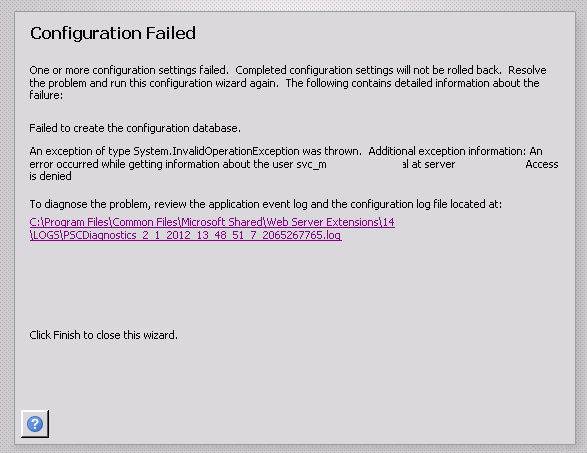
You would think that after years of installing SharePoint in various scenarios, that I would be able to get past step 3 in the configuration wizard (the step that creates the configuration database). But today I almost got nailed by an issue that – while in hindsight is dead-set obvious – was rather difficult to diagnose.

Basically it was a straightforward two server farm installation. The installer account had local admin rights on the web front end server and sysadmin rights on the SQL box. SQL was a dedicated named instance using an alias. I was tutoring the install while an engineer did the driving and as soon as we hit step 3, blammo! – the Installation failed claiming that the configuration database could not be created.

image

Looking a little deeper into the log, the error message stated:

An error occurred while getting information about the user svc-spfarm at server mydomain.com: Access is denied

Hmm.. After double checking all the obvious things (SQL dbcreator and securityadmin on the farm account, group policy interference, etc) it was clear this was something different. The configuration database was successfully created on the SQL server, although the permissions of the farm account had not been applied. This proved that SQL permissions were appropriate. Clearly this was an issue around authentication and active directory.

There were very few reports of similar symptoms online and the closest I saw was a situation where the person ran the SharePoint configuration wizard using the local machine administrator account by mistake, rather than a domain account. Of course, the local account had no rights to access active directory and the wizard had failed because it had no way to verify the SharePoint farm account in AD to grant it permissions to the configuration database. But in this case we were definitely using a valid domain account.

As part of our troubleshooting, we opted to explicitly give the farm account “Log on as a service” rights (since this is needed for provisioning the user profile service later anyhow). It was then we saw some really bizarre behaviour. We were unable to find the SharePoint farm account in Active Directory. Any attempt to add the farm account to the “log on as a service” right would not resolve and therefore we could not assign that right. We created another service account to test this behaviour and and the same thing happened. This immediately smelt like an issue with Active directory replication – where the domain controller being accessed was not replicating with the others domain controllers. A quick repladmin check and we ascertained that all was fine.

Hmm…

At this point, we started experimenting with various accounts, old and new. We were able to conclude that irrespective of the age of the account, some accounts could be found in Active Directory no problem, whereas others could not be. Yet those that could not be found were valid and working on the domain.

Finally one of the senior guys in the organisation realised the problem. In their AD topology, there was an OU for all service accounts. The permissions of that OU had been modified from the default. The “Domain users” group did not have any access to that OU at all. This prevented service accounts from being enumerated by regular domain accounts (a security design they had adopted some time back). Interestingly, even service accounts that live in this OU cannot enumerate any other accounts in that OU, including themselves.

This caused several problems with SharePoint. First the configuration wizard could not finish because it needed to assign the farm account permissions to the config and central admin databases. Additionally, the farm account would not be able to register managed accounts if those accounts were stored in this OU.

Fortunately, when they created this setup, they made a special group called “Enumerate Service Account OU”. By adding the installer account and the farm account to this group all was well.

I have to say, I thought I had seen most of the ways Active Directory configuration might trip me up – but this was a first. Anyone else seen this before?

Thanks for reading

Paul Culmsee

www.sevensigma.com.au

www.hereticsguidebooks.com

p.s The error log detail is below….


Log Name:      Application

Source:        SharePoint 2010 Products Configuration Wizard

Date:          1/02/2012 2:22:52 PM

Event ID:      104

Task Category: None

Level:         Error

Keywords:      Classic

User:          N/A

Computer:      Mycomputer

Description:

Failed to create the configuration database.

An exception of type System.InvalidOperationException was thrown.  Additional exception information: An error occurred while getting information about the user svc-spfarm at server mydomain: Access is denied

System.InvalidOperationException: An error occurred while getting information about the user svc-spfarm at server mydomain

   at Microsoft.SharePoint.Win32.SPNetApi32.NetUserGetInfo1(String server, String name)

   at Microsoft.SharePoint.Administration.SPManagedAccount.GetUserAccountControl(String username)

   at Microsoft.SharePoint.Administration.SPManagedAccount.Update()

   at Microsoft.SharePoint.Administration.SPProcessIdentity.Update()

   at Microsoft.SharePoint.Administration.SPApplicationPool.Update()

   at Microsoft.SharePoint.Administration.SPWebApplication.CreateDefaultInstance(SPWebService service, Guid id, String applicationPoolId, SPProcessAccount processAccount, String iisServerComment, Boolean secureSocketsLayer, String iisHostHeader, Int32 iisPort, Boolean iisAllowAnonymous, DirectoryInfo iisRootDirectory, Uri defaultZoneUri, Boolean iisEnsureNTLM, Boolean createDatabase, String databaseServer, String databaseName, String databaseUsername, String databasePassword, SPSearchServiceInstance searchServiceInstance, Boolean autoActivateFeatures)

   at Microsoft.SharePoint.Administration.SPWebApplication.CreateDefaultInstance(SPWebService service, Guid id, String applicationPoolId, IdentityType identityType, String applicationPoolUsername, SecureString applicationPoolPassword, String iisServerComment, Boolean secureSocketsLayer, String iisHostHeader, Int32 iisPort, Boolean iisAllowAnonymous, DirectoryInfo iisRootDirectory, Uri defaultZoneUri, Boolean iisEnsureNTLM, Boolean createDatabase, String databaseServer, String databaseName, String databaseUsername, String databasePassword, SPSearchServiceInstance searchServiceInstance, Boolean autoActivateFeatures)

   at Microsoft.SharePoint.Administration.SPAdministrationWebApplication.CreateDefaultInstance(SqlConnectionStringBuilder administrationContentDatabase, SPWebService adminService, IdentityType identityType, String farmUser, SecureString farmPassword)

   at Microsoft.SharePoint.Administration.SPFarm.CreateAdministrationWebService(SqlConnectionStringBuilder administrationContentDatabase, IdentityType identityType, String farmUser, SecureString farmPassword)

   at Microsoft.SharePoint.Administration.SPFarm.CreateBasicServices(SqlConnectionStringBuilder administrationContentDatabase, IdentityType identityType, String farmUser, SecureString farmPassword)

   at Microsoft.SharePoint.Administration.SPFarm.Create(SqlConnectionStringBuilder configurationDatabase, SqlConnectionStringBuilder administrationContentDatabase, IdentityType identityType, String farmUser, SecureString farmPassword, SecureString masterPassphrase)

   at Microsoft.SharePoint.Administration.SPFarm.Create(SqlConnectionStringBuilder configurationDatabase, SqlConnectionStringBuilder administrationContentDatabase, String farmUser, SecureString farmPassword, SecureString masterPassphrase)

   at Microsoft.SharePoint.PostSetupConfiguration.ConfigurationDatabaseTask.CreateOrConnectConfigDb()

   at Microsoft.SharePoint.PostSetupConfiguration.ConfigurationDatabaseTask.Run()

   at Microsoft.SharePoint.PostSetupConfiguration.TaskThread.ExecuteTask()


Troubleshooting SharePoint (People) Search 101

I’ve been nerding it up lately SharePointwise, doing the geeky things that geeks like to do like ADFS and Claims Authentication. So in between trying to get my book fully edited ready for publishing, I might squeeze out the odd technical SharePoint post. Today I had to troubleshoot a broken SharePoint people search for the first time in a while. I thought it was worth explaining the crawl process a little and talking about the most likely ways in which is will break for you, in order of likelihood as I see it. There are articles out on this topic, but none that I found are particularly comprehensive.

Background stuff

If you consider yourself a legendary IT pro or SharePoint god, feel free to skip this bit. If you prefer a more gentle stroll through SharePoint search land, then read on…

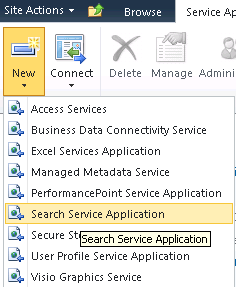
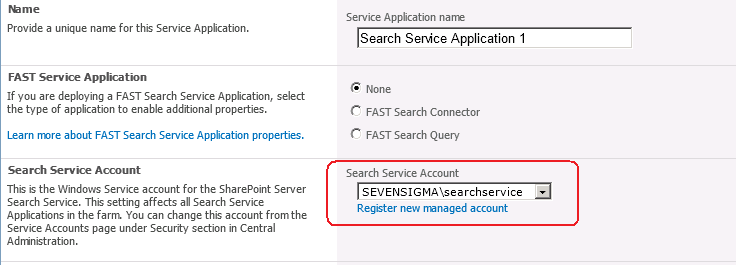
When you provision a search service application as part of a SharePoint installation, you are asked for (among other things), a windows account to use for the search service. Below shows the point in the GUI based configuration step where this is done. First up we choose to create a search service application, and then we choose the account to use for the “Search Service Account”. By default this is the account that will do the crawling of content sources.

image    image

Now the search service account is described as so: “.. the Windows Service account for the SharePoint Server Search Service. This setting affects all Search Service Applications in the farm. You can change this account from the Service Accounts page under Security section in Central Administration.”

In reading this, suggests that the windows service (“SharePoint Server Search 14”) would run under this account. The reality is that the SharePoint Server Search 14 service account is the farm account. You can see the pre and post provisioning status below. First up, I show below where SharePoint has been installed and the SharePoint Server Search 14 service is disabled and with service credentials of “Local Service”.

image

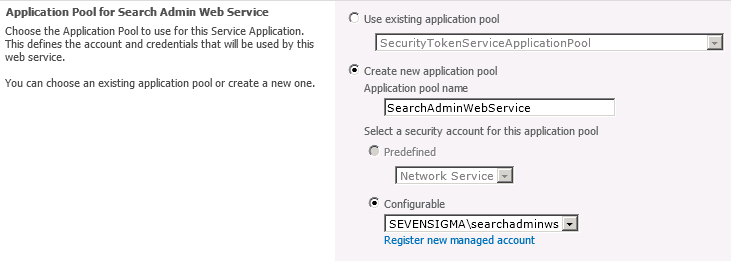
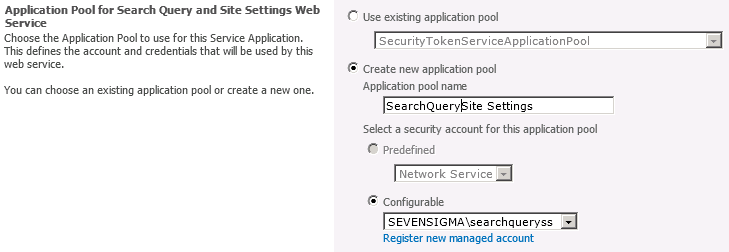
The next set of pictures show the Search Service Application provisioned according to the following configuration:

  • Search service account: SEVENSIGMA\searchservice
  • Search admin web service account: SEVENSIGMA\searchadminws
  • Search query and site settings account: SEVENSIGMA\searchqueryss

You can see this in the screenshots below.

image

imageimage

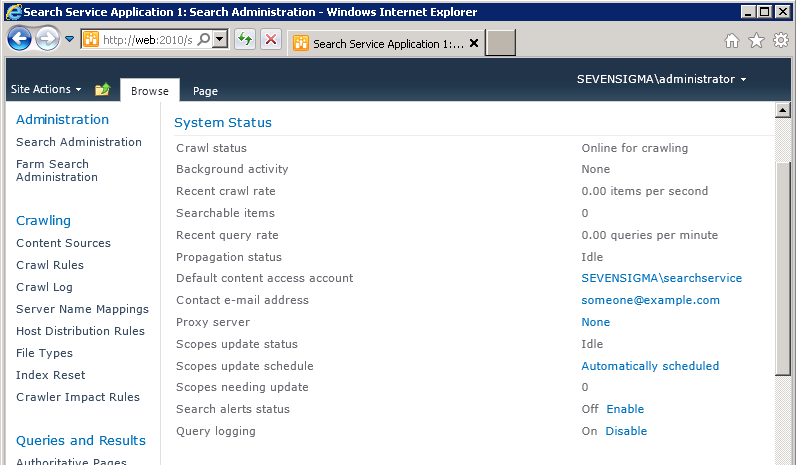
Once the service has been successfully provisioned, we can clearly see the “Default content access account” is based on the “Search service account” as described in the configuration above (the first of the three accounts).

image

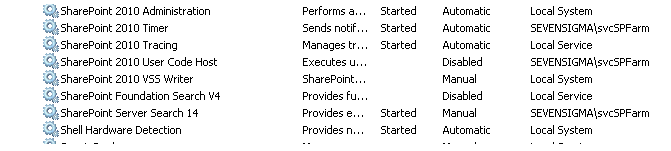
Finally, as you can see below, once provisioned, it is the SharePoint farm account that is running the search windows service.

image

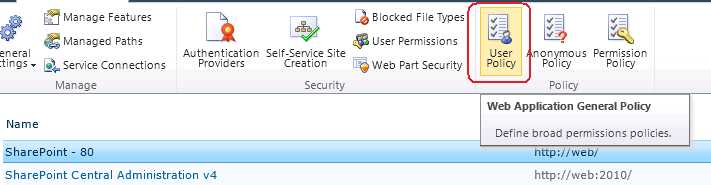
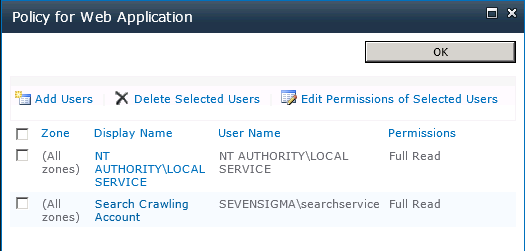
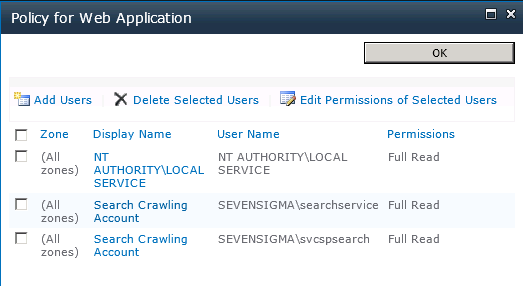
Once you have provisioned the Search Service Application, the default content access (in my case SEVENSIGMA\searchservice), it is granted “Read” access to all web applications via Web Application User Policies as shown below. This way, no matter how draconian the permissions of site collections are, the crawler account will have the access it needs to crawl the content, as well as the permissions of that content. You can verify this by looking at any web application in Central Administration (except for central administration web application) and choosing “User Policy” from the ribbon. You will see in the policy screen that the “Search Crawler” account has “Full Read” access.

image

image

In case you are wondering why the search service needs to crawl the permissions of content, as well as the content itself, it is because it uses these permissions to trim search results for users who do not have access to content. After all, you don’t want to expose sensitive corporate data via search do you?

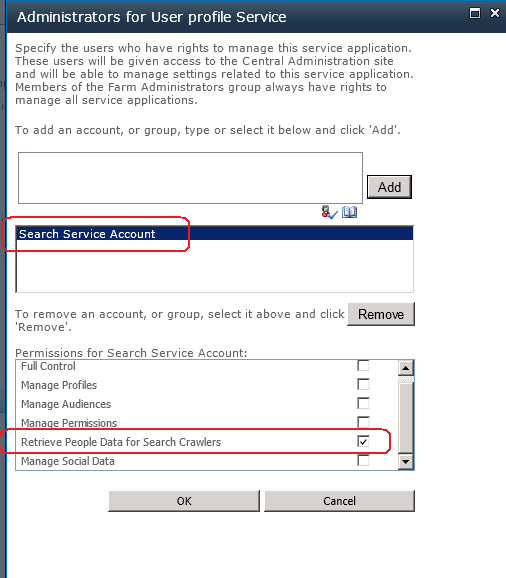
There is another more subtle configuration change performed by the Search Service. Once the evilness known as the User Profile Service has been provisioned, the Search service application will grant the Search Service Account specific permission to the User Profile Service. SharePoint is smart enough to do this whether or not the User Profile Service application is installed before or after the Search Service Application. In other words, if you install the Search Service Application first, and the User Profile Service Application afterwards, the permission will be granted regardless.

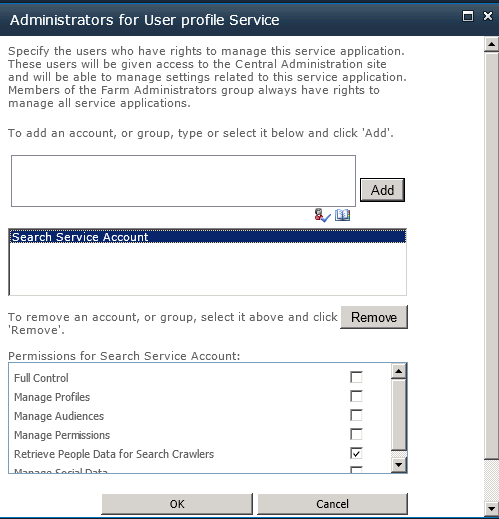
The specific permission by the way, is “Retrieve People Data for Search Crawlers” permission as shown below:

image    image

Getting back to the title of this post, this is a critical permission, because without it, the Search Server will not be able to talk to the User Profile Service to enumerate user profile information. The effect of this is empty "People Search results.

How people search works (a little more advanced)

Right! Now that the cool kids have joined us (who skipped the first section), lets take a closer look at SharePoint People Search in particular. This section delves a little deeper, but fear not I will try and keep things relatively easy to grasp.

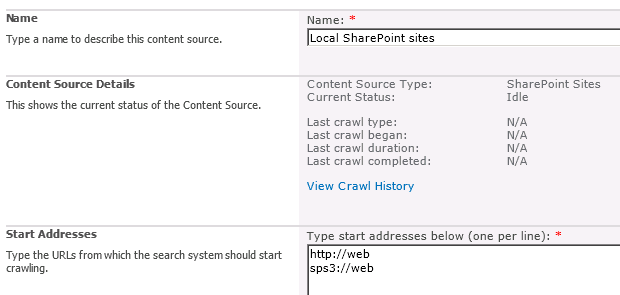
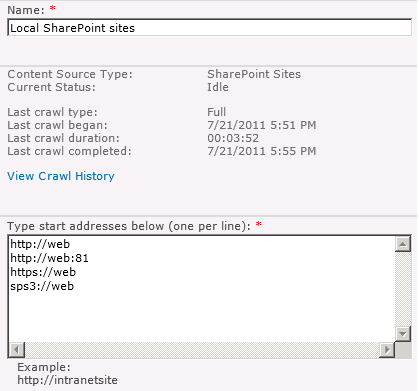
Once the Search Service Application has been provisioned, a default content source, called – originally enough – “Local SharePoint Sites” is created. Any web applications that exist (and any that are created from here on in) will be listed here. An example of a freshly minted SharePoint server with a single web application, shows the following configuration in Search Service Application:

image

Now hopefully http://web makes sense. Clearly this is the URL of the web application on this server. But you might be wondering that sps3://web is? I will bet that you have never visited a site using sps3:// site using a browser either. For good reason too, as it wouldn’t work.

This is a SharePointy thing – or more specifically, a Search Server thing. That funny protocol part of what looks like a URL, refers to a connector. A connector allows Search Server to crawl other data sources that don’t necessarily use HTTP. Like some native, binary data source. People can develop their own connectors if they feel so inclined and a classic example is the Lotus Notes connector that Microsoft supply with SharePoint. If you configure SharePoint to use its Lotus Notes connector (and by the way – its really tricky to do), you would see a URL in the form of:

notes://mylotusnotesbox

Make sense? The protocol part of the URL allows the search server to figure out what connector to use to crawl the content. (For what its worth, there are many others out of the box. If you want to see all of the connectors then check the list here).

But the one we are interested in for this discussion is SPS3: which accesses SharePoint User profiles which supports people search functionality. The way this particular connector works is that when the crawler accesses this SPS3 connector, it in turns calls a special web service at the host specified. The web service is called spscrawl.asmx and in my example configuration above, it would be http://web/_vti_bin/spscrawl.asmx

The basic breakdown of what happens next is this:

  1. Information about the Web site that will be crawled is retrieved (the GetSite method is called passing in the site from the URL (i.e the “web” of sps3://web)
  2. Once the site details are validated the service enumerates all of the use profiles
  3. For each profile, the method GetItem is called that retrieves all of the user profile properties for a given user. This is added to the index and tagged as content class of “urn:content-class:SPSPeople” (I will get to this in a moment)

Now admittedly this is the simple version of events. If you really want to be scared (or get to sleep tonight) you can read the actual SP3 protocol specification PDF.

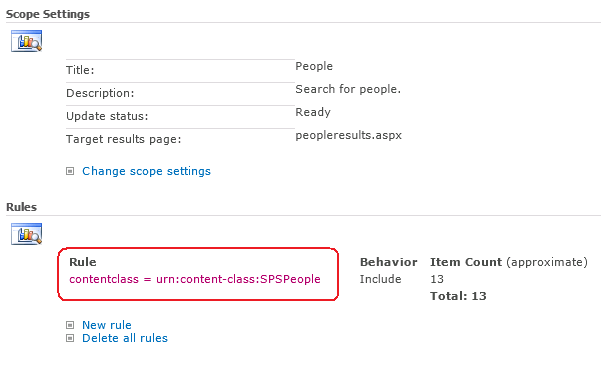
Right! Now lets finish this discussion by this notion of contentclass. The SharePoint search crawler tags all crawled content according to its class. The name of this “tag” – or in correct terminology “managed property” – is contentclass. By default SharePoint has a People Search scope. It is essentially a limits the search to only returning content tagged as “People” contentclass.

image

Now to make it easier for you, Dan Attis listed all of the content classes that he knew of back in SharePoint 2007 days. I’ll list a few here, but for the full list visit his site.

  • “STS_Web” – Site
  • “STS_List_850″ – Page Library
  • “STS_List_DocumentLibrary” – Document Library
  • “STS_ListItem_DocumentLibrary” – Document Library Items
  • “STS_ListItem_Tasks” – Tasks List Item
  • “STS_ListItem_Contacts” – Contacts List Item
  • “urn:content-class:SPSPeople” – People

(why some properties follow the universal resource name format I don’t know *sigh* – geeks huh?)

So that was easy Paul! What can go wrong?

So now we know that although the protocol handler is SPS3, it is still ultimately utilising HTTP as the underlying communication mechanism and calling a web service, we can start to think of all the ways that it can break on us. Let’s now take a look at common problem areas in order of commonality:

1. The Loopback issue.

This has been done to death elsewhere and most people know it. What people don’t know so well is that the loopback fix was to prevent an extremely nasty security vulnerability known as a replay attack that came out a few years ago. Essentially, if you make a HTTP connection to your server, from that server and using a name that does not match the name of the server, then the request will be blocked with a 401 error. In terms of SharePoint people search, the sps3:// handler is created when you create your first web application. If that web application happens to be a name that doesn’t match the server name, then the HTTP request to the spscrawl.asmx webservice will be blocked due to this issue.

As a result your search crawl will not work and you will see an error in the logs along the lines of:

  • Access is denied: Check that the Default Content Access Account has access to the content or add a crawl rule to crawl the content (0x80041205)
  • The server is unavailable and could not be accessed. The server is probably disconnected from the network.   (0x80040d32)
  • ***** Couldn’t retrieve server http://web.sevensigma.com policy, hr = 80041205 – File:d:\office\source\search\search\gather\protocols\sts3\sts3util.cxx Line:548

There are two ways to fix this. The quick way (DisableLoopbackCheck) and the right way (BackConnectionHostNames). Both involve a registry change and a reboot, but one of them leaves you much more open to exploitation. Spence Harbar wrote about the differences between the two some time ago and I recommend you follow his advice.

(As an slightly related side note, I hit an issue with the User Profile Service a while back where it gave an error: “Exception occurred while connecting to WCF endpoint: System.ServiceModel.Security.MessageSecurityException: The HTTP request was forbidden with client authentication scheme ‘Anonymous’. —> System.Net.WebException: The remote server returned an error: (403) Forbidden”. In this case I needed to disable the loopback check but I was using the server name with no alternative aliases or full qualified domain names. I asked Spence about this one and it seems that the DisableLoopBack registry key addresses more than the SMB replay vulnerability.)

2. SSL

If you add a certificate to your site and mark the site as HTTPS (by using SSL), things change. In the example below, I installed a certificate on the site http://web, removed the binding to http (or port 80) and then updated SharePoint’s alternate access mappings to make things a HTTPS world.

Note that the reference to SPS3://WEB is unchanged, and that there is also a reference still to HTTP://WEB, as well as an automatically added reference to HTTPS://WEB

image

So if we were to run a crawl now, what do you think will happen? Certainly we know that HTTP://WEB will fail, but what about SPS3://WEB? Lets run a full crawl and find out shall we?

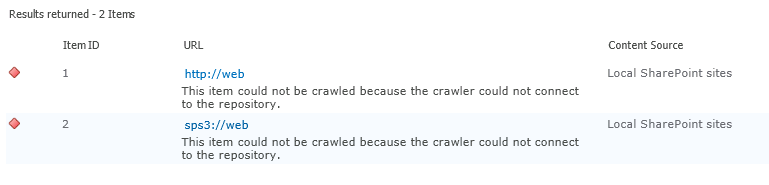
Checking the logs, we have the unsurprising error “the item could not be crawled because the crawler could not contact the repository”. So clearly, SPS3 isn’t smart enough to work out that the web service call to spscrawl.asmx needs to be done over SSL.

image

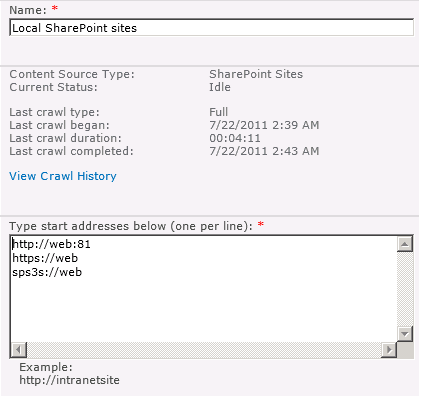
Fortunately, the solution is fairly easy. There is another connector, identical in function to SPS3 except that it is designed to handle secure sites. It is “SPS3s”. We simple change the configuration to use this connector (and while we are there, remove the reference to HTTP://WEB)

image

Now we retry a full crawl and check for errors… Wohoo – all good!

image

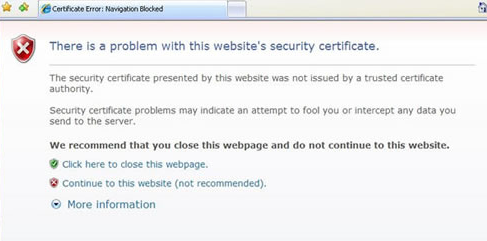
It is also worth noting that there is another SSL related issue with search. The search crawler is a little fussy with certificates. Most people have visited secure web sites that warning about a problem with the certificate that looks like the image below:

image

Now when you think about it, a search crawler doesn’t have the luxury of asking a user if the certificate is okay. Instead it errs on the side of security and by default, will not crawl a site if the certificate is invalid in some way. The crawler also is more fussy than a regular browser. For example, it doesn’t overly like wildcard certificates, even if the certificate is trusted and valid (although all modern browsers do).

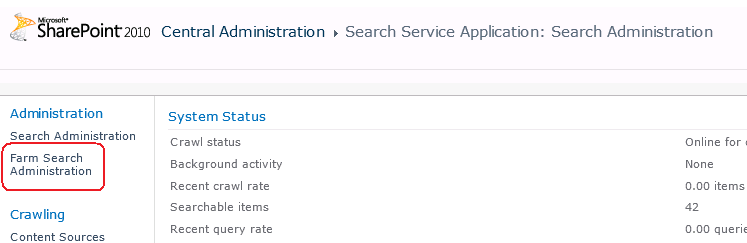
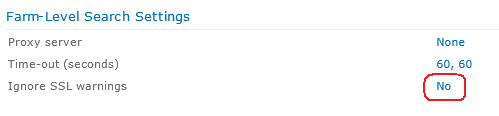
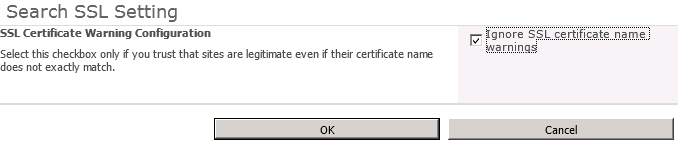
To alleviate this issue, you can make the following changes in the settings of the Search Service Application: Farm Search Administration->Ignore SSL warnings and tick “Ignore SSL certificate name warnings”.

image  image

image

The implication of this change is that the crawler will now accept any old certificate that encrypts website communications.

3. Permissions and Change Legacy

Lets assume that we made a configuration mistake when we provisioned the Search Service Application. The search service account (which is the default content access account) is incorrect and we need to change it to something else. Let’s see what happens.

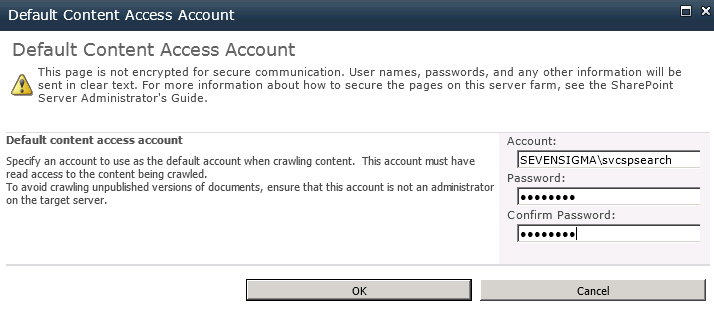
In the search service application management screen, click on the default content access account to change credentials. In my example I have changed the account from SEVENSIGMA\searchservice to SEVENSIGMA\svcspsearch

image

Having made this change, lets review the effect in the Web Application User Policy and User Profile Service Application permissions. Note that the user policy for the old search crawl account remains, but the new account has had an entry automatically created. (Now you know why you end up with multiple accounts with the display name of “Search Crawling Account”)

image

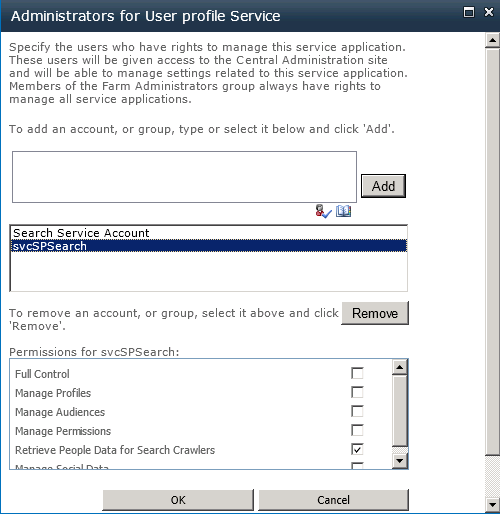
Now lets check the User Profile Service Application. Now things are different! The search service account below refers to the *old* account SEVENSIGMA\searchservice. But the required permission of “Retrieve People Data for Search Crawlers” permission has not been granted!

image


image

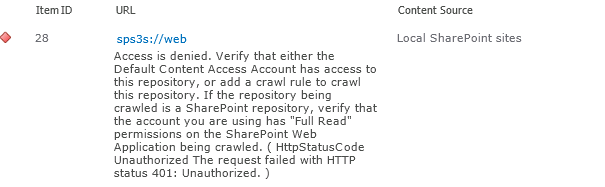
If you traipsed through the ULS logs, you would see this:

Leaving Monitored Scope (Request (GET:https://web/_vti_bin/spscrawl.asmx)). Execution Time=7.2370958438429 c2a3d1fa-9efd-406a-8e44-6c9613231974
mssdmn.exe (0x23E4) 0x2B70 SharePoint Server Search FilterDaemon e4ye High FLTRDMN: Errorinfo is "HttpStatusCode Unauthorized The request failed with HTTP status 401: Unauthorized." [fltrsink.cxx:553] d:\office\source\search\native\mssdmn\fltrsink.cxx
mssearch.exe (0x02E8) 0x3B30 SharePoint Server Search Gatherer cd11 Warning The start address sps3s://web cannot be crawled. Context: Application ‘Search_Service_Application’, Catalog ‘Portal_Content’ Details: Access is denied. Verify that either the Default Content Access Account has access to this repository, or add a crawl rule to crawl this repository. If the repository being crawled is a SharePoint repository, verify that the account you are using has "Full Read" permissions on the SharePoint Web Application being crawled. (0x80041205)

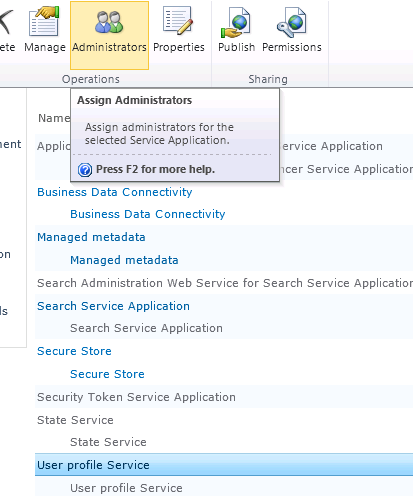
To correct this issue, manually grant the crawler account the “Retrieve People Data for Search Crawlers” permission in the User Profile Service. As a reminder, this is done via the Administrators icon in the “Manage Service Applications” ribbon.

image

Once this is done run a fill crawl and verify the result in the logs.4.

4. Missing root site collection

A more uncommon issue that I once encountered is when the web application being crawled is missing a default site collection. In other words, while there are site collections defined using a managed path, such as http://WEB/SITES/SITE, there is no site collection defined at HTTP://WEB.

The crawler does not like this at all, and you get two different errors depending on whether the SPS or HTTP connector used.

  • SPS:// – Error in PortalCrawl Web Service (0x80042617)
  • HTTP:// – The item could not be accessed on the remote server because its address has an invalid syntax (0x80041208)

image

The fix for this should be fairly obvious. Go and make a default site collection for the web application and re-run a crawl.

5. Alternative Access Mappings and Contextual Scopes

SharePoint guru (and my squash nemesis), Nick Hadlee posted recently about a problem where there are no search results on contextual search scopes. If you are wondering what they are Nick explains:

Contextual scopes are a really useful way of performing searches that are restricted to a specific site or list. The “This Site: [Site Name]”, “This List: [List Name]” are the dead giveaways for a contextual scope. What’s better is contextual scopes are auto-magically created and managed by SharePoint for you so you should pretty much just use them in my opinion.

The issue is that when the alternate access mapping (AAM) settings for the default zone on a web application do not match your search content source, the contextual scopes return no results.

I came across this problem a couple of times recently and the fix is really pretty simple – check your alternate access mapping (AAM) settings and make sure the host header that is specified in your default zone is the same url you have used in your search content source. Normally SharePoint kindly creates the entry in the content source whenever you create a web application but if you have changed around any AAM settings and these two things don’t match then your contextual results will be empty. Case Closed!

Thanks Nick

6. Active Directory Policies, Proxies and Stateful Inspection

A particularly insidious way to have problems with Search (and not just people search) is via Active Directory policies. For those of you who don’t know what AD policies are, they basically allow geeks to go on a power trip with users desktop settings. Consider the image below. Essentially an administrator can enforce a massive array of settings for all PC’s on the network. Such is the extent of what can be controlled, that I can’t fit it into a single screenshot. What is listed below is but a small portion of what an anal retentive Nazi administrator has at their disposal (mwahahaha!)

image

Common uses of policies include restricting certain desktop settings to maintain consistency, as well as enforce Internet explorer security settings, such as proxy server and security settings like maintaining the trusted sites list. One of the common issues encountered with a global policy defined proxy server in particular is that the search service account will have its profile modified to use the proxy server.

The result of this is that now the proxy sits between the search crawler and the content source to be crawled as shown below:

Crawler —–> Proxy Server —–> Content Source

Now even though the crawler does not use Internet Explorer per se, proxy settings aren’t actually specific to Internet Explorer. Internet explorer, like the search crawler, uses wininet.dll. Wininet is a module that contains Internet-related functions used by Windows applications and it is this component that utilises proxy settings.

Sometimes people will troubleshoot this issue by using telnet to connect to the HTTP port. "ie: “Telnet web 80”. But telnet does not use the wininet component, so is actually not a valid method for testing. Telnet will happily report that the web server is listening on port 80 or 443, but it matters not when the crawler tries to access that port via the proxy. Furthermore, even if the crawler and the content source are on the same server, the result is the same. As soon as the crawler attempts to index a content source, the request will be routed to the proxy server. Depending on the vendor and configuration of the proxy server, various things can happen including:

  • The proxy server cannot handle the NTLM authentication and passes back a 400 error code to the crawler
  • The proxy server has funky stateful inspection which interferes with the allowed HTTP verbs in the communications and interferes with the crawl

For what its worth, it is not just proxy settings that can interfere with the HTTP communications between the crawler and the crawled. I have seen security software also get in the way, which monitors HTTP communications and pre-emptively terminates connections or modifies the content of the HTTP request. The effect is that the results passed back to the crawler are not what it expects and the crawler naturally reports that it could not access the data source with suitably weird error messages.

Now the very thing that makes this scenario hard to troubleshoot is the tell-tale sign for it. That is: nothing will be logged in the ULS logs, not the IIS logs for the search service. This is because the errors will be logged in the proxy server or the overly enthusiastic stateful security software.

If you suspect the problem is a proxy server issue,  but do not have access to the proxy server to check logs, the best way to troubleshoot this issue is to temporarily grant the search crawler account enough access to log into the server interactively. Open internet explorer and manually check the proxy settings. If you confirm a policy based proxy setting, you might be able to temporarily disable it and retry a crawl (until the next AD policy refresh reapplies the settings). The ideal way to cure this problem is to ask your friendly Active Directory administrator to either:

  • Remove the proxy altogether from the SharePoint server (watch for certificate revocation slowness as a result)
  • Configure an exclusion in the proxy settings for the AD policy to that the content sources for crawling are not proxied
  • Create a new AD policy specifically for the SharePoint box so that the default settings apply to the rest of the domain member computers.

If you suspect the issue might be overly zealous stateful inspection, temporarily disable all security-type software on the server and retry a crawl. Just remember, that if you have no logs on the server being crawled, chances are its not being crawled and you have to look elsewhere.

7. Pre-Windows 2000 Compatibility Access Group

In an earlier post of mine, I hit an issue where search would yield no results for a regular user, but a domain administrator could happily search SP2010 and get results. Another symptom associated with this particular problem is certain recurring errors event log – Event ID 28005 and 4625.

  • ID 28005 shows the message “An exception occurred while enqueueing a message in the target queue. Error: 15404, State: 19. Could not obtain information about Windows NT group/user ‘DOMAIN\someuser’, error code 0×5”.
  • The 4625 error would complain “An account failed to log on. Unknown user name or bad password status 0xc000006d, sub status 0xc0000064” or else “An Error occured during Logon, Status: 0xc000005e, Sub Status: 0x0”

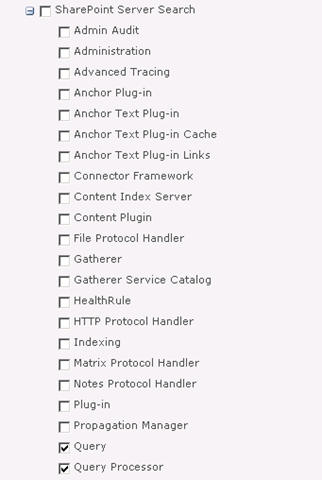
If you turn up the debug logs inside SharePoint Central Administration for the “Query” and “Query Processor” functions of “SharePoint Server Search” you will get an error “AuthzInitializeContextFromSid failed with ERROR_ACCESS_DENIED. This error indicates that the account under which this process is executing may not have read access to the tokenGroupsGlobalAndUniversal attribute on the querying user’s Active Directory object. Query results which require non-Claims Windows authorization will not be returned to this querying user.

image

The fix is to add your search service account to a group called “Pre-Windows 2000 Compatibility Access” group. The issue is that SharePoint 2010 re-introduced something that was in SP2003 – an API call to a function called AuthzInitializeContextFromSid. Apparently it was not used in SP2007, but its back for SP2010. This particular function requires a certain permission in Active Directory and the “Pre-Windows 2000 Compatibility Access” group happens to have the right required to read the “tokenGroupsGlobalAndUniversal“ Active Directory attribute that is described in the debug error above.
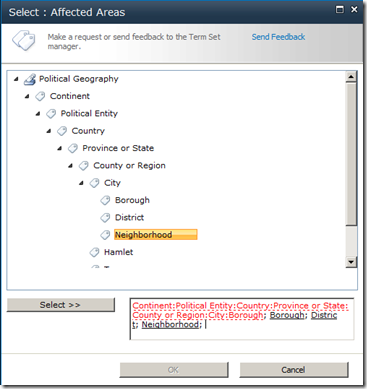
8. Bloody developers!

Finally, Patrick Lamber blogs about another cause of crawler issues. In his case, someone developed a custom web part that had an exception thrown when the site was crawled. For whatever reason, this exception did not get thrown when the site was viewed normally via a browser. As a result no pages or content on the site could be crawled because all the crawler would see, no matter what it clicked would be the dreaded “An unexpected error has occurred”. When you think about it, any custom code that takes action based on browser parameters such as locale or language might cause an exception like this – and therefore cause the crawler some grief.

In Patricks case there was a second issue as well. His team had developed a custom HTTPModule that did some URL rewriting. As Patrick states “The indexer seemed to hate our redirections with the Response.Redirect command. I simply removed the automatic redirection on the indexing server. Afterwards, everything worked fine”.

In this case Patrick was using a multi-server farm with a dedicated index server, allowing him to remove the HTTP module for that one server. in smaller deployments you may not have this luxury. So apart from the obvious opportunity to bag programmers :-), this example nicely shows that it is easy for a 3rd party application or code to break search. What is important for developers to realise is that client web browsers are not the only thing that loads SharePoint pages.

If you are not aware, the user agent User Agent string identifies the type of client accessing a resource. This is the means by which sites figure out what browser you are using. A quick look at the User Agent parameter by SharePoint Server 2010 search reveals that it identifies itself as “Mozilla/4.0 (compatible; MSIE 4.01; Windows NT; MS Search 6.0 Robot)“. At the very least, test any custom user interface code such as web parts against this string, as well as check the crawl logs when it indexes any custom developed stuff.

Conclusion

Well, that’s pretty much my list of gotchas. No doubt there are lots more, but hopefully this slightly more detailed exploration of them might help some people.


Thanks for reading

Paul Culmsee

www.sevensigma.com.au

www.spgovia.com


Consequences of complexity–the evilness of the SharePoint 2010 User Profile Service

Hiya

A few months back I posted a relatively well behaved rant over the ridiculously complex User Profile Service Application of SharePoint 2010. I think this component in particular epitomises SharePoint 2010’s awful combination of “design by committee” clunkiness, along with real-world sheltered Microsoft product manager groupthink which seems to rate success on the number of half baked features packed in, as opposed to how well those features install logically, integrate with other products and function properly in real-world scenarios.

Now truth be told, until yesterday, I have had an unblemished record with the User Profile Service – being able to successfully provision it first time at all sites I have visited (and no I did not resort to running it all as administrator). Of course, we all have Spence to thank for this with his rational guide. Nevertheless, I am strongly starting to think that I should write the irrational guide as a sort of bizzaro version of Spencers articles, which combines his rigour with some mega-ranting ;-).

So what happened to blemish my perfect record? Bloody Active Directory policies – that’s what.

In case you didn’t know, SharePoint uses a scaled down, pre-release version of Forefront Identify Manager. Presumably the logic here to this was to allow more flexibility, by two-way syncing to various directory services, thereby saving the SharePoint team development time and effort, as well as being able to tout yet another cool feature to the masses. Of course, the trade-off that the programmers overlooked is the insane complexity that they introduced as a result. I’m sure if you asked Microsoft’s support staff what they think of the UPS, they will tell you it has not worked out overly well. Whether that feedback has made it way back to the hallowed ground of the open-plan cubicles of SharePoint product development I can only guess. But I theorise that if Microsoft made their SharePoint devs accountable for providing front-line tech support for their components, they will suddenly understand why conspiracy theorist support and infrastructure guys act the way they do.

Anyway I better supress my desire for an all out rant and tell you the problem and the fix. The site in question was actually a fairly simple set-up. Two server farm and a single AD forest. About the only thing of significance from the absolute stock standard setup was that the active directory NETBIOS name did not match the active directory fully qualified domain name. But this is actually a well known and well covered by TechNet and Spence. A quick bit of PowerShell goodness and some AD permission configuration sorts the issue.

Yet when I provisioned the User Profile Service Application and then tried to start the User Profile Synchronisation Service on the server (the big, scary step that strikes fear into practitioners), I hit the sadly common “stuck on starting” error. The ULS logs told me utterly nothing of significance – even when i turned the debug juice to full throttle. The ever helpful windows event logs showed me Event ID 3:

ForeFront Identity Manager,
Level: Error

.Net SqlClient Data Provider: System.Data.SqlClient.SqlException: HostId is not registered
at Microsoft.ResourceManagement.Data.Exception.DataAccessExceptionManager.ThrowException(SqlException innerException)
at Microsoft.ResourceManagement.Data.DataAccess.RetrieveWorkflowDataForHostActivator(Int16 hostId, Int16 pingIntervalSecs, Int32 activeHostedWorkflowDefinitionsSequenceNumber, Int16 workflowControlMessagesMaxPerMinute, Int16 requestRecoveryMaxPerMinute, Int16 requestCleanupMaxPerMinute, Boolean runRequestRecoveryScan, Boolean& doPolicyApplicationDispatch, ReadOnlyCollection`1& activeHostedWorkflowDefinitions, ReadOnlyCollection`1& workflowControlMessages, List`1& requestsToRedispatch)
at Microsoft.ResourceManagement.Workflow.Hosting.HostActivator.RetrieveWorkflowDataForHostActivator()
at Microsoft.ResourceManagement.Workflow.Hosting.HostActivator.ActivateHosts(Object source, ElapsedEventArgs e)

The most common issue with this message is the NETBIOS issue I mentioned earlier. But in my case this proved to be fruitless. I also took Spence’s advice and installed the Feb 2011 cumulative update for SharePoint 2010, but to no avail. Every time I provisioned the UPS sync service, I received the above persistent error – many, many, many times. 🙁

For what its worth, forget googling the above error because it is a bit of a red herring and you will find issues that will likely point you to the wrong places.

In my case, the key to the resolution lay in understanding my previously documented issue with the UPS and self-signed certificate creation. This time, I noticed that the certificates were successfully created before the above error happened.  MIISCLIENT showed no configuration had been written to Forefront Identity Manager at all. Then I remembered that the SharePoint User Profile Service Application talks to Forefront over HTTPS on port 5725. As soon as I remembered that HTTP was the communication mechanism, I had a strong suspicion on where the problem was – as I have seen this sort of crap before…

I wondered if some stupid proxy setting was getting in the way. Back in the halcyon days of SharePoint 2003, I had this issue when scheduling SMIGRATE tasks, where the account used to run SMIGRATE is configured to use a proxy server, would fail. To find out if this was the case here, a quick execute of the GPRESULT tool and we realised that there was a proxy configuration script applied at the domain level for all users. We then logged in as the farm account interactively (given that to provision the UPS it needs to be Administrator anyway this was not a problem). We then disabled all proxy configuration via Internet explorer and tried again.

Blammo! The service provisions and we are cooking with gas! it was the bloody proxy server. Reconfigure group policy and all is good.

Conclusion

The moral of the story is this. Anytime windows components communicate with each-other via HTTP, there is always a chance that some AD induced dumbass proxy setting might get in the way. If not that, stateful security apps that check out HTTP traffic or even a corrupted cache (as happened in this case). The ULS logs will never tell you much here, because the problem is not SharePoint per se, but the registry configuration enforced by policy.

So, to ensure that you do not get affected by this, configure all SharePoint servers to be excluded from proxy access, or configure the SharePoint farm account not to use a proxy server at all. (Watch for certificate revocation related slowness if you do this though).

Finally, I called this post “consequences of complexity” because this sort of problem is very tricky to identify the root cause. With so many variables in the mix, how the hell can people figure this sort of stuff out?

Seriously Microsoft, you need to adjust your measures of success to include resiliency of the platform!


Thanks for reading

Paul Culmsee

www.sevensigma.com.au


Migrating managed metadata term sets to another farm on another domain

Hiya

[Note: I have written another article that illustrates a process for migrating the entire term store between farms.]

My colleague Chris Tomich, recently saved the day with a nice PowerShell script that makes the management and migration of managed metadata between farms easier. If you are an elite developer type, you can scroll down to the end of this post. if you are a normal human, read on for background and context.

The Issue

Recently, I had a client who was decommissioning an old active directory domain and starting afresh. Unfortunately for me, there was a SharePoint 2010 farm on the old domain and they had made considerable effort in leveraging managed metadata.

Under normal circumstances, migrating SharePoint in this scenario is usually done via a content database migration into a newly set up farm. This is because the built in SharePoint 2010 backup/restore, although better than 2007, presumes that the underlying domain that you are restoring to is the same (bad things happen if it is not). Additionally, the complex interdependencies between service applications (especially the user profile service) means that restoring one service application like Managed metadata is fiddly and difficult.

I was constrained severely by time, so I decided to try a quick and dirty approach to see what would happen. I created a new, clean farm and provisioned a managed metadata service application. The client in question had half a dozen term sets in the old SP2010 farm and around 20 managed metadata columns in the site collection that leveraged them. I migrated the content database from the old farm to the new farm via the database attach method and that worked fine.

I then used the SolidQ export tool from codeplex to export those term sets from the managed metadata service of the source farm. Since the new SP2010 farm had a freshly provisioned managed metadata service application, re-importing those terms and term sets into this farm was a trivial process and went without a hitch.

I knew that managed metadata stores each term as a unique identifier (GUID I presume because programmers love GUID’s). Since I was migrating a content database to a different farm there were two implications.

  1. The terms stored in lists and libraries in that database would reference the GUID’s of the original managed metadata service
  2. The site columns themselves, would reference the GUID of the term sets of the source managed metadata service

But the GUIDs on the managed metadata service on the new farm will not match the originals. I did not import the terms with their GUID’s intact. Instead I simply imported terms which created new GUID’s. Now everything was orphaned. Managed metadata columns would not know which term store they are assigned to. For example: just because a term set called, say “Clients” exists in the source farm, when a term set is created in the destination farm with the same name, the managed metadata columns will not automatically “re-link” to the clients term set.

So what does a managed metadata column orphaned from a term set look like? Fortunately, SharePoint handles this gracefully. The leftmost image below shows a managed metadata column happily linked to its term set. The rightmost image shows what it looks like when that term set is deleted while the column remains. As you can see we now have no reference to a term set. However, it is easy to re-point the column to another term set.

image_thumb36 image_thumb37

When you examine list or library items that have managed metadata entered for them prior to the term set being deleted, SharePoint prevents the managed metadata control from being used (the Project Phase column below is greyed out). Importantly, the original data is not lost since SharePoint actually stores the term along with the rest of the item metadata, but the term cannot be updated of course as there is no term set to refer to.

image_thumb8

Once you reconnect a managed metadata column to a term set, the existing term will still be orphaned. The process of reconnecting does not do any sort of processing of terms to reconnect them. I show this below. In the example below, notice how this time, the managed metadata control is enabled again (as it has a valid term set), but the terms within it are marked red, signalling that they are invalid terms that do not exist in this term set. Notice though the second screen. By clicking on the orphaned term, managed metadata finds it in the associated term set and offers the right suggestion. With a single click, the term is re-linked back to the term store and the updated GUID is stored for the item. Too easy.

image_thumb21

image_thumb22

image_thumb23

As the sequence of events above show, it is fairly easy to re-link a term to the term set by clicking on it and letting managed metadata find that term in the term set. However, it is not something you would want to do for 10000 items in a list! In addition, the relative ease of relinking a term like the Location column above is elegant only because it is a single term that does not show the hierarchy. This is not the only configuration available for managed metadata though.

If you have set up your column to use multiple managed metadata entries, as well as allow multiple entries, you will have something like the screen below. In this example, we have three terms selected. “Borough”, “District” and “Neighbourhood”. All three of these terms are at the bottom of a deep hierarchy of terms. (eg Continent > Political Entity > Country > province or State > County or Region > City). As a result, things look ugly.

image_thumb25

Unfortunately in this use-case, our single click method will not work. Firstly, we have to click each and every term that has been added to this column one at a time. Secondly and more importantly, even if we do click it, the term will not be found in in the new term set. The only way to deal with this is to manually remove the term and re-enter or use the rather clumsy term picker as the sequence below shows.

image_thumb33

Note how as each term is selected, it is marked in black. We have to manually delete the orphaned terms in red.

image_thumb34 image_thumb35

Finally, after far too many mouse clicks, we are back in business.

image_thumb31

A better approach?

I showed this behaviour to my Seven Sigma colleague, Chris Tomich. Chris took a look at this issue and within a few hours trotted out a terrific PowerShell script to programmatically reconnect terms to a new term set. You can grab the source code for this script from Chris’s blog. The one thing Chris did tell me was that he wasn’t able to re-link a site or list column to its replacement term set. That bit you have to do yourself. This is because only the GUID of a term set is used against a column, which means without access to the original server, you do not know which term set to reattach.

Fortunately, there are not that many term sets to deal with, and the real pain is reattaching orphaned terms anyway.

Chris also added a ‘test’ mode to the script, so that it will flag if a field is currently connected to an invalid term set. This is very handy because you can run the script against a site collection and it will help you narrow down which columns are managed metadata and which need to be updated.

From the SharePoint 2010 Management Shell, the script syntax is: (assuming you call your script ReloadTermSets.ps1) –

.\ReloadTermSets.ps1 -web “http://localhost” -test -recurse

web – This is the web address to use. test – This uses a ‘test’ mode that will output lines detailing found fields and the values found for them in the term store and won’t save the items. recurse – This flag will cause the script to recurse through all child sites.

Of course, the usual disclaimers apply. Use the script/advice at your own risk. By using/viewing/distributing it you accept responsibility for any loss/corruption of data that may be incurred by said actions.

I hope that people find this useful. I sure did

Thanks for reading

Paul Culmsee

www.sevensigma.com.au


Why me? Web part errors on new web applications

Oh man, it’s just not my week. After nailing a certificate issue yesterday that killed user profile provisioning, I get an even better one today! I’ve posted it here as a lesson on how not to troubleshoot this issue!

The symptoms:

I created a brand new web application on a SP2010 farm, and irrespective of the site collection I subsequently create, I get the dreaded error "Web Part Error: This page has encountered a critical error. Contact your system administrator if this problem persists"

Below is a screenshot of a web app using the team site template. Not so good huh?

image

The swearing…

So faced with this broken site, I do what any other self respecting SharePoint consultant would do. I silently cursed Microsoft for being at the root of all the world’s evils and took a peek into that very verbose and very cryptic place known as the ULS logs. Pretty soon I found messages like:

0x3348 SharePoint Foundation         General                       8sl3 High     DelegateControl: Exception thrown while building custom control ‘Microsoft.SharePoint.SPControlElement’: This page has encountered a critical error. Contact your system administrator if this problem persists. eff89784-003b-43fd-9dde-8377c4191592

0x3348 SharePoint Foundation         Web Parts                     7935 Information http://sp:81/default.aspx – An unexpected error has been encountered in this Web Part.  Error: This page has encountered a critical error. Contact your system administrator if this problem persists.,

Okay, so that is about as helpful as a fart in an elevator, so I turned up the debug juice using that new, pretty debug juicer turner-upper (okay, the diagnostic logging section under monitoring in central admin). I turned on a variety of logs at different times including.

  • SharePoint Foundation           Configuration                   Verbose
  • SharePoint Foundation           General                         Verbose
  • SharePoint Foundation           Web Parts                       Verbose
  • SharePoint Foundation           Feature Infrastructure          Verbose
  • SharePoint Foundation           Fields                          Verbose
  • SharePoint Foundation           Web Controls                    Verbose
  • SharePoint Server               General                         Verbose
  • SharePoint Server               Setup and Upgrade               Verbose
  • SharePoint Server               Topology                        Verbose

While my logs got very big very quickly, I didn’t get much more detail apart from one gem,to me, seemed so innocuous amongst all the detail, yet so kind of.. fundamental 🙂

0x3348 SharePoint Foundation         Web Parts                     emt7 High     Error: Failure in loading assembly: Microsoft.SharePoint, Version=12.0.0.0, Culture=neutral, PublicKeyToken=b03f5f7f11d50a3a eff89784-003b-43fd-9dde-8377c4191592

That rather scary log message was then followed up by this one – which proved to be the clue I needed.

0x3348 SharePoint Foundation         Runtime                       6610 Critical Safe mode did not start successfully. This page has encountered a critical error. Contact your system administrator if this problem persists. eff89784-003b-43fd-9dde-8377c4191592

It was about this time that I also checked the event logs (I told you this post was about how not to troubleshoot) and I saw the same entry as above.

Log Name:      Application
Source:        Microsoft-SharePoint Products-SharePoint Foundation
Event ID:      6610
Description:
Safe mode did not start successfully. This page has encountered a critical error. Contact your system administrator if this problem persists.

I read the error message carefully. This problem was certainly persisting and I was the system administrator, so I contacted myself and resolved to search google for the “Safe mode did not start successfully” error.

The 46 minute mark epiphany

image

If you watch the TV series “House”, you will know that House always gets an epiphany around the 46 minute mark of the show, just in time to work out what the mystery illness is and save the day. Well, this is the 46 minute mark of this post!

I quickly found that others had this issue in the past, and it was the process where SharePoint checks web.config to process all of the controls marked as safe. If you have never seen this, it is the section of your SharePoint web application configuration file that looks like this:

image 

This particular version of the error is commonly seen when people deploy multiple servers in their SharePoint farm, and use a different file path for the INETPUB folder. In my case, this was a single server. So, although I knew I was on the right track, I knew this wasn’t the issue.

My next thought was to run the site in full trust mode, to see if that would make the site work. This is usually a setting that makes me mad when developers ask for it because it tells me they have been slack. I changed the entry

<trust level="WSS_Minimal" originUrl="" />

to

<trust level="Full" originUrl="" />

But to no avail. Whatever was causing this was not affected by code access security.

I reverted back to WSS_Minimal and decided to remove all of the SafeControl entries from the web.config file, as shown below. I knew the site would bleat about it, but was interested if the “Safe Mode” error would go away.

image

The result? My broken site was now less broken. It was still bitching, but now it appeared to be bitching more like what I was expecting.

image

After that, it was a matter of adding back the <safecontrol> elements and retrying the site. It didn’t take long to pinpoint the offending entry.

<SafeControl Assembly="Microsoft.SharePoint, Version=12.0.0.0, Culture=neutral, PublicKeyToken=b03f5f7f11d50a3a" Namespace="Microsoft.SharePoint.WebPartPages" TypeName="ContentEditorWebPart" Safe="False" />

As soon as I removed this entry the site came up fine. I even loaded up the content editor web part without this entry and it worked a treat. Therefore, how this spurious entry got there is still a mystery.

The final mystery

My colleague and I checked the web.config file in C:\Program Files\Common Files\Microsoft Shared\Web Server Extensions\14\CONFIG. This is the one that gets munged with other webconfig.* files when a new web application is provisioned.

Sure enough, its modified date was July 29 (just outside the range of the SharePoint and event logs unfortunately). When we compared against a known good file from another SharePoint site, we immediately saw the offending entry.

image

The solution store on this SharePoint server is empty and no 3rd party stuff to my knowledge has been installed here. But clearly this file has been modified. So, we did what any self respecting SharePoint consultant would do…

…we blamed the last guy.


Thanks for reading

Paul Culmsee

www.sevensigma.com.au


More User Profile Sync issues in SP2010: Certificate Provisioning Fun

Wow, isn’t the SharePoint 2010 User Profile Service just a barrel of laughs. Without a bit of context, when you compare it to SP2007, you can do little but shake your head in bewilderment at how complex it now appears.

I have a theory about all of this. I think that this saga started over a beer in 2008 or so.

I think that Microsoft decided that SharePoint 2010 should be able to write back to Active Directory (something that AD purists dislike but sold Bamboo many copies of their sync tool). Presumably the SharePoint team get on really well with the Forefront Identify Manager team and over a few Friday beers, the FIM guys said “Why write your own? Use our fit for purpose tool that does exactly this. As an added bonus, you can sync to other directories easily too”.

“Damn, that *is* a good idea”, says the SharePoint team and the rest is history. Remember the old saying, the road to hell is paved with good intentions?

Anyways, when you provision the UPS enough times, and understand what Forefront Identity Manager does, it all starts to make sense. Of course, to have it make sense, requires you to mess it up in the first place and I think that everyone universally will do this – because it is essentially impossible to get it right the first time unless you run everything as domain administrator. This is a key factor that I feel did not get enough attention within the product team. I have now visited three sites where I have had to correct issues with the user profile service. Remember, not all of us do SharePoint all day – for the humble system administrator that is also catering with the overall network, this implementation is simply too complex. Result? Microsoft support engineers are going to get a lot of calls here – and its going to cost Microsoft that way.

One use-case they never tested

I am only going to talk about one of the issues today because Spence has written the definitive article that will get you through if you are doing it from scratch.

I went to a client site where they had attempted to provision the user profile synchronisation unsuccessfully. I have no idea of the things they tried because I wasn’t there unfortunately, but I made a few changes to permissions, AD rights and local security policy as per Spencers post. I then provisioned user profile sync again and I hit this issue. A sequence of 4 event log entries.

Event ID:      234
Description:
ILM Certificate could not be created: Cert step 2 could not be created: C:\Program Files\Microsoft Office Servers\14.0\Tools\MakeCert.exe -pe -sr LocalMachine -ss My -a sha1 -n CN=”ForefrontIdentityManager” -sky exchange -pe -in “ForefrontIdentityManager” -ir localmachine -is root

Event ID:      234
Description:
ILM Certificate could not be created: Cert could not be added: C:\Program Files\Microsoft Office Servers\14.0\Tools\CertMgr.exe -add -r LocalMachine -s My -c -n “ForefrontIdentityManager” -r LocalMachine -s TrustedPeople

Event ID:      234
Description:
ILM Certificate could not be created: netsh http error:netsh http add urlacl url=
http://+:5725/ user=Domain\spfarm sddl=D:(A;;GA;;;S-1-5-21-2972807998-902629894-2323022004-1104)

Event ID:      234
Description:
Cannot get the self issued certificate thumbprint:

The theory

Luckily this one of those rare times where the error message actually makes sense (well – if you have worked with PKI stuff before). Clearly something went wrong in the creation of certificates. Looking at the sequence of events, it seems that as part of provisioning ForeFront Identity Manager, a self signed certificate was created for the Computer Account, added to the Trusted People certificate store and then is used for SSL on a web application or web service listening on port 5725.

By the way, don’t go looking for the web app listening on such a port in IIS because its not there. Just like SQL Reporting Services, FIM likely uses very little of IIS and doesn’t need the overhead.  

The way I ended up troubleshooting this issue was to take a good look at the first error in the sequence and what the command was trying to do. Note the description in the event log is important here. “ILM Certificate could not be created: Cert step 2 could not be created”. So this implies that this command is the second step in a sequence and there was a step 1 that must have worked. Below is the step 2 command that was attempted.

C:\Program Files\Microsoft Office Servers\14.0\Tools\MakeCert.exe -pe -sr LocalMachine -ss My -a sha1 -n CN=”ForefrontIdentityManager” -sky exchange -pe -in “ForefrontIdentityManager” -ir localmachine -is root

When you create a certificate, it has to have a trusted issuer. Verisign and Thawte are examples and all browsers consider them trustworthy issuers. But we are not using 3rd party issuers here. Forefront uses a self-signed certificate. In other words, it trusts itself. We can infer that step 1 is the creation of this self-trusted certificate issuer by looking at the parameters of the MakeCert command that step 2 is using.

Now I am not going to annotate every Makecert parameter here, but the English version of the command above says something like:

Make me a shiny new certificate for the local machine account and call it “ForefrontIdentityManager”, issued by a root certificate that can be found in the trusted root store also called ForeFrontIdentityManager.

So this command implies that step 1 was the creation of that root certificate that issues the other certificates. (Product team – you could have given the name of the root issuer certificate something different to the issued certificate)

The root cause

Now that we have established a theory of what is going on, the next step is to run the failing Makecrt command from a prompt and see what we get back. Make sure you do this as the Sharepoint farm account so you are comparing apples with apples.

C:\Program Files\Microsoft Office Servers\14.0\Tools>MakeCert.exe -pe -sr LocalMachine -ss My -a sha1 -n CN=”ForefrontIdentityManager” -sky exchange -pe -in “ForefrontIdentityManager” -ir localmachine -is root

Error: There are more than one matching certificate in the issuer’s root cert store. Failed

Aha! so what do we have here? The error message states that we have more than 1 matching certificate in the issuers root certificate store.

For what its worth it is the parameters “-ir localmachine -is root” that specifies the certificate store to use. In this case, it is the trusted root certificate store on the local computer.

So lets go and take a look. Run the Microsoft Management Console (MMC) and Choose “Add/Remove Snap In” from the File Menu.

image

From the list of snap ins choose Certificates and then choose “Computer Account”

image

Now in the list of certificate stores, we need to examine the one that the command refers to: The Trusted Root Certification Authorities store. Well, look at that, the error was telling the truth!

image

Clearly the Forefront Identity Manager provisioning/unprovisioning code does not check for all circumstances. I can only theorise what my client did to cause this situation because I wasn’t privy to what was done on this particular install before I got there. but step 1 of this provisioning process would create an issuing certificate whether one existed already or not. Step 2 then failed because it had no way to determine which of these certificates is the authoritative one.

This was further exacerbated because each re-attempt creates another root certificate because there is no check whether a certificate already exists.

The cure is quite easy. Just delete all of the ForefrontIdentityManager certificates from the Trusted Root Certification Authorities and re-provision the user profile sync in SharePoint. Provided that there is no certificate in this store to begin with, step 1 will create it and step 2 will then be able to create the self signed certificate using this issuer just fine.

Conclusion (and minor rant)

Many SharePoint pros have commented on the insane complexity of the new design of the user profile sync system. Yes I understand the increased flexibility offered by the new regime, leveraging a mature product like Forefront, but I see that with all of this flexibility comes risk that has not been well accounted for. SP2010 is twice as tough to learn as SP2007 and it is more likely that you will make a mistake than not making one. The more components added, the more points of failure and the less capable over-burdened support staff are in dealing with it when it happens.

SharePoint 2010 is barely out of nappies and I have already been in a remediation role for several sites over the user profile service alone.

I propose that Microsoft add a new program level KPI to rate how well they are doing with their SharePoint product development. That KPI should be something like % of time a system administrator can provision a feature without making a mistake or resorting to running it all as admin. The benefit to Microsoft would be tangible in terms of support calls and failed implementations. Such a KPI would force the product team to look at an example like the user profile service and think “How can we make this more resilient?”. “How can we remove the number of manual steps that are not obvious?”, “how can we make the wizard clearer to understand?” (yes they *will* use the wizard).

Right now it feels like the KPI was how many features could be crammed, in as well as how much integration between components there is. If there is indeed a KPI for that they definitely nailed it this time around.

Don’t get me wrong – its all good stuff, but if Microsoft are stumping seasoned SharePoint pros with this stuff, then they definitely need to change the focus a bit in terms of what constitutes a good product.

Thanks for reading

Paul Culmsee

www.sevensigma.com.au


« Previous PageNext Page »

Today is: Monday 16 March 2026 -