Back to Cleverworkarounds mainpage
 

Trials or tribulation? Inside SharePoint 2013 workflows–Part 5

Hi and welcome to part 5 of my series of articles that take a peek under the hood of SharePoint 2013 workflows. These articles are pitched at wide audience, and my hope is that they give you some insights into what SharePoint Designer 2013 workflows can do (and cannot). This is a long tale of initially dashed hopes and then redemption, based around what I think is a fairly common business scenario. To that end, the scenario we are using for this series is a basic document approval workflow for a fictitious diversified multinational company called Megacorp. It consist a Documents library and Process Owners list. A managed metadata based site column called Organisation has been added to each of them. In the second post we created a very basic workflow, using the task approval action. In part 3 and part 4, we have been trying to get around various issues encountered. At the end of the last post, we just learnt that Managed Metadata column cannot be filtered via the REST calls used by the built-in SharePoint Designer workflow actions.

…or can they?

In this post, we are going to take a look at two particular capabilities of the new SharePoint 2013 workflow regime and see if we can use them to get out of this pickle we are in. Once again, a reminder that this article is pitched at a wide audience, some of whom are non developers. As a result I am taking things slow…

Capability 1: Dictionaries

SharePoint workflows have always been able to store data in variables, which allows for temporary storage of data within the workflow. When creating a variable, you have to specify what format the data is in, such as string, integer or date. In SharePoint 2013, there is a new variable type called a Dictionary. A dictionary can be used to store quite complex data, because it is in effect, a collection of other variables. Why does this matter? Well, consider this small snippet of XML data below. I could store all of this data in a single dictionary variable and call it CD, rather than multiple stand-alone variables.

Snapshot  <CD>
    <ARTIST>Bob Dylan</ARTIST>
    <COUNTRY>USA</COUNTRY>
    <COMPANY>Columbia</COMPANY>
    <YEAR>1985</YEAR>
  </CD>
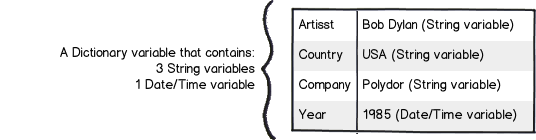
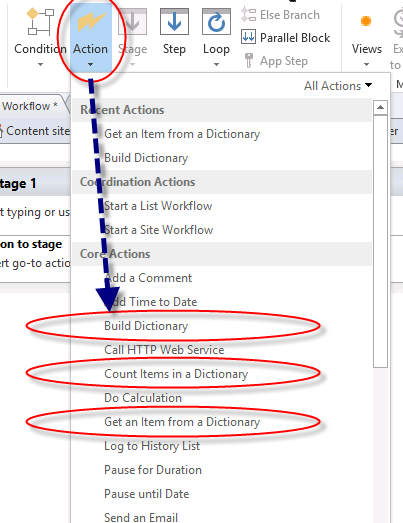
Now storing complex data in a single variable is all well and good, but what about manipulating it once you have it? As it happens, three new workflow actions have been specifically designed to work with dictionary data, namely:

  • Build Dictionary
  • Get an Item from a Dictionary
  • Count Items in a Dictionary

The diagram below illustrates these actions (this figure came from an excellent MSDN article on the dictionary capability). You will be using the “Build Dictionary” and “Get an item from a dictionary” actions quite a bit before we are done with this series.
image

There is one additional thing worth noting with dictionaries. Something subtle but super important.  A Dictionary can contain any type of variable available in the SharePoint 2013 Workflow platform, including other dictionary variables! If this messes with your head, let’s extend upon the XML example above of the Bob Dylan album. Let’s say you have an entire catalog of CD’s. For example:

<CATALOG>
   <CD>
     <ARTIST>Bob Dylan</ARTIST>
     <COUNTRY>USA</COUNTRY>
     <COMPANY>Columbia</COMPANY>
     <YEAR>1985</YEAR>
   </CD>
   <CD>
     <ARTIST>Keith Urban</ARTIST>
     <COUNTRY>USA</COUNTRY>
     <COMPANY>Columbia</COMPANY>
     <YEAR>2006</YEAR>
   </CD>
</CATALOG>

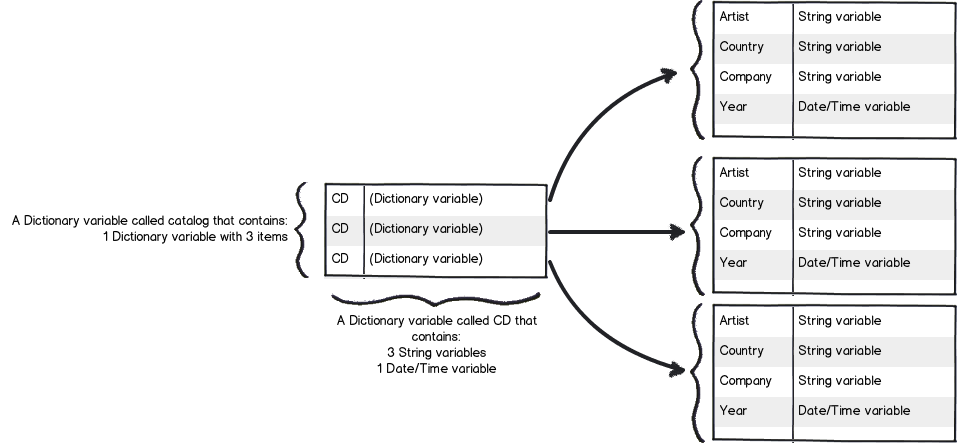
Using a dictionary, we can create a single variable to store details about all of the CD’s in the catalog. We could make a Dictionary variable called Catalog, which contains a dictionary variable called CD. The CD variable contains the string and date/time details for each individual CD. This structure enables the Catalog dictionary to store details of many CD’s. Below is a representation on what 3 CD’s would look like in this model…
Snapshot

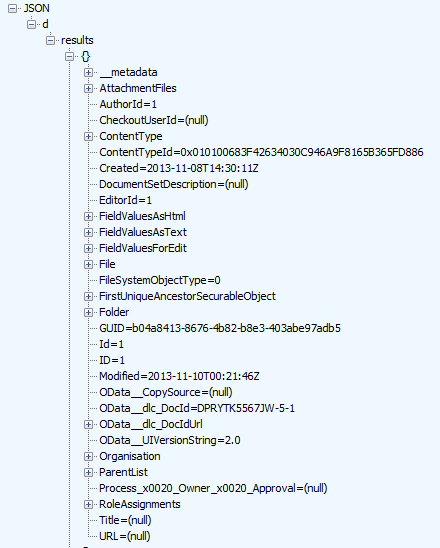
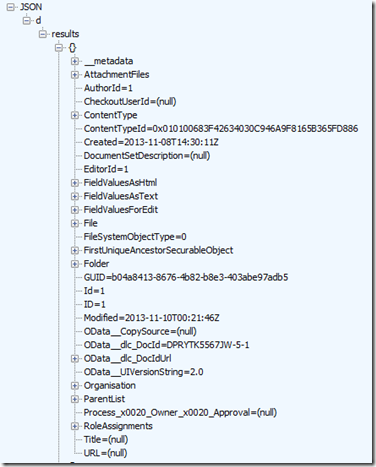
Okay, so after explaining to you this idea of a dictionary, you might be thinking “What has all of this got to do with our workflow?” To answer that, have another look at the JSON output from part 4 in this series. If you recall, this is the output from talking to SharePoint via REST and asking for all documents in the document library. What do you notice about the information that has come back? To give you a hint, below is the JSON output I will remind you what I said in the last post…

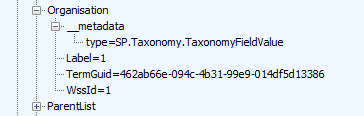
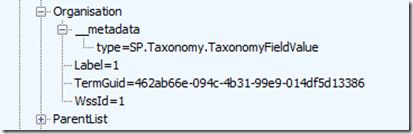
Now let’s take a closer look at Organisation entry in the JSON data. What you might notice is that some of the other data entries have data values specified, such as EditorID = 1, AuthorID =  1 and Modified = 2013-11-10. But not so with Organisation. Rather than have a data value, it has sub entries. Expanding the Organisation section and you can see that we have more data elements within it.
image_thumb14  image_thumb16

In case it is still not clear, essentially we are looking at a data structure that is perfectly suited to being stored in a dictionary variable. In the case of the Organisation column, it is a “dictionary within a dictionary” scenario like my CD catalog example.

Okay, I hear you say – “I get that a dictionary can store complex data structures. Why is this important?”

The answer to that my friends, is that there is a new, powerful workflow action that makes extensive use of dictionaries. You will come to love this particular workflow action, such as its versatility.

Capability 2: The one workflow action to rule them all…
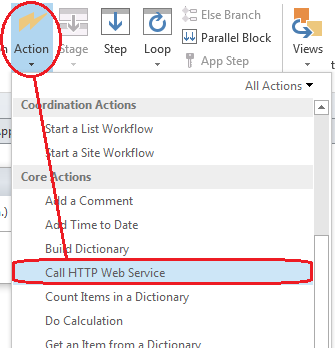
image

In part 3 and part 4 of this series, I have shown examples of talking to SharePoint via REST webservices and showing what the returning JSON data looks like. This was quite deliberate, because In SharePoint 2013, Microsoft has included a workflow action called Call HTTP Web Service to do exactly the same thing. This is a huge advance on previous versions of SharePoint, because it means the actions that workflows can take are only limited by the webservices that they talk to. This goes way beyond SharePoint too, as many other platforms expose data via a REST API, such as YouTube, Ebay, Twitter, as well as enterprise systems like MySQL. Already, various examples exist online where people have wired up SharePoint workflows to other systems. Fabian Williams in particular has done a brilliant job in this regard.

The workflow action can be seen below. Take a moment to examine all of the bits you need to fill in as there are several parameters you might use. The first parameter (the hyperlink labelled “this”) is the URL of the webservice that you wish to access. The request parameter is a dictionary variable that is sometimes used when making a request to the webservice. The response and responseheaders variables are also dictionaries and they store the response received from the webservice. The responseCode parameter represents the HTTP response code that came back, which enables us to check if there was an error (like a HTTP 400 bad request).

image

Dictionaries and web services – a simple example…

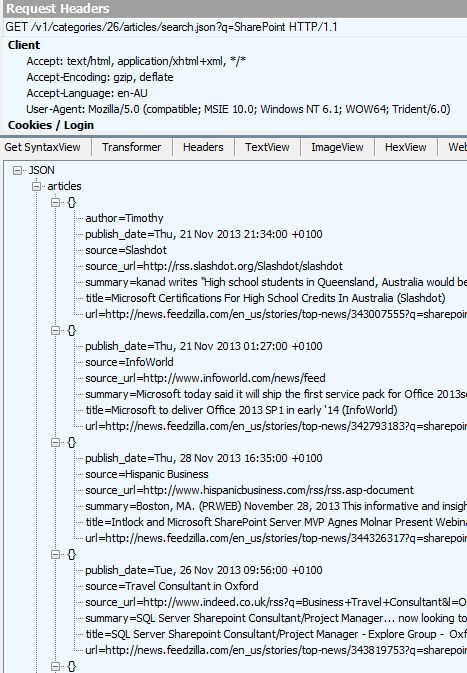
The best way to understand what we can do with this workflow action (and the dictionary variables that it requires) is via example. So let’s leave our document approval workflow for the time being and quickly make a site workflow that calls a public webservice, grabs some data and displays it in SharePoint. The public webservice we will use is called Feedzilla. Feedzilla is a news aggregator service that lets you search for articles of interest and bring them back as a data feed. For example: the following feedzilla URL will display any top news (category 26) that has SharePoint in the content. It will return this information in JSON format:

http://api.feedzilla.com/v1/categories/26/articles/search.json?q=SharePoint

Here is a fiddler trace of the above URL, showing the JSON output.  Note the structure of articles, where below the JSON label at the top we have articles –> {} and then the properties of author, publish_date, source, source_url, summary, title and url.
image

Therefore the string “articles(0)/title” should return us the string “Microsoft Certifications for High School Students in Australia (Slashdot)” as it is the title of the first article. The string articles(1)/title should bring back “Microsoft to deliver Office 2013 SP1 in early ’14 (InfoWorld)” as it is the second article. So with this in mind, let’s see if we can get SharePoint to extract the title of the first article in the feed.

Testing it out…

So let’s make a new site workflow based workflow.

Step 1:

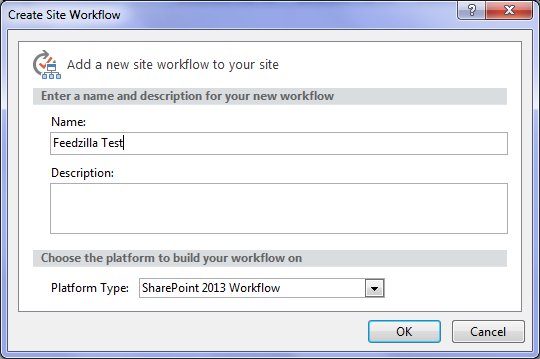
From the ribbon, choose Site Workflow. Call the site workflow “Feedzilla test” as shown below…
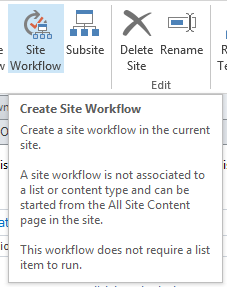
image  image

Now we will add our Call HTTP Web Service action. This time, we will add the action a different way.

Step 2:

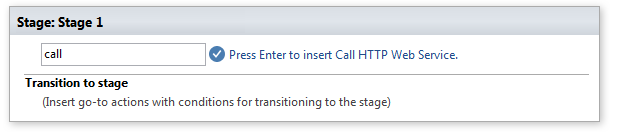
Click the flashing cursor underneath the workflow stage and type in “Call”. As you type in each letter, SharePoint Designer will suggest matching actions. By the time you write “call”,  there is only the Call HTTP Web Service action to choose from. Pressing enter will add it to the workflow.

image

image

Step 3:

Now click on the “this” hyperlink and paste in the feedzilla URL of: http://api.feedzilla.com/v1/categories/26/articles/search.json?q=SharePoint. Then click OK.
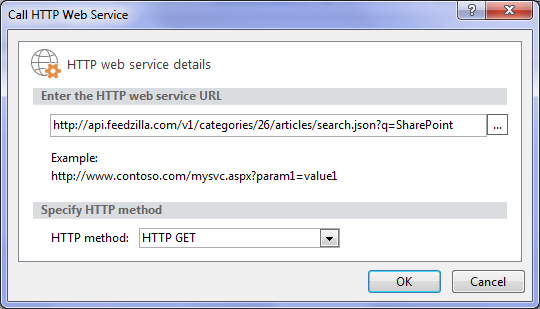
image

Next, we need to create a dictionary variable to store the JSON data that is going to come back from Feedzilla.

Step 4:

Click on the “response” hyperlink next to the “ResponseContent to” label and choose to Create a new variable…

image

Step 5:

Call the variable JSONResponse and confirm that it’s type is Dictionary. We are now done with the Call HTTP web service action.
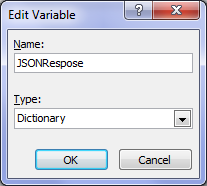

image  image

Step 6:

Next step in the workflow is to extract just the article title from the JSON data returned by the web service call. For this, we need to use the Get an Item from a Dictionary action. We will use this action to extract the title property from the very first article in the feed. Type in the word “get” and press enter – the action we want will be added…

image

Step 7:

In the “item by name or path” hyperlink next to the Get label, type in this exactly: articles(0)/title as shown below. Then click on the “dictionary” hyperlink next to the from label and choose the JSONResponse variable that was created earlier. Finally, we need to save the extracted article title to a string variable. Click on the “this” hyperlink next to the Output to label and choose Create a new variable… In the edit variable screen, name the variable ArticleTitle and set its Type to String.

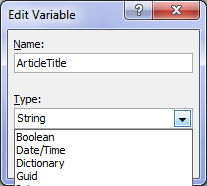
image

image

Step 8:

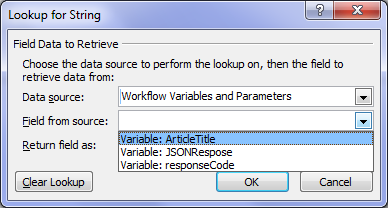
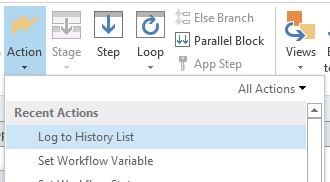
The next step is to log the contents of the variable ArticleTitle to the workflow history list. The action is called Log to History List as shown below.  Click the “message” hyperlink for this action and click the fx button. Choose Workflow Variables and Parameters from the Data Source dropdown and in the Field from Source dropdown, choose the variable called ArticleTitle. Click OK.


image

image  image

Step 9:

Finally, add a Go to End of Workflow action in the Transition to Stage section. The workflow is now complete and ready for testing.

image

Testing the workflow…

To run a site workflow, navigate to site contents in SharePoint, and click on the SITE WORKFLOWS link to the right of the “Lists, Libraries and other Apps” label. Your newly minted workflow should be listed under the Start a New Workflow link. Click your workflow to run it.

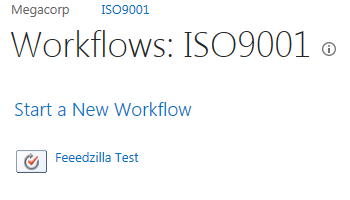
image  image

The workflow will be fired off in the background, and you will be redirected back to the workflow status screen. Click to refresh the page and you should see your workflow listed as completed as shown below…
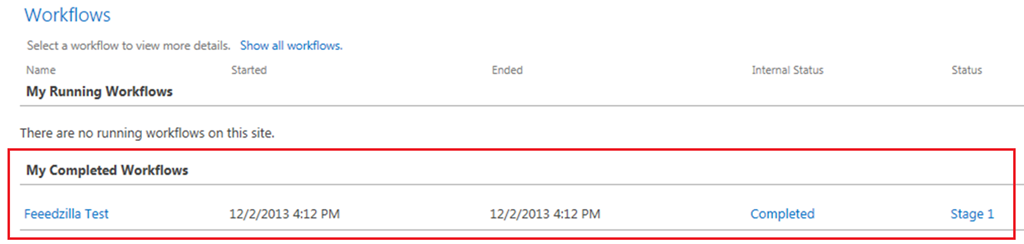
image

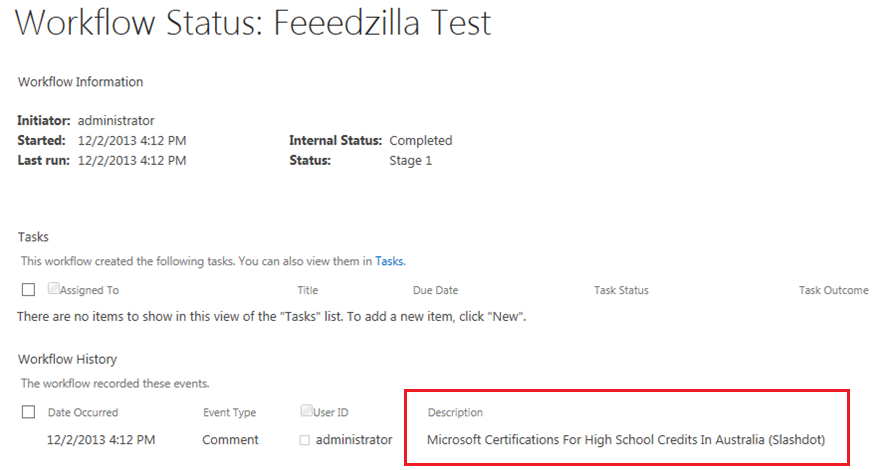
Click on the workflow link in the “My Completed Workflows” section and examine the detailed workflow output. Look to the bottom where the workflow history is stored. Wohoo! There is our article name! It worked!
image

Conclusion…

It was nice to have a post that was more tribulation than trial eh?

By now you should be more familiar with the idea of calling HTTP web services within workflows and parsing dictionary variables for the output. This functionality is really important because it opens up possibilities for SharePoint workflows that were previously not possible. For citizen developers, the implication (at least in a SharePoint context) is that understanding how to call a web service and parse the result is a must. Therefore all that REST/oData stuff you skipped in part 4 will need to be understood to progress forward in this series.

Speaking of progressing forward, in the next post, we are going to revisit our approval workflow and see if we can use this newfound knowledge to move forward. First up, we need to find out if there is a web service available that can help us look up the process owner for an organisation. To achieve this, we are going to need to learn more about the Fiddler web debugging tool, as well as delve deeper into web services than you ever thought possible. Along the way, SharePoint will continue to put some roadblocks up but fear not, we are turning the corner…

Until then, thanks for reading and I hope these articles have been helpful to you.

Paul Culmsee
HGBP_Cover-236x300.jpg

www.hereticsguidebooks.com


Trials or tribulation? Inside SharePoint 2013 workflows–Part 4

Hi and welcome to part 4 of my series of articles that take a peek under the hood of SharePoint 2013 workflows from . In part 1, I introduced you to Megacorp Inc and their need for a controlled documents approval workflow. In part 2, we created a basic SharePoint 2013 workflow and in part 3, we made our first attempt to publish the workflow. Unfortunately, we encountered an error and had to work our way around some particularly unhelpful error messages. Now we are at part 4, and we will have another go at publishing our workflow from part 2.

Now like the last post, I’ll tell you up front that our second attempt to run this workflow is not going to work. Remember that my intent here is to show you a “warts and all” view of this functionality – both the great bits and the not so great bits. I hope that this gives you development and troubleshooting ideas in your own workflow adventures.

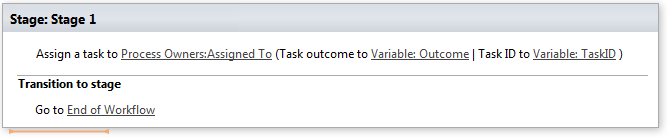
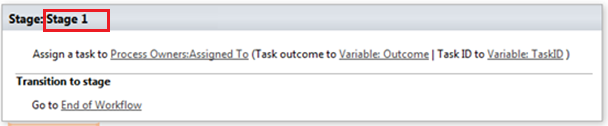
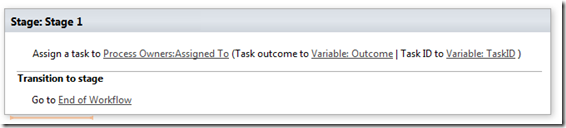
If you have been following along so far, you should have a simple workflow like the one below. It is attempting to assign a task to a nominated process owner for controlled documents. We just fixed a configuration issue in part 3 that prevented the workflow from working. We did this by disabling the default behaviour of the workflow where it updates the workflow status with the current stage name.

image

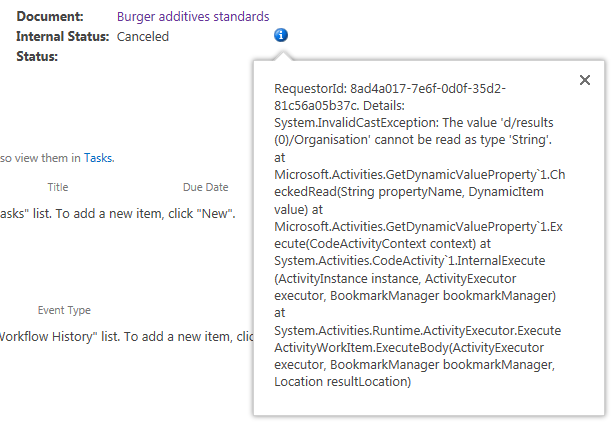
So let’s run the workflow on the same document as part 3 – the Burger Additives Standards for Megacorp GM Foods. Do we have liftoff yet? Nope – the workflow was cancelled as shown below, with another cryptic message.

RequestorId: 8ad4a017-7e6f-0d0f-35d2-81c56a05b37c. Details: System.InvalidCastException: The value ‘d/results(0)/Organisation’ cannot be read as type ‘String’. at Microsoft.Activities.GetDynamicValueProperty`1.CheckedRead(String propertyName, DynamicItem value) at Microsoft.Activities.GetDynamicValueProperty`1.Execute(CodeActivityContext context) at System.Activities.CodeActivity`1.InternalExecute(ActivityInstance instance, ActivityExecutor executor, BookmarkManager bookmarkManager) at System.Activities.Runtime.ActivityExecutor.ExecuteActivityWorkItem.ExecuteBody(ActivityExecutor executor, BookmarkManager bookmarkManager, Location resultLocation)
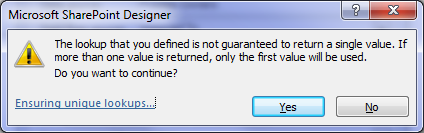
image

So what do we make of this message and in particular, “The value ‘d/results(0)/Organisation’ cannot be read as type ‘String’”?. Firstly, you might be wondering what this  “d/Results(0)/Organisation” stuff is  all about. Secondly, even if you do know what that is about, why the hell can’t it be read as type string?

A REST and JSON interlude

For the non developers (and self-described citizen developers) reading this series, I am going to attempt to explain what’s going on here because it is important foundational knowledge. If you are a developer who understands REST/OData and JSON,  feel free to skip this bit because you probably won’t like how I explain it.

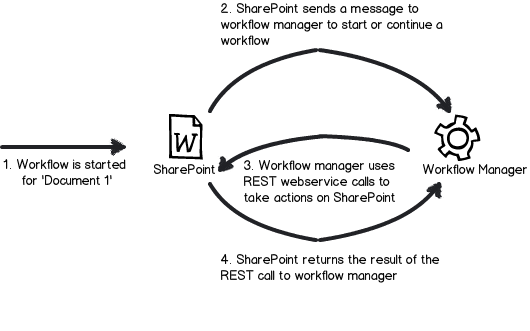
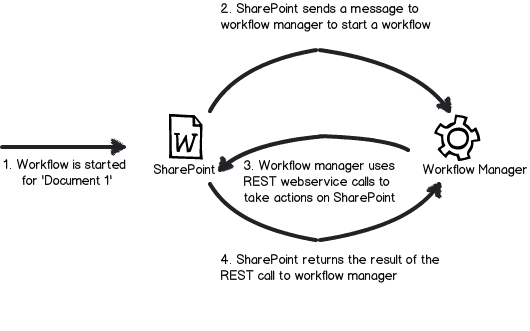
First up, remember my dodgy diagram in part 3 that explained how Workflow Manager talks to SharePoint? I made the point that workflow manager uses REST web services to do all of its interactions with SharePoint content. REST is actually a really cool technology, and if you are serious about learning to use SharePoint Designer 2013 workflows you should learn more it.

Snapshot

Let’s put aside our workflow for a second, and instead access a REST webservice ourselves, just like workflow manager does behind the scenes. To do this is easy. Open up internet explorer and turn “feed reading view” off. Then try this URL, adjusting it to your site name:

http://megacorp/iso9001/_vti_bin/client.svc/web/lists/getbytitle(‘Documents’)/Items

If you have done it right, you will get a heap of ugly XML data back in your browser. If this worked then congratulations – you are now a REST guru. You have successfully asked SharePoint to send you information about all documents in the Documents library, including the data stored in the columns. Each <entry> tag in the XML represents a document – and you can collapse these entries as shown below..

<?xml version="1.0" encoding="utf-8" ?> 
- <feed xml:base="http://megacorp/iso9001/_api/" xmlns="http://www.w3.org/2005/Atom" xmlns:d="http://schemas.microsoft.com/ado/2007/08/dataservices" xmlns:m="http://schemas.microsoft.com/ado/2007/08/dataservices/metadata" xmlns:georss="http://www.georss.org/georss" xmlns:gml="http://www.opengis.net/gml">
  <id>76c69d23-d5f3-4cee-a954-9910ad81bd16</id> 
  <title /> 
  <updated>2013-11-27T23:49:25Z</updated> 
+ <entry m:etag=""6"">
+ <entry m:etag=""7"">
+ <entry m:etag=""8"">

If you expand one of those entries, you will see the full detail of that document. Scroll down into the detail and look for the <Content Type> entry in the XML as shown below. This is the same data that your workflow is working with.

- <content type="application/xml">
-   <m:properties>
      <d:FileSystemObjectType m:type="Edm.Int32">0</d:FileSystemObjectType> 
      <d:Id m:type="Edm.Int32">10</d:Id> 
      <d:ContentTypeId>0x010100683F42634030C946A9F8165B365FD886</d:ContentTypeId> 
      <d:Title m:null="true" /> 
      <d:OData__dlc_DocId>DPRYTK5567JW-5-10</d:OData__dlc_DocId> 
-     <d:OData__dlc_DocIdUrl m:type="SP.FieldUrlValue">
        <d:Description>DPRYTK5567JW-5-10</d:Description> 
        <d:Url>http://megacorp/iso9001/_layouts/15/DocIdRedir.aspx?ID=DPRYTK5567JW-5-10</d:Url> 
      </d:OData__dlc_DocIdUrl>
      <d:URL m:null="true" /> 
      <d:DocumentSetDescription m:null="true" /> 
-     <d:Organisation m:type="SP.Taxonomy.TaxonomyFieldValue">
         <d:Label>9</d:Label> 
         <d:TermGuid>f2109460-a473-493f-9d08-fb01ecbf793b</d:TermGuid> 
         <d:WssId m:type="Edm.Int32">9</d:WssId> 
      </d:Organisation>
      <d:Modified m:type="Edm.DateTime">2013-11-10T00:21:45Z</d:Modified> 
      <d:Process_x0020_Owner_x0020_Approval m:null="true" /> 
      <d:ID m:type="Edm.Int32">10</d:ID> 
      <d:Created m:type="Edm.DateTime">2013-11-08T14:33:12Z</d:Created> 
      <d:AuthorId m:type="Edm.Int32">1</d:AuthorId> 
      <d:EditorId m:type="Edm.Int32">1</d:EditorId> 
      <d:OData__CopySource m:null="true" /> 
      <d:CheckoutUserId m:null="true" /> 
      <d:OData__UIVersionString>2.0</d:OData__UIVersionString> 
      <d:GUID m:type="Edm.Guid">c75a0728-7a5f-4236-8d45-7b72fa41781e</d:GUID> 
    </m:properties>
  </content>

Now when you add a workflow action, and Workflow Manager then talks to SharePoint to perform the action, it is doing a very similar thing to the URL we just accessed. The only difference is that when workflow manger does it, it asks for the data to be returned in a different format than XML called JSON – a more lightweight but less human readable data format. Below is a tiny snippet of that the JSON version of the above data looks like – ugh! no wonder XML is the default return format eh?

{“d”:{“results”:[{“__metadata”:{“id”:”71deada5-6100-48a5-b2e3-42b97b9052a2″,”uri”:”http://megacorp/iso9001/_api/Web/Lists(guid’a64bb9ec-8b00-407c-a7d9-7e8e6ef3e647′)/Items(1)”,”etag”:”\”6\””,”type”:”SP.Data.DocumentsItem”},”FirstUniqueAncestorSecurableObject”:{“__deferred”:{“uri”:”http://megacorp/iso9001/_api/Web/Lists(guid’a64bb9ec-8b00-407c-a7d9-7e8e6ef3e647′)/Items(1)/FirstUniqueAncestorSecurableObject”}},”RoleAssignments”

Fortunately, there are plenty of tools out there that parse JSON data and Fiddler is one of them. We will be using Fiddler later in this series, so I will save a detailed introduction to the tool for later. But below is a screenshot of the above JSON data displayed in Fiddler. Now that’s a bit more palatable!

image

Now that we can read the JSON data in a meaningful way, let’s go back to the error message in the workflow. It stated that “The value ‘d/results(0)/Organisation’ cannot be read as type ‘String’”. Now look in the JSON screenshot above. If you look at the hierarchy and look at the message, we can see now what the message meant. It has a problem with the Organisation entry. Follow the path below the JSON label at the top… We have d –> Results –> {} –> Organisation. This essentially matches the ‘d/results(0)/Organisation’ in the message.

So takeaway number 1 – workflow uses JSON format when it makes REST calls to SharePoint, so learn to recognise a JSON reference when you see it. As a future workflow developer – and later in this series – you will have to learn how to parse JSON data in more fine detail.

Now let’s take a closer look at Organsiation entry in the JSON data above. What you might notice is that some of the other data entries have data values specified, such as EditorID = 1, AuthorID =  1 and Modified = 2013-11-10. But not so with Organisation. Rather than have a data value, it has sub entries. Expanding the Organisation section and you can see that we have more data elements within it. Note that we do not see the organisation name at all. We have numbers and a GUID – so what gives?

image

So what was the error again? ‘Organisation’ could not be read as type ‘String’. Kind of makes sense now doesn’t it? The managed metadata column called Organisation doesn’t store the organisation name, but a pointer to the organisation name, as it is specified in the managed metadata term store. The workflow assumes that the data returned from the REST call is going to be string, and cannot handle the format of the data above.

Troubleshooting Attempt #1 – Use Organisation_0

So at this point, you might be thinking “What the hell?” how can I get the name of the Organsiation if it not actually in the data returned by the REST web service call?

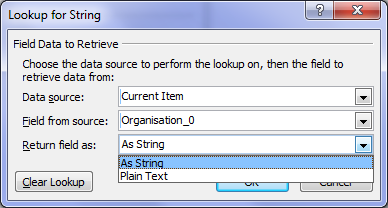
Well, if you were paying attention back in part 2, I noted the existence of another column called Organisation_0. This column was listed as one of the columns available from the current item (“Current item” being the document that the workflow was triggered from). It is now time to understand what this column does. To do so, let’s use another workflow action. This time, we will use the Log to History List action. When you add this action, click the fx button and choose Current Item from the Data source dropdown. Then choose Organisation_0 from the Field from source dropdown as shown below.

image  image

Now if you rerun your workflow and then check the workflow status, you will see what has been logged to the workflow history. Note the description column. Aha! We see our organisation name buried in there.

image

Now if you look closely, you will notice that we also have the GUID of the managed metadata term. The term and its GUID are separated by a pipe character. Even better, it is in string format (note Return field as dropdown above).

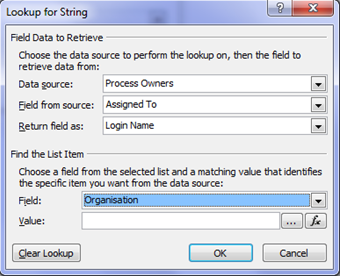
It turns out that when you create a managed metadata column, behind the scenes two columns get created. The second column is a hidden column that is a multi-line of text format. This is the the one with an _0 appended to the end. In other words, the Organisation column only stores the pointers (lookup values) to the term, but this hidden column actually stores the names and Id’s of each term the user has added. So let’s use this column instead because it’s a string format. To do this, return to the task assignment action in our workflow. We still need to get the Assigned To field from the Process Owners list, so we leave that alone. But below that, in the Find the List Item section, we need to make a change.

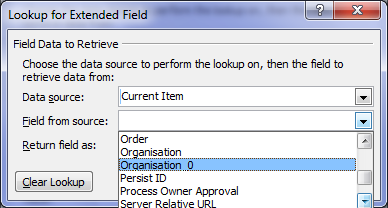
Unfortunately (and perhaps ominously), the Organisation_0 field seems to only be selectable for the Current Item, because clicking the Field dropdown (which displays all columns for process owners), only lists the Organisation column. Why is this? Well, it appears that hidden columns are displayed on Current item, but not displayed when you specify a different list. Thus, we are forced to leave Organisation from Process Owners as is. So click the fx button next to the Value textbox and choose Current Item from the Data source dropdown and Organisation_0 from the Return field as dropdown as shown below.

image  image

Now republish the workflow and let’s give it a go. Checking the workflow status screen and we find the workflow is started. Are we onto a winner here?

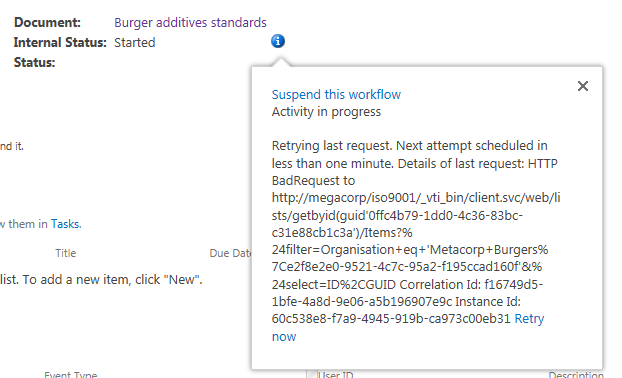
Gong! there still another of those exciting error messages. This time we have a complaint of a HTTP BadRequest. Given my explanation of how managed Metadata columns work behind the scenes, can you guess what the issue is?

Retrying last request. Next attempt scheduled in less than one minute. Details of last request: HTTP BadRequest to http://megacorp/iso9001/_vti_bin/client.svc/web/lists/getbyid(guid’0ffc4b79-1dd0-4c36-83bc-c31e88cb1c3a’)/Items?%24filter=Organisation+eq+’Metacorp+Burgers%7Ce2f8e2e0-9521-4c7c-95a2-f195ccad160f’&%24select=ID%2CGUID Correlation Id: f16749d5-1bfe-4a8d-9e06-a5b196907e9c Instance Id: 60c538e8-f7a9-4945-919b-ca973c00eb31

image

Now this error message might look evil, but it is actually the most useful one so far as it shows us the REST call made by the workflow manager as part of the task assignment action. If I remove the encoded spaces to make things more readable, the workflow attempted this call.

http://megacorp/iso9001/_vti_bin/client.svc/web/lists/getbyid(guid’0ffc4b79-1dd0-4c36-83bc-c31e88cb1c3a’)/Items?”filter=Organisation+eq+’Metacorp+Burgers|e2f8e2e0-9521-4c7c-95a2-f195ccad160f’&”select=ID,GUID

This webservice essentially says to SharePoint “Using the Process Owners list (which is GUID 0ffc4b79-1dd0-4c36-83bc-c31e88cb1c3a), please bring me back the ID and GUID of any list entries where the Organisation column is equal to the value “Metacorp+Burgers|e2f8e2e0-9521-4c7c-95a2-f195ccad160f”.

Now even if it cannot find a matching item, this should return a HTTP 200 with 0 items matched. But the error that has been returned (400) suggests that there is a problem with the above request itself. Hmmm – eventually the workflow will give up and cancel the workflow. It then logs a more verbose message…

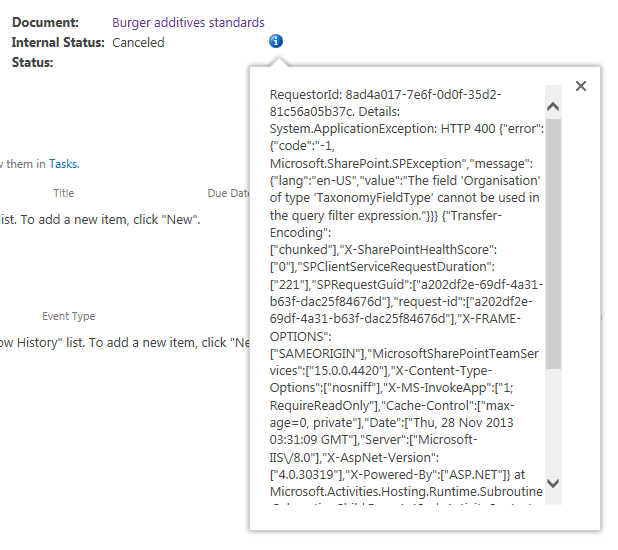
RequestorId: 8ad4a017-7e6f-0d0f-35d2-81c56a05b37c. Details: System.ApplicationException: HTTP 400 {“error”:{“code”:”-1, Microsoft.SharePoint.SPException”,”message”:{“lang”:”en-US”,”value”:”The field ‘Organisation’ of type ‘TaxonomyFieldType’ cannot be used in the query filter expression.”}}} {“Transfer-Encoding”:[“chunked”],”X-SharePointHealthScore”:[“0″],”SPClientServiceRequestDuration”:[“221″],”SPRequestGuid”:[“a202df2e-69df-4a31-b63f-dac25f84676d”],”request-id”:[“a202df2e-69df-4a31-b63f-dac25f84676d”],”X-FRAME-OPTIONS”:[“SAMEORIGIN”],”MicrosoftSharePointTeamServices”:[“15.0.0.4420″],”X-Content-Type-Options”:[“nosniff”],”X-MS-InvokeApp”:[“1; RequireReadOnly”],”Cache-Control”:[“max-age=0, private”],”Date”:[“Thu, 28 Nov 2013 03:31:09 GMT”],”Server”:[“Microsoft-IIS\/8.0″],”X-AspNet-Version”:[“4.0.30319″],”X-Powered-By”:[“ASP.NET”]} at Microsoft.Activities.Hosting.Runtime.Subroutine.SubroutineChild.Execute(CodeActivityContext context) at System.Activities.CodeActivity.InternalExecute(ActivityInstance instance, ActivityExecutor executor, BookmarkManager bookmarkManager) at System.Activities.Runtime.ActivityExecutor.ExecuteActivityWorkItem.ExecuteBody(ActivityExecutor executor, BookmarkManager bookmarkManager, Location resultLocation)

image

Despite the ugliness of the above message, this time we get the root cause logged. Note the section that states:  “The field ‘Organisation’ of type ‘TaxonomyFieldType’ cannot be used in the query filter expression”. So what does this mean?

Another REST interlude…

If you re-examine the REST web service call that was logged by the workflow, you will see some stuff we have not covered so far. The first half of the URL was pretty much what I showed you in the first REST interlude. We are getting all of the items from a SharePoint list, except this time we are using the GUID of the list rather than its name as shown below.

http://megacorp/iso9001/_vti_bin/client.svc/web/lists/getbyid(guid’0ffc4b79-1dd0-4c36-83bc-c31e88cb1c3a’)/Items

But what is this extra stuff tacked on the rest of the URL – $filter and $select as seen below?

$filter=Organisation+eq+’Metacorp+Burgers|e2f8e2e0-9521-4c7c-95a2-f195ccad160f’&$select=ID,GUID

The answer is that Microsoft’s use of REST (called oData) allows you to do SQL like queries to filter the data that comes back. This is really handy indeed and to help you understand it, here is an example: The URL below says “Give me all documents with an a title of ‘Burger Additives Standards’”

http://megacorp/iso9001/_vti_bin/client.svc/web/lists/getbyid(guid’0ffc4b79-1dd0-4c36-83bc-c31e88cb1c3a’)/Items?$filter=Title eq ‘Burger Additives Standards’

This example says “Give me just the Titles of all documents created after November 1 2013”

http://megacorp/iso9001/_vti_bin/client.svc/web/lists/getbyid(guid’0ffc4b79-1dd0-4c36-83bc-c31e88cb1c3a’)/Items?$filter=Created gt datetime’2013-11-01T00:00:00’&$select=Title

Now that you have seen those examples, take another look at what the workflow was trying to do without any luck…

http://megacorp/iso9001/_vti_bin/client.svc/web/lists/getbyid(guid’0ffc4b79-1dd0-4c36-83bc-c31e88cb1c3a’)/Items?”filter=Organisation+eq+’Metacorp+Burgers|e2f8e2e0-9521-4c7c-95a2-f195ccad160f’&”select=ID,GUID

Why did the REST call made by the workflow return a HTTP 400 error given my two working examples that look very similar? The answer is that the $filter option does not work with Managed Metadata columns. As I described in this article previously, managed metadata columns are not compatible with the $filter operator – hence the error message “The field ‘Organisation’ of type ‘TaxonomyFieldType’ cannot be used in the query filter expression.”

Damn!

Conclusion…

So it seems that for every step forward, we have taken a step back again. Fear not though, as the next post will start to show a way forward. But be warned – we are about to get deeper into the bowels of REST/oData, so make sure that you fully understand this article before moving on. To that end, if anything is unclear, please let me know and I will adjust these articles accordingly.

Thanks for reading

Paul Culmsee

HGBP_Cover-236x300.jpg

www.hereticsguidebooks.com


Trials or tribulation? Inside SharePoint 2013 workflows–Part 3

Hi and welcome to part 3 of my series of articles that take a peek under the hood of SharePoint 2013 workflows, while trying to answer the question of whether SharePoint 2013 workflows can enable citizen developers to go forth and solve business problems and catapault organisations to success. In part 1, I introduced you to Megacorp Inc and their need for a controlled documents approval workflow. In part 2, we created a basic SharePoint 2013 workflow that implements the logic outlined in the picture below. The workflow is not yet finished, but we did enough to be able to run it and learn from it, which brings us to this post.

Now I will tell straight up that our first test of this workflow is not going to work. The entire point of this series of articles is to show you *why* things do not always work what you need to do about it. As we progress, I hope that you will learn quite a bit about the operation of workflows in SharePoint 2013, as well as developing and troubleshooting them. After all, we all know that the best citizens are informed citizens!

Snapshot_thumb3

So let’s get on with testing this particular workflow. We published it to the Documents library in part 2, so now we trigger it by selecting one of the files in the library. In this example, I will select one of the documents tagged as from Megacorp GM Foods. So using the filtering feature provided by metadata navigation, we just show the four documents owned by the Megacorp GM Foods division.

image4_thumb[1]

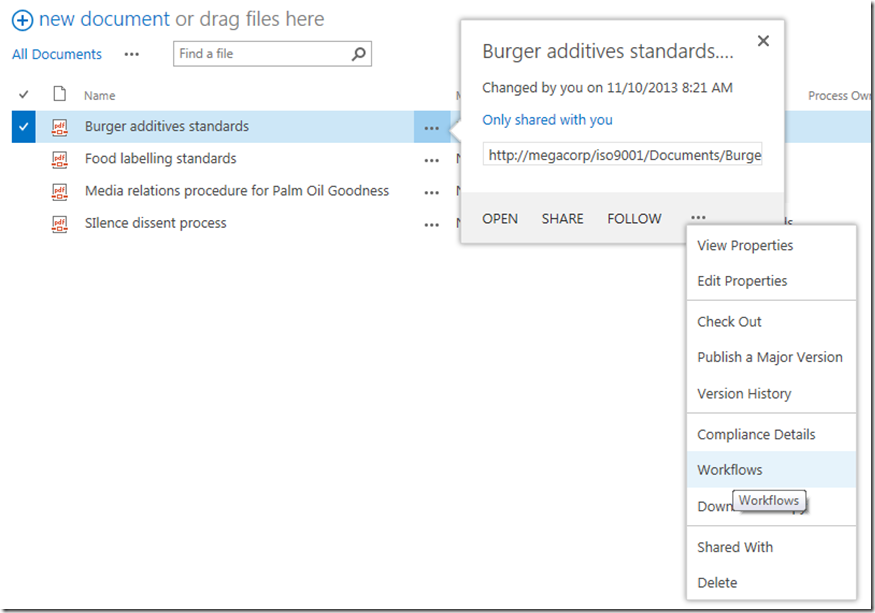
In this example, we will update the document called Burger Additives Standard. The workflow has not yet been set to automatically start, so we will need to manually trigger the workflow ourselves. To do so, click the ellipses next to the Burger Additives Standard document, and then click the ellipsis in the bottom right of the properties/preview window. This will show a second drop down menu. Choose Workflows from this menu as shown below.

image9_thumb

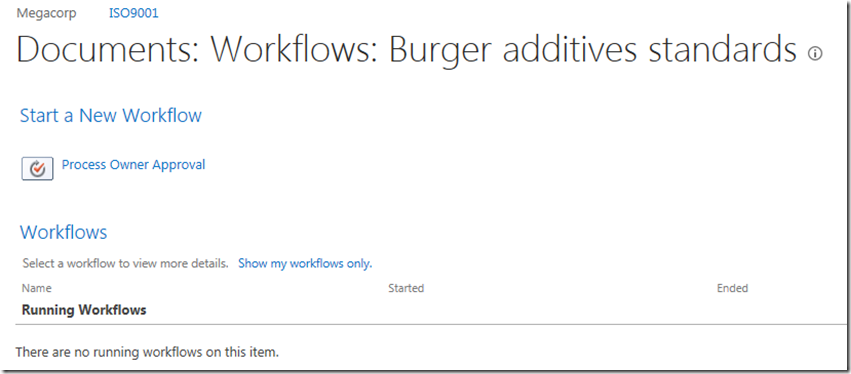
Underneath the Start a New Workflow text, you will see the workflow we published in part 2 called Process Owner Approval. Clicking it will start the workflow on this document.

image12_thumb

First sign of trouble…

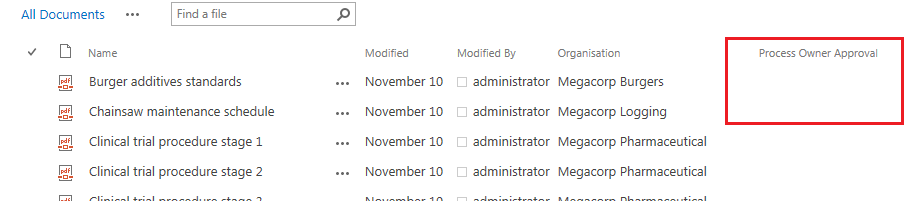
After starting the workflow, the browser will redirect you back to the Documents library.  At this point, we see our first sign of trouble. When a workflow is published on a list or library, a column is added that is used to track workflow progress. In this case, we started our workflow, but there is nothing displayed in the workflow status column and the workflow does not appear to run. Hmm… what gives?

image15_thumb

When a workflow does not behave as you intended, the easiest way to troubleshoot is to use the workflow status page. As it happens, you have already seen this page, because it is the same page where we started the workflow. So once again, we click on the ellipsis next to the burger additives standard document, click the ellipsis in the properties window and choose Workflows from the drop down menu.

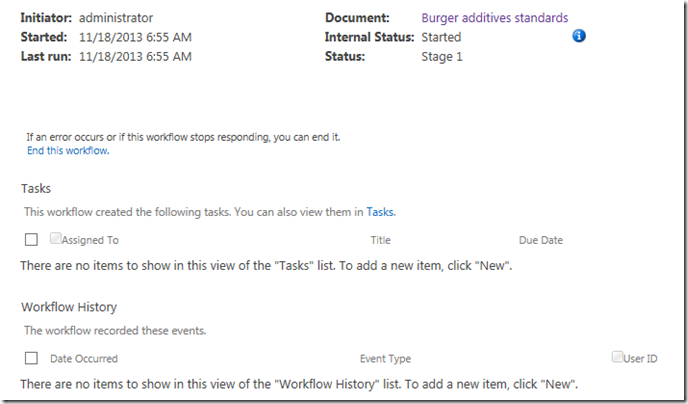
Well look at that… it says the workflow is indeed started…

image18_thumb

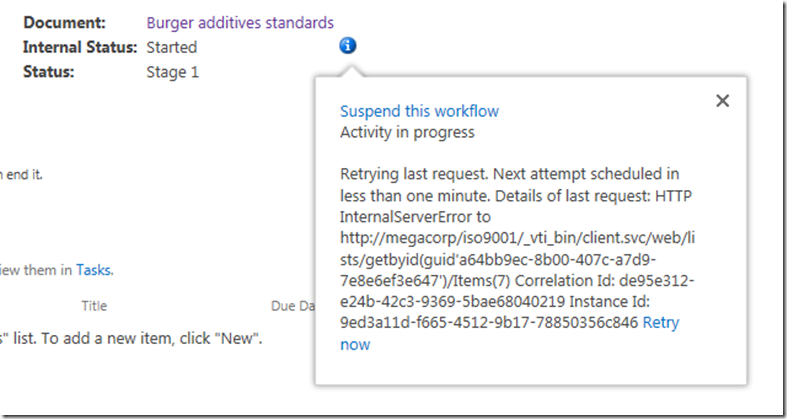
Clicking on the running workflow, we can see more detail which I have shown below. This screen also says that the workflow is started and nothing appears amiss. But then there is the little blue information symbol next to the Internal Status label. Hovering over this icon displays yet more information. This time, we see an error that would stump many – the sort of error that an information worker would have to call up helpdesk for.

Retrying last request. Next attempt scheduled in less than one minute. Details of last request: HTTP InternalServerError to http://megacorp/iso9001/_vti_bin/client.svc/web/lists/getbyid(guid’a64bb9ec-8b00-407c-a7d9-7e8e6ef3e647′)/Items(7) Correlation Id: de95e312-e24b-42c3-9369-5bae68040219 Instance Id: 9ed3a11d-f665-4512-9b17-78850356c846

image21_thumb  image241_thumb

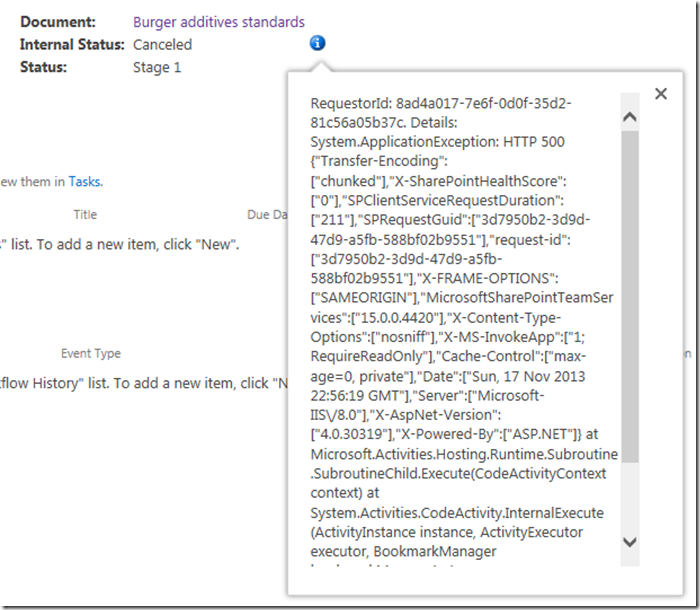
Okaaaay, so that error message is about as useful as Windows Vista. It shows an internal server error and a correlation ID. Furthermore, if you wait another minute or so, and then refresh the workflow status screen, it’s internal status is no longer started, but now has the status of Cancelled. You can see it for yourself below…

image27_thumb

One again, clicking the little blue info button gives us more detail. Unfortunately, the detail consists of an even scarier appearing message than the previous one. This one looks nasty enough to freak out some SharePoint admins too. Check it out – it is pretty much useless in terms of conveying any information of value.

RequestorId: 8ad4a017-7e6f-0d0f-35d2-81c56a05b37c. Details: System.ApplicationException: HTTP 500 {“Transfer-Encoding”:[“chunked”],”X-SharePointHealthScore”:[“0″],”SPClientServiceRequestDuration”:[“211″],”SPRequestGuid”:[“3d7950b2-3d9d-47d9-a5fb-588bf02b9551″],”request-id”:[“3d7950b2-3d9d-47d9-a5fb-588bf02b9551″],”X-FRAME-OPTIONS”:[“SAMEORIGIN”],”MicrosoftSharePointTeamServices”:[“15.0.0.4420″],”X-Content-Type-Options”:[“nosniff”],”X-MS-InvokeApp”:[“1; RequireReadOnly”],”Cache-Control”:[“max-age=0, private”],”Date”:[“Sun, 17 Nov 2013 22:56:19 GMT”],”Server”:[“Microsoft-IIS\/8.0″],”X-AspNet-Version”:[“4.0.30319″],”X-Powered-By”:[“ASP.NET”]} at Microsoft.Activities.Hosting.Runtime.Subroutine.SubroutineChild.Execute(CodeActivityContext context) at System.Activities.CodeActivity.InternalExecute(ActivityInstance instance, ActivityExecutor executor, BookmarkManager bookmarkManager) at System.Activities.Runtime.ActivityExecutor.ExecuteActivityWorkItem.ExecuteBody(ActivityExecutor executor, BookmarkManager bookmarkManager, Location resultLocation)

image30_thumb

So what the hell is going on here?

Unfortunately, both of the error messages above are virtually useless for most people and the only way to dig deeper is to delve into the SharePoint ULS logs. Of course, if you use Office 365 you don’t have that luxury because accessing the ULS logs are not available to you – so your best option to figuring out errors like this is trial and error. you need to learn CSOM code to access the logs. For the rest of us living in on-premises or IaaS land, a quick search of the ULS logs for the file name “Burger additives standards” reveals the issue and the root cause. Check out the errors reported below – it should be quite clear…

SharePoint Foundation             General                           8kh7    High        The file “http://megacorp/iso9001/Documents/Burger additives standards.pdf” is not checked out.  You must first check out this document before making changes.

SharePoint Foundation             General                           aix9j    High        SPRequest.AddOrUpdateItem: UserPrincipalName=i:0).w|s-1-5-21-1480876320-1123302732-2276846122-500, AppPrincipalName=I:0I.T|MS.SP.EXT|2CC54B18-3F9D-43A3-BE55-B3A81C045562@B9A66C21-F39D-42DB-B6CD-DE520B6C1C91 ,bstrUrl=http://megacorp/iso9001 ,bstrListName={A64BB9EC-8B00-407C-A7D9-7E8E6EF3E647} , bAdd=False , bSystemUpdate=False , bPreserveItemVersion=False , bPreserveItemUIVersion=False , bUpdateNoVersion=False ,pbstrNewDocId=00000000-0000-0000-0000-000000000000 , bHasNewDocId=False , bstrVersion=8 , bCheckOut=False ,bCheckin=False , bUnRestrictedUpdateInProgress=False , bMigration=False , bPublish=False , bstrFileName=<null>

SharePoint Foundation             CSOM                              ahjq1    High        Exception occured in scope Microsoft.SharePoint.SPListItem.UpdateWithFieldValues. Exception=Microsoft.SharePoint.SPException: The file “http://megacorp/iso9001/Documents/Burger additives standards.pdf” is not checked out.  You must first check out this document before making changes. —> System.Runtime.InteropServices.COMException: The file “http://megacorp/iso9001/Documents/Burger additives standards.pdf” is not checked out.  You must first check out this document before making changes.     at Microsoft.SharePoint.Library.SPRequestInternalClass.AddOrUpdateItem(String bstrUrl, String bstrListName, Boolean bAdd, Boolean bSystemUpdate, Boolean bPreserveItemVersion, Boolean bPreserveItemUIVersion, Boolean bUpdateNoVersion, Int32& plID, String& pbstrGuid, Guid pbstrNewDocId, Boolean bHasNewDo…    3b84d615-e006-4457-811a-0af089963216

So in case it is not clear from the above messages, we have an error stating that the file Burger additives standards is not checked out and that to make changes to the document, we need to check it out first. This raises several questions:

  • 1. Why is the document library configured to require check-out?
  • 2. Why is the workflow trying to change the document anyway? The workflow we created in part 2 does no action on the Documents library.
  • 3. Why were the error messages so useless (which really hurts in Office365 scenarios)
  • 4. How can we fix this problem?

Let’s examine each of these in turn…

1. Why is the document library configured to require check-out?

The first question is really easy to answer. When you create a site using the Document Center site template, the document library versioning settings enable the Require Check Out option as shown below. Therefore no changes can be made to this document unless the user making the change checks it out.

image

2. Why is the workflow trying to change the document anyway?

The second question is also easy to answer, but the answer is somewhat more complicated. When a workflow is associated to a list or content type, it adds a column to track the status of the workflow. In SharePoint 2013, the default behaviour is to update this column with whatever stage in the workflow currently being executed. Therefore, as soon as the workflow runs, and before it has run any of the actions, it attempts to update its stage to the document that it was triggered from. So looking at the images below, if things were working we should see the string “Stage 1” in the Process Owner Approval column for the document Burger additives standards. But since the document requires check-out to make a change, SharePoint prevents this from happening by design.

image

image

Some readers who are experienced with SharePoint Designer workflow might be thinking “easy… just use the check out item workflow action before you do anything else.”Unfortunately this won’t work for you because this issue gets triggered when the stage info is written to the workflow status column which happens before any actions run.

3. Why were the error messages so useless (which really hurts in Office365 scenarios)

The next question is why on earth wasn’t the true error able to be reported back to the workflow? After all, in the end, this was a clearly identified error in SharePoint, yet all we got was error messages that did not state the problem at all.  This would have saved the effort of delving deep into the ULS logs and that is not even possible in Office 365.

The answer to this question is a little more complex and relates to how Workflow Manager and SharePoint interact with each other. Without getting into detail, the gist of the issue is that Workflow Manager uses REST webservice calls to do all of its operations on SharePoint content. Each and every workflow action (like the Log to History List) uses REST to talk to SharePoint to get the work done. While a detailed discussion of REST would take us too far afield, I have drawn you possibly the dodgiest ever diagram of this process ever to help you understand it. The main point with REST worth mentioning is that the intention of REST is to embrace the key protocols of the web, so a successful or failed request is conveyed via a HTTP status code.  If you have ever experienced your browser giving you a 404 page not found, then you know what I mean when I speak of HTTP status codes.

Snapshot

Now look again at the gory detail of the error that was logged by the workflow. We see the following string amongst all the other stuff. “Details: System.ApplicationException: HTTP 500”. So what happened is when the workflow tried to update the document with its stage, the check-out requirement resulted in SharePoint sending back a HTTP Error 500 (server error) back to the workflow manager.  Unfortunately for us, it did not send back the underlying cause of the error. Instead, the details of the response logged by workflow has all sorts of information about the HTTP request, but no hint to the underlying error. Sucks eh?

4. How can we fix this problem?

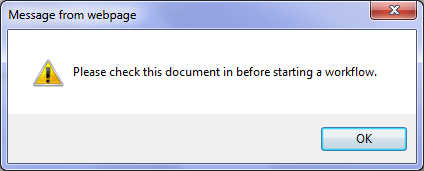
The final question was what we could do about this issue. There are two relatively easy ways, but before I do that, let me show you what happens if you check out the document and then attempt to run the workflow. While you might think this problem might go away, instead we get a friendly dialog box telling us to check the document back in before we attempt to start a workflow. Given that I couldn’t run this workflow because the item needed to be checked out, I had to laugh.

image

Anyways, the two options you have are to disable require check out on the Documents library or change the default behaviour of the workflow so that it does not write the stage back to the item that triggered the workflow. The first one is pretty easy – in the Versioning Settings of the Documents library, we change the Require documents to be checked out before they can be edited? option from Yes to No

image

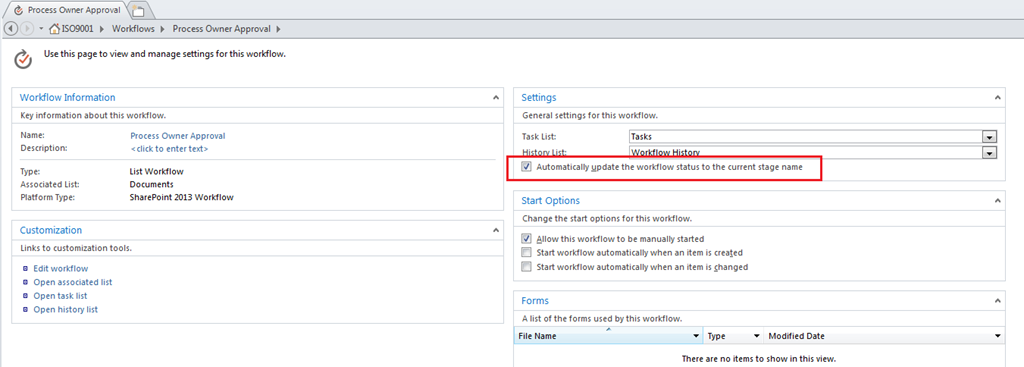
The problem with the first option is that requiring check-out for controlled documents is likely to be a key requirement, so it is not an option in all circumstances. So the other option is to change the behaviour of the workflow itself so that it does not write its stage information back to the Documents library. Luckily for us, this is actually really easy to do. In SharePoint Designer 2013, there is an option to disable the updating of stage information. In the workflow settings screen, look for the option called Automatically update the workflow status to the current stage name and untick it.

image

Now unticking this box will get us past this error, but the problem now is that we have no easy way to track workflows, as this status update can be used in views on the Documents library to see which workflows are at a particular stage. For a complex workflow, or one that will be running on many items, not being able to see the status of the workflow would make life difficult. One workaround is to add a Check Out Item workflow action to the start of the workflow, and then use the Set Workflow Status action to update the status column on the current item as the workflow progresses. This will give us back the ability to track the workflow behaviour in the Documents library, but it will mean that a new version will be added to that Document each time the status updates. So another workaround is to log workflow status to some other list altogether (using the Create List Item action) and use that list for tracking and reporting instead.

Conclusion

I think that the separation of SharePoint and Workflow Manager into separate products is ultimately a good thing. It’s just a pity that one of the legacies of this change is an issue like what we covered in this post, where a relatively simple problem was exacerbated by poor reporting of errors between Workflow Manager and SharePoint. I guess this is part of the bigger price we pay – that of increased technical complexity via more moving parts. Hopefully an issue like this one can be addressed in a future service pack or update, because it is this sort of stuff that can cause people to lose some confidence and jump to the 3rd party solution perhaps prematurely. So if this issue was enough for you to think “pah – let’s go third party”, I have news for you. As you progress through this series we are going to deal with more complex issues than this one too.

Anyway, the point is that we have identified the cause of this particular issue and gotten past it, so we should be able to continue testing the workflow and marvel at our awesomeness. So in the next article, we will continue with testing our workflow and see what else SharePoint throws at us.

Thanks for reading

Paul Culmsee

HGBP_Cover-236x300.jpg

www.hereticsguidebooks.com


Trials or tribulation? Inside SharePoint 2013 workflows–Part 2

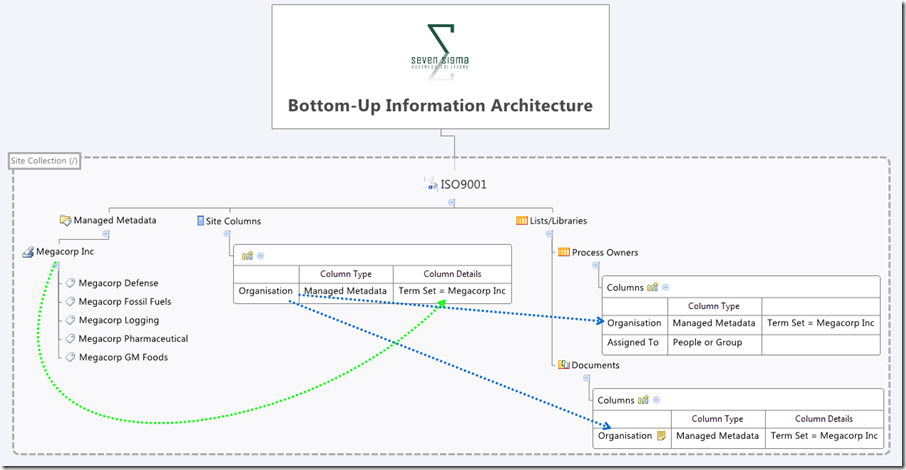
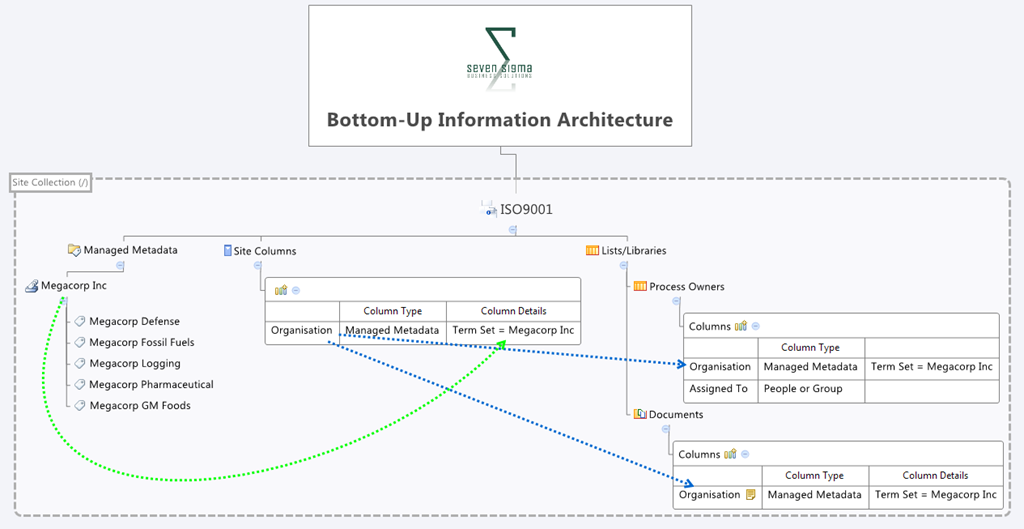
Hi and welcome to part 2 of a series that aims to showcase the good and the bad of SharePoint 2013 workflows, using a simple use-case. In part 1 I introduced you to the mythical multinational called Megacorp and its document control requirements. Also in part 1, we created a site with the necessary lists and libraries from which we can build the workflow. To recap, we used the Document Center site template, and then modified the built-in document library (Documents) to store the organisation that each document belongs to. We created a custom list called Process Owners that stored who is accountable for controlled documents in each organisation. Below is an XMind map to show you the Information Architecture of the Megacorp document control site.

image_thumb1

Our workflow is going to:

  • Look at a document and determine the organisation that a document belongs to
  • Look in the process owners list for that organisation and then determine the process owner for the organisation by grabbing the information in the “Assigned To” field
  • Create an approval task for the process owner to approve the release of a controlled document.

Now this all sounds straightforward enough in theory, but this is SharePoint we are talking about. Let’s see how reality stacks up against theory. I will give lots of screenshots for readers who have never tried using SharePoint Designer Workflow before…

Creating the workflow

Step 1:

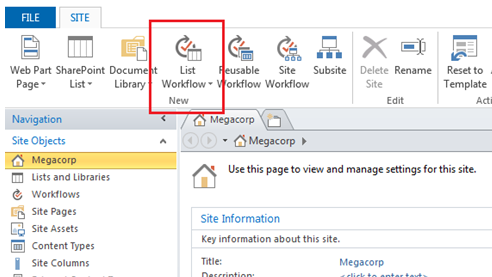
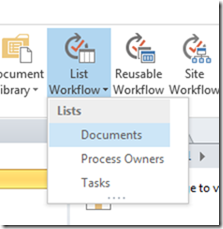
Right, so the workflow will fire when a document is modified, so we will start by adding a list workflow and link it to the Documents library. So using SharePoint Designer 2013, we open the Megacorp site and in the ribbon, we click the List Workflow button. This will cause a dropdown menu to appear below the icon, showing the lists and libraries on the Megacorp site. From this list, we choose the Documents library.

image    image_thumb23

Step 2:

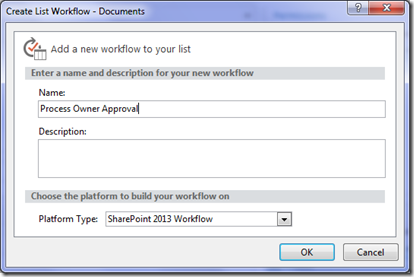
We are presented with the workflow creation screen. Call the workflow “Process Owner Approval” and click OK.

image_thumb9

Note: If, at this point, you get an error, it means that Workflow manager has not been provisioned properly. Remember that in SharePoint 2013, workflow is a separate product and needs to be installed. This is a change from previous versions of SharePoint where workflow was always there, as it was part of SharePoint.

Assuming SharePoint is configured right, SharePoint Designer will have a think for a while and eventually display the following workflow creation screen, ready for us to do cool things!

image_thumb12

The next step is to add a workflow action. The most logical workflow action for us to try is one of the task actions. We will attempt to assign a task to the process owner for a document.

Step 3:

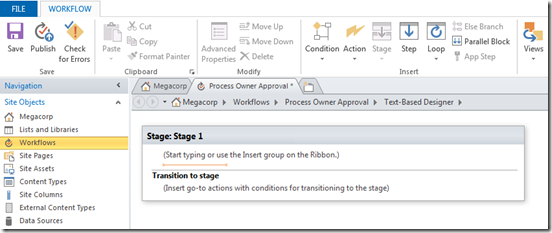
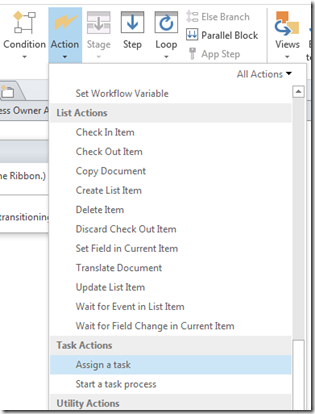
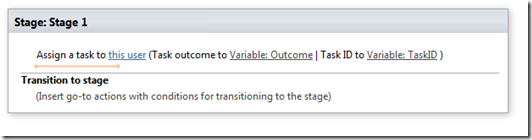
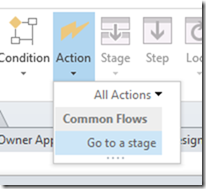
From the workflow ribbon, click the Action icon and choose “Assign a task”. The action will be added to the workflow, ready for you to fill in. For those of you reading this who have never done this before, the process is reminiscent of configuring email rules in outlook in that the action is added and you then fill in the blanks..

image_thumb15   image_thumb18

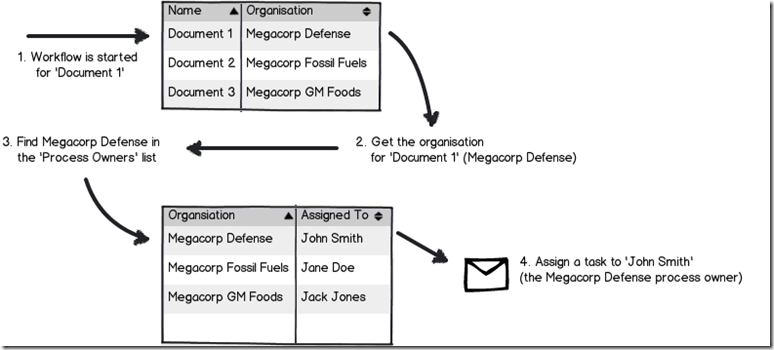
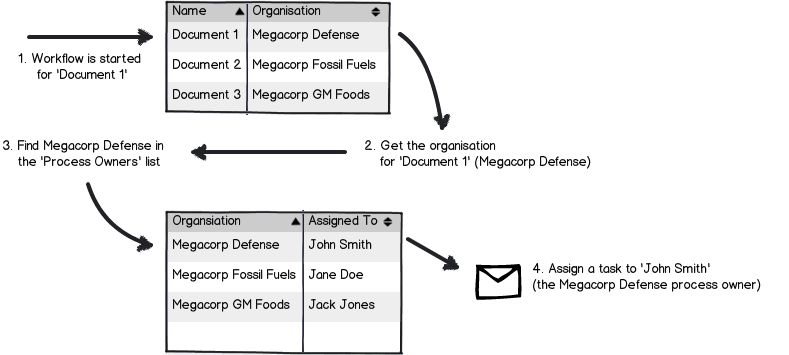
Now let’s configure the finer details of the Assign action above. A task needs to be assigned to a user, and we need to set up the logic for the workflow to work out who that user is. If you recall, the Documents library has a column called Organisation that specifies which Megacorp entity owns each document. A separate list called Process Owners then stores whoever is assigned as the process owner for each organisation (using the Assigned To column). So when the workflow runs on a particular document, we have to take Organisation specified for that document and use it to search the Process Owners list for the matching Organisation. Once we find it, we grab the value of the Assigned to user and create a task for them.

Here is a dodgy diagram that explains the logic I just described.

Snapshot

So let’s give it a go…

Step 4:

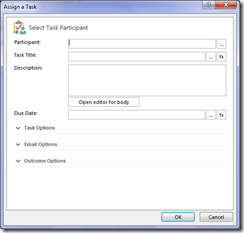
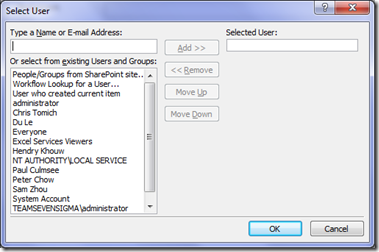
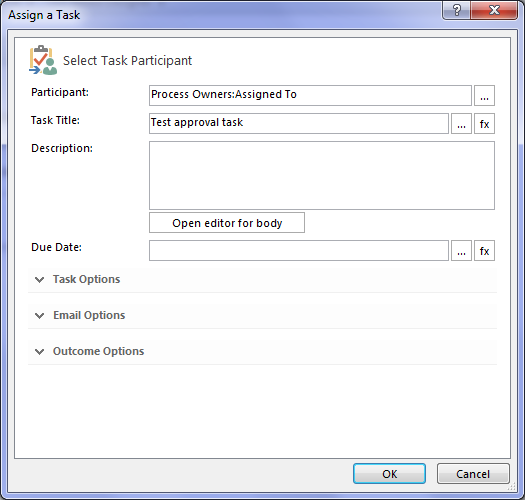
Go back to your newly minted “assign task” that you just added. Click the “this user” hyperlink on the newly created task. The task properties screen will appear as shown below. In the Participant textbox, click the ellipses button to bring up the Select User dialog box.

image_thumb19  image_thumb24

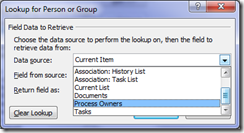
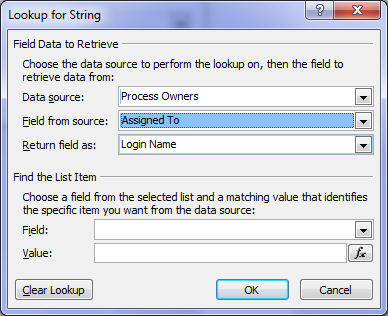
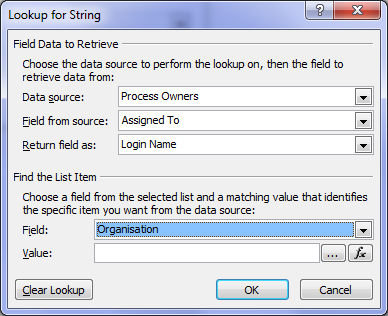
In the Select User dialog box, choose Workflow Lookup for a User and click the Add >> button. This will bring up the ambiguously named Lookup for string dialog box that allows us to choose where to look for our process owner. In the Data source drop down, we choose Process Owners from the list.

Next we have to tell the workflow which column holds the details of the person to perform the task. In the Field from source drop down, choose the Assigned to column as we talked about above.

image_thumb27image

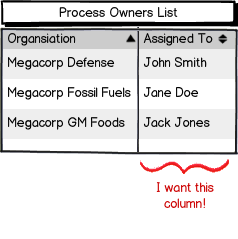
At this point, the workflow knows which list and column holds the information it needs as per the image below:

Snapshot,

But currently we do not know the specific user we need. Is it John Smith, Jane Doe or Jack Jones? Fear not though – this is what the Find the list item section of the Lookup for string dialog box is for. This is where we will tell the workflow to find only the person who matches the value of the Organisation column assigned to the document.

Step 5:

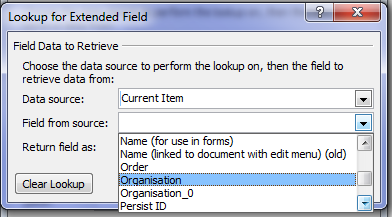
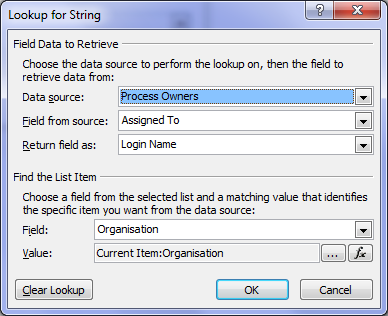
First up, we tell the workflow which field in Process Owners will be used to compare. This is the Organisation column, so in the Field: drop down, choose Organisation. Next we have to match that organisation column with the one in the Documents library. Click the Fx button next to column textbox called Value. A new dialogue box will appear called Lookup for Extended Field. Leave the Data source dropdown as Current item and in the Field from source dropdown, choose the Organisation column.

image   image

Note 1: in a workflow, “Current item” refers to the item that the workflow has been invoked from. If you recall at the start of this post, we created a list workflow and associated with the Documents library. Current item refers therefore to any document in the Documents library that has had a workflow invoked. All of the metadata associated with the current document is available to the workflow to use.

Note 2: Keen eyed readers may be wondering what the deal is with the column labelled Organsiation_0. Don’t worry – I’ll get to that later.

Now that you have selected the organisation column from the Documents library, we have filled in all of the logic we need to grab the right Assigned to user. Clicking ok, the workflow designer will warn you that if you have been silly enough to add multiple process owners for a given organisation, that it will use the first one it finds.

image  image

Finally, we are back at the task designer screen. A lot of screenshots just to wire up the logic for finding the right process owner eh? We haven’t even configured the behaviour of the task itself yet!

image

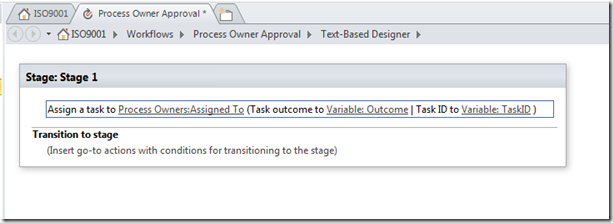
In fact, for now we are not going to wire up the rest of the task. I would like to know if the logic we have just wired up will work. If I can confirm that, I will come back and finish off creating the task with the behaviours I want.  So instead, let’s click Ok to go back to the workflow designer. Now we can see our Assign a task action, ready to go.

image_thumb39

Now before we can test and publish the workflow, we need to tell it to end. Now this is a little counter intuitive to someone who is used to SharePoint 2010 workflows, but it makes sense once you understand the concept of a workflow stage.

SharePoint Workflow 2013 Stages – an interlude…

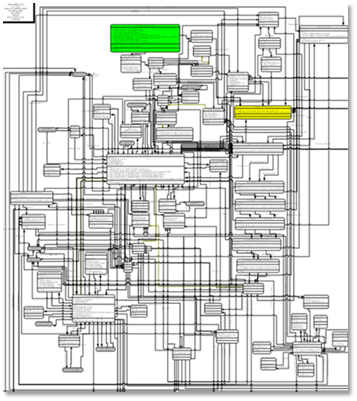
If you have ever sat around and tried to map out a business process, you have probably experienced the fun (not) of discovering that even a relatively simple business process has a lot of variations to it – some quite ad-hoc or dynamic. Trying to account for all of these variations in workflow design can make for some very complex and scary diagrams with even scarier implementations. As an example, take a look at the diagram below – this is a real process and apparently it is only page 12 of a 136!

image

Now in SharePoint 2010, implementing these sorts of workflows was pretty brutal, but in 2013 it has been rethought. A stage is a construct that allows you to group a number of workflow actions together, as well as defining conditions that govern how those actions happen. Each stage in a workflow can transition to any other workflow stage based on conditions. This means that a workflow can effectively loop around different stages and greatly simplify implementing business logic compared to SharePoint 2010.

The means by which this is done is via the the new Transition to Stage workflow action. The way this works is at the end of each workflow stage, there is a transition to stage section as shown below:

image

Step 6:

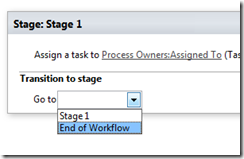
When you click into the Transition to stage section of the workflow, there is only one workflow action available: the Go To A Stage action. Adding this to the workflow will present a dropdown that will allow you to transfer the workflow to any the you have defined, or to end the workflow. Right now we will end the workflow, but we will be revisiting this stage idea later in the series.

image_thumb40  image_thumb41  image_thumb43

All right! We are done. The final step is to save and publish the workflow.

Step 7:

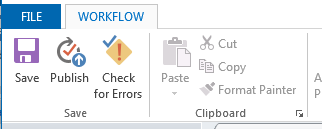
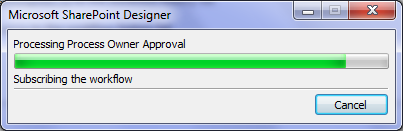
In the ribbon, look for the Publish icon and click it. Assuming everything goes according to plan, you will be back at the workflow overview screen in SharePoint Designer.

image  image

Congratulations – you have published your workflow. “Well that was easy,” I hear you say… But we haven’t tested it yet! In the next post we will test our masterpiece and see what happens. You might already have an inkling that the result may not be what you expect… but let’s save that for the next post.

Thanks for reading

Paul Culmsee

HGBP_Cover-236x300.jpg

www.hereticsguidebooks.com


Trials or tribulation? Inside SharePoint 2013 workflows–Part 1

Hi all

Workflows are big business in SharePoint land, despite the capability of SharePoint Designer Workflows being a fairly weak link in the overall SharePoint value proposition. If this wasn’t the case, then products like Nintex or K2 would not be so popular and workflow vendors wouldn’t have the biggest booths at the average SharePoint conference.

One of the serious strategic advantages of going with the SharePoint stack is the amazing 3rd party ecosystem that flourishes around the base product. No other platform in the space has the level of 3rd party support that SharePoint enjoys. But while its nice to be able to have great options for serious SharePoint workflow development, with each successive version of SharePoint that comes out, there is always that hope that one can use the base functionality without having to jump straight away to the 3rd party tools.  After all, it is quite common for organisations, having just gone to the time and expense of adopting SharePoint, to be dismayed that they have to part with yet more cash for 3rd party tools to address large functional gaps that were not apparent in the contrived product demos.

Another important trend being hidden by cloud hubris is the rise of the citizen developer. The CIO’s fountain of knowledge known as Gartner, stated that by 2014 25% of new business applications will be delivered by Citizen Developers.  They defined citizen developers as “a user operating outside of the scope of enterprise IT and its governance who creates new business applications for consumption by others either from scratch or by composition.” Elaborating, Gartner stated that

“Future citizen-developed applications will leverage IT investments below the surface, allowing IT to focus on deeper architectural concerns, while end users focus on wiring together services into business processes and workflows. Furthermore, citizen development introduces the opportunity for end users to address projects that IT has never had time to get to — a vast expanse of departmental and situational projects that have lain beneath the surface.”

So with SharePoint 2013, Microsoft has indeed changed things up a notch in the workflow world. Is it enough to enable and empower citizen developers?

That is what this series aims to find out… First up, lets take a quick look at the forces we are going to be meddling with…

What’s new with SharePoint 2013 and workflow…

Workflow in SharePoint 2013 is significantly different from SharePoint 2010. It fact, it is essentially a completely separate product called Workflow Manager. Technically, Workflow Manager is not part of SharePoint at all – there is no “workflow” service application or “service on a server” to be found. Instead, it is a separate process that works by communicating with SharePoint over the HTTP protocol in various ways.

This means that we have the option of deploying Workflow Manager onto its own server, or set of servers (although for you smaller sites, it happily installs onto your SharePoint servers and coexists with the rest of SharePoint too). This loosely coupled model has scalability benefits as workflow load can now be separated from the rest of SharePoint. It also means badly behaved workflows are less likely to affect SharePoint sites because they run in a separate process or separate servers. 3rd party applications (think about solutions built using the SharePoint 2013 apps model here) can also interact and communicate with workflow manager separately to SharePoint. It also helps Microsoft to realise their strategy of “encouraging” everyone to their vision of a cloud-based happy place.

Now new does not always equate to good – and Microsoft have a bit of a dubious history with V1 products and technology. So in this series, I’d like to show you an example of what the SharePoint 2013 new workflow regime can do. The example that I am going to use for this set of articles is useful for this purpose for several reasons:

  • 1. It is a common use-case that many organisations would find familiar – particularly those with compliance regimes
  • 2. It demonstrates a fairly typical SharePoint consulting “oh crap” moment, where you realise your masterpiece of a solution is completely undone by an untested assumption or a SharePoint caveat that you forgot about.
  • 3. It demonstrates a path to redemption that is an excellent utilisation of the new capabilities of SharePoint 2013 and Workflow Manager
  • 4. It gives you a great sense as to whether workflows are a real developer, information worker or citizen developer tool. In other words, after reading this, you should have a good idea what you are getting yourself into!

I have a lot to cover, so this series will be multi-part. This first post will outline the scenario that we are dealing with.

The scenario: Document Control at Megacorp

Many organisations operate in industries where they are required to manage documentation in a systematic way. Documents that are subject to any sort of quality or compliance regime are often referred to as “Controlled Documents”. Typically, a controlled document will have an assigned responsible party who is accountable for the management (i.e. approving the issuing of updates) of that document.

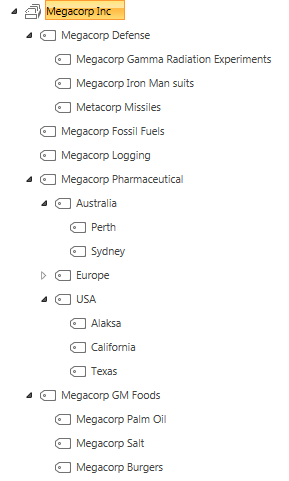
To illustrate, consider the document control requirements of Megacorp Inc – a mythical multinational conglomerate with a vide variety of businesses in many different industries and locations. Megacorp is your typical diversified multinational, making everything from Iron Man suits to hamburgers. A managed metadata term set illustrating the Megacorp conglomerate structure can be seen below. If you look closely, Megacorp Inc, actually consists of several companies and each is structured differently. For example: Megacorp Pharmaceutical divides itself based on country and state jurisdiction, whereas Megacorp GM foods divides itself up on the particular food it is generically modifying.

image

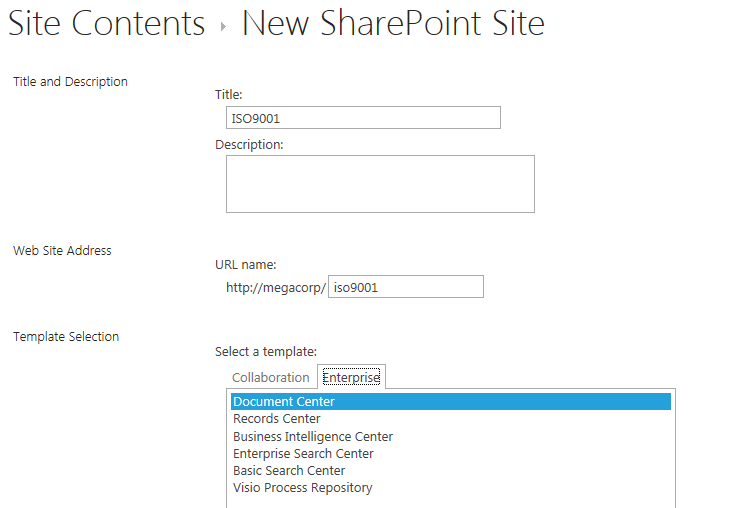
So let’s say that Megacorp is maintaining ISO9001 certification for assurance purposes and therefore has to control their documents as I have stated above. Let’s create a SharePoint site called ISO9001 to handle this requirement. We perform the following steps:

  1. Build a term set (called Megacorp Inc)that stores all of the Megacorp businesses (you can see that in the image above)
  2. Create a site based on the built-in Document Center template
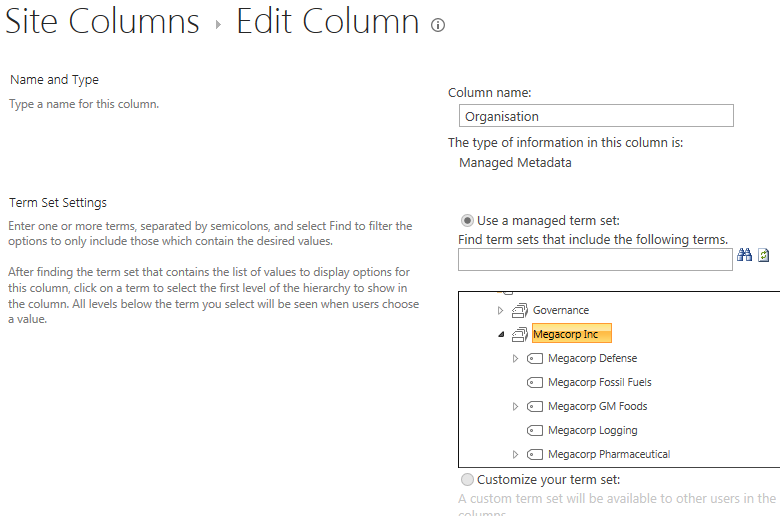
  3. Create a managed metadata site column called Organisation and associate it to the Megacorp term set
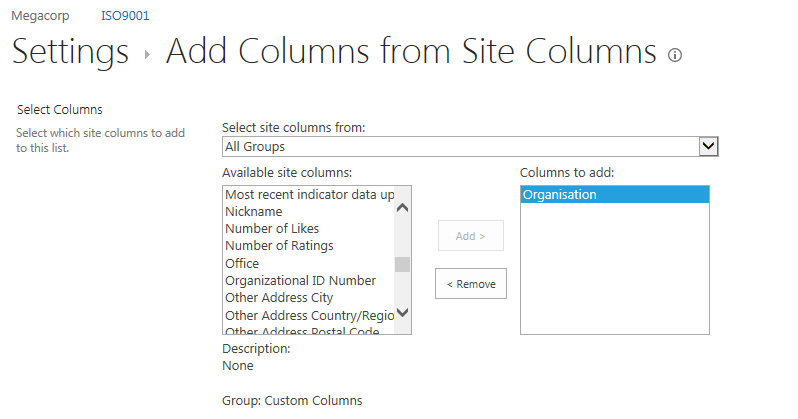
  4. Add the organisation column to the document library (called Documents) in the Document Center site
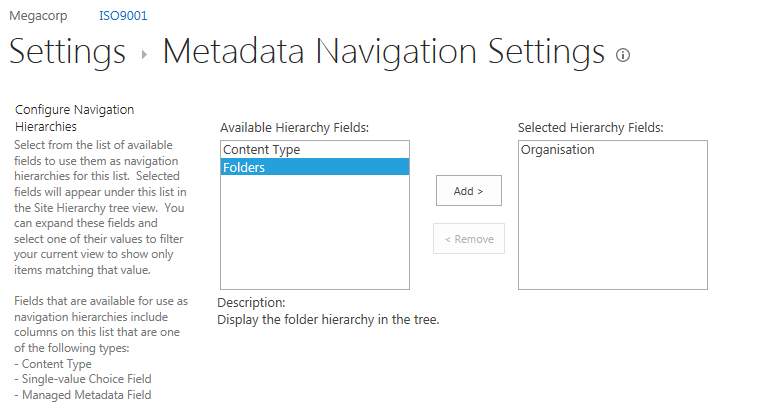
  5. Enable Metadata Navigation on the Documents library and add the Organisation column as a hierarchy field

For those of you who are new to SharePoint, below are screenshots from those steps to help you with the above steps… I am not going through this stuff in detail, so hopefully this suffices…

image  image

imageimage

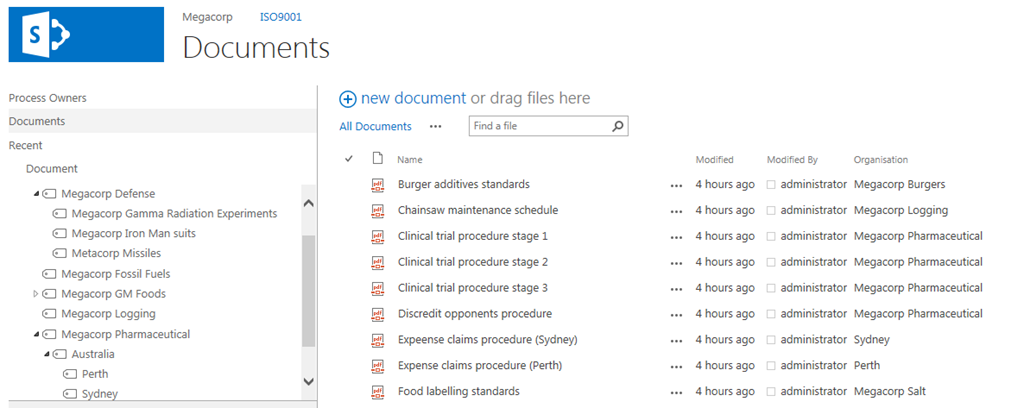
Now that the above plumbing is done, a few documents have been added to the Documents library and tagged to their organisation. With Metadata Navigation enabled, we now have the easy means to browse and filter documents to the specific organisation who owns them as shown below…

image

So let’s now think through a workflow scenario. Each organisation that makes up Megacorp has a process owner and when a document is ready for publishing, the process owner needs to approve it. Now we could do this by adding a “Person or Group” column to the document library and call it “process owner.” But Megacorp has some additional considerations that need to be pondered…

  • 1. They have thousands of documents in the library
  • 2. The process owner is a role, not an individual person. For audit purposes, Megacorp wants to have a record of when a person was in a particular process owner role.

The reason this complicates things is twofold. If we use a person’s user account in Active directory for tagging the process owner, we can easily track when a process owner changes because it will show up in the version history of the documents. But the downside is that we would have to update each document individually when that process owner changes to someone else. Not to mention that we may not want this change to be a version change in the document itself.

Now I know what your thinking – “Just use an Active Directory Group instead of an account”. Yes, it is a good and logical suggestion, since a SharePoint or Active Directory group allows us to easily manage changes in personnel between roles by changing group members. But the downside is that we have no easy way to see the history of who was in the process owner role at a given time because SharePoint would see and store the group, not the members of that group.

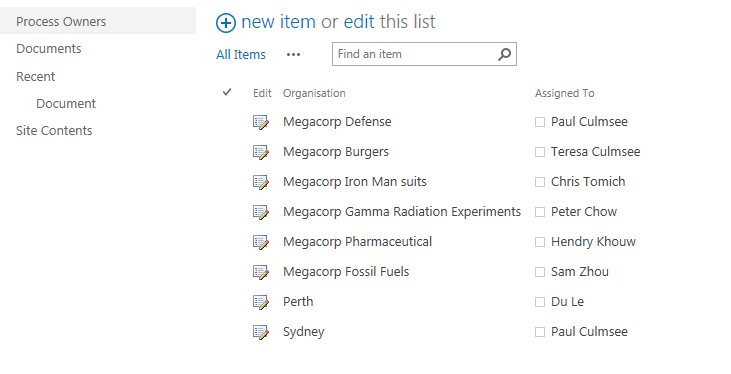
So let’s try an alternative approach. We will make a custom list called “Process Owners” and add two columns to it. We will add the Organisation site column that we created and used earlier, and we will add the “Assigned To” column that is built-into SharePoint and used in task lists. This will give us a list of process owners for a given Megacorp company or division. Even better – if we turn on version history on the Process Owners list, we now have a record of who was in the process owner role at any given time because it will show up in the changes in the “Assigned to” field over time.

The image below illustrates the Process Owners list.

image

So to summarise, we have a document library where all documents are tagged to the organisation that they belong to. We have a list of the process owners for each organisation. To better visualise this, I have drawn an xmind map to show you the Information Architecture of the Megacorp document control site

image

Now we turn our attention to the document approval workflow. It should be able to:

  • Look at a document and determine the Organisation that a document belongs to
  • Look in the process owners list for that organisation and then determine the process owner for the organisation by grabbing the information in the “Assigned To” field
  • Create an Approval task for the Process owner to approve the release of a controlled document.

Now this all sounds straightforward enough in theory but as we will see as this series progresses, when it comes to SharePoint, theory and reality are two very different things. So in part 2, we will build out the workflow..

Thanks for reading

Paul Culmsee

h2bp2013_thumb.jpg

www.heretisguidebooks.com


Rethinking SharePoint Maturity Part 5: From Conditions to Actionable Lessons Learnt

Hi all

Welcome to part five of my quest to improve people’s awareness and understanding of what SharePoint maturity is really all about. For those new to this series of articles, we have traversed a bit of territory to get here, and during the journey there has been not a single SharePoint site column, content type or site collection in sight. In fact, I have not touched any of the topics that many would traditionally view as a sign of SharePoint maturity. Instead, I have been taking readers on a fun-filled journey examining three nerdy, yet highly interesting areas of research in team development, collaboration and organisational learning. Along the way we defaced the Mona Lisa, looked at SharePoint through holes in slices of Swiss Cheese and channelled the number of the beast.

After all that, we ended part 4, by arriving at this odd looking diagram below…

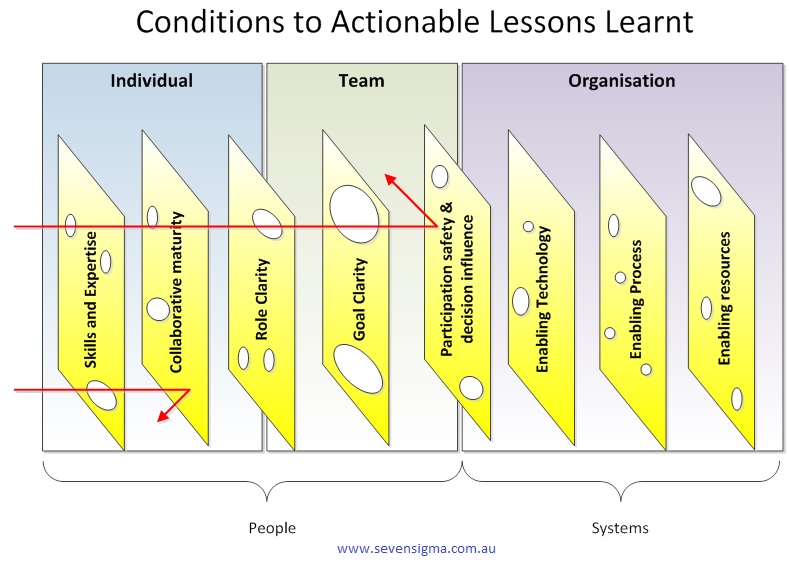
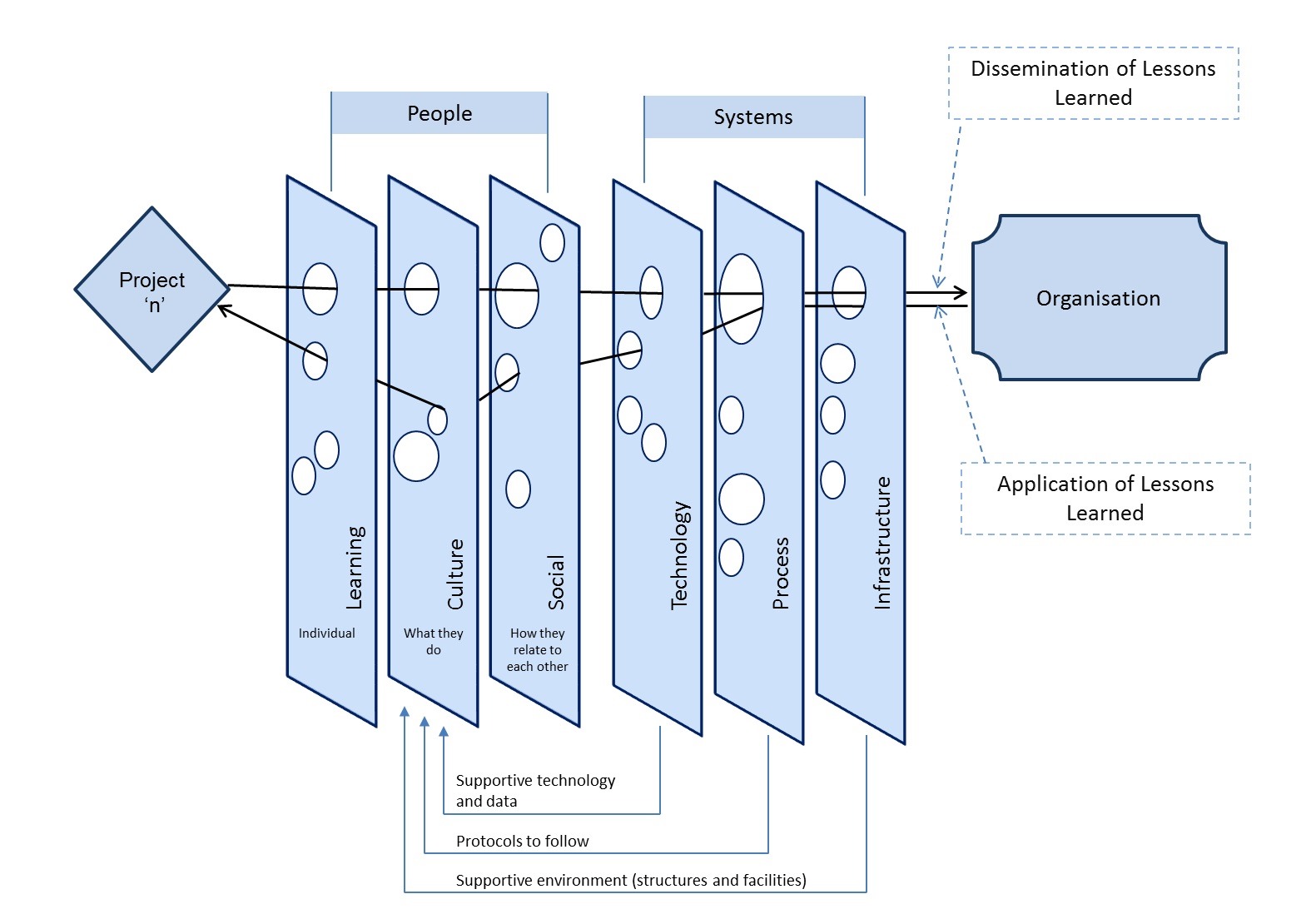
What you are looking at is something called the CALL model, which stands for “Conditions to Actionable Lessons Learnt”. I originally developed the model with Dialogue Mapping and knowledge management in mind – essentially to help my clients do a better job of integrating double loop learning into their projects. However, it soon became apparent that it was valuable in various SharePoint contexts too.

Single vs. double loop learning

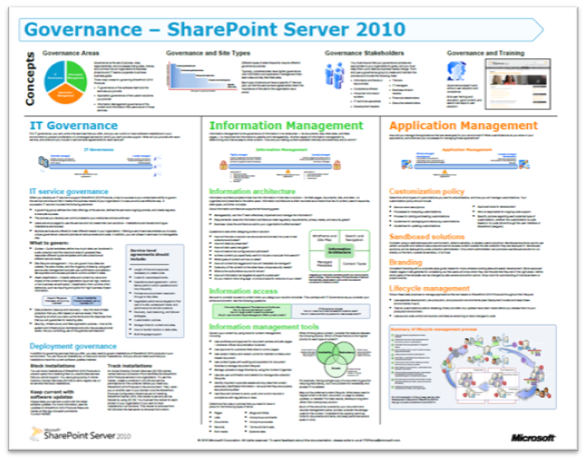
In the previous paragraph I made a reference to “double loop learning” without explaining what it was, so let’s quickly make amends because it is interesting stuff. The idea of single and double loop learning has been around for close to 40 years – it was in 1974 when Chris Argyris came up with the idea. To explain, let’s bring back our trusty SharePoint 2010 governance poster that I trash-talked in the first and fourth articles…

If you have not seen this poster before, it represents what Microsoft believe to be the focus areas for SharePoint 2010 governance. Many people – consultants in particular – will take the information in this poster for granted and create SharePoint governance plans that try to cover off the various areas it suggests to be covered. Everyone will feel good because they have ticked all the boxes of this authoritative fountain of SharePoint wisdom.

Then, if SharePoint then fails to live up to expectations, many will look at the poster and wonder which areas they did not adequately cover. They will study the poster, search Google or Wikipedia for better definitions of the terms listed and then make another reattempt, trying to do an even better job of implementing the wisdom contained therein.

This my friends, is a shining example of single loop learning. Single loop learning, as described in this article “seems to be present when goals, values, frameworks and, to a significant extent, strategies are taken for granted. The emphasis is on techniques and making techniques more efficient.” In single loop learning, the fundamental premise of a course of action remains unchanged. All of the energy of learning is directed to making sure “we get it right this time.” In short, in a single loop learning scenario, repeated attempts are made at solving the same issue, but no-one questions the underlying premise of the strategy.

Now in case you haven’t noticed, I spent the first three posts of this series “questioning the underlying premise” of the above SharePoint governance poster. So in effect I’ve been introducing you to the notion of double loop learning already. Double-loop learning involves taking a deeper look at what is going on. In double-loop learning, having attempted to achieve a goal on different occasions, the goal itself may be modified, re-framed or rejected in the light of the experience gained in trying to achieve it. Think about it – double loop learning actually happened in organisations people would never say things like “well that’s always how we have done it here.”

I see a lot of single loop learning in SharePoint land, and I want to help people break out of their existing framing of the issue – compassionately, of course Smile

Enter the CALL Model

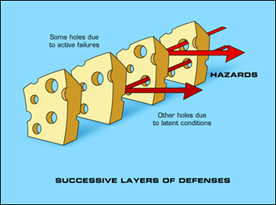
So getting back to my CALL model, I propose it as a multi-purpose tool that can be used for various SharePoint related stuff. It is based on the Swiss cheese risk management model; a metaphor which suggests most strategies have gaps that create risk. These gaps are analogous to holes in slices of Swiss cheese. In terms of the SharePoint governance poster, think of each of the areas it suggests to be covered as slices of cheese. This key to this model is that it assumes that no single defence layer is sufficient to mitigate risk. It also implies that if risk mitigation strategies are set up with all the holes lined up, there is a systematic flaw, since it would allow a problem to progress all the way through to adversely affect the organisation. Accordingly, the Swiss cheese model encourages a more balanced view of how risk is managed.

You can think of the CALL model as a SharePoint optimised Swiss cheese model. CALL extends the Swiss cheese model by incorporating cutting edge research in enabling team performance (Hackman), collaboration (Wilder) and knowledge management (Duffield). It outlines 8 actionable areas (Swiss cheese slices) that operate at the individual, team and organisation levels. These focus areas can be thought of as enabling conditions that mitigate risk, as well as focus areas for identification and application of lessons learnt. In other words, my contention is that for SharePoint maturity, you should strive to create these 8 conditions and then consider them when evaluating project performance.

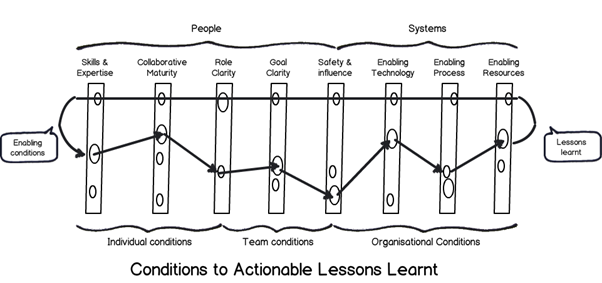
image

The image above is another drawing of the model minus the pretty colours I used earlier. In this version, I am showing the path of a SharePoint project flows through these 8 areas. Note how the arrow from left to right deviates because we are seeking to use them to mitigate risk via defence in depth. But when it comes to applying learnings from a project (arrow now moves from right to left to close the loop), the flow is designed to be smooth and unencumbered to ensure that the opportunity for double loop learning takes place.

Here is a description of each of the 8 focus areas:

Skills and expertise

This focus area is concerned with ensuring individuals are selected with the right skills and task expertise to perform their role in delivery and operation of services. In SharePoint this is critical because of the technical depth and breadth of the product. Want to deploy SharePoint 2013 request routing in dedicated mode? Go see Spence so he can tell you not to. Want to learn how the new WOPI protocol works with Office Web Apps? Sign a cheque for Wictor to help you.

Skills is closely associated with high IQ. In other words, specialist skills require smart, dedicated people. Therefore this also incorporates ensuring staff have appropriate qualifications and certifications, that education, training and ongoing development practices are properly targeted, and that individuals are willing to learn new skills and be proactive in keeping themselves up-skilled. (In other words, all of the hallmarks of those brilliantly talented people who completed the now defunct Microsoft Certified Masters program).

Collaborative Maturity

Ever heard of the term “dumb smart guy”? Usually it is someone who is intellectually smart, but has all the emotional maturity (EQ) of a potato. Collaborative maturity is all about ensuring that individuals have skills in working collaboratively with others. It signifies a willingness to listen, empathy, mutual respect, understanding and trust. Collaboratively mature people have a tolerance for ambiguity and have the ability to engage in genuine dialogue to reach compromise. Collaboratively mature people also see collaboration in their self-interest and foster develop deep ties with colleagues in order to work interdependently.

Being in the IT industry, I’m not sure if this person actually exists, but hey – this description gives us all something to aspire to!

Role clarity

Role clarity is concerned that the role of each team member is understood by everyone within the team and it is clear how much authority is vested within each role. This in turn provides task clarity, fosters interdependency among a team and reduces process loss. (Process loss is difficulty in knowing who is doing what and how it is done). Where roles are clear and understood, team members are appropriately appointed to tasks according to their capacity (see “skills and expertise” above) and character (see “collaborative maturity” above).

Goal clarity

Goal clarity relates to purpose, direction and goal alignment between members of a team is essential for good team performance. A compelling purpose energizes team members, orients them toward their collective objective, fully engages their talents and motivates them to resolve conflicts. A compelling purpose should be underpinned by concrete, attainable goals and objectives, both short and long term. Knowing where you are heading focuses the team’s energy in directive meaningful activity. This also helps build team efficacy, which is the belief within teams of their ability to solve problems and deliver great solutions. On the other hand, lack of goal clarify is one of the classic symptoms of wicked problems.

Participation safety and decision influence

Ever been on a project that’s taking on water, but nobody seems to be willing to listen? Ever had any critically important topics not discussed because they are simply taboo and unmentionable? It is not fun – and little breakthrough thinking or innovation can exist without participation safety and decision influence. When a team has a high level of participation safety, members feel safe to share ideas, raise unpopular views or opinions, or speak their truth to one another. This reduces groupthink and social loafing, encourages breakthrough and can lead a collaborative team and a collaborative organisational culture. There are countless case studies of major disasters (such as the Deepwater Horizon Oil Spill), where a culture of “only tell me the good news” prevented critical information from being raised that could have averted the issue. In fact ‘communication’ (or lack of it) is probably the most commonly cited project failure factor.

Having said all that, while participation safety is critical, the ideas that team members put forward need to influence the direction and outcome of the team. A manager who says “my door is always open”, but then ignores feedback creates dissonance among team members because what is espoused is not practiced. The simple facts of the matter is that a key element for peak performance is to provide an environment safe enough for team members to speak their truths, to be rewarded for doing so and for truth telling to actually influence direction.

Enabling Technology

Technology underpins all aspects of organisational systems and projects and provides the means to generate leaps in performance and capabilities of users, as more broadly, team and organisational productivity. Technology at its best facilitates the delivery of timely, relevant information for decision making, co-ordination and collaboration. Thus it is critical that technology does not get in the way of delivering value. How often have you worked on a project when you have been forced to use technologies that stifle productivity, create frustration and reduce collaboration between team members? How often has that technology been SharePoint?

Enabling Process

How often have you said to yourself “I can’t believe I have to follow this braindead process.” Process is the glue that provides the rules of behaviour in delivering on goals and like technology, underpins all aspects of organisational systems and projects and is a key part of performance and productivity. It is critical that process, like technology, is always driven by purpose and that it does not get in the way of delivering value. Inappropriate process can make a huge difference in how team members interact with stakeholders and each-other.

Enabling Resources

Enabling resources is concerned with the financial, material and human input necessary to develop and sustain delivery of services. Put simply, even the best teams with the most compelling direction can falter if they are under-resourced. It is critical that sufficient funds, staff, materials and time are provided to get the job done.

Applications for the CALL model

The CALL model can be used in many ways, given its heritage of Hackman, Wilder and Duffield. Examples include:

  • A model for performing SharePoint governance health check/assessment
  • A model for assessing the makeup of a SharePoint team
  • A model for assessing the complexity of a proposed SharePoint solution
  • A model for assessing departmental readiness for SharePoint
  • A model for developing SharePoint Business Continuity planning

It is worthwhile noting that Hackman developed a team performance instrument called a Team Diagnostic Survey based around his 6 enabling conditions. Since the CALL model is so closely aligned to Hackman, it should also be able to be used in a similar fashion. The same goes for the Wilder research on collaboration, that developed an instrument called the Collaboration Factors Inventory.

So given the source material, the CALL model also has applicability in the areas of:

  • An set of enabling conditions to establish to develop high performing teams
  • An set of enabling conditions to successful collaborative delivery of projects
  • A focus area for the identification of risks (and opportunities) on organisational initiatives
  • A framework for the systematic capture of project lessons learnt
  • A framework for assessing change and other organisational initiatives
  • A governance maturity model
  • A knowledge management and organisational learning maturity model

Conclusion

The CALL model reflects a synthesis of three highly rigorous research efforts. All three seemed to gel really well when they were put into the melting pot and I was pleased with the result. In the next post, I will show you how I have used the CALL model when developing a SharePoint Business Continuity Strategy for a client. I’ll also talk about how I have used it in lessons learnt workshops.

Thanks for reading


Paul Culmsee

www.hereticsguidebooks.com

HGBP_Cover-236x300


Rethinking SharePoint Maturity Part 3: Who moved my cheese?

Hi all

Welcome to part 3 in this series about rethinking what SharePoint “maturity” looks like. In the first post, I introduced the work of JR Hackman and his notion of trying to create enabling conditions, rather than attribute cause and effect. Hackman, in his examination of leadership and the performance of teams, listed six conditions that he felt led to better results if they were in place. Those conditions were:

  1. A real team: Interdependence among members, clear boundaries distinguishing members from non-members and moderate stability of membership over time
  2. A compelling purpose: A purpose that is clear, challenging, and consequential. It energizes team members  and fully engages their talents
  3. Right people: People who had task expertise, self organised and skill in working collaboratively with others
  4. Clear norms of conduct: Team understands clearly what behaviours are, and are not, acceptable
  5. A supportive organisational context: The team has the resources it needs and the reward system provides recognition and positive consequences for excellent team performance
  6. Appropriate coaching: The right sort of coaching for the team was provided at the right time

I then got interested in how applicable these conditions were to SharePoint projects. The first question I asked myself was “I wonder if Hackman’s conditions apply to collaboration itself, as opposed to teams.” To find out, I utilised some really interesting work done by the Wilder Research Group, that produced a book called “Collaboration: What Makes It Work.” This book distilled the wisdom from 281 research studies on collaborative case studies and their success or failure. They distilled things down to six focus areas (they ended up with the same number as Hackman). Their six were:

  1. Membership characteristics: (Skills, attributes and opinions of individuals as a collaborative group, as well as culture and capacity of orgs that form collaborative groups)
  2. Purpose: (The reasons for the collaborative effort, the result or vision being sought)
  3. Process and structure: (Management, decision making and operational systems of a collaborative context)
  4. Communication: (The channels used by partners to exchange information, keep each-other informed and convey opinions to influence)
  5. Environment: (Geo-location and social context where a collaborative group exists. While they can influence, they cannot control)
  6. Resources: (The financial and human input necessary to develop and sustain a collaborative group)

If you want the fuller detail of Hackman and Wilder, check the first and second posts respectively. But it should be clear from even a cursory look at the above lists, that there is a lot of overlap and common themes between these two research efforts and we can learn from them in our SharePoint work. I strongly believe that this sort of material constitutes a critical gap in a lot of the material out there on what it takes to have a successful SharePoint deployment and offers some excellent ideas in further developing ideas around SharePoint maturity. I started to develop a fairly comprehensive Dialogue Map of both of these research efforts so I could synthesise them to create my own set of “conditions” in the way Hackman describes. While I was doing this, I met a fellow via LinkedIn who opened my mind to further possibilities. Everybody, meet Stephen Duffield

Duffield’s SYLLK model for lessons learnt

I met Steve because we both shared a common interest in organisational knowledge management. In, fact Steve is working on his PhD in this area, focussing on addressing the pitiful record of organisations utilising lesson learnt practices on projects and then embedding them into organisational  culture and practices. If you have ever filled out a lessons learnt form, knowing full-well that it will disappear into a filing cabinet never to be seen again, Steve shares your frustration. For his PhD, he is tackling two research questions:

  1. What are the significant factors that negatively influence the capture, dissemination and application of lessons learned from completed projects within project-based organisations?
  2. Can a systemic knowledge model positively influence the capture, dissemination and application of project management lessons learned between project teams within the organisation?

Now if you think it was impressive that Wilder researched 281 studies on collaboration, Steve topped them by miles. His PhD literature review covered over 500+ papers on the topics of project lessons learned, knowledge management, risk management and the like. 500! Man, that’s crazy – all I can say to that is I am sure as hell glad he did it and I didn’t have to!

So what was the result of Duffield’s work? In a nutshell, he has developed a model called “Systemic Lessons Learned Knowledge” (SYLLK), which was influenced by the Swiss Cheese model for risk management, originally proposed by Dante Orlandella and James T. Reason.

Why SYLLK is important for SharePoint

imageBefore I explain Duffield’s SYLLK model, it is important I briefly explain the Swiss Cheese model for risk management that inspired him. The Swiss Cheese Model (see the image to the left) for risk management is commonly used in aviation and healthcare safety. It is based on the notion that systems have potential for failure in many areas and these are analogous to a stack of slices of Swiss cheese, where the holes in each slice are opportunities for a process to fail. Each of the slices are “defensive layers” and while an error may allow a problem to pass through a hole in one layer, in the next layer the holes are in different places, allowing the problem to be caught before its impact becomes severe.

The key to the Swiss Cheese Model is that it assumes that no single defence layer is sufficient to mitigate risk. It also implies that if risk mitigation strategies exist, yet all of the holes are lined up, this is an inherently flawed system. Why? because it would allow a problem to progress through all controls and adversely affect the organisation. Therefore, its use encourages a more balanced view of how risks are identified and managed.

So think about that for a second… SharePoint projects to this day remain difficult to get right. If you are on your third attempt at SharePoint, then by definition you’ve had previous failed SharePoint projects. The inference when applying the Swiss cheese model is that your delivery approach is inherently flawed and you have not sufficiently learnt from it. In other words, you were – and maybe still are – missing some important slices of cheese from your arsenal. From a SharePoint maturity perspective, we need to know what those missing slices are if we wish to raise the bar.

So the challenge I have for you is this: If you have had a failed or semi-failed SharePoint project or two under your belt, did you or others on your team ever say to yourself “We’ll get it right this time” and then find that the results never met expectations? If you did, then Duffield’s (and my) contention is you might have failed to truly understand the factors that caused the failure.

Back to Duffield…

This is where Duffield’s work gets super interesting. He realised that the original Swiss cheese “slices” that resolved around safety were inappropriate for a typical organisation managing their projects. Like the Wilder work on collaboration, Steve reviewed tons of literature and synthesised from it, what he thinks are the key slices of cheese that are required to enable not only mitigation of project risks, but also focus people on the critical areas that need to be examined to capture the full gamut of lessons learnt on projects.

So how many slices of cheese do you think Steve came up with? If you read the previous two posts then you can already guess at the answer. Six!

There really seems to be something special about the number 6! We have Hackman coming up with 6 conditions for high performing teams, Wilder’s 6 factors that make a difference in successful collaboration and Duffield’s 6 areas that are critical to organisational learning from projects! For the record, here are Duffield’s six areas (the first three are labelled as people factors and the second three are system factors):

  1. Learning: Whether individuals on the team are skilled, have the right skills for their role and whether they are kept up-skilled
  2. Culture: What participants do, what role they fulfil, how an atmosphere of trust is developed in which people are encouraged, even rewarded for truth telling– but in which they are also clear about where the line must be drawn between acceptable and unacceptable behaviour”
  3. Social: How people relate to each-other, their interdependence and how they operate as a team
  4. Technology: Ensuring that technology and data supports outcomes and does not get in the way
  5. Process: Ensuring the appropriate protocols drive people’s behaviour and inform what they do (gate, checklists, etc.)
  6. Infrastructure: Environment (in terms of structure and facilities) that enable project outcomes

Duffield has a diagram that illustrates the SYLLK model, showing how his six identified organisational elements of learning, culture, social, technology, process and infrastructure align as Swiss cheese slices. I have pasted it (with permission), below (click to enlarge).

Duffield states that the SYLLK model represents “the various organisational systems that collectively form the overall behaviour of the organisation. The various modes of social and cultural learning, along with the organisational processes, infrastructure and technology that support them.” Notice in the above diagram how the holes in each slice are not lined up when the project arrow moves right to left. This makes sense because the whole point of the model is the idea of “defence in depth.” But then the holes are aligned when moving from left to right. This is because each slice of cheese need to be aligned to enable the feedback loop – the effective dissemination and application of the identified lessons.

Conclusion

The notion of the Swiss cheese model for mitigating risk makes a heck of a lot of sense for SharePoint projects, given that

  • a) there is a myriad of technical and non technical factors that have to be aligned for sustained SharePoint success, and
  • b) SharePoint success remains persistently illusive for many organisations.

What Duffield has done with the SYLLK model is to take the Swiss Cheese model out of the cloistered confines of safety management and into organisational learning through projects. This is huge in my opinion, and creates a platform for lots of innovative approaches around the capture and use of organisational learning, all the while framing it around the key project management task of identifying and mitigating risk. From a SharePoint maturity perspective, it gives us a very powerful approach to see various aspects of SharePoint project delivery in a whole new light, giving focus to aspects that are often not given due consideration.

Like the Wilder model, I love the fact that Duffield has done such a systematic and rigorous review of literature and I also love the fact that his area of research is quite distinct from Hackman (conditions that enable team efficacy) and the Wilder team (factors influencing successful collaboration). When you think about it, each of the three research efforts focuses on distinct areas of the life-cycle of a project. Hackman looks at the enabling conditions required before you commence a project and what needs to be maintained. Wilder appears to focus more on what is happening during a project, by examining what successful collaboration looks like. Duffield then looks at the result of a project in terms of the lessons learnt and how this can shape future projects (which brings us back to Hackman’s enabling conditions).

While all that is interesting and valuable, the honest truth is that I liked the fact that all three of these efforts all ended up with six “things”. It seemed preordained for me to “munge” them together to see what they collectively tell us about SharePoint maturity.

… and that’s precisely what I did. In the next post we will examine the results.


Thanks for reading


Paul Culmsee

www.hereticsguidebooks.com


Rethinking SharePoint Maturity Part 2: What Makes Collaboration Work

Hi all

Welcome to part 2 about my research efforts that has led me to thinking a little differently in how we understand and measure SharePoint and organisational “maturity”. In the first post, I gave a glimpse into the work of JR Hackman, who had presented some really interesting ideas about what leads to outstanding team performance. In case you have not read the first post (damn you!), Hackman presented the notion that trying in vain to come up with the causes of team efficacy was a rather dumb idea and instead, looking at the conditions that enable great teams was a much more productive approach.

This notion of conditions over causes is really important to understand, because we all routinely get suckered into conversations about whether one process, approach or model is objectively “better” than another. This sort of discussion frustrates me and I usually find it all rather pointless because it all but ignores the underlying conditions that enabled or disabled things. As a result, we misattribute success or failure of SharePoint to how we used methods, processes and models, rather than focus on what really matters – the conditions under which those methods, processes and models operated.

Now Hackman was not looking at SharePoint projects when he came to this realisation. He was looking at leadership and the performance of teams in general. He synthesised his years of research work down to six conditions that he felt led to better results if they were in place. Those conditions are:

  1. A real team: Interdependence among members, clear boundaries distinguishing members from non-members and moderate stability of membership over time
  2. A compelling purpose: A purpose that is clear, challenging, and consequential. It energizes team members  and fully engages their talents
  3. Right people: People who had task expertise, self organised and skill in working collaboratively with others
  4. Clear norms of conduct: Team understands clearly what behaviours are, and are not, acceptable
  5. A supportive organisational context: The team has the resources it needs and the reward system provides recognition and positive consequences for excellent team performance
  6. Appropriate coaching: The right sort of coaching for the team was provided at the right time

So I very much bought into Hackman’s conditions over causes argument, but wasn’t sure whether his six conditions were directly applicable to SharePoint projects. To find out, I got lucky, coming across some really great work on the subject of collaboration by the Wilder Research Group.

Collaboration: What Makes it Work

Earlier this year, I  bought a crapload of books on the topic of collaboration. One of them had the rather long title of “Collaboration: What Makes It Work, 2nd Edition: A Review Of Research Literature On Factors Influencing Successful Collaboration” written by Paul W. Mattessich, Marta Murray-Close, Barbara R. Morrisey and published by the Wilder Research Group.

This book is quite short – just over 100 pages, but it packs a heavy punch nevertheless. The core question asked in this book was “What makes the difference between your collaboration’s failure or success?” and it sought to answer the question by providing an in-depth review of lots (and lots and lots) of academic research on collaboration. In all, the authors examined more than 281 research studies on collaborative initiatives (and their success or failure) and synthesised them. I love these sort of meta-analysis studies, because I am lazy and its terrific when someone else has done the rigorous hard work!

Why Wilder matters for SharePoint

The intent of the report is to help readers expand their thinking about ways to help projects succeed, gain background information before beginning a collaboration, compare their situation with others, determine collaboration strategy including necessary ingredients, uncover and resolve trouble spots. It also provides a tool called the “The Collaboration Factors Inventory which allows you to self-assess how your collaboration is doing against the success factors they came up with. Examples are also provided of how organizations have used the inventory as well as a case study illustrating how one collaboration assessed itself and how it  used the results to take action to improve its success.

Thus, it should be fairly obvious why this particular work should be of interest to SharePoint practitioners. After all, improving collaboration in organisations and teams is one of the core value propositions that underpins SharePoint and has done so for years now. Under the guise of “governance”, we do lots of work and produce processes (and usually lots of documentation) in the hope that we have put in the necessary plumbing for collaboration to take root and blossom. So when someone has taken the time to distil the learnings from 281 research efforts into collaborative success, there is bound to be valuable takeaways to be had for us SharePoint peeps – especially if our organisations have bought heavily into “social” features of the product.

Now while that all sounds good, there is another less obvious, but cooler reason to be interested in this book – especially given my examination of Hackman in part 1. The Wilder team found a total of 20 factors that were identified as “ingredients” for successful collaboration and guess how many categories they distilled them down to?

Six! – precisely the same number of conditions that Hackman distilled for great team performance. So, wouldn’t it be interesting to see how much overlap there is between what Hackman says are the six conditions for great teams versus Wilder’s six “differences” between collaboration failure and success?

I thought so too…

Back to the Wilder team…

So what are the factors that make a difference in successful collaboration identified by Wilder? Below are their twenty ingredients, divided into the aforementioned six categories…

  • 1. Membership characteristics: (Skills, attributes and opinions of individuals as a collaborative group, as well as culture and capacity of orgs that form collaborative groups)
    • – Mutual respect, understanding and trust: Members of the collaborative group share an understanding and respect for each other and their respective organizations: how they operate, their cultural norms and values, limitations, and expectations.
    • – Appropriate cross section of members: To the extent that they are needed, the collaborative group includes representatives from each segment of the community who will be affected by its activities.
    • – Members see collaboration as in their self interest: Collaborating partners believe that they will benefit from their involvement in the collaboration and that the advantages of membership will offset costs such as loss of autonomy and turf.
    • – Ability to compromise: Collaborating partners are able to compromise, since the many decisions within a collaborative effort cannot possibly fit the preferences of every member perfectly.
  • 2. Purpose: (The reasons for the collaborative effort, the result or vision being sought)
    • – Concrete, attainable goals and objectives: Goals and objectives of the collaborative group are clear to all partners, and can realistically be attained.
    • – Shared vision: Collaborating partners have the same vision, with clearly agreed-upon mission, objectives, and strategy. The shared vision may exist at the outset of collaboration, or the partners may develop a vision as they work together.
    • – Unique purpose: The mission and goals or approach of the collaborative group differ, at least in part, from the mission and goals or approach of the member organizations.
  • 3. Process and structure: (Management, decision making and operational systems of a collaborative context)
    • – Members that share a stake in both process and outcome: Members of a collaborative group feel “ownership” of both the way the group works and the results or product of its work.
    • – Multiple layers of participation: Every level (upper management, middle management, operations) within each partner organisation has at least some representation and ongoing involvement in the collaborative initiative
    • – Flexibility: The collaborative group remains open to varied ways of organising itself and accomplishing its work
    • – Development of clear roles and policy guidelines: The collaborating partners clearly understand their roles, rights, and responsibilities, and they understand how to carry out those responsibilities.
    • – Adaptability: The collaborative group has the ability to sustain itself in the midst of major changes, even if it needs to change some major goals, members, etc., in order to deal with changing conditions.
    • – Appropriate pace of development: The structure, resources, and activities of the collaborative group change over time to meet the needs of the group without overwhelming its capacity, at each point throughout the initiative.
  • 4. Communication: (The channels used by partners to exchange information, keep each-other informed and convey opinions to influence)
    • – Open and frequent communication: Collaborative group members interact often, update one another, discuss issues openly, and convey all necessary information to one another and to people outside the group.
    • – Established informal relationships and communication links: In addition to formal channels of communication, members establish personal connections — producing a better, more informed, and cohesive group working on a common project.
  • 5. Environment: (Geo-location and social context where a collaborative group exists. While they can influence, they cannot control)
    • – History of collaboration or cooperation in the community: A history of collaboration or cooperation exists in the community and offers the potential collaborative partners an understanding of the roles and expectations required in collaboration and enables them to trust the process
    • – Collaborative group seen as a legitimate leader in the community: The collaborative group (and by implication, the agencies in the group) is perceived within the community as reliable and competent—at least related to the goals and activities it intends to accomplish.
    • – Favourable political and social climate: Political leaders, opinion-makers, persons who control resources, and the general public support (or at least do not oppose) the mission of the collaborative group
  • 6. Resources: (The financial and human input necessary to develop and sustain a collaborative group)
    • – Sufficient funds, staff, materials and time: The collaborative group has an adequate, consistent financial base, along with the staff and materials needed to support its operations. It allows sufficient time to achieve its goals and includes time to nurture the collaboration.
    • – Skilled leadership: The individual who provides leadership for the collaborative group has organizing and interpersonal skills, and carries out the role with fairness. Because of these characteristics (and others), the leader is granted respect or “legitimacy” by the collaborative partners.

Now that you have seen Wilders six factors that influence successful collaboration, think about where you focus on your SharePoint projects in the name or guide of “governance”. How many of these factors did you consider when you started on your quest to use SharePoint for improved collaboration? Which of these really scream out at you as something worth pursuing? Go back in time and with hindsight, imagine if you had considered these and acted on it… Would it had led to better outcomes?

Conclusion

I have previously stated that collaboration is a classic SharePoint platitude, and chasing goals like “improved collaboration” are a sure fire way to create elaborate SharePoint solutions that miss the mark. Thus, this work by Wilder is a crucial resource in helping organisations determine what collaboration means to them. Furthermore, anyone interested in assessing SharePoint “readiness” (whatever your interpretation of readiness), would be well served to think about how they can incorporate the Wilder work into their readiness or maturity models. After all, how many other meta analyses of 281 studies on the topic have been done, eh?

Consider also that the Wilder team asked themselves a different question than Hackman. While Hackman framed his question around “What are the enabling conditions?” the Wilder team asked “What makes the difference?” This more broader question posed by the Wilder team explains a lot about their results. Some of their collaboration success factors can be seen as potential enabling conditions as Hackman described, whereas others are a more retrospective look on what successful collaboration looks like during and after collaboration has taken place. Consider also Hackman and the Wilder team used very different areas of research to come up with their answers. Wilder examined 281 case studies on successful collaboration, whereas Hackman used decades of research in teamwork and leadership. While research on collaboration might seem related to teamwork and leadership, in the world of academic research, you are talking about completely different bodies of knowledge.

Nevertheless, if you compare Hackman’s six conditions to Wilder’s six collaboration factors, there are more overlaps than there are differences. This I find exciting because it tells me that these independent research efforts are coalescing around the same themes. But I am going to defer a detailed examination of them both in context till a future post, because as I started to synthesise Hackman and Wilder together, I came across a third area of research that also led to some important insights – perhaps the most important ones of all… the work of PhD candidate Stephen Duffield in the area of risk and organisational learning on projects.

That my friends, is the topic of the next post…


Thanks for reading

Paul Culmsee

www.hereticsguidebooks.com


Powerful questions part 3: The “I told you so” question

Hi all

I just recorded the third video on the topic of powerful questions. The purpose of this series of videos is to help facilitators, project managers, business analysts and SharePoint peeps ask better questions of their stakeholders. The first video introduced the platitude buster question and the second video unveiled the key focus area question. Both are hugely important – especially for SharePoint projects and any SharePoint governance efforts because failure to answer these two will positively kill your project. This 3rd powerful question is related to risk perception and how you can frame questions to get a much better sense of what the real risks are in projects or problems. In this video, I made the contention that asking “What are the risks” is not a great way to identify and subsequently manage risks. The inference for SharePoint people here is that if you think you have done your job by creating a risks and issues list (ala Project Server) and asking for people to fill it in, I am here to tell you that there is much more to the story…

Don’t believe me? Then watch the video. 

Like the previous post, I suggest you watch this video in full screen. Enjoy!

How to find out what the real risks are…


An Organisational Psychologist is keynoting a SharePoint conference? What the…

Collaborate

Yup you heard right. I am particularly excited for the Melbourne SharePoint conference in June because I get to unleash “Dr Neil” onto the SharePoint world. Neil (who’s full name is Neil Preston) is an Organisational Psychologist who I have been working with for several years now in all sorts of novel and innovative projects. He’s not a SharePoint guy at  all – but that doesn’t matter for reasons that will soon become clear…

I spent January 2013 on holiday in New Zealand and caught up with Debbie Ireland in her home town of Tauranga. We talked about the state of SharePoint conferences around the world and mused about what we could do to raise the bar, particularly with the Melbourne SharePoint conference in June 2013. Both of us felt that over the last few years, the key SharePoint message of “It’s all about business outcomes” was now:

  1. well understood by the SharePoint community; and
  2. getting a little stale

So the challenge for Debbie and I – and for that matter, all of us in the SharePoint community – is how to go beyond the paradigm of “It’s not about SharePoint, it’s about the business”, and ask ourselves the new questions that might lead to new SharePoint powered innovations.

The theme that emerged from our conversation was collaboration. After all, one of the most common justifications for making an investment in SharePoint is improved collaboration within organisations. Of course, collaboration, like SharePoint itself, means different things to different people and is conflated in many different ways. So we thought that it is about time that we unpacked this phenomena of collaboration that everyone seeks but can’t define. This led to a conversation about what a SharePoint conference would look like if it had the theme of collaboration at its core. Who would ideal to speak at it and what should the topics be?

As Debbie and I started to think more about this theme, I realised that there was one person who absolutely had to speak at this event. Dr Neil Preston. Neil is a world expert on collaboration, and his many insights that have had a huge influence on me personally and shaped my approach to SharePoint delivery. If you like what you read on this blog, or in my book, then chances are that those ideas came from conversations with Neil.

Debbie then suggested that we get Neil to keynote the conference to which he graciously accepted. So I am absolutely stoked that attendees of the Melbourne SharePoint conference will have the opportunity to learn from Neil. I can guarantee you that no SharePoint conference in the world has ever had a keynote speaker with his particular set of skills. Thus, I urge anyone with more than a passing interest in developing a more collaborative culture in their organisations should come to the conference to learn from him.

Then, in one of those serendipitous moments, a few weeks later I was in the US and met an amazing schoolteacher named Louis Zulli Jnr who presented a case study on how he enabled 16-19 year old students to develop SharePoint solutions that would be the envy of many consultancies. As I listened to him speak, I realised that he was the living embodiment of the collaborative maturity stuff that Neil Preston preaches and I asked Debbie about bringing him to Melbourne to speak as well.

So there you have it. On June 11, you get to hear from one of the most brilliant people I have ever met who’s understanding of collaboration and collaborative maturity is second to none. You also get to hear an inspiring case study of what how the incredible potential of enthusiastic and engaged students can enable SharePoint to do amazing things.

That is not all either – we have Craig Brown (of betterprojects.net and LAST conference fame) introducing Innovation Games and we also have John Denegate from collaborative governance specialists Twyfords, speaking on the curse of the expert.

So don’t miss this event – I think it will be amazing. In the next blog post I will write about the 2 day post-conference workshops


Thanks for reading

Paul Culmsee

SPC MEL 2013 Im speaking        SPC MEL 2013 connect with us


« Previous PageNext Page »

Today is: Wednesday 3 June 2026 -