Back to Cleverworkarounds mainpage
 

Sometimes "Microsoft bashing" is justified

Microsoft bashing is a favourite pastime of many a nerd. Whether it is justified or not in many cases is debatable since M$ will never please everyone. But the point is, it is cathartic and in actual fact, good therapy because venting your frustrations at Bill Gates is much healthier than at your colleagues or family.

To my Microsoft employee friends reading this. Don’t feel all defensive – some of the very best Microsoft bashing I have ever heard comes from you guys anyway 🙂

So although sometimes the M$ bashing is completely unjustified, long shall it continue to preserve the sanity of IT professionals around the globe.

Having said that, on occasion you will hit some Microsoft induced pain that is legitimately and frustratingly dumb. By "legitimately", I mean that you cannot say "although in hindsight it was dumb, I can actually understand why they decided to do that". Instead you get caught out and experience pain and frustration simply because of a silly Microsoft oversight.

In this case, the oversight is with the SharePoint Configuration Wizard

Continue reading “Sometimes "Microsoft bashing" is justified”


All in the name of "security"…

Here is a recent little story about when, in the name of "security", a really dumb thing was done, and the response that said a lot about the security posture of those behind the response.

A client of mine has 4 servers (2 for an Active Directory domain, and two for SharePoint/SQL server) hosted with an external provider. I was commissioned to perform a fairly standard install of MOSS 2007 enterprise.

My former life in security still influences me to this day, and thus I always build SharePoint in a fairly locked down fashion. So, apart from some strict naming conventions among components, I used a bunch of user accounts to run the various SharePoint services. I made sure that none of which have any privileges over and above what they absolutely require for SharePoint to work.

The install was fairly flawless and was over in a couple of hours, however my client called me half a day later to let me know that search was broken.

Continue reading “All in the name of "security"…”


SQL Logins and AD Accounts can bite

This one had me going for a while.

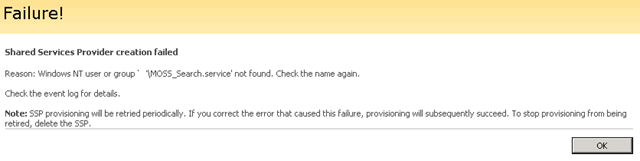
I was minding my own business doing a MOSS install. I successfully created the Office Server Search Service and onto the creation of the Shared Service Provider. Created the SSP and MySite Web Applications and then at the final step of creating the SSP, it bombed out after a long period of time with an error.

image

Reason: Windows NT user or group ‘MyDomain\MOSS_Search.service’ not found. Check the name again.

Continue reading “SQL Logins and AD Accounts can bite”


Optimising SSP User Profile Import – Part 2

In the previous post, we modified the Shared Services Provider to include the Active Directory attribute “country” (code C) in the SharePoint User Profile settings. Now we need to configure a full import from Active Directory and create a test audience to see that it is working.

Task 2: Configuring User Profile Import

Now we need to configure a full import (and the schedule for continual import)

In SharePoint central admin, navigate to Shared Services Administration: User Profile and Properties > Configure Profile Import

  • Import profile data from: Current Domain
  • Default Access Account: <choose an account with Read access to AD>
  • Full Import Schedule: 3:00AM Saturday
  • Incremental Import Schedule: 12:00am every day
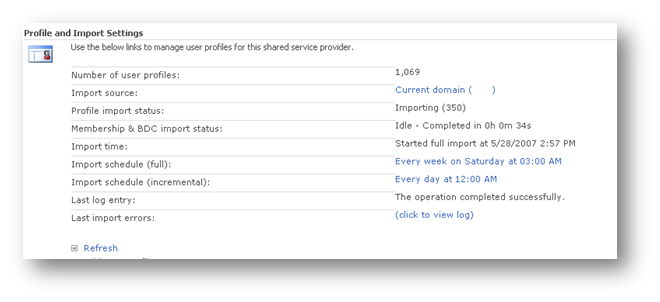
  • Now click on “Start Full Import”
  • Click Refresh to review status and then click “Start Full Import”


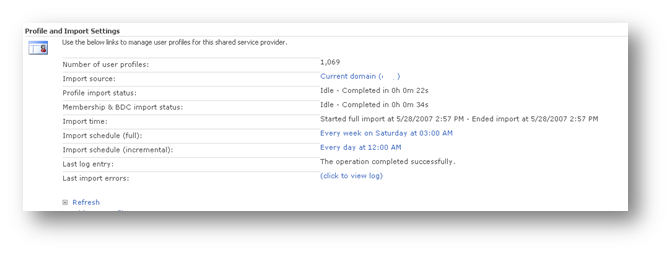
  • When the import has completed, it will show a status of idle.


  • Optionally click the “View Log” to examine how the import performed..


  • Now click “View User Profiles” and choose a user that you know has the country code set in Active Directory.


Now we have confirmed that we can import country information into SharePoint profiles. We now create audiences based on this attribute.

Task 3: Create the Audience

This section assumes that the user profile import has been successfully been configured and imported.

Shared Services Administration: Manage Audiences

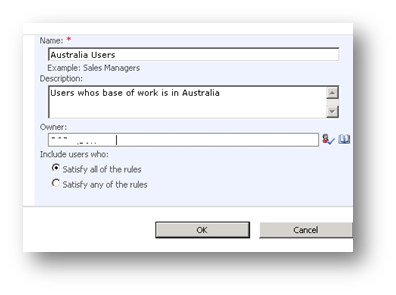
  • Click “Create Audience”
  • Name: “Australia Users”
  • Description: Users who’s base of work is in Australia
  • Owner: <choose an account to be the administrative owner of this audience>
  • Include users who: Satisfy all of the rules


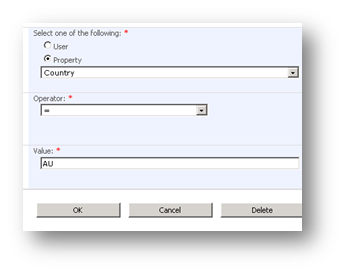
Now we add our rule to be satisfied:

  • Operand/property: Country
  • Operator: =
  • Value: AU


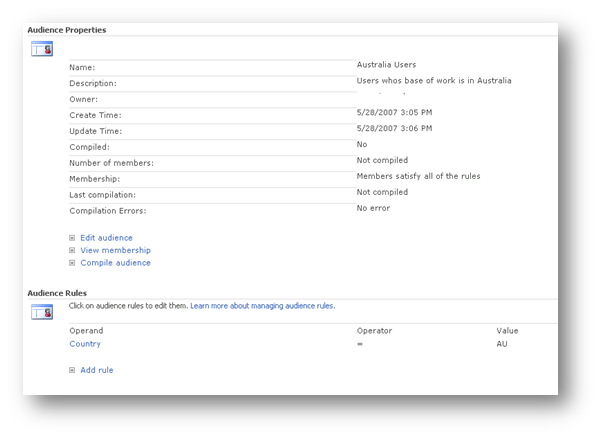
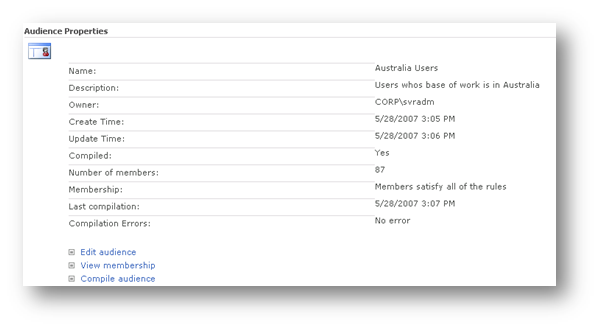
Once the rule has been added, we can we see the audience summary:


  • Click “Compile Audience”. This will attempt to now filter the imported profiles for Country that equals “AU”. In the example below, 87 users matched this criteria


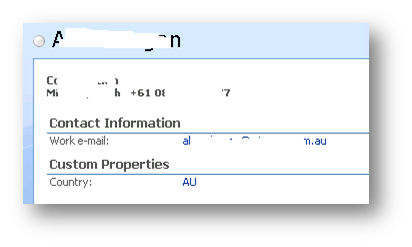
  • Click View membership to confirm country matches


  • Note the custom properties showing the country code as “AU”.
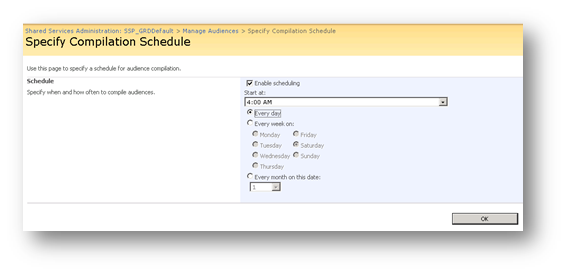
  • Finally, click on “Specify Compilation Schedule”. Set schedule to 4:00am every day (ensures that it takes place after the user profile import)


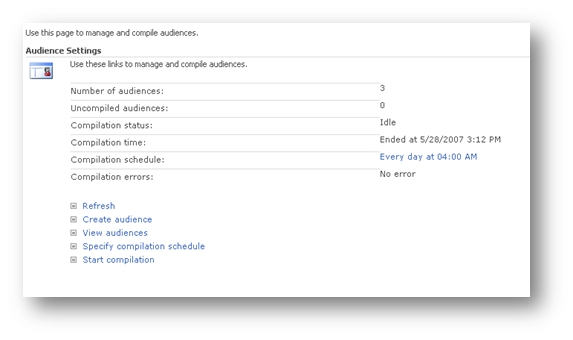
  • Review the summary. In this example, I also added an audience for another country, and there is always the default audience of all users, so there is a total of 3.


Optimising SSP User Profile Import – Part 1

This post discusses SharePoint User Profiles. In SharePoint 2007, each user has their own profile stored about them and includes properties such as a user’s title, e-mail, distribution list membership, and contact details. It is by default (and required to) import this information from Active Directory, but it can also import from other sources, as well as be manually created directly inside SharePoint. User profiles can be customized in SharePoint to include additional details, such as country of work. User profiles are used throughout SharePoint Server 2007 to disseminate or target information to users, help users locate colleagues with similar interests, and return search results on people.

In this post, I will demonstrate how to import a user’s country in Active Directory into SharePoint as by default, SharePoint does not import this from AD. I am assuming that you have some Active Directory familiarity.

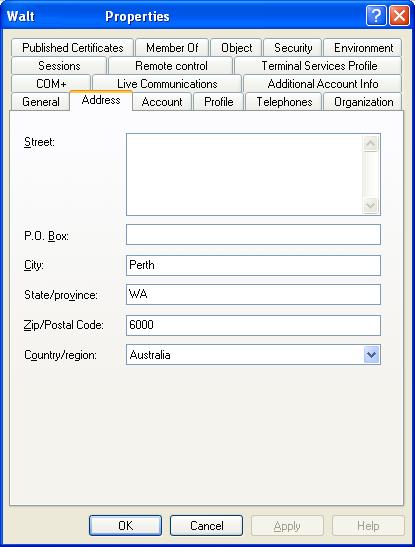
A users country of work is stored and tracked in Active Directory as shown below
ad.JPG

Note the “Country/region” field above.

A component of each Shared Service provider (that I will cover another time) is “User profile import’. By default this is not enabled and if enabled, many Active Directory fields are imported into SharePoint. As previously mentioned however, the user’s country is not a field that is imported by default.

Thus we have three tasks to perform.

  1. Configure the ‘country’ to be imported from Active Directory into SharePoint.
  2. Configure the scheduled import of Active Directory into SharePoint profiles
  3. Create two audiences based on country

Task 1: Add Country to be imported from Active Directory

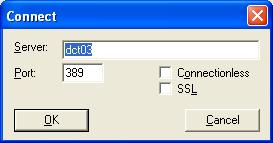
The first thing we had to do is examine Active directory and find out the distinguished name (DN) of the ‘Country’ property attached to a user. This was performed on a domain controller using the LDP utility.

Click ‘Connection’ Menu and choose connect. Connect to a domain controller.
ldp1.JPG

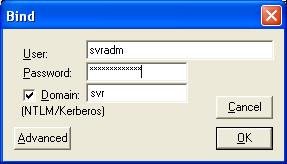
Click ‘Connection’ menu and choose ‘bind’. Enter domain credentials to bind to Active Directory so its content can be queried.
ldp2.JPG

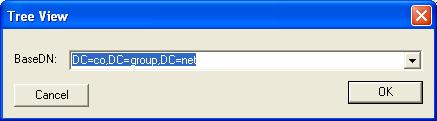
Click the ‘View’ menu and choose ‘Tree’. Choose your domain in DN format

(eg “DC=co,DC=group,DC=net” for co.group.net)
ldp3.JPG

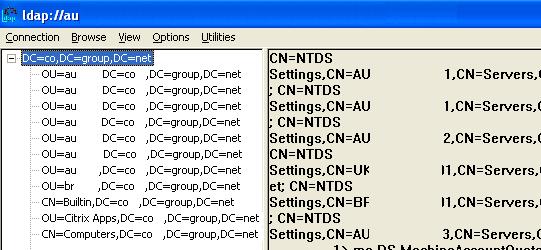
Now you should be able to browse Active Directory via LDAP view as shown below (image edited to protect the innocent).
ldp4.JPG

Now navigate to the OU that your user accounts reside.

Click on the user account and examine the right pane of LDP. All of the properties associated with that user will be listed. For example here is the left pane showing the user account in an OU called “Internal”

ldp5.JPG

Note to readers: No there is no “Alan Boon” you have witnessed my 3l1t3 mspaint skillz :-)

Expanding base ‘CN=Alan Boon,OU=Internal,OU=Accounts,OU=za,DC=co,DC=group,DC=net’…

Result <0>: (null)Matched DNs: Getting 1 entries:>>

Dn: CN=Alan Boon,OU=Internal,OU=Accounts,OU=za,DC=co,DC=group,DC=net

4> objectClass: top; person; organizationalPerson; user;

1> cn: Alan Boon;

1> sn: Boon;

1> c: ZA;

[snip]

1> mail: alan.boon@somewhere.else

If we examine the output above we can see that line C:ZA.  I have it marked in bold. It shows that the country is South Africa (ZA). Thus, the name of the country property is simply “C”.

So now we need to add the country property to the SharePoint user profile In Central Administration, navigate to Shared Services Administration: SSP_Default > User Profile and Properties

Click “Add profile property” and here are the parameters I entered.

  • Property Settings/Name: Country
  • Property Settings/Display Name: Country
  • Property Settings/Type: String
  • Property Settings/length: 25
  • Property Settings/Allow multiple values: unchecked
  • Property Settings/Allow Choice list: unchecked
  • User Description/Description: Primary country for users work
  • Policy Settings/Policy Setting: Optional
  • Policy Settings/Default Privacy Setting: Everyone
  • Edit Settings: Do not allow users to edit values for this property
  • Display Settings/ Show in the profile properties section of the user’s profile page: checked
  • Display Settings/Show on the edit details page: Checked
  • Display Settings/Show changes in the colleague Tracker Web Part: Checked
  • Search Settings/Alias: unchecked
  • SearchSettings/Indexed: checked
  • Property Import Mapping/Source Data Connection: Master Connection
  • Property Import Mapping/Data source field to map: c

Note the last parameter matches the field name we discovered from Active Directory.

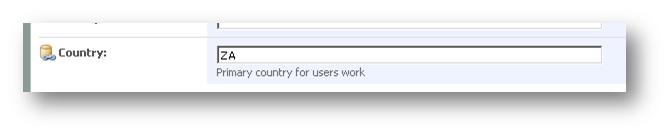
Now we click OK and we can now examine a user profile and see ‘Country’ listed under ‘Custom properties’.

ldp8.JPG

Great! Thats it for now. In part 2 I will cover the user profile import and audience creation based on country. (thats the easy part)
« Previous Page

Today is: Wednesday 3 June 2026 -