Back to Cleverworkarounds mainpage
 

Trials or tribulation? Inside SharePoint 2013 workflows–Part 5

Hi and welcome to part 5 of my series of articles that take a peek under the hood of SharePoint 2013 workflows. These articles are pitched at wide audience, and my hope is that they give you some insights into what SharePoint Designer 2013 workflows can do (and cannot). This is a long tale of initially dashed hopes and then redemption, based around what I think is a fairly common business scenario. To that end, the scenario we are using for this series is a basic document approval workflow for a fictitious diversified multinational company called Megacorp. It consist a Documents library and Process Owners list. A managed metadata based site column called Organisation has been added to each of them. In the second post we created a very basic workflow, using the task approval action. In part 3 and part 4, we have been trying to get around various issues encountered. At the end of the last post, we just learnt that Managed Metadata column cannot be filtered via the REST calls used by the built-in SharePoint Designer workflow actions.

…or can they?

In this post, we are going to take a look at two particular capabilities of the new SharePoint 2013 workflow regime and see if we can use them to get out of this pickle we are in. Once again, a reminder that this article is pitched at a wide audience, some of whom are non developers. As a result I am taking things slow…

Capability 1: Dictionaries

SharePoint workflows have always been able to store data in variables, which allows for temporary storage of data within the workflow. When creating a variable, you have to specify what format the data is in, such as string, integer or date. In SharePoint 2013, there is a new variable type called a Dictionary. A dictionary can be used to store quite complex data, because it is in effect, a collection of other variables. Why does this matter? Well, consider this small snippet of XML data below. I could store all of this data in a single dictionary variable and call it CD, rather than multiple stand-alone variables.

Snapshot  <CD>
    <ARTIST>Bob Dylan</ARTIST>
    <COUNTRY>USA</COUNTRY>
    <COMPANY>Columbia</COMPANY>
    <YEAR>1985</YEAR>
  </CD>
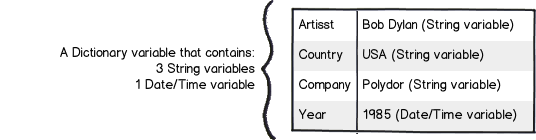
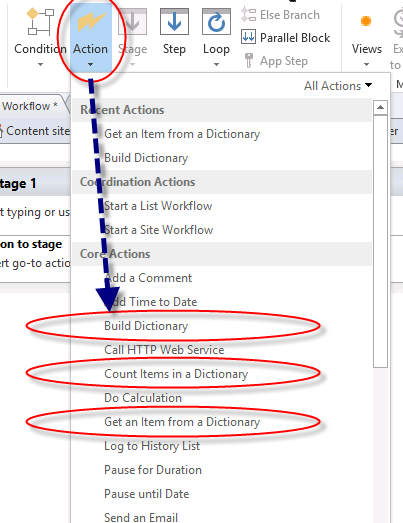
Now storing complex data in a single variable is all well and good, but what about manipulating it once you have it? As it happens, three new workflow actions have been specifically designed to work with dictionary data, namely:

  • Build Dictionary
  • Get an Item from a Dictionary
  • Count Items in a Dictionary

The diagram below illustrates these actions (this figure came from an excellent MSDN article on the dictionary capability). You will be using the “Build Dictionary” and “Get an item from a dictionary” actions quite a bit before we are done with this series.
image

There is one additional thing worth noting with dictionaries. Something subtle but super important.  A Dictionary can contain any type of variable available in the SharePoint 2013 Workflow platform, including other dictionary variables! If this messes with your head, let’s extend upon the XML example above of the Bob Dylan album. Let’s say you have an entire catalog of CD’s. For example:

<CATALOG>
   <CD>
     <ARTIST>Bob Dylan</ARTIST>
     <COUNTRY>USA</COUNTRY>
     <COMPANY>Columbia</COMPANY>
     <YEAR>1985</YEAR>
   </CD>
   <CD>
     <ARTIST>Keith Urban</ARTIST>
     <COUNTRY>USA</COUNTRY>
     <COMPANY>Columbia</COMPANY>
     <YEAR>2006</YEAR>
   </CD>
</CATALOG>

Using a dictionary, we can create a single variable to store details about all of the CD’s in the catalog. We could make a Dictionary variable called Catalog, which contains a dictionary variable called CD. The CD variable contains the string and date/time details for each individual CD. This structure enables the Catalog dictionary to store details of many CD’s. Below is a representation on what 3 CD’s would look like in this model…
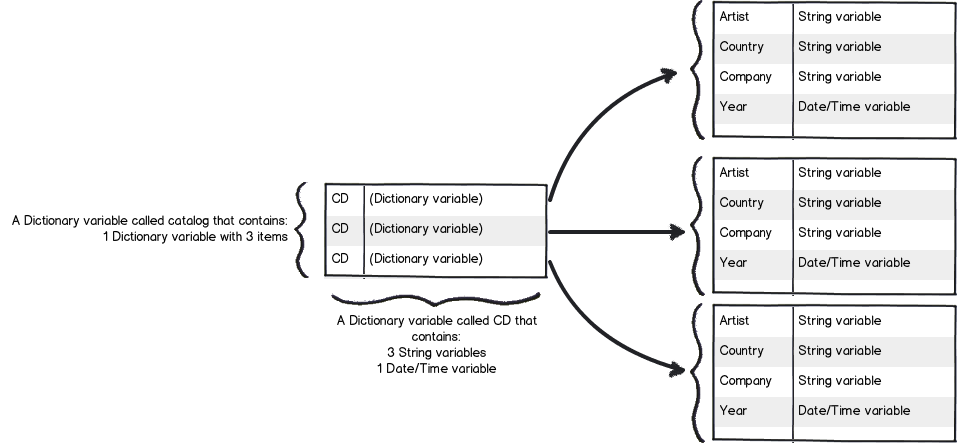
Snapshot

Okay, so after explaining to you this idea of a dictionary, you might be thinking “What has all of this got to do with our workflow?” To answer that, have another look at the JSON output from part 4 in this series. If you recall, this is the output from talking to SharePoint via REST and asking for all documents in the document library. What do you notice about the information that has come back? To give you a hint, below is the JSON output I will remind you what I said in the last post…

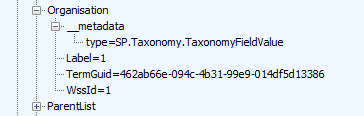
Now let’s take a closer look at Organisation entry in the JSON data. What you might notice is that some of the other data entries have data values specified, such as EditorID = 1, AuthorID =  1 and Modified = 2013-11-10. But not so with Organisation. Rather than have a data value, it has sub entries. Expanding the Organisation section and you can see that we have more data elements within it.
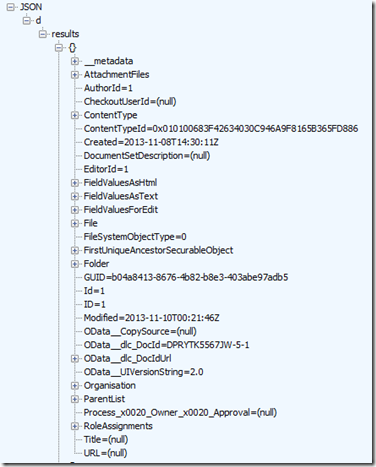
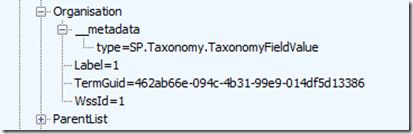
image_thumb14  image_thumb16

In case it is still not clear, essentially we are looking at a data structure that is perfectly suited to being stored in a dictionary variable. In the case of the Organisation column, it is a “dictionary within a dictionary” scenario like my CD catalog example.

Okay, I hear you say – “I get that a dictionary can store complex data structures. Why is this important?”

The answer to that my friends, is that there is a new, powerful workflow action that makes extensive use of dictionaries. You will come to love this particular workflow action, such as its versatility.

Capability 2: The one workflow action to rule them all…
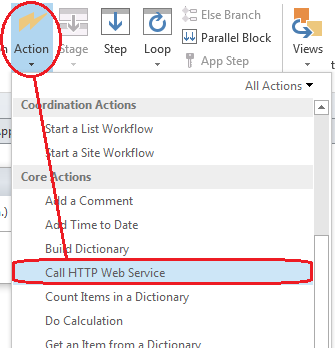
image

In part 3 and part 4 of this series, I have shown examples of talking to SharePoint via REST webservices and showing what the returning JSON data looks like. This was quite deliberate, because In SharePoint 2013, Microsoft has included a workflow action called Call HTTP Web Service to do exactly the same thing. This is a huge advance on previous versions of SharePoint, because it means the actions that workflows can take are only limited by the webservices that they talk to. This goes way beyond SharePoint too, as many other platforms expose data via a REST API, such as YouTube, Ebay, Twitter, as well as enterprise systems like MySQL. Already, various examples exist online where people have wired up SharePoint workflows to other systems. Fabian Williams in particular has done a brilliant job in this regard.

The workflow action can be seen below. Take a moment to examine all of the bits you need to fill in as there are several parameters you might use. The first parameter (the hyperlink labelled “this”) is the URL of the webservice that you wish to access. The request parameter is a dictionary variable that is sometimes used when making a request to the webservice. The response and responseheaders variables are also dictionaries and they store the response received from the webservice. The responseCode parameter represents the HTTP response code that came back, which enables us to check if there was an error (like a HTTP 400 bad request).

image

Dictionaries and web services – a simple example…

The best way to understand what we can do with this workflow action (and the dictionary variables that it requires) is via example. So let’s leave our document approval workflow for the time being and quickly make a site workflow that calls a public webservice, grabs some data and displays it in SharePoint. The public webservice we will use is called Feedzilla. Feedzilla is a news aggregator service that lets you search for articles of interest and bring them back as a data feed. For example: the following feedzilla URL will display any top news (category 26) that has SharePoint in the content. It will return this information in JSON format:

http://api.feedzilla.com/v1/categories/26/articles/search.json?q=SharePoint

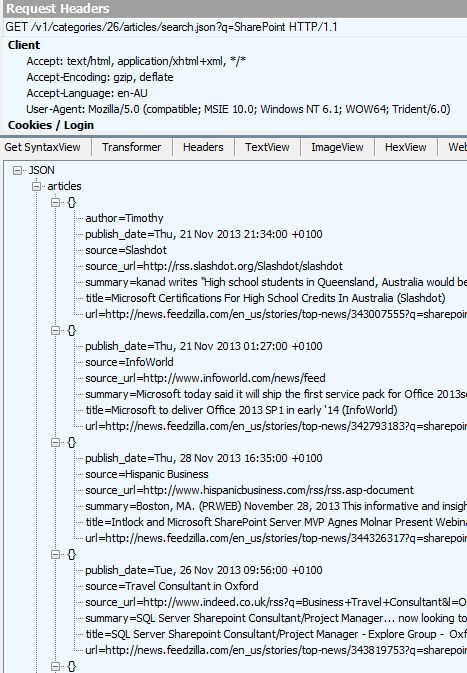
Here is a fiddler trace of the above URL, showing the JSON output.  Note the structure of articles, where below the JSON label at the top we have articles –> {} and then the properties of author, publish_date, source, source_url, summary, title and url.
image

Therefore the string “articles(0)/title” should return us the string “Microsoft Certifications for High School Students in Australia (Slashdot)” as it is the title of the first article. The string articles(1)/title should bring back “Microsoft to deliver Office 2013 SP1 in early ’14 (InfoWorld)” as it is the second article. So with this in mind, let’s see if we can get SharePoint to extract the title of the first article in the feed.

Testing it out…

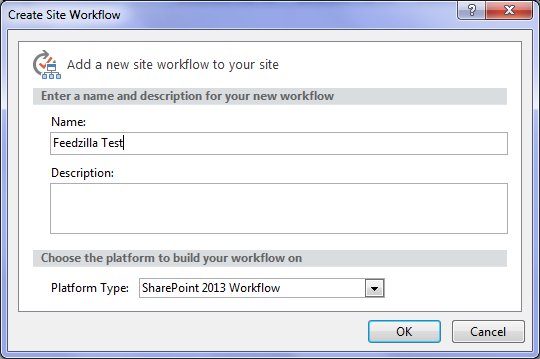
So let’s make a new site workflow based workflow.

Step 1:

From the ribbon, choose Site Workflow. Call the site workflow “Feedzilla test” as shown below…
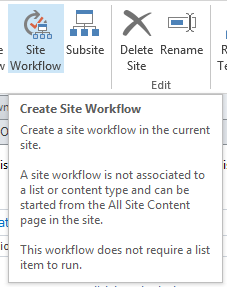
image  image

Now we will add our Call HTTP Web Service action. This time, we will add the action a different way.

Step 2:

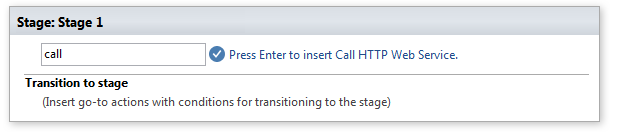
Click the flashing cursor underneath the workflow stage and type in “Call”. As you type in each letter, SharePoint Designer will suggest matching actions. By the time you write “call”,  there is only the Call HTTP Web Service action to choose from. Pressing enter will add it to the workflow.

image

image

Step 3:

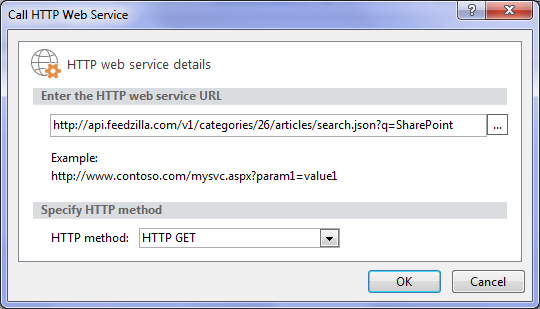
Now click on the “this” hyperlink and paste in the feedzilla URL of: http://api.feedzilla.com/v1/categories/26/articles/search.json?q=SharePoint. Then click OK.
image

Next, we need to create a dictionary variable to store the JSON data that is going to come back from Feedzilla.

Step 4:

Click on the “response” hyperlink next to the “ResponseContent to” label and choose to Create a new variable…

image

Step 5:

Call the variable JSONResponse and confirm that it’s type is Dictionary. We are now done with the Call HTTP web service action.
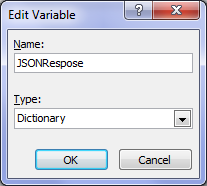

image  image

Step 6:

Next step in the workflow is to extract just the article title from the JSON data returned by the web service call. For this, we need to use the Get an Item from a Dictionary action. We will use this action to extract the title property from the very first article in the feed. Type in the word “get” and press enter – the action we want will be added…

image

Step 7:

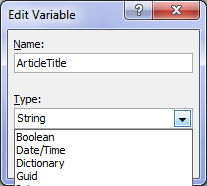
In the “item by name or path” hyperlink next to the Get label, type in this exactly: articles(0)/title as shown below. Then click on the “dictionary” hyperlink next to the from label and choose the JSONResponse variable that was created earlier. Finally, we need to save the extracted article title to a string variable. Click on the “this” hyperlink next to the Output to label and choose Create a new variable… In the edit variable screen, name the variable ArticleTitle and set its Type to String.

image

image

Step 8:

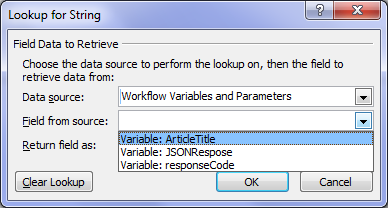
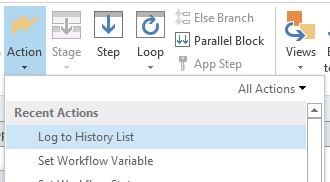
The next step is to log the contents of the variable ArticleTitle to the workflow history list. The action is called Log to History List as shown below.  Click the “message” hyperlink for this action and click the fx button. Choose Workflow Variables and Parameters from the Data Source dropdown and in the Field from Source dropdown, choose the variable called ArticleTitle. Click OK.


image

image  image

Step 9:

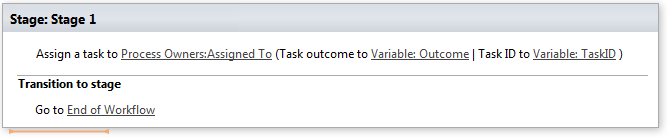
Finally, add a Go to End of Workflow action in the Transition to Stage section. The workflow is now complete and ready for testing.

image

Testing the workflow…

To run a site workflow, navigate to site contents in SharePoint, and click on the SITE WORKFLOWS link to the right of the “Lists, Libraries and other Apps” label. Your newly minted workflow should be listed under the Start a New Workflow link. Click your workflow to run it.

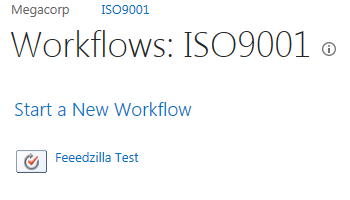
image  image

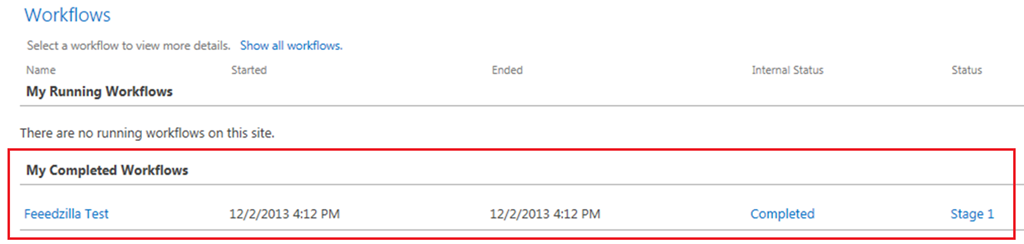
The workflow will be fired off in the background, and you will be redirected back to the workflow status screen. Click to refresh the page and you should see your workflow listed as completed as shown below…
image

Click on the workflow link in the “My Completed Workflows” section and examine the detailed workflow output. Look to the bottom where the workflow history is stored. Wohoo! There is our article name! It worked!
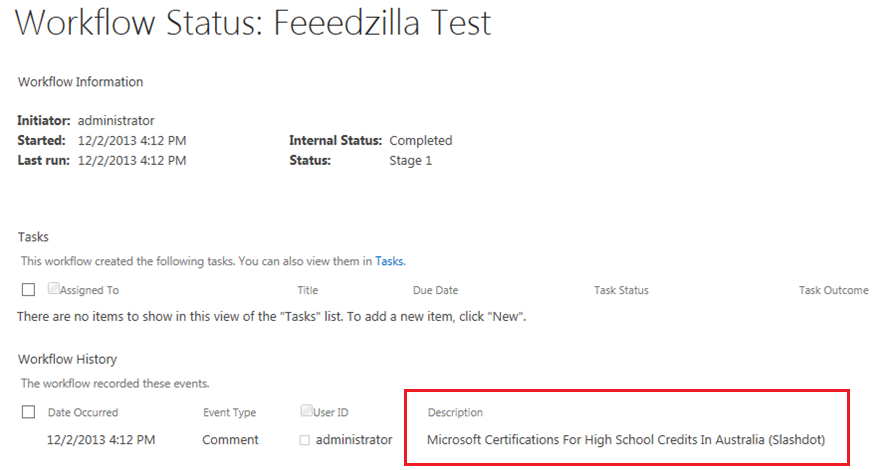
image

Conclusion…

It was nice to have a post that was more tribulation than trial eh?

By now you should be more familiar with the idea of calling HTTP web services within workflows and parsing dictionary variables for the output. This functionality is really important because it opens up possibilities for SharePoint workflows that were previously not possible. For citizen developers, the implication (at least in a SharePoint context) is that understanding how to call a web service and parse the result is a must. Therefore all that REST/oData stuff you skipped in part 4 will need to be understood to progress forward in this series.

Speaking of progressing forward, in the next post, we are going to revisit our approval workflow and see if we can use this newfound knowledge to move forward. First up, we need to find out if there is a web service available that can help us look up the process owner for an organisation. To achieve this, we are going to need to learn more about the Fiddler web debugging tool, as well as delve deeper into web services than you ever thought possible. Along the way, SharePoint will continue to put some roadblocks up but fear not, we are turning the corner…

Until then, thanks for reading and I hope these articles have been helpful to you.

Paul Culmsee

HGBP_Cover-236x300.jpg

www.hereticsguidebooks.com


Trials or tribulation? Inside SharePoint 2013 workflows–Part 4

Hi and welcome to part 4 of my series of articles that take a peek under the hood of SharePoint 2013 workflows from . In part 1, I introduced you to Megacorp Inc and their need for a controlled documents approval workflow. In part 2, we created a basic SharePoint 2013 workflow and in part 3, we made our first attempt to publish the workflow. Unfortunately, we encountered an error and had to work our way around some particularly unhelpful error messages. Now we are at part 4, and we will have another go at publishing our workflow from part 2.

Now like the last post, I’ll tell you up front that our second attempt to run this workflow is not going to work. Remember that my intent here is to show you a “warts and all” view of this functionality – both the great bits and the not so great bits. I hope that this gives you development and troubleshooting ideas in your own workflow adventures.

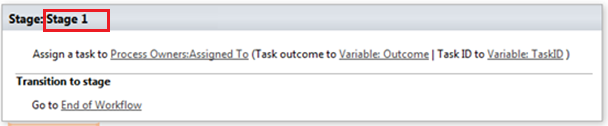
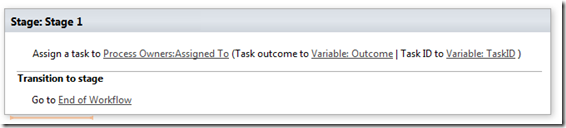
If you have been following along so far, you should have a simple workflow like the one below. It is attempting to assign a task to a nominated process owner for controlled documents. We just fixed a configuration issue in part 3 that prevented the workflow from working. We did this by disabling the default behaviour of the workflow where it updates the workflow status with the current stage name.

image

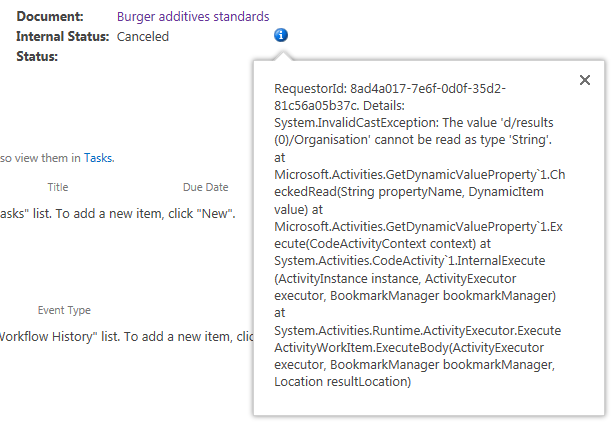
So let’s run the workflow on the same document as part 3 – the Burger Additives Standards for Megacorp GM Foods. Do we have liftoff yet? Nope – the workflow was cancelled as shown below, with another cryptic message.

RequestorId: 8ad4a017-7e6f-0d0f-35d2-81c56a05b37c. Details: System.InvalidCastException: The value ‘d/results(0)/Organisation’ cannot be read as type ‘String’. at Microsoft.Activities.GetDynamicValueProperty`1.CheckedRead(String propertyName, DynamicItem value) at Microsoft.Activities.GetDynamicValueProperty`1.Execute(CodeActivityContext context) at System.Activities.CodeActivity`1.InternalExecute(ActivityInstance instance, ActivityExecutor executor, BookmarkManager bookmarkManager) at System.Activities.Runtime.ActivityExecutor.ExecuteActivityWorkItem.ExecuteBody(ActivityExecutor executor, BookmarkManager bookmarkManager, Location resultLocation)
image

So what do we make of this message and in particular, “The value ‘d/results(0)/Organisation’ cannot be read as type ‘String’”?. Firstly, you might be wondering what this  “d/Results(0)/Organisation” stuff is  all about. Secondly, even if you do know what that is about, why the hell can’t it be read as type string?

A REST and JSON interlude

For the non developers (and self-described citizen developers) reading this series, I am going to attempt to explain what’s going on here because it is important foundational knowledge. If you are a developer who understands REST/OData and JSON,  feel free to skip this bit because you probably won’t like how I explain it.

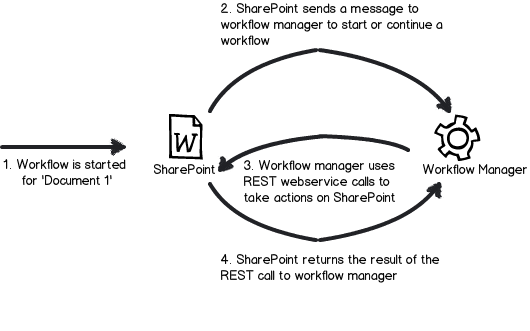
First up, remember my dodgy diagram in part 3 that explained how Workflow Manager talks to SharePoint? I made the point that workflow manager uses REST web services to do all of its interactions with SharePoint content. REST is actually a really cool technology, and if you are serious about learning to use SharePoint Designer 2013 workflows you should learn more it.

Snapshot

Let’s put aside our workflow for a second, and instead access a REST webservice ourselves, just like workflow manager does behind the scenes. To do this is easy. Open up internet explorer and turn “feed reading view” off. Then try this URL, adjusting it to your site name:

http://megacorp/iso9001/_vti_bin/client.svc/web/lists/getbytitle(‘Documents’)/Items

If you have done it right, you will get a heap of ugly XML data back in your browser. If this worked then congratulations – you are now a REST guru. You have successfully asked SharePoint to send you information about all documents in the Documents library, including the data stored in the columns. Each <entry> tag in the XML represents a document – and you can collapse these entries as shown below..

<?xml version="1.0" encoding="utf-8" ?> 
- <feed xml:base="http://megacorp/iso9001/_api/" xmlns="http://www.w3.org/2005/Atom" xmlns:d="http://schemas.microsoft.com/ado/2007/08/dataservices" xmlns:m="http://schemas.microsoft.com/ado/2007/08/dataservices/metadata" xmlns:georss="http://www.georss.org/georss" xmlns:gml="http://www.opengis.net/gml">
  <id>76c69d23-d5f3-4cee-a954-9910ad81bd16</id> 
  <title /> 
  <updated>2013-11-27T23:49:25Z</updated> 
+ <entry m:etag=""6"">
+ <entry m:etag=""7"">
+ <entry m:etag=""8"">

If you expand one of those entries, you will see the full detail of that document. Scroll down into the detail and look for the <Content Type> entry in the XML as shown below. This is the same data that your workflow is working with.

- <content type="application/xml">
-   <m:properties>
      <d:FileSystemObjectType m:type="Edm.Int32">0</d:FileSystemObjectType> 
      <d:Id m:type="Edm.Int32">10</d:Id> 
      <d:ContentTypeId>0x010100683F42634030C946A9F8165B365FD886</d:ContentTypeId> 
      <d:Title m:null="true" /> 
      <d:OData__dlc_DocId>DPRYTK5567JW-5-10</d:OData__dlc_DocId> 
-     <d:OData__dlc_DocIdUrl m:type="SP.FieldUrlValue">
        <d:Description>DPRYTK5567JW-5-10</d:Description> 
        <d:Url>http://megacorp/iso9001/_layouts/15/DocIdRedir.aspx?ID=DPRYTK5567JW-5-10</d:Url> 
      </d:OData__dlc_DocIdUrl>
      <d:URL m:null="true" /> 
      <d:DocumentSetDescription m:null="true" /> 
-     <d:Organisation m:type="SP.Taxonomy.TaxonomyFieldValue">
         <d:Label>9</d:Label> 
         <d:TermGuid>f2109460-a473-493f-9d08-fb01ecbf793b</d:TermGuid> 
         <d:WssId m:type="Edm.Int32">9</d:WssId> 
      </d:Organisation>
      <d:Modified m:type="Edm.DateTime">2013-11-10T00:21:45Z</d:Modified> 
      <d:Process_x0020_Owner_x0020_Approval m:null="true" /> 
      <d:ID m:type="Edm.Int32">10</d:ID> 
      <d:Created m:type="Edm.DateTime">2013-11-08T14:33:12Z</d:Created> 
      <d:AuthorId m:type="Edm.Int32">1</d:AuthorId> 
      <d:EditorId m:type="Edm.Int32">1</d:EditorId> 
      <d:OData__CopySource m:null="true" /> 
      <d:CheckoutUserId m:null="true" /> 
      <d:OData__UIVersionString>2.0</d:OData__UIVersionString> 
      <d:GUID m:type="Edm.Guid">c75a0728-7a5f-4236-8d45-7b72fa41781e</d:GUID> 
    </m:properties>
  </content>

Now when you add a workflow action, and Workflow Manager then talks to SharePoint to perform the action, it is doing a very similar thing to the URL we just accessed. The only difference is that when workflow manger does it, it asks for the data to be returned in a different format than XML called JSON – a more lightweight but less human readable data format. Below is a tiny snippet of that the JSON version of the above data looks like – ugh! no wonder XML is the default return format eh?

{“d”:{“results”:[{“__metadata”:{“id”:”71deada5-6100-48a5-b2e3-42b97b9052a2″,”uri”:”http://megacorp/iso9001/_api/Web/Lists(guid’a64bb9ec-8b00-407c-a7d9-7e8e6ef3e647′)/Items(1)”,”etag”:”\”6\””,”type”:”SP.Data.DocumentsItem”},”FirstUniqueAncestorSecurableObject”:{“__deferred”:{“uri”:”http://megacorp/iso9001/_api/Web/Lists(guid’a64bb9ec-8b00-407c-a7d9-7e8e6ef3e647′)/Items(1)/FirstUniqueAncestorSecurableObject”}},”RoleAssignments”

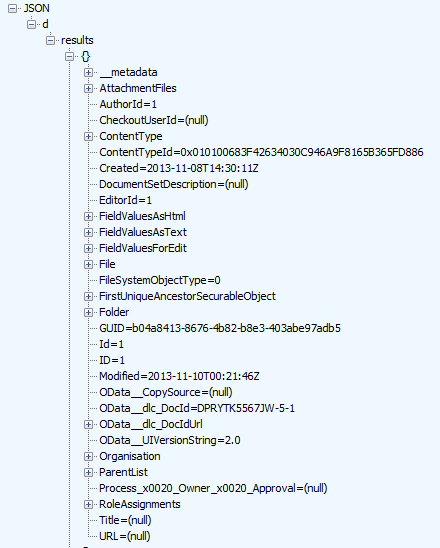
Fortunately, there are plenty of tools out there that parse JSON data and Fiddler is one of them. We will be using Fiddler later in this series, so I will save a detailed introduction to the tool for later. But below is a screenshot of the above JSON data displayed in Fiddler. Now that’s a bit more palatable!

image

Now that we can read the JSON data in a meaningful way, let’s go back to the error message in the workflow. It stated that “The value ‘d/results(0)/Organisation’ cannot be read as type ‘String’”. Now look in the JSON screenshot above. If you look at the hierarchy and look at the message, we can see now what the message meant. It has a problem with the Organisation entry. Follow the path below the JSON label at the top… We have d –> Results –> {} –> Organisation. This essentially matches the ‘d/results(0)/Organisation’ in the message.

So takeaway number 1 – workflow uses JSON format when it makes REST calls to SharePoint, so learn to recognise a JSON reference when you see it. As a future workflow developer – and later in this series – you will have to learn how to parse JSON data in more fine detail.

Now let’s take a closer look at Organsiation entry in the JSON data above. What you might notice is that some of the other data entries have data values specified, such as EditorID = 1, AuthorID =  1 and Modified = 2013-11-10. But not so with Organisation. Rather than have a data value, it has sub entries. Expanding the Organisation section and you can see that we have more data elements within it. Note that we do not see the organisation name at all. We have numbers and a GUID – so what gives?

image

So what was the error again? ‘Organisation’ could not be read as type ‘String’. Kind of makes sense now doesn’t it? The managed metadata column called Organisation doesn’t store the organisation name, but a pointer to the organisation name, as it is specified in the managed metadata term store. The workflow assumes that the data returned from the REST call is going to be string, and cannot handle the format of the data above.

Troubleshooting Attempt #1 – Use Organisation_0

So at this point, you might be thinking “What the hell?” how can I get the name of the Organsiation if it not actually in the data returned by the REST web service call?

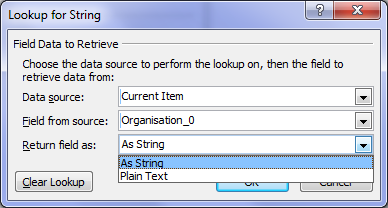
Well, if you were paying attention back in part 2, I noted the existence of another column called Organisation_0. This column was listed as one of the columns available from the current item (“Current item” being the document that the workflow was triggered from). It is now time to understand what this column does. To do so, let’s use another workflow action. This time, we will use the Log to History List action. When you add this action, click the fx button and choose Current Item from the Data source dropdown. Then choose Organisation_0 from the Field from source dropdown as shown below.

image  image

Now if you rerun your workflow and then check the workflow status, you will see what has been logged to the workflow history. Note the description column. Aha! We see our organisation name buried in there.

image

Now if you look closely, you will notice that we also have the GUID of the managed metadata term. The term and its GUID are separated by a pipe character. Even better, it is in string format (note Return field as dropdown above).

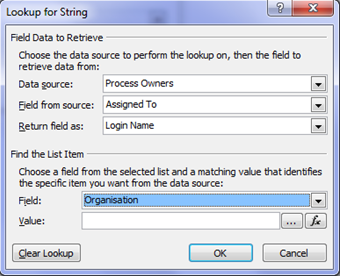
It turns out that when you create a managed metadata column, behind the scenes two columns get created. The second column is a hidden column that is a multi-line of text format. This is the the one with an _0 appended to the end. In other words, the Organisation column only stores the pointers (lookup values) to the term, but this hidden column actually stores the names and Id’s of each term the user has added. So let’s use this column instead because it’s a string format. To do this, return to the task assignment action in our workflow. We still need to get the Assigned To field from the Process Owners list, so we leave that alone. But below that, in the Find the List Item section, we need to make a change.

Unfortunately (and perhaps ominously), the Organisation_0 field seems to only be selectable for the Current Item, because clicking the Field dropdown (which displays all columns for process owners), only lists the Organisation column. Why is this? Well, it appears that hidden columns are displayed on Current item, but not displayed when you specify a different list. Thus, we are forced to leave Organisation from Process Owners as is. So click the fx button next to the Value textbox and choose Current Item from the Data source dropdown and Organisation_0 from the Return field as dropdown as shown below.

image  image

Now republish the workflow and let’s give it a go. Checking the workflow status screen and we find the workflow is started. Are we onto a winner here?

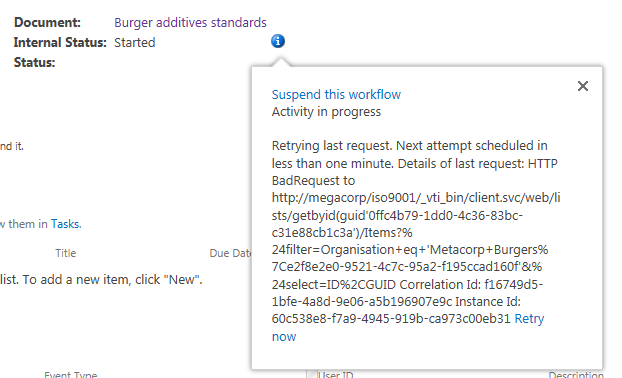
Gong! there still another of those exciting error messages. This time we have a complaint of a HTTP BadRequest. Given my explanation of how managed Metadata columns work behind the scenes, can you guess what the issue is?

Retrying last request. Next attempt scheduled in less than one minute. Details of last request: HTTP BadRequest to http://megacorp/iso9001/_vti_bin/client.svc/web/lists/getbyid(guid’0ffc4b79-1dd0-4c36-83bc-c31e88cb1c3a’)/Items?%24filter=Organisation+eq+’Metacorp+Burgers%7Ce2f8e2e0-9521-4c7c-95a2-f195ccad160f’&%24select=ID%2CGUID Correlation Id: f16749d5-1bfe-4a8d-9e06-a5b196907e9c Instance Id: 60c538e8-f7a9-4945-919b-ca973c00eb31

image

Now this error message might look evil, but it is actually the most useful one so far as it shows us the REST call made by the workflow manager as part of the task assignment action. If I remove the encoded spaces to make things more readable, the workflow attempted this call.

http://megacorp/iso9001/_vti_bin/client.svc/web/lists/getbyid(guid’0ffc4b79-1dd0-4c36-83bc-c31e88cb1c3a’)/Items?”filter=Organisation+eq+’Metacorp+Burgers|e2f8e2e0-9521-4c7c-95a2-f195ccad160f’&”select=ID,GUID

This webservice essentially says to SharePoint “Using the Process Owners list (which is GUID 0ffc4b79-1dd0-4c36-83bc-c31e88cb1c3a), please bring me back the ID and GUID of any list entries where the Organisation column is equal to the value “Metacorp+Burgers|e2f8e2e0-9521-4c7c-95a2-f195ccad160f”.

Now even if it cannot find a matching item, this should return a HTTP 200 with 0 items matched. But the error that has been returned (400) suggests that there is a problem with the above request itself. Hmmm – eventually the workflow will give up and cancel the workflow. It then logs a more verbose message…

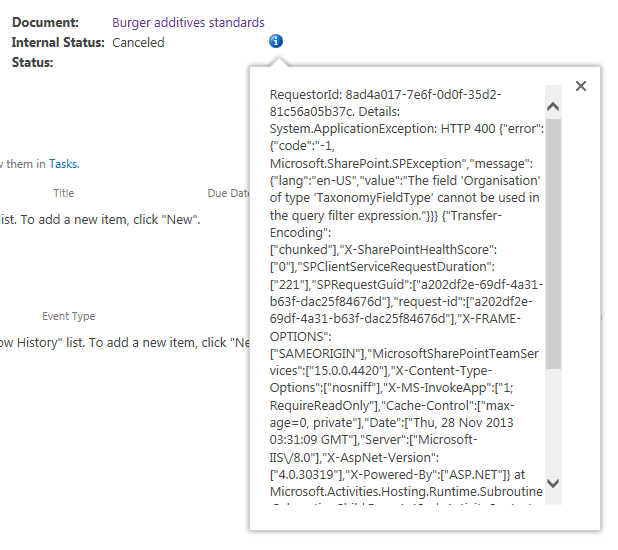
RequestorId: 8ad4a017-7e6f-0d0f-35d2-81c56a05b37c. Details: System.ApplicationException: HTTP 400 {“error”:{“code”:”-1, Microsoft.SharePoint.SPException”,”message”:{“lang”:”en-US”,”value”:”The field ‘Organisation’ of type ‘TaxonomyFieldType’ cannot be used in the query filter expression.”}}} {“Transfer-Encoding”:[“chunked”],”X-SharePointHealthScore”:[“0″],”SPClientServiceRequestDuration”:[“221″],”SPRequestGuid”:[“a202df2e-69df-4a31-b63f-dac25f84676d”],”request-id”:[“a202df2e-69df-4a31-b63f-dac25f84676d”],”X-FRAME-OPTIONS”:[“SAMEORIGIN”],”MicrosoftSharePointTeamServices”:[“15.0.0.4420″],”X-Content-Type-Options”:[“nosniff”],”X-MS-InvokeApp”:[“1; RequireReadOnly”],”Cache-Control”:[“max-age=0, private”],”Date”:[“Thu, 28 Nov 2013 03:31:09 GMT”],”Server”:[“Microsoft-IIS\/8.0″],”X-AspNet-Version”:[“4.0.30319″],”X-Powered-By”:[“ASP.NET”]} at Microsoft.Activities.Hosting.Runtime.Subroutine.SubroutineChild.Execute(CodeActivityContext context) at System.Activities.CodeActivity.InternalExecute(ActivityInstance instance, ActivityExecutor executor, BookmarkManager bookmarkManager) at System.Activities.Runtime.ActivityExecutor.ExecuteActivityWorkItem.ExecuteBody(ActivityExecutor executor, BookmarkManager bookmarkManager, Location resultLocation)

image

Despite the ugliness of the above message, this time we get the root cause logged. Note the section that states:  “The field ‘Organisation’ of type ‘TaxonomyFieldType’ cannot be used in the query filter expression”. So what does this mean?

Another REST interlude…

If you re-examine the REST web service call that was logged by the workflow, you will see some stuff we have not covered so far. The first half of the URL was pretty much what I showed you in the first REST interlude. We are getting all of the items from a SharePoint list, except this time we are using the GUID of the list rather than its name as shown below.

http://megacorp/iso9001/_vti_bin/client.svc/web/lists/getbyid(guid’0ffc4b79-1dd0-4c36-83bc-c31e88cb1c3a’)/Items

But what is this extra stuff tacked on the rest of the URL – $filter and $select as seen below?

$filter=Organisation+eq+’Metacorp+Burgers|e2f8e2e0-9521-4c7c-95a2-f195ccad160f’&$select=ID,GUID

The answer is that Microsoft’s use of REST (called oData) allows you to do SQL like queries to filter the data that comes back. This is really handy indeed and to help you understand it, here is an example: The URL below says “Give me all documents with an a title of ‘Burger Additives Standards’”

http://megacorp/iso9001/_vti_bin/client.svc/web/lists/getbyid(guid’0ffc4b79-1dd0-4c36-83bc-c31e88cb1c3a’)/Items?$filter=Title eq ‘Burger Additives Standards’

This example says “Give me just the Titles of all documents created after November 1 2013”

http://megacorp/iso9001/_vti_bin/client.svc/web/lists/getbyid(guid’0ffc4b79-1dd0-4c36-83bc-c31e88cb1c3a’)/Items?$filter=Created gt datetime’2013-11-01T00:00:00’&$select=Title

Now that you have seen those examples, take another look at what the workflow was trying to do without any luck…

http://megacorp/iso9001/_vti_bin/client.svc/web/lists/getbyid(guid’0ffc4b79-1dd0-4c36-83bc-c31e88cb1c3a’)/Items?”filter=Organisation+eq+’Metacorp+Burgers|e2f8e2e0-9521-4c7c-95a2-f195ccad160f’&”select=ID,GUID

Why did the REST call made by the workflow return a HTTP 400 error given my two working examples that look very similar? The answer is that the $filter option does not work with Managed Metadata columns. As I described in this article previously, managed metadata columns are not compatible with the $filter operator – hence the error message “The field ‘Organisation’ of type ‘TaxonomyFieldType’ cannot be used in the query filter expression.”

Damn!

Conclusion…

So it seems that for every step forward, we have taken a step back again. Fear not though, as the next post will start to show a way forward. But be warned – we are about to get deeper into the bowels of REST/oData, so make sure that you fully understand this article before moving on. To that end, if anything is unclear, please let me know and I will adjust these articles accordingly.

Thanks for reading

Paul Culmsee

HGBP_Cover-236x300.jpg

www.hereticsguidebooks.com


Trials or tribulation? Inside SharePoint 2013 workflows–Part 3

Hi and welcome to part 3 of my series of articles that take a peek under the hood of SharePoint 2013 workflows, while trying to answer the question of whether SharePoint 2013 workflows can enable citizen developers to go forth and solve business problems and catapault organisations to success. In part 1, I introduced you to Megacorp Inc and their need for a controlled documents approval workflow. In part 2, we created a basic SharePoint 2013 workflow that implements the logic outlined in the picture below. The workflow is not yet finished, but we did enough to be able to run it and learn from it, which brings us to this post.

Now I will tell straight up that our first test of this workflow is not going to work. The entire point of this series of articles is to show you *why* things do not always work what you need to do about it. As we progress, I hope that you will learn quite a bit about the operation of workflows in SharePoint 2013, as well as developing and troubleshooting them. After all, we all know that the best citizens are informed citizens!

Snapshot_thumb3

So let’s get on with testing this particular workflow. We published it to the Documents library in part 2, so now we trigger it by selecting one of the files in the library. In this example, I will select one of the documents tagged as from Megacorp GM Foods. So using the filtering feature provided by metadata navigation, we just show the four documents owned by the Megacorp GM Foods division.

image4_thumb[1]

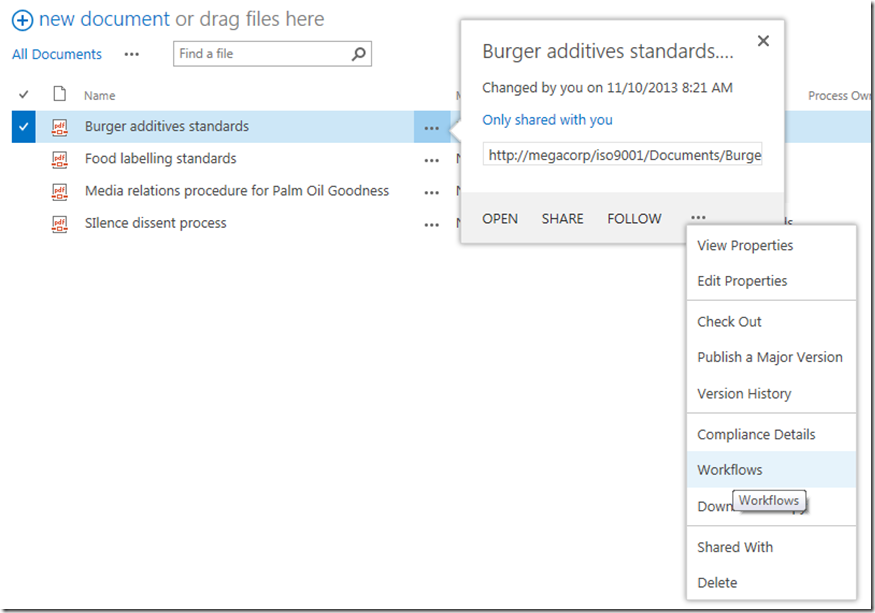
In this example, we will update the document called Burger Additives Standard. The workflow has not yet been set to automatically start, so we will need to manually trigger the workflow ourselves. To do so, click the ellipses next to the Burger Additives Standard document, and then click the ellipsis in the bottom right of the properties/preview window. This will show a second drop down menu. Choose Workflows from this menu as shown below.

image9_thumb

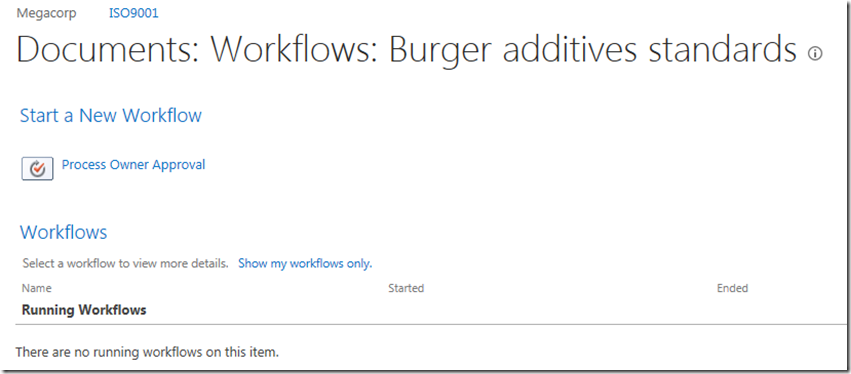
Underneath the Start a New Workflow text, you will see the workflow we published in part 2 called Process Owner Approval. Clicking it will start the workflow on this document.

image12_thumb

First sign of trouble…

After starting the workflow, the browser will redirect you back to the Documents library.  At this point, we see our first sign of trouble. When a workflow is published on a list or library, a column is added that is used to track workflow progress. In this case, we started our workflow, but there is nothing displayed in the workflow status column and the workflow does not appear to run. Hmm… what gives?

image15_thumb

When a workflow does not behave as you intended, the easiest way to troubleshoot is to use the workflow status page. As it happens, you have already seen this page, because it is the same page where we started the workflow. So once again, we click on the ellipsis next to the burger additives standard document, click the ellipsis in the properties window and choose Workflows from the drop down menu.

Well look at that… it says the workflow is indeed started…

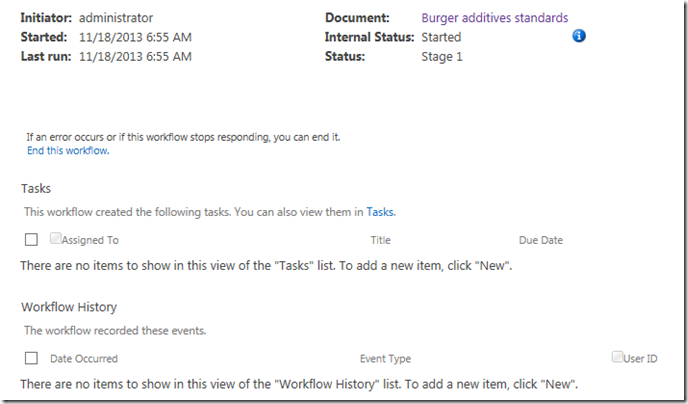
image18_thumb

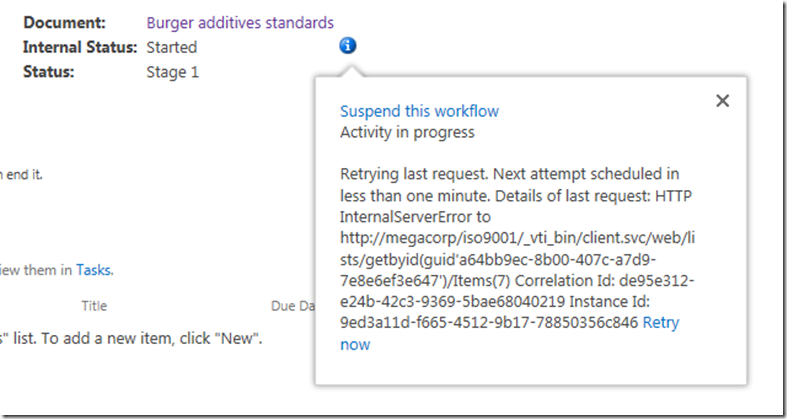
Clicking on the running workflow, we can see more detail which I have shown below. This screen also says that the workflow is started and nothing appears amiss. But then there is the little blue information symbol next to the Internal Status label. Hovering over this icon displays yet more information. This time, we see an error that would stump many – the sort of error that an information worker would have to call up helpdesk for.

Retrying last request. Next attempt scheduled in less than one minute. Details of last request: HTTP InternalServerError to http://megacorp/iso9001/_vti_bin/client.svc/web/lists/getbyid(guid’a64bb9ec-8b00-407c-a7d9-7e8e6ef3e647′)/Items(7) Correlation Id: de95e312-e24b-42c3-9369-5bae68040219 Instance Id: 9ed3a11d-f665-4512-9b17-78850356c846

image21_thumb  image241_thumb

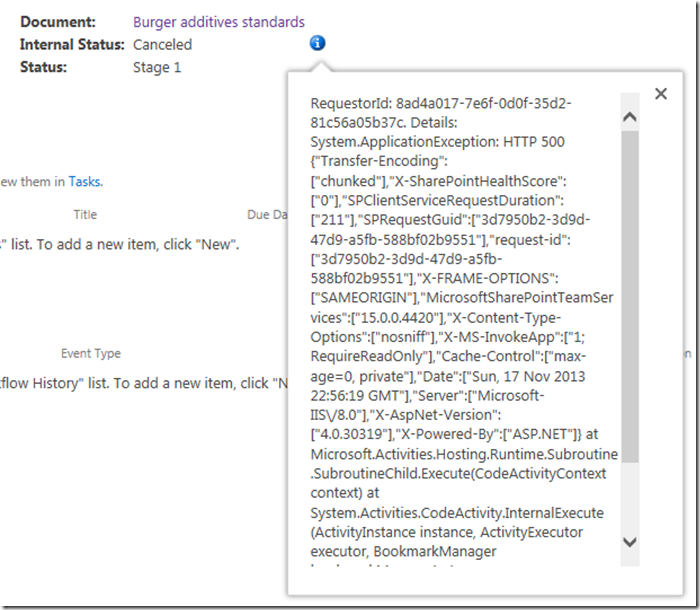
Okaaaay, so that error message is about as useful as Windows Vista. It shows an internal server error and a correlation ID. Furthermore, if you wait another minute or so, and then refresh the workflow status screen, it’s internal status is no longer started, but now has the status of Cancelled. You can see it for yourself below…

image27_thumb

One again, clicking the little blue info button gives us more detail. Unfortunately, the detail consists of an even scarier appearing message than the previous one. This one looks nasty enough to freak out some SharePoint admins too. Check it out – it is pretty much useless in terms of conveying any information of value.

RequestorId: 8ad4a017-7e6f-0d0f-35d2-81c56a05b37c. Details: System.ApplicationException: HTTP 500 {“Transfer-Encoding”:[“chunked”],”X-SharePointHealthScore”:[“0″],”SPClientServiceRequestDuration”:[“211″],”SPRequestGuid”:[“3d7950b2-3d9d-47d9-a5fb-588bf02b9551″],”request-id”:[“3d7950b2-3d9d-47d9-a5fb-588bf02b9551″],”X-FRAME-OPTIONS”:[“SAMEORIGIN”],”MicrosoftSharePointTeamServices”:[“15.0.0.4420″],”X-Content-Type-Options”:[“nosniff”],”X-MS-InvokeApp”:[“1; RequireReadOnly”],”Cache-Control”:[“max-age=0, private”],”Date”:[“Sun, 17 Nov 2013 22:56:19 GMT”],”Server”:[“Microsoft-IIS\/8.0″],”X-AspNet-Version”:[“4.0.30319″],”X-Powered-By”:[“ASP.NET”]} at Microsoft.Activities.Hosting.Runtime.Subroutine.SubroutineChild.Execute(CodeActivityContext context) at System.Activities.CodeActivity.InternalExecute(ActivityInstance instance, ActivityExecutor executor, BookmarkManager bookmarkManager) at System.Activities.Runtime.ActivityExecutor.ExecuteActivityWorkItem.ExecuteBody(ActivityExecutor executor, BookmarkManager bookmarkManager, Location resultLocation)

image30_thumb

So what the hell is going on here?

Unfortunately, both of the error messages above are virtually useless for most people and the only way to dig deeper is to delve into the SharePoint ULS logs. Of course, if you use Office 365 you don’t have that luxury because accessing the ULS logs are not available to you – so your best option to figuring out errors like this is trial and error. you need to learn CSOM code to access the logs. For the rest of us living in on-premises or IaaS land, a quick search of the ULS logs for the file name “Burger additives standards” reveals the issue and the root cause. Check out the errors reported below – it should be quite clear…

SharePoint Foundation             General                           8kh7    High        The file “http://megacorp/iso9001/Documents/Burger additives standards.pdf” is not checked out.  You must first check out this document before making changes.

SharePoint Foundation             General                           aix9j    High        SPRequest.AddOrUpdateItem: UserPrincipalName=i:0).w|s-1-5-21-1480876320-1123302732-2276846122-500, AppPrincipalName=I:0I.T|MS.SP.EXT|2CC54B18-3F9D-43A3-BE55-B3A81C045562@B9A66C21-F39D-42DB-B6CD-DE520B6C1C91 ,bstrUrl=http://megacorp/iso9001 ,bstrListName={A64BB9EC-8B00-407C-A7D9-7E8E6EF3E647} , bAdd=False , bSystemUpdate=False , bPreserveItemVersion=False , bPreserveItemUIVersion=False , bUpdateNoVersion=False ,pbstrNewDocId=00000000-0000-0000-0000-000000000000 , bHasNewDocId=False , bstrVersion=8 , bCheckOut=False ,bCheckin=False , bUnRestrictedUpdateInProgress=False , bMigration=False , bPublish=False , bstrFileName=<null>

SharePoint Foundation             CSOM                              ahjq1    High        Exception occured in scope Microsoft.SharePoint.SPListItem.UpdateWithFieldValues. Exception=Microsoft.SharePoint.SPException: The file “http://megacorp/iso9001/Documents/Burger additives standards.pdf” is not checked out.  You must first check out this document before making changes. —> System.Runtime.InteropServices.COMException: The file “http://megacorp/iso9001/Documents/Burger additives standards.pdf” is not checked out.  You must first check out this document before making changes.     at Microsoft.SharePoint.Library.SPRequestInternalClass.AddOrUpdateItem(String bstrUrl, String bstrListName, Boolean bAdd, Boolean bSystemUpdate, Boolean bPreserveItemVersion, Boolean bPreserveItemUIVersion, Boolean bUpdateNoVersion, Int32& plID, String& pbstrGuid, Guid pbstrNewDocId, Boolean bHasNewDo…    3b84d615-e006-4457-811a-0af089963216

So in case it is not clear from the above messages, we have an error stating that the file Burger additives standards is not checked out and that to make changes to the document, we need to check it out first. This raises several questions:

  • 1. Why is the document library configured to require check-out?
  • 2. Why is the workflow trying to change the document anyway? The workflow we created in part 2 does no action on the Documents library.
  • 3. Why were the error messages so useless (which really hurts in Office365 scenarios)
  • 4. How can we fix this problem?

Let’s examine each of these in turn…

1. Why is the document library configured to require check-out?

The first question is really easy to answer. When you create a site using the Document Center site template, the document library versioning settings enable the Require Check Out option as shown below. Therefore no changes can be made to this document unless the user making the change checks it out.

image

2. Why is the workflow trying to change the document anyway?

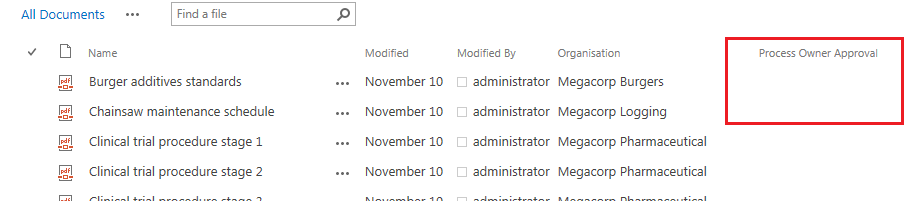
The second question is also easy to answer, but the answer is somewhat more complicated. When a workflow is associated to a list or content type, it adds a column to track the status of the workflow. In SharePoint 2013, the default behaviour is to update this column with whatever stage in the workflow currently being executed. Therefore, as soon as the workflow runs, and before it has run any of the actions, it attempts to update its stage to the document that it was triggered from. So looking at the images below, if things were working we should see the string “Stage 1” in the Process Owner Approval column for the document Burger additives standards. But since the document requires check-out to make a change, SharePoint prevents this from happening by design.

image

image

Some readers who are experienced with SharePoint Designer workflow might be thinking “easy… just use the check out item workflow action before you do anything else.”Unfortunately this won’t work for you because this issue gets triggered when the stage info is written to the workflow status column which happens before any actions run.

3. Why were the error messages so useless (which really hurts in Office365 scenarios)

The next question is why on earth wasn’t the true error able to be reported back to the workflow? After all, in the end, this was a clearly identified error in SharePoint, yet all we got was error messages that did not state the problem at all.  This would have saved the effort of delving deep into the ULS logs and that is not even possible in Office 365.

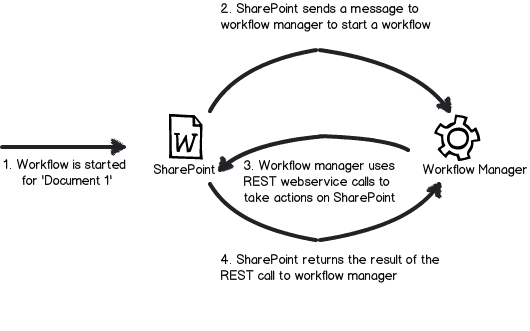
The answer to this question is a little more complex and relates to how Workflow Manager and SharePoint interact with each other. Without getting into detail, the gist of the issue is that Workflow Manager uses REST webservice calls to do all of its operations on SharePoint content. Each and every workflow action (like the Log to History List) uses REST to talk to SharePoint to get the work done. While a detailed discussion of REST would take us too far afield, I have drawn you possibly the dodgiest ever diagram of this process ever to help you understand it. The main point with REST worth mentioning is that the intention of REST is to embrace the key protocols of the web, so a successful or failed request is conveyed via a HTTP status code.  If you have ever experienced your browser giving you a 404 page not found, then you know what I mean when I speak of HTTP status codes.

Snapshot

Now look again at the gory detail of the error that was logged by the workflow. We see the following string amongst all the other stuff. “Details: System.ApplicationException: HTTP 500”. So what happened is when the workflow tried to update the document with its stage, the check-out requirement resulted in SharePoint sending back a HTTP Error 500 (server error) back to the workflow manager.  Unfortunately for us, it did not send back the underlying cause of the error. Instead, the details of the response logged by workflow has all sorts of information about the HTTP request, but no hint to the underlying error. Sucks eh?

4. How can we fix this problem?

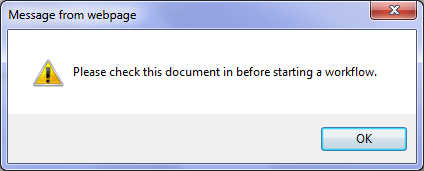
The final question was what we could do about this issue. There are two relatively easy ways, but before I do that, let me show you what happens if you check out the document and then attempt to run the workflow. While you might think this problem might go away, instead we get a friendly dialog box telling us to check the document back in before we attempt to start a workflow. Given that I couldn’t run this workflow because the item needed to be checked out, I had to laugh.

image

Anyways, the two options you have are to disable require check out on the Documents library or change the default behaviour of the workflow so that it does not write the stage back to the item that triggered the workflow. The first one is pretty easy – in the Versioning Settings of the Documents library, we change the Require documents to be checked out before they can be edited? option from Yes to No

image

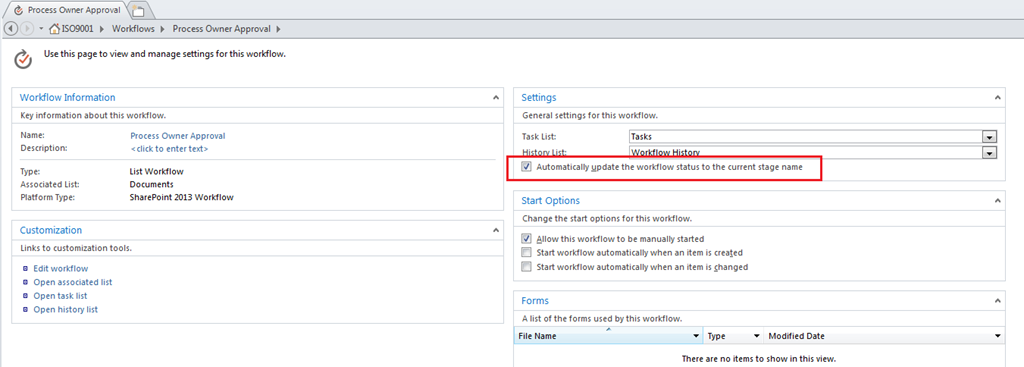
The problem with the first option is that requiring check-out for controlled documents is likely to be a key requirement, so it is not an option in all circumstances. So the other option is to change the behaviour of the workflow itself so that it does not write its stage information back to the Documents library. Luckily for us, this is actually really easy to do. In SharePoint Designer 2013, there is an option to disable the updating of stage information. In the workflow settings screen, look for the option called Automatically update the workflow status to the current stage name and untick it.

image

Now unticking this box will get us past this error, but the problem now is that we have no easy way to track workflows, as this status update can be used in views on the Documents library to see which workflows are at a particular stage. For a complex workflow, or one that will be running on many items, not being able to see the status of the workflow would make life difficult. One workaround is to add a Check Out Item workflow action to the start of the workflow, and then use the Set Workflow Status action to update the status column on the current item as the workflow progresses. This will give us back the ability to track the workflow behaviour in the Documents library, but it will mean that a new version will be added to that Document each time the status updates. So another workaround is to log workflow status to some other list altogether (using the Create List Item action) and use that list for tracking and reporting instead.

Conclusion

I think that the separation of SharePoint and Workflow Manager into separate products is ultimately a good thing. It’s just a pity that one of the legacies of this change is an issue like what we covered in this post, where a relatively simple problem was exacerbated by poor reporting of errors between Workflow Manager and SharePoint. I guess this is part of the bigger price we pay – that of increased technical complexity via more moving parts. Hopefully an issue like this one can be addressed in a future service pack or update, because it is this sort of stuff that can cause people to lose some confidence and jump to the 3rd party solution perhaps prematurely. So if this issue was enough for you to think “pah – let’s go third party”, I have news for you. As you progress through this series we are going to deal with more complex issues than this one too.

Anyway, the point is that we have identified the cause of this particular issue and gotten past it, so we should be able to continue testing the workflow and marvel at our awesomeness. So in the next article, we will continue with testing our workflow and see what else SharePoint throws at us.

Thanks for reading

Paul Culmsee

HGBP_Cover-236x300.jpg

www.hereticsguidebooks.com


Trials or tribulation? Inside SharePoint 2013 workflows–Part 2

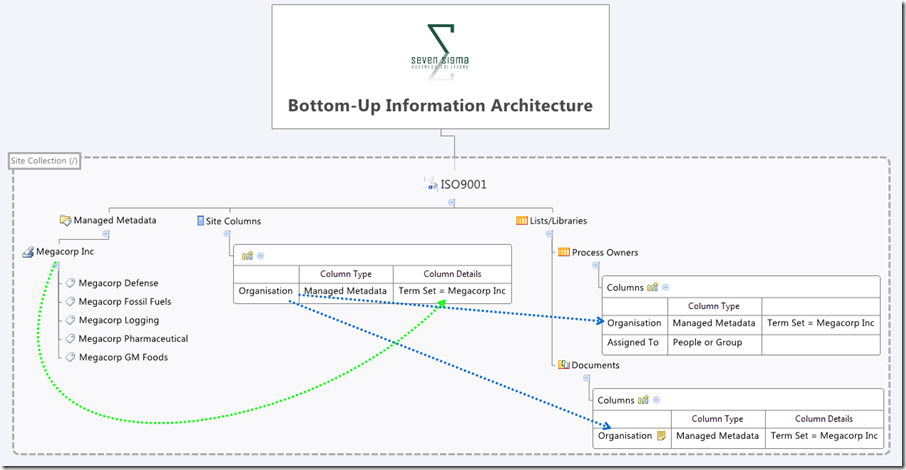
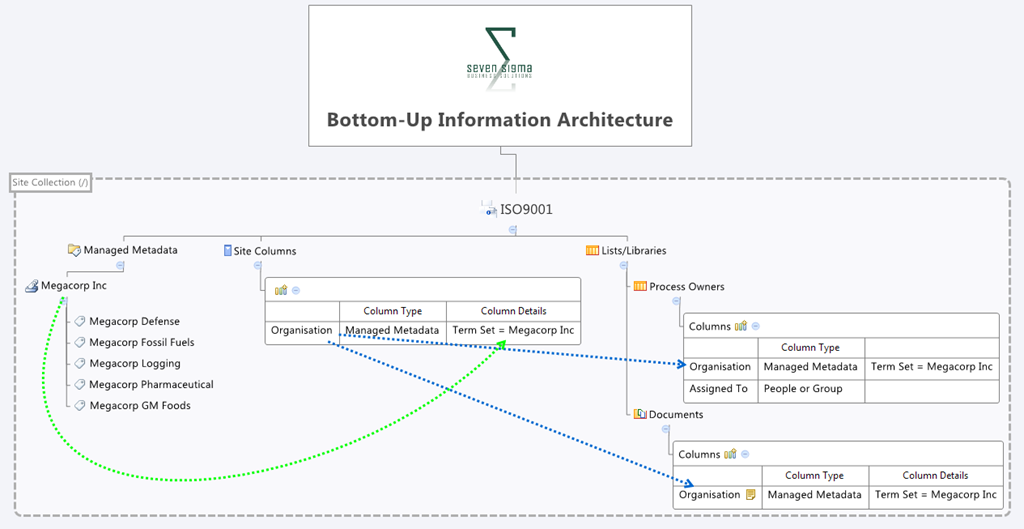
Hi and welcome to part 2 of a series that aims to showcase the good and the bad of SharePoint 2013 workflows, using a simple use-case. In part 1 I introduced you to the mythical multinational called Megacorp and its document control requirements. Also in part 1, we created a site with the necessary lists and libraries from which we can build the workflow. To recap, we used the Document Center site template, and then modified the built-in document library (Documents) to store the organisation that each document belongs to. We created a custom list called Process Owners that stored who is accountable for controlled documents in each organisation. Below is an XMind map to show you the Information Architecture of the Megacorp document control site.

image_thumb1

Our workflow is going to:

  • Look at a document and determine the organisation that a document belongs to
  • Look in the process owners list for that organisation and then determine the process owner for the organisation by grabbing the information in the “Assigned To” field
  • Create an approval task for the process owner to approve the release of a controlled document.

Now this all sounds straightforward enough in theory, but this is SharePoint we are talking about. Let’s see how reality stacks up against theory. I will give lots of screenshots for readers who have never tried using SharePoint Designer Workflow before…

Creating the workflow

Step 1:

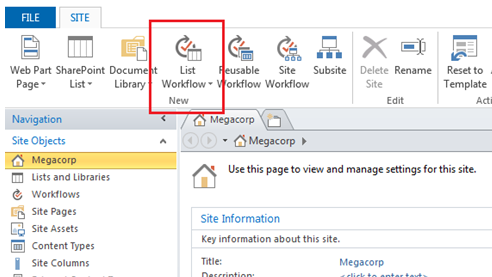
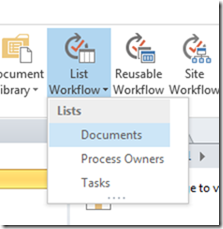
Right, so the workflow will fire when a document is modified, so we will start by adding a list workflow and link it to the Documents library. So using SharePoint Designer 2013, we open the Megacorp site and in the ribbon, we click the List Workflow button. This will cause a dropdown menu to appear below the icon, showing the lists and libraries on the Megacorp site. From this list, we choose the Documents library.

image    image_thumb23

Step 2:

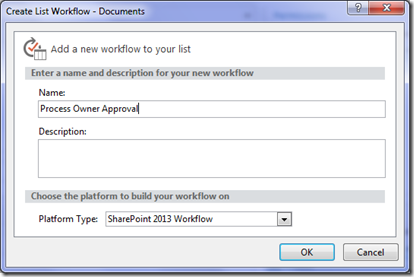
We are presented with the workflow creation screen. Call the workflow “Process Owner Approval” and click OK.

image_thumb9

Note: If, at this point, you get an error, it means that Workflow manager has not been provisioned properly. Remember that in SharePoint 2013, workflow is a separate product and needs to be installed. This is a change from previous versions of SharePoint where workflow was always there, as it was part of SharePoint.

Assuming SharePoint is configured right, SharePoint Designer will have a think for a while and eventually display the following workflow creation screen, ready for us to do cool things!

image_thumb12

The next step is to add a workflow action. The most logical workflow action for us to try is one of the task actions. We will attempt to assign a task to the process owner for a document.

Step 3:

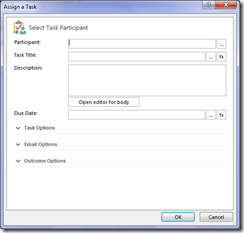
From the workflow ribbon, click the Action icon and choose “Assign a task”. The action will be added to the workflow, ready for you to fill in. For those of you reading this who have never done this before, the process is reminiscent of configuring email rules in outlook in that the action is added and you then fill in the blanks..

image_thumb15   image_thumb18

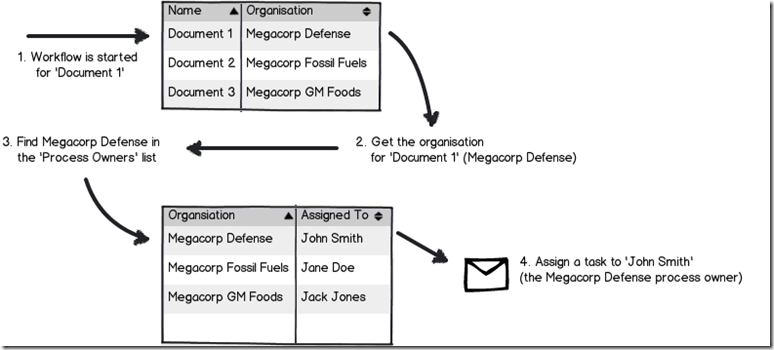
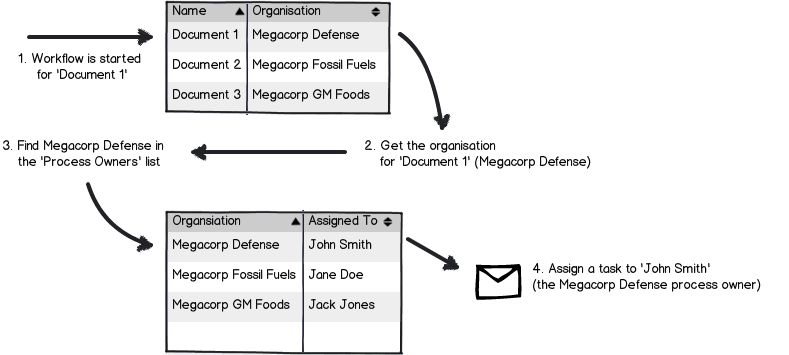
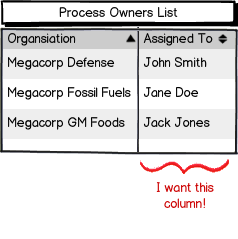
Now let’s configure the finer details of the Assign action above. A task needs to be assigned to a user, and we need to set up the logic for the workflow to work out who that user is. If you recall, the Documents library has a column called Organisation that specifies which Megacorp entity owns each document. A separate list called Process Owners then stores whoever is assigned as the process owner for each organisation (using the Assigned To column). So when the workflow runs on a particular document, we have to take Organisation specified for that document and use it to search the Process Owners list for the matching Organisation. Once we find it, we grab the value of the Assigned to user and create a task for them.

Here is a dodgy diagram that explains the logic I just described.

Snapshot

So let’s give it a go…

Step 4:

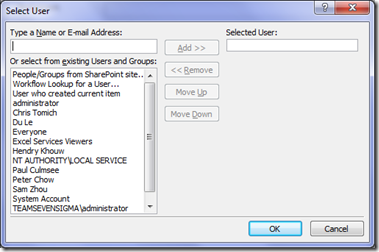
Go back to your newly minted “assign task” that you just added. Click the “this user” hyperlink on the newly created task. The task properties screen will appear as shown below. In the Participant textbox, click the ellipses button to bring up the Select User dialog box.

image_thumb19  image_thumb24

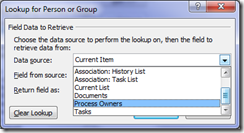
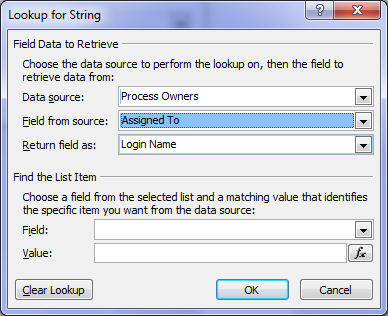
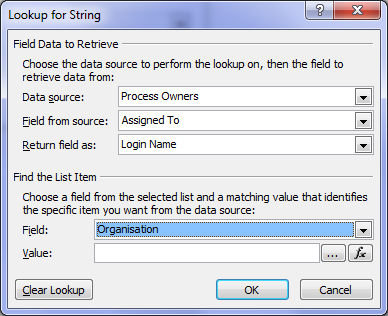
In the Select User dialog box, choose Workflow Lookup for a User and click the Add >> button. This will bring up the ambiguously named Lookup for string dialog box that allows us to choose where to look for our process owner. In the Data source drop down, we choose Process Owners from the list.

Next we have to tell the workflow which column holds the details of the person to perform the task. In the Field from source drop down, choose the Assigned to column as we talked about above.

image_thumb27image

At this point, the workflow knows which list and column holds the information it needs as per the image below:

Snapshot,

But currently we do not know the specific user we need. Is it John Smith, Jane Doe or Jack Jones? Fear not though – this is what the Find the list item section of the Lookup for string dialog box is for. This is where we will tell the workflow to find only the person who matches the value of the Organisation column assigned to the document.

Step 5:

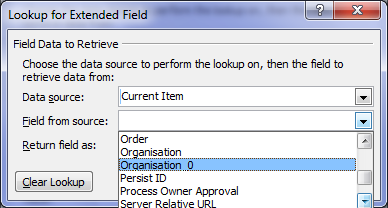
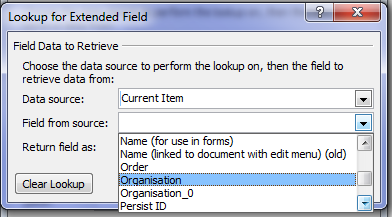
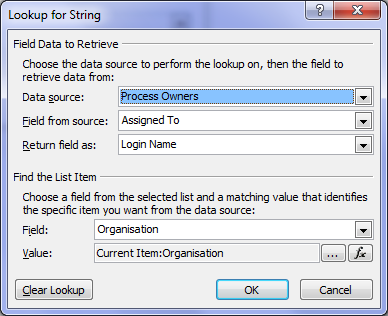
First up, we tell the workflow which field in Process Owners will be used to compare. This is the Organisation column, so in the Field: drop down, choose Organisation. Next we have to match that organisation column with the one in the Documents library. Click the Fx button next to column textbox called Value. A new dialogue box will appear called Lookup for Extended Field. Leave the Data source dropdown as Current item and in the Field from source dropdown, choose the Organisation column.

image   image

Note 1: in a workflow, “Current item” refers to the item that the workflow has been invoked from. If you recall at the start of this post, we created a list workflow and associated with the Documents library. Current item refers therefore to any document in the Documents library that has had a workflow invoked. All of the metadata associated with the current document is available to the workflow to use.

Note 2: Keen eyed readers may be wondering what the deal is with the column labelled Organsiation_0. Don’t worry – I’ll get to that later.

Now that you have selected the organisation column from the Documents library, we have filled in all of the logic we need to grab the right Assigned to user. Clicking ok, the workflow designer will warn you that if you have been silly enough to add multiple process owners for a given organisation, that it will use the first one it finds.

image  image

Finally, we are back at the task designer screen. A lot of screenshots just to wire up the logic for finding the right process owner eh? We haven’t even configured the behaviour of the task itself yet!

image

In fact, for now we are not going to wire up the rest of the task. I would like to know if the logic we have just wired up will work. If I can confirm that, I will come back and finish off creating the task with the behaviours I want.  So instead, let’s click Ok to go back to the workflow designer. Now we can see our Assign a task action, ready to go.

image_thumb39

Now before we can test and publish the workflow, we need to tell it to end. Now this is a little counter intuitive to someone who is used to SharePoint 2010 workflows, but it makes sense once you understand the concept of a workflow stage.

SharePoint Workflow 2013 Stages – an interlude…

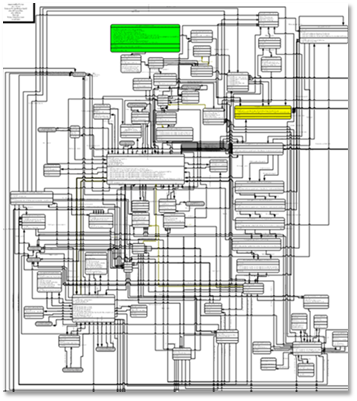
If you have ever sat around and tried to map out a business process, you have probably experienced the fun (not) of discovering that even a relatively simple business process has a lot of variations to it – some quite ad-hoc or dynamic. Trying to account for all of these variations in workflow design can make for some very complex and scary diagrams with even scarier implementations. As an example, take a look at the diagram below – this is a real process and apparently it is only page 12 of a 136!

image

Now in SharePoint 2010, implementing these sorts of workflows was pretty brutal, but in 2013 it has been rethought. A stage is a construct that allows you to group a number of workflow actions together, as well as defining conditions that govern how those actions happen. Each stage in a workflow can transition to any other workflow stage based on conditions. This means that a workflow can effectively loop around different stages and greatly simplify implementing business logic compared to SharePoint 2010.

The means by which this is done is via the the new Transition to Stage workflow action. The way this works is at the end of each workflow stage, there is a transition to stage section as shown below:

image

Step 6:

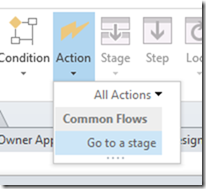
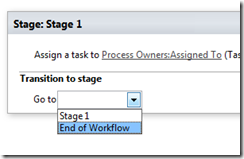
When you click into the Transition to stage section of the workflow, there is only one workflow action available: the Go To A Stage action. Adding this to the workflow will present a dropdown that will allow you to transfer the workflow to any the you have defined, or to end the workflow. Right now we will end the workflow, but we will be revisiting this stage idea later in the series.

image_thumb40  image_thumb41  image_thumb43

All right! We are done. The final step is to save and publish the workflow.

Step 7:

In the ribbon, look for the Publish icon and click it. Assuming everything goes according to plan, you will be back at the workflow overview screen in SharePoint Designer.

image  image

Congratulations – you have published your workflow. “Well that was easy,” I hear you say… But we haven’t tested it yet! In the next post we will test our masterpiece and see what happens. You might already have an inkling that the result may not be what you expect… but let’s save that for the next post.

Thanks for reading

Paul Culmsee

HGBP_Cover-236x300.jpg

www.hereticsguidebooks.com


Trials or tribulation? Inside SharePoint 2013 workflows–Part 1

Hi all

Workflows are big business in SharePoint land, despite the capability of SharePoint Designer Workflows being a fairly weak link in the overall SharePoint value proposition. If this wasn’t the case, then products like Nintex or K2 would not be so popular and workflow vendors wouldn’t have the biggest booths at the average SharePoint conference.

One of the serious strategic advantages of going with the SharePoint stack is the amazing 3rd party ecosystem that flourishes around the base product. No other platform in the space has the level of 3rd party support that SharePoint enjoys. But while its nice to be able to have great options for serious SharePoint workflow development, with each successive version of SharePoint that comes out, there is always that hope that one can use the base functionality without having to jump straight away to the 3rd party tools.  After all, it is quite common for organisations, having just gone to the time and expense of adopting SharePoint, to be dismayed that they have to part with yet more cash for 3rd party tools to address large functional gaps that were not apparent in the contrived product demos.

Another important trend being hidden by cloud hubris is the rise of the citizen developer. The CIO’s fountain of knowledge known as Gartner, stated that by 2014 25% of new business applications will be delivered by Citizen Developers.  They defined citizen developers as “a user operating outside of the scope of enterprise IT and its governance who creates new business applications for consumption by others either from scratch or by composition.” Elaborating, Gartner stated that

“Future citizen-developed applications will leverage IT investments below the surface, allowing IT to focus on deeper architectural concerns, while end users focus on wiring together services into business processes and workflows. Furthermore, citizen development introduces the opportunity for end users to address projects that IT has never had time to get to — a vast expanse of departmental and situational projects that have lain beneath the surface.”

So with SharePoint 2013, Microsoft has indeed changed things up a notch in the workflow world. Is it enough to enable and empower citizen developers?

That is what this series aims to find out… First up, lets take a quick look at the forces we are going to be meddling with…

What’s new with SharePoint 2013 and workflow…

Workflow in SharePoint 2013 is significantly different from SharePoint 2010. It fact, it is essentially a completely separate product called Workflow Manager. Technically, Workflow Manager is not part of SharePoint at all – there is no “workflow” service application or “service on a server” to be found. Instead, it is a separate process that works by communicating with SharePoint over the HTTP protocol in various ways.

This means that we have the option of deploying Workflow Manager onto its own server, or set of servers (although for you smaller sites, it happily installs onto your SharePoint servers and coexists with the rest of SharePoint too). This loosely coupled model has scalability benefits as workflow load can now be separated from the rest of SharePoint. It also means badly behaved workflows are less likely to affect SharePoint sites because they run in a separate process or separate servers. 3rd party applications (think about solutions built using the SharePoint 2013 apps model here) can also interact and communicate with workflow manager separately to SharePoint. It also helps Microsoft to realise their strategy of “encouraging” everyone to their vision of a cloud-based happy place.

Now new does not always equate to good – and Microsoft have a bit of a dubious history with V1 products and technology. So in this series, I’d like to show you an example of what the SharePoint 2013 new workflow regime can do. The example that I am going to use for this set of articles is useful for this purpose for several reasons:

  • 1. It is a common use-case that many organisations would find familiar – particularly those with compliance regimes
  • 2. It demonstrates a fairly typical SharePoint consulting “oh crap” moment, where you realise your masterpiece of a solution is completely undone by an untested assumption or a SharePoint caveat that you forgot about.
  • 3. It demonstrates a path to redemption that is an excellent utilisation of the new capabilities of SharePoint 2013 and Workflow Manager
  • 4. It gives you a great sense as to whether workflows are a real developer, information worker or citizen developer tool. In other words, after reading this, you should have a good idea what you are getting yourself into!

I have a lot to cover, so this series will be multi-part. This first post will outline the scenario that we are dealing with.

The scenario: Document Control at Megacorp

Many organisations operate in industries where they are required to manage documentation in a systematic way. Documents that are subject to any sort of quality or compliance regime are often referred to as “Controlled Documents”. Typically, a controlled document will have an assigned responsible party who is accountable for the management (i.e. approving the issuing of updates) of that document.

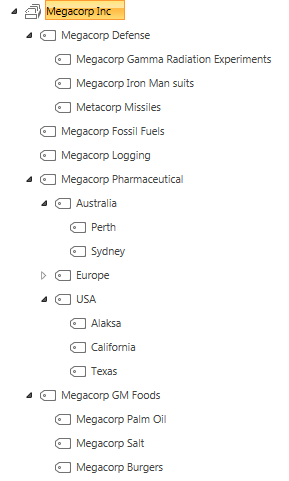
To illustrate, consider the document control requirements of Megacorp Inc – a mythical multinational conglomerate with a vide variety of businesses in many different industries and locations. Megacorp is your typical diversified multinational, making everything from Iron Man suits to hamburgers. A managed metadata term set illustrating the Megacorp conglomerate structure can be seen below. If you look closely, Megacorp Inc, actually consists of several companies and each is structured differently. For example: Megacorp Pharmaceutical divides itself based on country and state jurisdiction, whereas Megacorp GM foods divides itself up on the particular food it is generically modifying.

image

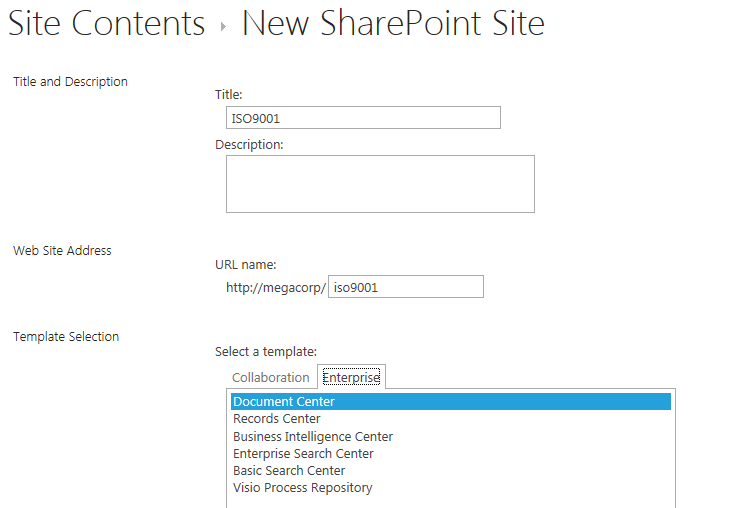
So let’s say that Megacorp is maintaining ISO9001 certification for assurance purposes and therefore has to control their documents as I have stated above. Let’s create a SharePoint site called ISO9001 to handle this requirement. We perform the following steps:

  1. Build a term set (called Megacorp Inc)that stores all of the Megacorp businesses (you can see that in the image above)
  2. Create a site based on the built-in Document Center template
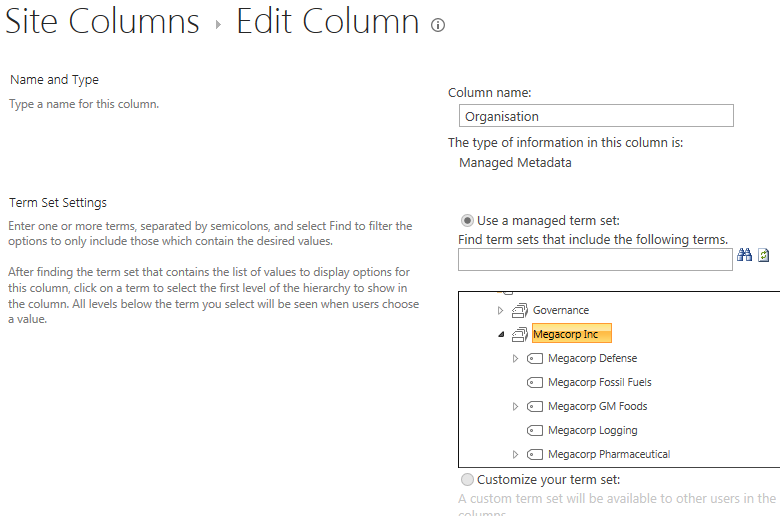
  3. Create a managed metadata site column called Organisation and associate it to the Megacorp term set
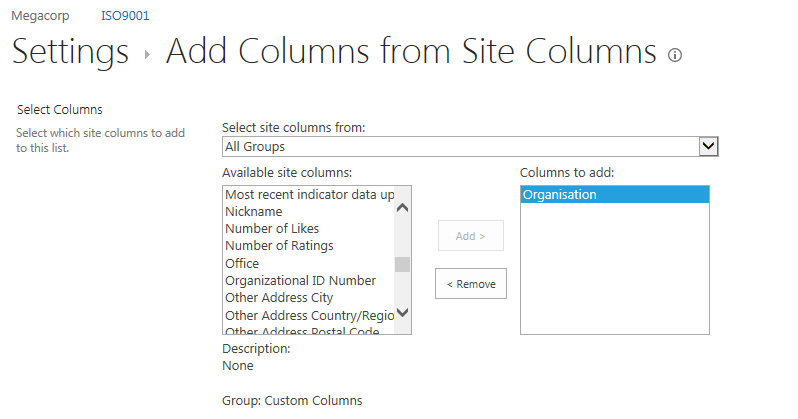
  4. Add the organisation column to the document library (called Documents) in the Document Center site
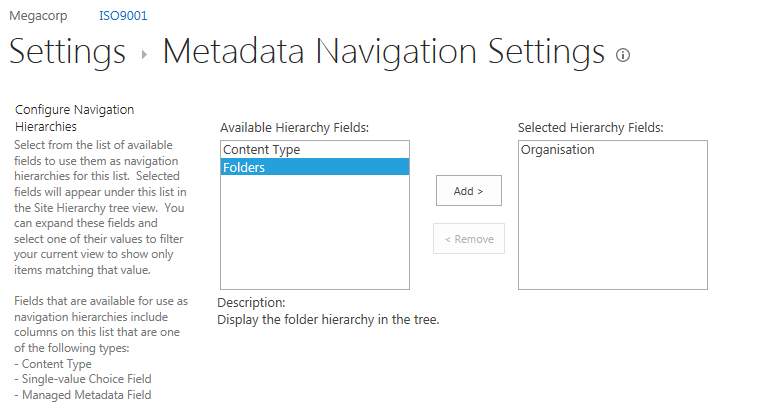
  5. Enable Metadata Navigation on the Documents library and add the Organisation column as a hierarchy field

For those of you who are new to SharePoint, below are screenshots from those steps to help you with the above steps… I am not going through this stuff in detail, so hopefully this suffices…

image  image

imageimage

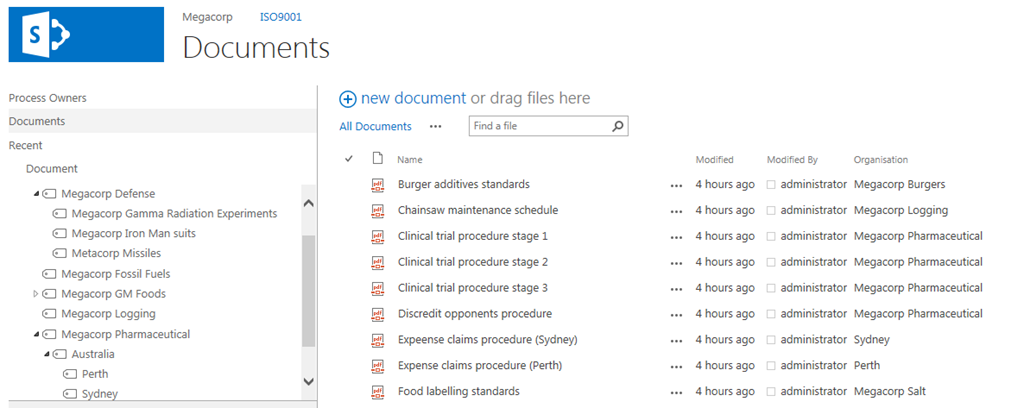
Now that the above plumbing is done, a few documents have been added to the Documents library and tagged to their organisation. With Metadata Navigation enabled, we now have the easy means to browse and filter documents to the specific organisation who owns them as shown below…

image

So let’s now think through a workflow scenario. Each organisation that makes up Megacorp has a process owner and when a document is ready for publishing, the process owner needs to approve it. Now we could do this by adding a “Person or Group” column to the document library and call it “process owner.” But Megacorp has some additional considerations that need to be pondered…

  • 1. They have thousands of documents in the library
  • 2. The process owner is a role, not an individual person. For audit purposes, Megacorp wants to have a record of when a person was in a particular process owner role.

The reason this complicates things is twofold. If we use a person’s user account in Active directory for tagging the process owner, we can easily track when a process owner changes because it will show up in the version history of the documents. But the downside is that we would have to update each document individually when that process owner changes to someone else. Not to mention that we may not want this change to be a version change in the document itself.

Now I know what your thinking – “Just use an Active Directory Group instead of an account”. Yes, it is a good and logical suggestion, since a SharePoint or Active Directory group allows us to easily manage changes in personnel between roles by changing group members. But the downside is that we have no easy way to see the history of who was in the process owner role at a given time because SharePoint would see and store the group, not the members of that group.

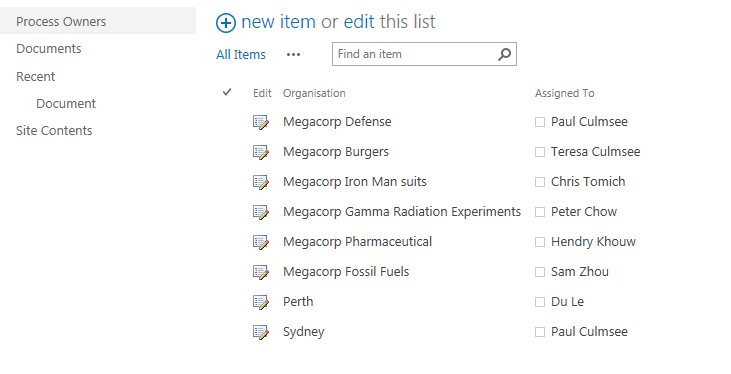
So let’s try an alternative approach. We will make a custom list called “Process Owners” and add two columns to it. We will add the Organisation site column that we created and used earlier, and we will add the “Assigned To” column that is built-into SharePoint and used in task lists. This will give us a list of process owners for a given Megacorp company or division. Even better – if we turn on version history on the Process Owners list, we now have a record of who was in the process owner role at any given time because it will show up in the changes in the “Assigned to” field over time.

The image below illustrates the Process Owners list.

image

So to summarise, we have a document library where all documents are tagged to the organisation that they belong to. We have a list of the process owners for each organisation. To better visualise this, I have drawn an xmind map to show you the Information Architecture of the Megacorp document control site

image

Now we turn our attention to the document approval workflow. It should be able to:

  • Look at a document and determine the Organisation that a document belongs to
  • Look in the process owners list for that organisation and then determine the process owner for the organisation by grabbing the information in the “Assigned To” field
  • Create an Approval task for the Process owner to approve the release of a controlled document.

Now this all sounds straightforward enough in theory but as we will see as this series progresses, when it comes to SharePoint, theory and reality are two very different things. So in part 2, we will build out the workflow..

Thanks for reading

Paul Culmsee

h2bp2013_thumb.jpg

www.heretisguidebooks.com


The facets of collaboration part 5: It’s all Gen-Y’s fault – or is it?


Hi all

imageWelcome to another exploration of the collaborative world through a lens called the facets of collaboration. If you are joining us for the first time, I am writing a series of posts that looks at how our perception of collaboration influences our penchant for certain collaborative tools and approaches. SharePoint, given that it is touted as a collaboration platform, inevitably results in consultants never being able to give a straight answer. This is because SharePoint is so feature-rich (and as a result caveat-rich), that there are always fifty different ways a situation can be approached. Add the fact that many clients do not necessarily know what they want and learn about their problem by examining potential solutions, we have all the hallmarks of a wicked problem in the making.

These wicked problems, underpinning SharePoint, often results in Robot Barbie situations (cue the image to the left), which is the metaphor that I started this series with. Robot Barbie represents everything wrong about SharePoint deployments, as it is symptomatic of throwing features at a platitude, pretending to be solving a real problem and then wondering why the result doesn’t gel at all. It is a pattern of behaviour that is similar to an observation made by the very wise (and profane) Ted Dziuba who once spoke these words of wisdom.

If there’s one thing all engineers love to do, it’s create APIs. It’s so awesome because you can draw on a white board and feel like you put in a good day’s work, despite having solved no real, actual problems. Web 2.0 engineers, in addition to their intrinsic love of APIs, have a real hard-on for anything having to do with a social network. For example, developing a Facebook application lets them call their shitty little PHP program an "application" running on a "platform," like a real, live computer programmer does. Make-believe time is so much fun, even for adults.

Apart from making me giggle, Dziuba may have a point. Elsewhere on this blog I have spent time explaining that there are different types of problems that require different approaches to solving them (wicked vs. tame). My conjecture is that collaboration itself is exactly the same in this regard. People who espouse a particular type of tool or approach as the utopian solution to collaboration are taking a one size fits all approach to a multifaceted area and even worse, treating that area as a platitude. Anyone who calls themselves an Information Architect and doesn’t at least give cursory examination to the dimensions or facets of collaboration is likely to be doing their stakeholders a disservice.

All of us have certain biases, and I am no exception. For a start, I am generation X – the so-called cynical generation. Apparently we whinge and whine about everything and then blame it all on generation-Y. Thus, if cynicism is the gen-X stereotype, then I will happily accept being the poster child. I mean seriously, all of you vanity obsessed, self interested generation y’ers, if you spend a little less time preening and more time thinking, we might get some wisdom out of you (see – I am such a cynical gen-X right now).

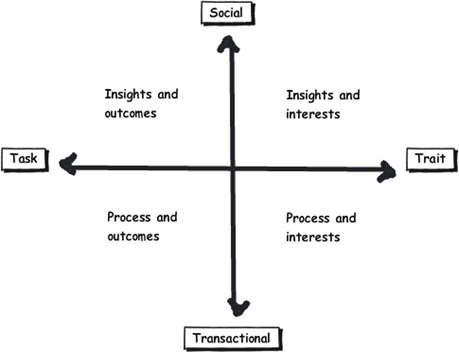
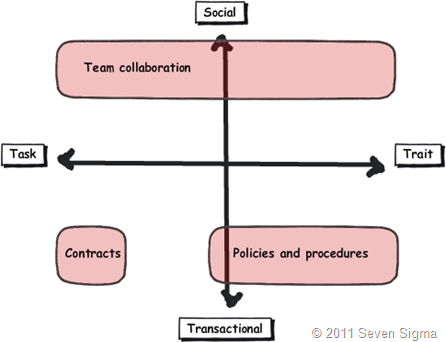
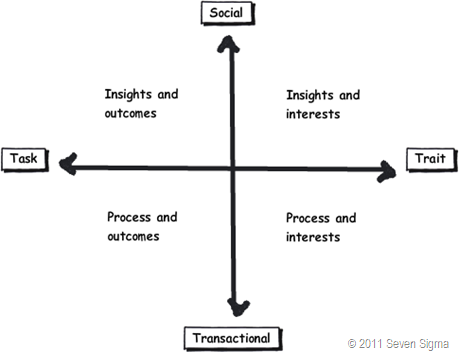
So let’s recap the facets of collaboration. The model I came up with identifies four major facets for collaborative work: Task, Trait, Social and Transactional.

  • Task: Because the outcome drives the members’ attention and participation
  • Trait: Because the interest drives the members’ attention and participation
  • Transactional: Because the process drives the members’ attention and participation
  • Social: Because the shared insight drives the members’ attention and participation

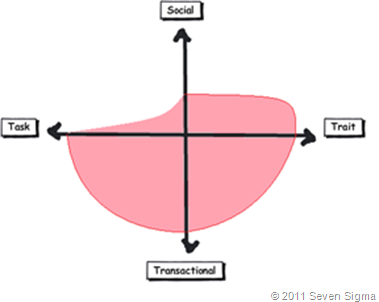
image

In the last post, I used the model to examine the notion of Business Process Management versus Human Process Management and looked at some of the claims and counter claims made by proponents of each. This time let’s up the ante and talk about something curlier. We will examine the notion that social networking in the enterprise is the answer to improving collaboration within the enterprise. On first thought, it makes perfect sense, given the incredible success of Facebook, LinkedIn and Twitter. Nevertheless, there is ongoing debate about the use and value of social tools in the enterprise driven by their rise outside of organisational contexts. One particularly strongly worded quote is from Aaron Fulkerson, co-founder and CEO of MindTouch who doesn’t mince his words:

This class of software forces business users to adopt the myopic social visions imagined by the developers, which are nearly identical to their corresponding consumer web implementations. In short, social software is not solving business problems. In fact, these applications only serve to treat symptoms of the problems businesses face. They exacerbate the real problems within businesses by creating distractions and, worse, proliferate more disconnected data and application silos.

Ouch! Even within the SharePoint community there is significant variation of opinions as to the value of social. While I better protect the innocent and not name names, I have spoken with several well known SharePointers who think social is a giant waste of time, versus those who see real value in it. Irrespective of your opinion, you cannot ignore the fact that social is a significant game changer with effects still being felt. While web 2.0 has dropped off the Gartner hype cycle, its effect on particular sectors has been far reaching. Now it seems that all sectors have a 2.0 on the end of their name. For example:

  • Enterprise 2.0
  • Education 2.0
  • Legal 2.0
  • Government 2.0

Clearly, if things were just a flash in the pan, why are governments around the world trying to revitalise their public sector by utilising these tools?

Look at Microsoft as another example. They have, I think smartly, recognised industry trends and reacted to them via the introduction of a number of new SharePoint features, such as tagging/folksonomy via managed metadata, ratings columns, enhanced wiki capabilities and a significant investment in the capabilities of my-sites. Their clients now have the option to leverage these features should they choose to do so.

So just as there are naysayers, there are the pundits. Many people cite the reasoning that these features are necessary to attract and retain the next generation of workers, who have grown up with these tools in their personal lives. Whether this claim is valid is debatable, but I have to say, I really like the Enterprise 2.0 slide deck below by Scott Gavin for a number of reasons. I think it encapsulates the 2.0 vision, underpinned by social/cloud technologies very nicely. I sometimes ask people to discuss this slide deck in my IA classes and discussion is equally polarising as social networking in the enterprise itself. Some people think it represents the vision for the future, and others think it is hopelessly idealistic and doesn’t reflect cold, hard reality. Take a look for yourself below…

And the survey says…

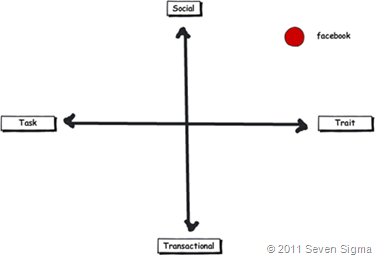
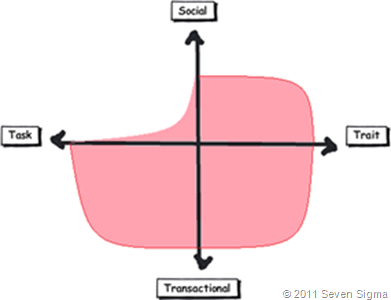
Using the facets quadrants, we can start to see patterns for success of these tools for the enterprise and whether Aaron Fulkerson’s argument has merit or whether Scott Gavin is on the right track. An interesting use of the facet diagram is to plot where various tools and technologies are located. in my classes, I ask people to plot where Facebook belongs on facets diagram. Guess where it is usually drawn? 

image

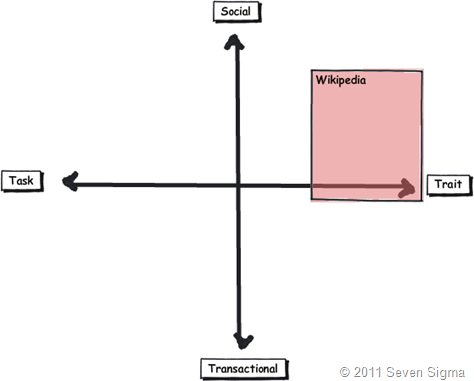
While some people will draw Facebook at various levels on the vertical axis, everyone pretty much describes Facebook (and LinkedIn)  as trait based, while being highly dominant on the social quadrant. As discussed in the last article, if I ask people to plot a crowdsourced tool like Wikipedia, the dominant characteristic is always trait/social. In other words, people maintain and update Wikipedia articles because of their interest in the topic area, not because it helps them get something done.

image_thumb29

Clearly, big social networking technologies are successful in the "trait based social” quadrant. In other words, we tend to use Facebook more for common interest collaboration than to solve a task based collaborative issue (such as deliver a project). Another interesting thing about a lot of social networking technologies is that for many, our work-based collaborative life tends to be more task based, compared to our non-work which is more trait based. In other words, for a lot of us, our work life revolves around working with a group of people for a common outcome and if it was not for that common outcome, we wouldn’t necessarily have much in common (I risk falling victim to my own generalisation here – so I will come back to this later in the section titled “Why User Buy-In Is Hard”).

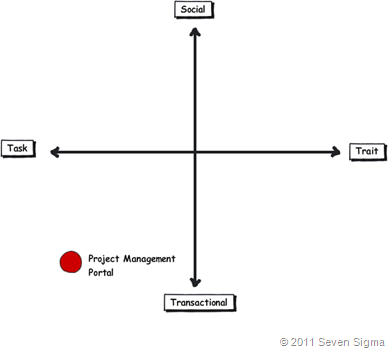
When you look at where Facebook sits in the quadrant, it begs the question of how well this type of tool (or the building blocks it is based on) would work in an organisation that is project (task) based and highly transactional. To that end, consider a project management information system, such as the basic one that Dux espouses in his book or the more complex one that Microsoft sell to organisations. Where do you think it belongs on the quadrant?

When I ask people to plot their project management information system, I typically get this response:

image

I speculate that the further away two tools lie on the spectrum, the more likely we are to have a robot-barbie solution if you blindly mix features that work well in each individual quadrant. The wiki argument I made in part 3 seems to support this contention. If you recall, in part 3 of this series, I mentioned that I ask every attendee of my classes if they had ever seen a successful project management wiki.  Irrespective of the location of the class, the answer was pretty much “no”. I noted that where I had seen successful wikis tended to be where the users of the wiki were linked by strong traits.

Looking Deeper

While that is interesting, I think the facets diagram tells you more than it intends. Obviously, it is clear that these project management systems such as MS Project Server are oriented toward task/transactional (“getting things done”) aspect of project delivery (ie, time, cost, scope, budget and the like). While some people might point to this and say “there you go – I told you all that social crap was a waste of time – bloody gen-Y and their social networking hubris”, I feel this is naive. If task based transactional tools are sufficient, then why do so many projects fail?

I have stated many times on this blog that shared commitment to a course of action requires shared understanding of the problem at hand. The act of aligning a team to project goals and developing this shared understanding is the realm of the task/social quadrant (the top left), where insights and outcomes come together. When I ask people to name tools that live in this space, few can name anything. Obviously, most project management systems are devoid here. Worst still, we subsequently delude ourselves to thinking that shared understanding can come from a few platitudinal paragraphs labelled as a “problem statement”.

Social networking pundits implicitly recognise this issue (and frequently butt heads against command and control type project managers as a result). But i feel they make the mistake in applying a one size fits all approach to collaboration and apply trait based tools as a panacea when they are not wholly appropriate. The social tools seem to fit exceptionally well into the top right quadrant, but not in the top left.

In fact the only tools that spring to mind that belong in the top left category are the sensemaking tools that my company practice, such as Dialogue Mapping.

Where’s the proof, Paul?

So I guess I am arguing that using social tools because they are the “choice of the new generation” ignores a few home truths about the nature of these tools versus the nature of organisational life. Just because Microsoft provide the tools for you, tells you that they are hedging their bets rather than having any more insight than you or me. So to test all of this, let’s use the facets model in a different way to back up some of my observations and suggestions in this post. Guess what happens when I ask people to plot SharePoint itself on the facets map?

When I asked SharePoint practitioners to do this, they initially drew SharePoint 2007 as a circle over the entire model. Once they did so, they would very often adjust the drawing to emphasise transactional over social collaboration as shown below.

Sharepoint 2007 

When practitioners were asked to draw SharePoint 2010, they usually indicated a higher representation in in the two social quadrants, but favoured the trait based social over task based social as shown below.

image

What was interesting about this experiment is that very few people drew SharePoint over the entire facets of collaboration. Social collaboration with SharePoint it seems, only stretches so far. This leads me onto more conjecture, and now we get to the bit in the post where we name a giant SharePoint elephant in the room.

Structured tools for social collaboration?

Many collaborative tools purport themselves as operating in the social space. SharePoint 2010 clearly does so, principally due to the Managed Metadata service, pimped MySites with tagging/rating capabilities. But SharePoint’s core heritage is database/metadata driven, document based collaboration. If we go back to our definition of social collaboration as dynamic, unstructured, with sharing of perspectives and insight through pattern sensing, then social collaboration is clearly not a predefined interaction.

Yet, database driven tools like SharePoint, and its building blocks like site columns and content types require considerable up-front planning to install and govern. Many, many inputs need to be well defined and furthermore, unless you have learnt through living the pain of things like content type definitions in declarative CAML, SharePoint buildings blocks are difficult to maintain/change over time. SharePoint suffers from a problem of reduced resiliency over time in that the more you customise it to suit your ends, the less flexible it gets. In the case of social collaboration the problem is worse because we are trying design for outputs where the inputs are not controlled. Trying to turn something that is inherently organic and emergent to something that has an X and Y on it may be misfocused and destined to fail in many circumstances. The realm of well-defined inputs is the realm of transactional collaboration, where workflow and business process management thrive and change is much more controlled before SharePoint ever gets a look in.

SharePoint excels at transactional scenarios as this is its heritage – after all, the majority of its feature set is oriented to transactional collaboration. The fact that people are prepared to draw SharePoint as dominating across across the transactional half of the facets diagram illustrates this.

But this raises interesting, if not slightly heretical question. If we need to use information architects to get a collaborative tool deployed for social collaboration (to get those inputs defined), then are we pushing the solution into the transactional side of the fence? Recall that in part 3 of this series, I looked at document collaboration and noted that when asked to draw team based document collaboration, people typically drew it operating in the social half of the matrix (pasted below for reference). I also noted in part 3 that for team based collaboration, rules and process are much less rigid or formalised with regards to document use and structure. I then referred to a recent NothingbutSharePoint article where a large organisation’s attempts to introduce the usage of content types largely failed. Like the seeming lack of success of wiki’s for task based collaboration, maybe content types simply are not the ideal construct as you move up the Y axis from transactional to social?

Now do not assume that I am anti metadata/content types here as this is not the case at all. Content types rock when it comes to search and surfacing of related information across a site collection (and beyond if you use search web parts). What I am calling out is the fact that if the SharePoint constructs that we have at our disposal were the panacea for social collaboration, where are the best practices that tell us how to leverage them for success? Perhaps the nature of the collaboration taking place plays a part in the lack of take-up reported in the aforementioned article? Those who advocate highly structured metadata as the only true solution may in fact be pushing a transactional paradigm onto a collaborative model that is ill-suited to it?

The knowledge worker paradox – one of the reasons why user buy-in is hard

Finally for now I’d like to cover one more aspect to this issue. Last year, one of my students looked at the facets and said “Now I know why my users aren’t seeing the value that I see in SharePoint”. When I asked him why, he explained:

“Many of my users are transactional and governed by process – that’s their KPI. Here I am as a knowledge worker, seeing all of these great collaborative features, but I am not judged by a process or transaction. I don’t live in that world. I forget that someone whose performance is judged by process consistency is not going to get all excited by a wiki or tagging or a blog.”

I call this the knowledge worker paradox and it is reminiscent of what I said in part 4 where we looked at BPM vs. HPM. Each role on an organisation is multifaceted. For many roles, there is varying degrees of transactional work taking place. Accordingly some people are very much process driven just as much as they are social driven. Gross generalisations that make statements that “80% of people are knowledge workers or perform knowledge work” do not help matters. In fact they serve to feed the one size fits all mentality that has proven to be detrimental to projects when people fail to recognise that some projects have wicked aspects.

SharePoint people are almost always knowledge workers. Thus if you, as a knowledge worker who is rarely governed by transactional process, think that you have the vision to prescribe a SharePoint driven meta-utopia to meet transactional needs without having lived that world, then if your results are not what you hoped for then to me its hardly surprising.  My student in this case realised that he had been approaching his user base the wrong way. Like Jane in part 1, he did not take into account the dominant facets of collaboration for the roles that he was trying to sell SharePoint into.

When you think about it, the whole argument around records management versus collaborative document management is in effect, an argument between a transactional oriented approach, versus a social oriented one. It is the same pattern as BPM vs. HPM. In records management, the paradigm is that management of the record is more important than the content of the record. Furthermore, that record shouldn’t change. Yet with team based document collaboration, without content there is no document as such and furthermore, the document will change frequently and require less strict controls to grease the gears of collaboration.

Both records oriented people and social pundits commonly make the same mistake of my student, where they force their dominant paradigm on everyone else.

Conclusion

Food for thought, eh?

This is probably my last facets of collaboration post for a while. It is one of these series of articles that I feel has value, but I know it won’t be read by too many 🙂 Nevertheless, I do hope that anyone who has gotten this far through has gotten some value from this examination and sees value in the model to help users make more informed Information Architecture decisions for SharePoint and beyond. I certainly use it now in most engagements and hope that it can be improved upon as a tool, or somehow incorporated into some of the SharePoint standards or maturity model stuff that is out there.

Remember the most important thing of all though. Despite all I have said, it is still definitely all generation y’s fault!

Thanks for reading


Paul Culmsee

www.sevensigma.com.au


The facets of collaboration part 4–BPM vs. HPM


Hi all and welcome to part four of my series on unpacking this buzzword phenomenon that is “collaboration”. Like it or not, Collaboration is a word that is very in-vogue right now. I see it being used all over the place, particularly as a by-product of the success of x2.0 tools and technologies. Yet if you do your research, most of the values being espoused actually hark back to the 1950’s and even earlier. (More on that topic in my forthcoming Beyond Best Practices book).

As it happens, Dilbert is quite a useful buzzword KPI. Once a buzzword graces a Scott Adams cartoon, you know that it has officially made it – as shown below:

image

So back to business! Way back in the first article, I introduced you to Robot Barbie, a metaphor that represents all of those horrid SharePoint sites remind you of a cross-dressing Frankenstein’s monster. I had an early experience with a client who championed a particular vision for a SharePoint project, only to find little buy-in within the organisation for that vision. This, and a bunch of other things, got me interested in the softer areas of SharePoint governance, where no tried and tested best practices really exist. If they did and were so obvious, Microsoft would published them as its in their interest to do so.

image

This all culminated in when I wrote a SharePoint Governance and Information Architecture training course last year. I read a lot of material where authors attempted to unpack what collaboration actually meant. My rationale for doing so would be to hopefully avoid creating SharePoint solutions that were Robot-Barbie Frankensteins. The model that I came up with is illustrated below:

image

The basic model is covered in detail in part 2. But to recap here is the basic summary: This model identifies four major facets for collaborative work: Task, Trait, Social and Transactional.

  • Task: Because the outcome drives the members’ attention and participation
  • Trait: Because the interest drives the members’ attention and participation
  • Transactional: Because the process drives the members’ attention and participation
  • Social: Because the shared insight drives the members’ attention and participation

In the last post, I used the model to compare and contrast the use of particular SharePoint features, such as wikis, SharePoint lists and the different aspects of document collaboration. With regards to the latter of these three, I l looked at the effectiveness of certain SharePoint building blocks like content types and site columns within the different facets.

In this post and the next, we will use the facets in a different manner. We will take a quick tour through some common philosophical smackdowns that manifest in organisational life. These smackdowns emanate because of the different viewpoints that people with particular job titles and respective bodies of knowledge have.

Any suggestion that a philosophy might be wrong or incomplete often calls into question the self-identify of the practitioner, which causes much angst among adherents. For this reason, I will leave the “agile is great” vs. “agile sucks” debate for another time, because if you search the internet for criticisms of agile you tend see really passionate programmers get all riled up and flame the hell out of you.

Instead, I will start with a relatively easy one…

Business Process Management v.s. Human Process Management

image

What does painting the Golden Gate Bridge and Business Process Management have in common? With both, you find that by the time you get to the end, you need to go back to the beginning again. I have personally seen organisations fill an office full of people and take literally years to define and then document key processes all in the name of various best practice frameworks or a regulatory requirement. They then find that, once a thick process manual is created, no-one actually follows it unless an auditor is watching or their performance-based remuneration is directly measured by adherence to it. Of course, I’m not the only one to notice this. In fact, the entire discipline of business process management has taken a bit of a battering in recent years.

If we consider a “process” as the means by which we convert inputs of some description into outputs, Business Process Management has long been the discipline that concerns itself with process optimisation. But in a pattern that is seen in all disciplines like Project Management and Business Analysis, someone will inevitably come along, tell you that you have it wrong or are not being “holistic” and invent a new term to account for your wrongness. In the case of BPM, we now have people arguing for various terms: such as Human Interaction Management, Human Centric Business Process Management, Non-Linear Business Process (thanks Sadie!) or Human Process Management. We will use the latter term, but they are essentially talking about the same thing.

So before we see an example Human Process Management (HPM), let’s review Business Process Management and see what the HPM fanboys are whining about.

Business Process Management

image

BPM is a structured approach to analyse and continually improve and optimise process activities. Process structure and flow are modelled via diagrammatic tools, allowing organizations to abstract business process from technology infrastructure and organisational departmental/jurisdictional boundaries. This abstracted view allows business to holistically examine process and increase their efficiency and respond rapidly to changing circumstances. This in turn creates competitive advantage.

BPM is often used within the broader context of process improvement methodologies such as Six Sigma (which if you have never read about it, will finally prove to you that all that high-school mathematics that you found mind-numbingly boring was actually useful). While BPM on its own provides excellent visibility of process via modelling them, Six Sigma also incorporates additional analytical tools to solve difficult and complex process problems. Thus, BPM and Six Sigma augment each-other, because process improvement efforts can be more focused via BPM modelling. Thomas Gomez, in an article entitled “The Marriage of BPM and Six Sigma", had the following to say:

“Without BPM, Six Sigma may flounder because executives lack the critical data needed to focus their efforts. Instead, the executives bounce all over the place looking for performance weaknesses, or they focus on areas where successful performance improvements provide only marginal results. With BPM, Six Sigma projects can pinpoint problems and address the underlying causes.”

But that is where the fun ends according to the BPM critics. BPM nerds have had to suffer the indignation of hurtful labels like “Sick Sigma” and stories of long term problems with innovation because of such initiatives. They cite examples such as  George Buckley of 3M, who wound back many of his predecessor’s Six Sigma initiatives.

"Invention is by its very nature a disorderly process. You can’t put a Six Sigma process into that area and say, well, I’m getting behind on invention, so I’m going to schedule myself for three good ideas on Wednesday and two on Friday. That’s NOT how creativity works."

Ouch! Its enough to make a BPM feel all flustered and defensive of their craft. Nevertheless the above quote echoes the main points made by BPM critics. That many processes are not structured, predictable or logical and therefore, BPM approaches force a structured paradigm when none necessarily exists (Mind you, many other methodologies do precisely the same). In an appropriately titled article “The H-Bomb of Business Processes: Humans”, Ayal Steiner makes a point that also cuts to the heart of tame vs wicked problems debate too.

“The modern idea of BPM stresses a well-defined business process as the starting point but this is not always the case. Therefore, in a project that involves new practices or a cross-functional learning among participants, BPM has always had a tough time dealing with the humans.”

The notion of the well-defined starting or ending point is one of the characteristics of a tame problem. Wicked problems are often characterised by poorly defined staring and ending points. In fact with a wicked problem, often participants cannot agree on what the problem is in the first place!

Critics like Steiner also argue that many roles within an organisation, tend to deal with more tacit, dynamic situations and as such spend a large amount of their work time performing collaborative human work, when compared to transactional business process work (knowledge workers is the prevailing label for this type of role). While the main area of benefit for BPM’s is its ability to increase the efficiency of a core business process, the sort of thinking required to re-think processes in a systematic manner involves collaboration and systems thinking (in other words, beyond the process in front of us and how it interacts and interrelates more broadly since the whole of the broader system is greater than the sum of its parts). This is a human-driven activity as it is based on humans collaborating and innovating.

Closer to SharePoint home, Sadie Van Buren noted this same distinction in May 2010 which was around the same time I started the development of my IA class.

Human Process Management

So if BPM is incomplete, enter Human Process Management (HPM). HPM is concerned with process that is not easily defined, nor well structured, where it is hard to prescribe the execution of the process based on some model of the business. With human process, it is generally known how to achieve an intended result, but each case is handled separately and requires tacit judgment (for both decisions and flow) as part of the process. There is not enough standardization between instances of the process that allows for a formal, complete and rigorous description of the process end-to-end.

The obvious downside of human processes, say the critics, is that they are far too fluid and dynamic to be made part of an Enterprise BPM system. As a result, these processes tend to be handled through email, which in turn contributes to information overload and poor information worker productivity – precisely why we look to tools like SharePoint in the first place! The implication of HPM is that we need to shift emphasis to tools and practices that help us deal with unstructured or ad-hoc processes (and the information created/used during that process) more so than tools that deal with the well-defined world of BPM.

To be fair to the BPM crowd, these above criticisms will be seen by BPM practitioners as naive, since from their point of view, the less structured side is simply a part of the entire BPM spectrum. They argue that critics do not properly understand the principles and philosophy of BPM in the first place (Agile and PMBOK defenders say essentially the same thing when defending from critics). Supporting this counterargument is a key theme for BPM success that is regularly emphasised. That is, the critical pre-requisite of clarity of purpose and shared understanding of the end in mind. Mohamed Zairi, in a paper called “Business process management: a boundaryless approach to modern competitiveness” stated:

“The achievement of a BPM culture depends very much on the establishment of total alignment to corporate goals and having every employee’s efforts focused on adding value to the end customer.”

Therefore the BPM crowd are arguing for the same human process that HPM base their criticism on. Developing a culture of alignment to corporate goals is very much a human process. Are the HPM fanboy criticisms well founded or is it more a case that some BPM guys forget about strategic goal alignment and optimise process in isolation?

What do the facets say?

Clearly, there is a natural tension between these two polarities of BPM and HPM and this often plays out in organisational life in how we collaborate to deliver organisational outcomes. While there have always been process nazis, the emergence of social collaboration platforms that do not have a great deal of formal structure (think tagging and folksonomies) has led to a great deal of debate and self examination in BPM circles and beyond. Understanding these traits is critically important on the use of SharePoint tools, because SharePoint – and in particular SP2010 offers features for both BPM and HPM aficionados. Putting the two together however might risk Robot Barbie scenarios.

Straight away, it seems that the transactional vs. social axis of the facets of collaboration neatly explain the Business Process Management (BPM)/Human Process Management (HPM) challenge. Both areas are concerned with producing an output or getting something done. Therefore I have drawn BPM and HPM leaning toward the task side of the model. HPM proponents argue that human process is unstructured or semi-structured, dynamic, intertwined and borderless, which fits in well with the task/social trait of process and insight. BPM naturally fits into the lower transactional half where inputs are well defined.

image


While I would agree with the assertion that many processes are ill-defined and rely on tacit knowledge to be completed, HPM proponents go further though. For example, Ayal Steiner who I quoted earlier, argues that “analysts are now realising that human processes account for 80% of the business processes carried out in most organisations”. That is a big call, in effect, arguing that the majority of workplace interactions occupy the social quadrants above. I disagree. From my experience, most organisational roles have extremely varying degrees of transactional vs. social collaboration and some roles are in fact dominated by transactional collaboration. Perhaps there is some confirmation bias going on here, where knowledge workers who put in collaborative systems tend to think that everyone are knowledge workers too.

Here is an example. Mrs CleverWorkarounds used to be a medical nurse. When I first showed her this model I asked her to describe where nurses would fit in terms of their collaboration. She indicated two areas.

  • Firstly, nurses are strongly linked by trait and transaction. This is because they all have a minimum degree of knowledge and skill. As stated in part 2, the key tell-tale sign of a role with transactional collaboration is how easily individuals performing that role can be replaced by someone else with similar experience at short notice. Supporting this, if a nurse is sick or unavailable, a replacement nurse can be called in to perform the same tasks.  Collaboration between nurses according to Mrs Cleverworkarounds is quite transactional as well. Routine and process consistency via tracking the status of patient care is a critical task – patient status is everything. Thus, data driven tools with version history and well defined inputs make this form of collaboration easier. In fact, Mrs CleverWorkarounds taught herself InfoPath and SPD Workflows because she was so convinced that automated forms with consistent audit trails via workflow would make her job easier.
  • Yet at the same time, the sort of collaboration between nurses and patients is completely different and highly social in nature. No process is going to govern the interaction between nurse and patient. The type of care and counselling to get someone well is going to vary the type of interaction. A broken leg is one thing, health problems from say – alcoholism is something else entirely. The latter has much deeper symptoms than just the illness as presented. Here the focus is on patient well-being and goes beyond status of meds, when doctors have visited or accurate handover notes from one nursing shift to another.

State machine workflows?

Interestingly, even seemingly well-defined business processes tend to have ad-hoc and dynamic aspects to them. When there is an exception to the standard process, those exceptions tend to be handled in a relatively ad-hoc, case-by-case manner. Microsoft developer Pravin Indurkar cited an example of a seemingly transactional purchase ordering system.

“Often the business processes contain a prescribed path to the end goal but then there are a lot of alternate ways the same goal can be achieved. For example, a purchase order can contain a prescribed path where the PO goes from being created, to approved, to shipped, and then to completed. But then there a multitude of other ways in which the PO can be completed. The PO can get changed, or back ordered or cancelled and then Reopened. All these paths must be accounted for.”

Indurkar studied the purchase order system of a small business and found that apart from the one standard traditional order fulfilment process, there were about 65 different variations on the same process depending on the nature of the order. This is when BPM diagrams start to get scary. If you think that this workflow below is scary, then be more scared. It is page 12 of a 136 page process!

image

Naturally, trying to hardwire such a large number of alternate paths is very difficult and traditionally, there were two ways in which this was dealt with;

  • Either the business process was hard wired to accommodate all the paths as shown in figure 1, which made the implementation of the business process extremely complex, brittle and hard to maintain.
  • The alternate paths are simply not dealt with and any situation of the ordinary was dealt outside the domain of the process. This meant that tracking and visibility were lost because people would create manual systems to track such out of the ordinary situations. The facet diagram below illustrates this:

image

In Indurkar’s article that I quoted with the purchase order example, he argued that the solution to this sort of problem was via state-based or state-machine workflows which SharePoint has supported in a basic fashion, out of the box since SP2007. This kind of workflow, if you are not aware, is when the workflow waits for one or more events to move it into another state. There is no sequence as such, because this new target state can be any of the defined states in the workflow. This makes state workflows reflect the unpredictable nature of process variations.

Thus, it could be argued that BPM is not incomplete as what the HPM fanboys think, but that critics have a less than holistic understanding of the craft?

Conclusion: A Process Analysis Tool…

To be honest, I don’t want to answer the question of which fanboy is right because it is a bit of a zero sum game. When you think about process, many seem to have elements of transactional and social in them (just like job roles). For example, an “Approval” decision diamond in a business process diagram will determine the path a process takes. Apart from stating the fact that this process is a gateway where a decision is made, this says nothing about whether the activity of making that decision is transactional or social. In some processes the decision may be made by a rigorous data driven process (like a point-score based credit check for a loan applicant). In others it may be on gut feel (such as choosing the right applicant for a job position).

So to me, whether you are the most regimented process nazi or the most cowboyish non-conformist hippie, modelling a business process according to its ratio of transactional to social facets is probably very useful indeed to complement a BPM model. It help us understand how much tacit judgement is required in a given process and whether modelling every variation in a sequential workflow is worthwhile. Check out some examples on how this could be done below. In first example on the left, a business process where the majority of the steps are performed by tacit judgement might look like something like how I have drawn, with a task based social dominance. If the process in question indeed looks like this, then attempting to document every minute variation on the paths the process can take might not be worthwhile. Perhaps documenting the broad process (within the constraints of any compliance regime requirements) might be a better idea. In the second example, the process seems to be oriented around a repeatable set of choices (task based transactional dominant). As a result it may be worthwhile formally documenting these variations.

image  image

By combining these “process diagnostics” with the actual diagram, we might now offer additional insights into how the organisation really works with a certain process and do crazy stuff like produce something akin to my mockup below:

image

Hell, throw in a RACI chart and now you start to see process accountabilities as well!

image

Of course, you could always remove the task/trait axis if it is not needed and simply use a sliding scale. Nevertheless, what this shows is that the facets of collaboration model offers an extra dimension to any process being modelled and would help many to better understand the nature of the process being modelled, as well as strategies for improving that process via SharePoint.

Thanks for reading


Paul Culmsee

www.sevensigma.com.au

p.s If you are a real trainspotter/glutton for punishment and want to dive deeper, google “Human Interaction Management” and “Role Activity Diagrams”


Sack Justin Bieber with SPD2010 and Forms Services – Part 2

Hi

This is part 2 of a quick (but huge) post on my experiences working with SharePoint Designer 2010 workflows and Forms Services. In part 1, we used the scenario of an employee termination form, and sacked Justin Bieber. Now we want to ensure that the SharePoint user experience for sacking Justin Bieber is seamless and intuitive.

Truth be told, I have never actually heard a Justin Bieber song because we have not had a television in the house for over a year. Ignorance is bliss, but I have seen enough news reports that I still want to sack him!

In part 1, we examined the ability of SPD2010 to leverage InfoPath for tailoring forms used by workflows. We then covered creating a workflow utilising the Start Approval Process action, which enables us to do a couple of cool things without custom programming.

Now we are onto the next two steps.

Continue reading “Sack Justin Bieber with SPD2010 and Forms Services – Part 2”


Sack Justin Bieber with SPD2010 and Forms Services – Part 1

Hi all

A very long time ago now, I had the ambition to write an end-to-end blog post series called “A Humble Tribute to the Leave Form”. The intent was to show InfoPath Forms Services 2007 in all its glory – from its initially seductive, demo friendly first impressions, through to all of the dodgy workarounds and .net code required to get it to adequately handle a relatively simple business process like employee leave applications.

As it happened, I got through seven and a half blog posts and never finished it as events kind of overtook me. Its a pity because I didn’t get to the nasty bits. But one of the side effects of getting as far as I did, was that I ended up getting a lot of work developing leave forms!

Thus, now that SharePoint 2010 is upon us, it was inevitable that I would eventually get called to develop a leave form for this new edition. I now have done so, and in the process learnt a couple of new things that I thought were blogworthy – especially around getting things to play nice in a sustainable manner.

I came to realise that anytime you write any content that involves InfoPath, you end up with a stupid number of screenshots, and you are perpetually torn on the amount of detail to cover. So this time, rather than do a twelve post monster, I’ll just do 2 posts (real programmers will still find this post waffly but hopefully normal humans won’t).

I am not going to do a total beginners course here, I will assume instead you have done some basic InfoPath and SharePoint Designer workflows previously, and now want to know some interesting ways to do a general approval type process using SharePoint 2010. My main focus here is to deal with handling browser based InfoPath forms with SharePoint Designer workflows.

Continue reading “Sack Justin Bieber with SPD2010 and Forms Services – Part 1”


SPD workflows: “ERROR: request not found in the TrackedRequests”

I’ve written this post to document a dumbass thing that I did and the error that it caused. Hopefully it might help someone googling in desperation sometime…

The popularity of the “Tribute to the humble leave form” series over at SharePoint Magazine, has meant that we actually get a few gigs implementing – surprise, surprise – InfoPath leave forms with SharePoint Designer workflows! This was actually quite unexpected, as I wrote that series as a joke and for end-user training purposes.

Now, I fully realise that many people don’t like tools like SharePoint Designer in the hands of mere mortals, but I personally think it is a terrific means to encourage buy-in and user evangelism and I encourage its sustainable use. Although “real developers” may disagree with me here, SPD workflows enable quick results without the embarrassing aftermath of premature code compilation (which always leads to frustration, right girls? 😀 ).

Anyhow enough sexual innuendo – here is my error with my lessons learned

The symptoms

Recently, a happily running leave form workflow ground to a halt with an error as shown below. What the screenshot below shows is that the workflow died right after a “Pause for duration” workflow action. (Note the “pausing for 2 minutes” line, just before the actual workflow error).

image

Now, the interesting thing here is that the pause action never happened. The workflow bombed out straight away and there was no pause at all. Yet, the fact that the pause action logged to the history list meant that it attempted to do so. It seemed that the pause action ran for long enough to log that it was about to pause, but died when actually trying to.

The pause action occurred in step 2 of my workflow, but it is worthwhile showing you the first workflow step first.

Below is a screenshot of step 1 of the workflow. This first step is called “Modify Item Permissions” and we are using the codeplex custom workflow actions to modify permissions of the submitted leave form, ensuring that only the requestor of the leave (and their boss) can see or modify the form.

image

The step in the workflow, called “Manager Approval”, shows where we pause for 2 minutes. The reason we pause is to get around another workflow error that I will explain at the end of the post. After the pause action was completed and the workflow recommenced, it performed a “Collect data from user” task as shown below. This created a task for the requestors manager to approve the leave request.

image

We know that the “Collect data from user” action never ran, because the “Employee Leave Approval” task never actually got created in the task list. Thus, we know the error occurred at the pause action. Or, did it?

This error occurred consistently whether the workflow was manually started or auto-triggered. Checked all the usual suspects – timber jobs ok, permissions unchanged and working well, etc. Scanning the ULS logs at this time showed an interesting error with a much less interesting stack trace (that I have pasted at the end of the post for readability).

“Unexpected    ERROR: request not found in the TrackedRequests. We might be creating and closing webs on different threads”

Hmm, what is TrackedRequests and why is a request not found? Googling that error message wasn’t much help at all. Although it is quite common, nothing matched my particular context. But then I received a lucky break. When I cancelled the running workflow that was in this error state, I received a new error that made it quite easy to work out what was going on.

WinWF Internal Error, terminating workflow Id# 02334a17-3211-4d30-902f-bf34e20354c6    
Unexpected    System.Workflow.Runtime.Hosting.PersistenceException: Object reference not set to an instance of an object. —> System.NullReferenceException: Object reference not set to an instance of an object.     at DP.Sharepoint.Workflow.Common.RemoveListItemPermissionEntry(SPListItem item, String principalName, Boolean breakRoleInheritance)    

It was this error that gave it away. For a start, the method being called was DP.Sharepoint.Workflow.Common.RemoveListItemPermissionEntry and the exception was a null reference. RemoveListItemPermissionEntry sounded suspiciously like the permission based workflow actions of the “Modify Item Permissions” step as highlighted below.

image

But wait… the workflow never failed at this line at all. It actually failed at the first action of the next step (“Manager Approval”)  with the “request not found in the TrackedRequests” error. Interesting, eh?

Let’s put aside the issue of what step and what action the workflow failed on for a moment, and examine the second error message more closely. If you examine the “Modify Item Permissions” action highlighted above, can you think of any reason that I would get a null reference exception?

Ah! What happens if the previous action called “Set Variable”, set a blank or null value? I suspect that the “Grant permissions on an item” workflow action will attempt to change permissions of the item to a blank or null user. The result? That workflow action will die with a null reference exception – precisely what the error states.

When I checked the source of the variable “LineManagerAccount”, it was looking up a contact list for the manager of the requestor. Sure enough, it did turn out that that column was blank for some users. Thus, a simple exercise in input validation combined with a small correction to that list item and the problem was solved.

Further questions and further information

I could stop this post there I suppose and perhaps someone, sometime might find this post and think “Wohoo!”. But this problem raised a couple of issues, as well as made it clear to me that I had been stupid in how I designed this one. Let’s tackle them one by one.

1. When did it die again?

Clearly the error that caused all of this, occurred at the last action of the “Modify Item Permissions” step. We know this because the step before was where the lookup to the contact list happened, and this is where the null value came from that caused the exception. But then why did the workflow not stop at this point? Why did it continue onward and attempt to move to the “Manager Approval” steps and die on the “Pause for duration” action?

Whether this is default behaviour of SPD workflows or a logic fault in the exception handling code in the codeplex-based “Grant Permission on an Item” action, this makes life hard to troubleshoot because the error message never made sense. I only found out the true root cause when I terminated the workflow manually and got lucky because the offending exception suddenly appeared.

So, the conclusion to draw? If your SPD workflow dies with “ERROR: request not found in the TrackedRequests” in the logs, it may be that the real cause of the problem is a previous workflow step and not the step where the workflow actually stopped.

2. Paul is a dumbass

Okay, so let’s talk about lessons learnt. Some people reading this may wonder why I never used Active Directory or the user profile store to store manager details for a user and to do the lookup from there. The answer is that this contact list approach simply made sense for this client and this is actually not the dumb thing that I did. The dumb thing that I did was to forget that all of the necessary business logic and data validation steps could have been performed in the InfoPath form itself.

Remember that InfoPath forms can have data connections to all sorts of sources such as SharePoint lists, web services and relational databases. (I am not going into detail on how to do that here because I have already covered it in quite a lot in part 5 of the “Leave Form Tribute” series). We can have a published InfoPath form connect to any SharePoint list or library across the entire farm to look up business logic details, such as an approver. This is something that SharePoint Designer workflows cannot do out of the box – it can only lookup from the site where the workflow has been created.

But, more important than that, we can easily use InfoPath rules and data validation functionality to ensure that the values are not null before submitting.

What this all means is that your SPD workflows end up being simpler and easier to maintain because InfoPath is providing all of the data to the workflow as well as the validation of the data. Therefore, the workflow now doesn’t have to do the lookup work and have unnecessary steps and actions.

For these reasons I think that, if you can, grab all of the data you need for a business process using the InfoPath form using hidden fields. Then publish the form and ensure these hidden fields are published as site columns.

For this particular purpose, I think that InfoPath is a lesser evil than SharePoint Designer workflows.

3. What are the pause actions there for anyway?

Finally, I promised I’d explain why I had a pause action in the workflow. This is to get around a race condition with workflows that produces an intermittent error message:

“This task is currently locked by a running workflow and cannot be edited”

I’ve seen this occur in several situations and it pretty much boils down to some workflow actions being synchronous and subsequent actions starting before the previous action properly completed. Consider this example.

One workflow creates or updates an item in a list, say a task list. But the task list also has a workflow attached to it. This means that the first workflow creates the task item and then moves onto the next step. Meanwhile, a new workflow has been triggered for that new task list item. This secondary workflow refers to information stored in the main item which causes the race condition.  If the information in the main item is not committed before this workflow attempts to use it, you’ll get null values when the main item is a new item.  When working with SPD workflows, these null values will show up as ????. 

To resolve the race condition, I had to ensure that the main item was committed before the secondary workflow was started by pausing the workflow.  Why does pausing the workflow cause the changes to be committed?  According to the MSDN article “How Windows SharePoint Services Processes Workflow Activities” http://msdn.microsoft.com/en-us/library/ms442249.aspx

Windows SharePoint Services runs the workflow until it reaches a point where it cannot proceed because it is waiting for some event to occur: for example, a user must designate a task as completed. Only at this "commit point" does Windows SharePoint Services commit the changes made in the previous Windows SharePoint Services-specific workflow activities…

The not-so-clever workaround is to pause the workflow in between actions. When you add a pause, the workflow “cannot proceed because it is waiting for some event to occur” and therefore makes it a commit point. Not pretty – but works.

I hope that you find this article of use in your SharePoint Designer workflow troubleshooting endeavours. Below, I have pasted the complete stack traces (for the search engines).

Thanks for reading

Paul Culmsee

06/25/2009 12:25:20.46 w3wp.exe (0x0BA8) 0x16F8 Windows SharePoint Services General 0 Unexpected ERROR: request not found in the TrackedRequests. We might be creating and closing webs on different threads. ThreadId = 1, Free call stack = at Microsoft.SharePoint.SPRequestManager.Release(SPRequest request) at Microsoft.SharePoint.SPWeb.Invalidate() at Microsoft.SharePoint.SPWeb.Close() at Microsoft.SharePoint.SPSite.Close() at Microsoft.SharePoint.SPSite.Dispose() at Microsoft.SharePoint.Workflow.SPWorkflowManager.<>c__DisplayClass1.<StartWorkflow>b__0() at Microsoft.SharePoint.SPSecurity.CodeToRunElevatedWrapper(Object state) at Microsoft.SharePoint.SPSecurity.<>c__DisplayClass4.<RunWithElevatedPrivileges>b__2() at Microsoft.SharePoint.Utilities.SecurityContext.RunAsProcess(CodeToRunElevated secureCode) at Microsoft.SharePoint.SPSecurity.RunWithEl…

06/25/2009 12:25:20.46* w3wp.exe (0x0BA8) 0x16F8 Windows SharePoint Services General 0 Unexpected …evatedPrivileges(WaitCallback secureCode, Object param) at Microsoft.SharePoint.SPSecurity.RunWithElevatedPrivileges(CodeToRunElevated secureCode) at Microsoft.SharePoint.Workflow.SPWorkflowManager.StartWorkflow(SPListItem item, SPWorkflowAssociation association, SPWorkflowEvent startEvent, Boolean bAutoStart, Boolean bCreateOnly) at Microsoft.SharePoint.Workflow.SPWorkflowManager.StartWorkflow(SPListItem item, SPWorkflowAssociation association, String eventData, Boolean isAutoStart) at Microsoft.SharePoint.Workflow.SPWorkflowManager.StartWorkflow(SPListItem item, SPWorkflowAssociation association, String eventData) at Microsoft.SharePoint.WebControls.SPWorkflowDataSourceView.Insert(IDictionary values) at Microsoft.SharePoint.WebControls.SPWorkflowDataSourceView.Ins…

06/25/2009 12:25:20.46* w3wp.exe (0x0BA8) 0x16F8 Windows SharePoint Services General 0 Unexpected …ert(IDictionary values, DataSourceViewOperationCallback callback) at Microsoft.SharePoint.WebPartPages.DataFormWebPart.FlatCommit() at Microsoft.SharePoint.WebPartPages.DataFormWebPart.PerformCommit() at Microsoft.SharePoint.WebPartPages.DataFormWebPart.HandleOnSave(Object sender, EventArgs e) at Microsoft.SharePoint.WebPartPages.DataFormWebPart.RaisePostBackEvent(String eventArgument) at System.Web.UI.Page.RaisePostBackEvent(IPostBackEventHandler sourceControl, String eventArgument) at System.Web.UI.Page.RaisePostBackEvent(NameValueCollection postData) at System.Web.UI.Page.ProcessRequestMain(Boolean includeStagesBeforeAsyncPoint, Boolean includeStagesAfterAsyncPoint) at System.Web.UI.Page.ProcessRequest(Boolean includeStagesBeforeAsyncPoint, Boolean includ…

06/25/2009 12:25:20.46* w3wp.exe (0x0BA8) 0x16F8 Windows SharePoint Services General 0 Unexpected …eStagesAfterAsyncPoint) at System.Web.UI.Page.ProcessRequest() at System.Web.UI.Page.ProcessRequestWithNoAssert(HttpContext context) at System.Web.UI.Page.ProcessRequest(HttpContext context) at System.Web.HttpApplication.CallHandlerExecutionStep.System.Web.HttpApplication.IExecutionStep.Execute() at System.Web.HttpApplication.ExecuteStep(IExecutionStep step, Boolean& completedSynchronously) at System.Web.HttpApplication.ApplicationStepManager.ResumeSteps(Exception error) at System.Web.HttpApplication.System.Web.IHttpAsyncHandler.BeginProcessRequest(HttpContext context, AsyncCallback cb, Object extraData) at System.Web.HttpRuntime.ProcessRequestInternal(HttpWorkerRequest wr) at System.Web.HttpRuntime.ProcessRequestNoDemand(HttpWorkerRequest wr) at Sys…

06/25/2009 12:25:20.46* w3wp.exe (0x0BA8) 0x16F8 Windows SharePoint Services General 0 Unexpected …tem.Web.Hosting.ISAPIRuntime.ProcessRequest(IntPtr ecb, Int32 iWRType) , Allocation call stack (if present) at Microsoft.SharePoint.Library.SPRequest..ctor() at Microsoft.SharePoint.SPGlobal.CreateSPRequestAndSetIdentity(Boolean bNotGlobalAdminCode, String strUrl, Boolean bNotAddToContext, Byte[] UserToken, String userName, Boolean bIgnoreTokenTimeout, Boolean bAsAnonymous) at Microsoft.SharePoint.SPWeb.InitializeSPRequest() at Microsoft.SharePoint.SPWeb.EnsureSPRequest() at Microsoft.SharePoint.SPWeb.get_Request() at Microsoft.SharePoint.SPWeb.InitWebPublic() at Microsoft.SharePoint.SPWeb.get_ServerRelativeUrl() at Microsoft.SharePoint.SPWeb.get_Url() at Microsoft.SharePoint.SPUser.InitMember() at Microsoft.SharePoint.SPUser..ctor(SPWeb web, ISecura…

06/25/2009 12:25:20.46* w3wp.exe (0x0BA8) 0x16F8 Windows SharePoint Services General 0 Unexpected …bleObject scope, String strIdentifier, Object[,] arrUsersData, UInt32 index, Int32 iByParamId, String strByParamSID, String strByParamEmail, SPUserCollectionType userCollectionType, Boolean isSiteAuditor) at Microsoft.SharePoint.SPUser..ctor(SPWeb web, ISecurableObject scope, String strIdentifier, Object[,] arrUsersData, UInt32 index, Int32 iByParamId, String strByParamSID, String strByParamEmail, SPUserCollectionType userCollectionType) at Microsoft.SharePoint.SPUserCollection.GetByIDNoThrow(Int32 id) at Microsoft.SharePoint.SPSite.get_SystemAccount() at Microsoft.SharePoint.WorkflowActions.Helper.ResolveUserField(WorkflowContext context, Object fvalue) at Microsoft.SharePoint.WorkflowActions.Helper.LookupUser(WorkflowContext context, Guid listId, Int32 listItem, Strin…

06/25/2009 12:25:20.46* w3wp.exe (0x0BA8) 0x16F8 Windows SharePoint Services General 0 Unexpected …g fieldName) at Microsoft.SharePoint.WorkflowActions.Helper.LookupUser(WorkflowContext context, String listIdOrName, Int32 listItem, String fieldName) at Microsoft.SharePoint.WorkflowActions.LookupActivity.Execute(ActivityExecutionContext provider) at System.Workflow.ComponentModel.ActivityExecutor`1.Execute(T activity, ActivityExecutionContext executionContext) at System.Workflow.ComponentModel.ActivityExecutor`1.Execute(Activity activity, ActivityExecutionContext executionContext) at System.Workflow.ComponentModel.ActivityExecutorOperation.Run(IWorkflowCoreRuntime workflowCoreRuntime) at System.Workflow.Runtime.Scheduler.Run() at System.Workflow.Runtime.WorkflowExecutor.RunScheduler() at System.Workflow.Runtime.WorkflowExecutor.RunSome(Object ignored) …

06/25/2009 12:25:20.46* w3wp.exe (0x0BA8) 0x16F8 Windows SharePoint Services General 0 Unexpected …at System.Workflow.Runtime.Hosting.DefaultWorkflowSchedulerService.WorkItem.Invoke(WorkflowSchedulerService service) at System.Workflow.Runtime.Hosting.DefaultWorkflowSchedulerService.QueueWorkerProcess(Object state) at System.Threading._ThreadPoolWaitCallback.WaitCallback_Context(Object state) at System.Threading.ExecutionContext.runTryCode(Object userData) at System.Runtime.CompilerServices.RuntimeHelpers.ExecuteCodeWithGuaranteedCleanup(TryCode code, CleanupCode backoutCode, Object userData) at System.Threading.ExecutionContext.RunInternal(ExecutionContext executionContext, ContextCallback callback, Object state) at System.Threading.ExecutionContext.Run(ExecutionContext executionContext, ContextCallback callback, Object state) at System.Threading._ThreadPoolW…

06/25/2009 12:25:20.46* w3wp.exe (0x0BA8) 0x16F8 Windows SharePoint Services General 0 Unexpected …aitCallback.PerformWaitCallbackInternal(_ThreadPoolWaitCallback tpWaitCallBack) at System.Threading._ThreadPoolWaitCallback.PerformWaitCallback(Object state)


06/25/2009 12:27:16.49 w3wp.exe (0x0BA8) 0x1CB4 Windows SharePoint Services Workflow Infrastructure 88xr Unexpected WinWF Internal Error, terminating workflow Id# 02334a17-3211-4d30-902f-bf34e20354c6

06/25/2009 12:27:16.49 w3wp.exe (0x0BA8) 0x1CB4 Windows SharePoint Services Workflow Infrastructure 98d4 Unexpected System.Workflow.Runtime.Hosting.PersistenceException: Object reference not set to an instance of an object. —> System.NullReferenceException: Object reference not set to an instance of an object. at DP.Sharepoint.Workflow.Common.RemoveListItemPermissionEntry(SPListItem item, String principalName, Boolean breakRoleInheritance) at DP.Sharepoint.Workflow.PermissionsService.<>c__DisplayClass1.<ProcessGrantRequest>b__0() at Microsoft.SharePoint.SPSecurity.CodeToRunElevatedWrapper(Object state) at Microsoft.SharePoint.SPSecurity.<>c__DisplayClass4.<RunWithElevatedPrivileges>b__2() at Microsoft.SharePoint.Utilities.SecurityContext.RunAsProcess(CodeToRunElevated secureCode) at Microsoft.SharePoint.SPSecurity.RunWithElevatedPrivileges(WaitCallback secureCode, Object param)…

06/25/2009 12:27:16.49* w3wp.exe (0x0BA8) 0x1CB4 Windows SharePoint Services Workflow Infrastructure 98d4 Unexpected … at Microsoft.SharePoint.SPSecurity.RunWithElevatedPrivileges(CodeToRunElevated secureCode) at DP.Sharepoint.Workflow.PermissionsService.ProcessGrantRequest(PermissionRequest pr) at DP.Sharepoint.Workflow.PermissionsService.Commit(Transaction transaction, ICollection items) at System.Workflow.Runtime.WorkBatch.PendingWorkCollection.Commit(Transaction transaction) at System.Workflow.Runtime.WorkBatch.Commit(Transaction transaction) at System.Workflow.Runtime.VolatileResourceManager.Commit() at System.Workflow.Runtime.WorkflowExecutor.DoResourceManagerCommit() at System.Workflow.Runtime.Hosting.WorkflowCommitWorkBatchService.CommitWorkBatch(CommitWorkBatchCallback commitWorkBatchCallback) at System.Workflow.Runtime.Hosting.DefaultWorkflowCommitWorkBatchSer…

06/25/2009 12:27:16.49* w3wp.exe (0x0BA8) 0x1CB4 Windows SharePoint Services Workflow Infrastructure 98d4 Unexpected …vice.CommitWorkBatch(CommitWorkBatchCallback commitWorkBatchCallback) at System.Workflow.Runtime.WorkflowExecutor.CommitTransaction(Activity activityContext) at System.Workflow.Runtime.WorkflowExecutor.Persist(Activity dynamicActivity, Boolean unlock, Boolean needsCompensation) — End of inner exception stack trace — at System.Workflow.Runtime.WorkflowExecutor.Persist(Activity dynamicActivity, Boolean unlock, Boolean needsCompensation) at System.Workflow.Runtime.WorkflowExecutor.ProtectedPersist(Boolean unlock)


« Previous Page

Today is: Wednesday 3 June 2026 -