Back to Cleverworkarounds mainpage
 

Trials or tribulation? Inside SharePoint 2013 workflows–Part 6

Hi and welcome to part 6 of my series of articles aimed at demystifying various aspects to SharePoint 2013 workflows. We have been using a mythical example of a document approval workflow from our mythical multinational called Megacorp Inc. We have been trying to create a workflow attempting to implement the process below…
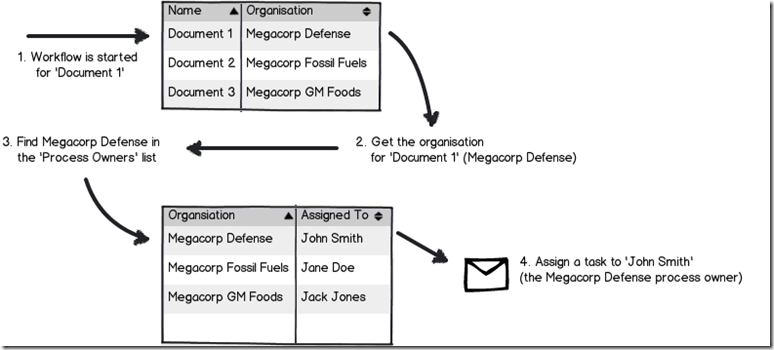
Snapshot_thumb3

Seems straightforward enough, but in part 3, we foiled by the use of check in/check out on document libraries and a completely useless error message didn’t help matters. We eventually worked around that issue, but in part 4, we got stuck on a bigger snag because of our chosen information architecture. The Organisation column we created is a managed metadata column. It turns out that you cannot use a Managed Metadata column as a filter for a list (steps 2 and 3 above). In the last article, we took a detour into the world of dictionary variables and a very powerful new workflow action called “Call HTTP Web Service”. We learnt that in situations where a built-in workflow action does not cut it for you, but you might be able to use Call HTTP Web Service to do what you need. This sets the scene for our next exciting instalment. Perhaps we can get around this managed metadata issue with one of SharePoint’s many web services? If so, which one do I need to use and why?

In this post and the next few, I am going to show you two ways that we can get around the problem of not being able to filter via Managed metadata using the Call HTTP Web Service capability. The first method is a little easier to build than the second method, but it has a flaw that hopefully will become self evident as we proceed. Having said this, I feel it is really important to cover both approaches, because each showcases different features and capabilities of SharePoint Designer 2013 workflows. Therefore, this article and the next two will show the easier but flawed way, and articles 9, 10, 11 and 12 will show what I think is the better way to go.

The workflow looping method…

The gist of the approach we are going to take is to:

  • Get the unique ID of the Organisation for the selected document in the Documents library
  • Using the SharePoint lists REST web service, we will load the the Assigned to and Organisation columns from the Process Owners list and store it into a Dictionary variable
  • Using workflow looping capability, we will step through each item in the dictionary, and find the first entry where the unique ID of the Organisation from step 1 matches the Organisation in process owners
  • For the marching entry, Assign a task to the person mentioned in the Assigned to column.

Now to pull this off, we are going to bring together all of the topics that I have covered in this series. I am also going to be a little less verbose with screenshots, because by now some aspects of workflow creation using SharePoint designer should be getting more familiar. Speaking of more familiar, let’s take a closer look at the lists web service again. In my second REST interlude in part 4, I demonstrated how you could specify the columns that you want to bring back from a web service call, rather than all columns. In the example below, I am showing how you can bring back just the Organisation and Assigned to columns from the Process Owners list (AssignedToId a REST specific thing that represents the Assigned To column. More about that in part 8).

http://megacorp/iso9001/_vti_bin/client.svc/web/lists/getbytitle(‘Process%20Owners’)/Items?$select=AssignedToId,Organisation

Here is the XML for a single process owner entry… Note that we never get to see the name of the Organisation in the XML for the Organisation column (for that matter, we don’t see the name person in the Assigned column either – an issue I will deal with later). Instead, we have the GUID for the Organisation in the <d:TermGuid> section.

  - <content type="application/xml">
    - <m:properties>
      - <d:Organisation m:type="SP.Taxonomy.TaxonomyFieldValue">
          <d:Label>14</d:Label> 
          <d:TermGuid>e2f8e2e0-9521-4c7c-95a2-f195ccad160f</d:TermGuid> 
          <d:WssId m:type="Edm.Int32">14</d:WssId> 
        </d:Organisation>
        <d:AssignedToId m:type="Edm.Int32">7</d:AssignedToId> 
      </m:properties>
    </content>

Now also in part 4, I explained the Organsiation_0 hidden column and showed that it stores both the organisation name, as well as the GUID of that organisation. So if Organisation has been set to Megacorp Burgers for a document, the value of Organsiation_0 for that document would be:

Megacorp Burgers|e2f8e2e0-9521-4c7c-95a2-f195ccad160f

The common element between the XML from the Process Qwners list, and the value of Organsiation_0 from the Documents library is the Term GUID. Therefore if we can extract the GUID part of Organsiation_0, we can use it to search the Process Owners list and find which entry where the GUID specified in the <d:TermGuid> matches. So first up, let’s clean things up, then use some workflow actions to get hold of the GUID from the Organsiation_0 column.

Getting the GUID…

Step 1:

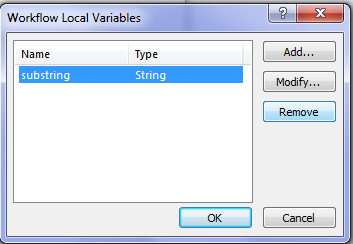
Turning our attention back to the Process Owners Approval workflow, let’s delete our existing workflow actions, workflow variables and start afresh. Click on any existing workflow actions and choose Delete Action from the dropdown menu as shown below. To delete variables, click the local variables ribbon icon and remove any listed…
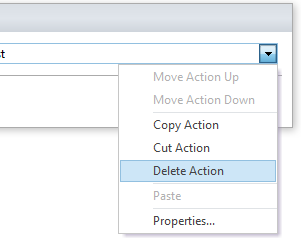
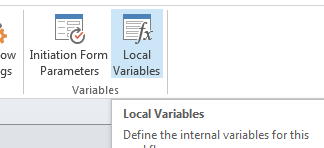
image  image  image

Now you should be looking at a clean workflow.

Step 2:

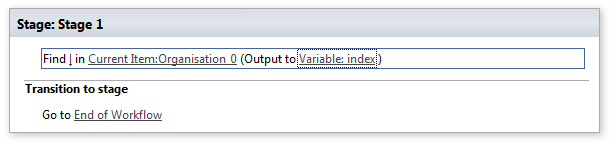
Add the workflow action Find substring in string. To complete the configuration of this action, click the substring hyperlink and add a pipe symbol “|”. Click the string hyperlink, the fx button and from Current Item, choose Organisation_0 as shown below…
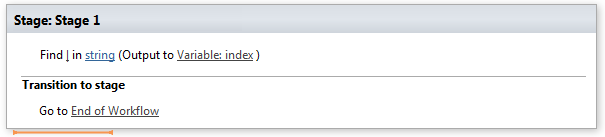
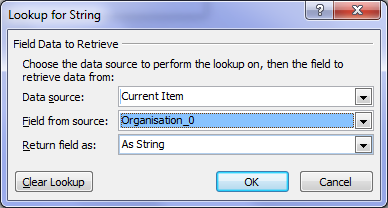
image  image

image

The result of this workflow action, will be the position in the string of the pipe symbol will be stored in a variable called index. For example, if you count the number of characters until you get to the pipe symbol in the string, “Megacorp Burgers|e2f8e2e0-9521-4c7c-95a2-f195ccad160f”, the answer is 17.

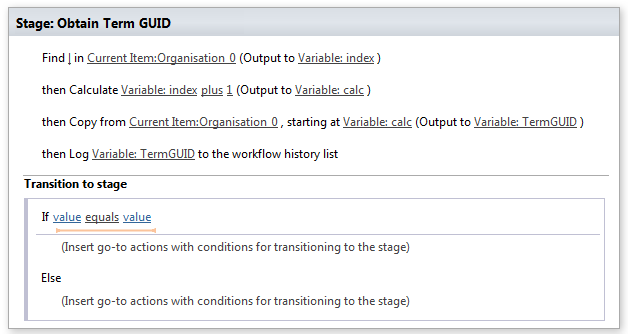
Our next step is to grab all of the characters in the string after the pipe symbol because that is the GUID we need. The way we will do this, we will use another workflow action called Extract substring from index of string. This action takes a string and an index position, and returns all characters to the right of the index. Thus, with the string “Megacorp Burgers|e2f8e2e0-9521-4c7c-95a2-f195ccad160f”, if we start at position 17 we will end up with “|e2f8e2e0-9521-4c7c-95a2-f195ccad160f”. This is not quite right because we do not want the pipe symbol, so we will use another workflow action called Do Calculation to add 1 to the index variable first.

Step 3:

Add the Do Calculation action, click the value hyperlink and click the fx button. Change the data source to Workflow Variables and Parameters and choose the variable called index. Click the value hyperlink and type in the number 1.
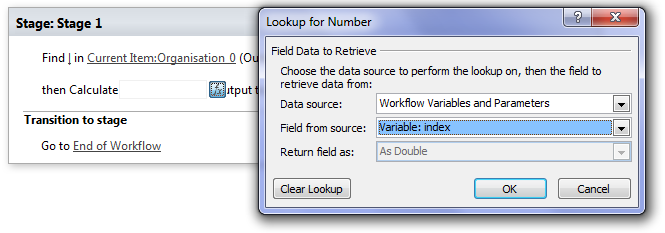
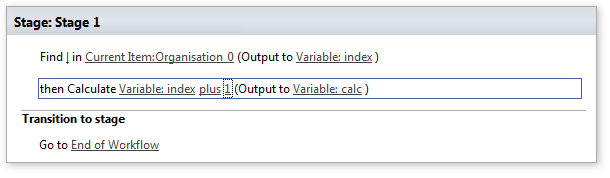
image

image

The net result of this is we have a variable called calc that storing the position after the pipe symbol in Organsiation_0.

Step 4:

Add the Extract substring from index of string workflow action. Click the string hyperlink, the fx button and from Current Item, choose Organisation_0. Click the “0” hyperlink next to “starting from” and click the fx button. Change the data source to Workflow Variables and Parameters and choose the variable called calc. Finally, click on Variable: substring and choose to Create a new variable… and call it TermGUID as shown below…
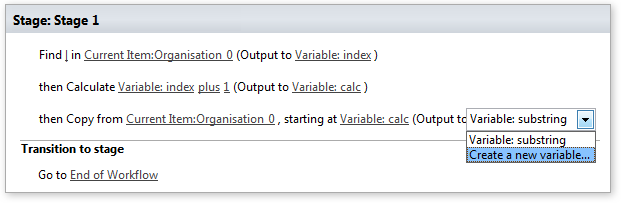
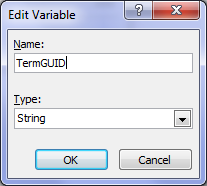
image  image

At this point, it might be handy to use the log the value of TermGUID to the workflow history to make sure that things are working as we expect. We can delete this step later…

Step 5:

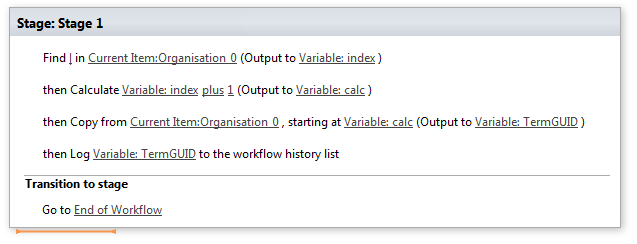
Add a log to workflow history action and log the value of TermGUID. The final workflow should look like this…
image

Step 6:

Publish this workflow, confirm there are no errors and then run it against a document in the documents library. Wohoo! we now have the GUID!

image

Using stages…

Now that we have the GUID, it makes sense that we can make this sequence of actions a workflow stage. Then we can add a new stage for the rest of the workflow and add some error checking logic.

Step 1:

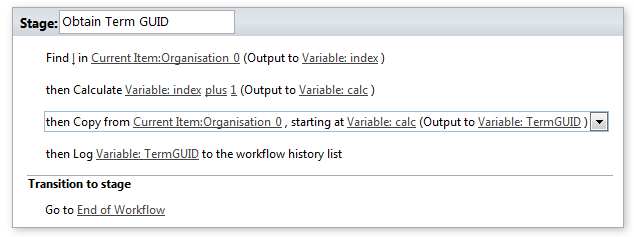
Click the stage header and rename the stage to Obtain Term GUID.
image

Step 2:

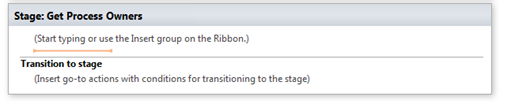
Click outside the stage and from the ribbon, click the Stage icon. A new stage will be added to the workflow. Call this stage Get Process Owners.
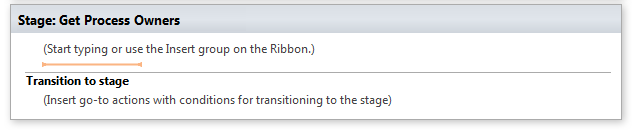
image

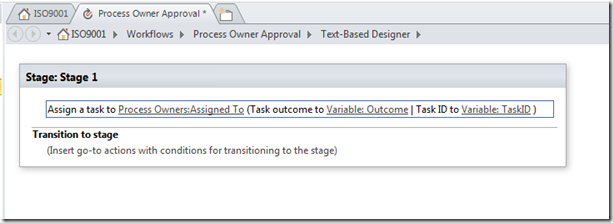
Now let’s create the logic that connects up the stages. We will set it that we will only move to the Get Process Owners stage if the TermGUID variable has a value. After all, if there is not a valid GUID, there is no point continuing the workflow.

Step 3:

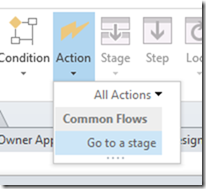
In the Obtain Term GUID stage, select the Go to End of Workflow action and delete it. In the ribbon, click the Condition button and choose If any value equals value from the drop down menu. Confirm that the condition section has been added to the Transition to stage section of the workflow stage…
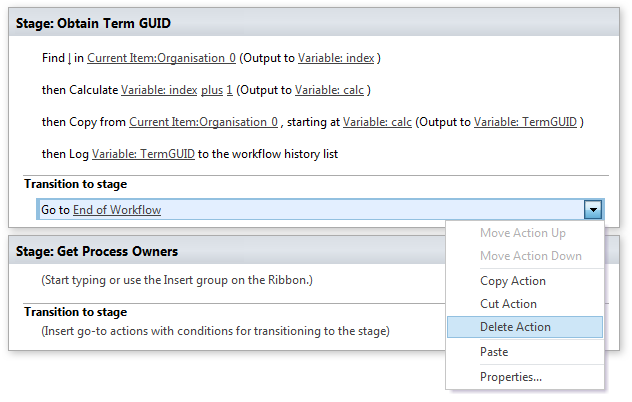
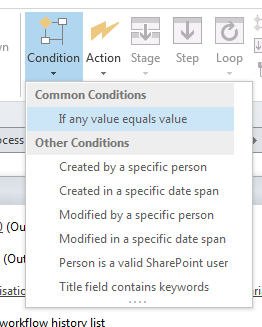
image   image

image

Step 4:

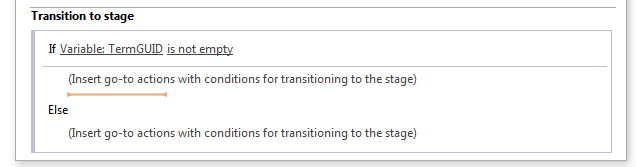
Click the value hyperlink, click the fx button and choose Workflow Variables and Parameters from the Data source dropdown. Find the TermGUID variable in the Field from source dropdown. Click the equals hyperlink and from the dropdown, choose “is not empty”.
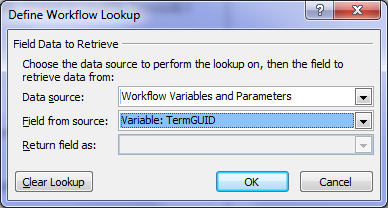
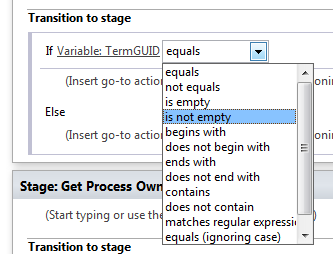
image  image  image

Step 5:

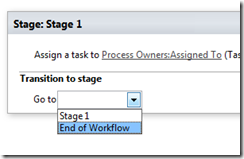
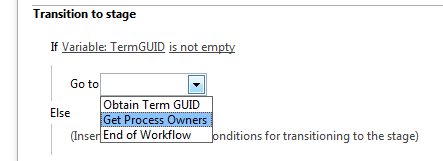
Click on the top “Insert go-to actions with conditions” section, and add a Go to a Stage action. From the stage dropdown, choose “Get Process Owners”
image

Step 6:

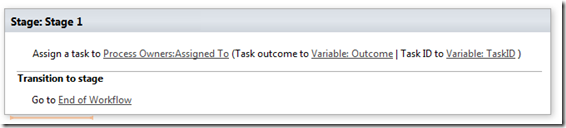
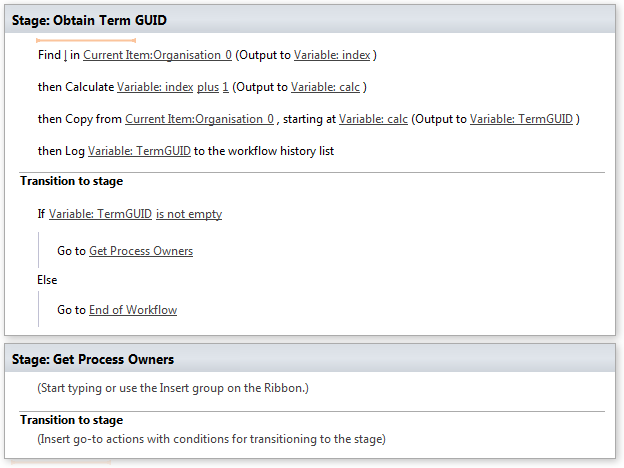
Click on the bottom “Insert go-to actions with conditions” section, and add a Go to a Stage action. From the stage dropdown, choose “End of Workflow”. The complete workflow should look like the image below:
image

A HTTP interlude…

Our next task is to get all of the process owners into a dictionary variable. Before we do this, I am going to give you a little lesson on how the HTTP protocol works, because we are literally going to be hand crafting our own request. Therefore it is handy to understand the basics.

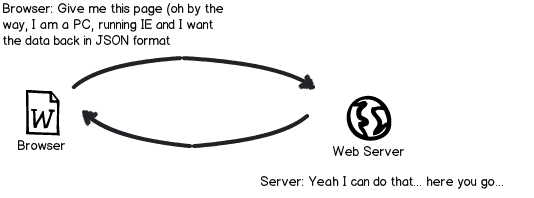
When your browser makes a request to a website or web service, it does not just say “Gimme this URL”. Often the server will change its behaviour based on the nature of the request.  For example, if the requestor is a mobile device, the server will send back different HTML compared to a PC browser. So how can the server tell if a request is made from a mobile device versus a PC? The answer is, that when the browser makes a request, it sends additional information in the form of request headers. Request headers are used for all sorts of things, and we are going to need to make use of them. Why? Remember in part 4, that I mentioned the JSON data format and that we need to tell SharePoint that any data it sends us has to be JSON format. Here is another of my dodgy diagrams explaining this by example…
Snapshot

Technically, we have to send the string “Accept: application/json;odata=verbose” in the request header to make this happen. So let’s see how we can put this request together via SharePoint Designer. Just to remind you the URL of the web service to get all of the process owners is:

http://megacorp/iso9001/_vti_bin/client.svc/web/lists/getbytitle(‘Process%20Owners’)/Items?$select=AssignedToId,Organisation

Crafting the request…

The first thing we need to do is to create the request header that tells SharePoint to return the data in JSON format. This is done via creating a dictionary variable.

Step 1:

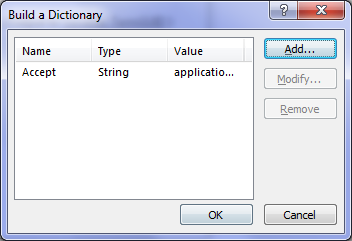
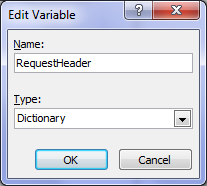
In the Get Process Owners workflow stage, add a Build Dictionary action. Click the this hyperlink to display the Build Dictionary window. Click the Add button and type “Accept” into the Name textbox and application/jason;odata=verbose into the value textbox. Click OK twice, then click the Variable: dictionary hyperlink and create a new variable called RequestHeader.
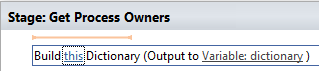
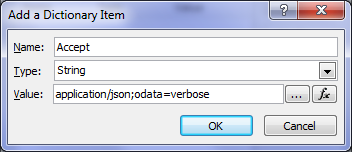
image  image  image

image  image  image

Step 2:

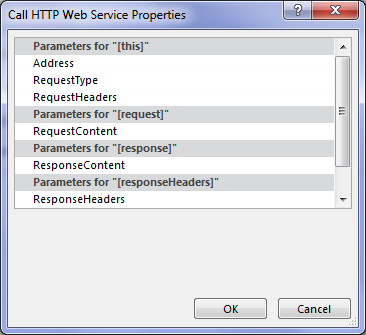
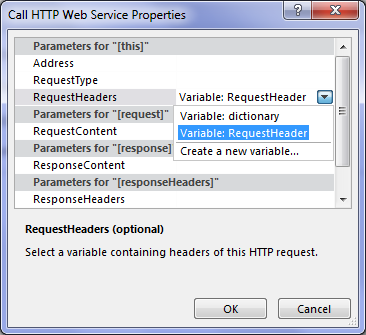
Add a Call HTTP Web Service action and then click to select it as shown below. If you look at the parameters you can set, there is no mention of request header. To set it, click the Advanced Properties icon in the ribbon. In the Call HTTP Web Service Properties dialog box, click the RequestHeaders parameter and in the drop down list to the right of it, choose the RequestHeader variable created in step 1. Click OK. Now the request for JSON format has been set.

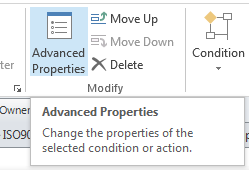
image   image

image  image

Step 3:

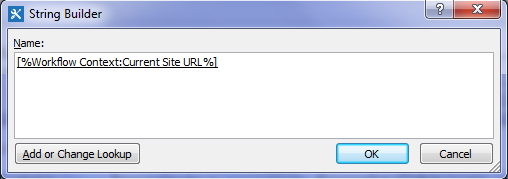
Click on the “this” hyperlink to the left of “HTTP web service”. This will bring up the HTTP Web Service Details screen. At this point we could paste in the URL above, but we are going to this a little smarter than that. Click the ellipsis next to the textbox to bring up the String Builder dialog box.
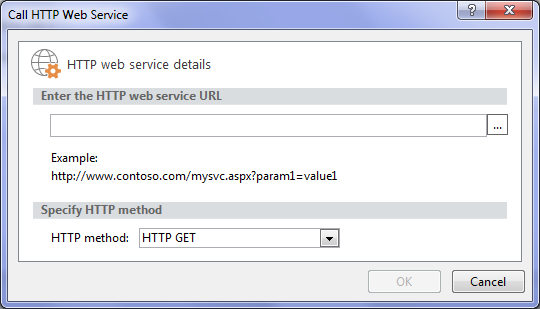
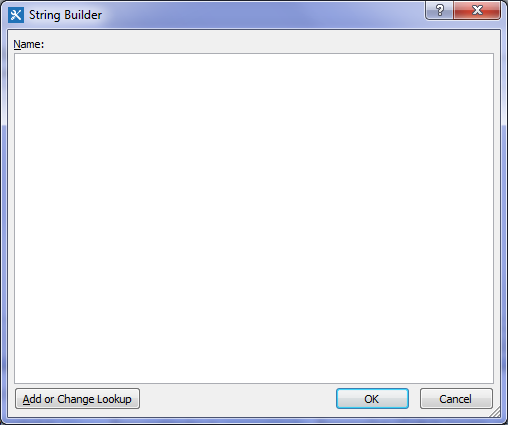
image  image

Click the Add or Change Lookup button and in the Data source dropdown, choose Workflow context. This data source comes built in with any workflow you create and as you will see, contains some very handy information that we can use in our workflows. From the Field from source dropdown, choose Current Site URL and click OK. What this will do is take whatever site the workflow is run from and bring it back as a string – in this case http://megacorp/iso9001/. The reason this is a good thing is when you want to use this workflow on another site, such as from development to production. If you use the Current Site URL workflow context, we are not hard-coding the current site name into the workflow.
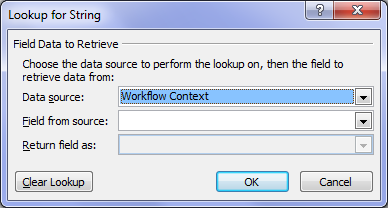
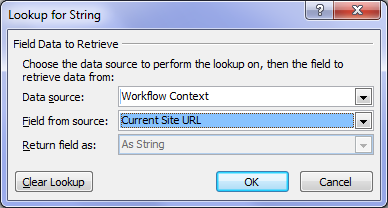
image  image  image

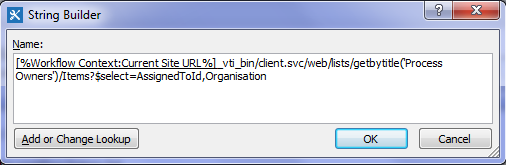
Anyhow, now that we have the site name, let’s complete the rest of the URL. In the string builder dialog, add “_vti_bin/client.svc/web/lists/getbytitle(‘Process Owners’)/Items?$select=AssignedToId,Organisation” and click OK
image

Our call HTTP Web service now looks like this:

image

Now we are expecting a JSON data feed as a response to this request, so we need to create another dictionary variable to handle it.

Step 4:

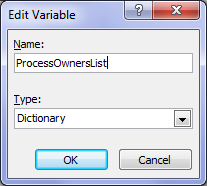
Click the response hyperlink and choose to Create a new variable and call it ProcessOwnersList.

image  image

image

Right! At this point, we have built the Call HTTP Web Service and we should test things to make sure it is working. If you look closely at the Call HTTP Web Service action, one of the variables that get created is called responseCode, which is the way the HTTP protocol reports whether the request worked or not. If the response code is 200 (OK), then the query worked. So let’s log the response code to the workflow history and run a test.

Step 5:

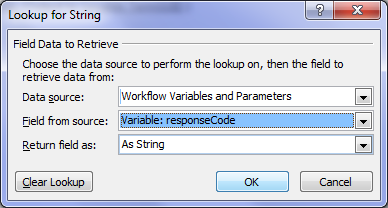
Add a Log to History List action. Click the message hyperlink and click the fx button. In the Lookup for String dialog box, choose Workflow Variables and Parameters from the Data source dropdown and choose responseCode from the Field from source dropdown and click ok.
image

Step 6:

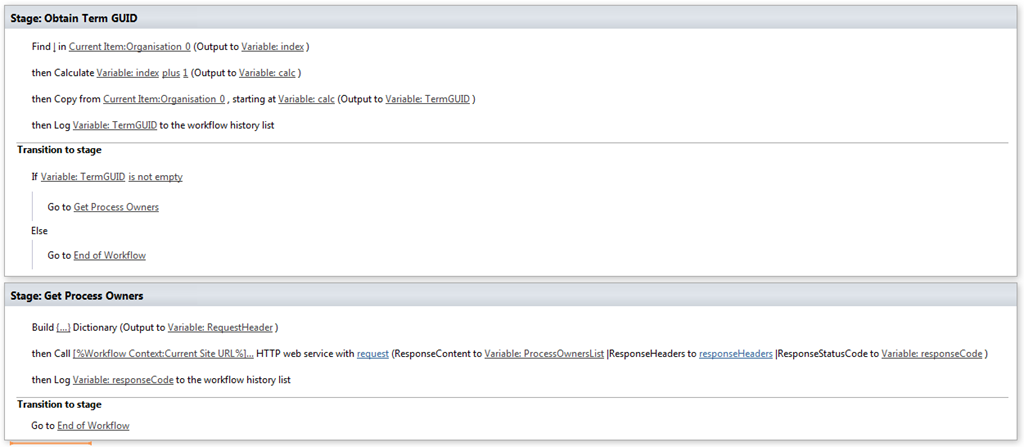
In the Transition to stage section, add a Go to a Stage action and set the stage as End of Workflow. Click OK and review the workflow. It should look like the screen below.
image

Testing our progress and next steps…

Publish the workflow, run it and check the results in workflow history.  Wohoo! Our HTTP call worked! Note the OK in the workflow history!

image

At this point I will stop with this post, as it is getting rather long and we still have a bit to do. Although we know that the HTTP call worked, we have not looked at the data that came back. In the next post, we will use some more workflow actions to loop through the data returned to find the matching process owner.

Until then, thanks for reading…

Paul Culmsee

HGBP_Cover-236x300.jpg

www.hereticsguidebooks.com


Trials or tribulation? Inside SharePoint 2013 workflows–Part 5

Hi and welcome to part 5 of my series of articles that take a peek under the hood of SharePoint 2013 workflows. These articles are pitched at wide audience, and my hope is that they give you some insights into what SharePoint Designer 2013 workflows can do (and cannot). This is a long tale of initially dashed hopes and then redemption, based around what I think is a fairly common business scenario. To that end, the scenario we are using for this series is a basic document approval workflow for a fictitious diversified multinational company called Megacorp. It consist a Documents library and Process Owners list. A managed metadata based site column called Organisation has been added to each of them. In the second post we created a very basic workflow, using the task approval action. In part 3 and part 4, we have been trying to get around various issues encountered. At the end of the last post, we just learnt that Managed Metadata column cannot be filtered via the REST calls used by the built-in SharePoint Designer workflow actions.

…or can they?

In this post, we are going to take a look at two particular capabilities of the new SharePoint 2013 workflow regime and see if we can use them to get out of this pickle we are in. Once again, a reminder that this article is pitched at a wide audience, some of whom are non developers. As a result I am taking things slow…

Capability 1: Dictionaries

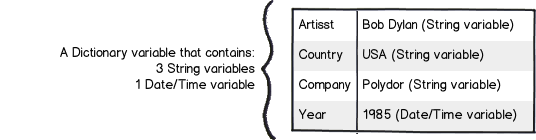
SharePoint workflows have always been able to store data in variables, which allows for temporary storage of data within the workflow. When creating a variable, you have to specify what format the data is in, such as string, integer or date. In SharePoint 2013, there is a new variable type called a Dictionary. A dictionary can be used to store quite complex data, because it is in effect, a collection of other variables. Why does this matter? Well, consider this small snippet of XML data below. I could store all of this data in a single dictionary variable and call it CD, rather than multiple stand-alone variables.

Snapshot  <CD>
    <ARTIST>Bob Dylan</ARTIST>
    <COUNTRY>USA</COUNTRY>
    <COMPANY>Columbia</COMPANY>
    <YEAR>1985</YEAR>
  </CD>

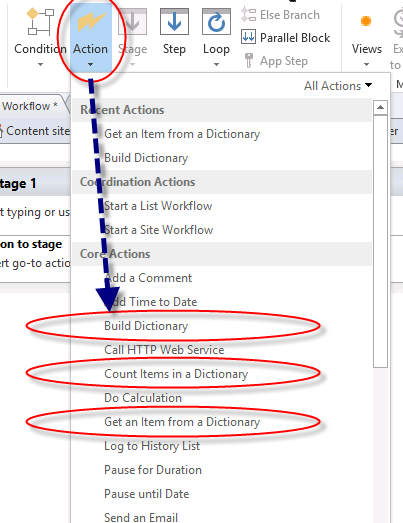
Now storing complex data in a single variable is all well and good, but what about manipulating it once you have it? As it happens, three new workflow actions have been specifically designed to work with dictionary data, namely:

  • Build Dictionary
  • Get an Item from a Dictionary
  • Count Items in a Dictionary

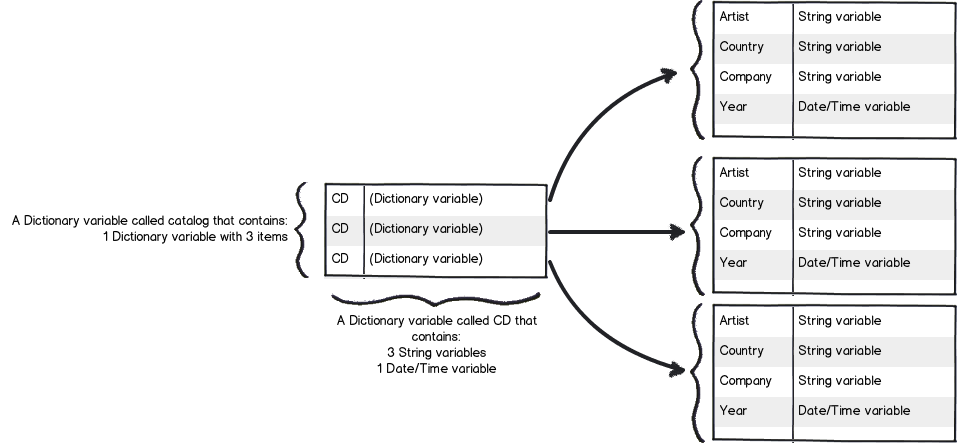
The diagram below illustrates these actions (this figure came from an excellent MSDN article on the dictionary capability). You will be using the “Build Dictionary” and “Get an item from a dictionary” actions quite a bit before we are done with this series.

image

There is one additional thing worth noting with dictionaries. Something subtle but super important.  A Dictionary can contain any type of variable available in the SharePoint 2013 Workflow platform, including other dictionary variables! If this messes with your head, let’s extend upon the XML example above of the Bob Dylan album. Let’s say you have an entire catalog of CD’s. For example:

<CATALOG>
   <CD>
     <ARTIST>Bob Dylan</ARTIST>
     <COUNTRY>USA</COUNTRY>
     <COMPANY>Columbia</COMPANY>
     <YEAR>1985</YEAR>
   </CD>
   <CD>
     <ARTIST>Keith Urban</ARTIST>
     <COUNTRY>USA</COUNTRY>
     <COMPANY>Columbia</COMPANY>
     <YEAR>2006</YEAR>
   </CD>
</CATALOG>

Using a dictionary, we can create a single variable to store details about all of the CD’s in the catalog. We could make a Dictionary variable called Catalog, which contains a dictionary variable called CD. The CD variable contains the string and date/time details for each individual CD. This structure enables the Catalog dictionary to store details of many CD’s. Below is a representation on what 3 CD’s would look like in this model…

Snapshot

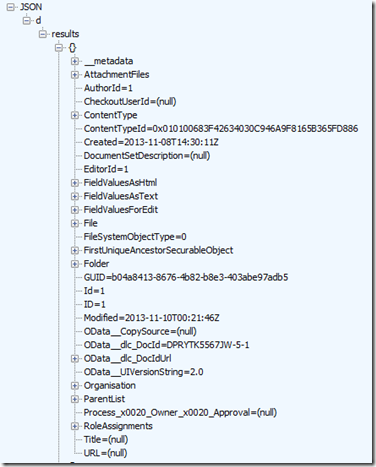
Okay, so after explaining to you this idea of a dictionary, you might be thinking “What has all of this got to do with our workflow?” To answer that, have another look at the JSON output from part 4 in this series. If you recall, this is the output from talking to SharePoint via REST and asking for all documents in the document library. What do you notice about the information that has come back? To give you a hint, below is the JSON output I will remind you what I said in the last post…

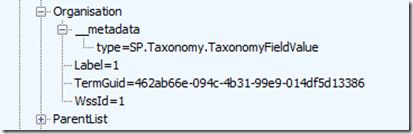
Now let’s take a closer look at Organisation entry in the JSON data. What you might notice is that some of the other data entries have data values specified, such as EditorID = 1, AuthorID =  1 and Modified = 2013-11-10. But not so with Organisation. Rather than have a data value, it has sub entries. Expanding the Organisation section and you can see that we have more data elements within it.

image_thumb14  image_thumb16

In case it is still not clear, essentially we are looking at a data structure that is perfectly suited to being stored in a dictionary variable. In the case of the Organisation column, it is a “dictionary within a dictionary” scenario like my CD catalog example.

Okay, I hear you say – “I get that a dictionary can store complex data structures. Why is this important?”

The answer to that my friends, is that there is a new, powerful workflow action that makes extensive use of dictionaries. You will come to love this particular workflow action, such as its versatility.

Capability 2: The one workflow action to rule them all…

image

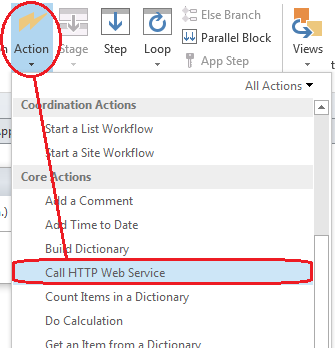
In part 3 and part 4 of this series, I have shown examples of talking to SharePoint via REST webservices and showing what the returning JSON data looks like. This was quite deliberate, because In SharePoint 2013, Microsoft has included a workflow action called Call HTTP Web Service to do exactly the same thing. This is a huge advance on previous versions of SharePoint, because it means the actions that workflows can take are only limited by the webservices that they talk to. This goes way beyond SharePoint too, as many other platforms expose data via a REST API, such as YouTube, Ebay, Twitter, as well as enterprise systems like MySQL. Already, various examples exist online where people have wired up SharePoint workflows to other systems. Fabian Williams in particular has done a brilliant job in this regard.

The workflow action can be seen below. Take a moment to examine all of the bits you need to fill in as there are several parameters you might use. The first parameter (the hyperlink labelled “this”) is the URL of the webservice that you wish to access. The request parameter is a dictionary variable that is sometimes used when making a request to the webservice. The response and responseheaders variables are also dictionaries and they store the response received from the webservice. The responseCode parameter represents the HTTP response code that came back, which enables us to check if there was an error (like a HTTP 400 bad request).

image

Dictionaries and web services – a simple example…

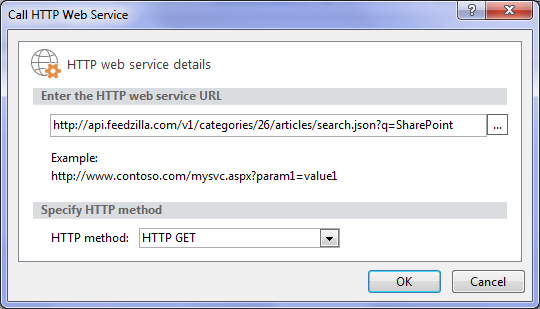
The best way to understand what we can do with this workflow action (and the dictionary variables that it requires) is via example. So let’s leave our document approval workflow for the time being and quickly make a site workflow that calls a public webservice, grabs some data and displays it in SharePoint. The public webservice we will use is called Feedzilla. Feedzilla is a news aggregator service that lets you search for articles of interest and bring them back as a data feed. For example: the following feedzilla URL will display any top news (category 26) that has SharePoint in the content. It will return this information in JSON format:

http://api.feedzilla.com/v1/categories/26/articles/search.json?q=SharePoint

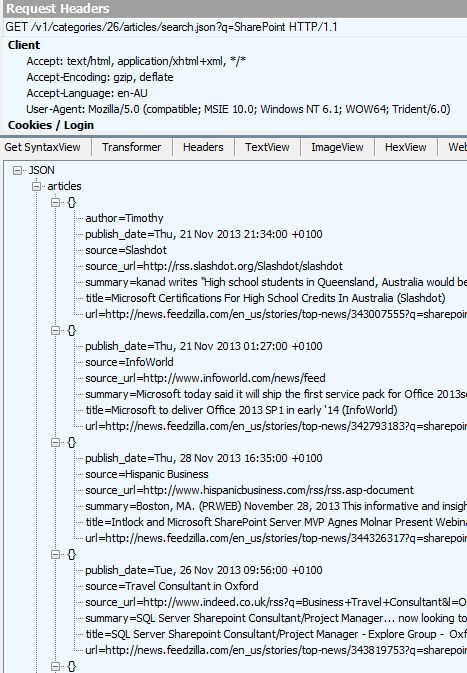
Here is a fiddler trace of the above URL, showing the JSON output.  Note the structure of articles, where below the JSON label at the top we have articles –> {} and then the properties of author, publish_date, source, source_url, summary, title and url.

image

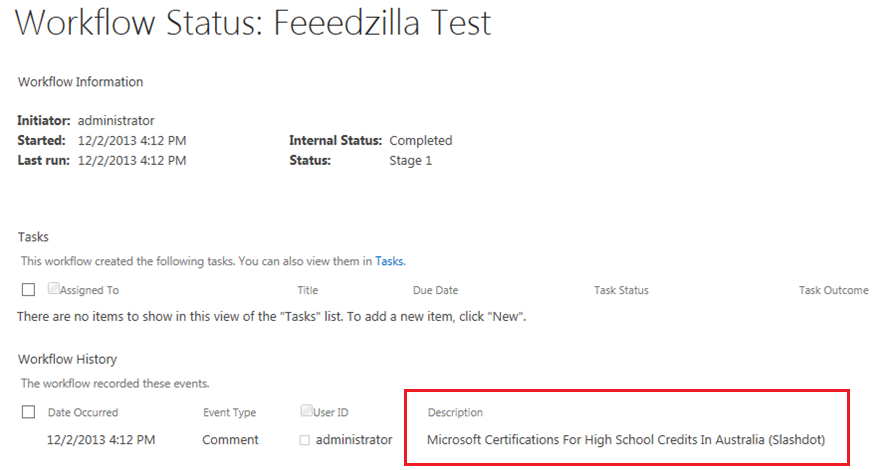
Therefore the string “articles(0)/title” should return us the string “Microsoft Certifications for High School Students in Australia (Slashdot)” as it is the title of the first article. The string articles(1)/title should bring back “Microsoft to deliver Office 2013 SP1 in early ’14 (InfoWorld)” as it is the second article. So with this in mind, let’s see if we can get SharePoint to extract the title of the first article in the feed.

Testing it out…

So let’s make a new site workflow based workflow.

Step 1:

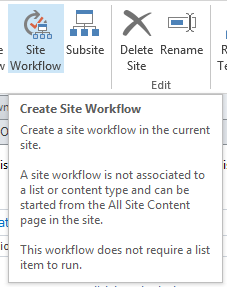
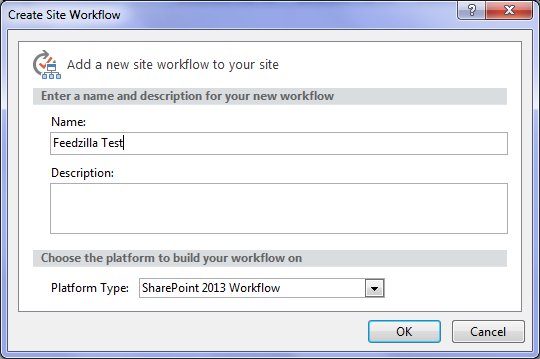
From the ribbon, choose Site Workflow. Call the site workflow “Feedzilla test” as shown below…

image  image

Now we will add our Call HTTP Web Service action. This time, we will add the action a different way.

Step 2:

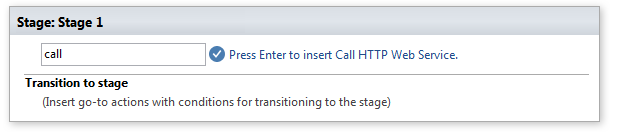
Click the flashing cursor underneath the workflow stage and type in “Call”. As you type in each letter, SharePoint Designer will suggest matching actions. By the time you write “call”,  there is only the Call HTTP Web Service action to choose from. Pressing enter will add it to the workflow.

image

image

Step 3:

Now click on the “this” hyperlink and paste in the feedzilla URL of: http://api.feedzilla.com/v1/categories/26/articles/search.json?q=SharePoint. Then click OK.

image

Next, we need to create a dictionary variable to store the JSON data that is going to come back from Feedzilla.

Step 4:

Click on the “response” hyperlink next to the “ResponseContent to” label and choose to Create a new variable…

image

Step 5:

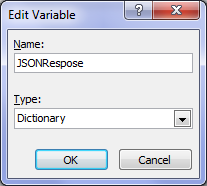
Call the variable JSONResponse and confirm that it’s type is Dictionary. We are now done with the Call HTTP web service action.

image  image

Step 6:

Next step in the workflow is to extract just the article title from the JSON data returned by the web service call. For this, we need to use the Get an Item from a Dictionary action. We will use this action to extract the title property from the very first article in the feed. Type in the word “get” and press enter – the action we want will be added…

image

Step 7:

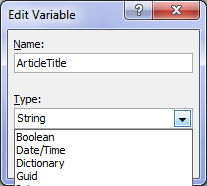
In the “item by name or path” hyperlink next to the Get label, type in this exactly: articles(0)/title as shown below. Then click on the “dictionary” hyperlink next to the from label and choose the JSONResponse variable that was created earlier. Finally, we need to save the extracted article title to a string variable. Click on the “this” hyperlink next to the Output to label and choose Create a new variable… In the edit variable screen, name the variable ArticleTitle and set its Type to String.

image

image

Step 8:

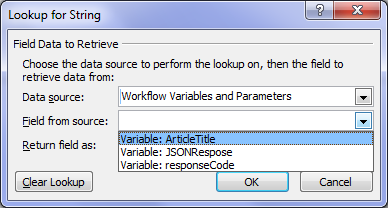
The next step is to log the contents of the variable ArticleTitle to the workflow history list. The action is called Log to History List as shown below.  Click the “message” hyperlink for this action and click the fx button. Choose Workflow Variables and Parameters from the Data Source dropdown and in the Field from Source dropdown, choose the variable called ArticleTitle. Click OK.

image

image  image

Step 9:

Finally, add a Go to End of Workflow action in the Transition to Stage section. The workflow is now complete and ready for testing.

image

Testing the workflow…

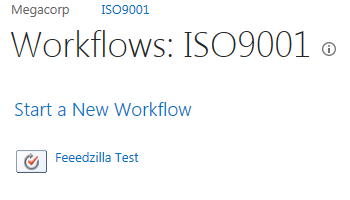
To run a site workflow, navigate to site contents in SharePoint, and click on the SITE WORKFLOWS link to the right of the “Lists, Libraries and other Apps” label. Your newly minted workflow should be listed under the Start a New Workflow link. Click your workflow to run it.

image  image

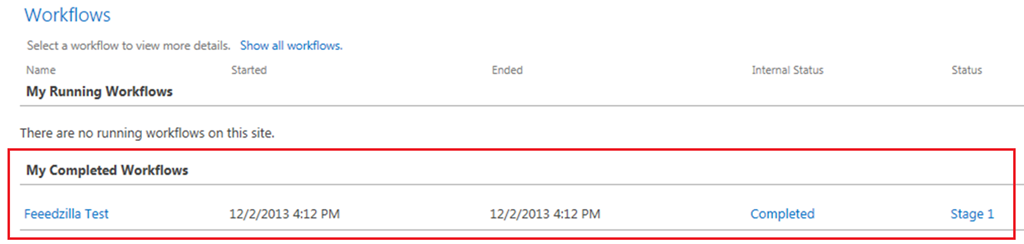
The workflow will be fired off in the background, and you will be redirected back to the workflow status screen. Click to refresh the page and you should see your workflow listed as completed as shown below…

image

Click on the workflow link in the “My Completed Workflows” section and examine the detailed workflow output. Look to the bottom where the workflow history is stored. Wohoo! There is our article name! It worked!

image

Conclusion…

It was nice to have a post that was more tribulation than trial eh?

By now you should be more familiar with the idea of calling HTTP web services within workflows and parsing dictionary variables for the output. This functionality is really important because it opens up possibilities for SharePoint workflows that were previously not possible. For citizen developers, the implication (at least in a SharePoint context) is that understanding how to call a web service and parse the result is a must. Therefore all that REST/oData stuff you skipped in part 4 will need to be understood to progress forward in this series.

Speaking of progressing forward, in the next post, we are going to revisit our approval workflow and see if we can use this newfound knowledge to move forward. First up, we need to find out if there is a web service available that can help us look up the process owner for an organisation. To achieve this, we are going to need to learn more about the Fiddler web debugging tool, as well as delve deeper into web services than you ever thought possible. Along the way, SharePoint will continue to put some roadblocks up but fear not, we are turning the corner…

Until then, thanks for reading and I hope these articles have been helpful to you.

Paul Culmsee
HGBP_Cover-236x300.jpg

www.hereticsguidebooks.com


Trials or tribulation? Inside SharePoint 2013 workflows–Part 4

Hi and welcome to part 4 of my series of articles that take a peek under the hood of SharePoint 2013 workflows from . In part 1, I introduced you to Megacorp Inc and their need for a controlled documents approval workflow. In part 2, we created a basic SharePoint 2013 workflow and in part 3, we made our first attempt to publish the workflow. Unfortunately, we encountered an error and had to work our way around some particularly unhelpful error messages. Now we are at part 4, and we will have another go at publishing our workflow from part 2.

Now like the last post, I’ll tell you up front that our second attempt to run this workflow is not going to work. Remember that my intent here is to show you a “warts and all” view of this functionality – both the great bits and the not so great bits. I hope that this gives you development and troubleshooting ideas in your own workflow adventures.

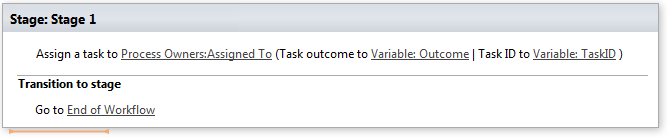
If you have been following along so far, you should have a simple workflow like the one below. It is attempting to assign a task to a nominated process owner for controlled documents. We just fixed a configuration issue in part 3 that prevented the workflow from working. We did this by disabling the default behaviour of the workflow where it updates the workflow status with the current stage name.

image

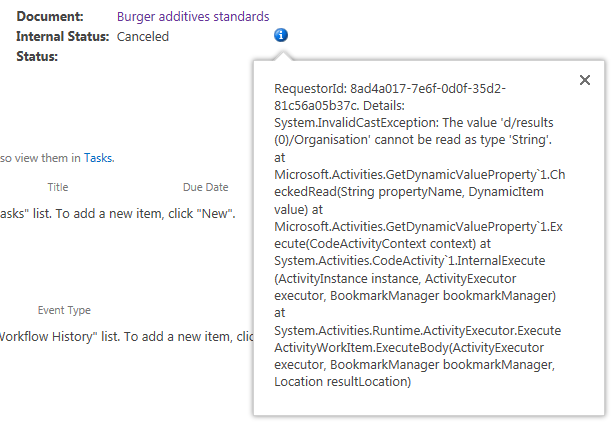
So let’s run the workflow on the same document as part 3 – the Burger Additives Standards for Megacorp GM Foods. Do we have liftoff yet? Nope – the workflow was cancelled as shown below, with another cryptic message.

RequestorId: 8ad4a017-7e6f-0d0f-35d2-81c56a05b37c. Details: System.InvalidCastException: The value ‘d/results(0)/Organisation’ cannot be read as type ‘String’. at Microsoft.Activities.GetDynamicValueProperty`1.CheckedRead(String propertyName, DynamicItem value) at Microsoft.Activities.GetDynamicValueProperty`1.Execute(CodeActivityContext context) at System.Activities.CodeActivity`1.InternalExecute(ActivityInstance instance, ActivityExecutor executor, BookmarkManager bookmarkManager) at System.Activities.Runtime.ActivityExecutor.ExecuteActivityWorkItem.ExecuteBody(ActivityExecutor executor, BookmarkManager bookmarkManager, Location resultLocation)

image

So what do we make of this message and in particular, “The value ‘d/results(0)/Organisation’ cannot be read as type ‘String’”?. Firstly, you might be wondering what this  “d/Results(0)/Organisation” stuff is  all about. Secondly, even if you do know what that is about, why the hell can’t it be read as type string?

A REST and JSON interlude

For the non developers (and self-described citizen developers) reading this series, I am going to attempt to explain what’s going on here because it is important foundational knowledge. If you are a developer who understands REST/OData and JSON,  feel free to skip this bit because you probably won’t like how I explain it.

First up, remember my dodgy diagram in part 3 that explained how Workflow Manager talks to SharePoint? I made the point that workflow manager uses REST web services to do all of its interactions with SharePoint content. REST is actually a really cool technology, and if you are serious about learning to use SharePoint Designer 2013 workflows you should learn more it.

Snapshot

Let’s put aside our workflow for a second, and instead access a REST webservice ourselves, just like workflow manager does behind the scenes. To do this is easy. Open up internet explorer and turn “feed reading view” off. Then try this URL, adjusting it to your site name:

http://megacorp/iso9001/_vti_bin/client.svc/web/lists/getbytitle(‘Documents’)/Items

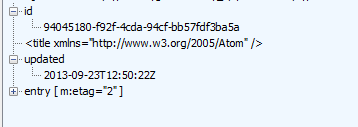
If you have done it right, you will get a heap of ugly XML data back in your browser. If this worked then congratulations – you are now a REST guru. You have successfully asked SharePoint to send you information about all documents in the Documents library, including the data stored in the columns. Each <entry> tag in the XML represents a document – and you can collapse these entries as shown below..

<?xml version="1.0" encoding="utf-8" ?> 
- <feed xml:base="http://megacorp/iso9001/_api/" xmlns="http://www.w3.org/2005/Atom" xmlns:d="http://schemas.microsoft.com/ado/2007/08/dataservices" xmlns:m="http://schemas.microsoft.com/ado/2007/08/dataservices/metadata" xmlns:georss="http://www.georss.org/georss" xmlns:gml="http://www.opengis.net/gml">
  <id>76c69d23-d5f3-4cee-a954-9910ad81bd16</id> 
  <title /> 
  <updated>2013-11-27T23:49:25Z</updated> 
+ <entry m:etag=""6"">
+ <entry m:etag=""7"">
+ <entry m:etag=""8"">

If you expand one of those entries, you will see the full detail of that document. Scroll down into the detail and look for the <Content Type> entry in the XML as shown below. This is the same data that your workflow is working with.

- <content type="application/xml">
-   <m:properties>
      <d:FileSystemObjectType m:type="Edm.Int32">0</d:FileSystemObjectType> 
      <d:Id m:type="Edm.Int32">10</d:Id> 
      <d:ContentTypeId>0x010100683F42634030C946A9F8165B365FD886</d:ContentTypeId> 
      <d:Title m:null="true" /> 
      <d:OData__dlc_DocId>DPRYTK5567JW-5-10</d:OData__dlc_DocId> 
-     <d:OData__dlc_DocIdUrl m:type="SP.FieldUrlValue">
        <d:Description>DPRYTK5567JW-5-10</d:Description> 
        <d:Url>http://megacorp/iso9001/_layouts/15/DocIdRedir.aspx?ID=DPRYTK5567JW-5-10</d:Url> 
      </d:OData__dlc_DocIdUrl>
      <d:URL m:null="true" /> 
      <d:DocumentSetDescription m:null="true" /> 
-     <d:Organisation m:type="SP.Taxonomy.TaxonomyFieldValue">
         <d:Label>9</d:Label> 
         <d:TermGuid>f2109460-a473-493f-9d08-fb01ecbf793b</d:TermGuid> 
         <d:WssId m:type="Edm.Int32">9</d:WssId> 
      </d:Organisation>
      <d:Modified m:type="Edm.DateTime">2013-11-10T00:21:45Z</d:Modified> 
      <d:Process_x0020_Owner_x0020_Approval m:null="true" /> 
      <d:ID m:type="Edm.Int32">10</d:ID> 
      <d:Created m:type="Edm.DateTime">2013-11-08T14:33:12Z</d:Created> 
      <d:AuthorId m:type="Edm.Int32">1</d:AuthorId> 
      <d:EditorId m:type="Edm.Int32">1</d:EditorId> 
      <d:OData__CopySource m:null="true" /> 
      <d:CheckoutUserId m:null="true" /> 
      <d:OData__UIVersionString>2.0</d:OData__UIVersionString> 
      <d:GUID m:type="Edm.Guid">c75a0728-7a5f-4236-8d45-7b72fa41781e</d:GUID> 
    </m:properties>
  </content>

Now when you add a workflow action, and Workflow Manager then talks to SharePoint to perform the action, it is doing a very similar thing to the URL we just accessed. The only difference is that when workflow manger does it, it asks for the data to be returned in a different format than XML called JSON – a more lightweight but less human readable data format. Below is a tiny snippet of that the JSON version of the above data looks like – ugh! no wonder XML is the default return format eh?

{“d”:{“results”:[{“__metadata”:{“id”:”71deada5-6100-48a5-b2e3-42b97b9052a2″,”uri”:”http://megacorp/iso9001/_api/Web/Lists(guid’a64bb9ec-8b00-407c-a7d9-7e8e6ef3e647′)/Items(1)”,”etag”:”\”6\””,”type”:”SP.Data.DocumentsItem”},”FirstUniqueAncestorSecurableObject”:{“__deferred”:{“uri”:”http://megacorp/iso9001/_api/Web/Lists(guid’a64bb9ec-8b00-407c-a7d9-7e8e6ef3e647′)/Items(1)/FirstUniqueAncestorSecurableObject”}},”RoleAssignments”

Fortunately, there are plenty of tools out there that parse JSON data and Fiddler is one of them. We will be using Fiddler later in this series, so I will save a detailed introduction to the tool for later. But below is a screenshot of the above JSON data displayed in Fiddler. Now that’s a bit more palatable!

image

Now that we can read the JSON data in a meaningful way, let’s go back to the error message in the workflow. It stated that “The value ‘d/results(0)/Organisation’ cannot be read as type ‘String’”. Now look in the JSON screenshot above. If you look at the hierarchy and look at the message, we can see now what the message meant. It has a problem with the Organisation entry. Follow the path below the JSON label at the top… We have d –> Results –> {} –> Organisation. This essentially matches the ‘d/results(0)/Organisation’ in the message.

So takeaway number 1 – workflow uses JSON format when it makes REST calls to SharePoint, so learn to recognise a JSON reference when you see it. As a future workflow developer – and later in this series – you will have to learn how to parse JSON data in more fine detail.

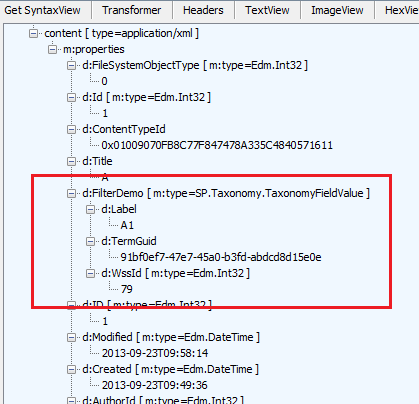
Now let’s take a closer look at Organsiation entry in the JSON data above. What you might notice is that some of the other data entries have data values specified, such as EditorID = 1, AuthorID =  1 and Modified = 2013-11-10. But not so with Organisation. Rather than have a data value, it has sub entries. Expanding the Organisation section and you can see that we have more data elements within it. Note that we do not see the organisation name at all. We have numbers and a GUID – so what gives?

image

So what was the error again? ‘Organisation’ could not be read as type ‘String’. Kind of makes sense now doesn’t it? The managed metadata column called Organisation doesn’t store the organisation name, but a pointer to the organisation name, as it is specified in the managed metadata term store. The workflow assumes that the data returned from the REST call is going to be string, and cannot handle the format of the data above.

Troubleshooting Attempt #1 – Use Organisation_0

So at this point, you might be thinking “What the hell?” how can I get the name of the Organsiation if it not actually in the data returned by the REST web service call?

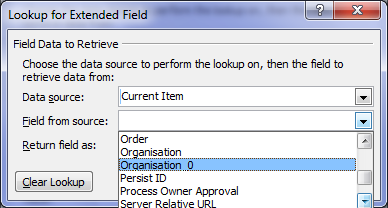
Well, if you were paying attention back in part 2, I noted the existence of another column called Organisation_0. This column was listed as one of the columns available from the current item (“Current item” being the document that the workflow was triggered from). It is now time to understand what this column does. To do so, let’s use another workflow action. This time, we will use the Log to History List action. When you add this action, click the fx button and choose Current Item from the Data source dropdown. Then choose Organisation_0 from the Field from source dropdown as shown below.

image  image

Now if you rerun your workflow and then check the workflow status, you will see what has been logged to the workflow history. Note the description column. Aha! We see our organisation name buried in there.

image

Now if you look closely, you will notice that we also have the GUID of the managed metadata term. The term and its GUID are separated by a pipe character. Even better, it is in string format (note Return field as dropdown above).

It turns out that when you create a managed metadata column, behind the scenes two columns get created. The second column is a hidden column that is a multi-line of text format. This is the the one with an _0 appended to the end. In other words, the Organisation column only stores the pointers (lookup values) to the term, but this hidden column actually stores the names and Id’s of each term the user has added. So let’s use this column instead because it’s a string format. To do this, return to the task assignment action in our workflow. We still need to get the Assigned To field from the Process Owners list, so we leave that alone. But below that, in the Find the List Item section, we need to make a change.

Unfortunately (and perhaps ominously), the Organisation_0 field seems to only be selectable for the Current Item, because clicking the Field dropdown (which displays all columns for process owners), only lists the Organisation column. Why is this? Well, it appears that hidden columns are displayed on Current item, but not displayed when you specify a different list. Thus, we are forced to leave Organisation from Process Owners as is. So click the fx button next to the Value textbox and choose Current Item from the Data source dropdown and Organisation_0 from the Return field as dropdown as shown below.

image  image

Now republish the workflow and let’s give it a go. Checking the workflow status screen and we find the workflow is started. Are we onto a winner here?

Gong! there still another of those exciting error messages. This time we have a complaint of a HTTP BadRequest. Given my explanation of how managed Metadata columns work behind the scenes, can you guess what the issue is?

Retrying last request. Next attempt scheduled in less than one minute. Details of last request: HTTP BadRequest to http://megacorp/iso9001/_vti_bin/client.svc/web/lists/getbyid(guid’0ffc4b79-1dd0-4c36-83bc-c31e88cb1c3a’)/Items?%24filter=Organisation+eq+’Metacorp+Burgers%7Ce2f8e2e0-9521-4c7c-95a2-f195ccad160f’&%24select=ID%2CGUID Correlation Id: f16749d5-1bfe-4a8d-9e06-a5b196907e9c Instance Id: 60c538e8-f7a9-4945-919b-ca973c00eb31

image

Now this error message might look evil, but it is actually the most useful one so far as it shows us the REST call made by the workflow manager as part of the task assignment action. If I remove the encoded spaces to make things more readable, the workflow attempted this call.

http://megacorp/iso9001/_vti_bin/client.svc/web/lists/getbyid(guid’0ffc4b79-1dd0-4c36-83bc-c31e88cb1c3a’)/Items?”filter=Organisation+eq+’Metacorp+Burgers|e2f8e2e0-9521-4c7c-95a2-f195ccad160f’&”select=ID,GUID

This webservice essentially says to SharePoint “Using the Process Owners list (which is GUID 0ffc4b79-1dd0-4c36-83bc-c31e88cb1c3a), please bring me back the ID and GUID of any list entries where the Organisation column is equal to the value “Metacorp+Burgers|e2f8e2e0-9521-4c7c-95a2-f195ccad160f”.

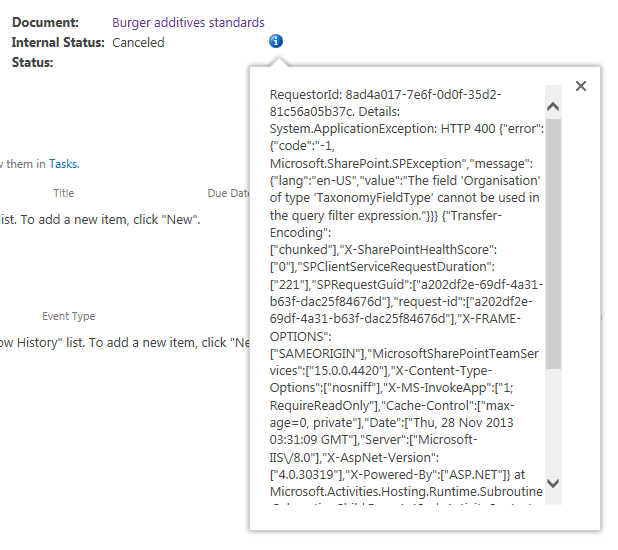
Now even if it cannot find a matching item, this should return a HTTP 200 with 0 items matched. But the error that has been returned (400) suggests that there is a problem with the above request itself. Hmmm – eventually the workflow will give up and cancel the workflow. It then logs a more verbose message…

RequestorId: 8ad4a017-7e6f-0d0f-35d2-81c56a05b37c. Details: System.ApplicationException: HTTP 400 {“error”:{“code”:”-1, Microsoft.SharePoint.SPException”,”message”:{“lang”:”en-US”,”value”:”The field ‘Organisation’ of type ‘TaxonomyFieldType’ cannot be used in the query filter expression.”}}} {“Transfer-Encoding”:[“chunked”],”X-SharePointHealthScore”:[“0″],”SPClientServiceRequestDuration”:[“221″],”SPRequestGuid”:[“a202df2e-69df-4a31-b63f-dac25f84676d”],”request-id”:[“a202df2e-69df-4a31-b63f-dac25f84676d”],”X-FRAME-OPTIONS”:[“SAMEORIGIN”],”MicrosoftSharePointTeamServices”:[“15.0.0.4420″],”X-Content-Type-Options”:[“nosniff”],”X-MS-InvokeApp”:[“1; RequireReadOnly”],”Cache-Control”:[“max-age=0, private”],”Date”:[“Thu, 28 Nov 2013 03:31:09 GMT”],”Server”:[“Microsoft-IIS\/8.0″],”X-AspNet-Version”:[“4.0.30319″],”X-Powered-By”:[“ASP.NET”]} at Microsoft.Activities.Hosting.Runtime.Subroutine.SubroutineChild.Execute(CodeActivityContext context) at System.Activities.CodeActivity.InternalExecute(ActivityInstance instance, ActivityExecutor executor, BookmarkManager bookmarkManager) at System.Activities.Runtime.ActivityExecutor.ExecuteActivityWorkItem.ExecuteBody(ActivityExecutor executor, BookmarkManager bookmarkManager, Location resultLocation)

image

Despite the ugliness of the above message, this time we get the root cause logged. Note the section that states:  “The field ‘Organisation’ of type ‘TaxonomyFieldType’ cannot be used in the query filter expression”. So what does this mean?

Another REST interlude…

If you re-examine the REST web service call that was logged by the workflow, you will see some stuff we have not covered so far. The first half of the URL was pretty much what I showed you in the first REST interlude. We are getting all of the items from a SharePoint list, except this time we are using the GUID of the list rather than its name as shown below.

http://megacorp/iso9001/_vti_bin/client.svc/web/lists/getbyid(guid’0ffc4b79-1dd0-4c36-83bc-c31e88cb1c3a’)/Items

But what is this extra stuff tacked on the rest of the URL – $filter and $select as seen below?

$filter=Organisation+eq+’Metacorp+Burgers|e2f8e2e0-9521-4c7c-95a2-f195ccad160f’&$select=ID,GUID

The answer is that Microsoft’s use of REST (called oData) allows you to do SQL like queries to filter the data that comes back. This is really handy indeed and to help you understand it, here is an example: The URL below says “Give me all documents with an a title of ‘Burger Additives Standards’”

http://megacorp/iso9001/_vti_bin/client.svc/web/lists/getbyid(guid’0ffc4b79-1dd0-4c36-83bc-c31e88cb1c3a’)/Items?$filter=Title eq ‘Burger Additives Standards’

This example says “Give me just the Titles of all documents created after November 1 2013”

http://megacorp/iso9001/_vti_bin/client.svc/web/lists/getbyid(guid’0ffc4b79-1dd0-4c36-83bc-c31e88cb1c3a’)/Items?$filter=Created gt datetime’2013-11-01T00:00:00’&$select=Title

Now that you have seen those examples, take another look at what the workflow was trying to do without any luck…

http://megacorp/iso9001/_vti_bin/client.svc/web/lists/getbyid(guid’0ffc4b79-1dd0-4c36-83bc-c31e88cb1c3a’)/Items?”filter=Organisation+eq+’Metacorp+Burgers|e2f8e2e0-9521-4c7c-95a2-f195ccad160f’&”select=ID,GUID

Why did the REST call made by the workflow return a HTTP 400 error given my two working examples that look very similar? The answer is that the $filter option does not work with Managed Metadata columns. As I described in this article previously, managed metadata columns are not compatible with the $filter operator – hence the error message “The field ‘Organisation’ of type ‘TaxonomyFieldType’ cannot be used in the query filter expression.”

Damn!

Conclusion…

So it seems that for every step forward, we have taken a step back again. Fear not though, as the next post will start to show a way forward. But be warned – we are about to get deeper into the bowels of REST/oData, so make sure that you fully understand this article before moving on. To that end, if anything is unclear, please let me know and I will adjust these articles accordingly.

Thanks for reading

Paul Culmsee
HGBP_Cover-236x300.jpg

www.hereticsguidebooks.com


Trials or tribulation? Inside SharePoint 2013 workflows–Part 3

Hi and welcome to part 3 of my series of articles that take a peek under the hood of SharePoint 2013 workflows, while trying to answer the question of whether SharePoint 2013 workflows can enable citizen developers to go forth and solve business problems and catapault organisations to success. In part 1, I introduced you to Megacorp Inc and their need for a controlled documents approval workflow. In part 2, we created a basic SharePoint 2013 workflow that implements the logic outlined in the picture below. The workflow is not yet finished, but we did enough to be able to run it and learn from it, which brings us to this post.

Now I will tell straight up that our first test of this workflow is not going to work. The entire point of this series of articles is to show you *why* things do not always work what you need to do about it. As we progress, I hope that you will learn quite a bit about the operation of workflows in SharePoint 2013, as well as developing and troubleshooting them. After all, we all know that the best citizens are informed citizens!

Snapshot_thumb3

So let’s get on with testing this particular workflow. We published it to the Documents library in part 2, so now we trigger it by selecting one of the files in the library. In this example, I will select one of the documents tagged as from Megacorp GM Foods. So using the filtering feature provided by metadata navigation, we just show the four documents owned by the Megacorp GM Foods division.

image4_thumb[1]

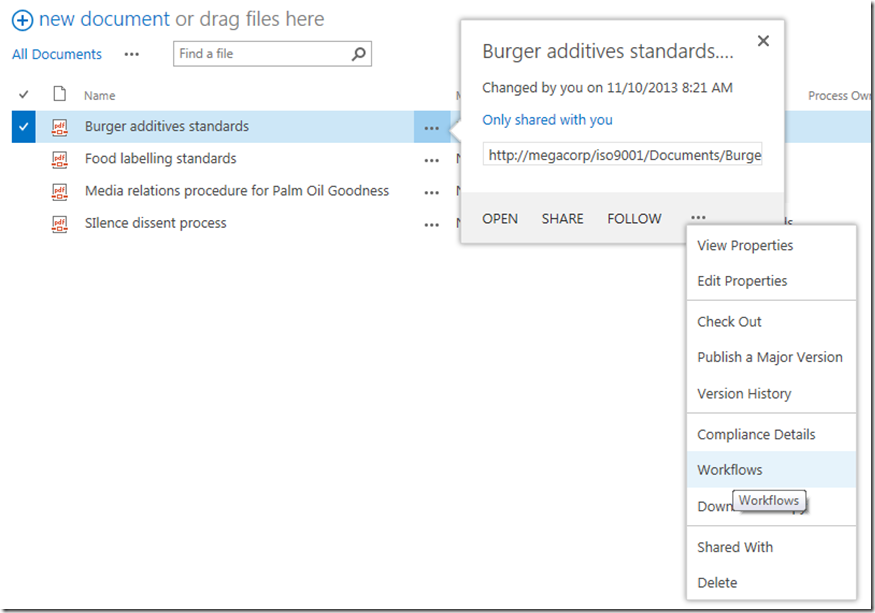
In this example, we will update the document called Burger Additives Standard. The workflow has not yet been set to automatically start, so we will need to manually trigger the workflow ourselves. To do so, click the ellipses next to the Burger Additives Standard document, and then click the ellipsis in the bottom right of the properties/preview window. This will show a second drop down menu. Choose Workflows from this menu as shown below.

image9_thumb

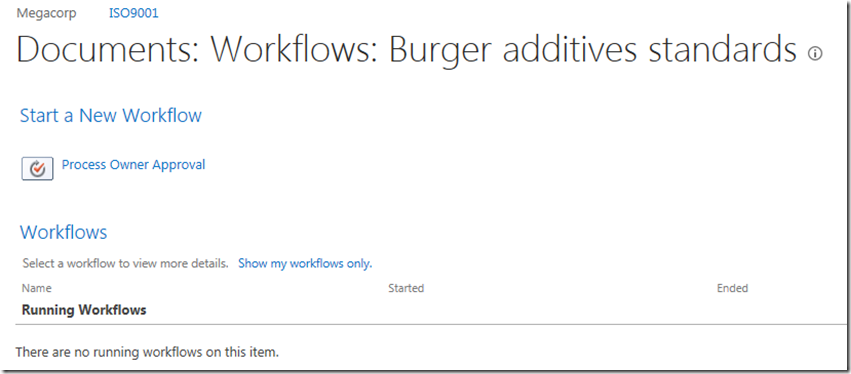
Underneath the Start a New Workflow text, you will see the workflow we published in part 2 called Process Owner Approval. Clicking it will start the workflow on this document.

image12_thumb

First sign of trouble…

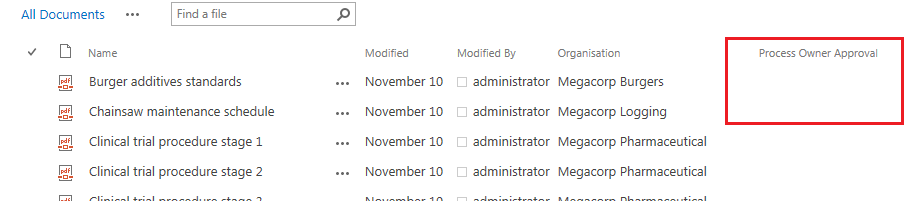
After starting the workflow, the browser will redirect you back to the Documents library.  At this point, we see our first sign of trouble. When a workflow is published on a list or library, a column is added that is used to track workflow progress. In this case, we started our workflow, but there is nothing displayed in the workflow status column and the workflow does not appear to run. Hmm… what gives?

image15_thumb

When a workflow does not behave as you intended, the easiest way to troubleshoot is to use the workflow status page. As it happens, you have already seen this page, because it is the same page where we started the workflow. So once again, we click on the ellipsis next to the burger additives standard document, click the ellipsis in the properties window and choose Workflows from the drop down menu.

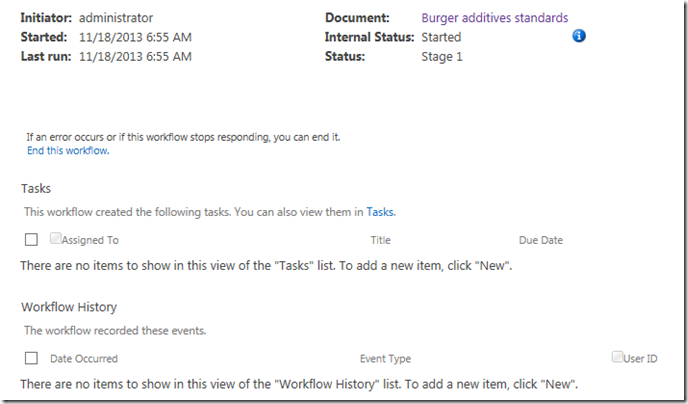
Well look at that… it says the workflow is indeed started…

image18_thumb

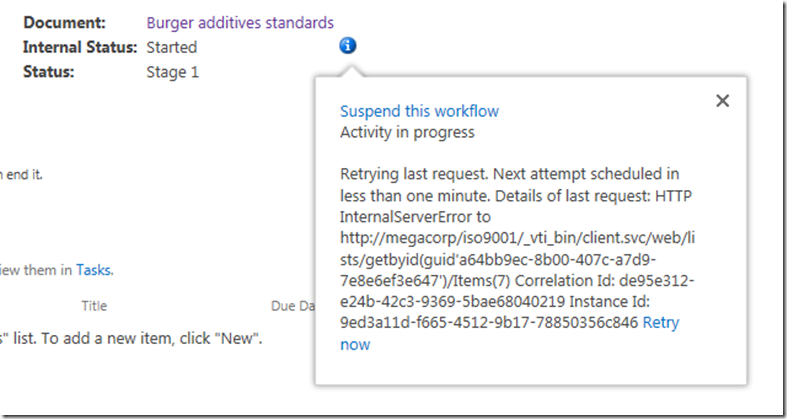
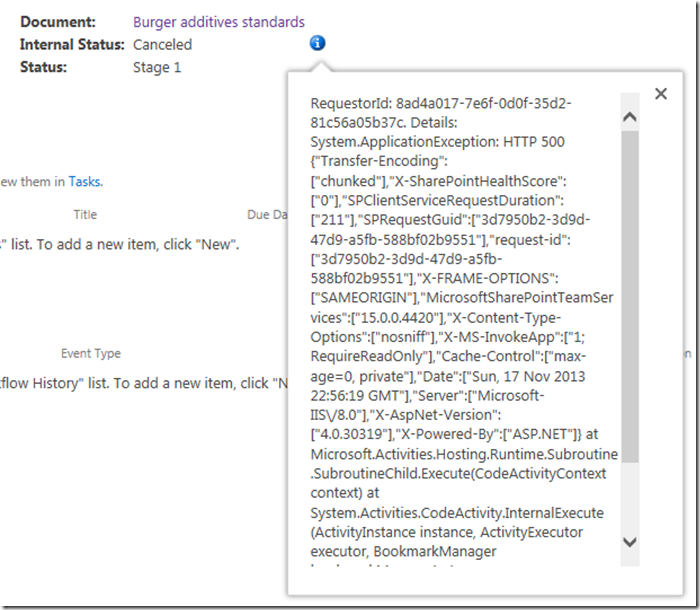
Clicking on the running workflow, we can see more detail which I have shown below. This screen also says that the workflow is started and nothing appears amiss. But then there is the little blue information symbol next to the Internal Status label. Hovering over this icon displays yet more information. This time, we see an error that would stump many – the sort of error that an information worker would have to call up helpdesk for.

Retrying last request. Next attempt scheduled in less than one minute. Details of last request: HTTP InternalServerError to http://megacorp/iso9001/_vti_bin/client.svc/web/lists/getbyid(guid’a64bb9ec-8b00-407c-a7d9-7e8e6ef3e647′)/Items(7) Correlation Id: de95e312-e24b-42c3-9369-5bae68040219 Instance Id: 9ed3a11d-f665-4512-9b17-78850356c846

image21_thumb  image241_thumb

Okaaaay, so that error message is about as useful as Windows Vista. It shows an internal server error and a correlation ID. Furthermore, if you wait another minute or so, and then refresh the workflow status screen, it’s internal status is no longer started, but now has the status of Cancelled. You can see it for yourself below…

image27_thumb

One again, clicking the little blue info button gives us more detail. Unfortunately, the detail consists of an even scarier appearing message than the previous one. This one looks nasty enough to freak out some SharePoint admins too. Check it out – it is pretty much useless in terms of conveying any information of value.

RequestorId: 8ad4a017-7e6f-0d0f-35d2-81c56a05b37c. Details: System.ApplicationException: HTTP 500 {“Transfer-Encoding”:[“chunked”],”X-SharePointHealthScore”:[“0″],”SPClientServiceRequestDuration”:[“211″],”SPRequestGuid”:[“3d7950b2-3d9d-47d9-a5fb-588bf02b9551″],”request-id”:[“3d7950b2-3d9d-47d9-a5fb-588bf02b9551″],”X-FRAME-OPTIONS”:[“SAMEORIGIN”],”MicrosoftSharePointTeamServices”:[“15.0.0.4420″],”X-Content-Type-Options”:[“nosniff”],”X-MS-InvokeApp”:[“1; RequireReadOnly”],”Cache-Control”:[“max-age=0, private”],”Date”:[“Sun, 17 Nov 2013 22:56:19 GMT”],”Server”:[“Microsoft-IIS\/8.0″],”X-AspNet-Version”:[“4.0.30319″],”X-Powered-By”:[“ASP.NET”]} at Microsoft.Activities.Hosting.Runtime.Subroutine.SubroutineChild.Execute(CodeActivityContext context) at System.Activities.CodeActivity.InternalExecute(ActivityInstance instance, ActivityExecutor executor, BookmarkManager bookmarkManager) at System.Activities.Runtime.ActivityExecutor.ExecuteActivityWorkItem.ExecuteBody(ActivityExecutor executor, BookmarkManager bookmarkManager, Location resultLocation)

image30_thumb

So what the hell is going on here?

Unfortunately, both of the error messages above are virtually useless for most people and the only way to dig deeper is to delve into the SharePoint ULS logs. Of course, if you use Office 365 you don’t have that luxury because accessing the ULS logs are not available to you – so your best option to figuring out errors like this is trial and error. you need to learn CSOM code to access the logs. For the rest of us living in on-premises or IaaS land, a quick search of the ULS logs for the file name “Burger additives standards” reveals the issue and the root cause. Check out the errors reported below – it should be quite clear…

SharePoint Foundation             General                           8kh7    High        The file “http://megacorp/iso9001/Documents/Burger additives standards.pdf” is not checked out.  You must first check out this document before making changes.

SharePoint Foundation             General                           aix9j    High        SPRequest.AddOrUpdateItem: UserPrincipalName=i:0).w|s-1-5-21-1480876320-1123302732-2276846122-500, AppPrincipalName=I:0I.T|MS.SP.EXT|2CC54B18-3F9D-43A3-BE55-B3A81C045562@B9A66C21-F39D-42DB-B6CD-DE520B6C1C91 ,bstrUrl=http://megacorp/iso9001 ,bstrListName={A64BB9EC-8B00-407C-A7D9-7E8E6EF3E647} , bAdd=False , bSystemUpdate=False , bPreserveItemVersion=False , bPreserveItemUIVersion=False , bUpdateNoVersion=False ,pbstrNewDocId=00000000-0000-0000-0000-000000000000 , bHasNewDocId=False , bstrVersion=8 , bCheckOut=False ,bCheckin=False , bUnRestrictedUpdateInProgress=False , bMigration=False , bPublish=False , bstrFileName=<null>

SharePoint Foundation             CSOM                              ahjq1    High        Exception occured in scope Microsoft.SharePoint.SPListItem.UpdateWithFieldValues. Exception=Microsoft.SharePoint.SPException: The file “http://megacorp/iso9001/Documents/Burger additives standards.pdf” is not checked out.  You must first check out this document before making changes. —> System.Runtime.InteropServices.COMException: The file “http://megacorp/iso9001/Documents/Burger additives standards.pdf” is not checked out.  You must first check out this document before making changes.     at Microsoft.SharePoint.Library.SPRequestInternalClass.AddOrUpdateItem(String bstrUrl, String bstrListName, Boolean bAdd, Boolean bSystemUpdate, Boolean bPreserveItemVersion, Boolean bPreserveItemUIVersion, Boolean bUpdateNoVersion, Int32& plID, String& pbstrGuid, Guid pbstrNewDocId, Boolean bHasNewDo…    3b84d615-e006-4457-811a-0af089963216

So in case it is not clear from the above messages, we have an error stating that the file Burger additives standards is not checked out and that to make changes to the document, we need to check it out first. This raises several questions:

  • 1. Why is the document library configured to require check-out?
  • 2. Why is the workflow trying to change the document anyway? The workflow we created in part 2 does no action on the Documents library.
  • 3. Why were the error messages so useless (which really hurts in Office365 scenarios)
  • 4. How can we fix this problem?

Let’s examine each of these in turn…

1. Why is the document library configured to require check-out?

The first question is really easy to answer. When you create a site using the Document Center site template, the document library versioning settings enable the Require Check Out option as shown below. Therefore no changes can be made to this document unless the user making the change checks it out.

image

2. Why is the workflow trying to change the document anyway?

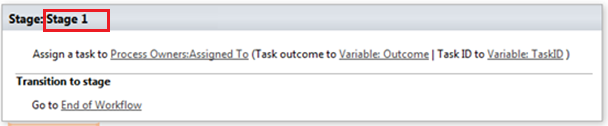
The second question is also easy to answer, but the answer is somewhat more complicated. When a workflow is associated to a list or content type, it adds a column to track the status of the workflow. In SharePoint 2013, the default behaviour is to update this column with whatever stage in the workflow currently being executed. Therefore, as soon as the workflow runs, and before it has run any of the actions, it attempts to update its stage to the document that it was triggered from. So looking at the images below, if things were working we should see the string “Stage 1” in the Process Owner Approval column for the document Burger additives standards. But since the document requires check-out to make a change, SharePoint prevents this from happening by design.

image

image

Some readers who are experienced with SharePoint Designer workflow might be thinking “easy… just use the check out item workflow action before you do anything else.”Unfortunately this won’t work for you because this issue gets triggered when the stage info is written to the workflow status column which happens before any actions run.

3. Why were the error messages so useless (which really hurts in Office365 scenarios)

The next question is why on earth wasn’t the true error able to be reported back to the workflow? After all, in the end, this was a clearly identified error in SharePoint, yet all we got was error messages that did not state the problem at all.  This would have saved the effort of delving deep into the ULS logs and that is not even possible in Office 365.

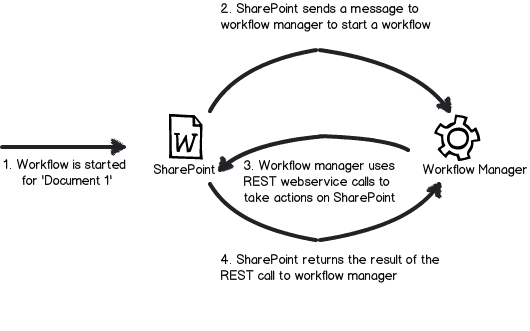
The answer to this question is a little more complex and relates to how Workflow Manager and SharePoint interact with each other. Without getting into detail, the gist of the issue is that Workflow Manager uses REST webservice calls to do all of its operations on SharePoint content. Each and every workflow action (like the Log to History List) uses REST to talk to SharePoint to get the work done. While a detailed discussion of REST would take us too far afield, I have drawn you possibly the dodgiest ever diagram of this process ever to help you understand it. The main point with REST worth mentioning is that the intention of REST is to embrace the key protocols of the web, so a successful or failed request is conveyed via a HTTP status code.  If you have ever experienced your browser giving you a 404 page not found, then you know what I mean when I speak of HTTP status codes.

Snapshot

Now look again at the gory detail of the error that was logged by the workflow. We see the following string amongst all the other stuff. “Details: System.ApplicationException: HTTP 500”. So what happened is when the workflow tried to update the document with its stage, the check-out requirement resulted in SharePoint sending back a HTTP Error 500 (server error) back to the workflow manager.  Unfortunately for us, it did not send back the underlying cause of the error. Instead, the details of the response logged by workflow has all sorts of information about the HTTP request, but no hint to the underlying error. Sucks eh?

4. How can we fix this problem?

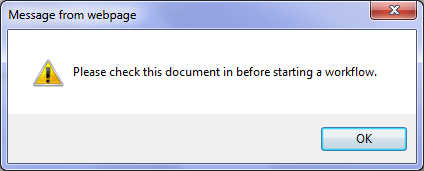
The final question was what we could do about this issue. There are two relatively easy ways, but before I do that, let me show you what happens if you check out the document and then attempt to run the workflow. While you might think this problem might go away, instead we get a friendly dialog box telling us to check the document back in before we attempt to start a workflow. Given that I couldn’t run this workflow because the item needed to be checked out, I had to laugh.

image

Anyways, the two options you have are to disable require check out on the Documents library or change the default behaviour of the workflow so that it does not write the stage back to the item that triggered the workflow. The first one is pretty easy – in the Versioning Settings of the Documents library, we change the Require documents to be checked out before they can be edited? option from Yes to No

image

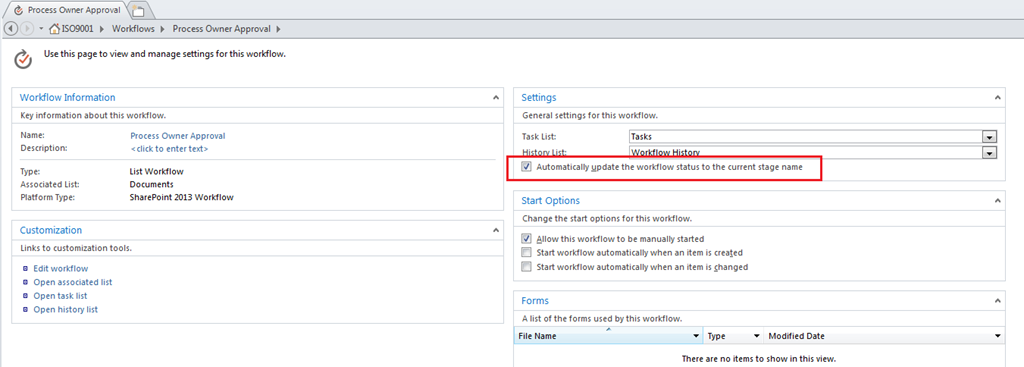
The problem with the first option is that requiring check-out for controlled documents is likely to be a key requirement, so it is not an option in all circumstances. So the other option is to change the behaviour of the workflow itself so that it does not write its stage information back to the Documents library. Luckily for us, this is actually really easy to do. In SharePoint Designer 2013, there is an option to disable the updating of stage information. In the workflow settings screen, look for the option called Automatically update the workflow status to the current stage name and untick it.

image

Now unticking this box will get us past this error, but the problem now is that we have no easy way to track workflows, as this status update can be used in views on the Documents library to see which workflows are at a particular stage. For a complex workflow, or one that will be running on many items, not being able to see the status of the workflow would make life difficult. One workaround is to add a Check Out Item workflow action to the start of the workflow, and then use the Set Workflow Status action to update the status column on the current item as the workflow progresses. This will give us back the ability to track the workflow behaviour in the Documents library, but it will mean that a new version will be added to that Document each time the status updates. So another workaround is to log workflow status to some other list altogether (using the Create List Item action) and use that list for tracking and reporting instead.

Conclusion

I think that the separation of SharePoint and Workflow Manager into separate products is ultimately a good thing. It’s just a pity that one of the legacies of this change is an issue like what we covered in this post, where a relatively simple problem was exacerbated by poor reporting of errors between Workflow Manager and SharePoint. I guess this is part of the bigger price we pay – that of increased technical complexity via more moving parts. Hopefully an issue like this one can be addressed in a future service pack or update, because it is this sort of stuff that can cause people to lose some confidence and jump to the 3rd party solution perhaps prematurely. So if this issue was enough for you to think “pah – let’s go third party”, I have news for you. As you progress through this series we are going to deal with more complex issues than this one too.

Anyway, the point is that we have identified the cause of this particular issue and gotten past it, so we should be able to continue testing the workflow and marvel at our awesomeness. So in the next article, we will continue with testing our workflow and see what else SharePoint throws at us.

Thanks for reading

Paul Culmsee
HGBP_Cover-236x300.jpg

www.hereticsguidebooks.com


Trials or tribulation? Inside SharePoint 2013 workflows–Part 2

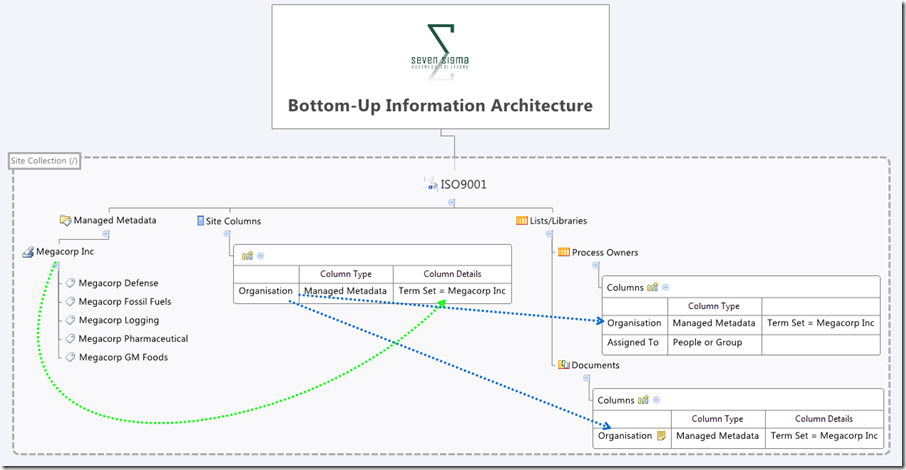
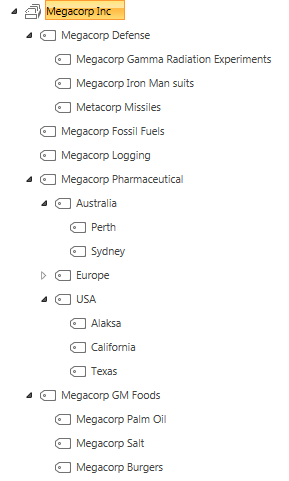
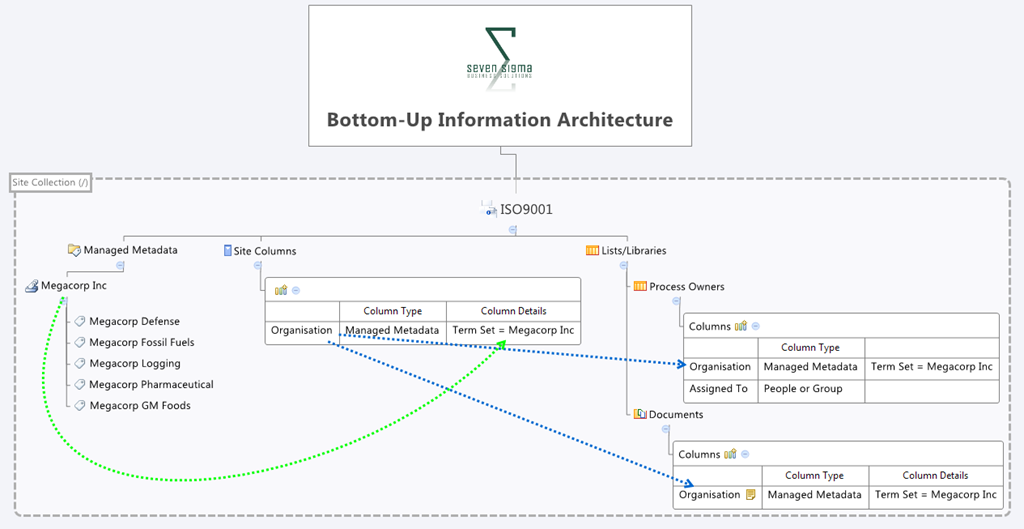
Hi and welcome to part 2 of a series that aims to showcase the good and the bad of SharePoint 2013 workflows, using a simple use-case. In part 1 I introduced you to the mythical multinational called Megacorp and its document control requirements. Also in part 1, we created a site with the necessary lists and libraries from which we can build the workflow. To recap, we used the Document Center site template, and then modified the built-in document library (Documents) to store the organisation that each document belongs to. We created a custom list called Process Owners that stored who is accountable for controlled documents in each organisation. Below is an XMind map to show you the Information Architecture of the Megacorp document control site.

image_thumb1

Our workflow is going to:

  • Look at a document and determine the organisation that a document belongs to
  • Look in the process owners list for that organisation and then determine the process owner for the organisation by grabbing the information in the “Assigned To” field
  • Create an approval task for the process owner to approve the release of a controlled document.

Now this all sounds straightforward enough in theory, but this is SharePoint we are talking about. Let’s see how reality stacks up against theory. I will give lots of screenshots for readers who have never tried using SharePoint Designer Workflow before…

Creating the workflow

Step 1:

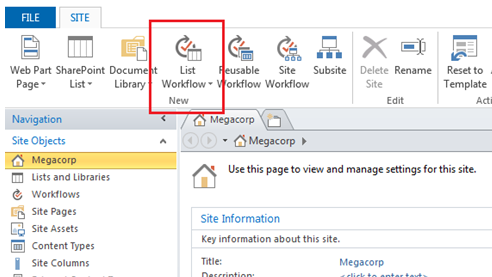
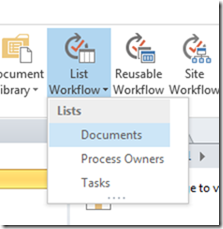
Right, so the workflow will fire when a document is modified, so we will start by adding a list workflow and link it to the Documents library. So using SharePoint Designer 2013, we open the Megacorp site and in the ribbon, we click the List Workflow button. This will cause a dropdown menu to appear below the icon, showing the lists and libraries on the Megacorp site. From this list, we choose the Documents library.

image    image_thumb23

Step 2:

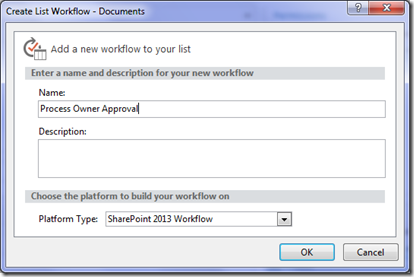
We are presented with the workflow creation screen. Call the workflow “Process Owner Approval” and click OK.

image_thumb9

Note: If, at this point, you get an error, it means that Workflow manager has not been provisioned properly. Remember that in SharePoint 2013, workflow is a separate product and needs to be installed. This is a change from previous versions of SharePoint where workflow was always there, as it was part of SharePoint.

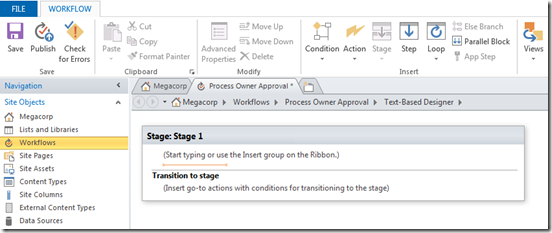
Assuming SharePoint is configured right, SharePoint Designer will have a think for a while and eventually display the following workflow creation screen, ready for us to do cool things!

image_thumb12

The next step is to add a workflow action. The most logical workflow action for us to try is one of the task actions. We will attempt to assign a task to the process owner for a document.

Step 3:

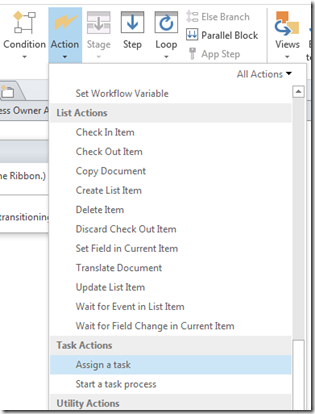
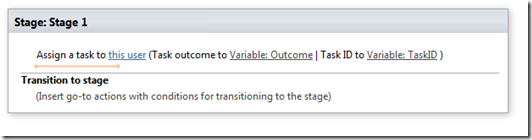
From the workflow ribbon, click the Action icon and choose “Assign a task”. The action will be added to the workflow, ready for you to fill in. For those of you reading this who have never done this before, the process is reminiscent of configuring email rules in outlook in that the action is added and you then fill in the blanks..

image_thumb15   image_thumb18

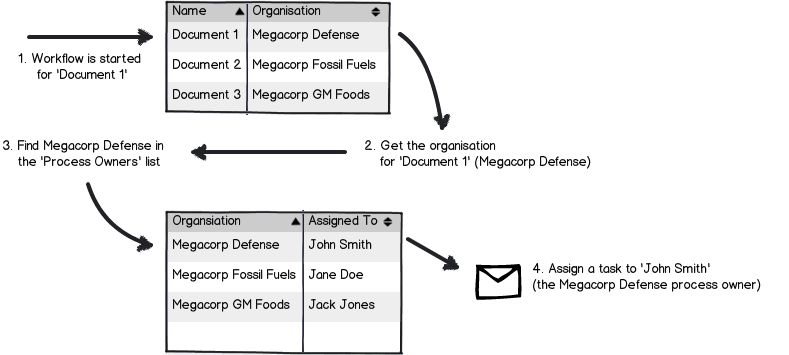
Now let’s configure the finer details of the Assign action above. A task needs to be assigned to a user, and we need to set up the logic for the workflow to work out who that user is. If you recall, the Documents library has a column called Organisation that specifies which Megacorp entity owns each document. A separate list called Process Owners then stores whoever is assigned as the process owner for each organisation (using the Assigned To column). So when the workflow runs on a particular document, we have to take Organisation specified for that document and use it to search the Process Owners list for the matching Organisation. Once we find it, we grab the value of the Assigned to user and create a task for them.

Here is a dodgy diagram that explains the logic I just described.

Snapshot

So let’s give it a go…

Step 4:

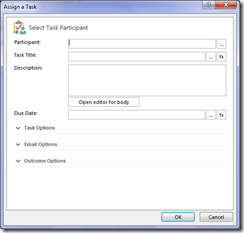
Go back to your newly minted “assign task” that you just added. Click the “this user” hyperlink on the newly created task. The task properties screen will appear as shown below. In the Participant textbox, click the ellipses button to bring up the Select User dialog box.

image_thumb19  image_thumb24

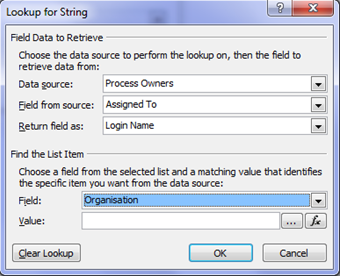
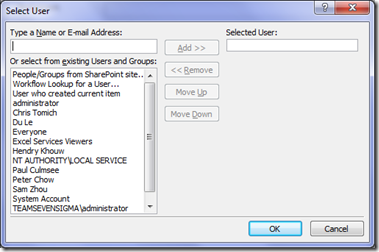
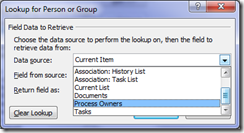
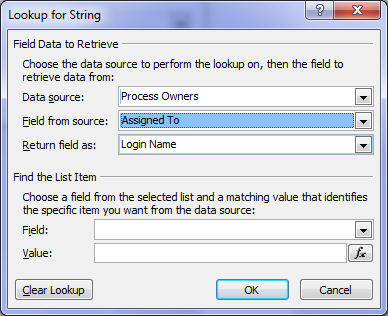
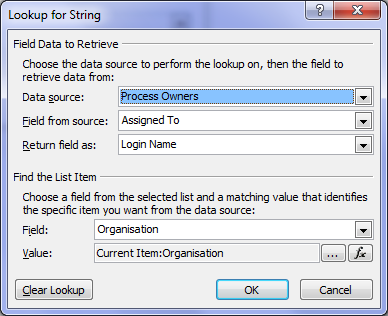
In the Select User dialog box, choose Workflow Lookup for a User and click the Add >> button. This will bring up the ambiguously named Lookup for string dialog box that allows us to choose where to look for our process owner. In the Data source drop down, we choose Process Owners from the list.

Next we have to tell the workflow which column holds the details of the person to perform the task. In the Field from source drop down, choose the Assigned to column as we talked about above.

image_thumb27image

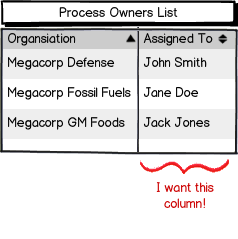
At this point, the workflow knows which list and column holds the information it needs as per the image below:

Snapshot,

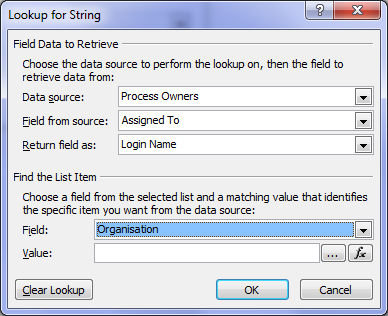
But currently we do not know the specific user we need. Is it John Smith, Jane Doe or Jack Jones? Fear not though – this is what the Find the list item section of the Lookup for string dialog box is for. This is where we will tell the workflow to find only the person who matches the value of the Organisation column assigned to the document.

Step 5:

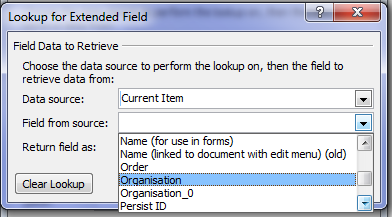
First up, we tell the workflow which field in Process Owners will be used to compare. This is the Organisation column, so in the Field: drop down, choose Organisation. Next we have to match that organisation column with the one in the Documents library. Click the Fx button next to column textbox called Value. A new dialogue box will appear called Lookup for Extended Field. Leave the Data source dropdown as Current item and in the Field from source dropdown, choose the Organisation column.

image   image

Note 1: in a workflow, “Current item” refers to the item that the workflow has been invoked from. If you recall at the start of this post, we created a list workflow and associated with the Documents library. Current item refers therefore to any document in the Documents library that has had a workflow invoked. All of the metadata associated with the current document is available to the workflow to use.

Note 2: Keen eyed readers may be wondering what the deal is with the column labelled Organsiation_0. Don’t worry – I’ll get to that later.

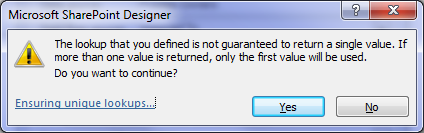
Now that you have selected the organisation column from the Documents library, we have filled in all of the logic we need to grab the right Assigned to user. Clicking ok, the workflow designer will warn you that if you have been silly enough to add multiple process owners for a given organisation, that it will use the first one it finds.

image  image

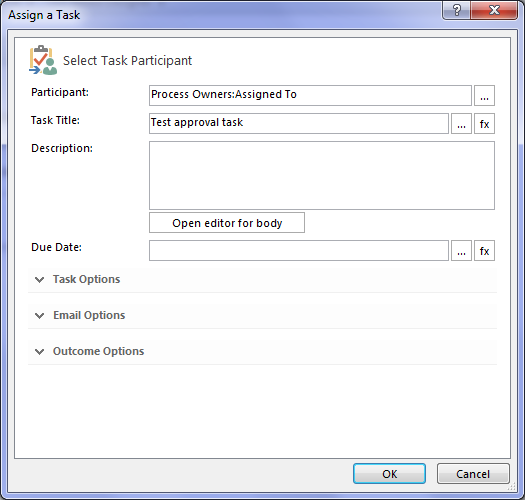
Finally, we are back at the task designer screen. A lot of screenshots just to wire up the logic for finding the right process owner eh? We haven’t even configured the behaviour of the task itself yet!

image

In fact, for now we are not going to wire up the rest of the task. I would like to know if the logic we have just wired up will work. If I can confirm that, I will come back and finish off creating the task with the behaviours I want.  So instead, let’s click Ok to go back to the workflow designer. Now we can see our Assign a task action, ready to go.

image_thumb39

Now before we can test and publish the workflow, we need to tell it to end. Now this is a little counter intuitive to someone who is used to SharePoint 2010 workflows, but it makes sense once you understand the concept of a workflow stage.

SharePoint Workflow 2013 Stages – an interlude…

If you have ever sat around and tried to map out a business process, you have probably experienced the fun (not) of discovering that even a relatively simple business process has a lot of variations to it – some quite ad-hoc or dynamic. Trying to account for all of these variations in workflow design can make for some very complex and scary diagrams with even scarier implementations. As an example, take a look at the diagram below – this is a real process and apparently it is only page 12 of a 136!

image

Now in SharePoint 2010, implementing these sorts of workflows was pretty brutal, but in 2013 it has been rethought. A stage is a construct that allows you to group a number of workflow actions together, as well as defining conditions that govern how those actions happen. Each stage in a workflow can transition to any other workflow stage based on conditions. This means that a workflow can effectively loop around different stages and greatly simplify implementing business logic compared to SharePoint 2010.

The means by which this is done is via the the new Transition to Stage workflow action. The way this works is at the end of each workflow stage, there is a transition to stage section as shown below:

image

Step 6:

When you click into the Transition to stage section of the workflow, there is only one workflow action available: the Go To A Stage action. Adding this to the workflow will present a dropdown that will allow you to transfer the workflow to any the you have defined, or to end the workflow. Right now we will end the workflow, but we will be revisiting this stage idea later in the series.

image_thumb40  image_thumb41  image_thumb43

All right! We are done. The final step is to save and publish the workflow.

Step 7:

In the ribbon, look for the Publish icon and click it. Assuming everything goes according to plan, you will be back at the workflow overview screen in SharePoint Designer.

image  image

Congratulations – you have published your workflow. “Well that was easy,” I hear you say… But we haven’t tested it yet! In the next post we will test our masterpiece and see what happens. You might already have an inkling that the result may not be what you expect… but let’s save that for the next post.

Thanks for reading

Paul Culmsee
HGBP_Cover-236x300.jpg

www.hereticsguidebooks.com


Trials or tribulation? Inside SharePoint 2013 workflows–Part 1

Hi all

Workflows are big business in SharePoint land, despite the capability of SharePoint Designer Workflows being a fairly weak link in the overall SharePoint value proposition. If this wasn’t the case, then products like Nintex or K2 would not be so popular and workflow vendors wouldn’t have the biggest booths at the average SharePoint conference.

One of the serious strategic advantages of going with the SharePoint stack is the amazing 3rd party ecosystem that flourishes around the base product. No other platform in the space has the level of 3rd party support that SharePoint enjoys. But while its nice to be able to have great options for serious SharePoint workflow development, with each successive version of SharePoint that comes out, there is always that hope that one can use the base functionality without having to jump straight away to the 3rd party tools.  After all, it is quite common for organisations, having just gone to the time and expense of adopting SharePoint, to be dismayed that they have to part with yet more cash for 3rd party tools to address large functional gaps that were not apparent in the contrived product demos.

Another important trend being hidden by cloud hubris is the rise of the citizen developer. The CIO’s fountain of knowledge known as Gartner, stated that by 2014 25% of new business applications will be delivered by Citizen Developers.  They defined citizen developers as “a user operating outside of the scope of enterprise IT and its governance who creates new business applications for consumption by others either from scratch or by composition.” Elaborating, Gartner stated that

“Future citizen-developed applications will leverage IT investments below the surface, allowing IT to focus on deeper architectural concerns, while end users focus on wiring together services into business processes and workflows. Furthermore, citizen development introduces the opportunity for end users to address projects that IT has never had time to get to — a vast expanse of departmental and situational projects that have lain beneath the surface.”

So with SharePoint 2013, Microsoft has indeed changed things up a notch in the workflow world. Is it enough to enable and empower citizen developers?

That is what this series aims to find out… First up, lets take a quick look at the forces we are going to be meddling with…

What’s new with SharePoint 2013 and workflow…

Workflow in SharePoint 2013 is significantly different from SharePoint 2010. It fact, it is essentially a completely separate product called Workflow Manager. Technically, Workflow Manager is not part of SharePoint at all – there is no “workflow” service application or “service on a server” to be found. Instead, it is a separate process that works by communicating with SharePoint over the HTTP protocol in various ways.

This means that we have the option of deploying Workflow Manager onto its own server, or set of servers (although for you smaller sites, it happily installs onto your SharePoint servers and coexists with the rest of SharePoint too). This loosely coupled model has scalability benefits as workflow load can now be separated from the rest of SharePoint. It also means badly behaved workflows are less likely to affect SharePoint sites because they run in a separate process or separate servers. 3rd party applications (think about solutions built using the SharePoint 2013 apps model here) can also interact and communicate with workflow manager separately to SharePoint. It also helps Microsoft to realise their strategy of “encouraging” everyone to their vision of a cloud-based happy place.

Now new does not always equate to good – and Microsoft have a bit of a dubious history with V1 products and technology. So in this series, I’d like to show you an example of what the SharePoint 2013 new workflow regime can do. The example that I am going to use for this set of articles is useful for this purpose for several reasons:

  • 1. It is a common use-case that many organisations would find familiar – particularly those with compliance regimes
  • 2. It demonstrates a fairly typical SharePoint consulting “oh crap” moment, where you realise your masterpiece of a solution is completely undone by an untested assumption or a SharePoint caveat that you forgot about.
  • 3. It demonstrates a path to redemption that is an excellent utilisation of the new capabilities of SharePoint 2013 and Workflow Manager
  • 4. It gives you a great sense as to whether workflows are a real developer, information worker or citizen developer tool. In other words, after reading this, you should have a good idea what you are getting yourself into!

I have a lot to cover, so this series will be multi-part. This first post will outline the scenario that we are dealing with.

The scenario: Document Control at Megacorp

Many organisations operate in industries where they are required to manage documentation in a systematic way. Documents that are subject to any sort of quality or compliance regime are often referred to as “Controlled Documents”. Typically, a controlled document will have an assigned responsible party who is accountable for the management (i.e. approving the issuing of updates) of that document.

To illustrate, consider the document control requirements of Megacorp Inc – a mythical multinational conglomerate with a vide variety of businesses in many different industries and locations. Megacorp is your typical diversified multinational, making everything from Iron Man suits to hamburgers. A managed metadata term set illustrating the Megacorp conglomerate structure can be seen below. If you look closely, Megacorp Inc, actually consists of several companies and each is structured differently. For example: Megacorp Pharmaceutical divides itself based on country and state jurisdiction, whereas Megacorp GM foods divides itself up on the particular food it is generically modifying.

image

So let’s say that Megacorp is maintaining ISO9001 certification for assurance purposes and therefore has to control their documents as I have stated above. Let’s create a SharePoint site called ISO9001 to handle this requirement. We perform the following steps:

  1. Build a term set (called Megacorp Inc)that stores all of the Megacorp businesses (you can see that in the image above)
  2. Create a site based on the built-in Document Center template
  3. Create a managed metadata site column called Organisation and associate it to the Megacorp term set
  4. Add the organisation column to the document library (called Documents) in the Document Center site
  5. Enable Metadata Navigation on the Documents library and add the Organisation column as a hierarchy field

For those of you who are new to SharePoint, below are screenshots from those steps to help you with the above steps… I am not going through this stuff in detail, so hopefully this suffices…

image  image

imageimage

Now that the above plumbing is done, a few documents have been added to the Documents library and tagged to their organisation. With Metadata Navigation enabled, we now have the easy means to browse and filter documents to the specific organisation who owns them as shown below…

image

So let’s now think through a workflow scenario. Each organisation that makes up Megacorp has a process owner and when a document is ready for publishing, the process owner needs to approve it. Now we could do this by adding a “Person or Group” column to the document library and call it “process owner.” But Megacorp has some additional considerations that need to be pondered…

  • 1. They have thousands of documents in the library
  • 2. The process owner is a role, not an individual person. For audit purposes, Megacorp wants to have a record of when a person was in a particular process owner role.

The reason this complicates things is twofold. If we use a person’s user account in Active directory for tagging the process owner, we can easily track when a process owner changes because it will show up in the version history of the documents. But the downside is that we would have to update each document individually when that process owner changes to someone else. Not to mention that we may not want this change to be a version change in the document itself.

Now I know what your thinking – “Just use an Active Directory Group instead of an account”. Yes, it is a good and logical suggestion, since a SharePoint or Active Directory group allows us to easily manage changes in personnel between roles by changing group members. But the downside is that we have no easy way to see the history of who was in the process owner role at a given time because SharePoint would see and store the group, not the members of that group.

So let’s try an alternative approach. We will make a custom list called “Process Owners” and add two columns to it. We will add the Organisation site column that we created and used earlier, and we will add the “Assigned To” column that is built-into SharePoint and used in task lists. This will give us a list of process owners for a given Megacorp company or division. Even better – if we turn on version history on the Process Owners list, we now have a record of who was in the process owner role at any given time because it will show up in the changes in the “Assigned to” field over time.

The image below illustrates the Process Owners list.

image

So to summarise, we have a document library where all documents are tagged to the organisation that they belong to. We have a list of the process owners for each organisation. To better visualise this, I have drawn an xmind map to show you the Information Architecture of the Megacorp document control site

image

Now we turn our attention to the document approval workflow. It should be able to:

  • Look at a document and determine the Organisation that a document belongs to
  • Look in the process owners list for that organisation and then determine the process owner for the organisation by grabbing the information in the “Assigned To” field
  • Create an Approval task for the Process owner to approve the release of a controlled document.

Now this all sounds straightforward enough in theory but as we will see as this series progresses, when it comes to SharePoint, theory and reality are two very different things. So in part 2, we will build out the workflow..

Thanks for reading

Paul Culmsee
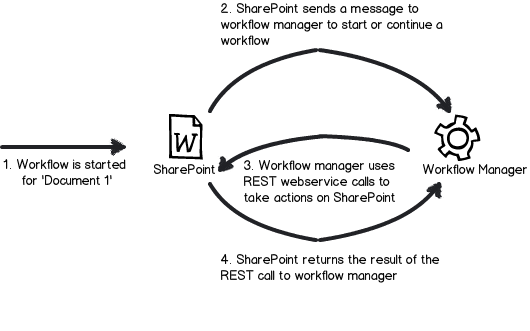
h2bp2013_thumb.jpg

www.heretisguidebooks.com


How to filter on a Managed Metadata column via REST in SharePoint 2013

Pardon the pun, but I just had a ‘clever workaround’ moment with SharePoint’s oData/REST implementation when it comes to filtering list items based on taxonomy (managed metadata) columns. Now I do not consider myself a developer, so this article is probably a little verbose for some readers, but should be helpful to power users or IT pros.

Here is an example term set called FilterDemo. You can see two levels of hierarchy.

image

Take the scenario of a custom list (called TestFilter) with a managed metadata column (called FilterDemo) that links to the above term set. Let’s also assume there are 3 entries in it as follows:

Title FilterDemo
A A1
B B3
C Category A

Using the wonders of the REST API, I am able to get access to all items in the list via the following URL:

http://site/_api/web/lists/getbytitle(‘TestFIlter’)/Items

If you execute that, and IE is has “feed reading view” turned off, you will get back lots of scary looking XML. If you collapse it though, you will see three entry tags in it. One for each item in the TestFilter list.

 <?xml version=”1.0″ encoding=”utf-8″ ?>
<feed xml:base=http://site/_api/ xmlns=”http://www.w3.org/2005/Atom xmlns:d=”http://schemas.microsoft.com/ado/2007/08/dataservices xmlns:m=”http://schemas.microsoft.com/ado/2007/08/dataservices/metadata xmlns:georss=”http://www.georss.org/georss xmlns:gml=”http://www.opengis.net/gml>
  <id>a0dd3649-27b9-4d8d-90f8-243e9622b158</id>
  <title />
  <updated>2013-09-23T01:44:35Z</updated>
+ <entry m:etag=”“2”>
+ <entry m:etag=”“3”>
+ <entry m:etag=”“1”“>
</feed>

Using more wonders of REST (and oData), I can change the URL to filter my results so that I only get matching items back. For example: here I am filtering on Items where the Title field has “A” in it.

http://site/_api/web/lists/getbytitle(‘Testfilter’)/Items/?$filter=Title eq ‘A’

Now we get back just the one entry matching that criteria…

 <?xml version=”1.0″ encoding=”utf-8″ ?>
<feed xml:base=http://site/_api/ xmlns=”http://www.w3.org/2005/Atom xmlns:d=”http://schemas.microsoft.com/ado/2007/08/dataservices xmlns:m=”http://schemas.microsoft.com/ado/2007/08/dataservices/metadata xmlns:georss=”http://www.georss.org/georss xmlns:gml=”http://www.opengis.net/gml>
  <id>9dad763d-743f-4ffb-b26b-e53c0f6e1f7e</id>
  <title />
  <updated>2013-09-23T02:19:02Z</updated>
+ <entry m:etag=”“2”>

</feed>

Okay, so there is nothing earth shattering about what I just did above and its well documented in various places. But look what happens when I try and filter items in the list based on the FilterDemo column which is Managed metadata based…

http://site/_api/web/lists/getbytitle(‘Testfilter’)/Items?$filter=FilterDemo eq ‘A1’

Boom! Browser returns an error. If I do the same thing using Fiddler to look at the trace, it reports a HTTP/1.1 400 Bad Request error.

So I start digging and come across articles from Phil Harding and Serge Luca informing me that Taxonomy columns are unsupported via REST. I got my hopes up when I came across an Andrew Connell article on filtering lookup fields, since behind the scenes the taxonomy field is actually a lookup field, but in the comments section, it seemed to confirm that this wasn’t doable. All seemed lost…

But in reading MSDN’s REST articles, I had a vague recollection that CAML could be done via REST queries. I knew that using CAML, it was indeed possible to filter taxonomy columns. I proved it using CAML Designer 2013, connecting to the TestFilter list and filtering it successfully using the following XML…

<Where>
   <Eq>
      <FieldRef Name='FilterDemo' />
      <Value Type='TaxonomyFieldType'>A1</Value>
   </Eq>
</Where>

So, armed with this knowledge, I came across an MSDN forum thread where a tantalising clue was offered. Christophe Humbert asked whether CAML queries could be done via the REST API and Erik C. Jordan provided this nugget of wisdom:

I was able to get the following to work:

POST https://<site>/_api/web/Lists/GetByTitle(‘[list name]’)/GetItems(query=@v1)?@v1={“ViewXml”:”<View><Query>[other CAML query elements]</Query></View>”}

Editors node: I will be a little verbose at this point in case you are not a developer or overly familiar with REST.

This approach looked exactly what I needed and I thought this was worth a shot, but since the remedy is a HTTP POST rather than a GET, I couldn’t do it with Internet Explorer, so I loaded up fiddler, and used the Composer function. I crafted the following POST with an empty CAML query as a test…

http://site/_api/Web/lists/getByTitle(‘TestFilter’)/GetItems(query=@v1)?@v1={“ViewXml”:”<View><Query></Query></View>”}


image

And this is the response I got…

HTTP/1.1 411 Length Required

A quick bit of googling, and I realise that some HTTP queries require the use of a ‘Content-Length‘ field in the HTTP header. The standard states that: “Any Content-Length greater than or equal to zero is a valid value”, so I tried this figure as shown below:

image

And this time I get the response:

HTTP/1.1 403 FORBIDDEN (The security validation for this page is invalid and might be corrupted. Please use your web browser’s Back button to try your operation again).

Another quick bit of googling I discover that I am missing another required HTTP header in my POST request. This is called the X-RequestDigest and it holds something called the form digest. The form digest improves SharePoint security because it is specific to a specific user, site and limited to a certain time frame. You need to request a form digest and then pass it back to SharePoint for subsequent calls. To get hold of the form digest, you have to make another REST call which generates one. This is done by making a POST request with an empty body to http://site/_api/contextinfo and extracting the value of the “d:FormDigestValue” node in the information returned. In fiddler it looks like the following…

image

image

If you look at the returned content from calling the _api/contextinfo method above, I have highlighted FormDigestValue. In Fiddler, copy this value into the Request headers section of the composer and retry the CAML request:

image

Now if you execute the request, we get data!

HTTP/1.1 200 OK

If you look a the raw results in fiddler, you will see a whole bunch of scary XML. If you examine the results using the XML parser built into Fiddler as shown in the image below, you will see very similar output to my original REST request that I started this article with – 3 entries in this list. It worked!

image

So now let’s add our CAML query into the XML and see if we can make it work. Recall that I successfully tested this query via the following CAML…

<Where> <Eq> <FieldRef Name=’FilterDemo’ /> <Value Type=’TaxonomyFieldType’>A1</Value> </Eq> </Where>

So I construct the following URL and paste into the Fiddler constructor:

http://site/_api/Web/lists/getByTitle(‘TestFilter’)/GetItems(query=@v1)?@v1={“ViewXml”:”<View><Query><Where> <Eq> <FieldRef Name=’FilterDemo’ /> <Value Type=’TaxonomyFieldType’>A1</Value> </Eq> </Where> </Query></View>”}


With great excitement, I clicked “Execute” and received….

HTTP/1.1 400 Bad Request

Ah crap! Unfortunately I could not find a single example of this form of REST query to SharePoint, but I got a hint to the problem from Fiddler itself. It wasn’t happy with my request at all, showing the request as red.

image

Clearly I was doing something wrong, and being a non-developer I figured I wasn’t encoding things properly. So after some trial and error, I worked out that spaces were the issue. So where I was able to remove them I did, and those that I couldn’t, I encoded like so:

http://site/_api/Web/lists/getByTitle(‘TestFilter’)/GetItems(query=@v1)?@v1={“ViewXml”:”<View><Query><Where><Eq><FieldRef%20Name=’FilterDemo’/><Value%20Type=’TaxonomyFieldType’>A1</Value></Eq></Where></Query></View>”}

At this point fiddler stopped showing me an angry red colour and I clicked the Execute button. Wohoo! It works! Below you can see a single matching entry, just like my example when I filtered on Title column using the $filter parameter.

image

Expanding the XML indeed confirms it has matched term A1. Smile

image

Conclusion

While I was happy that I found a way to use REST to filter a list based on a Taxonomy column, I’m sure this method offers some interesting opportunities in various other scenarios.

In my company Seven Sigma, we have a worn-out post-it note that has the words “Alpha SharePoint Developer” written on it. This gets stuck to the office of whoever does the coolest coding trick and I’m happy to report that this little effort netted me the Alpha developer prize for the first time ever, principally because I then used this approach with SharePoint Designer 2013 workflows and it worked really well. In fact it worked so well that I have decided that using this with the new capabilities of SPD workflows warrants a blog series of its own.

Until then, I hope that this approach works for you and happy REST’ing!


Thanks for reading

Paul Culmsee
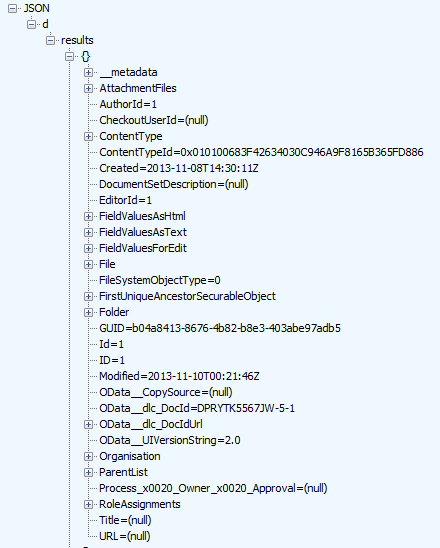
www.hereticsguidebooks.com

www.sevensigma.com.au


A lesser known way to fine-tune SharePoint search precision…

Hi all

While I’d like to claim credit for the wisdom in this post, alas I cannot. One of Seven Sigma’s consultants (Daniel Wale) worked this one out and I thought that it was blog-worthy. Before I get into the issue and Daniel’s resolution, let me give you a bit of search engine theory 101 with a concept that I find is useful to help understand search optimisation.

Precision vs. recall

Each time a person searches for information, there is an underlying goal or intended outcome. While there has been considerable study of information seeking behaviours in academia and beyond, they boil down to three archetype scenarios.

  1. “I know exactly what I am looking for” – The user has a particular place in mind, either because they visited it in the past or because they assume it exists. This known as known item seeking, but is also referred to as navigational seeking or refinding.
  2. “I’m not sure what I am looking for but I’ll know it when I find it” – This is known as exploratory seeking and the purpose is to find information assumed to be available. This is characterised by
    • – Looking for more than one answer
    • – No expectation of a “right” answer
    • – Open ended
    • – Not necessarily knowing much about what is being looking for
    • – Not being able to articulate what is being looked for
  3. “Gimme gimme gimme!” – A detailed research type search known as exhaustive seeking, leaving no stone unturned in topic exploration. This is characterised by;
    • – Performing multiple searches
    • – Expressing what is being looked for in many ways

Now among other things, each of these scenarios would require different search results to meet the information seeking need. For example: If you know what you are looking for, then you would likely prefer a small, highly accurate set of search results that has the desired result at the top of the list. Conversely if you are performing an exploratory or exhaustive search, you would likely prefer a greater number of results since any of them are potentially relevant to you.

In information retrieval, the terms precision and recall are used to measure search efficiency. Google’s Tim Bray put it well when he said “recall measures how well a search system finds what you want and precision measures how well it weeds out what you do not want”. Sometimes recall is just what the doctor ordered, whereas other times, precision is preferred.

The scenario and the issue…

That said, recently, Seven Sigma worked on a knowledgebase project for a large customer contact centre. The vast majority of the users of the system are customer centre operators who deal directly with all customer enquiries and have worked there for a long time. Thus most of the search behaviours are in the known item seeking category as they know the content pretty well – it is just that there is a lot of it. Additionally, picture yourself as one of those operators and then imagine the frustration a failed or time consuming search with an equally frustrated customer on the end of the phone and a growing queue of frustrated callers waiting their turn. In this scenario, search results need to be as precise as possible.

Thus, we invested a lot of time in the search and navigation experience on this project and that investment paid off as the users were very happy with the new system and particularly happy with the search experience. Additionally, we created a mega menu solution to the current navigation that dynamically builds links from knowledgebase article metadata and a managed metadata term set. This was done via the data view web part, XSLT, JavaScript and Marc’s brilliant SPServices. We were very happy with it because there was no server side code at all, yet it was very easy to administer.

So what was the search related issue? In a nutshell, we forgot that the search crawler doesn’t differentiate between your pages content and items in your custom navigation. As a result, we had an issue where searches did not have adequate precision.

To explain the problem, and the resolution, I’ll take a step back and let Daniel continue the story… Take it away Dan…

The knowledgebase that Paul described above contained thousands of articles, and when the search crawler accessed each article page, it also saw the titles of many other articles in the dynamic menu code embedded in the page. As a result, this content also got indexed. When you think about it, the search crawler can’t tell whether content is real content versus when it is a dynamic menu that drops down/slides out when you hover over the menu entry point. The result was that when users searched for any term that appeared in the mega menu, they would get back thousands of results (a match for every page) even when the “actual content” of the page doesn’t contain any references to the searched term.

There is a simple solution however, for controlling what the SharePoint search crawler indexes and what it ignores. SharePoint knows to exclude content that exists inside of <div> HTML tags that have the class noindex added to them. Eg

<div class=”menu noindex> 
  <ul> 
    <li>Article 1</li> 
    <li>Article 2</li> 
  </ul> 
</div>

There is one really important thing to note however. If your <div class=”noindex”> contains a nested <div> tag that doesn’t contain the noindex class, everything inside of this inner <div> tag will be included by the crawler. For example:

<div class=”menu noindex> 
  <ul> 
    <li>Article 1</li> 

      <div class=”submenu>
        <ul>
          <li>Article 1.1</li>
          <li>Article 1.2</li>
        </ul>
      </div>

    <li>Article 2</li> 
  </ul> 
</div>

In the code above the nested <div> to surround the submenu items does not contain the noindex class. So the text “Article 1.1” and “Article 1.2” will be crawled, while the “Article 1” and “Article 2” text in the parent <div> will still be excluded.

Obviously the example above its greatly simplified and like our solution, your menu is possibly making use of a DataViewWebPart with an XSL transform building it out. It’s inside your XSL where you’ll need to include the <div> with the noindex class because the Web Part will generate its own <div> tags that will encapsulate your menu. (Use the browser Developer Tools and inspect the code that it inserts if you aren’t familiar with the code generated, you’ll find at least one <div> elements that is nested inside any <div class=”noindex”> you put around your web part thinking you were going to stop the custom menu being crawled).

Initially looking around for why our search results were being littered with so many results that seemed irrelevant, I found the way to exclude the custom menu using this method rather easily, I also found a lot of forum posts of people having the same issue but reporting that their use of <div> tags with the noindex class was not working. Some of these posts people had included snippets of their code, each time they had nested <div> tags and were baffled by why their code wasn’t working. I figured most people were having this problem because they simply don’t read the detail in the solutions about the nesting or simply don’t understand that the web part will generate its own HTML into their page and quite likely insert a <div> that surrounds the content they are wanting to hide. As any SharePoint developer quickly finds out a lot of knowledge in SharePoint won’t come from well set out documentation library with lots of code examples that developers get used to with other environments, you need to read blogs (like this one), read forums, talk to colleagues and just build up your own experience until these kinds of gotchas are just known to you. Even the best SharePoint developer can overlook simple things like this and by figuring them out they get that little bit better each time.

Being a SharePoint developer is really about being the master of self-learning, the master of using a search engine to find the knowledge you need and most importantly the master of knowing which information you’re reading is actually going to be helpful and what is going to lead you down the garden path. The MSDN blog post by Mark Arend (http://blogs.msdn.com/b/markarend/archive/2010/06/07/control-search-indexing-crawling-within-a-page-with-noindex.aspx) gives a clear description of the problem and the solution, he also states that it is by design that nested <div> tags are re-evaluated for the noindex class. He also mentions the product team was considering changing this…  did this create the confusion for people or was it that they read the first part of the solution and didn’t read the note about nested <div> tags? In any case it’s a vital bit of the solution that it seems a lot of people overlook still.

In case you are wondering, the built in SharePoint navigation menu’s already have the correct <div> tags with the noindex class surrounding them so they aren’t any concern. This problem only exists if you have inserted your own dynamic menu system.

Other Search Provider Considerations

It is more common that you think that some sites do not just use SharePoint Search. The <div class=”noindex”> is a SharePoint specific filter for excluding content within a page, what if you have a Google Search Appliance crawling your site as well? (Yep… we did in this project)

You’re in luck, the Google documents how to exclude content within a page from their search appliance. There are a few different options but the equivalent blanket ignore of the contents between the <div class=”noindex”> tags would be to encapsulate the section between the following two comments

<!–googleoff: all–>

and

<!–googleon: all–>

If you want to know more about the GSA googleoff/googleon tags and the various options you have here is the documentation: http://code.google.com/apis/searchappliance/documentation/46/admin_crawl/Preparing.html#pagepart

Conclusion

(… and Paul returns to the conversation).

I think Dan has highlighted an easy to overlook implication of custom designing not only navigational content, but really any type of dynamically generated content on a page. While the addition of additional content can make a page itself more intuitive and relevant, consider the implication on the search experience. Since the contextual content will be crawled along with the actual content, sometimes you might end up inadvertently sacrificing precision of search results without realising.

Hope this helps and thanks for reading (and thanks Dan for writing this up)


Paul Culmsee
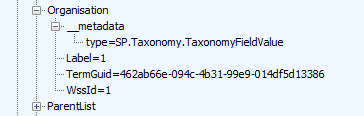
www.sevensigma.com.au

h2bp2013


High school students showing us SharePoint consultants how it’s done

Hi all

Once in a while, you can come across a case study that not only showcases innovative and brilliant solutions, but tells a much deeper story that both inspires and teaches. I am writing this post to tell you such a story – a story about genuine collaboration and what it can enable when the right conditions exist to foster it.

To explain this story, I first need to talk about the work of an academic named Richard Hackman. Here is a guy who spent most of his working life examining the factors that make teams work really well. Over the years he studied hundreds of high performing teams, trying to distil the magical ingredients that would lead to success for other teams. He would come up with theories, then create models that looked great on a whiteboard, but when applied to real teams in the real world, reality never fitted the models.

From causes to conditions…

After years of doing this, Hackman started to wonder whether he was leaning the ladder against the wrong wall. In other words, he wondered if trying to determine the causes of team efficacy by looking at successful teams retrospectively was the wrong approach. In the end, he changed his focus and asked himself a different question. What are the enabling conditions that need to exist that give rise to great teams?

He came up with six conditions arguing that irrespective of what else you did or what methodology you used, usually led to better results. I will give you a super brief summary below:

  1. A real team: Interdependence among members, clear boundaries distinguishing members from non-members and moderate stability of membership over time
  2. A compelling purpose: A purpose that is clear, challenging, and consequential. It energizes team members  and fully engages their talents
  3. Right people: People who had task expertise, self organised and skill in working collaboratively with others
  4. Clear norms of conduct: Team understands clearly what behaviours are, and are not, acceptable
  5. A supportive organisational context: The team has the resources it needs and the reward system provides recognition and positive consequences for excellent team performance
  6. Appropriate coaching: The right sort of coaching for the team was provided at the right time

Now my interest in Hackman and his conditions stemmed from reviewing the published “models” for SharePoint governance. Whether it is the 7 “pillars”, the 5 “steps”, or the 6 “focus areas”, all are developed in a retrospective way – by looking at a mythically perfect SharePoint solution and then breaking it down into all the things that need to be done to enable it. You see, for a long time now, I have deliberately not started with one of the models up front and Hackman offered me a reason why. Instead I first strive to create the conditions that Hackman lists above and develop governance as it is needed, rather than follow a fixed model.

Meet Louis Zulli Jr and his students

Earlier this year, I met Louis Zulli Jnr – a teacher out of Florida who is part of a program called the Centre of Advanced Technologies. We were co-keynoting at a conference and he came on after I had droned on about common SharePoint governance mistakes. Louis then gave a talk that blew me away, and at the same time proved Hackman completely right. The majority of Lou’s presentation showcased a whole bunch of SharePoint powered solutions that his students had written. The solutions themselves were very impressive, as this was not just regular old SharePoint customisation in terms of a pretty looking site with a few clever web parts. Instead, we were treated to examples like:

  • IOS, Android and Windows Phone  apps that leveraged SharePoint to display teacher’s assignments, school events and class times;
  • Silverlight based application providing a virtual tour of the campus;
  • Integration of SharePoint with Moodle;
  • An Academic Planner web application allowing students to plan their classes, submit a schedule, have them reviewed, track of the credits of the classes selected and whether a student’s selections meet graduation requirements;
  • An innovative campus Hall Pass system that leveraged jQuery, HTML5, CSS3, XML, JSON, REST, List Data Web Services and features integration with IOS, Windows 8 and swipe card hardware.

All of this and more was developed by 16 to 18 year olds and all at a level of quality that I know most SharePoint consultancies would be jealous of. To any of Lou’s students who read this – and I have consulted and delivered SharePoint since 2006, as well as speaking to people around the world on SharePoint – the work quality that I saw is world-class and you all have lucrative careers ahead of you in the SharePoint space and beyond.

image

So the demos themselves were impressive enough, but that is actually not what impressed me the most. In fact, what had me hooked was not on the slide deck. It was the anecdotes that Lou told about the dedication of his students to the task and how they went about getting things done. He spoke of students working during their various school breaks to get projects completed and how they leveraged each other’s various skills and other strengths. Lou’s final slide summed his talk up brilliantly, and really spoke to Hackman’s six conditions. The slide made the following points:

  • Students want to make a difference! Give them the right project and they do incredible things.
  • Make the project meaningful. Let it serve a purpose for the campus community.
  • Learn to listen. If your students have a better way, do it. If they have an idea, let them explore it.
  • Invest in success early. Make sure you have the infrastructure to guarantee uptime and have a development farm.
  • Every situation is different but there is no harm in failure. “I have not failed. I’ve found 10,000 ways that won’t work” – Thomas A. Edison

If you look at the above 5 points and think about Hackman’s conditions of compelling direction, supportive context, real team and coaching in particular, you can see that Lou ensured those conditions were present. The results of course spoke for themselves.

About halfway through Lou’s talk, I decided that whether he liked it or not, he was coming out to Australia to tell this story. So we sat down together and talked for a long while and I asked him all sorts of questions about his students, the projects, how he coached his students and how his own teaching style developed. I ended up showing him Hackman’s six conditions for great teams performance and he said “that’s what we do”.

The real lesson…

So as I write this, Lou is on his long journey home after similarly blowing away the attendees of the Australian SharePoint conference with his story about what he and his students have done. His talk was the hit of the conference and I hope that the staff and students of Lakewood High School read this post because it’s important for them to know that their story and examples were the topic of much conversation amongst attendees and highly inspiring. I also hope that people in the SharePoint community read this because CAT shows precisely why SharePoint can be such an amazing enabler within organisations when the right conditions are in place for it. Governance models are great and all, but without these enabling conditions in place, cannot deliver great outcomes on their own.

This leads me onto one final cautionary point – directed at Lou’s students, but applicable to all readers who aspire to improve collaboration in their organisations and their projects.

There are plenty of clever people in this world – in fact most IT people from my experience are intellectually very clever (IQ), but some have all the emotional maturity (EQ) of a baseball bat. IQ is what you are born with, but EQ is caught and lived. What makes great SharePoint practitioners (and in fact great leaders) is EQ, not just IQ and the CAT program shows what happens when clever people are given discretionary freedom with supportive conditions in place. My advice is to never forget that it is the conditions in which a team or organisation finds itself that a strong predictor of outcome. Take the same clever people and change the conditions (for example, from a supportive educational institution to an organisation with a blame culture and silo based fiefdoms) and you will get very different outcomes indeed.

What students may not realise is that what the CAT program is really teaching them is the experience of living those enabling conditions and therefore teaching them EQ. These students will eventually move into organisations that do not necessarily have the same enabling conditions as what exists for them now. So look past the cool API’s, the development tools, technical whitepapers, the certifications, endless debates as to whether X vs Y is the best practice, and understand the conditions like Hackman did. Strive to (re)create those conditions in all your future work and you will go further than a SharePoint laden CV ever will.

This of course, took me around 18 years of working in IT before I figured it out and have been making amends ever since. So whatever you do, wise up earlier than I did!


Thanks for reading

Paul Culmsee
www.cleverworkarounds.com

www.hereticsguidebooks.com

HGBP_Cover-236x300


Troubleshooting SharePoint (People) Search 101

I’ve been nerding it up lately SharePointwise, doing the geeky things that geeks like to do like ADFS and Claims Authentication. So in between trying to get my book fully edited ready for publishing, I might squeeze out the odd technical SharePoint post. Today I had to troubleshoot a broken SharePoint people search for the first time in a while. I thought it was worth explaining the crawl process a little and talking about the most likely ways in which is will break for you, in order of likelihood as I see it. There are articles out on this topic, but none that I found are particularly comprehensive.

Background stuff

If you consider yourself a legendary IT pro or SharePoint god, feel free to skip this bit. If you prefer a more gentle stroll through SharePoint search land, then read on…

When you provision a search service application as part of a SharePoint installation, you are asked for (among other things), a windows account to use for the search service. Below shows the point in the GUI based configuration step where this is done. First up we choose to create a search service application, and then we choose the account to use for the “Search Service Account”. By default this is the account that will do the crawling of content sources.

image    image

Now the search service account is described as so: “.. the Windows Service account for the SharePoint Server Search Service. This setting affects all Search Service Applications in the farm. You can change this account from the Service Accounts page under Security section in Central Administration.”

In reading this, suggests that the windows service (“SharePoint Server Search 14”) would run under this account. The reality is that the SharePoint Server Search 14 service account is the farm account. You can see the pre and post provisioning status below. First up, I show below where SharePoint has been installed and the SharePoint Server Search 14 service is disabled and with service credentials of “Local Service”.

image

The next set of pictures show the Search Service Application provisioned according to the following configuration:

  • Search service account: SEVENSIGMA\searchservice
  • Search admin web service account: SEVENSIGMA\searchadminws
  • Search query and site settings account: SEVENSIGMA\searchqueryss

You can see this in the screenshots below.

image

imageimage

Once the service has been successfully provisioned, we can clearly see the “Default content access account” is based on the “Search service account” as described in the configuration above (the first of the three accounts).

image

Finally, as you can see below, once provisioned, it is the SharePoint farm account that is running the search windows service.

image

Once you have provisioned the Search Service Application, the default content access (in my case SEVENSIGMA\searchservice), it is granted “Read” access to all web applications via Web Application User Policies as shown below. This way, no matter how draconian the permissions of site collections are, the crawler account will have the access it needs to crawl the content, as well as the permissions of that content. You can verify this by looking at any web application in Central Administration (except for central administration web application) and choosing “User Policy” from the ribbon. You will see in the policy screen that the “Search Crawler” account has “Full Read” access.

image

image

In case you are wondering why the search service needs to crawl the permissions of content, as well as the content itself, it is because it uses these permissions to trim search results for users who do not have access to content. After all, you don’t want to expose sensitive corporate data via search do you?

There is another more subtle configuration change performed by the Search Service. Once the evilness known as the User Profile Service has been provisioned, the Search service application will grant the Search Service Account specific permission to the User Profile Service. SharePoint is smart enough to do this whether or not the User Profile Service application is installed before or after the Search Service Application. In other words, if you install the Search Service Application first, and the User Profile Service Application afterwards, the permission will be granted regardless.

The specific permission by the way, is “Retrieve People Data for Search Crawlers” permission as shown below:

image    image

Getting back to the title of this post, this is a critical permission, because without it, the Search Server will not be able to talk to the User Profile Service to enumerate user profile information. The effect of this is empty "People Search results.

How people search works (a little more advanced)

Right! Now that the cool kids have joined us (who skipped the first section), lets take a closer look at SharePoint People Search in particular. This section delves a little deeper, but fear not I will try and keep things relatively easy to grasp.

Once the Search Service Application has been provisioned, a default content source, called – originally enough – “Local SharePoint Sites” is created. Any web applications that exist (and any that are created from here on in) will be listed here. An example of a freshly minted SharePoint server with a single web application, shows the following configuration in Search Service Application:

image

Now hopefully http://web makes sense. Clearly this is the URL of the web application on this server. But you might be wondering that sps3://web is? I will bet that you have never visited a site using sps3:// site using a browser either. For good reason too, as it wouldn’t work.

This is a SharePointy thing – or more specifically, a Search Server thing. That funny protocol part of what looks like a URL, refers to a connector. A connector allows Search Server to crawl other data sources that don’t necessarily use HTTP. Like some native, binary data source. People can develop their own connectors if they feel so inclined and a classic example is the Lotus Notes connector that Microsoft supply with SharePoint. If you configure SharePoint to use its Lotus Notes connector (and by the way – its really tricky to do), you would see a URL in the form of:

notes://mylotusnotesbox

Make sense? The protocol part of the URL allows the search server to figure out what connector to use to crawl the content. (For what its worth, there are many others out of the box. If you want to see all of the connectors then check the list here).

But the one we are interested in for this discussion is SPS3: which accesses SharePoint User profiles which supports people search functionality. The way this particular connector works is that when the crawler accesses this SPS3 connector, it in turns calls a special web service at the host specified. The web service is called spscrawl.asmx and in my example configuration above, it would be http://web/_vti_bin/spscrawl.asmx

The basic breakdown of what happens next is this:

  1. Information about the Web site that will be crawled is retrieved (the GetSite method is called passing in the site from the URL (i.e the “web” of sps3://web)
  2. Once the site details are validated the service enumerates all of the use profiles
  3. For each profile, the method GetItem is called that retrieves all of the user profile properties for a given user. This is added to the index and tagged as content class of “urn:content-class:SPSPeople” (I will get to this in a moment)

Now admittedly this is the simple version of events. If you really want to be scared (or get to sleep tonight) you can read the actual SP3 protocol specification PDF.

Right! Now lets finish this discussion by this notion of contentclass. The SharePoint search crawler tags all crawled content according to its class. The name of this “tag” – or in correct terminology “managed property” – is contentclass. By default SharePoint has a People Search scope. It is essentially a limits the search to only returning content tagged as “People” contentclass.

image

Now to make it easier for you, Dan Attis listed all of the content classes that he knew of back in SharePoint 2007 days. I’ll list a few here, but for the full list visit his site.

  • “STS_Web” – Site
  • “STS_List_850″ – Page Library
  • “STS_List_DocumentLibrary” – Document Library
  • “STS_ListItem_DocumentLibrary” – Document Library Items
  • “STS_ListItem_Tasks” – Tasks List Item
  • “STS_ListItem_Contacts” – Contacts List Item
  • “urn:content-class:SPSPeople” – People

(why some properties follow the universal resource name format I don’t know *sigh* – geeks huh?)

So that was easy Paul! What can go wrong?

So now we know that although the protocol handler is SPS3, it is still ultimately utilising HTTP as the underlying communication mechanism and calling a web service, we can start to think of all the ways that it can break on us. Let’s now take a look at common problem areas in order of commonality:

1. The Loopback issue.

This has been done to death elsewhere and most people know it. What people don’t know so well is that the loopback fix was to prevent an extremely nasty security vulnerability known as a replay attack that came out a few years ago. Essentially, if you make a HTTP connection to your server, from that server and using a name that does not match the name of the server, then the request will be blocked with a 401 error. In terms of SharePoint people search, the sps3:// handler is created when you create your first web application. If that web application happens to be a name that doesn’t match the server name, then the HTTP request to the spscrawl.asmx webservice will be blocked due to this issue.

As a result your search crawl will not work and you will see an error in the logs along the lines of:

  • Access is denied: Check that the Default Content Access Account has access to the content or add a crawl rule to crawl the content (0x80041205)
  • The server is unavailable and could not be accessed. The server is probably disconnected from the network.   (0x80040d32)
  • ***** Couldn’t retrieve server http://web.sevensigma.com policy, hr = 80041205 – File:d:\office\source\search\search\gather\protocols\sts3\sts3util.cxx Line:548

There are two ways to fix this. The quick way (DisableLoopbackCheck) and the right way (BackConnectionHostNames). Both involve a registry change and a reboot, but one of them leaves you much more open to exploitation. Spence Harbar wrote about the differences between the two some time ago and I recommend you follow his advice.

(As an slightly related side note, I hit an issue with the User Profile Service a while back where it gave an error: “Exception occurred while connecting to WCF endpoint: System.ServiceModel.Security.MessageSecurityException: The HTTP request was forbidden with client authentication scheme ‘Anonymous’. —> System.Net.WebException: The remote server returned an error: (403) Forbidden”. In this case I needed to disable the loopback check but I was using the server name with no alternative aliases or full qualified domain names. I asked Spence about this one and it seems that the DisableLoopBack registry key addresses more than the SMB replay vulnerability.)

2. SSL

If you add a certificate to your site and mark the site as HTTPS (by using SSL), things change. In the example below, I installed a certificate on the site http://web, removed the binding to http (or port 80) and then updated SharePoint’s alternate access mappings to make things a HTTPS world.

Note that the reference to SPS3://WEB is unchanged, and that there is also a reference still to HTTP://WEB, as well as an automatically added reference to HTTPS://WEB

image

So if we were to run a crawl now, what do you think will happen? Certainly we know that HTTP://WEB will fail, but what about SPS3://WEB? Lets run a full crawl and find out shall we?

Checking the logs, we have the unsurprising error “the item could not be crawled because the crawler could not contact the repository”. So clearly, SPS3 isn’t smart enough to work out that the web service call to spscrawl.asmx needs to be done over SSL.

image

Fortunately, the solution is fairly easy. There is another connector, identical in function to SPS3 except that it is designed to handle secure sites. It is “SPS3s”. We simple change the configuration to use this connector (and while we are there, remove the reference to HTTP://WEB)

image

Now we retry a full crawl and check for errors… Wohoo – all good!

image

It is also worth noting that there is another SSL related issue with search. The search crawler is a little fussy with certificates. Most people have visited secure web sites that warning about a problem with the certificate that looks like the image below:

image

Now when you think about it, a search crawler doesn’t have the luxury of asking a user if the certificate is okay. Instead it errs on the side of security and by default, will not crawl a site if the certificate is invalid in some way. The crawler also is more fussy than a regular browser. For example, it doesn’t overly like wildcard certificates, even if the certificate is trusted and valid (although all modern browsers do).

To alleviate this issue, you can make the following changes in the settings of the Search Service Application: Farm Search Administration->Ignore SSL warnings and tick “Ignore SSL certificate name warnings”.

image  image

image

The implication of this change is that the crawler will now accept any old certificate that encrypts website communications.

3. Permissions and Change Legacy

Lets assume that we made a configuration mistake when we provisioned the Search Service Application. The search service account (which is the default content access account) is incorrect and we need to change it to something else. Let’s see what happens.

In the search service application management screen, click on the default content access account to change credentials. In my example I have changed the account from SEVENSIGMA\searchservice to SEVENSIGMA\svcspsearch

image

Having made this change, lets review the effect in the Web Application User Policy and User Profile Service Application permissions. Note that the user policy for the old search crawl account remains, but the new account has had an entry automatically created. (Now you know why you end up with multiple accounts with the display name of “Search Crawling Account”)

image

Now lets check the User Profile Service Application. Now things are different! The search service account below refers to the *old* account SEVENSIGMA\searchservice. But the required permission of “Retrieve People Data for Search Crawlers” permission has not been granted!

image


image

If you traipsed through the ULS logs, you would see this:

Leaving Monitored Scope (Request (GET:https://web/_vti_bin/spscrawl.asmx)). Execution Time=7.2370958438429 c2a3d1fa-9efd-406a-8e44-6c9613231974
mssdmn.exe (0x23E4) 0x2B70 SharePoint Server Search FilterDaemon e4ye High FLTRDMN: Errorinfo is "HttpStatusCode Unauthorized The request failed with HTTP status 401: Unauthorized." [fltrsink.cxx:553] d:\office\source\search\native\mssdmn\fltrsink.cxx
mssearch.exe (0x02E8) 0x3B30 SharePoint Server Search Gatherer cd11 Warning The start address sps3s://web cannot be crawled. Context: Application ‘Search_Service_Application’, Catalog ‘Portal_Content’ Details: Access is denied. Verify that either the Default Content Access Account has access to this repository, or add a crawl rule to crawl this repository. If the repository being crawled is a SharePoint repository, verify that the account you are using has "Full Read" permissions on the SharePoint Web Application being crawled. (0x80041205)

To correct this issue, manually grant the crawler account the “Retrieve People Data for Search Crawlers” permission in the User Profile Service. As a reminder, this is done via the Administrators icon in the “Manage Service Applications” ribbon.

image

Once this is done run a fill crawl and verify the result in the logs.4.

4. Missing root site collection

A more uncommon issue that I once encountered is when the web application being crawled is missing a default site collection. In other words, while there are site collections defined using a managed path, such as http://WEB/SITES/SITE, there is no site collection defined at HTTP://WEB.

The crawler does not like this at all, and you get two different errors depending on whether the SPS or HTTP connector used.

  • SPS:// – Error in PortalCrawl Web Service (0x80042617)
  • HTTP:// – The item could not be accessed on the remote server because its address has an invalid syntax (0x80041208)

image

The fix for this should be fairly obvious. Go and make a default site collection for the web application and re-run a crawl.

5. Alternative Access Mappings and Contextual Scopes

SharePoint guru (and my squash nemesis), Nick Hadlee posted recently about a problem where there are no search results on contextual search scopes. If you are wondering what they are Nick explains:

Contextual scopes are a really useful way of performing searches that are restricted to a specific site or list. The “This Site: [Site Name]”, “This List: [List Name]” are the dead giveaways for a contextual scope. What’s better is contextual scopes are auto-magically created and managed by SharePoint for you so you should pretty much just use them in my opinion.

The issue is that when the alternate access mapping (AAM) settings for the default zone on a web application do not match your search content source, the contextual scopes return no results.

I came across this problem a couple of times recently and the fix is really pretty simple – check your alternate access mapping (AAM) settings and make sure the host header that is specified in your default zone is the same url you have used in your search content source. Normally SharePoint kindly creates the entry in the content source whenever you create a web application but if you have changed around any AAM settings and these two things don’t match then your contextual results will be empty. Case Closed!

Thanks Nick

6. Active Directory Policies, Proxies and Stateful Inspection

A particularly insidious way to have problems with Search (and not just people search) is via Active Directory policies. For those of you who don’t know what AD policies are, they basically allow geeks to go on a power trip with users desktop settings. Consider the image below. Essentially an administrator can enforce a massive array of settings for all PC’s on the network. Such is the extent of what can be controlled, that I can’t fit it into a single screenshot. What is listed below is but a small portion of what an anal retentive Nazi administrator has at their disposal (mwahahaha!)

image

Common uses of policies include restricting certain desktop settings to maintain consistency, as well as enforce Internet explorer security settings, such as proxy server and security settings like maintaining the trusted sites list. One of the common issues encountered with a global policy defined proxy server in particular is that the search service account will have its profile modified to use the proxy server.

The result of this is that now the proxy sits between the search crawler and the content source to be crawled as shown below:

Crawler —–> Proxy Server —–> Content Source

Now even though the crawler does not use Internet Explorer per se, proxy settings aren’t actually specific to Internet Explorer. Internet explorer, like the search crawler, uses wininet.dll. Wininet is a module that contains Internet-related functions used by Windows applications and it is this component that utilises proxy settings.

Sometimes people will troubleshoot this issue by using telnet to connect to the HTTP port. "ie: “Telnet web 80”. But telnet does not use the wininet component, so is actually not a valid method for testing. Telnet will happily report that the web server is listening on port 80 or 443, but it matters not when the crawler tries to access that port via the proxy. Furthermore, even if the crawler and the content source are on the same server, the result is the same. As soon as the crawler attempts to index a content source, the request will be routed to the proxy server. Depending on the vendor and configuration of the proxy server, various things can happen including:

  • The proxy server cannot handle the NTLM authentication and passes back a 400 error code to the crawler
  • The proxy server has funky stateful inspection which interferes with the allowed HTTP verbs in the communications and interferes with the crawl

For what its worth, it is not just proxy settings that can interfere with the HTTP communications between the crawler and the crawled. I have seen security software also get in the way, which monitors HTTP communications and pre-emptively terminates connections or modifies the content of the HTTP request. The effect is that the results passed back to the crawler are not what it expects and the crawler naturally reports that it could not access the data source with suitably weird error messages.

Now the very thing that makes this scenario hard to troubleshoot is the tell-tale sign for it. That is: nothing will be logged in the ULS logs, not the IIS logs for the search service. This is because the errors will be logged in the proxy server or the overly enthusiastic stateful security software.

If you suspect the problem is a proxy server issue,  but do not have access to the proxy server to check logs, the best way to troubleshoot this issue is to temporarily grant the search crawler account enough access to log into the server interactively. Open internet explorer and manually check the proxy settings. If you confirm a policy based proxy setting, you might be able to temporarily disable it and retry a crawl (until the next AD policy refresh reapplies the settings). The ideal way to cure this problem is to ask your friendly Active Directory administrator to either:

  • Remove the proxy altogether from the SharePoint server (watch for certificate revocation slowness as a result)
  • Configure an exclusion in the proxy settings for the AD policy to that the content sources for crawling are not proxied
  • Create a new AD policy specifically for the SharePoint box so that the default settings apply to the rest of the domain member computers.

If you suspect the issue might be overly zealous stateful inspection, temporarily disable all security-type software on the server and retry a crawl. Just remember, that if you have no logs on the server being crawled, chances are its not being crawled and you have to look elsewhere.

7. Pre-Windows 2000 Compatibility Access Group

In an earlier post of mine, I hit an issue where search would yield no results for a regular user, but a domain administrator could happily search SP2010 and get results. Another symptom associated with this particular problem is certain recurring errors event log – Event ID 28005 and 4625.

  • ID 28005 shows the message “An exception occurred while enqueueing a message in the target queue. Error: 15404, State: 19. Could not obtain information about Windows NT group/user ‘DOMAIN\someuser’, error code 0×5”.
  • The 4625 error would complain “An account failed to log on. Unknown user name or bad password status 0xc000006d, sub status 0xc0000064” or else “An Error occured during Logon, Status: 0xc000005e, Sub Status: 0x0”

If you turn up the debug logs inside SharePoint Central Administration for the “Query” and “Query Processor” functions of “SharePoint Server Search” you will get an error “AuthzInitializeContextFromSid failed with ERROR_ACCESS_DENIED. This error indicates that the account under which this process is executing may not have read access to the tokenGroupsGlobalAndUniversal attribute on the querying user’s Active Directory object. Query results which require non-Claims Windows authorization will not be returned to this querying user.

image

The fix is to add your search service account to a group called “Pre-Windows 2000 Compatibility Access” group. The issue is that SharePoint 2010 re-introduced something that was in SP2003 – an API call to a function called AuthzInitializeContextFromSid. Apparently it was not used in SP2007, but its back for SP2010. This particular function requires a certain permission in Active Directory and the “Pre-Windows 2000 Compatibility Access” group happens to have the right required to read the “tokenGroupsGlobalAndUniversal“ Active Directory attribute that is described in the debug error above.

8. Bloody developers!

Finally, Patrick Lamber blogs about another cause of crawler issues. In his case, someone developed a custom web part that had an exception thrown when the site was crawled. For whatever reason, this exception did not get thrown when the site was viewed normally via a browser. As a result no pages or content on the site could be crawled because all the crawler would see, no matter what it clicked would be the dreaded “An unexpected error has occurred”. When you think about it, any custom code that takes action based on browser parameters such as locale or language might cause an exception like this – and therefore cause the crawler some grief.

In Patricks case there was a second issue as well. His team had developed a custom HTTPModule that did some URL rewriting. As Patrick states “The indexer seemed to hate our redirections with the Response.Redirect command. I simply removed the automatic redirection on the indexing server. Afterwards, everything worked fine”.

In this case Patrick was using a multi-server farm with a dedicated index server, allowing him to remove the HTTP module for that one server. in smaller deployments you may not have this luxury. So apart from the obvious opportunity to bag programmers :-), this example nicely shows that it is easy for a 3rd party application or code to break search. What is important for developers to realise is that client web browsers are not the only thing that loads SharePoint pages.

If you are not aware, the user agent User Agent string identifies the type of client accessing a resource. This is the means by which sites figure out what browser you are using. A quick look at the User Agent parameter by SharePoint Server 2010 search reveals that it identifies itself as “Mozilla/4.0 (compatible; MSIE 4.01; Windows NT; MS Search 6.0 Robot)“. At the very least, test any custom user interface code such as web parts against this string, as well as check the crawl logs when it indexes any custom developed stuff.

Conclusion

Well, that’s pretty much my list of gotchas. No doubt there are lots more, but hopefully this slightly more detailed exploration of them might help some people.


Thanks for reading

Paul Culmsee
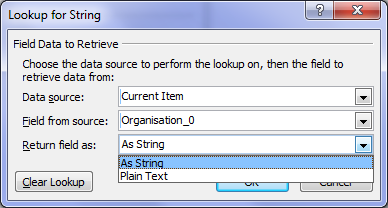
www.sevensigma.com.au

www.spgovia.com


« Previous PageNext Page »
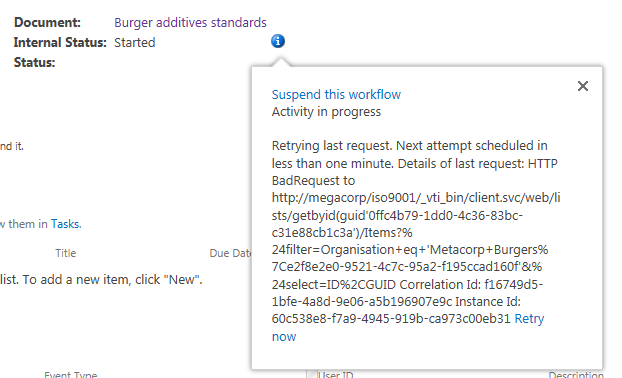
Today is: Wednesday 3 June 2026 -