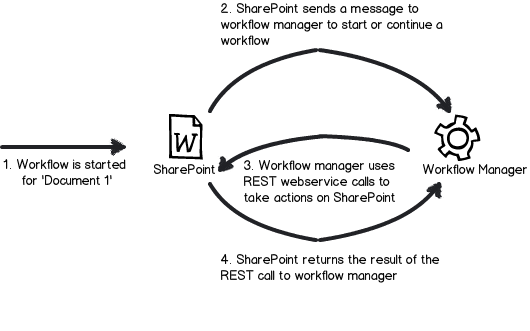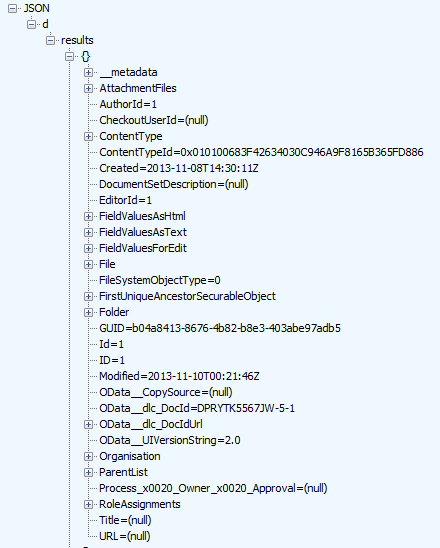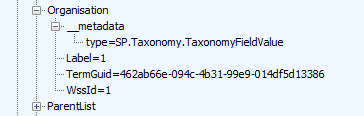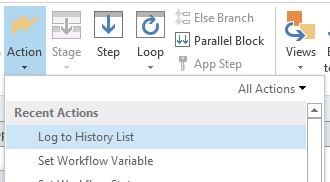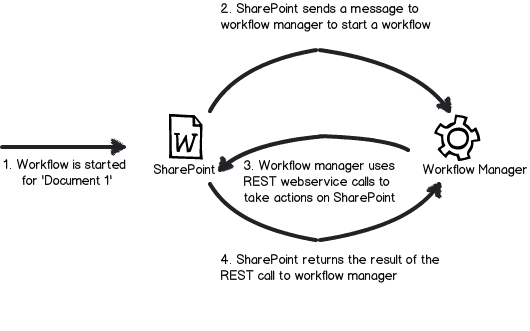
Back to Cleverworkarounds mainpage
 

Trials or tribulation? Inside SharePoint 2013 workflows–Part 10

Hi there and welcome back to my series of articles that puts a real-world viewpoint to SharePoint 2013 workflow capabilities. This series is pitched more to Business Analysts, SharePoint Hackers and generally anyone who might be termed a citizen developer. This series shows the highs and lows of out of the box SharePoint Designer workflows, and hopefully helps organisations make an informed decision around whether or not to use what SharePoint provides, or moving to the 3rd party landscape.

By now you should be well aware of some of the useful new workflow capabilities such as stages, looping, support for calling web services and parsing the data via dictionary objects. You also now understand the basics of REST/oData and CAML. At the end of the last post, we just learnt that it is possible to embed CAML queries into REST/oData, which gets around the issue of not being able to filter lists via Managed metadata columns. We proved this could be done, but we did not actually try it with the actual CAML query that can filter managed metadata columns. It is now time to rectify this.

Building CAML queries

Now if you are a SharePoint developer worth your salt, you already know CAML, because their are mountains of documentation on this topic on MSDN as well as various blogs. But a useful shortcut for all you non coders out there, is to make use of a free tool called CAMLDesigner 2013. This tool, although unstable at times, is really easy to use, and in this section I will show you how I used it to create the CAML XML we need to filter the Process Owners list via the organisation column.

After you have downloaded CAMLDesigner and successfully gotten it installed, follow these steps to build your query.

Step 1:

Start CAMLDesigner 2013 and on the home screen, click the Connections menu.

image

Step 2:

In the connections screen that slides out from the right, enter http://megacorp/iso9001 into the top textbox, then click the SharePoint 2013 and Web Services buttons. Enter the credentials of a site administrator account and then click the Connect icon at the bottom. If you successfully connect to the site, CAMLDesigner will show the site in the left hand navigation.
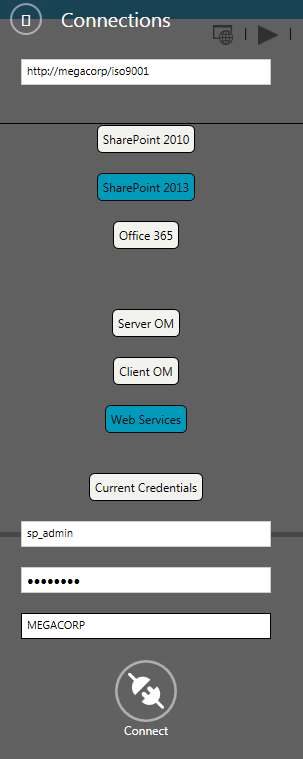
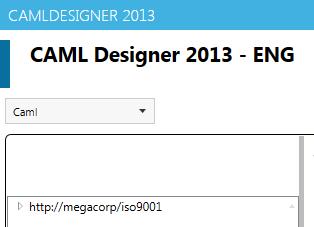
image  image

Step 3:

Click the arrow to the left of the Megacorp site and find the Process Owners list. Click it, and all of the fields in the list will be displayed as blue boxes below the These are the fields of the list section.
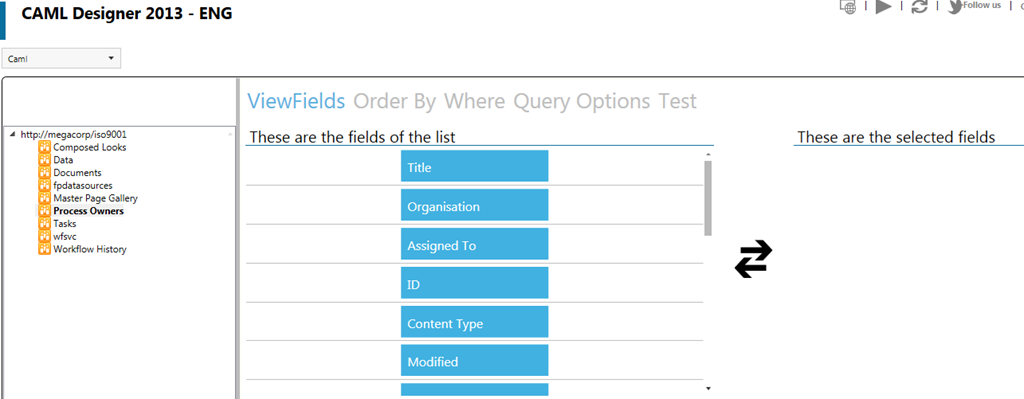
image

Step 4:

Drag the Organisation column to the These are the selected fields section to the right. Then do the same for the Assigned To column. If you look closely at the second image, you will see that the CAML XML is already being built for you below.
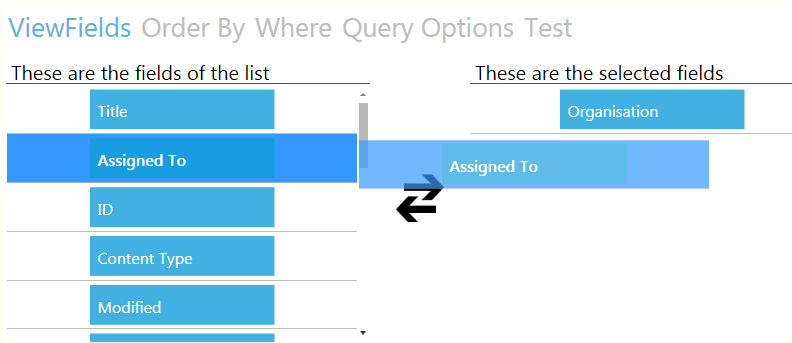
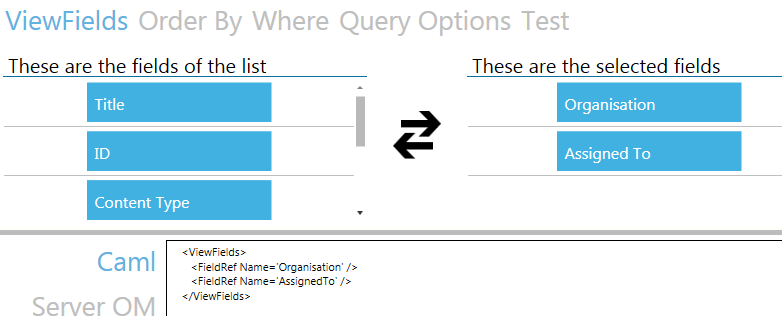
image     image

Step 5:

Now click on the Where menu item above the columns. Drag the Organisation column across to the These are the selected fields section. As you can see in the second image below, once dragged across, a textbox appears, along with a blue button with an operator. Also take note of the CAML XML being build below. You can see that has added a <Where></Where> section.
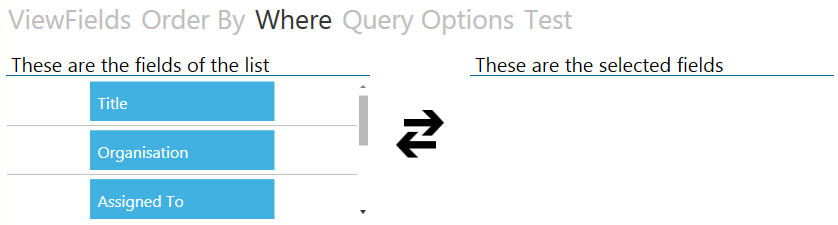
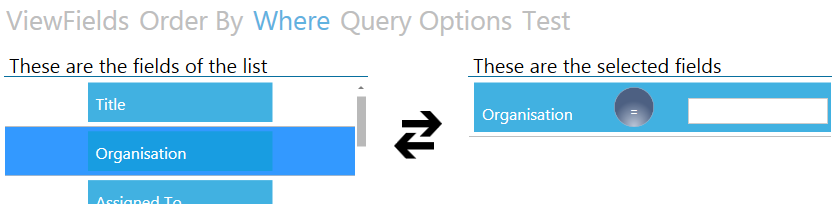
image

image

image

Step 6:

In the Textbox in the Organisation column you just dragged, type in one of the Megacorp organisations. Eg: Megacorp Burgers. Note the XML changes…
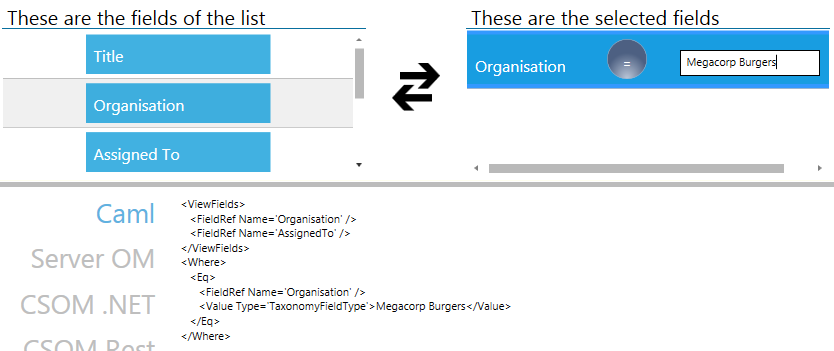
image

Step 7:

Click the Execute button (the Play icon across the top). The CAML query will be run, and any matching data will be returned. In the example below, you can see that the user Teresa Culmsee is the process owner for Megacorp Burgers.

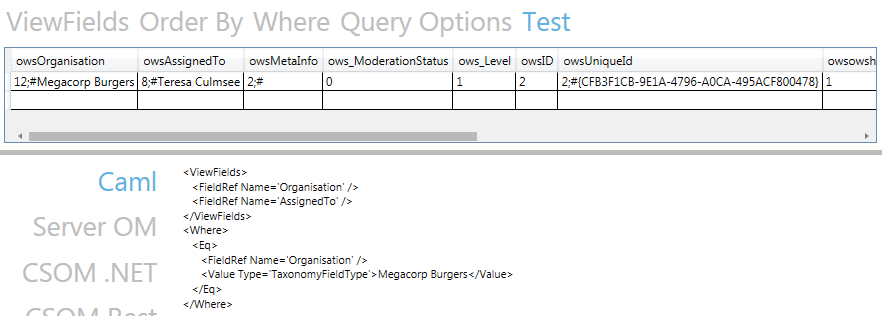
image

image

Step 8:

Copy the XML from the window to clipboard. We now have the XML we need to add to the REST web service call. Exit CAMLDesigner 2013.
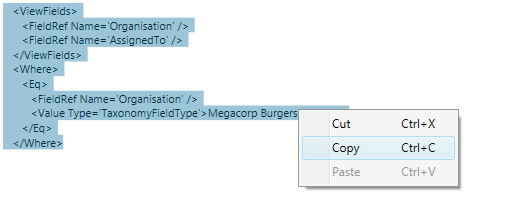
image

Building the REST query…

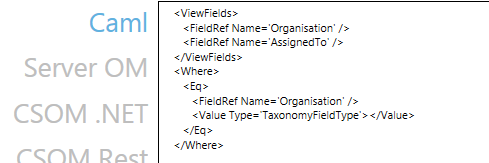
Armed with your newly minted CAML XML as shown below, we need to return to fiddler and draft it into the final URL.

<ViewFields>
   <FieldRef Name='Organisation' />
   <FieldRef Name='AssignedTo' />
</ViewFields>
<Where>
   <Eq>
      <FieldRef Name='Organisation' />
      <Value Type='TaxonomyFieldType'>Megacorp Burgers</Value>
   </Eq>
</Where>

As a reminder, the XML that we had working in the past post looked like this:

http://megacorp/iso9001/_api/web/Lists/GetByTitle(‘Process%20Owners’)/GetItems(query=@v1)?@v1={“ViewXml”:”<View><Query></Query></View>”}

Let’s now munge them together by stripping the carriage returns from the XML and putting it between the <Query> and </Query> sections. This gives us the following large and scary looking URL.

http://megacorp/iso9001/_api/web/Lists/GetByTitle(‘Process%20Owners’)/GetItems(query=@v1)?@v1={“ViewXml”:”<View><Query><ViewFields> <FieldRef Name=’Organisation’ /> <FieldRef Name=’AssignedTo’ /> </ViewFields> <Where> <Eq> <FieldRef Name=’Organisation’ /> <Value Type=’TaxonomyFieldType’>Megacorp Burgers</Value> </Eq> </Where></Query></View>”}

Are we done? Unfortunately not. If you paste this into Fiddler composer, Fiddler will get really upset and display a red warning in the URL textbox…

image

If despite Fiddlers warning, you try and execute this request, you will get a curt response from SharePoint in the form of a HTTP/1.1 400 Bad Request response with the message HTTP Error 400. The request is badly formed.

The fact that Fiddler is complaining about this URL before it has  even been submitted to SharePoint allows us to work out the issue via trial and error. If you cut out a chunk of the URL, Fiddler is okay with it. For example: This trimmed URL is considered acceptable by Fiddler:

http://megacorp/iso9001/_api/web/Lists/GetByTitle(‘Process%20Owners’)/GetItems(query=@v1)?@v1={“ViewXml”:”<View><Query>

But adding this little bit makes it go red again.

http://megacorp/iso9001/_api/web/Lists/GetByTitle(‘Process%20Owners’)/GetItems(query=@v1)?@v1={“ViewXml”:”<View><Query><ViewFields> <FieldRef Name=’Organisation’ />

Any ideas what the issue could be? Well, it turns out that the use of spaces was the issue. I removed all the spaces from the URL above and where I could not, I encoded it in HTML. Thus the above URL turned into the URL below and Fiddler accepted it

http://megacorp/iso9001/_api/web/Lists/GetByTitle(‘Process%20Owners’)/GetItems(query=@v1)?@v1={“ViewXml”:”<View><Query><ViewFields><FieldRef%20Name=’Organisation’ />

So returning to our original big URL, it now looks like this (and Fiddler is no longer showing me a red angry textbox):

http://megacorp/iso9001/_api/web/Lists/GetByTitle(‘Process%20Owners’)/GetItems(query=@v1)?@v1={“ViewXml”:”<View><Query><ViewFields><FieldRef%20Name=’Organisation’/><FieldRef%20Name=’AssignedTo’/></ViewFields><Where><Eq><FieldRef%20Name=’Organisation’/><Value%20Type=’TaxonomyFieldType’>Megacorp%20Burgers</Value></Eq></Where></Query></View>”}

image

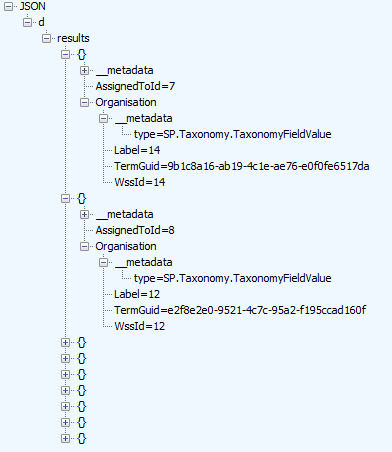
So let’s see what happens. We click the execute button. Wohoo! It works! Below you can see a single matching entry and it appears to be the entry from CAMLBuilder2013. We can’t tell for sure because the Assigned To column is returned as AssignedToID and we have to call another web service to return the actual username. We covered this issue and the web service to call extensively in part 8 but to quickly recap, we need to pass the value of AssignedToID to the http://megacorp/iso9001/_api/Web/GetUserById() web service. In this case, http://megacorp/iso9001/_api/Web/GetUserById(8) because the value of AssignedToId is 8.

The images below illustrate. The first one shows the Process Owner for Megacorp burgers. Note the value of AssignedToID is 8. The second image shows what happens when 8 is passed to the GetUserById web service call. Check Title and LoginName fields.
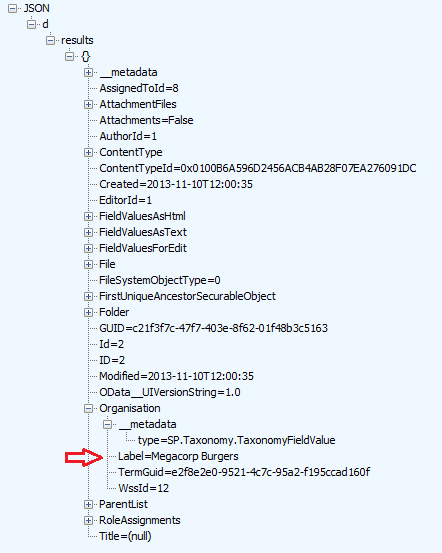
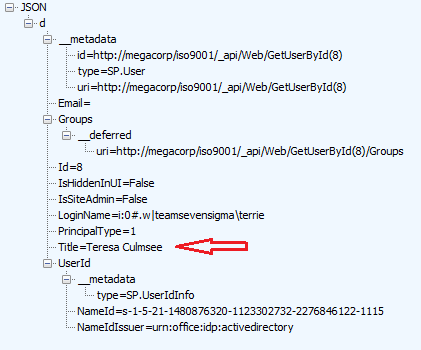
image image

Conclusion

Okay, so now we have our web service URL’s all sorted. In the next post we are going to modify the existing workflow. Right now it has four stages:

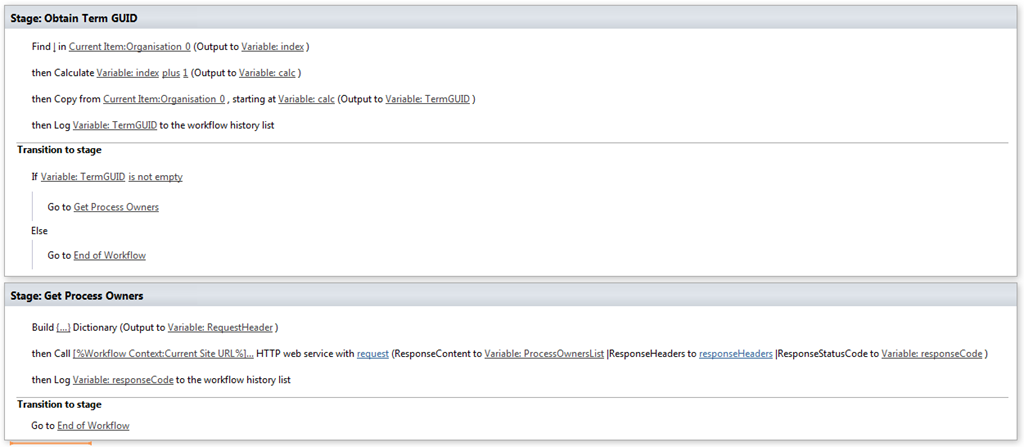
  • Stage 1: Obtain Term GUID (extracts the GUID of the Organisation column from the current workflow item in the Documents library and if successful, moves to stage 2)
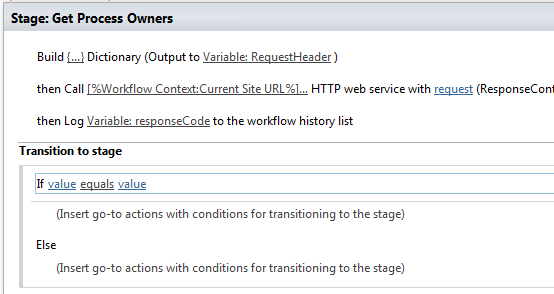
  • Stage 2: Get Process Owners (makes a REST web service call to enumerate the Process Owners List and if successful, moves to stage 3)
  • Stage 3: Find Matching Process Owner (Loops through the process owners and finds the matching organisation from stage 1. For the match, grab the value of AssignedToID and if successful, move to stage 4)
  • Stage 4: Obtain UserID (Take the value of AssignedToID and make a REST web service call to return the windows logon name for the user specified by AssignedToID and assign a task to this user)

We will change it to the following  stages:

  • Stage 1: Obtain Term Name (extracts the name of the Organisation column from the current workflow item in the Documents library and if successful, moves to stage 2)
  • Stage 2: Get the X-RequestDigest (We will grab the request digest we need to do our HTTP POST to query the Process Owners list. If successful move to stage 3)
  • Stage 3: Get Process Owner (makes the REST web service call to grab the Process Owners for the organisation specified by the Term name from stage 1. Grab the value of AssignedToID and move to stage 4)
  • Stage 4: Obtain UserID (Take the value of AssignedToID and make a REST web service call to return the windows logon name for the user specified by AssignedToID and assign a task to this user)

One final note: After this epic journey we have taken, you might think that doing this in SharePoint Designer workflow should be a walk in the park. Unfortunately this is not quite the case and as you will see, there are a couple more hurdles to cross.

Until then, thanks for reading…

Paul Culmsee

HGBP_Cover-236x300.jpg

www.hereticsguidebooks.com


Trials or tribulation? Inside SharePoint 2013 workflows–Part 9

Hi all and welcome to my series that aims to illustrate the trials and tribulations of SharePoint 2013 workflow to those who consider themselves as citizen developers. In case you don’t want to go all the way back to part 1, a citizen developer is basically a user who creates new business applications themselves, without the use of developers (or IT in general). Since there is no Visual Studio in sight in this series, I think its safe to ay that SharePoint 2013 workflow has the potential to be a popular citizen developer tool, but it is important that people know what they are in for.

We start part 9 of this series having just finally assigned a task to a user in part 8. While this in itself is not particularly earth shattering, if you have followed this series to now, you will appreciate that we have had to navigate some serious potholes to get here, but along the way it is clear that there is some very powerful features available.

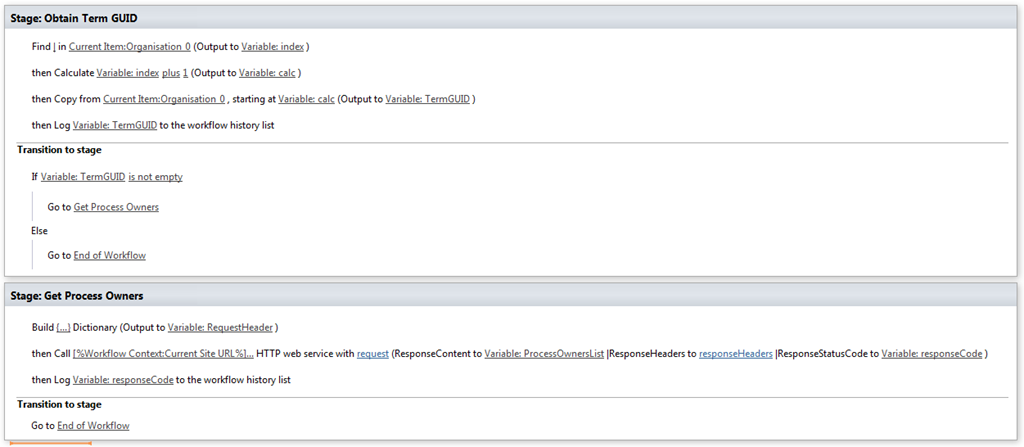
Currently the workflow as it stands consists of four stages.

  • Stage 1: Obtain Term GUID (extracts the GUID of the Organisation column from the current workflow item in the Documents library and if successful, moves to stage 2)
  • Stage 2: Get Process Owners (makes a REST web service call to enumerate the Process Owners List and if successful, moves to stage 3)
  • Stage 3: Find Matching Process Owner (Loops through the process owners and finds the matching organisation from stage 1. For the match, grab the value of AssignedToID and if successful, move to stage 4)
  • Stage 4: Obtain UserID (Take the value of AssignedToID and make a REST web service call to return the windows logon name for the user specified by AssignedToID and assign a task to this user)

As mentioned at the end of part 8, one flaw in this workflow is the issue that if the process owners list has a large number of entries, the workflow has to iterate each process owner to find the one with a matching organisation. This causes a bit of concern, because in general, iterating through SharePoint lists in this way is not overly great on performance. In fact SharePoint has an  unfortunate heritage of newbie developers causing all sorts of disk and memory performance issues because of code that iterates a list in a similar way.

So this post is going to explore how we can do better. How about change the workflow behaviour so that rather than grab the entire process owners list, we grab just the entry we need from the process owners list.

But wait – didn’t you say something about this not working?

Now if you have dutifully read this series in the way I intend you to do, you might recall the issue that cropped up in parts 4 and 5. I pointed out that since the Organisation column we are using is a managed metadata column, we cannot use it to filter a list using REST/oData. So while the first query below would happily filter a list by a title of “something”, the second one will result in a big fat error.

http://megacorp/iso9001/_vti_bin/client.svc/web/lists/getbyid(guid’0ffc4b79-1dd0-4c36-83bc-c31e88cb1c3a’)/Items?$filter=Title eq ‘something’ Smile

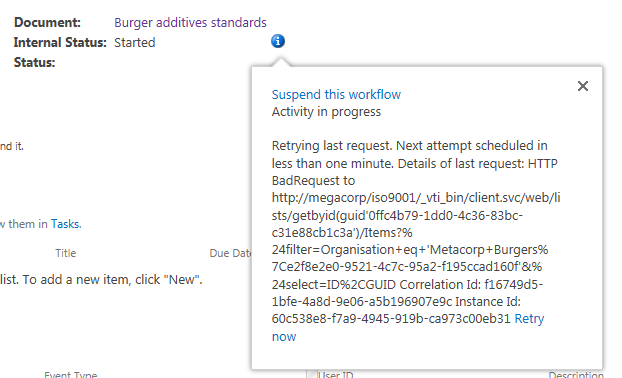
http://megacorp/iso9001/_vti_bin/client.svc/web/lists/getbyid(guid’0ffc4b79-1dd0-4c36-83bc-c31e88cb1c3a’)/Items?”filter=Organisation eq ‘something’ Sad smile

So this is a pickle isn’t it – how can we filter the process owners list by organisation when its not supported by REST/oData?

The thing about managed metadata columns…

Going back in time a bit, SharePoint 2010 was the first version with support for REST and in SharePoint 2013, REST support was extended significantly. As you now know, it seems the managed metadata people never got that memo because one of the older methods that can be used to query lists is called Collaborative Application Markup Language (CAML for short), and CAML does support filtering on managed metadata columns.

CAML, in case you are not aware of it, has been used for SharePoint since the very first version. It is based on a defined XML schema that can be used to query lists and libraries – much like a SQL query does on a database table. Being XML, it is more verbose than a SQL table and for me, harder to read. As an example, the SQL statement “SELECT * from TABLE WHERE field=VALUE” would look something like:

<Query><Where>< Eq><FieldRef Name=’field’ />< Value Type=’Text’>VALUE</Value> </Eq></Where></Query>.

Turning our attention back to the Organisation column that we are having trouble with, a CAML query to bring back all documents tagged as owned by “Megacorp Burgers” would look something like this…

<Where>
   <Eq>
      <FieldRef Name='Organisation' />
      <Value Type='TaxonomyFieldType'>Megacorp Burgers</Value>
   </Eq>
</Where>

Note: By the way, if you want to prove that this works, use CAML Designer 2013, to connect to a list, apply a filter and it will generate the CAML XML it used. I will cover this in the next post.

So here is where we are at. We can definitely can filter a list with a managed metadata column by using the CAML language. But we cannot filter a list using managed metadata via the REST/oData methods that I outlined in part 4. I wonder If there a way to embed a CAML query into a REST web service call?

Turns out there is… only problem is that there is some more conceptual baggage required to understand it properly, so have a strong coffee and lets go…

A journey of CAML in REST…

A while back I came across an MSDN forum thread where Christophe Humbert asked whether CAML queries could be done via the REST API. Erik C. Jordan provided this answer:

POST https//<site>/_api/web/Lists/GetByTitle(‘[list name]‘)/GetItems(query=@v1)?@v1={“ViewXml”:”<View><Query>[other CAML query elements]</Query></View>”}

Take a close look at the above URL. We are still talking to SharePoint via REST and we are calling a method called GetItems. As part of the GetItems call, we see CAML XML inside some curly braces: ‘@v1={“ViewXml”:”<View><Query>[other CAML query elements]</Query></View>”}’.

Hmmm – this looks to have potential. If I can embed a valid CAML query that filters list items based on a managed metadata column, we can very likely have the workflow do that using the Call HTTP Web Service workflow action.

So let’s test this web service and see if we can get it to work. Let’s try enter the above URL on the MegaCorp process owners site.

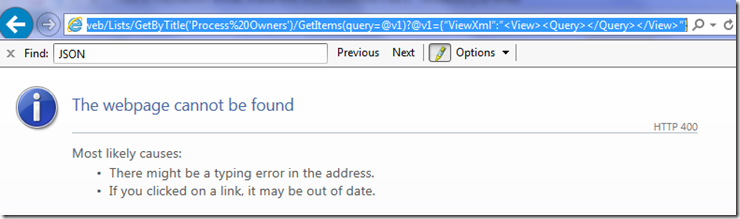
http://megacorp/iso9001/_api/web/Lists/GetByTitle(‘Process%20Owners’)/GetItems(query=@v1)?@v1={“ViewXml”:”<View><Query></Query></View>”}

Uh-oh, error 400. Dammit, what now?

image_thumb3_thumb_thumb

Turns out that we cannot use a browser to test this particular web service because it is requires a HTTP POST operation, but when we type a URL into a browser, we are performing a HTTP GET operation, hence the error 400.  If you really want to know the difference between a GET and POST in relation to HTTP go and visit this link. But for the purpose of this article, we need to find a way to compose HTTP POST web service calls and guess what – you already know exactly how to do it because we covered it in part 7 – the Fiddler composer function.

So start up Fiddler and let’s craft ourselves a call to this web service….

Step 1:

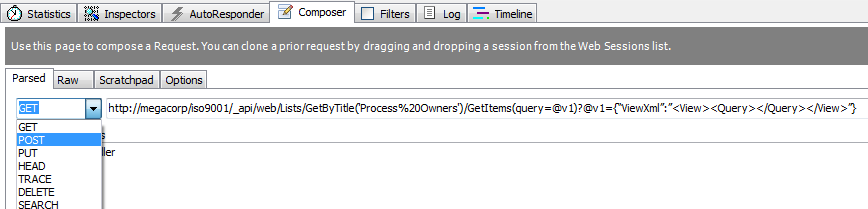
Start Fiddler and click the Composer Tab. Paste in the web service call we just tried – http://megacorp/iso9001/_api/web/Lists/GetByTitle(‘Process%20Owners’)/GetItems(query=@v1)?@v1={“ViewXml”:”<View><Query></Query></View>”}. Make sure you change the request from a GET to a POST by clicking the dropdown to the left of the URL.

image

Step 2:

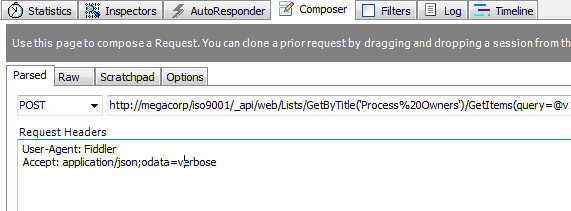
Type in the string “Accept: application/json;odata=verbose” into the Request headers textbox as shown below. If you recall the HTTP interlude from part 6, this tells SharePoint to bring back the data in JSON format, rather than XML

image

Step 3:

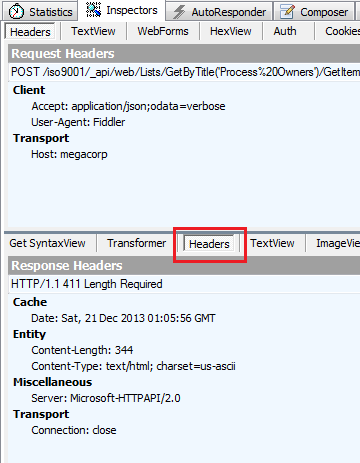
Click the execute button to execute the request and then click the Response Headers tab as shown below to see what happened. As you can see below, things did not go so well. We got a response code of HTTP/1.1 411 Length Required

image

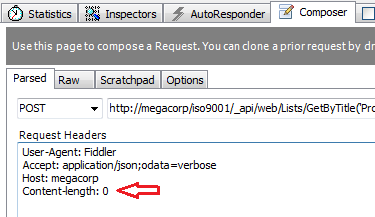
Hmm – so what are we missing here? It turns out that some HTTP queries require the use of a ‘Content-Length‘ field in the HTTP header. The standard for the HTTP protocol states that: “Any Content-Length greater than or equal to zero is a valid value”, so let’s add a value of zero to the request header.

Step 4:

Click the composer tab again and add the string “Content-length: 0” to the request header textbox as shown below and click execute again:

image

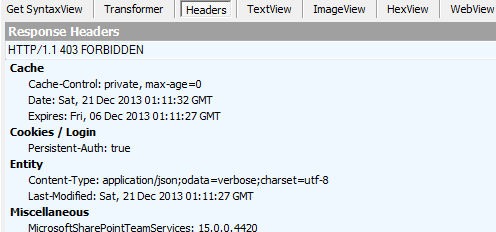
Checking the response and it looks like we are still not quite there as we have another error code: HTTP/1.1 403 FORBIDDEN (The security validation for this page is invalid and might be corrupted. Please use your web browser’s Back button to try your operation again). *sigh* will this ever just work?

image

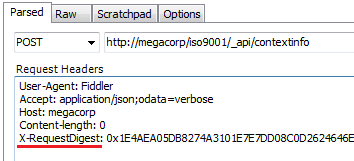
The reason for this error is a little more complex than the last one. It turns out that we are missing another required HTTP header in the POST request that we are crafting. This header has the cool sounding name of X-RequestDigest and it holds something called the form digest. What is the form digest? Here is what Nadeem Ishqair from Microsoft says:

The form digest is an object that is inserted into a page by SharePoint and is used to validate client requests. Validation of client requests is specific to a user, a site and time-frame. SharePoint relies on the form digest as a form of security validation that helps prevent replay attacks wherein users may be tricked into posting data to the server. As described on this page on MSDN, you can retrieve this value by making a POST request with an empty body to http://site/_api/contextinfo and extracting the value of the “d:FormDigestValue” node in the XML that the contextinfo endpoint returns.

So there you go – it is a security function that validates web service requests. So our workflow is going to have to make yet another web service call to handle this. We will make a POST request with an empty body to http://megacorp/iso9001/_api/contextinfo and then extract the value of the “d:FormDigestValue” node in the information returned.

This probably sounds as clear as mud, so let’s use Fiddler to do it so we know what we have to do in the workflow.

Step 5:

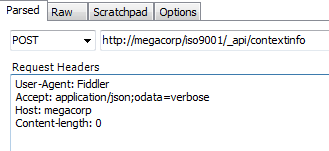
Start Fiddler and click the Composer Tab. Paste in the web service of http://megacorp/iso9001/_api/contextinfo. Make sure you change the request from a GET to a POST and add the string “Accept: application/json;odata=verbose” into the Request headers textbox as shown below

image

Step 6:

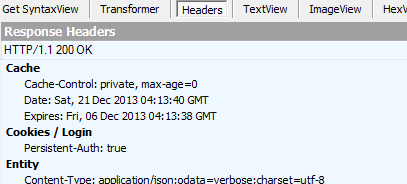
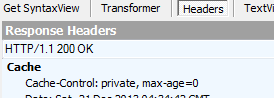
Click the execute button to execute the request and make sure the response headers tab is selected. Confirm that the response you get from the server is 200 OK.

image

Step 7:

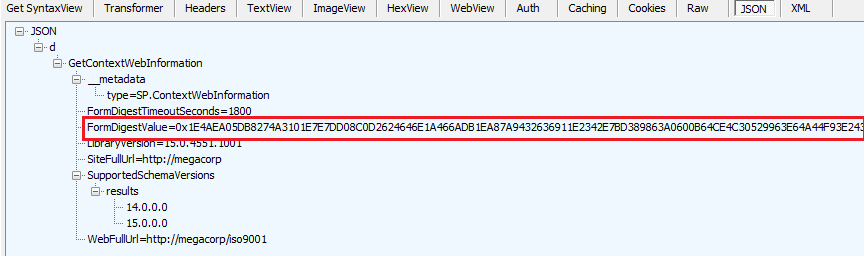
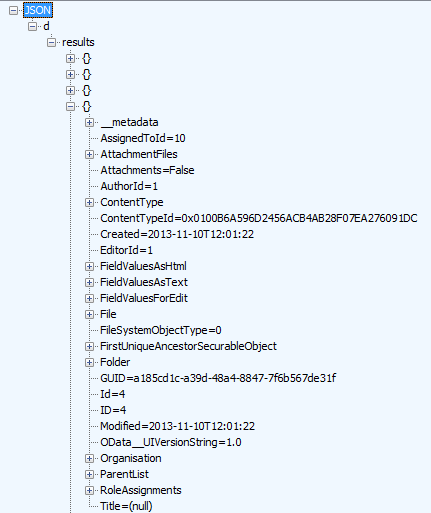
Click the JSON button and look for an entry called FormDigestValue in the response.

image

Step 8:

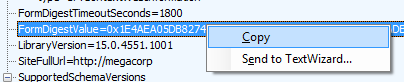
Right click on the FormDigestValue entry and choose copy to get it into the clipboard.

image

Step 9:

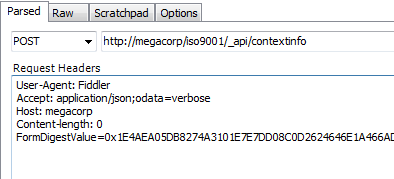
Click on the composer tab again and paste the FormDigestValue into the Request Headers textbox as shown below. Replace the string “FormDigestValue =” with “X-RequestDigest: “ to make it the correct format needed as shown in the second image below.

image    image

Step 10:

Paste in the original request into the URL: http://megacorp/iso9001/_api/web/Lists/GetByTitle(‘Process%20Owners’)/GetItems(query=@v1)?@v1={“ViewXml”:”<View><Query></Query></View>”} and click Execute.

image

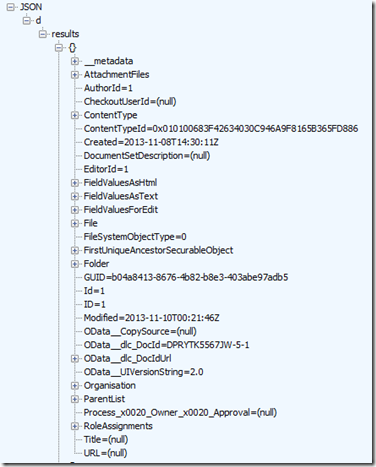
Check that the HTTP return code is 200 (OK) and then click the JSON tab to see what has come back. You should see a JSON result set that looks like the image below. If you examine the JSON data returned detail of this image, you will it is exactly the same JSON structure that was returned when we used fiddler in part 7.

image  image

Let’s pause here for a moment and reflect. If you have made it this far, you have pretty much nailed the hard bit. If you had an issue, fear not as there are a couple of common problems that are usually easy to rectify.

Firstly, if you receive an error HTTP/1.1 400 Bad Request with a message that looks something like “Invalid JSON. A colon character ‘:’ is expected after the property name ‘â’, but none was found.”, just double check the use of quotes (“”) in the URL. Sometimes when you paste strings from your browser or RSS reader, the quotes can get messed up because of autocorrect. Look closely at the URL below and note the quotes are angled:

{“ViewXml”:”<View><Query></Query></View>”}

To resolve this issue, simply replace the angled quotes with a regular boring old quote so they are not angled and the problem will go away. Compare the string below to the one above to see what I mean…

{“ViewXml”:”<View><Query></Query></View>”}

The second common problem is a HTTP/1.1 403 FORBIDDEN response with the message: “The security validation for this page is invalid. Click Back in your Web browser, refresh the page, and try your operation again”. If you see this error, your X-RequestDigest may have expired and you need to regenerate it via repeating steps 5 to 9 above. The other possibility is that you did not properly paste the FormDigest into the request header. Double check this as well.

Conclusion

Okay, so that was a rather large dollop of conceptual baggage I handed out in this post. You got introduced to the older method of querying SharePoint lists called CAML, and we have successfully been able to call a REST web service and pass in a CAML XML string and get back data. We learnt about the HTTP POST request and some of the additional HTTP headers that need to be sent, like the Content-length and the X-RequestDigest to make it all work. As an added bonus, we are all Fiddler composer gurus now.

However all we sent across was an empty CAML string. The string <View><Query></Query></View> pretty much says “give me everything and don’t filter”, which is not what we want. So in the next post, we will learn how to create a valid CAML string that filters by the Organisation column. Once we have successfully tested it, we will modify the workflow to use this method instead.

Until then, thanks for reading…

Paul Culmsee

HGBP_Cover-236x300.jpg

www.hereticsguidebooks.com


Trials or tribulation? Inside SharePoint 2013 workflows–Part 8

Hi and welcome to part 8 of my series of articles around SharePoint 2013 workflows. Hopefully as you progress through this series, as well as getting a heap of new conceptual baggage, you are getting a better sense of that SharePoint 2013 workflows are capable of and whether they have enough to be a seriously considered solution and whether they can empower citizen developers.

If you have been following proceedings thus far, we just successfully connected to the Process Owners list via REST web services and we manipulated dictionary variables to get to the data returned by the web service. We just started using the looping functionality of SharePoint 2013 workflow and successfully created a loop to iterate through the process owners list.

Now it’s time to finish the job. Here is the stage that we successfully tested at the end of the last post…

image

Adding conditional logic…

Our next task is to add some conditional logic into the workflow where if a match is found between term GUID’s, stop looping through the rest of the process owners. This will make the workflow more efficient because if the process owners list was big and the matching term GUID was one of the first few entries, we can save a lot of unnecessary loops.

Step 1:

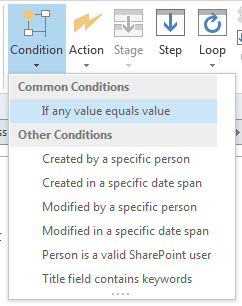
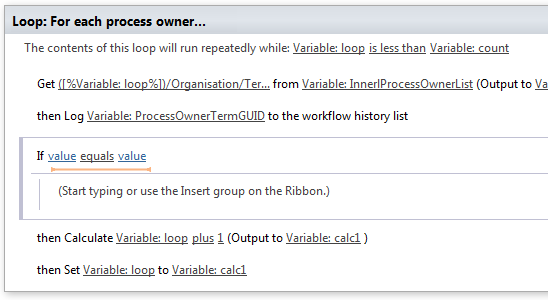
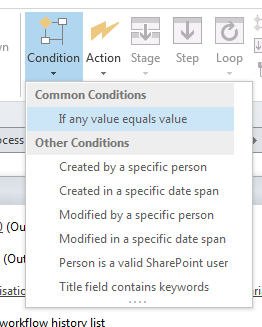
Click in between the second and third workflow actions in the loop. From the ribbon, click the Condition icon and from the list of conditions, choose If any value equals value.

image  image  image

Now back in part 6, in the “Getting the GUID…” section, we added a series of steps to extract the Term GUID from the current item. The variable was called TermGUID. Now we are going to compare the TermGUID with each of the GUID’s returned by each iteration of the loop.

Step 2:

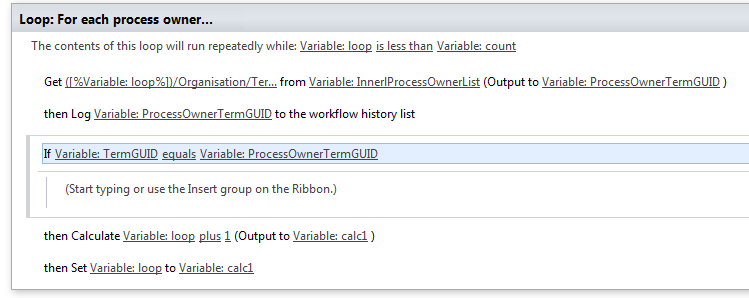
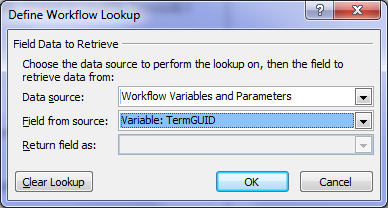
Click on the leftmost value hyperlink of the If statement and click the fx button. In the Define Workflow lookup dialog, choose Workflow Variables and Parameters as the Data source and choose the TermGUID variable in the Field from Source dropdown. Click OK

Step 3:

Click on the rightmost value hyperlink of the If statement and click the fx button. In the Define Workflow lookup dialog, choose Workflow Variables and Parameters as the Data source and choose the ProcessOwnerTermGUID variable in the Field from Source dropdown. Click OK

image

Now we have configured the test for when the Organsiation matches between a document and the process owner list. The next step is to get the value of the Assigned To column, since that has the username of the process owner for a given organisation. But If you review the web service call that was made to to the Process Owners list (http://megacorp/iso9001/_vti_bin/client.svc/web/lists/getbytitle(‘Process%20Owners’)/Items?$select=AssignedToId,Organisation), you might notice that I used the column name AssignedToId rather than the actual column name reported in SharePoint called Assigned To. So what gives?

Turns out that one of the current limitations of using the oData/REST approach is that columns that store People/Group data do not return the persons name. Instead, they return a numeric ID via a different column name. For example: the Created By and Modified By columns are represented in rest by AuthorId and EditorId respectively.

The implication? We will need to call yet another web service, passing it the value of AssignedToId to get the actual username so we can assign them a task.

“Oh come on,” I hear you say, “this is messy enough already and we still have to mess with web services?”

I feel your pain, but at least now you have more of an  idea of what it takes to be a citizen developer when it comes to SharePoint Designer 2013 workflows! Let’s get on with it…

Finding the user…

Our first step is to grab the value of AssignedToId from the InnerProceessOwnerList dictionary variable. This is similar to what we did to create the ProcessOwnerTermGUID variable in part 7 – we use a Get Item from a Dictionary action.

Step 1:

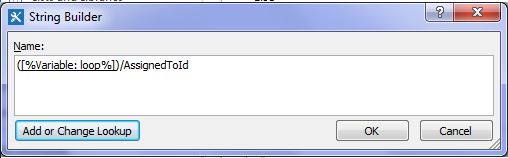
Add a Get an Item from a Dictionary action, click the item by name or path hyperlink and click the ellipses to bring up the string builder screen. Type in a left bracket “(“ and then click the Add or Change lookup button. In the Lookup for String dialog, choose Workflow Variables and Parameters as the data source and find the variable called loop  and click OK. Finally, type in the following string “)/AssignedToId” and click OK.

image

Step 2:

Back at the workflow action, click on the dictionary hyperlink and choose the InnerProcessOwnerList variable from the list.

Step 3:

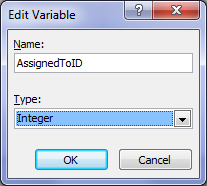
Click the item hyperlink and choose to create a new variable to bring up the edit variable screen. Name the variable AssignedToID and set its type to Integer.

image  image

Now that we have our user (well an integer representing the user in the form of the variable AssignedToID), there is not much point in looping around for more process owners, so lets add a workflow step to make the loop end straight away.

Step 4:

Add a Set Workflow Variable action and click on the workflow variable hyperlink. From the list of variables, choose loop. Now click the value hyperlink and click the fx button to bring up the Lookup for Integer dialog. In the Data source dropdown, choose Workflow Variables and Parameters and in the Field from source dropdown, choose the variable count.

To understand what step 4 does, let’s look at the entire loop. Note that the loop will run repeatedly while the value of the loop variable is less than the value of the count variable. Step 4 now means that this is not the case and the loop will end.

image

Next we have to grab the user that AssignedToId variable refers to via calling another web service as I previously mentioned. This is a little tricky, so it is best we do it in a new workflow stage. Thus, we will tidy up a few loose ends with this stage.

Step 5:

Add a new workflow stage and name it “Obtain UserID”.

Step 6:

In the Transition to stage section of the Find Matching Process Owner stage, delete the Go to End of Workflow action and replace it with an If any Value equals Value condition. In the first value hyperlink, set it to the variable AssignedToID. Click the equals hyperlink and change it to is greater than. Finally, click the last value hyperlink and set it to zero “0”. The logic behind this workflow action is that the default value for integer variables are 0. If a process owner has been found for a document, the value of AssignedToID will be greater than zero. Therefore the workflow can use this fact when it decides whether to proceed to the new stage created in step 5.

image

Step 7:

Add a Go to a stage action underneath the If condition and set it to go to the Obtain Userid stage created in step 5.

Step 8:

Add a Go to a stage action underneath the Else condition and set it to End of Workflow.

image

A new web service…

Right, let’s now turn our attention to the Obtain Userid stage created in step 5 above. By now you should be a REST/JSON guru after being able to successfully connect to and parse the data from the Process Owners list in part 6 and part 7. By comparison, the web service method we are about to call is quite simple. It is called GetUserByID and the URL looks like this:

http://megacorp/iso9001/_api/Web/GetUserById().

The one thing we have to do is pass it an integer that refers to the user – value of the AssignedToID variable.

To demonstrate how this works, I will pick an ID at random and we can have a look at the data returned by this web service call. Using the Fiddler composer function to return the data in JSON format, we get the following output.

http://megacorp/iso9001/_api/Web/GetUserById(7)

image

A quick scan of the data above and it appears that the data we are interested in is LoginName. Based on what we learnt from accessing JSON data to get hold of the term GUID of the Organisation column, we will have to use the Get an Item from a Dictionary action, to get at the LoginName entry. The item reference should be d/LoginName, so let’s test it.

Step 1:

Add a Call HTTP Web Service action and click the this hyperlink. Click the ellipses button to display the string builder dialog. Use the Add or Change Lookup button and the text editor to build the following string:

  • 1) [Workflow context: Current Site URL]
  • 2) “_api/Web/GetUserById(“
  • 3) [%Workflow Variables and Parameters: AssignedToID%]
  • 4) “)”

image

Step 2:

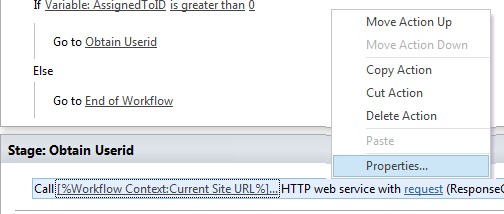
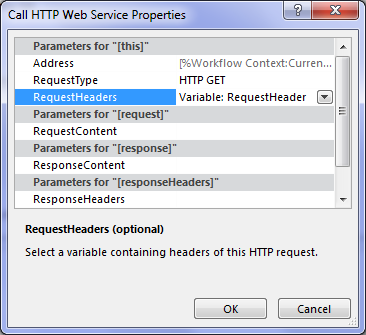
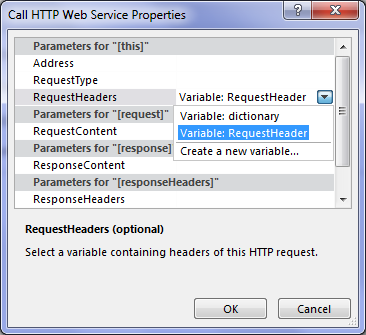
Right click on the Call HTTP Web Service action created in step 1 and choose properties. In the Call HTTP Web Service Properties dialog, set the RequestHeaders dropdown to the RequestHeader dictionary variable. (If you stretch your mind back to part 6, we created the RequestHeader variable to ensure our data comes back in JSON format. We can re-use that here to do the same thing).

image   image

Step 3:

On the Call HTTP Web Service action,  click the response hyperlink and create a new variable and call it UserDetail. Click the ResponseStatusCode hyperlink and choose the existing variable called responseCode. (It first made an appearance in part 6 and we can re-use it here).

image

Step 4:

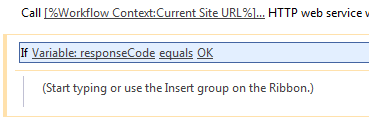
Add an If any value equals value condition and configure it to test of the variable responseCode equals OK

image

Step 5:

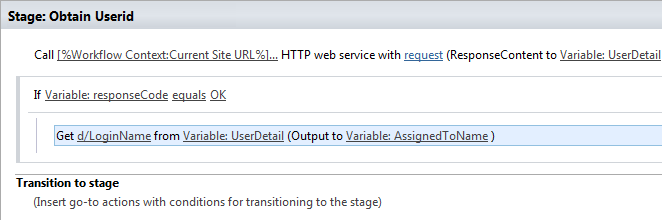
Add a Get an Item from a Dictionary action, click the item by name or path hyperlink and type in “d/LoginName”. Click the dictionary hyperlink and choose the UserDetail variable created in step 3. Click the item hyperlink and create a new string variable called AssignedToName.

image

At this point it makes sense to log the value of AsssignedToName to workflow history to make sure the have set everything up correctly.

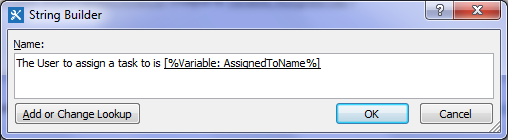
Step 6:

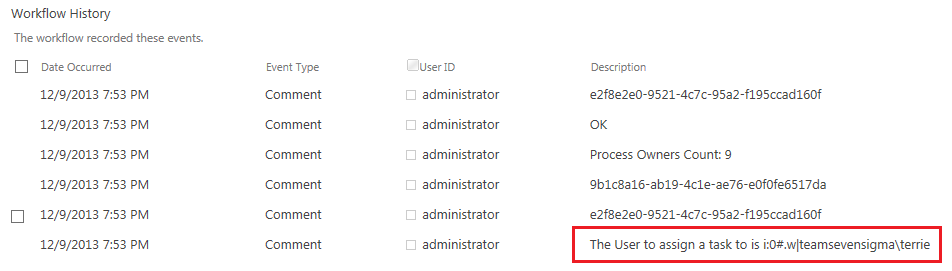
Add a Log to history action and set the message to: “The User to assign a task to is: [%Variable: AssignedToName%]”

image

Step 7:

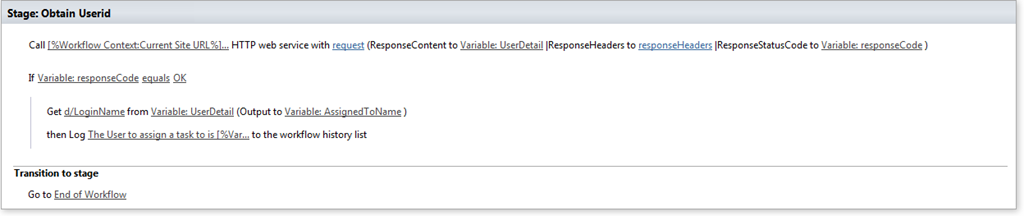
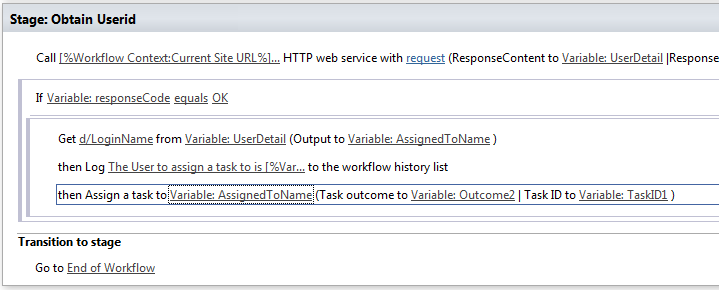
Add a Go to a stage action and set it to end the workflow. The complete configuration for the stage should look like the image below.

image

Now it’s time to test the workflow. In my case, I went back to the documents library and triggered the workflow on the document called Burger Additives Standard which is assigned to the organisation of Megacorp Burgers. Here is the result…

image  image

Wohoo! we have our user! If we check the process owners list for Megacorp Burgers on the left image above and compare it to the workflow history next to it, we can indeed confirm that the lookup reported is right. (In my test environment, the userid for Teresa Culmsee is teamsevensigma\terrie).

Assigning a task…

Now I think I speak for all of us when I say HOLY CRAP WE ARE ALMOST THERE!!!. I mean, it has taken 8 posts, but we have one more workflow action to add. Drumroll….the action that we started this series with way back in part 2.

Step 1:

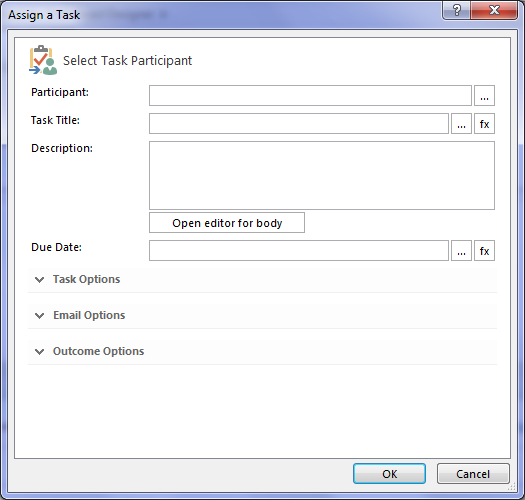
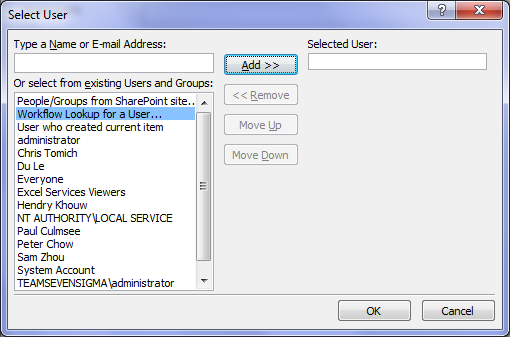
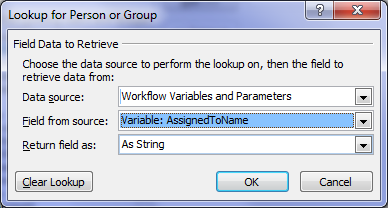
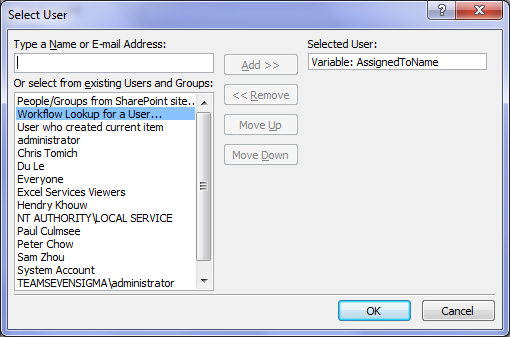
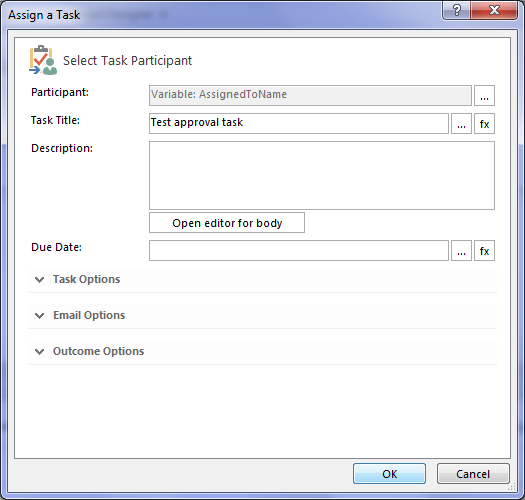
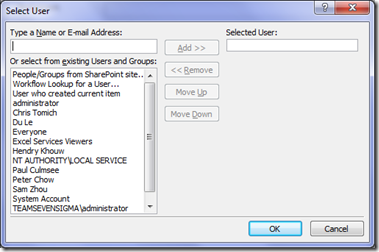
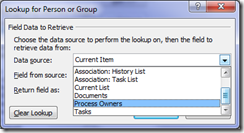
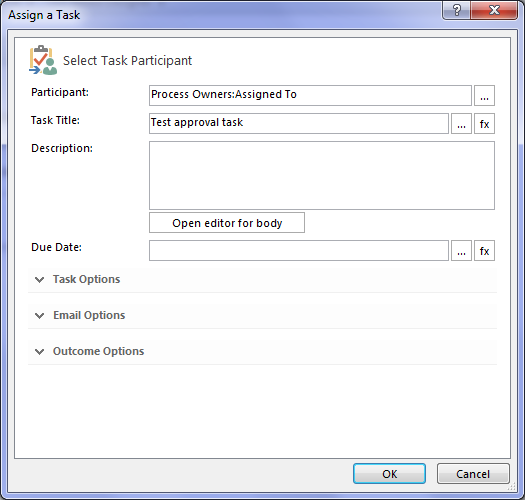
Add an Assign a task action and click on the this user hyperlink. In the Select Task Participant Dialog, click the ellipses next to the Participant textbox. This will bring up the Select User dialog. In the select from existing users or groups list, select Workflow Lookup for a User and click Add. In the Lookup for Person or Group dialog, choose Workflow Variables and Parameters from the Data source dropdown and choose the AssignedToName variable and click OK.

image  image

image  image

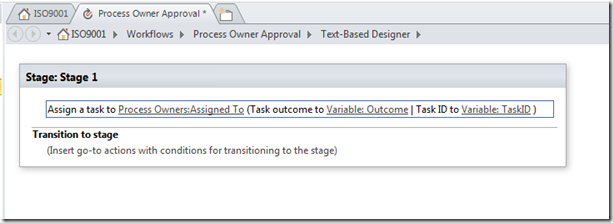
Now you will be back at the Select Task Participant Dialog. Enter a task title of “Test approval task” and click ok. (For now we are not going to wire up the rest of the task, this is enough to prove that it works. So click Ok to go back to the workflow designer and review the action.)

image    image

Looks good, so let’s now publish the workflow and let’s test it by taking it from the top.

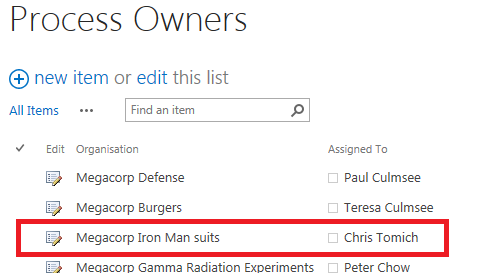
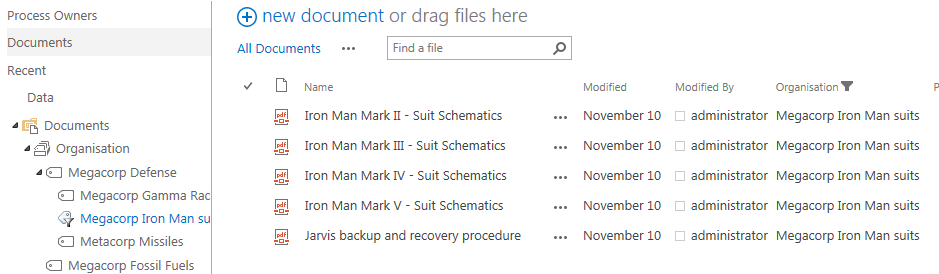
Now as a side note, when writing this post, my colleague Chris Tomich insisted that he had to be process owner for Megacorp’s Iron Man Suits division, and you will see that below. Checking the documents library and using metadata navigation, we see all the documents that are owned by the Iron Man Suits subsidiary of Megacorp. It stands to reason that we would have suit schematics and the backup and recovery process for Javris eh?

image  image

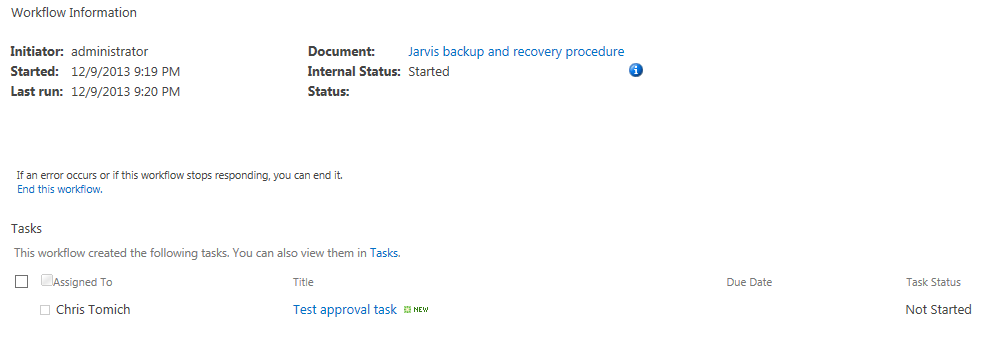
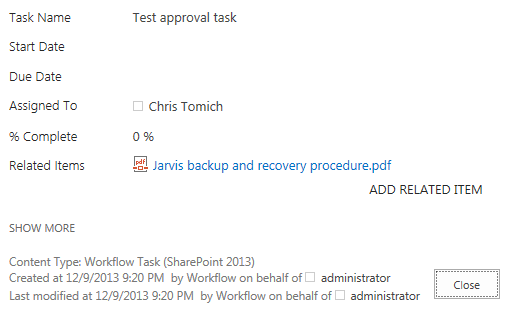
Choosing the Jarvis backup and recovery procedure document, we run our workflow. Checking the status of the workflow, what do we see? Yeah baby! Chris has been assigned a task!

image  image

Conclusion…

So at this point, I can’t help but wonder how many readers are actually happy that it took 8 posts to finally assign a task to a user. But nevertheless, the journey has been a good example of the sort of issues that you encounter when using SharePoint 2013 workflows.

Now in part 7, I  alluded to the fact that this method had a flaw. Our Megacorp example has been a simple one with just a few entries in the process owners list. But what if there were say, 5000 process owners and the one we want is number 4864? The current workflow would have to iterate through the first 4863 entries before it gets to this one. This isn’t overly efficient to do and might introduce some performance penalty (which plays into the hands of developers who don’t like the idea of scary citizen developers meddling with forces they don’t understand). So it begs the question whether we can come up with an alternate way to do this?

In part 9 and onward from there, we will answer that question.

Thanks for reading

Paul Culmsee

HGBP_Cover-236x300.jpg

www.hereticsguidebooks.com


Trials or tribulation? Inside SharePoint 2013 workflows–Part 7

Hi and welcome to part 7 of my series of articles around SharePoint 2013 workflows. We have been examining the trials and tribulations (mainly trials so far) of implementing a relatively simple document approval workflow for a mythical organisation called Megacorp Inc. In the last post, I started illustrating the first of two approaches to filtering a list based on a managed metadata column using the Call HTTP Web Service capability. If you have been following along with me, we just successfully called the SharePoint lists web service via REST. The diagram below shows where we are at… Now it is time to work with the data that is returned.

image

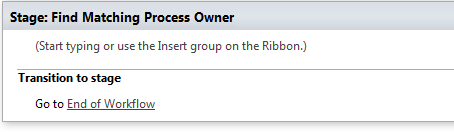
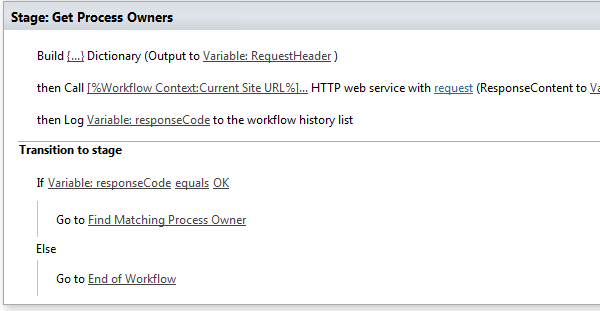
Very soon we are going to use the loop function of workflows to go through each process owner and check the GUID of the Organisation field. This is probably best done as a new workflow stage that only runs if the response code from the webservice is 200 (OK). So let’s make some minor changes to the workflow…

Step 1:

Add a new workflow stage and name it “Find Matching Process Owner

Step 2.

In the Transition to stage section of the new stage, add a Go to a stage action and set the stage as “End of Workflow

image

Step 3:

In the Transition to stage section of “Get Process Owners” Stage, delete the “Go to End of Workflow” action. In its place, add an “If any value equals value” condition

Step 4:

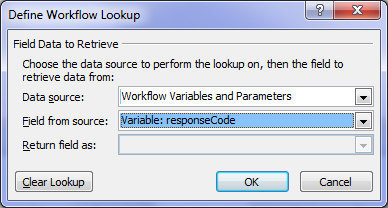
Click the first value hyperlink of the newly added condition from step 3 and click the fx button. In the Define Workflow lookup dialog, choose Workflow Variables and Parameters as the Data source and choose the responseCode variable in the Field from Source dropdown. Click OK

image  image

Step 5:

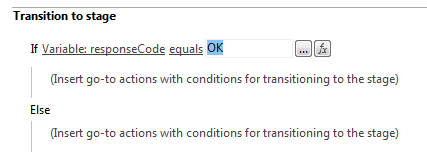
Click the second value link of the newly added condition from step 3. Type in the value “OK” and press enter.

image

Step 6:

Under the If Variable: responseCode equals OK condition, add a Go to a stage action. Set the stage as Find Matching Process Owner (the stage created in step 1).

Step 7.

Under the Else condition, add a Go to a stage action. Set the stage as End of Workflow

image

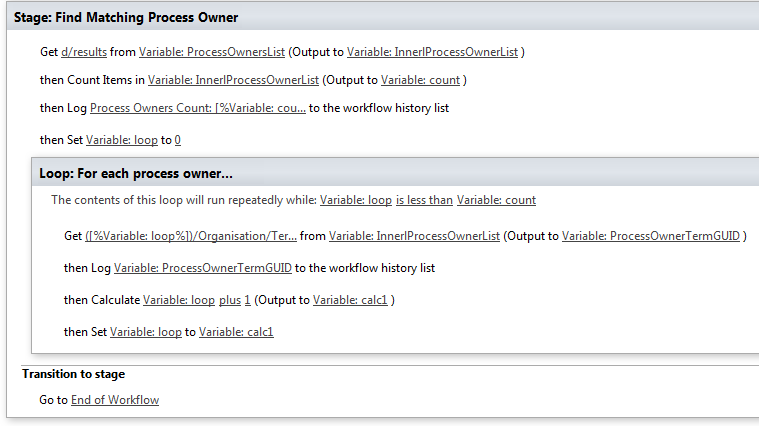
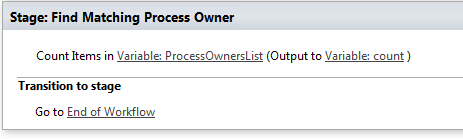
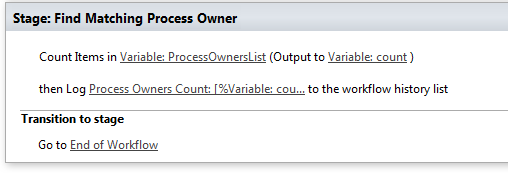
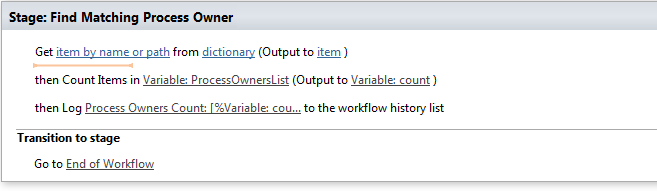
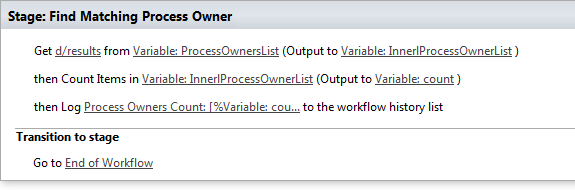
Ok, so now we have a new workflow stage to work with called Find Matching Process Owner. This is where we are going to manipulate dictionary variables and in particular, the ProcessOwnersList variable that contains the data returned by the call we made to the REST webservice in part 6. The first thing we will do is count how many items are in the ProcessOwnersList dictionary, otherwise we won’t know when to stop the loop. This is where the Count Items in a Dictionary workflow action comes in. Let’s try it on the ProcessOwnerList variable now.

Step 8:

In the Find Matching Process Owners stage, add a Count Items in a Dictionary action. Click the dictionary hyperlink and choose Variable: ProcessOwnersList from the list of dictionary variables.

image

Now we should check to see if the value of count is what  we are expecting. For your reference, here are the 9 entries currently in the Process Owners list…

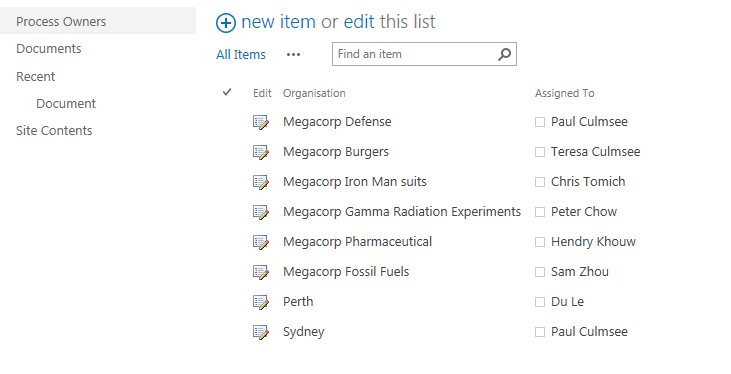
Megacorp Defense Paul Culmsee
Megacorp Burgers Teresa Culmsee
Megacorp Iron Man suits Chris Tomich
Megacorp Gamma Radiation Experiments Peter Chow
Megacorp Pharmaceutical Hendry Khouw
Megacorp Fossil Fuels Sam Zhou
Perth Du Le
Sydney Paul Culmsee
Alaksa Du Le

Step 9:

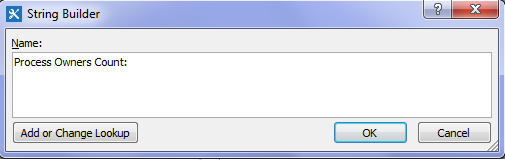
Add a Log to Workflow History action. Click the message hyperlink and click the ellipses button. In the string builder dialog, type in “Process Owners count: “

image

Step 10:

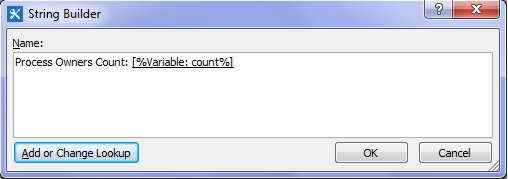
Click the Add or Change Lookup button. In the Lookup for string dialog, choose Workflow Variables and Parameters from the data source dropdown and choose the variable count. Click OK. You should see the following text in the string builder dialog. Click OK. Review the workflow stage and confirm it looks like the second image below.

image  image

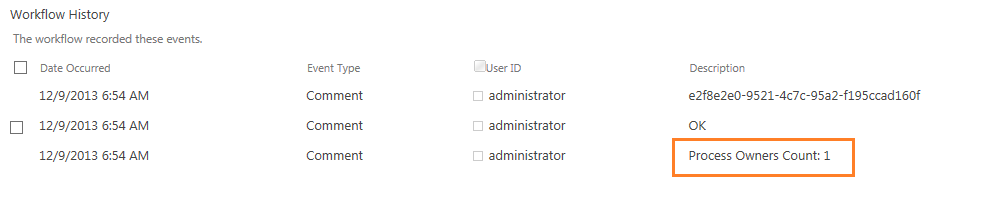
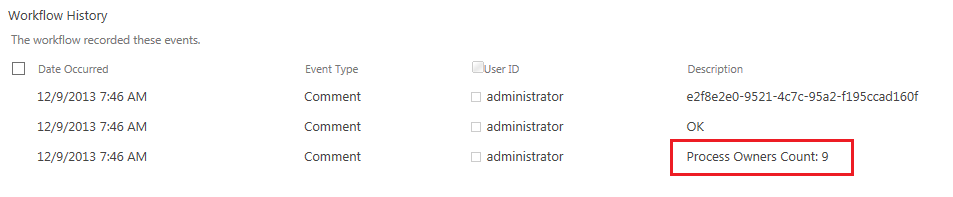
Publish the workflow and run it. Take a look at the workflow history and see what we get. Uh-oh… what now? It says we only have 1 item in the dictionary, but we have 9 process owners. What the…?

image

A JSON (and fiddler) interlude…

In part 6, I stressed the point that dictionary variables can contain any type of variable available in the SharePoint 2013 Workflow platform, including other dictionary variables! This now becomes important because of the way JSON works. To explain better, it is time for me to formally introduce you Fiddler.

Fiddler is a multipurpose utility that sits between the web browser and web sites. It logs all HTTP(s) traffic and is used to view and debug web traffic. Any web developer worth their salt has Fiddler as part of the troubleshooting toolkit because of its ability to manipulate the data as it travels between browser and server. Bets of all, it can be used to compose your own HTTP requests.

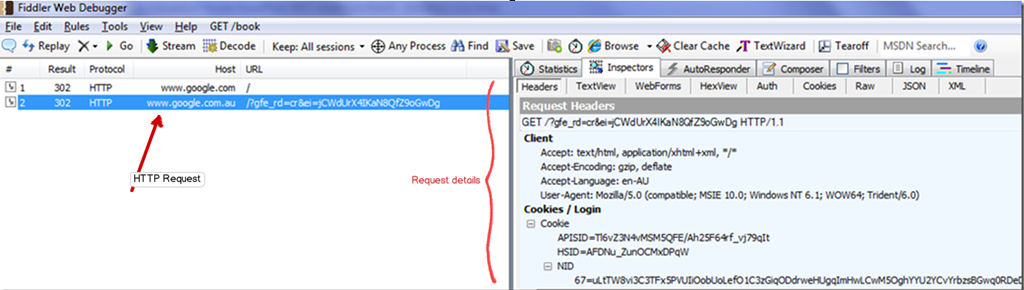
So first up, install Fiddler and then start it. In your browser, head over to a web site like Google. Go back to Fiddler and you should see entries logged in the left hand panel. Click on an entry and click the inspectors tab. From here you can see all the gory detail of the conversation between your web browser and the web site.  Neat eh?

Snapshot

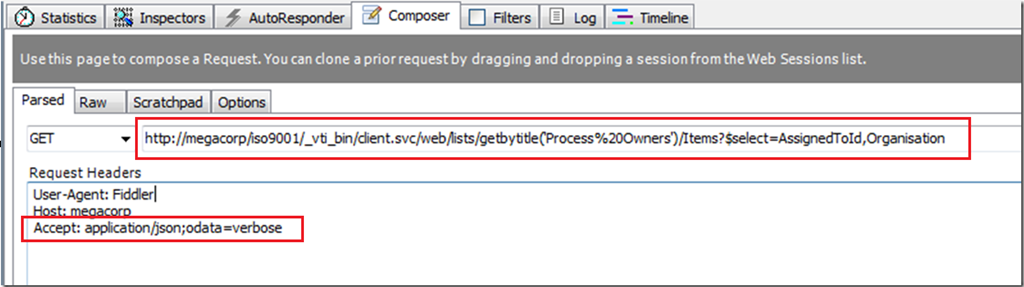
If you look in the tabs in the Fiddler window, you will see one labelled Composer. Let’s use it right now… Paste the webservice URL that we used in part 6 into the composer textbox as shown below. Also, paste the string “Accept: application/json;odata=verbose” into the Request headers textbox as shown below. If you recall the HTTP interlude from part 6, this tells SharePoint to bring back the data in JSON format, rather than XML.

image

Click execute and Fiddler will send the request to the server. It will also switch to inspector mode for you to see the request and the response as it happened. If you look closely at the response (by clicking the JSON tab), you will see a structure that looks a bit like that I have pasted below. This is the same data that is now being stored in the ProcessOwnerList dictionary variable.

image

So why did the workflow report that there was only one item in the dictionary then? The short answer is, because there is only one item in the dictionary! A dictionary called “d”. To understand better, take another look at the JSON structure below. What is the first entry in the JSON data? a section called “d”. If you were to collapse d, all other data would be inside it. Therefore, as far as the dictionary variable is concerned, there truly is only one entry.

- JSON
  + d

Note: In case you are wondering what the deal is with the whole “d” thing, given that the it appears to be somewhat redundant. The answer that Microsoft oData standards stipulate that all data returned is wrapped by an outer “d”. Why you may ask? Well you really don’t want to know, but if you must insist, it is for security reasons related to JavaScript (see, I told you that you didn’t want to know!).

So if there is only one entry in the dictionary, than how can we get to the data we need buried deeper? The answer is that this is one of those “dictionary in a dictionary” situations that I described in part 6. The dictionary variable ProcessOwnerList has a single item. That item happens to be another dictionary with multiple items in it. So our first task is to get to the inner dictionary that contains the data we need!

Getting to the real count…

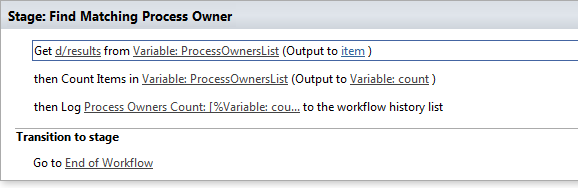
Now we will make use of the Get Item from a Dictionary action to get stuff under the d branch. Looking at the fiddler JSON output above, we need to get to the children of the results branch.

Step 1:

In the Find Matching Process Owner stage, add a Get Item from a Dictionary action as the first action in the stage.

image

Step 2:

Click the item by name or path hyperlink and type in “d/results”. Note: This is case sensitive, so has to match the JSON data shown in the fiddler screenshots. Click the dictionary hyperlink and choose the ProcessOwnersList dictionary variable as the source data.

image

Step 3:

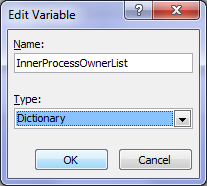
Click the item hyperlink and choose the create a new variable (the bottom option in the dropdown). Call the variable InnerProcessOwnerList and make sure it is set to type dictionary.

image

Step 4:

Now we need to modify the count items action to count the new variable InnerProcessOwnerList. In the Count Items action below the action we just created, click the Variable: ProcessOwnersList and change it to InnerProcessOwnerList.

image

Right! Let’s retest this workflow by republishing it and running it. Now that’s more like it!!!

image

Building the loop…

Now we get to a powerful new feature of workflows in SharePoint 2013 – the ability to perform loops. What we need to do here is loop through the 9 process owners, and for each, compare the GUID of the Organisation column to the GUID on the document from which the workflow was triggered. If the term matches, we exit the loop and assign a task to the person in the Assigned To column.

Let’s go through the process step by step.

Step 1:

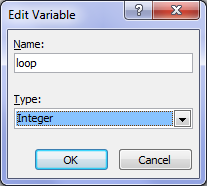
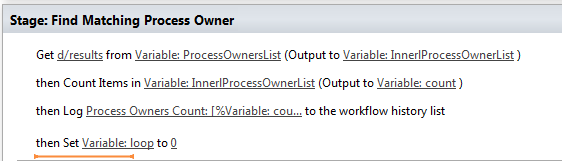
Make sure that your cursor is below the last action in the Find Matching Process Owner stage. Add a Set Workflow Variable action. Click the workflow variable hyperlink and choose to create a new variable. Call the variable loop and make it an integer. Click the value hyperlink and set it to zero “0”.

image  image

We are going to use this variable in the looping section  of the workflow to get to each process owner. It’s purpose will become clear soon…

Step 2:

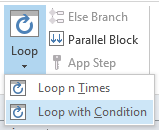
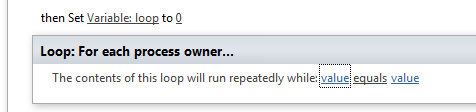
In the ribbon, click the Loop button and choose Loop with Condition. This will add a loop step into the stage. The name “1” is not exactly meaningful so lets change it. Click the title bar of the loop and change the name to For each process owner…

image  image

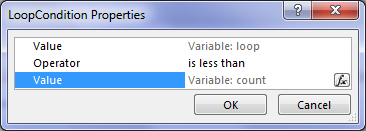
Now we will set the condition for how long this loop will run for. Note that we have a variable called count that stores the number of entries in the process owners list and in step 1, we created a variable called loop. We will set the workflow to loop around while the value of loop is less than the value of count.

Step 3:

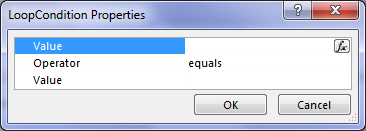
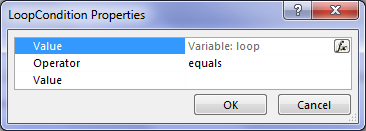
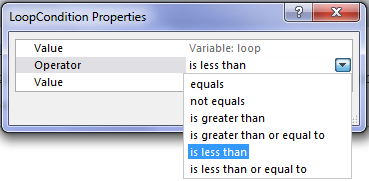
Click the leftmost value hyperlink. In the LoopCondition Properties dialog, click the fx button for the top value. In the Define Workflow Lookup dialog, choose Workflow Variables and Parameters as the data source and find the variable called loop. Click the equals dropdown and choose Is less than. Finally, click the fx button for the bottom value. In the Define Workflow Lookup dialog, choose Workflow Variables and Parameters as the data source and find the variable called count.

image  image  image   image

image

Step 4:

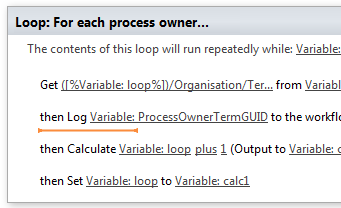
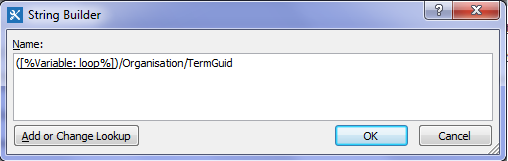
Inside the newly created loop, add a Get Item from a Dictionary action. Click the item by name or path hyperlink and click the ellipses button to display the string builder. Type in a left bracket “(“ and then click the Add or Change lookup button. In the Lookup for String dialog, choose Workflow Variables and Parameters as the data source and find the variable called loop  and click OK. Finally, type in the following string “)/Organisation/TermGuid”.

image

If you look closely at this string, it is referring to the TermGuid in the JSON data. The value of loop (currently 0) will be used to create the string. Hence “(0)/Organisation/TermGuid” will be used to grab the first Organsiation GUID, (1)/Organisation/TermGuid for the second and so on…

Step 5:

Click the dictionary hyperlink and choose InnerProcessOwnerList.

Step 6:

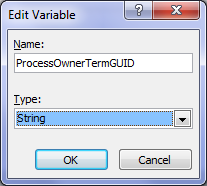
Click the item hyperlink and choose to create a new variable. Call the variable ProcessOwnerTermGUID and set it to a string.

image  image

By this stage, we should have the value of the term GUID for the process owner. Let’s log the value to workflow history so we can confirm things are working…

Step 7:

Add a log to workflow history action and click the message hyperlink. Click the fx button and in the Lookup for String dialog, choose Workflow Variables and Parameters as the data source and find the variable called ProcessOwnerTermGUID.

Step 8:

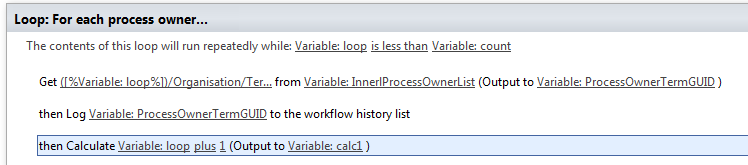
Now we need to increment the value of the loop variable so it can select the next process owner from the InnerProcessOwnerList variable. Add a Do calculation workflow action, click the first value hyperlink and click the fx button. In the Lookup for Number dialog, choose Workflow Variables and Parameters as the data source and find the variable called loop. Click the second value hyperlink and type in the value “1”.

image

Note that this action creates a new workflow variable (called calc1 by default) that stores the value of loop + 1. We will use this variable in the next workflow step.

Step 9:

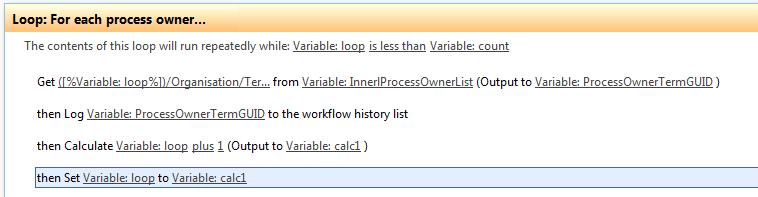
Add a Set Workflow Variable action. Click the workflow variable hyperlink and choose loop. Click the value hyperlink and click the fx button. In the Lookup for Number dialog, choose Workflow Variables and Parameters as the data source and find the variable called calc1.

image

Right, that should be enough to test. The each iteration of the loop will log the Organisation term GUID for each process owner. It then increments the value of loop and does it again. Once the value of loop is equal to the value of the variable count, the loop should finish. So publish the workflow and let’s see what happens.. Brilliant! Below the count of process owners (line 3), we have looped though the process owners list and extracted the GUID for the organisation term!

image

Conclusion…

Well, it has taken us a while to get here, but we now have all of the information we need to be able to assign a task to the process owner. if you look in the log above, the first entry was the GUID for the organisation assigned to the document this workflow was run against. Scanning the list of GUID’s from the process owners list, we can see that the matching GUID was on line 5. So in the next post, we will modify our loop to stop when it has a match, and we will examine what we need to do to assign a task to the appropriate process owner.

Until then thanks for reading…

Paul Culmsee

HGBP_Cover-236x300.jpg

www.hereticsguidebooks.com


Trials or tribulation? Inside SharePoint 2013 workflows–Part 6

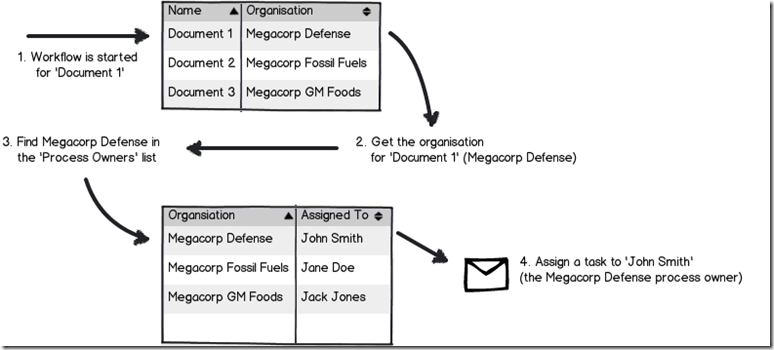
Hi and welcome to part 6 of my series of articles aimed at demystifying various aspects to SharePoint 2013 workflows. We have been using a mythical example of a document approval workflow from our mythical multinational called Megacorp Inc. We have been trying to create a workflow attempting to implement the process below…

Snapshot_thumb3

Seems straightforward enough, but in part 3, we foiled by the use of check in/check out on document libraries and a completely useless error message didn’t help matters. We eventually worked around that issue, but in part 4, we got stuck on a bigger snag because of our chosen information architecture. The Organisation column we created is a managed metadata column. It turns out that you cannot use a Managed Metadata column as a filter for a list (steps 2 and 3 above). In the last article, we took a detour into the world of dictionary variables and a very powerful new workflow action called “Call HTTP Web Service”. We learnt that in situations where a built-in workflow action does not cut it for you, but you might be able to use Call HTTP Web Service to do what you need. This sets the scene for our next exciting instalment. Perhaps we can get around this managed metadata issue with one of SharePoint’s many web services? If so, which one do I need to use and why?

In this post and the next few, I am going to show you two ways that we can get around the problem of not being able to filter via Managed metadata using the Call HTTP Web Service capability. The first method is a little easier to build than the second method, but it has a flaw that hopefully will become self evident as we proceed. Having said this, I feel it is really important to cover both approaches, because each showcases different features and capabilities of SharePoint Designer 2013 workflows. Therefore, this article and the next two will show the easier but flawed way, and articles 9, 10, 11 and 12 will show what I think is the better way to go.

The workflow looping method…

The gist of the approach we are going to take is to:

  • Get the unique ID of the Organisation for the selected document in the Documents library
  • Using the SharePoint lists REST web service, we will load the the Assigned to and Organisation columns from the Process Owners list and store it into a Dictionary variable
  • Using workflow looping capability, we will step through each item in the dictionary, and find the first entry where the unique ID of the Organisation from step 1 matches the Organisation in process owners
  • For the marching entry, Assign a task to the person mentioned in the Assigned to column.

Now to pull this off, we are going to bring together all of the topics that I have covered in this series. I am also going to be a little less verbose with screenshots, because by now some aspects of workflow creation using SharePoint designer should be getting more familiar. Speaking of more familiar, let’s take a closer look at the lists web service again. In my second REST interlude in part 4, I demonstrated how you could specify the columns that you want to bring back from a web service call, rather than all columns. In the example below, I am showing how you can bring back just the Organisation and Assigned to columns from the Process Owners list (AssignedToId a REST specific thing that represents the Assigned To column. More about that in part 8).

http://megacorp/iso9001/_vti_bin/client.svc/web/lists/getbytitle(‘Process%20Owners’)/Items?$select=AssignedToId,Organisation

Here is the XML for a single process owner entry… Note that we never get to see the name of the Organisation in the XML for the Organisation column (for that matter, we don’t see the name person in the Assigned column either – an issue I will deal with later). Instead, we have the GUID for the Organisation in the <d:TermGuid> section.

  - <content type="application/xml">
    - <m:properties>
      - <d:Organisation m:type="SP.Taxonomy.TaxonomyFieldValue">
          <d:Label>14</d:Label> 
          <d:TermGuid>e2f8e2e0-9521-4c7c-95a2-f195ccad160f</d:TermGuid> 
          <d:WssId m:type="Edm.Int32">14</d:WssId> 
        </d:Organisation>
        <d:AssignedToId m:type="Edm.Int32">7</d:AssignedToId> 
      </m:properties>
    </content>

Now also in part 4, I explained the Organsiation_0 hidden column and showed that it stores both the organisation name, as well as the GUID of that organisation. So if Organisation has been set to Megacorp Burgers for a document, the value of Organsiation_0 for that document would be:

Megacorp Burgers|e2f8e2e0-9521-4c7c-95a2-f195ccad160f

The common element between the XML from the Process Qwners list, and the value of Organsiation_0 from the Documents library is the Term GUID. Therefore if we can extract the GUID part of Organsiation_0, we can use it to search the Process Owners list and find which entry where the GUID specified in the <d:TermGuid> matches. So first up, let’s clean things up, then use some workflow actions to get hold of the GUID from the Organsiation_0 column.

Getting the GUID…

Step 1:

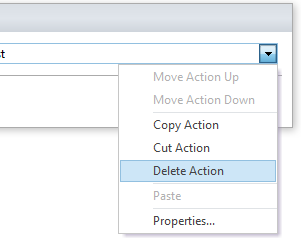
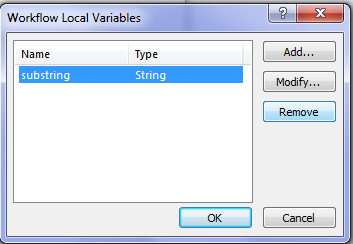
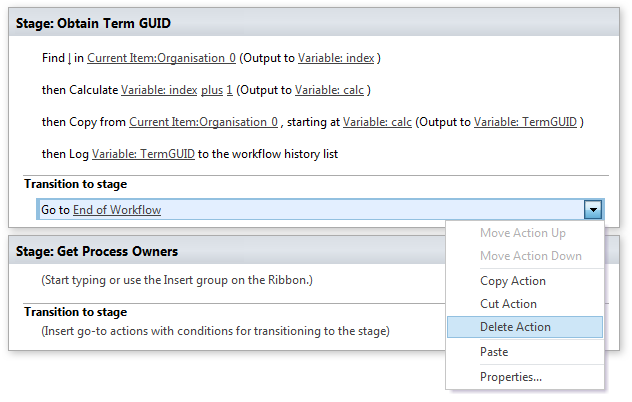
Turning our attention back to the Process Owners Approval workflow, let’s delete our existing workflow actions, workflow variables and start afresh. Click on any existing workflow actions and choose Delete Action from the dropdown menu as shown below. To delete variables, click the local variables ribbon icon and remove any listed…

image  image  image

Now you should be looking at a clean workflow.

Step 2:

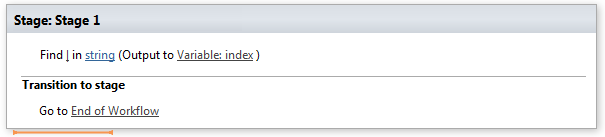
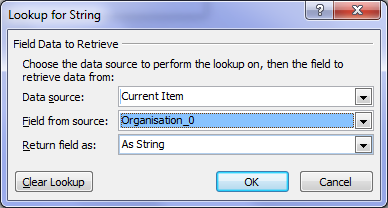
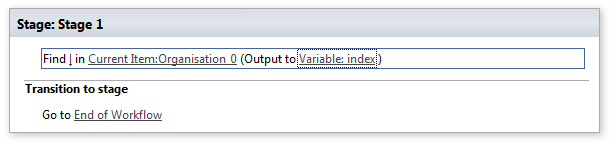
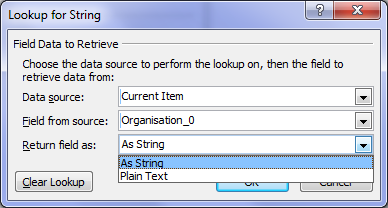
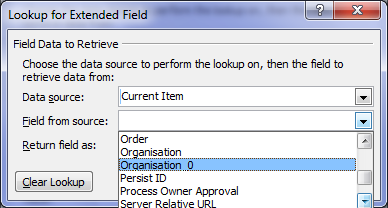
Add the workflow action Find substring in string. To complete the configuration of this action, click the substring hyperlink and add a pipe symbol “|”. Click the string hyperlink, the fx button and from Current Item, choose Organisation_0 as shown below…

image  image

image

The result of this workflow action, will be the position in the string of the pipe symbol will be stored in a variable called index. For example, if you count the number of characters until you get to the pipe symbol in the string, “Megacorp Burgers|e2f8e2e0-9521-4c7c-95a2-f195ccad160f”, the answer is 17.

Our next step is to grab all of the characters in the string after the pipe symbol because that is the GUID we need. The way we will do this, we will use another workflow action called Extract substring from index of string. This action takes a string and an index position, and returns all characters to the right of the index. Thus, with the string “Megacorp Burgers|e2f8e2e0-9521-4c7c-95a2-f195ccad160f”, if we start at position 17 we will end up with “|e2f8e2e0-9521-4c7c-95a2-f195ccad160f”. This is not quite right because we do not want the pipe symbol, so we will use another workflow action called Do Calculation to add 1 to the index variable first.

Step 3:

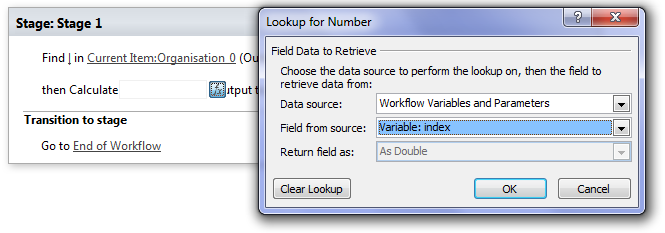
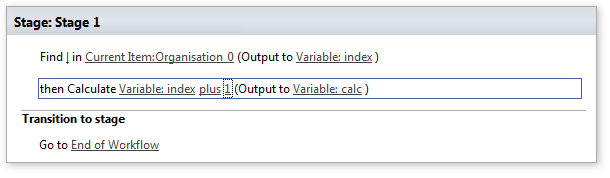
Add the Do Calculation action, click the value hyperlink and click the fx button. Change the data source to Workflow Variables and Parameters and choose the variable called index. Click the value hyperlink and type in the number 1.

image

image

The net result of this is we have a variable called calc that storing the position after the pipe symbol in Organsiation_0.

Step 4:

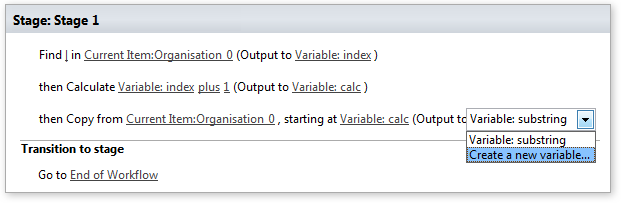
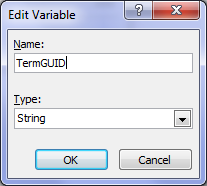
Add the Extract substring from index of string workflow action. Click the string hyperlink, the fx button and from Current Item, choose Organisation_0. Click the “0” hyperlink next to “starting from” and click the fx button. Change the data source to Workflow Variables and Parameters and choose the variable called calc. Finally, click on Variable: substring and choose to Create a new variable… and call it TermGUID as shown below…

image  image

At this point, it might be handy to use the log the value of TermGUID to the workflow history to make sure that things are working as we expect. We can delete this step later…

Step 5:

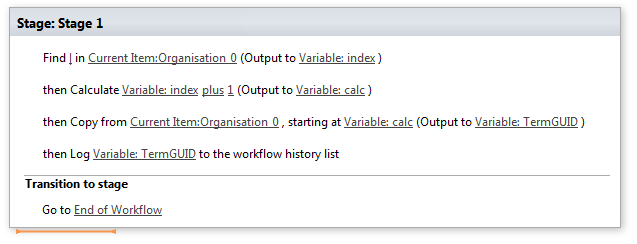
Add a log to workflow history action and log the value of TermGUID. The final workflow should look like this…

image

Step 6:

Publish this workflow, confirm there are no errors and then run it against a document in the documents library. Wohoo! we now have the GUID!

image

Using stages…

Now that we have the GUID, it makes sense that we can make this sequence of actions a workflow stage. Then we can add a new stage for the rest of the workflow and add some error checking logic.

Step 1:

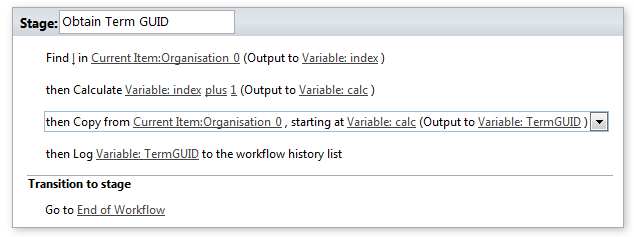
Click the stage header and rename the stage to Obtain Term GUID.

image

Step 2:

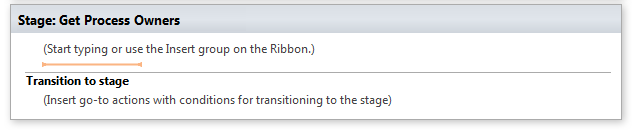
Click outside the stage and from the ribbon, click the Stage icon. A new stage will be added to the workflow. Call this stage Get Process Owners.

image

Now let’s create the logic that connects up the stages. We will set it that we will only move to the Get Process Owners stage if the TermGUID variable has a value. After all, if there is not a valid GUID, there is no point continuing the workflow.

Step 3:

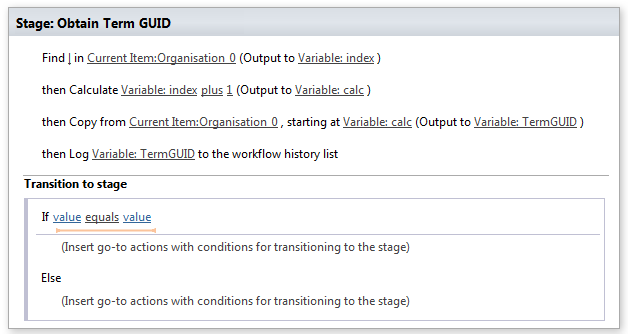
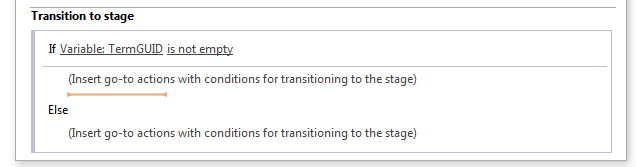
In the Obtain Term GUID stage, select the Go to End of Workflow action and delete it. In the ribbon, click the Condition button and choose If any value equals value from the drop down menu. Confirm that the condition section has been added to the Transition to stage section of the workflow stage…

image   image

image

Step 4:

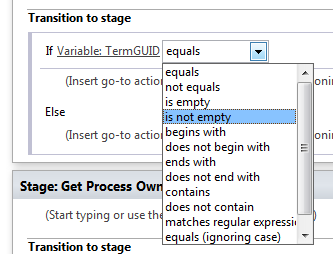
Click the value hyperlink, click the fx button and choose Workflow Variables and Parameters from the Data source dropdown. Find the TermGUID variable in the Field from source dropdown. Click the equals hyperlink and from the dropdown, choose “is not empty”.

image  image  image

Step 5:

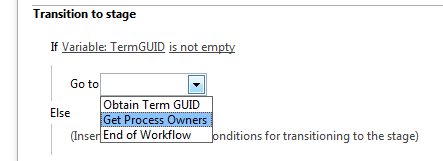
Click on the top “Insert go-to actions with conditions” section, and add a Go to a Stage action. From the stage dropdown, choose “Get Process Owners”

image

Step 6:

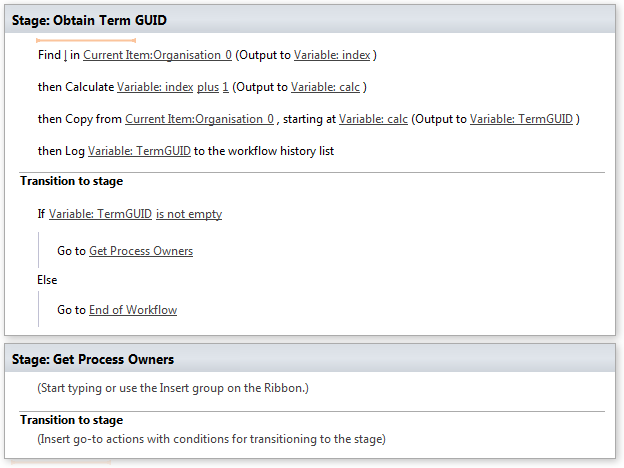
Click on the bottom “Insert go-to actions with conditions” section, and add a Go to a Stage action. From the stage dropdown, choose “End of Workflow”. The complete workflow should look like the image below:

image

A HTTP interlude…

Our next task is to get all of the process owners into a dictionary variable. Before we do this, I am going to give you a little lesson on how the HTTP protocol works, because we are literally going to be hand crafting our own request. Therefore it is handy to understand the basics.

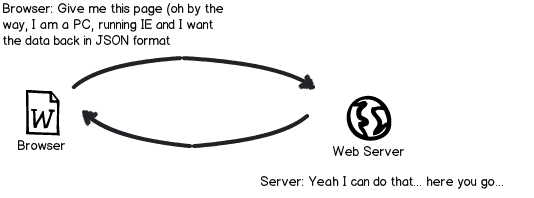
When your browser makes a request to a website or web service, it does not just say “Gimme this URL”. Often the server will change its behaviour based on the nature of the request.  For example, if the requestor is a mobile device, the server will send back different HTML compared to a PC browser. So how can the server tell if a request is made from a mobile device versus a PC? The answer is, that when the browser makes a request, it sends additional information in the form of request headers. Request headers are used for all sorts of things, and we are going to need to make use of them. Why? Remember in part 4, that I mentioned the JSON data format and that we need to tell SharePoint that any data it sends us has to be JSON format. Here is another of my dodgy diagrams explaining this by example…

Snapshot

Technically, we have to send the string “Accept: application/json;odata=verbose” in the request header to make this happen. So let’s see how we can put this request together via SharePoint Designer. Just to remind you the URL of the web service to get all of the process owners is:

http://megacorp/iso9001/_vti_bin/client.svc/web/lists/getbytitle(‘Process%20Owners’)/Items?$select=AssignedToId,Organisation

Crafting the request…

The first thing we need to do is to create the request header that tells SharePoint to return the data in JSON format. This is done via creating a dictionary variable.

Step 1:

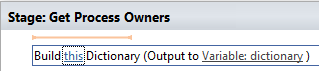
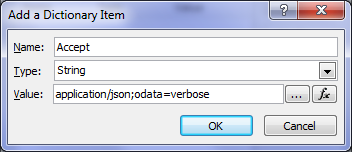
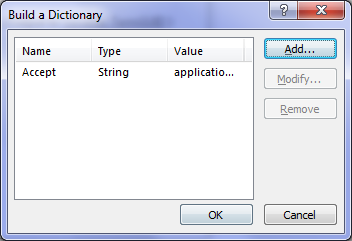
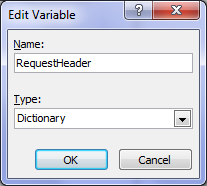
In the Get Process Owners workflow stage, add a Build Dictionary action. Click the this hyperlink to display the Build Dictionary window. Click the Add button and type “Accept” into the Name textbox and application/jason;odata=verbose into the value textbox. Click OK twice, then click the Variable: dictionary hyperlink and create a new variable called RequestHeader.

image  image  image

image  image  image

Step 2:

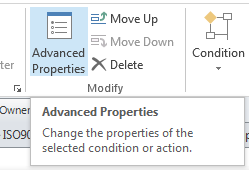
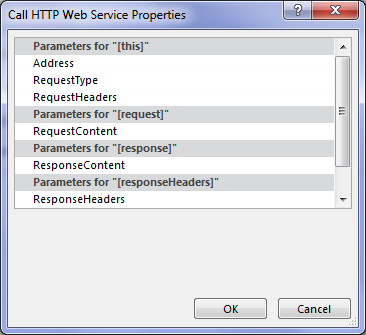
Add a Call HTTP Web Service action and then click to select it as shown below. If you look at the parameters you can set, there is no mention of request header. To set it, click the Advanced Properties icon in the ribbon. In the Call HTTP Web Service Properties dialog box, click the RequestHeaders parameter and in the drop down list to the right of it, choose the RequestHeader variable created in step 1. Click OK. Now the request for JSON format has been set.

image   image

image  image

Step 3:

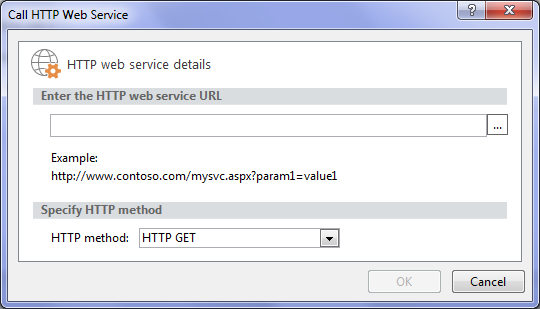
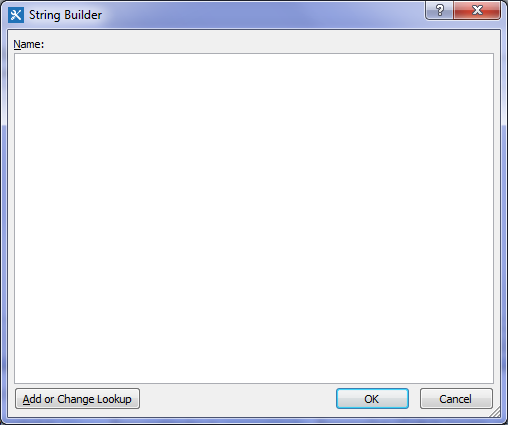
Click on the “this” hyperlink to the left of “HTTP web service”. This will bring up the HTTP Web Service Details screen. At this point we could paste in the URL above, but we are going to this a little smarter than that. Click the ellipsis next to the textbox to bring up the String Builder dialog box.

image  image

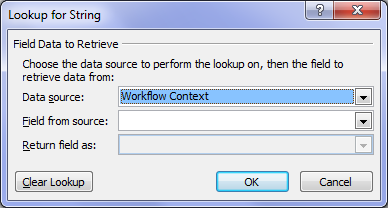
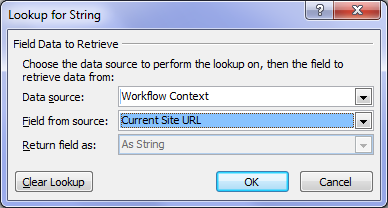
Click the Add or Change Lookup button and in the Data source dropdown, choose Workflow context. This data source comes built in with any workflow you create and as you will see, contains some very handy information that we can use in our workflows. From the Field from source dropdown, choose Current Site URL and click OK. What this will do is take whatever site the workflow is run from and bring it back as a string – in this case http://megacorp/iso9001/. The reason this is a good thing is when you want to use this workflow on another site, such as from development to production. If you use the Current Site URL workflow context, we are not hard-coding the current site name into the workflow.

image  image  image

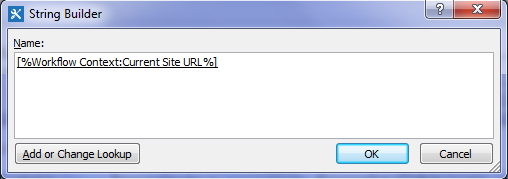
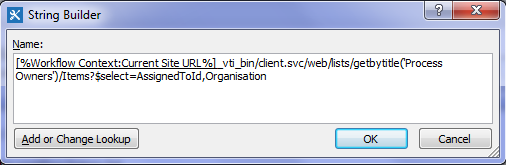
Anyhow, now that we have the site name, let’s complete the rest of the URL. In the string builder dialog, add “_vti_bin/client.svc/web/lists/getbytitle(‘Process Owners’)/Items?$select=AssignedToId,Organisation” and click OK

image

Our call HTTP Web service now looks like this:

image

Now we are expecting a JSON data feed as a response to this request, so we need to create another dictionary variable to handle it.

Step 4:

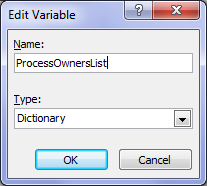
Click the response hyperlink and choose to Create a new variable and call it ProcessOwnersList.

image  image

image

Right! At this point, we have built the Call HTTP Web Service and we should test things to make sure it is working. If you look closely at the Call HTTP Web Service action, one of the variables that get created is called responseCode, which is the way the HTTP protocol reports whether the request worked or not. If the response code is 200 (OK), then the query worked. So let’s log the response code to the workflow history and run a test.

Step 5:

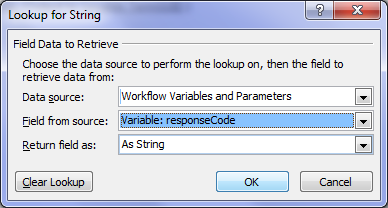
Add a Log to History List action. Click the message hyperlink and click the fx button. In the Lookup for String dialog box, choose Workflow Variables and Parameters from the Data source dropdown and choose responseCode from the Field from source dropdown and click ok.

image

Step 6:

In the Transition to stage section, add a Go to a Stage action and set the stage as End of Workflow. Click OK and review the workflow. It should look like the screen below.

image

Testing our progress and next steps…

Publish the workflow, run it and check the results in workflow history.  Wohoo! Our HTTP call worked! Note the OK in the workflow history!

image

At this point I will stop with this post, as it is getting rather long and we still have a bit to do. Although we know that the HTTP call worked, we have not looked at the data that came back. In the next post, we will use some more workflow actions to loop through the data returned to find the matching process owner.

Until then, thanks for reading…

Paul Culmsee

HGBP_Cover-236x300.jpg

www.hereticsguidebooks.com


Trials or tribulation? Inside SharePoint 2013 workflows–Part 5

Hi and welcome to part 5 of my series of articles that take a peek under the hood of SharePoint 2013 workflows. These articles are pitched at wide audience, and my hope is that they give you some insights into what SharePoint Designer 2013 workflows can do (and cannot). This is a long tale of initially dashed hopes and then redemption, based around what I think is a fairly common business scenario. To that end, the scenario we are using for this series is a basic document approval workflow for a fictitious diversified multinational company called Megacorp. It consist a Documents library and Process Owners list. A managed metadata based site column called Organisation has been added to each of them. In the second post we created a very basic workflow, using the task approval action. In part 3 and part 4, we have been trying to get around various issues encountered. At the end of the last post, we just learnt that Managed Metadata column cannot be filtered via the REST calls used by the built-in SharePoint Designer workflow actions.

…or can they?

In this post, we are going to take a look at two particular capabilities of the new SharePoint 2013 workflow regime and see if we can use them to get out of this pickle we are in. Once again, a reminder that this article is pitched at a wide audience, some of whom are non developers. As a result I am taking things slow…

Capability 1: Dictionaries

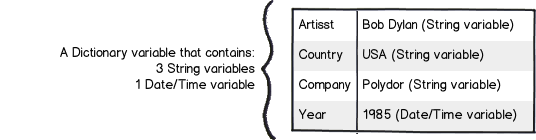
SharePoint workflows have always been able to store data in variables, which allows for temporary storage of data within the workflow. When creating a variable, you have to specify what format the data is in, such as string, integer or date. In SharePoint 2013, there is a new variable type called a Dictionary. A dictionary can be used to store quite complex data, because it is in effect, a collection of other variables. Why does this matter? Well, consider this small snippet of XML data below. I could store all of this data in a single dictionary variable and call it CD, rather than multiple stand-alone variables.

Snapshot  <CD>
    <ARTIST>Bob Dylan</ARTIST>
    <COUNTRY>USA</COUNTRY>
    <COMPANY>Columbia</COMPANY>
    <YEAR>1985</YEAR>
  </CD>

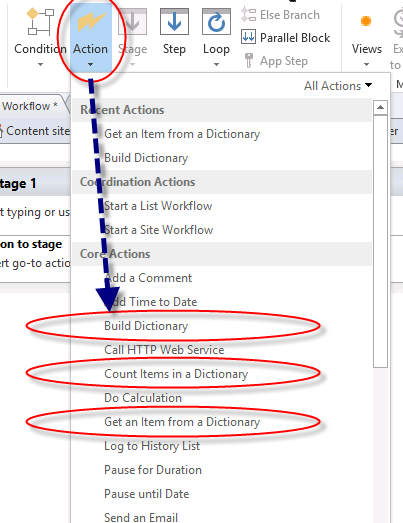
Now storing complex data in a single variable is all well and good, but what about manipulating it once you have it? As it happens, three new workflow actions have been specifically designed to work with dictionary data, namely:

  • Build Dictionary
  • Get an Item from a Dictionary
  • Count Items in a Dictionary

The diagram below illustrates these actions (this figure came from an excellent MSDN article on the dictionary capability). You will be using the “Build Dictionary” and “Get an item from a dictionary” actions quite a bit before we are done with this series.

image

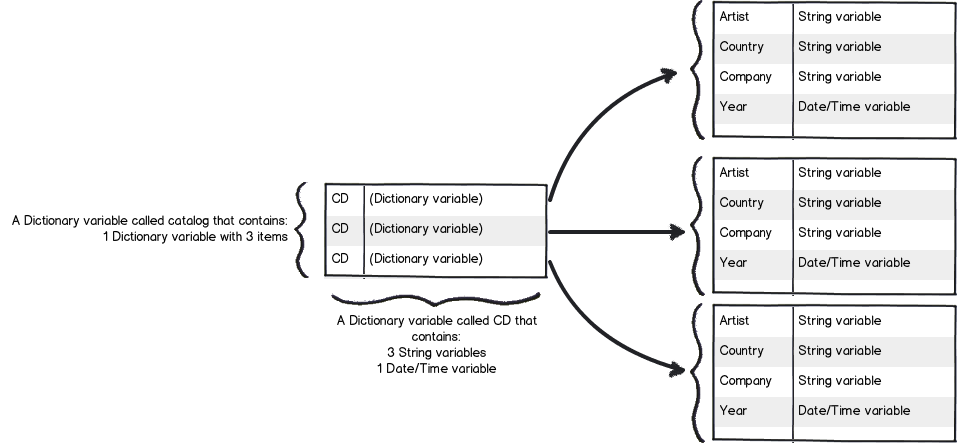
There is one additional thing worth noting with dictionaries. Something subtle but super important.  A Dictionary can contain any type of variable available in the SharePoint 2013 Workflow platform, including other dictionary variables! If this messes with your head, let’s extend upon the XML example above of the Bob Dylan album. Let’s say you have an entire catalog of CD’s. For example:

<CATALOG>
   <CD>
     <ARTIST>Bob Dylan</ARTIST>
     <COUNTRY>USA</COUNTRY>
     <COMPANY>Columbia</COMPANY>
     <YEAR>1985</YEAR>
   </CD>
   <CD>
     <ARTIST>Keith Urban</ARTIST>
     <COUNTRY>USA</COUNTRY>
     <COMPANY>Columbia</COMPANY>
     <YEAR>2006</YEAR>
   </CD>
</CATALOG>

Using a dictionary, we can create a single variable to store details about all of the CD’s in the catalog. We could make a Dictionary variable called Catalog, which contains a dictionary variable called CD. The CD variable contains the string and date/time details for each individual CD. This structure enables the Catalog dictionary to store details of many CD’s. Below is a representation on what 3 CD’s would look like in this model…

Snapshot

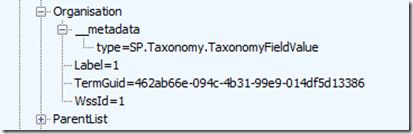
Okay, so after explaining to you this idea of a dictionary, you might be thinking “What has all of this got to do with our workflow?” To answer that, have another look at the JSON output from part 4 in this series. If you recall, this is the output from talking to SharePoint via REST and asking for all documents in the document library. What do you notice about the information that has come back? To give you a hint, below is the JSON output I will remind you what I said in the last post…

Now let’s take a closer look at Organisation entry in the JSON data. What you might notice is that some of the other data entries have data values specified, such as EditorID = 1, AuthorID =  1 and Modified = 2013-11-10. But not so with Organisation. Rather than have a data value, it has sub entries. Expanding the Organisation section and you can see that we have more data elements within it.

image_thumb14  image_thumb16

In case it is still not clear, essentially we are looking at a data structure that is perfectly suited to being stored in a dictionary variable. In the case of the Organisation column, it is a “dictionary within a dictionary” scenario like my CD catalog example.

Okay, I hear you say – “I get that a dictionary can store complex data structures. Why is this important?”

The answer to that my friends, is that there is a new, powerful workflow action that makes extensive use of dictionaries. You will come to love this particular workflow action, such as its versatility.

Capability 2: The one workflow action to rule them all…

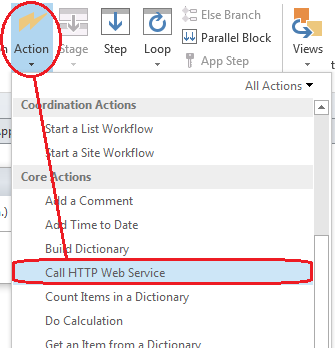
image

In part 3 and part 4 of this series, I have shown examples of talking to SharePoint via REST webservices and showing what the returning JSON data looks like. This was quite deliberate, because In SharePoint 2013, Microsoft has included a workflow action called Call HTTP Web Service to do exactly the same thing. This is a huge advance on previous versions of SharePoint, because it means the actions that workflows can take are only limited by the webservices that they talk to. This goes way beyond SharePoint too, as many other platforms expose data via a REST API, such as YouTube, Ebay, Twitter, as well as enterprise systems like MySQL. Already, various examples exist online where people have wired up SharePoint workflows to other systems. Fabian Williams in particular has done a brilliant job in this regard.

The workflow action can be seen below. Take a moment to examine all of the bits you need to fill in as there are several parameters you might use. The first parameter (the hyperlink labelled “this”) is the URL of the webservice that you wish to access. The request parameter is a dictionary variable that is sometimes used when making a request to the webservice. The response and responseheaders variables are also dictionaries and they store the response received from the webservice. The responseCode parameter represents the HTTP response code that came back, which enables us to check if there was an error (like a HTTP 400 bad request).

image

Dictionaries and web services – a simple example…

The best way to understand what we can do with this workflow action (and the dictionary variables that it requires) is via example. So let’s leave our document approval workflow for the time being and quickly make a site workflow that calls a public webservice, grabs some data and displays it in SharePoint. The public webservice we will use is called Feedzilla. Feedzilla is a news aggregator service that lets you search for articles of interest and bring them back as a data feed. For example: the following feedzilla URL will display any top news (category 26) that has SharePoint in the content. It will return this information in JSON format:

http://api.feedzilla.com/v1/categories/26/articles/search.json?q=SharePoint

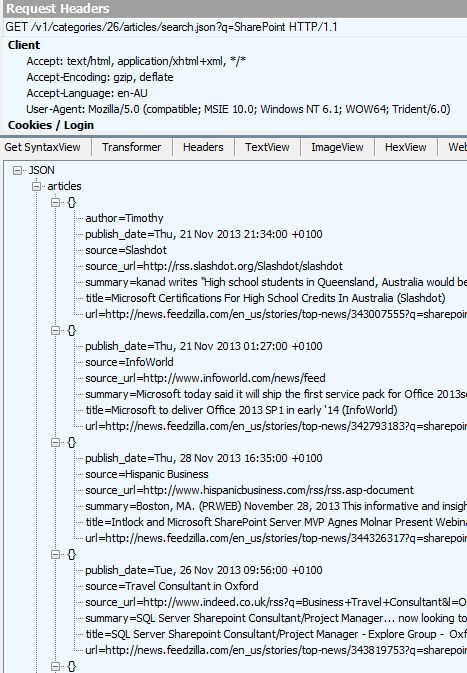
Here is a fiddler trace of the above URL, showing the JSON output.  Note the structure of articles, where below the JSON label at the top we have articles –> {} and then the properties of author, publish_date, source, source_url, summary, title and url.

image

Therefore the string “articles(0)/title” should return us the string “Microsoft Certifications for High School Students in Australia (Slashdot)” as it is the title of the first article. The string articles(1)/title should bring back “Microsoft to deliver Office 2013 SP1 in early ’14 (InfoWorld)” as it is the second article. So with this in mind, let’s see if we can get SharePoint to extract the title of the first article in the feed.

Testing it out…

So let’s make a new site workflow based workflow.

Step 1:

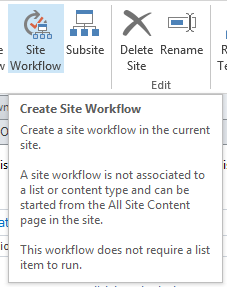
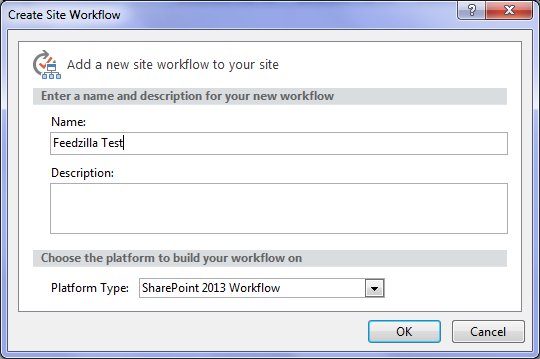
From the ribbon, choose Site Workflow. Call the site workflow “Feedzilla test” as shown below…

image  image

Now we will add our Call HTTP Web Service action. This time, we will add the action a different way.

Step 2:

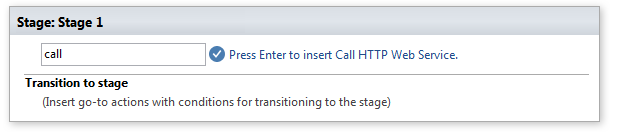
Click the flashing cursor underneath the workflow stage and type in “Call”. As you type in each letter, SharePoint Designer will suggest matching actions. By the time you write “call”,  there is only the Call HTTP Web Service action to choose from. Pressing enter will add it to the workflow.

image

image

Step 3:

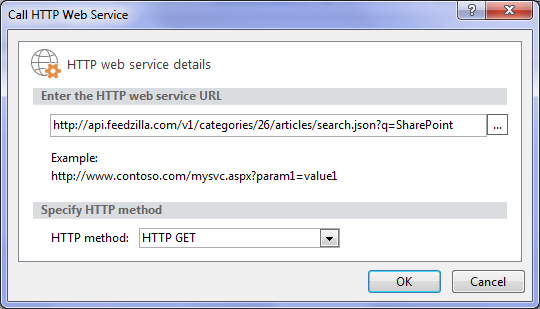
Now click on the “this” hyperlink and paste in the feedzilla URL of: http://api.feedzilla.com/v1/categories/26/articles/search.json?q=SharePoint. Then click OK.

image

Next, we need to create a dictionary variable to store the JSON data that is going to come back from Feedzilla.

Step 4:

Click on the “response” hyperlink next to the “ResponseContent to” label and choose to Create a new variable…

image

Step 5:

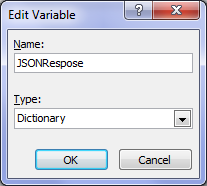
Call the variable JSONResponse and confirm that it’s type is Dictionary. We are now done with the Call HTTP web service action.

image  image

Step 6:

Next step in the workflow is to extract just the article title from the JSON data returned by the web service call. For this, we need to use the Get an Item from a Dictionary action. We will use this action to extract the title property from the very first article in the feed. Type in the word “get” and press enter – the action we want will be added…

image

Step 7:

In the “item by name or path” hyperlink next to the Get label, type in this exactly: articles(0)/title as shown below. Then click on the “dictionary” hyperlink next to the from label and choose the JSONResponse variable that was created earlier. Finally, we need to save the extracted article title to a string variable. Click on the “this” hyperlink next to the Output to label and choose Create a new variable… In the edit variable screen, name the variable ArticleTitle and set its Type to String.

image

image

Step 8:

The next step is to log the contents of the variable ArticleTitle to the workflow history list. The action is called Log to History List as shown below.  Click the “message” hyperlink for this action and click the fx button. Choose Workflow Variables and Parameters from the Data Source dropdown and in the Field from Source dropdown, choose the variable called ArticleTitle. Click OK.

image

image  image

Step 9:

Finally, add a Go to End of Workflow action in the Transition to Stage section. The workflow is now complete and ready for testing.

image

Testing the workflow…

To run a site workflow, navigate to site contents in SharePoint, and click on the SITE WORKFLOWS link to the right of the “Lists, Libraries and other Apps” label. Your newly minted workflow should be listed under the Start a New Workflow link. Click your workflow to run it.

image  image

The workflow will be fired off in the background, and you will be redirected back to the workflow status screen. Click to refresh the page and you should see your workflow listed as completed as shown below…

image

Click on the workflow link in the “My Completed Workflows” section and examine the detailed workflow output. Look to the bottom where the workflow history is stored. Wohoo! There is our article name! It worked!

image

Conclusion…

It was nice to have a post that was more tribulation than trial eh?

By now you should be more familiar with the idea of calling HTTP web services within workflows and parsing dictionary variables for the output. This functionality is really important because it opens up possibilities for SharePoint workflows that were previously not possible. For citizen developers, the implication (at least in a SharePoint context) is that understanding how to call a web service and parse the result is a must. Therefore all that REST/oData stuff you skipped in part 4 will need to be understood to progress forward in this series.

Speaking of progressing forward, in the next post, we are going to revisit our approval workflow and see if we can use this newfound knowledge to move forward. First up, we need to find out if there is a web service available that can help us look up the process owner for an organisation. To achieve this, we are going to need to learn more about the Fiddler web debugging tool, as well as delve deeper into web services than you ever thought possible. Along the way, SharePoint will continue to put some roadblocks up but fear not, we are turning the corner…

Until then, thanks for reading and I hope these articles have been helpful to you.

Paul Culmsee
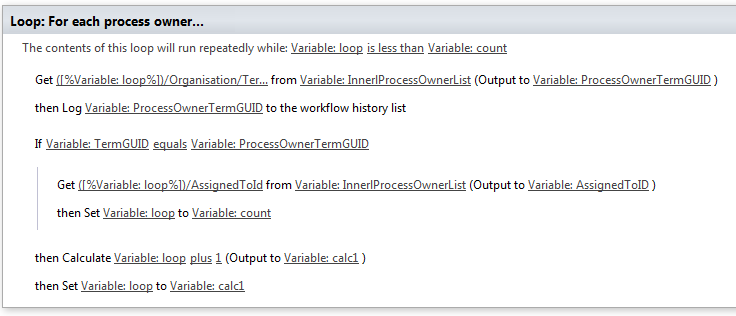
HGBP_Cover-236x300.jpg

www.hereticsguidebooks.com


Trials or tribulation? Inside SharePoint 2013 workflows–Part 4

Hi and welcome to part 4 of my series of articles that take a peek under the hood of SharePoint 2013 workflows from . In part 1, I introduced you to Megacorp Inc and their need for a controlled documents approval workflow. In part 2, we created a basic SharePoint 2013 workflow and in part 3, we made our first attempt to publish the workflow. Unfortunately, we encountered an error and had to work our way around some particularly unhelpful error messages. Now we are at part 4, and we will have another go at publishing our workflow from part 2.

Now like the last post, I’ll tell you up front that our second attempt to run this workflow is not going to work. Remember that my intent here is to show you a “warts and all” view of this functionality – both the great bits and the not so great bits. I hope that this gives you development and troubleshooting ideas in your own workflow adventures.

If you have been following along so far, you should have a simple workflow like the one below. It is attempting to assign a task to a nominated process owner for controlled documents. We just fixed a configuration issue in part 3 that prevented the workflow from working. We did this by disabling the default behaviour of the workflow where it updates the workflow status with the current stage name.

image

So let’s run the workflow on the same document as part 3 – the Burger Additives Standards for Megacorp GM Foods. Do we have liftoff yet? Nope – the workflow was cancelled as shown below, with another cryptic message.

RequestorId: 8ad4a017-7e6f-0d0f-35d2-81c56a05b37c. Details: System.InvalidCastException: The value ‘d/results(0)/Organisation’ cannot be read as type ‘String’. at Microsoft.Activities.GetDynamicValueProperty`1.CheckedRead(String propertyName, DynamicItem value) at Microsoft.Activities.GetDynamicValueProperty`1.Execute(CodeActivityContext context) at System.Activities.CodeActivity`1.InternalExecute(ActivityInstance instance, ActivityExecutor executor, BookmarkManager bookmarkManager) at System.Activities.Runtime.ActivityExecutor.ExecuteActivityWorkItem.ExecuteBody(ActivityExecutor executor, BookmarkManager bookmarkManager, Location resultLocation)

image

So what do we make of this message and in particular, “The value ‘d/results(0)/Organisation’ cannot be read as type ‘String’”?. Firstly, you might be wondering what this  “d/Results(0)/Organisation” stuff is  all about. Secondly, even if you do know what that is about, why the hell can’t it be read as type string?

A REST and JSON interlude

For the non developers (and self-described citizen developers) reading this series, I am going to attempt to explain what’s going on here because it is important foundational knowledge. If you are a developer who understands REST/OData and JSON,  feel free to skip this bit because you probably won’t like how I explain it.

First up, remember my dodgy diagram in part 3 that explained how Workflow Manager talks to SharePoint? I made the point that workflow manager uses REST web services to do all of its interactions with SharePoint content. REST is actually a really cool technology, and if you are serious about learning to use SharePoint Designer 2013 workflows you should learn more it.

Snapshot

Let’s put aside our workflow for a second, and instead access a REST webservice ourselves, just like workflow manager does behind the scenes. To do this is easy. Open up internet explorer and turn “feed reading view” off. Then try this URL, adjusting it to your site name:

http://megacorp/iso9001/_vti_bin/client.svc/web/lists/getbytitle(‘Documents’)/Items

If you have done it right, you will get a heap of ugly XML data back in your browser. If this worked then congratulations – you are now a REST guru. You have successfully asked SharePoint to send you information about all documents in the Documents library, including the data stored in the columns. Each <entry> tag in the XML represents a document – and you can collapse these entries as shown below..

<?xml version="1.0" encoding="utf-8" ?> 
- <feed xml:base="http://megacorp/iso9001/_api/" xmlns="http://www.w3.org/2005/Atom" xmlns:d="http://schemas.microsoft.com/ado/2007/08/dataservices" xmlns:m="http://schemas.microsoft.com/ado/2007/08/dataservices/metadata" xmlns:georss="http://www.georss.org/georss" xmlns:gml="http://www.opengis.net/gml">
  <id>76c69d23-d5f3-4cee-a954-9910ad81bd16</id> 
  <title /> 
  <updated>2013-11-27T23:49:25Z</updated> 
+ <entry m:etag=""6"">
+ <entry m:etag=""7"">
+ <entry m:etag=""8"">

If you expand one of those entries, you will see the full detail of that document. Scroll down into the detail and look for the <Content Type> entry in the XML as shown below. This is the same data that your workflow is working with.

- <content type="application/xml">
-   <m:properties>
      <d:FileSystemObjectType m:type="Edm.Int32">0</d:FileSystemObjectType> 
      <d:Id m:type="Edm.Int32">10</d:Id> 
      <d:ContentTypeId>0x010100683F42634030C946A9F8165B365FD886</d:ContentTypeId> 
      <d:Title m:null="true" /> 
      <d:OData__dlc_DocId>DPRYTK5567JW-5-10</d:OData__dlc_DocId> 
-     <d:OData__dlc_DocIdUrl m:type="SP.FieldUrlValue">
        <d:Description>DPRYTK5567JW-5-10</d:Description> 
        <d:Url>http://megacorp/iso9001/_layouts/15/DocIdRedir.aspx?ID=DPRYTK5567JW-5-10</d:Url> 
      </d:OData__dlc_DocIdUrl>
      <d:URL m:null="true" /> 
      <d:DocumentSetDescription m:null="true" /> 
-     <d:Organisation m:type="SP.Taxonomy.TaxonomyFieldValue">
         <d:Label>9</d:Label> 
         <d:TermGuid>f2109460-a473-493f-9d08-fb01ecbf793b</d:TermGuid> 
         <d:WssId m:type="Edm.Int32">9</d:WssId> 
      </d:Organisation>
      <d:Modified m:type="Edm.DateTime">2013-11-10T00:21:45Z</d:Modified> 
      <d:Process_x0020_Owner_x0020_Approval m:null="true" /> 
      <d:ID m:type="Edm.Int32">10</d:ID> 
      <d:Created m:type="Edm.DateTime">2013-11-08T14:33:12Z</d:Created> 
      <d:AuthorId m:type="Edm.Int32">1</d:AuthorId> 
      <d:EditorId m:type="Edm.Int32">1</d:EditorId> 
      <d:OData__CopySource m:null="true" /> 
      <d:CheckoutUserId m:null="true" /> 
      <d:OData__UIVersionString>2.0</d:OData__UIVersionString> 
      <d:GUID m:type="Edm.Guid">c75a0728-7a5f-4236-8d45-7b72fa41781e</d:GUID> 
    </m:properties>
  </content>

Now when you add a workflow action, and Workflow Manager then talks to SharePoint to perform the action, it is doing a very similar thing to the URL we just accessed. The only difference is that when workflow manger does it, it asks for the data to be returned in a different format than XML called JSON – a more lightweight but less human readable data format. Below is a tiny snippet of that the JSON version of the above data looks like – ugh! no wonder XML is the default return format eh?

{“d”:{“results”:[{“__metadata”:{“id”:”71deada5-6100-48a5-b2e3-42b97b9052a2″,”uri”:”http://megacorp/iso9001/_api/Web/Lists(guid’a64bb9ec-8b00-407c-a7d9-7e8e6ef3e647′)/Items(1)”,”etag”:”\”6\””,”type”:”SP.Data.DocumentsItem”},”FirstUniqueAncestorSecurableObject”:{“__deferred”:{“uri”:”http://megacorp/iso9001/_api/Web/Lists(guid’a64bb9ec-8b00-407c-a7d9-7e8e6ef3e647′)/Items(1)/FirstUniqueAncestorSecurableObject”}},”RoleAssignments”

Fortunately, there are plenty of tools out there that parse JSON data and Fiddler is one of them. We will be using Fiddler later in this series, so I will save a detailed introduction to the tool for later. But below is a screenshot of the above JSON data displayed in Fiddler. Now that’s a bit more palatable!

image

Now that we can read the JSON data in a meaningful way, let’s go back to the error message in the workflow. It stated that “The value ‘d/results(0)/Organisation’ cannot be read as type ‘String’”. Now look in the JSON screenshot above. If you look at the hierarchy and look at the message, we can see now what the message meant. It has a problem with the Organisation entry. Follow the path below the JSON label at the top… We have d –> Results –> {} –> Organisation. This essentially matches the ‘d/results(0)/Organisation’ in the message.

So takeaway number 1 – workflow uses JSON format when it makes REST calls to SharePoint, so learn to recognise a JSON reference when you see it. As a future workflow developer – and later in this series – you will have to learn how to parse JSON data in more fine detail.

Now let’s take a closer look at Organsiation entry in the JSON data above. What you might notice is that some of the other data entries have data values specified, such as EditorID = 1, AuthorID =  1 and Modified = 2013-11-10. But not so with Organisation. Rather than have a data value, it has sub entries. Expanding the Organisation section and you can see that we have more data elements within it. Note that we do not see the organisation name at all. We have numbers and a GUID – so what gives?

image

So what was the error again? ‘Organisation’ could not be read as type ‘String’. Kind of makes sense now doesn’t it? The managed metadata column called Organisation doesn’t store the organisation name, but a pointer to the organisation name, as it is specified in the managed metadata term store. The workflow assumes that the data returned from the REST call is going to be string, and cannot handle the format of the data above.

Troubleshooting Attempt #1 – Use Organisation_0

So at this point, you might be thinking “What the hell?” how can I get the name of the Organsiation if it not actually in the data returned by the REST web service call?

Well, if you were paying attention back in part 2, I noted the existence of another column called Organisation_0. This column was listed as one of the columns available from the current item (“Current item” being the document that the workflow was triggered from). It is now time to understand what this column does. To do so, let’s use another workflow action. This time, we will use the Log to History List action. When you add this action, click the fx button and choose Current Item from the Data source dropdown. Then choose Organisation_0 from the Field from source dropdown as shown below.

image  image

Now if you rerun your workflow and then check the workflow status, you will see what has been logged to the workflow history. Note the description column. Aha! We see our organisation name buried in there.

image

Now if you look closely, you will notice that we also have the GUID of the managed metadata term. The term and its GUID are separated by a pipe character. Even better, it is in string format (note Return field as dropdown above).

It turns out that when you create a managed metadata column, behind the scenes two columns get created. The second column is a hidden column that is a multi-line of text format. This is the the one with an _0 appended to the end. In other words, the Organisation column only stores the pointers (lookup values) to the term, but this hidden column actually stores the names and Id’s of each term the user has added. So let’s use this column instead because it’s a string format. To do this, return to the task assignment action in our workflow. We still need to get the Assigned To field from the Process Owners list, so we leave that alone. But below that, in the Find the List Item section, we need to make a change.

Unfortunately (and perhaps ominously), the Organisation_0 field seems to only be selectable for the Current Item, because clicking the Field dropdown (which displays all columns for process owners), only lists the Organisation column. Why is this? Well, it appears that hidden columns are displayed on Current item, but not displayed when you specify a different list. Thus, we are forced to leave Organisation from Process Owners as is. So click the fx button next to the Value textbox and choose Current Item from the Data source dropdown and Organisation_0 from the Return field as dropdown as shown below.

image  image

Now republish the workflow and let’s give it a go. Checking the workflow status screen and we find the workflow is started. Are we onto a winner here?

Gong! there still another of those exciting error messages. This time we have a complaint of a HTTP BadRequest. Given my explanation of how managed Metadata columns work behind the scenes, can you guess what the issue is?

Retrying last request. Next attempt scheduled in less than one minute. Details of last request: HTTP BadRequest to http://megacorp/iso9001/_vti_bin/client.svc/web/lists/getbyid(guid’0ffc4b79-1dd0-4c36-83bc-c31e88cb1c3a’)/Items?%24filter=Organisation+eq+’Metacorp+Burgers%7Ce2f8e2e0-9521-4c7c-95a2-f195ccad160f’&%24select=ID%2CGUID Correlation Id: f16749d5-1bfe-4a8d-9e06-a5b196907e9c Instance Id: 60c538e8-f7a9-4945-919b-ca973c00eb31

image

Now this error message might look evil, but it is actually the most useful one so far as it shows us the REST call made by the workflow manager as part of the task assignment action. If I remove the encoded spaces to make things more readable, the workflow attempted this call.

http://megacorp/iso9001/_vti_bin/client.svc/web/lists/getbyid(guid’0ffc4b79-1dd0-4c36-83bc-c31e88cb1c3a’)/Items?”filter=Organisation+eq+’Metacorp+Burgers|e2f8e2e0-9521-4c7c-95a2-f195ccad160f’&”select=ID,GUID

This webservice essentially says to SharePoint “Using the Process Owners list (which is GUID 0ffc4b79-1dd0-4c36-83bc-c31e88cb1c3a), please bring me back the ID and GUID of any list entries where the Organisation column is equal to the value “Metacorp+Burgers|e2f8e2e0-9521-4c7c-95a2-f195ccad160f”.

Now even if it cannot find a matching item, this should return a HTTP 200 with 0 items matched. But the error that has been returned (400) suggests that there is a problem with the above request itself. Hmmm – eventually the workflow will give up and cancel the workflow. It then logs a more verbose message…

RequestorId: 8ad4a017-7e6f-0d0f-35d2-81c56a05b37c. Details: System.ApplicationException: HTTP 400 {“error”:{“code”:”-1, Microsoft.SharePoint.SPException”,”message”:{“lang”:”en-US”,”value”:”The field ‘Organisation’ of type ‘TaxonomyFieldType’ cannot be used in the query filter expression.”}}} {“Transfer-Encoding”:[“chunked”],”X-SharePointHealthScore”:[“0″],”SPClientServiceRequestDuration”:[“221″],”SPRequestGuid”:[“a202df2e-69df-4a31-b63f-dac25f84676d”],”request-id”:[“a202df2e-69df-4a31-b63f-dac25f84676d”],”X-FRAME-OPTIONS”:[“SAMEORIGIN”],”MicrosoftSharePointTeamServices”:[“15.0.0.4420″],”X-Content-Type-Options”:[“nosniff”],”X-MS-InvokeApp”:[“1; RequireReadOnly”],”Cache-Control”:[“max-age=0, private”],”Date”:[“Thu, 28 Nov 2013 03:31:09 GMT”],”Server”:[“Microsoft-IIS\/8.0″],”X-AspNet-Version”:[“4.0.30319″],”X-Powered-By”:[“ASP.NET”]} at Microsoft.Activities.Hosting.Runtime.Subroutine.SubroutineChild.Execute(CodeActivityContext context) at System.Activities.CodeActivity.InternalExecute(ActivityInstance instance, ActivityExecutor executor, BookmarkManager bookmarkManager) at System.Activities.Runtime.ActivityExecutor.ExecuteActivityWorkItem.ExecuteBody(ActivityExecutor executor, BookmarkManager bookmarkManager, Location resultLocation)

image

Despite the ugliness of the above message, this time we get the root cause logged. Note the section that states:  “The field ‘Organisation’ of type ‘TaxonomyFieldType’ cannot be used in the query filter expression”. So what does this mean?

Another REST interlude…

If you re-examine the REST web service call that was logged by the workflow, you will see some stuff we have not covered so far. The first half of the URL was pretty much what I showed you in the first REST interlude. We are getting all of the items from a SharePoint list, except this time we are using the GUID of the list rather than its name as shown below.

http://megacorp/iso9001/_vti_bin/client.svc/web/lists/getbyid(guid’0ffc4b79-1dd0-4c36-83bc-c31e88cb1c3a’)/Items

But what is this extra stuff tacked on the rest of the URL – $filter and $select as seen below?

$filter=Organisation+eq+’Metacorp+Burgers|e2f8e2e0-9521-4c7c-95a2-f195ccad160f’&$select=ID,GUID

The answer is that Microsoft’s use of REST (called oData) allows you to do SQL like queries to filter the data that comes back. This is really handy indeed and to help you understand it, here is an example: The URL below says “Give me all documents with an a title of ‘Burger Additives Standards’”

http://megacorp/iso9001/_vti_bin/client.svc/web/lists/getbyid(guid’0ffc4b79-1dd0-4c36-83bc-c31e88cb1c3a’)/Items?$filter=Title eq ‘Burger Additives Standards’

This example says “Give me just the Titles of all documents created after November 1 2013”

http://megacorp/iso9001/_vti_bin/client.svc/web/lists/getbyid(guid’0ffc4b79-1dd0-4c36-83bc-c31e88cb1c3a’)/Items?$filter=Created gt datetime’2013-11-01T00:00:00’&$select=Title

Now that you have seen those examples, take another look at what the workflow was trying to do without any luck…

http://megacorp/iso9001/_vti_bin/client.svc/web/lists/getbyid(guid’0ffc4b79-1dd0-4c36-83bc-c31e88cb1c3a’)/Items?”filter=Organisation+eq+’Metacorp+Burgers|e2f8e2e0-9521-4c7c-95a2-f195ccad160f’&”select=ID,GUID

Why did the REST call made by the workflow return a HTTP 400 error given my two working examples that look very similar? The answer is that the $filter option does not work with Managed Metadata columns. As I described in this article previously, managed metadata columns are not compatible with the $filter operator – hence the error message “The field ‘Organisation’ of type ‘TaxonomyFieldType’ cannot be used in the query filter expression.”

Damn!

Conclusion…

So it seems that for every step forward, we have taken a step back again. Fear not though, as the next post will start to show a way forward. But be warned – we are about to get deeper into the bowels of REST/oData, so make sure that you fully understand this article before moving on. To that end, if anything is unclear, please let me know and I will adjust these articles accordingly.

Thanks for reading

Paul Culmsee
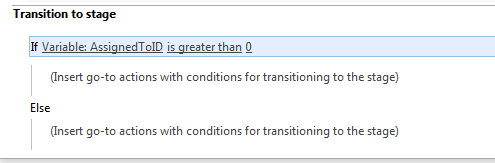
HGBP_Cover-236x300.jpg

www.hereticsguidebooks.com


Trials or tribulation? Inside SharePoint 2013 workflows–Part 3

Hi and welcome to part 3 of my series of articles that take a peek under the hood of SharePoint 2013 workflows, while trying to answer the question of whether SharePoint 2013 workflows can enable citizen developers to go forth and solve business problems and catapault organisations to success. In part 1, I introduced you to Megacorp Inc and their need for a controlled documents approval workflow. In part 2, we created a basic SharePoint 2013 workflow that implements the logic outlined in the picture below. The workflow is not yet finished, but we did enough to be able to run it and learn from it, which brings us to this post.

Now I will tell straight up that our first test of this workflow is not going to work. The entire point of this series of articles is to show you *why* things do not always work what you need to do about it. As we progress, I hope that you will learn quite a bit about the operation of workflows in SharePoint 2013, as well as developing and troubleshooting them. After all, we all know that the best citizens are informed citizens!

Snapshot_thumb3

So let’s get on with testing this particular workflow. We published it to the Documents library in part 2, so now we trigger it by selecting one of the files in the library. In this example, I will select one of the documents tagged as from Megacorp GM Foods. So using the filtering feature provided by metadata navigation, we just show the four documents owned by the Megacorp GM Foods division.

image4_thumb[1]

In this example, we will update the document called Burger Additives Standard. The workflow has not yet been set to automatically start, so we will need to manually trigger the workflow ourselves. To do so, click the ellipses next to the Burger Additives Standard document, and then click the ellipsis in the bottom right of the properties/preview window. This will show a second drop down menu. Choose Workflows from this menu as shown below.

image9_thumb

Underneath the Start a New Workflow text, you will see the workflow we published in part 2 called Process Owner Approval. Clicking it will start the workflow on this document.

image12_thumb

First sign of trouble…

After starting the workflow, the browser will redirect you back to the Documents library.  At this point, we see our first sign of trouble. When a workflow is published on a list or library, a column is added that is used to track workflow progress. In this case, we started our workflow, but there is nothing displayed in the workflow status column and the workflow does not appear to run. Hmm… what gives?

image15_thumb

When a workflow does not behave as you intended, the easiest way to troubleshoot is to use the workflow status page. As it happens, you have already seen this page, because it is the same page where we started the workflow. So once again, we click on the ellipsis next to the burger additives standard document, click the ellipsis in the properties window and choose Workflows from the drop down menu.

Well look at that… it says the workflow is indeed started…

image18_thumb

Clicking on the running workflow, we can see more detail which I have shown below. This screen also says that the workflow is started and nothing appears amiss. But then there is the little blue information symbol next to the Internal Status label. Hovering over this icon displays yet more information. This time, we see an error that would stump many – the sort of error that an information worker would have to call up helpdesk for.

Retrying last request. Next attempt scheduled in less than one minute. Details of last request: HTTP InternalServerError to http://megacorp/iso9001/_vti_bin/client.svc/web/lists/getbyid(guid’a64bb9ec-8b00-407c-a7d9-7e8e6ef3e647′)/Items(7) Correlation Id: de95e312-e24b-42c3-9369-5bae68040219 Instance Id: 9ed3a11d-f665-4512-9b17-78850356c846

image21_thumb  image241_thumb

Okaaaay, so that error message is about as useful as Windows Vista. It shows an internal server error and a correlation ID. Furthermore, if you wait another minute or so, and then refresh the workflow status screen, it’s internal status is no longer started, but now has the status of Cancelled. You can see it for yourself below…

image27_thumb

One again, clicking the little blue info button gives us more detail. Unfortunately, the detail consists of an even scarier appearing message than the previous one. This one looks nasty enough to freak out some SharePoint admins too. Check it out – it is pretty much useless in terms of conveying any information of value.

RequestorId: 8ad4a017-7e6f-0d0f-35d2-81c56a05b37c. Details: System.ApplicationException: HTTP 500 {“Transfer-Encoding”:[“chunked”],”X-SharePointHealthScore”:[“0″],”SPClientServiceRequestDuration”:[“211″],”SPRequestGuid”:[“3d7950b2-3d9d-47d9-a5fb-588bf02b9551″],”request-id”:[“3d7950b2-3d9d-47d9-a5fb-588bf02b9551″],”X-FRAME-OPTIONS”:[“SAMEORIGIN”],”MicrosoftSharePointTeamServices”:[“15.0.0.4420″],”X-Content-Type-Options”:[“nosniff”],”X-MS-InvokeApp”:[“1; RequireReadOnly”],”Cache-Control”:[“max-age=0, private”],”Date”:[“Sun, 17 Nov 2013 22:56:19 GMT”],”Server”:[“Microsoft-IIS\/8.0″],”X-AspNet-Version”:[“4.0.30319″],”X-Powered-By”:[“ASP.NET”]} at Microsoft.Activities.Hosting.Runtime.Subroutine.SubroutineChild.Execute(CodeActivityContext context) at System.Activities.CodeActivity.InternalExecute(ActivityInstance instance, ActivityExecutor executor, BookmarkManager bookmarkManager) at System.Activities.Runtime.ActivityExecutor.ExecuteActivityWorkItem.ExecuteBody(ActivityExecutor executor, BookmarkManager bookmarkManager, Location resultLocation)

image30_thumb

So what the hell is going on here?

Unfortunately, both of the error messages above are virtually useless for most people and the only way to dig deeper is to delve into the SharePoint ULS logs. Of course, if you use Office 365 you don’t have that luxury because accessing the ULS logs are not available to you – so your best option to figuring out errors like this is trial and error. you need to learn CSOM code to access the logs. For the rest of us living in on-premises or IaaS land, a quick search of the ULS logs for the file name “Burger additives standards” reveals the issue and the root cause. Check out the errors reported below – it should be quite clear…

SharePoint Foundation             General                           8kh7    High        The file “http://megacorp/iso9001/Documents/Burger additives standards.pdf” is not checked out.  You must first check out this document before making changes.

SharePoint Foundation             General                           aix9j    High        SPRequest.AddOrUpdateItem: UserPrincipalName=i:0).w|s-1-5-21-1480876320-1123302732-2276846122-500, AppPrincipalName=I:0I.T|MS.SP.EXT|2CC54B18-3F9D-43A3-BE55-B3A81C045562@B9A66C21-F39D-42DB-B6CD-DE520B6C1C91 ,bstrUrl=http://megacorp/iso9001 ,bstrListName={A64BB9EC-8B00-407C-A7D9-7E8E6EF3E647} , bAdd=False , bSystemUpdate=False , bPreserveItemVersion=False , bPreserveItemUIVersion=False , bUpdateNoVersion=False ,pbstrNewDocId=00000000-0000-0000-0000-000000000000 , bHasNewDocId=False , bstrVersion=8 , bCheckOut=False ,bCheckin=False , bUnRestrictedUpdateInProgress=False , bMigration=False , bPublish=False , bstrFileName=<null>

SharePoint Foundation             CSOM                              ahjq1    High        Exception occured in scope Microsoft.SharePoint.SPListItem.UpdateWithFieldValues. Exception=Microsoft.SharePoint.SPException: The file “http://megacorp/iso9001/Documents/Burger additives standards.pdf” is not checked out.  You must first check out this document before making changes. —> System.Runtime.InteropServices.COMException: The file “http://megacorp/iso9001/Documents/Burger additives standards.pdf” is not checked out.  You must first check out this document before making changes.     at Microsoft.SharePoint.Library.SPRequestInternalClass.AddOrUpdateItem(String bstrUrl, String bstrListName, Boolean bAdd, Boolean bSystemUpdate, Boolean bPreserveItemVersion, Boolean bPreserveItemUIVersion, Boolean bUpdateNoVersion, Int32& plID, String& pbstrGuid, Guid pbstrNewDocId, Boolean bHasNewDo…    3b84d615-e006-4457-811a-0af089963216

So in case it is not clear from the above messages, we have an error stating that the file Burger additives standards is not checked out and that to make changes to the document, we need to check it out first. This raises several questions:

  • 1. Why is the document library configured to require check-out?
  • 2. Why is the workflow trying to change the document anyway? The workflow we created in part 2 does no action on the Documents library.
  • 3. Why were the error messages so useless (which really hurts in Office365 scenarios)
  • 4. How can we fix this problem?

Let’s examine each of these in turn…

1. Why is the document library configured to require check-out?

The first question is really easy to answer. When you create a site using the Document Center site template, the document library versioning settings enable the Require Check Out option as shown below. Therefore no changes can be made to this document unless the user making the change checks it out.

image

2. Why is the workflow trying to change the document anyway?

The second question is also easy to answer, but the answer is somewhat more complicated. When a workflow is associated to a list or content type, it adds a column to track the status of the workflow. In SharePoint 2013, the default behaviour is to update this column with whatever stage in the workflow currently being executed. Therefore, as soon as the workflow runs, and before it has run any of the actions, it attempts to update its stage to the document that it was triggered from. So looking at the images below, if things were working we should see the string “Stage 1” in the Process Owner Approval column for the document Burger additives standards. But since the document requires check-out to make a change, SharePoint prevents this from happening by design.

image

image

Some readers who are experienced with SharePoint Designer workflow might be thinking “easy… just use the check out item workflow action before you do anything else.”Unfortunately this won’t work for you because this issue gets triggered when the stage info is written to the workflow status column which happens before any actions run.

3. Why were the error messages so useless (which really hurts in Office365 scenarios)

The next question is why on earth wasn’t the true error able to be reported back to the workflow? After all, in the end, this was a clearly identified error in SharePoint, yet all we got was error messages that did not state the problem at all.  This would have saved the effort of delving deep into the ULS logs and that is not even possible in Office 365.

The answer to this question is a little more complex and relates to how Workflow Manager and SharePoint interact with each other. Without getting into detail, the gist of the issue is that Workflow Manager uses REST webservice calls to do all of its operations on SharePoint content. Each and every workflow action (like the Log to History List) uses REST to talk to SharePoint to get the work done. While a detailed discussion of REST would take us too far afield, I have drawn you possibly the dodgiest ever diagram of this process ever to help you understand it. The main point with REST worth mentioning is that the intention of REST is to embrace the key protocols of the web, so a successful or failed request is conveyed via a HTTP status code.  If you have ever experienced your browser giving you a 404 page not found, then you know what I mean when I speak of HTTP status codes.

Snapshot

Now look again at the gory detail of the error that was logged by the workflow. We see the following string amongst all the other stuff. “Details: System.ApplicationException: HTTP 500”. So what happened is when the workflow tried to update the document with its stage, the check-out requirement resulted in SharePoint sending back a HTTP Error 500 (server error) back to the workflow manager.  Unfortunately for us, it did not send back the underlying cause of the error. Instead, the details of the response logged by workflow has all sorts of information about the HTTP request, but no hint to the underlying error. Sucks eh?

4. How can we fix this problem?

The final question was what we could do about this issue. There are two relatively easy ways, but before I do that, let me show you what happens if you check out the document and then attempt to run the workflow. While you might think this problem might go away, instead we get a friendly dialog box telling us to check the document back in before we attempt to start a workflow. Given that I couldn’t run this workflow because the item needed to be checked out, I had to laugh.

image

Anyways, the two options you have are to disable require check out on the Documents library or change the default behaviour of the workflow so that it does not write the stage back to the item that triggered the workflow. The first one is pretty easy – in the Versioning Settings of the Documents library, we change the Require documents to be checked out before they can be edited? option from Yes to No

image

The problem with the first option is that requiring check-out for controlled documents is likely to be a key requirement, so it is not an option in all circumstances. So the other option is to change the behaviour of the workflow itself so that it does not write its stage information back to the Documents library. Luckily for us, this is actually really easy to do. In SharePoint Designer 2013, there is an option to disable the updating of stage information. In the workflow settings screen, look for the option called Automatically update the workflow status to the current stage name and untick it.

image

Now unticking this box will get us past this error, but the problem now is that we have no easy way to track workflows, as this status update can be used in views on the Documents library to see which workflows are at a particular stage. For a complex workflow, or one that will be running on many items, not being able to see the status of the workflow would make life difficult. One workaround is to add a Check Out Item workflow action to the start of the workflow, and then use the Set Workflow Status action to update the status column on the current item as the workflow progresses. This will give us back the ability to track the workflow behaviour in the Documents library, but it will mean that a new version will be added to that Document each time the status updates. So another workaround is to log workflow status to some other list altogether (using the Create List Item action) and use that list for tracking and reporting instead.

Conclusion

I think that the separation of SharePoint and Workflow Manager into separate products is ultimately a good thing. It’s just a pity that one of the legacies of this change is an issue like what we covered in this post, where a relatively simple problem was exacerbated by poor reporting of errors between Workflow Manager and SharePoint. I guess this is part of the bigger price we pay – that of increased technical complexity via more moving parts. Hopefully an issue like this one can be addressed in a future service pack or update, because it is this sort of stuff that can cause people to lose some confidence and jump to the 3rd party solution perhaps prematurely. So if this issue was enough for you to think “pah – let’s go third party”, I have news for you. As you progress through this series we are going to deal with more complex issues than this one too.

Anyway, the point is that we have identified the cause of this particular issue and gotten past it, so we should be able to continue testing the workflow and marvel at our awesomeness. So in the next article, we will continue with testing our workflow and see what else SharePoint throws at us.

Thanks for reading

Paul Culmsee
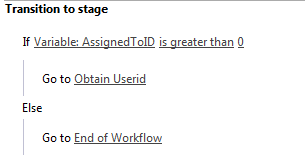
HGBP_Cover-236x300.jpg

www.hereticsguidebooks.com


Trials or tribulation? Inside SharePoint 2013 workflows–Part 2

Hi and welcome to part 2 of a series that aims to showcase the good and the bad of SharePoint 2013 workflows, using a simple use-case. In part 1 I introduced you to the mythical multinational called Megacorp and its document control requirements. Also in part 1, we created a site with the necessary lists and libraries from which we can build the workflow. To recap, we used the Document Center site template, and then modified the built-in document library (Documents) to store the organisation that each document belongs to. We created a custom list called Process Owners that stored who is accountable for controlled documents in each organisation. Below is an XMind map to show you the Information Architecture of the Megacorp document control site.

image_thumb1

Our workflow is going to:

  • Look at a document and determine the organisation that a document belongs to
  • Look in the process owners list for that organisation and then determine the process owner for the organisation by grabbing the information in the “Assigned To” field
  • Create an approval task for the process owner to approve the release of a controlled document.

Now this all sounds straightforward enough in theory, but this is SharePoint we are talking about. Let’s see how reality stacks up against theory. I will give lots of screenshots for readers who have never tried using SharePoint Designer Workflow before…

Creating the workflow

Step 1:

Right, so the workflow will fire when a document is modified, so we will start by adding a list workflow and link it to the Documents library. So using SharePoint Designer 2013, we open the Megacorp site and in the ribbon, we click the List Workflow button. This will cause a dropdown menu to appear below the icon, showing the lists and libraries on the Megacorp site. From this list, we choose the Documents library.

image    image_thumb23

Step 2:

We are presented with the workflow creation screen. Call the workflow “Process Owner Approval” and click OK.

image_thumb9

Note: If, at this point, you get an error, it means that Workflow manager has not been provisioned properly. Remember that in SharePoint 2013, workflow is a separate product and needs to be installed. This is a change from previous versions of SharePoint where workflow was always there, as it was part of SharePoint.

Assuming SharePoint is configured right, SharePoint Designer will have a think for a while and eventually display the following workflow creation screen, ready for us to do cool things!

image_thumb12

The next step is to add a workflow action. The most logical workflow action for us to try is one of the task actions. We will attempt to assign a task to the process owner for a document.

Step 3:

From the workflow ribbon, click the Action icon and choose “Assign a task”. The action will be added to the workflow, ready for you to fill in. For those of you reading this who have never done this before, the process is reminiscent of configuring email rules in outlook in that the action is added and you then fill in the blanks..

image_thumb15   image_thumb18

Now let’s configure the finer details of the Assign action above. A task needs to be assigned to a user, and we need to set up the logic for the workflow to work out who that user is. If you recall, the Documents library has a column called Organisation that specifies which Megacorp entity owns each document. A separate list called Process Owners then stores whoever is assigned as the process owner for each organisation (using the Assigned To column). So when the workflow runs on a particular document, we have to take Organisation specified for that document and use it to search the Process Owners list for the matching Organisation. Once we find it, we grab the value of the Assigned to user and create a task for them.

Here is a dodgy diagram that explains the logic I just described.

Snapshot

So let’s give it a go…

Step 4:

Go back to your newly minted “assign task” that you just added. Click the “this user” hyperlink on the newly created task. The task properties screen will appear as shown below. In the Participant textbox, click the ellipses button to bring up the Select User dialog box.

image_thumb19  image_thumb24

In the Select User dialog box, choose Workflow Lookup for a User and click the Add >> button. This will bring up the ambiguously named Lookup for string dialog box that allows us to choose where to look for our process owner. In the Data source drop down, we choose Process Owners from the list.

Next we have to tell the workflow which column holds the details of the person to perform the task. In the Field from source drop down, choose the Assigned to column as we talked about above.

image_thumb27image

At this point, the workflow knows which list and column holds the information it needs as per the image below:

Snapshot,

But currently we do not know the specific user we need. Is it John Smith, Jane Doe or Jack Jones? Fear not though – this is what the Find the list item section of the Lookup for string dialog box is for. This is where we will tell the workflow to find only the person who matches the value of the Organisation column assigned to the document.

Step 5:

First up, we tell the workflow which field in Process Owners will be used to compare. This is the Organisation column, so in the Field: drop down, choose Organisation. Next we have to match that organisation column with the one in the Documents library. Click the Fx button next to column textbox called Value. A new dialogue box will appear called Lookup for Extended Field. Leave the Data source dropdown as Current item and in the Field from source dropdown, choose the Organisation column.

image   image

Note 1: in a workflow, “Current item” refers to the item that the workflow has been invoked from. If you recall at the start of this post, we created a list workflow and associated with the Documents library. Current item refers therefore to any document in the Documents library that has had a workflow invoked. All of the metadata associated with the current document is available to the workflow to use.

Note 2: Keen eyed readers may be wondering what the deal is with the column labelled Organsiation_0. Don’t worry – I’ll get to that later.

Now that you have selected the organisation column from the Documents library, we have filled in all of the logic we need to grab the right Assigned to user. Clicking ok, the workflow designer will warn you that if you have been silly enough to add multiple process owners for a given organisation, that it will use the first one it finds.

image  image

Finally, we are back at the task designer screen. A lot of screenshots just to wire up the logic for finding the right process owner eh? We haven’t even configured the behaviour of the task itself yet!

image

In fact, for now we are not going to wire up the rest of the task. I would like to know if the logic we have just wired up will work. If I can confirm that, I will come back and finish off creating the task with the behaviours I want.  So instead, let’s click Ok to go back to the workflow designer. Now we can see our Assign a task action, ready to go.

image_thumb39

Now before we can test and publish the workflow, we need to tell it to end. Now this is a little counter intuitive to someone who is used to SharePoint 2010 workflows, but it makes sense once you understand the concept of a workflow stage.

SharePoint Workflow 2013 Stages – an interlude…

If you have ever sat around and tried to map out a business process, you have probably experienced the fun (not) of discovering that even a relatively simple business process has a lot of variations to it – some quite ad-hoc or dynamic. Trying to account for all of these variations in workflow design can make for some very complex and scary diagrams with even scarier implementations. As an example, take a look at the diagram below – this is a real process and apparently it is only page 12 of a 136!

image

Now in SharePoint 2010, implementing these sorts of workflows was pretty brutal, but in 2013 it has been rethought. A stage is a construct that allows you to group a number of workflow actions together, as well as defining conditions that govern how those actions happen. Each stage in a workflow can transition to any other workflow stage based on conditions. This means that a workflow can effectively loop around different stages and greatly simplify implementing business logic compared to SharePoint 2010.

The means by which this is done is via the the new Transition to Stage workflow action. The way this works is at the end of each workflow stage, there is a transition to stage section as shown below:

image

Step 6:

When you click into the Transition to stage section of the workflow, there is only one workflow action available: the Go To A Stage action. Adding this to the workflow will present a dropdown that will allow you to transfer the workflow to any the you have defined, or to end the workflow. Right now we will end the workflow, but we will be revisiting this stage idea later in the series.

image_thumb40  image_thumb41  image_thumb43

All right! We are done. The final step is to save and publish the workflow.

Step 7:

In the ribbon, look for the Publish icon and click it. Assuming everything goes according to plan, you will be back at the workflow overview screen in SharePoint Designer.

image  image

Congratulations – you have published your workflow. “Well that was easy,” I hear you say… But we haven’t tested it yet! In the next post we will test our masterpiece and see what happens. You might already have an inkling that the result may not be what you expect… but let’s save that for the next post.

Thanks for reading

Paul Culmsee
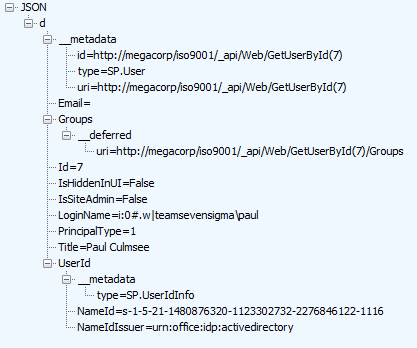
HGBP_Cover-236x300.jpg

www.hereticsguidebooks.com


Trials or tribulation? Inside SharePoint 2013 workflows–Part 1

Hi all

Workflows are big business in SharePoint land, despite the capability of SharePoint Designer Workflows being a fairly weak link in the overall SharePoint value proposition. If this wasn’t the case, then products like Nintex or K2 would not be so popular and workflow vendors wouldn’t have the biggest booths at the average SharePoint conference.

One of the serious strategic advantages of going with the SharePoint stack is the amazing 3rd party ecosystem that flourishes around the base product. No other platform in the space has the level of 3rd party support that SharePoint enjoys. But while its nice to be able to have great options for serious SharePoint workflow development, with each successive version of SharePoint that comes out, there is always that hope that one can use the base functionality without having to jump straight away to the 3rd party tools.  After all, it is quite common for organisations, having just gone to the time and expense of adopting SharePoint, to be dismayed that they have to part with yet more cash for 3rd party tools to address large functional gaps that were not apparent in the contrived product demos.

Another important trend being hidden by cloud hubris is the rise of the citizen developer. The CIO’s fountain of knowledge known as Gartner, stated that by 2014 25% of new business applications will be delivered by Citizen Developers.  They defined citizen developers as “a user operating outside of the scope of enterprise IT and its governance who creates new business applications for consumption by others either from scratch or by composition.” Elaborating, Gartner stated that

“Future citizen-developed applications will leverage IT investments below the surface, allowing IT to focus on deeper architectural concerns, while end users focus on wiring together services into business processes and workflows. Furthermore, citizen development introduces the opportunity for end users to address projects that IT has never had time to get to — a vast expanse of departmental and situational projects that have lain beneath the surface.”

So with SharePoint 2013, Microsoft has indeed changed things up a notch in the workflow world. Is it enough to enable and empower citizen developers?

That is what this series aims to find out… First up, lets take a quick look at the forces we are going to be meddling with…

What’s new with SharePoint 2013 and workflow…

Workflow in SharePoint 2013 is significantly different from SharePoint 2010. It fact, it is essentially a completely separate product called Workflow Manager. Technically, Workflow Manager is not part of SharePoint at all – there is no “workflow” service application or “service on a server” to be found. Instead, it is a separate process that works by communicating with SharePoint over the HTTP protocol in various ways.

This means that we have the option of deploying Workflow Manager onto its own server, or set of servers (although for you smaller sites, it happily installs onto your SharePoint servers and coexists with the rest of SharePoint too). This loosely coupled model has scalability benefits as workflow load can now be separated from the rest of SharePoint. It also means badly behaved workflows are less likely to affect SharePoint sites because they run in a separate process or separate servers. 3rd party applications (think about solutions built using the SharePoint 2013 apps model here) can also interact and communicate with workflow manager separately to SharePoint. It also helps Microsoft to realise their strategy of “encouraging” everyone to their vision of a cloud-based happy place.

Now new does not always equate to good – and Microsoft have a bit of a dubious history with V1 products and technology. So in this series, I’d like to show you an example of what the SharePoint 2013 new workflow regime can do. The example that I am going to use for this set of articles is useful for this purpose for several reasons:

  • 1. It is a common use-case that many organisations would find familiar – particularly those with compliance regimes
  • 2. It demonstrates a fairly typical SharePoint consulting “oh crap” moment, where you realise your masterpiece of a solution is completely undone by an untested assumption or a SharePoint caveat that you forgot about.
  • 3. It demonstrates a path to redemption that is an excellent utilisation of the new capabilities of SharePoint 2013 and Workflow Manager
  • 4. It gives you a great sense as to whether workflows are a real developer, information worker or citizen developer tool. In other words, after reading this, you should have a good idea what you are getting yourself into!

I have a lot to cover, so this series will be multi-part. This first post will outline the scenario that we are dealing with.

The scenario: Document Control at Megacorp

Many organisations operate in industries where they are required to manage documentation in a systematic way. Documents that are subject to any sort of quality or compliance regime are often referred to as “Controlled Documents”. Typically, a controlled document will have an assigned responsible party who is accountable for the management (i.e. approving the issuing of updates) of that document.

To illustrate, consider the document control requirements of Megacorp Inc – a mythical multinational conglomerate with a vide variety of businesses in many different industries and locations. Megacorp is your typical diversified multinational, making everything from Iron Man suits to hamburgers. A managed metadata term set illustrating the Megacorp conglomerate structure can be seen below. If you look closely, Megacorp Inc, actually consists of several companies and each is structured differently. For example: Megacorp Pharmaceutical divides itself based on country and state jurisdiction, whereas Megacorp GM foods divides itself up on the particular food it is generically modifying.

image

So let’s say that Megacorp is maintaining ISO9001 certification for assurance purposes and therefore has to control their documents as I have stated above. Let’s create a SharePoint site called ISO9001 to handle this requirement. We perform the following steps:

  1. Build a term set (called Megacorp Inc)that stores all of the Megacorp businesses (you can see that in the image above)
  2. Create a site based on the built-in Document Center template
  3. Create a managed metadata site column called Organisation and associate it to the Megacorp term set
  4. Add the organisation column to the document library (called Documents) in the Document Center site
  5. Enable Metadata Navigation on the Documents library and add the Organisation column as a hierarchy field

For those of you who are new to SharePoint, below are screenshots from those steps to help you with the above steps… I am not going through this stuff in detail, so hopefully this suffices…

image  image

imageimage

Now that the above plumbing is done, a few documents have been added to the Documents library and tagged to their organisation. With Metadata Navigation enabled, we now have the easy means to browse and filter documents to the specific organisation who owns them as shown below…

image

So let’s now think through a workflow scenario. Each organisation that makes up Megacorp has a process owner and when a document is ready for publishing, the process owner needs to approve it. Now we could do this by adding a “Person or Group” column to the document library and call it “process owner.” But Megacorp has some additional considerations that need to be pondered…

  • 1. They have thousands of documents in the library
  • 2. The process owner is a role, not an individual person. For audit purposes, Megacorp wants to have a record of when a person was in a particular process owner role.

The reason this complicates things is twofold. If we use a person’s user account in Active directory for tagging the process owner, we can easily track when a process owner changes because it will show up in the version history of the documents. But the downside is that we would have to update each document individually when that process owner changes to someone else. Not to mention that we may not want this change to be a version change in the document itself.

Now I know what your thinking – “Just use an Active Directory Group instead of an account”. Yes, it is a good and logical suggestion, since a SharePoint or Active Directory group allows us to easily manage changes in personnel between roles by changing group members. But the downside is that we have no easy way to see the history of who was in the process owner role at a given time because SharePoint would see and store the group, not the members of that group.

So let’s try an alternative approach. We will make a custom list called “Process Owners” and add two columns to it. We will add the Organisation site column that we created and used earlier, and we will add the “Assigned To” column that is built-into SharePoint and used in task lists. This will give us a list of process owners for a given Megacorp company or division. Even better – if we turn on version history on the Process Owners list, we now have a record of who was in the process owner role at any given time because it will show up in the changes in the “Assigned to” field over time.

The image below illustrates the Process Owners list.

image

So to summarise, we have a document library where all documents are tagged to the organisation that they belong to. We have a list of the process owners for each organisation. To better visualise this, I have drawn an xmind map to show you the Information Architecture of the Megacorp document control site

image

Now we turn our attention to the document approval workflow. It should be able to:

  • Look at a document and determine the Organisation that a document belongs to
  • Look in the process owners list for that organisation and then determine the process owner for the organisation by grabbing the information in the “Assigned To” field
  • Create an Approval task for the Process owner to approve the release of a controlled document.

Now this all sounds straightforward enough in theory but as we will see as this series progresses, when it comes to SharePoint, theory and reality are two very different things. So in part 2, we will build out the workflow..

Thanks for reading

Paul Culmsee
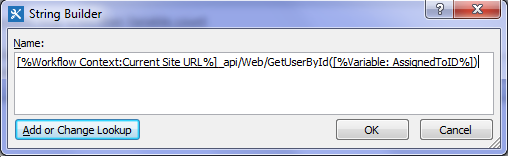
h2bp2013_thumb.jpg

www.heretisguidebooks.com


« Previous PageNext Page »
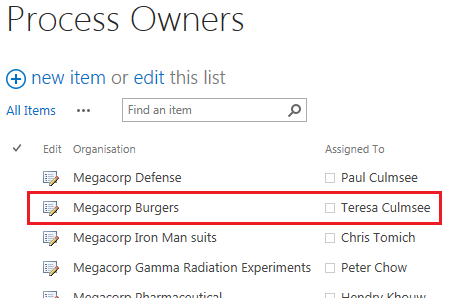
Today is: Saturday 7 March 2026 -