Back to Cleverworkarounds mainpage
 

An annotated IPSEC example

Tags: Cisco, IPSEC, Linksys, VPN @ 3:36 pm


IPSEC.. WTF? Isn’t this supposed to by SharePoint?

Well, yeah you got me.. but a few years back I was a Cisco nerd in the ISP industry and got pretty handy at it. I wrote this article 3 years ago but then forgot about it until recently.. so it may as well see the light of day because at the time I wrote it, there was very little info out there on this subject.

Linksys to Cisco IOS IPSEC Tunnel

The network

Site 1:  (Linksys WAG54G)

  • Inside Network: 172.18.30.0/24
  • Gateway IP 200.100.1.1
  • Inside IP 172.18.30.1
  • NAT: Overloaded on Outside interface
  • LinkSys WAG54G. Software Version: 1.02.9, Dec 22 2004Site2:

Site 2: (Cisco 3725)

  • Inside Network: 192.168.100.0/24
  • Gateway IP: 200.56.4.1
  • Inside IP 192.168.100.1
  • NAT: Overloaded on Outside interface
  • Cisco 3725 Router. IOS. IOS ™ 3700 Software (C3725-IK9O3S-M), Version 12.3(6), RELEASE SOFTWARE (fc3)
    System image file is "slot0:c3725-ik9o3s-mz.123-6.bin"

The IPSEC Parameters

Probably the most common combination for IPSEC is to use 3DES/SHA/DH Group 2. For transforms ESP-3DES-SHA

  • 3DES, SHA1, ESP (no AH).
  • PFS is OFF!
  • DH Group 2 (Group1 and 2 only supported on the linksys)

The IKE Parameters

  • 3DES, SHA, DH Group 2
  • All IP traffic to traverse VPN tunnel.

Linksys Configuration

  • Security Tab – Choose VPN
  • You do not need to enable IPSEC passthrough. You would only do this if another device behind the linksys was actually doing the IPSEC tunnel.
  • Create a new tunnel entry and give it a name. Specify a subnet for the local security group (the local subnet) and set 172.18.30.0 with a 255.255.255.0 subnet mask
  • Specify a subnet for the remote security group. 192.168.100.0/255.255.255.0

  • Now we have to specify the IP address of the remote IPSEC peer. In our example we are using an IP address not a domain name

  • Encryption should be set to 3DES and hash (authentication) to SHA. This is Phase II encryption (as will be confirmed in advanced settings screen). Set PFS to OFF in this example (Cisco defaults to off).  The Key Lifetime here actually is Phase II key lifetime. Phase 1 key lifetime is in the advanced screen.
  • IKE is used, rather than manual.  Cisco default setting for Key Lifetime is 86400 seconds. So change this end to match. Set the shared key as well.
  • Now click the advanced tab. Here we configure the phase 2 config. Repeat 3DES and SHA everywhere with 1024bit group (DH Group 2)

Note how this says that the linksys will try and offer DES/MD5/768, 3DES/SHA/1024 and 3DES/MD5/1024. In fact proposal 1 and 3 are therefore identical. I have not looked deeply into this, although it increases the Phase 1 work required when the two peers negotiate phase 1.

CIsco Configuration

Note that this particular router has 6 IPSEC tunnels to different peers. In this example, the connection to the WAG54G is the latest IPSEC tunnel. Comments are in itallics

SITEB#sh run
Building configuration…

First we define the ISAKMP policies that this router will accept. 4 are defined here. This is because the other 5 IPSEC tunnels have unique IKE requirements. Each different IPSEC peers have different capabilities.

crypto isakmp policy 1 (3DES/SHA/DH Group 5)
encr 3des
authentication pre-share
group 5
!
crypto isakmp policy 2 (3DES/MD5/DH Group 5)
encr 3des
hash md5
authentication pre-share
group 5
!
crypto isakmp policy 3 (DES/SHA/DH Group 5)
authentication pre-share
group 5
!
This is the ISAKMP policy that will match the LINKSYS router at Site A.
crypto isakmp policy 4 (3DES/SHA/DH Group 2)
encr 3des
authentication pre-share
group 2

Note that all ISAKMP use pre-shared keys for authentication. These are defined below.
crypto isakmp key xxxxxxxxx address yyyyyy
crypto isakmp key xxxxxxxxxx address yyyyyy
crypto isakmp key thisisasecretpassword address 200.100.1.1
!
!

This is the IPSEC Parameters. (Phase II) – explain here..

crypto ipsec transform-set Default esp-3des esp-sha-hmac
!
Now we define the crypto map itself. We specify the ACL that needs to be matched for each peer and then the transform set to use. Remember the first 5 crypto map entires are for other VPN’s.

crypto map IPSEC 5 ipsec-isakmp
set peer yyyyyy
set transform-set Default
match address xxxxxx
crypto map IPSEC 10 ipsec-isakmp
set peer yyyyyy
set transform-set Default
match address xxxxxx
crypto map IPSEC 15 ipsec-isakmp
set peer yyyyyy
set transform-set Default
set pfs group5
match address xxxxxx
crypto map IPSEC 30 ipsec-isakmp
set peer yyyyyy
set transform-set Default
match address xxxxxx
crypto map IPSEC 40 ipsec-isakmp
set peer yyyyyy
set transform-set Default
match address xxxxxx
crypto map IPSEC 50 ipsec-isakmp
set peer yyyyyy
set transform-set Default
match address xxxxxx
crypto map IPSEC 60 ipsec-isakmp
set peer 200.100.1.1
set transform-set Default
match address SITEB_to_SITEA
!
!
!
!
interface FastEthernet0/0
no ip address
shutdown
speed auto
full-duplex
!
Now we apply the crypto map to the externally facing interface.

interface FastEthernet0/1
ip address 200.56.4.1 255.255.255.252
ip access-group Firewall in
no ip redirects
ip nat outside
duplex auto
speed auto
no cdp enable
crypto map IPSEC
!
interface FastEthernet1/0
description Inside
ip address 192.168.100.1  255.255.255.0
ip nat inside
duplex auto
speed auto
!
ip nat inside source list inside_net interface FastEthernet0/1 overload
ip route 0.0.0.0 0.0.0.0 200.56.4.2
!
This is the ACL that the policy map called IPSEC uses to identify traffic to be IPSEC encrypted
ip access-list extended SITEB_to_SITEA
permit ip 192.168.100.0 0.0.0.255 172.18.30.0 0.0.0.255

ip access-list extended Firewall
remark
remark Allow TCP replys
remark
permit tcp any any established
remark
remark For VPN IPSec
remark
permit esp host 200.100.1.1 host 200.56.4.1
permit udp host 200.100.1.1 host 200.56.4.1 eq isakmp
permit icmp any any parameter-problem
permit icmp any any source-quench
permit icmp any any echo-reply
permit icmp any any time-exceeded
permit icmp any any unreachable
deny   ip any any log

This ACL is used to Network address translate all outgoing packets *except* the stuff for IPSEC. That has to stay with source address preserve. Therefore by using a deny entry we stop the router NATting any traffic from 192.168.100.0/24 to 172.18.30.0/24

ip access-list extended inside_net
deny   ip 192.168.100.0 0.0.0.255 172.18.30.0 0.0.0.255
permit ip 192.168.100.0 0.0.0.255 any
!
end

Example 1: Tunnel initiated from Linksys end

Logs (linksys). Linksys logs are quite basic, but you can see the 3 IKE Phase 1 packet exchange and tell that its using Main Mode (eg MM_I1) and then the Phase II Quick Mode (QM_I1) exchange.

Main mode Phase 1 happens first
2005-02-06 22:29:39 IKE[1] Tx >> MM_I1 : 200.56.4.1 SA
2005-02-06 22:29:39 IKE[1] Rx << MM_R1 : 200.56.4.1 SA
2005-02-06 22:29:39 IKE[1] ISAKMP SA CKI=[9ddfe293 4d8be14b] CKR=[cca2f07a 9045af27]
2005-02-06 22:29:39 IKE[1] ISAKMP SA 3DES / SHA / PreShared / MODP_1024 / 86400 sec (*86400 sec)
2005-02-06 22:29:39 IKE[1] Tx >> MM_I2 : 200.56.4.1 KE, NONCE
2005-02-06 22:29:40 IKE[1] Rx << MM_R2 : 200.56.4.1 KE, NONCE, VID, VID, VID, VID
2005-02-06 22:29:40 IKE[1] Tx >> MM_I3 : 200.56.4.1 ID, HASH
2005-02-06 22:29:41 IKE[1] Rx << MM_R3 : 200.56.4.1 ID, HASH
Great – we got this far. Once you see QM you know you have made it to Phase II
2005-02-06 22:29:41 IKE[1] Tx >> QM_I1 : 200.56.4.1 HASH, SA, NONCE, KE, ID, ID
2005-02-06 22:29:42 IKE[1] Rx << QM_R1 : 200.56.4.1 HASH, SA, NONCE, KE, ID, ID, NOTIFY
2005-02-06 22:29:42 IKE[1] Tx >> QM_I2 : 200.56.4.1 HASH
2005-02-06 22:29:42 IKE[1] ESP_SA 3DES / SHA / 86400 sec / SPI=[c243f13f:a213c248]
2005-02-06 22:29:42 IKE[1] Set up ESP tunnel with 200.56.4.1 Success !
2005-02-06 22:29:42

Logs (Cisco). Below is the output from the commands Debug crypto ipsec and debug crypto isakmp

Now for Cisco logs there is a massive amount of detail for better or worse :-), So we will break it up. Recall that this sample setup has been taken from a live Cisco router that is loaded with 4 IPSEC policies. They are:

3DES/SHA/DH Group 5
3DES/MD5/DH Group 5
DES/SHA/DH Group 5
3DES/SHA/DH Group 2

Now also recall that in addition to the defined policy, the Linksys does:

3DES/SHA/DH Group 2
DES/MD5/DH Group 1
3DES/SHA/DH Group 2
3DES/MD5/DH Group 2.

Now the first part of the logs shows the linksys trying its 4 combinations against the 4 Cisco combinations. This takes a while.. Annotated comments inline

Feb  6 21:43:04.394 GMT: ISAKMP (0:0): received packet from 200.100.1.1 dport 500 sport 500 Global (N) NEW SA
Feb  6 21:43:04.394 GMT: ISAKMP: local port 500, remote port 500
Feb  6 21:43:04.394 GMT: ISAKMP: insert sa successfully sa = 64008FCC
Feb  6 21:43:04.394 GMT: ISAKMP (0:709): Input = IKE_MESG_FROM_PEER, IKE_MM_EXCH

This is a MAIN MODE exchange. Not an aggressive mode exchange

Feb  6 21:43:04.394 GMT: ISAKMP (0:709): Old State = IKE_READY  New State = IKE_R_MM1
Feb  6 21:43:04.394 GMT: ISAKMP (0:709): processing SA payload. message ID = 0
Feb  6 21:43:04.398 GMT: ISAKMP: Looking for a matching key for 200.100.1.1 in default : success
Feb  6 21:43:04.398 GMT: ISAKMP (0:709): found peer pre-shared key matching 200.100.1.1
Feb  6 21:43:04.398 GMT: ISAKMP (0:709) local preshared key found 

The preshared keys match and therefore the IKE peer is authenticated. Now we have to negotiate a common IKE SA policy between the peers to protect the IKE Exchange

Feb  6 21:43:04.398 GMT: ISAKMP : Scanning profiles for xauth …

Feb  6 21:43:04.398 GMT: ISAKMP (0:709): Checking ISAKMP transform 1 against priority 1 policy
Feb  6 21:43:04.398 GMT: ISAKMP:      encryption 3DES-CBC
Feb  6 21:43:04.398 GMT: ISAKMP:      hash SHA
Feb  6 21:43:04.398 GMT: ISAKMP:      auth pre-share
Feb  6 21:43:04.398 GMT: ISAKMP:      default group 2
Feb  6 21:43:04.398 GMT: ISAKMP:      life type in seconds
Feb  6 21:43:04.398 GMT: ISAKMP:      life duration (VPI) of  0×0 0×1 0×51 0×80
Feb  6 21:43:04.398 GMT: ISAKMP (0:709): Diffie-Hellman group offered does not match policy!

The cisco’s policy 1 is 3DES/SHA/DH Group 5 and this does not match Linksys polic 1 of DES/SHA/DH2

Feb  6 21:43:04.398 GMT: ISAKMP (0:709): atts are not acceptable. Next payload is 3
Feb  6 21:43:04.398 GMT: ISAKMP (0:709): Checking ISAKMP transform 2 against priority 1 policy
Feb  6 21:43:04.398 GMT: ISAKMP:      encryption DES-CBC
Feb  6 21:43:04.398 GMT: ISAKMP:      hash MD5
Feb  6 21:43:04.398 GMT: ISAKMP:      auth pre-share
Feb  6 21:43:04.398 GMT: ISAKMP:      default group 1
Feb  6 21:43:04.398 GMT: ISAKMP:      life type in seconds
Feb  6 21:43:04.398 GMT: ISAKMP:      life duration (VPI) of  0×0 0×1 0×51 0×80
Feb  6 21:43:04.398 GMT: ISAKMP (0:709): Encryption algorithm offered does not match policy!

The cisco’s policy 1 is 3DES/SHA/DH Group 5 and this does not match Linksys policy 2 of DES/MD5/DH2

Feb  6 21:43:04.398 GMT: ISAKMP (0:709): atts are not acceptable. Next payload is 3
Feb  6 21:43:04.398 GMT: ISAKMP (0:709): Checking ISAKMP transform 3 against priority 1 policy
Feb  6 21:43:04.398 GMT: ISAKMP:      encryption 3DES-CBC
Feb  6 21:43:04.398 GMT: ISAKMP:      hash SHA
Feb  6 21:43:04.398 GMT: ISAKMP:      auth pre-share
Feb  6 21:43:04.398 GMT: ISAKMP:      default group 2
Feb  6 21:43:04.398 GMT: ISAKMP:      life type in seconds
Feb  6 21:43:04.398 GMT: ISAKMP:      life duration (VPI) of  0×0 0×1 0×51 0×80
Feb  6 21:43:04.398 GMT: ISAKMP (0:709): Diffie-Hellman group offered does not match policy!

Same as offer 1. The cisco’s policy 1 is 3DES/SHA/DH Group 5 and this does not match Linksys of 3DES/SHA/DH2

Feb  6 21:43:04.398 GMT: ISAKMP (0:709): atts are not acceptable. Next payload is 3
Feb  6 21:43:04.398 GMT: ISAKMP (0:709): Checking ISAKMP transform 4 against priority 1 policy
Feb  6 21:43:04.398 GMT: ISAKMP:      encryption 3DES-CBC
Feb  6 21:43:04.398 GMT: ISAKMP:      hash MD5
Feb  6 21:43:04.398 GMT: ISAKMP:      auth pre-share
Feb  6 21:43:04.398 GMT: ISAKMP:      default group 2
Feb  6 21:43:04.398 GMT: ISAKMP:      life type in seconds
Feb  6 21:43:04.398 GMT: ISAKMP:      life duration (VPI) of  0×0 0×1 0×51 0×80
Feb  6 21:43:04.398 GMT: ISAKMP (0:709): Hash algorithm offered does not match policy!

The cisco’s policy 1 is 3DES/SHA/DH Group 5 and this does not match Linksys of 3DES/MD5/DH2

Feb  6 21:43:04.398 GMT: ISAKMP (0:709): atts are not acceptable. Next payload is 0
Feb  6 21:43:04.398 GMT: ISAKMP (0:709): Checking ISAKMP transform 1 against priority 2 policy
Feb  6 21:43:04.398 GMT: ISAKMP:      encryption 3DES-CBC
Feb  6 21:43:04.398 GMT: ISAKMP:      hash SHA
Feb  6 21:43:04.398 GMT: ISAKMP:      auth pre-share
Feb  6 21:43:04.398 GMT: ISAKMP:      default group 2
Feb  6 21:43:04.398 GMT: ISAKMP:      life type in seconds
Feb  6 21:43:04.398 GMT: ISAKMP:      life duration (VPI) of  0×0 0×1 0×51 0×80
Feb  6 21:43:04.398 GMT: ISAKMP (0:709): Hash algorithm offered does not match policy!

The cisco’s policy 2 (note priority 2 policy above) is 3DES/MD5/DH Group 5 and this does not match Linksys of 3DES/SHA/DH2

Feb  6 21:43:04.398 GMT: ISAKMP (0:709): atts are not acceptable. Next payload is 3

Feb  6 21:43:04.398 GMT: ISAKMP (0:709): Checking ISAKMP transform 2 against priority 2 policy
Feb  6 21:43:04.398 GMT: ISAKMP:      encryption DES-CBC
Feb  6 21:43:04.398 GMT: ISAKMP:      hash MD5
Feb  6 21:43:04.398 GMT: ISAKMP:      auth pre-share
Feb  6 21:43:04.398 GMT: ISAKMP:      default group 1
Feb  6 21:43:04.398 GMT: ISAKMP:      life type in seconds
Feb  6 21:43:04.398 GMT: ISAKMP:      life duration (VPI) of  0×0 0×1 0×51 0×80
Feb  6 21:43:04.398 GMT: ISAKMP (0:709): Encryption algorithm offered does not match policy!The cisco’s policy 2 is 3DES/MD5/DH Group 5 and this does not match Linksys of DES/MD5/DH1Feb  6 21:43:04.398 GMT: ISAKMP (0:709): atts are not acceptable. Next payload is 3
Feb  6 21:43:04.398 GMT: ISAKMP (0:709): Checking ISAKMP transform 3 against priority 2 policy
Feb  6 21:43:04.398 GMT: ISAKMP:      encryption 3DES-CBC
Feb  6 21:43:04.398 GMT: ISAKMP:      hash SHA
Feb  6 21:43:04.398 GMT: ISAKMP:      auth pre-share
Feb  6 21:43:04.398 GMT: ISAKMP:      default group 2
Feb  6 21:43:04.398 GMT: ISAKMP:      life type in seconds
Feb  6 21:43:04.398 GMT: ISAKMP:      life duration (VPI) of  0×0 0×1 0×51 0×80
Feb  6 21:43:04.398 GMT: ISAKMP (0:709): Hash algorithm offered does not match policy!The cisco’s policy 2 is 3DES/MD5/DH Group 5 and this does not match Linksys of 3DES/SHA/DH2Feb  6 21:43:04.398 GMT: ISAKMP (0:709): atts are not acceptable. Next payload is 3
Feb  6 21:43:04.398 GMT: ISAKMP (0:709): Checking ISAKMP transform 4 against priority 2 policy
Feb  6 21:43:04.398 GMT: ISAKMP:      encryption 3DES-CBC
Feb  6 21:43:04.398 GMT: ISAKMP:      hash MD5
Feb  6 21:43:04.398 GMT: ISAKMP:      auth pre-share
Feb  6 21:43:04.398 GMT: ISAKMP:      default group 2
Feb  6 21:43:04.398 GMT: ISAKMP:      life type in seconds
Feb  6 21:43:04.398 GMT: ISAKMP:      life duration (VPI) of  0×0 0×1 0×51 0×80
Feb  6 21:43:04.402 GMT: ISAKMP (0:709): Diffie-Hellman group offered does not match policy!The cisco’s policy 2 is 3DES/MD5/DH Group 5 and this does not match Linksys of 3DES/MD5/DH2Feb  6 21:43:04.402 GMT: ISAKMP (0:709): atts are not acceptable. Next payload is 0
Feb  6 21:43:04.402 GMT: ISAKMP (0:709): Checking ISAKMP transform 1 against priority 3 policy
Feb  6 21:43:04.402 GMT: ISAKMP:      encryption 3DES-CBC
Feb  6 21:43:04.402 GMT: ISAKMP:      hash SHA
Feb  6 21:43:04.402 GMT: ISAKMP:      auth pre-share
Feb  6 21:43:04.402 GMT: ISAKMP:      default group 2
Feb  6 21:43:04.402 GMT: ISAKMP:      life type in seconds
Feb  6 21:43:04.402 GMT: ISAKMP:      life duration (VPI) of  0×0 0×1 0×51 0×80
Feb  6 21:43:04.402 GMT: ISAKMP (0:709): Encryption algorithm offered does not match policy!
Feb  6 21:43:04.402 GMT: ISAKMP (0:709): atts are not acceptable. Next payload is 3The cisco’s policy 3 is DES/SHA/DH Group 5 and this does not match Linksys of 3DES/SHA/DH2

Feb  6 21:43:04.402 GMT: ISAKMP (0:709): Checking ISAKMP transform 2 against priority 3 policy
Feb  6 21:43:04.402 GMT: ISAKMP:      encryption DES-CBC
Feb  6 21:43:04.402 GMT: ISAKMP:      hash MD5
Feb  6 21:43:04.402 GMT: ISAKMP:      auth pre-share
Feb  6 21:43:04.402 GMT: ISAKMP:      default group 1
Feb  6 21:43:04.402 GMT: ISAKMP:      life type in seconds
Feb  6 21:43:04.402 GMT: ISAKMP:      life duration (VPI) of  0×0 0×1 0×51 0×80
Feb  6 21:43:04.402 GMT: ISAKMP (0:709): Hash algorithm offered does not match policy!
Feb  6 21:43:04.402 GMT: ISAKMP (0:709): atts are not acceptable. Next payload is 3

The cisco’s policy 3 is DES/SHA/DH Group 5 and this does not match Linksys of DES/MD5/DH1

Feb  6 21:43:04.402 GMT: ISAKMP (0:709): Checking ISAKMP transform 3 against priority 3 policy
Feb  6 21:43:04.402 GMT: ISAKMP:      encryption 3DES-CBC
Feb  6 21:43:04.402 GMT: ISAKMP:      hash SHA
Feb  6 21:43:04.402 GMT: ISAKMP:      auth pre-share
Feb  6 21:43:04.402 GMT: ISAKMP:      default group 2
Feb  6 21:43:04.402 GMT: ISAKMP:      life type in seconds
Feb  6 21:43:04.402 GMT: ISAKMP:      life duration (VPI) of  0×0 0×1 0×51 0×80
Feb  6 21:43:04.402 GMT: ISAKMP (0:709): Encryption algorithm offered does not match policy!
Feb  6 21:43:04.402 GMT: ISAKMP (0:709): atts are not acceptable. Next payload is 3

The cisco’s policy 3 is DES/SHA/DH Group 5 and this does not match Linksys of 3DES/SHA/DH2

Feb  6 21:43:04.402 GMT: ISAKMP (0:709): Checking ISAKMP transform 4 against priority 3 policy
Feb  6 21:43:04.402 GMT: ISAKMP:      encryption 3DES-CBC
Feb  6 21:43:04.402 GMT: ISAKMP:      hash MD5
Feb  6 21:43:04.402 GMT: ISAKMP:      auth pre-share
Feb  6 21:43:04.402 GMT: ISAKMP:      default group 2
Feb  6 21:43:04.402 GMT: ISAKMP:      life type in seconds
Feb  6 21:43:04.402 GMT: ISAKMP:      life duration (VPI) of  0×0 0×1 0×51 0×80
Feb  6 21:43:04.402 GMT: ISAKMP (0:709): Encryption algorithm offered does not match policy!
Feb  6 21:43:04.402 GMT: ISAKMP (0:709): atts are not acceptable. Next payload is 0

The cisco’s policy 3 is DES/SHA/DH Group 5 and this does not match Linksys of 3DES/MD5/DH2

Feb  6 21:43:04.402 GMT: ISAKMP (0:709): Checking ISAKMP transform 1 against priority 4 policy
Feb  6 21:43:04.402 GMT: ISAKMP:      encryption 3DES-CBC
Feb  6 21:43:04.402 GMT: ISAKMP:      hash SHA
Feb  6 21:43:04.402 GMT: ISAKMP:      auth pre-share
Feb  6 21:43:04.402 GMT: ISAKMP:      default group 2
Feb  6 21:43:04.402 GMT: ISAKMP:      life type in seconds
Feb  6 21:43:04.402 GMT: ISAKMP:      life duration (VPI) of  0×0 0×1 0×51 0×80
Feb  6 21:43:04.402 GMT: ISAKMP (0:709): atts are acceptable. Next payload is 3

Aha! We finally Hit policy 4 on the Cisco! 3DES/SHA/DH Group 2.

(This illustrates how advantageous it is to agree on a common IKE policy. Since each end has multiple combinations, there can be an increased number of combinations! Can be difficult though when dealing with vendor interoperability and 3DES export restrictions)

Now we deal with the second Main Mode Exchange. This is a DH exchange to generate shared secret keys.

You will see MMx which is Cisco’s state transitions as each sequence is performed.

MM1 - send an SA setup packet.

Feb  6 21:43:04.434 GMT: ISAKMP (0:709): Input = IKE_MESG_INTERNAL, IKE_PROCESS_MAIN_MODE
Feb  6 21:43:04.438 GMT: ISAKMP (0:709): Old State = IKE_R_MM1  New State = IKE_R_MM1
Feb  6 21:43:04.438 GMT: ISAKMP (0:709): sending packet to 200.100.1.1 my_port 500 peer_port 500 (R) MM_SA_SETUP
Feb  6 21:43:04.438 GMT: ISAKMP (0:709): Input = IKE_MESG_INTERNAL, IKE_PROCESS_COMPLETE

Packet send successfully therefore transition to MM2

Feb  6 21:43:04.438 GMT: ISAKMP (0:709): Old State = IKE_R_MM1  New State = IKE_R_MM2
Feb  6 21:43:05.378 GMT: ISAKMP (0:709): received packet from 200.100.1.1 dport 500 sport 500 Global (R) MM_SA_SETUP
Feb  6 21:43:05.378 GMT: ISAKMP (0:709): Input = IKE_MESG_FROM_PEER, IKE_MM_EXCH

We received the IKE packet back from the peer. Now we move from MM2 to MM3

Feb  6 21:43:05.378 GMT: ISAKMP (0:709): Old State = IKE_R_MM2  New State = IKE_R_MM3
Feb  6 21:43:05.382 GMT: ISAKMP (0:709): processing KE payload. message ID = 0
Feb  6 21:43:05.422 GMT: ISAKMP (0:709): processing NONCE payload. message ID = 0
Feb  6 21:43:05.422 GMT: ISAKMP: Looking for a matching key for 200.100.1.1 in default : success
Feb  6 21:43:05.422 GMT: ISAKMP (0:709): found peer pre-shared key matching 200.100.1.1
Feb  6 21:43:05.422 GMT: ISAKMP (0:709): SKEYID state generated
Feb  6 21:43:05.422 GMT: ISAKMP (0:709): Input = IKE_MESG_INTERNAL, IKE_PROCESS_MAIN_MODE
Feb  6 21:43:05.422 GMT: ISAKMP (0:709): Old State = IKE_R_MM3  New State = IKE_R_MM3
Feb  6 21:43:05.422 GMT: ISAKMP (0:709): sending packet to 200.100.1.1 my_port 500 peer_port 500 (R) MM_KEY_EXCH
Feb  6 21:43:05.422 GMT: ISAKMP (0:709): Input = IKE_MESG_INTERNAL, IKE_PROCESS_COMPLETE

We received the DH key info from the peer and it checks out! Great. Now we do the thirsd MM exchange. We verify the peers identity uising IP address

Sending our packet out. Transition to MM4

Feb  6 21:43:05.422 GMT: ISAKMP (0:709): Old State = IKE_R_MM3  New State = IKE_R_MM4
Feb  6 21:43:06.942 GMT: ISAKMP (0:709): received packet from 200.100.1.1 dport 500 sport 500 Global (R) MM_KEY_EXCH
Feb  6 21:43:06.942 GMT: ISAKMP (0:709): Input = IKE_MESG_FROM_PEER, IKE_MM_EXCH

Successfully received packet from peer. to MM5

Feb  6 21:43:06.942 GMT: ISAKMP (0:709): Old State = IKE_R_MM4  New State = IKE_R_MM5
Feb  6 21:43:06.942 GMT: ISAKMP (0:709): processing ID payload. message ID = 0
Feb  6 21:43:06.942 GMT: ISAKMP (0:709): ID payload
next-payload : 8
type         : 1
address      : 200.100.1.1
protocol     : 0
port         : 0
length       : 12

At this point, the peer (the Linksys) has sent its identity info as per the 3rd main mode exchange of IKE Phase 1. The error message below is a bit of a red herring. It relates to a specific IPSEC config the router checks for. See here for more info. http://www.cisco.com/univercd/cc/td/doc/product/software/ios122/122newft/122t/122t15/ft_vrfip.htm
It can be safely ignored..

Feb  6 21:43:06.942 GMT: ISAKMP (0:709): peer matches *none* of the profiles

Now we need to check the hash of the identity data

Feb  6 21:43:06.942 GMT: ISAKMP (0:709): processing HASH payload. message ID = 0
Feb  6 21:43:06.946 GMT: ISAKMP (0:709): SA authentication status:
Feb  6 21:43:06.946 GMT:  authenticated
Feb  6 21:43:06.946 GMT: ISAKMP (0:709): SA has been authenticated with 200.100.1.1

Great – everything checks out. Again, ignore the next message

Feb  6 21:43:06.946 GMT: ISAKMP (0:709): peer matches *none* of the profiles

Now we send our ID info to the Linksys peer to complete the 3rd exchange of Main Mode Phase 1.

Feb  6 21:43:06.946 GMT: ISAKMP (0:709): Input = IKE_MESG_INTERNAL, IKE_PROCESS_MAIN_MODE
Feb  6 21:43:06.946 GMT: ISAKMP (0:709): Old State = IKE_R_MM5  New State = IKE_R_MM5
Feb  6 21:43:06.946 GMT: ISAKMP (0:709): SA is doing pre-shared key authentication using id type ID_IPV4_ADDR
Feb  6 21:43:06.946 GMT: ISAKMP (0:709): ID payload
next-payload : 8
type         : 1
address      : 200.56.4.1
protocol     : 17
port         : 500
length       : 12
Feb  6 21:43:06.946 GMT: ISAKMP (709): Total payload length: 12
Feb  6 21:43:06.946 GMT: ISAKMP (0:709): sending packet to 200.100.1.1 my_port 500 peer_port 500 (R) MM_KEY_EXCH
Feb  6 21:43:06.946 GMT: ISAKMP (0:709): Input = IKE_MESG_INTERNAL, IKE_PROCESS_COMPLETE

Great! It looks like it all has worked as expected.

Feb  6 21:43:06.946 GMT: ISAKMP (0:709): Old State = IKE_R_MM5  New State = IKE_P1_COMPLETE
Feb  6 21:43:06.946 GMT: ISAKMP (0:709): Input = IKE_MESG_INTERNAL, IKE_PHASE1_COMPLETE
Feb  6 21:43:06.946 GMT: ISAKMP (0:709): Old State = IKE_P1_COMPLETE  New State = IKE_P1_COMPLETE

Wohoo! Phase 1 is complete. Now we move to Phase 2 and do some real work. Now in Phase II, there is one mode called Quick mode and it is a 3 way exchange. First we get a packet from the originating peer – the Linksys. We check the hash and then the security association payload.

Feb  6 21:43:07.894 GMT: ISAKMP (0:709): received packet from 200.100.1.1 dport 500 sport 500 Global (R) QM_IDLE     
Feb  6 21:43:07.894 GMT: ISAKMP: set new node -841765728 to QM_IDLE     
Feb  6 21:43:07.894 GMT: ISAKMP (0:709): processing HASH payload. message ID = -841765728
Feb  6 21:43:07.894 GMT: ISAKMP (0:709): processing SA payload. message ID = -841765728

We have an IPSEC proposal to examine. Does it match our end?

Feb  6 21:43:07.894 GMT: ISAKMP (0:709): Checking IPSec proposal 1
Feb  6 21:43:07.894 GMT: ISAKMP: transform 1, ESP_3DES
Feb  6 21:43:07.894 GMT: ISAKMP:   attributes in transform:
Feb  6 21:43:07.894 GMT: ISAKMP:      SA life type in seconds
Feb  6 21:43:07.894 GMT: ISAKMP:      SA life duration (VPI) of  0×0 0×1 0×51 0×80
Feb  6 21:43:07.898 GMT: ISAKMP:      group is 2
Feb  6 21:43:07.898 GMT: ISAKMP:      encaps is 1 (Tunnel)
Feb  6 21:43:07.898 GMT: ISAKMP:      authenticator is HMAC-SHA

Yes this proposal matches! Now we send our proposal and acceptance!

Feb  6 21:43:07.898 GMT: ISAKMP (0:709): atts are acceptable.
Feb  6 21:43:07.898 GMT: IPSEC(validate_proposal_request): proposal part #1,
  (key eng. msg.) INBOUND local= 200.56.4.1, remote= 200.100.1.1,
    local_proxy= 192.168.100.0/255.255.255.0/0/0 (type=4),
    remote_proxy= 172.18.30.0/255.255.255.0/0/0 (type=4),
    protocol= ESP, transform= esp-3des esp-sha-hmac  (Tunnel),
    lifedur= 0s and 0kb,
    spi= 0×0(0), conn_id= 0, keysize= 0, flags= 0×22

Feb  6 21:43:07.930 GMT: ISAKMP (0:709): processing NONCE payload. message ID = -841765728
Feb  6 21:43:07.930 GMT: ISAKMP (0:709): processing KE payload. message ID = -841765728
Feb  6 21:43:07.974 GMT: ISAKMP (0:709): processing ID payload. message ID = -841765728
Feb  6 21:43:07.974 GMT: ISAKMP (0:709): asking for 1 spis from ipsec
Feb  6 21:43:07.974 GMT: ISAKMP (0:709): Node -841765728, Input = IKE_MESG_FROM_PEER, IKE_QM_EXCH
Feb  6 21:43:07.974 GMT: ISAKMP (0:709): Old State = IKE_QM_READY  New State = IKE_QM_SPI_STARVE
Feb  6 21:43:07.974 GMT: IPSEC(key_engine): got a queue event…
Feb  6 21:43:07.974 GMT: IPSEC(spi_response): getting spi 1387857340 for SA
from 200.56.4.1   to 200.100.1.1  for prot 3
Feb  6 21:43:07.974 GMT: ISAKMP: received ke message (2/1)
Feb  6 21:43:08.226 GMT: ISAKMP (0:709): sending packet to 200.100.1.1 my_port 500 peer_port 500 (R) QM_IDLE

Okay we have sent our Quick Mode reply packet to the Linksys

Feb  6 21:43:08.226 GMT: ISAKMP (0:709): Node -841765728, Input = IKE_MESG_FROM_IPSEC, IKE_SPI_REPLY
Feb  6 21:43:08.226 GMT: ISAKMP (0:709): Old State = IKE_QM_SPI_STARVE  New State = IKE_QM_R_QM2

We have received the acknoweledgement from the peer and can proceed to build the IPSEC Security Association!

Feb  6 21:43:09.758 GMT: ISAKMP (0:709): received packet from 200.100.1.1 dport 500 sport 500 Global (R) QM_IDLE     
Feb  6 21:43:09.758 GMT: ISAKMP (0:709): Creating IPSec SAs
Feb  6 21:43:09.758 GMT:         inbound SA from 200.100.1.1 to 200.56.4.1 (f/i)  0/ 0
        (proxy 172.18.30.0 to 192.168.100.0)
Feb  6 21:43:09.762 GMT:         has spi 0×52B905BC and conn_id 5810 and flags 23
Feb  6 21:43:09.762 GMT:         lifetime of 86400 seconds
Feb  6 21:43:09.762 GMT:         has client flags 0×0
Feb  6 21:43:09.762 GMT:         outbound SA from 200.56.4.1   to 200.100.1.1  (f/i)  0/ 0 (proxy 192.168.100.0   to 172.18.30.0    )
Feb  6 21:43:09.762 GMT:         has spi -841765728 and conn_id 5811 and flags 2B
Feb  6 21:43:09.762 GMT:         lifetime of 86400 seconds
Feb  6 21:43:09.762 GMT:         has client flags 0×0
Feb  6 21:43:09.762 GMT: ISAKMP (0:709): deleting node -841765728 error FALSE reason "quick mode done (await)"
Feb  6 21:43:09.762 GMT: ISAKMP (0:709): Node -841765728, Input = IKE_MESG_FROM_PEER, IKE_QM_EXCH
Feb  6 21:43:09.762 GMT: ISAKMP (0:709): Old State = IKE_QM_R_QM2  New State = IKE_QM_PHASE2_COMPLETE

Yay! Phase II completed as well. Build that SA then!

Feb  6 21:43:09.762 GMT: IPSEC(key_engine): got a queue event…
Feb  6 21:43:09.762 GMT: IPSEC(initialize_sas): ,
  (key eng. msg.) INBOUND local= 200.56.4.1, remote= 200.100.1.1,
    local_proxy= 192.168.100.0/255.255.255.0/0/0 (type=4),
    remote_proxy= 172.18.30.0/255.255.255.0/0/0 (type=4),
    protocol= ESP, transform= esp-3des esp-sha-hmac  (Tunnel),
    lifedur= 86400s and 0kb,
    spi= 0×52B905BC(1387857340), conn_id= 5810, keysize= 0, flags= 0×23
Feb  6 21:43:09.762 GMT: IPSEC(initialize_sas): ,
  (key eng. msg.) OUTBOUND local= 200.56.4.1, remote= 200.100.1.1,
    local_proxy= 192.168.100.0/255.255.255.0/0/0 (type=4),
    remote_proxy= 172.18.30.0/255.255.255.0/0/0 (type=4),
    protocol= ESP, transform= esp-3des esp-sha-hmac  (Tunnel),
    lifedur= 86400s and 0kb,
    spi= 0xCDD3ACA0(3453201568), conn_id= 5811, keysize= 0, flags= 0×2B
 
Feb  6 21:43:09.762 GMT: IPSEC(crypto_ipsec_sa_find_ident_head): reconnecting with the same proxies and 200.100.1.1
Feb  6 21:43:09.762 GMT: IPSEC(add mtree): src 192.168.100.0, dest 172.18.30.0, dest_port 0Feb  6 21:43:09.762 GMT: IPSEC(create_sa): sa created,
  (sa) sa_dest= 200.56.4.1, sa_prot= 50,
    sa_spi= 0×52B905BC(1387857340),
    sa_trans= esp-3des esp-sha-hmac , sa_conn_id= 5810
Feb  6 21:43:09.762 GMT: IPSEC(create_sa): sa created,
  (sa) sa_dest= 200.100.1.1, sa_prot= 50,
    sa_spi= 0xCDD3ACA0(3453201568),
    sa_trans= esp-3des esp-sha-hmac , sa_conn_id= 5811
 
Done! Now lets use the Cisco show commands to have a look at the ISAKMP SA and IPSEC sa’s.

Checking IPSEC Status

RTCI01#sh cry
RTCI01#sh crypto isa
RTCI01#sh crypto isakmp sa
dst             src             state          conn-id slot
xxxxxx   200.100.1.1   QM_IDLE            673    0
200.56.4.1   200.100.1.1  QM_IDLE            709    0
xxxxxx   200.100.1.1   QM_IDLE            697    0
xxxxxx   200.100.1.1   QM_IDLE            674    0

RTCI01#sh crypto ipsec sa

interface: FastEthernet0/1
    Crypto map tag: IPSEC, local addr. 200.56.4.1

   protected vrf:
   local  ident (addr/mask/prot/port): (192.168.100.0/255.255.255.0/0/0)
   remote ident (addr/mask/prot/port): (172.18.30.0/255.255.255.0/0/0)
   current_peer: 200.100.1.1:500
     PERMIT, flags={origin_is_acl,}
    #pkts encaps: 0, #pkts encrypt: 0, #pkts digest 0
    #pkts decaps: 0, #pkts decrypt: 0, #pkts verify 0
    #pkts compressed: 0, #pkts decompressed: 0
    #pkts not compressed: 0, #pkts compr. failed: 0
    #pkts not decompressed: 0, #pkts decompress failed: 0
    #send errors 0, #recv errors 0

     local crypto endpt.: 200.56.4.1, remote crypto endpt.: 200.100.1.1
     path mtu 1500, media mtu 1500
     current outbound spi: CDD3ACA0

     inbound esp sas:
      spi: 0×52B905BC(1387857340)
        transform: esp-3des esp-sha-hmac ,
        in use settings ={Tunnel, }
        slot: 0, conn id: 5810, flow_id: 2827, crypto map: PIVoD
        sa timing: remaining key lifetime (k/sec): (4573743/3565)
        IV size: 8 bytes
        replay detection support: Y

     inbound ah sas:

     inbound pcp sas:

     outbound esp sas:
      spi: 0xCDD3ACA0(3453201568)
        transform: esp-3des esp-sha-hmac ,
        in use settings ={Tunnel, }
        slot: 0, conn id: 5811, flow_id: 2828, crypto map: PIVoD
        sa timing: remaining key lifetime (k/sec): (4573743/3562)
        IV size: 8 bytes
        replay detection support: Y

     outbound ah sas:

     outbound pcp sas:

No Tags


SharePoint Branding - How CSS works with master pages - Part 1

This is version 2 of this article, after I went and accidentally blew away my first masterpiece that took literally days to write. If this has ever happened to you, don’t you hate it, that your second version is never as good as your first?

Quick Links: [Part 1, Part 2, Part 3, Part 4, Part 5, Part 6, Part 7]

Anyway, this is (attempt 2 of) part 1 of a series of articles that cover SharePoint branding in some detail. Kudos has to be given Heather Solomon especially for her wonderful site and articles on this subject (and author of the book to your left :). In Addition, Andrew Connell and Mike have done some great work that helped me in this area.

So, SharePoint branding was the catalyst behind my deciding to make a blog and call it cleverworkarounds. The whole experience at times made me want to change careers, but I ultimately got there. I would go down one path, only to be stumped by a problem, and think I have the solution, only to find another quirk that needed another workaround. So the aim of cleverworkarounds is to determine the least dodgy way to implement branding of a SharePoint installation. No doubt people will disagree with the conclusions I’ve reached, but that’s expected since the cleverness of a workaround really depends on your needs.


So this series of articles will cover a few issues. First some basic master page theory, then I will talk about the difference between branding in WSS3 (the freebie version) and MOSS07 (the pricey one). I will then take you through the quirks of CSS and master pages. Subsequent articles will get into the details of branding techniques and finally finish off by covering the governance issues surrounding branding.

Master Page theory

This is a large topic in itself, but I will try and cover it quickly. Heather has written the definitive explanation for master pages so I’m trying here to cover the bits I want to cover without rehashing her great work. Suffice to say that the technology is actually part of ASP.NET and SharePoint simply leverages this (no point reinventing the wheel after all). Generally, most aspx pages in a SharePoint site will be derived from a Page Layout (content) page that itself, refers to a master page. Below is the MSDN diagram illustrating the concept.

MSDN has a good definition: “A master page contains references to elements that you can share across multiple pages in an Office SharePoint Server 2007 site, such as navigation, search controls, logon controls, and banner images. A master page can also contain the cascading style sheet (CSS) and ECMAScript (JScript, JavaScript) references that define the overall look and feel of your site. Commonly, every site—and therefore every page—in your site collection uses the same master page to present a consistent user experience across the entire site collection. Depending on your needs, you can use a different master page for one or for all of the sites in your site hierarchy to distinguish the various areas of your portal.”

To illustrate this idea, below I have pasted the very top line in a resulting page “DEFAULT.ASPX” from a basic SharePoint site.

<%@ Page language=“C#” MasterPageFile=“~masterurl/default.master”
Inherits=“Microsoft.SharePoint.WebPartPages.WebPartPage,Microsoft.SharePoint,Version=12.0.0.0,
Culture=neutral,PublicKeyToken=71e9bce111e9429c” meta:webpartpageexpansion=“full”
meta:progid=“SharePoint.WebPartPage.Document” %> 

Note the reference to the token ~masterurl/default.master in the first line. This is a special token that represents the currently used master page. (I will drill down further on this in a few moments).

A master page, like DEFAULT.MASTER, will almost always refer to one or more CSS files to style the site. Below I have pasted some of the HTML browser output from the very same DEFAULT.ASPX that I referred to above.

<link rel=”stylesheet” type=”text/css” href=”/_layouts/1033/styles/core.css?
rev=5msmprmeONfN6lJ3wtbAlA%3D%3D”/> 

So in the example above, any ASPX page that uses DEFAULT.MASTER, refers to a CSS file called CORE.CSS.

Thus, SharePoint branding usually means either:

  • Using the default master page and simply overriding the built in CSS styles with your own
  • Creating a new master page and then overriding the built in CSS styles with your own.

So let’s drill down a little further, by looking at another master page and compare it with DEFAULT.MASTER. MOSS does come with some other master pages we can examine, but depending on your site template, you may have to activate the publishing feature. If you wondering what a feature is, check this post, and then come back ;-)

So let’s activate the publishing feature and see what happens.

WSS, MOSS and the Publishing Feature

This article is primarily written around MOSS07 and not WSS3, but WSS3 is worth a quick discussion. WSS can be branded using the techniques I outline here, but if you are being paid to brand a SharePoint site/farm, it is very likely you are using MOSS.

The reason for this, is that WSS3 does not have available a site collection feature called “Office SharePoint Server Publishing Infrastructure”. It is this feature that gives you all the tools you need to manage branding easily from just the web browser, as well as provide some sample master pages and different styles to learn from.

Almost all branding articles I have read assume this feature is installed and activated, but it is not always active for a site collection, depending on the site template used to create the site collection. You will find it under “Site Collection Features” in the “Site Actions” -> “Site Settings” screen.

So if you cannot find this feature listed, you are probably using WSS3. Sorry, but you are going to have a more fiddly time because you have to change your master page using SharePoint Designer (Kathy has written a nice overview here). But to get a quick sense of the idea, re-examine the reference to the master page token below..

<%@ Page language=“C#” MasterPageFile=“~masterurl/default.master” 

In WSS, this refers to what SharePoint designer calls the “Default master page”. Below, I show where I have taken a copy of DEFAULT.MASTER and called it PIMPMYSHAREPOINT.MASTER and set it as the default master page. Note that when I right click on PIMPMYSHAREPOINT.MASTER I have an option to set this as the default master page.

So now, when SharePoint loads pages on this site, the token “~masterurl/default.master” is replaced at run time by the default master page set above - “pimpmysharepoint.master”.

Of course, if you have MOSS2007 and enable the publishing feature, you have a much easier method to change the master page for a site that does not involve SharePoint designer. So let’s enable this site collection feature and see what happens.

First up, (note below what a site collection looks like without this publishing infrastructure feature activated), you have a master page gallery link, but under “look and feel”, there are no options related to choosing any other master pages.

If you open the site up in SharePoint designer, you will also see a basic SharePoint structure. Below shows a SharePoint site collection created using the blank SharePoint site template.

So now let’s activate the site collection feature “Office SharePoint Server Publishing Infrastructure” and re-examine the above site. Note the change in options, particularly in relation to “Look and Feel”. We now have a link for choosing which master page to use. That saves you having to fiddle with SharePoint Designer, doesn’t it?  :-)

It is when you look at the site collection in SharePoint Designer though, that you see the significant changes which have been made. There are a lot more goodies there now in the form of Lists, Document Libraries and Workflows. Thus, the publishing feature does a lot more than simply add a link to choose a master page. Penny has a great, detailed description of the additional resources installed by enabling this feature

So, now let’s choose a different master page. Under “Master Page Settings” in the “Look and Feel” section of site administration, you will see a selection of example master pages that come with the feature.

Now, at this point, I will throw you a little theory. With WSS, I explained how you can use SharePoint designer to change the master page to set the default master page. But MOSS gives you the nice method of being able to do this via the administration pages for a site collection. Both methods look in the same place - The master page gallery.

When you provision a site collection the system creates a master page gallery that contains all the master pages and page layouts for that site collection. The master page gallery is stored at the location /_catalogs/masterpages. It is a standard document library and as a result has version history, recycle bin support, approval workflow and all of the other document management goodies you get with SharePoint. This is great, since it makes it easy to roll back if an update to a master page file goes horribly wrong. No matter how many sub sites you make in the site collection, they will all be able to access the master page library via the link to /_catalogs/masterpages.

Below is the content of the master page gallery when the publishing feature has been enabled.

So, too easy then. Any web designer should be able to crank out their design app of choice, drop it into the master page gallery and shoot out a master page in minutes right? … Riiiiggghht? :-)

Well…yes, they can, but there are two major issues that cause a lot of grief with branding, CORE.CSS and APPLICATION.MASTER. The next section describes this.

CORE.CSS

So a quick recap. When you create a SharePoint site collection, even if using the blank site template, a document library is created to store master pages. It is referred by the path of _catalogs/masterpage and is called the “master page gallery”. The actual master page used, is a site based property set either via Sharepoint Designer (WSS3) or site administration (MOSS07). The master page almost always defaults to DEFAULT.MASTER (although site templates can actually specify another). DEFAULT.MASTER refers to a file called CORE.CSS. Thus, any web pages that use this template will always use CORE.CSS when processing styles.

Recap over: Now lets dig a bit more into CSS files in SharePoint!

The best way to understand how CSS is handled actually is to look at one of the sample master pages, for example blackglass.master that comes with the publishing feature. Since it significantly changes the look and feel of a site when applied, we know that CSS modifications have been made. If you go to the master page gallery of your publishing enabled site (http://<mysiteurl>/catalogs/masterpage), you will be able to download this master page and check out the source code in notepad or any other HTML designer. I have pasted the important bit below:

<head runat=”server”>
[snip]
    <Sharepoint:CssLink runat=”server” />
    <!–Styles used for positioning, font and spacing definitions–>
    <SharePoint:CssRegistration name=”<% $SPUrl:~SiteCollection/Style Library/~language/Core Styles/Band.css%>” runat=”server”/>
    <SharePoint:CssRegistration name=”<% $SPUrl:~sitecollection/Style Library/~language/Core Styles/controls.css %>” runat=”server”/>
    <SharePoint:CssRegistration name=”<% $SPUrl:~SiteCollection/Style Library/zz1_black.css%>” runat=”server”/>
[snip]
</head> 

Allow me to introduce you to two webcontrols. SharePoint:CssLink and SharePoint:CssRegistration

SharePoint:CssLink and SharePoint:CssRegistration

SharePoint:CssRegistration defines a CSS file – simple as that. If you look closely at the example however, you will notice that like the reference to a master page, there are tokens here that the system replaces at runtime. Let’s examine one further, looking at the source code and then what is rendered in the browser for an example site:

<SharePoint:CssRegistration name=“<% $SPUrl:~SiteCollection/Style Library/~language/Core Styles/Band.css%>” runat=“server”/> 

Rendered as:

<link rel=”stylesheet” type=”text/css” href=”/sites/nopub/Style%20Library/en-US/Core%20Styles/Band.css”>

Sharepoint:CssLink is the control that actually renders the styles. So, for every style defined by a SharePoint:CssRegistration, SharePoint:CssLink will process all of the runtime tokens like ~language and render the CSS files. Let’s now look at the input again for blackband.master and the output

<head runat=“server”>
[snip]
<Sharepoint:CssLink runat=“server” /
<!–Styles used for positioning, font and spacing definitions–>
<SharePoint:CssRegistration name=“<% $SPUrl:~SiteCollection/Style Library/~language/Core Styles/Band.css%>” runat=“server”/>
<SharePoint:CssRegistration name=“<% $SPUrl:~sitecollection/Style Library/~language/Core Styles/controls.css %>” runat=“server”/>
<SharePoint:CssRegistration name=“<% $SPUrl:~SiteCollection/Style Library/zz1_black.css%>” runat=“server”/>
[snip]
</head> 

And the result is…

<head>
[snip]
<link rel=”stylesheet” type=”text/css” href=”/sites/nopub/Style%20Library/en-US/Core%20Styles/Band.css”/>
<link rel=”stylesheet” type=”text/css” href=”/sites/nopub/Style%20Library/en-US/Core%20Styles/controls.css”/>
<link rel=”stylesheet” type=”text/css” href=”/sites/nopub/Style%20Library/zz1_black.css”/>
<link rel=”stylesheet” type=”text/css” href=”/_layouts/1033/styles/core.css?rev=5msmprmeONfN6lJ3wtbAlA%3D%3D”/>
[snip]
</head>

What do you notice here? There were only 3 registered CSS files in the master page. However, 4 CSS files were rendered to the browser. CORE.CSS, you will notice, has been rendered, despite the fact that it is not explicitly defined. What’s more, (and this is the important bit), CORE.CSS is always listed last.

This behaviour is not always a problem, but in many circumstances it can be. Imagine that you have your own overridden styles for example, pimpmysharepoint.master, refers to a style called pimpmysharepoint.css. The source code would look like this.

<Sharepoint:CssLink runat=“server” /
<!–Styles used for positioning, font and spacing definitions–>
<SharePoint:CssRegistration name=“<% $SPUrl:~SiteCollection/Style Library/pimpmysharepoint.css%>” runat=“server”/> 

And the output is..

<head>
[snip]
<link rel=”stylesheet” type=”text/css” href=”/sites/nopub/Style%20Library/pimpmysharepoint.css”/>
<link rel=”stylesheet” type=”text/css” href=”/_layouts/1033/styles/core.css?rev=5msmprmeONfN6lJ3wtbAlA%3D%3D”/>
[snip]
</head> 

So CORE.CSS (which is a rather large file with a LOT of styles in it), will override my custom styles.

Here is another quirk with SharePoint:CssRegistration. Not only does it render CORE.CSS last, but it renders the other styles in alphabetical order. So even if I changed the order of the SharePoint:CssRegistration entries in the source, they will always render in alphabetical order. (I assume this is why Microsoft chose to name a style as zz1_black.css to ensure it rendered second last).

For example, with the CssRegistration order changed in the source..

<head runat=“server”>
[snip]
<Sharepoint:CssLink runat=“server” /
<!–Styles used for positioning, font and spacing definitions–>
<SharePoint:CssRegistration name=“<% $SPUrl:~SiteCollection/Style Library/zz1_black.css%>” runat=“server”/>
<SharePoint:CssRegistration name=“<% $SPUrl:~sitecollection/Style Library/~language/Core Styles/controls.css %>” runat=“server”/>
<SharePoint:CssRegistration name=“<% $SPUrl:~SiteCollection/Style Library/~language/Core Styles/Band.css%>” runat=“server”/>
[snip]
</head>

And the result is still rendered the same way..

<head>
[snip]
<link rel=”stylesheet” type=”text/css” href=”/sites/nopub/Style%20Library/en-US/Core%20Styles/Band.css”/>
<link rel=”stylesheet” type=”text/css” href=”/sites/nopub/Style%20Library/en-US/Core%20Styles/controls.css”/>
<link rel=”stylesheet” type=”text/css” href=”/sites/nopub/Style%20Library/zz1_black.css”/>
<link rel=”stylesheet” type=”text/css” href=”/_layouts/1033/styles/core.css?rev=5msmprmeONfN6lJ3wtbAlA%3D%3D”/>
[snip]
</head> 

So, the gist of the issue here, is that you do not always necessarily want CORE.CSS to be rendered last.

The last thing to say here, is to credit Heather Solomon for actually sitting down and producing a CSS reference chart for CORE.CSS, so you can easily see just how much of the look and feel of SharePoint it controls. Often you will want to override some of the styles in CORE.CSS, but clearly, the SharePoint:CssLink webcontrol will not allow you to.

APPLICATION.MASTER

So far, we have talked about DEFAULT.MASTER, as well as the master pages that are installed by the “Office SharePoint Server Publishing Infrastructure” feature. They all reside in the document library called the master page gallery at /_catalogs/masterpage.

But guess what? There is another master page used in SharePoint sites and this one does not live in the master page gallery. Some of the pages use another master page called APPLICATION.MASTER. All affected pages are references by the _layout entry in the URL. Some of the more visible components of a SharePoint site that are affected includes:

  • View all site content
  • Version History or a document or list
  • Workflow settings of a document library
  • Recycle Bin
  • Search results

You will notice that if you try all of the above options, you will be referred to a URL that has a path of _layouts.

_layouts is a directory that is common to all sites and site collections of a SharePoint web application. This is because _layouts is an IIS virtual directory that points to a location on the server.

The physical location on the server that _layouts refers to is generally C:\Program Files\Common Files\Microsoft Shared\Web Server Extensions\12\template\layouts

Now you may have realized the issue with APPLICATION.MASTER. It will not have a reference to any custom CSS files. Let’s check the source code of APPLICATION.MASTER

<HEAD runat=”server”>
[snip]
    <SharePoint:CssLink runat=”server”/>
[snip]
</HEAD>

So, based on what we have learned about SharePoint:CssLink, we know that APPLICATION.MASTER is only ever going to render CORE.CSS. Therefore, any custom CSS files used in custom master pages will never be referenced for _layout pages that use APPLICATION.MASTER. This can easily be demonstrated. Below is a blank site collection with the publishing feature enabled. I have changed the master page to blackband.master in “Site Actions” -> “Site Settings”.

But now when we click on the “documents” link, which is basically “view all site content” you will see we no longer have the blankband branding. Instead it looks like the default branding again.

You will also notice above, the telltale “_layout” reference in the URL which tells you that this page has been rendered from APPLICATION.MASTER.

So these two issues alone can be an annoyance, when you combine them, it can really be a pain in the butt. In Part 2 of this set of articles, we will examine the branding scenario that started me on this journey, and then examine various approaches to SharePoint branding, to work around these two issues.

Thanks for reading!

No Tags


A simple example of a SharePoint “feature”

Tags: Branding, CSS, Features, Uncategorized @ 3:00 pm


If you check my introductory post, I discussed the concept of SharePoint features in a real world scenario. In this post I actually show an example of features from end to end, to illustrate that scenario.

So, first to recap the scenario, slightly simplified from my other post: A webdesigner has a new CSS file that is the new corporate branding standard. They must package it up as a ‘feature’. A misunderstood sysadmin nazi installs the feature onto the SharePoint farm once only, then sends a mail to the 35 site collection owners advising them to activate the "branding feature" on their sites.  Each site collection owner who does so has the identical configuration modified so it is all nice and consistent.

Now also before we start, this demo requires the "Office SharePoint Server Publishing Infrastructure" feature to be enabled. If this is not enabled, the "Style Library" document library that we rely on, will not exist.

Step 1: Create the Feature

Our web designer of course has a development box so they can’t kill production. On this box they navigate to the

C:\Program Files\Common Files\Microsoft Shared\web server extensions\12\TEMPLATE\FEATURES

and create a new folder called CustomBranding

C:\Program Files\Common Files\Microsoft Shared\web server extensions\12\TEMPLATE\FEATURES\CustomBranding

Inside this folder we place our CSS file (in this case, called CustomBrand.CSS) and we create a file called FEATURE.XML.

Now in real life, you will copy a FEATURE.XML from one of the many other features here and work off that. But in our case, we will just type it in. The contents of FEATURE.XML is this:

<Feature Id="01c34560-6561-11dc-8314-0800200c9a66″   
Title="Pimp my SharePoint"   
Description="This is a feature that adds a new sexy CSS"   
Version="1.0.0.0″   
Scope="Site"   
xmlns="
http://schemas.microsoft.com/sharepoint/">   
<ElementManifests>        
    <ElementManifest Location="ProvisionedFiles.xml"/>   
</ElementManifests>
</Feature>

So we have a <feature> element and inside that an <elementmanifests> element. The required parameters for the <feature> element are below (lifted straight from MSDN)

Attribute Description
Description Optional String. Returns a longer representation of what the Feature does.
Id Required Text. Contains the globally unique identifier (GUID) for the Feature.
Scope Required Text. Can contain one of the following values: Farm (farm), WebApplication (Web application), Site (site collection), Web (Web site).
Title Optional Text. Returns the title of the Feature. Limited to 255 characters.
Version Optional Text. Specifies a System.Version-compliant representation of the version of a Feature. This can be up to four numbers delimited by decimals that represent a version.

So the first thing to do is generate a GUID. You can do this a number of ways, but I typically use an online generator like the one here to do it.

My GUID from the online generator is:  01c34560-6561-11dc-8314-0800200c9a66. Feel free to use it for this example but you should substitute with your own.

Title and description parameters should be plainly obvious and version is optional, but whack it in anyway.

Scope is important, a feature can be activated at various points in the farm. "Site" means it is activated once per site collection. All sub-sites under this site collection can make use of the feature without having to activate it. This will become clear later.

Next we refer to an <element manifest>. This is a reference to another XML file that actually tells Sharepoint what to do (provisionedfiles.xml). In our case, it is going to tell SharePoint to upload the CustomBrand.CSS file to the site collection style library.

Let’s take a look.

<Elements xmlns="http://schemas.microsoft.com/sharepoint/">
    <Module Name="MyPimpedStyles" Url="Style Library" RootWebOnly="TRUE">        
        <File Url="CustomBrand.css" Type="GhostableInLibrary" />    
    </Module>
</Elements>

In this file, the top-level Elements element defines the elements comprising the Feature. In my previous post, I outlined a table of elements that can be used to install SharePoint features.

  • Content Types: Contains a definition of a SharePoint content type.
  • Content Type Binding: Actually applies a content type to a document library.
  • Control: Allows you to replace existing controls on the page, such as the search or navigation with your own custom control.
  • Custom Action: You can define custom actions such as add a new menu item in "Site Actions".
  • Feature/Site Template Association: This allows you to bind a feature to a site template so that the feature is included in new sites based on that template.
  • Field: Contains a field, or column definition that can be reused in multiple lists.
  • Hide Custom Action: Opposite to "Custom Action", where you want to hide menu items.
  • List Instance: Provisions a SharePoint site with a list which includes specific data.
  • List Template: A list definition or template, which defines a list that can be provisioned to a SharePoint site.
  • Module: Deploys files which are included when provisioning sites.
  • Receiver: Defines an event handler for a list, or document library
  • Workflow: Defines a workflow for a list, or document library. 

So as you can see in the above XML file, we have used the MODULE element to install 1 single file. Let’s examine the <MODULE> and <FILE> element in detail.

<Module Name="MyPimpedStyles" Url="Style Library" RootWebOnly="TRUE">        
<File Url="CustomBrand.css" Type="GhostableInLibrary" />    
</Module>

Module Attribute Description
Name Required Text. Contains the name of the file set.
RootWebOnly Optional Boolean. TRUE if the files specified in the module are installed only in the top-level Web site of the site collection.
Url Optional Text. Specifies the virtual path of the folder in which to place the files when a site is instantiated. If Path is not specified, the value of Url is used for the physical path. Use the Url attribute to provision a folder through the Feature.
File
Attribute
Description
IgnoreIfAlreadyExists Optional Boolean. TRUE to provision the view even if the file aready exists at the specified URL; otherwise, FALSE.
Type Optional Text. Specifies that the file be cached in memory on the front-end Web server. Possible values include Ghostable and GhostableInLibrary. Both values specify that the file be cached, but GhostableInLibrary specifies that the file be cached as part of a list whose base type is Document Library.When changes are made, for example, to the home page through the UI, only the differences from the original page definition are stored in the database, while default.aspx is cached in memory along with the schema files. The HTML page that is displayed in the browser is constructed through the combined definition resulting from the original definition cached in memory and from changes stored in the database.

So, the module section is specifying where any <file> elements be copied to. We are going to copy this to the document library called "Style Library" in the root web site for the site collection. 


Step 2. Installing and testing the Feature

Now that our web developer has created the feature, they test it on their development SharePoint server. Open command prompt and execute the STSADM -installfeature command. When the -name parameter is specified, SharePoint knows to look in the TEMPLTE\FEATUIRES folder already, so you do not have to specify a full path.
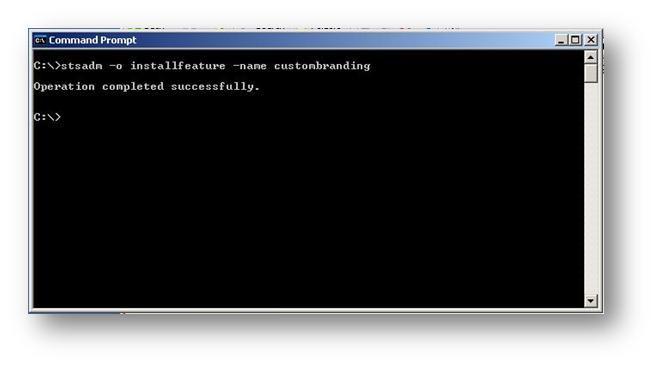
Step 3. Test the feature

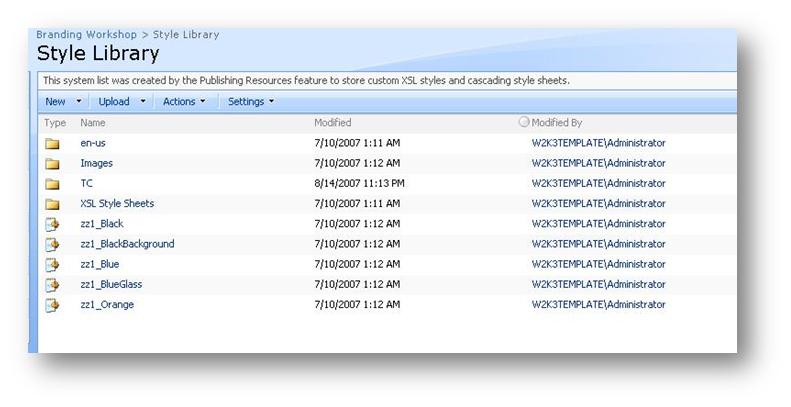
Okay, so the feature is installed. Now what? Now we need to activate this feature on a site collection. Here is the "Style Library" of my test site. (Remember that this library will not exist unless the SharePoint Publishing Infrastructure feature has been installed). Note that at this time, there is no CSS file called CUSTOMBRAND.CSS
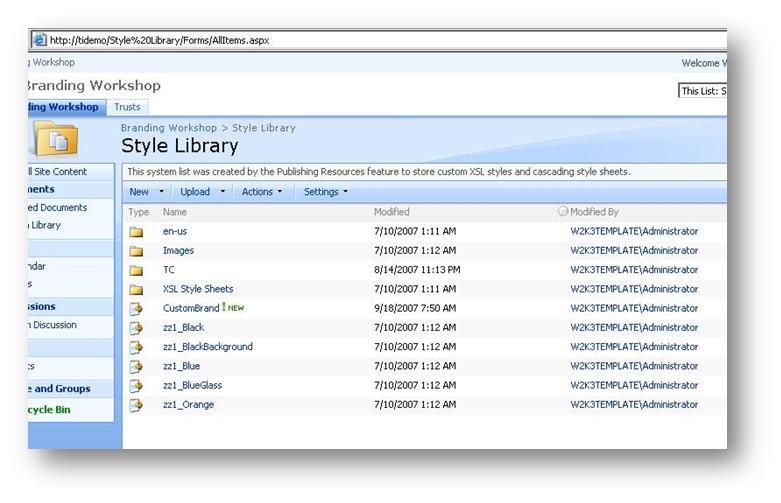
So now let’s Activate the feature. Browse to Site Actions>Site Settings and from the Site Collection Administration menu, choose "Site Collection Features". Lo and behold! We have our feature listed! Note the title and description is as per our FEATURE.XML file.

Click "Activate" to activate the feature (you can also do this on the command line via STSADM -o activatefeature command). Once it is marked as active, re-examine the style library. Woo freakin hoo! There is our CSS file!
Step 5. Test and deploy the Feature

In our example here, we can test this feature, by choosing to use this new CSS file in the master page settings of any site within the site collection. The Site Collection administrator navigates to site settings->look and feel->master page settings and specifies the CSS file override as shown below.
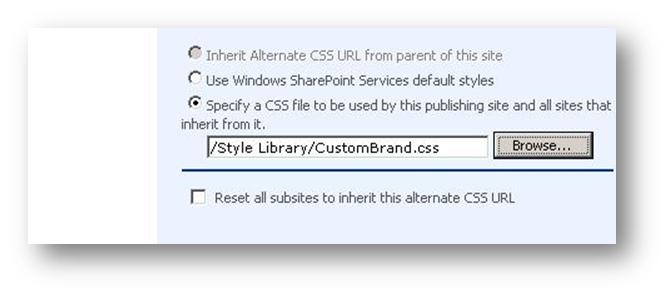
By clicking on the "Browse" button, they can select the CSS file from the style library in the site collection.
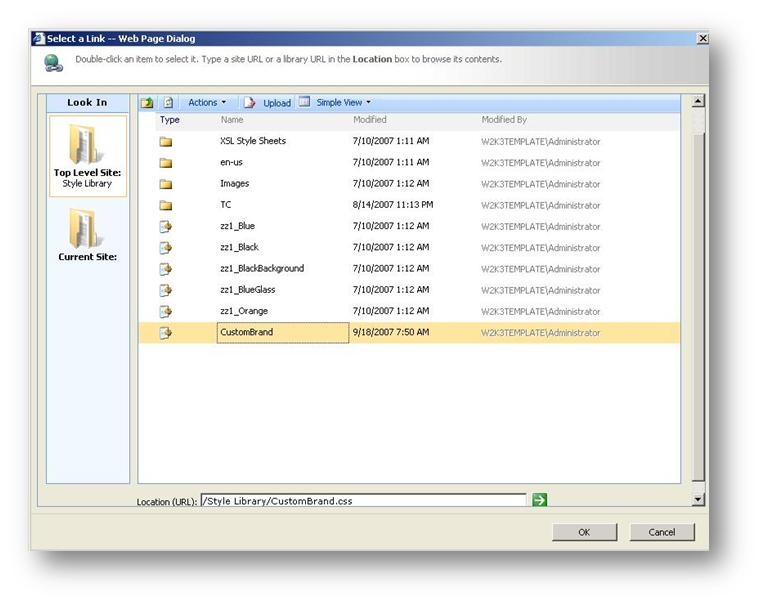
This highlights the relationship between the web designer and the farm, site collection and site owners. In a large production farm the sequence would look something like this.

  • The developer creates and tests the feature
  • The developer hands the tested and approved feature to the the SharePoint farm administrator
  • The SharePoint farm administrator copies this feature into the FEATURES folder on the web front end servers on the farm and notifies the site collection administrators that the feature has been installed
  • Each site collection administrator activates the feature and informs the site owners that the feature is now available.
  • Each site owner optinally chooses to use this new CSS installed by the feature.

Summing Up

I hope that you found this article useful. Now you are going to totally hate me, because now I am going to tell you that features are only half of the solution to SharePoint customisation. "What is the other half"? you may ask.  Well the other half of the solution is "solutions" … don’t you just love generic terminology!


No Tags


SharePoint “Features” in plain English


Features in SharePoint seem to be somewhat misunderstood. Maybe I just deal with too many people who do not seem willing to RTFM (and in the 2007 incarnation of SharePoint, that’s simply asking for trouble).

So.. ‘Features’. Here is the MSDN blurb..

"Microsoft Windows SharePoint Services 3.0 introduces an inherently portable and modular functionality known as a feature, which simplifies modification of sites through site definitions. A feature is a package of Windows SharePoint Services elements that can be activated for a specific scope and that helps users accomplish a particular goal or task".

Clever Workarounds Translation: "Features provide a method to add/customise many areas of SharePoint. "

Wasn’t my explanation so much simpler!

Okay, so what does that mean to me? Well, if you are a SharePoint application developer or a web designer, chances are that if you are customising a SharePoint system in a medium to large scale enterprise, you will find that the usage of features are mandated by those annoying sysadmins and governance nazis who never make anything easy for you.

Here’s your real world example to go with the explanation. We have a cast of characters…

  • Webdesigner: Friendly and completely metrosexual.
  • Sysadmin Nazi: Nerdy, no fashion sense and generally sullen when asked to do something.
  • Site Owners: Non techy staff within various business units who have some administrative responsibility for one or more areas within the SharePoint farm. Opening a web browser and navigating to favourites is considered a technical acheivement.
  • Corporate communications and PR: Determine branding and responsible for marketing related matters. Second only to senior management in terms of being technically inept.

Scenario A:

Our metrosexual webdesigner has cracked out [insert flavour of the month HTML editor here] and customised the SharePoint default page by adding a couple of CSS files with associated style images, perhaps added some flash too. ‘Just upload them to the style library in each site’, they say. Your SharePoint infrastructure manager (hereby known as sysadmin nazi), gets even more bitter and twisted than usual, having to do this task for the 35 sites currently installed on the SharePoint farm. What’s more, they only had a single shot latte that morning and hit the wall early.. so they were inconsistent with the last few sites and missed a few files.

Clever Workaround rating: "weenies"

Now no-one wants to be labeled a weenie, so let’s see if we can make this more clever.

Scenario B:

Aforementioned webdesigner is handed a SharePoint governance document by smug sysadmin nazi who mandates amongst other things, that they must package up all of their files as a ‘feature’. After grumbling about red tape, they finally accept the fact that the sysadmin nazi won’t allow their change into production and they eventually produce a feature folder. Sysadmin nazi installs the feature onto the SharePoint farm once only, then sends a mail to the 35 site owners advising them to activate the "branding feature" on their sites.  Each site owner who does so has the identical configuration modified so it is all nice and consistent.

Clever Workaround rating: "moderately clever"

So in case it’s not obvious, the nice thing about a feature is that once installed by the server/farm administrator, it can be activated by site owners on a case by case basis. Not only can it be activated, it can also be deactivated too. (Some comments with regard to this are in a forthcoming post). The thing to note is the decision to activate/deactivate a feature is made by the site owner, not the farm administrator. So the implication of this is that a feature doesn’t necessarily force change. A company with autonomous divisions may have totally different branding for their sites, and thus would not activate this feature for their sites.

Now let’s talk about updating features once they are installed.

To do this, let’s go back to our branding scenario where now, those arty farty corporate communications and branding dudes decide that the 1 pixel green line is not quite the right green and ask for it to be changed. (They get paid for this - go figure). The web designer (who by now has seen the light and offered some personal hygiene tips to sysadmin nazi) updates the CSS file and creates a new feature file for the sysadmin nazi. Sysadmin nazi installs it to the farm before heading to the vending machine for caffeine sustenance. The site administrators deactivate and then reactivate their feature on their sites at their leisure and the world is a happy place.

Okay, so at this point, let’s dive a little deeper…

To implement a Feature you add a subfolder containing a Feature definition within the Features setup directory. This is most likely located  in

C:\Program Files\Common Files\Microsoft Shared\web server extensions\12\TEMPLATE\FEATURES.

Within the subfolder in this directory, you include a Feature.xml file. This is the file that SharePoint looks for when a feature is installed. It includes a GUID (all features are unique via GUID), a title and the scope of the Feature. The scope tells SharePoint whether the Feature will be made available to an entire SharePoint farm, a site collection, or a site. SharePoint uses the Feature.xml file to also identify any supporting files like ASPX pages, dynamic-link libraries (DLLs), images, etc. Using this file, you can add customised components such as new Page Templates, List, Content Types, Web Parts, Workflow and events.

Below is the list of elements that a feature can install.

  1. Content Types: Contains a definition of a SharePoint content type.
  2. Content Type Binding: Actually applies a content type to a document library.
  3. Control: Allows you to replace existing controls on the page, such as the search or navigation with your own custom control.
  4. Custom Action: You can define custom actions such as add a new menu item in "Site Actions".
  5. Feature/Site Template Association: This allows you to bind a feature to a site template so that the feature is included in new sites based on that template.
  6. Field: Contains a field, or column definition that can be reused in multiple lists.
  7. Hide Custom Action: Opposite to "Custom Action", where you want to hide menu items.
  8. List Instance: Provisions a SharePoint site with a list which includes specific data.
  9. List Template: A list definition or template, which defines a list that can be provisioned to a SharePoint site.
  10. Module: Deploys files which are included when provisioning sites. (This is how branding can be deployed via feature).
  11. Receiver: Defines an event handler for a list, or document library.
  12. Workflow: Defines a workflow for a list, or document library. 

Next, I suggest you check my other post. This illustrates the creation and install of a basic feature.  In the meantime, I leave you with this thought for the day (If you have ever watched Jerry Springer, you know what I mean )

So, why did we need to digress into features? Three reasons.

The first one is that as a designer or developer, you will find that in the future people will not accept stuff from you unless it is a feature.

The second one is that as a graduate solutions architect or business development manager, if you use this word, you might just sound like you know what you are talking about during presales meetings.

The third reason is that this notion of features is actually quite fundamental to SharePoint. So much so that the differences between WSS3 and the more fully featured MOSS2007 is that MOSS2007 has features that do not come supplied with the free WSS.


No Tags


Today is: Thursday 28 August 2008 -
