Back to Cleverworkarounds mainpage
 

Demystifying SharePoint Performance Management Part 6 – The unholy trinity of Latency, IOPS and MBPS

Hi all

Welcome to part 6 on my series in making SharePoint performance management that little more digestible. To recap where we have been, I introduced the series by comparing lead versus lag indicators before launching into an examination of Requests Per Second (RPS) as a performance indicator. I spent 3 posts on RPS and then in the last post, we turned our attention to the notion of latency. We watched a Wiggles Video and then looked at all of the interacting components that work together just to load a SharePoint home page. I spent some time explaining that some forms of latency cannot be reduced because of the laws of physics, but other forms of latency are man made. This is when any one of the interacting components are sub-optimally configured and therefore introduce unnecessary latency into the picture. I then asserted that disk latency was one of the most common area that is ripe for sub-optimal configuration. I then finished that post by looking at how a rotational disk works, the strategies employed to mitigate latency (Cache, RAID, SAN’s etc.)

Now on the note of Cache, RAID and SAN’s Robert Bogue who I mentioned in part 1, has also just published an article on this topic area called Computer Hard Disk Performance – From the Ground Up. You should consider Robert’s article part 5.5 of this series of posts because it expands on what I introduced in the last post and also spans a couple of the things I want to talk about in this one (and goes beyond it too). It is an excellent coverage of many aspects of disk latency and I highly recommend you check it out).

Right! In this post, where will look more closely at latency and understand its relationship with two other commonly cited disk performance measures: IOPS and MBPS. To do so, lets go shopping!

Why groceries help to explain disk performance

image

Most people dislike having to wait in a line for a check-out at a supermarket and supermarkets know this. So they always try and balance the number of open check-out counters so that they can scale when things are busy, but not pay the operators to standing around when its quiet. Accordingly, it is common to walk into a store when its quiet and only find only one or two check-out counter open, even if the supermarket has a dozen or more of them.

The trend in Australian supermarkets nowadays is to have some modified check-out counters that are labelled as “express.” In these check-outs, you can only use them if you are buying 15 items or less. While the notion of express check-outs has been around forever, the more recent trend is to modify the design of express check-out counters to have very limited counter space and no moving roller that pushes your goods toward the operator. This discourages people with a fully-loaded trolley/cart to use the express lane because there is simply not enough room to unload the goods, have them scanned and put them back in the trolley. Therefore, many more shoppers can go through express counters than regular counters because they all have smaller loads.

This in turn frees up the “regular” check-out counters for shoppers with a large amount of goods. Not only do they have a nice long conveyor belt with plenty of room for shoppers to unload all of their goods onto and rolls to the operator, but often there will be another operator who puts the goods into bags for you as well. Essentially this counter is optimised for people who have a lot of goods.

Now if you were to measure the “performance” of express lanes versus regular lanes, I bet you would see two trends.

  • Express lanes would have more shoppers go through them per hour, but less goods overall
  • Regular lanes would have more goods go through them per hour, but less shoppers overall

With that in mind, lets now delve back into the world of disk IO and see if the trend holds true there as well.

Disk latency and IOPS

In the last post, I specifically focused on disk latency by pointing out that most of the latency in a rotational hard drive is from rotation time and seek time. Rotation time is time taken for the drive to rotate the disk platter to the data being requested and seek time is how long it takes for the hard drive’s read/write head to then be positioned over that data. Depending on how far the rotation and head have to move, latency can vary. Closely related to disk latency is the notion of I/O per second or “IOPS”. IOPS refer to the maximum number of reads and writes that can be performed on a disk in any given second. If we think about our supermarket metaphor, IOPS is equivalent to the number of shoppers that go through a check-out.

The math behind IOPS and how latency affects it is relatively straightforward. Let’s assume a fixed latency for each IO operation for a moment. If for example, your disk has a large latency… say 25 milliseconds between each IO operation, then you would roughly have 40 IOPS. This is because 1 second = 1000 milliseconds. Divide 1000 by 25 and you get 40. Conversely, if you have 5 milliseconds latency, you would get 200 IOPS (1000 / 5 = 200).

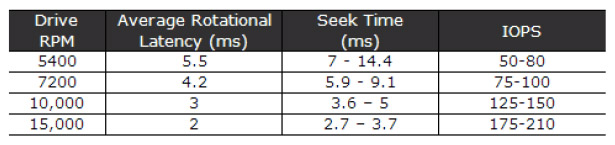
Now if you want to see a more detailed examination of IOPS/ latency and the maths behind it, take a look at an excellent post by Ian Atkin. Below I have listed the disk latency and IOPS figures he posted for different speed disks. Note that a 15k RPM disk came in at around 175-210 IOPS which suggests a typical latency average of between 4.7 and 5.7 milliseconds. (1000/175 = 5.7 and 1000/210 = 4.7). Note: Ian’s article explains in depth the maths behind the average calculation in this section of his post.
image

The big trolley theory of IOPS…

While that math is convenient, the real world is always different to the theoretical reality I painted above. In the world of shopping, imagine if someone with one or two trolleys full of goods like the picture below, decided to use the express check-out. It would mean that all of the other shoppers have to get annoyed and wait around for this shoppers goods to be scanned, bagged and put back into trolley. The net result of this is a reduced number of shoppers going through the check-out too.

image

While the inefficiencies of a supermarket is something that is easy to visualise for most people, disk infrastructure is less so. So while the size of our trolley has an impact on how many people come through a check-out, in the disk world, the size of the IO request has precisely the same effect. To demonstrate, I ran a basic test using a utility called SQLIO (which I will properly introduce you to in part 7) on one of my virtual machines. Below is the results of writing data randomly to a 500GB disk. In the first test we wrote to the disk using 64KB writes and in the second test we used 4KB writes. The results are below:

Size of Write IOPS Result
64KB 279
4KB 572

Clearly, writing 4KB of data over time resulted in a much higher IOPS than when using 64KB of data. But just because there is a higher IOPS for the 4KB write, do you think that is better performance?

Disk latency and MBPS

So far the discussion has been very IOPS focussed. It is now time to rectify this. In terms of the SQLIO test I performed above, there was one other performance result I omitted to show you – the Megabytes per second (MBPS) of each test. I will now add it to the table below:

Size of Write IOPS Result MBPS Result
64KB 279 17.5
4KB 572 2.25

Interesting eh? This additional performance metric paints a completely different picture. In terms of actual data transferred, the 4KB option did only 2.25 megabytes per second whereas the 64KB transferred almost 8 times that amount! Thus, if you were judging performance based on how much data has been transferred, then the 4KB option has been an epic fail. Imagine the response of 500 SharePoint users, loading the latest 30 megabyte annual report from a document library if SharePoint used 4KB reads … Ouch!

So the obvious question is why did a high IOPS equate to a low MBPS?

The answer is latency again (yup – it always comes back to latency). From the time the disk was given the request to the time it completed, writing 4KB simply doesn’t take as long to write as 64KB does. Therefore there are more IOPS that take place with smaller writes. Add to that, the latency from disk rotation and seek time per IO operation and you start to see why there is such a difference. Eric Slack at Storage Switzerland explains with this simple example:

As an illustration, let’s look at two ways a storage system can handle 7.5GB of data. The first is an application that requires reading ten 750MB files, which may take 100 seconds, meaning the transfer rate is 75MB/s and consumes 10 IOPS. The second application requires reading ten thousand 750KB byte files, the same amount of data, but consumes 10,000 IOPS. Given the fact that a typical disk drive provides less than 200 IOPS, the reads from the second application probably won’t get done in the same 100 seconds that the first application did. This is an example of how different ‘workloads’ can require significantly different performance, while using the same capacity of storage.

Now at this point if I haven’t completely lost you, it should become clear that each of the unholy trinity of latency, IOPS and MBPS should not be judged alone. For example, reporting on IOPS without having some idea of the nature of the IO could seriously mislead. To show you just how much, consider the next example…

Sequential vs. Random IO

Now while we are talking about the IO characteristics of applications, two really important point that I have neglected to mention so far is the range of latency and the impact of sequential IO.

The latency math I did above was deliberately simplified. Seek and rotation time are actually across a range of values because sometimes the disk does not have to rotate the spindle/move the head far. The result is a much reduced seek latency and accordingly, increased IOPS and MPBS. Nevertheless, the IO is still considered random.

Taking that one step further, often we are dealing with large sections of contiguous space on the hard disk. Therefore latency is reduced further because there is virtually no seek time involved. This is known as sequential access. Just to show you how much of a difference sequential access makes, I re-ran the two tests above, but this time writing to sequential areas of the disk and not random. With the reduced seek and rotation time, the difference in IOPS and MBPS is significant.

Size of Write IOPS Result MBPS Result
64KB 2095 131
4KB 4152 16

The IOPS and subsequent MBPS has improved significantly from the previous test to the tune of a 750% improvement. Nevertheless, the size of the request and its relation to IOPS and MPBS still holds true. The smaller the size of the IO request being read or written, the more IOPS requests can be sustained, but the less MBPS throughput can be achieved. The reverse then holds true with larger IO requests.

One conclusion that we can draw from this is that specifying IOPS or MBPS alone has the potential to really distort reality if one does not understand the nature of the IO request in terms of its characteristics. For example: Let’s say that you are told your disk infrastructure has to support 5000 IOPS. If you assumed a 4K IO size that is accessed sequentially, then far fewer disks would be required to achieve the result compared to a 64KB IO accessed randomly. In the 64KB case, you would need many disks in an array configuration.

SQL IO Characteristics

So now we get to the million dollar question. What sort of IO characteristics does SQL and SharePoint have?

I will answer this by again quoting from Ian Atkin’s brilliant “Getting the Hang of IOPS” article. Ian makes a really important point that is relevant to SQL and SharePoint in his article which I quote below:

The problem with databases is that database I/O is unlikely to be sequential in nature. One query could ask for some data at the top of a table, and the next query could request data from 100,000 rows down. In fact, consecutive queries might even be for different databases. If we were to look at the disk level whilst such queries are in action, what we’d see is the head zipping back and forth like mad -apparently moving at random as it tries to read and write data in response to the incoming I/O requests.

In the database scenario, the time it takes for each small I/O request to be serviced is dominated by the time it takes the disk heads to travel to the target location and pick up the data. That is to say, the disk’s response time will now dominate our performance.

Okay, so we know that SQL IO is likely to be random in nature. But what about the typical IO size?

Part of the answer to this question can be found in an appropriately titled article called Understanding Pages and Extents. It is appropriate because as far as SQL server database files and indexes are concerned, the fundamental unit of data storage in SQL Server is an 8KB page. The important point for our discussion is that Disk I/O many read and write operations are performed at the page level. Thus, one might assume that 8KB should be the size assumed when working with IOPS calculations because it is possible for SQL to write 8KB to disk at a time.

Unfortunately though, this is not quite correct for a number of reasons. Firstly, eight contiguous 8KB pages are grouped into something called an extent. Given than an extent is a set of 8 pages, the size of an extent is 64KB. SQL Server generally allocates space in a database on a per-extent basis and performs many reads across extents (64KB). Secondly, SQL Server also has a read-ahead algorithm that means SQL will try and proactively retrieve data pages that are going to be used in the immediate future. A read-ahead is typically from 1 to 128 pages for most editions which translates to between 8KB and 1024KB. (for the record, there is a huge amount of conflicting information online about SQL IO characteristics. Bob Door’s highly regarded SQL Server 2000 I/O basics article is the place to go for more gory detail if you find this stuff interesting).

A read-ahead interlude…

Before we get into SharePoint disk characteristics, it is worthwhile mentioning a great article by Linchi Shea called Performance Impact: Some Data Points on Read-Ahead.  Linchni did an experiment by disabling read-ahead behaviour in SQL Server and measured the performance of a query on 2 million rows. With read-ahead enabled, it took 80 seconds to complete. Without read-ahead it took 210 seconds. The key difference was the size of the IO requests. Without read-ahead the reads were all 8KB as per page size. With read-ahead, it was over 350KB per read. Linchi makes this conclusion:

Clearly, with read-ahead, SQL Server was able to take advantage of large sized I/Os (e.g. ~350KB per read). Large-sized I/Os are generally much more efficient than smaller-sized I/Os, especially when you actually need all the data read from the storage as was the case with the test query. From the table above, it’s evident that the read throughput was significantly higher when read-ahead was enabled than it was when read-ahead was disabled. In other words, without read-ahead, SQL Server was not pushing the storage I/O subsystem hard enough, contributing to a significantly longer query elapsed time.

So for our purposes, lets accept that there will be a range of IO sizes for read/writes to databases between 8KB to 1024KB. For disk IO performance testing purposes, lets assume that much of this is across the extent boundaries of 64KB. Based on our discussion of latency and MBPS where the larger the IO being worked with, the lower the IOPS, we can now get a better sense of just how much disk might need to be put into an array to achieve a particular IOPS target. As we saw with the examples earlier in this post, 64KB IO sizes result in more latency and lower IOPS. Therefore SharePoint components requiring a lot of IOPS may need some pretty serious disk infrastructure.

SharePoint IO Characteristics

This brings us onto our final point for this post. We need to understand what SharePoint components are IO intensive. The best place to start to determine this is page 29 of Microsoft’s capacity planning guide as it supplies a table listing the general performance requirements of SharePoint components. A similar table exists on page 217 of the Planning guide for server farms and environments for Microsoft SharePoint Server 2010. We will finish this post with a modified table that shows all the SharePoint components listed with medium to high IOPS requirements from the capacity planning guide, along with some of the comments from the server farm planning guide. This gives us some direction as to the SharePoint components that should be given particular focus in any sort of planning. Unfortunately, IOPS requirements are inconsistently written about in both documents. Sad smile

Service Application

Service Description

SQL Server IOPS

SharePoint Foundation Service

The core SharePoint service for content collaboration.

Almost all of the IOPS occurs in SharePoint content databases. IOPS requirements for content databases vary significantly based on how your environment is being used, and how much disk space and how many servers you have. Microsoft recommends that you compare the predicted workload in your environment to one of the solutions that they have tested. I will be covering this in part 8.

XXX

Logging Service

The service that records usage and health indicators for monitoring purposes.

The Usage database can grow very quickly and require significant IOPS. Use one of the following formulas to estimate the amount of IOPS required:
115 × page hits/second
5 × HTTP requests

XXX

SharePoint Search Service

The shared service application that provides indexing and querying capabilities. There is a dedicated document that among other things that covers IOPS requirements.

For the Crawl database, search requires from 3,500 to 7,000 IOPS.
For the Property database, search requires 2,000 IOPS.

XXX

User Profile Service

The service that powers the social scenarios in SharePoint Server 2010 and enables My Sites, Tagging, Notes, Profile sync with directories and other social capabilities

No mention of IOPS is made in both the planning guides

XXX

Web Analytics Service

The service that aggregates and stores statistics on the usage characteristics of the farm.

The planning guide suggests readers consult a dedicated planning guide for web analytics, but unfortunately no mention of IOPS is made, let alone a recommendation 

XXX

Project Server Service

The service that enables all the Microsoft Project Server 2010 planning and tracking capabilities in addition to SharePoint Server 2010

No mention of IOPS is made in both the planning guides

XXX

PowerPivot Service

The service to display PowerPivot enabled Excel worksheets directly from the browser

No mention of IOPS is made in both the planning guides

XX

(In case it is not obvious, XX – Indicates medium IOPS cost on the resource and XXX indicates high IOPS cost on the resource)

Conclusion (and coming up next)

Whew! I have to say, that was a fairly big post, but I think we have broken the back of latency, IOPS and MBPS. In the next post, we will put all of this theory to the test by looking at the performance counters that allow us to measure it all, as well as play with a couple of very useful utilities that allow us to simulate different scenarios. Subsequent to that, we will look at these measures from a lead indicator perspective and then examine some of Microsoft’s results from their testing.

Until then, thanks very for reading. As always, comments are greatly appreciated.

Paul Culmsee
www.hereticsguidebooks.com


Demystifying SharePoint Performance Management Part 5 – So what is latency anyway?

Hi all

Welcome to part 5 in my attempt to make SharePoint performance management a little more accessible. Now that we have dealt with the world of request per second in parts two, three and four, we will focus our attention somewhere different for a post or three.

To set the scene, we are going to take a bit of an end to end look at what it takes to load a SharePoint page. I suspect some readers do not have the full picture on just how many components interact together just to load the SharePoint home page. Things are much more complex in reality than the typical architectural view that adorns SharePoint blogs. A typical SharePoint diagram will list the servers and their roles, but what about all…

  • the network gear like routers, switches, reverse proxies and firewalls that are part of the mix?
  • the VMWare or HyperV virtual hosts that provide the virtualised servers? And
  • the storage area network and its associated paraphernalia that these virtual servers make use of for disk infrastructure?

Make no mistake people, configurations these days are hugely complex and have many moving parts. If any of the various components listed above were to fail or become a bottleneck, the performance of the entire system suffers. Therefore, we need assurance that each component has been optimised to ensure overall function.

This brings us onto the topic of latency. If you are not sure what latency is, I can guarantee that you actually do know. You see, if you have ever experienced a jittery skype call, or your pornography is slow to load, or you have watched a roving reporter respond several seconds after being asked a question from the studio, you are experiencing latency.

Now, the important point to make straight up is that latency is unavoidable because of the laws of physics. Take the example of one of the rovers that NASA sent to Mars. All radio signals to Mars travel at the speed of light (which despite Star Trek’s best efforts to persuade us otherwise, is the absolute speed limit of the universe). The speed of light is around 300,000 kilometres per second and the distance to Mars is currently around 150 million kilometres from Earth. So doing some basic math, we find that it takes a little over 8 minutes for a signal to get from Earth to Mars.

  • 150,000,000 / 300,000 = 500 seconds
  • 500 / 60 = 8.3 minutes

In this example of latency, no matter what  happens, there will always be around 8 minutes of latency between the time an instruction is sent to a rover, to the time it receives and acts on it. Unless Einstein was wrong, this isn’t about to change in a hurry either.

A “lean” view of latency…

Latency is a concept that extends beyond the forces of nature. Let me give you another form of latency that I am sure you have experienced, using Microsoft as the straw man. Let’s say you have a problem with SharePoint and you log a call with Microsoft or your support provider. You call the technical support line and after twiddling your thumbs in the telephone queue for an eternity, you get an inexperienced level 1 tech, who doesn’t understand your problem at all and is hell bent on closing your call anyway because someone higher up in the organisation actually believed that call-time is an indicator of happy customers. You repeat yourself each and every time as your call is slowly routed up the tech support hierarchy. Finally, by the time you get to level 3 or 4, you finally get a good tech who gives you the quick answer you were looking for. The problem is that three weeks have passed to get to this point.

This is also a form of latency. But unlike the first example. It was not the laws of nature this time, but man made laws that caused wasted time. I will call it organisational latency. Addressing this form of latency is a multi billion dollar industry, and keeps an army of organisational/process improvement consultants busy, trying to reduce wastage and improve customer outcomes (now you know what Lean is all about if you hear people taking about it).

So, returning to the SharePoint context – we have a lot of moving parts. We know we cannot alter the laws of physics, but how do we know whether all of the various components are working to their optimum level? Is there any man-made latency that we could reduce or eliminate?

Oh, yes, indeedie there is… and to put some context  to it, let’s utilise the musical genius that is the Wiggles. I found that their rendition of the old folk song “Dem bones” serves my purpose nicely.


The Wiggles, teaching us about SharePoint latency 🙂

When you perform the seemingly benign task of requesting a page with your browser, an amazing number of things have to happen. The browser forms a HTTP request and then passes this to the TCPIP stack on your PC, which takes the HTTP request and breaks it up into IP packets. These packets are passed to your network card driver that turns these packets into Ethernet frames and sends them over the wire. Each network device (switch, router, etc.) has to process each frame or IP packet and to work out where to forward it. Eventually the request finds it way to the destination server where the Ethernet frames are stripped, the IP packets are reassembled into the original HTTP request, passed to IIS and SharePoint then acts on it.

Now all I described above was the task of getting a HTTP request from a browser to a server. To see the entire picture, let’s all sing along with the Wiggles shall we? We will assume a two server deployment, utilising a VMware based virtual web front end SharePoint server and a physical SQL Server. Both servers use a Storage Area Network (SAN) for disk. Cue the melody from “Dem Bones”…

  • Your PC connects to a distribution switch
  • The distribution switch is connected to the core switch
  • The core switch connects to the HyperV host
  • The HyperV host connects to the virtual Web Front End Virtual Machine

… okay so we have managed to get from our browser to the SharePoint web front end but at this point, the web front end hasn’t really done anything yet.  In terms of latency, we had to get through the switches, as well as the virtualisation infrastructure to the virtual SharePoint web front end box. The switches had very little latency at all – probably around 1-2 microseconds (which translates about 0.001 to 0.002 milliseconds) for a network packet to go in one port and out the other. The virtualisation infrastructure also introduced some latency, because there is overhead in running a virtual machine within a physical machine. However, assuming it is well configured and that there aren’t too many virtual machines competing for physical resources like CPU and memory, then that latency is fairly negligible.

Now the virtual web front end server needs to actually deal with the request from your PC. This involves pulling data from the disk infrastructure, so back to the Wiggles we go…

  • the Web Front End Virtual Machine connects to the HyperV host
  • The HyperV host connects to the SAN Switch
  • The SAN Switch connects to the Storage Array
  • The Storage Array connects to the Web Front End disk
  • The Web Front End disk returns data to the SAN Switch
  • The SAN switch returns data to the HyperV host
  • The HyperV host returns data to the Web Front End Virtual Machine

…at this point, the web front end server has retrieved any data it needs to from the disk subsystem. There was definitely latency here. The SAN switches have a similar latency to network switches which is negligible, but the physical disks on the SAN are another story (which we will get to soon). But wait a second – that just loads the stuff the web front end server stores or caches locally, as well as writing to the IIS and SharePoint logs. What about all those sexy web parts you have on the front page that aggregate the latest news feed? That stuff needs to pull information from the SharePoint content database on the SQL Server. So let’s continue, now incorporating the connection between the virtual web front end and SQL Server (Remember, I am assuming the SQL box is not virtualised).

  • The Web Front End Virtual Machine connects to SQL box (via the network on TCPIP port 1433)
  • The SQL Box connects to the SAN Switch
  • The San Switch connects to the Storage Array
  • The Storage Array connects to the SQL disk
  • The SQL disk returns data to the SAN Switch
  • The SAN switch connects to the SQL box
  • The SQL Box connects to Web Front End Virtual Machine (via the network on TCP port 1433)
  • The Web Front End Server returns the page to your PC (via the network on TCP port 80)

Now at this point, non tech oriented readers might be thinking, “Bloody hell! I didn’t realise there were that many interactions.” For you guys… now you know why tech guys are the way they are. Tech guys reading this would know full well that I glossed over many things. For example, I did not include the authentication process in the sequence above, nor did I describe important virtualisation aspects such as VM memory compression. On top of that I glossed big-time over the full gamut of SAN I/O paths.

There is a form of man-made latency that can occur in any of these steps outlined above as a result of the complexity. It is very easy to overlook an important aspect, or to misconfigure something or to assume the default configuration is optimal. In my consulting experience I have seen sub optimal configuration in all of the above touchpoints, but out of all of them, there is one area that is far more likely to have latency issues than any of the other areas: The disk infrastructure.

We will round out this post by taking a fairly high level view at disk infrastructure and why it is latency prone.

Understanding disk latency

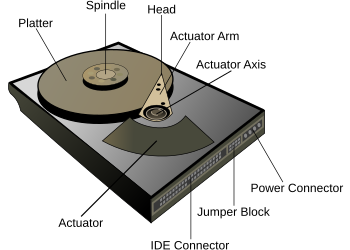
Below is a Wikipedia picture that shows the essential components of most hard drives. This type of hard drive is really not that different from its original design in 1954. It is called a rotational hard drive and the spindle rotates, while the actuator arm moves the head to the right position to read data off the platter. As you can imagine, this happens pretty fast too. Most high end hard drives spin the platter at 15000RPM – dizzying, eh?


But to put disk performance in perspective, consider my previous example of a network switch with a 1-2 microsecond latency to process an Ethernet frame as it transits through one network port to another. By comparison, a modern hard drive takes a hell of a lot longer to do what it needs to do. As a simple example, the time taken just for the drive to rotate the disk platter takes around 2 milliseconds (or 2000 microseconds). Not only is this a staggering 2000 times slower than the network switch but it does not take into account the time it takes for the hard drive’s read/write head to then be positioned over the sector (this is called seek time and can take anywhere between 3 and 15 milliseconds).

This latency clearly is problematic, and vendors compensate by utilising multiple sets of disks and liberal use of cache technology to mitigate it. Imagine putting 10 hard disks together and when data is saved, parts of it is written to each hard disk. Now you have reduced latency because each drive is handling a smaller part instead of a single drive handling it all. It is important to note that we have done nothing about laws of physics latency per single drive (thanks Robert Bogue for pointing that out) , but throughput induced latency has reduced by using them all. It is just like when you are out the supermarket and there are ten check-out operators working instead of 1. The wait times are much shorter because there are more check out operators available to service the request. (This is the essence of RAID technology and should be familiar to most readers).

But there is still more to the latency story than disks taking time to do their thing. At the operating system level, there are various layers and drivers doing stuff. I won’t go too much into this is except to suggest that if the world of the Class Drivers, Port Drivers, Device Miniport Drivers and Disk Subsystems rock your world then Jeff Hughes has a great writeup where he describes the whole Windows disk IO system in detail.

A note on SSD

I would be remiss not to make a point about these newfangled Solid State Drives (You might have heard them mentioned as SSD). This is a newer technology for hard drives that do not employ any moving mechanical components, like platters and movable read/write heads. Solid State Drives have some seriously improved performance in terms of latency, because they store the data in persistent memory. Wikipedia cites that SSD latency is around 0.1 millisecond compared to rotational drives being around 5-10 milliseconds. The downside is that they are more expensive than traditional rotational disks. According to a May 2012 article, SSDs cost approximately US$0.65 per GB whereas traditional hard disks cost about US$0.05 per GB. Expect prices to continue to fall and for them to appear in more and more solutions.

Then there are SANs

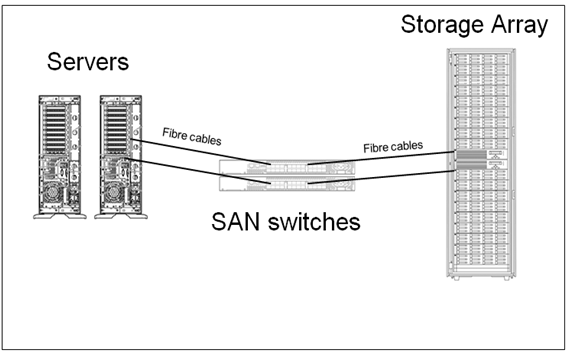
In terms of disk infrastructure and latency aspects, most organisation’s utilise a Storage Area Network (SAN) topology. I previously mentioned the idea of RAID configurations that make use of multiple disks to improve latency (among other things). SANs take the RAID idea and abstracts it further as shown below.

image

(credit for this image is Orbis solutions: http://orbissolutionsinc.com/blog/tag/storage-arrays/)

I sometimes describe SANs to people as a “fridge full of hard drives connected to multiple servers”. What the above diagram shows is that the disks are physically not connected to the servers that use them. Instead they are connected to a storage array via cables, with a switch or three in between. Each server has some disk space reserved for it on the SAN. So the result is we have one centralised high performing disk array where we can take advantage of all of the disks housed within.

But it’s important to understand here that each time data is read from or written to disk, it passes across those cables and through the switches. Like an internet connection, the SAN switch and cables not only have bandwidth limitations, but are prone to misconfiguration. Imagine 50 servers writing data at the same time. If things are not well configured, the SAN switch infrastructure might become overwhelmed like a freeway during peak hour. Direct attached storage (i.e. – the hard drive or RAID array is plugged into the server directly) typically have a higher bandwidth. This quote from a nice sqlteam.com article on SAN performance explains it well.

For instance, if a server is equipped with two older 1-Gbps host bus adapters (HBAs), its MBps throughput would be capped at about 200MB per second no matter how powerful the rest of the SAN is. Replacing the 1-Gbps HBAs with two newer 4-Gbps HBAs or adding more HBAs may improve the throughput, if the HBAs are indeed the throughput bottleneck. But the SAN drive throughput could also be limited by the maximum throughput of the inter-switch links in the SAN switched fabric. Further down the I/O paths, the front-side adapter ports on the disk array, the cache in the disk array, the disk controllers, and the disk spindles can all become the bottleneck limiting the MBps throughput of the SAN drive.

Conclusion and coming next…

Okay… at this point let’s take a breather. For the tech guys reading this post, none of what I covered may seem particularly earth shattering, but it was important to set the context for a deeper dive into disk latency in the next couple of posts. If you are not normally of the tech persuasion, then I hope that this post has opened your eyes a little to just how complicated deployments can be and accordingly, how hard it can sometimes be to pinpoint latency issues when they occur.

In the next post, we will take a deeper look at disk latency and its relationship to the indicators of IOPS and MBPS. We will then examine tools to measure latency and how to best use it as a lead indicator.

Until then, thanks for reading and be sure to check out my recent business book “The Heretics Guide to Best Practices

Paul Culmsee

www.sevensigma.com.au


Demystifying SharePoint Performance Management Part 4 – Making use of RPS

Hi all. Welcome to part 4 of a rapidly growing series of posts on trying to take some of the mystery out of SharePoint performance management. Essentially I am trying to write a sort of preamble to the existing Microsoft resources which are extremely comprehensive and full of wisdom, but suffer from being rather large and a lot to get through. To remind you, we have the 307 page “Planning guide for server farms and environments for Microsoft SharePoint Server 2010,” the 367 page “Capacity Planning for Microsoft SharePoint Server 2010” and the lesser known, but equally excellent 23 pages of “Analysing Microsoft SharePoint Products and Technologies Usage” whitepaper.

My hope that this series establishes just enough groundwork for someone to find the aforementioned documents an easier read and get more out of them.

Now this series is starting to turn out like the “Humble Tribute to the Leave Form” series, which I never actually finished (*blush*). Basically the number of posts to complete it exceeded the time I had available to write it (and my interest shifted to other things). For this topic of performance, I originally thought this series might be 4 posts but we are now at post 4 and haven’t actually gotten off the Requests Per Second (RPS) performance counter yet.

So let’s cracking…

Command line alert (again)

I have a tendency to have fun at the expense of IT stereotypes in my posts, and in the interests of fairness, I turned this around in part 3 I and took the piss out of the “I’m business, not technical” wusses instead. You all know who you are… you tend to shun anything that involves the command line as if it was the most complex thing ever. So continuing in that vein, if I managed not to completely scare the crap out of you in the last post, you should have the excellent log parser utility installed and have created a file called LogWithSeconds.csv.  If you have not, go back and read part 3. To remind you quickly, the log parser command that we used to generate the LogWithSeconds.csv file was:

logparser -i:IISW3C file:GetSeconds.txt?startdate=’2011-11-15′+enddate=’2011-11-15′ -o:csv >LogWithSeconds.csv

The key point being that you can specify a date range for the logs you want to process.

For the rest of this article, we continue to play in the command-line playground and utilise some different logparser scripts to derive some useful information. In addition, we will utilise a bit of PowerShell, as well as check out another great free utility written by Nikander & Margriet Bruggeman (more on that later).

Also at this point I need to call out and credit the excellent work of Mike Wise. His aforementioned 2009 whitepaper called“Analysing Microsoft SharePoint Products and Technologies Usage” is the basis for what I cover here. I urge you to download and read this article as it goes into more detail on Log Parser and its uses beyond just RPS alone. Although I have based my stuff off Mike’s work, there are some differences that you will see as we progress through this article.

Distribution of RPS

The one thing that past examination of RPS can give you is a distribution of requests over time. Understanding the distribution (or shape of RPS) helps you to identify patterns to SharePoint use, such as peak or heavy usage times. To that end, the first log parser script will generate a CSV file that can be imported into a tool like excel to chart the distribution of RPS. The log parser script below has been modified from one in Mike’s document, because he assumes you are only looking at 24 hours of log data. In my case, I assume that you might want to profile more than 24 hours (essentially the date range specified in the log parser command above).

The command to generate a per-second RPS distribution is below. The only difference between my script and the one Mike did is I added the “date” field to the SQL to account for multiple days:

logparser -i:CSV -o:CSV “select count(*) as ct,date as Date, secs,max(hh) as hh,max(mi) as mi,max(ss) as ss from e:\temp\LogWithSeconds.csv group by date,secs order by date, secs” -q >RPSDistribution.csv

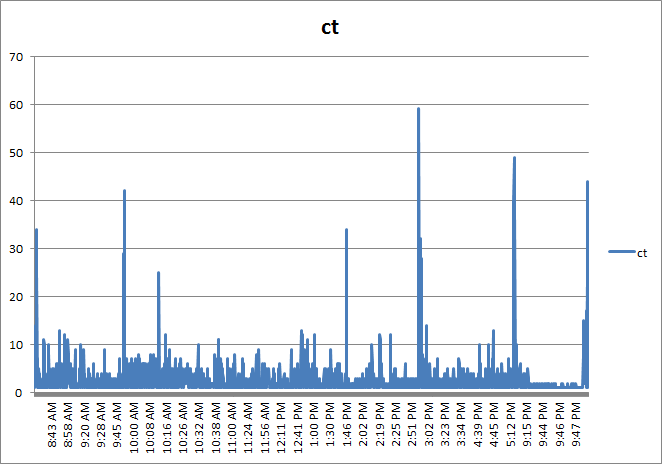
This command will create a new CSV file called RPSDistribution.CSV that contains the count of requests at any given second during the specified date range. So let’s open RPSDistribution.CSV into Excel and create a chart (I assume you know how to do that). Here is what it looks like…

image

Now I wonder if you can spot the issue with this chart? If you look closely, note that the times are not evenly spaced. This occurs because the generated file (RPSDistribution.CSV) only contains entries for the seconds during the day where there were requests. If no requests were made, then nothing was recorded. This skews the graph because if we want to see the distribution of requests, we also need to know the seconds of the day where there were zero requests. The graph you see above has effectively squeezed out all of the quiet times.

To work around this issue, I wrote the following PowerShell script. For you non-programmers, I am not going to explain all of the gory logic of this script, but just be assured that it adds entries stating zero RPS for every second of the day where there were no requests made. This will normalise the data across time and make a much more meaningful graph.

(If this is starting to hurt your brain, stick with me… paste the code below into notepad, save it in the Log parser installation folder and call it AddNulsPerSec.ps1)

param([string]$inputcsv, [string]$outputcsv = "output.csv")
if (!$inputcsv) {
    write-host "The -inputcsv parameter has not been specified. Script cannot run without it";
    exit;
}
if (Test-Path -path $outputcsv) { remove-item $outputcsv }
$x = 0;
$y = import-csv $inputcsv
write-output "ct,date,secs,minu,hh,mm,ss" | add-content -path $outputcsv
$y | foreach {
    if ($x -gt 86399) { $x = 0 }
    $s = [int]$_.secs;
    while ($s -gt $x) {
        $d = [datetime]$_.date;
        $d=$d.AddSeconds($x)
        $ss = $d.tostring("ss")
        $mm = $d.tostring("mm")
        $hh = $d.tostring("HH")
        $minu = [int]$hh * 60 + [int]$mm
        $output = "0" + "," + $_.Date + "," + $x + "," + $minu + "," + $ss + "," + $mm + "," + $hh
        write-output $output
        $x++;
   }
   $output = $_.ct + "," + $_.Date + "," + $_.secs + "," + $_.minu + "," + $_.ss + "," + $_.mi + "," + $_.hh
   write-output $output
   $x++;
} | add-content -path $outputcsv

The above script takes two command-line parameters: inputCSV and outputCSV. inputCSV is the file name to process and outputCSV is the resulting file with the 0 RPS entries added. Note that to run this script you will need to use a PowerShell window, rather than a command prompt. Below is the command I used:

PS C:\Program Files (x86)\Log Parser 2.2> .\AddNulsPerSec.ps1 -inputcsv RPSDistribution.CSV -outputcsv RPSDistributionNormalised.CSV

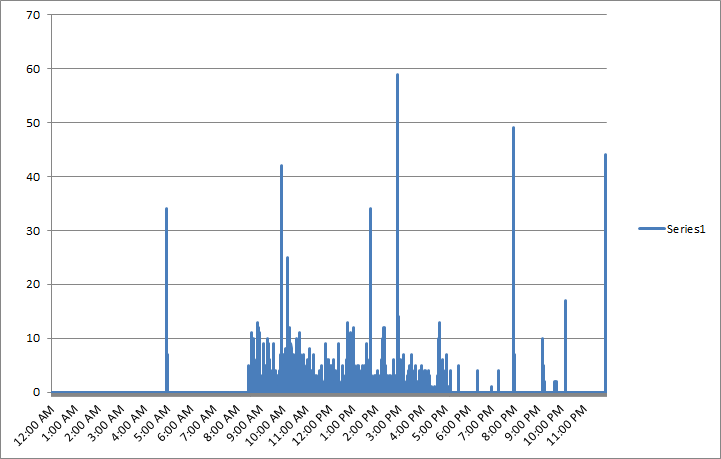
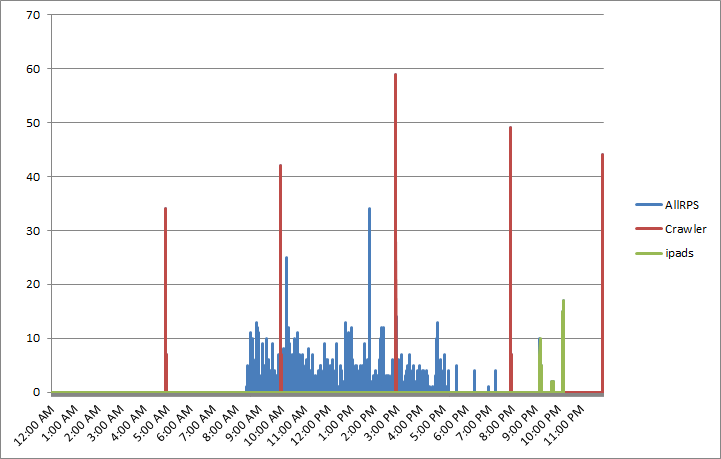
This created the file RPSDistributionNormalised.CSV. I charted this file in Excel and we now have a time-normalised distribution. Take a look at the X axis. This looks more logical now as the times are more evenly spaced. It seems from looking at this, that peak times are between 10am-11am, although one could argue that a lot of the day was fairly busy, with a bit of a lull between 2 and 3pm.

image

So what else can we do?

Right, so apart from the utility of being able to get a sense of when there are a lot of requests versus quiet times, can we find out anything else useful? Much insight can be gleaned from Mike Wise’s document, so here I will cover a couple of things specific to RPS.

RPS distribution for certain users

Let’s go back to the LogWithSeconds.CSV we started with and find out the top users for the period being examined. In the log parser command below we are grouping users by total requests they made, ordering from largest to smallest..

logparser -i:csv “select top 20 count(*) as ct,cs-username as user from LogWithSeconds.csv group by user order by ct desc”

A snippett of the output from this command is below:

ct  user
--- --------------------
840 DOMAIN\Jame.Smith
688 DOMAIN\searchcrawler
614 DOMAIN\Ian.Jones
508 DOMAIN\Steve.Hill
357 DOMAIN\Ant.Cough
313 DOMAIN\dom.davies
260 DOMAIN\matthew.martin

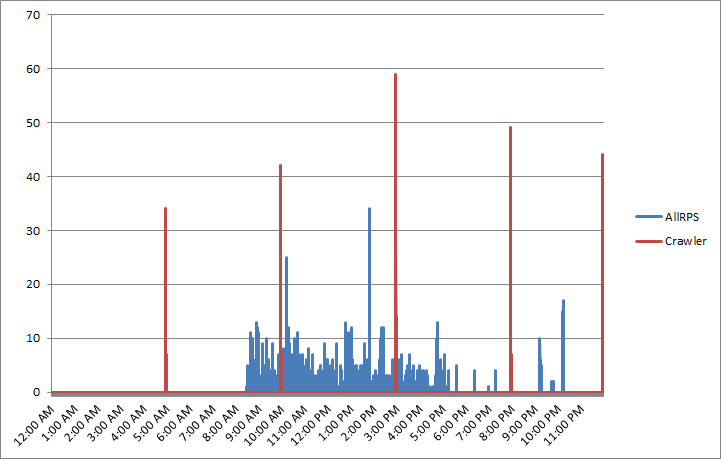
Hmm, I notice that the search crawler account (DOMAIN\searchcrawler) was busy during that day. It appears to have made the second largest number of requests. How about we work out when the search crawler was active by filtering the requests just for this user. Perhaps search crawls are active during peak times and introducing unnecessary load on the server?

First up, lets create the RPS distribution, but this time just for the search crawler account (note the SQL WHERE clause in the command below)

logparser -i:CSV -o:CSV “select count(*) as ct,date as Date, secs,max(hh) as hh,max(mi) as mi,max(ss) as ss,cs-username as user from LogWithSeconds.csv where user=’DOMAIN\searchcrawler’  group by user, date,secs order by date, secs” -q>crawler.csv

Now we need to pad CRAWLER.CSV out with 0 entries to time-normalise it for the seconds in which it wasn’t active…  back to my PowerShell script…

PS C:\Program Files (x86)\Log Parser 2.2> .\AddNulsPerSec.ps1 -inputcsv crawler.csv -outputcsv CrawlerNormalised.csv

I then took the results from CrawlerNormalised.csv and added them to my previous RPS distribution chart in Excel. Straight away you can see the incremental crawl schedule of this SharePoint installation is 5 hourly. (Note the red lines at regular intervals)

image

RPS Distribution for certain clients…

Another use for RPS is to see the pattern of the various applications that interact with SharePoint. Aside from the trusty old browser, we also have Office clients, Windows Explorer, SharePoint Workspace, and 3rd party tools like SharePlus. All of these applications identify themselves to SharePoint via the use of something called the user-agent [stored in the LogWithSeconds.CSV file in a column called cs(user-agent)]. The user agent field is actually part of the HTTP standard and not SharePoint specific, but let’s take advantage of it…

logparser -i:CSV “select count(*) as ct,cs(user-agent) from LogWithSeconds.CSV group by cs(user-agent) order by ct desc” -q >BrowserList.csv

Now, I am not going to paste the complete output of running this command because unfortunately, browsers have a lot of variation in their user agent string. Nevertheless, here are some of results from the BrowserList.csv file…

867 Mozilla/4.0+(compatible;+MSIE+7.0;+Windows+NT+5.1;+Trident/4.0;+.NET+CLR+1.1.4322;+.NET+CLR+2.0.50727;+.NET+CLR+3.0.04506.30;+.NET+CLR+3.0.04506.648;+.NET+CLR+3.0.4506.2152;+.NET+CLR+3.5.30729;+yie8)
688 Mozilla/4.0+(compatible;+MSIE+4.01;+Windows+NT;+MS+Search+6.0+Robot)
386 harmon.ie+for+Notes
333 Mozilla/5.0+(Windows;+U;+Windows+NT+6.1;+en-US;+rv:1.9.2.24)+Gecko/20111103+Firefox/3.6.24
250 SharePlus+2.9.5+(iPad;+iPhone+OS+4.2.1;+en_AU)
99  MSFrontPage/12.0
95  Mainsoft+SharePoint+Integrator
68  Microsoft+Office/14.0+(Windows+NT+6.1;+OWSSUPP+14.0.6112;+Pro)
34  Microsoft-WebDAV-MiniRedir/6.1.7600
24  Microsoft+Office+Outlook+2010+(14.0.6112)+Windows+NT+6.1
23  Microsoft+Office+Sharepoint+Workspace+2010+(14.0.6112)+Windows+NT+6.1
4   MobileSafari/7534.48.3+CFNetwork/548.0.3+Darwin/11.0.0

Now looking at these strings, it doesn’t take long to get a sense of the different ways SharePoint has been accessed. How about we generate a distribution of RPS for all iPad devices or apps? Here’s the log parser command along with my time normaliser script.

logparser -i:CSV -o:CSV “select count(*) as ct,date as Date, secs,max(hh) as hh,max(mi) as mi,max(ss) as ss,cs(User-Agent) as ua from LogWithSeconds.CSV where ua like ‘%iPad%’ group by ua, date,secs order by date, secs”-q >iPads.csv

.\AddNulsPerSec.ps1 -inputcsv E:\temp\ipads.csv -outputcsv e:\temp\iPadNormalised.csv

… and the result when added into Excel? iPads were definitely the evening tool of choice that day! Note the green spikes around 9-10pm.

image

Taking it further…

I won’t do much more on RPS now. Hopefully I have given you enough to do much more clever things than I have covered. As I stated in part 2, the nice thing about RPS is that it can be derived from web server logs and these tend to go back quite far in time. Given that the core sequence of events to produce the graphs above are essentially 3 scripts and can be done quickly, it becomes quite easy to sample different points in history. For example: Let’s say that we want to compare the 15th of November 2011 with the 10th of March 2012 to see whether there is an increase/decrease in requests and what this looks like. All we have to do is change the date, re-run the scripts and do some charting magic.

  • logparser -i:IISW3C file:GetSeconds.txt?startdate=’2012-3-10′+enddate=’2012-3-10′ -o:csv >LogWithSeconds.csv
  • logparser -i:CSV -o:CSV “select count(*) as ct,date as Date, secs,max(hh) as hh,max(mi) as mi,max(ss) as ss from LogWithSeconds.csv group by date,secs order by date, secs” -q >RPSDistribution.csv
  • AddNulsPerSec.ps1 -inputcsv RPSDistribution.CSV -outputcsv RPSDistributionNormalised.CSV

We can look at the distribution for an entire week is we wanted to…

  • logparser -i:IISW3C file:GetSeconds.txt?startdate=’2012-5-7′+enddate=’2011-5-11′ -o:csv >LogWithSeconds.csv
  • logparser -i:CSV -o:CSV “select count(*) as ct,date as Date, secs,max(hh) as hh,max(mi) as mi,max(ss) as ss from LogWithSeconds.csv group by date,secs order by date, secs” -q >RPSDistribution.csv
  • AddNulsPerSec.ps1 -inputcsv RPSDistribution.CSV -outputcsv RPSDistributionNormalised.CSV

Also in case you didn’t notice in part 3, my GetSeconds.txt logparser script that performs the initial processing of the IIS logfiles, also stores the minute of the day, as well as seconds of the day. This allows you to perform all of the same things I have specified in this article except it can be Requests Per Minute (RPM) instead. This would allow you to work with a larger date range without such big files (provided RPM is appropriate for what you want). Consult the “Analysing Microsoft SharePoint Products and Technologies Usage” whitepaper for more information on logparser queries for RPM scenarios.

Remember that the virtues of your web server logs go much further than RPS. We saw a hint of this in my examples of showing RPS for just one user or one device type. But this really is just scratching the surface of what can be gleaned via logparser. There are many excellent logparser scripts around, and a quick google search should give you plenty of examples.

Also remember that there are many more sophisticated ways to process this sort of data. For example, putting it into Analysis Services and slicing/dicing it via PowerPivot, or using something like RRDTool. To that end, I would also be seriously remiss if I did not make you aware of the SharePoint Flavored Weblog Reader tool. It was created by Nikander & Margriet Bruggeman who run the SharePoint Dragons blog – probably the best SharePoint performance related blog out there. This tool was specifically designed to make it easier to analyse IIS logs for SharePoint specific information. It is a command line tool, but much simpler and slicker than the methods I introduced in this post. Instead of specifying a date range you specify the number of items from the logs to process. For example:

sfwr.exe 250,000 “E:\LOGS\IIS_WWW\W3SVC1045333159”

Here are some of the things it reports on for you straight out of the box:

  • Most busy days of the week, most requested pages and requested pages per day.
  • The average, max and min request times per URI, InfoPath URI and Report Server URI.
  • Browser percentages, dead links, failed pages, percentage of error page requests.
  • Requests per hour per day, requests per hour, requests per user (also per week and month)
  • Slowest requests, top requests per hour, top visitors.
  • Traffic per day and per week in MB.
  • Unique visitors per day, week and month

Reflections…

At the end of the day, while examining the pattern of RPS can be very handy in offering insights into how your web application (SharePoint or otherwise) performs, as a lead indicator it is always going to be fairly wishy washy. As soon as you turn your attention to the future, many variables come into play that you cannot predict as accurately as you’d like. Your existing webserver logs can offer you a lot of ways to help make a more informed prediction, but at the end of the day, one has to take into account the new unique features of SharePoint 2010, how they will be used and so forth.

I will be returning to this theme, once we examine some other performance indicators, but hopefully at this point, you might find some aspects of Microsoft’s Capacity planning for Microsoft SharePoint Server 2010 guide less intimidating. Page 43 in particular has some great material that builds upon what we cover here. To quote Microsoft…

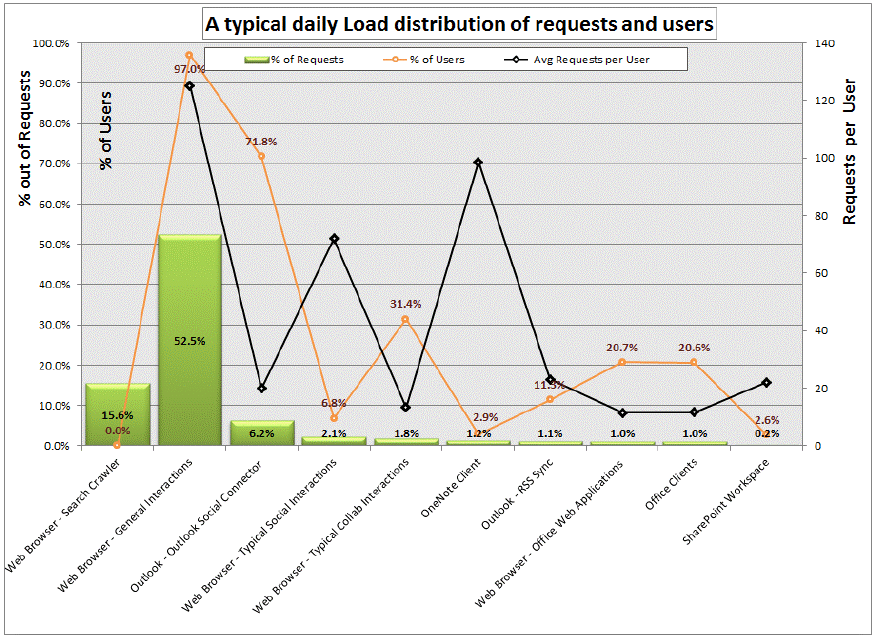
Understanding the distribution of the requests based on the clients applications that are interacting with the farm can help predict the expected trend and load changes after migrating to SharePoint Server 2010. As users transition to more recent client versions such as Office 2010, and start using the new capabilities new load patterns, RPS and total requests are expected to grow

I will leave you with a terrific example a graph that Microsoft created using IIS logs (on page 44 of the aforementioned document). This is a view of a typical day in an internal Microsoft environment serving what is deemed “a typical social solution”. It shows just how much additional load a new feature can introduce (in this case, Outlook Social Connector feature is 6.2% of the total number requests). The combination of different clients on the X axis, with the % distribution of overall and per-user requests on the Y axis is really handy.

image

Coming up next…

At this point I think we have covered RPS sufficiently, and dovetailed in nicely to Microsoft documentation – particularly pages 41-47 of the SharePoint 2010 Capacity Planning Guide. Our next stop will be looking at another much misunderstood lead indicator for performance – disk IO and latency. Once again I will introduce you to a couple of useful tools and offer you what I think is the best way to approach disk performance requirements that will make life easier for you and your storage people.

Until then, thanks for reading…

Paul Culmsee
HGBP_Cover-236x300


Demystifying SharePoint Performance Management Part 3 – Getting at RPS

Hi and welcome back to this series aimed at making SharePoint performance management a little more digestible. In the first post we examined the difference between lead and lag indicators and in the second post, we specifically looked at the lead indicator of Requests Per Seconds (RPS) and its various opportunities and issues. In this episode we are actually going to do some real work at the – wait for it – the command line! As a result the collective heart rates of my business oriented readers – who are avid users of the “I’m business, not technical” cliché  – will start to rise since anything that involves a command line is shrouded in mystique, fear, uncertainty and doubt.

For the tech types reading this article, please excuse the verboseness of what I go through here. I need to keep the business types from freaking out.

Okay… so in the last post I said that despite its issues in terms of being a reliable indicator of future performance needs, RPS has the advantage that it can be derived from your existing deployment. This is because the information needed is captured in web server (IIS) logs over time. Having this past performance means you have a lag indicator view of RPS, which can be used as a basis to understand what the future might look like with more confidence than some arbitrary “must handle x RPS.”

Now just because RPS is held inside web server log files, does not mean it is easy to get to. In this post, I will outline the 3 steps needed to manipulate logfiles to extract that precious RPS goodness. The utility that we are going to use to do this is Log parser.

Now a warning here: This post assumes your existing deployment runs on Microsoft’s IIS platform v7 (the webserver platform that underpins SharePoint 2010). If you are running one of the myriad of portal/intranet platforms, you are going to have to take this post as a guide and adjust to your circumstances.

Step 1: Getting Log parser

Installing Log parser is easy. Just install version 2.2 as you would any other tool. It will run on pretty much any Windows operating system. Once installed, it will likely reside in the C:\Program Files (x86)\Log Parser 2.2 folder. (Or C:\Program Files\Log Parser 2.2 if you have an older, 32 bit PC).

There you go business types – that wasn’t so hard was it?

Step 2: Getting your web server logs

After the relative ease of getting log parser installed, we now need the logs themselves to play with. We are certainly not going to mess with a production system so we will need to copy the log files for your current portal to the PC where you installed Log parser. If you do not have access to these log files, call your friendly neighbourhood systems administrator to get them for you. If you have access (or do not have a friendly neighbourhood systems administrator), then you will need to locate the files you need. Here’s how:

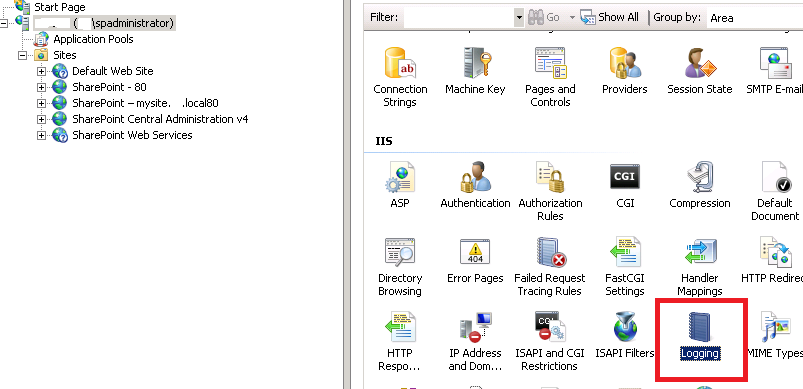
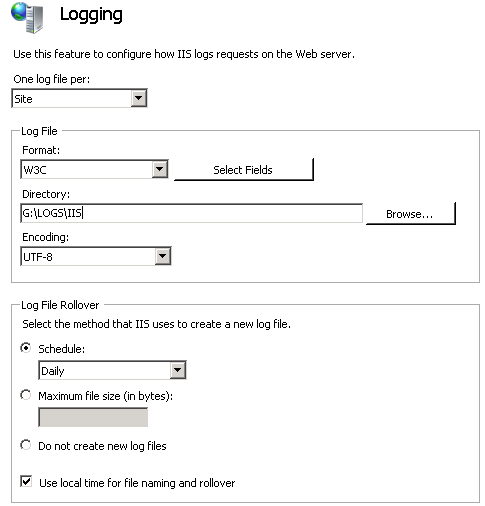
Assuming you have access to your web front end server/s, you can load Internet Information Services (IIS) Manager from Start->All programs->Administrative tools on the server. Using this tool we can find out the location of the IIS log files as well as the specific logs we need. By default IIS logs are stored in C:\inetpub\logs\LogFiles, but it is common for this location to be changed to somewhere else. To confirm this in IIS manager, click on the server name in the left pane, then click on the Logging” icon in the right pane. In the example below, we can see that the IIS logfiles live in G:\LOGS\IIS folder (I always move the logfiles off C:\ as a matter of principle). While you are there, pay special attention to the fairly nondescript “Use local time for file naming and rollover” tickbox. We are going to return to that later…

image  image

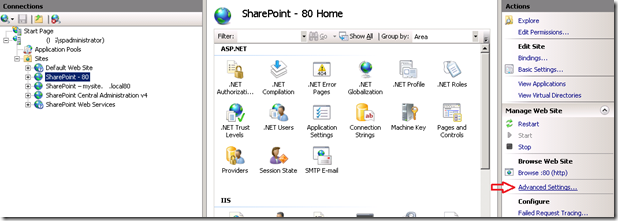
Okay so we know where the log files live, so lets work out the sub-folder for the specific site. Back in the left hand pane now, expand “Sites” and find the web site you want to profile for RPS. When you have found it, select it and find the “Advanced Settings” link and click it.

image_thumb5

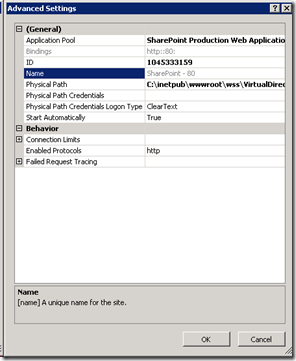
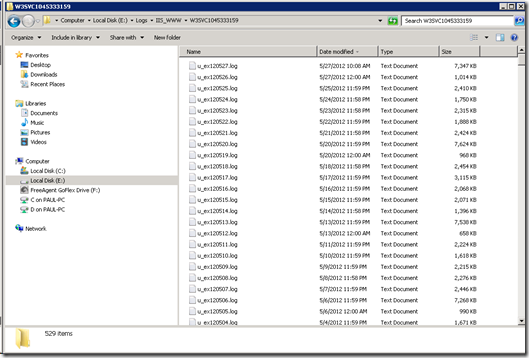
On the next screen you will see ID of the site. It will be a large number – something like 1045333159. Take a note of this ID, because all IIS logs for this site will be stored in a folder with the name “W3SVC” prepended to this ID (eg W3SVC1045333159). Thus the folder we are looking for is G:\LOGS\IIS\W3SVC1045333159. Copy the contents of this folder to the computer where you have installed logparser to. (In my example below I copied the logs to E:\LOGS\IIS_WWW\W3SVC1045333159 on a test server).

image10_thumb2 image14_thumb

Step 3: Preparation of log files…

Okay, so now we have our log files copied to our PC, so we can start doing some log parser magic. Unfortunately default IIS logfile format does not make RPS reporting particularly easy and we have to process the raw logs to make a file that is easier to use. Now business people – stay with me here… the payoff is worth the command line pain you are about to endure! Smile

First up, we will make use of the excellent work of Mike Wise (You can find his original document here), who created a script for log parser that processes all of the logfiles and creates a single (potentially very large) file that:

  • includes a new field which is the time of the day converted into seconds
  • splits the date and timestamp up into individual bits (day, month, hour, minute, etc.) This makes it easier to do consolidated reports
  • excludes 401 authentication requests (way back in part 1 I noted that Microsoft excludes authentication traffic from RPS)

I have pasted a modified version of Mike’s log parser script below, but before you go and copy it into Notepad, make sure you check two really important things.

  1. Be sure to change the path in the second last line of the script to the folder where you copied the IIS logs to (In my case it was E:\LOGS\IIS_WWW\W3SVC1045333159\*.log)
  2. Check whether IIS is saving your logfiles using UTC timestamps or local timestamps. (Now you know why I told you to specifically make note of the “Use local time for file naming and rollover” tickbox earlier). If the box is unticked, the logs are in UTC time and you should use the first script pasted below. If it is ticked, the logs are in local time the second script should be used.

UTC Script

select EXTRACT_FILENAME(LogFilename),LogRow, date, time, cs-method, cs-uri-stem, cs-username,
c-ip, cs(User-Agent), cs-host, sc-status, sc-substatus, sc-bytes, cs-bytes, time-taken,

add(
    add(
         mul(3600,to_int(to_string(to_localtime(to_timestamp(date,time)),'hh'))),
         mul(60,to_int(to_string(to_localtime(to_timestamp(date,time)),'mm')))
    ),
    to_int(to_string(to_localtime(to_timestamp(date,time)),'ss'))
) as secs,

add(
    mul(60,to_int(to_string(to_localtime(to_timestamp(date,time)),'hh'))),
    to_int(to_string(to_localtime(to_timestamp(date,time)),'mm'))
) as minu,

to_int(to_string(to_localtime(to_timestamp(date,time)),'yy')) as yy,
to_int(to_string(to_localtime(to_timestamp(date,time)),'MM')) as mo,
to_int(to_string(to_localtime(to_timestamp(date,time)),'dd')) as dd,
to_int(to_string(to_localtime(to_timestamp(date,time)),'hh')) as hh,
to_int(to_string(to_localtime(to_timestamp(date,time)),'mm')) as mi,
to_int(to_string(to_localtime(to_timestamp(date,time)),'ss')) as ss,
to_lowercase(EXTRACT_PATH(cs-uri-stem)) as fpath,
to_lowercase(EXTRACT_FILENAME(cs-uri-stem)) as fname,
to_lowercase(EXTRACT_EXTENSION(cs-uri-stem)) as fext

from e:\logs\iis_www\W3SVC1045333159\*.log

where sc-status<>401 and date BETWEEN TO_TIMESTAMP(%startdate%, 'yyyy-MM-dd') and TO_TIMESTAMP(%enddate%, 'yyyy-MM-dd')

Local Time Script

select EXTRACT_FILENAME(LogFilename),LogRow, date, time, cs-method, cs-uri-stem, cs-username,
c-ip, cs(User-Agent), cs-host, sc-status, sc-substatus, sc-bytes, cs-bytes, time-taken,

add(
   add(
      mul(3600,to_int(to_string(to_timestamp(date,time),'hh'))),
      mul(60,to_int(to_string(to_timestamp(date,time),'mm')))
   ),
   to_int(to_string(to_timestamp(date,time),'ss'))
) as secs,

add(
   mul(60,to_int(to_string(to_timestamp(date,time),'hh'))),
   to_int(to_string(to_timestamp(date,time),'mm'))
) as minu,

to_int(to_string(to_timestamp(date,time),'yy')) as yy,
to_int(to_string(to_timestamp(date,time),'MM')) as mo,
to_int(to_string(to_timestamp(date,time),'dd')) as dd,
to_int(to_string(to_timestamp(date,time),'hh')) as hh,
to_int(to_string(to_timestamp(date,time),'mm')) as mi,
to_int(to_string(to_timestamp(date,time),'ss')) as ss,
to_lowercase(EXTRACT_PATH(cs-uri-stem)) as fpath,
to_lowercase(EXTRACT_FILENAME(cs-uri-stem)) as fname,
to_lowercase(EXTRACT_EXTENSION(cs-uri-stem)) as fext

from e:\logs\iis_www\W3SVC1045333159\*.log

where sc-status<>401 and date BETWEEN TO_TIMESTAMP(%startdate%, 'yyyy-MM-dd') and TO_TIMESTAMP(%enddate%, 'yyyy-MM-dd')

After choosing the appropriate script and modifying the second last line, save this file into the Log parser installation folder and call it GETSECONDS.TXT.

For the three readers who *really* want to know, the key part of what this does is to take the timestamp of each log entry and turn it into what second of the day it is and what minute of the day it is. So assuming the timestamp is 8:35am at the 34 second park, the formula effectively adds together:

  • 8 * 3600 (since there are 3600 seconds in an hour)
  • 35 * 60 (60 seconds in a minute)
  • 34 seconds

= 30934 seconds

  • 8 * 60 (60 minutes in an hour)
  • 35 minutes

= 515 minutes

Now that we have our GETSECONDS.TXT script ready, let’s use Log parser to generate our file that we will use for reporting. Open a command prompt (for later versions of windows make sure it is an administrator command prompt) and change directory to the LogParser installation location.

C:\Program Files (x86)\Log Parser 2.2>

Now decide a date to report on. In my example, the logs go back two years and I only want the the 15th of November 2011. The format for the dates MUST be “yyyy-mm-dd” (e.g. 2011-11-15).

Type in the following command (substituting whatever date range interests you):

logparser -i:IISW3C file:GetSeconds.txt?startdate=’2011-11-15’+enddate=’2011-11-15′ -o:csv >e:\temp\LogWithSeconds.csv

  • The –i parameter specifies the type of input file. In this case the input file is IISW3C (IIS weblog format)
  • The ?startdate parameter specifies the start  date you want to process
  • The +enddate parameter specifies the end date you want to process
  • The –o parameter specifies the type of output file. In this case the output file is CSV format
  • The –q parameter says not to prompt the user for anything
  • The >LogWithSeconds.csv says to save the CSV output into a file called LogsWithSeconds.csv

So depending on how many logfiles you had in your logs folder, things may take a while to process. Be patient here… after all, it might be processing years of logfiles (and now you know why we didn’t do this in a production install!). Also be warned, the resulting LogWithSeconds.csv that is created will be very very big if you specified a wide date range. Whatever you do, do not open this file with notepad if its large! We will be using additional log parser scripts to interrogate it instead.

Conclusion

Right! If you got this far and your normally not a command line kind of person… well done! If you are a developer, thanks for sticking with me. You should have a newly minted file called LogWithSeconds.csv and you are ready to do some interrogation of it. In the next post, I will outline some more logparser scripts that generate some useful information!

Until then, thanks for reading

Paul Culmsee
p.s Why not check out my completely non SharePoint book entitled “The Heretics Guide to Best Practices”. It recently won a business book award.


Demystifying SharePoint Performance Management Part 2 – So what is RPS anyway?

Hi all

I never mentioned it in the first post that the reason I am blogging again is I finally completed most of the game Skyrim. Man – that game is dangerous if you value your time!

Anyway, in the first post, I introduced this series by covering the difference between lead and lag performance indicators. To recap from part 1, a lead indicator is something that can help predict an outcome by measuring an action, whereas a lag indicator measures the result or outcome achieved from taking an action. This distinction is important to understand, because otherwise it is easy to use performance measurements inappropriately or get very confused. Lead indicators in particular sometimes feel wishy washy because it is hard to have a direct correlation to what you are seeing.

In this post, we are going to examine one of the most commonly cited (and abused) lead indicators to measure for performance. Good old Requests Per Second (RPS). Let’s attempt to make this more clear…

Microsoft defines RPS as:

The number of requests received by a farm or server in one second. This is a common measurement of server and farm load. The number of requests processed by a farm is greater than the number of page loads and end-user interactions. This is because each page contains several components, each of which creates one or more requests when the page is loaded. Some requests are lighter than other requests with regard to transaction costs. In our lab tests and case study documents, we remove 401 requests and responses (authentication handshakes) from the requests that were used to calculate RPS because they have insignificant impact on farm resources

So according to this definition, RPS is any interaction between browsers (or any other device or service making web requests) and the SharePoint webserver, excluding authentication traffic. The logic of measuring requests per second is that it provides insight into how much load your SharePoint box can take because, after all, SharePoint at the end of the day is servicing requests from users.

RPS by example

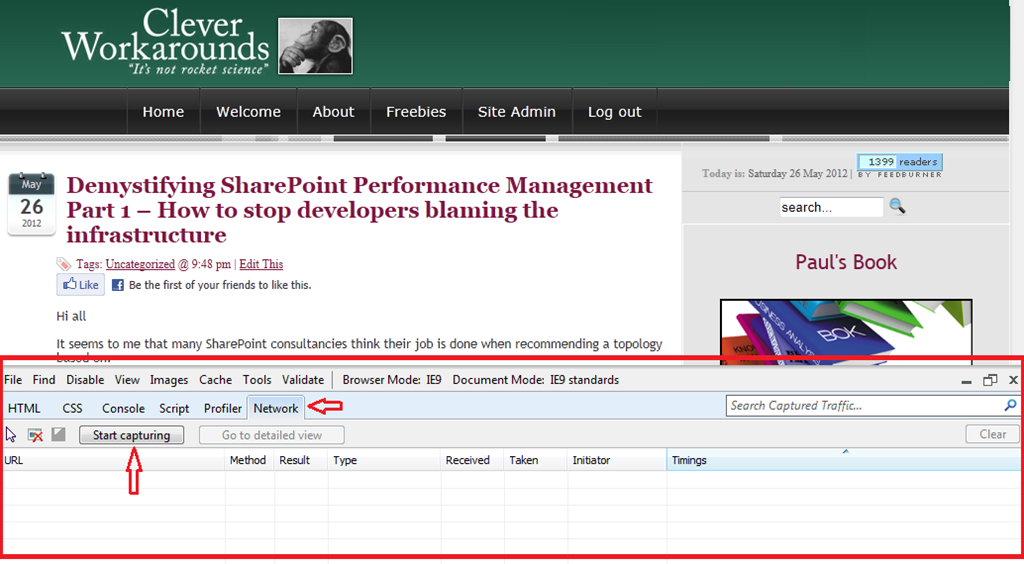
Before we start picking apart RPS and its issues, let’s look at an example. Assuming you are viewing this page in Internet Explorer version 8 or 9, press F12 right now. You should see something like the screen below. If you have not seen it before, it is called the internet explorer developer tools and is bloody handy. Now click on the “Network” link, highlighted below and then click the “Start capturing” button.

image

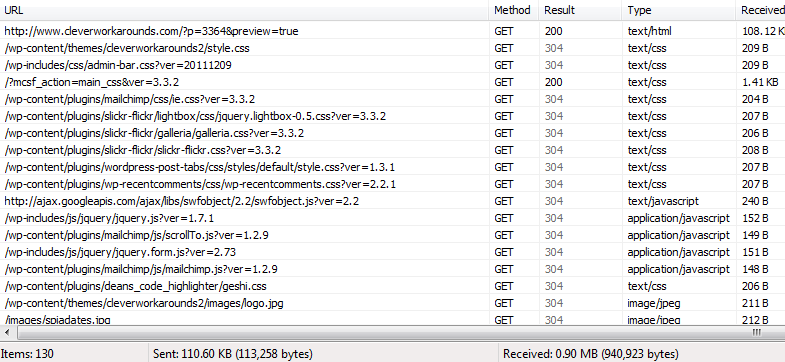
Now refresh this page and watch the result. You should see a bunch of activity logged, looking something like the picture below.

image

What you are looking at is all of the requests that your browser has made to load this very page. While the detail is not overly important for the purpose of this post, the key point is that to load this page, many requests were made. In fact if you look in the left-bottom corner of the above screenshot, a total of 130 individual requests are listed.

So, first pop-quiz for the day: Were all 130 requests made to my cleverworkarounds blog to refresh this page? The answer my friends is no. In actual fact, only 2 items were loaded from my blog!

So why the discrepancy? What happened to the other 128 requests? Two main reasons.

1. Browser cache: First up, many of the items listed above were cached by my browser already. I’ve been to this site before, and so a lot of the page components (CSS style sheets, logos and the like) did not have to be retrieved again. It just happens that the internet explorer developer tool shows requests that were handled by locally cached data as well as actual requests made to SharePoint. If you look closely at the “Result” column in the above screenshot, you will see that some entries are grey colour while others are black. All of the grey entries are cached requests. They never left the confines of the browser. This alone accounts for 95 of the 130 requests.

Now this is worth consideration because if a browser has never accessed this site before, there will be no content in the browser cache. Therefore, on first access, the browser would indeed have made 95 additional requests to load the page. This scenario is most likely on day one of a production SharePoint rollout, where a large chunk of the workforce might load the homepage for the first time.

2. Content from other sites: The second reason for the discrepancy is that some content doesn’t even come from the cleverworkarounds site. Anytime you visit a blog and it has a snazzy widget like Amazon books or Facebook “like” buttons, that content is very likely being retrieved from Amazon or Facebook. In the case of this very article you are reading, 33 requests were made to other sites like Facebook, amazon, feedburner, sharepointads and whoever else happens to grace a widget on the right hand side. In these cases, my server is not handling this traffic at all. This accounts for 33 of the 130 requests.

95 + 33 = 128 of the 130 requests made.

So hopefully now you get what is meant by RPS. Let’s now look at its utility in measuring performance.

Dangers of RPS reliance…

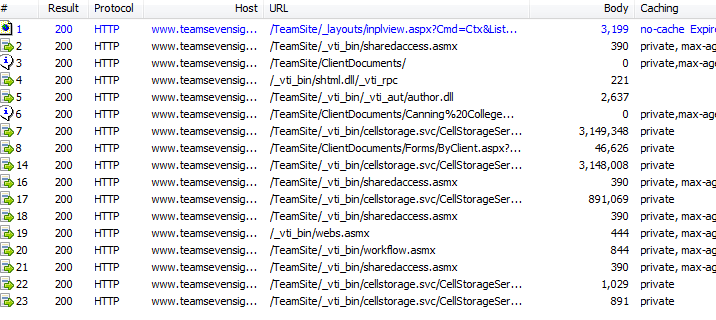
Consider two fairly typical SharePoint transactions: The first example is loading the SharePoint home page and the second example is where a user loads a document from a SharePoint document library. Below I have compared the two transactions by using an Office 365 site of mine and capturing the requests made by each one. (For what its worth, I used a utility called fiddler rather than the developer toolbar because it has some snazzier features).

In example #1, we have loaded the homepage of an Office365 site (assuming for the first time). In all, 36 requests made to the server. If we add up the amount of data returned by the server (summing the “Body” column below), we have a total of 245,322 bytes received.

image

In request #2, we are looking at the trace of me opening a 7 megabyte document from a document library. Notice that this time, 17 requests were. But compared to the first example, significantly more data was returned from the server: 7,245,876 KB in fact. If you drill down further by examining the “Body” column, you will notice that of those 17 requests, 3 of them were the bulk of the data transferred with 3,149,348, 3,148,008 and 891,069 KB respectively.

image

So here is my point. Some requests are more significant than others! In the latter example, 3 of the 17 requests transferred 98% of the data. The second transaction also took much longer than the first, and the data was retrieved from the SQL Server database, which meant that this interaction with SharePoint likely had more back-end performance load than the first example when the home page was loaded. When loading the home page, the data may have been served from one of the many SharePoint caches and barely touching the back-end SQL box.

Now with that in mind, consider this: The typical rationale you see around the interweb for utilising RPS as a performance tool is to estimate future scalability requirements. Statements like "This SharePoint farm needs to be capable of 125RPS” are fairly common. Traditionally, the figure was derived from a methodology that looked something like:

  1. Work out the peak times of the day for SharePoint site usage (for example between 10:45am-2:45pm each day)
  2. Estimate the number of concurrent users accessing your SharePoint site during this time
  3. Classify the users via their usage profile (wussy, light, heavy, psycho, etc)
  4. Estimate how many transactions each of these user types might make in the peak hour (a transaction being an operation like browse home page, edit document, and so on)
  5. Multiply concurrent users by the number of expected transactions to derive the total number of transactions for the period
  6. Divide the total by the number of seconds in the period to work out how many transactions per second.

There are lots of issues with this methodology, but here are 4 obvious ones.

  1. The first is that it confuses transactions with requests. While browsing the SharePoint home page might be considered one “transaction”, it will likely consist of more than one request (particularly if the content being served is designed to be fairly dynamic and not rely on cache data). Essentially this methodology may underestimate the number of requests because it assumes a 1:1 relationship between a transaction and a request. My two examples above demonstrate that this is not the case.
  2. The classification of usage profile of users (light, medium, heavy) is crude and overlooks the aforementioned variation in usage patterns. A “heavy user” might continually update a SharePoint calendar, while a “light” user might load 20 megabyte documents or run sophisticated reports. In both cases, the real load on the infrastructure – and the resulting response time – may be quite varied.
  3. It fails to take into consideration the fact that SharePoint 2010 in particular has many new features in the form of Service Applications. These also make requests behind the scenes that have load implications. The most obvious example is the search crawling SharePoint sites.
  4. It also overlooks the fact that SharePoint content is often accessed indirectly. Many non-browser client tools such as SharePoint Workspace, OneNote, Outlook Social Connector, Harmon.ie and the like. If Colligo Contributor is deployed to all desktops, does that make all users “heavy?”

So hopefully by now, you can understand the folly of saying to someone “This system should be capable of handling 150RPS.” There is simply far too many variables that contribute to this, and each request can be wildly different in terms of real load on the back-end servers. Now you know why Robert Bogue likened this issue to Drakes Equation in part 1. The RPS target arrived at utilising this sort of methodology is likely to be fairly inaccurate and of questionable value.

So what is RPS good for and how do I get it?

So am I anti RPS? Definitely not!

The one thing RPS has going for it, which makes it incredibly useful, is that it is likely to be the one performance metric that any organisation can tap into straight away (assuming you have an existing deployment). This is because the metric is collected in web server (IIS) logs over time. Each request made to the server is logged with a date and timestamp. For most places, this is the only high fidelity performance data you have access to, because many organisations do not collect and store other stats like CPU and Disk IO performance over time. While its unlikely you would be able to see CPU for a server 6 months ago on Tuesday at 9:53am, chances are you can work out the RPS at that time if you have an existing intranet or portal. The reason for this is that IIS logs are not cleared so you have the opportunity to go back in time and see how a SharePoint site has been utilised.

The benefit is that we have the means to understand past performance patterns of an organisations use of their intranet or portal. We can work out stuff like:

  • peak times of the day for usage of the portal based on previous history
  • the maximum number of requests that the server has ever had to process
  • the rate of increase/decrease of RPS over time (ie “What was peak RPS 6 months ago?  What was it 3 months ago?)
  • the patterns/distribution of requests over a typical day (peaks and troughs – we can see the “shape” of SharePoint usage over a given period)

As an added bonus, the data in web server logs allow for some other fringe benefits including stuff like:

  • the percentage or pattern of requests were “non interactive” (such as % of requests that are search crawls or SharePoint workspace sync’s)
  • identifying usage patterns of certain users (eg top 10 users and their usage usage patterns)

Finally, if you monitor CPU and disk performance, you can compare the RPS peaks against those other performance counters and then interpolate how things might have been in the past (although this has some caveats too).

Coming up next…

Okay so now you are convinced that RPS does not suck – and you want to get your hands on all this RPS goodness. The good news is that its fairly easy to do and Microsoft’s Mike Wise has documented the definitive way to do it. The bad news is, you have to download and learn a yet another utility. Fear not though as the utility (called LogParser) is brilliant and needs to be in your arsenal anyway (especially business oriented SharePoint readers of this blog – this is not one just for the techies). Put simply, LogParser provides the ability to do SQL-like queries to your log files. You can have it open a log file (or series of files), process them via a SQL style language, and then output the results of your query into different formats for reporting.

But, just as I have whetted your appetite, I am going to stop.This post is already getting large and I still have a bit to get through in relation to using LogParser, so I will focus on that in the next post.

Hopefully though at this point, you don’t totally hate RPS, have a much better idea of what RPS is and some of the issues of its use.

Thanks for reading

Paul Culmsee

www.hereticsguidebooks.com


Demystifying SharePoint Performance Management Part 1 – How to stop developers blaming the infrastructure

Hi all

It seems to me that many SharePoint consultancies think their job is done when recommending a topology based on:

  • Looking up Microsoft’s server recommendations for CPU and RAM and then doubling them for safety
  • Giving the SQL Database Administrators heart palpitations by ‘proactively’ warning them about how big SharePoint databases can get.
  • Recommending putting database files and logs files on different disks with appropriate RAID levels.

Then satisfied that they have done the due diligence required, deploy a SharePoint farm chock-full of dodgy code and poor configuration.

Now if you are more serious about SharePoint performance, then chances are you had a crack at reading all 307 pages of Microsoft’s “Planning guide for server farms and environments for Microsoft SharePoint Server 2010.” If you indeed read this document, then it is even more likely that you worked your way through the 367 pages of Microsoft whitepaper goodness known as “Capacity Planning for Microsoft SharePoint Server 2010”. If you really searched around you might have also taken a look through the older but very excellent 23 pages of “Analysing Microsoft SharePoint Products and Technologies Usage” whitepaper.

Now let me state from the outset that these documents are hugely valuable for anybody interested in building a high performing SharePoint farm. They have some terrific stuff buried in there – especially the insights from Microsoft’s performance measurement of their own very large SharePoint topologies. But nevertheless, 697 pages is 697 pages (and you thought that my blog posts are wordy!). It is a lot of material to cover.

Having read and digested them recently, as well as chatting to SharePoint luminary Robert Bogue on all things related to performance, I was inspired to write a couple of blog posts on the topic of SharePoint performance management with the aim of making the entire topic a little more accessible. As such, all manner of SharePoint people should benefit from these posts because performance is a misunderstood area by geek and business user alike.

Here is what I am planning to cover in these posts.

  • Highlight some common misconceptions and traps for younger players in this area
  • Understand the way to think about measuring SharePoint performance
  • Understand the most common performance indicators and easy ways to measure them
  • Outline a lightweight, but rigorous method for estimating SharePoint performance requirements

In this introductory post, we will start proceedings by clearing up one of the biggest misconceptions about measuring SharePoint performance – and for that matter, many other performance management efforts. As an added bonus, understanding this issue will help you to put a permanent stop to developers who blame the infrastructure when things slow down. Furthermore you will also prevent rampant over-engineering of infrastructure.

Lead vs. lag indicators

Let’s say for a moment that you are the person responsible for road safety in your city. What is your ultimate indicator of success? I bet many readers will answer something like “reduced number of traffic fatalities per year” or something similar. While that is a definitive metric, it is also pretty macabre. It is also suffers from the problem of being measured after something undesirable has happened. (Despite millions of dollars in research, death is still relatively permanent at the time of writing).

Of course, you want to prevent road fatality, so you might create road safety education campaigns, add more traffic lights, improve signage on the roads and so forth. None of these initiatives are guaranteed to make any difference to road fatalities, but they very likely to make a difference nonetheless! Thus, we should also measure these sorts of things because if it contributes to reducing road fatalities, it is a good thing.

So where am I going with this?

In short, the number of road signage is a lead indicator, while the number of road fatalities is a lag indicator. A lead indicator is something that can help predict an outcome. A lag indicator is something that can only be tracked after a result has been achieved (or not). Therefore lag indicators don’t predict anything, but rather, they show the results of an outcome that has already occurred.

Now Robert Bogue made a great point when we were talking about this topic. He said that SharePoint performance and capacity planning is like trying to come up with drakes equation. For those of you not aware, Drakes equation attempts to estimate how much intelligent life might exist in the galaxy. But it is criticised because there are so many variables and assumption made in it. If any of them are wrong, the entire estimate is called into question. Consider this criticism of the equation by Michael Crighton:

The only way to work the equation is to fill in with guesses. As a result, the Drake equation can have any value from "billions and billions" to zero. An expression that can mean anything means nothing. Speaking precisely, the Drake equation is literally meaningless…

Back to SharePoint land…

Roberts point was that a platform like SharePoint can run many different types of applications with different patterns of performance. An obvious example is that saving a 10 megabyte document to SharePoint has a very different performance pattern than rendering a SharePoint page with a lot of interactive web parts on it. Add to that all of the underlying components that an application might use (for example, PowerPivot, Workflows, Information Management Policies, BCS and Search) and it becomes very difficult to predict future SharePoint performance. Accordingly, it is reasonable to conclude that the only way to truly measure SharePoint performance is via measuring SharePoint response times under some load. At least that performance indicator is reasonably definitive. Response time correlates fairly strongly to user experience.

So now that I have explained lead vs. lag indicators, guess which type of indicator response time is? Yup – you guessed it – a lag indicator. In terms of lag indicator thinking, it is completely true that page response time measures the outcome of all your SharePoint topology and design decisions.

But what if we haven’t determined our SharePoint topology yet? What if your manager wants to know what specification of server and storage will be required? What if your response time is terrible and users are screaming at you? How will response time help you to determine what to do? How can we predict the sort of performance that we will need?

Enter the lead indicator.  These provide assurance that the underlying infrastructure is sound and will scale appropriately. But by themselves, they no a guarantee of SharePoint performance (especially when there are developers and excessive use of foreach loops involved!) But what they do ensure is that you have a baseline of performance that can be used to compare with any future custom work. It is the difference between the baseline and whatever the current reality is that is the interesting bit.

So what lead indicators matter?

The three Microsoft documents I referred above list many useful performance monitor counters (particularly at a SQL Server level) that are useful to monitor. Truth be told I was sorely tempted to go through them in this series of posts, but instead I opted to pitch these articles to a wider audience. So rather than rehash what is in those documents, lets look at the obvious ones that are likely to come up in any sort of conversation around SharePoint performance. In terms of lead indicators there are several important metrics

  • Requests per second (RPS)
  • Disk I/O per second (IOPS)
  • Disk Megabytes transferred per second (MBPS)
  • Disk I/O latency

In the next couple of posts, I will give some more details on each of these indicators (their strengths and weaknesses) and how to go about collecting them.

A final Kaizen addendum

Kaizen? What the?

I  mentioned at the start of this post that performance management is not done well in many other industries. Some of you may have experienced the pain of working for a company that chases short term profit (lag indicator) at the expense of long term sustainability (measured by lead indicators). To that end, I recently read an interesting book on the Japanese management philosophy of Kaizen by Masaaki Imai. Imai highlighted the difference between Western attitudes to management in terms of “process-oriented management vs. result-oriented management”. The contention in the book was that western attitudes to management is all about results whereas Japanese approaches are all about the processes used to deliver the result.

In the United States, generally speaking, no matter how hard a person works, lack of results will result in a poor personal rating and lower income or status. The individuals contribution is valued only for its concrete results. Only results count in a result oriented society.

So as an example, a result society would look at the revenue from sales made over a given timeframe – the short term profit focused lag indicator. But according to the Kaizen philosophy, process oriented management would consider factors like:

  • Time spent calling new customers
  • Time spent on outside customer calls versus time devoted to clerical work

What sort of indicators are these? To me they are clearly lead indicators as they do not guarantee a sale in themselves.

It’s food for thought when we think about how to measure performance across the board. Lead and lag indicators are two sides of the same coin. You need both of them.

Thanks for reading

Paul Culmsee

www.hereticsguidebooks.com


An opportunity to learn about aligning SharePoint to business goals in Vancouver

Hi all

Just a quick note to mention that I’m off travelling again, this time swapping 39 degree Celsius summer weather of Perth for somewhere between –6 to 5 degrees of Canada. I’ll be spending a week in Canada running two classes – one public and one private. The first class is a public SharePoint Governance and Information Architecture class running in Vancouver. MVP Michal Pisarek of SharePointAnalystHQ fame will be there and it should be a terrific two days of learning how to think a little differently to govern SharePoint strategy and deployment. You will learn a bunch of new skills, techniques and perspectives. Best of all, the skills learnt are applicable for many other types of complex projects.

The class flyer is here: http://www.sevensigma.com.au/wp-content/uploads/downloads/2011/02/SPIA.pdf

The registration site is here: http://spiavancouver.eventbrite.com/

In terms of course coverage and content it is worth noting the research performed by the Eventful group (who run the Share conferences). According to them, the hot topic areas for SharePoint are governance, user adoption, change management, information architecture and user empowerment. These sort of topics are the sort where plenty of people tell you what the issues are, but are typically lighter on what to do about them. This class covers why this is, as well as dealing with all of these areas and presents detailed strategies, tools and methods to address them. Furthermore, aside from the 500+ page manual of meaty governance goodness, as a take home, we supply a CD for attendees with a sample performance framework, governance plan, SharePoint ROI calculator and sample mind maps of Information Architecture.

At last count there were 5 places left for the Vancouver class, so if you have been pondering if it is a worthwhile class, check out some of the feedback from the class web site. Also, if you know anybody who might be interested in attending, please pass the course flyer and registration site details to them. We always end up with people who tell us “Ah – if only I knew about the class!!”

Thanks for reading

Paul Culmsee
www.sevensigma.com.au

www.hereticsguidebooks.com


The cloud is not the problem-Part 4: Industry shakeout and playing with the big kids…

Hi all

Welcome to the fourth post about the adaptive change that cloud computing is going to have on practitioners, paradigms and organisations. The previous two posts took a look at some of the dodgier side of two of the industries biggest players, Microsoft and Amazon. While I have highlighted some dumb issues with both, I nevertheless have to acknowledge their resourcing, scalability, and ability to execute. On that point of ability to execute, in this post we are going to expand a little towards the cloud industry more broadly and the inevitable consolidation that is, and will continue to take place.

Now to set the scene, a lot of people know that in the early twentieth century, there were a lot of US car manufacturers. I wonder if you can take a guess at the number of defunct car manufacturers there have been before and after that time.

…Fifty?

…One Hundred?

Not even close…

What if I told you that there were over 1700!

Here is another interesting stat. The table below shows the years where manufacturers went bankrupt or ceased operations. Below that I have put the average shelf life of each company for that decade.

Year 1870’s 1880’s 1890’s 1900’s 1910’s 1920’s 1930’s 1940’s 1950’s 1960’s 1970’s 1980’s 1990’s 2000’s 2010’s
# defunct 4 2 5 88 660 610 276 42 13 33 11 5 5 3 5
avg years in operation 5 1 1 3 3 4 5 7 14 10 19 37 16 49 42

Now, you would expect that the bulk of closures would be depression era, but note that the depression did not start until the late 1920’s and during the boom times that preceded it, 660 manufactures went to the wall – a worse result!

The pattern of consolidation

image

What I think the above table shows is the classic pattern of industry consolidation after an initial phase of innovation and expansion, where over time, the many are gobbled by the few. As the number of players consolidate, those who remain grow bigger, with more resources and economies of scale. This in turn creates barriers to entry for new participants. Accordingly, the rate of attrition slows down, but that is more due to the fact that there are fewer players in the industry. Those that are left continue to fight their battles, but now those battles take longer. Nevertheless, as time goes on, the number of players consolidate further.

If we applied a cloud/web hosting paradigm to the above table, I would equate the dotcom bust of 2000 with the depression era of the 1920’s and 1930’s. I actually think with cloud computing, we are in the 1960’s and on right now. The largest of the large players have how made big bets on the cloud and have entered the market in a big, big way. For more than a decade, other companies hosted Microsoft technology, with Microsoft showing little interest beyond selling licenses via them. Now Microsoft themselves are also the hosting provider. Does that mean most the hosting providers will have the fate of Netscape? Or will they manage to survive the dance with Goliath like Citrix or VMWare have?

For those who are not Microsoft or Amazon…

image

Imagine you have been hosting SharePoint solutions for a number of years. Depending on your size, you probably own racks or a cage in some-one else’s data centre, or you own a small data centre yourself. You have some high end VMWare gear to underpin your hosting offerings and you do both managed SharePoint (i.e. offer a basic site collection subscription with no custom stuff – ala Office 365) and you offer dedicated virtual machines for those who want more control (ala Amazon). You have dutifully paid your service provider licensing to Microsoft, have IT engineers on staff, some SharePoint specialists, a helpdesk and some dodgy sales guys – all standard stuff and life is good. You had a crack at implementing SharePoint multi tenancy, but found it all a bit too fiddly and complex.

Then Amazon comes along and shakes things up with their IaaS offerings. They are cost competitive, have more data centres in more regions, a higher capacity, more fault tolerance, a wider variety of services and can scale more than you can. Their ability to execute in terms of offering new services is impossible to keep up with. In short, they slowly but relentlessly take a chunk of the market and continue to grow. So, you naturally counter by pushing the legitimate line that you specialise in SharePoint, and as a result customers are in much more trusted hands than Amazon, when investing on such a complex tool as SharePoint.

But suddenly the game changes again. The very vendor who you provide cloud-based SharePoint services for, now bundles it with Exchange, Lync and offers Active Directory integration (yeah, yeah, I know there was BPOS but no-one actually heard of that). Suddenly the argument that you are a safer option than Amazon is shot down by the fact that Microsoft themselves now offer what you do. So whose hands are safer? The small hosting provider with limited resources or the multinational with billions of dollars in the bank who develops the product? Furthermore, given Microsoft’s advantage in being able to mobilise its knowledge resources with deep product knowledge, they have a richer managed service offering than you can offer (i.e. they offer multi tenancy :).

This puts you in a bit of a bind as you are getting assailed at both ends. Amazon trumps you in the capabilities at the IaaS end and is encroaching in your space and Microsoft is assailing the SaaS end. How does a small fish survive in a pond with the big ones? In my opinion, the mid-tier SharePoint cloud providers will have to reinvent themselves.

The adaptive change…

So for the mid-tier SharePoint cloud provider grappling with the fact that their play area is reduced because of the big kids encroaching, there is only one option. They have to be really, really good in areas the big kids are not good at. In SharePoint terms, this means they have to go to places many don’t really want to go: they need to bolster their support offerings and move up the SharePoint stack.

You see, traditionally a SharePoint hosting provider tends to take two approaches. They provide a managed service where the customer cannot mess with it too much (i.e. Site collection admin access only). For those who need more than that, they will offer a virtual machine and wipe their hands of any maintenance or governance, beyond ensuring that  the infrastructure is fast and backed up. Until now, cloud providers could get away with this and the reason they take this approach should be obvious to anyone who has implemented SharePoint. If you don’t maintain operational governance controls, things can rapidly get out of hand. Who wants to deal with all that “people crap”? Besides, that’s a different skill set to typical skills required to run and maintain cloud services at the infrastructure layer.

So some cloud providers will kick and scream about this, and delude themselves into thinking that hosting and cloud services are their core business. For those who think this, I have news for you. The big boys think these are their core business too and they are going to do it better than you. This is now commodity stuff and a by-product of commoditisation is that many SharePoint consultancies are now cloud providers anyway! They sign up to Microsoft or Amazon and are able to provide a highly scalable SharePoint cloud service with all the value added services further up the SharePoint stack. In short, they combine their SharePoint expertise with Microsoft/Amazon’s scale.

Now on the issue of support, Amazon has no specific SharePoint skills and they never will. They are first and foremost a compelling IaaS offering. Microsoft’s support? … go and re-read part 2 if you want to see that. It seems that no matter the big multinational, level 1 tech support is always level 1 tech support.

So what strategies can a mid-tier provider take to stay competitive in this rapidly commoditising space. I think one is to go premium and go niche.

  • Provide brilliant support. If I call you, day or night, I expect to speak to a SharePoint person straight away. I want to get to know them on a first name basis and I do not want to fight the defence mechanism of the support hierarchy.
  • Partner with SharePoint consultancies or acquire consulting resources. The latter allows you to do some vertical integration yourself and broaden your market and offerings. A potential KPI for any SharePoint cloud provider should be that no support person ever says “sorry that’s outside the scope of what we offer.”
  • Develop skills in the tools and systems that surround SharePoint or invest in SharePoint areas where skills are lacking. Examples include Project Server, PerformancePoint, integration with GIS, Records management and ERP systems. Not only will you develop competencies that few others have, but you can target particular vertical market segments who use these tools.
  • (Controversial?) Dump your infrastructure and use Amazon in conjunction with another IaaS provider. You just can’t compete with their scale and price point. If you use them you will likely save costs, when combined with a second provider you can play the resiliency card and best of all … you can offer VPC 🙂

Conclusion

In the last two posts we looked at some of the areas where both Microsoft and Amazon sometimes struggle to come to grips with the SharePoint cloud paradigm. In this post, we took a look at other cloud providers having to come to grips with the SharePoint cloud paradigm of having to compete with these two giants, who are clearly looking to eke out as much value as they can from the cloud pie. Whether you agree with my suggested strategy (Rackspace appears to), the pattern of the auto industry serves as an interesting parallel to the cloud computing marketplace. Is the relentless consolidation a good thing? Probably not in the long term (we will tackle that issue in the last post in this series). In the next post, we are going to shift our focus away from the cloud providers themselves, and turn our gaze to the internal IT departments – who until now, have had it pretty good. As you will see, a big chunk of the irrational side of cloud computing comes from this area.


Thanks for reading

Paul Culmsee
www.sevensigma.com.au


The cloud is not the problem–Part 3: When silos strike back…

What can Ikea fails tell us about cloud computing?

My next door neighbour is a builder. When he moved next door, the house was an old piece of crap. Within 6 months, he completely renovated it himself, adding in two bedrooms, an underground garage and all sorts of cool stuff. On the other hand, I bought my house because it was a good location, someone had already renovated it and all we had to do was move in. The reason for this was simple: I had a new baby and more importantly, me and power tools do not mix. I just don’t have the skills, nor the time to do what my neighbour did.

You can probably imagine what would happen if I tried to renovate my house the way my neighbour did. It would turn out like the Ikea fails in the video. Similarly, many SharePoint installs tend to look similar to the video too. Moral of the story? Sometimes it is better to get something pre-packaged than to do it yourself.

In the last post, we examined the “Software as a Service” (SaaS) model of cloud computing in the form of Office 365. Other popular SaaS providers include SlideShare, Salesforce, Basecamp and Tom’s Planner to name a few. Most SaaS applications are browser based and not as feature rich or complex as their on-premise competition. Therefore the SaaS model is that its a bit like buying a kit home. In SaaS, no user of these services ever touches the underlying cloud infrastructure used to provide the solution, nor do they have a full mandate to tweak and customise to their hearts content. SaaS is basically predicated on the notion that someone else will do a better set-up job than you and the old 80/20 rule about what features for an application are actually used.

Some people may regard the restrictions of SaaS as a good thing – particularly if they have dealt with the consequences of one too many unproductive customization efforts previously. As many SharePointer’s know, the more you customise SharePoint, the less resilient it gets. Thus restricting what sort of customisations can be done in many circumstances might be a wise thing to do.

Nevertheless, this actually goes against the genetic traits of pretty much every Australian male walking the planet. The reason is simple: no matter how much our skills are lacking or however inappropriate tools or training, we nevertheless always want to do it ourselves. This brings me onto our next cloud provider: Amazon, and their Infrastructure as a Service (IaaS) model of cloud based services. This is the ultimate DIY solution for those of us that find SaaS to cramping our style. Let’s take a closer look shall we?

Amazon in a nutshell

Okay, I have to admit that as an infrastructure guy, I am genetically predisposed to liking Amazon’s cloud offerings. Why? well as an infrastructure guy, I am like my neighbour who renovated his own house. I’d rather do it all myself because I have acquired the skills to do so. So for any server-hugging infrastructure people out there who are wondering what they have been missing out on? Read on… you might like what you see.

Now first up, its easy for new players to get a bit intimidated by Amazon’s bewildering array of offerings with brand names that make no sense to anybody but Amazon… EC2, VPC, S3, ECU, EBS, RDS, AMI’s, Availability Zones – sheesh! So I am going to ignore all of their confusing brand names and just hope that you have heard of virtual machines and will assume that you or your tech geeks know all about VMware. The simplest way to describe Amazon is VMWare on steroids. Amazon’s service essentially allows you to create Virtual Machines within Amazon’s “cloud” of large data centres around the world. As I stated earlier, the official cloud terminology that Amazon is traditionally associated is called Infrastructure as a Service (IaaS). This is where, instead of providing ready-made applications like SaaS, a cloud vendor provides lower level IT infrastructure for rent. This consists of stuff like virtualised servers, storage and networking.

Put simply, utilising Amazon, one can deploy virtual servers with my choice of operating system, applications, memory, CPU and disk configuration. Like any good “all you can eat” buffet, one is spoilt for choice. One simply chooses an Amazon Machine Image (AMI) to use as a base for creating a virtual server. You can choose one of Amazon’s pre-built AMI’s (Base installs of Windows Server or Linux) or you can choose an image from the community contributed list of over 8000 base images. Pretty much any vendor out there who sells a turn-key solution (such as those all-in-one virus scanning/security solutions) has likely created an AMI. Microsoft have also gotten in on the Amazon act and created AMI’s for you, optimised by their product teams. Want SQL 2008 the way Microsoft would install it? Choose the Microsoft Optimized Base SQL Server 2008R2 AMI which “contains scripts to install and optimize SQL Server 2008R2 and accompanying services including SQL Server Analysis services, SQL Server Reporting services, and SQL Server Integration services to your environment based on Microsoft best practices.”

The series of screen shots below shows the basic idea. After signing up, use the “Request instance wizard” to create a new virtual server by choosing an AMI first. In the example below, I have shown the default Amazon AMI’s under “Quick start” as well as the community AMI’s.

image61_thumb1
Amazons default AMI’s
image3_thumb
Community contributed AMI’s

From the list above, I have chosen Microsoft’s “Optimized SQL Server 2008 R2 SP1” from the community AMI’s and clicked “Select”. Now I can choose the CPU and memory configurations. Hmm how does a 16 core server sound with 60 gig of RAM? That ought to do it… 🙂

image13_thumb

Now I won’t go through the full description of commissioning virtual servers, but suffice to say that you can choose which geographic location this server will reside within Amazon’s cloud and after 15 minutes or so, your virtual server will be ready to use. It can be assigned a public IP address, firewall restricted and then remotely managed as per any other server. This can all be done programmatically too. You can talk to Amazon via web services start, monitor, terminate, etc. as many virtual machines as you want, which allows you to scale your infrastructure on the fly and very quickly. There are no long procurement times and you then only pay for what servers are currently running. If you shut them down, you stop paying.

But what makes it cool…

Now I am sure that some of you might be thinking “big deal…any virtual machine hoster can do that.” I agree – and when I first saw this capability I just saw it as a larger scale VMWare/Xen type deployment. But when really made me sit up and take notice was Amazon’s Virtual Private Cloud (VPC) functionality. The super-duper short version of VPC is that it allows you extend your corporate network into the Amazon cloud. It does this by allowing you to define your own private network and connecting to it via site-to-site VPN technology. To describe how it works, diagrammatically check out the image below.

image_thumb13

Let’s use an example to understand the basic idea. Let’s say your internal IP address range at your office is 10.10.10.0 to 10.10.10.255 (a /24 for the geeks). With VPC you tell Amazon “I’d like a new IP address range of 10.10.11.0 to 10.10.11.255” . You are then prompted to tell Amazon the public IP address of your internet router. The screenshots below shows what happens next:

image_thumb14

image6_thumb

The first screenshot asks you to choose what type of router is at your end. Available choices are Cisco, Juniper, Yamaha, Astaro and generic. The second screenshot shows you a sample configuration that is downloaded. Now any Cisco trained person reading this will recognise what is going on here. This is the automatically generated configuration to be added to an organisations edge router to create an IPSEC tunnel. In other words, we have extended our corporate network itself into the cloud. Any service can be run on such a network – not just SharePoint. For smaller organisations wanting the benefits of off-site redundancy without the costs of a separate datacenter, this is a very cost effective option indeed.

For the Cisco geeks, the actual configuration is two GRE tunnels that are IPSEC encrypted. BGP is used for route table exchange, so Amazon can learn what routes to tunnel back to your on-premise network. Furthermore Amazon allows you to manage firewall settings at the Amazon end too, so you have an additional layer of defence past your IPSEC router.

This is called Virtual Private Cloud (VPC) and when configured properly is very powerful. Note the “P” is for private. No server deployed to this subnet is internet accessible unless you choose it to be. This allows you to extend your internal network into the cloud and gain all the provisioning, redundancy and scalability benefits without exposure to the internet directly. As an example, I did a hosted SharePoint extranet where we use SQL log shipping of the extranet content databases back to the a DMZ network for redundancy. Try doing that on Office365!

This sort of functionality shows that Amazon is a mature, highly scalable and flexible IaaS offering. They have been in the business for a long time and it shows because their full suite of offerings is much more expansive than what I can possibly cover here. Accordingly my Amazon experiences will be the subject of a more in-depth blog post or two in future. But for now I will force myself to stop so the non-technical readers don’t get too bored. 🙂

So what went wrong?

So after telling you how impressive Amazon’s offering is, what could possibly go wrong? Like the Office365 issue covered in part 2, absolutely nothing with the technology. To understand why, I need to explain Amazon’s pricing model.

Amazon offer a couple of ways to pay for servers (called instances in Amazon speak). An on-demand instance is calculated based on a per-hour price while the server is running. The more powerful the server is in terms of CPU, memory and disk, the more you pay. To give you an idea, Amazon’s pricing for a Windows box with 8CPU’s and 16GB of RAM, running in Amazon’s “US east” region will set you back $0.96 per hour (as of 27/12/11). If you do the basic math for that, it equates to around $8409 per year, or $25228 over three years. (Yeah I agree that’s high – even when you consider that you get all the trappings of a highly scalable and fault tolerant datacentre).

On the other hand, a reserved instance involves making a one-time payment and in turn, receive a significant discount on the hourly charge for that instance. Essentially if you are going to run an Amazon server on a 24*7 basis for more than 18 months or so, a reserved instance makes sense as it reduces considerable cost over the long term. The same server would only cost you $0.40 per hour if you pay an up-front $2800 for a 3 year term. Total cost: $13312 over three years – much better.

So with that scene set, consider this scenario: Back at the start of 2011, a client of mine consolidated all of their SharePoint cloud services to Amazon from a variety of other another hosting providers. They did this for a number of reasons, but it basically boiled down to the fact they had 1) outgrown the SaaS model and 2) had a growing number of clients. As a result, requirements from clients were getting more complicated and beyond that which most of the hosting providers could cater for. They also received irregular and inconsistent support from their existing providers, as well as some unexpected downtime that reduced confidence. In short, they needed to consolidate their cloud offering and manage their own servers. They were developing custom SharePoint solutions, needed to support federated claims authentication and required disaster recovery assurance to mitigate the risk of going 100% cloud. Amazon’s VPC offering in particular seemed ideal, because it allowed full control of the servers in a secure way.

Now making this change was not something we undertook lightly. We spent considerable time researching Amazon’s offerings, trying to understand all the acronyms as well as their fine print. (For what its worth I used IBIS as the basis to develop an assessment and the map of my notes can be found here). As you are about to see though, we did not check well enough.

Back when we initially evaluated the VPC offering, it was only available in very few Amazon sites (two locations in the USA only) and the service was still in beta. This caused us a bit of a dilemma at the time because of the risk of relying on a beta service. But we were assured when Amazon confirmed that VPC would eventually be available in all of of their datacentres. We also stress tested the service for a few weeks, it remained stable and we developed and tested a disaster recovery strategy involving SQL log shipping and a standby farm. We also purchased reserved instances from Amazon since these servers were going to be there for the long haul, so we pre-paid to reduce the hourly rates. Quite a complex configuration was provisioned in only two days and we were amazed by how easy it all was.

Things hummed along for 9 months in this fashion and the world was a happy place. We were delighted when Amazon notified us that VPC had come out of beta and was now available in any of Amazon’s datacentres around the world. We only used the US datacentre because it was the only location available at the time. Now we wanted to transfer the services to Singapore. My client contacted Amazon about some finer points on such a move and was informed that they would have to pay for their reserved instances all over again!

What the?

It turns out, reserved instances are not transferrable! Essentially, Amazon were telling us that although we paid for a three year reserved instance, and only used it for 9 months, to move the servers to a new region would mean we have to pay all over again for another 3 year reserve. According to Amazon’s documentation, each reserved instance is associated with a specific region, which is fixed for the lifetime of the reserved instance and cannot be changed.

“Okay,” we answer, “we can understand that in circumstances where people move to another cloud provider. But in our case we were not.” We had used around 1/3rd of the reserved instance. So surely Amazon should pro-rata the unused amount, and offer that as a credit when we re-purchase reserved instances in Singapore? I mean, we will still be hosting with Amazon, so overall, they will not be losing any revenue al all. On the contrary, we will be paying them more, because we will have to sign up for an additional 3 years of reserve when we move the services.

So we ask Amazon whether that can be done. “Nope,” comes back the answer from amazons not so friendly billing team with one of those trite and grossly insulting “Sorry for any inconvenience this causes” ending sentences. After more discussions, it seems that internally within Amazon, each region or datacentre within each region is its own profit centre. Therefore in typical silo fashion, the US datacentre does not want to pay money to the Singapore operation as that would mean the revenue we paid would no longer recognised against them.

Result? Customer is screwed all because the Amazon fiefdoms don’t like sharing the contents of the till. But hey – the regional managers get their bonuses right? Sad smile

Conclusion

Like part 2 of this cloud computing series, this is not a technical issue. Amazon’s cloud service in our experience has been reliable and performed well. In this case, we are turned off by the fact that their internal accounting procedures create a situation that is not great for customers who wish to remain loyal to them. In a post about the danger of short termism and ignoring legacy, I gave the example of how dumb it is for organisations to think they are measuring success based on how long it takes to close a helpdesk call. When such a KPI is used, those in support roles have little choice but to try and artificially close calls when users problems have not been solved because that’s how they are deemed to be performing well. The reality though is rather than measure happy customers, this KPI simply rewards which helpdesk operators have managed to game the system by getting callers off the phone as soon as they can.

I feel that Amazon are treating this is an internal accounting issue, irrespective of client outcomes. Amazon will lose the business of my client because of this since they have enough servers hosted where the financial impost of paying all over again is much more than transferring to a different cloud provider. While VPC and automated provisioning of virtual servers is cool and all, at the end of the day many hosting providers can offer this if you ask them. Although it might not be as slick with fancy as Amazon’s automated configuration, it nonetheless is very doable and the other providers are playing catch-up. Like Apple, Amazon are enjoying the benefits of being first to market with their service, but as competition heats up, others will rapidly bridge the gap.

Thanks for reading

Paul Culmsee


Troubleshooting SharePoint (People) Search 101

I’ve been nerding it up lately SharePointwise, doing the geeky things that geeks like to do like ADFS and Claims Authentication. So in between trying to get my book fully edited ready for publishing, I might squeeze out the odd technical SharePoint post. Today I had to troubleshoot a broken SharePoint people search for the first time in a while. I thought it was worth explaining the crawl process a little and talking about the most likely ways in which is will break for you, in order of likelihood as I see it. There are articles out on this topic, but none that I found are particularly comprehensive.

Background stuff

If you consider yourself a legendary IT pro or SharePoint god, feel free to skip this bit. If you prefer a more gentle stroll through SharePoint search land, then read on…

When you provision a search service application as part of a SharePoint installation, you are asked for (among other things), a windows account to use for the search service. Below shows the point in the GUI based configuration step where this is done. First up we choose to create a search service application, and then we choose the account to use for the “Search Service Account”. By default this is the account that will do the crawling of content sources.

image    image

Now the search service account is described as so: “.. the Windows Service account for the SharePoint Server Search Service. This setting affects all Search Service Applications in the farm. You can change this account from the Service Accounts page under Security section in Central Administration.”

In reading this, suggests that the windows service (“SharePoint Server Search 14”) would run under this account. The reality is that the SharePoint Server Search 14 service account is the farm account. You can see the pre and post provisioning status below. First up, I show below where SharePoint has been installed and the SharePoint Server Search 14 service is disabled and with service credentials of “Local Service”.

image

The next set of pictures show the Search Service Application provisioned according to the following configuration:

  • Search service account: SEVENSIGMA\searchservice
  • Search admin web service account: SEVENSIGMA\searchadminws
  • Search query and site settings account: SEVENSIGMA\searchqueryss

You can see this in the screenshots below.

image

imageimage

Once the service has been successfully provisioned, we can clearly see the “Default content access account” is based on the “Search service account” as described in the configuration above (the first of the three accounts).

image

Finally, as you can see below, once provisioned, it is the SharePoint farm account that is running the search windows service.

image

Once you have provisioned the Search Service Application, the default content access (in my case SEVENSIGMA\searchservice), it is granted “Read” access to all web applications via Web Application User Policies as shown below. This way, no matter how draconian the permissions of site collections are, the crawler account will have the access it needs to crawl the content, as well as the permissions of that content. You can verify this by looking at any web application in Central Administration (except for central administration web application) and choosing “User Policy” from the ribbon. You will see in the policy screen that the “Search Crawler” account has “Full Read” access.

image

image

In case you are wondering why the search service needs to crawl the permissions of content, as well as the content itself, it is because it uses these permissions to trim search results for users who do not have access to content. After all, you don’t want to expose sensitive corporate data via search do you?

There is another more subtle configuration change performed by the Search Service. Once the evilness known as the User Profile Service has been provisioned, the Search service application will grant the Search Service Account specific permission to the User Profile Service. SharePoint is smart enough to do this whether or not the User Profile Service application is installed before or after the Search Service Application. In other words, if you install the Search Service Application first, and the User Profile Service Application afterwards, the permission will be granted regardless.

The specific permission by the way, is “Retrieve People Data for Search Crawlers” permission as shown below:

image    image

Getting back to the title of this post, this is a critical permission, because without it, the Search Server will not be able to talk to the User Profile Service to enumerate user profile information. The effect of this is empty "People Search results.

How people search works (a little more advanced)

Right! Now that the cool kids have joined us (who skipped the first section), lets take a closer look at SharePoint People Search in particular. This section delves a little deeper, but fear not I will try and keep things relatively easy to grasp.

Once the Search Service Application has been provisioned, a default content source, called – originally enough – “Local SharePoint Sites” is created. Any web applications that exist (and any that are created from here on in) will be listed here. An example of a freshly minted SharePoint server with a single web application, shows the following configuration in Search Service Application:

image

Now hopefully http://web makes sense. Clearly this is the URL of the web application on this server. But you might be wondering that sps3://web is? I will bet that you have never visited a site using sps3:// site using a browser either. For good reason too, as it wouldn’t work.

This is a SharePointy thing – or more specifically, a Search Server thing. That funny protocol part of what looks like a URL, refers to a connector. A connector allows Search Server to crawl other data sources that don’t necessarily use HTTP. Like some native, binary data source. People can develop their own connectors if they feel so inclined and a classic example is the Lotus Notes connector that Microsoft supply with SharePoint. If you configure SharePoint to use its Lotus Notes connector (and by the way – its really tricky to do), you would see a URL in the form of:

notes://mylotusnotesbox

Make sense? The protocol part of the URL allows the search server to figure out what connector to use to crawl the content. (For what its worth, there are many others out of the box. If you want to see all of the connectors then check the list here).

But the one we are interested in for this discussion is SPS3: which accesses SharePoint User profiles which supports people search functionality. The way this particular connector works is that when the crawler accesses this SPS3 connector, it in turns calls a special web service at the host specified. The web service is called spscrawl.asmx and in my example configuration above, it would be http://web/_vti_bin/spscrawl.asmx

The basic breakdown of what happens next is this:

  1. Information about the Web site that will be crawled is retrieved (the GetSite method is called passing in the site from the URL (i.e the “web” of sps3://web)
  2. Once the site details are validated the service enumerates all of the use profiles
  3. For each profile, the method GetItem is called that retrieves all of the user profile properties for a given user. This is added to the index and tagged as content class of “urn:content-class:SPSPeople” (I will get to this in a moment)

Now admittedly this is the simple version of events. If you really want to be scared (or get to sleep tonight) you can read the actual SP3 protocol specification PDF.

Right! Now lets finish this discussion by this notion of contentclass. The SharePoint search crawler tags all crawled content according to its class. The name of this “tag” – or in correct terminology “managed property” – is contentclass. By default SharePoint has a People Search scope. It is essentially a limits the search to only returning content tagged as “People” contentclass.

image

Now to make it easier for you, Dan Attis listed all of the content classes that he knew of back in SharePoint 2007 days. I’ll list a few here, but for the full list visit his site.

  • “STS_Web” – Site
  • “STS_List_850″ – Page Library
  • “STS_List_DocumentLibrary” – Document Library
  • “STS_ListItem_DocumentLibrary” – Document Library Items
  • “STS_ListItem_Tasks” – Tasks List Item
  • “STS_ListItem_Contacts” – Contacts List Item
  • “urn:content-class:SPSPeople” – People

(why some properties follow the universal resource name format I don’t know *sigh* – geeks huh?)

So that was easy Paul! What can go wrong?

So now we know that although the protocol handler is SPS3, it is still ultimately utilising HTTP as the underlying communication mechanism and calling a web service, we can start to think of all the ways that it can break on us. Let’s now take a look at common problem areas in order of commonality:

1. The Loopback issue.

This has been done to death elsewhere and most people know it. What people don’t know so well is that the loopback fix was to prevent an extremely nasty security vulnerability known as a replay attack that came out a few years ago. Essentially, if you make a HTTP connection to your server, from that server and using a name that does not match the name of the server, then the request will be blocked with a 401 error. In terms of SharePoint people search, the sps3:// handler is created when you create your first web application. If that web application happens to be a name that doesn’t match the server name, then the HTTP request to the spscrawl.asmx webservice will be blocked due to this issue.

As a result your search crawl will not work and you will see an error in the logs along the lines of:

  • Access is denied: Check that the Default Content Access Account has access to the content or add a crawl rule to crawl the content (0x80041205)
  • The server is unavailable and could not be accessed. The server is probably disconnected from the network.   (0x80040d32)
  • ***** Couldn’t retrieve server http://web.sevensigma.com policy, hr = 80041205 – File:d:\office\source\search\search\gather\protocols\sts3\sts3util.cxx Line:548

There are two ways to fix this. The quick way (DisableLoopbackCheck) and the right way (BackConnectionHostNames). Both involve a registry change and a reboot, but one of them leaves you much more open to exploitation. Spence Harbar wrote about the differences between the two some time ago and I recommend you follow his advice.

(As an slightly related side note, I hit an issue with the User Profile Service a while back where it gave an error: “Exception occurred while connecting to WCF endpoint: System.ServiceModel.Security.MessageSecurityException: The HTTP request was forbidden with client authentication scheme ‘Anonymous’. —> System.Net.WebException: The remote server returned an error: (403) Forbidden”. In this case I needed to disable the loopback check but I was using the server name with no alternative aliases or full qualified domain names. I asked Spence about this one and it seems that the DisableLoopBack registry key addresses more than the SMB replay vulnerability.)

2. SSL

If you add a certificate to your site and mark the site as HTTPS (by using SSL), things change. In the example below, I installed a certificate on the site http://web, removed the binding to http (or port 80) and then updated SharePoint’s alternate access mappings to make things a HTTPS world.

Note that the reference to SPS3://WEB is unchanged, and that there is also a reference still to HTTP://WEB, as well as an automatically added reference to HTTPS://WEB

image

So if we were to run a crawl now, what do you think will happen? Certainly we know that HTTP://WEB will fail, but what about SPS3://WEB? Lets run a full crawl and find out shall we?

Checking the logs, we have the unsurprising error “the item could not be crawled because the crawler could not contact the repository”. So clearly, SPS3 isn’t smart enough to work out that the web service call to spscrawl.asmx needs to be done over SSL.

image

Fortunately, the solution is fairly easy. There is another connector, identical in function to SPS3 except that it is designed to handle secure sites. It is “SPS3s”. We simple change the configuration to use this connector (and while we are there, remove the reference to HTTP://WEB)

image

Now we retry a full crawl and check for errors… Wohoo – all good!

image

It is also worth noting that there is another SSL related issue with search. The search crawler is a little fussy with certificates. Most people have visited secure web sites that warning about a problem with the certificate that looks like the image below:

image

Now when you think about it, a search crawler doesn’t have the luxury of asking a user if the certificate is okay. Instead it errs on the side of security and by default, will not crawl a site if the certificate is invalid in some way. The crawler also is more fussy than a regular browser. For example, it doesn’t overly like wildcard certificates, even if the certificate is trusted and valid (although all modern browsers do).

To alleviate this issue, you can make the following changes in the settings of the Search Service Application: Farm Search Administration->Ignore SSL warnings and tick “Ignore SSL certificate name warnings”.

image  image

image

The implication of this change is that the crawler will now accept any old certificate that encrypts website communications.

3. Permissions and Change Legacy

Lets assume that we made a configuration mistake when we provisioned the Search Service Application. The search service account (which is the default content access account) is incorrect and we need to change it to something else. Let’s see what happens.

In the search service application management screen, click on the default content access account to change credentials. In my example I have changed the account from SEVENSIGMA\searchservice to SEVENSIGMA\svcspsearch

image

Having made this change, lets review the effect in the Web Application User Policy and User Profile Service Application permissions. Note that the user policy for the old search crawl account remains, but the new account has had an entry automatically created. (Now you know why you end up with multiple accounts with the display name of “Search Crawling Account”)

image

Now lets check the User Profile Service Application. Now things are different! The search service account below refers to the *old* account SEVENSIGMA\searchservice. But the required permission of “Retrieve People Data for Search Crawlers” permission has not been granted!

image


image

If you traipsed through the ULS logs, you would see this:

Leaving Monitored Scope (Request (GET:https://web/_vti_bin/spscrawl.asmx)). Execution Time=7.2370958438429 c2a3d1fa-9efd-406a-8e44-6c9613231974
mssdmn.exe (0x23E4) 0x2B70 SharePoint Server Search FilterDaemon e4ye High FLTRDMN: Errorinfo is "HttpStatusCode Unauthorized The request failed with HTTP status 401: Unauthorized." [fltrsink.cxx:553] d:\office\source\search\native\mssdmn\fltrsink.cxx
mssearch.exe (0x02E8) 0x3B30 SharePoint Server Search Gatherer cd11 Warning The start address sps3s://web cannot be crawled. Context: Application ‘Search_Service_Application’, Catalog ‘Portal_Content’ Details: Access is denied. Verify that either the Default Content Access Account has access to this repository, or add a crawl rule to crawl this repository. If the repository being crawled is a SharePoint repository, verify that the account you are using has "Full Read" permissions on the SharePoint Web Application being crawled. (0x80041205)

To correct this issue, manually grant the crawler account the “Retrieve People Data for Search Crawlers” permission in the User Profile Service. As a reminder, this is done via the Administrators icon in the “Manage Service Applications” ribbon.

image

Once this is done run a fill crawl and verify the result in the logs.4.

4. Missing root site collection

A more uncommon issue that I once encountered is when the web application being crawled is missing a default site collection. In other words, while there are site collections defined using a managed path, such as http://WEB/SITES/SITE, there is no site collection defined at HTTP://WEB.

The crawler does not like this at all, and you get two different errors depending on whether the SPS or HTTP connector used.

  • SPS:// – Error in PortalCrawl Web Service (0x80042617)
  • HTTP:// – The item could not be accessed on the remote server because its address has an invalid syntax (0x80041208)

image

The fix for this should be fairly obvious. Go and make a default site collection for the web application and re-run a crawl.

5. Alternative Access Mappings and Contextual Scopes

SharePoint guru (and my squash nemesis), Nick Hadlee posted recently about a problem where there are no search results on contextual search scopes. If you are wondering what they are Nick explains:

Contextual scopes are a really useful way of performing searches that are restricted to a specific site or list. The “This Site: [Site Name]”, “This List: [List Name]” are the dead giveaways for a contextual scope. What’s better is contextual scopes are auto-magically created and managed by SharePoint for you so you should pretty much just use them in my opinion.

The issue is that when the alternate access mapping (AAM) settings for the default zone on a web application do not match your search content source, the contextual scopes return no results.

I came across this problem a couple of times recently and the fix is really pretty simple – check your alternate access mapping (AAM) settings and make sure the host header that is specified in your default zone is the same url you have used in your search content source. Normally SharePoint kindly creates the entry in the content source whenever you create a web application but if you have changed around any AAM settings and these two things don’t match then your contextual results will be empty. Case Closed!

Thanks Nick

6. Active Directory Policies, Proxies and Stateful Inspection

A particularly insidious way to have problems with Search (and not just people search) is via Active Directory policies. For those of you who don’t know what AD policies are, they basically allow geeks to go on a power trip with users desktop settings. Consider the image below. Essentially an administrator can enforce a massive array of settings for all PC’s on the network. Such is the extent of what can be controlled, that I can’t fit it into a single screenshot. What is listed below is but a small portion of what an anal retentive Nazi administrator has at their disposal (mwahahaha!)

image

Common uses of policies include restricting certain desktop settings to maintain consistency, as well as enforce Internet explorer security settings, such as proxy server and security settings like maintaining the trusted sites list. One of the common issues encountered with a global policy defined proxy server in particular is that the search service account will have its profile modified to use the proxy server.

The result of this is that now the proxy sits between the search crawler and the content source to be crawled as shown below:

Crawler —–> Proxy Server —–> Content Source

Now even though the crawler does not use Internet Explorer per se, proxy settings aren’t actually specific to Internet Explorer. Internet explorer, like the search crawler, uses wininet.dll. Wininet is a module that contains Internet-related functions used by Windows applications and it is this component that utilises proxy settings.

Sometimes people will troubleshoot this issue by using telnet to connect to the HTTP port. "ie: “Telnet web 80”. But telnet does not use the wininet component, so is actually not a valid method for testing. Telnet will happily report that the web server is listening on port 80 or 443, but it matters not when the crawler tries to access that port via the proxy. Furthermore, even if the crawler and the content source are on the same server, the result is the same. As soon as the crawler attempts to index a content source, the request will be routed to the proxy server. Depending on the vendor and configuration of the proxy server, various things can happen including:

  • The proxy server cannot handle the NTLM authentication and passes back a 400 error code to the crawler
  • The proxy server has funky stateful inspection which interferes with the allowed HTTP verbs in the communications and interferes with the crawl

For what its worth, it is not just proxy settings that can interfere with the HTTP communications between the crawler and the crawled. I have seen security software also get in the way, which monitors HTTP communications and pre-emptively terminates connections or modifies the content of the HTTP request. The effect is that the results passed back to the crawler are not what it expects and the crawler naturally reports that it could not access the data source with suitably weird error messages.

Now the very thing that makes this scenario hard to troubleshoot is the tell-tale sign for it. That is: nothing will be logged in the ULS logs, not the IIS logs for the search service. This is because the errors will be logged in the proxy server or the overly enthusiastic stateful security software.

If you suspect the problem is a proxy server issue,  but do not have access to the proxy server to check logs, the best way to troubleshoot this issue is to temporarily grant the search crawler account enough access to log into the server interactively. Open internet explorer and manually check the proxy settings. If you confirm a policy based proxy setting, you might be able to temporarily disable it and retry a crawl (until the next AD policy refresh reapplies the settings). The ideal way to cure this problem is to ask your friendly Active Directory administrator to either:

  • Remove the proxy altogether from the SharePoint server (watch for certificate revocation slowness as a result)
  • Configure an exclusion in the proxy settings for the AD policy to that the content sources for crawling are not proxied
  • Create a new AD policy specifically for the SharePoint box so that the default settings apply to the rest of the domain member computers.

If you suspect the issue might be overly zealous stateful inspection, temporarily disable all security-type software on the server and retry a crawl. Just remember, that if you have no logs on the server being crawled, chances are its not being crawled and you have to look elsewhere.

7. Pre-Windows 2000 Compatibility Access Group

In an earlier post of mine, I hit an issue where search would yield no results for a regular user, but a domain administrator could happily search SP2010 and get results. Another symptom associated with this particular problem is certain recurring errors event log – Event ID 28005 and 4625.

  • ID 28005 shows the message “An exception occurred while enqueueing a message in the target queue. Error: 15404, State: 19. Could not obtain information about Windows NT group/user ‘DOMAIN\someuser’, error code 0×5”.
  • The 4625 error would complain “An account failed to log on. Unknown user name or bad password status 0xc000006d, sub status 0xc0000064” or else “An Error occured during Logon, Status: 0xc000005e, Sub Status: 0x0”

If you turn up the debug logs inside SharePoint Central Administration for the “Query” and “Query Processor” functions of “SharePoint Server Search” you will get an error “AuthzInitializeContextFromSid failed with ERROR_ACCESS_DENIED. This error indicates that the account under which this process is executing may not have read access to the tokenGroupsGlobalAndUniversal attribute on the querying user’s Active Directory object. Query results which require non-Claims Windows authorization will not be returned to this querying user.

image

The fix is to add your search service account to a group called “Pre-Windows 2000 Compatibility Access” group. The issue is that SharePoint 2010 re-introduced something that was in SP2003 – an API call to a function called AuthzInitializeContextFromSid. Apparently it was not used in SP2007, but its back for SP2010. This particular function requires a certain permission in Active Directory and the “Pre-Windows 2000 Compatibility Access” group happens to have the right required to read the “tokenGroupsGlobalAndUniversal“ Active Directory attribute that is described in the debug error above.

8. Bloody developers!

Finally, Patrick Lamber blogs about another cause of crawler issues. In his case, someone developed a custom web part that had an exception thrown when the site was crawled. For whatever reason, this exception did not get thrown when the site was viewed normally via a browser. As a result no pages or content on the site could be crawled because all the crawler would see, no matter what it clicked would be the dreaded “An unexpected error has occurred”. When you think about it, any custom code that takes action based on browser parameters such as locale or language might cause an exception like this – and therefore cause the crawler some grief.

In Patricks case there was a second issue as well. His team had developed a custom HTTPModule that did some URL rewriting. As Patrick states “The indexer seemed to hate our redirections with the Response.Redirect command. I simply removed the automatic redirection on the indexing server. Afterwards, everything worked fine”.

In this case Patrick was using a multi-server farm with a dedicated index server, allowing him to remove the HTTP module for that one server. in smaller deployments you may not have this luxury. So apart from the obvious opportunity to bag programmers :-), this example nicely shows that it is easy for a 3rd party application or code to break search. What is important for developers to realise is that client web browsers are not the only thing that loads SharePoint pages.

If you are not aware, the user agent User Agent string identifies the type of client accessing a resource. This is the means by which sites figure out what browser you are using. A quick look at the User Agent parameter by SharePoint Server 2010 search reveals that it identifies itself as “Mozilla/4.0 (compatible; MSIE 4.01; Windows NT; MS Search 6.0 Robot)“. At the very least, test any custom user interface code such as web parts against this string, as well as check the crawl logs when it indexes any custom developed stuff.

Conclusion

Well, that’s pretty much my list of gotchas. No doubt there are lots more, but hopefully this slightly more detailed exploration of them might help some people.


Thanks for reading

Paul Culmsee
www.sevensigma.com.au

www.spgovia.com


« Previous PageNext Page »
Today is: Wednesday 3 June 2026 -