Back to Cleverworkarounds mainpage
 

Confessions of a (post) SharePoint Architect: A pink box called chaos…

Hi all and welcome back to my ever growing series which attempts to codify a lot of learning over a long period of time into something that I hope is readable, rigorous and is useful to anyone tasked with successful SharePoint project delivery. This is the 7th post in a what is turning out to be a large series. It is large for a good reason: SharePoint is complex and the problems it attempts to solve (collaboration) are complex as well. If this is your first article, I super-strongly suggest you take it from the beginning as these articles build on each-other.

My motivation for getting this stuff out there is to tap into the shift I now sense in how organisations approach the SharePoint platform. Through a combination of organisations living through SharePoint project failure, practitioners experiencing SharePoint fatigue syndrome, as well as the strength and congruence of the messages of many wise people in the SharePoint community, organisations now realise that SharePoint is a “different” kind of project.  This realisation represents the first stage of any form of learning where people have moved from unconscious incompetence to conscious incompetence.  These terms sound rather confronting but are common in training-speak…

  • Unconscious incompetence refers to people who do not realise they lack certain skills and therefore don’t realise they need training to address the gap. That explains pretty much every IT centric SharePoint deployment based on the “built it and they will come” delivery model (and we all know how much fun those projects are).
  • Conscious incompetence means that people now see the gap between their knowledge and know they need help. Much of my company’s work is in this area – as is our close friends at Dynamic Owl and 21apps. Aside from our own clients, all of us are often sought out by other Microsoft partners who have learnt the hard way that the classic model of sales guy, project manager, business analyst and developer doesn’t always crack the SharePoint nut.

So newfound realisation among clients and consultants is there and that’s all well and good. Now the issue is to get past the cover story and take it to the next level. We have to go beyond the oft-used hippie clichés like “It’s all about the business, man” and make the art of SharePoint delivery real, pragmatic, rigorous and tangible. This series aims to be my attempt to do just that, complimenting leaders like Andrew Woodward, Ruven Gotz, Michal Pisarek and Sue Hanley. To that end, as I continue writing the series I hope that you:

  • laugh at the various truths behind the various SharePoint governance f-laws;
  • smile knowingly at the folly of some of the elaborate project and governance rituals you have to do now;
  • have your own biases challenged as you either cringe in embarrassment or think “he has gone too far with *that* comment”; and
  • have enough solid ammo to get through to influence other key stakeholders in your organisation

Allrighty then! Let’s get down to business. Our f-law for today’s article comes from Woody Allen. I have never actually watched one of his movies, but I have to give him credit for this pearl of wisdom…

F-Law 5: Confidence is the feeling you have until you understand the problem

Most projects start with a honeymoon phase. A newly formed team gets to deliver some new technology that is high profile and bolster their CV’s while “taking the business to the next level” (platitude black belts take note!) Morale is high and the team feel the sort of excitement one feels when going on a first date. Like a bad first date however, it doesn’t take long for the slow but relentless imposition of reality to take hold. Accordingly, as understanding of the problem grows, uncertainty grows commensurately. This in turn tests the initial project assumptions which an optimistic budget was likely pinned to. Most people can’t handle this sort of uncertainty because it confers risk of blame – something we all seek to avoid if we can. Thus on a complex project where the problem has elements of wickedness, blame avoidance results in things becoming quite dysfunctional and often project teams lose confidence that they can solve the problem.

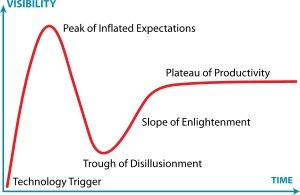
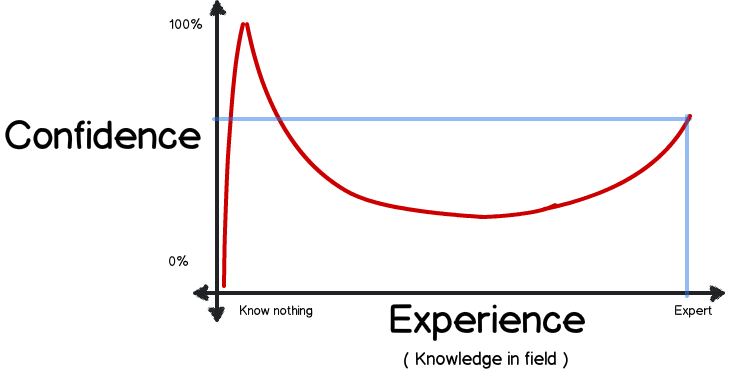
There is an underlying phenomenon at work here that seems to be part of the human condition. Check out these two diagrams below as both of them show the same pattern. The left image is by Gartner and is their famous hype cycle that they pin technology fads to. The other won a Nobel prize for the originators and refers to a phenomenon called the Dunning-Kruger effect.
Gartner_Hype_Cycle_svg    Snapshot

The diagrams should be self explanatory as both are a representation of increasing ones understanding of a problem over time. Both diagrams powerfully illustrate that as understanding grows, one never regains the same level of confidence that one had at the start! Take a look at the red line which reflects level of understanding of a problem. In both cases, the red line never reaches the same peak as it did at the very start when confidence was high and understanding was low. In other words, as your understanding grows and you become more informed about a problem, you will never be as certain as you would like to be.

Now in my mind, anyone who tries to argue against truth of the above patterns have fallen victim to the pattern. Furthermore, if you are dealing with someone who fits that level of optimistic naivety like a command-and-control project manager or CIO, just tell them that this has Nobel prize winning backing. For those CIO types who get all of their gospel from Gartner, use the hype cycle instead. After all, what would those Nobel dudes know eh? 🙂

So here is a tip. Next time you are kicking off a SharePoint project and need to assess risk, try this: First up, explain platitudes as described in the last two posts. Then draw one of the above diagrams on a whiteboard and ask your stakeholders to place an X on the above diagrams where they see the project team, themselves and where they see others! I guarantee much fun and frivolity will ensue…

Divergence and Convergence

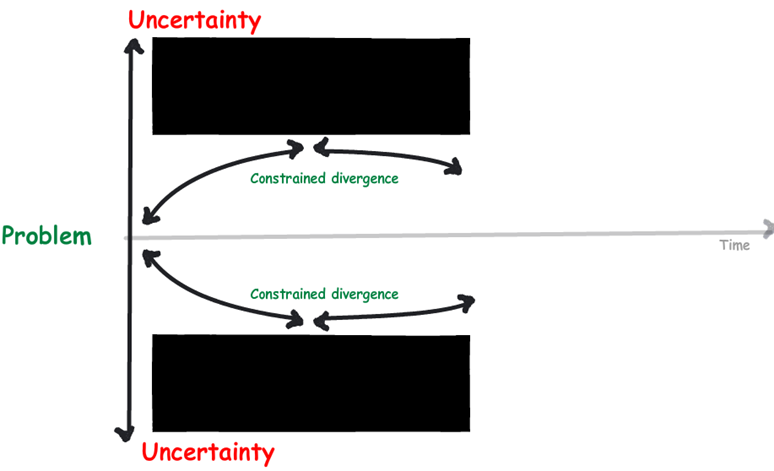
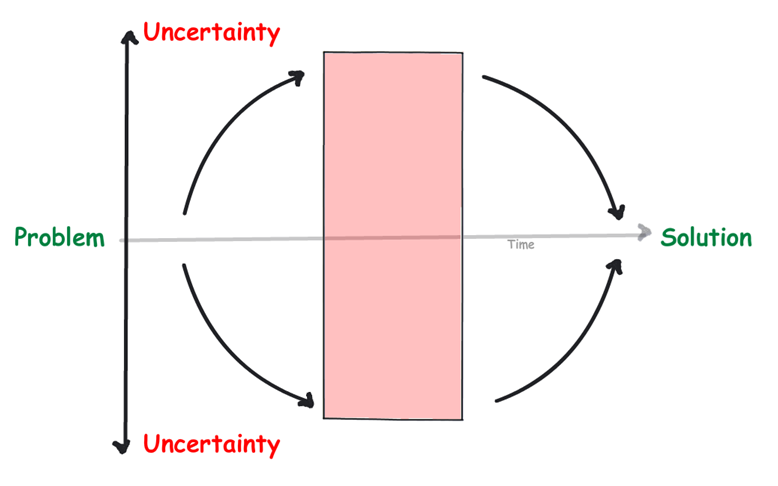
Now if you work for an organisation where the idea of ranking ones naivety is a bit confronting, let me offer you something gentler. This alternate way of looking uncertainty over time is similarly powerful to the images above. I first saw this diagram used by Jeff Conklin, who got it from a book by Sam Kaner called the Facilitator’s Guide to Participatory Decision-Making. My diagram below was modified from Kaner for my own purposes.
image

Like the Gartner and Dunning-Kruger diagrams above, the X axis represents time, with a problem at one end and the solution on the other. The Y-axis represents the level of uncertainty and it illustrates that project teams typically go through a cycle of divergent thinking, followed by a period of convergent thinking as the team becomes more aligned and the problem is better understood. What is interesting to note is that the point where divergence ends and convergence starts is never clear. No-one ever stops and pronounces “Okay guys, I think we have sufficiently diverged. Let’s converge now.”

To converge, one has to cross over the ‘hump’ of divergence. Imagine climbing a mountain and there are thick clouds that obscure the peak. For all you know, the peak might be a couple hundred feet further, but equally so, you might only be halfway up. For this reason I draw a box in the middle rather than connect the arrows. it is important to note that when I draw the box in the middle, I make a point of asking people to tell me the sort of words they would use to convey what they are feeling during this time. Without fail, I always get negative responses like “confusion,” “irritability,” “stress” and “uncertainty.”

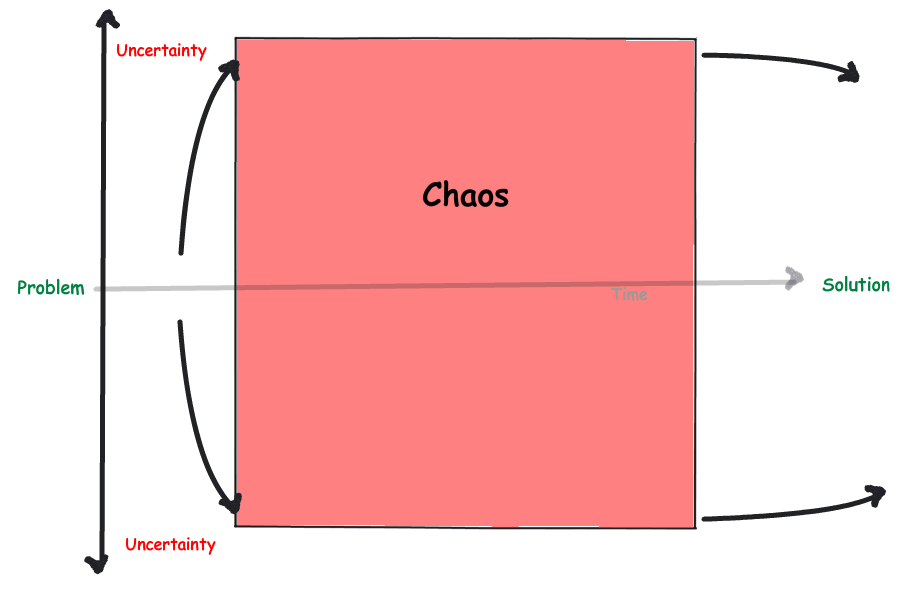
Now consider this: Some projects tend to diverge sharply and convergence seems almost impossible. No attempts to reign things in by asserting control seem to work. In fact, they usually make things worse. Accordingly, SharePoint projects commonly look like the figure below. They are highly divergent with little convergence as a result of the varied implicit assumptions that stakeholders have about SharePoint that have not been aired and reconciled. The power of those pesky platitudes, eh?
image

When I show this version of the diagram to people, I always ask a simple question:

  • If you do not have governance for SharePoint, what do you have?

The answer I get is always “Chaos,” which I write in the box as you can see above. My next question to the group is this:

  • “So by definition, to understand SharePoint governance, we all have to metaphorically open this box we have labelled “Chaos” to understand the forces that create the divergence?

So far, nobody has disagreed with that logic. So I then I hit people with the punch line…

  • “So how can you tell me that your governance approach is addressing the forces of divergence if you don’t know what’s in the box?“

That is usually the great silence moment… Despite the logic of my argument, most organisations never open the damn box and then approach SharePoint project delivery in a manner that is very likely to exacerbate the problem, rather than address it.

False convergence…

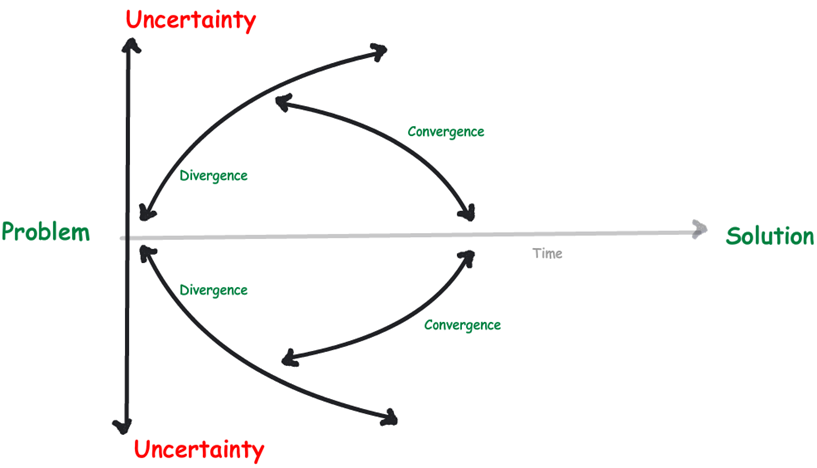
Check out the figure below. It is a variation of the divergence/convergence figure and represents a common approach to rein in SharePoint going haywire. If you look closely, you can see that an attempt has been made to force convergence. This manifests in different ways, but is most often the scenario when a sponsor or key stakeholder starts to make key decisions on behalf of others. In the short term, this approach tends to feel good because there is a sense of momentum and something is “being done” to get things under control. Project managers stop palpitating for a time because their Gantt charts start to see some progress…
image

After explaining this diagram, I then ask my audience. “So has this dealt with divergence?”. To this day, not a single person I have ever asked has said yes. In fact, everyone implicitly seems to realise that this is a false convergence and the underlying divergent forces have not truly been addressed at all. There is usually a short term feeling that things are getting back on track, but it doesn’t last long because it is actually little better than an illusion and things starts to get fishy – both on the project and in my diagram as shown below…
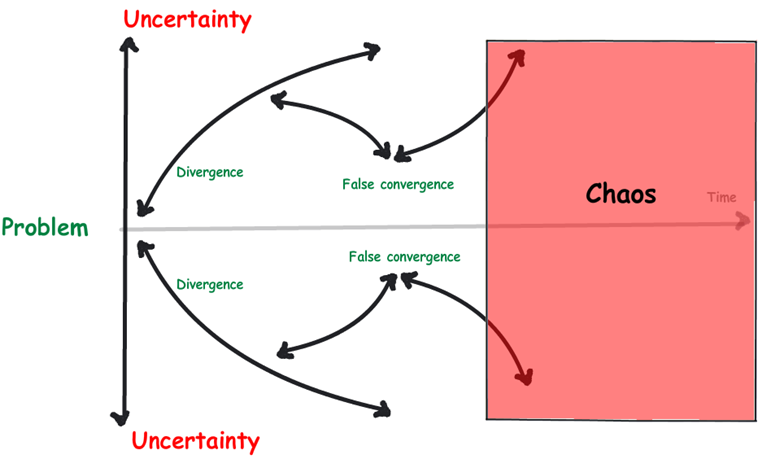
image

So eventually we will be smacked by the chaos baseball bat whether we like it or not. Despite this, many organisations will persist with the forced convergence approach many times (with a different set of consultants each time) and of course continue to get crappy results. Eventually though, the attrition of this approach will exceed the commitment of stakeholders and something gives. It is at this point where some organisations react by doing another dumbass thing…

Overly constraining divergence…

Once there is a realisation that an elite coterie (like the IT department or a single champion in the business) cannot solve the information management problems for the entire organisation via false convergence approaches, the next approach seems to artificially constrain the divergence via controlling the terms of reference – aka lock the crap out of the scope. This is seductively tempting since scope creep is the quintessential symptom of stakeholders who are still in divergent thinking.

While I have no problem with determining an appropriate scope, as we all operate within time, people and budgetary limits. But it has to be done for the right reasons and constraining divergence is not a good reason. Why? Because it means that stakeholders have very little shared understanding at the point scope is decided. This is a problem because ideally, divergent thinking should be reconciled to be able to decide on scope. From a diagrammatic point of view, this is like putting clamps around the level of allowable uncertainty. The classic example of this approach is when an organisation opts for the installation and deployment of SharePoint itself as phase 1 of the project. Ever done that before? Smile

image

Like the previous example, I ask my audience whether this approach deals with divergence. Also like the first example, the answer is a universal no. The underlying divergent forces have not truly been addressed at all and things are still fishy – although on the diagram below it is a difference species of fish! 🙂 In fact what you are doing here is penalising people for their learning – something I warned against doing in part three.
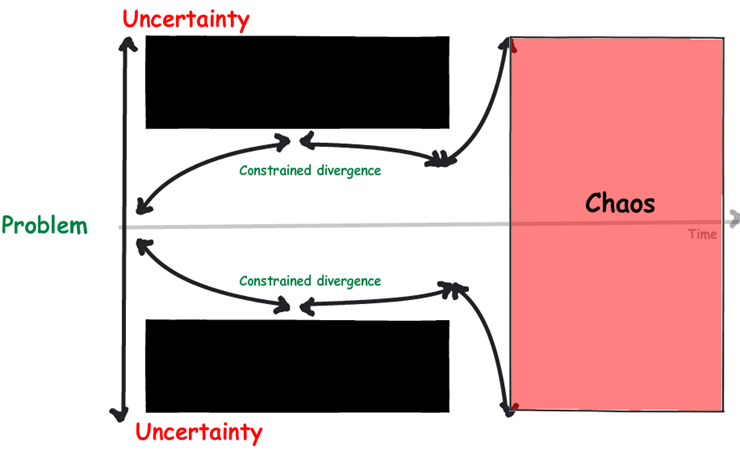
image

Key takeaways

I hope that you find these diagrams useful when discussing SharePoint delivery with your own stakeholders. By explaining SharePoint delivery in terms of divergence, convergence and a pink box labelled “chaos” we are able to provide a frame to show why artificially constraining divergence often has the opposite effect of what is intended. It is also worth pointing out that both of the above approaches are not particularly collaborative either – which tends to go against what one is trying to do with SharePoint in the first place.

Many SharePoint projects proceed on the assumption that the problem is well understood – that divergence has peaked and we are heading down the slope of convergence. If this is indeed the case, then the SharePoint project should go reasonably well since all of the tools for managing and delivering projects are convergence tools and do a good job in assisting this process. When this is not the case however, those same approaches have a bad habit of getting in the way by precluding the sort of learning and exploration needed for stakeholders to align around a problem. Returning to my mountain climbing metaphor I used earlier, these tools are like gravity assist to help you get down the mountain, but they weight a lot when you are trudging up a steep mountain and when clouds are obscuring the peak.

My takeaway for f-law 5 is not to jump straight to convergence. It might give you an initial sense of certainty and momentum, but only for a short time. I have said it many times and I will say it again. While there is a lack of shared understanding among participants of a problem, you will never get the shared commitment you need to see a solution through. Shared commitment is critical because without it, projects lose their energy and momentum to be seen to conclusion. Persistent divergence is a sign of a lack of shared understanding so the trick of course, is to harness divergence and turn it into something positive. Create the conditions that allows for some uncertainty, reduce the blame culture and tolerate mistakes. Invest in tools and methods that allow collective sensemaking and give people safety and structure to raise and reconcile their concerns.

Achieving shared understanding of the problem is for me the essence of SharePoint governance. In the doctors vs. midwives post in this series I explained how the goal of an architect is to create the right conditions for SharePoint success. The conditions to manage and harness divergence is a critical skill.

If you can achieve this end you should be bloody proud of yourself – as you have done 80% of the work of SharePoint delivery already.

Thanks for reading

Paul Culmsee
www.hereticsguidebooks.com


Confessions of a (post) SharePoint architect: Black belt platitude kung-fu

Hello kung-fu students and thanks for dropping by to complete your platitude training. If you have been dutifully following the prior 5 articles so far in this series, you will have now earned your yellow belt in platitude kung-fu and should be able to spot a platitude a mile away. Of course, yellow belt is entry level – like what a Padwan is to a Jedi. In this post, you can earn your black-belt by delving further into the mystic arts of the (post) SharePoint architect and develop simple but effective methods to neutralise the hidden danger of platitudes on SharePoint projects.

If this is your first time reading this series, then stop now! Go back and (ideally) read the other articles that have led to here. Now in reality I know full well that you will not actually do that so read the previous post before proceeding. Of course, I know you will not do that either, so therefore I need to fill you in a little. This series of articles outline much of what I have learnt about successful SharePoint delivery, strongly influenced from my career in sensemaking. I have been using Russell Ackoff’s concept of f-laws – truth bombs about the way people behave in organisations – to outline all of the common mistakes and issues that plague organisations trying to deliver great SharePoint outcomes.

So far in this series we have explored four f-laws, namely:

In the last post, we took a look at the danger of conflating a superlative (like biggest, best, improved and efficient) with a buzzword like (search, portal, collaboration, social). The minute you combine these and dupe yourself into thinking that you now have a goal, you will find that your project starts to become become complex, which in turn results in over-engineered solutions solving everything and anything, and finally your project will eventually collapse under its own weight after consuming far too many financial (and emotional) resources.

This is because the goal you are chasing looks seductively simple, but ultimately is an illusion. All of your stakeholders might use the same words, but have very different interpretations of what the goal actually looks like to them. The diagram that shows the problem with this is below. On the left is the mirage and to the right is the reality behind the mirage. Essentially your fuzzy goal actually is a proxy for a whole heap of unaligned and often unarticulated goals from all of your stakeholders.

Snapshot   Snapshot

Now in theory, you have read the last post and now have a newly calibrated platitude radar. You will sit at a table and hear platitudes come in thick and fast because you will be using Ackoff’s approach of inverting a goal and seeing if a) the opposite makes any logical sense and b) could be measured in any meaningful way. As an example, here are three real-world strategic objectives that I have seen adorning some wordy strategic plans. All three set off my platitude radar big time…

“Collaboration will be encouraged”

“A best-practice collaboration platform”

“It’s a SharePoint project” Smile

I look at the first statement and think “so… would you discourage collaboration? Of course not.” Ackoff would take a statement like that and say “Stop telling me what you need to do to survive, and tell me what you need to do to thrive”.

What do you mean by?

So if I asked you how to unpack a platitude into reality, what might you do?

For many, it might seem logical to ask people what they really mean by the platitude. It might seem equally logical to come up with a universal definition to bring people to a common understanding of the platitude. Unfortunately, both are about as productive as a well-meaning Business Analyst asking users “So, what are your requirements?”

With the “what do you mean by [insert platitude here]” question, the person likely won’t be able to articulate what they mean particularly well. That is precisely why they are unconsciously using the platitude in the first place! Remember that a platitude is a mental shortcut that we often make because it saves us the cognitive effort of making sense of something. This might sound strange that we would do this, but in the rush to get things done in organisations, it is unsurprising. How often do you feel a sense of guilt when you are reflecting on something because it doesn’t feel like progress? Put a whole bunch of people feeling that way into a meeting room and of course people will latch into a platitude.

By the way, the “mental shortcut” that makes a platitude feel good seems to be a part of being human and sometimes it can work for us. When it works, it is called a heuristic, When it doesn’t its called a cognitive bias. Consult chapter 2 in my book for more information on this.

Okay, so asking what someone means by their platitude has obvious issues. Thus, it might seem logical that we should develop a universal definition for everyone to fall in behind. If we can all go with that then we would have less diversity in viewpoints. Unfortunately this has its issues too – only they are a little more subtle. As we discovered in part 2 of this series appropriately entitled “don’t define governance”, definitions tend to have a limited shelf life. Additionally, like best-practice standards, there are always lots of them to choose from and they actually have an affect of blinding people to what really matters.

So is there a better way?

It’s all in the question and its framing…

If there is one thing I have learnt above all else, is that project teams often do not ask the right question of themselves. Yet asking the right question is one of the most critical aspects to helping organisations solve their problems. The right question has the ability to cast the problem in a completely different light and change the cognitive process that people are using when answering it. In other words, the old saying is true: ask a silly question, get a silly answer.

Let me give you a real life example: Chris Tomich is a co-owner of Seven Sigma and was working with some stakeholders to understand the rationale for how content had been structured in a knowledge management portal. Chris is a dialogue mapper like me – and he’s extremely good at it. One thing Dialogue Mapping teaches you is to recognise different question types and listen for hidden questions. The breakthrough question in this case when he got some face time with a key stakeholder and asked:

  • What was your intent when you designed this structure for your content?

The answer he got?

  • “Well, we only did it that way because search was so useless”
  • “So if I am hearing you, you are saying that if search was up to scratch you would not have done it that way”
  • “Definitely not”

Neat huh? By asking a question that took the stakeholder back to the original outcome sought for taking a certain course of action, we learnt that poor search was such a constraint they compensated by altering page template design. Up until that point, the organisation itself did not realise how much of an impact a crappy search experience had made. So guess where Chris focused most of his time?

In a similar fashion, my platitude defeater question is this:

So if we had [insert platitude here], how would things be different to now?

Can you see the difference in framing compared to “what do you mean by [insert platitude here]?”. Like Chris with his “What was your intent”, we are getting people to shift from the platitude, to the difference it would make if we achieved the platitude. No definitions required in this case, and the answer you will get almost by definition has to be measurable. This is because asking what difference something would make involves a transition of some kind and people will likely answer with “increased this”  or “decreased that”.

Now be warned – a hard core middle manager might serve you up another platitude as an answer to the above question. To handle this, just ask the question again and use the new platitude instead. For example:

  • Me: Okay so if you had improved collaboration, how would things be different to now?
  • Them: We would have increased adoption
  • Me: And what difference would that make to things?

I call this the KPI question because if you keep on prodding, you will find themes start to emerge and you will get a strong sense of potential Key Performance Indicators. This doesn’t mean they are the right ones, but now people are thinking about the difference that SharePoint will make, as opposed to arguing over a definition. Trust me – its a much more productive conversation.

Now to validate that these emerging KPI’s are good ones, I ask another question, similarly framed to elicit the sort of response I am looking for…

What aspects should we consider with this initiative to [insert platitude here]?

This question is deliberately framed as neutral is possible. I am not asking for issues, opportunities or risks, but just aspects. By using the term aspects I open the question up to a wider variety of inputs. Like the KPI question above, it does not take long for themes to emerge from the resulting conversation. I call this the key focus area question, because as these themes coalesce, you will be able to ensure your emerging KPI’s link to them. You can also find gaps where there is a focus area with no KPI to cover it. As an added bonus, you often get some emergent guiding principles out of a question like this too.

The thing to note is that rather than follow up with “what are the risks?” and “what should our guiding principles be?”, I try and get participants to synthesize those from the answers I capture. I can do this because I use visual tools to collect and display collective group wisdom. In other words, rather than ask those questions directly, I get people to sort the answers into risks, opportunities and principles. This synthesis is a great way to develop a shared understanding among participants of the problem space they are tackling.

If we were unconstrained, how would we solve this problem?

This is the purpose question and is designed to find the true purpose of a project or solution to a problem. I don’t always need to use this one for SharePoint, but I certainly use it a lot in non IT projects. This question asks people to put aside all of the aspects captured by the previous question and give the ideal solution assuming that there were no constraints to worry about. The reason this question is very handy is that in exploring these “pie in the sky” solutions, people can have new insights about the present course of action. This permits consideration of aspects that would not otherwise be considered and sometimes this is just the tonic required. As an example, I vividly recall doing some strategic planning work with the environmental division of a mining company where we asked this exact question. In answering the question, the participants had a major ‘aha’ moment which in turn, altered the strategy they were undertaking significantly.

Note: If you want some homework, then check Ackoff’s notion of idealised design and the Breakthrough Thinking principle called the purpose principle. Both espouse this sort of framed question.

Sharpening the saw…

Via  the use of the above questions, you will have a  better sense of purpose, emergent focus areas and potential measures. That platitude that was causing so much wheel spinning should be starting to get more meaty and real for your stakeholders. For some scenarios, this is enough to start developing a governance structure for a solution and formulating your tactical approaches to making it happen. But often there is a need to sharpen the saw a bit and prioritise the good stuff from the chaff. Here are the sort of questions that allow you to do that:

No matter what happens, what else do we need to be aware of?

This question is called the criterial question and I learnt it when I was learning the art of Dialogue Mapping. When Dialogue Mapping you are taught to listen for the “no matter what…” preamble because it surfaces assumptions and unarticulated criteria that can be critical to the conversation and will apply to whatever the governance approach taken. Thus I will often ask this question in sessions, towards the end and it is amazing what else falls out of the conversation.

What are the things that keep you up at night?

I picked this up from reading Sue Hanley’s excellent whitepaper a while back and listening to hear speak at Share2012 in Melbourne reminded me why it is so useful. This question is very cleverly framed and is so much better than asking “What are your issues?”. It pushes the emotive buttons of stakeholders more and gets to the aspects that really matter to them at an gut level rather than purely at a rational level. (I plan to test out dialogue mapping a workshop with this as the core question sometime and will report on how it goes)

What is the intent behind [some blocker]?

This is the constraint buster question and is also one of my personal favourites. If say, someone is using a standard or process to block you with no explanation except that “we cannot do that because it violates the standards”, ask them what is the intent of the standard. When you think about it, this is like the platitude buster question above. It requires the person to tell you the difference the standard makes, rather than focus on the standard itself. As I demonstrated with my colleague Chris earlier, the intent question is also particularly useful for understanding previous context  by asking users to outline the gap between previous expectation and reality.

Conclusion…

To there you go – a black belt has been awarded. Now you should be armed with the necessary kung-fu skills required to deflect, disarm and defeat a platitude.

Of course, knowing the right questions to ask and the framing of them is one thing. Capturing the answers in an efficient way is another. For years now, I have advocated the use of visual tools like mind mapping, dialogue mapping and causal mapping tools as they all allow you to visually represent a complex problem. So as we move through this series, I will introduce some of the tools I use to augment the questions above.

Thanks for reading


Paul Culmsee


Confessions of a (post) SharePoint architect: Yellow belt platitude kung-fu

Hi all. It’s been a while I know, but it is time to continue along my journey of confessions of a post SharePoint architect. As I write this, the SharePoint community is in Vegas, soaking up the love of the biggest SharePoint conference yet. For the other twelve SharePoint professionals who are not there, I know your pain.

If this is your first  foray into this series of articles, consider it the closest I will ever get to a SharePoint governance book. Since all new knowledge is gained through the lens of existing knowledge, it is important to note that my world view has been shaped by the increasing amount of non IT work I do in various complex problem solving areas. Essentially this work has had a major effect on the lens that I view SharePoint projects and the approaches I use to steer them. When developing a class on the topic of SharePoint Governance and Information Architecture, I found a fun yet effective way to put coherence around things via Russell Ackoff’s concept of f-laws. These are simple home truths about the way people behave in organisations than explain much more than the complex ones proposed by theorists of various persuasions.

So far in this series we have explored three f-laws, namely:

The next f-law is straight from Ackoff himself and is a universal truth in any project, but absolutely chronic in SharePoint projects as well as many SharePoint slide decks:

F-Law 4: Most  SharePoint governance objectives are platitudes. They say nothing but hide behind words

Most people in the IT industry (with the obvious exclusion of sales guys, Office365 MVP’s and Google employees) tend to inwardly cringe or outrightly roll their eyes when the word “cloud” is uttered during conversation. This is because people instinctively know that what follows is either:

  • Gushing hyperbole squarely aimed at getting you to part with some cash
  • Gushing hyperbole squarely aimed at convincing you that they know what they are talking about
  • Gushing hyperbole in the form of FUD laden counter-arguments from server hugging sysadmins who reject “cloud” outright because they fear irrelevance

These reactions in such conversations result from the term “Cloud” being used in a platitudinal sense. In case you were not aware, a platitude is referred to as “a trite, meaningless, biased, or prosaic statement, often presented as if it were significant and original”. Platitudes are everywhere and usually unavoidable since many people use them unconsciously – especially politicians, senior executives and the aforementioned sales guys. Want proof? Just look on the wall behind the reception area of your office – chances are there is a mission statement there somewhere that would read something like:

“We are dedicated to ensuring a long-term commitment to stakeholder value from performance and improved returns at all levels.”

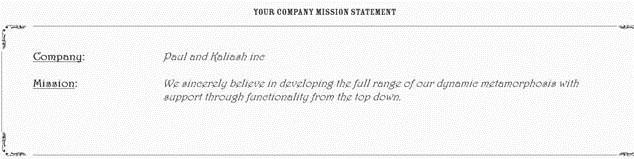
Does a mission like that sound familiar? What if I told you the line above was generated from a website that generates mission statements like a poker machine. Just pull the lever and within a few seconds, a random assortment of small quotes are mashed together to create a cool sounding sentence. If you enter your company name into it, you can even print a certificate.  I generated this  one for the Heretic’s Guide book. Neat, huh?

clip_image002

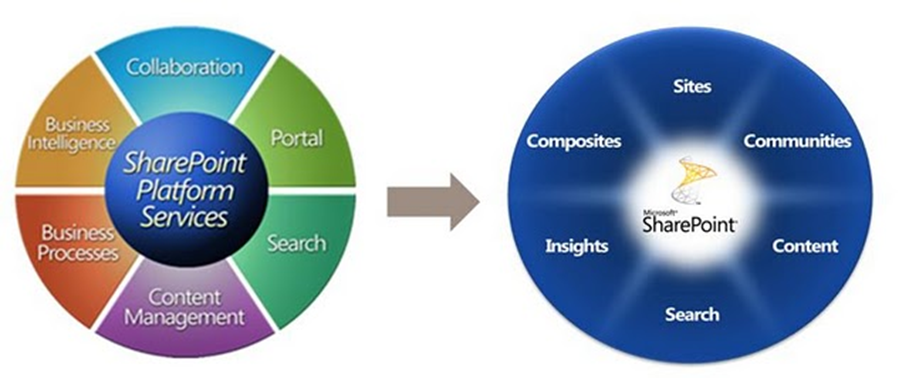
The problem, of course, with a platitude is that while it sounds significant, it doesn’t actually tell you much at all. So this f-law states that most SharePoint governance objectives are platitudes. One of the core reasons for this is a side effect of Microsoft’s marketing approach. Consider Microsoft’s SharePoint marketing material as it has evolved. Take a look at how many words survived the transition from Microsoft’s SharePoint pie of 2007, the Frisbee of 2010 and now the square of 2013. Do you see a pattern? What is the average shelf life of a word in each of these diagrams?

image image

Now, let me start out by stating that I have no problems with any of these diagrams. Microsoft is perfectly entitled to develop the message it wants to convey in whatever means it sees fit. The biggest travesty is when people frame the above words as deliverables. They take a superlative word like “improved”, “best practice” or “effective” and then add one of the above words to it. This combination inevitably forms the basis for the justification of putting SharePoint in.

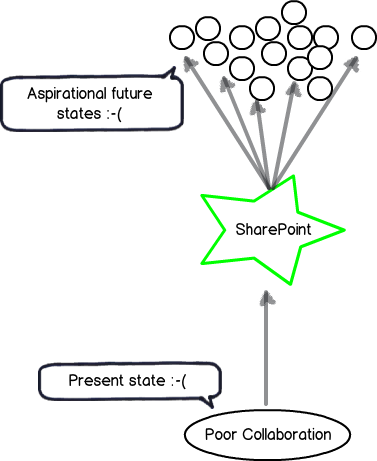
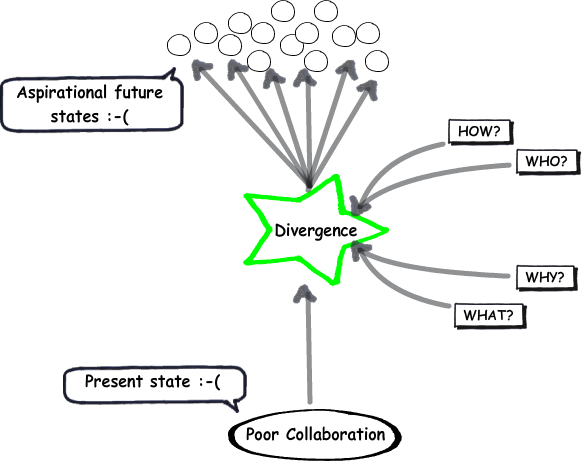
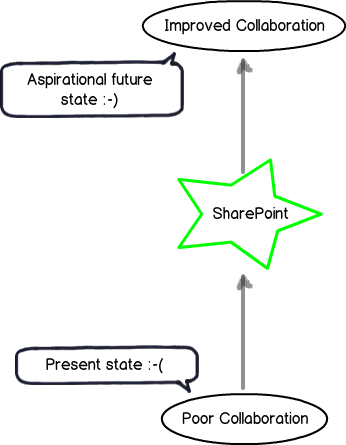
The classic example that still pervades SharePoint projects to this day is the perennial mirage of “Improved Collaboration.” If we return to the “here” and “there” diagrams of the previous posts, it looks like this… note the aspiration goal has a happy smiley on it!

Snapshot

Platitude detection 101

So the first thing you have to do as a SharePoint architect or practitioner is to develop a finely tuned platitude radar. The thing to be aware of is that platitudes come in many forms – some which are obvious and some much more subtle. Thus we will start your platitude radar calibration via a quick and easy method that Ackoff came up with. Years ago, Russel Ackoff critically examined mission statements and said that a mission statement that merely restates the obvious does not say anything that is truly aspirational. To quote from Ackoff:

They often formulate necessities as objectives: For example, ‘to achieve sufficient profit’. This is like a person saying his mission is to breathe sufficiently.

Ackoff’s test to judge the quality of a mission statement was to inverse the statement and see it still made logical sense. If you could not reasonably disagree with this negative version, then the original statement was a platitude. As an example, consider this mission statement from a well-known global organisation:

… our mission and values are to help people and businesses throughout the world realize their full potential.

So, our inverse here is that we are working to hinder people and businesses to realise their full potential. Who in the hell would ever do that? Well – given this is Microsoft’s mission statement, suddenly Windows Vista is finally starting to make sense to me. Smile

Now, go and take any word from the 3 diagrams above and put a superlative like “biggest”, “best”, “optimum” or “improved” in front. If I use my example – “Improved Collaboration” – Ackoff’s inversion approach results in “Worse Collaboration” and is therefore a platitude. I mean – aside from the odd command and control boss, would anybody seriously want to make collaboration less effective?

So, to put it simply – stop stating the bloody obvious! If your SharePoint goal doesn’t satisfy Ackoff’s simple platitude test, you have a problem.

The seeds of doom are sown at the start…

Now that I have wired up your platitude detector via Ackoff’s inversion test, you will start to notice how utterly pervasive they are in SharePoint projects and beyond. As Kailash and I state in the Heretics Guide book:

A platitude is a mental shortcut we take, a deceptively quick way to cut through uncertainty. We clump our unclear, unarticulated aspirations in a bunch of platitudes. It is easy to do and it gives us a sense of achievement. But it is a mirage because the objective is not clear and we cannot define sensible measurements of success if the goal is fuzzy. It never fails to amaze us that many organisational endeavours are given the go-ahead on the basis of platitudinous goals. Mind-boggling, isn’t it?

What is really amazing and sad at the same time is how badly the platitude problem is misattributed. One of my students at a recent SPGovIA class said that with SharePoint projects “the seeds of doom are sown at the very beginning”. He’s right too…project teams will commit significant time and money into a project that is chasing a platitude, and when things inevitably go haywire, will blame the process, methodology, people… everything but the mirage at the root of it all.

The seduction of a platitude is strong. Many have been entranced by some nice sounding desirable future state incorporating some superlative like “Improved quality” or “Best practice collaboration”. But the key point is this: The platitude becomes a sort of proxy for the end in mind rather than the real end. We have no shared understanding of what where we want to get to. Empty words preclude a shared understanding because they mean nothing at all.

The image below illustrates the effect of a platitude being confused with the actual desired state. We do not have an aspirational future state at all. Instead, we have many possible, fuzzily-defined future states.

Snapshot

If you look really closely, the future state is a sad smiley. This is because the visible symptoms of a project with a divergent understanding among participants are well documented. Scope creep and vague requirements mean that the project will start to unravel, yet the platitude-driven journey towards the mirage will continue. The project will lurch from crisis to crisis, with scope blowing out, tensions and frustrations rising. This is accompanied by classic blame-shift or hind-covering moves that people make when they realise that their ship’s taking water.

How to defeat a platitude…

I am going to conclude this post at this point because it is starting to get too long. But I will leave you with a teaser about the next post…

One of the most important things about dealing with a platitude is knowing what *not* to do. I know that what I am about to say may sound counter intuitive to many readers, but trust me when I tell you that there are two things you should avoid doing.

  1. Never, never, never ask someone what they mean when they use a platitude
  2. Never try and come up with a definition for a platitude

In the next post, I will elaborate on these two contentions and provide you with a much better way to get past the seductive danger of platitudes, so you can find out what really matters to your stakeholders.

Until then, thanks for reading…


Paul Culmsee

www.sevensigma.com.au

Falling Books Stack


Confessions of a (post) SharePoint Architect: The self-fulfilling governance prophecy

Hi and welcome to another SharePoint (post) architect confessional post. In case you are here via the good grace of whatever Google’s search relevance algorithm feels like doing today, I need to give you a little context to this post and the larger series of which it is a part. These days, I spend a lot of time working on projects beyond the cloistered confines of SharePoint; in fact, beyond the confines of IT altogether. Apart from being a cathartic release from SharePoint work, I’ve had the privilege to work with various groups on solving some very complex problems in a collaborative fashion. As a result of these case studies, I’ve become a bit of a student of various collaborative problem solving approaches and recently released a business book on the subject called “The Heretics Guide to Best Practices” co-written with mild-mannered mega-genius Kailash Awati. Despite (or because of) the book having no absolutely SharePoint content whatsoever, it managed to win an Axiom Business Book award and I feel it’s indirectly a good SharePoint governance book in its own right.

Now, for the rest of you who have been following my epic rant thus far, you will now be familiar with the notion of Ackoff’s f-laws: “truths about organisations that we might wish to deny or ignore – simple and more reliable guides to everyday behaviour than the complex truths proposed by scientists, economists, sociologists, politicians and philosophers.” Via the f-law metaphor, you now also understand why midwives are more valuable than doctors, the word “governance” should not be defined if you actually want people to understand it and that people should not be penalised for their learning.

The next f-law that we will explore provides an explanation to why organisations so consistently and persistently apply the wrong approaches to SharePoint-type projects. IT departments have genetic predisposition to falling into this trap, as do other service delivery departments such as Finance and HR when they put in ERP systems. To explain my assertion, we are going to revisit the governance diagram that I used in the first f-law. You can see it below:

I used the above diagram to to explain f-law 1 which was “The more comprehensive the definition of governance is, the less it will be understood by all”. The above diagram serves to point out that governance is not the end in mind, but the means by which you achieve a desirable future state. Without any context to an end in mind, we have to accommodate many vague potential ends. To deal with this uncertainty, we inevitably look to definitions to provide clarity about what governance means. Unfortunately, this form of “definitionisation” tends to confuse more than clarify because it sneakily starts to drive the end, rather than be the means. This inevitably results in over-engineered, over-complicated and likely inappropriate governance approaches that do more harm than good.

It should be noted that “governance” is by no means the only word that falls into this trap. Words like quality, effective, “best practice” and even “SharePoint” should all be put in the green star above too because all of these words have no inherent meaning until they are applied to a given situation or context. This point is echoed by people like Andrew (“SharePoint by itself knows nothing”) Woodward, Dux (“SharePoint doesn’t suck – you suck.”) Sy and Ruven (“Can I use this diagram in my Information Architecture book?”) Gotz.

To that end, our next  f-law expands on this notion of means vs. ends and provides you with a practical way to assess the clarity of a SharePoint goal or outcome.

F-Law 3: The probability of SharePoint success is inversely proportional to the time taken to come up with a measurable KPI

Hmm… f-law 3 is a mouthful isn’t it. For a start I used the acronym of “KPI”, which in case you are not aware, stands for Key Performance Indicator – something that we can measure to visibly demonstrate that we have not sucked and actually achieved what we have set out to do. In essence, this f-law states that the longer it takes to determine a reasonable and measurable indicator that SharePoint has been a success, the less likely your SharePoint project is to succeed.

To demonstrate this, I am going to give you one of my patent pending techniques that is highly useful in client engagements to get people to think a little differently about their approach. Let’s reuse my “from here to there” diagram above to perform a basic experiment. Check out the project below and tell me … what project is this?

image

Hopefully, it did not take you long to work out that this project is the Apollo moon missions. Now, for the experimental bit. Grab a stopwatch, start the clock and answer this question:

“How do you know you have succeeded with this project?”

Once you have your answer, stop the clock and note the time. I’m willing to bet that you gave one or two answers:

  • You successfully landed a person on the moon
  • You got the person back to Earth again

I am also willing to bet that you worked out that answer within 2 to 15 seconds of pondering my diagram. Am I right?

Now, consider for a moment the sheer scale of of this project in terms of size, risk, innovation and level of expertise required to land a person on the moon and bring them back safely. Imagine the sheer number of projects within multiple programs of work that had to be aligned. Imagine the tens of thousands of people who directly and indirectly worked on this epic project. It is mind boggling when you think about it and it is little wonder that putting a man on the moon is regarded one of mankind’s greatest technical achievements.

And then we have SharePoint…

Now let’s contrast the moon project with another one likely to be very familiar with readers. So once again, tell me what project this is…

image

This one takes some people a bit longer to answer, but when I ask this in workshops and conferences I sometimes get people jokingly saying “my SharePoint project!” or “a nightmare.” So once again I want you to answer the following question:

“How do you know you have succeeded with this project?”

I bet this one has you a little more stumped and is much harder to answer than the moon example above. What is funny with this one is that, when you consider that in terms of scope and size, using SharePoint to improve collaboration is a mere pimple on the butt of sending a rocket to the moon. Yet, despite the moon example being much larger in scope, cost, degree of innovation and engineering, the success criteria is clear and unambiguous to all. People can identify what success looks like very quickly. No-one will point to Venus and say “I think that’s the moon.”  You either got there or you didn’t.

Yet, when I show a SharePoint project that is framed like the above example, people have a much (much) harder time describing what success would look like. In fact, I have asked this question many times around the world and most of the answers I am offered do not hold up to any serious form of scrutiny. Consider these common suggestions of SharePoint success and my response to them:

  • “People are using it.” My response: “Yeah, but people use email and the file system now, so why are you putting SharePoint in?”
  • “People are happy.” My response: “I bet if I replaced the crappy coffee with a top of the range espresso machine I could make people really happy and it’s a fraction of the cost of SharePoint.”

Sorry folks, but this isn’t good enough… in fact it’s a recipe for a situation where, in the name of “governance,” you deliver a bloated, over-engineered failure.

When problems are complicated…

My two project examples above highlight a particular characteristic of problems that is at the root of the difference between the moon and SharePoint example. Consider the following common IT projects:

  • Replacing your old email system with Microsoft Exchange
  • Consolidating Active Directory
  • Replacing your old phone system with Voice over IP system
  • Upgrading your storage area network  to new infrastructure

All of these are like the moon example. None of them are easy – in fact you need specialist expertise to get them successfully implemented. But when you put each of these in the green star of my “here to there” picture, criteria for success is fairly clear and unambiguous. For example, if email comes in and goes out of everyone’s inboxes, Exchange is a usually success. If you can pick up the phone, get a dial tone and make a call, then the VOIP upgrade has been a success.

These are all examples of complicated problems. With complicated problems, the criteria for success is clear and unambiguous and there is a strong relationship between cause and effect. You can be highly confident that doing X will lead to Y. In these sorts of problems, experts can come together and analyse the problem by breaking the problem down neatly into its parts to develop a high-confidence solution. Furthermore, there are likely to be many best practices that have emerged from years of collective wisdom of implementing solutions because of that relationship between cause and effect.

Wouldn’t it be nice if reality was always like this. Project Managers and tech people would actually get on with each other! But of course, reality paints a different picture…

When complicated approaches fail…

In a 2002 discussion paper about reform of the Canadian health system, authors Sholom Glouberman and Brenda Zimmerman make a statement that is completely applicable to how most organisations approach SharePoint:

In simple problems like cooking by following a recipe, the recipe is essential. It is often tested to assure easy replication without the need for any particular expertise. Recipes produce standardized products and the best recipes give good results every time. Complicated problems, like sending a rocket to the moon, are different. Formulae or recipes are critical and necessary to resolve them but are often not sufficient. High levels of expertise in a variety of fields are necessary for success. Sending one rocket increases assurance that the next mission will be a success. In some critical ways, rockets are similar to each other and because of this there can be a relatively high degree of certainty of outcome. Raising a child, on the other hand, is a complex problem. Here, formulae have a much more limited application. Raising one child provides experience but no assurance of success with the next. Although expertise can contribute to the process in valuable ways, it provides neither necessary nor sufficient conditions to assure success. []

In this paper we argue that health care systems are complex, and that repairing them is a complex problem. Most attempts to intervene [] treat them as if they were merely complicated. [] We argue that many of these dilemmas can be dissolved if the system is viewed as complex.

The key point in the above quote is that the tools and approaches that work well with complicated problems actually cause a lot of trouble in complex problems, where certainty of an outcome is much less clear. My point is that while the notion of using SharePoint to get from “poor collaboration” to “improved collaboration” might seem logical on the surface, it is hard to come up with any sensible criteria for success. Therefore you are setting yourself up for a fail because you have made SharePoint take on the characteristics of complex problems. Without unpacking these implicit assumptions about “Improved Collaboration,” our aspirational future state will look like the diagram below. The reality is we have many aspirational future states, all hidden beneath the seductive veneer of “improved collaboration” that in reality tells us nothing.

image

What blows me away is that to this day most project governance material published consistently fail to realise this core issue while trying to treat the very symptoms caused by this issue!  They provide you with the tools, means and methods to chase goals which are little better than an illusion, with no means to measure progress and therefore guide the very decisions that are made in name of governance.

Without unpacking and aligning all of these different future states above, how can any SharePoint architect be sure that they are providing the right SharePoint-based enabler? If you cannot tell me the difference made by implementing a project, how can anyone else know the difference? Even if you can, how do you know that everybody else sees it the same way as you?

Is it little wonder then, that after more than a decade of trying, SharePoint projects (complex problems) continue to go haywire? While approaches to governance force a complicated lens on a complex problem and assume the goal as stated is understood by all, governance itself will be one of the root causes of poor outcomes. Why? Because governance will require people to focus in all the areas except the one that matters. When this gap in focus manifests visibly (for example SharePoint site sprawl), governance is seen as the means to address the gap. Thus governance becomes a self-fulfilling prophecy “We will get it right this time” is the mantra, all the while, we still chase those rainbows of “improved collaboration.”

Conclusion and coming next

I do not recall where I first heard the distinction between “Complicated” and “Complex” problems because I came across it some time after I discovered the term “wicked problem.” I suspect that it was the Cynefin model that first pushed my cognitive buttons on the idea, although I distinctly recall Russell Ackoff also making the distinction between complex and complicated. Irrespective of the source, I find this a hugely valuable frame of reference to examine problems and understand why SharePoint projects are routinely tackled in an inappropriate manner. With it, I have been able to give IT departments in particular, a frame of reference to understand why they have trouble with particular kinds of projects like SharePoint.

Many people in organisations do not discern the difference between a complicated and complex problem and use the tools of the “complicated problem toolkit” to address complex problems when they are inappropriate at best and will kill your project at worst. I will expand on why this happens in the next and subsequent posts. But my key takeaway is that addressing the issue of multiple interpretations of the future is not only the key SharePoint governance challenge, it is the key challenge for any complex project.

The sorts of tools and approaches that are part of the “complex problem” utility belt are numerous and are really starting to gain traction which is great. There is plenty to read on this topic elsewhere on this blog as well as people like Andrew Woodward and Ruven Gotz. The great irony is that if you do manage align people to a shared sense of what the end in mind will look like, things that might have been seen as complex will now become complicated and the traditional tools and approaches will have efficacy because outcomes are clear and the path to get there makes more sense.

In the next post and f-law, I am going to outline another chronic issue that further explains why we get suckered into chasing false goals…


Thanks for reading

Paul Culmsee

www.sevensigma.com.au

HGBP_Cover-236x300


Confessions of a (post) SharePoint architect: Do not penalise people for learning

Hi all and welcome to another small piece of my SharePoint architect manifesto. In the previous post I introduced you to the notion of f-laws, which were first coined in a book co-authored by Russell Ackoff. In the process of developing a SharePoint governance and information architecture class, I was inspired to use the idea of an f-law because they appealed to my contrarian sense of humour and also contained some interesting nuggets of wisdom. I ended up coming up with a heap of f-Laws for SharePoint, and plan to write an article to cover each one.

In the last post, we learnt that f-Law 1 was all about the contention that the more you try and define what governance is, the less anyone will actually understand it. If you never read the first SharePoint Governance f-law then I suggest you do so, because these articles do tend to build on the foundation set from the previous. On that note, the focus of todays f-law extends on one that Ackoff himself came up with. All I am doing it putting a SharePoint bent on it…

F-Law 2: There is no point in asking users, who don’t know what they want, to say what they want.

This f-law comes with an additional corollary: There is even less point in thinking that you already know what they want! (IT departments – I am looking at you here!)

The definitive way to explain this f-law is to leverage the work of one of my mentors – Jeff Conklin. In 2007 I read a paper of his that literally changed my career. It was titled “Wicked problems and social complexity” and despite me reading many papers since, to this day it is one of the best introductions to complex problem solving you could ever read.

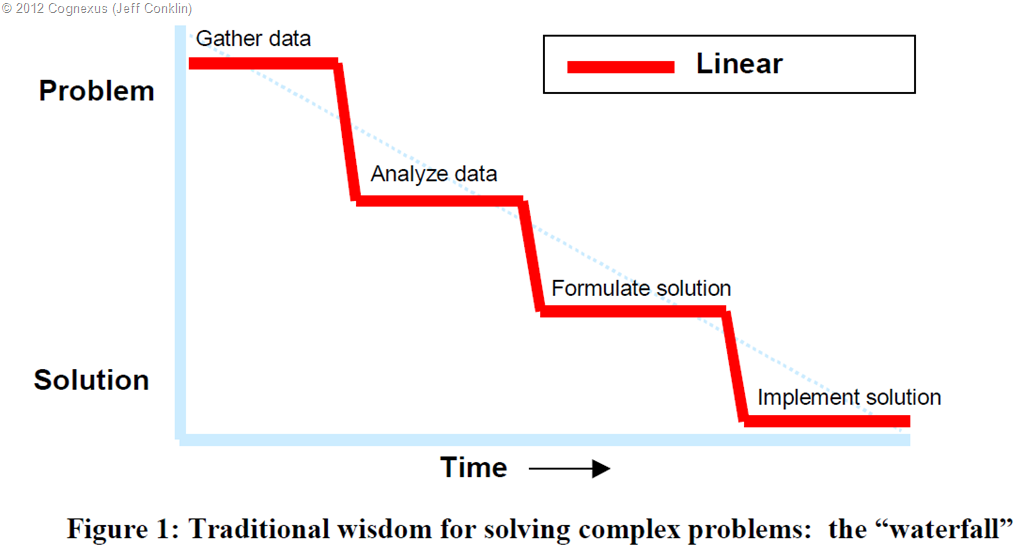
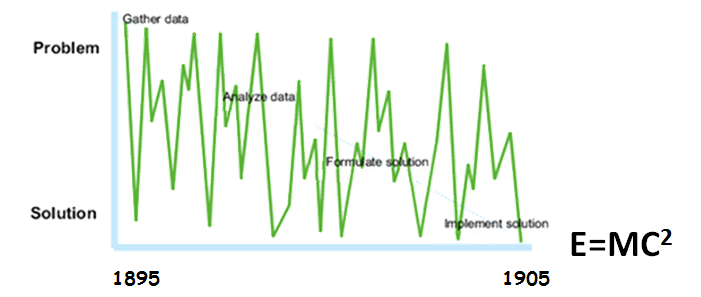
In this paper, Jeff talks about the fact that many prevailing methodologies suggest that the best way to work on a problem is to follow an orderly and linear “top-down” process, working from the problem to the solution. You begin by understanding the problem, including gathering and analysing “requirements” from customers or users. Once you have the problem specified and the requirements analysed, you are ready to formulate a solution and eventually implement that solution. This is illustrated by the red line in the figure below.

image

Now many project managers, cheque signers and just about every program management office I have ever worked with try to operate this way because it promises order, certainty and control. This is understandable when ones performance is being judged on getting stuff done to an agreed time and cost. It is also understandable if you are a manager and will get your ass kicked if you blow your budget. There is only one teeny issue. For some scenarios, it simply does not work.

In Conklin’s paper, he detailed a 1980’s case study at the Microelectronics and Computer Technology Corporation (MCC) that looked into how people solve problems. A number of designers participated in an experiment where they were give a one page problem statement – not too different to many SharePoint business cases I have seen. Participants in the experiment had to design an elevator control system for an office building. Despite participants being experienced and expert integrated-circuit designers, none had ever worked on elevator systems before. Each participant was asked to think out loud while they worked on the problem. The sessions were videotaped and analysed in detail.

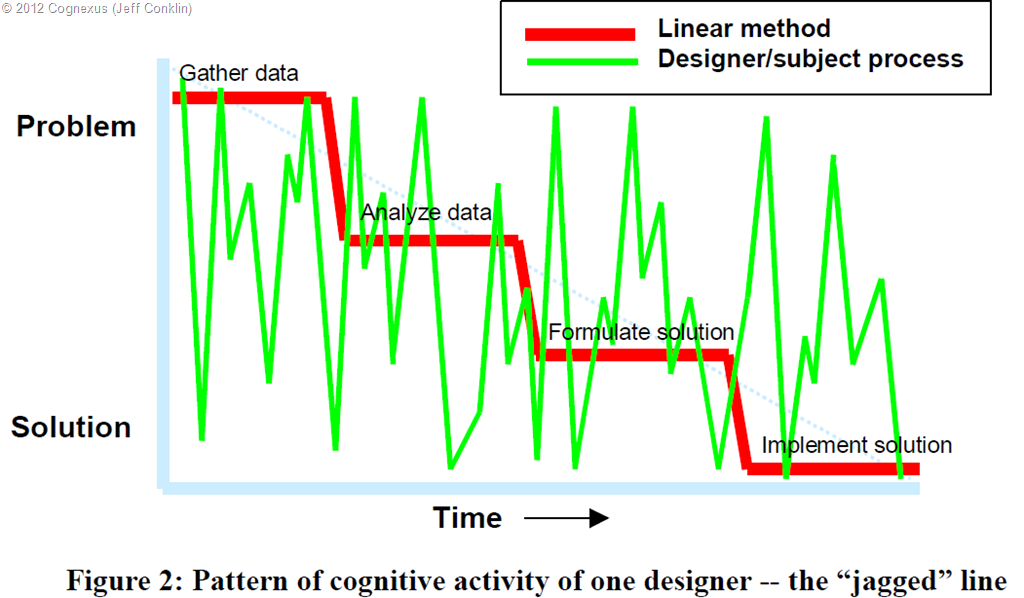
Below is what really happened. Check out the green line…

image

Clearly, the subjects in the elevator experiment did not follow a linear approach. They would start by trying to understand the problem, but they would immediately jump into formulating potential solutions. Then they would jump back up to refining their understanding of the problem. Rather than being orderly and staged like the red line, the line plotting the course of their thinking looked more like a seismograph for an earthquake. Now if you are looking at the green line and thinking “my god I better put a stop to that sort of shenanigans,” consider what Conklin had to say about it in his paper:

These designers are not being irrational. They are not poorly trained or inexperienced. Their thought process was something like: “Let’s see, idle elevators should return to the first floor, but then, you only need one elevator on the first floor, so the others could move to an even distribution among the floors. But the elevators need to be vacuumed regularly. I suppose we could add a switch that brought idle elevators down to the first floor. But then what happens in an emergency?” In other words, what is driving the flow of thought is some marvellous internal drive to make the most headway possible, regardless of where the headway happens, by making opportunity-driven leaps in the focus of attention. It is precisely because these expert designers are being creative and because they are learning rapidly that the trace of their thinking pattern is full of unpredictable leaps.

When I am speaking at conferences I like to mess with project managers in particular (who doesn’t eh?), because they are an easy target and already an insecure lot to begin with. I will ask the audience if anybody has an industry certification, such as a PMP or Prince II. Several hands usually go up. I then point to the phases of the above diagram and ask them if – when they were studying hard to obtain their certification – they actually followed the discrete phases that everybody else is supposed to follow. No single person has ever suggested that they did, instead all acknowledging that their process of learning looked more like the green line. I then point out that I’ve always found this perversely funny that people follow the green line to learn a process that tries to insist that everybody else must follow the red line. Ironic huh?

Knowing vs. learning problems

It should be stated at this point that you can use the red-line approach for certain types of problems so I am not outright dismissing it. In fact, within SharePoint projects there are indeed elements that can work quite well this way. The green line on the other hand, represents a phenomenon that Conklin called “Opportunity driven problem solving” and is the de-facto way we work on problems that are new or novel. For example, if you have ever experienced an “aha” moment, it was probably a leap of cognition that followed the jagged green line up or down, where you suddenly saw the problem in a different light. (Shhhh… don’t let your project manager know because you will have to fill in a form of some description!)

In these types of problems, we do not start by gathering and analysing data about the problem because the problem itself is moving target and varies depending on different stakeholders and their world views. Thus, there is no pure and concrete understanding of “the problem” because it is still forming as you think about solutions. In short, the jagged green line is a picture of learning. Quoting again from Conklin:

The more novel the problem, the more the problem solving process involves learning about the problem domain. In this sense the waterfall is a picture of already knowing – you already know about the problem and its domain, you know about the right process and tools to solve it, and you know what a solution will look like. As much as we might wish it were otherwise, most projects in the knowledge economy operate much more in the realm of learning than already knowing. You still have experts, but it’s no longer possible for them to guide the project down the linear waterfall process. In the current business environment, problem solving and learning are tightly intertwined, and the flow of this learning process is opportunity-driven

I believe that many innovations stem from the opportunity driven, creative leap of faith of the green line. On that note, I’d say that one of the greatest opportunity driven learners had to be Einstein. An article by Mort Orman suggests that Einstein was intrigued by “holes” in prevailing theories and enjoyed posing “mind riddles” to himself, just to see if present theories could satisfactorily explain them. Unlike many others who might have given up when they got stuck, Einstein was persistent and kept at it for 10 years before he came up that little formula everyone knows. After explaining this story at conferences, I sometimes ask people “Do you think Einstein used waterfall when he came up with relativity?” No one has said yes yet…

image

Implications…

The pattern of behaviour between the red and green lines represents the difference between a knowing problem and a learning problem. With a knowing problem, the problem is clear to all participants and even though it might require specialist expertise to solve, many of the variables are well understood. But for a problem that is novel or requires learning from participants Conklin’s case study illustrates that:

  1. People will examine potential solutions just to explain the problem.
  2. Each instance of examining the solution will impact the understanding of the problem.

Given that SharePoint is almost always starts out as a learning problem for the majority of participants, I do not see the point in trying to fight that green line. Instead, it is critical that you work with it rather than against it. The difficulty people have with this is that to do so conflicts with that promise of certainty, order and control that the red appears to offer. Why? Well among other things, you have to:

  1. Expect fluid requirements and scope changes
  2. Involve stakeholders from the start (they have to live with the result and their up-take is presumably a key KPI)
  3. Expect resistance and pullback from stakeholders (because people attribute more to what they perceive to lose compared to what they might gain)

Above all, you have to avoid penalising people for their learning. If you put barriers in front of people who are trying to improve their understanding of a multi-faceted problem they will eventually disengage from you. If you want to guarantee this sort of disengagement, go right on ahead and solve some problem before your stakeholders even realise there is a problem. Then when they do realise, smack them with the metaphorical baseball bat known as the scope variation form. One of two of those babies and those annoying stakeholders are guaranteed to go away. A pity your solution will go away with them but hey, it was in scope right?

Confessions…

I deal with this core issue of not penalising learning in a number of ways… some of which I have outlined in blog posts and many that I will cover in detail as we progress in this series and examine more f-laws. If you simply can’t wait for me and want “the answer” then I have news for you. If it were that easy there would be a “best practice” for it and someone would have created a certification by now!

So instead I will give you a couple of KPI’s to work to.

  • KPI 1: You get to a stage where your clients questions are “informed”. It is pretty easy to tell as a SharePoint professional where your stakeholders are at in their understanding of SharePoint. Over time there is a certain level of maturity in the questions asked of you and the way they are asked. This reflects both stakeholder learning as well as your ability to teach. If you get to this stage, you have increased your chances of SharePoint success significantly, which leads onto the next KPI…
  • KPI 2: You get to the stage where your clients are asking you well informed questions that you don’t know the answer to. Trust me that they will not mind that you don’t because their awareness of the product will no longer be naively simplistic anyways. You will also have developed a great collaborative partnership by then too. Also don’t forget my quote from Horst Rittel in the midwives post. There is a symmetry of ignorance with complex problems. The knowledge required to solve a complex problem never resides with a single person.

This leads me onto the final KPI:

  • KPI 3: Your clients should start telling you stuff about SharePoint that they have done that you have never done before or didn’t know you could do. In short, they will start teaching you stuff.

If you can create those conditions, be happy that they don’t need you that much anymore.


Thanks for reading


Paul Culmsee
www.hereticsguidebooks.com

www.sevensigma.com.au


Confessions of a (post) SharePoint Architect: Don’t define “governance”

Hi all and welcome to the second post of a series that I have been wanting to write for a while. In this series, I am going to cover some of the lesser considered areas of being a SharePoint architect and by association, key aspects to SharePoint governance. In the first confessional post I alluded to the fact that a good SharePoint architect also need to architect the right conditions for SharePoint success. As I work through this series of articles, I will elaborate further on what those conditions are and how to go about creating them.

To do this, I am drawing from my non IT work as a Dialogue Mapper and facilitator, and where applicable, will cover these case studies to see if they give us any insights for SharePoint. I also hope to dispel some common myths and misconceptions about SharePoint project delivery in organisations. Some of these might challenge some notions you hold dear. But for the most part, I hope that many of you reading this find this material to be instinctively compatible with what you have already come to believe. If you are in the latter group and feel as if you are an organisational agitator, this just might give you that rigour and ammo that you need when getting through to the powers that be. Better still, tell them to read this series and let them decide for themselves.

Backstory: Ackoff and f-Laws

image

For what it’s worth, a fair chunk of this material comes from my book, as well as the first module of my SharePoint Governance and Information Architecture class that I run a few times a year in various places around the world. When I designed that class, I was inspired by Russell Ackoff, who co-wrote a funny and highly readable book called “Management f-LAWS: How organisations really work”. F-Laws were defined as:

“truths about organisations that we might wish to deny or ignore – simple and more reliable guides to everyday behaviour than the complex truths proposed by scientists, economists, sociologists, politicians and philosophers”

In case you hadn’t noticed, if you remove the hyphen, each f-law become a flaw. You could also consider them as #fail laws. Years ago, I laughed and at the same time, inwardly cringed when I read each f-Law that Ackoff and his co-authors had come up with. I came to realise that SharePoint problems are simply a microcosm of broader issues that plague organisations. If you read Ackoff’s book (and I highly recommend it), you will soon realise that the word “Management” could easily be substituted with “SharePoint” and it doesn’t take much to come up with a few of your own f-laws. This is exactly what I did and at last count, I have 17 of them. In this post, I will detail the very first one.

F-Law 1: The more comprehensive the definition of governance is, the less it will be understood by all

The first condition that I need to design as a SharePoint architect is to put to bed the many misconceptions about SharePoint governance. In this f-Law, I state that the more you try and define what SharePoint governance is, the less anybody will actually understand it. If you consider this counter-intuitive, then let me take it even further. For any project that has a change management aspect (SharePoint projects often are), definitonising not only doesn’t work, but it is actually quite dangerous to your projects health.

To explain why I have come to this conclusion, I’d like to tell you a little story from my non IT work. Several years ago, I was working in a sensemaking capacity with an organisation to help them come up with a strategic plan and performance framework for a new city. This was not a trivial undertaking. The aim was to create a framework with an aligned set of KPI’s to realise the vision for what the city needed to be in the year 2030. While the vision for the city had been previously agreed and understood, the path to realise that vision had not been.

Now if you have ever been involved in strategic plan development, and think that working out your corporate strategy is difficult, I have news for you. Aligning an organisation to a 3 year plan is one thing. Working with a diverse group to determine performance measures of a future city 25 years away is a different thing altogether. I never realised at the time we did this work, just how unique and (dare I say) “cutting edge” it was. Participants were highly varied in skills and areas of interest, and to say each had their own world-view was an… understatement to say the least.

I my book I describe this case study in detail but for the sake of post size, let’s just say that the opportunity to do this work arose from a failed first attempt to create the framework. The first time around an excel spreadsheet was projected onto the wall that looked like the example below. Attempts were made in vain to fill in the strategic outcomes, strategic objectives, key result areas, key performance indicators and measures. After a frustrating few hours of trying this approach, we gave up because participants spent all of their time arguing over the labels and got bogged down in a tangle of definitions and ambiguous terminology. Was it a KPI (Key Performance Indicator) or a KRA (Key Result Area)? Was it a Guiding Principle or a Strategic Objective? Was it a KRA or a Critical Success Factor?  Attempts to resolve this issue with definitions got nowhere because even the definitions could not be agreed upon.

image

In the end, we solved this issue via a rather novel use of Dialogue Mapping along with a problem structuring approach outlined in a book called Breakthrough Thinking. If you’d like to know more on how it was done, then take a look in chapter 12 of the Heretics Guide.

The criticality of context…

The core problem boiled down to context – or lack of it. What I learnt from this is that in situations without a shared context (and the wrong tools to deal with it), we fall back to using definitions to try and fill the gap. When faced with a blank spreadsheet and just some labels, participants attention was fixated on the definitions of the labels, rather than the empty cells where the focus needed to be. This resulted in a bunch of long winded discussions about what terms meant. This seriously stymied efforts aimed at making progress.

I have since performed many workshops, both SharePoint and non SharePoint ones and the pattern is clear. In fact I contend that if you proceed down the road of trying to build context via definitions for complex problems, one of three things will happen.

  1. The definition becomes more verbose. There are a couple of reasons for this:
    • – The definition is expanded to incorporate new aspects of the topic space. In an organisational setting, this creates confusion because the definitions of multiple disciplines can often seemingly contradict each other and thus, careful “wordsmithing” is required to navigate a path through it.
    • – New qualifications or exceptional situations have to be excluded. This leads to more new terms being used in the definition.
  2. As a result of #1, a broader, fundamental definition is developed. This broader definition encompasses more and so is prone to motherly sounding platitudes. Further, such definitions also run the risk of being interpreted in ways other than the one intended by those who worked so hard on the definition.
  3. As a result of #1 and #2, a new word is used or an existing word is used in a new context to try and convey the new meanings or concepts proposed. I have heard governance described as “stewardship”, “risk management” and (guilty as charged), “assurance”.

The effect of this can be far reaching in a bad way because definitionising has a habit of blinding people to what really matters. This leads to terrible project decisions being made up front that have serious consequences. To understand why, consider the image below:

Snapshot

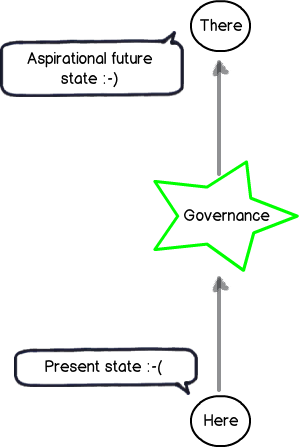
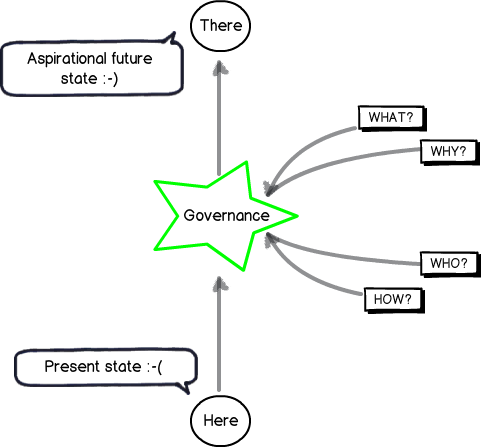
This image represents how governance of a SharePoint project should be viewed. A SharePoint initiative takes time and effort which costs money. We presumably have recognised that the present state is lacking in some way and want to get to somewhere better – an aspirational future place (if you look closely in the left above image note the happy and sad smilies). Accordingly we accept the cost of deploying SharePoint because we believe it will make a positive difference by doing so. If this was not the case, you would be wasting your time and resources on a pointless initiative. Therefore, it is the difference made by the initiative that will tell you if you have succeeded or not. As a result, we have to have a shared context on what that aspirational future looks like!

Don’t confuse the means with the ends…

Governance is, therefore, the means by which you will achieve the end of getting to some better place. It is informed by the end in mind and this is why I drew it in the star in the middle of the above diagram. For example; If the end in mind was compliance, then I will govern SharePoint a heck of a lot differently than say, if the end in mind was improving collaborative decision making.

But consider the diagram below. In this context, it should be clear why working from a definition of governance is often problematic. It implies that:

  1. Governance is not being informed by the end in mind;
  2. Your team do not have a shared understanding of what the end in mind actually looks like.

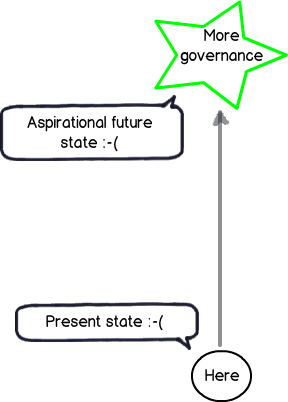
When this happens, project teams rarely realize it and respond by substituting the end with the means. We overly focus on governance via definition without any clarity or context as to what the aspirational future state actually is. Like the example of the blank spreadsheet example I started with, reality starts to look more like the diagram below: (note the happy smilie is gone now)

Snapshot

Steering…

So how do we steer out of this definition pickle? Interestingly “steer” is a appropriate choice of word if we look at the origin of the word “Govern”. This is because “Govern” is a nautical term from Latin and actually means “to steer”. So if your SharePoint project has been more like the Titanic, and hit a giant iceberg along the way, then clearly you need to focus your governance efforts to looking at what is in front of you, rather than scrubbing the deck or keeping the engine room well oiled. The latter tasks are important of course, but you can do all that, still hit an iceberg and waste a lot of money.

To steer, we all have to understand what the destination is, or at the very least, all agree on the direction. To help you with that journey, consider my final diagram. To steer SharePoint the right way for your organisation requires you to answer four key questions:

  1. What is the aspirational future state and what does it look like?
  2. Why is this the aspirational future state we want?
  3. Who will do what to get us to that state?
  4. How will we get to that state?

Snapshot

The fundamental problem with most SharePoint projects is that questions 1 and 2 are not answered sufficiently, if at all. The next few posts will explore why this is the case, but in the meantime, remember that we could do a SharePoint project that is to scope, time and cost, yet still have no user up-take if we are solving the wrong problem in the first place. Therefore remember that:

  1. Governance is a means to an end, and not the end in itself.
  2. We shouldn’t undertake a “SharePoint governance” project, or consider “SharePoint governance” as deliverable on a project plan. The act of developing a shared context of what the problems are and using that to always steer the governance decision making is paramount. Failure to do this and and your best plans will not save you.

Conclusions and coming next…

This is the second post on what will be a large series – possibly the largest series I have written so far. In the next post in this series, I will continue into our journey of SharePoint governance mistakes and along the way, start to identify what we can do to better answer the “What”, “Why”, “Who” and “How” questions. If you enjoy this series, then consider signing up to one of my classes if one is running in your neck of the woods.


Thanks for reading

Paul Culmsee
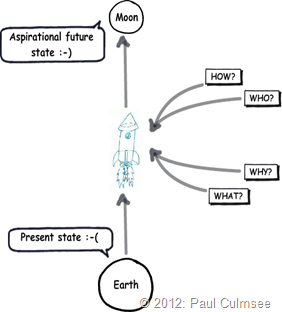
www.sevensigma.com.au

www.hereticsguidebooks.com


Demystifying SharePoint Performance Management Part 11 – Tales from the Microsoft labs

Hi all and welcome to the final article in my series on SharePoint performance management – for now anyway. Once SharePoint 2013 goes RTM, I might revisit this topic if it makes sense to, but some other blogging topics have caught my attention.

To recap the entire journey, the scene was set in part 1 with the distinction of lead and lag indicators. In part 2, we then examined Requests per Second (RPS) and looked at its strengths and weakness as a performance metric. From there, we spent part 3 looking at how to leverage RPS via the Log Parser utility and a little PowerShell goodness. Part 4 rounded off our examination of RPS by delving deeper into utilising log parser to eke out interesting RPS related performance metrics. We also covering the very excellent SharePoint Flavored Weblog Reader utility, which saves a bunch of work and can give some terrific insights. Part 5 switched tack into the wonderful world of latency, and in particular, focused on disk latency. Part 6 then introduced the disk performance metrics of IOPS, MBPS and their relationship to latency. We also looked at typical SharePoint and SQL Server disk IO characteristics and then examined the pros and cons of RPS, IOPS, Latency, MBPS and how they all relate to each other. In part 7 and continuing into part 8, we introduced the performance monitor counters that give us insight into these counters, as well as introduced the SQLIO utility to stress test disk infrastructure. This set the scene for part 9, where we took a critical look at Microsoft’s own real-world findings to help us understand what suitable figures would be. The last post then introduced a couple of other excellent tools, namely Process Monitor and Windows Performance Analysis Toolkit that should be in your arsenal for SharePoint performance.

In this final article, we will tie up a few loose ends.

Insights from Microsoft labs testing…

In part 9 of this series, I examined Microsoft’s performance figures reported from their production SharePoint 2010 deployments. This information comes from the oft mentioned SharePoint 2010 Capacity Planning Guide. Microsoft are a large company and they have four different SharePoint farms for different collaborative scenarios. To recap, those scenarios were:

  1. Enterprise Intranet environment (also described as published intranet). In this scenario, employees view content like news, technical articles, employee profiles, documentation, and training resources. It is also the place where all search queries are performed for all of the other the SharePoint environments within the company. Performance reported for this environment was 33580 unique users per day, with an average of 172 concurrent users and a peak concurrency of 376 users.
  2. Enterprise intranet collaboration environment (also described as intranet collaboration). In this scenario, is where important team sites and publishing portals are housed. Sites created in this environment are used as communication portals, applications for business solutions, and general collaboration. Performance reported for this environment was double the first environment with 69702 unique users per day. Concurrency was more than double, with an average of 420 concurrent users and a peak concurrency of 1433 users.
  3. Departmental collaboration environment. In this scenario, employees use this environment to track projects, collaborate on documents, and share information within their department. Performance reported for this environment was a much lower figure of 9186 unique users per day (which makes sense given it is departmental stuff). Nevertheless, concurrency was similar to the enterprise intranet scenario with an average of 189 concurrent users and a peak concurrency of 322 users.
  4. Social collaboration environment. This is Microsoft’s My Sites scenario, connecting employees with one another and presenting personal information such as areas of expertise, past projects, and colleagues to the wider organization. This included personal sites and documents for collaboration. Performance reported for this environment was 69814 unique users per day, with an average of 639 concurrent users and a peak concurrency of 1186 users

Presented as a table, we have the following rankings:

Scenario Social Collaboration Enterprise Intranet Collaboration Enterprise Intranet Departmental Collaboration
Unique Users 69814 69072 33580 9186
Avg Concurrent 639 420 172 189
Peak  Concurrent 1186 1433 376 322

When you think about it, the performance information reported for these scenarios are lag indicator based. That is, they are real-world performance statistics based on a pre-existing deployment. Thus while we can utilise the above figures for some insights into estimating the performance needs of our own SharePoint environments, they lack important detail. For example: in each scenario above, while the SharePoint farm topology was specified, we have no visibility into how these environments were scaled out to meet performance needs.

Some lead indicator perspective…

Luckily for us, Microsoft did more than simply report on the performance of the above four collaboration scenarios. For two of the scenarios Microsoft created test labs and published performance results with different SharePoint farm topologies. This is really handy indeed, because it paints a much better lead indicator scenario. We get to see what bottlenecks occurred as the load on the farm was increased. We also get insight about what Microsoft did to alleviate the bottlenecks and what sort of a difference it made.

The first lab testing was based off Microsoft’s own Departmental collaboration environment (the 3rd scenario above) and is covered on pages 144-162 of the capacity planning guide. The other lab was based off the Enterprise Intranet Collaboration Environment (the 2nd scenario above) and is the focus of attention on pages 174-197. Consult the guide for full detail of the tests. This is just a quick synthesis.

Lab 1: Enterprise Intranet Collaboration Environment

In this lab, Microsoft took a subset of the data from their production environment using different hardware. They acknowledge that the test results will be affected by this, but in my view it is not a show stopper if you take a lead indicator viewpoint. Microsoft tested web server scale out initially by starting out with a 3 server topology (one web front end server, one application server and one database server). They then increased the load on the farm until they reached a saturation point. Once this happened, they added an additional web server to see what would happen. This was repeated and scaled from one Web server (1x1x1) to five Web servers (5x1x1).

The transactional mix used for this testing was based on the breakdown of transactions from the live system. Little indication of read vs. write transactions are given in the case study, but on page 152 there is a detailed breakdown of SharePoint traffic by type. While I won’t detail everything here, regular old browser traffic was the most common, representing 36% of all test traffic. WebDAV came in second (WebDAV typically includes office clients and windows explorer view) representing 28.12 of traffic and outlook sync traffic third at 7.04%.

Below is a table showing the figures where things bottlenecked. Microsoft produce many graphs in their documentation so the figures below are an approximation based on my reading of them. It is also important to note that Microsoft did not perform tests while search was running, and compensated for search overhead by defining a max CPU limit for SQL Server of 80%.

1*1*1 2*1*1 3*1*1 4*1*1 5*1*1
Max RPS 180 330 510 560 565
Sustainable RPS 115 210 305 390 380
Latency .3 .2 .35 .2 .2
IOPS 460 710 910 920 840
WFE CPU 96% 89% 89% 76% 58%
SQL CPU 17% 33% 65% 78% 79%

For what its worth, the sustainable RPS figure is based on the server not being stressed (all servers having less than 50% CPU). Looking at the above figures, several things are apparent.

  1. The environment scaled up to four Web servers before the bottleneck changed to be CPU usage on the database server
  2. Once database server CPU hit its limits, RPS on the web servers suffered. Note that RPS from 4*1*1 to 5*1*1 is negligible when SQL CPU was saturated.
  3. The addition of the fourth Web server had the least impact on scalability compared to the preceding three (RPS only increased from 510 to 560 which is much less then adding the previous web servers). This suggests the SQL bottleneck hit somewhere between 3 and 4 web servers.
  4. The average latency was almost constant throughout the whole test, unaffected by the number of Web servers and throughput. This suggests that we never hit any disk IO bottlenecks.

Once Microsoft identified the point at which Database server CPU was the bottleneck (4*1*1), they added an additional database server and then kept adding more webservers like they did previously. They split half the content databases onto one SQL server and half on the other. It is important to note that the underlying disk infrastructure was unchanged, meaning that total disk performance capability was kept constant even though there were now two database servers. This allowed Microsoft to isolate server capability from disk capability. Here is what happened:

4*1*1 4*1*2 6*1*2 8*1*2
RPS 560 660 890 930
Latency .2 .35 .2 .2
IOPS 910 1100 1350 1330
WFE CPU 76% 87% 78% 61%
SQL CPU 78% 33% 52% 58%

Here is what we can glean from these figures.

  1. Adding a second database server did not provide much additional RPS (560 to 660). This is because CPU utilization on the Web servers was high. In effect, the bottleneck shifted back to the web front end servers.
  2. With two database servers and eight web servers (8*1*2), the bottleneck became the disk infrastructure. (Note the IOPS at 6*1*2 is no better than 8*1*2).

So what can we conclude? From the figures shown above, it appears that you could reasonably expect (remember we are talking lead indicators here) that bottlenecks are likely to occur in the following order:

  1. Web Server CPU
  2. Database Server CPU
  3. Disk IOPS

It would be a stretch to suggest when each of these would happen because there are far too many variables to consider. But let’s now examine the second lab case study to see if this pattern is consistent.

Lab 2: Divisional Portal Environment

In this lab, Microsoft took a different approach from lab we just examined. This time they did not concern themselves with IOPS (“we did not consider disk I/O as a limiting factor. It is assumed that an infinite number of spindles are available”). The aim this time was to determine at what point a SQL Server CPU bottleneck was encountered. Based on what I have noted from the first lab test above, unless your disk infrastructure is particularly crap, SQL Server CPU should become a bottleneck before IOPS. However, one thing in common with the last lab test was that Microsoft factored in the effects of an ongoing search crawl by assuming 80% SQL Server CPU as the bottleneck indicator.

Much more detail was provided on the transaction breakdown for this lab. Page 181 and 182 lists transactions by type and and unlike the first lab, whether they are read or write. While it is hard to directly compare to lab 1, it appears that more traffic is oriented around document collaboration than in the first lab.

The basic methodology of this was to start off with a minimal farm configuration of a combined web/application server and one database server. Through multiple iterations, the test ended with a configuration of three Web servers, one application server, one database server.  The table of results are below:

1*1 1*1*1 2*1*1 3*1*1
RPS 101 150 318 310
Sustainable RPS 75 99 191 242
Latency .81 .85 .6 .8
Users simulated 125 150 200 226
WFE CPU 86% 36% 76% 42%
APP CPU NA 41% 46% 44%
SQL CPU 18% 32% 56% 75%

Here is what we can glean from these figures.

  1. Web Server CPU was the first bottleneck encountered.
  2. At a 3*1*1 configuration, SQL Server CPU became the bottleneck.  In lab 1 it was somewhere between the 3rd and 4th webserver.
  3. RPS, when CPU is taken into account, is fairly similar between each lab. For example, in the first lab, the 2*1*1 scenario RPS was 330. In this lab it was 318 and both had comparable CPU usage. The 1*1*1 test, had differing results (101 vs 180) , but if you adjust for the reported CPU usage, things even up.
  4. With each additional Web server, increase in RPS was almost linear. We can extrapolate that as long as SQL Server is not bottlenecked, you can add more Web servers and an additional increase in RPS is possible.
  5. Latencies are not affected much as we approached bottleneck on SQL Server. Once again, the disk subsystem was never stressed.
  6. The previous assertion that bottlenecks are likely to occur in the the order of Web Server CPU, Database Server CPU and then Disk subsystem appears to hold true.

Now we go any further, one important point that I have neglected to mention so far is that the figures above are extremely undesirable. Do you really want your web server and database server to be at 85% constantly? I think not. What you are seeing above are the upper limits, based on Microsoft’s testing. While this helps us understand maximum theoretical capacity, it does not make for a particularly scalable environment.

To account for the issue of reporting on max load, Microsoft defined what they termed as a “green zone” of performance. This is a term to describe what “normal” load conditions look like (for example, less than 50% CPU) and they also provided RPS results for when the servers were in that zone. If you look closely in the above tables you will see those RPS figures there as I labelled them as “Sustainable RPS”.

In case you are wondering, the % difference between sustainable RPS and peak RPS for each of the scenarios ranges between 60-75% of the peak RPS reported.

Some Microsoft math…

In the second lab, Microsoft offers some advice on how translate their results into our own deployments. They suggest determining a users to RPS ratio and then utilising the green zone RPS figures to estimate server requirements. This is best served via their own example from lab 2: They state the following:

  • A divisional portal in Microsoft which supports around 8000 employees collaborating heavily, experiences an average RPS of 110.
  • That gives a Users to RPS ratio of ~72 (that is, 8000/110). That is: 72 users will amount to 1 RPS.
  • Using this ratio and assuming the sustainable RPS figures from lab 2 results, Microsoft created the following table (page 196) to suggest the number of users a typical deployment might support.

image

A basic performance planning methodology…

Okay.. so I am done… I have no more topics that I want to cover (although I could go on forever on this stuff). Hopefully I have laid out enough conceptual scaffolding to allow you to read Microsoft’s large and complex documentation regarding SharePoint performance and capacity guide with more clarity than before. If I were to sum up a few of the key points of this 11 part exploration into the weird and wonderful world of SharePoint performance management it would be as follows:

  1. Part 1: Think of performance in terms of lead and lag indicators. You will have less of a brain fart when trying to make sense of everything.
  2. Part 2: Requests are often confused with transactions. A transaction (eg “save this document”) usually consists of multiple requests and the number of requests is not an indicator of performance. Look to RPS to help here…
  3. Part 3 and 4: The key to utilising RPS is to understand that as a counter on its own, it is not overly helpful. BUT it is the one metric that you probably have available in lots of detail, due to it being captured in web server logs over time. Use it to understand usage patterns of your sites and portals and determine peak usage and concurrent usage.
  4. Part 5: Latency (and disk latency in particular) is both unavoidable, yet one of the most common root causes of performance issues. Understanding it is critical.
  5. Part 6: Disk latency affects – and is affected by – IOPS, IO size and IO patterns. Focusing one one without the others is quite pointless. They all affect each other so watch out when they are specified in isolation (ie 5000 IOPS).
  6. Part 6, 7 and 8:  Latency and IOPS are handy in the  sense that they can be easily simulated and are therefore useful lead indicators. Test all SQL IO scenarios at 8k and 64K IO size and ensure it meets latency requirements.
  7. Part 9: Give your SAN dudes a specified IOPS, IO Size and latency target. Let them figure out the disk configuration that is needed to accommodate. If they can make your target then focus on other bottleneck areas.
  8. Part 10: Process Monitor and Windows Performance Analyser are brilliant tools for understanding disk IO patterns (among other things)
  9. Part 9 and 11: Don’t believe everything you read. Utilise Microsoft’s real world and lab results as a guide but validate expected behaviour by testing your own environment and look for gaps between what is expected and what you get.
  10. Part 11: In general, Web Server CPU will bottleneck first, followed by SQL Server CPU. If you followed the advice of points 6 and 7 above, then disk shouldn’t  be a problem.

Now I promised at the very start of this series, that I would provide you with a lightweight methodology for estimating SharePoint performance requirements. So assuming you have read this entire series and understand the implications, here goes nothing…

If they can meet this target, skip to step 8.  🙂

If they cannot meet this, don’t worry because there are two benefits gained already. First, by finding that they cannot get near the above figures, they will do some optimisation like test different stipe sizes and check some other common disk performance hiccups. This means they now better understand the disk performance patterns and are thinking in terms of lead indicators. The second benefit is that you can avoid tedious, detailed discussions on what RAID level to go with up front.

So while all of this is happening, do some more recon…

  • 4. Examine Microsoft and HP’s testing results that I covered in part 9 and in this article. Pay particular attention to the concurrent users and RPS figures. Also note the IOPS results from Microsoft and HP testing. To remind you, no test ever came in over 1400 IOPS.
  • 5. Use logparser to examine your own logs to understand usage patterns. Not only should you eke out metrics like max concurrent users and RPS figures, but examine peak times of the day, RPS growth rate over time, and what client applications or devices are being used to access your portal or intranet.
  • 6. Compare your peak and concurrent usage stats to Microsoft and HP’s findings. Are you half their size, double their size? This can give you some insight on a lower IOPS target to use. If you have 200 simultaneous users, then you can derive a target IOPS for your storage guys to meet that is more modest and in line with your own organisations size and make-up.

By now the storage guys will come back to you in shock because they cannot get near your 5000 IOPS requirement. Be warned though… they might ask you to sign a cheque to upgrade the storage subsystem to meet this requirement. It won’t be coming out of their budget for sure!

  • 7. Tell them to slowly reduce the IOPS until they hit the 8ms and 1ms latency targets and give them the revised target based on the calculation you made in step 6. If they still cannot make this, then sign the damn cheque!

At this point we have assumed that there is enough assurance that the disk infrastructure is sound. Now its all about CPU and memory.

  • 8. Determine a users to RPS ratio by dividing your total user base by average RPS (based on your findings from step 5).
  • 9.  Look at Microsoft’s published table (page 196 of the capacity planning guide and reproduced here just above this conclusion). See what it suggests for the minimum topology that should be needed for deployment.
  • 10. Use that as a baseline and now start to consider redundancy, load balancing and all of that other fun stuff.

And there you have it! My 10 step dodgy performance analysis method.  Smile

Conclusion and where to go next…

Right! Although I am done with this topic area, there are some next steps to consider.

Remember that this entire series is predicated on the notion that you are in the planning stage. Let’s say you have come up with a suggested topology and deployed the hardware and developed your SharePoint masterpiece. The job of ensuring performance will work to expectations does not stop here. You still should consider load testing to ensure that the deployed topology meets the expectations and validates the lead indicators. There is also a  seemingly endless number of optimisations that can be done within SharePoint too, such as caching to reduce SQL Server load or tuning web application or service application settings.

But for now, I hope that this series has met my stated goal of making this topic area that little bit more accessible and thankyou so much for taking the time to read it all.


Paul Culmsee

www.hereticsguidebooks.com

www.sevensigma.com.au


Demystifying SharePoint Performance Management Part 10 – More tools of the trade…

Hi all and welcome to the tenth article in my series on demystifying SharePoint performance management. I do feel that we are getting toward the home stretch here. If you go way back to Part 1, I stated my intent to highlight some common misconceptions and traps for younger players in the area of SharePoint performance management, while demonstrating a better way to think about measuring SharePoint performance (i.e. lead and lag indicators). While doing so, we examined the common performance indicators of RPS, IOPS, MBPS, latency and the tools and approaches to measuring and using them.

I started the series praising some of Microsoft’s material, namely the “Planning guide for server farms and environments for Microsoft SharePoint Server 2010.”, “Capacity Planning for Microsoft SharePoint Server 2010” and “Analysing Microsoft SharePoint Products and Technologies Usage” guides. But they are not perfect by any stretch, and in last post, I covered some of the inconsistencies and questionable information that does exist in the capacity planning guide in particular. Not only are some of the disk performance figures quoted given without any critical context needed to understand how to measure them in a meaningful way, some of the figures themselves are highly questionable.

I therefore concluded Part 9 by advising readers not to believe everything presented and always verify espoused reality with actual reality via testing and measurement.

Along the journey that we have undertaken, we have examined some of the tools that are available to perform such testing and measurement. So far, we have used Log Parser, SharePoint Flavored Weblog Reader, Windows Performance Monitor, SQLIO and the odd bit of PowerShell thrown in for good measure. This article will round things out by showing you two additional tools to verify theoretical fiction with hard cold reality. Both of these tools allow you to get a really good sense of IO patterns in particular (although they both have many other purposes). The first of which will be familiar to my more nerdy readers, but the second of which is highly powerful, but much lesser known to newbies and seasoned IT pros alike.

So without further adieu, lets meet our tools… Process Monitor and Windows Performance Analysis Toolkit.

Process Monitor

Our first tool is Process Monitor, also commonly known as Procmon. Now this tool is quite well known, so I will not be particularly verbose with my examination of it. But for the three of you who have never heard of this tool, Process Monitor allows us to (among many other things), monitor accesses to the file system by processes running on a server. This allows us to get a really low level view of IO requests as they happen in real time. What is really nice about Process Monitor is its granularity. It allows you to set up some sophisticated filtering that allows you to really see the wood from the trees. For example, one can create fairly elaborate filters that allow you to just see the details of a specific SQL database. Also handy is that all collected data can be saved to file for later examination too.

When you start Process Monitor, you will see a screen something like the one below. It will immediately start collecting data about various operations (there are around 140 monitorable operations that cover file system, registry, process, network and kernel stuff). When you launch Process Monitor it immediately starts monitoring file system, registry and processes. The default columns that are displayed include:

  • the name of the process performing the operation
  • the operation itself
  • the path to the object the operation was performed on
  • (and most importantly), a detail column, that tells you the good stuff.

image

The best way to learn Process Monitor is by example, so lets use it to collect SQL Server IO patterns on SharePoint databases when performing a full crawl in SharePoint (while excluding writes to transaction logs). It will be interesting to see the the range of IO request sizes during this time. To achieve this, we need to set up the filters for procmon to give us just what we need…

First up,  choose “Filter…” from the Filter menu.

image

In the top left column, choose “Process Name” from the list of columns. Leave the condition field as “is” and click on the drop down next to it. It will enumerate the running processes, allowing you to scroll down and find sqlservr.exe.

image   image

Click OK and your newly minted filter will be added to the list (check out the green include filter below). Now we will only see operations performed by SQL Server in the Process Monitor display.

image

Rather than give you a dose of screenshot hell, I will not individually show you how to add each filter as they are a similar process to what we just did to include only SQLSERVR.EXE. In all, we have to apply another 5 filters. The first two filter the operations down to reading and writing to the disk.

  • Filter on: Process Name
  • Condition: Is
  • Filter  applied: ReadFile
  • Filter type: Include
  • Filter on: Process Name
  • Condition: Is
  • Filter applied: WriteFile
  • Filter type: Include

Now we need to specify the database(s) that we are interested in. On my test server, SharePoint databases  are on a disk array mounted as D:\ drive. So I add the following filter:

  • Filter on: Path
  • Condition: Contains
  • Filter applied: D:\DATA\MSSQL
  • Filter type: Include

Finally, we want to exclude writes to translation logs. Since all transaction logs write to files with an .LDF extension, we can use an exclusion rule:

  • Filter on: Path
  • Condition: Contains
  • Filter applied: LDF
  • Filter type: Exclude

Okay, so we have our filters set. Now widen the detail column that I mentioned earlier. If you have captured some entries, you should see the word “Length :” with a number next to it. This is reporting the size of the IO request in bytes. Divide by 1024 if you want to get to kilobytes (KB). Below you can see a range of 1.5KB to 32KB.

image

At this point you are all set. Go to SharePoint central administration and find the search service application. Start a full crawl and fairly quickly, you should see matching disk IO operations displayed in Process Monitor. When the crawl is finished, you can choose to stop capturing and save the resulting capture to file. Process Monitor supports CSV format, which makes it easy to import into Excel as shown below. (In the example below I created a formula for the column called “IO Size”.

image

By the way, in my quick test analysis of disk IO of a window during during part of the during a full crawl, I captured 329 requests that were broken down as follows:

  • 142 IO requests (42% of total) were 8KB in size for a total of 1136KB
  • 48 IO requests (15% in total) were 16KB in size for a total of 768KB
  • 48 IO requests (15% in total) were >16KB to 32KB in size for a total of  1136KB
  • 49 IO requests (15% in total) were >32KB to 64KB in size for a total of 2552KB
  • 22 IO requests (7% in total) were >64KB to 128KB in size for a total of 2104KB
  • 20 IO requests (6% in total) were >128KB to 256KB in size for a total of 3904KB

Windows Performance Analyser (with a little help from Xperf123)

Allow me to introduce you to one of the best tools you never knew you needed. Windows Performance Analyser (WPA) is a newer addition to the armoury of tools for performance analysis and capacity planning. In short, it takes the idea of Windows Performance Monitor to a whole new level. WPA comes as part of a broader suite of tools collectively known as the Windows Performance Toolkit (WPT). Microsoft describes the toolkit as:

…designed for analysis of a wide range of performance problems including application start times, boot issues, deferred procedure calls and interrupt activity (DPCs and ISRs), system responsiveness issues, application resource usage, and interrupt storms.”

If most of those terms sounded scary to you, then it should be clear that WPA is a pretty serious tool and has utility for many things, going way beyond our narrow focus of Disk performance. But never fear BA’s, I am not going to take a deep dive approach to explaining this tool. Instead I am going to outline the quickest and simplest way to leverage WPA for examining disk IO patterns. In fact, you should be able to follow what I outline here on your own PC if SharePoint is not conveniently located nearby.

Now this gem of a tool is not available as a separate download. It actually comes installed as part of the Microsoft Windows SDK for Windows 7 and .NET Framework 4. Admins fearing bloat on their servers can rest easy though, as you can choose just to install the WPT components as shown below…

image_thumb6_thumb

By default, the windows performance toolkit will install its goodies into the C:\Program Files\Microsoft Windows Performance Toolkit” folder. So go ahead and install it now since it can be installed onto any version of Windows past Vista. (I am sure that none of you at all are reading this article on an Apple device right? :-).

Now assuming you have successfully installed WPT, I now want you to head on over to codeplex and download a little tool called Xperf123 and save it into the toolkit folder above. Xperf123 is a 3rd party tool that hides a lot of the complexity of WPA and thus is a useful starting point. The only thing to bear in mind is that Xperf123 is not part of WPA and is therefore not a necessity. If your inner tech geek wants to get to know the WPA commands better, then I highly recommend you read a highly comprehensive article written by Microsoft’s Robert Smith and published back in Feb 2012. The article is called “Analysing Storage Performance using the Windows Performance Analysis Toolkit” and it is an outstanding piece of work in this area.

So we are all set. Let’s run the same test as we did with Procmon earlier. I will start a trace on my test SharePoint server, run a full crawl and then look at the resulting IO patterns. Perform the following steps in sequence. (in my example I am using a test SharePoint server).

  1. Start Xperf123 from the WPT installation folder (run it as administrator).
  2. At the initial screen, click Next and then Next again at the screen displaying operating system details
  3. From the Select Trace Type dropdown, choose Disk  I/O and press Next
  4. Ensure that “Enable Perfmon”, “use Circular Logging” and optionally choose “Specify Output Directory”. Press Next
  5. Leave “Stackwalk” unticked and choose Next

image     image

image  image

AllrIghtie then… we are all set! Click the Start Capture Button to start collecting the good stuff! Xperf123 will run the actual WPA command line trace utility (called xperf.exe if you really want to know). Now go to SharePoint central administration and like what we did with our test of Process Monitor, start a full crawl. Wait till the crawl finishes and then in Xperf123, click the Stop Capture Button. A trace file will be saved in the WPT installation folder (or wherever you specify). The naming convention will be based on the server name and date the trace was run.

image  image

image

Okay, so capturing the trace was positively easy. How about analysing it visually?

Double click on the newly minted trace file and it will be loaded into the Performance Analyser analysis tool (This tool is also available from the Start menu as well). When the tool loads and processes the trace file, you will see CPU and Disk IO counts reported visually. The CPU is the line graph and IO counts are represented in a bar graph. Unlike Windows Performance Monitor which we covered in Part 7, this tool has a much better ability to drill down into details.

If you look closely below there are two “flyout” arrows. One is on the left side in the middle of the screen and applies to all graphs and the other is on the top-right of each graph. If you click them, you are able to apply filters to what information is displayed. For example: if you click the “IO Counts” flyout, you can filter out which type of IO you want to see. Looking at the screenshot below, you can see that the majority of what was captured were disk writes (the blue bars below).

image  image

Okay so lets get a closer look at what is going on disk-wise. Right click somewhere on the Disk IO bar graph and choose “Detail Graph” from the menu.

image

Now we have a very different view. On the left we can see which disk we are looking at and on the right we can see detailed performance stats for that disk. It may not be clear by the screenshot, but the disk IO reported below is broken down by process. This detailed view also has flyouts and dropdowns that allow you to filter what you see. There is an upper-left dropdown menu under the section called “Physical Disk”. This allows you to change what disk you are interested in. On the upper right, there is a flyout labelled “Process Name”. Clicking this allows you to filter the display to only view a subset of the process that were running at the time the trace was captured.

image

Now in my case, I only want to see the SQL Database activity, so I will make use of the aforementioned filtering capability. Below I show where I selected the disk where the database files reside and on the right I deselected all processes apart from SQLSERVR.EXE. Neat huh? Now we are looking at the graph of every individual IO operation performed during the time displayed and you can even hover over each dot to get more detail of the IO operation performed.

image

You can also zoom in with great granularity. Simply select a time period from the display using by dragging the mouse pointer over the graph area. Right click the now selected time period and choose “Zoom to Selection”. Cool eh? If your mouse has a wheel button, you can zoom in and out by pressing the Ctrl key and rolling the mouse wheel.

image

Now even for most wussy non technical BA reading this, surely your inner nerd is liking what you see. But why stop here? After all, Process Monitor gave us lots more loving detail and had the ability to utilise sophisticated filtering. So how does WPA stack up?

To answer this question, try these steps, Right click on the detail graph and this time choose “Summary Table”. This allows us to view even more detail of IO data.

image

image

Viola! We now have a list of every IO transaction performed during the sample period. Each line in the summary table represents a single I/O operation. The columns are movable and sortable as well. On that note, some of the more interesting ones for our purposes include (thanks Robert Smith for the explanation of these):

  • IO Type: Read, Write, or Flush
  • Complete Time: Time of I/O completion in milliseconds, relative to start and stop of the current trace.
  • IO Time: The amount of time in milliseconds the I/O took to complete
  • Disk Service Time: The inferred amount of time (in microseconds) the IO operation has spent on the device (this one has caveats, check Robert Smiths post for detail).
  • QD/I: Queue Depth the disk , irrespective of partitions, at the time this I/O request initialized
  • IO Size: Size of this I/O, in bytes.
  • Process Name: The name of the process that initiated this I/O.
  • Path: Path and file name, if known, that is the target of this I/O (in plain English, this essentially means the file name).

I have a lot of IO requests in this summary view, so let’s see how this baby can filter. First up, lets only look at IO that was initiated from SQL Server only. Right click on the “Process Name” column and choose “Filter To” –> “Search on Column…” In the resulting window, enter “SQLSERVR.EXE” in the “Find what:” textbox. Double check that the column name is set to “Process name” in the dropdown and click Filter.

image  image

You should now see only SQL IO traffic. So let’s drill down further still. This time I want to exclude IO transactions that are transaction log related. To do this, right click on the “Path Name” column and choose “Filter To” –> “Search on Column…” In the resulting window, enter “MDF” in the “Find what:” textbox. Double check that the column name is set to “Path name” in the dropdown and click Filter.

image image

Can you guess the effect? Only SQL Server database files will be displayed since they typically have a file extension of MDF.

In the screenshot below, I have then used the column sorting capability to look at the IO sizes. Neat huh?

image

Don’t forget Performance Monitor…

Just before we are done with Windows Performance Analysis Toolkit, cast your mind back to the start of this walkthrough when we used Xperf123 to generate this trace. If you check back, you might recall there was a tickbox in the Xperf123 wizard called “Enable Perfmon”. Well it turns out that Xperf123 had one final perk. While the WPA trace was made, a Perfmon trace was made of the system performance more broadly during the time. These logs are located in the C:\PerfLogs\ directory and are saved in the native Windows Performance Monitor format. So just double click the file and watch the love…

image

How’s that for a handy added bonus. It is also worth mentioning that the Perfmon trace captured has a significant number of performance counters in the categories of Memory, PhysicalDisk, Processor and System.

Conclusion and coming next…

Well! That was a long post, but that was more because of verbose screenshots than anything else.

Both Windows Performance Monitor and Windows Performance Analyser are very useful tools for developing a better understanding of disk IO patterns. While Procmon has more sophisticated filtering capabilities, WPA trumps Procmon in terms of reduced overhead (apparently 20,000 events per second is less than 2% CPU on a 2.0 GHz processor ). WPA also has the ability to visualise and drill down into the data better than Procmon can do.

Nevertheless, both tools have far more utility beyond the basic scenarios outlined in this series and are definitely worth investigating more.

In the next and I suspect final post, I will round off this examination of performance by making a few more general SharePoint performance recommendations and outlining a lightweight methodology that you can use for your own assessments.

Until then, thanks for reading…

Paul Culmsee

www.hereticsguidebooks.com


Demystifying SharePoint Performance Management Part 9 – Don’t believe everything you R/W

Hi and welcome to Part 9 (bloody hell… nine!) of my series on trying to demystify SharePoint performance management a bit. If by any chance you have been asked to provide some sizing information for your organisation and you are finding the resources online a bit overwhelming, this series is for you. If you have been a part of our varied journey so far, the last few posts have been all about Disk IO performance in the form of latency, IOPS and MBPS. In the last two articles, we have been learning about the different IO patterns that SQL Server is likely to utilise, as well as using the jackhammer known as the SQLIO utility, that is used to simulate those IO patterns on unsuspecting disk infrastructure.

Now just to set the scene for this post (and conveniently perform some product placement), I recently published a book called “The Heretics Guide to Best Practices”. Now being the author and all, I am going to suggest you buy it because it is a completely riveting read! :-).

Now apart from blatant product placement, the real reason I mention it is because one of the chapters is called “Myths, Memes and Methodologies”. In it, we examine why some ideas gain legitimacy, even though they are based on often completely dodgy foundations. I mention this here, because in terms of SQL disk IO sizing, something similar has happened with Microsoft’s published material on the topic. So the focus of this article is to finish off our discussion on understanding disk IO patterns, while lifting the lid on some of the inconsistencies in the material that that end up being repeated by SharePoint consultants as gospel to their unsuspecting disciples.

Now harking way back to part 1 to the notion of lead vs. lag indicators, our use of SQLIO thus far has essentially been used as a lead indicator. While SQLIO puts a real load on disk infrastructure and faithfully reports the resulting IOPS, latency and MBPS, the reality is it can never truly capture the nuances of a production SharePoint farm doing its thing. But in terms of a lead indicator that is okay. After all, a lead indicator by definition cannot guarantee an outcome. It can merely suggest that an outcome should be able to be met.

So while we are thinking about the lead indicator world view, some of you might have noticed that I have not yet made any suggestions what are the minimum conditions of satisfaction for disk infrastructure used to underpin SharePoint. This has been deliberate until now, because I felt that it was critical to understand the relationship between the size of a disk IO operation, and its effect on IOPS, latency and MBPS first. To that end, hopefully I have instilled a reflex in you where – if you are given an arbitrary latency, IOPS or MBPS figure that you have to meet – you immediately ask questions like, “What sort of IO patterns?” or “how large is the IO request typically going to be?” or “is the IO random or sequential?”

When whitepapers mislead…

Now we are about to get into one area where Microsoft’s published documentation is quite weak. Remember the 367 page “Capacity Planning for Microsoft SharePoint Server 2010” whitepaper? Starting at page 326, there is a section with the promising title of “Estimate Core Storage and IOPS needs” (this topic is also available separately as a technet article too). The problem is in despite that title, very little IOPS guidance actually is given. Instead the content in the section overwhelmingly speaks about estimating storage requirements. In fact the best you get is one explicit mention of IOPS in relation to the SharePoint Search service application which states the following:

The IOPS requirements for Search are significant.

  • For the Crawl database, search requires from 3,500 to 7,000 IOPS.
  • For the Property database, search requires 2,000 IOPS.

Note: For the purpose of the rest of this article, lets add the above figures together and simply say between 5,500 to 9000 IOPS for search.

Do you see the problem here? This is simply an arbitrary IOPS figure with no guidance as to the IO patterns underpinning it. What about latency or the IO request size that you need to assume? Unfortunately, no guidance is given for these questions which makes this quoted figure not overly helpful. Plus, as you will soon see below, Microsoft seemingly contradict themselves elsewhere in the same whitepaper…

So what are good numbers to use?

In the absence of any hard data, the best way to deal with storage requirements is to think in terms of lead indicators. Indicators from a lead point of view, can be framed as targets – something to aim for. Targets then can be broken down into different categories ranging from “cover your arse” to “above and beyond”:

  • Aspired target: The “this would be bloody fantastic if we could get there” target.
  • Agreed target: The “this is what we are going to deliver no matter what” target.
  • Minimum Condition of Satisfaction (MCOS) target: The “If we don’t achieve this we may as well pack up and go home” target.

So given these sorts of targets, what should the disk IO performance targets for SharePoint be? To work this out, we can utilise information already out there. Well…that is, we could if the information out there wasn’t so disparate and disconnected. So unfortunately, it takes some digging to you can find what you need.

Our first point of call in this regard is indeed Microsoft and the very same capacity planning and configuration guide that I criticised earlier for poorly dealing with IOPS. Hidden in the bowls of that document, the following statement is made on page 334 (emphasis mine):

Any storage architecture must support your availability needs and perform adequately in IOPS and latency. To be supported, the system must consistently return the first byte of data within 20 milliseconds.

So the way I look at it, a 20ms latency should be our MCOS target (see the explanation above for MCOS). If we consistently do worse than this, then we do not have a lot of assurance about the scalability of the disk IO subsystem being used for SharePoint. But like the arbitrary IOPS figure quoted in the previous section, I wonder if readers have spotted the problem with specifying this latency figure alone?

In both cases, don’t forget the almost symbiotic type of relationships between IO size, IOPS and latency. If we assumed that all IO operations were small (for example SQL’s page size of 8KB) then we could likely stay way under the 20ms limit with a more modest disk infrastructure. But to sustain the same latency with a larger IO size would require a faster disk subsystem. Why? Well as we discussed in part 6, if the size of the IO writes are larger, such as 64KB, then latency will go up because servicing larger requests takes longer than smaller ones. Therefore, if we were to assume a larger IO size, we would need more/faster disks to be able to meet the same 20ms latency KPI.

So what disk IO size should we assume to give context to a latency figure? Some insight can be found back in part 6, when we examined SQL IO characteristics and established that it will likely be much more varied than SQL’s base IO unit of 8KB pages. My suggestion therefore, is to test 8KB but also ensure that 64KB can meet the latency target. This is because 64KB represents a reasonable average size between the 8KB to 256KB range most SQL Server’s IO operations will fall within. Thus, if a SQLIO test using random read/writes at 64K indicates more than 20ms latency consistently, then you should probably ask your storage people to take another look at it.

By the way, if you really want to give your storage guys a challenge, keep jacking up the IO size!

What about aspired latency targets?

So if you are cool with the notion that the minimum condition of satisfaction for a random IO test using 64K size should be less than 20ms latency, what about aiming higher with agreed or aspirational targets?

Luckily for all of us, we can once again stand on the shoulders of giants. In this case, the Bob Duffy indirectly answers this question by providing what he considers to be the indicators for optimal SQL Server performance in general. In an excellent article with the rather appropriate title of “How to Specify SQL Storage Requirements to your SAN Dude” Bob makes the following recommendations:

  • SQL Data files must have a response time averaging about 8ms and a maximum response time of around 20ms using 64k size IOs and that are random in nature
  • SQL Log Files must have a write response time averaging from 1-5ms. use 64k IO size and are sequential in nature

The nice thing about specifying a target or benchmark like this, is that you are able to sidestep discussions on RAID levels, stripe sizes and many other things that SAN nerds find interesting. We keep things focused on the lead indicators and in effect state “If you can meet these figures, configure it any way you like.” This gives the SAN guys the freedom to do their job, while giving you an indicator that can give you confidence in the disk infrastructure. So if we were to distil the figures above into lead indicator targets for storage gurus, it might look something like this:

  • MCOS target: Less than 20ms latency for random IO requests of 64KB
  • Agreed target: Average 8ms latency for random IO requests of 64KB with no more than 20ms max latency. Less than 5ms latency for sequential log IO
  • Aspired target: No more than 8ms latency for random SQL IO requests of 64KB and average of 1ms latency sequential log IO with max never going above 5ms

Now in the ProData article, Bob made a slightly tongue in cheek point that sums up the above thinking really well, as well as giving insight to a critical aspect we have not considered so far…

Nowadays most SQL consultants try and not talk about RAID types and types of disk, it can be best to leave that up to the storage guys. If the storage team can meet my requirement for 5,000 random 64k read/write IOPs at 8ms latency by using 50 old SATA drives at 5,400 rpm in RAID 5 then knock yourself out – I’m happy. Well maybe I’m happy till we have that chat about Service Level requirements during a disk degrade event but that’s a different story…

If you look closely at Bob’s quote, you will see that he has also specified the last critical variable in the mix. Bob’s mention of “5000 random 64k read/write IOPS” is in reference to another point he makes. Without an IOPS figure to work from, the targets we have come up with are effectively meaningless. Quoting Bob:

The main thing to specify apart form your latency requirement is the throughput (IOPs). It is no good meeting the 8ms target for 100 IOPs and then finding your workloads needs 5,000 IOPs. You wont be able to meet the 8ms target!!

Consider it this way… a SharePoint site that services 100,000 users, will process a lot more IO requests than a site that services 10 users. With the latter, it is quite likely that the latency targets we have been talking about (even the aspirational ones) would be pretty easy to meet with a single disk. (To hark back to our shopping centre metaphor, one check out operator is all that is needed at a corner store, whereas many are needed at the supermarket). This is presumably why Bob has used a figure like 5000 IOPS for his post. It is probably a figure that conveniently represents some fairly heavy disk usage. But it does beg two question:

  • How much IOPS should we use to simulate SharePoint IOPS?
  • In the absence of anything else, perhaps 5000 IOPS is a good figure to go with?

Don’t believe all you read…

Now if you go back and read the start of this post, you will recall I mentioned that Microsoft stated some IOPS figures for the SharePoint search application databases ranged between 5,500 to 9000. That would indicate that Bob’s base figure of 5000 is a bit low, especially given that SharePoint has many other components beyond search that have not been taken into account. So to put Bob’s 5000 IOPS figure in perspective, let’s re-examine Microsoft’s trusty capacity planning whitepaper. One of the great things about this document is that Microsoft detailed the performance stats of a typical day in the life of their internal SharePoint environments. Since Microsoft are so large, they have different SharePoint farms for different collaborative scenarios. The scenarios they covered were:

  1. Enterprise Intranet environment (also described as published intranet). In this scenario, employees view content like news, technical articles, employee profiles, documentation, and training resources. It is also the place where all search queries are performed for all of the other the SharePoint environments within the company.
  2. Enterprise intranet collaboration environment (also described as intranet collaboration). In this scenario, is where important team sites and publishing portals are housed. They are typically used for enterprise collaboration, organizations, teams, and projects. Sites created in this environment are used as communication portals, applications for business solutions, and general collaboration. No custom code runs in these sites.
  3. Departmental Collaboration environment. In this scenario, employees use this environment to track projects, collaborate on documents, and share information within their department.
  4. Social Collaboration Environment. This is the My Sites scenario. These connect employees with one another and the information that they need. Employees use this environment to present personal information such as areas of expertise, past projects, and colleagues to the wider organization. The environment also hosts personal sites and documents for viewing, editing, and collaboration.

Now reading about these scenarios is highly interesting and Microsoft provides some nice nuggets of information that we will use in a future post. But for now I will stick purely to a disk IOPS perspective. To that end, below are a few fun-filled facts about the number of users in each of the four scenarios:

  1. Enterprise Intranet environment:  33580 unique users per day, with an average of 172 concurrent and a peak concurrency of 376 users.
  2. Enterprise intranet collaboration environment: 69702 unique users per day, with an average of 420 concurrent users and a peak concurrency of 1433 users
  3. Departmental Collaboration environment. 9186 unique users per day, with an average of 189 concurrent users and a peak concurrency of 322 users
  4. Social Collaboration Environment. 69814 unique users per day, with an average of 639 concurrent users and a peak concurrency of 1186 users

So now you have a sense of the size of these scenarios and as an added bonus, gotten a glimpse into the difference that usage patterns can make. For example: social collaboration and enterprise collaboration have similar number of unique users but social has more average concurrency but less peak. But what about IOPS?

In the document, IOPS is split into reads per second and writes per second, so I added them to estimate IOPS. The results are rather surprising…

Metric

Social Collaboration

Departmental Collaboration

Published intranet

Intranet Collaboration

Unique visitors

69814

9186

33580

69702

Average concurrent

639

189

172

420

Max concurrent

1186

322

376

1433

IOPS

941

74

409.66

409.66

Now while it might be tempting to ponder why social collaboration has over double the IOPS, yet half the concurrency of enterprise intranet collaboration, we are not going to worry about here. Besides, we actually covered some of it already when we used logparser to get insights of usage patterns. What I will instead do is draw your attention to is the fact that that none of the IOPS scenarios come anywhere near the 5000 IOPS figures cited by ProData or Microsoft’s 5500-9000 IOPS cited for search (in the very same capacity planning document I might add!)

So something is amiss. If an organisation the size of Microsoft can have almost 70000 unique users per day, with a peak concurrency of 1433 users and only total 410 IOPS, then where the hell did the 5500-9000 IOPS figure for search alone come from? Even if you take the scenario with the highest IOPS (the Social collaboration scenario with 941 IOPS), that’s still less than one fifth 5500 IOPS which was at the low end of the search IOPS figure.

Now I am also suspicious that two different case studies have the exact same IOPS figure. If you compare the “published intranet” scenario with the “intranet collaboration” scenario, one has half the visitors, yet both have precisely the same IOPS (right down to decimal places). That seems highly unlikely to me and I suggest that a mistake has been made. Given the intranet collaboration has the highest max concurrency figure, I would have expected IOPS to be a higher than it is. Hmmm…

What can we take away from this? For one, the capacity planning document could seriously do with a rewrite in this area. Secondly, I don’t have a lot of faith in those IOPS figures quoted (although I have more confidence in the case studies that the arbitrary figures specified for search).

So if we put aside the doubt created by the issues with the capacity planning guide, there is one really interesting fact that remains… none of the reported IOPS figures came anywhere near 5000 IOPS.

Insights from HP…

It turns out that Hewlett Packard also did some load testing of SharePoint 2010 (among other things) and published a whitepaper called the “HP performance and configuration guide for Microsoft SharePoint 2010“.  In this guide, they detail the results of a scenario they tested based on what they termed an “Enterprise Workload”. The guide covers definition of enterprise workload in loving detail, but the gist of it is that it covers the following areas:

  • Document Center (30% of operations) Check-out, download, upload and check-in documents
  • Team Sites – (20% of operations) work with calendars, discussions and documents
  • Portal SItes – (20% of operations) work with event, announcements and surveys
  • My Sites – (10% of operations) work with documents in personal documents library
  • Search – (20% of operations) Submit searches with random word or phrases

HP then simulates 500 concurrent users performing the actions above. In Table 13 of the report (page 28 of their document and reproduced below) , HP outline the performance and even break down the IO characteristics of each SharePoint database (which is really handy indeed). Adding up the last column of transfers/sec (which is essentially IOPS) we get a result of 1347.33 IOPS.

Thus we are still considerably under the 5000 IOPS that Bob Duffy suggests.

Conclusion…

Right! Remember our discussion above on MCOS, agreed and aspired targets? For an aspirational target, I think that we can reasonably use 5000 IOPS as a starting point for an enterprise organisation of Microsoft’s size. If we stick with 5000 IOPS, then my suggestion for an aspirational latency target would be:

  1. no more than 8ms latency for random SQL IO requests of 64KB
  2. average 1ms (and no more than 5ms max) latency of sequential log IO of 64KB

I think these figures are a pretty good test of a disk subsystem and think that Bob at ProData is therefore pretty close to the mark. Of course, you can use these figures to make your own judgement and adjust accordingly. Provided that you think of them as lead indicators that provide you a level of confidence in your disk infrastructure, you now have the tools and knowhow to run the tests too.

So if there was a moral of the story to this post, it would be to not believe everything you read and always verify espoused reality with actual reality via testing. On that note, the next post will finish off our examination of disk performance by going over 2 additional tools that I think are particularly good for testing assumptions. After that, we will be revisiting Microsoft’s case studies, as well as some findings, insights and recommendations from some additional lab scenarios that Microsoft conducted.

Thanks for reading

Paul Culmsee
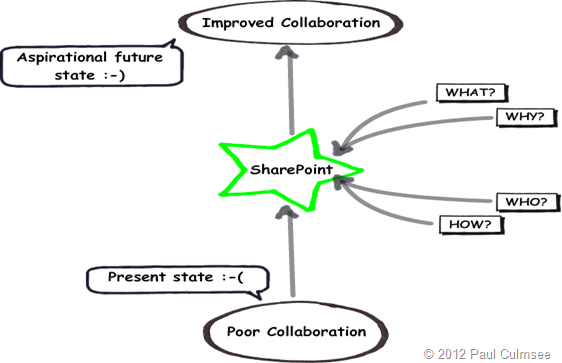
www.sevensigma.com.au


Demystifying SharePoint Performance Management Part 6 – The unholy trinity of Latency, IOPS and MBPS

Hi all

Welcome to part 6 on my series in making SharePoint performance management that little more digestible. To recap where we have been, I introduced the series by comparing lead versus lag indicators before launching into an examination of Requests Per Second (RPS) as a performance indicator. I spent 3 posts on RPS and then in the last post, we turned our attention to the notion of latency. We watched a Wiggles Video and then looked at all of the interacting components that work together just to load a SharePoint home page. I spent some time explaining that some forms of latency cannot be reduced because of the laws of physics, but other forms of latency are man made. This is when any one of the interacting components are sub-optimally configured and therefore introduce unnecessary latency into the picture. I then asserted that disk latency was one of the most common area that is ripe for sub-optimal configuration. I then finished that post by looking at how a rotational disk works, the strategies employed to mitigate latency (Cache, RAID, SAN’s etc.)

Now on the note of Cache, RAID and SAN’s Robert Bogue who I mentioned in part 1, has also just published an article on this topic area called Computer Hard Disk Performance – From the Ground Up. You should consider Robert’s article part 5.5 of this series of posts because it expands on what I introduced in the last post and also spans a couple of the things I want to talk about in this one (and goes beyond it too). It is an excellent coverage of many aspects of disk latency and I highly recommend you check it out).

Right! In this post, where will look more closely at latency and understand its relationship with two other commonly cited disk performance measures: IOPS and MBPS. To do so, lets go shopping!

Why groceries help to explain disk performance

image

Most people dislike having to wait in a line for a check-out at a supermarket and supermarkets know this. So they always try and balance the number of open check-out counters so that they can scale when things are busy, but not pay the operators to standing around when its quiet. Accordingly, it is common to walk into a store when its quiet and only find only one or two check-out counter open, even if the supermarket has a dozen or more of them.

The trend in Australian supermarkets nowadays is to have some modified check-out counters that are labelled as “express.” In these check-outs, you can only use them if you are buying 15 items or less. While the notion of express check-outs has been around forever, the more recent trend is to modify the design of express check-out counters to have very limited counter space and no moving roller that pushes your goods toward the operator. This discourages people with a fully-loaded trolley/cart to use the express lane because there is simply not enough room to unload the goods, have them scanned and put them back in the trolley. Therefore, many more shoppers can go through express counters than regular counters because they all have smaller loads.

This in turn frees up the “regular” check-out counters for shoppers with a large amount of goods. Not only do they have a nice long conveyor belt with plenty of room for shoppers to unload all of their goods onto and rolls to the operator, but often there will be another operator who puts the goods into bags for you as well. Essentially this counter is optimised for people who have a lot of goods.

Now if you were to measure the “performance” of express lanes versus regular lanes, I bet you would see two trends.

  • Express lanes would have more shoppers go through them per hour, but less goods overall
  • Regular lanes would have more goods go through them per hour, but less shoppers overall

With that in mind, lets now delve back into the world of disk IO and see if the trend holds true there as well.

Disk latency and IOPS

In the last post, I specifically focused on disk latency by pointing out that most of the latency in a rotational hard drive is from rotation time and seek time. Rotation time is time taken for the drive to rotate the disk platter to the data being requested and seek time is how long it takes for the hard drive’s read/write head to then be positioned over that data. Depending on how far the rotation and head have to move, latency can vary. Closely related to disk latency is the notion of I/O per second or “IOPS”. IOPS refer to the maximum number of reads and writes that can be performed on a disk in any given second. If we think about our supermarket metaphor, IOPS is equivalent to the number of shoppers that go through a check-out.

The math behind IOPS and how latency affects it is relatively straightforward. Let’s assume a fixed latency for each IO operation for a moment. If for example, your disk has a large latency… say 25 milliseconds between each IO operation, then you would roughly have 40 IOPS. This is because 1 second = 1000 milliseconds. Divide 1000 by 25 and you get 40. Conversely, if you have 5 milliseconds latency, you would get 200 IOPS (1000 / 5 = 200).

Now if you want to see a more detailed examination of IOPS/ latency and the maths behind it, take a look at an excellent post by Ian Atkin. Below I have listed the disk latency and IOPS figures he posted for different speed disks. Note that a 15k RPM disk came in at around 175-210 IOPS which suggests a typical latency average of between 4.7 and 5.7 milliseconds. (1000/175 = 5.7 and 1000/210 = 4.7). Note: Ian’s article explains in depth the maths behind the average calculation in this section of his post.

image

The big trolley theory of IOPS…

While that math is convenient, the real world is always different to the theoretical reality I painted above. In the world of shopping, imagine if someone with one or two trolleys full of goods like the picture below, decided to use the express check-out. It would mean that all of the other shoppers have to get annoyed and wait around for this shoppers goods to be scanned, bagged and put back into trolley. The net result of this is a reduced number of shoppers going through the check-out too.

image

While the inefficiencies of a supermarket is something that is easy to visualise for most people, disk infrastructure is less so. So while the size of our trolley has an impact on how many people come through a check-out, in the disk world, the size of the IO request has precisely the same effect. To demonstrate, I ran a basic test using a utility called SQLIO (which I will properly introduce you to in part 7) on one of my virtual machines. Below is the results of writing data randomly to a 500GB disk. In the first test we wrote to the disk using 64KB writes and in the second test we used 4KB writes. The results are below:

Size of Write IOPS Result
64KB 279
4KB 572

Clearly, writing 4KB of data over time resulted in a much higher IOPS than when using 64KB of data. But just because there is a higher IOPS for the 4KB write, do you think that is better performance?

Disk latency and MBPS

So far the discussion has been very IOPS focussed. It is now time to rectify this. In terms of the SQLIO test I performed above, there was one other performance result I omitted to show you – the Megabytes per second (MBPS) of each test. I will now add it to the table below:

Size of Write IOPS Result MBPS Result
64KB 279 17.5
4KB 572 2.25

Interesting eh? This additional performance metric paints a completely different picture. In terms of actual data transferred, the 4KB option did only 2.25 megabytes per second whereas the 64KB transferred almost 8 times that amount! Thus, if you were judging performance based on how much data has been transferred, then the 4KB option has been an epic fail. Imagine the response of 500 SharePoint users, loading the latest 30 megabyte annual report from a document library if SharePoint used 4KB reads … Ouch!

So the obvious question is why did a high IOPS equate to a low MBPS?

The answer is latency again (yup – it always comes back to latency). From the time the disk was given the request to the time it completed, writing 4KB simply doesn’t take as long to write as 64KB does. Therefore there are more IOPS that take place with smaller writes. Add to that, the latency from disk rotation and seek time per IO operation and you start to see why there is such a difference. Eric Slack at Storage Switzerland explains with this simple example:

As an illustration, let’s look at two ways a storage system can handle 7.5GB of data. The first is an application that requires reading ten 750MB files, which may take 100 seconds, meaning the transfer rate is 75MB/s and consumes 10 IOPS. The second application requires reading ten thousand 750KB byte files, the same amount of data, but consumes 10,000 IOPS. Given the fact that a typical disk drive provides less than 200 IOPS, the reads from the second application probably won’t get done in the same 100 seconds that the first application did. This is an example of how different ‘workloads’ can require significantly different performance, while using the same capacity of storage.

Now at this point if I haven’t completely lost you, it should become clear that each of the unholy trinity of latency, IOPS and MBPS should not be judged alone. For example, reporting on IOPS without having some idea of the nature of the IO could seriously mislead. To show you just how much, consider the next example…

Sequential vs. Random IO

Now while we are talking about the IO characteristics of applications, two really important point that I have neglected to mention so far is the range of latency and the impact of sequential IO.

The latency math I did above was deliberately simplified. Seek and rotation time are actually across a range of values because sometimes the disk does not have to rotate the spindle/move the head far. The result is a much reduced seek latency and accordingly, increased IOPS and MPBS. Nevertheless, the IO is still considered random.

Taking that one step further, often we are dealing with large sections of contiguous space on the hard disk. Therefore latency is reduced further because there is virtually no seek time involved. This is known as sequential access. Just to show you how much of a difference sequential access makes, I re-ran the two tests above, but this time writing to sequential areas of the disk and not random. With the reduced seek and rotation time, the difference in IOPS and MBPS is significant.

Size of Write IOPS Result MBPS Result
64KB 2095 131
4KB 4152 16

The IOPS and subsequent MBPS has improved significantly from the previous test to the tune of a 750% improvement. Nevertheless, the size of the request and its relation to IOPS and MPBS still holds true. The smaller the size of the IO request being read or written, the more IOPS requests can be sustained, but the less MBPS throughput can be achieved. The reverse then holds true with larger IO requests.

One conclusion that we can draw from this is that specifying IOPS or MBPS alone has the potential to really distort reality if one does not understand the nature of the IO request in terms of its characteristics. For example: Let’s say that you are told your disk infrastructure has to support 5000 IOPS. If you assumed a 4K IO size that is accessed sequentially, then far fewer disks would be required to achieve the result compared to a 64KB IO accessed randomly. In the 64KB case, you would need many disks in an array configuration.

SQL IO Characteristics

So now we get to the million dollar question. What sort of IO characteristics does SQL and SharePoint have?

I will answer this by again quoting from Ian Atkin’s brilliant “Getting the Hang of IOPS” article. Ian makes a really important point that is relevant to SQL and SharePoint in his article which I quote below:

The problem with databases is that database I/O is unlikely to be sequential in nature. One query could ask for some data at the top of a table, and the next query could request data from 100,000 rows down. In fact, consecutive queries might even be for different databases. If we were to look at the disk level whilst such queries are in action, what we’d see is the head zipping back and forth like mad -apparently moving at random as it tries to read and write data in response to the incoming I/O requests.

In the database scenario, the time it takes for each small I/O request to be serviced is dominated by the time it takes the disk heads to travel to the target location and pick up the data. That is to say, the disk’s response time will now dominate our performance.

Okay, so we know that SQL IO is likely to be random in nature. But what about the typical IO size?

Part of the answer to this question can be found in an appropriately titled article called Understanding Pages and Extents. It is appropriate because as far as SQL server database files and indexes are concerned, the fundamental unit of data storage in SQL Server is an 8KB page. The important point for our discussion is that Disk I/O many read and write operations are performed at the page level. Thus, one might assume that 8KB should be the size assumed when working with IOPS calculations because it is possible for SQL to write 8KB to disk at a time.

Unfortunately though, this is not quite correct for a number of reasons. Firstly, eight contiguous 8KB pages are grouped into something called an extent. Given than an extent is a set of 8 pages, the size of an extent is 64KB. SQL Server generally allocates space in a database on a per-extent basis and performs many reads across extents (64KB). Secondly, SQL Server also has a read-ahead algorithm that means SQL will try and proactively retrieve data pages that are going to be used in the immediate future. A read-ahead is typically from 1 to 128 pages for most editions which translates to between 8KB and 1024KB. (for the record, there is a huge amount of conflicting information online about SQL IO characteristics. Bob Door’s highly regarded SQL Server 2000 I/O basics article is the place to go for more gory detail if you find this stuff interesting).

A read-ahead interlude…

Before we get into SharePoint disk characteristics, it is worthwhile mentioning a great article by Linchi Shea called Performance Impact: Some Data Points on Read-Ahead.  Linchni did an experiment by disabling read-ahead behaviour in SQL Server and measured the performance of a query on 2 million rows. With read-ahead enabled, it took 80 seconds to complete. Without read-ahead it took 210 seconds. The key difference was the size of the IO requests. Without read-ahead the reads were all 8KB as per page size. With read-ahead, it was over 350KB per read. Linchi makes this conclusion:

Clearly, with read-ahead, SQL Server was able to take advantage of large sized I/Os (e.g. ~350KB per read). Large-sized I/Os are generally much more efficient than smaller-sized I/Os, especially when you actually need all the data read from the storage as was the case with the test query. From the table above, it’s evident that the read throughput was significantly higher when read-ahead was enabled than it was when read-ahead was disabled. In other words, without read-ahead, SQL Server was not pushing the storage I/O subsystem hard enough, contributing to a significantly longer query elapsed time.

So for our purposes, lets accept that there will be a range of IO sizes for read/writes to databases between 8KB to 1024KB. For disk IO performance testing purposes, lets assume that much of this is across the extent boundaries of 64KB. Based on our discussion of latency and MBPS where the larger the IO being worked with, the lower the IOPS, we can now get a better sense of just how much disk might need to be put into an array to achieve a particular IOPS target. As we saw with the examples earlier in this post, 64KB IO sizes result in more latency and lower IOPS. Therefore SharePoint components requiring a lot of IOPS may need some pretty serious disk infrastructure.

SharePoint IO Characteristics

This brings us onto our final point for this post. We need to understand what SharePoint components are IO intensive. The best place to start to determine this is page 29 of Microsoft’s capacity planning guide as it supplies a table listing the general performance requirements of SharePoint components. A similar table exists on page 217 of the Planning guide for server farms and environments for Microsoft SharePoint Server 2010. We will finish this post with a modified table that shows all the SharePoint components listed with medium to high IOPS requirements from the capacity planning guide, along with some of the comments from the server farm planning guide. This gives us some direction as to the SharePoint components that should be given particular focus in any sort of planning. Unfortunately, IOPS requirements are inconsistently written about in both documents. Sad smile

Service Application

Service Description

SQL Server IOPS

SharePoint Foundation Service

The core SharePoint service for content collaboration.

Almost all of the IOPS occurs in SharePoint content databases. IOPS requirements for content databases vary significantly based on how your environment is being used, and how much disk space and how many servers you have. Microsoft recommends that you compare the predicted workload in your environment to one of the solutions that they have tested. I will be covering this in part 8.

XXX

Logging Service

The service that records usage and health indicators for monitoring purposes.

The Usage database can grow very quickly and require significant IOPS. Use one of the following formulas to estimate the amount of IOPS required:
115 × page hits/second
5 × HTTP requests

XXX

SharePoint Search Service

The shared service application that provides indexing and querying capabilities. There is a dedicated document that among other things that covers IOPS requirements.

For the Crawl database, search requires from 3,500 to 7,000 IOPS.
For the Property database, search requires 2,000 IOPS.

XXX

User Profile Service

The service that powers the social scenarios in SharePoint Server 2010 and enables My Sites, Tagging, Notes, Profile sync with directories and other social capabilities

No mention of IOPS is made in both the planning guides

XXX

Web Analytics Service

The service that aggregates and stores statistics on the usage characteristics of the farm.

The planning guide suggests readers consult a dedicated planning guide for web analytics, but unfortunately no mention of IOPS is made, let alone a recommendation 

XXX

Project Server Service

The service that enables all the Microsoft Project Server 2010 planning and tracking capabilities in addition to SharePoint Server 2010

No mention of IOPS is made in both the planning guides

XXX

PowerPivot Service

The service to display PowerPivot enabled Excel worksheets directly from the browser

No mention of IOPS is made in both the planning guides

XX

(In case it is not obvious, XX – Indicates medium IOPS cost on the resource and XXX indicates high IOPS cost on the resource)

Conclusion (and coming up next)

Whew! I have to say, that was a fairly big post, but I think we have broken the back of latency, IOPS and MBPS. In the next post, we will put all of this theory to the test by looking at the performance counters that allow us to measure it all, as well as play with a couple of very useful utilities that allow us to simulate different scenarios. Subsequent to that, we will look at these measures from a lead indicator perspective and then examine some of Microsoft’s results from their testing.

Until then, thanks very for reading. As always, comments are greatly appreciated.

Paul Culmsee
www.hereticsguidebooks.com


« Previous PageNext Page »
Today is: Wednesday 3 June 2026 -