Back to Cleverworkarounds mainpage
 

Demystifying SharePoint Performance Management Part 4 – Making use of RPS

Hi all. Welcome to part 4 of a rapidly growing series of posts on trying to take some of the mystery out of SharePoint performance management. Essentially I am trying to write a sort of preamble to the existing Microsoft resources which are extremely comprehensive and full of wisdom, but suffer from being rather large and a lot to get through. To remind you, we have the 307 page “Planning guide for server farms and environments for Microsoft SharePoint Server 2010,” the 367 page “Capacity Planning for Microsoft SharePoint Server 2010” and the lesser known, but equally excellent 23 pages of “Analysing Microsoft SharePoint Products and Technologies Usage” whitepaper.

My hope that this series establishes just enough groundwork for someone to find the aforementioned documents an easier read and get more out of them.

Now this series is starting to turn out like the “Humble Tribute to the Leave Form” series, which I never actually finished (*blush*). Basically the number of posts to complete it exceeded the time I had available to write it (and my interest shifted to other things). For this topic of performance, I originally thought this series might be 4 posts but we are now at post 4 and haven’t actually gotten off the Requests Per Second (RPS) performance counter yet.

So let’s cracking…

Command line alert (again)

I have a tendency to have fun at the expense of IT stereotypes in my posts, and in the interests of fairness, I turned this around in part 3 I and took the piss out of the “I’m business, not technical” wusses instead. You all know who you are… you tend to shun anything that involves the command line as if it was the most complex thing ever. So continuing in that vein, if I managed not to completely scare the crap out of you in the last post, you should have the excellent log parser utility installed and have created a file called LogWithSeconds.csv.  If you have not, go back and read part 3. To remind you quickly, the log parser command that we used to generate the LogWithSeconds.csv file was:

logparser -i:IISW3C file:GetSeconds.txt?startdate=’2011-11-15′+enddate=’2011-11-15′ -o:csv >LogWithSeconds.csv

The key point being that you can specify a date range for the logs you want to process.

For the rest of this article, we continue to play in the command-line playground and utilise some different logparser scripts to derive some useful information. In addition, we will utilise a bit of PowerShell, as well as check out another great free utility written by Nikander & Margriet Bruggeman (more on that later).

Also at this point I need to call out and credit the excellent work of Mike Wise. His aforementioned 2009 whitepaper called“Analysing Microsoft SharePoint Products and Technologies Usage” is the basis for what I cover here. I urge you to download and read this article as it goes into more detail on Log Parser and its uses beyond just RPS alone. Although I have based my stuff off Mike’s work, there are some differences that you will see as we progress through this article.

Distribution of RPS

The one thing that past examination of RPS can give you is a distribution of requests over time. Understanding the distribution (or shape of RPS) helps you to identify patterns to SharePoint use, such as peak or heavy usage times. To that end, the first log parser script will generate a CSV file that can be imported into a tool like excel to chart the distribution of RPS. The log parser script below has been modified from one in Mike’s document, because he assumes you are only looking at 24 hours of log data. In my case, I assume that you might want to profile more than 24 hours (essentially the date range specified in the log parser command above).

The command to generate a per-second RPS distribution is below. The only difference between my script and the one Mike did is I added the “date” field to the SQL to account for multiple days:

logparser -i:CSV -o:CSV “select count(*) as ct,date as Date, secs,max(hh) as hh,max(mi) as mi,max(ss) as ss from e:\temp\LogWithSeconds.csv group by date,secs order by date, secs” -q >RPSDistribution.csv

This command will create a new CSV file called RPSDistribution.CSV that contains the count of requests at any given second during the specified date range. So let’s open RPSDistribution.CSV into Excel and create a chart (I assume you know how to do that). Here is what it looks like…
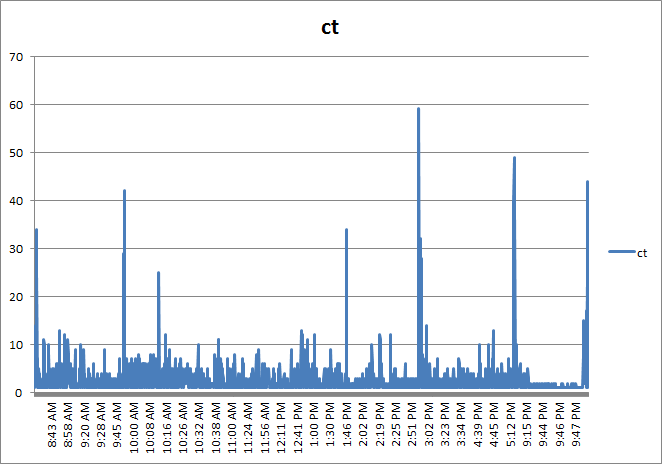
image

Now I wonder if you can spot the issue with this chart? If you look closely, note that the times are not evenly spaced. This occurs because the generated file (RPSDistribution.CSV) only contains entries for the seconds during the day where there were requests. If no requests were made, then nothing was recorded. This skews the graph because if we want to see the distribution of requests, we also need to know the seconds of the day where there were zero requests. The graph you see above has effectively squeezed out all of the quiet times.

To work around this issue, I wrote the following PowerShell script. For you non-programmers, I am not going to explain all of the gory logic of this script, but just be assured that it adds entries stating zero RPS for every second of the day where there were no requests made. This will normalise the data across time and make a much more meaningful graph.

(If this is starting to hurt your brain, stick with me… paste the code below into notepad, save it in the Log parser installation folder and call it AddNulsPerSec.ps1)

param([string]$inputcsv, [string]$outputcsv = "output.csv")
if (!$inputcsv) {
    write-host "The -inputcsv parameter has not been specified. Script cannot run without it";
    exit;
}
if (Test-Path -path $outputcsv) { remove-item $outputcsv }
$x = 0;
$y = import-csv $inputcsv
write-output "ct,date,secs,minu,hh,mm,ss" | add-content -path $outputcsv
$y | foreach {
    if ($x -gt 86399) { $x = 0 }
    $s = [int]$_.secs;
    while ($s -gt $x) {
        $d = [datetime]$_.date;
        $d=$d.AddSeconds($x)
        $ss = $d.tostring("ss")
        $mm = $d.tostring("mm")
        $hh = $d.tostring("HH")
        $minu = [int]$hh * 60 + [int]$mm
        $output = "0" + "," + $_.Date + "," + $x + "," + $minu + "," + $ss + "," + $mm + "," + $hh
        write-output $output
        $x++;
   }
   $output = $_.ct + "," + $_.Date + "," + $_.secs + "," + $_.minu + "," + $_.ss + "," + $_.mi + "," + $_.hh
   write-output $output
   $x++;
} | add-content -path $outputcsv

The above script takes two command-line parameters: inputCSV and outputCSV. inputCSV is the file name to process and outputCSV is the resulting file with the 0 RPS entries added. Note that to run this script you will need to use a PowerShell window, rather than a command prompt. Below is the command I used:

PS C:\Program Files (x86)\Log Parser 2.2> .\AddNulsPerSec.ps1 -inputcsv RPSDistribution.CSV -outputcsv RPSDistributionNormalised.CSV

This created the file RPSDistributionNormalised.CSV. I charted this file in Excel and we now have a time-normalised distribution. Take a look at the X axis. This looks more logical now as the times are more evenly spaced. It seems from looking at this, that peak times are between 10am-11am, although one could argue that a lot of the day was fairly busy, with a bit of a lull between 2 and 3pm.
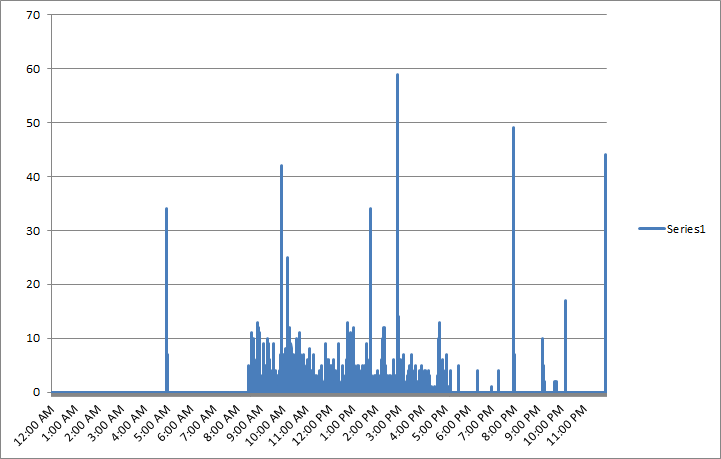
image

So what else can we do?

Right, so apart from the utility of being able to get a sense of when there are a lot of requests versus quiet times, can we find out anything else useful? Much insight can be gleaned from Mike Wise’s document, so here I will cover a couple of things specific to RPS.

RPS distribution for certain users

Let’s go back to the LogWithSeconds.CSV we started with and find out the top users for the period being examined. In the log parser command below we are grouping users by total requests they made, ordering from largest to smallest..

logparser -i:csv “select top 20 count(*) as ct,cs-username as user from LogWithSeconds.csv group by user order by ct desc”

A snippett of the output from this command is below:

ct  user
--- --------------------
840 DOMAIN\Jame.Smith
688 DOMAIN\searchcrawler
614 DOMAIN\Ian.Jones
508 DOMAIN\Steve.Hill
357 DOMAIN\Ant.Cough
313 DOMAIN\dom.davies
260 DOMAIN\matthew.martin

Hmm, I notice that the search crawler account (DOMAIN\searchcrawler) was busy during that day. It appears to have made the second largest number of requests. How about we work out when the search crawler was active by filtering the requests just for this user. Perhaps search crawls are active during peak times and introducing unnecessary load on the server?

First up, lets create the RPS distribution, but this time just for the search crawler account (note the SQL WHERE clause in the command below)

logparser -i:CSV -o:CSV “select count(*) as ct,date as Date, secs,max(hh) as hh,max(mi) as mi,max(ss) as ss,cs-username as user from LogWithSeconds.csv where user=’DOMAIN\searchcrawler’  group by user, date,secs order by date, secs” -q>crawler.csv

Now we need to pad CRAWLER.CSV out with 0 entries to time-normalise it for the seconds in which it wasn’t active…  back to my PowerShell script…

PS C:\Program Files (x86)\Log Parser 2.2> .\AddNulsPerSec.ps1 -inputcsv crawler.csv -outputcsv CrawlerNormalised.csv

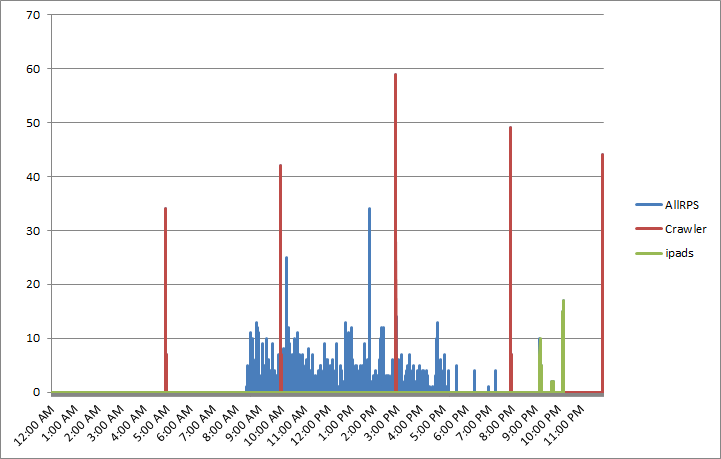
I then took the results from CrawlerNormalised.csv and added them to my previous RPS distribution chart in Excel. Straight away you can see the incremental crawl schedule of this SharePoint installation is 5 hourly. (Note the red lines at regular intervals)
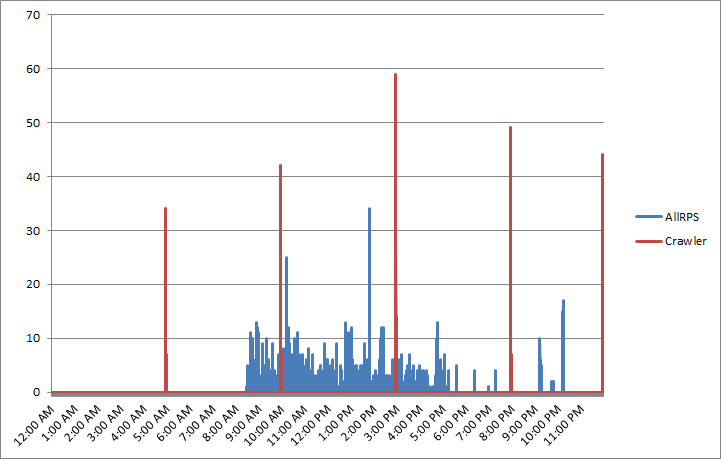
image

RPS Distribution for certain clients…

Another use for RPS is to see the pattern of the various applications that interact with SharePoint. Aside from the trusty old browser, we also have Office clients, Windows Explorer, SharePoint Workspace, and 3rd party tools like SharePlus. All of these applications identify themselves to SharePoint via the use of something called the user-agent [stored in the LogWithSeconds.CSV file in a column called cs(user-agent)]. The user agent field is actually part of the HTTP standard and not SharePoint specific, but let’s take advantage of it…

logparser -i:CSV “select count(*) as ct,cs(user-agent) from LogWithSeconds.CSV group by cs(user-agent) order by ct desc” -q >BrowserList.csv

Now, I am not going to paste the complete output of running this command because unfortunately, browsers have a lot of variation in their user agent string. Nevertheless, here are some of results from the BrowserList.csv file…

867 Mozilla/4.0+(compatible;+MSIE+7.0;+Windows+NT+5.1;+Trident/4.0;+.NET+CLR+1.1.4322;+.NET+CLR+2.0.50727;+.NET+CLR+3.0.04506.30;+.NET+CLR+3.0.04506.648;+.NET+CLR+3.0.4506.2152;+.NET+CLR+3.5.30729;+yie8)
688 Mozilla/4.0+(compatible;+MSIE+4.01;+Windows+NT;+MS+Search+6.0+Robot)
386 harmon.ie+for+Notes
333 Mozilla/5.0+(Windows;+U;+Windows+NT+6.1;+en-US;+rv:1.9.2.24)+Gecko/20111103+Firefox/3.6.24
250 SharePlus+2.9.5+(iPad;+iPhone+OS+4.2.1;+en_AU)
99  MSFrontPage/12.0
95  Mainsoft+SharePoint+Integrator
68  Microsoft+Office/14.0+(Windows+NT+6.1;+OWSSUPP+14.0.6112;+Pro)
34  Microsoft-WebDAV-MiniRedir/6.1.7600
24  Microsoft+Office+Outlook+2010+(14.0.6112)+Windows+NT+6.1
23  Microsoft+Office+Sharepoint+Workspace+2010+(14.0.6112)+Windows+NT+6.1
4   MobileSafari/7534.48.3+CFNetwork/548.0.3+Darwin/11.0.0

Now looking at these strings, it doesn’t take long to get a sense of the different ways SharePoint has been accessed. How about we generate a distribution of RPS for all iPad devices or apps? Here’s the log parser command along with my time normaliser script.

logparser -i:CSV -o:CSV “select count(*) as ct,date as Date, secs,max(hh) as hh,max(mi) as mi,max(ss) as ss,cs(User-Agent) as ua from LogWithSeconds.CSV where ua like ‘%iPad%’ group by ua, date,secs order by date, secs”-q >iPads.csv

.\AddNulsPerSec.ps1 -inputcsv E:\temp\ipads.csv -outputcsv e:\temp\iPadNormalised.csv

… and the result when added into Excel? iPads were definitely the evening tool of choice that day! Note the green spikes around 9-10pm.
image

Taking it further…

I won’t do much more on RPS now. Hopefully I have given you enough to do much more clever things than I have covered. As I stated in part 2, the nice thing about RPS is that it can be derived from web server logs and these tend to go back quite far in time. Given that the core sequence of events to produce the graphs above are essentially 3 scripts and can be done quickly, it becomes quite easy to sample different points in history. For example: Let’s say that we want to compare the 15th of November 2011 with the 10th of March 2012 to see whether there is an increase/decrease in requests and what this looks like. All we have to do is change the date, re-run the scripts and do some charting magic.

  • logparser -i:IISW3C file:GetSeconds.txt?startdate=’2012-3-10′+enddate=’2012-3-10′ -o:csv >LogWithSeconds.csv
  • logparser -i:CSV -o:CSV “select count(*) as ct,date as Date, secs,max(hh) as hh,max(mi) as mi,max(ss) as ss from LogWithSeconds.csv group by date,secs order by date, secs” -q >RPSDistribution.csv
  • AddNulsPerSec.ps1 -inputcsv RPSDistribution.CSV -outputcsv RPSDistributionNormalised.CSV

We can look at the distribution for an entire week is we wanted to…

  • logparser -i:IISW3C file:GetSeconds.txt?startdate=’2012-5-7′+enddate=’2011-5-11′ -o:csv >LogWithSeconds.csv
  • logparser -i:CSV -o:CSV “select count(*) as ct,date as Date, secs,max(hh) as hh,max(mi) as mi,max(ss) as ss from LogWithSeconds.csv group by date,secs order by date, secs” -q >RPSDistribution.csv
  • AddNulsPerSec.ps1 -inputcsv RPSDistribution.CSV -outputcsv RPSDistributionNormalised.CSV

Also in case you didn’t notice in part 3, my GetSeconds.txt logparser script that performs the initial processing of the IIS logfiles, also stores the minute of the day, as well as seconds of the day. This allows you to perform all of the same things I have specified in this article except it can be Requests Per Minute (RPM) instead. This would allow you to work with a larger date range without such big files (provided RPM is appropriate for what you want). Consult the “Analysing Microsoft SharePoint Products and Technologies Usage” whitepaper for more information on logparser queries for RPM scenarios.

Remember that the virtues of your web server logs go much further than RPS. We saw a hint of this in my examples of showing RPS for just one user or one device type. But this really is just scratching the surface of what can be gleaned via logparser. There are many excellent logparser scripts around, and a quick google search should give you plenty of examples.

Also remember that there are many more sophisticated ways to process this sort of data. For example, putting it into Analysis Services and slicing/dicing it via PowerPivot, or using something like RRDTool. To that end, I would also be seriously remiss if I did not make you aware of the SharePoint Flavored Weblog Reader tool. It was created by Nikander & Margriet Bruggeman who run the SharePoint Dragons blog – probably the best SharePoint performance related blog out there. This tool was specifically designed to make it easier to analyse IIS logs for SharePoint specific information. It is a command line tool, but much simpler and slicker than the methods I introduced in this post. Instead of specifying a date range you specify the number of items from the logs to process. For example:

sfwr.exe 250,000 “E:\LOGS\IIS_WWW\W3SVC1045333159”

Here are some of the things it reports on for you straight out of the box:

  • Most busy days of the week, most requested pages and requested pages per day.
  • The average, max and min request times per URI, InfoPath URI and Report Server URI.
  • Browser percentages, dead links, failed pages, percentage of error page requests.
  • Requests per hour per day, requests per hour, requests per user (also per week and month)
  • Slowest requests, top requests per hour, top visitors.
  • Traffic per day and per week in MB.
  • Unique visitors per day, week and month

Reflections…

At the end of the day, while examining the pattern of RPS can be very handy in offering insights into how your web application (SharePoint or otherwise) performs, as a lead indicator it is always going to be fairly wishy washy. As soon as you turn your attention to the future, many variables come into play that you cannot predict as accurately as you’d like. Your existing webserver logs can offer you a lot of ways to help make a more informed prediction, but at the end of the day, one has to take into account the new unique features of SharePoint 2010, how they will be used and so forth.

I will be returning to this theme, once we examine some other performance indicators, but hopefully at this point, you might find some aspects of Microsoft’s Capacity planning for Microsoft SharePoint Server 2010 guide less intimidating. Page 43 in particular has some great material that builds upon what we cover here. To quote Microsoft…

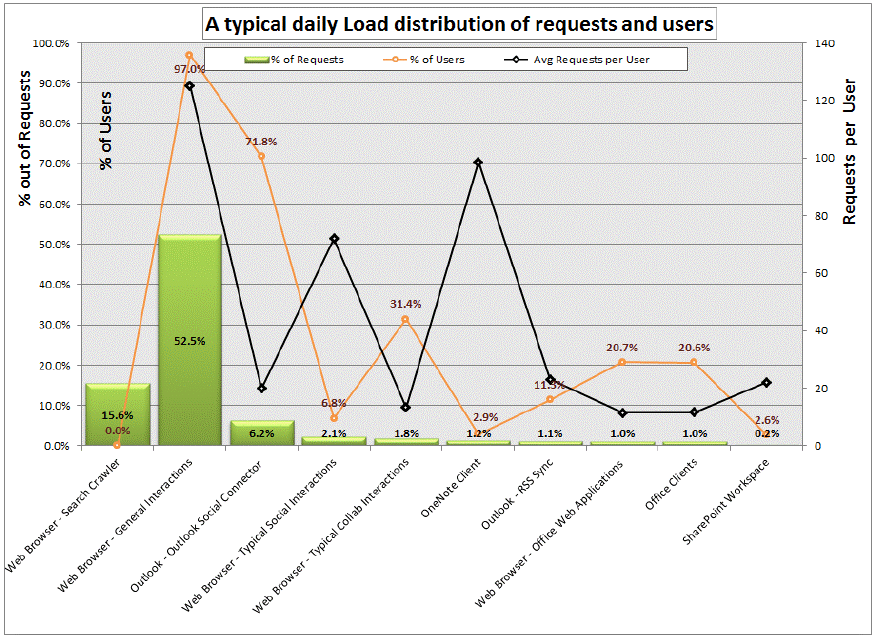
Understanding the distribution of the requests based on the clients applications that are interacting with the farm can help predict the expected trend and load changes after migrating to SharePoint Server 2010. As users transition to more recent client versions such as Office 2010, and start using the new capabilities new load patterns, RPS and total requests are expected to grow

I will leave you with a terrific example a graph that Microsoft created using IIS logs (on page 44 of the aforementioned document). This is a view of a typical day in an internal Microsoft environment serving what is deemed “a typical social solution”. It shows just how much additional load a new feature can introduce (in this case, Outlook Social Connector feature is 6.2% of the total number requests). The combination of different clients on the X axis, with the % distribution of overall and per-user requests on the Y axis is really handy.
image

Coming up next…

At this point I think we have covered RPS sufficiently, and dovetailed in nicely to Microsoft documentation – particularly pages 41-47 of the SharePoint 2010 Capacity Planning Guide. Our next stop will be looking at another much misunderstood lead indicator for performance – disk IO and latency. Once again I will introduce you to a couple of useful tools and offer you what I think is the best way to approach disk performance requirements that will make life easier for you and your storage people.

Until then, thanks for reading…

Paul Culmsee

HGBP_Cover-236x300


Demystifying SharePoint Performance Management Part 3 – Getting at RPS

Hi and welcome back to this series aimed at making SharePoint performance management a little more digestible. In the first post we examined the difference between lead and lag indicators and in the second post, we specifically looked at the lead indicator of Requests Per Seconds (RPS) and its various opportunities and issues. In this episode we are actually going to do some real work at the – wait for it – the command line! As a result the collective heart rates of my business oriented readers – who are avid users of the “I’m business, not technical” cliché  – will start to rise since anything that involves a command line is shrouded in mystique, fear, uncertainty and doubt.

For the tech types reading this article, please excuse the verboseness of what I go through here. I need to keep the business types from freaking out.

Okay… so in the last post I said that despite its issues in terms of being a reliable indicator of future performance needs, RPS has the advantage that it can be derived from your existing deployment. This is because the information needed is captured in web server (IIS) logs over time. Having this past performance means you have a lag indicator view of RPS, which can be used as a basis to understand what the future might look like with more confidence than some arbitrary “must handle x RPS.”

Now just because RPS is held inside web server log files, does not mean it is easy to get to. In this post, I will outline the 3 steps needed to manipulate logfiles to extract that precious RPS goodness. The utility that we are going to use to do this is Log parser.

Now a warning here: This post assumes your existing deployment runs on Microsoft’s IIS platform v7 (the webserver platform that underpins SharePoint 2010). If you are running one of the myriad of portal/intranet platforms, you are going to have to take this post as a guide and adjust to your circumstances.

Step 1: Getting Log parser

Installing Log parser is easy. Just install version 2.2 as you would any other tool. It will run on pretty much any Windows operating system. Once installed, it will likely reside in the C:\Program Files (x86)\Log Parser 2.2 folder. (Or C:\Program Files\Log Parser 2.2 if you have an older, 32 bit PC).

There you go business types – that wasn’t so hard was it?

Step 2: Getting your web server logs

After the relative ease of getting log parser installed, we now need the logs themselves to play with. We are certainly not going to mess with a production system so we will need to copy the log files for your current portal to the PC where you installed Log parser. If you do not have access to these log files, call your friendly neighbourhood systems administrator to get them for you. If you have access (or do not have a friendly neighbourhood systems administrator), then you will need to locate the files you need. Here’s how:

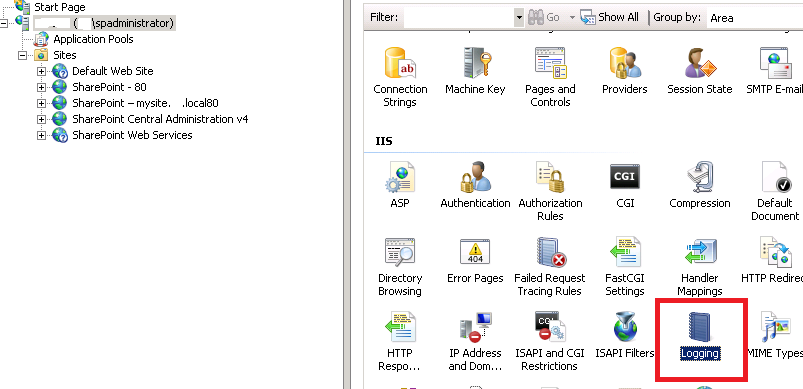
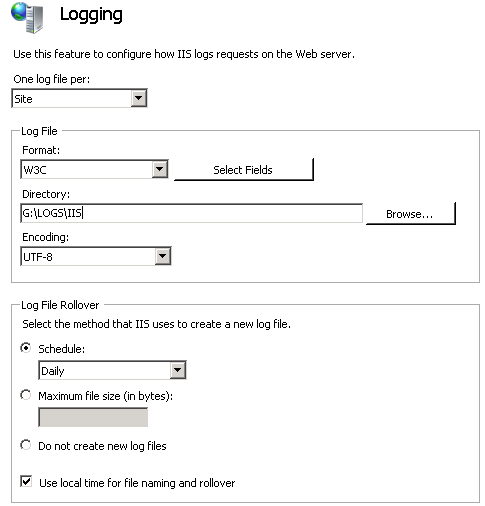
Assuming you have access to your web front end server/s, you can load Internet Information Services (IIS) Manager from Start->All programs->Administrative tools on the server. Using this tool we can find out the location of the IIS log files as well as the specific logs we need. By default IIS logs are stored in C:\inetpub\logs\LogFiles, but it is common for this location to be changed to somewhere else. To confirm this in IIS manager, click on the server name in the left pane, then click on the Logging” icon in the right pane. In the example below, we can see that the IIS logfiles live in G:\LOGS\IIS folder (I always move the logfiles off C:\ as a matter of principle). While you are there, pay special attention to the fairly nondescript “Use local time for file naming and rollover” tickbox. We are going to return to that later…

image  image

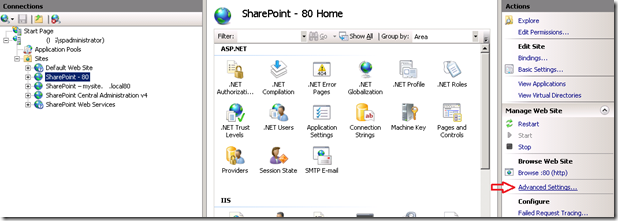
Okay so we know where the log files live, so lets work out the sub-folder for the specific site. Back in the left hand pane now, expand “Sites” and find the web site you want to profile for RPS. When you have found it, select it and find the “Advanced Settings” link and click it.

image_thumb5

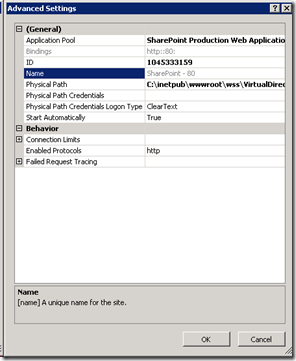
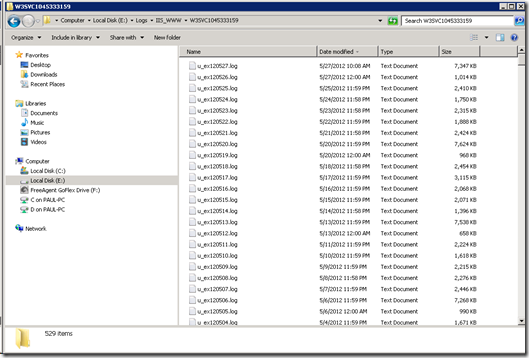
On the next screen you will see ID of the site. It will be a large number – something like 1045333159. Take a note of this ID, because all IIS logs for this site will be stored in a folder with the name “W3SVC” prepended to this ID (eg W3SVC1045333159). Thus the folder we are looking for is G:\LOGS\IIS\W3SVC1045333159. Copy the contents of this folder to the computer where you have installed logparser to. (In my example below I copied the logs to E:\LOGS\IIS_WWW\W3SVC1045333159 on a test server).

image10_thumb2 image14_thumb

Step 3: Preparation of log files…

Okay, so now we have our log files copied to our PC, so we can start doing some log parser magic. Unfortunately default IIS logfile format does not make RPS reporting particularly easy and we have to process the raw logs to make a file that is easier to use. Now business people – stay with me here… the payoff is worth the command line pain you are about to endure! Smile

First up, we will make use of the excellent work of Mike Wise (You can find his original document here), who created a script for log parser that processes all of the logfiles and creates a single (potentially very large) file that:

  • includes a new field which is the time of the day converted into seconds
  • splits the date and timestamp up into individual bits (day, month, hour, minute, etc.) This makes it easier to do consolidated reports
  • excludes 401 authentication requests (way back in part 1 I noted that Microsoft excludes authentication traffic from RPS)

I have pasted a modified version of Mike’s log parser script below, but before you go and copy it into Notepad, make sure you check two really important things.

  1. Be sure to change the path in the second last line of the script to the folder where you copied the IIS logs to (In my case it was E:\LOGS\IIS_WWW\W3SVC1045333159\*.log)
  2. Check whether IIS is saving your logfiles using UTC timestamps or local timestamps. (Now you know why I told you to specifically make note of the “Use local time for file naming and rollover” tickbox earlier). If the box is unticked, the logs are in UTC time and you should use the first script pasted below. If it is ticked, the logs are in local time the second script should be used.

UTC Script

select EXTRACT_FILENAME(LogFilename),LogRow, date, time, cs-method, cs-uri-stem, cs-username,
c-ip, cs(User-Agent), cs-host, sc-status, sc-substatus, sc-bytes, cs-bytes, time-taken,

add(
    add(
         mul(3600,to_int(to_string(to_localtime(to_timestamp(date,time)),'hh'))),
         mul(60,to_int(to_string(to_localtime(to_timestamp(date,time)),'mm')))
    ),
    to_int(to_string(to_localtime(to_timestamp(date,time)),'ss'))
) as secs,

add(
    mul(60,to_int(to_string(to_localtime(to_timestamp(date,time)),'hh'))),
    to_int(to_string(to_localtime(to_timestamp(date,time)),'mm'))
) as minu,

to_int(to_string(to_localtime(to_timestamp(date,time)),'yy')) as yy,
to_int(to_string(to_localtime(to_timestamp(date,time)),'MM')) as mo,
to_int(to_string(to_localtime(to_timestamp(date,time)),'dd')) as dd,
to_int(to_string(to_localtime(to_timestamp(date,time)),'hh')) as hh,
to_int(to_string(to_localtime(to_timestamp(date,time)),'mm')) as mi,
to_int(to_string(to_localtime(to_timestamp(date,time)),'ss')) as ss,
to_lowercase(EXTRACT_PATH(cs-uri-stem)) as fpath,
to_lowercase(EXTRACT_FILENAME(cs-uri-stem)) as fname,
to_lowercase(EXTRACT_EXTENSION(cs-uri-stem)) as fext

from e:\logs\iis_www\W3SVC1045333159\*.log

where sc-status<>401 and date BETWEEN TO_TIMESTAMP(%startdate%, 'yyyy-MM-dd') and TO_TIMESTAMP(%enddate%, 'yyyy-MM-dd')

Local Time Script

select EXTRACT_FILENAME(LogFilename),LogRow, date, time, cs-method, cs-uri-stem, cs-username,
c-ip, cs(User-Agent), cs-host, sc-status, sc-substatus, sc-bytes, cs-bytes, time-taken,

add(
   add(
      mul(3600,to_int(to_string(to_timestamp(date,time),'hh'))),
      mul(60,to_int(to_string(to_timestamp(date,time),'mm')))
   ),
   to_int(to_string(to_timestamp(date,time),'ss'))
) as secs,

add(
   mul(60,to_int(to_string(to_timestamp(date,time),'hh'))),
   to_int(to_string(to_timestamp(date,time),'mm'))
) as minu,

to_int(to_string(to_timestamp(date,time),'yy')) as yy,
to_int(to_string(to_timestamp(date,time),'MM')) as mo,
to_int(to_string(to_timestamp(date,time),'dd')) as dd,
to_int(to_string(to_timestamp(date,time),'hh')) as hh,
to_int(to_string(to_timestamp(date,time),'mm')) as mi,
to_int(to_string(to_timestamp(date,time),'ss')) as ss,
to_lowercase(EXTRACT_PATH(cs-uri-stem)) as fpath,
to_lowercase(EXTRACT_FILENAME(cs-uri-stem)) as fname,
to_lowercase(EXTRACT_EXTENSION(cs-uri-stem)) as fext

from e:\logs\iis_www\W3SVC1045333159\*.log

where sc-status<>401 and date BETWEEN TO_TIMESTAMP(%startdate%, 'yyyy-MM-dd') and TO_TIMESTAMP(%enddate%, 'yyyy-MM-dd')

After choosing the appropriate script and modifying the second last line, save this file into the Log parser installation folder and call it GETSECONDS.TXT.

For the three readers who *really* want to know, the key part of what this does is to take the timestamp of each log entry and turn it into what second of the day it is and what minute of the day it is. So assuming the timestamp is 8:35am at the 34 second park, the formula effectively adds together:

  • 8 * 3600 (since there are 3600 seconds in an hour)
  • 35 * 60 (60 seconds in a minute)
  • 34 seconds

= 30934 seconds

  • 8 * 60 (60 minutes in an hour)
  • 35 minutes

= 515 minutes

Now that we have our GETSECONDS.TXT script ready, let’s use Log parser to generate our file that we will use for reporting. Open a command prompt (for later versions of windows make sure it is an administrator command prompt) and change directory to the LogParser installation location.

C:\Program Files (x86)\Log Parser 2.2>

Now decide a date to report on. In my example, the logs go back two years and I only want the the 15th of November 2011. The format for the dates MUST be “yyyy-mm-dd” (e.g. 2011-11-15).

Type in the following command (substituting whatever date range interests you):

logparser -i:IISW3C file:GetSeconds.txt?startdate=’2011-11-15’+enddate=’2011-11-15′ -o:csv >e:\temp\LogWithSeconds.csv

  • The –i parameter specifies the type of input file. In this case the input file is IISW3C (IIS weblog format)
  • The ?startdate parameter specifies the start  date you want to process
  • The +enddate parameter specifies the end date you want to process
  • The –o parameter specifies the type of output file. In this case the output file is CSV format
  • The –q parameter says not to prompt the user for anything
  • The >LogWithSeconds.csv says to save the CSV output into a file called LogsWithSeconds.csv

So depending on how many logfiles you had in your logs folder, things may take a while to process. Be patient here… after all, it might be processing years of logfiles (and now you know why we didn’t do this in a production install!). Also be warned, the resulting LogWithSeconds.csv that is created will be very very big if you specified a wide date range. Whatever you do, do not open this file with notepad if its large! We will be using additional log parser scripts to interrogate it instead.

Conclusion

Right! If you got this far and your normally not a command line kind of person… well done! If you are a developer, thanks for sticking with me. You should have a newly minted file called LogWithSeconds.csv and you are ready to do some interrogation of it. In the next post, I will outline some more logparser scripts that generate some useful information!

Until then, thanks for reading

Paul Culmsee

p.s Why not check out my completely non SharePoint book entitled “The Heretics Guide to Best Practices”. It recently won a business book award.


An opportunity to learn about aligning SharePoint to business goals in Vancouver

Hi all

Just a quick note to mention that I’m off travelling again, this time swapping 39 degree Celsius summer weather of Perth for somewhere between –6 to 5 degrees of Canada. I’ll be spending a week in Canada running two classes – one public and one private. The first class is a public SharePoint Governance and Information Architecture class running in Vancouver. MVP Michal Pisarek of SharePointAnalystHQ fame will be there and it should be a terrific two days of learning how to think a little differently to govern SharePoint strategy and deployment. You will learn a bunch of new skills, techniques and perspectives. Best of all, the skills learnt are applicable for many other types of complex projects.

The class flyer is here: http://www.sevensigma.com.au/wp-content/uploads/downloads/2011/02/SPIA.pdf

The registration site is here: http://spiavancouver.eventbrite.com/

In terms of course coverage and content it is worth noting the research performed by the Eventful group (who run the Share conferences). According to them, the hot topic areas for SharePoint are governance, user adoption, change management, information architecture and user empowerment. These sort of topics are the sort where plenty of people tell you what the issues are, but are typically lighter on what to do about them. This class covers why this is, as well as dealing with all of these areas and presents detailed strategies, tools and methods to address them. Furthermore, aside from the 500+ page manual of meaty governance goodness, as a take home, we supply a CD for attendees with a sample performance framework, governance plan, SharePoint ROI calculator and sample mind maps of Information Architecture.

At last count there were 5 places left for the Vancouver class, so if you have been pondering if it is a worthwhile class, check out some of the feedback from the class web site. Also, if you know anybody who might be interested in attending, please pass the course flyer and registration site details to them. We always end up with people who tell us “Ah – if only I knew about the class!!”

Thanks for reading

Paul Culmsee

www.sevensigma.com.au

www.hereticsguidebooks.com


The end of a journey… my book is now out!

About bloody time eh?

The Heretics Guide to Best Practices is now available through Amazon, Barnes and Noble and iUniverse.


]image

In Paul and Kailash I have found kindred spirits who understand how messed up most organizations are, and how urgent it is that organizations discover what Buddhists call ‘expedient means’—not more ‘best practices’ or better change management for the enterprise, but transparent methods and theories that are simple to learn and apply, and that foster organizational intelligence as a natural expression of individual intelligence. This book is a bold step forward on that path, and it has the wonderful quality, like a walk at dawn through a beautiful park, of presenting profound insights with humor, precision, and clarity.”

Jeff Conklin, Director, Cognexus Institute


Hugely enjoyable, deeply reflective, and intensely practical. This book is about weaving human artistry and improvisation, with appropriate methods and technologies, in order to pool collective intelligence and wisdom under pressure.”

Simon Buckingham Shum, Knowledge Media Institute, The Open University, UK.


“This is a terrific piece of work: important, insightful, and very entertaining. Culmsee and Awati have produced a refreshing take on the problems that plague organisations, the problems that plague attempts to fix organisations, and what can be done to make things better. If you’re trying to deal with wicked problems in your organisation, then drop everything and read this book.”

Tim Van Gelder, Principal Consultant, Austhink Consulting


“This book has been a brilliantly fun read. Paul and Kailash interweave forty years of management theory using entertaining and engaging personal stories. These guys know their stuff and demonstrate how it can be used via real world examples. As a long time blogger, lecturer and consultant/practitioner I have always been served well by contrarian approaches, and have sought stories and case studies to understand the reasons why my methods have worked. This book has helped me understand why I have been effective in dealing with complex business problems. Moreover, it has encouraged me to delve into the foundations of various management practices and thus further extend my professional skills.”

Craig Brown, Director, Evaluator


Seattle is go! SharePoint Governance and Information Architecture class

For one night only USA…

Ah, Erica Toelle – what a legend! Thanks to Erica and Fpweb, I’m thrilled to confirm that the Seattle SharePoint Governance and Information Architecture class is all systems go. Save the date as its very likely indeed to be the only SPIA class in the USA in 2011.  If it wasn’t enough that Erica will be joining me, but Ruven Gotz will be there too.

Thursday and Friday, May 05-06, 2011. (http://spiaseattle.eventbrite.com/)

The location is the Silvercloud Inn, 14632 SE Eastgate Way Bellevue, WA 98004

Map picture

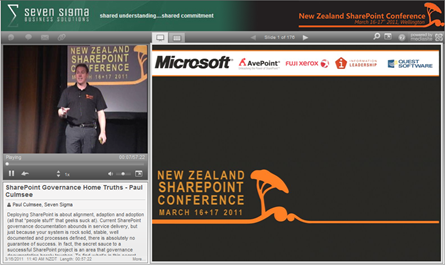
In this multimedia extravaganza of a blog post, lets take a closer look at this class and what you can expect. Below is a snippet of a talk I did in New Zealand called “SharePoint Governance  Home Truths”. This clip shows a little diagnostic test that I do on my audience, to see whether they have experienced the visible signs of wicked problems. If you want to know why you should go to SPGov+IA, then take my 2 minute test yourself.

Do you need SPGov+IA? Take the two minute test to find out…

If the two minute test has taken your fancy, then you might want to see what is in store on the course itself. Below is the first half-hour of module 1 (in the form of a conference session), as well as the accompanying slide deck.

image 

View more presentations from paulculmsee

Course Information:

imageDownload Course Outline (PDF)

Download Class Flyer (PDF)

Most people understand that deploying SharePoint is much more than getting it installed.  Despite this, current SharePoint governance documentation abounds in service delivery aspects. However, just because your system is rock-solid, stable, well-documented and governed through good process, there is absolutely no guarantee of success.  Similarly, if Information Architecture for SharePoint was as easy as putting together lists, libraries and metadata the right way, then why doesn’t Microsoft publish the obvious best practices?

In fact, the secret to a successful SharePoint project is an area that the governance documentation barely touches.

This Master Class pinpoints the critical success factors for SharePoint Governance and Information Architecture and rectifies this blind spot.  Paul Culmsee’s style takes an ironic and subversive view on how SharePoint Governance really works within organizations while presenting a model and the tools necessary to get it right.

Drawing on inspiration from many diverse sources, disciplines and case studies, Paul Culmsee has distilled the "what" and "how" of governance down to a simple and accessible, yet rigorous and comprehensive set of tools and methods that organizations, large and small, can utilize to achieve the level of commitment required to see SharePoint become a successful part of your enterprise.

Some workshop sessions are hands on, we provide all of the tools and samples needed but please bring your own laptop.

Course Structure:

The course is split into 7 modules, run across two days.

Module 1: SharePoint Governance f-Laws 1-17:

Module 1 is all about setting context in the form of clearing some misconceptions about the often muddy topic of SharePoint governance. This module sheds some light onto these less visible SharePoint governance factors in the form of Governance f-Laws, which will also help to provide the context for the rest of this course

  • Why users don’t know what they want
  • The danger of platitudes
  • Why IT doesn’t get it
  • The adaptive challenge – how to govern SharePoint for the hidden organisation
  • The true forces of organisational chaos
  • Wicked problems and how to spot them
  • The myth of best practices and how to determine when a “practice” is really best

Module 2: The Shared Understanding Toolkit – part 1:

Module 2 pinpoints the SharePoint governance blind spot and introduces the Seven Sigma Shared Understanding Toolkit to counter it. The toolkit is a suite of tools, patterns and practices that can be used to improve SharePoint outcomes. This module builds upon the f-laws of module 1 and specifically examines the “what” and “why” questions of SharePoint Governance. Areas covered include how to identify particular types of problems, how to align the diverse goals of stakeholders, leverage problem structuring methods and constructing a solid business case.

Module 3: The Shared Understanding Toolkit – part 2:

Module 3 continues the Seven Sigma Shared Understanding Toolkit, and focuses on the foundation of “what” and “why” by examining the “who” and “how”. Areas covered include aligning stakeholder expectations, priorities and focus areas and building this alignment into a governance structure and written governance plan that actually make sense and that people will read. We round off by examining user engagement/stakeholder communication and training strategy.

Module 4: Information Architecture trends, lessons learned and key SharePoint challenges

Module 4 examines the hidden costs of poor information management practices, as well as some of the trends that are impacting on Information Architecture and the strategic direction of Microsoft as it develops the SharePoint road map. We will also examine the results from what other organisations have attempted and their lessons learned. We then distil those lessons learned into some the fundamental tenants of modern information architecture and finish off by examining the key SharePoint challenges from a technical, strategic and organisational viewpoint.

Module 5: Information organisation and facets of collaboration

Module 5 dives deeper into the core Information Architecture topics of information structure and organisation. We explore the various facets of enterprise collaboration and identify common Information Architecture mistakes and the strategies to avoid making them.

Module 6: Information Seeking, Search and metadata

Module 6 examines the factors that affect how users seek information and how they manifest in terms of patterns of use. Building upon the facets of collaboration of module 5, we examine several strategies to improving SharePoint search and navigation. We then turn our attention to taxonomy and metadata, and what SharePoint 2010 has to offer in terms of managed metadata

Module 7: Shared understanding and visual representation – documenting your Information Architecture

Module 7 returns to the theme of governance in the sense of communicating your information architecture through visual or written form. To achieve shared understanding among participants, we need to document our designs in various forms for various audiences.

Putting it all together: From vision to execution

Attendees will be taking home a manual ~480 pages, containing the Seven Sigma Shared Understanding Toolkit CD with a sample performance framework, governance plan, SharePoint ROI calculator (Spreadsheet), sample mind maps of Information Architecture. These tools are the result of years of continual development and refinement "out in the field" by Paul Culmsee and have only been recently released to the public through this Master Class.

More Information:

Refund Policy:

No refunds will be issued for attendee cancellations once payment is recieved.  Class cancellation by the organizer will result in a refund less transaction fees.

image

http://spiaseattle.eventbrite.com/


How to use Charlie Sheen to improve your estimating…

Monte Carlo simulations are cool – very cool. in this post I am going to try and out-do Kailash Awati in trying to explain what they are. You see, I am one of these people who’s eyes glaze over the minute you show me any form of algebra. Kailash recent wrote a post to explain Monte Carlo to the masses, but he went and used a mathematical formula (he couldn’t help himself), and thereby lost me totally. Mind you, he used the example of a drunk person playing darts. This I did like a lot and gave me the inspiration for this post.

So here is my attempt to explain what Monte Carlo is all about and why it is so useful.

I have previously stated, that vaguely right is better than precisely wrong. If someone asks me to make an estimate on something, I offer them a ranged estimate, based on my level of certainty. Thus for example, if you asked me to guess how many beers per day Charlie Sheen has been knocking back lately, I might offer you an estimate of somewhere between 20 and 50 pints. I am not sure of the exact number (and besides, it would vary on a daily basis anyway) , so I would rather give you a range that I feel relatively confident with, than a single answer that is likely to be completely off base.

Similarly, if you asked me how much a SharePoint project to “improve collaboration” would cost, I would do a similar thing. The difference between SharePoint success and Charlie Sheen’s ability to keep a TV show afloat is that with SharePoint, there are more variables to consider. For example, I would have to make ranged estimates for the cost of:

  • Hardware and licensing
  • Solution envisioning and business analysis
  • Application development
  • Implementation
  • Training and user engagement

Now here is the problem. A CFO or similar cheque signer wants certainty. Thus, if you give them a list of ranged estimates, they are not going to be overly happy about it. For a start, any return on investment analysis is by definition, going to have to pick a single value from each of your estimates to “run the numbers”. Therefore if we used the lower estimate (and therefore lower cost) for each variable, we would inevitably get a great return on investment. If we used the upper limit to each range, we are going to get a much costlier project.

So how to we reconcile this level of uncertainty?

Easy! Simply run the numbers lots and lots (and lots) of times – say, 100,000 times, picking random values from each variable that goes into the estimate. Count the number of times that your simulation is a positive ROI compared to a negative one. Blammo – that’s Monte Carlo in a nutshell. It is worth noting that in my example, we are assuming that all values between the upper and lower limits are equally likely. Technically this is called a uniform distribution – but we will get to the distribution thing in a minute.

As a very crappy, yet simple example, imagine that if SharePoint costs over $250,000 it will be considered a failure. Below are our ranged estimates for the main cost areas:

Item Lower Cost Upper Cost
Hardware and licensing $50,000 $60,000
Solution envisioning and business analysis  $20,000 $70,000
Application development $35,000 $150,000
Implementation $25,000 $55,000
Training and User engagement $10,000 $100,000
Total $140,000 $435,000

If you add up my lower estimates we get a total of $140,000 – well within our $250,000 limit. However if my upper estimates turn out to be true we blow out to $435,000 – ouch!

So why don’t we pick a random value from each item, add them up, and then repeat the exercise 100,000 times. Below I have shown 5 of 100,000 simulations.

Item Simulation 1 Simulation 2 Simulation 3 Simulation 4 [snip] Simulation 100,000
Hardware and licensing 57663 52024 53441 58432 51252
Solution envisioning and business analysis 21056 68345 42642 37456 64224
Application development 79375 134204 43566 142998 103255
Implementation 47000 25898 25345 51007 35726
Training and User engagement 46543 73554 27482 87875 13000
Total Cost 251637 354025 192476 377768 267457

So according to this basic simulation, only 2 out of 5 shown are below $250,000 and therefore a success according to my ROI criteria. Therefore we were successful only only 40% of the time (2/5 = .4). By that measure, this is a risky project (and we haven’t taken into account discounting for risk either).

“Thats it?”, I hear you say? Essentially yes. All we are doing is running the numbers over and over again and then looking at the patterns that emerge from this. But that is not the key bit to understand. Instead, the most important thing to understand with Monte Carlo properly is to understand probability distributions. This is the bit that people mess up on and the bit that people are far too quick to jump into mathematical formulae.

But random is not necessarily random

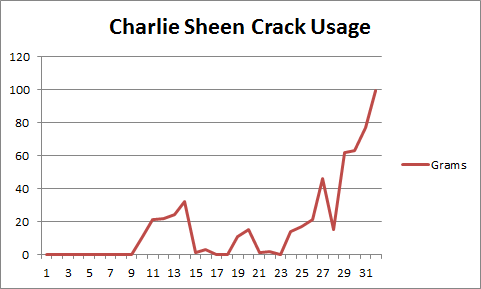
Let’s use Charlie Sheen again to understand probability distributions. If we were to consider the amount of crack he smokes on a daily basis, we could conclude it is between 0 grams  and 120 grams. The 120g upper limit is based on what Charlie Sheen could realistically tolerate (which is probably three times the amount of normal humans). If we plotted this over time, it might look like the example below (which is the last 31 days):

image

So to make a best guess at the amount he smokes tomorrow, should we pick random values between 0 and 120 grams?  I would say not. Based on observing the chart above, you would be likely to choose values from the upper end of the range scale (lately he has really been hitting things hard and we all know what happens when he hangs with starlets from the adult entertainment industry).

That’s the trick to understanding a probability distribution. If we simply chose a random value it would likely not be representative of the recent range of values. We still have to pick a value from a range of possibilities, but some values are more likely than others. We are not truly picking random values at all.

The most common probability distribution people use is the old bell curve – you probably saw it in high school. For many variables that go into a monte carlo, it is a perfectly fine distribution. For example, the average height of a human male may be 5 foot 6. Some people will be larger and some will be smaller, but you would find that there would be more people closer to this mid-point than far away from it, hence the bell shape.

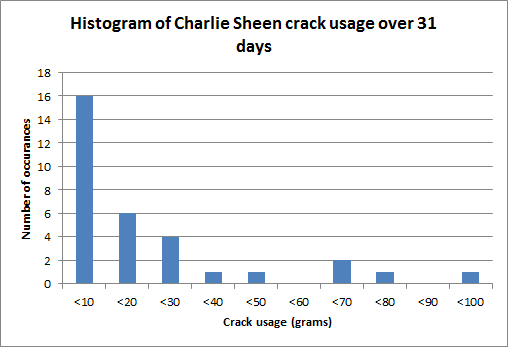
Let’s see what Charlie Sheen’s distribution looks like. Since we have our range of values, for each days amount of crack usage, let’s divide up crack usage into ranges of grams and see how much Charlie has consumed. The figure is below:

Amount Daily occurrences %
0-10g 16 50%
10-20g 6 19%
20-30g 4 13%
30-40g 1 3%
40-50g 1 3%
50-60g 0 0%
60-70g 2 6%
70-80g 1 3%
80-90g 0 0%
90-100g 1 3%
100-120g 0 0%

As you can see, according to the 50% of the time Charlie was not hitting the white stuff particularly hard. There 16 occurrences where Charlie ingested less than 10 grams. What sort of curve does this make? The picture below illustrates it.

image

Interesting huh? If we chose random numbers according to this probability distribution, chances are that 50% of the time, we would get a value between 0 and 10 grams of crack being smoked or shovelled up his nasal passages. Yet when we look at the trend of the last 10 days, one could reasonably expect that its likely that tomorrows value would be significantly higher than zero. In fact there were no occurrences at all of less than 10 grams in a single day in the last 10 days.

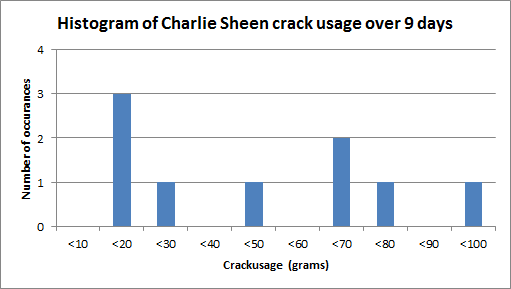
Now let’s change the date range, and instead look at Charlie’s last 9 days of crack usage. This time the distribution looks a bit more realistic based on recent trends. Since he has not been well behaved lately, there were no days at all where his crack usage was less than 10 grams. In fact 4 of the 9 occurrences were over 60 grams.

Amount Daily occurrences %
0-10g 0 0%
10-20g 3 33%
20-30g 1 11%
30-40g 0 0%
40-50g 1 11%
50-60g 0 0%
60-70g 2 22%
70-80g 1 11%
80-90g 0 0%
90-100g 1 11%
100-120g 0 0%

image

This time, utilising a different set of reference points (9 days instead of 31), we get very different “randomness”. This gets to one of the big problems with probability distributions which Kailash tells me is called the Reference class problem. How can you pick a representative sample? In some situations completely random might actually be much better than a poorly chosen distribution.

Back to SharePoint…

So imagine that you have been asked to estimate SharePoint costs and you only have vague, ranged estimates. Lets also assume that for each of the variables that need to be assigned an estimate, you have some idea of their distribution. For example if you decide that SharePoint hardware and licensing really could be utterly random between $50000-$60000 then pick a truly random value (a uniform distribution) from the range with each iteration of the simulation. But if you decide that its much more likely to come in at $55000 than it is $50000, then your “random” choice will be closer to the middle of the range more often than not – a normal distribution.

So the moral of the story? Think about the sort of distribution that each variable uses. It’s not always a bell curve. its also not completely random either. In fact you should strive for a distribution that is the closest representation of reality. Kailash tells me that a distribution “should be determined empirically – from real data – not fitted to some mathematically convenient fiction (such as the Normal or Unform distributions). Further, one should be absolutely certain that the data is representative of the situation that is being estimated.”

Since SharePoint often relies on some estimations that offer significant uncertainty, a Monte Carlo simulation is a good way to run the numbers – especially if you want to see how many variables with different probability distributions combine to produce a result. Run the simulation enough times, you will produce a new probability distribution that represents all of these variables.

Just remember though – Charlie Sheen reliably demonstrates that things are not often predictable and that past values are no reliable indicator of future values. Thus a simulation is only as good as your probability distributions in the first place


Thanks for reading


Paul Culmsee

www.sevensigma.com.au


p.s A huge thanks to Kailash for checking this post, offering some suggestions and making sure I didn’t make an arse of myself.


Improve your stakeholders “Crapness Calibration ™” for SharePoint Information Architecture success

Hi All

Here is my simple, patent pending method to use to help users design good SharePoint sites. It combines two very effective IA methods into one and its amazing how it turns people from wanting 1990’s era sites complete with horizontal scrolling banners with animated GIF’s into usability and IA gurus within minutes.

The tools of the trade you need for this method is:

So now you know the ingredients, let’s run through the recipe

  1. Put key stakeholders into a room (ensure the ones with poor taste are there together)
  2. Visit websitesthatsuck.com and review the 2010 contenders for worst websites of the year. (For what its worth, my personal vote is Yale School of Art)
  3. Have a good laugh and discuss all the crappy aspects to those sites – make particular note of the write-up on websitesthatsuck for each contender
  4. With the group’s sucky website radar now primed, have them load up their existing intranet (if they are really big organisation, go around to various departmental sites around the intranet). This time they will not laugh, due to the effect of your “crapness calibration” ™ exercise, they will see many faults in the existing site straight away.
  5. At this point, crank out Balsamiq and start to wireframe what the site should look like while you have the fleeting moment of clarity (crapness calibration fades with time and needs to be re-primed). The wisdom of the crowd should ensure that most of the common mistakes will be avoided there and then.
    • Statistically, one of every three times you do this, there is always one user who’s taste is so bad that calibration will take another round of deprogramming. So if you have someone that persists with crap taste or has ideas that 99% of the user base would balk at, move to the 2009 hall of shame for sucky sites. Faced with the reaction from their peers, as well as the parallels that can be drawn between their current site and the contenders, it usually does the trick.
    • Also be sure to draw attention to sites that have similar underlying concepts, but where one works well and the other has agonising lameness. For example, the New York Times compared to Havenworks. Discuss the layout, colours, fonts, images, navigation, search and the like and relate back to the site being envisioned.

In about 30-90 minutes, one of two things will happen.

  1. You will have a pretty good wireframe or three
  2. The group will realise that they have more soul searching to do.

Although your business development manager will whine at you if outcome 2 happens, consider it a good thing. You will be saving yourself and the participants a mountain of stress later and have them thinking more holistically about the outcomes they are trying to achieve.

(Final serious bit at the end alert)

What you will notice when performing this process, is that with a recent and clear frame of reference, some of the biases that people carry with them can be temporarily lifted. In some ways, this exercise is very similar to the “down the pub” calibration of estimates exercise that I wrote about previously. The trick is to find ways to change the lens people look through to see other aspects or facets to the problem at hand.

To that end, if you are in the UK or nearby, consider coming to my Governance and Information Architecture Master Class in London with Andrew Woodward and Ant Clay. Lots of other (more serious and rigorous) methods for developing shared understanding will be covered.

Thanks for reading

Paul Culmsee

www.sevensigma.com.au


Why I’ve been quiet…

As you may have noticed, this blog has been a bit of a dead zone lately. There are several very good reasons for this – one being that a lot of my creative energy has been going into co-writing a book – and I thought it was time to come clean on it.

So first up, just because I get asked this all the time, the book is definitely *not* “A humble tribute to the leave form – The Book”! In fact, it’s not about SharePoint per se, but rather the deeper dark arts of team collaboration in the face of really complex or novel problems.

It was late 2006 when my own career journey took an interesting trajectory, as I started getting into sensemaking and acquiring the skills necessary to help groups deal with really complex, wicked problems. My original intent was to reduce the chances of SharePoint project failure but in learning these skills, now find myself performing facilitation, goal alignment and sensemaking in areas miles away from IT. In the process I have been involved with projects of considerable complexity and uniqueness that make IT look pretty easy by comparison. The other fringe benefit is being able to sit in a room and listen to the wisdom of some top experts in their chosen disciplines as they work together.

Through this work and the professional and personal learning that came with it, I now have some really good case studies that use unique (and I mean, unique) approaches to tackling complex problems. I have a keen desire to showcase these and explain why our approaches worked.

My leanings towards sensemaking and strategic issues would be apparent to regular readers of CleverWorkarounds. It is therefore no secret that this blog is not really much of a technical SharePoint blog these days. The articles on branding, ROI, and capacity planning were written in 2007, just before the mega explosion of interest in SharePoint. This time around, there are legions of excellent bloggers who are doing a tremendous job on giving readers a leg-up onto this new beast known as SharePoint 2010.

BBP (3)

So back to the book. Our tentative title is “Beyond Best Practices” and it’s an ambitious project, co-authored with Kailash Awati – the man behind the brilliant eight to late blog. I had been a fan of Kailash’s work for a long time now, and was always impressed at the depth of research and effort that he put into his writing. Kailash is a scarily smart guy with two PHD’s under his belt and to this day, I do not think I have ever mentioned a paper or author to him that he hasn’t read already. In fact, usually he has read it, checked out the citations and tells me to go and read three more books!

Kailash writes with the sort of rigour that I aspire to and will never achieve, thus when the opportunity of working with him on a book came up, I knew that I absolutely had to do it and that it would be a significant undertaking indeed.

To the left is a mock-up picture to try and convey where we are going with this book. See the guy on the right? Is he scratching his head in confusion, saluting or both? (note, this is our mockup and the real thing may look nothing like this)

This book dives into the seedy underbelly of organisational problem solving, and does so in a way that no other book has thus far attempted. We examine why the very notion of “best practices” often makes no sense and have such a high propensity to go wrong. We challenge some mainstream ideas by shining light on some obscure, but highly topical and interesting research that some may consider radical or heretical. To counter the somewhat dry nature of some of this research (the topics are really interesting but the style in which academics write can put insomniacs to sleep), we give it a bit of the cleverworkarounds style treatment and are writing in a conversational style that loses none of the rigour, but won’t have you nodding off on page 2. If you liked my posts where I use odd metaphors like boy bands to explain SharePoint site collections, the Simpsons to explain InfoPath or death metal to explain records versus collaborative document management, then you should enjoy our journey through the world of cognitive science, memetics, scientific management and Willy Wonka (yup – Willy Wonka!).

Rather than just bleat about what the problems with best-practices are, we will also tell you what you can do to address these issues. We back up this advice by presenting a series of practical case studies, each of which illustrates the techniques used to address the inadequacies of best practices in dealing with wicked problems. In the end, we hope to arm our readers with a bunch of tools and approaches that actually work when dealing with complex issues. Some of these case studies are world unique and I am very proud of them.

Now at this point in the writing, this is not just an idea with an outline and a catchy title. We have been at this for about six months, and the results thus far (some 60-70,000 words) have been very, very exciting. Initially, we really had no idea whether the combination of our writing styles would work – whether we could take the degree of depth and skill of Kailash with my low-brow humour and my quest for cheap laughs (I am just as likely to use a fart joke if it helps me get a key point across)…

… But signs so far are good so stay tuned 🙂

Thanks for reading


Paul Culmsee

www.sevensigma.com.au


A simple way to improve your estimating (and a cool pub trick) – Conclusion

…and we’re back!

Well… that was a long commercial break wasn’t it 🙂

In case you missed part 1 of our version of the show “deal or no deal”, you missed the big cliff-hanger and you really should read part 1 first. For the rest of you, to quickly recap, I came out of the closet and admitted by secret teenybopper shame, told the world that my wife had a teenage thing for Jean Claude Van Damme, showed the effect of beer goggles and introduced the notion of cognitive bias and how it can affect judgement.

i also demonstrated how, by altering the frame of reference, to a problem something that at first seems completely unquantifiable “how the hell do I know how many SharePoint developers drive yellow cars?”, is actually not as “impossible” as you may first think.

At the end of the last post I left you with a $10000 dilemma. You had to make a “deal or no deal” decision about going with your estimate about SharePoint developers who own yellow cars, or to instead cast your lot with a bag of marbles with a 9 in 10 chance of winning the prize. Just to refresh your memory, here is the salient part of the pub conversation.

  • Me: Okay, so you are 90% sure that here are between 300 and 2000 SharePoint developers in the world with a yellow car?
  • Them: Yes
  • Me: So, let’s make this like the game show “deal or no deal”. If you are right and the answer is within your range, you will win $10000. BUT you have an alternative…
  • Them: Ok…
  • Me: What if I were to present you with a bag containing 9 red marbles and 1 black marble and offer you $10000 if you pull out a red marble. Pull the one black marble, and you miss out on the money. Do you want to stick to your estimate or do you want to draw a marble?

So have you decided? Now be honest and see how you went against the 4 outcomes that I have experienced when trying this on people. Here are the possible answers in order of popularity…

  1. The person chooses to pull from the bag of marbles rather than their ranged estimate. (This is the predominant answer for all people I have tried this with – perhaps 70-75% of all responses).
  2. The person chooses to use their estimate over the bag of marbles. (perhaps 25% of people have answered with this option)
  3. Upon hearing the bag option, the person wants to change their ranged estimate. (Happened to me once)
  4. The person doesn’t care which method.. (never happened to me)

So which is the right answer to this question?

(drumroll) Lets tackle the possible answer in order of likelihood.

“Take the marble! take the maaaaaarble!”

For the 70 odd percent of you who opted to take your chances with the bag of marbles, GONG! you lose!

Better double check your estimates in future because you have demonstrated that you are over-confident in your estimates. In other words, you are suffering from optimism bias. To explain why, think about the original question carefully. I asked originally for a ranged estimate that you were 90% confident with.

I then presented an alternative that has a 9 out of 10 chance of success – also 90%. From a statistical point of view, you should be completely ambivalent as to which option to use. Therefore, despite being asked for a range that you were 90% confident with, the range you actually estimated is not really 90% at all. It has to be less than 90% for you to prefer a clear 9/10 probability.

So that is why you are so stressed and busy! You keep giving crap estimates that make life harder for you! 🙂 Either that or you are too nice and when your project manager looks at you with those big, sad project manager eyes, your heart melts and you relent.

Isn’t that cool in a nerdy way? It is very interesting to see people’s faces as the penny drops to this logic and they suddenly realise just how bad some of their past estimates have been as a result. The consolation prize is just about 4 out of 5 people do exactly the same as you and take the marbles.

“No deal, I will stick with my estimate”

For the smaller group who decide that their estimate is preferred, you also lose.

In this case, the reason why should be pretty obvious. You are so paranoid about getting it wrong, that you have made an estimate that is more like 95% or even 99% confident. Why? your range is too wide for 90% because when presented with a clear 9/10 chance of success, you chose your original estimate. While that may sound like you are confident, in reality you are a bit of a wuss, because in fact you are under confident with your estimate. So grow some balls you weenie 🙂

Honorary mention – “I want to change my estimate”

At the Best Practice Conference in DC, I attempted this pub trick on Yoav Lurie from Synteractive, who is much more of a business and strategic thinker than us IT nerds. His response I think, deserves an honorary mention for being the closest to winning the game. In this example, I asked him to estimate in feet, the wingspan of a Boeing 747. I knew instantly that he was a good estimator because of the logic he used to come to a range.

“Hmm, well an aircraft seat is maybe one and a half feet, and there will be 10 seats in the cabin, with two passages that are probably two feet in width…so that ads up to…”

What do you notice about what Yoav did? Straight away, he related the wingspan of an aircraft (a clear unknown), to something he could make a reasonable estimate of (the width of an aircraft seat). After all, we have all sat in an aircraft seat in sardine (economy) class and know how cramped it is. He knew there were three rows of seats and related this to the width of the cabin, which he then related to the size of the wing. Deducing that the wing might be 4 to 6 times the width of the cabin, he then was able to make a very good ranged estimate of the overall wingspan of the plane.

I was very impressed at his estimate and how he arrived at it, but I still got him 🙂

As soon as I presented him with the bag of marbles alternative, without missing a beat he said “I want to change my estimate”. It took only a split second of presenting a clear 90% probability made Yoav realise that his estimate was not 90% and he was still a little overconfident.

That being said, Yoav’s method of relating something known to help frame the reference to something unknown is the only time anyone has used any sort of rigour in forming an estimate and very impressive for the pub setting 🙂

The right answer

Okay, so as you may have guessed by now, the right answer is to shrug your shoulders and say “I don’t care” or wave your hand at me and say “pfft, whatever”. (This is one of the few times saying you couldn’t care less is the right answer). In doing so, you have placed equal weight upon the choices, based on the assumption that both are 90% probabilities.

Neat pub trick huh? It certainly gets people thinking.

How to calibrate yourself

Douglas Hubbard talks about “calibrated estimates” in his books and has an appendix of calibration questions, that are designed to help you perceive and account for cognitive bias in your estimating.

What you should take away from this exercise is that when asked to estimate on something you are uncertain about, make your initial estimate. Then, pretend you are in the game show and you have to pick between this estimate and the marble. If you feel that you would take the marble over your estimate, increase the width of your range until you feel that it doesn’t matter which option you pick.

Conversely, if you are one of the wimps who are under confident, then reduce the width of your range, until you feel that you have no particular preference of your estimate vs. the marbles.

In the same way that reframing a problem led from something being unquantifiable to something that indeed had a upper and lower range, by reframing the estimate against a unambiguous probability such as a bag of 10 marbles with 9 red, helps you to account for cognitive bias in your estimates.

Conclusion

So to reiterate my key points to this post

  1. Many things that seem unquantifiable are easier to quantify than you think, once you think in terms of ranged estimates and probability.
  2. Your bad taste in fashion and music when you were a teenager still manifests itself today and it is called cognitive bias.
  3. There are easy methods that you can use to calibrate yourself better so that your estimating radar is more finely tuned.

Most importantly of all however, you learned that my wife liked Jean Claude Van Damme in the 80’s and you know that I am in big trouble when she reads this! 😛

Thanks for reading

Paul


« Previous Page

Today is: Wednesday 3 June 2026 -